# Altshops

# Activating panel elements in the Alt shops module

# ![Screenshot_2020-04-29_at_19.12.41.png](https://knowledge.tauceti-digital.com/uploads/images/gallery/2024-11/10027081419164.png) Getting started

Some changes in the admin panel require additional activation in the Alt shops module in order to be visible to the customers on the store's website.

Table of contents:

1. [Alt shop](#bkmrk-%C2%A0-1)
    1. [Default alt shop](#bkmrk-default-alt-shop)
2. [Activating an element in the Alt shops module](#bkmrk-%C2%A0-2)

---

# ![Screenshot_2020-04-29_at_19.12.41.png](https://knowledge.tauceti-digital.com/uploads/images/gallery/2024-11/10027081419164.png) Alt shop

<span class="wysiwyg-color-black" style="color: #44549b;">![info2.svg](https://knowledge.tauceti-digital.com/uploads/images/gallery/2024-11/10027081424156.png) **Remember**</span><span class="wysiwyg-color-black" style="display: block; margin-top: 10px;">Alt shop - an alternative version of an online store. The main idea of the functionality is to provide the ability to create separate offers like different promotions, product prices, or even with a different activity status of individual page elements (static subpages, promotional pages, products), which are presented to different groups of store customers.  
</span>

One of the main scenarios for using alt shops is to provide people who participate in Member Club (You can find more about Member club in the **\[UNDER CONSTRUCTION\]** article) with a separate offer where they can enjoy a fixed discount, such as 10% off.

Originally, the functionality was also to be used for A/B testing.

<div class="page" id="bkmrk--1" title="Page 1"><div class="section"><div class="layoutArea"><div class="column">  
<div class="page" title="Page 1"><div class="section"><div class="layoutArea"><div class="column">  
</div></div></div></div></div></div></div></div>### Default alt shop  


The starting point is always the alt shop with **id = 1**. This is from the point of view of the system: always existing and always active alt shop.

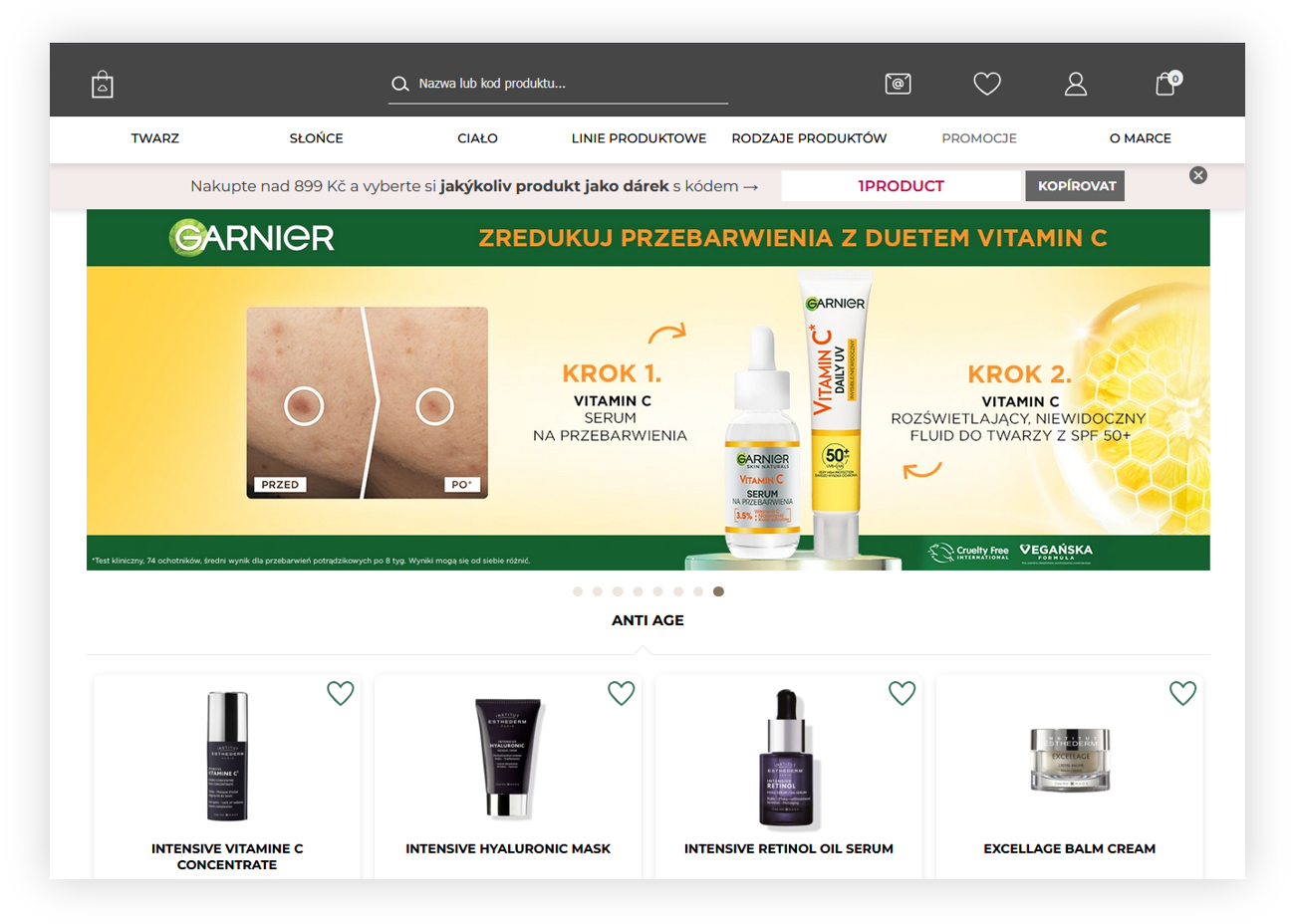
Often, the default alt shop is defined in the panel by business administrators as “alt shop 0” or “alt shop default”. Because of administrators' habits, it is possible to activate the alt shop default by adding the URL parameter **?yras=0** and **?yras=default** to the page address, for example:

```
<a href="https://www.yves-rocher.cz/?yras=0" target="_self">https://www.yves-rocher.cz/?yras=0 </a>
```

```
<a href="https://www.yves-rocher.cz/?yras=default" style="background-color: #f7f7f7; font-family: monospace, monospace; font-size: 1em; white-space: pre;" target="_self">https://www.yves-rocher.cz/?yras=default</a>
```

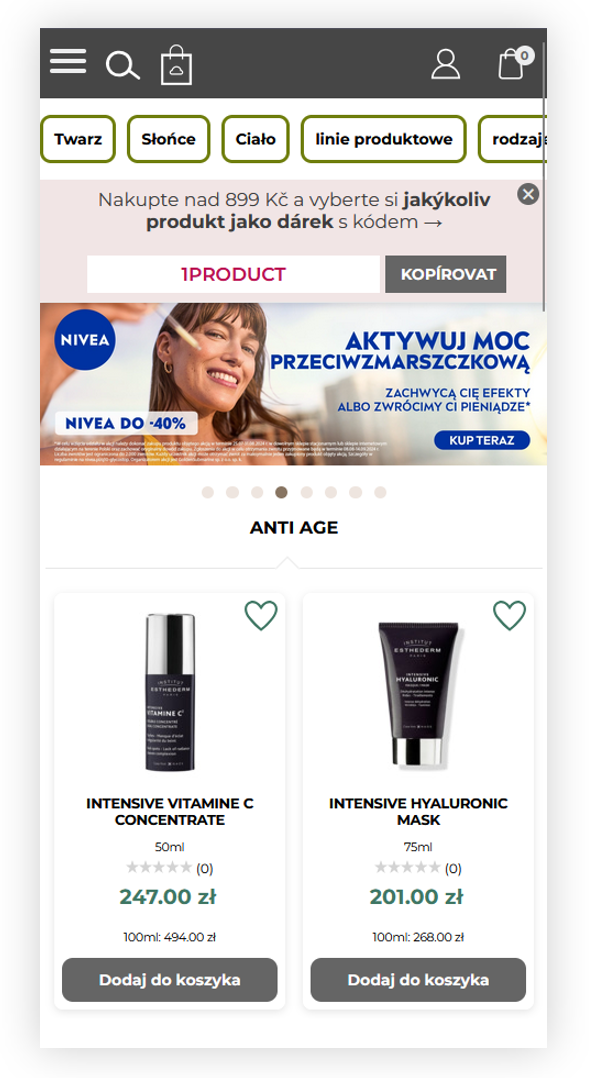
<div class="page" id="bkmrk-visualization-of-the" title="Page 1"><div class="section"><div class="layoutArea"><div class="column"><div class="page" title="Page 1"><div class="section"><div class="layoutArea"><div class="column"></div></div></div></div><table style="margin-right: auto; margin-left: auto; height: 527px;"><tbody><tr style="height: 505px;"><td class="wysiwyg-text-align-center" style="text-align: center; vertical-align: middle; height: 505px; width: 688.4px;">[![POWERPNT_3UOLsv9eNw.png](https://ecomm-docs.tauceti-digital.com/uploads/images/gallery/2025-02/scaled-1680-/powerpnt-3uolsv9enw.png)](https://ecomm-docs.tauceti-digital.com/uploads/images/gallery/2025-02/powerpnt-3uolsv9enw.png)</td></tr><tr style="height: 22px;"><td class="wysiwyg-text-align-center" style="text-align: center; vertical-align: middle; height: 22px; width: 688.4px;"><span class="wysiwyg-font-size-medium">*Visualization of the default alt shop on CZ PROD (Desktop version)* </span></td></tr></tbody></table>

<table style="margin-right: auto; margin-left: auto;"><tbody><tr><td class="wysiwyg-text-align-center" style="text-align: center; vertical-align: middle;">[![POWERPNT_lt3C4Xqdvx.png](https://ecomm-docs.tauceti-digital.com/uploads/images/gallery/2025-02/scaled-1680-/powerpnt-lt3c4xqdvx.png)](https://ecomm-docs.tauceti-digital.com/uploads/images/gallery/2025-02/powerpnt-lt3c4xqdvx.png)</td></tr><tr><td class="wysiwyg-text-align-center" style="text-align: center; vertical-align: middle;"><span class="wysiwyg-font-size-medium">  
</span><span class="wysiwyg-font-size-medium">*Visualization of the default alt shop on CZ PROD (Mobile version)*</span></td></tr></tbody></table>

</div></div></div></div><div class="page" id="bkmrk--2" title="Page 1"><div class="section"><div class="layoutArea"><div class="column">---

</div></div></div></div># ![Screenshot_2020-04-29_at_19.12.41.png](https://knowledge.tauceti-digital.com/uploads/images/gallery/2024-11/10027081419164.png) Activating an element in the Alt shops module

Most of the changes made to the elements of the administration panel require activating them in the altshops module. Note that newly created elements are inactive by default in all alt shops. In the following example, you will learn how to activate a CMS page (More about CMS pages can be found in the **\[UNDER CONSTRUCTION\]** article).

To activate a CMS page in the Altshop module, in the administration panel navigate to:

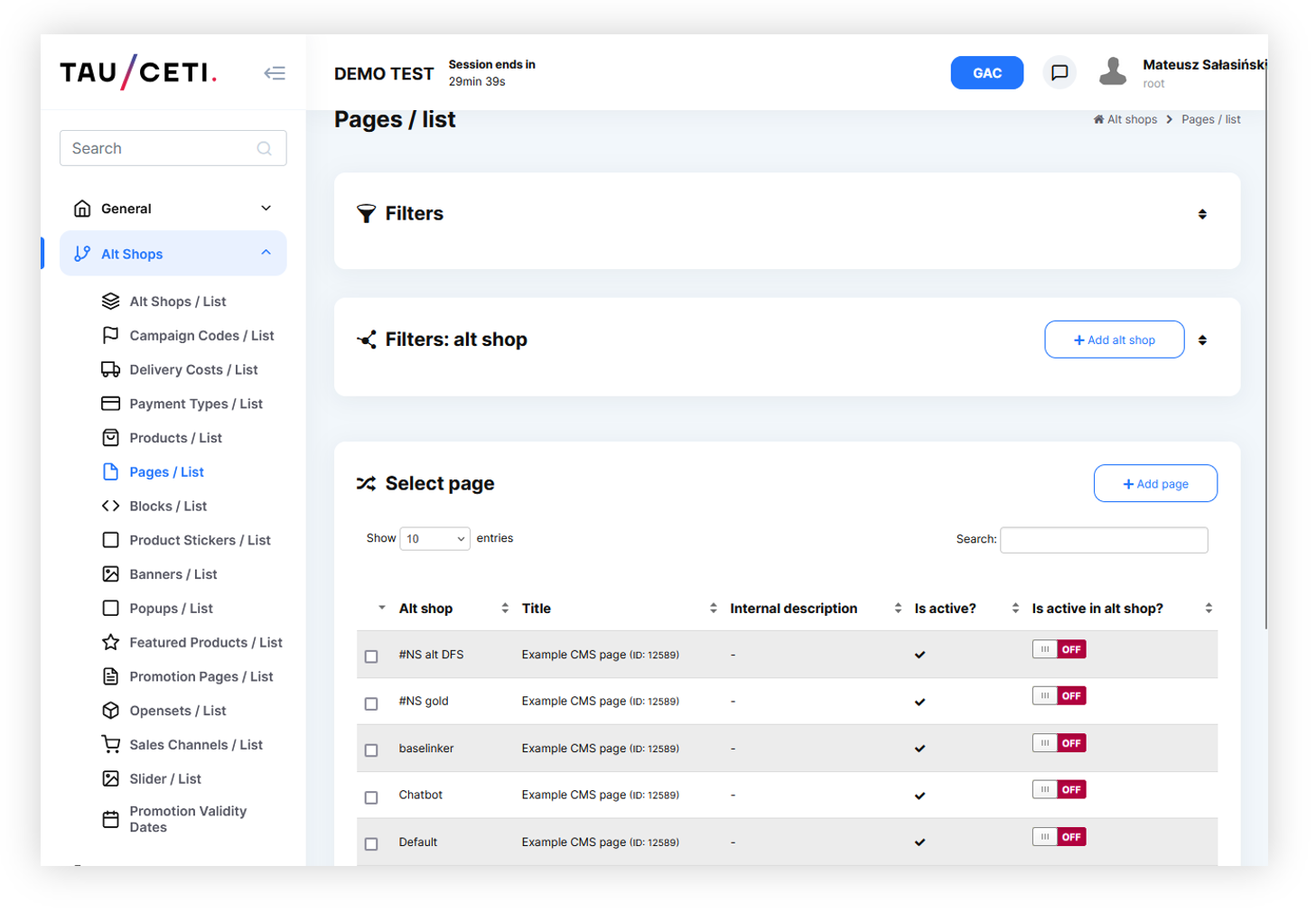
***Alt shops &gt; Pages / list***

<div class="page" id="bkmrk-visualization-of-the-1" title="Page 1"><div class="section"><div class="layoutArea"><div class="column"><table style="margin-right: auto; margin-left: auto;"><tbody><tr><td class="wysiwyg-text-align-center" style="text-align: center; vertical-align: middle;">[![POWERPNT_GoxLJm1u5I.png](https://ecomm-docs.tauceti-digital.com/uploads/images/gallery/2025-02/scaled-1680-/powerpnt-goxljm1u5i.png)](https://ecomm-docs.tauceti-digital.com/uploads/images/gallery/2025-02/powerpnt-goxljm1u5i.png)</td></tr><tr><td class="wysiwyg-text-align-center" style="text-align: center; vertical-align: middle;"><span class="wysiwyg-font-size-medium">*Visualization of the alt shops &gt; pages / list section in the admin panel* </span></td></tr></tbody></table>

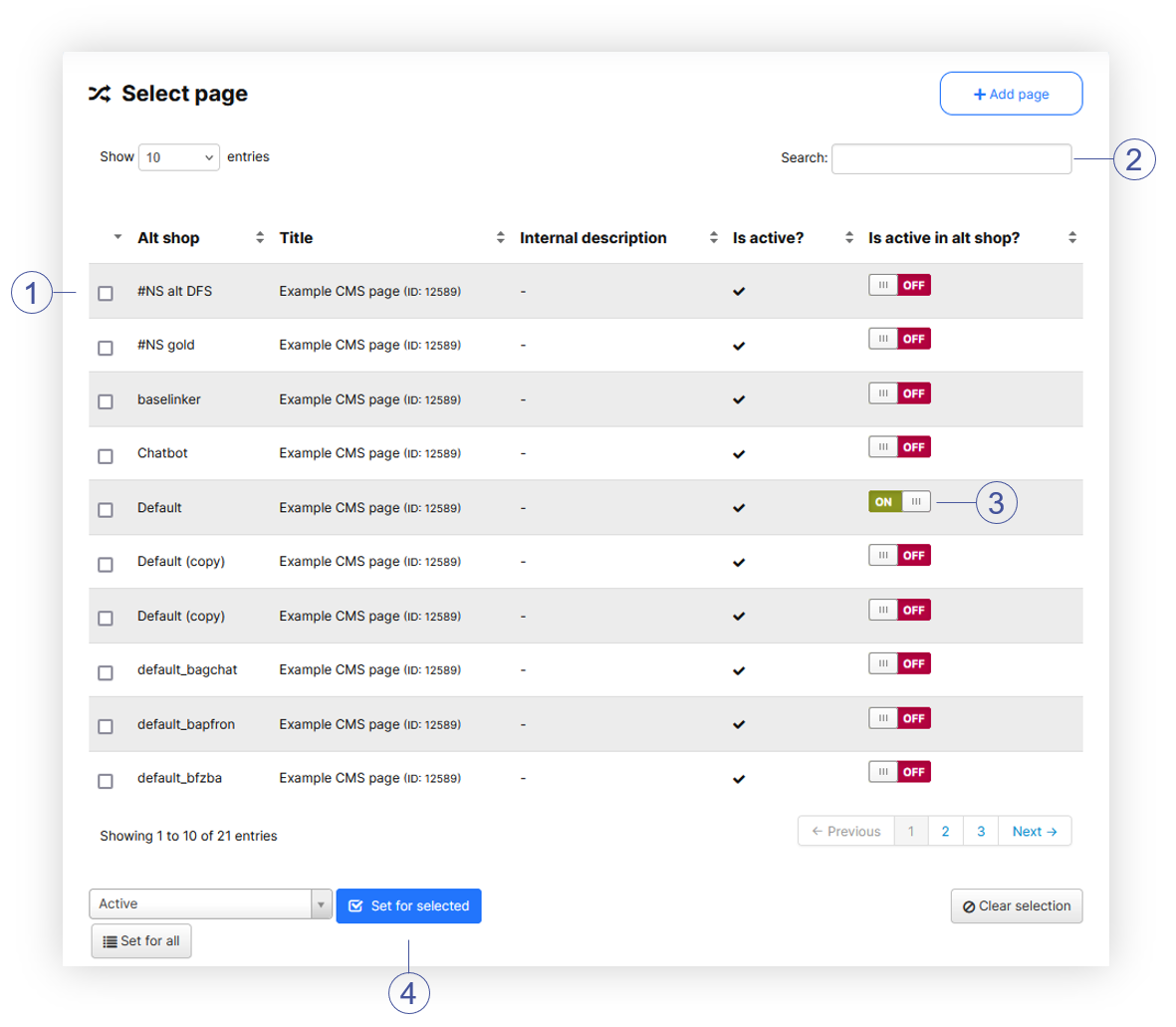
</div></div></div></div>Then, in the Select page section, in the **Search field** **<span style="color: #4054a0;">(2)</span>** find the CMS page you want to activate. After searching, you will find a list of all Altshops on which the desired page can be activated. If you would like to activate the CMS page in only one of the Alt shops, set the switch to “**ON**” **<span style="color: #4054a0;">(3)</span>** next to the record in question. If you would like to change the activity in bulk, select the fields of interest **<span style="color: #4054a0;">(1)</span>**, then choose the **status (active/inactive) <span style="color: #4054a0;">(4)</span>** you want to assign to the selected pages. In the last step, select the **Set for selected** button to change the defined status to the selected pages, or select the **Set for all** button to change the activity for all CMS currently filtered CMS Pages.

<span class="wysiwyg-color-black" style="color: #44549b;">![info2.svg](https://knowledge.tauceti-digital.com/uploads/images/gallery/2024-11/10027081424156.png) **Remember**</span><span class="wysiwyg-color-black" style="display: block; margin-top: 10px;">Putting the page name in the search field doesn't mean that pages are filtered. When using the **Set for all** button, remember to filter the pages in the Filter tab.</span>

<span class="wysiwyg-color-black" style="color: #44549b;">![info2.svg](https://knowledge.tauceti-digital.com/uploads/images/gallery/2024-11/10027081424156.png) **Remember**</span><span class="wysiwyg-color-black" style="display: block; margin-top: 10px;">In order to manage the list of CMS pages in the Alt shop module more efficiently, please refer to the [Description of the Pages / list module (Alt shops)](https://tauceti.zendesk.com/hc/en-us/articles/6946405722898) article**.**</span>

<div class="page" id="bkmrk-visualization-of-the-2" title="Page 1"><div class="section"><div class="layoutArea"><div class="column"><table style="margin-right: auto; margin-left: auto;"><tbody><tr><td class="wysiwyg-text-align-center" style="text-align: center; vertical-align: middle;">[![POWERPNT_G3PWZJh0um.png](https://ecomm-docs.tauceti-digital.com/uploads/images/gallery/2025-02/scaled-1680-/powerpnt-g3pwzjh0um.png)](https://ecomm-docs.tauceti-digital.com/uploads/images/gallery/2025-02/powerpnt-g3pwzjh0um.png)</td></tr><tr><td class="wysiwyg-text-align-center" style="text-align: center; vertical-align: middle;"><span class="wysiwyg-font-size-medium">*Visualization of the pages / list in the alt shops module* </span></td></tr></tbody></table>

</div></div></div></div><span class="wysiwyg-color-black" style="color: #d23a4e;">![caution.svg](https://knowledge.tauceti-digital.com/uploads/images/gallery/2024-11/10027081425820.png) **Warning**</span> <span class="wysiwyg-color-black" style="display: block; margin-top: 10px;"> <span style="color: #000000;"> If filters are not applied to the CMS pages displayed, the **Set for all** option will assign the desired action to **all** pages available in the database. Please be cautious with this setting, as activating every possible CMS page or block might break other active pages or blocks. </span></span>