# E-commerce

# Mobile app

# Mobile app: Sub campaign

# ![Screenshot_2020-04-29_at_19.12.41.png](https://knowledge.tauceti-digital.com/uploads/images/gallery/2024-11/screenshot-2020-04-29-at-19-12-41-png.png) Getting started

In this article, you can find information about the mobile app: sub campaign sub-category. Sub campaigns are blocks of desired content like products, promotion pages, or opensets that will be visible in the mobile app directly below the carousel. Customers are able to select these blocks in order to be redirected to the desired page.

<span class="wysiwyg-color-black" style="color: #44549b;">![info2.svg](https://knowledge.tauceti-digital.com/uploads/images/gallery/2024-11/info2-svg.png) **Remember**</span><span class="wysiwyg-color-black" style="display: block; margin-top: 10px;">You can find more information about the mobile app and other sub-categories in the [Mobile app](https://knowledge.tauceti-digital.com/books/e-commerce/page/mobile-app) article.</span><span class="wysiwyg-color-black"></span><span class="wysiwyg-color-black"></span><span class="wysiwyg-color-black"></span><span class="wysiwyg-color-black"></span><span style="color: #4054a0;"></span>

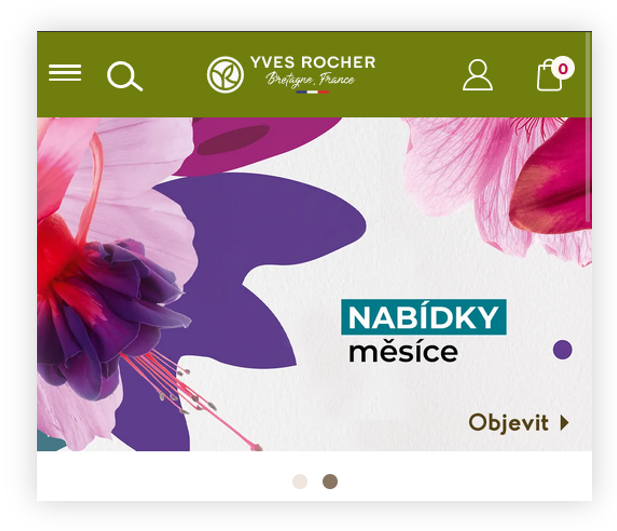
<table id="bkmrk-visualization-of-the" style="margin-right: auto; margin-left: auto; height: 44px; width: auto;"><tbody><tr style="height: 22px;"><td class="wysiwyg-text-align-center" style="text-align: center; vertical-align: middle; height: 22px; width: 348.017px;">![POWERPNT_qUDVHHQUFN.png](https://knowledge.tauceti-digital.com/uploads/images/gallery/2024-11/7494663247260.png)</td></tr><tr style="height: 22px;"><td class="wysiwyg-text-align-center" style="text-align: center; vertical-align: middle; height: 22px; width: 348.017px;"><span class="wysiwyg-font-size-medium">*Visualization of the sub campaign on the mobile app* </span></td></tr></tbody></table>

To open the sub campaign view, in the admin panel, navigate to:  
***Mobile app &gt; sub campaign***

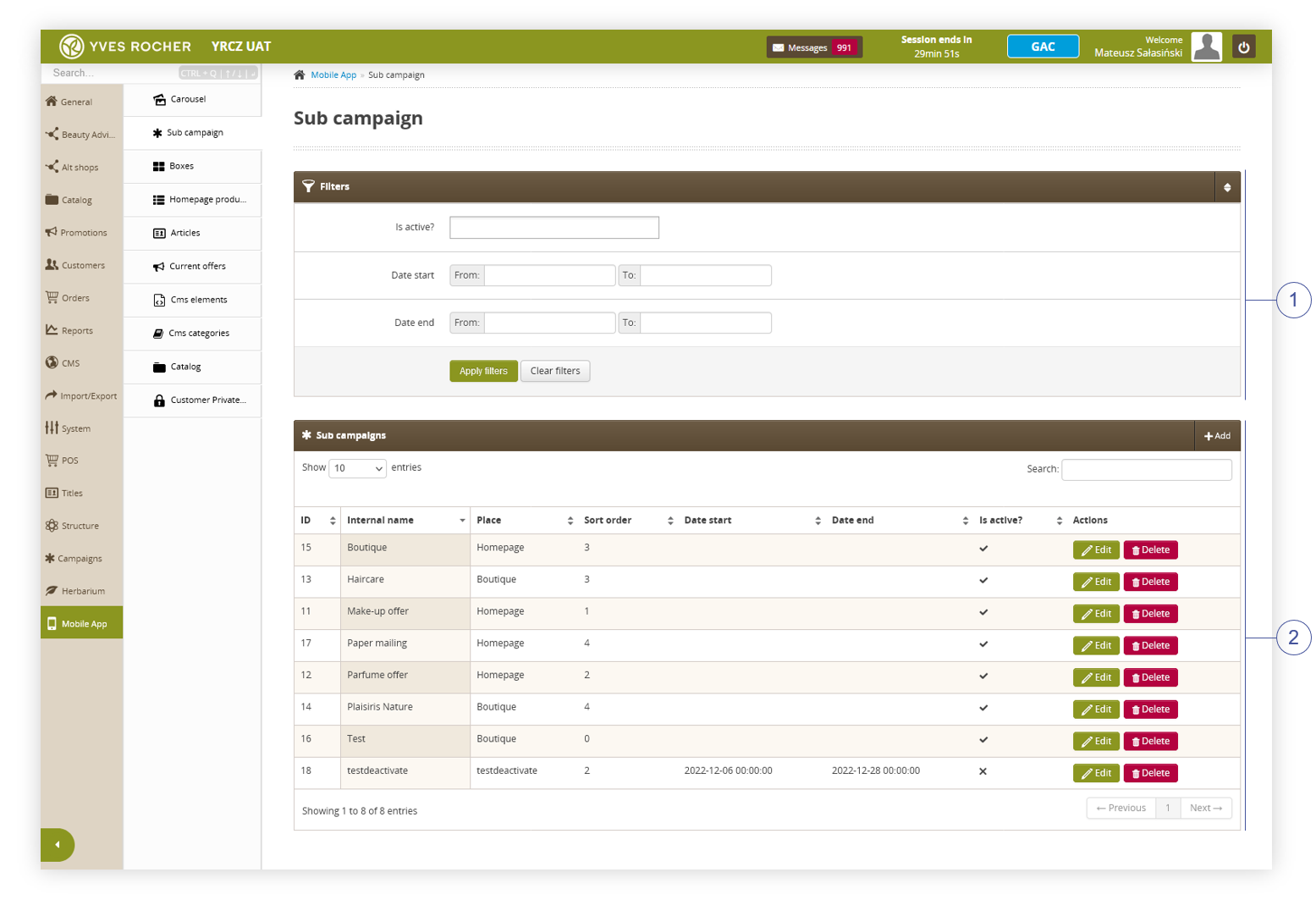
All possible operations to perform on the **sub campaign** view can be done in the **Filters <span style="color: #4054a0;">(1)</span>**, and **Sub campaigns<span class="title"> </span><span style="color: #4054a0;">(2) </span>**tabs.

<table id="bkmrk-visualization-of-the-1" style="margin-right: auto; margin-left: auto; height: 44px; width: 813px;"><tbody><tr style="height: 22px;"><td class="wysiwyg-text-align-center" style="text-align: center; vertical-align: middle; height: 22px; width: 801.233px;">![POWERPNT_Bq5F5TpVD8.png](https://knowledge.tauceti-digital.com/uploads/images/gallery/2024-11/7494490815132.png)</td></tr><tr style="height: 22px;"><td class="wysiwyg-text-align-center" style="text-align: center; vertical-align: middle; height: 22px; width: 801.233px;"><span class="wysiwyg-font-size-medium">*Visualization of the sub campaign sub-category* </span></td></tr></tbody></table>

Table of contents:

1. [ Filters section](#bkmrk-filters-section)
2. [Sub campaign](#bkmrk-sub-campaign)
3. [ Creating a sub campaign](#bkmrk-creating-a-sub-campa)

---

# ![Screenshot_2020-04-29_at_19.12.41.png](https://knowledge.tauceti-digital.com/uploads/images/gallery/2024-11/screenshot-2020-04-29-at-19-12-41-png.png) Filters section

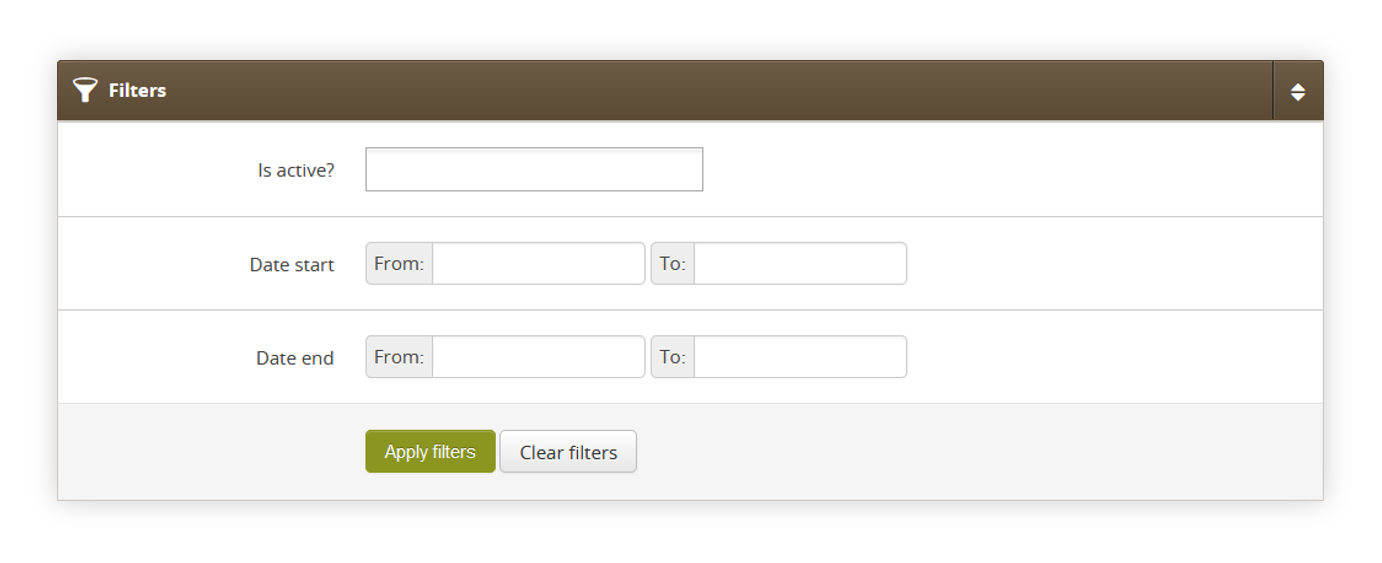
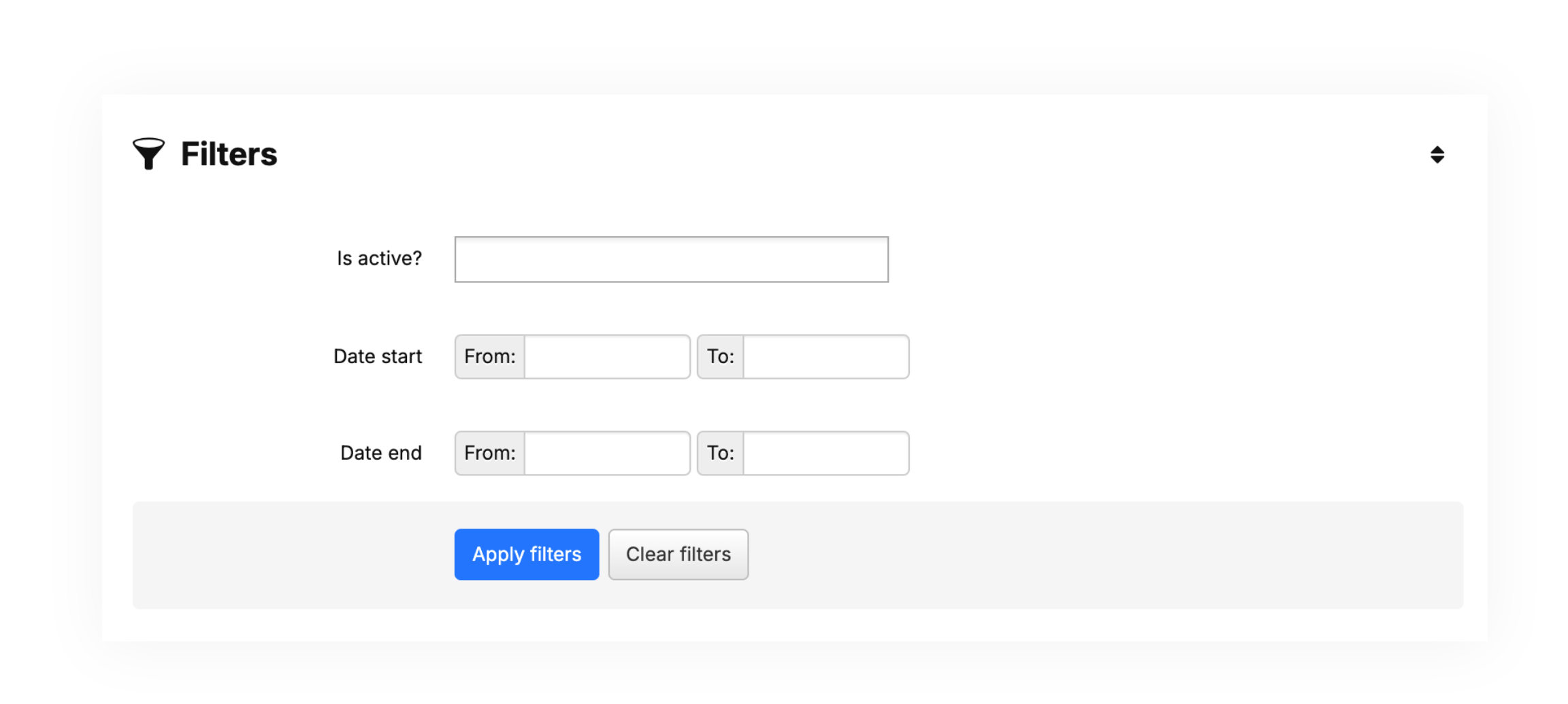
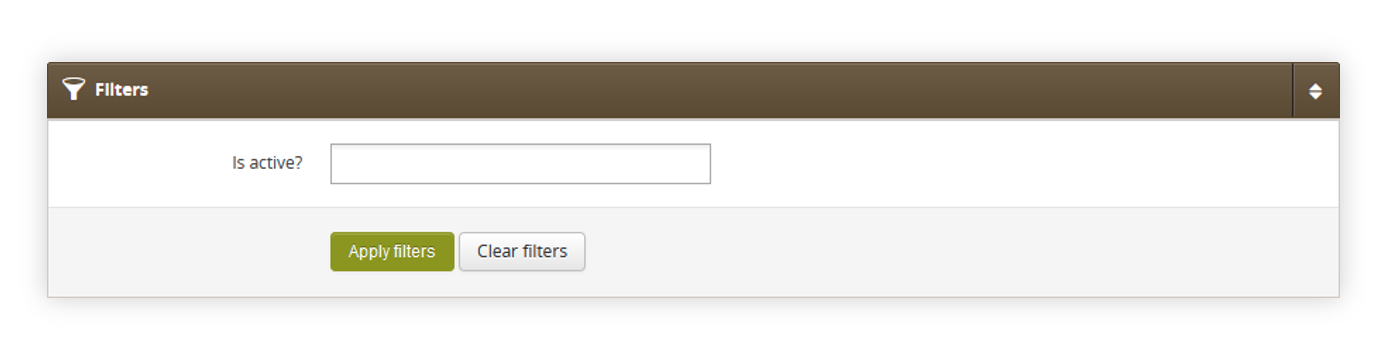
The **Filters** section allows sorting of the sub campaigns in the mobile app module, based on the available filters. Below you will find a description of available filters

<table id="bkmrk-visualization-of-the-2" style="margin-right: auto; margin-left: auto; height: 44px; width: auto;"><tbody><tr style="height: 22px;"><td class="wysiwyg-text-align-center" style="text-align: center; vertical-align: middle; height: 22px; width: auto;">![POWERPNT_KKaSubXFXD.png](https://knowledge.tauceti-digital.com/uploads/images/gallery/2024-11/7215620746268.png)</td></tr><tr style="height: 22px;"><td class="wysiwyg-text-align-center" style="text-align: center; vertical-align: middle; height: 22px; width: auto;"><span class="wysiwyg-font-size-medium">*Visualization of the filters section* </span></td></tr></tbody></table>

- **Is active?** - Sub campaign activity status.
- **Date start** - A range of dates that indicate the start date of the sub campaign.
- **Date end** - A range of dates that indicate the end date of the sub campaign.

After defining the above filters, select the **Apply Filters** button to get a list of sites according to the applied filters.

---

# ![Screenshot_2020-04-29_at_19.12.41.png](https://knowledge.tauceti-digital.com/uploads/images/gallery/2024-11/screenshot-2020-04-29-at-19-12-41-png.png) Sub campaign

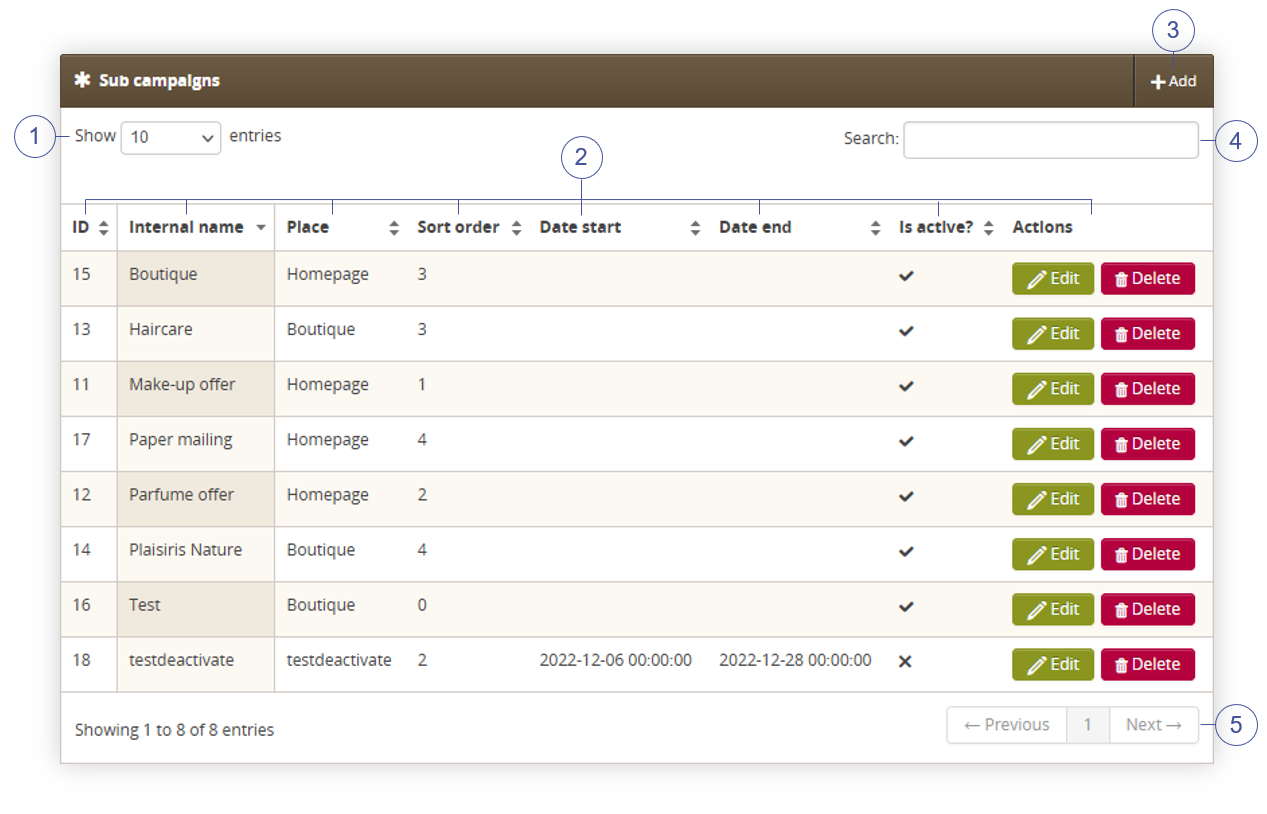
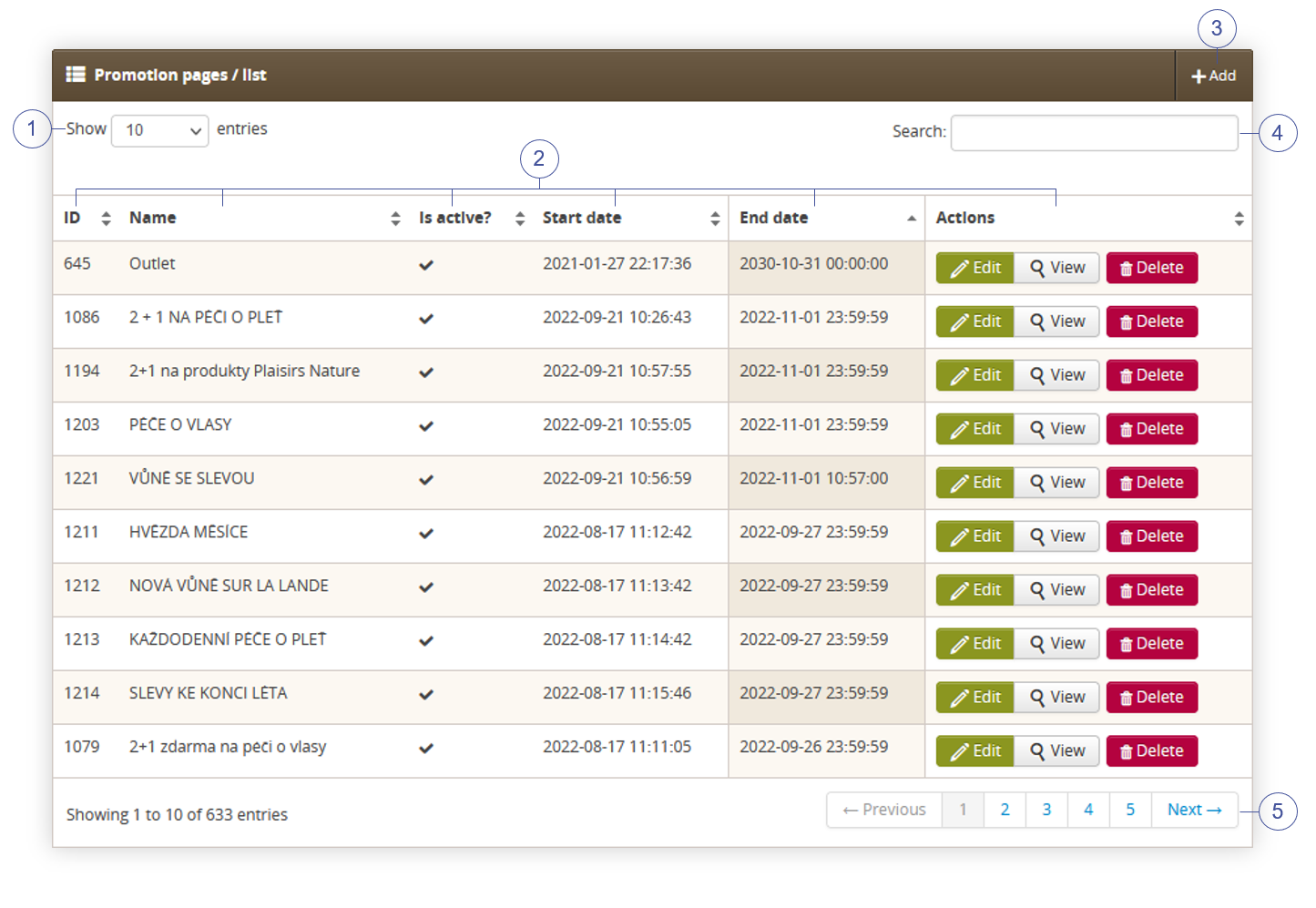
The **Sub campaign** section allows organizing the filtered featured sub campaigns, edit them and create new ones and delete them.

Below you will find a description of all possible actions you can perform in the sub campaign section in the admin panel.

<table id="bkmrk-visualization-of-the-3" style="margin-right: auto; margin-left: auto; height: 44px; width: auto;"><tbody><tr style="height: 22px;"><td class="wysiwyg-text-align-center" style="text-align: center; vertical-align: middle; height: 22px; width: auto;">![POWERPNT_xhVaU6BZEe.png](https://knowledge.tauceti-digital.com/uploads/images/gallery/2024-11/7494490816284.png)</td></tr><tr style="height: 22px;"><td class="wysiwyg-text-align-center" style="text-align: center; vertical-align: middle; height: 22px; width: auto;"><span class="wysiwyg-font-size-medium">*Visualization of the sub campaign section* </span></td></tr></tbody></table>

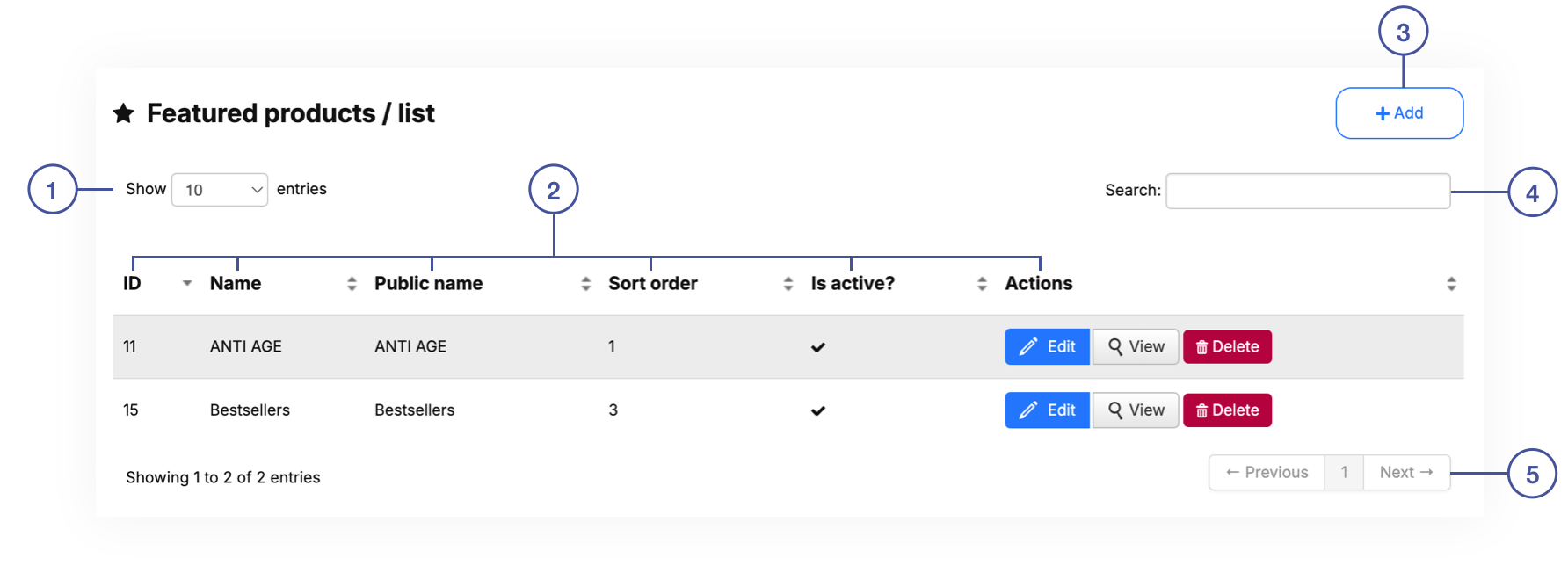
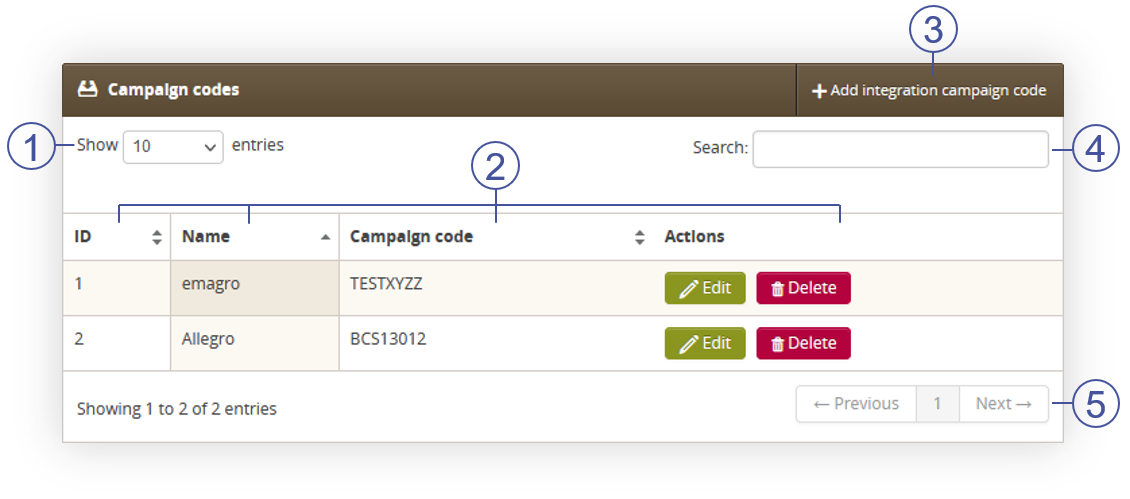
- Select the **Show X entries<span style="color: #4054a0;">(1)</span>** field to set the number of sub campaigns, displayed on one page (min 10 / max 100).
- The names of the columns **<span style="color: #4054a0;">(2)</span>** that contain information about a target sub campaign. Each column is susceptible to sorting.  
    To sort the records, click on the title of the column in question. 
    - **ID** - An internal ID of the sub campaign.
    - **Internal name** - Internal name of the sub campaign.
    - **Place** - Place identification: homepage / boutique. Field is used by mobile application to distinguish which banners should go to home view and which to boutique view.
    - **Sort order** - Sort order of the sub campaign.
    - **Date start** - Start date when the sub campaign will be visible to the customers.
    - **Date End** - End date when the sub campaign will be hidden from the customers.
    - **Is active?** - Activity status of the sub campaign.
    - **Actions** - List of buttons with possible actions that can be done to the sub campaign.  
        
        - **Edit** - Edit desired sub campaign. As editing contains exactly the same fields and actions as creating a new sub campaign you can read more about it in the [ Creating a sub campaign](#bkmrk-creating-a-sub-campa) chapter.
        - **Delete** - Deletes the selected sub campaign without the ability to restore it.
- Select the **Add <span style="color: #4054a0;">(3)</span>** button to go to the adding the new sub campaign. You can learn more about adding of the sub campaign in the [ Creating a sub campaign](#bkmrk-creating-a-sub-campa) chapter.
- **Search box <span style="color: #4054a0;">(4)</span>** where you can search for sub campaigns by their system name.
- **Page buttons<span style="color: #4054a0;">(5)</span>**, which allow users to change the page of the currently viewed content.

---

# ![Screenshot_2020-04-29_at_19.12.41.png](https://knowledge.tauceti-digital.com/uploads/images/gallery/2024-11/screenshot-2020-04-29-at-19-12-41-png.png) Creating a sub campaign

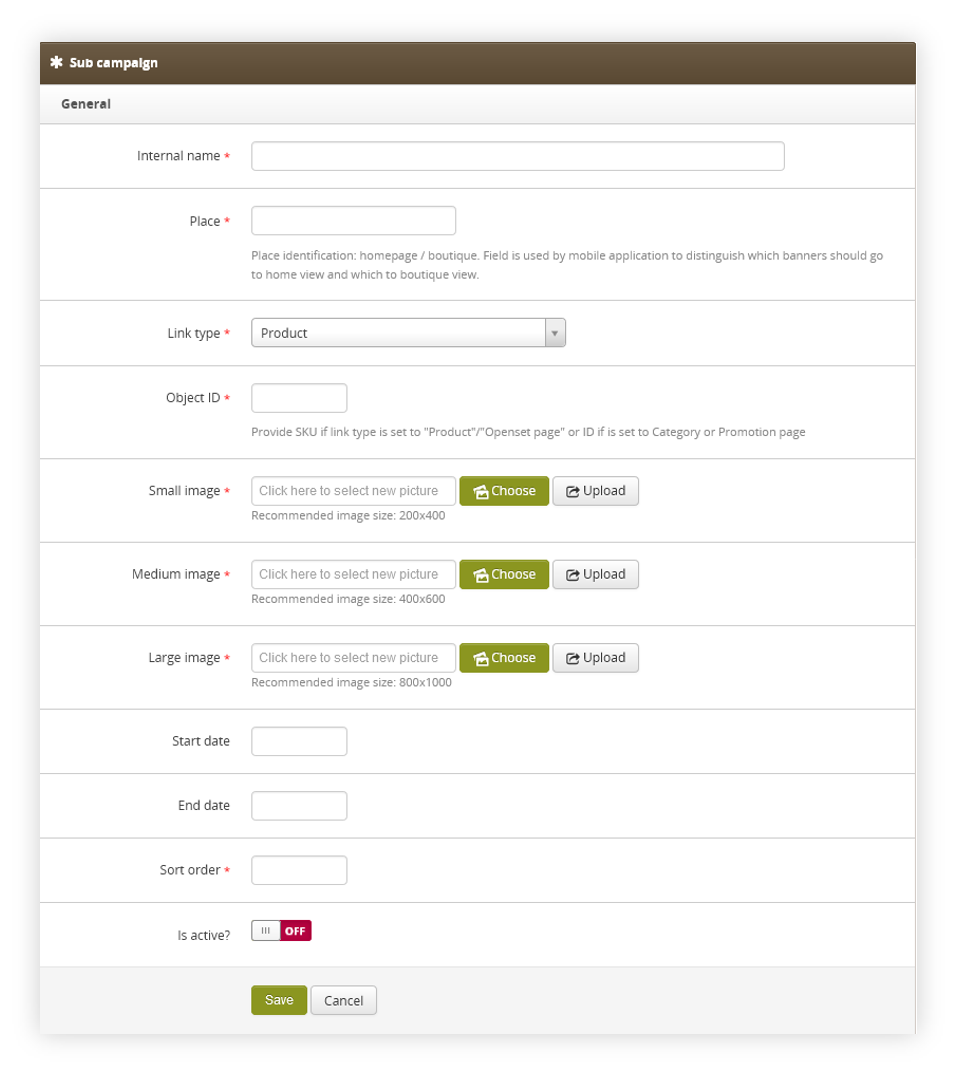
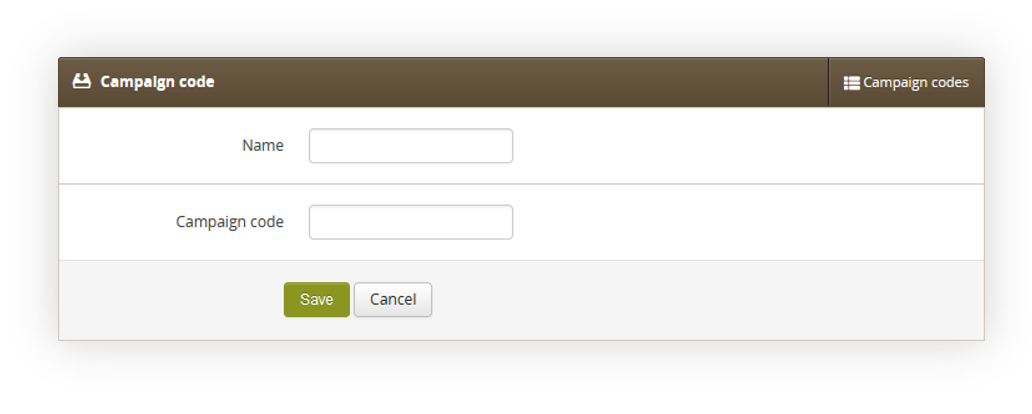
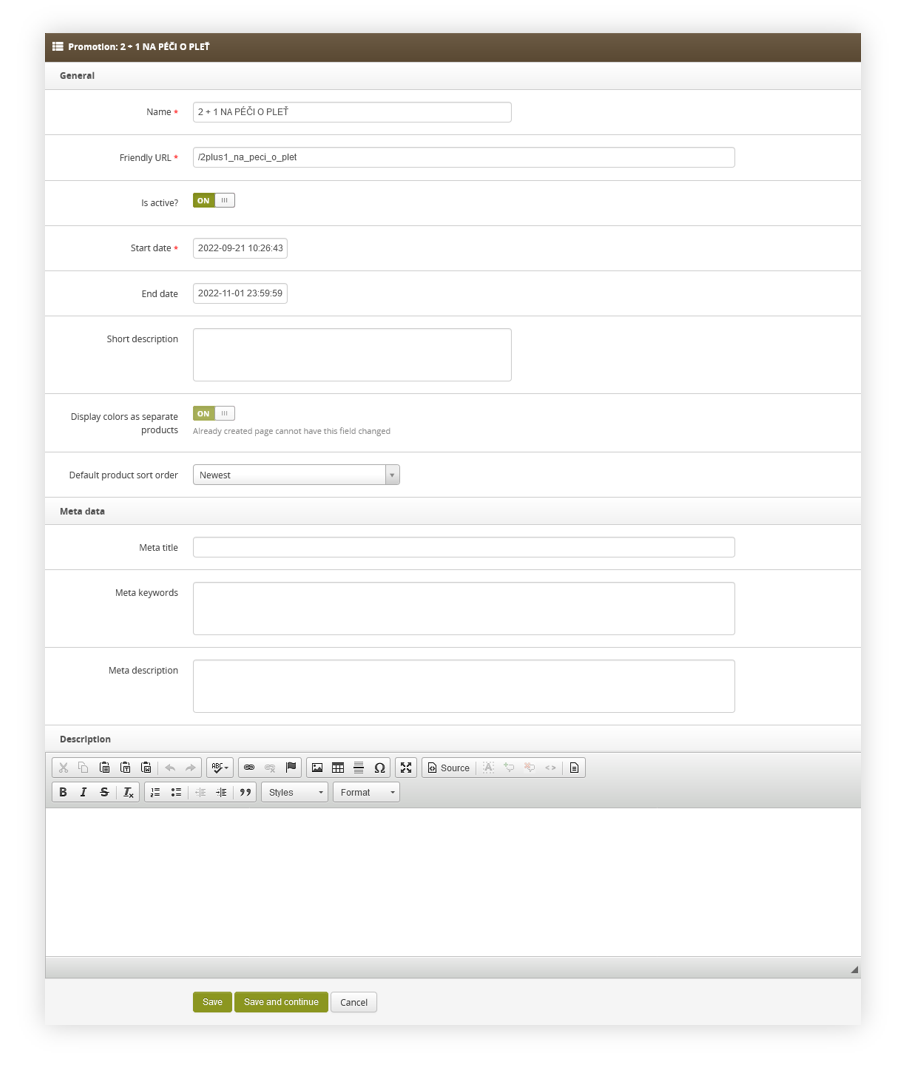
<span class="title">Add button allows users to create a new sub campaign.  
</span>

<span class="title">Below, you will find a description of all possible fields that can be edited while creating a new sub campaign in the admin panel.  
</span>

<table id="bkmrk-visualization-of-the-4" style="margin-right: auto; margin-left: auto; height: 44px; width: auto;"><tbody><tr style="height: 22px;"><td class="wysiwyg-text-align-center" style="text-align: center; vertical-align: middle; height: 22px; width: auto;">![POWERPNT_TfdhifBp22.png](https://knowledge.tauceti-digital.com/uploads/images/gallery/2024-11/7494362242204.png)</td></tr><tr style="height: 22px;"><td class="wysiwyg-text-align-center" style="text-align: center; vertical-align: middle; height: 22px; width: auto;"><span class="wysiwyg-font-size-medium">*Visualization of the creating the sub campaign* </span></td></tr></tbody></table>

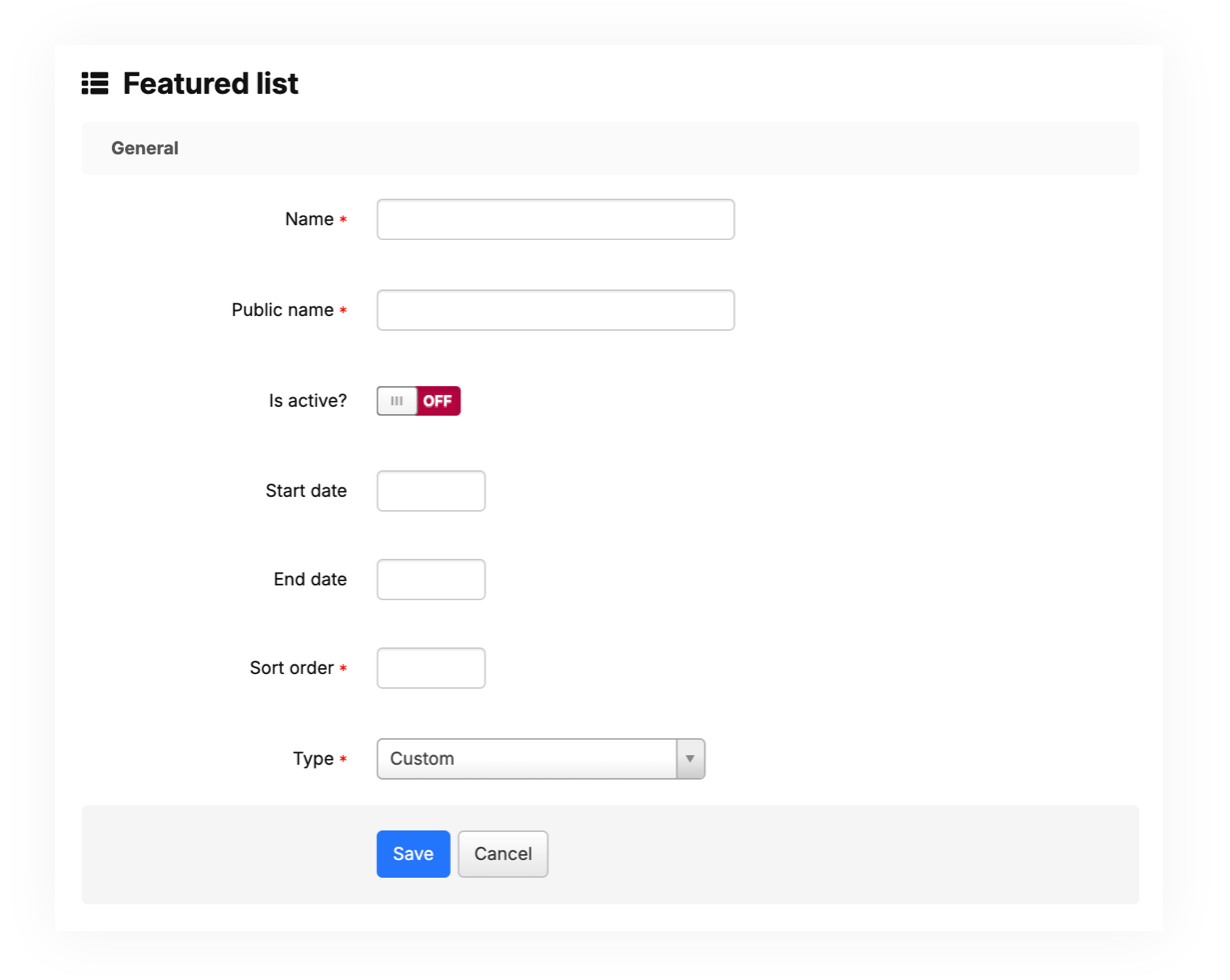
- **Internal name** (mandatory) - Internal name of the sub campaign.
- **Place** (mandatory) - Place identification: homepage / boutique. Field is used by mobile application to distinguish which banners should go to home view and which to boutique view.
- **Link type** (mandatory) - Type of a link available in the sub campaign. Depending on the selected type the **Object ID** field will require different input. There are 5 types of links: 
    - Product - Product available on the website.
    - Category (tag) - Category tag available on the website.
    - Promotion page - The promotion page available on the website.
    - Openset page - Openset page available on the website.
    - Custom view - Custom object programmed by the mobile app developers.
- **Object ID** (mandatory) - ID of an object selected in **Link type** section. 
    - Product - Product SKU i.e. J12345
    - Category (tag) -Tag ID i.e. 76938
    - Promotion page - Promotion page internal ID i.e. 1234
    - Openset page - Openset internal ID i.e. 765
    - Custom view - Custom field that doesn't have any validation. Custom values configured and programmed by mobile app developers can be put here.
- **Small image** (mandatory) - Small image of the sub campaign. Recommended image size is 200x400px. This image will be visible to the customers.
- **Medium image** (mandatory) - Medium image of the sub campaign. Recommended image size is 400x600px. This image will be visible to the customers.
- **Large image** (mandatory) - Large image of the sub campaign. Recommended image size is 800x1000px. This image will be visible to the customers.
- **Start date** - Start date when the sub campaign will be visible to the customers.
- **End date** - End date when the sub campaign will be hidden from the customers.
- **Sort order** (mandatory) - Sort order of the sub campaign. The lower the sort order the earlier in the order selected sub campaign will be visible to the customer.
- **Is active?** - Switch, which defines if the selected sub campaign is visible in the mobile app.

With all necessary fields filled, you can save the changes using the **save** button.

# Mobile app: Carousel

# ![Screenshot_2020-04-29_at_19.12.41.png](https://knowledge.tauceti-digital.com/uploads/images/gallery/2024-11/KTCscreenshot-2020-04-29-at-19-12-41-png.png) Getting started

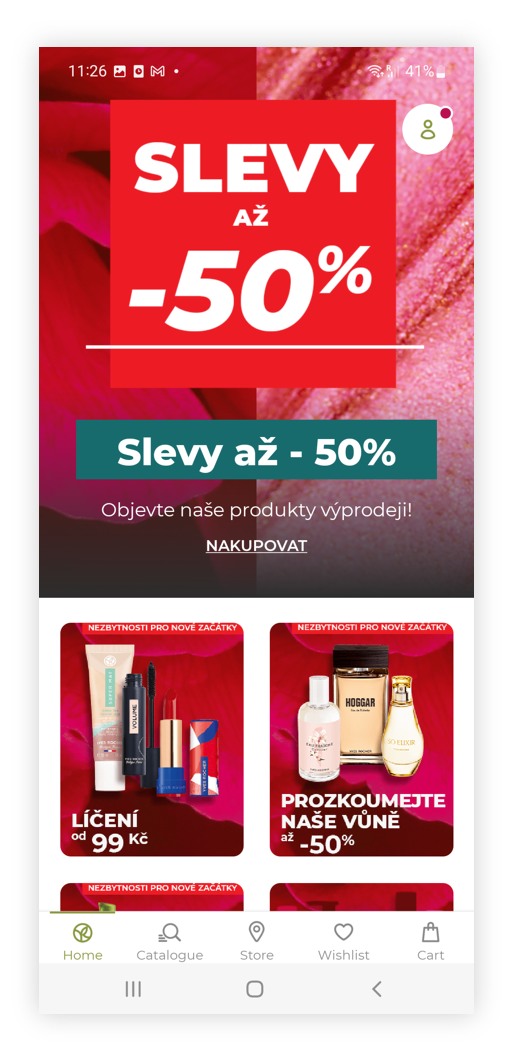
In this article, you can find information about the mobile app: Carousel sub-category. Carousel is equivalent to sliders on the e-commerce platform, except it shows only the first carousel depending on their sort order and after selecting it customer will see a story (similar to Instagrams stories), where every available carousel is visible for a short time.

<span class="wysiwyg-color-black" style="color: #44549b;">![info2.svg](https://knowledge.tauceti-digital.com/uploads/images/gallery/2024-11/DhYinfo2-svg.png) **Remember**</span><span class="wysiwyg-color-black" style="display: block; margin-top: 10px;">You can find more information about the mobile app and other sub-categories in the [Mobile app](https://knowledge.tauceti-digital.com/books/e-commerce/page/mobile-app) article.</span><span class="wysiwyg-color-black"></span><span class="wysiwyg-color-black"></span><span class="wysiwyg-color-black"></span><span class="wysiwyg-color-black"></span><span style="color: #4054a0;"></span>

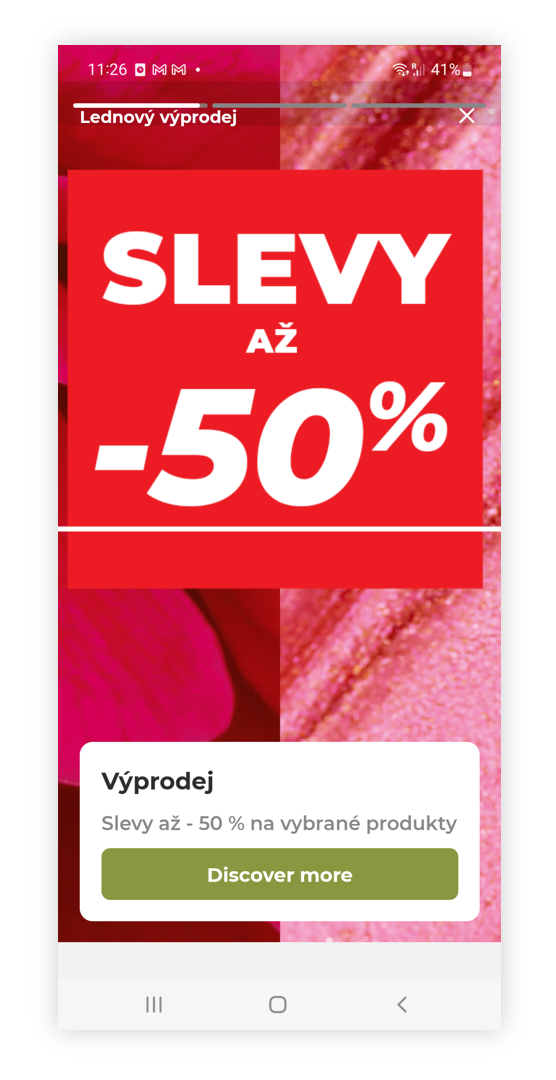
<table id="bkmrk-visualization-of-the" style="margin-right: auto; margin-left: auto; height: 44px; width: auto;"><tbody><tr style="height: 22px;"><td class="wysiwyg-text-align-center" style="text-align: center; vertical-align: middle; height: 22px; width: auto;">![POWERPNT_8h2xnGZ7Ew.png](https://knowledge.tauceti-digital.com/uploads/images/gallery/2024-11/7215629556508.png)</td></tr><tr style="height: 22px;"><td class="wysiwyg-text-align-center" style="text-align: center; vertical-align: middle; height: 22px; width: auto;"><span class="wysiwyg-font-size-medium">*Visualization of the carousel story on the mobile app* </span></td></tr></tbody></table>

To open the Carousel view, in the admin panel, navigate to:  
***Mobile app &gt; Carousel***

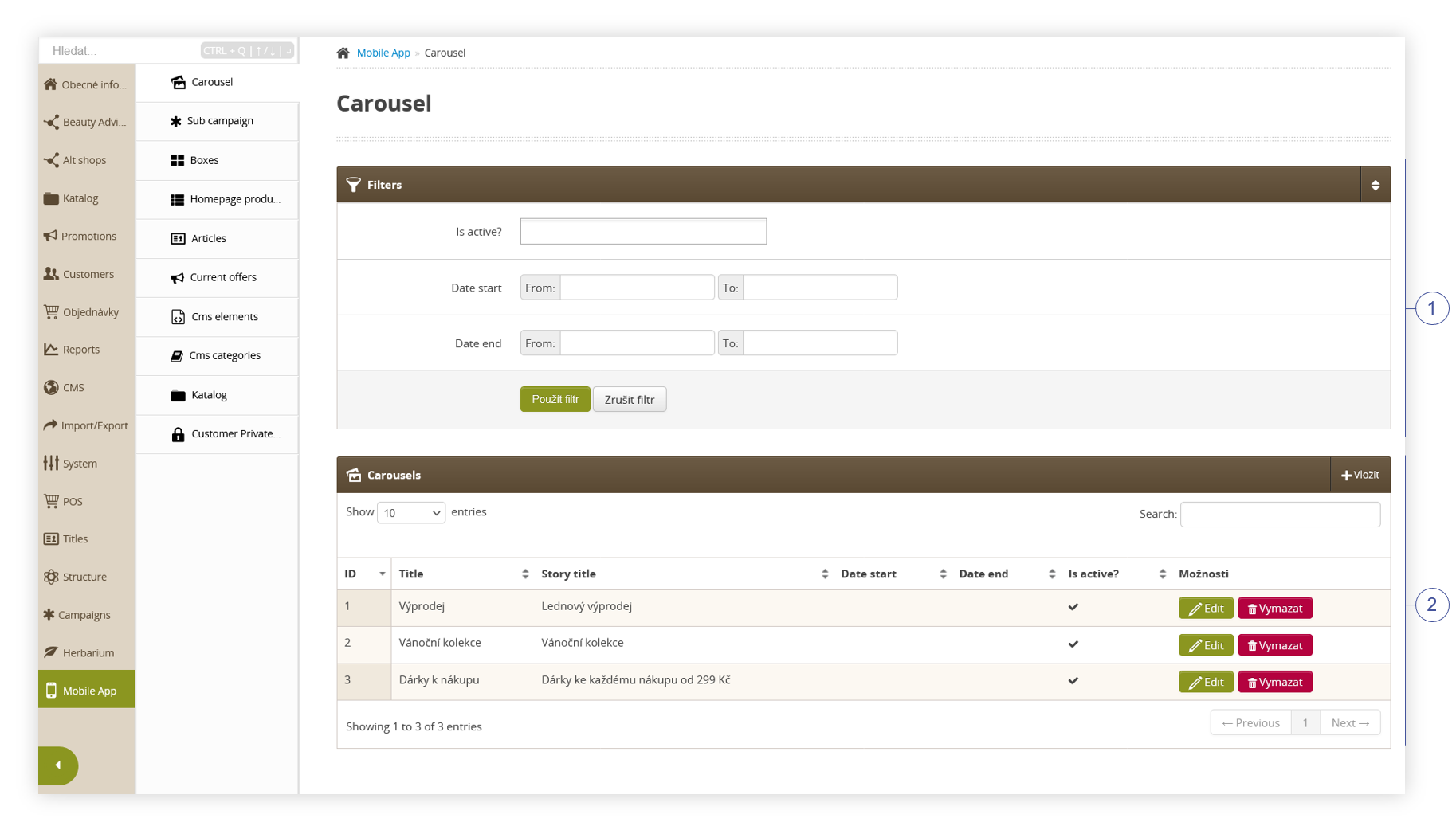
All possible operations to perform on the **Carousel** view can be done in the **Filters <span style="color: #4054a0;">(1)</span>**, and **Carousel<span class="title"> </span><span style="color: #4054a0;">(2) </span>**tabs.

<table id="bkmrk-visualization-of-the-1" style="margin-right: auto; margin-left: auto; height: 44px; width: 813px;"><tbody><tr style="height: 22px;"><td class="wysiwyg-text-align-center" style="text-align: center; vertical-align: middle; height: 22px; width: 801.233px;">![POWERPNT_z3bTjaChRk.png](https://knowledge.tauceti-digital.com/uploads/images/gallery/2024-11/7259165287324.png)</td></tr><tr style="height: 22px;"><td class="wysiwyg-text-align-center" style="text-align: center; vertical-align: middle; height: 22px; width: 801.233px;"><span class="wysiwyg-font-size-medium">*Visualization of the carousel sub-category* </span></td></tr></tbody></table>

Table of contents:

1. [ Filters section](#bkmrk-filters-section)
2. [Carousel](#bkmrk-carousel)
3. [ Creating a carousel](#bkmrk-creating-a-carousel)
4. [ Application view](#bkmrk-application-view)

---

# ![Screenshot_2020-04-29_at_19.12.41.png](https://knowledge.tauceti-digital.com/uploads/images/gallery/2024-11/KTCscreenshot-2020-04-29-at-19-12-41-png.png) Filters section

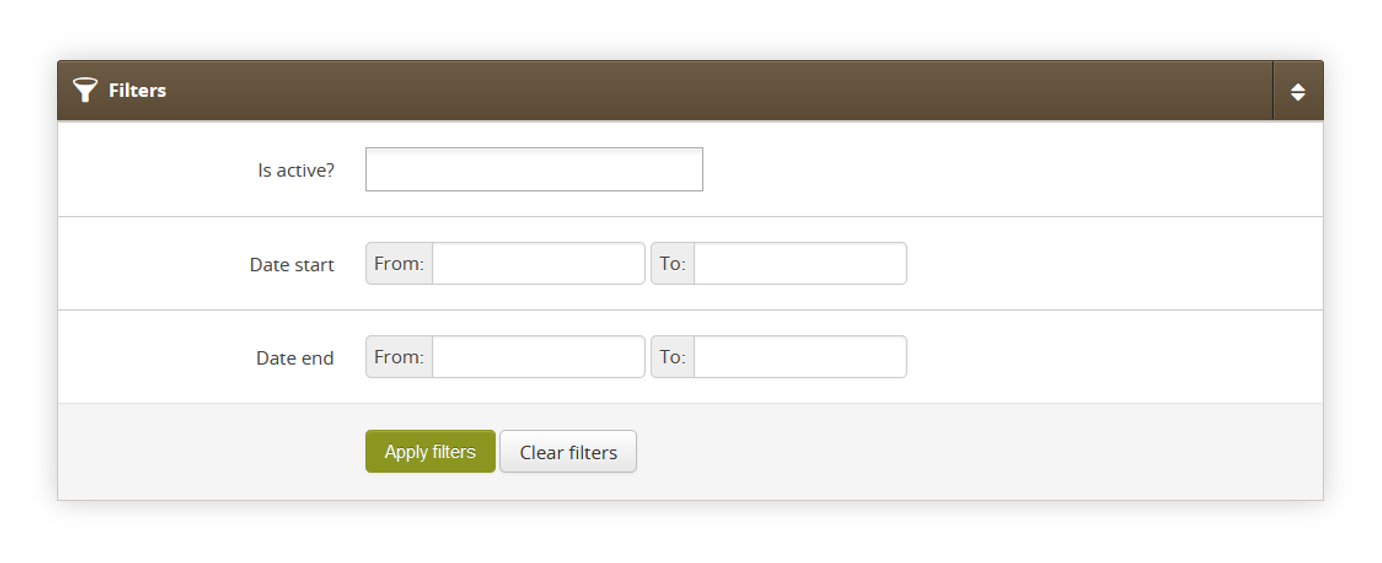
The **Filters** section allows sorting of the carousel in the mobile app module, based on the available filters. Below you will find a description of available filters

<table id="bkmrk-visualization-of-the-2" style="margin-right: auto; margin-left: auto; height: 44px; width: auto;"><tbody><tr style="height: 22px;"><td class="wysiwyg-text-align-center" style="text-align: center; vertical-align: middle; height: 22px; width: auto;">![POWERPNT_KKaSubXFXD.png](https://knowledge.tauceti-digital.com/uploads/images/gallery/2024-11/6Gx7215620746268.png)</td></tr><tr style="height: 22px;"><td class="wysiwyg-text-align-center" style="text-align: center; vertical-align: middle; height: 22px; width: auto;"><span class="wysiwyg-font-size-medium">*Visualization of the filters section* </span></td></tr></tbody></table>

- **Is active?** - Carousel activity status.
- **Date start** - A range of dates that indicate the start date of the carousel.
- **Date end** - A range of dates that indicate the end date of the carousel.

After defining the above filters, select the **Apply Filters** button to get a list of sites according to the applied filters.

---

# ![Screenshot_2020-04-29_at_19.12.41.png](https://knowledge.tauceti-digital.com/uploads/images/gallery/2024-11/KTCscreenshot-2020-04-29-at-19-12-41-png.png) Carousel

The **Carousel** section allows organizing the filtered featured carousels, edit them and create new ones and delete them.

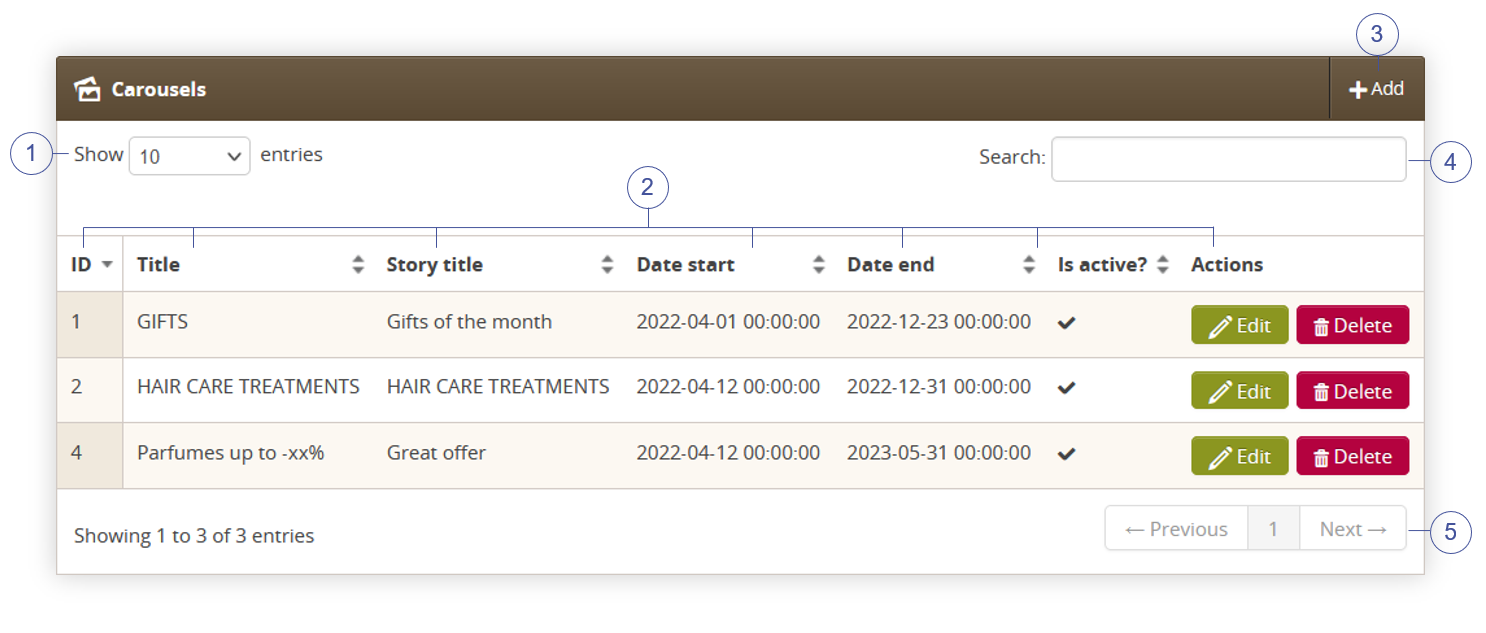
Below you will find a description of all possible actions you can perform in the Carousel section.

<table id="bkmrk-visualization-of-the-3" style="margin-right: auto; margin-left: auto; height: 44px; width: auto;"><tbody><tr style="height: 22px;"><td class="wysiwyg-text-align-center" style="text-align: center; vertical-align: middle; height: 22px; width: auto;">![POWERPNT_nCRfP96qkz.png](https://knowledge.tauceti-digital.com/uploads/images/gallery/2024-11/7259165292188.png)</td></tr><tr style="height: 22px;"><td class="wysiwyg-text-align-center" style="text-align: center; vertical-align: middle; height: 22px; width: auto;"><span class="wysiwyg-font-size-medium">*Visualization of the carousel section* </span></td></tr></tbody></table>

- Select the **Show X entries<span style="color: #4054a0;">(1)</span>** field to set the number of carousels, displayed on one page (min 10 / max 100).
- The names of the columns **<span style="color: #4054a0;">(2)</span>** that contain information about a target carousel. Each column is susceptible to sorting.  
    To sort the records, click on the title of the column in question. 
    - **ID** - An internal ID of the carousel.
    - **Title** - Internal title of the carousel. This field is not visible to the customers
    - **Story title** - Story, public title of the carousel. This field is visible to the customers.
    - **Date start** - Start date when the carousel will be visible to the customers.
    - **Date End** - End date when the carousel will be hidden from the customers.
    - **Is active?** - Activity status of the carousel.
    - **Actions** - List of buttons with possible actions that can be done to the desired carousel.  
        
        - **Edit** - Edit desired carousel. As editing contains exactly the same fields and actions as creating a new carousel you can read more about it in the [ Creating a carousel](#bkmrk-creating-a-carousel) chapter.
        - **Delete** - Deletes the selected carousel without the ability to restore it.
- Select the **Add <span style="color: #4054a0;">(3)</span>** button to go to the adding the new carousel. You can learn more about adding of the carousel in the [ Creating a carousel](#bkmrk-creating-a-carousel) chapter.
- **Search box <span style="color: #4054a0;">(4)</span>** where you can search for carousels by their system name.
- **Page buttons<span style="color: #4054a0;">(5)</span>**, which allow users to change the page of the currently viewed carousel.

---

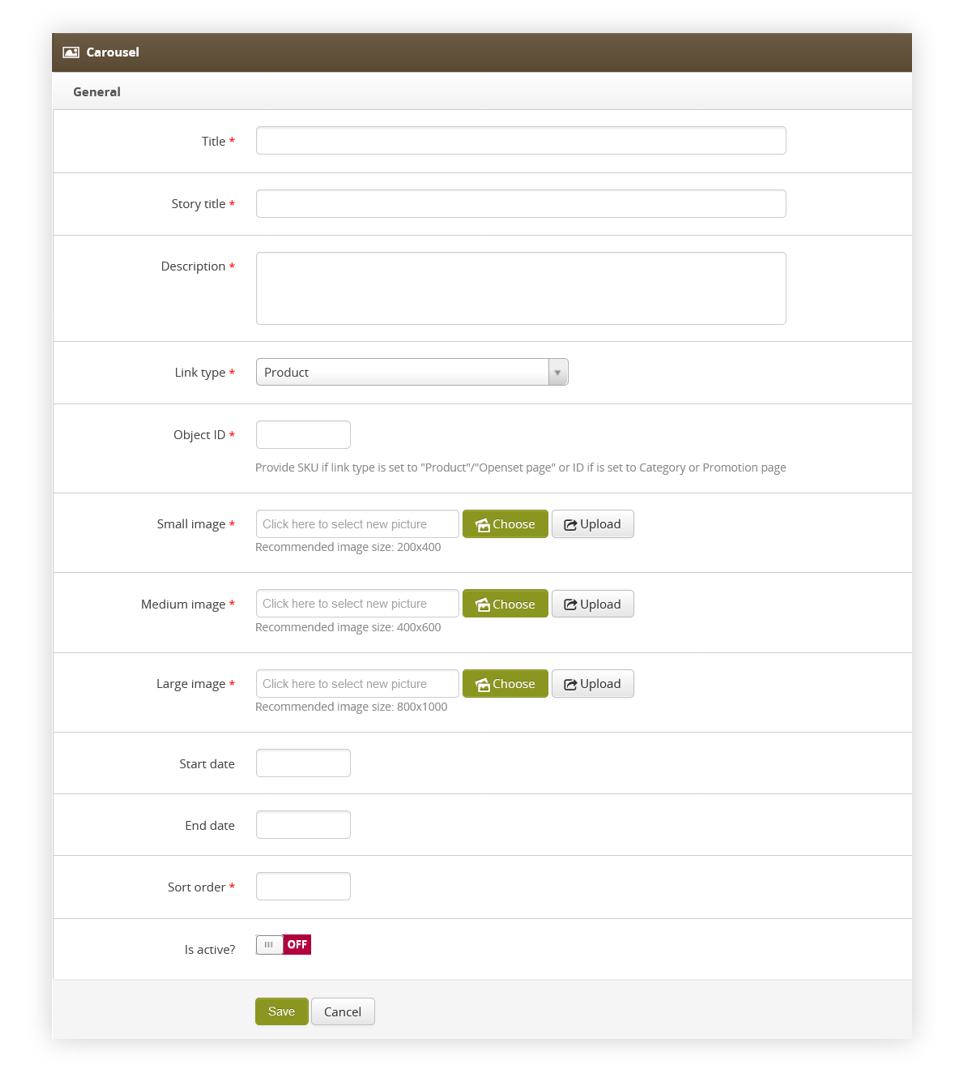
# ![Screenshot_2020-04-29_at_19.12.41.png](https://knowledge.tauceti-digital.com/uploads/images/gallery/2024-11/KTCscreenshot-2020-04-29-at-19-12-41-png.png) Creating a carousel

<span class="title">Add button allows users to create a new carousel.  
</span>

<span class="title">Below, you will find a description of all possible fields that can be edited while creating a new carousel.  
</span>

<table id="bkmrk-visualization-of-the-4" style="margin-right: auto; margin-left: auto; height: 44px; width: auto;"><tbody><tr style="height: 22px;"><td class="wysiwyg-text-align-center" style="text-align: center; vertical-align: middle; height: 22px; width: auto;">![POWERPNT_X2FqvqHC2b.png](https://knowledge.tauceti-digital.com/uploads/images/gallery/2024-11/7215628440476.png)</td></tr><tr style="height: 22px;"><td class="wysiwyg-text-align-center" style="text-align: center; vertical-align: middle; height: 22px; width: auto;"><span class="wysiwyg-font-size-medium">*Visualization of the creating the carousel* </span></td></tr></tbody></table>

- **Title** (mandatory) - Internal carousel name. This field is not visible to the customers.
- **Story title** (mandatory) - Public carousel name. This field is visible to the customers.
- **Description** (mandatory) - Description of the carousel. This field is visible to the customers.
- **Link type** (mandatory) - Type of a link available in the carousel. Depending on the selected type the **Object ID** field will require different input. There are 5 types of links: 
    - Product - Product available on the website.
    - Category (tag) - Category tag available on the website.
    - Promotion page - Promotion page available on the website.
    - Openset page - Openset page available on the website.
    - Custom view - Custom object programmed by the mobile app developers.
- **Object ID** (mandatory) - ID of an object selected in **Link type** section. 
    - Product - Product SKU i.e. J12345
    - Category (tag) -Tag ID i.e. 76938
    - Promotion page - Promotion page internal ID i.e. 1234
    - Openset page - Openset internal ID i.e. 765
    - Custom view - Custom field that doesn't have any validation. Custom values configured and programmed by mobile app developers can be put here.
- **Small image** (mandatory) - Small image of the carousel. Recommended image size: 200x400.
- **Medium image** (mandatory) - Medium image of the carousel. Recommended image size: 400x600.
- **Large image** (mandatory) - Large image of the carousel. Recommended image size: 800x1000.
- **Start date** - Start date when the carousel will be visible to the customers.
- **End date** - End date when the carousel will be hidden from the customers.
- **Sort order** (mandatory) - Sort order of the carousel. The lower the sort order the earlier in the order selected carousel will be visible to the customer.
- **Is active?** - Switch, which defines if the selected carousel is visible in the mobile app.

With all necessary fields filled, you can save the changes using the **save** button.

---

# ![Screenshot_2020-04-29_at_19.12.41.png](https://knowledge.tauceti-digital.com/uploads/images/gallery/2024-11/KTCscreenshot-2020-04-29-at-19-12-41-png.png) Application view

Customers accessing the Yves Rocher application will view the carousel with the lowest sort order a the top of the page.

<table id="bkmrk-visualization-of-the-5" style="margin-right: auto; margin-left: auto; height: 44px; width: auto;"><tbody><tr style="height: 22px;"><td class="wysiwyg-text-align-center" style="text-align: center; vertical-align: middle; height: 22px; width: auto;">![POWERPNT_UvgaYbauak.png](https://knowledge.tauceti-digital.com/uploads/images/gallery/2024-11/7217489602716.png)</td></tr><tr style="height: 22px;"><td class="wysiwyg-text-align-center" style="text-align: center; vertical-align: middle; height: 22px; width: auto;"><span class="wysiwyg-font-size-medium">*Visualization of the carousel on the mobile app* </span></td></tr></tbody></table>

When selecting the carousel it will open carousel story where the carousel will change the slide every 10 seconds.

<table id="bkmrk-visualization-of-the-6" style="margin-right: auto; margin-left: auto; height: 44px; width: auto;"><tbody><tr style="height: 22px;"><td class="wysiwyg-text-align-center" style="text-align: center; vertical-align: middle; height: 22px; width: auto;">![POWERPNT_8h2xnGZ7Ew.png](https://knowledge.tauceti-digital.com/uploads/images/gallery/2024-11/7215629556508.png)</td></tr><tr style="height: 22px;"><td class="wysiwyg-text-align-center" style="text-align: center; vertical-align: middle; height: 22px; width: auto;"><span class="wysiwyg-font-size-medium">*Visualization of the carousel story on the mobile app* </span></td></tr></tbody></table>

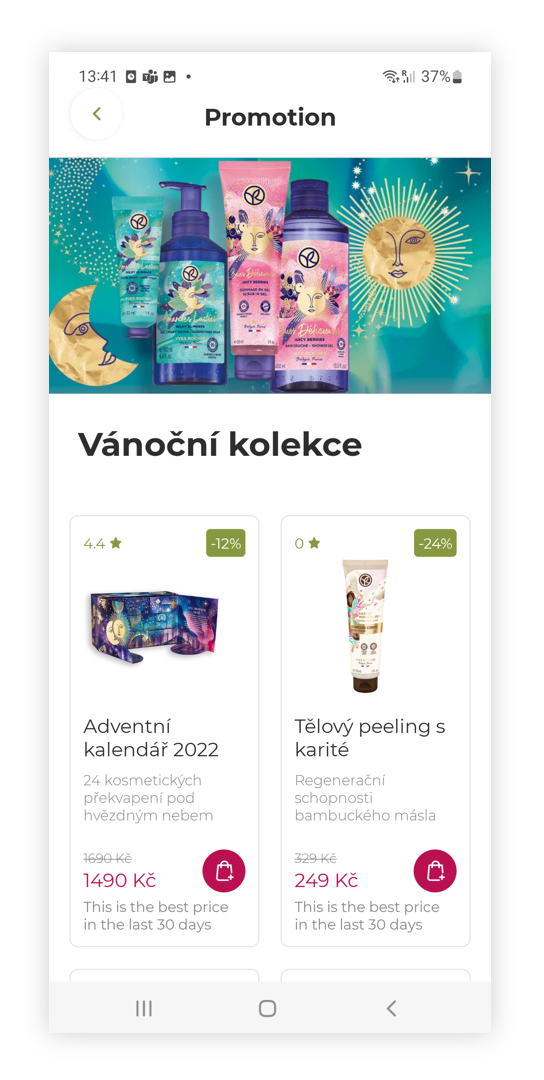
Selecting the **discover more** button will redirect the user to the desired page set in the "**link type**" and "**object id**" part of the carousel.

<table id="bkmrk-visualization-of-the-7" style="margin-right: auto; margin-left: auto; height: 44px; width: auto;"><tbody><tr style="height: 22px;"><td class="wysiwyg-text-align-center" style="text-align: center; vertical-align: middle; height: 22px; width: auto;">![POWERPNT_39FqFeYeMR.png](https://knowledge.tauceti-digital.com/uploads/images/gallery/2024-11/7217498676380.png)</td></tr><tr style="height: 22px;"><td class="wysiwyg-text-align-center" style="text-align: center; vertical-align: middle; height: 22px; width: auto;"><span class="wysiwyg-font-size-medium">*Visualization of the promotional page* </span></td></tr></tbody></table>

# Mobile app

# ![Screenshot_2020-04-29_at_19.12.41.png](https://knowledge.tauceti-digital.com/uploads/images/gallery/2024-11/9393629507612.png) Getting started

Mobile API is an interface that allows Yves Rocher Mobile application for android and iOS to get content from Yves-Rocher website. The mobile app should get configured in the Yves Rocher admin panel in order to work properly. The mobile app has its own category in the administrator panel called "Mobile app" where content for the mobile app can be configured. Detailed information about each sub-category can be found in the separate articles listed in the [ Mobile app sub-categories](#bkmrk-mobile-app-sub-categ) section.

<span class="wysiwyg-color-black" style="color: #44549b;">![info2.svg](https://knowledge.tauceti-digital.com/uploads/images/gallery/2024-11/9393629509276.png) **Remember**</span><span class="wysiwyg-color-black" style="display: block; margin-top: 10px;">Yves Rocher API documentation for developer use can be accessed under URL   
[https://yr-api-doc.netlify.app/](https://yr-api-doc.netlify.app/)</span><span class="wysiwyg-color-black" style="color: #d23a4e;"></span> <span class="wysiwyg-color-black"></span><span class="wysiwyg-color-black"></span><span class="wysiwyg-color-black"></span><span class="wysiwyg-color-black"></span><span style="color: #4054a0;"></span>

Table of contents:

1. [ Enabling the Mobile app](#bkmrk-enabling-the-mobile--1)
2. [ Mobile app sub-categories](#bkmrk-mobile-app-sub-categ)

---

# ![Screenshot_2020-04-29_at_19.12.41.png](https://knowledge.tauceti-digital.com/uploads/images/gallery/2024-11/9393629507612.png) Enabling the Mobile app

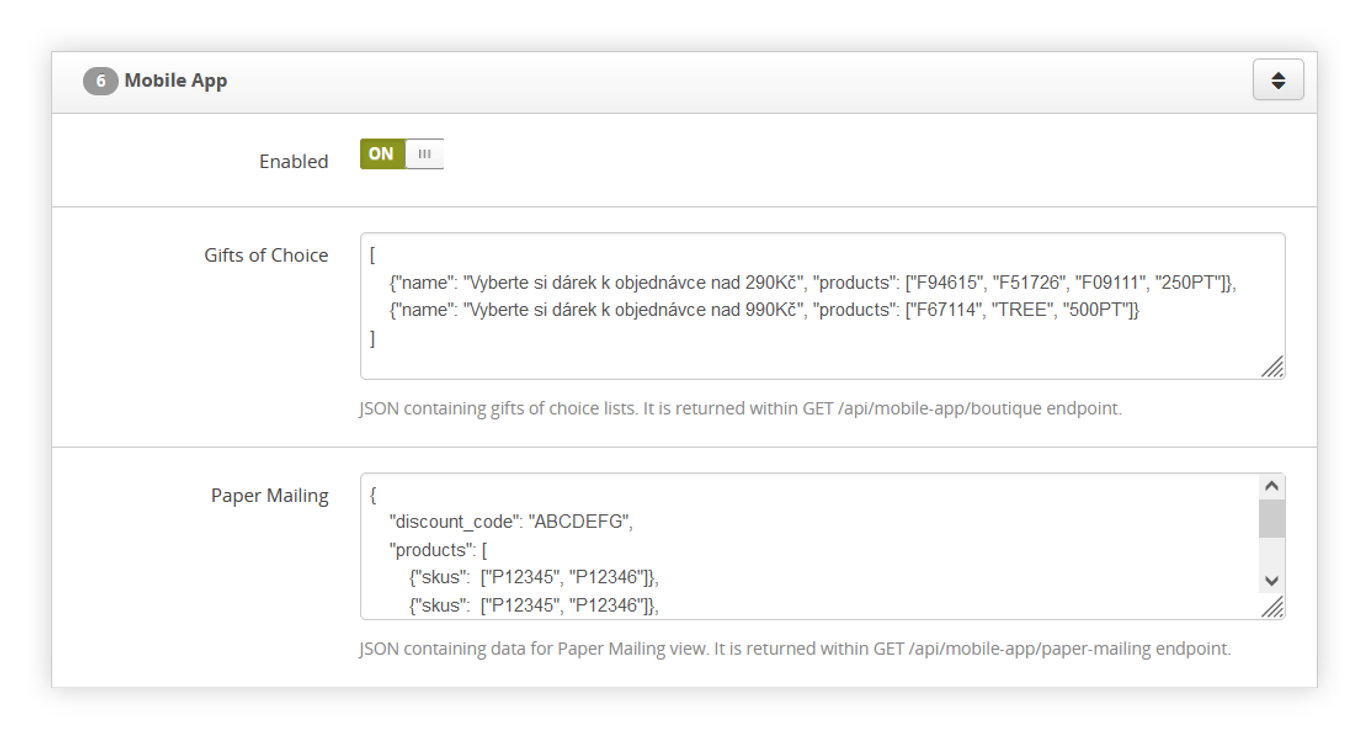
Mobile app by default is disabled on the selected environment. In order to enable or disable it you have to navigate to:

***System &gt; System / Settings &gt; Integrations &gt; Mobile App***

<table id="bkmrk-visualization-of-the" style="margin-right: auto; margin-left: auto; height: 44px; width: auto;"><tbody><tr style="height: 22px;"><td class="wysiwyg-text-align-center" style="text-align: center; vertical-align: middle; height: 22px; width: auto;">![POWERPNT_7dcTYkHuUi.png](https://knowledge.tauceti-digital.com/uploads/images/gallery/2024-11/7203401515932.png)</td></tr><tr style="height: 22px;"><td class="wysiwyg-text-align-center" style="text-align: center; vertical-align: middle; height: 22px; width: auto;"><span class="wysiwyg-font-size-medium">*Visualization of the mobile app system settings* </span></td></tr></tbody></table>

In the mobile app menu you can find three options:

- **Enable** - A switch that enables or disables the mobile application integration. This switch should be always turned on if the selected country is using the mobile app, as turning it off will cause an issue with API communication between Yves Rocher mobile application and Yves Rocher admin panel.
- **Gifts of choice** - An JSON of gifts of choices, which shows up in the mobile application. The JSON has to be set between two square brackets ( \[ \] ) and must include two parameters: 
    - "name" - A name of the gifts of choice section.
    - "min\_cart\_value" - A minimum cart value that needs to be met for the selected gift of choice to appear.
    - "products" - An array of product SKUs that are available in the selected gifts of choice.
    
    
    <span class="wysiwyg-color-black" style="color: #44549b;">![info2.svg](https://knowledge.tauceti-digital.com/uploads/images/gallery/2024-11/9393629509276.png) **Example**</span><span class="wysiwyg-color-black" style="display: block; margin-top: 10px;">Below you can find an example JSON of gifts of choice.  
    \[  
    {"name": "Gifts from 100 EUR", "min\_cart\_value": 100, "products": \["P12345", "P12346"\]},  
    {"name": "Gifts from 150 EUR", "min\_cart\_value": 150, "products": \["P92345", "P92346"\]}  
    \]  
    </span>
- <label class="control-label" for="settings_paper_mailing_api_data"> **Paper Mailing** </label>- An JSON of paper mailing products that show up in the mobile application. The JSON has to be set between two curly brackets ( { } ) and must include the following parameters: 
    - "ver1" or "ver2" - a version of the paper mailing call
    - "discount\_code" - Selected discount code.
    - "products" - An array of SKUs that are available in the selected paper mailings. The array contains "SKUs" parameter which contains an array of SKU numbers.
    
    
    <span class="wysiwyg-color-black" style="color: #44549b;">![info2.svg](https://knowledge.tauceti-digital.com/uploads/images/gallery/2024-11/9393629509276.png) **Example**</span><span class="wysiwyg-color-black" style="display: block; margin-top: 10px;">Below you can find an example JSON of gifts of paper mailing.  
    {  
    "ver1": {  
    "discount\_code": "ABCDEFG",  
    "products": \[  
    {"skus": \["P12345", "P12346"\]},  
    {"skus": \["P12345", "P12346"\]}  
    \]  
    },  
    "ver2": {  
    "offer\_id": "offer\_id\_1",  
    "discount\_code": "ABCDEFG",  
    "discount\_percentage": 10,  
    "products": \[  
    {"skus": \["12345","12346","12347"\]}  
    \],  
    "additional": {  
    "validity": "2024-12-31",  
    "ean\_image": "https://example.com/image.jpg",  
    "image\_small": "https://example.com/image-sm.jpg",  
    "image\_medium": "https://example.com/image-md.jpg",  
    "image\_large": "https://example.com/image-lg.jpg"  
    }  
    }  
    }  
    </span>

<span class="wysiwyg-color-black" style="color: #44549b;">![info2.svg](https://knowledge.tauceti-digital.com/uploads/images/gallery/2024-11/9393629509276.png) **Remember**</span><span class="wysiwyg-color-black" style="display: block; margin-top: 10px;">You can find more about paper mailing api calls in  
[https://yr-api-doc-staging-v6.netlify.app/api-raml/#mobile\_app\_paper\_mailing\_get](https://yr-api-doc-staging-v6.netlify.app/api-raml/#mobile_app_paper_mailing_get)  
[https://yr-api-doc-staging-v6.netlify.app/api-raml/#mobile\_app\_paper\_mailing\_list\_get](https://yr-api-doc-staging-v6.netlify.app/api-raml/#mobile_app_paper_mailing_list_get)  
</span><span class="wysiwyg-color-black" style="color: #d23a4e;"></span> <span class="wysiwyg-color-black"></span><span class="wysiwyg-color-black"></span><span class="wysiwyg-color-black"></span><span class="wysiwyg-color-black"></span><span style="color: #4054a0;"></span>

With an enabled mobile app all the categories described in the [ Mobile app sub-categories](#bkmrk-mobile-app-sub-categ) can be used in the mobile application.

---

# ![Screenshot_2020-04-29_at_19.12.41.png](https://knowledge.tauceti-digital.com/uploads/images/gallery/2024-11/9393629507612.png) Mobile app sub-categories

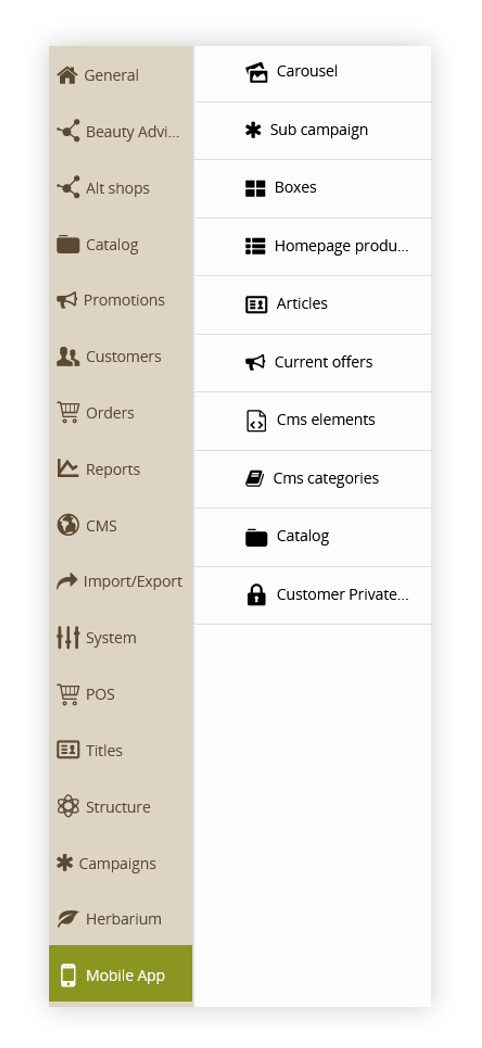
The mobile app content can be managed using the "Mobile app" category in the admin panel. In this category, you will find many different subcategories that will be read by the mobile app and shown on the application.

<table id="bkmrk-visualization-of-the-1" style="margin-right: auto; margin-left: auto; height: 44px; width: auto;"><tbody><tr style="height: 22px;"><td class="wysiwyg-text-align-center" style="text-align: center; vertical-align: middle; height: 22px; width: auto;">![POWERPNT_hZ5Bh7jhaA.png](https://knowledge.tauceti-digital.com/uploads/images/gallery/2024-11/7203401496220.png)</td></tr><tr style="height: 22px;"><td class="wysiwyg-text-align-center" style="text-align: center; vertical-align: middle; height: 22px; width: auto;"><span class="wysiwyg-font-size-medium">*Visualization of the mobile app sub-categories* </span></td></tr></tbody></table>

Below you will find URLs to the articles of the currently available sub-categories

- [Carousel](https://knowledge.tauceti-digital.com/books/e-commerce/page/mobile-app-carousel)
- [Sub Campaign](https://knowledge.tauceti-digital.com/books/e-commerce/page/mobile-app-sub-campaign)
- Boxes
- Homepage products
- Articles
- Current offers
- Cms elements
- Cms categories
- Catalog
- [Customer private offers](https://knowledge.tauceti-digital.com/books/e-commerce/page/customer-private-offers)

# Customers

# Customer private offers

# ![Screenshot_2020-04-29_at_19.12.41.png](https://knowledge.tauceti-digital.com/uploads/images/gallery/2024-11/9393540908828.png) Getting started

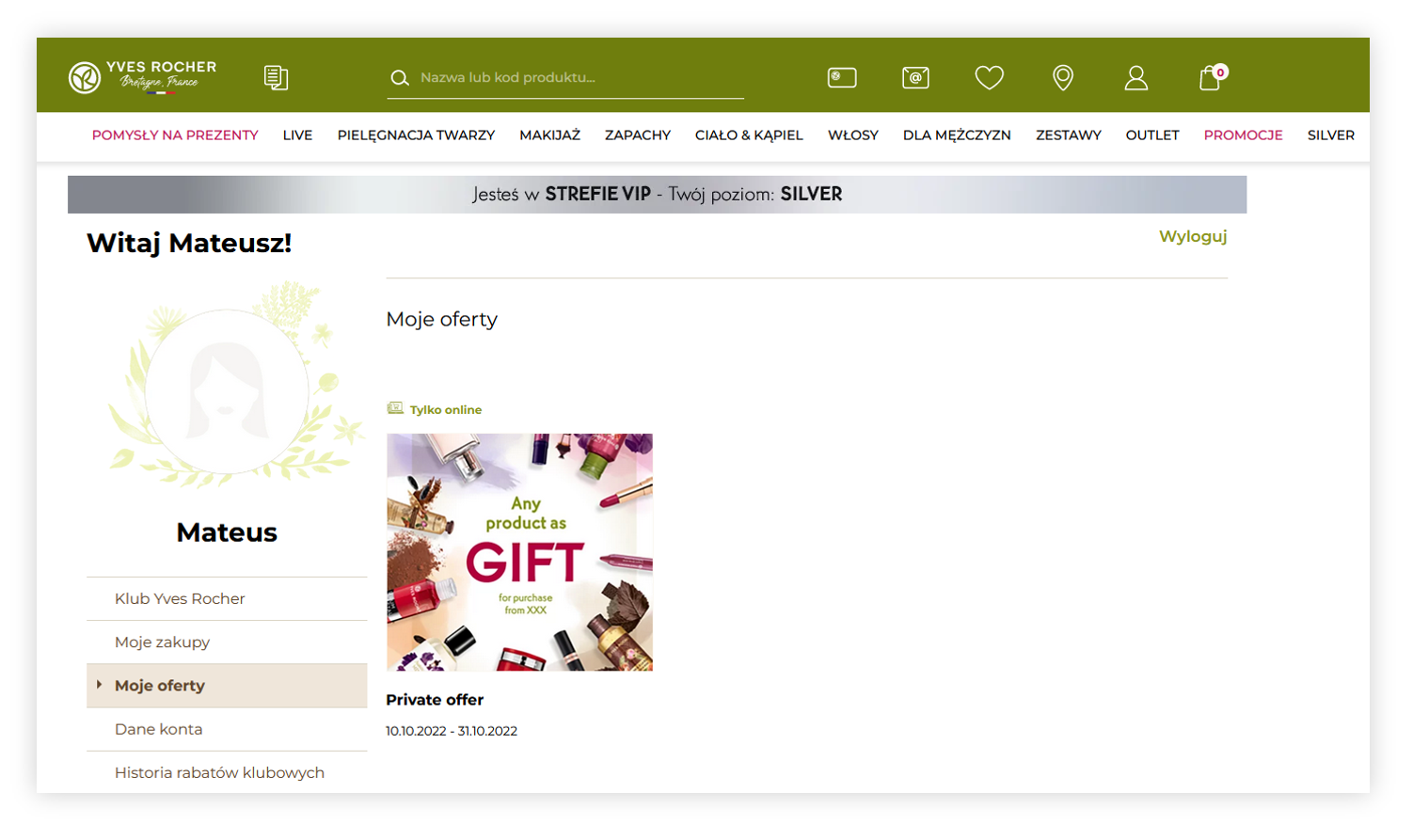
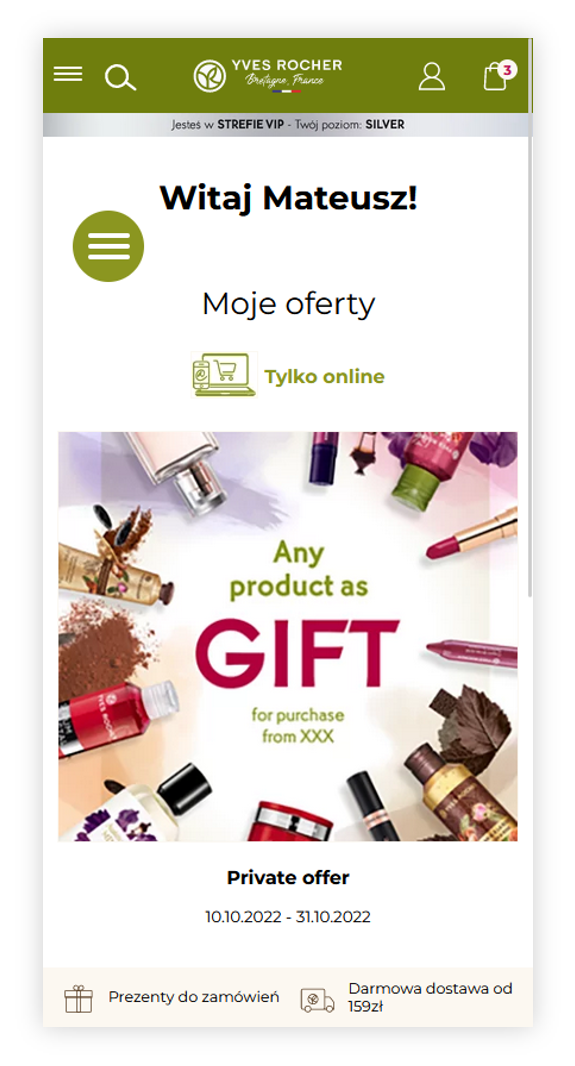
In this article, you can find information about customer private offers, which allow you to set up private offers that will be visible only to the selected customers. Private offers are promotional offers tailored to the selected group of customers, as they are not activated in the altshop but are set to the customers e-mail addresses.

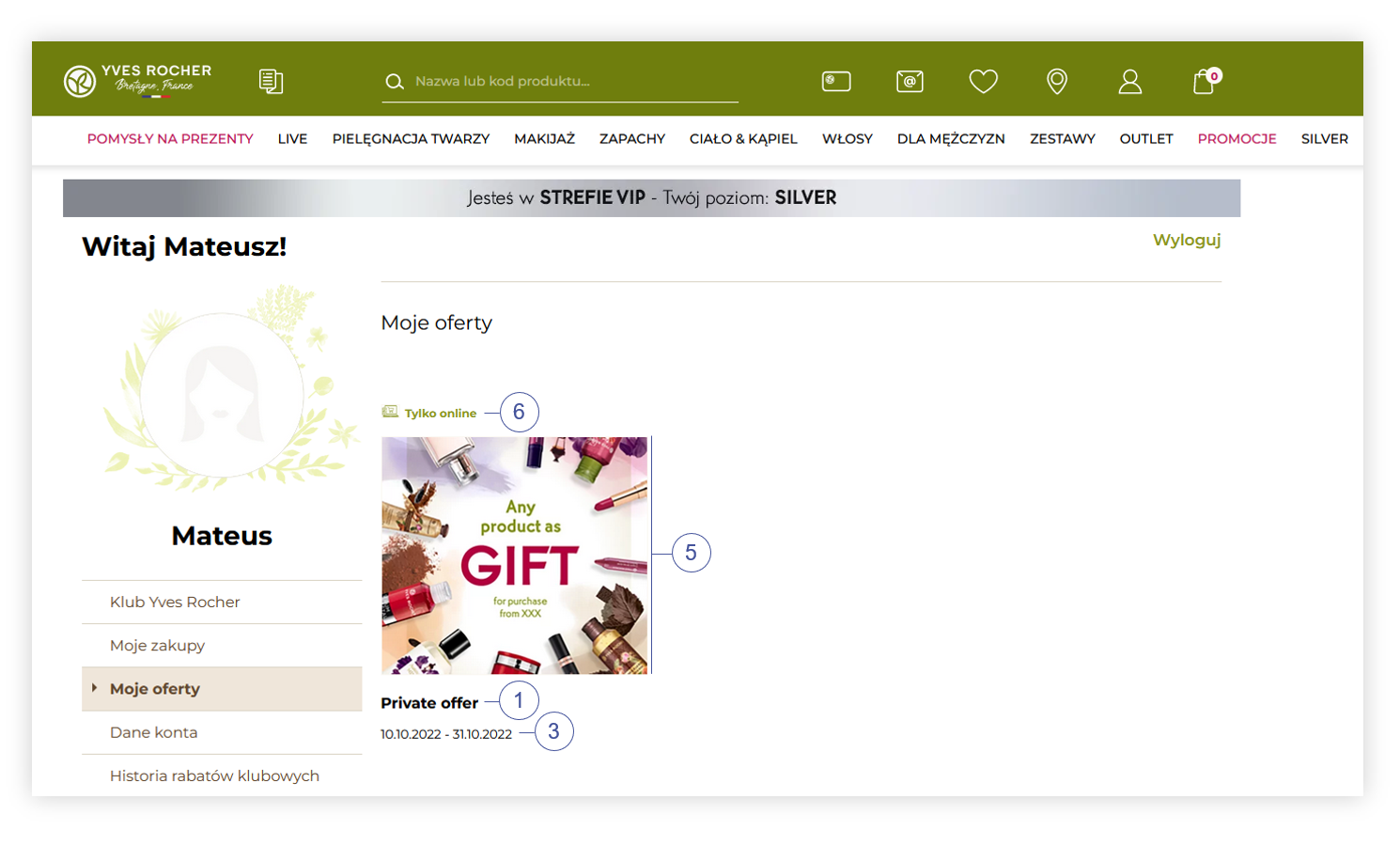
<table id="bkmrk-visualization-of-the" style="margin-right: auto; margin-left: auto; height: 44px; width: 682px;"><tbody><tr style="height: 22px;"><td class="wysiwyg-text-align-center" style="text-align: center; vertical-align: middle; height: 22px; width: 670.167px;">![POWERPNT_SmhgSMp4vE.png](https://knowledge.tauceti-digital.com/uploads/images/gallery/2024-11/6307997264668.png)</td></tr><tr style="height: 22px;"><td class="wysiwyg-text-align-center" style="text-align: center; vertical-align: middle; height: 22px; width: 670.167px;"><span class="wysiwyg-font-size-medium">*Visualization of the customer private offer in the customer panel (desktop)* </span></td></tr></tbody></table>

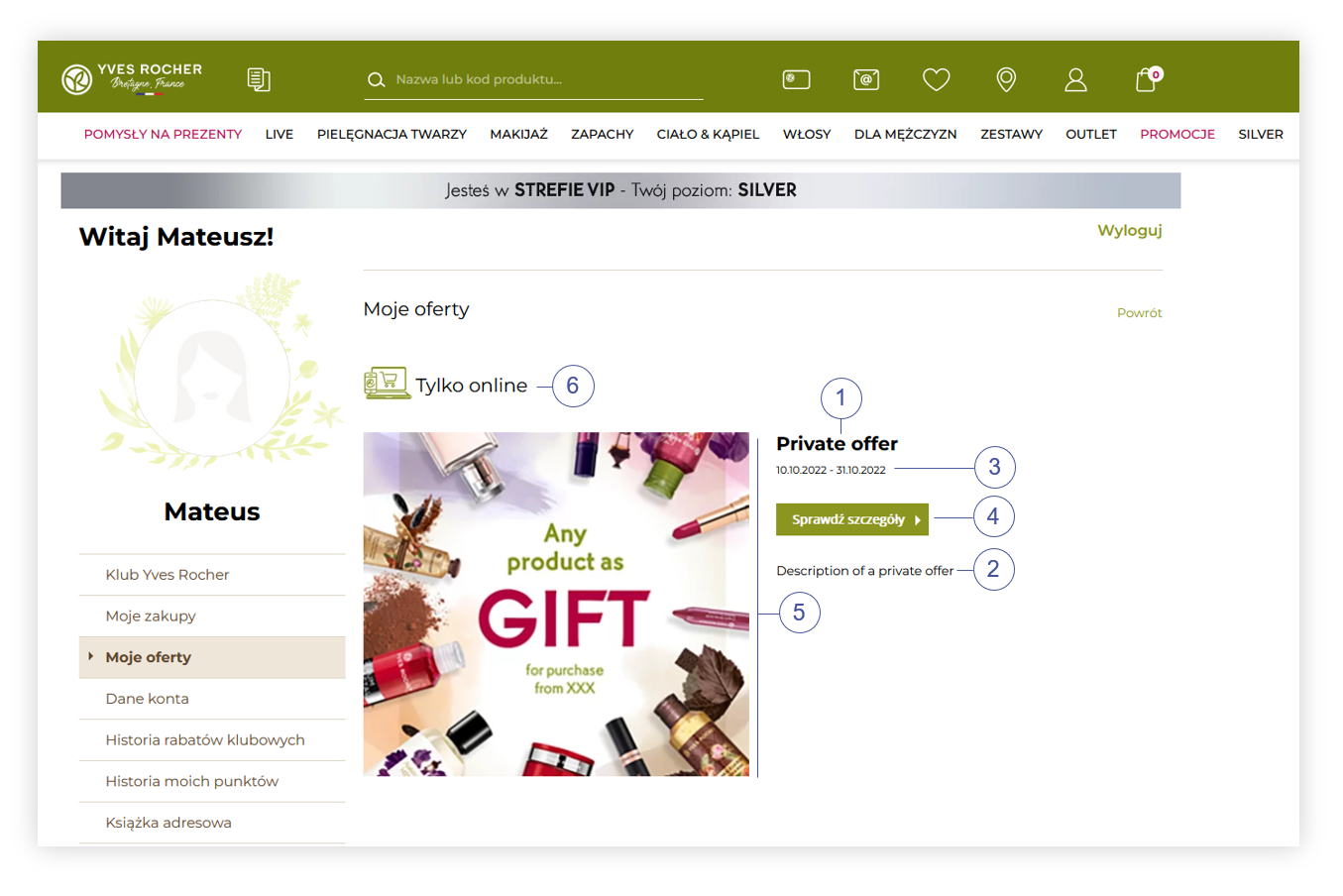
<table id="bkmrk-visualization-of-the-1" style="margin-right: auto; margin-left: auto; height: 44px; width: 682px;"><tbody><tr style="height: 22px;"><td class="wysiwyg-text-align-center" style="text-align: center; vertical-align: middle; height: 22px; width: 670.167px;">![POWERPNT_gEVFHRgRgd.png](https://knowledge.tauceti-digital.com/uploads/images/gallery/2024-11/6658857648284.png)</td></tr><tr style="height: 22px;"><td class="wysiwyg-text-align-center" style="text-align: center; vertical-align: middle; height: 22px; width: 670.167px;"><span class="wysiwyg-font-size-medium">*Visualization of the customer private offer in the customer panel (mobile)* </span></td></tr></tbody></table>

To open the *customer private offers* view, in the administration panel, navigate to:  
***Customers &gt; Customer private offers***

<table id="bkmrk-visualization-of-the-2" style="margin-right: auto; margin-left: auto; height: 44px; width: 684px;"><tbody><tr style="height: 22px;"><td class="wysiwyg-text-align-center" style="text-align: center; vertical-align: middle; height: 22px; width: 672.167px;">[![POWERPNT_LHefZFQiTD.png](https://ecomm-docs.tauceti-digital.com/uploads/images/gallery/2025-01/scaled-1680-/powerpnt-lhefzfqitd.png)](https://ecomm-docs.tauceti-digital.com/uploads/images/gallery/2025-01/powerpnt-lhefzfqitd.png)</td></tr><tr style="height: 22px;"><td class="wysiwyg-text-align-center" style="text-align: center; vertical-align: middle; height: 22px; width: 672.167px;"><span class="wysiwyg-font-size-medium">*Visualization of the customer private offer tab in the admin panel* </span></td></tr></tbody></table>

1. [ Customer private offer tab](#bkmrk-customer-private-off-1)
2. [ Creating a customer private offer](#bkmrk-creating-a-customer-)
3. [ Importing customers to the selected customer private offer](#bkmrk-importing-customers-)

---

# ![Screenshot_2020-04-29_at_19.12.41.png](https://knowledge.tauceti-digital.com/uploads/images/gallery/2024-11/9393540908828.png) Customer private offer tab

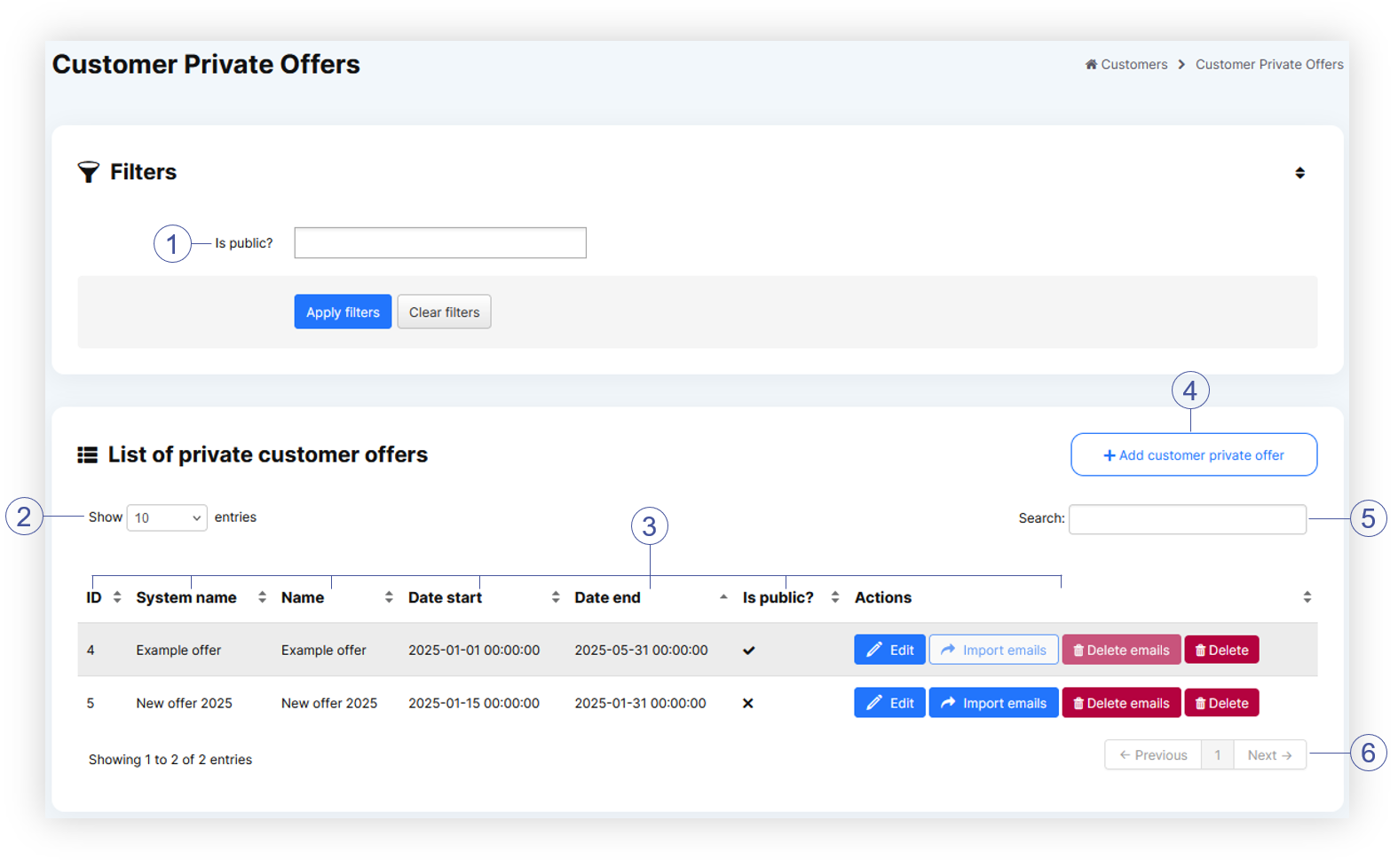
In the customer private offer tab, you can find all available private offers and their basic data.

Below you will find a description of possible actions.

<table id="bkmrk-visualization-of-the-3" style="margin-right: auto; margin-left: auto;"><tbody><tr><td class="wysiwyg-text-align-center" style="text-align: center; vertical-align: middle;">[![POWERPNT_id1uyxLG8M.png](https://ecomm-docs.tauceti-digital.com/uploads/images/gallery/2025-01/scaled-1680-/powerpnt-id1uyxlg8m.png)](https://ecomm-docs.tauceti-digital.com/uploads/images/gallery/2025-01/powerpnt-id1uyxlg8m.png)</td></tr><tr><td class="wysiwyg-text-align-center" style="text-align: center; vertical-align: middle;"><span class="wysiwyg-font-size-medium">*Visualization of the list of private customer offers tab* </span></td></tr></tbody></table>

- Filter private offers by their **is public?** **<span style="color: #4054a0;">(1)</span>** status. Available options are "**yes**" and "**no**".
- Select the **Show X entries <span style="color: #4054a0;">(2)</span>** field to set the number of private offers, displayed on one page (min 10 / max 100).
- The names of the columns **<span style="color: #4054a0;">(3)</span>** that contain information about a given private offer. Each column is susceptible to sorting. To sort the records, click on the title of the column.  
    
    - **ID** - Internal identification number of a private offer.
    - **System Name** - The system name of the private offer. This field is not visible to the customers, but is used in the customer import. You can learn more about customer import in the [ Importing customers to the selected customer private offer](#bkmrk-importing-customers-) chapter
    - **Name** - A public name of the offer. This field is visible to the customers.
    - **Start date** - the date from which the private offer is visible to the store customers.
    - **End date** - the date from which the private offer is hidden for store customers.
    - **Is public?** - The **is public?** status of a selected private offer.
    - **Actions** - Buttons that allow to perform various actions. Available actions are:  
        
        - **Edit** - Edits selected private offer. Editing is exactly the same as creating a new one, so you can read more about it in the [ Creating a customer private offer](#bkmrk-creating-a-customer-) chapter
        - **Import emails** - Import and assign customer email addresses to the selected private offer. More about importing emails can be found in the [ Importing customers to the selected customer private offer](#bkmrk-importing-customers-) chapter.
        - **Delete emails** - Removes all assigned customer emails from the selected private offer.
        - **Delete** - Removes the selected private offer without the ability to restore it.
- Select the **Add customer private offer <span style="color: #4054a0;">(4)</span>** button to go to the adding a new customer private offer. You can learn more about adding a new private offer in the [ Creating a customer private offer](#bkmrk-creating-a-customer-) chapter
- **Search box<span style="color: #4054a0;">(5)</span>** where you can search for desired private offer by their system name and name.
- **Page buttons<span style="color: #4054a0;">(6)</span>**, which allows user to change the page of currently viewed private offers.

---

# ![Screenshot_2020-04-29_at_19.12.41.png](https://knowledge.tauceti-digital.com/uploads/images/gallery/2024-11/9393540908828.png) Creating a customer private offer

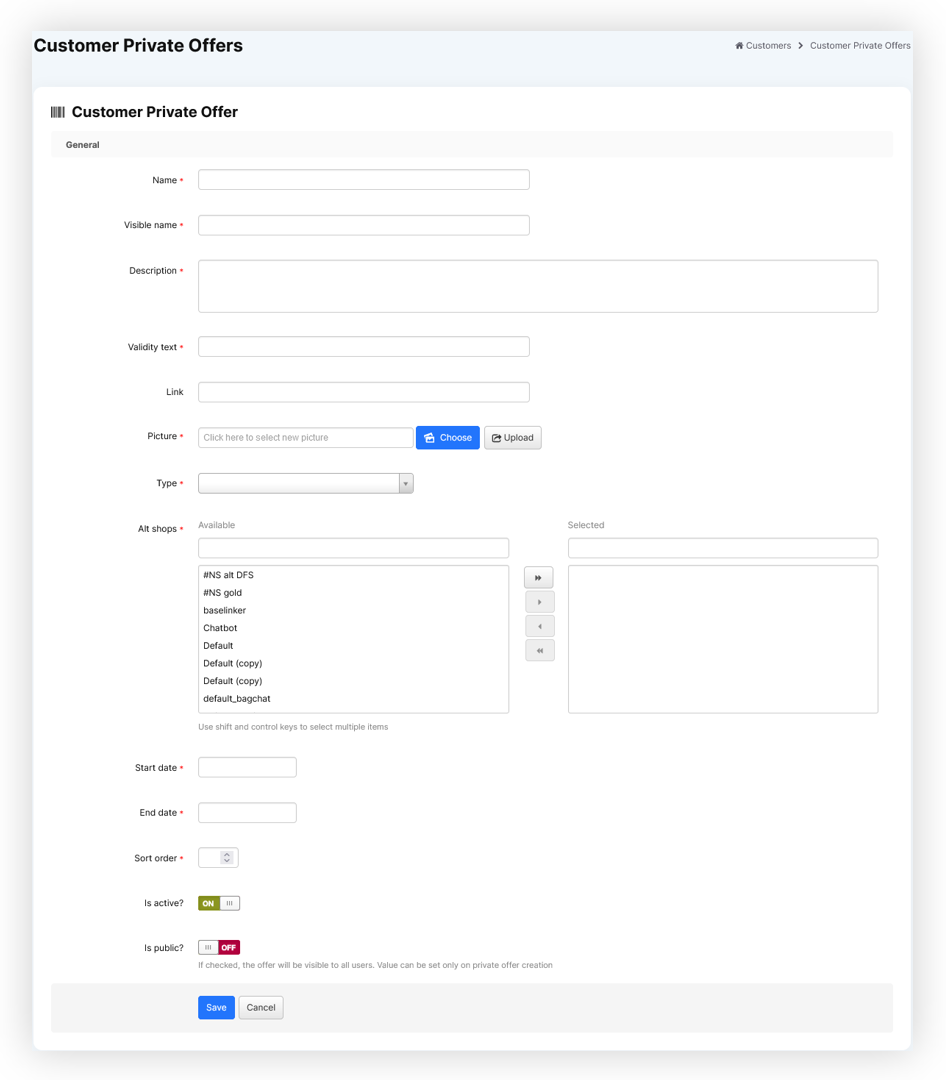
A private offer can be created using the **Add customer private offer** button. Below you will find all the fields that can be edited in the private offer creation

<table id="bkmrk-visualization-of-the-4" style="margin-right: auto; margin-left: auto;"><tbody><tr><td class="wysiwyg-text-align-center" style="text-align: center; vertical-align: middle;">[![POWERPNT_8UqKmFbZQk.png](https://ecomm-docs.tauceti-digital.com/uploads/images/gallery/2025-01/scaled-1680-/powerpnt-8uqkmfbzqk.png)](https://ecomm-docs.tauceti-digital.com/uploads/images/gallery/2025-01/powerpnt-8uqkmfbzqk.png)</td></tr><tr><td class="wysiwyg-text-align-center" style="text-align: center; vertical-align: middle;"><span class="wysiwyg-font-size-medium">*Visualization of the customer private offer creation* </span></td></tr></tbody></table>

- **Name** - the system name of the private offer. This field is not visible to the customers.
- **Visible name <span style="color: #4054a0;">(1)</span>** - A public name of the offer. This field is visible to the customers.
- **Description <span style="color: #4054a0;">(2)</span>** - Description of a private offer. This field is visible to the customers.
- **Validity text <span style="color: #4054a0;">(3)</span>** - A field that accepts a string. Usually in this field, there is a range of dates when the selected offer will be active. This field is visible to the customers
- **Link <span style="color: #4054a0;">(4)</span>** - An URL where the picture of the private offer will redirect to when clicked in the customer panel.
- **Picture <span style="color: #4054a0;">(5)</span>** - A picture of a private offer visible to the customer in the customer panel
- **Type <span style="color: #4054a0;">(6)</span>** - A type of private offer. A type doesn't change anything in how the offer works, but it displays in the customer panel what type the offer is. Available types are:  
    
    - **Use online &amp; in retail**
    - **Only online**
    - **Only in retail**
- **Altshops** - A list of altshops where selected private offer will be visible
- **Start date** - the date from which the private offer is visible to the store customers.
- **End date** - the date from which the private offer is hidden for store customers.
- **Sort order** - Sort order of the private offer. Sort offer sets the order in which offers are visible in the customer panel.
- **Is active?** - Activity switch, which turns the private offer on or off.
- **Is public?** - Switch, which decides if the private offer is public or not. This switch can only be changed when creating a new private offer. Public private offers are available for all logged-in customers and uploading e-mail addresses to them described in [ Importing customers to the selected customer private offer](#bkmrk-importing-customers-) is not possible.

While creating a new private offer it is also mandatory to fill out the mobile app fields:

- **Link type** - A type of a link. Available types are: 
    - **Product**
    - **Category (tag)**
    - **Promotion page**
    - **Openset page**
    - **Custom view**
- **Object ID** - An internal ID of a selected object. The ID is dependent on the selected **Link type**.
- **Small, Medium and Big images** - Three images selected from the gallery.


<span class="wysiwyg-color-black" style="color: #44549b;">![info2.svg](https://knowledge.tauceti-digital.com/uploads/images/gallery/2024-11/9393651728668.png) **Remember**</span><span class="wysiwyg-color-black" style="display: block; margin-top: 10px;">You can find more about the mobile app content configuration in the [Mobile app](https://knowledge.tauceti-digital.com/books/e-commerce/page/mobile-app) article.  
</span>

<table id="bkmrk-visualization-of-the-5" style="margin-right: auto; margin-left: auto;"><tbody><tr><td class="wysiwyg-text-align-center" style="text-align: center; vertical-align: middle;">![POWERPNT_8xaPLMCrwp.png](https://knowledge.tauceti-digital.com/uploads/images/gallery/2024-11/6308023169948.png)</td></tr><tr><td class="wysiwyg-text-align-center" style="text-align: center; vertical-align: middle;"><span class="wysiwyg-font-size-medium">*Visualization of the private offer tab in the customer panel* </span></td></tr></tbody></table>

<table id="bkmrk-visualization-of-the-6" style="margin-right: auto; margin-left: auto;"><tbody><tr><td class="wysiwyg-text-align-center" style="text-align: center; vertical-align: middle;">![POWERPNT_7cb5xdWdAj.png](https://knowledge.tauceti-digital.com/uploads/images/gallery/2024-11/6308023170460.png)</td></tr><tr><td class="wysiwyg-text-align-center" style="text-align: center; vertical-align: middle;"><span class="wysiwyg-font-size-medium">*Visualization of the customer private offer in the customer panel* </span></td></tr></tbody></table>

With all mandatory fields filled, you can save created private offer using the **save** button, or cancel its creation using the **cancel** button.

---

# ![Screenshot_2020-04-29_at_19.12.41.png](https://knowledge.tauceti-digital.com/uploads/images/gallery/2024-11/9393540908828.png) Importing customers to the selected customer private offer

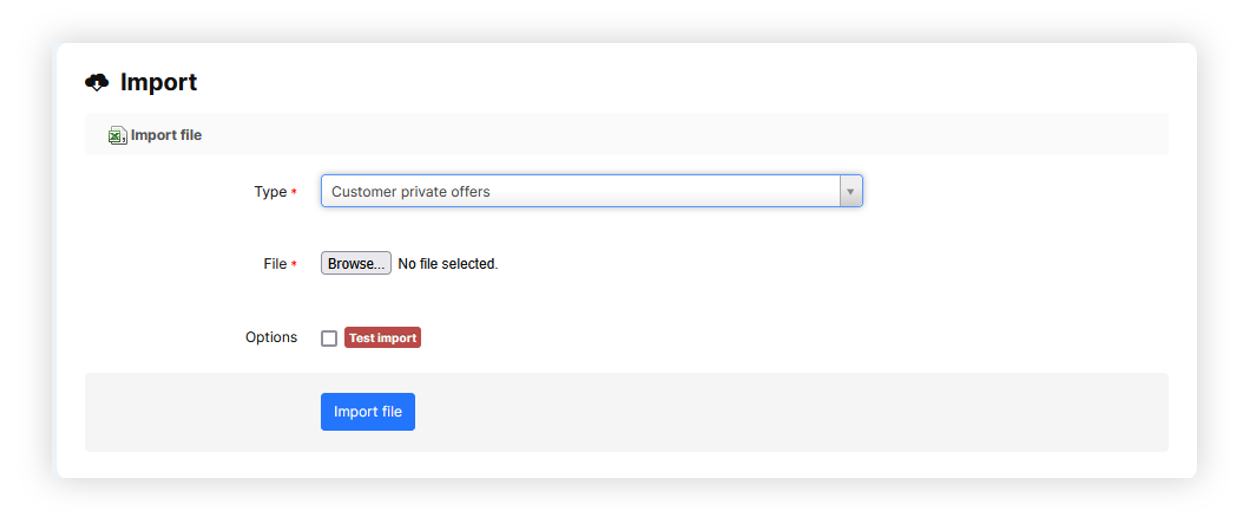
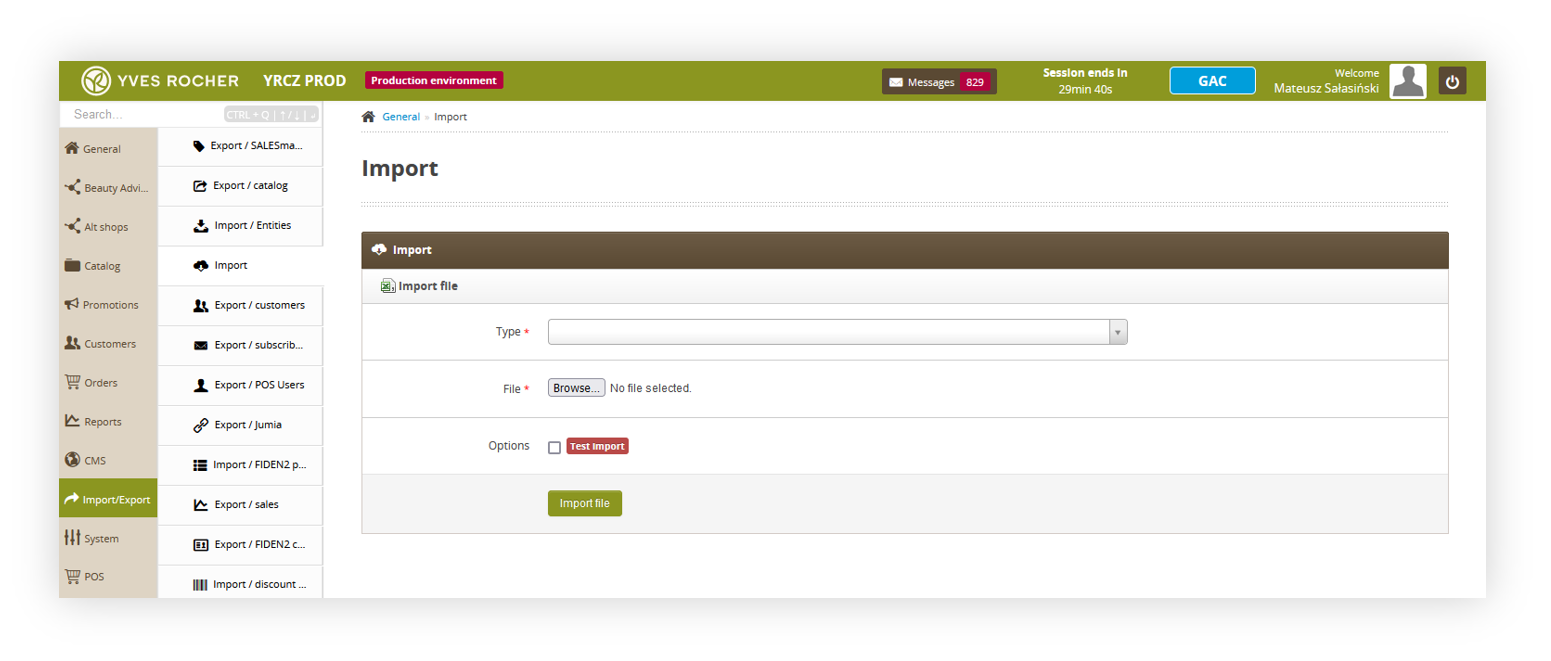
In order for a private offer to be visible to the customers, their e-mail address must be assigned to the selected offer. In order to do that, you have to navigate to **import / export &gt; import**

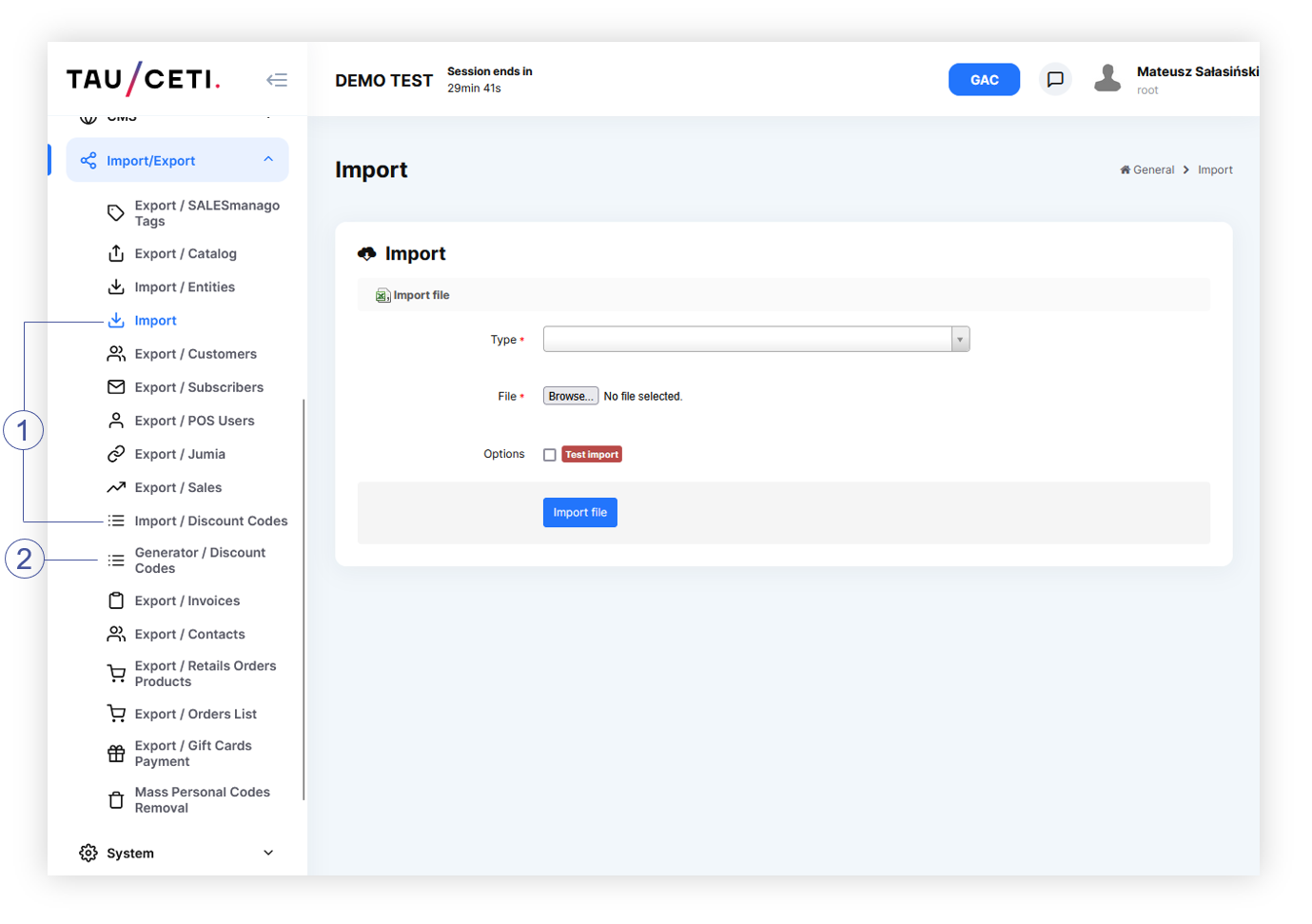
<table id="bkmrk-visualization-of-the-7" style="margin-right: auto; margin-left: auto; height: 160px; width: 663px;" width="285"><tbody><tr style="height: 22px;"><td class="wysiwyg-text-align-center" style="text-align: center; vertical-align: middle; height: 22px; width: 651.167px;">[![POWERPNT_3lkqjuxYcf.png](https://ecomm-docs.tauceti-digital.com/uploads/images/gallery/2025-02/scaled-1680-/powerpnt-3lkqjuxycf.png)](https://ecomm-docs.tauceti-digital.com/uploads/images/gallery/2025-02/powerpnt-3lkqjuxycf.png)</td></tr><tr style="height: 22px;"><td class="wysiwyg-text-align-center" style="text-align: center; vertical-align: middle; height: 22px; width: 651.167px;"><span class="wysiwyg-font-size-medium">*Visualization of the import tab in the import/export section* </span></td></tr></tbody></table>

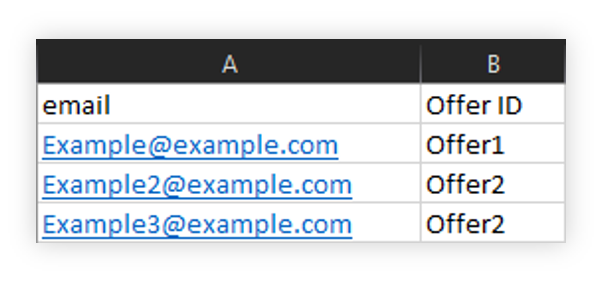
In the import export you have to select **Customer private offer** type and attach previously created customer private offer .csv file.

<table id="bkmrk-visualization-of-the-8" style="margin-right: auto; margin-left: auto; height: 198px; width: 510px;" width="390"><tbody><tr style="height: 22px;"><td class="wysiwyg-text-align-center" style="text-align: center; vertical-align: middle; height: 22px; width: 498.167px;">![POWERPNT_vw89vtHzju.png](https://knowledge.tauceti-digital.com/uploads/images/gallery/2024-11/6308057207708.png)</td></tr><tr style="height: 22px;"><td class="wysiwyg-text-align-center" style="text-align: center; vertical-align: middle; height: 22px; width: 498.167px;"><span class="wysiwyg-font-size-medium">*Visualization of the example CSV file of a private offer import* </span></td></tr></tbody></table>

Customer private offer .csv file must contain two fields:

- **Email** - Customer's email address.
- **Offer ID** - System name of the private offer.

With prepared file and selected **Customer private offer** type, you can import the file in into the TauCeti platform, and the selected e-mail addresses will get automatically assigned to the selected offer IDs.

# Import / export

# Export / orders list

# ![Screenshot_2020-04-29_at_19.12.41.png](https://knowledge.tauceti-digital.com/uploads/images/gallery/2024-11/ORWscreenshot-2020-04-29-at-19-12-41-png.png) Getting started

In this article, you can learn about **export / orders list** functionality, which will allow you to export created e-commerce orders with their basic information. In order to access this module you have to have **BOK supervisors**, **MC business admin,** **Administrator**, **Super administrator**, or **Root** group.

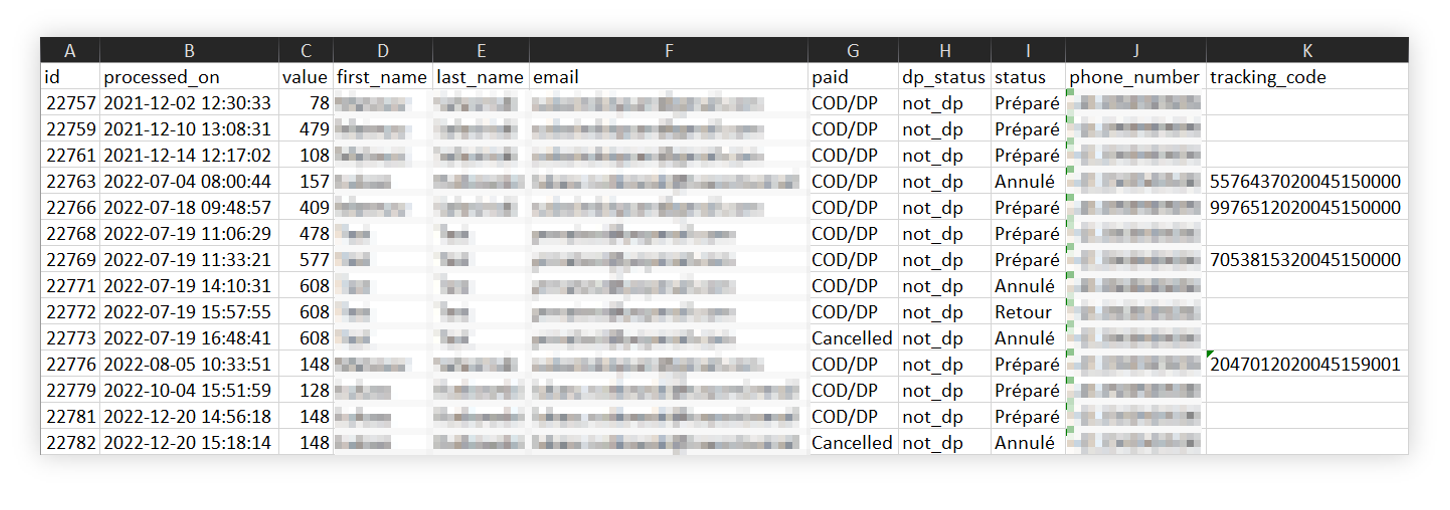
<table id="bkmrk-%C2%A0-visualization-of-t" style="margin-right: auto; margin-left: auto; height: auto; width: 731px;"><tbody><tr style="height: auto;"><td class="wysiwyg-text-align-center" style="text-align: center; vertical-align: middle; height: auto; width: 719.233px;">![POWERPNT_h6wEpFGvDv.png](https://knowledge.tauceti-digital.com/uploads/images/gallery/2024-11/7287921788956.png)</td></tr><tr style="height: 22px;"><td class="wysiwyg-text-align-center" style="text-align: center; vertical-align: middle; height: 22px; width: 719.233px;"><span class="wysiwyg-font-size-medium"> </span><span class="wysiwyg-font-size-medium">*Visualization of the exported orders list* </span></td></tr></tbody></table>

To open the Featured products / list view, in the admin panel, navigate to:  
***Import / export &gt; Export / orders list***

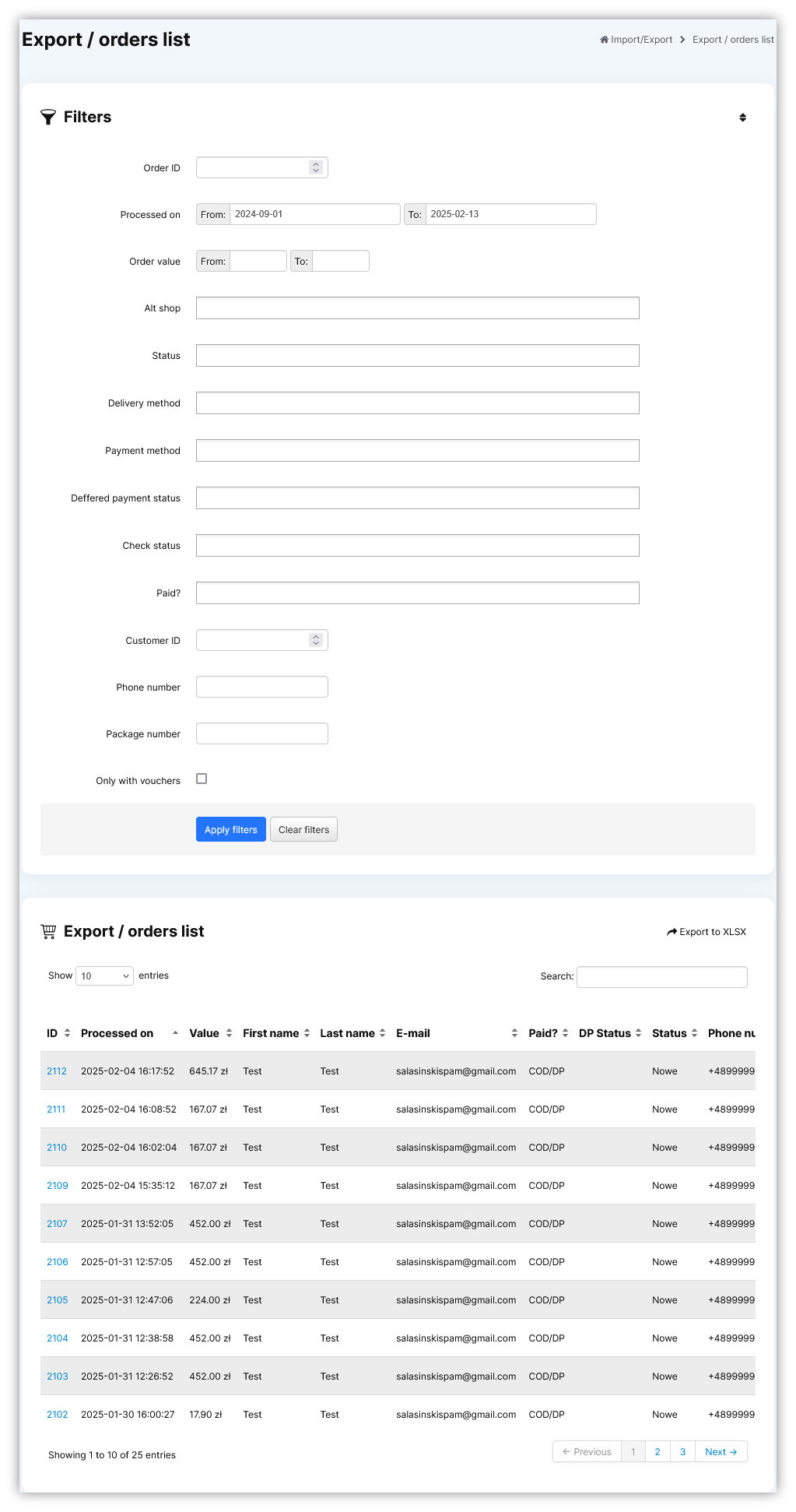
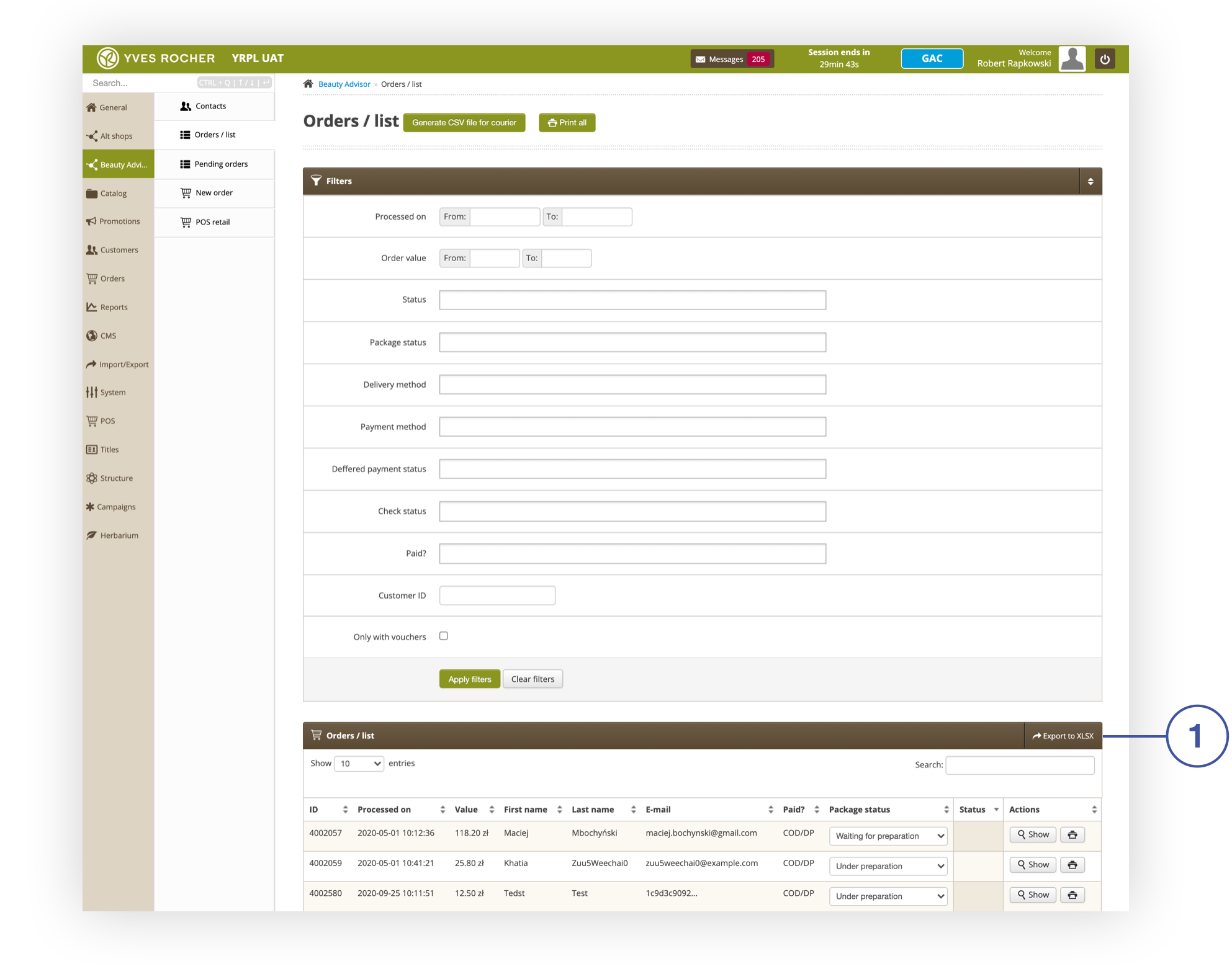
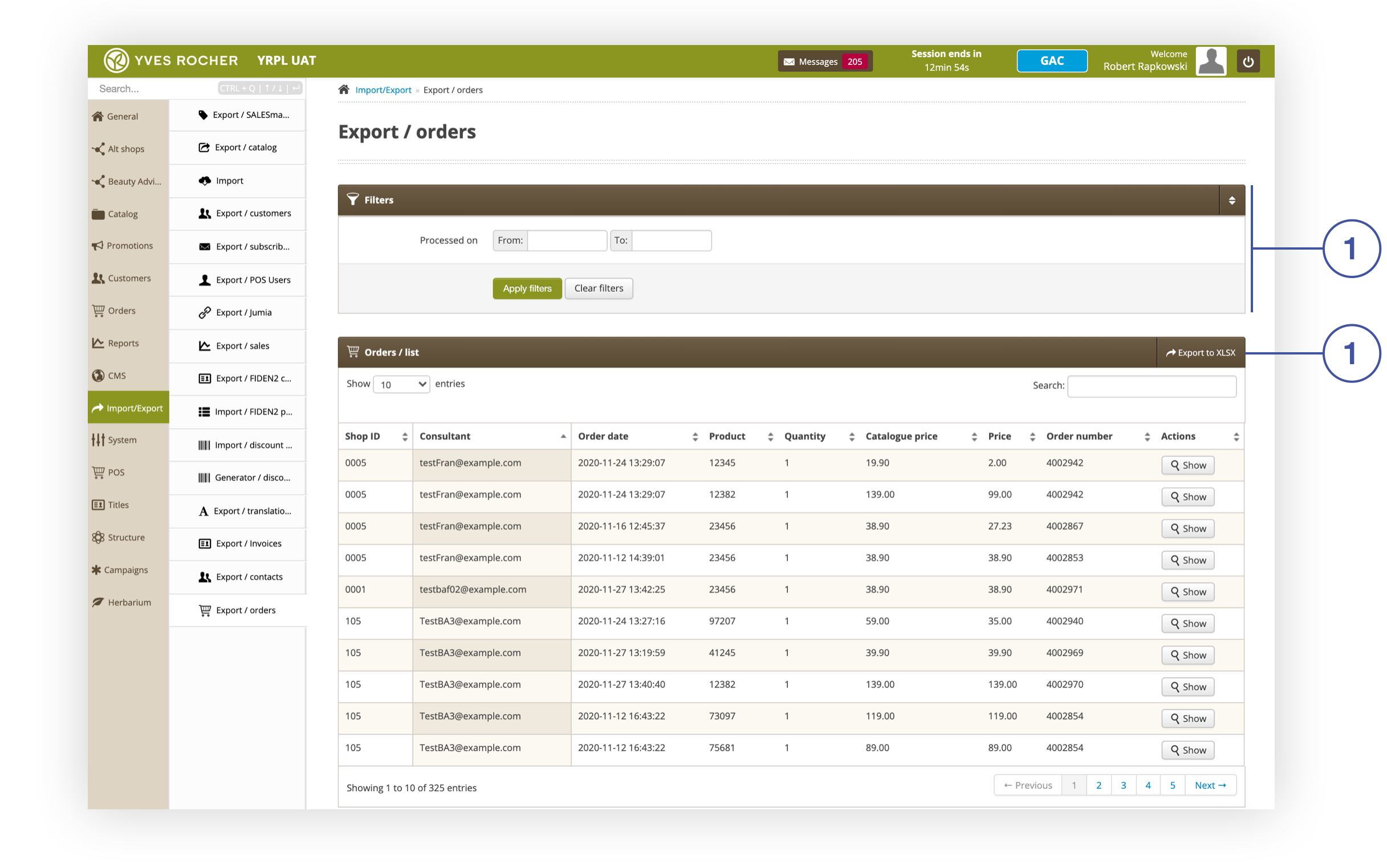
All possible operations to perform on the **Export / orders list** view can be done in the **Filters<span style="color: #4054a0;"> </span>**and **Export / orders list**<span style="color: #4054a0;"> </span>tabs.

<table id="bkmrk-%C2%A0-visualization-of-t-1" style="margin-right: auto; margin-left: auto; height: auto; width: 774px;"><tbody><tr style="height: auto;"><td class="wysiwyg-text-align-center" style="text-align: center; vertical-align: middle; height: auto; width: 762.233px;">[![Screenshot 2025-02-13 at 14-44-29 Export _ orders list - Admin module.png](https://ecomm-docs.tauceti-digital.com/uploads/images/gallery/2025-02/scaled-1680-/screenshot-2025-02-13-at-14-44-29-export-orders-list-admin-module.png)](https://ecomm-docs.tauceti-digital.com/uploads/images/gallery/2025-02/screenshot-2025-02-13-at-14-44-29-export-orders-list-admin-module.png)</td></tr><tr style="height: 22px;"><td class="wysiwyg-text-align-center" style="text-align: center; vertical-align: middle; height: 22px; width: 762.233px;"><span class="wysiwyg-font-size-medium"> </span><span class="wysiwyg-font-size-medium">*Visualization of the export / orders list module in the administrator panel*</span></td></tr></tbody></table>

Table of contents:

1. [ Filters section](#bkmrk-filters-section)
2. [ Export / orders list section](#bkmrk-export-%2F-orders-list)
3. [ Exporting orders to the xlsx](#bkmrk-exporting-orders-to-)

---

# ![Screenshot_2020-04-29_at_19.12.41.png](https://knowledge.tauceti-digital.com/uploads/images/gallery/2024-11/ORWscreenshot-2020-04-29-at-19-12-41-png.png) Filters section

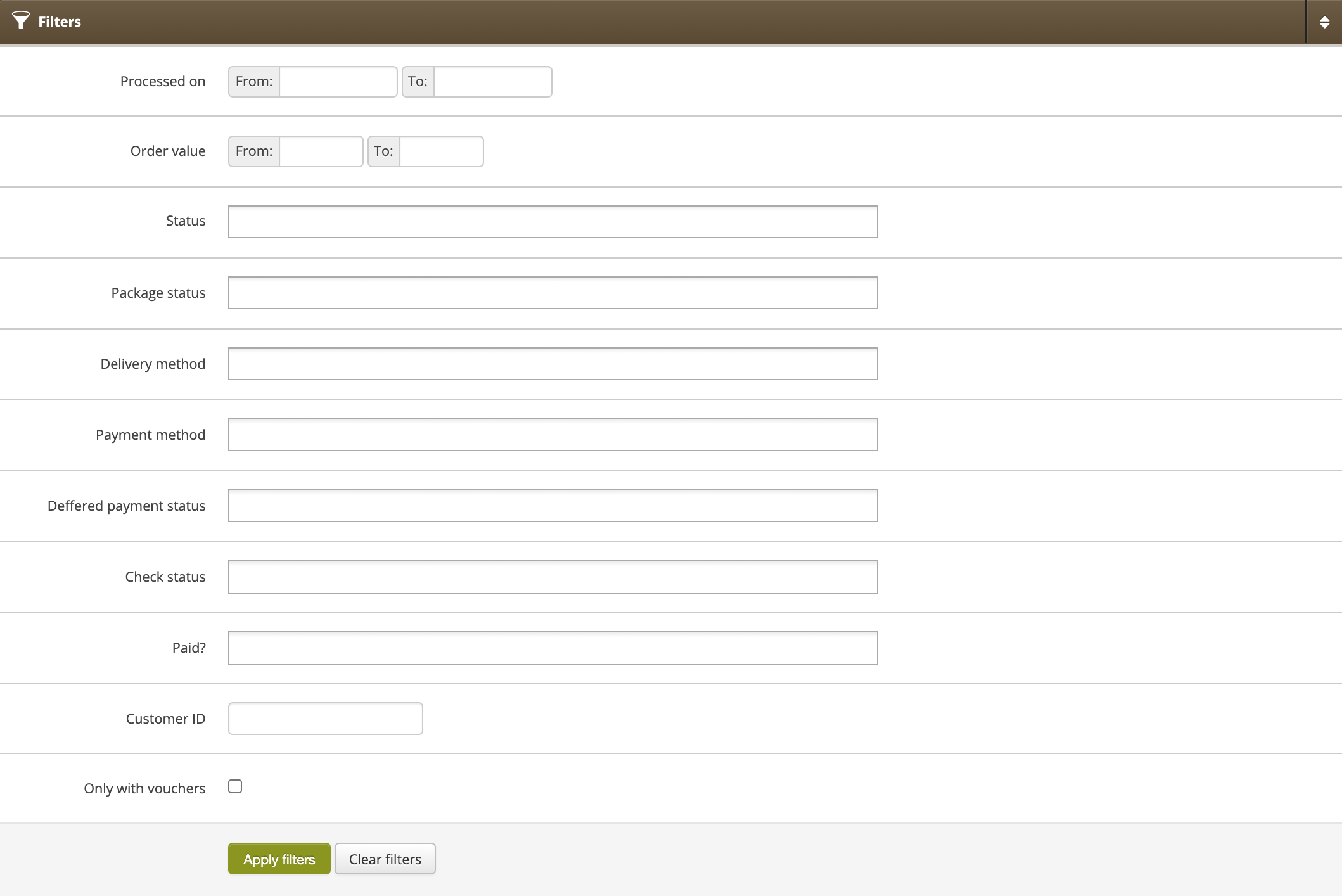
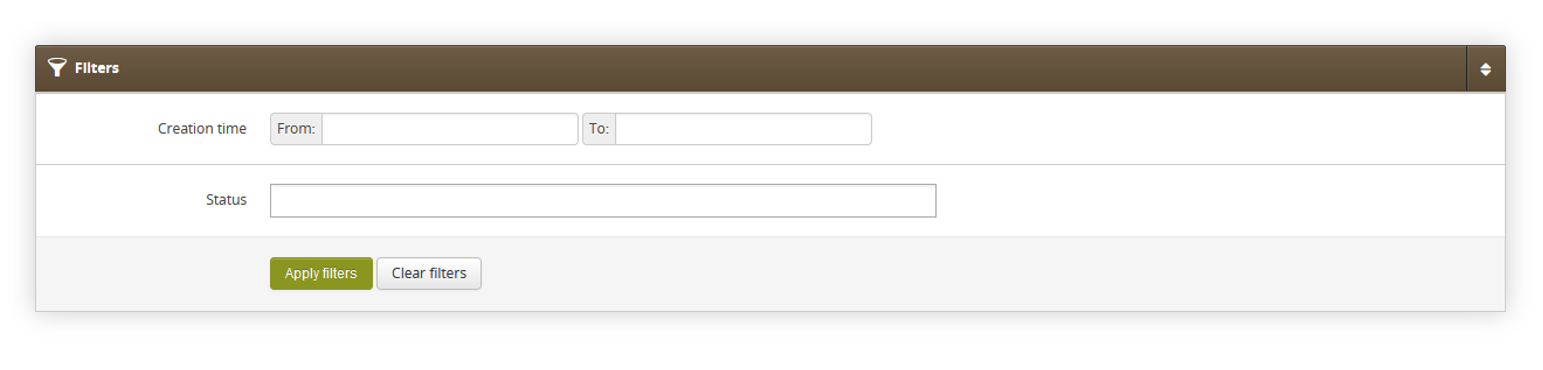
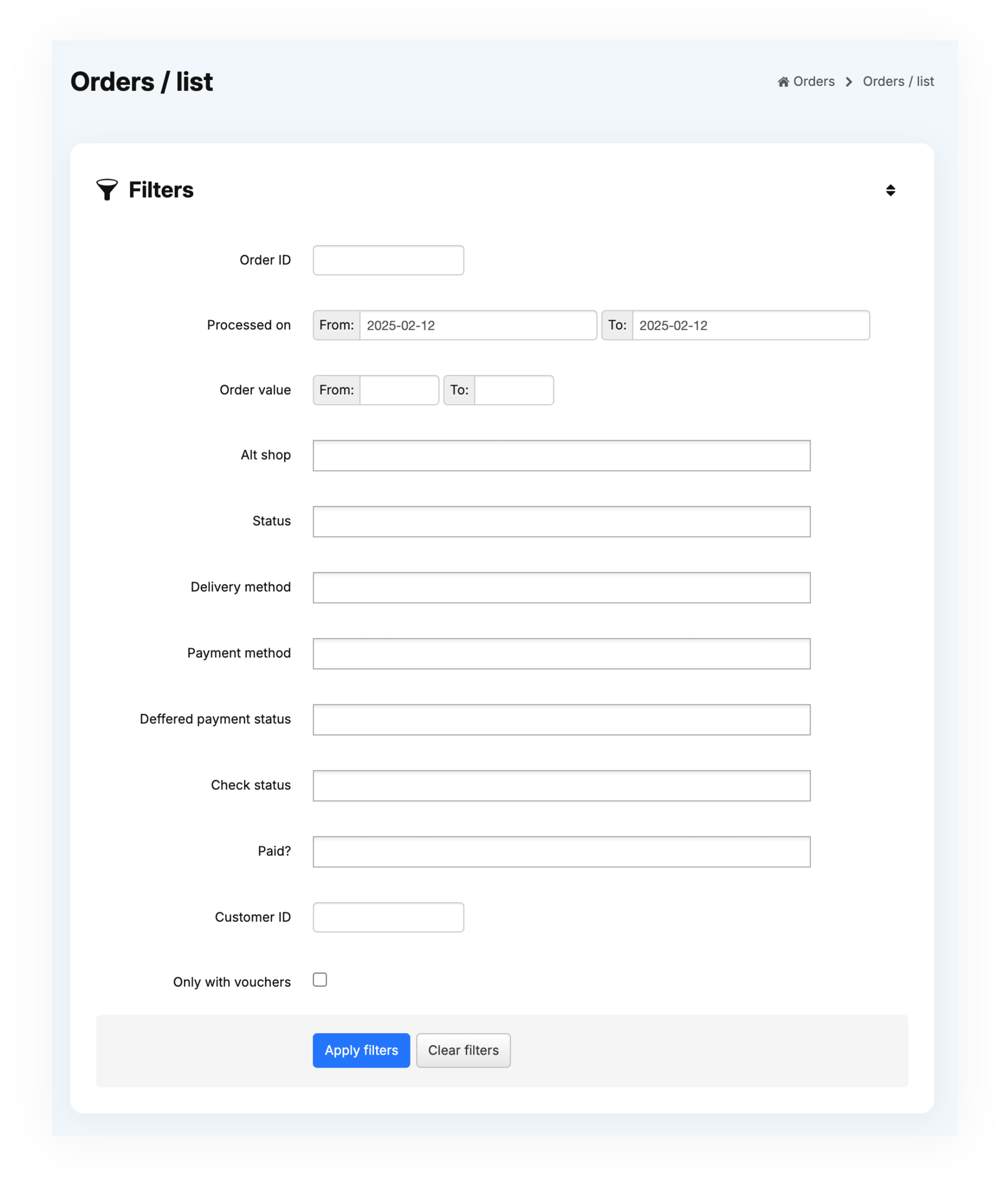
The **Filters** section allows the sorting of the orders in the **export / orders list** module, based on the available filters. Orders are not visible by default and it is required to apply any filter first in order to see them. Below you will find a description of each filter.

<table id="bkmrk-visualization-of-the" style="margin-right: auto; margin-left: auto;"><tbody><tr style="height: 20.2812px;"><td class="wysiwyg-text-align-center" style="text-align: center; vertical-align: middle; height: 20.2812px;">[![POWERPNT_ypOgCIY8Rl.png](https://ecomm-docs.tauceti-digital.com/uploads/images/gallery/2025-02/scaled-1680-/Yw2powerpnt-ypogciy8rl.png)](https://ecomm-docs.tauceti-digital.com/uploads/images/gallery/2025-02/Yw2powerpnt-ypogciy8rl.png)</td></tr><tr style="height: 22px;"><td class="wysiwyg-text-align-center" style="text-align: center; vertical-align: middle; height: 22px;"><span class="wysiwyg-font-size-medium">*Visualization of the filters tab* </span></td></tr></tbody></table>

- **Order ID** - Orders internal ID.
- **Processed on** - A range of dates when the order was processed.
- **Order value** - A range of total order values.
- **Alt shop** - Altshop name where the order was placed on.
- **Status** - Current status of the order.
- **Delivery method** - Selected orders delivery method.
- **Payment method** - Selected orders payment method.
- **Deffered payment status** - Current status of the deffered payment.
- **Check status** - Current internal check status of the order.
- **Paid?** - Order payment status.
- **Customer ID** - ID of the customer.
- **Phone number** - Customer's phone number.
- **Package number** - Number of the delivery package.
- **Only with vouchers** - A tickbox that allows seeing only orders with vouchers.
- **Status (Balikobot)** - Order status acquired from Balikobot.

After defining the above filters, select the **Apply Filters** button to get a list of sites according to the applied filters.

---

# ![Screenshot_2020-04-29_at_19.12.41.png](https://knowledge.tauceti-digital.com/uploads/images/gallery/2024-11/ORWscreenshot-2020-04-29-at-19-12-41-png.png) <span class="title">Export / orders list</span> section

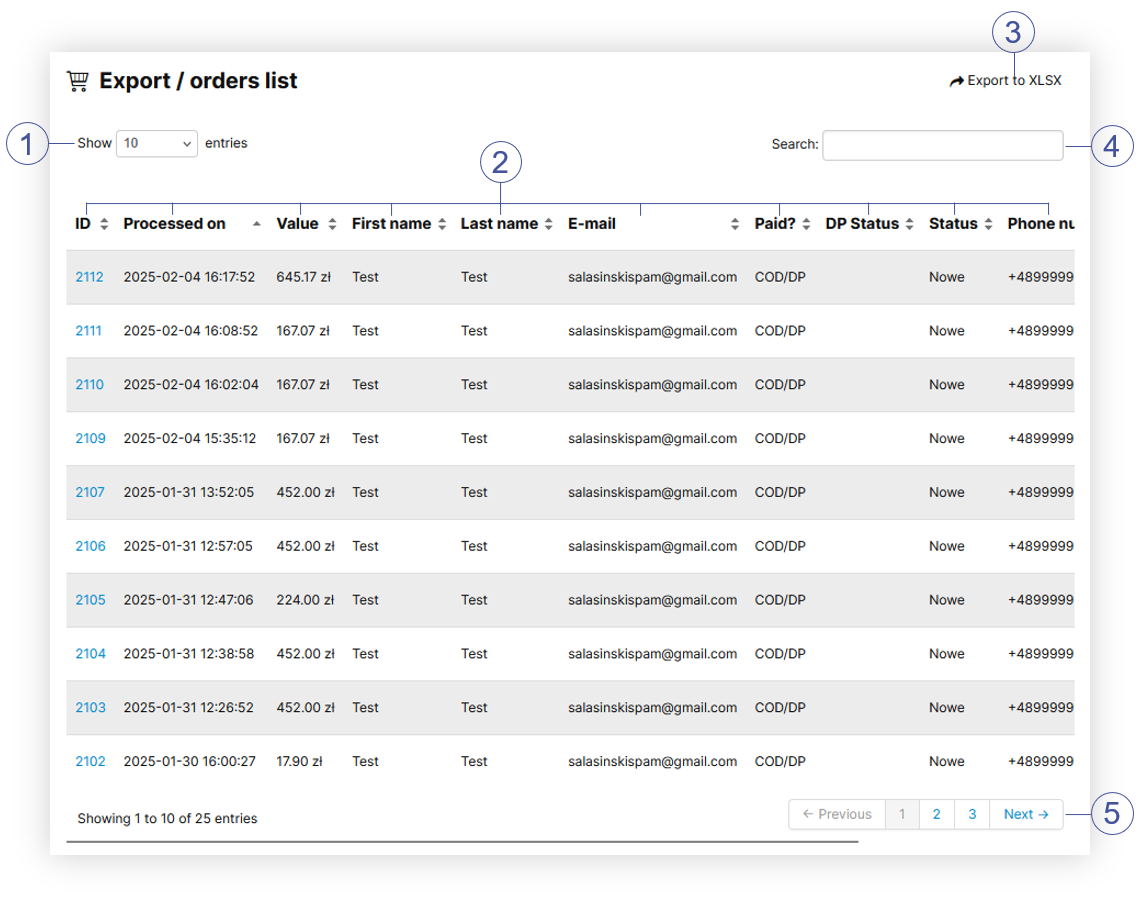
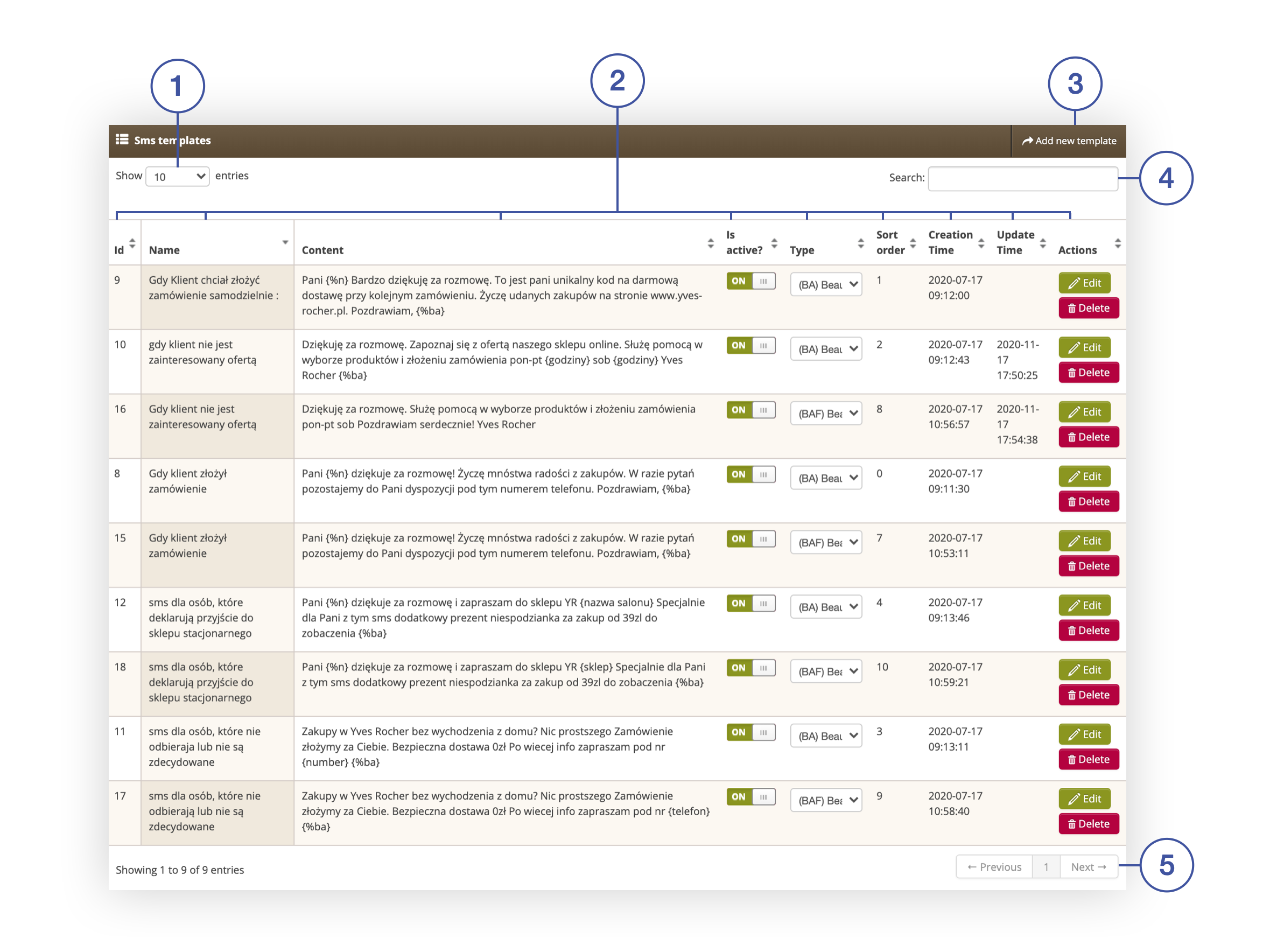
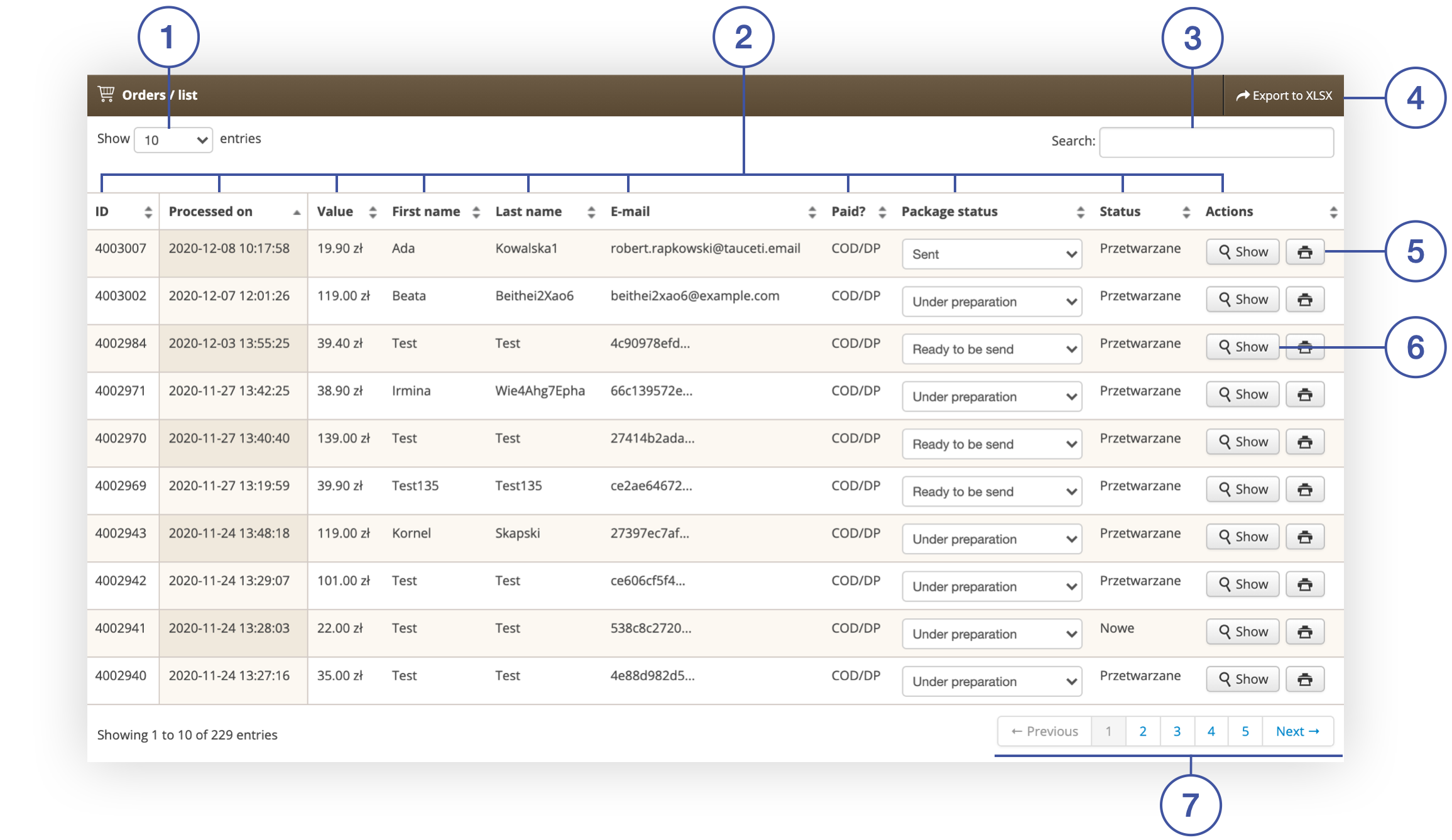
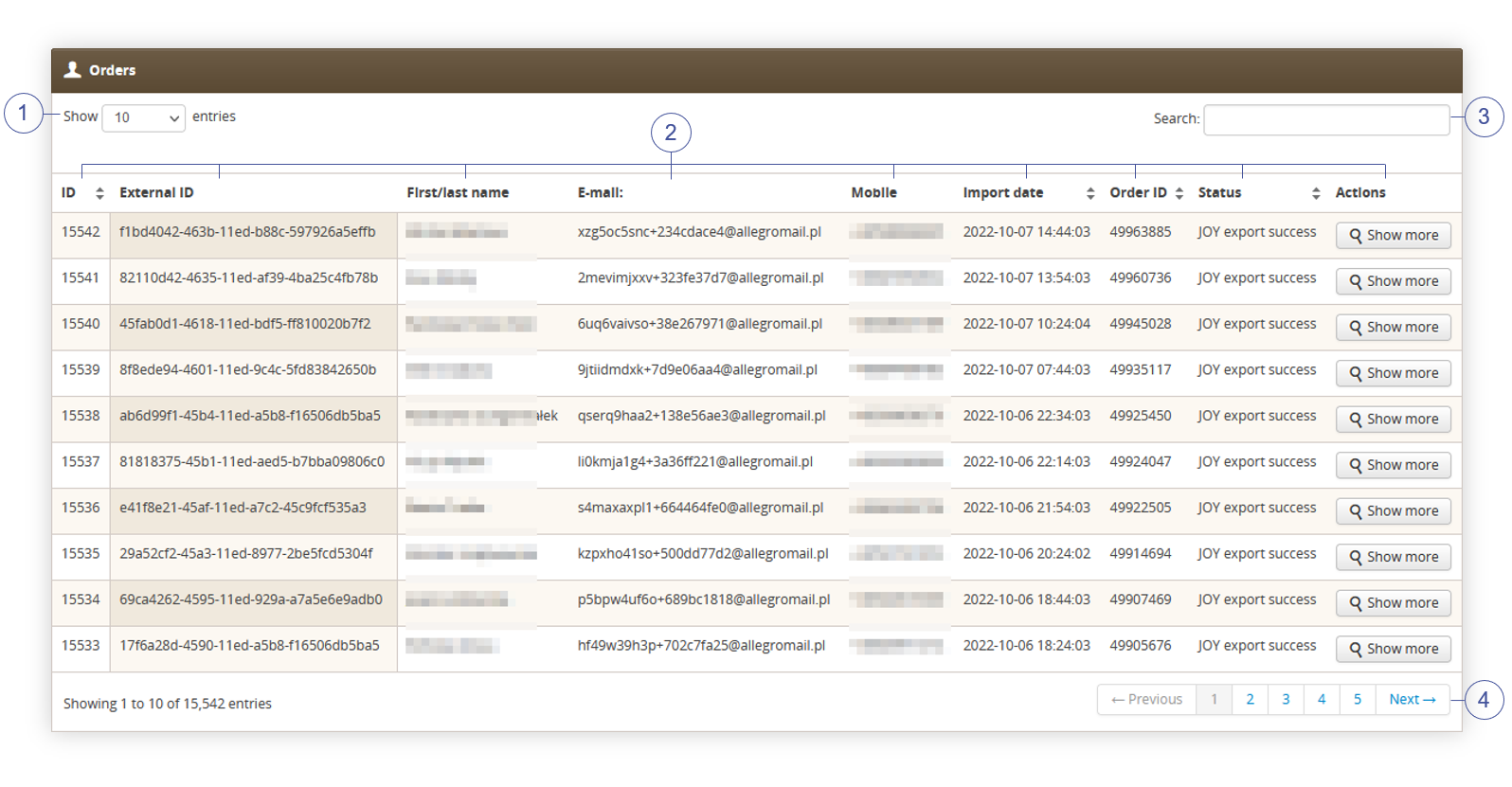
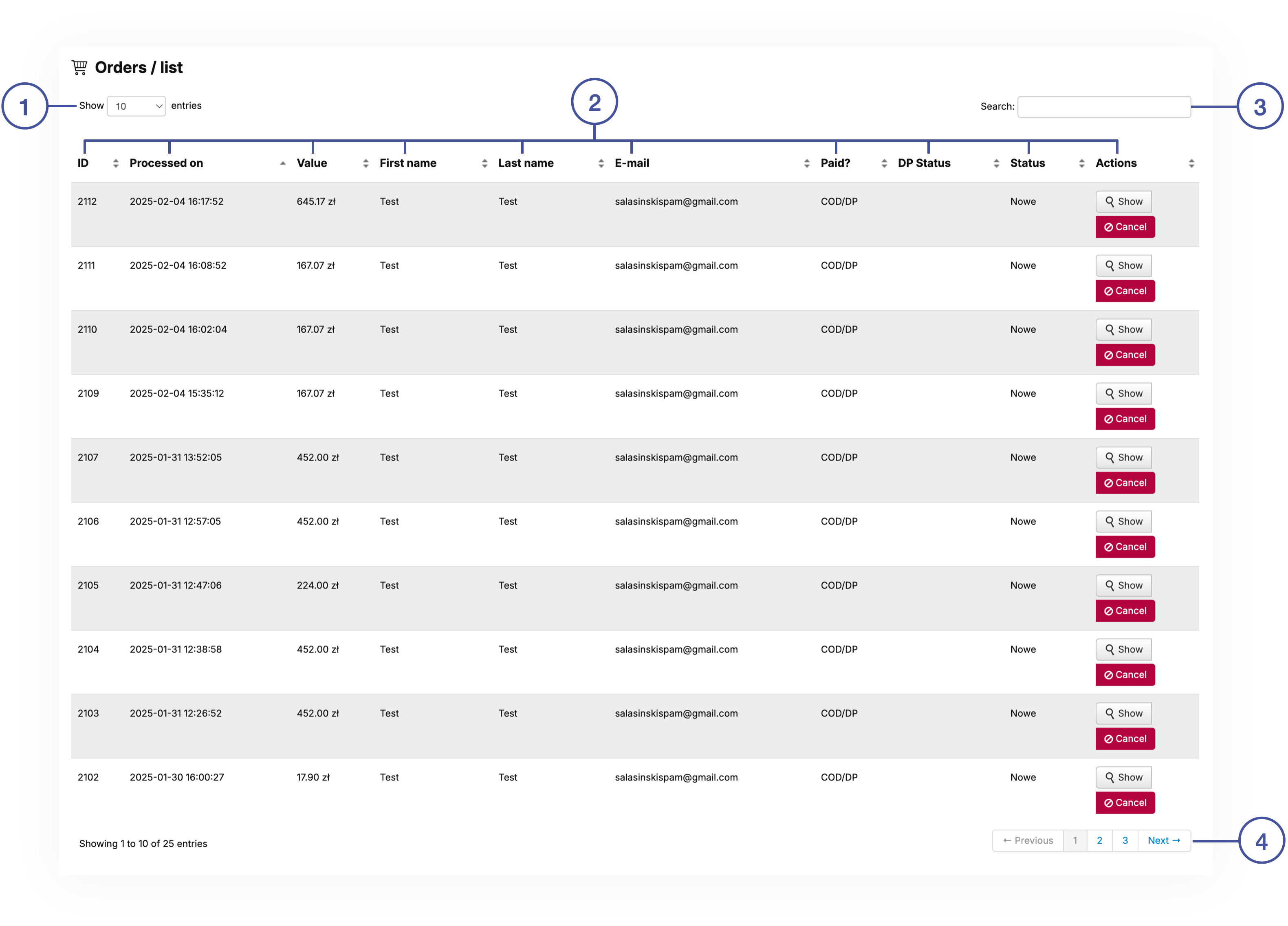
The **Export / orders list** section allows to further narrow down the list of orders. Below you will find a description of possible actions.

<table id="bkmrk-%C2%A0%C2%A0%C2%A0-%C2%A0-visualization-" style="margin-right: auto; margin-left: auto; width: 717px;"><tbody><tr><td class="wysiwyg-text-align-center" style="text-align: center; vertical-align: middle; width: 705.233px;">[![POWERPNT_6OEtvkRjD2.png](https://ecomm-docs.tauceti-digital.com/uploads/images/gallery/2025-02/scaled-1680-/powerpnt-6oetvkrjd2.png)](https://ecomm-docs.tauceti-digital.com/uploads/images/gallery/2025-02/powerpnt-6oetvkrjd2.png)</td></tr><tr><td class="wysiwyg-text-align-center" style="text-align: center; vertical-align: middle; width: 705.233px;"><span class="wysiwyg-font-size-medium">  </span><span class="wysiwyg-font-size-medium"> </span><span class="wysiwyg-font-size-medium"> *Visualization of the export / orders list section* </span></td></tr></tbody></table>

- Select the **Show X entries** **<span style="color: #4054a0;">(1)</span>** field to set the number of orders, displayed on one page (min 10 / max 100).
- The names of the columns **<span style="color: #4054a0;">(2)</span>** that contain information about a given order. Each column is susceptible to sorting. To sort the records, click on the title of the column in question.  
    
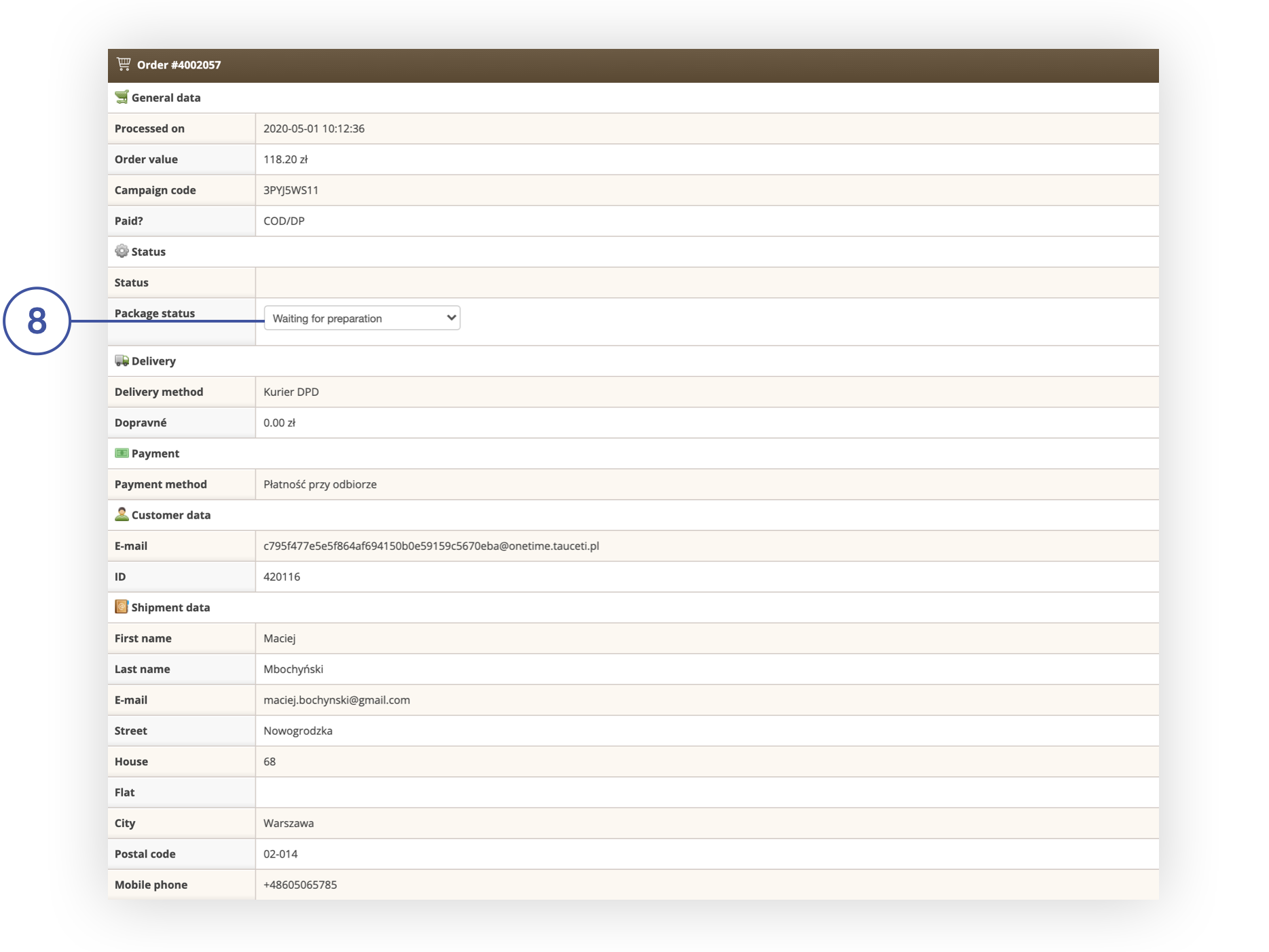
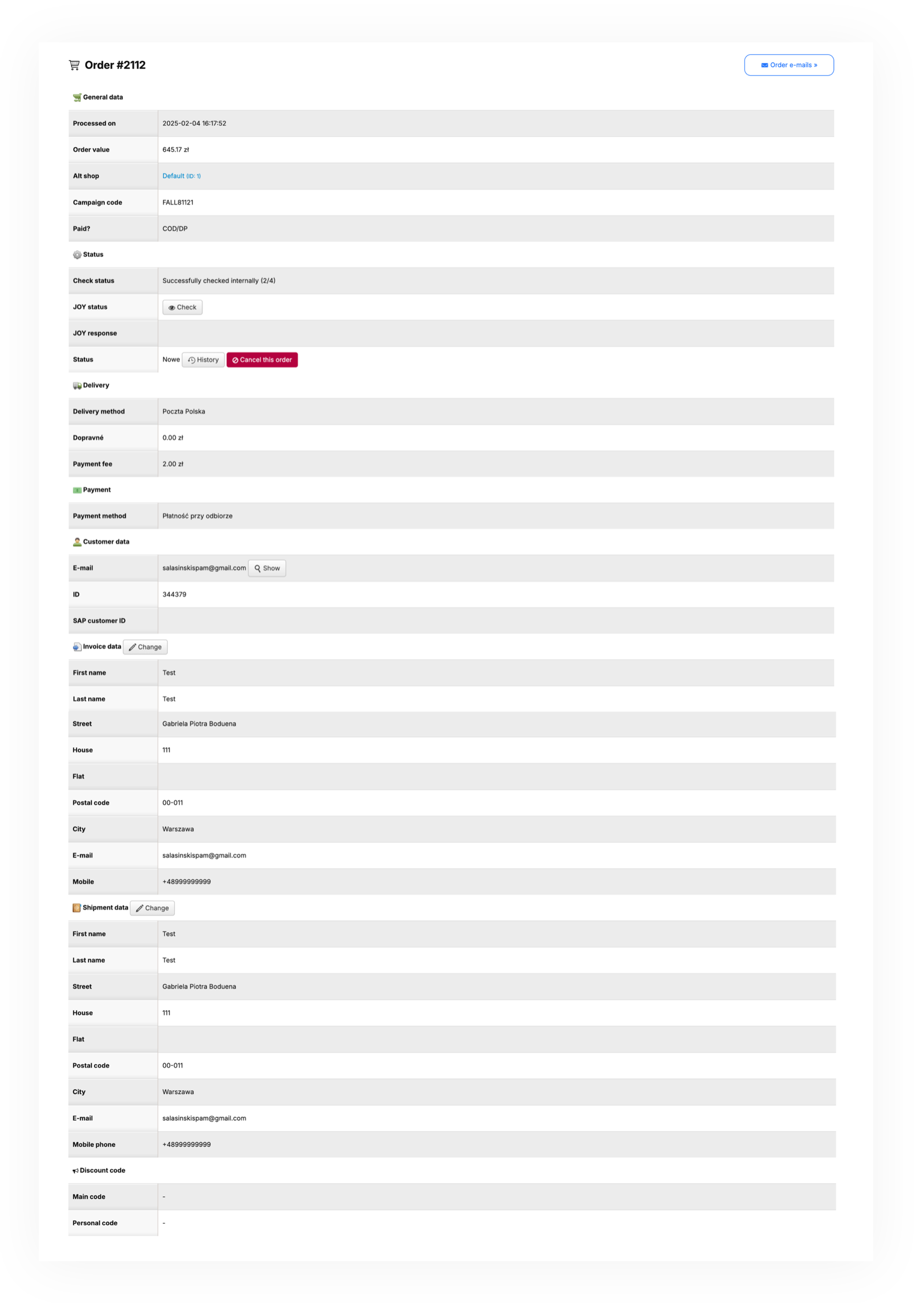
    - **Order ID** - Orders internal ID. By clicking on the order ID you will be redirected to the detailed order information located in the **Orders &gt; Orders / list.**
    - **Processed on** - A range of dates when the order was processed.
    - **Value** - A range of total order values.
    - **First name** - Customer's first name.
    - **Last name** - Customer's last name.
    - **E-mail** - Customer's e-mail address.
    - **Paid?** - Order payment status.
    - **DP status** - Current status of the deffered payment.
    - **Status** - Current status of the order.
    - **Phone number** - Customer's phone number.
    - **Package number** - Number of the delivery package (Carrier Barcode).
- Select the **Export to xlsx <span style="color: #4054a0;">(3)</span>** button to export all filtered orders to the xlsx file. You can learn more about exported xlsx file in the [ Exporting orders to the xlsx](#bkmrk-exporting-orders-to-) section
- **Search box** **<span style="color: #4054a0;">(4)</span>** where you can search for desired orders by their ID, first name, last name, e-mail address, status, phone number, and package number.
- **Page buttons** **<span style="color: #4054a0;">(5)</span>**, which allow users to change the page of currently viewed orders.

---

# ![Screenshot_2020-04-29_at_19.12.41.png](https://knowledge.tauceti-digital.com/uploads/images/gallery/2024-11/ORWscreenshot-2020-04-29-at-19-12-41-png.png)<span class="title"> Exporting orders to the xlsx  
</span>

<span class="title">By pressing the Export to xlsx button shown in the [ Export / orders list section](#bkmrk-export-%2F-orders-list) chapter you are able to export all the filtered orders to the xlsx file and download it.</span>

<table id="bkmrk-%C2%A0%C2%A0%C2%A0-%C2%A0-visualization--1" style="margin-right: auto; margin-left: auto; width: 725px;"><tbody><tr><td class="wysiwyg-text-align-center" style="text-align: center; vertical-align: middle; width: 713.233px;">![POWERPNT_h6wEpFGvDv.png](https://knowledge.tauceti-digital.com/uploads/images/gallery/2024-11/7287921788956.png)</td></tr><tr><td class="wysiwyg-text-align-center" style="text-align: center; vertical-align: middle; width: 713.233px;"><span class="wysiwyg-font-size-medium">  </span><span class="wysiwyg-font-size-medium"> </span><span class="wysiwyg-font-size-medium"> *Visualization of the exported orders=s* </span></td></tr></tbody></table>

Xlsx file contains the exactly same information as **export / orders list** tab:

- **ID** - Orders internal ID.
- **Processed on** - A range of dates when the order was processed.
- **Value** - A range of total order values.
- **First name** - Customer's first name.
- **Last name** - Customer's last name.
- **E-mail** - Customer's e-mail address.
- **Paid?** - Order payment status.
- **DP status** - Current status of the deffered payment.
- **Status** - Current status of the order.
- **Phone number** - Customer's phone number.
- **Package number** - Number of the delivery package (Carrier Barcode).

# Export customers

# ![Screenshot_2020-04-29_at_19.12.41.png](https://knowledge.tauceti-digital.com/uploads/images/gallery/2024-11/10027086064156.png) Getting started

In this article, you can find information about e-commerce customer export with various filter options to a .csv file, that will help to export the exact type of customers that have an account on the e-commerce platform.

<span class="wysiwyg-color-black" style="color: #44549b;">![info2.svg](https://knowledge.tauceti-digital.com/uploads/images/gallery/2024-11/10027294665628.png) **Remember**</span><span class="wysiwyg-color-black" style="display: block; margin-top: 10px;">You can find information regarding the Beauty Advisor customer export in the **\[UNDER CONSTRUCTION\]** article.</span>

<table id="bkmrk-visualization-of-the" style="margin-right: auto; margin-left: auto; height: 44px; width: auto;"><tbody><tr style="height: 22px;"><td class="wysiwyg-text-align-center" style="text-align: center; vertical-align: middle; height: 22px; width: auto;">[![POWERPNT_xyjEabGTRm.png](https://ecomm-docs.tauceti-digital.com/uploads/images/gallery/2025-02/scaled-1680-/powerpnt-xyjeabgtrm.png)](https://ecomm-docs.tauceti-digital.com/uploads/images/gallery/2025-02/powerpnt-xyjeabgtrm.png)</td></tr><tr style="height: 22px;"><td class="wysiwyg-text-align-center" style="text-align: center; vertical-align: middle; height: 22px; width: auto;"><span class="wysiwyg-font-size-medium">*Visualization of the export customers tab location* </span></td></tr></tbody></table>

Table of contents:

1. [ Exporting the e-commerce customers](#bkmrk-exporting-the-e-comm-1)
2. [ Exported file overview ](#bkmrk-exported-file-overvi)

---

# ![Screenshot_2020-04-29_at_19.12.41.png](https://knowledge.tauceti-digital.com/uploads/images/gallery/2024-11/10027086064156.png) Exporting the e-commerce customers

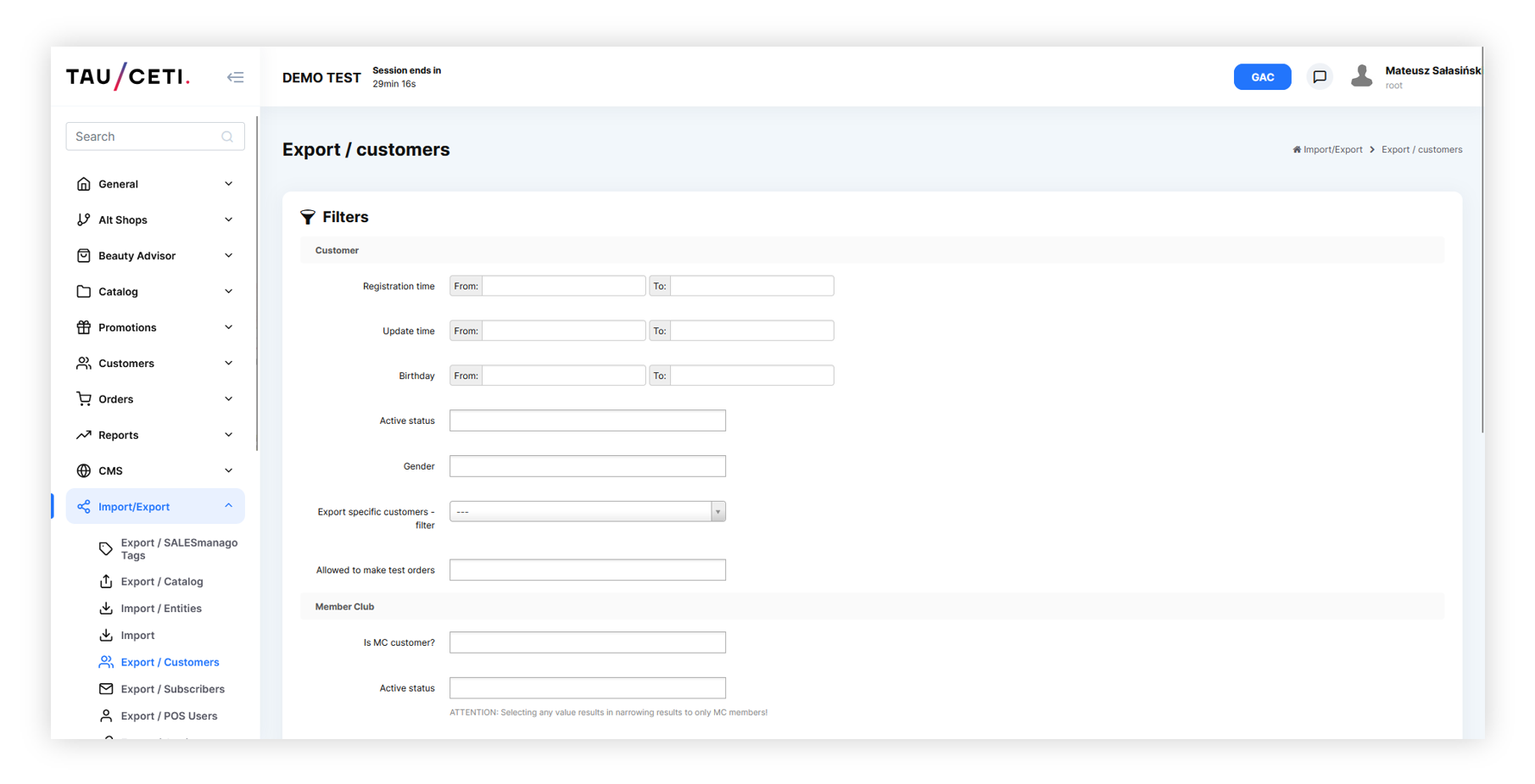
E-commerce customer export can be found in

***Import / Export &gt; Export / customers***

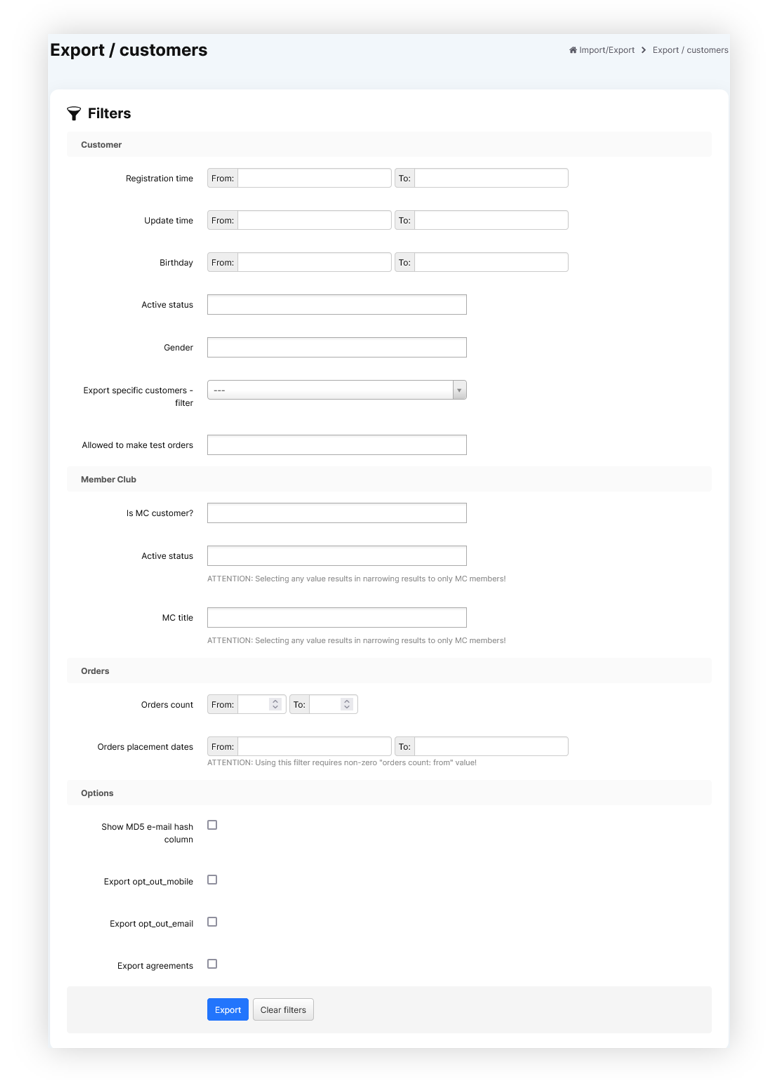
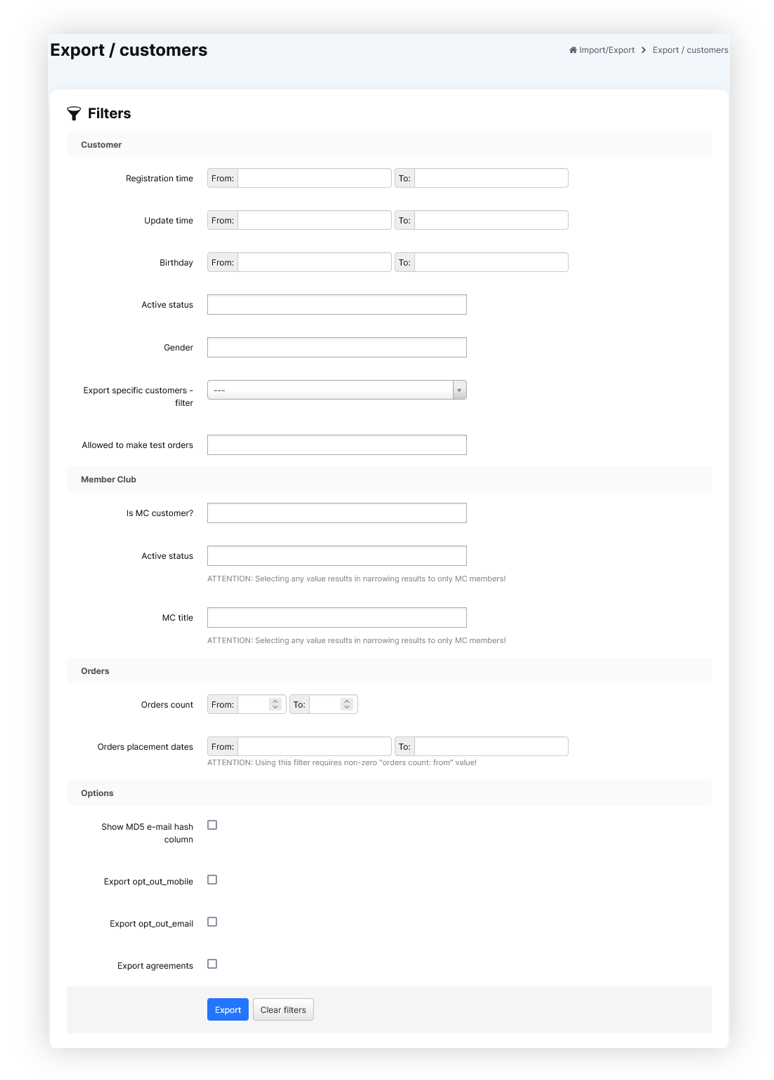
Below you can find all filter options to customize your export to your needs.

<table id="bkmrk-visualization-of-the-1" style="margin-right: auto; margin-left: auto; height: 44px; width: auto;"><tbody><tr style="height: 22px;"><td class="wysiwyg-text-align-center" style="text-align: center; vertical-align: middle; height: 22px; width: auto;">[![POWERPNT_ypOgCIY8Rl.png](https://ecomm-docs.tauceti-digital.com/uploads/images/gallery/2025-02/scaled-1680-/powerpnt-ypogciy8rl.png)](https://ecomm-docs.tauceti-digital.com/uploads/images/gallery/2025-02/powerpnt-ypogciy8rl.png)</td></tr><tr style="height: 22px;"><td class="wysiwyg-text-align-center" style="text-align: center; vertical-align: middle; height: 22px; width: auto;"><span class="wysiwyg-font-size-medium">*Visualization of the all available export filters* </span></td></tr></tbody></table>

- **Registration time** - A range of dates when customers registered on an e-commerce platform.
- **Update time** - A range of dates whenever customer information has been updated.
- **Birthday** - A range of dates of customer birthdays.
- **Active status** - Customers current status. Available statuses are: **Inactive**, **Active**, **Waiting for activation**, **One-time**
- **Gender** - Customers gender. Available options are **Man**, **Woman**, **Not specified**.
- **Export specific customers - filter** - A filter which allows to specify customers by their:  
    
    - **E-mail**
    - **ID**
    - **JOY ID**
- <label class="control-label" for="filters_specific_customers"><label class="control-label" for="filters_specific_customers">**Specific customers data** - </label></label>A field where you should put specific customer data with a "**;**" separator, data will be filtered according to the selected filter. This field is only visible whenever the **Export specific customers - filter** is selected. Example (with email filter selected): example@example.com;example2@example.com;example3@example.com
- **Allowed to make test orders** - A **Yes** / **No** selection if customers are able to make test orders. This is defined by the "**Allowed to make test orders**" tickbox in the customers profile.
- i**s MC customer?** - A **Yes** / **No** selection if a customer has a member club rank. All countries that use Member club functionality for various customer ranks (i.e. on Poland Default / Silver / Gold) are MC customers.
- **Active status** - Customers member club current status. This field only filters the member  
    club customers
- **MC title** - Member club title assigned to the customers (in the case of Poland it can be T0 / TS / TG). This field only filters the member club customers.
- **Orders count** - A range of numbers of created orders on the website.
- **Orders placement dates** - A range of dates when customers have placed new orders using the e-commerce platform. Using this filter requires a non-zero "**orders count: from**" value.
- **Show MD5 e-mail hash column** - Shows customers MD5 e-mail hash column in the report.
- **Export opt-out\_mobile** - Shows customers current mobile communication  
    subscription status.
- **Export opt\_out\_email** - Shows customers current e-mail communication subscription status.
- **Export agreements** -Exports all available agreements as columns and defines which customers have agreed to the selected agreements.
- **Export FIDEN2 cards** -Exports customers FIDEN2 card information. The exported fields are:  
    
    - **cards\_active** - A list of customers active FIDEN2 cards
    - **cards\_waiting** - The number of points waiting to be assigned to the selected customer FIDEN2 cards.
    - **cards\_balance** - Current FIDEN2 balance
    - **cards\_balance\_time** - A date of last balance change for the selected customer.
- **Only customers which manually assigned retail card** - A tickbox which defines if only customers with manually assigned retail cards should be exported.

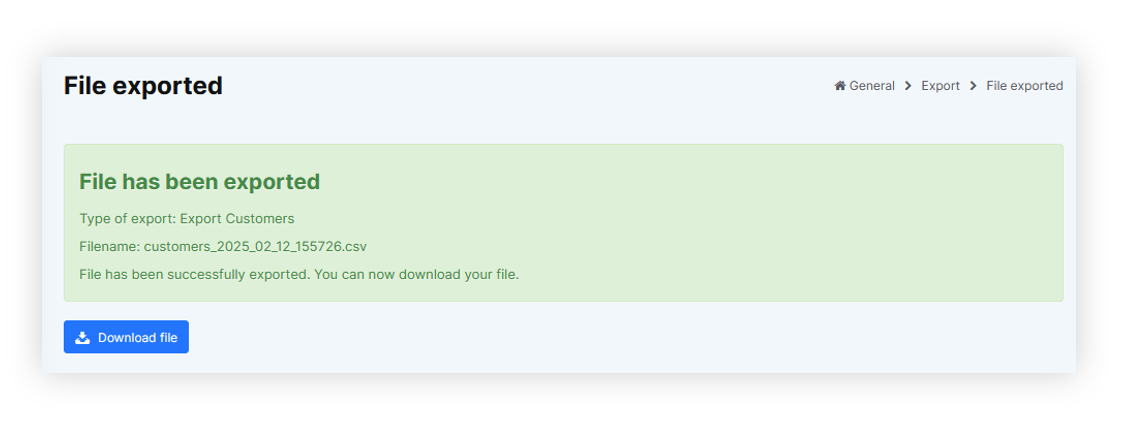
With selected filters you can export customers using the **Export** button or clear all filters by using the **Clear filters** button.

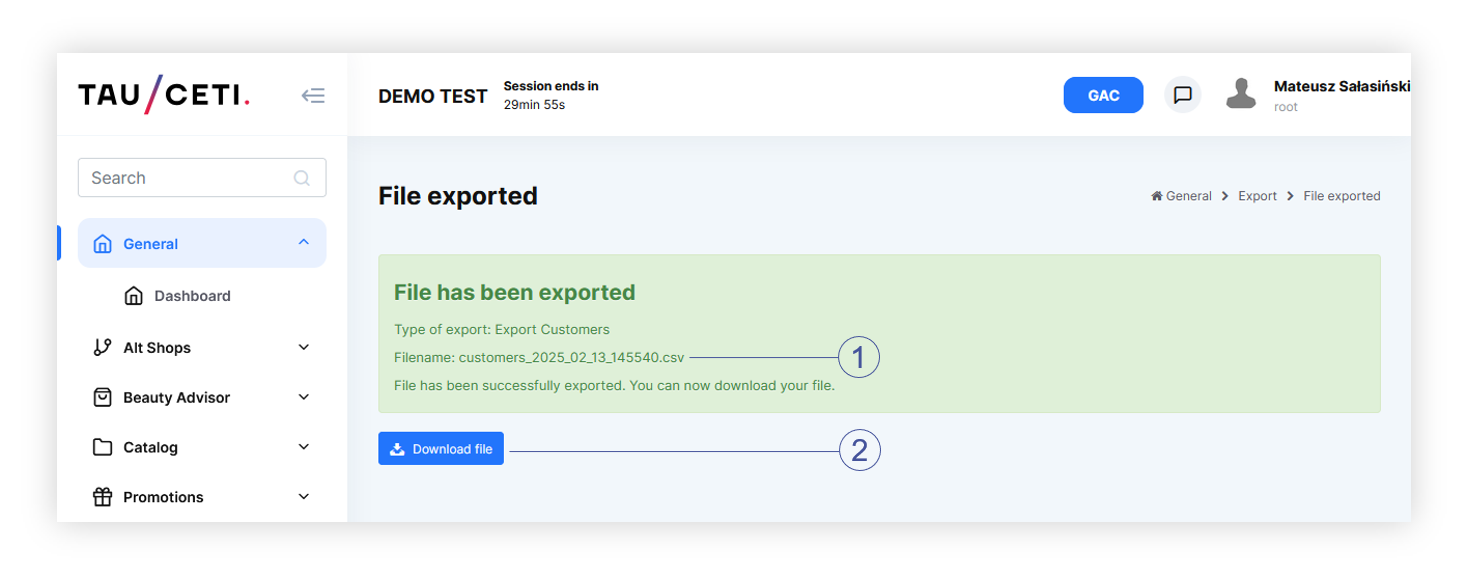
<table id="bkmrk-visualization-of-the-2" style="margin-right: auto; margin-left: auto; height: 44px; width: auto;"><tbody><tr style="height: 22px;"><td class="wysiwyg-text-align-center" style="text-align: center; vertical-align: middle; height: 22px; width: auto;">[![POWERPNT_WK2pZwiiqi.png](https://ecomm-docs.tauceti-digital.com/uploads/images/gallery/2025-02/scaled-1680-/powerpnt-wk2pzwiiqi.png)](https://ecomm-docs.tauceti-digital.com/uploads/images/gallery/2025-02/powerpnt-wk2pzwiiqi.png)</td></tr><tr style="height: 22px;"><td class="wysiwyg-text-align-center" style="text-align: center; vertical-align: middle; height: 22px; width: auto;"><span class="wysiwyg-font-size-medium">*Visualization of the prepared export file* </span></td></tr></tbody></table>

With exported file you are able to download it to your device using the **Download file** button.

---

# ![Screenshot_2020-04-29_at_19.12.41.png](https://knowledge.tauceti-digital.com/uploads/images/gallery/2024-11/10027086064156.png) Exported file overview

The exported file will be in a **.csv** format with an export date and hour in it's file name (i.e. **customers\_2023\_08\_16\_131359**)

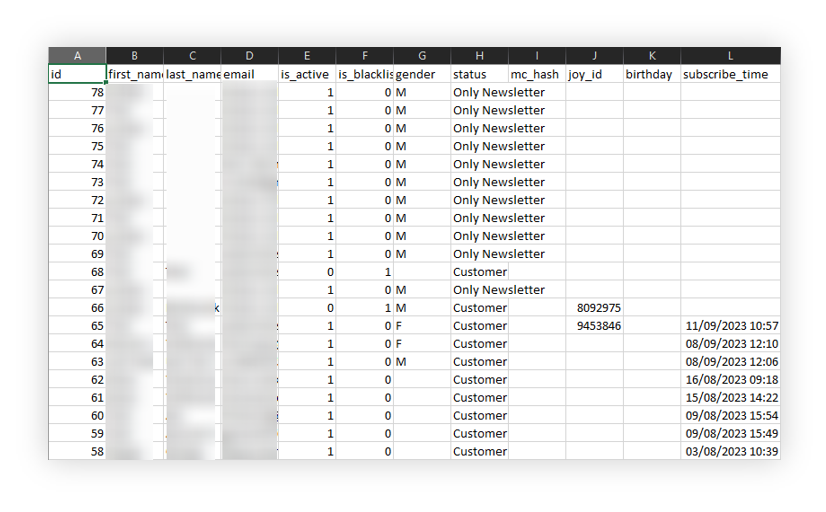
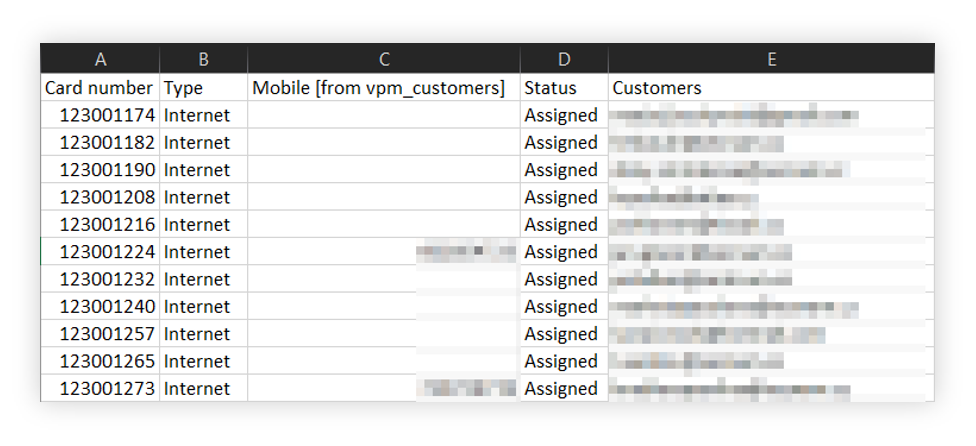
<table id="bkmrk-visualization-of-the-3" style="margin-right: auto; margin-left: auto; height: 44px; width: auto;"><tbody><tr style="height: 22px;"><td class="wysiwyg-text-align-center" style="text-align: center; vertical-align: middle; height: 22px; width: auto;">![POWERPNT_53Kap3zLv3.png](https://knowledge.tauceti-digital.com/uploads/images/gallery/2024-11/10043712384668.png)</td></tr><tr style="height: 22px;"><td class="wysiwyg-text-align-center" style="text-align: center; vertical-align: middle; height: 22px; width: auto;"><span class="wysiwyg-font-size-medium">*Visualization of the exported csv file* </span></td></tr></tbody></table>

By default in the exported customers file you can find the following columns:

- **id** - Customers internal ID. Example: **123456**
- **first\_name** - Customers name. Example: **Jan**
- **last\_name** - Customers surname. Example: **Kowalski**
- **street** - Main street name. Example: **Uliczna**
- **building** - Main building number. Example: **123**
- **flat** - Main flat number. Example: **2**
- **city** - Main city name. Example: **Warsaw**
- **postal\_code** - Main postal code. Example: **12-345**
- **email** - Customers e-mail address. Example: **test@example.com**
- **mobile** - Customers mobile number with a country code. Example: **48123123123**
- **birthday** - Customers birthday date. Example: **01-01-1990**
- **gender** - Customers gender (if selected). Example: **Man**

With additional fields dependent on selected options:

- **md5\_email** - Customers MD5 email value. Example: **26h2cb31af663cdccaa2779c9d165a0b**
- **opt out mobile** - Customers mobile communication current status. If the customer is opted in this value will be **empty**. If the customer is opted out the value will be set to **Opted out**.
- **opt out email** - Customers e-mail communication current status. If the customer is opted in this value will be **empty**. If the customer is opted out the value will be set to **Opted out**.
- **Customers agreement status to the selected agreements** - These fields will have different column names depending on the country and selected agreements (i.e. **terms\_of\_service\_vpi**, **data\_processing\_mc**). Whenever the customer has agreed to the selected agreement there will be a "**Selected**" value in the column. If the customer has not agreed to the agreement the field will be empty.
- **cards\_active** - A list of customers active FIDEN2 cards. Example: **123456789, 987654321**.
- **cards\_waiting** - The number of points waiting to be assigned to the selected customer cards. Example: **123**
- **cards\_balance** - Current FIDEN2 balance Example: **5333**
- **cards\_balance\_time** - A date of last balance change for the selected customer.  
    Example: **05-08-2023**

# Product catalog export and import

# ![Screenshot_2020-04-29_at_19.12.41.png](https://knowledge.tauceti-digital.com/uploads/images/gallery/2024-11/9359915156764.png) Getting started

In this article, you will learn how to extract a product catalog in the form of CSV files and how to import it back. The overview for each product catalog file is here.

Export can be found in ***Import / Export &gt; Export / catalog <span style="color: #4054a0;">(1)</span>***

Import can be found in ***Import / Export &gt; Import &gt; Type &gt; Catalog mass import <span style="color: #4054a0;">(2)</span>***

<table id="bkmrk-visualization-of-the" style="margin-right: auto; margin-left: auto;"><tbody><tr><td class="wysiwyg-text-align-center" style="text-align: center; vertical-align: middle; width: 688.021px;">[![POWERPNT_hv9c1tmzEd.png](https://ecomm-docs.tauceti-digital.com/uploads/images/gallery/2025-02/scaled-1680-/powerpnt-hv9c1tmzed.png)](https://ecomm-docs.tauceti-digital.com/uploads/images/gallery/2025-02/powerpnt-hv9c1tmzed.png)</td></tr><tr><td class="wysiwyg-text-align-center" style="text-align: center; vertical-align: middle; width: 688.021px;"><span class="wysiwyg-font-size-medium">*Visualization of the product catalog options in the Import / export module* </span></td></tr></tbody></table>

Table of contents:

1. [Export catalog](#h_01GCH0X17BDKRC07GCXTQDSF97)
2. [Catalog files](#h_01GCH0X17BDKRC07GCXTQDSF91)
3. [Catalog import](#h_01GCH0X17BDKRC07GCXTQDSF92)
4. [How to make mass import](#imp0)
5. [Overview - catalog\_product.csv](#imp1)
6. [Overview - catalog\_product\_description.csv](#bkmrk-%C2%A0-10)
7. [Overview - catalog\_product\_attribute.csv](#bkmrk-%C2%A0-12)
8. [Overview - catalog\_product\_stock.csv](#bkmrk-%C2%A0-15)
9. [Overview - dict\_tag\_catalog\_product.csv](#bkmrk-%C2%A0-17)
10. [Overview - dict\_property.csv](#bkmrk-%C2%A0%C2%A0-2)
11. [Overview - dict\_tag.csv](#bkmrk-%C2%A0-20)
12. [ Overview - catalog\_product\_category.csv](#h_01H0T23XV4R0NE6N0TMR8EKG8B)
13. [Overview - alt\_shop\_catalog\_product.csv](#bkmrk-%C2%A0-28)
14. [ Overview - catalog\_product\_category.csv](#bkmrk-overview---catalog_p-3)
15. [ Overview - dict\_tag\_catalog\_product\_remove.csv](#bkmrk-overview---dict_tag_-1)
16. [ Order of processing files](#bkmrk-order-of-processing-)

---

# ![Screenshot_2020-04-29_at_19.12.41.png](https://knowledge.tauceti-digital.com/uploads/images/gallery/2024-11/9359915156764.png) Export catalog

Catalog export has some filtering options for thinning out the results of extracted data.

<table id="bkmrk-visualization-of-the-1" style="margin-right: auto; margin-left: auto; width: 688px;"><tbody><tr><td class="wysiwyg-text-align-center" style="text-align: center; vertical-align: middle; width: 676.016px;">[![POWERPNT_VQRk4QGAv5.png](https://ecomm-docs.tauceti-digital.com/uploads/images/gallery/2025-02/scaled-1680-/powerpnt-vqrk4qgav5.png)](https://ecomm-docs.tauceti-digital.com/uploads/images/gallery/2025-02/powerpnt-vqrk4qgav5.png)</td></tr><tr><td class="wysiwyg-text-align-center" style="text-align: center; vertical-align: middle; width: 676.016px;"><span class="wysiwyg-font-size-medium">*Visualization of the Catalog export* </span></td></tr></tbody></table>

- **Alt shop** - Chooses for which alt shop the catalog should be exported. If left empty, products from all alt shops will be exported. You can learn more about altshops in the [Alt shops - Introduction](https://tauceti.zendesk.com/hc/en-us/articles/360017301600) article.
- **Product status** - Chooses between **Active** and **Inactive** products. If left empty, all products will be exported.
- **Is altshop active?** - Choose if the product exported are active on chosen altshop or inactive.
- **Product SKU** - A list of product SKUs. A list of multiple SKUs needs to be separated by commas (i.e. 123456,654321,55555).
- **Two buttons**: 
    - **Apply filters** - A button, which will apply selected filters and automatically start the download of the filtered products.
    - **Clear filters** - A button, which clears all already chosen filters.

Exported files described in [ Catalog files](#h_01GCH0X17BDKRC07GCXTQDSF91) section are packed in a .zip file, which needs to be unpacked.

---

# ![Screenshot_2020-04-29_at_19.12.41.png](https://knowledge.tauceti-digital.com/uploads/images/gallery/2024-11/9359915156764.png) Catalog files

The downloaded archive will contain the following files:

- **alt\_shop\_catalog\_product.csv** - Contains data for **Alt shops &gt; Products / list** (You can find more information about this module in [Products / list - browsing and managing products in altshop module](https://tauceti.zendesk.com/hc/en-us/articles/5591686579228) article)
- **catalog\_product.csv** - Contains data for **Catalog &gt; Products / list** (More information about this module in **\[UNDER CONSTRUCTION\]**)
- **catalog\_product\_attribute.csv** - Contains data for **Catalog &gt; Products / list &gt; View product &gt; Add color** (More information about this module in **\[UNDER CONSTRUCTION\]**)
- **catalog\_product\_description.csv** - Contains data for **Catalog &gt; Products / list &gt; View product, Description tab** (More information about this module in **\[UNDER CONSTRUCTION\]**)
- **catalog\_product\_meta.csv** - Contains data for
- **Catalog &gt; Products / list &gt; View product, Metadata tab** (More information about this module in **\[UNDER CONSTRUCTION\]**)
- **catalog\_product\_stock.csv** - Contains data for **Catalog &gt; Products / list &gt; View product, Stock tab** (More information about this module in **\[UNDER CONSTRUCTION\]**)
- **dict\_property.csv** - Contains data for **Catalog &gt; Properties / list** (More information about this module in **\[UNDER CONSTRUCTION\]**)
- **dict\_tag.csv** - Contains data for **Catalog &gt; Tags / list** (More information about this module in **\[UNDER CONSTRUCTION\]**)
- **dict\_tag\_catalog\_product.csv** - Contains data for **Catalog &gt; Products / list &gt; View product, Tags tab** (More information about this module in **\[UNDER CONSTRUCTION\]**)
- **catalog\_product\_category.csv** - Contains data for Catalog &gt; Products / list &gt; View product, **edit product tab**. You can find more information about the category module in [Catalog categorization](https://knowledge.tauceti-digital.com/books/e-commerce/page/catalog-categorization) article.
- **dict\_tag\_catalog\_product\_remove.csv** - Contains exact same data structure as **dict\_tag\_catalog\_product.csv**, but it removes the assigned tags from the selected products.

---

# ![Screenshot_2020-04-29_at_19.12.41.png](https://knowledge.tauceti-digital.com/uploads/images/gallery/2024-11/9359915156764.png) Catalog import

All the exported files can be edited and imported back to the administration panel to update catalog data. Files can be imported separately or in groups but their import must always be consolidated in a .zip file. The file names must be exactly the same as defined in this article and they cannot be changed. There are no mandatory files, so it is possible to import only **catalog\_product\_description.csv** without any other files as long as it is in the .zip file. Packed .csv files can be in any folder structure as long as file names are not duplicated.

Other file formats than .zip will be rejected and won't be uploaded.

## Files specification

Since the imported files directly correspond with the database some rules must be followed while creating and editing import files, here is a general specification for these:

- Field type **BOOLEAN:**  
    
    - 0 - NO
    - **1** - YES
- Field type **DATE** must be in the following format "**YYYY-MM-DD**"
- **EOL (End Of Line)** column must contain EOL in every row with a product. This column shows our system, that for a selected product its info ends with this column, and the system can move to another row. <span class="wysiwyg-underline">Here</span> is an example of **EOL** use: 
    - ```
        column1;column2;EOL
        ```
    - ```
        “abc”;”abc”;EOL
        ```
    - ```
        “cde”;”cde”;EOL
        ```
- The decimal separator must be a dot "**.**" for example: "**199.99**"
- While editing files in text editors (not spreadsheets) all columns have to be separated by **semicolon** "**;**"
- **STRING** field type can be filled with any text and/or number. The only exception to this exists in every field with **URL** value, these must be strings without any special/regional characters besides "**/**" as a start to the URL and "**\_**" as a separator for word f.x. "**/new\_product\_sku\_123**"

---

# ![Screenshot_2020-04-29_at_19.12.41.png](https://knowledge.tauceti-digital.com/uploads/images/gallery/2024-11/9359915156764.png) How to make mass import

Mass import is a product import of a ZIP file that contains prepared .csv files. This operation changes the product data based on their SKU or creates a new product if the selected SKU doesn't exist in the catalog database. You don't need to put every .csv file in the .zip, only the ones that you have modified can be put in the .zip file and then imported. In order to import catalog files, they have to be in CSV format, coded in UTF-8. Go to ***Import/Export &gt; Import*** and choose ***Catalog mass import** in the* **Type***.*

<table id="bkmrk-visualization-of-imp" style="margin-right: auto; margin-left: auto;"><tbody><tr><td class="wysiwyg-text-align-center">[![POWERPNT_PN7j1CAtyh.png](https://ecomm-docs.tauceti-digital.com/uploads/images/gallery/2025-02/scaled-1680-/powerpnt-pn7j1catyh.png)](https://ecomm-docs.tauceti-digital.com/uploads/images/gallery/2025-02/powerpnt-pn7j1catyh.png)</td></tr><tr><td class="wysiwyg-text-align-center"><span id="bkmrk-visualization-of-imp-1"><span class="wysiwyg-font-size-medium"> *Visualization of Import / Export, Import*</span></span></td></tr></tbody></table>

- **<span class="wysiwyg-color-red90"> <span style="color: #2f3941;">File</span> \* </span>**  - **Choose a file,** and find your zip archive with CSV files.
- **Type<span class="wysiwyg-color-red90">\* </span>**- Click and choose **Catalog mass import** in order to perform the change in the catalog database.
- **Options** - **Test import** allows for virtual database calculation after importing a chosen archive. You'll be able to check the results of this import by receiving a report for each imported file. Test import won't perform any actual changes in the environment.
- **Import file** - Click to perform an import. The file will start processing right after clicking.

<span class="wysiwyg-color-black" style="color: #44549b;">![info2.svg](https://knowledge.tauceti-digital.com/uploads/images/gallery/2024-11/9359915161244.png) **Remember**</span><span class="wysiwyg-color-black" style="display: block; margin-top: 10px;">Product descriptions can be enriched by HTML and CSS codes.</span>

---

# ![Screenshot_2020-04-29_at_19.12.41.png](https://knowledge.tauceti-digital.com/uploads/images/gallery/2024-11/9359915156764.png) Overview - catalog\_product.csv

File ***catalog\_product.csv*** contain mainly data regarding imported products. Mass import of this file allows to:

- Adding new records
- Updating records (on a base of unique SKU)

<table border="1" id="bkmrk-%23-column-name-value-" style="width: 700px; height: 795px;"><tbody><tr style="height: 44px;"><td style="text-align: center; vertical-align: middle; width: 27.1167px; height: 44px;"><span class="wysiwyg-font-size-medium">**\#**</span></td><td style="text-align: center; vertical-align: middle; width: 114.35px; height: 44px;"><span class="wysiwyg-font-size-medium">**Column name**</span></td><td style="text-align: center; vertical-align: middle; width: 63.2167px; height: 44px;"><span class="wysiwyg-font-size-medium">**Value type**</span></td><td style="text-align: center; vertical-align: middle; width: 70.2333px; height: 44px;"><span class="wysiwyg-font-size-medium">**Max length**</span></td><td style="text-align: center; vertical-align: middle; width: 60.2px; height: 44px;"><span class="wysiwyg-font-size-medium">**Can be empty?**</span></td><td style="text-align: center; vertical-align: middle; width: 161.5px; height: 44px;"><span class="wysiwyg-font-size-medium">**Description**</span></td><td style="text-align: center; vertical-align: middle; width: 125.383px; height: 44px;"><span class="wysiwyg-font-size-medium">**What, if empty**</span></td></tr><tr style="height: 22px;"><td style="text-align: center; vertical-align: middle; width: 27.1167px; height: 22px;"><span class="wysiwyg-font-size-medium">1</span></td><td style="text-align: center; vertical-align: middle; width: 114.35px; height: 22px;"><span class="wysiwyg-font-size-medium">SKU</span></td><td style="text-align: center; vertical-align: middle; width: 63.2167px; height: 22px;"><span class="wysiwyg-font-size-medium">STRING</span></td><td style="text-align: center; vertical-align: middle; width: 70.2333px; height: 22px;"><span class="wysiwyg-font-size-medium">7</span></td><td style="text-align: center; vertical-align: middle; width: 60.2px; height: 22px;"><span class="wysiwyg-font-size-medium">No</span></td><td style="text-align: center; vertical-align: middle; width: 161.5px; height: 22px;"><span class="wysiwyg-font-size-medium">Product code</span></td><td style="text-align: center; vertical-align: middle; width: 125.383px; height: 22px;"><span class="wysiwyg-font-size-medium">-</span></td></tr><tr style="height: 44px;"><td style="text-align: center; vertical-align: middle; width: 27.1167px; height: 44px;"><span class="wysiwyg-font-size-medium">2</span></td><td style="text-align: center; vertical-align: middle; width: 114.35px; height: 44px;"><span class="wysiwyg-font-size-medium">is\_active</span></td><td style="text-align: center; vertical-align: middle; width: 63.2167px; height: 44px;"><span class="wysiwyg-font-size-medium">BOOLEAN (0/1)</span></td><td style="text-align: center; vertical-align: middle; width: 70.2333px; height: 44px;"><span class="wysiwyg-font-size-medium">1</span></td><td style="text-align: center; vertical-align: middle; width: 60.2px; height: 44px;"><span class="wysiwyg-font-size-medium">No</span></td><td style="text-align: center; vertical-align: middle; width: 161.5px; height: 44px;"><span class="wysiwyg-font-size-medium">Is the product visible?</span></td><td style="text-align: center; vertical-align: middle; width: 125.383px; height: 44px;"><span class="wysiwyg-font-size-medium">-</span></td></tr><tr style="height: 22px;"><td style="text-align: center; vertical-align: middle; width: 27.1167px; height: 22px;"><span class="wysiwyg-font-size-medium">3</span></td><td style="text-align: center; vertical-align: middle; width: 114.35px; height: 22px;"><span class="wysiwyg-font-size-medium">name</span></td><td style="text-align: center; vertical-align: middle; width: 63.2167px; height: 22px;"><span class="wysiwyg-font-size-medium">STRING</span></td><td style="text-align: center; vertical-align: middle; width: 70.2333px; height: 22px;"><span class="wysiwyg-font-size-medium">255</span></td><td style="text-align: center; vertical-align: middle; width: 60.2px; height: 22px;"><span class="wysiwyg-font-size-medium">No</span></td><td style="text-align: center; vertical-align: middle; width: 161.5px; height: 22px;"><span class="wysiwyg-font-size-medium">Product name</span></td><td style="text-align: center; vertical-align: middle; width: 125.383px; height: 22px;"><span class="wysiwyg-font-size-medium">-</span></td></tr><tr style="height: 44px;"><td style="text-align: center; vertical-align: middle; width: 27.1167px; height: 44px;"><span class="wysiwyg-font-size-medium">4</span></td><td style="text-align: center; vertical-align: middle; width: 114.35px; height: 44px;"><span class="wysiwyg-font-size-medium">title</span></td><td style="text-align: center; vertical-align: middle; width: 63.2167px; height: 44px;"><span class="wysiwyg-font-size-medium">STRING</span></td><td style="text-align: center; vertical-align: middle; width: 70.2333px; height: 44px;"><span class="wysiwyg-font-size-medium">255</span></td><td style="text-align: center; vertical-align: middle; width: 60.2px; height: 44px;"><span class="wysiwyg-font-size-medium">Yes</span></td><td style="text-align: center; vertical-align: middle; width: 161.5px; height: 44px;"><span class="wysiwyg-font-size-medium">Title for product</span></td><td style="text-align: center; vertical-align: middle; width: 125.383px; height: 44px;"><span class="wysiwyg-font-size-medium">Empty product title</span></td></tr><tr style="height: 22px;"><td style="text-align: center; vertical-align: middle; width: 27.1167px; height: 22px;"><span class="wysiwyg-font-size-medium">5</span></td><td style="text-align: center; vertical-align: middle; width: 114.35px; height: 22px;"><span class="wysiwyg-font-size-medium">short\_description</span></td><td style="text-align: center; vertical-align: middle; width: 63.2167px; height: 22px;"><span class="wysiwyg-font-size-medium">STRING</span></td><td style="text-align: center; vertical-align: middle; width: 70.2333px; height: 22px;"><span class="wysiwyg-font-size-medium">255</span></td><td style="text-align: center; vertical-align: middle; width: 60.2px; height: 22px;"><span class="wysiwyg-font-size-medium">Yes</span></td><td style="text-align: center; vertical-align: middle; width: 161.5px; height: 22px;"><span class="wysiwyg-font-size-medium">Short description</span></td><td style="text-align: center; vertical-align: middle; width: 125.383px; height: 22px;"><span class="wysiwyg-font-size-medium">Empty description</span></td></tr><tr style="height: 67px;"><td style="text-align: center; vertical-align: middle; width: 27.1167px; height: 67px;"><span class="wysiwyg-font-size-medium">6</span></td><td style="text-align: center; vertical-align: middle; width: 114.35px; height: 67px;"><span class="wysiwyg-font-size-medium">capacity</span></td><td style="text-align: center; vertical-align: middle; width: 63.2167px; height: 67px;"><span class="wysiwyg-font-size-medium">STRING</span></td><td style="text-align: center; vertical-align: middle; width: 70.2333px; height: 67px;"><span class="wysiwyg-font-size-medium">125</span></td><td style="text-align: center; vertical-align: middle; width: 60.2px; height: 67px;"><span class="wysiwyg-font-size-medium">Yes</span></td><td style="text-align: center; vertical-align: middle; width: 161.5px; height: 67px;"><span class="wysiwyg-font-size-medium">Capacity/size of the product</span></td><td style="text-align: center; vertical-align: middle; width: 125.383px; height: 67px;"><span class="wysiwyg-font-size-medium">Capacity undefined</span></td></tr><tr style="height: 22px;"><td style="text-align: center; vertical-align: middle; width: 27.1167px; height: 22px;"><span class="wysiwyg-font-size-medium">7</span></td><td style="text-align: center; vertical-align: middle; width: 114.35px; height: 22px;"><span class="wysiwyg-font-size-medium">sort\_order</span></td><td style="text-align: center; vertical-align: middle; width: 63.2167px; height: 22px;"><span class="wysiwyg-font-size-medium">INTEGER</span></td><td style="text-align: center; vertical-align: middle; width: 70.2333px; height: 22px;"><span class="wysiwyg-font-size-medium">1</span></td><td style="text-align: center; vertical-align: middle; width: 60.2px; height: 22px;"><span class="wysiwyg-font-size-medium">Yes</span></td><td style="text-align: center; vertical-align: middle; width: 161.5px; height: 22px;"><span class="wysiwyg-font-size-medium">Sort Order</span></td><td style="text-align: center; vertical-align: middle; width: 125.383px; height: 22px;"><span class="wysiwyg-font-size-medium">0</span></td></tr><tr style="height: 22px;"><td style="text-align: center; vertical-align: middle; width: 27.1167px; height: 22px;"><span class="wysiwyg-font-size-medium">8</span></td><td style="text-align: center; vertical-align: middle; width: 114.35px; height: 22px;"><span class="wysiwyg-font-size-medium">price</span></td><td style="text-align: center; vertical-align: middle; width: 63.2167px; height: 22px;"><span class="wysiwyg-font-size-medium">DECIMAL</span></td><td style="text-align: center; vertical-align: middle; width: 70.2333px; height: 22px;"><span class="wysiwyg-font-size-medium">10,2</span></td><td style="text-align: center; vertical-align: middle; width: 60.2px; height: 22px;"><span class="wysiwyg-font-size-medium">No</span></td><td style="text-align: center; vertical-align: middle; width: 161.5px; height: 22px;"><span class="wysiwyg-font-size-medium">Catalog price</span></td><td style="text-align: center; vertical-align: middle; width: 125.383px; height: 22px;"><span class="wysiwyg-font-size-medium">-</span></td></tr><tr style="height: 44px;"><td style="text-align: center; vertical-align: middle; width: 27.1167px; height: 44px;"><span class="wysiwyg-font-size-medium">9</span></td><td style="text-align: center; vertical-align: middle; width: 114.35px; height: 44px;"><span class="wysiwyg-font-size-medium">f\_green\_point</span></td><td style="text-align: center; vertical-align: middle; width: 63.2167px; height: 44px;"><span class="wysiwyg-font-size-medium">BOOLEAN (0/1)</span></td><td style="text-align: center; vertical-align: middle; width: 70.2333px; height: 44px;"><span class="wysiwyg-font-size-medium">1</span></td><td style="text-align: center; vertical-align: middle; width: 60.2px; height: 44px;"><span class="wysiwyg-font-size-medium">Yes</span></td><td style="text-align: center; vertical-align: middle; width: 161.5px; height: 44px;"><span class="wysiwyg-font-size-medium">Flag: green point </span></td><td style="text-align: center; vertical-align: middle; width: 125.383px; height: 44px;"><span class="wysiwyg-font-size-medium">0 </span></td></tr><tr style="height: 44px;"><td style="text-align: center; vertical-align: middle; width: 27.1167px; height: 44px;"><span class="wysiwyg-font-size-medium">10</span></td><td style="text-align: center; vertical-align: middle; width: 114.35px; height: 44px;"><span class="wysiwyg-font-size-medium">f\_bestseller</span></td><td style="text-align: center; vertical-align: middle; width: 63.2167px; height: 44px;"><span class="wysiwyg-font-size-medium">BOOLEAN (0/1)</span></td><td style="text-align: center; vertical-align: middle; width: 70.2333px; height: 44px;"><span class="wysiwyg-font-size-medium">1</span></td><td style="text-align: center; vertical-align: middle; width: 60.2px; height: 44px;"><span class="wysiwyg-font-size-medium">Yes </span></td><td style="text-align: center; vertical-align: middle; width: 161.5px; height: 44px;"><span class="wysiwyg-font-size-medium"> Flag: bestseller</span></td><td style="text-align: center; vertical-align: middle; width: 125.383px; height: 44px;"><span class="wysiwyg-font-size-medium">0 </span></td></tr><tr style="height: 44px;"><td style="text-align: center; vertical-align: middle; width: 27.1167px; height: 44px;"><span class="wysiwyg-font-size-medium">11</span></td><td style="text-align: center; vertical-align: middle; width: 114.35px; height: 44px;"><span class="wysiwyg-font-size-medium">f\_limited\_edition</span></td><td style="text-align: center; vertical-align: middle; width: 63.2167px; height: 44px;"><span class="wysiwyg-font-size-medium">BOOLEAN (0/1)</span></td><td style="text-align: center; vertical-align: middle; width: 70.2333px; height: 44px;"><span class="wysiwyg-font-size-medium">1</span></td><td style="text-align: center; vertical-align: middle; width: 60.2px; height: 44px;"><span class="wysiwyg-font-size-medium">Yes </span></td><td style="text-align: center; vertical-align: middle; width: 161.5px; height: 44px;"><span class="wysiwyg-font-size-medium"> Flag: limited edition</span></td><td style="text-align: center; vertical-align: middle; width: 125.383px; height: 44px;"><span class="wysiwyg-font-size-medium">0 </span></td></tr><tr style="height: 44px;"><td style="text-align: center; vertical-align: middle; width: 27.1167px; height: 44px;"><span class="wysiwyg-font-size-medium">12</span></td><td style="text-align: center; vertical-align: middle; width: 114.35px; height: 44px;"><span class="wysiwyg-font-size-medium"> f\_set</span></td><td style="text-align: center; vertical-align: middle; width: 63.2167px; height: 44px;"><span class="wysiwyg-font-size-medium">BOOLEAN (0/1)</span></td><td style="text-align: center; vertical-align: middle; width: 70.2333px; height: 44px;"><span class="wysiwyg-font-size-medium">1</span></td><td style="text-align: center; vertical-align: middle; width: 60.2px; height: 44px;"><span class="wysiwyg-font-size-medium">Yes </span></td><td style="text-align: center; vertical-align: middle; width: 161.5px; height: 44px;"><span class="wysiwyg-font-size-medium"> Flag: set</span></td><td style="text-align: center; vertical-align: middle; width: 125.383px; height: 44px;"><span class="wysiwyg-font-size-medium">0 </span></td></tr><tr style="height: 44px;"><td style="text-align: center; vertical-align: middle; width: 27.1167px; height: 44px;"><span class="wysiwyg-font-size-medium">13</span></td><td style="text-align: center; vertical-align: middle; width: 114.35px; height: 44px;"><span class="wysiwyg-font-size-medium"> f\_gift</span></td><td style="text-align: center; vertical-align: middle; width: 63.2167px; height: 44px;"><span class="wysiwyg-font-size-medium">BOOLEAN (0/1)</span></td><td style="text-align: center; vertical-align: middle; width: 70.2333px; height: 44px;"><span class="wysiwyg-font-size-medium">1</span></td><td style="text-align: center; vertical-align: middle; width: 60.2px; height: 44px;"><span class="wysiwyg-font-size-medium">Yes </span></td><td style="text-align: center; vertical-align: middle; width: 161.5px; height: 44px;"><span class="wysiwyg-font-size-medium">Flag: gift</span></td><td style="text-align: center; vertical-align: middle; width: 125.383px; height: 44px;"><span class="wysiwyg-font-size-medium">0 </span></td></tr><tr style="height: 67px;"><td style="text-align: center; vertical-align: middle; width: 27.1167px; height: 67px;"><span class="wysiwyg-font-size-medium">14</span></td><td style="text-align: center; vertical-align: middle; width: 114.35px; height: 67px;"><span class="wysiwyg-font-size-medium"> f\_gift\_choice</span></td><td style="text-align: center; vertical-align: middle; width: 63.2167px; height: 67px;"><span class="wysiwyg-font-size-medium">BOOLEAN (0/1)</span></td><td style="text-align: center; vertical-align: middle; width: 70.2333px; height: 67px;"><span class="wysiwyg-font-size-medium">1</span></td><td style="text-align: center; vertical-align: middle; width: 60.2px; height: 67px;"><span class="wysiwyg-font-size-medium">Yes </span></td><td style="text-align: center; vertical-align: middle; width: 161.5px; height: 67px;"><span class="wysiwyg-font-size-medium">Flag: gift of choice </span></td><td style="text-align: center; vertical-align: middle; width: 125.383px; height: 67px;"><span class="wysiwyg-font-size-medium">0 </span></td></tr><tr style="height: 44px;"><td style="text-align: center; vertical-align: middle; width: 27.1167px; height: 44px;"><span class="wysiwyg-font-size-medium">15</span></td><td style="text-align: center; vertical-align: middle; width: 114.35px; height: 44px;"><span class="wysiwyg-font-size-medium">f\_outlet </span></td><td style="text-align: center; vertical-align: middle; width: 63.2167px; height: 44px;"><span class="wysiwyg-font-size-medium">BOOLEAN (0/1)</span></td><td style="text-align: center; vertical-align: middle; width: 70.2333px; height: 44px;"><span class="wysiwyg-font-size-medium">1</span></td><td style="text-align: center; vertical-align: middle; width: 60.2px; height: 44px;"><span class="wysiwyg-font-size-medium">Yes </span></td><td style="text-align: center; vertical-align: middle; width: 161.5px; height: 44px;"><span class="wysiwyg-font-size-medium">Flag: outlet 0</span></td><td style="text-align: center; vertical-align: middle; width: 125.383px; height: 44px;"><span class="wysiwyg-font-size-medium">0 </span></td></tr><tr style="height: 67px;"><td style="text-align: center; vertical-align: middle; width: 27.1167px; height: 67px;"><span class="wysiwyg-font-size-medium">16</span></td><td style="text-align: center; vertical-align: middle; width: 114.35px; height: 67px;"><span class="wysiwyg-font-size-medium">is\_new\_until</span></td><td style="text-align: center; vertical-align: middle; width: 63.2167px; height: 67px;"><span class="wysiwyg-font-size-medium">DATE</span></td><td style="text-align: center; vertical-align: middle; width: 70.2333px; height: 67px;"><span class="wysiwyg-font-size-medium">10</span></td><td style="text-align: center; vertical-align: middle; width: 60.2px; height: 67px;"><span class="wysiwyg-font-size-medium">Yes </span></td><td style="text-align: center; vertical-align: middle; width: 161.5px; height: 67px;"><span class="wysiwyg-font-size-medium">Date till the product is marked as "new". Should be in a DD-MM-YYY format.  
</span></td><td style="text-align: center; vertical-align: middle; width: 125.383px; height: 67px;"><span class="wysiwyg-font-size-medium">The product won't be marked as "new"</span></td></tr><tr style="height: 44px;"><td style="text-align: center; vertical-align: middle; width: 27.1167px; height: 44px;"><span class="wysiwyg-font-size-medium">17</span></td><td style="text-align: center; vertical-align: middle; width: 114.35px; height: 44px;"><span class="wysiwyg-font-size-medium">friendly\_url</span></td><td style="text-align: center; vertical-align: middle; width: 63.2167px; height: 44px;"><span class="wysiwyg-font-size-medium">STRING</span></td><td style="text-align: center; vertical-align: middle; width: 70.2333px; height: 44px;"><span class="wysiwyg-font-size-medium">255</span></td><td style="text-align: center; vertical-align: middle; width: 60.2px; height: 44px;"><span class="wysiwyg-font-size-medium">Yes </span></td><td style="text-align: center; vertical-align: middle; width: 161.5px; height: 44px;"><span class="wysiwyg-font-size-medium">URL for the product</span></td><td style="text-align: center; vertical-align: middle; width: 125.383px; height: 44px;"><span class="wysiwyg-font-size-medium">- </span></td></tr><tr><td style="text-align: center; vertical-align: middle; width: 27.1167px;"><span class="wysiwyg-font-size-medium">18  
</span></td><td style="text-align: center; vertical-align: middle; width: 114.35px;"><span class="wysiwyg-font-size-medium">ean</span></td><td style="text-align: center; vertical-align: middle; width: 63.2167px;"><span class="wysiwyg-font-size-medium">STRING  
</span></td><td style="text-align: center; vertical-align: middle; width: 70.2333px;"><span class="wysiwyg-font-size-medium"> <span style="font-size: small;"> 13  
</span> </span></td><td style="text-align: center; vertical-align: middle; width: 60.2px;"><span class="wysiwyg-font-size-medium">Yes  
</span></td><td style="text-align: center; vertical-align: middle; width: 161.5px;"><span class="wysiwyg-font-size-medium">EAN code. Multiple EANs can be separated by a comma (,). The system verifies in the import process if the typed EAN is in correct EAN-8 or EAN-13 format.  
</span></td><td style="text-align: center; vertical-align: middle; width: 125.383px;"><span class="wysiwyg-font-size-medium">-  
</span></td></tr><tr style="height: 44px;"><td style="text-align: center; vertical-align: middle; width: 27.1167px; height: 44px;"><span class="wysiwyg-font-size-medium">19</span></td><td style="text-align: center; vertical-align: middle; width: 114.35px; height: 44px;"><span class="wysiwyg-font-size-medium"> EOL</span></td><td style="text-align: center; vertical-align: middle; width: 63.2167px; height: 44px;"><span class="wysiwyg-font-size-medium">STRING</span></td><td style="text-align: center; vertical-align: middle; width: 70.2333px; height: 44px;"><span class="wysiwyg-font-size-medium"> <span style="font-size: small;">3</span> </span></td><td style="text-align: center; vertical-align: middle; width: 60.2px; height: 44px;"><span class="wysiwyg-font-size-medium">No </span></td><td style="text-align: center; vertical-align: middle; width: 161.5px; height: 44px;"><span class="wysiwyg-font-size-medium">Always must be “EOL” </span></td><td style="text-align: center; vertical-align: middle; width: 125.383px; height: 44px;"><span class="wysiwyg-font-size-medium"> -</span></td></tr></tbody></table>

---

# ![Screenshot_2020-04-29_at_19.12.41.png](https://knowledge.tauceti-digital.com/uploads/images/gallery/2024-11/9359915156764.png) Overview - catalog\_product\_description.csv

File ***catalog\_product\_description.csv*** contains descriptions for the products. Mass import allows to:

- Adding new records
- Updating records (on a base of unique SKU)

<span class="wysiwyg-color-black" style="color: #d23a4e;">![caution.svg](https://knowledge.tauceti-digital.com/uploads/images/gallery/2024-11/9359915165212.png) **Warning**</span> <span class="wysiwyg-color-black" style="display: block; margin-top: 10px;">There must be a product in the database with SKU matching the value of the SKU column in order to apply any changes. </span>

<table border="1" id="bkmrk-%23-column-name-value--1" style="width: 672px; height: 583px;"><tbody><tr><td style="text-align: center; vertical-align: middle; width: 15.1562px;"><span class="wysiwyg-font-size-medium">**\#**</span></td><td style="text-align: center; vertical-align: middle; width: 209.336px; height: 44px;"><span class="wysiwyg-font-size-medium">**Column name**</span></td><td style="text-align: center; vertical-align: middle; width: 62.4349px; height: 44px;"><span class="wysiwyg-font-size-medium">**Value type**</span></td><td style="text-align: center; vertical-align: middle; width: 56.3932px; height: 44px;"><span class="wysiwyg-font-size-medium">**Max length**</span></td><td style="text-align: center; vertical-align: middle; width: 65.4557px; height: 44px;"><span class="wysiwyg-font-size-medium">**Can be empty?**</span></td><td style="text-align: center; vertical-align: middle; width: 99.6615px; height: 44px;"><span class="wysiwyg-font-size-medium">**Description**</span></td><td style="text-align: center; vertical-align: middle; width: 85.638px; height: 44px;"><span class="wysiwyg-font-size-medium">**What, if empty**</span></td></tr><tr><td style="text-align: center; vertical-align: middle; width: 15.1562px;"><span class="wysiwyg-font-size-medium">1</span></td><td style="text-align: center; vertical-align: middle; width: 209.336px;"><span class="wysiwyg-font-size-medium">SKU</span></td><td style="text-align: center; vertical-align: middle; width: 62.4349px;"><span class="wysiwyg-font-size-medium">STRING</span></td><td style="text-align: center; vertical-align: middle; width: 56.3932px;"><span class="wysiwyg-font-size-medium">7</span></td><td style="text-align: center; vertical-align: middle; width: 65.4557px;"><span class="wysiwyg-font-size-medium">No</span></td><td style="text-align: center; vertical-align: middle; width: 99.6615px;">Product code</td><td style="text-align: center; vertical-align: middle; width: 85.638px;"><span class="wysiwyg-font-size-medium">-</span></td></tr><tr><td style="text-align: center; vertical-align: middle; width: 15.1562px;"><span class="wysiwyg-font-size-medium">2</span></td><td style="text-align: center; vertical-align: middle; width: 209.336px;"><span class="wysiwyg-font-size-medium">description\_main</span></td><td style="text-align: center; vertical-align: middle; width: 62.4349px;"><span class="wysiwyg-font-size-medium">STRING</span></td><td style="text-align: center; vertical-align: middle; width: 56.3932px;"><span class="wysiwyg-font-size-medium">undefined</span></td><td style="text-align: center; vertical-align: middle; width: 65.4557px;"><span class="wysiwyg-font-size-medium">Yes</span></td><td style="text-align: center; vertical-align: middle; width: 99.6615px;"><span class="wysiwyg-font-size-medium">Main description</span></td><td style="text-align: center; vertical-align: middle; width: 85.638px;"><span class="wysiwyg-font-size-medium">empty description</span></td></tr><tr><td style="text-align: center; vertical-align: middle; width: 15.1562px;"><span class="wysiwyg-font-size-medium">3</span></td><td style="text-align: center; vertical-align: middle; width: 209.336px;"><span class="wysiwyg-font-size-medium">description\_effect</span></td><td style="text-align: center; vertical-align: middle; width: 62.4349px;"><span class="wysiwyg-font-size-medium">STRING</span></td><td style="text-align: center; vertical-align: middle; width: 56.3932px;"><span class="wysiwyg-font-size-medium">undefined</span></td><td style="text-align: center; vertical-align: middle; width: 65.4557px;"><span class="wysiwyg-font-size-medium">Yes</span></td><td style="text-align: center; vertical-align: middle; width: 99.6615px;"><span class="wysiwyg-font-size-medium">Effects description</span></td><td style="text-align: center; vertical-align: middle; width: 85.638px;"><span class="wysiwyg-font-size-medium">empty description</span></td></tr><tr><td style="text-align: center; vertical-align: middle; width: 15.1562px;"><span class="wysiwyg-font-size-medium">4</span></td><td style="text-align: center; vertical-align: middle; width: 209.336px;"><span class="wysiwyg-font-size-medium">description\_usage</span></td><td style="text-align: center; vertical-align: middle; width: 62.4349px;"><span class="wysiwyg-font-size-medium">STRING</span></td><td style="text-align: center; vertical-align: middle; width: 56.3932px;"><span class="wysiwyg-font-size-medium">5</span></td><td style="text-align: center; vertical-align: middle; width: 65.4557px;"><span class="wysiwyg-font-size-medium">Yes</span></td><td style="text-align: center; vertical-align: middle; width: 99.6615px;"><span class="wysiwyg-font-size-medium">Usage description</span></td><td style="text-align: center; vertical-align: middle; width: 85.638px;"><span class="wysiwyg-font-size-medium">empty description</span></td></tr><tr><td style="text-align: center; vertical-align: middle; width: 15.1562px;"><span class="wysiwyg-font-size-medium">5</span></td><td style="text-align: center; vertical-align: middle; width: 209.336px;"><span class="wysiwyg-font-size-medium">description\_ingredient</span></td><td style="text-align: center; vertical-align: middle; width: 62.4349px;"><span class="wysiwyg-font-size-medium">STRING</span></td><td style="text-align: center; vertical-align: middle; width: 56.3932px;"><span class="wysiwyg-font-size-medium">undefined</span></td><td style="text-align: center; vertical-align: middle; width: 65.4557px;"><span class="wysiwyg-font-size-medium">Yes</span></td><td style="text-align: center; vertical-align: middle; width: 99.6615px;"><span class="wysiwyg-font-size-medium">Ingredients</span></td><td style="text-align: center; vertical-align: middle; width: 85.638px;"><span class="wysiwyg-font-size-medium">empty description</span></td></tr><tr><td style="text-align: center; vertical-align: middle; width: 15.1562px;"><span class="wysiwyg-font-size-medium">6</span></td><td style="text-align: center; vertical-align: middle; width: 209.336px;"><span class="wysiwyg-font-size-medium">description\_capacity</span></td><td style="text-align: center; vertical-align: middle; width: 62.4349px;"><span class="wysiwyg-font-size-medium">STRING</span></td><td style="text-align: center; vertical-align: middle; width: 56.3932px;"><span class="wysiwyg-font-size-medium">undefined</span></td><td style="text-align: center; vertical-align: middle; width: 65.4557px;"><span class="wysiwyg-font-size-medium">Yes</span></td><td style="text-align: center; vertical-align: middle; width: 99.6615px;"><span class="wysiwyg-font-size-medium">Type of package and capacity</span></td><td style="text-align: center; vertical-align: middle; width: 85.638px;"><span class="wysiwyg-font-size-medium">empty description</span></td></tr><tr><td style="text-align: center; vertical-align: middle; width: 15.1562px;"><span class="wysiwyg-font-size-medium">7</span></td><td style="text-align: center; vertical-align: middle; width: 209.336px;"><span class="wysiwyg-font-size-medium">description\_additional\_info</span></td><td style="text-align: center; vertical-align: middle; width: 62.4349px;"><span class="wysiwyg-font-size-medium">STRING</span></td><td style="text-align: center; vertical-align: middle; width: 56.3932px;"><span style="font-size: small;">undefined</span></td><td style="text-align: center; vertical-align: middle; width: 65.4557px;"><span class="wysiwyg-font-size-medium">Yes</span></td><td style="text-align: center; vertical-align: middle; width: 99.6615px;"><span class="wysiwyg-font-size-medium">Additional information</span></td><td style="text-align: center; vertical-align: middle; width: 85.638px;"><span class="wysiwyg-font-size-medium">empty description</span></td></tr><tr><td style="text-align: center; vertical-align: middle; width: 15.1562px;"><span class="wysiwyg-font-size-medium">8</span></td><td style="text-align: center; vertical-align: middle; width: 209.336px;"><span class="wysiwyg-font-size-medium">description\_notes</span></td><td style="text-align: center; vertical-align: middle; width: 62.4349px;"><span class="wysiwyg-font-size-medium">STRING</span></td><td style="text-align: center; vertical-align: middle; width: 56.3932px;"><span class="wysiwyg-font-size-medium">undefined</span></td><td style="text-align: center; vertical-align: middle; width: 65.4557px;"><span class="wysiwyg-font-size-medium">Yes</span></td><td style="text-align: center; vertical-align: middle; width: 99.6615px;"><span class="wysiwyg-font-size-medium">Results</span></td><td style="text-align: center; vertical-align: middle; width: 85.638px;"><span class="wysiwyg-font-size-medium">empty description</span></td></tr><tr><td style="text-align: center; vertical-align: middle; width: 15.1562px;"><span class="wysiwyg-font-size-medium"> <span style="font-size: small;">9</span> </span></td><td style="text-align: center; vertical-align: middle; width: 209.336px;"><span class="wysiwyg-font-size-medium"> EOL</span></td><td style="text-align: center; vertical-align: middle; width: 62.4349px;"><span class="wysiwyg-font-size-medium">STRING</span></td><td style="text-align: center; vertical-align: middle; width: 56.3932px;"><span class="wysiwyg-font-size-medium"> <span style="font-size: small;">3</span> </span></td><td style="text-align: center; vertical-align: middle; width: 65.4557px;"><span class="wysiwyg-font-size-medium">No </span></td><td style="text-align: center; vertical-align: middle; width: 99.6615px;"><span class="wysiwyg-font-size-medium">Always must be “EOL” </span></td><td style="text-align: center; vertical-align: middle; width: 85.638px;"><span class="wysiwyg-font-size-medium"> -</span></td></tr></tbody></table>

<span class="wysiwyg-color-black" style="color: #44549b;">![info2.svg](https://knowledge.tauceti-digital.com/uploads/images/gallery/2024-11/9359840869148.png) **Remember**</span><span class="wysiwyg-color-black" style="display: block; margin-top: 10px;">New lines in descriptions fields will be changed to &lt;br&gt; HTML can be used to customize the text.</span>

---

# ![Screenshot_2020-04-29_at_19.12.41.png](https://knowledge.tauceti-digital.com/uploads/images/gallery/2024-11/9359915156764.png) Overview - catalog\_product\_attribute.csv

File ***catalog\_product\_attribute.csv*** contains data about color variants of imported products. Mass import allows to:

- Adding new records
- Updating records (on a base of unique SKU)

<span class="wysiwyg-color-black" style="color: #d23a4e;">![caution.svg](https://knowledge.tauceti-digital.com/uploads/images/gallery/2024-11/9359915165212.png) **Warning**</span> <span class="wysiwyg-color-black" style="display: block; margin-top: 10px;">There must be a product in the database with SKU matching the value of the SKU column in order to apply any changes. If there is no color from the color column in the database then a new color will be created and assigned to the new attribute.</span>

<table border="1" id="bkmrk-%23-column-name-value--2" style="width: 682px; height: 356px;"><tbody><tr><td style="text-align: center; vertical-align: middle; width: 23.9453px;"><span class="wysiwyg-font-size-medium">**\#**</span></td><td style="text-align: center; vertical-align: middle; width: 193.281px; height: 44px;"><span class="wysiwyg-font-size-medium">**Column name**</span></td><td style="text-align: center; vertical-align: middle; width: 70.3255px; height: 44px;"><span class="wysiwyg-font-size-medium">**Value type**</span></td><td style="text-align: center; vertical-align: middle; width: 53.4505px; height: 44px;"><span class="wysiwyg-font-size-medium">**Max length**</span></td><td style="text-align: center; vertical-align: middle; width: 60px; height: 44px;"><span class="wysiwyg-font-size-medium">**Can be empty?**</span></td><td style="text-align: center; vertical-align: middle; width: 98.2422px; height: 44px;"><span class="wysiwyg-font-size-medium">**Description**</span></td><td style="text-align: center; vertical-align: middle; width: 104.831px; height: 44px;"><span class="wysiwyg-font-size-medium">**What, if empty**</span></td></tr><tr><td style="text-align: center; vertical-align: middle; width: 23.9453px;"><span class="wysiwyg-font-size-medium">1</span></td><td style="text-align: center; vertical-align: middle; width: 193.281px;"><span class="wysiwyg-font-size-medium">SKU\_parent</span></td><td style="text-align: center; vertical-align: middle; width: 70.3255px;"><span class="wysiwyg-font-size-medium">STRING</span></td><td style="text-align: center; vertical-align: middle; width: 53.4505px;"><span class="wysiwyg-font-size-medium">7</span></td><td style="text-align: center; vertical-align: middle; width: 60px;"><span class="wysiwyg-font-size-medium">No</span></td><td style="text-align: center; vertical-align: middle; width: 98.2422px;">Code of the parent product</td><td style="text-align: center; vertical-align: middle; width: 104.831px;"><span class="wysiwyg-font-size-medium">-</span></td></tr><tr><td style="text-align: center; vertical-align: middle; width: 23.9453px;"><span class="wysiwyg-font-size-medium">2</span></td><td style="text-align: center; vertical-align: middle; width: 193.281px;"><span class="wysiwyg-font-size-medium">SKU</span></td><td style="text-align: center; vertical-align: middle; width: 70.3255px;"><span class="wysiwyg-font-size-medium">STRING</span></td><td style="text-align: center; vertical-align: middle; width: 53.4505px;"><span class="wysiwyg-font-size-medium">7</span></td><td style="text-align: center; vertical-align: middle; width: 60px;"><span class="wysiwyg-font-size-medium">No</span></td><td style="text-align: center; vertical-align: middle; width: 98.2422px;"><span class="wysiwyg-font-size-medium">Code of the color variant</span></td><td style="text-align: center; vertical-align: middle; width: 104.831px;"><span class="wysiwyg-font-size-medium"> <span style="font-size: small;">-</span> </span></td></tr><tr><td style="text-align: center; vertical-align: middle; width: 23.9453px;"><span class="wysiwyg-font-size-medium">3</span></td><td style="text-align: center; vertical-align: middle; width: 193.281px;"><span class="wysiwyg-font-size-medium">color</span></td><td style="text-align: center; vertical-align: middle; width: 70.3255px;"><span class="wysiwyg-font-size-medium">STRING</span></td><td style="text-align: center; vertical-align: middle; width: 53.4505px;"><span class="wysiwyg-font-size-medium">255</span></td><td style="text-align: center; vertical-align: middle; width: 60px;"><span class="wysiwyg-font-size-medium">No</span></td><td style="text-align: center; vertical-align: middle; width: 98.2422px;"><span class="wysiwyg-font-size-medium">Color name</span></td><td style="text-align: center; vertical-align: middle; width: 104.831px;"><span class="wysiwyg-font-size-medium"> <span style="font-size: small;">-</span> </span></td></tr><tr><td style="text-align: center; vertical-align: middle; width: 23.9453px;"><span class="wysiwyg-font-size-medium">4</span></td><td style="text-align: center; vertical-align: middle; width: 193.281px;"><span class="wysiwyg-font-size-medium">is\_active</span></td><td style="text-align: center; vertical-align: middle; width: 70.3255px;"><span class="wysiwyg-font-size-medium">BOOLEAN (0/1)</span></td><td style="text-align: center; vertical-align: middle; width: 53.4505px;"><span class="wysiwyg-font-size-medium">1</span></td><td style="text-align: center; vertical-align: middle; width: 60px;"><span class="wysiwyg-font-size-medium">No</span></td><td style="text-align: center; vertical-align: middle; width: 98.2422px;"><span class="wysiwyg-font-size-medium">Flag: is active?</span></td><td style="text-align: center; vertical-align: middle; width: 104.831px;"><span class="wysiwyg-font-size-medium"> <span style="font-size: small;">-</span> </span></td></tr><tr><td style="text-align: center; vertical-align: middle; width: 23.9453px;"><span class="wysiwyg-font-size-medium"> <span style="font-size: small;">5</span> </span></td><td style="text-align: center; vertical-align: middle; width: 193.281px;"><span class="wysiwyg-font-size-medium"> EOL</span></td><td style="text-align: center; vertical-align: middle; width: 70.3255px;"><span class="wysiwyg-font-size-medium">STRING</span></td><td style="text-align: center; vertical-align: middle; width: 53.4505px;"><span class="wysiwyg-font-size-medium"> <span style="font-size: small;">3</span> </span></td><td style="text-align: center; vertical-align: middle; width: 60px;"><span class="wysiwyg-font-size-medium">No </span></td><td style="text-align: center; vertical-align: middle; width: 98.2422px;"><span class="wysiwyg-font-size-medium">Always must be “EOL” </span></td><td style="text-align: center; vertical-align: middle; width: 104.831px;"><span class="wysiwyg-font-size-medium"> -</span></td></tr></tbody></table>

---

# ![Screenshot_2020-04-29_at_19.12.41.png](https://knowledge.tauceti-digital.com/uploads/images/gallery/2024-11/9359915156764.png) Overview - catalog\_product\_stock.csv

File ***catalog\_product\_stock.csv*** contains information about the stock resources of the imported products. Mass import allows to:

- Updating records (on a base of unique SKU)

<span class="wysiwyg-color-black" style="color: #d23a4e;">![caution.svg](https://knowledge.tauceti-digital.com/uploads/images/gallery/2024-11/9359915165212.png) **Warning**</span> <span class="wysiwyg-color-black" style="display: block; margin-top: 10px;">There must be a product in the database with SKU matching the value of the SKU column in order to apply any changes.</span>

<table border="1" id="bkmrk-%23-column-name-value--3" style="width: 696px; height: 676px;"><tbody><tr style="height: 44px;"><td style="text-align: center; vertical-align: middle; width: 19.0625px; height: 44px;"><span class="wysiwyg-font-size-medium">**\#**</span></td><td style="text-align: center; vertical-align: middle; width: 169.414px; height: 44px;"><span class="wysiwyg-font-size-medium">**Column name**</span></td><td style="text-align: center; vertical-align: middle; width: 97.9427px; height: 44px;"><span class="wysiwyg-font-size-medium">**Value type**</span></td><td style="text-align: center; vertical-align: middle; width: 77.9818px; height: 44px;"><span class="wysiwyg-font-size-medium">**Max length** </span></td><td style="text-align: center; vertical-align: middle; width: 61.1458px; height: 44px;"><span class="wysiwyg-font-size-medium">**Can be empty?**</span></td><td style="text-align: center; vertical-align: middle; width: 95.2474px; height: 44px;"><span class="wysiwyg-font-size-medium">**Description**</span></td><td style="text-align: center; vertical-align: middle; width: 97.2786px; height: 44px;"><span class="wysiwyg-font-size-medium">**What, if empty**</span></td></tr><tr style="height: 164px;"><td style="text-align: center; vertical-align: middle; width: 19.0625px; height: 164px;"><span class="wysiwyg-font-size-medium">1</span></td><td style="text-align: center; vertical-align: middle; width: 169.414px; height: 164px;"><span class="wysiwyg-font-size-medium">SKU</span></td><td style="text-align: center; vertical-align: middle; width: 97.9427px; height: 164px;"><span class="wysiwyg-font-size-medium">STRING</span></td><td style="text-align: center; vertical-align: middle; width: 77.9818px; height: 164px;"><span class="wysiwyg-font-size-medium">7</span></td><td style="text-align: center; vertical-align: middle; width: 61.1458px; height: 164px;"><span class="wysiwyg-font-size-medium">No</span></td><td style="text-align: center; vertical-align: middle; width: 95.2474px; height: 164px;">Product code</td><td style="text-align: center; vertical-align: middle; width: 97.2786px; height: 164px;"><span class="wysiwyg-font-size-medium">-</span></td></tr><tr style="height: 47px;"><td style="text-align: center; vertical-align: middle; width: 19.0625px; height: 47px;"><span class="wysiwyg-font-size-medium">2</span></td><td style="text-align: center; vertical-align: middle; width: 169.414px; height: 47px;"><span class="wysiwyg-font-size-medium">stock\_value</span></td><td style="text-align: center; vertical-align: middle; width: 97.9427px; height: 47px;"><span class="wysiwyg-font-size-medium">INTEGER</span></td><td style="text-align: center; vertical-align: middle; width: 77.9818px; height: 47px;">5</td><td style="text-align: center; vertical-align: middle; width: 61.1458px; height: 47px;"><span class="wysiwyg-font-size-medium">No</span></td><td style="text-align: center; vertical-align: middle; width: 95.2474px; height: 47px;"><span class="wysiwyg-font-size-medium">Amount of stock value</span></td><td style="text-align: center; vertical-align: middle; width: 97.2786px; height: 47px;"><span class="wysiwyg-font-size-medium"> <span style="font-size: small;">-</span> </span></td></tr><tr style="height: 70px;"><td style="text-align: center; vertical-align: middle; width: 19.0625px; height: 70px;"><span class="wysiwyg-font-size-medium">3</span></td><td style="text-align: center; vertical-align: middle; width: 169.414px; height: 70px;"><span class="wysiwyg-font-size-medium">always\_in\_stock</span></td><td style="text-align: center; vertical-align: middle; width: 97.9427px; height: 70px;"><span class="wysiwyg-font-size-medium">BOOLEAN(0/1)</span></td><td style="text-align: center; vertical-align: middle; width: 77.9818px; height: 70px;"><span class="wysiwyg-font-size-medium">1</span></td><td style="text-align: center; vertical-align: middle; width: 61.1458px; height: 70px;"><span class="wysiwyg-font-size-medium">Yes</span></td><td style="text-align: center; vertical-align: middle; width: 95.2474px; height: 70px;"><span class="wysiwyg-font-size-medium">Flag: product is always in stock</span></td><td style="text-align: center; vertical-align: middle; width: 97.2786px; height: 70px;"><span class="wysiwyg-font-size-medium"> <span style="font-size: small;">0</span> </span></td></tr><tr style="height: 94px;"><td style="text-align: center; vertical-align: middle; width: 19.0625px; height: 94px;"><span class="wysiwyg-font-size-medium">4</span></td><td style="text-align: center; vertical-align: middle; width: 169.414px; height: 94px;"><span class="wysiwyg-font-size-medium">min\_stock\_value</span></td><td style="text-align: center; vertical-align: middle; width: 97.9427px; height: 94px;"><span class="wysiwyg-font-size-medium">INTEGER</span></td><td style="text-align: center; vertical-align: middle; width: 77.9818px; height: 94px;">5</td><td style="text-align: center; vertical-align: middle; width: 61.1458px; height: 94px;"><span class="wysiwyg-font-size-medium">Yes</span></td><td style="text-align: center; vertical-align: middle; width: 95.2474px; height: 94px;"><span class="wysiwyg-font-size-medium">Minimal stock value</span></td><td style="text-align: center; vertical-align: middle; width: 97.2786px; height: 94px;"><span class="wysiwyg-font-size-medium">Default value from the database</span></td></tr><tr style="height: 187px;"><td style="text-align: center; vertical-align: middle; width: 19.0625px; height: 187px;"><span class="wysiwyg-font-size-medium">5</span></td><td style="text-align: center; vertical-align: middle; width: 169.414px; height: 187px;"><span class="wysiwyg-font-size-medium">warn\_stock\_value</span></td><td style="text-align: center; vertical-align: middle; width: 97.9427px; height: 187px;"><span class="wysiwyg-font-size-medium">INTEGER </span></td><td style="text-align: center; vertical-align: middle; width: 77.9818px; height: 187px;"><span class="wysiwyg-font-size-medium wysiwyg-color-black"> 5</span></td><td style="text-align: center; vertical-align: middle; width: 61.1458px; height: 187px;"><span class="wysiwyg-font-size-medium"> Yes</span></td><td style="text-align: center; vertical-align: middle; width: 95.2474px; height: 187px;"><span class="wysiwyg-font-size-medium">Stock limit at which administrator will receive a warning about low stock value</span></td><td style="text-align: center; vertical-align: middle; width: 97.2786px; height: 187px;"><span class="wysiwyg-font-size-medium">Default value from the database </span></td></tr><tr style="height: 70px;"><td style="text-align: center; vertical-align: middle; width: 19.0625px; height: 70px;"><span class="wysiwyg-font-size-medium"> <span style="font-size: small;">6</span> </span></td><td style="text-align: center; vertical-align: middle; width: 169.414px; height: 70px;"><span class="wysiwyg-font-size-medium"> EOL</span></td><td style="text-align: center; vertical-align: middle; width: 97.9427px; height: 70px;"><span class="wysiwyg-font-size-medium">STRING</span></td><td style="text-align: center; vertical-align: middle; width: 77.9818px; height: 70px;"><span class="wysiwyg-font-size-medium"> <span style="font-size: small;">3</span> </span></td><td style="text-align: center; vertical-align: middle; width: 61.1458px; height: 70px;"><span class="wysiwyg-font-size-medium">No </span></td><td style="text-align: center; vertical-align: middle; width: 95.2474px; height: 70px;"><span class="wysiwyg-font-size-medium">Always must be “EOL” </span></td><td style="text-align: center; vertical-align: middle; width: 97.2786px; height: 70px;"><span class="wysiwyg-font-size-medium"> -</span></td></tr></tbody></table>

---

# ![Screenshot_2020-04-29_at_19.12.41.png](https://knowledge.tauceti-digital.com/uploads/images/gallery/2024-11/9359915156764.png) Overview - dict\_tag\_catalog\_product.csv

File ***dict\_tag\_catalog\_product.csv*** contains information about tags of imported products. Mass import allows to:

- Adding new assignments
- Updating already existing assignments

<span class="wysiwyg-color-black" style="color: #d23a4e;">![caution.svg](https://knowledge.tauceti-digital.com/uploads/images/gallery/2024-11/9359915165212.png) **Warning**</span> <span class="wysiwyg-color-black" style="display: block; margin-top: 10px;">There must be a product in the database with SKU matching the value of the SKU column in order to apply any changes. The same applies to tags columns and properties.</span>

<table border="1" id="bkmrk-%23-column-name-value--4" style="width: 714px; height: 567px;"><tbody><tr><td style="text-align: center; vertical-align: middle; width: 27.6953px;"><span class="wysiwyg-font-size-medium">**\#**</span></td><td style="text-align: center; vertical-align: middle; width: 172.37px; height: 44px;"><span class="wysiwyg-font-size-medium">**Column name**</span></td><td style="text-align: center; vertical-align: middle; width: 99.0104px; height: 44px;"><span class="wysiwyg-font-size-medium">**Value type**</span></td><td style="text-align: center; vertical-align: middle; width: 78.6328px; height: 44px;"><span class="wysiwyg-font-size-medium">**Max length**</span></td><td style="text-align: center; vertical-align: middle; width: 62.3307px; height: 44px;"><span class="wysiwyg-font-size-medium">**Can be empty?**</span></td><td style="text-align: center; vertical-align: middle; width: 96.9792px; height: 44px;"><span class="wysiwyg-font-size-medium">**Description**</span></td><td style="text-align: center; vertical-align: middle; width: 99.0625px; height: 44px;"><span class="wysiwyg-font-size-medium">**What, if empty**</span></td></tr><tr><td style="text-align: center; vertical-align: middle; width: 27.6953px;"><span class="wysiwyg-font-size-medium">1</span></td><td style="text-align: center; vertical-align: middle; width: 172.37px;"><span class="wysiwyg-font-size-medium">SKU</span></td><td style="text-align: center; vertical-align: middle; width: 99.0104px;"><span class="wysiwyg-font-size-medium">STRING</span></td><td style="text-align: center; vertical-align: middle; width: 78.6328px;"><span class="wysiwyg-font-size-medium">7</span></td><td style="text-align: center; vertical-align: middle; width: 62.3307px;"><span class="wysiwyg-font-size-medium">No</span></td><td style="text-align: center; vertical-align: middle; width: 96.9792px;"><span class="wysiwyg-font-size-medium">Product code, if color variant then uses parent code.</span>

</td><td style="text-align: center; vertical-align: middle; width: 99.0625px;"><span class="wysiwyg-font-size-medium">-</span></td></tr><tr><td style="text-align: center; vertical-align: middle; width: 27.6953px;"><span class="wysiwyg-font-size-medium">2</span></td><td style="text-align: center; vertical-align: middle; width: 172.37px;"><span class="wysiwyg-font-size-medium">property</span></td><td style="text-align: center; vertical-align: middle; width: 99.0104px;"><span class="wysiwyg-font-size-medium">STRING</span></td><td style="text-align: center; vertical-align: middle; width: 78.6328px;"><span class="wysiwyg-font-size-medium">45</span></td><td style="text-align: center; vertical-align: middle; width: 62.3307px;"><span class="wysiwyg-font-size-medium">No</span></td><td style="text-align: center; vertical-align: middle; width: 96.9792px;"><span class="wysiwyg-font-size-medium">Property name</span></td><td style="text-align: center; vertical-align: middle; width: 99.0625px;"><span class="wysiwyg-font-size-medium"> <span style="font-size: small;">-</span> </span></td></tr><tr><td style="text-align: center; vertical-align: middle; width: 27.6953px;"><span class="wysiwyg-font-size-medium">3</span></td><td style="text-align: center; vertical-align: middle; width: 172.37px;"><span class="wysiwyg-font-size-medium">tag1</span></td><td style="text-align: center; vertical-align: middle; width: 99.0104px;"><span class="wysiwyg-font-size-medium">STRING</span></td><td style="text-align: center; vertical-align: middle; width: 78.6328px;"><span class="wysiwyg-font-size-medium">150</span></td><td style="text-align: center; vertical-align: middle; width: 62.3307px;"><span class="wysiwyg-font-size-medium">No</span></td><td style="text-align: center; vertical-align: middle; width: 96.9792px;"><span class="wysiwyg-font-size-medium">Tag name</span></td><td style="text-align: center; vertical-align: middle; width: 99.0625px;"><span class="wysiwyg-font-size-medium"> <span style="font-size: small;">-</span> </span></td></tr><tr><td style="text-align: center; vertical-align: middle; width: 27.6953px;"><span class="wysiwyg-font-size-medium">4</span></td><td style="text-align: center; vertical-align: middle; width: 172.37px;"><span class="wysiwyg-font-size-medium">tag2</span></td><td style="text-align: center; vertical-align: middle; width: 99.0104px;"><span class="wysiwyg-font-size-medium">STRING</span></td><td style="text-align: center; vertical-align: middle; width: 78.6328px;"><span class="wysiwyg-font-size-medium">150</span></td><td style="text-align: center; vertical-align: middle; width: 62.3307px;"><span class="wysiwyg-font-size-medium">Yes</span></td><td style="text-align: center; vertical-align: middle; width: 96.9792px;"><span class="wysiwyg-font-size-medium">Tag name</span></td><td style="text-align: center; vertical-align: middle; width: 99.0625px;"><span class="wysiwyg-font-size-medium"> <span style="font-size: small;">-</span> </span></td></tr><tr><td style="text-align: center; vertical-align: middle; width: 27.6953px;"><span class="wysiwyg-font-size-medium">5</span></td><td style="text-align: center; vertical-align: middle; width: 172.37px;"><span class="wysiwyg-font-size-medium">tag3</span></td><td style="text-align: center; vertical-align: middle; width: 99.0104px;"><span class="wysiwyg-font-size-medium">STRING</span></td><td style="text-align: center; vertical-align: middle; width: 78.6328px;"><span class="wysiwyg-font-size-medium">150</span></td><td style="text-align: center; vertical-align: middle; width: 62.3307px;"><span class="wysiwyg-font-size-medium">Yes</span></td><td style="text-align: center; vertical-align: middle; width: 96.9792px;"><span class="wysiwyg-font-size-medium">Tag name</span></td><td style="text-align: center; vertical-align: middle; width: 99.0625px;"><span class="wysiwyg-font-size-medium"> <span style="font-size: small;">-</span> </span></td></tr><tr><td style="text-align: center; vertical-align: middle; width: 27.6953px;"><span class="wysiwyg-font-size-medium">6</span></td><td style="text-align: center; vertical-align: middle; width: 172.37px;"><span class="wysiwyg-font-size-medium">tag4</span></td><td style="text-align: center; vertical-align: middle; width: 99.0104px;"><span class="wysiwyg-font-size-medium">STRING</span></td><td style="text-align: center; vertical-align: middle; width: 78.6328px;"><span class="wysiwyg-font-size-medium">150</span></td><td style="text-align: center; vertical-align: middle; width: 62.3307px;"><span class="wysiwyg-font-size-medium">Yes</span></td><td style="text-align: center; vertical-align: middle; width: 96.9792px;"><span class="wysiwyg-font-size-medium">Tag name</span></td><td style="text-align: center; vertical-align: middle; width: 99.0625px;"><span class="wysiwyg-font-size-medium"> <span style="font-size: small;">-</span> </span></td></tr><tr><td style="text-align: center; vertical-align: middle; width: 27.6953px;"><span class="wysiwyg-font-size-medium">7</span></td><td style="text-align: center; vertical-align: middle; width: 172.37px;"><span class="wysiwyg-font-size-medium">tag5</span></td><td style="text-align: center; vertical-align: middle; width: 99.0104px;"><span class="wysiwyg-font-size-medium">STRING</span></td><td style="text-align: center; vertical-align: middle; width: 78.6328px;"><span class="wysiwyg-font-size-medium">150</span></td><td style="text-align: center; vertical-align: middle; width: 62.3307px;"><span class="wysiwyg-font-size-medium">Yes</span></td><td style="text-align: center; vertical-align: middle; width: 96.9792px;"><span class="wysiwyg-font-size-medium">Tag name</span></td><td style="text-align: center; vertical-align: middle; width: 99.0625px;"><span class="wysiwyg-font-size-medium"> <span style="font-size: small;">-</span> </span></td></tr><tr><td style="text-align: center; vertical-align: middle; width: 27.6953px;"><span class="wysiwyg-font-size-medium"> <span style="font-size: small;">9</span> </span></td><td style="text-align: center; vertical-align: middle; width: 172.37px;"><span class="wysiwyg-font-size-medium"> EOL</span></td><td style="text-align: center; vertical-align: middle; width: 99.0104px;"><span class="wysiwyg-font-size-medium">STRING</span></td><td style="text-align: center; vertical-align: middle; width: 78.6328px;"><span class="wysiwyg-font-size-medium"> <span style="font-size: small;">3</span> </span></td><td style="text-align: center; vertical-align: middle; width: 62.3307px;"><span class="wysiwyg-font-size-medium">No </span></td><td style="text-align: center; vertical-align: middle; width: 96.9792px;"><span class="wysiwyg-font-size-medium">Always must be “EOL” </span></td><td style="text-align: center; vertical-align: middle; width: 99.0625px;"><span class="wysiwyg-font-size-medium"> -</span></td></tr></tbody></table>

In order to assign more than 5 tags to one product, use another row, here is an example of how to assign 6 tags to SKU1 in property "część ciała":

- ```
    SKU1;”część ciała”;”twarz”;”włosy”;”dłoNo”;”nogi”;”ramiona”;EOL
    ```
- ```
    SKU1;”część ciała”;”uda”;;;;;EOL
    ```

In order to delete a tag from a product add “&lt;delete&gt;” before it. Here is an example of deleting the tag "40+":

- ```
     “<delete>40+”<br></br>
    ```

---

# ![Screenshot_2020-04-29_at_19.12.41.png](https://knowledge.tauceti-digital.com/uploads/images/gallery/2024-11/9359915156764.png) Overview - dict\_property.csv

File **dict\_property.csv** contains information about properties. Mass import allows:

- Adding new properties

<table border="1" id="bkmrk-%23-column-name-value--5" style="width: 633px; height: 303px;"><tbody><tr><td style="text-align: center; vertical-align: middle; width: 27px;"><span class="wysiwyg-font-size-medium">**\#**</span></td><td style="text-align: center; vertical-align: middle; width: 172px; height: 44px;"><span class="wysiwyg-font-size-medium">**Column name**</span></td><td style="text-align: center; vertical-align: middle; width: 99px; height: 44px;"><span class="wysiwyg-font-size-medium">**Value type**</span></td><td style="text-align: center; vertical-align: middle; width: 78px; height: 44px;"><span class="wysiwyg-font-size-medium">**Max length**</span></td><td style="text-align: center; vertical-align: middle; width: 62px; height: 44px;"><span class="wysiwyg-font-size-medium">**Can be empty?**</span></td><td style="text-align: center; vertical-align: middle; width: 96px; height: 44px;"><span class="wysiwyg-font-size-medium">**Description**</span></td><td style="text-align: center; vertical-align: middle; width: 99px; height: 44px;"><span class="wysiwyg-font-size-medium">**What, if empty**</span></td></tr><tr style="height: 15px;"><td style="text-align: center; vertical-align: middle; width: 27px; height: 15px;"><span class="wysiwyg-font-size-medium">1</span></td><td style="text-align: center; vertical-align: middle; width: 172px; height: 15px;"><span class="wysiwyg-font-size-medium">name</span></td><td style="text-align: center; vertical-align: middle; width: 99px; height: 15px;"><span class="wysiwyg-font-size-medium">STRING</span></td><td style="text-align: center; vertical-align: middle; width: 78px; height: 15px;"><span class="wysiwyg-font-size-medium"> <span style="font-size: small;">45</span> </span></td><td style="text-align: center; vertical-align: middle; width: 62px; height: 15px;"><span class="wysiwyg-font-size-medium">No</span></td><td style="text-align: center; vertical-align: middle; width: 96px; height: 15px;"><span class="wysiwyg-font-size-medium">Property name</span>

</td><td style="text-align: center; vertical-align: middle; width: 99px; height: 15px;"><span class="wysiwyg-font-size-medium">-</span></td></tr><tr style="height: 67px;"><td style="text-align: center; vertical-align: middle; width: 27px; height: 67px;"><span class="wysiwyg-font-size-medium">2</span></td><td style="text-align: center; vertical-align: middle; width: 172px; height: 67px;"><span class="wysiwyg-font-size-medium">url\_name</span></td><td style="text-align: center; vertical-align: middle; width: 99px; height: 67px;"><span class="wysiwyg-font-size-medium">STRING</span></td><td style="text-align: center; vertical-align: middle; width: 78px; height: 67px;"><span class="wysiwyg-font-size-medium"> <span style="font-size: small;">45</span> </span></td><td style="text-align: center; vertical-align: middle; width: 62px; height: 67px;"><span class="wysiwyg-font-size-medium">Yes</span></td><td style="text-align: center; vertical-align: middle; width: 96px; height: 67px;"><span class="wysiwyg-font-size-medium">Friendly URL</span></td><td style="text-align: center; vertical-align: middle; width: 99px; height: 67px;"><span class="wysiwyg-font-size-medium"> <span style="font-size: small;">Will be generated automatically from the property name</span> </span></td></tr><tr style="height: 44px;"><td style="text-align: center; vertical-align: middle; width: 27px; height: 44px;"><span class="wysiwyg-font-size-medium">3</span></td><td style="text-align: center; vertical-align: middle; width: 172px; height: 44px;"><span class="wysiwyg-font-size-medium">sort\_order</span></td><td style="text-align: center; vertical-align: middle; width: 99px; height: 44px;"><span class="wysiwyg-font-size-medium">INTEGER</span></td><td style="text-align: center; vertical-align: middle; width: 78px; height: 44px;">5</td><td style="text-align: center; vertical-align: middle; width: 62px; height: 44px;"><span class="wysiwyg-font-size-medium">No</span></td><td style="text-align: center; vertical-align: middle; width: 96px; height: 44px;"><span class="wysiwyg-font-size-medium">Sort Order</span></td><td style="text-align: center; vertical-align: middle; width: 99px; height: 44px;"><span class="wysiwyg-font-size-medium">-</span></td></tr><tr style="height: 44px;"><td style="text-align: center; vertical-align: middle; width: 27px; height: 44px;"><span class="wysiwyg-font-size-medium">4</span></td><td style="text-align: center; vertical-align: middle; width: 172px; height: 44px;"><span class="wysiwyg-font-size-medium">is\_active</span></td><td style="text-align: center; vertical-align: middle; width: 99px; height: 44px;"><span class="wysiwyg-font-size-medium">BOOLEAN(0/1)</span></td><td style="text-align: center; vertical-align: middle; width: 78px; height: 44px;"><span class="wysiwyg-font-size-medium wysiwyg-color-black">1</span></td><td style="text-align: center; vertical-align: middle; width: 62px; height: 44px;"><span class="wysiwyg-font-size-medium">No</span></td><td style="text-align: center; vertical-align: middle; width: 96px; height: 44px;"><span class="wysiwyg-font-size-medium">Flag: Is this property active?</span></td><td style="text-align: center; vertical-align: middle; width: 99px; height: 44px;"><span class="wysiwyg-font-size-medium">-</span></td></tr><tr style="height: 44px;"><td style="text-align: center; vertical-align: middle; width: 27px; height: 44px;"><span class="wysiwyg-font-size-medium"> <span style="font-size: small;">5</span> </span></td><td style="text-align: center; vertical-align: middle; width: 172px; height: 44px;"><span class="wysiwyg-font-size-medium"> EOL</span></td><td style="text-align: center; vertical-align: middle; width: 99px; height: 44px;"><span class="wysiwyg-font-size-medium">STRING</span></td><td style="text-align: center; vertical-align: middle; width: 78px; height: 44px;"><span class="wysiwyg-font-size-medium"> <span style="font-size: small;">3</span> </span></td><td style="text-align: center; vertical-align: middle; width: 62px; height: 44px;"><span class="wysiwyg-font-size-medium">No </span></td><td style="text-align: center; vertical-align: middle; width: 96px; height: 44px;"><span class="wysiwyg-font-size-medium">Always must be “EOL” </span></td><td style="text-align: center; vertical-align: middle; width: 99px; height: 44px;"><span class="wysiwyg-font-size-medium"> -</span></td></tr></tbody></table>

---

# ![Screenshot_2020-04-29_at_19.12.41.png](https://knowledge.tauceti-digital.com/uploads/images/gallery/2024-11/9359915156764.png) Overview - dict\_tag.csv

File ***dict\_tag.csv*** contains information about tags. Mass import allows to:

- Adding new tags

<span class="wysiwyg-color-black" style="color: #d23a4e;">![caution.svg](https://knowledge.tauceti-digital.com/uploads/images/gallery/2024-11/9359915165212.png) **Warning**</span> <span class="wysiwyg-color-black" style="display: block; margin-top: 10px;">There must be a property in the database in order to add new tags.</span>

<table border="1" id="bkmrk-%23-column-name-value--6" style="width: 633px;"><tbody><tr><td style="text-align: center; vertical-align: middle; width: 27px;"><span class="wysiwyg-font-size-medium">**\#**</span></td><td style="text-align: center; vertical-align: middle; width: 172px; height: 44px;"><span class="wysiwyg-font-size-medium">**Column name**</span></td><td style="text-align: center; vertical-align: middle; width: 99px; height: 44px;"><span class="wysiwyg-font-size-medium">**Value type**</span></td><td style="text-align: center; vertical-align: middle; width: 78px; height: 44px;"><span class="wysiwyg-font-size-medium">**Max length**</span></td><td style="text-align: center; vertical-align: middle; width: 62px; height: 44px;"><span class="wysiwyg-font-size-medium">**Can be empty?**</span></td><td style="text-align: center; vertical-align: middle; width: 96px; height: 44px;"><span class="wysiwyg-font-size-medium">**Description**</span></td><td style="text-align: center; vertical-align: middle; width: 99px; height: 44px;"><span class="wysiwyg-font-size-medium">**What, if empty**</span></td></tr><tr><td style="text-align: center; vertical-align: middle; width: 27px;"><span class="wysiwyg-font-size-medium">1</span></td><td style="text-align: center; vertical-align: middle; width: 172px;"><span class="wysiwyg-font-size-medium">property\_name</span></td><td style="text-align: center; vertical-align: middle; width: 99px;"><span class="wysiwyg-font-size-medium">STRING</span></td><td style="text-align: center; vertical-align: middle; width: 78px;"><span class="wysiwyg-font-size-medium"> <span style="font-size: small;">45</span> </span></td><td style="text-align: center; vertical-align: middle; width: 62px;"><span class="wysiwyg-font-size-medium">No</span></td><td style="text-align: center; vertical-align: middle; width: 96px;"><span class="wysiwyg-font-size-medium">Nazwa cechy, do której jest przypisany tag</span>

</td><td style="text-align: center; vertical-align: middle; width: 99px;"><span class="wysiwyg-font-size-medium">-</span></td></tr><tr><td style="text-align: center; vertical-align: middle; width: 27px;"><span class="wysiwyg-font-size-medium">2</span></td><td style="text-align: center; vertical-align: middle; width: 172px;"><span class="wysiwyg-font-size-medium">name</span></td><td style="text-align: center; vertical-align: middle; width: 99px;"><span class="wysiwyg-font-size-medium">STRING</span></td><td style="text-align: center; vertical-align: middle; width: 78px;"><span class="wysiwyg-font-size-medium"> <span style="font-size: small;">150</span> </span></td><td style="text-align: center; vertical-align: middle; width: 62px;"><span class="wysiwyg-font-size-medium">No</span></td><td style="text-align: center; vertical-align: middle; width: 96px;"><span class="wysiwyg-font-size-medium">Nazwa tagu (wartość cechy)</span></td><td style="text-align: center; vertical-align: middle; width: 99px;"><span class="wysiwyg-font-size-medium"> <span style="font-size: small;">-</span> </span></td></tr><tr><td style="text-align: center; vertical-align: middle; width: 27px;"><span class="wysiwyg-font-size-medium">3</span></td><td style="text-align: center; vertical-align: middle; width: 172px;"><span class="wysiwyg-font-size-medium">url\_name</span></td><td style="text-align: center; vertical-align: middle; width: 99px;"><span class="wysiwyg-font-size-medium">STRING</span></td><td style="text-align: center; vertical-align: middle; width: 78px;"><span class="wysiwyg-font-size-medium"> <span style="font-size: small;">150</span> </span></td><td style="text-align: center; vertical-align: middle; width: 62px;"><span class="wysiwyg-font-size-medium">Yes</span></td><td style="text-align: center; vertical-align: middle; width: 96px;"><span class="wysiwyg-font-size-medium">friendly URL for the tag</span></td><td style="text-align: center; vertical-align: middle; width: 99px;"><span class="wysiwyg-font-size-medium">Will be generated automatically from the tag name</span></td></tr><tr><td style="text-align: center; vertical-align: middle; width: 27px;"><span class="wysiwyg-font-size-medium"> <span style="font-size: small;">4</span> </span></td><td style="text-align: center; vertical-align: middle; width: 172px;"><span class="wysiwyg-font-size-medium"> EOL</span></td><td style="text-align: center; vertical-align: middle; width: 99px;"><span class="wysiwyg-font-size-medium">STRING</span></td><td style="text-align: center; vertical-align: middle; width: 78px;"><span class="wysiwyg-font-size-medium"> <span style="font-size: small;">3</span> </span></td><td style="text-align: center; vertical-align: middle; width: 62px;"><span class="wysiwyg-font-size-medium">No </span></td><td style="text-align: center; vertical-align: middle; width: 96px;"><span class="wysiwyg-font-size-medium">Always must be “EOL” </span></td><td style="text-align: center; vertical-align: middle; width: 99px;"><span class="wysiwyg-font-size-medium"> -</span></td></tr></tbody></table>

---

# ![Screenshot_2020-04-29_at_19.12.41.png](https://knowledge.tauceti-digital.com/uploads/images/gallery/2024-11/9359915156764.png) Overview - alt\_shop\_catalog\_product.csv

File ***alt\_show\_catalog\_product.csv*** contains information about availability in altshops and discounts counted from catalog prices. Mass import allows to:

- Adding new altshop assignments and promotions
- Editing existing altshop assignments and promotions

<span class="wysiwyg-color-black" style="color: #d23a4e;">![caution.svg](https://knowledge.tauceti-digital.com/uploads/images/gallery/2024-11/9359915165212.png) **Warning**</span> <span class="wysiwyg-color-black" style="display: block; margin-top: 10px;">Adding values to promotion\_price, price\_discount and percentage\_discount won't be updated if the product is\_active=0. Rows is\_active=0 serves as a forced deactivation in altshop. It is a good practice to add only alt\_shops that products should be active.</span>

<table border="1" id="bkmrk-%23-column-name-value--7" style="width: 633px;"><tbody><tr><td style="text-align: center; vertical-align: middle; width: 27px;"><span class="wysiwyg-font-size-medium">**\#**</span></td><td style="text-align: center; vertical-align: middle; width: 172px; height: 44px;"><span class="wysiwyg-font-size-medium">**Column name**</span></td><td style="text-align: center; vertical-align: middle; width: 99px; height: 44px;"><span class="wysiwyg-font-size-medium">**Value type**</span></td><td style="text-align: center; vertical-align: middle; width: 78px; height: 44px;"><span class="wysiwyg-font-size-medium">**Max length**</span></td><td style="text-align: center; vertical-align: middle; width: 62px; height: 44px;"><span class="wysiwyg-font-size-medium">**Can be empty?**</span></td><td style="text-align: center; vertical-align: middle; width: 96px; height: 44px;"><span class="wysiwyg-font-size-medium">**Description**</span></td><td style="text-align: center; vertical-align: middle; width: 99px; height: 44px;"><span class="wysiwyg-font-size-medium">**What, if empty**</span></td></tr><tr><td style="text-align: center; vertical-align: middle; width: 27px;"><span class="wysiwyg-font-size-medium">1</span></td><td style="text-align: center; vertical-align: middle; width: 172px;"><span class="wysiwyg-font-size-medium">alt\_shop</span></td><td style="text-align: center; vertical-align: middle; width: 99px;"><span class="wysiwyg-font-size-medium">STRING</span></td><td style="text-align: center; vertical-align: middle; width: 78px;">undefined</td><td style="text-align: center; vertical-align: middle; width: 62px;"><span class="wysiwyg-font-size-medium">No</span></td><td style="text-align: center; vertical-align: middle; width: 96px;"><span class="wysiwyg-font-size-medium">Altshop system name</span></td><td style="text-align: center; vertical-align: middle; width: 99px;"><span class="wysiwyg-font-size-medium">-</span></td></tr><tr><td style="text-align: center; vertical-align: middle; width: 27px;"><span class="wysiwyg-font-size-medium">2</span></td><td style="text-align: center; vertical-align: middle; width: 172px;"><span class="wysiwyg-font-size-medium">SKU</span></td><td style="text-align: center; vertical-align: middle; width: 99px;"><span class="wysiwyg-font-size-medium">STRING</span></td><td style="text-align: center; vertical-align: middle; width: 78px;"><span class="wysiwyg-font-size-medium"> 7</span></td><td style="text-align: center; vertical-align: middle; width: 62px;"><span class="wysiwyg-font-size-medium">No</span></td><td style="text-align: center; vertical-align: middle; width: 96px;"><span class="wysiwyg-font-size-medium">Product code</span>

</td><td style="text-align: center; vertical-align: middle; width: 99px;"><span class="wysiwyg-font-size-medium">-</span></td></tr><tr><td style="text-align: center; vertical-align: middle; width: 27px;"><span class="wysiwyg-font-size-medium">3</span></td><td style="text-align: center; vertical-align: middle; width: 172px;"><span class="wysiwyg-font-size-medium">is\_active</span></td><td style="text-align: center; vertical-align: middle; width: 99px;"><span class="wysiwyg-font-size-medium">BOOLEAN(0/1)</span></td><td style="text-align: center; vertical-align: middle; width: 78px;"><span class="wysiwyg-font-size-medium"> 1</span></td><td style="text-align: center; vertical-align: middle; width: 62px;"><span class="wysiwyg-font-size-medium">No</span></td><td style="text-align: center; vertical-align: middle; width: 96px;"><span class="wysiwyg-font-size-medium">Is the product active in altshop</span></td><td style="text-align: center; vertical-align: middle; width: 99px;"><span class="wysiwyg-font-size-medium">-</span></td></tr><tr><td style="text-align: center; vertical-align: middle; width: 27px;"><span class="wysiwyg-font-size-medium">4</span></td><td style="text-align: center; vertical-align: middle; width: 172px;"><span class="wysiwyg-font-size-medium">promotion\_price</span></td><td style="text-align: center; vertical-align: middle; width: 99px;"><span class="wysiwyg-font-size-medium">DECIMAL</span></td><td style="text-align: center; vertical-align: middle; width: 78px;"><span class="wysiwyg-font-size-medium"><span class="wysiwyg-font-size-medium"> undefined</span></span></td><td style="text-align: center; vertical-align: middle; width: 62px;"><span class="wysiwyg-font-size-medium">Yes</span></td><td style="text-align: center; vertical-align: middle; width: 96px;"><span class="wysiwyg-font-size-medium">Promotion price</span></td><td style="text-align: center; vertical-align: middle; width: 99px;"><span class="wysiwyg-font-size-medium">No promotion price or set-by-price/percentage discounts</span></td></tr><tr><td style="text-align: center; vertical-align: middle; width: 27px;"><span class="wysiwyg-font-size-medium">5</span></td><td style="text-align: center; vertical-align: middle; width: 172px;"><span class="wysiwyg-font-size-medium">price\_discount</span></td><td style="text-align: center; vertical-align: middle; width: 99px;"><span class="wysiwyg-font-size-medium">DECIMAL</span></td><td style="text-align: center; vertical-align: middle; width: 78px;"><span class="wysiwyg-font-size-medium wysiwyg-color-black"><span class="wysiwyg-font-size-medium"> undefined</span></span></td><td style="text-align: center; vertical-align: middle; width: 62px;"><span class="wysiwyg-font-size-medium">Yes</span></td><td style="text-align: center; vertical-align: middle; width: 96px;"><span class="wysiwyg-font-size-medium">Price discount subtracts value from the catalog price</span></td><td style="text-align: center; vertical-align: middle; width: 99px;"><span class="wysiwyg-font-size-medium">No discount or discounted by promotion price/percentage discount</span></td></tr><tr><td style="text-align: center; vertical-align: middle; width: 27px;"><span class="wysiwyg-font-size-medium">6</span></td><td style="text-align: center; vertical-align: middle; width: 172px;"><span class="wysiwyg-font-size-medium">percentage\_discount</span></td><td style="text-align: center; vertical-align: middle; width: 99px;"><span class="wysiwyg-font-size-medium">DECIMAL</span></td><td style="text-align: center; vertical-align: middle; width: 78px;"><span class="wysiwyg-font-size-medium"><span class="wysiwyg-font-size-medium wysiwyg-color-black">2</span></span></td><td style="text-align: center; vertical-align: middle; width: 62px;"><span class="wysiwyg-font-size-medium">Yes</span></td><td style="text-align: center; vertical-align: middle; width: 96px;"><span class="wysiwyg-font-size-medium">Percentage discount counted from catalog price.</span></td><td style="text-align: center; vertical-align: middle; width: 99px;"><span class="wysiwyg-font-size-medium">No promotion or discounted by promotion price/ price discount</span></td></tr><tr><td style="text-align: center; vertical-align: middle; width: 27px;"><span class="wysiwyg-font-size-medium">7</span></td><td style="text-align: center; vertical-align: middle; width: 172px;"><span class="wysiwyg-font-size-medium">promotion\_start\_date</span></td><td style="text-align: center; vertical-align: middle; width: 99px;"><span class="wysiwyg-font-size-medium">DATE</span></td><td style="text-align: center; vertical-align: middle; width: 78px;"><span class="wysiwyg-font-size-medium wysiwyg-color-black"><span class="wysiwyg-font-size-medium">undefined</span></span></td><td style="text-align: center; vertical-align: middle; width: 62px;"><span class="wysiwyg-font-size-medium">Yes</span></td><td style="text-align: center; vertical-align: middle; width: 96px;"><span class="wysiwyg-font-size-medium">**Information:**</span>

<span class="wysiwyg-font-size-medium">date of promotion start</span>

</td><td style="text-align: center; vertical-align: middle; width: 99px;"><span class="wysiwyg-font-size-medium">No date of promotion start</span></td></tr><tr><td style="text-align: center; vertical-align: middle; width: 27px;"><span class="wysiwyg-font-size-medium">8</span></td><td style="text-align: center; vertical-align: middle; width: 172px;"><span class="wysiwyg-font-size-medium">promotion\_end\_date</span></td><td style="text-align: center; vertical-align: middle; width: 99px;"><span class="wysiwyg-font-size-medium">DATE</span></td><td style="text-align: center; vertical-align: middle; width: 78px;"><span class="wysiwyg-font-size-medium wysiwyg-color-black"><span class="wysiwyg-font-size-medium"> undefined</span> </span></td><td style="text-align: center; vertical-align: middle; width: 62px;"><span class="wysiwyg-font-size-medium">Yes</span></td><td style="text-align: center; vertical-align: middle; width: 96px;"><span class="wysiwyg-font-size-medium">**Information:**</span>

<span class="wysiwyg-font-size-medium">date of promotion end</span>

</td><td style="text-align: center; vertical-align: middle; width: 99px;"><span class="wysiwyg-font-size-medium">No date of promotion end</span></td></tr><tr><td style="text-align: center; vertical-align: middle; width: 27px;"><span class="wysiwyg-font-size-medium">9</span></td><td style="text-align: center; vertical-align: middle; width: 172px;"><span class="wysiwyg-font-size-medium">promotion\_valid\_text</span></td><td style="text-align: center; vertical-align: middle; width: 99px;"><span class="wysiwyg-font-size-medium">STRING</span></td><td style="text-align: center; vertical-align: middle; width: 78px;"><span class="wysiwyg-font-size-medium wysiwyg-color-black"><span class="wysiwyg-font-size-medium"> undefined</span> </span></td><td style="text-align: center; vertical-align: middle; width: 62px;"><span class="wysiwyg-font-size-medium">Yes</span></td><td style="text-align: center; vertical-align: middle; width: 96px;"><span class="wysiwyg-font-size-medium">Text informing about promotion validation</span></td><td style="text-align: center; vertical-align: middle; width: 99px;"><span class="wysiwyg-font-size-medium">Lack of text even, if promotion start and end dates are present.</span></td></tr><tr><td style="text-align: center; vertical-align: middle; width: 27px;"><span class="wysiwyg-font-size-medium">10</span></td><td style="text-align: center; vertical-align: middle; width: 172px;"><span class="wysiwyg-font-size-medium">EOL</span></td><td style="text-align: center; vertical-align: middle; width: 99px;"><span class="wysiwyg-font-size-medium">STRING</span></td><td style="text-align: center; vertical-align: middle; width: 78px;"><span class="wysiwyg-font-size-medium"> <span style="font-size: small;">3</span> </span></td><td style="text-align: center; vertical-align: middle; width: 62px;"><span class="wysiwyg-font-size-medium">No </span></td><td style="text-align: center; vertical-align: middle; width: 96px;"><span class="wysiwyg-font-size-medium">Always must be “EOL” </span></td><td style="text-align: center; vertical-align: middle; width: 99px;"><span class="wysiwyg-font-size-medium">EOL</span></td></tr></tbody></table>

---

# ![Screenshot_2020-04-29_at_19.12.41.png](https://knowledge.tauceti-digital.com/uploads/images/gallery/2024-11/9359915156764.png) Overview - catalog\_product\_category.csv

File **catalog\_product\_category.csv** contains information about categories assigned to the products. Mass import allows to:

<span class="wysiwyg-color-black" style="color: #44549b;">![info2.svg](https://knowledge.tauceti-digital.com/uploads/images/gallery/2024-11/9359915161244.png) **Remember**</span><span class="wysiwyg-color-black" style="display: block; margin-top: 10px;">You can find more information about catalog categories in the [Catalog categorization](https://knowledge.tauceti-digital.com/books/e-commerce/page/catalog-categorization) article.</span>

- Adding currently present categories to the selected products
- Editing categories of the selected products.

<table border="1" id="bkmrk-%23-column-name-value--8" style="width: 633px; margin-right: auto; margin-left: auto;"><tbody><tr><td style="text-align: center; vertical-align: middle; width: 22.9333px;"><span class="wysiwyg-font-size-medium">**\#**</span></td><td style="text-align: center; vertical-align: middle; width: 103.517px; height: 44px;"><span class="wysiwyg-font-size-medium">**Column name**</span></td><td style="text-align: center; vertical-align: middle; width: 101.4px; height: 44px;"><span class="wysiwyg-font-size-medium">**Value type**</span></td><td style="text-align: center; vertical-align: middle; width: 77.0167px; height: 44px;"><span class="wysiwyg-font-size-medium">**Max length**</span></td><td style="text-align: center; vertical-align: middle; width: 58.9833px; height: 44px;"><span class="wysiwyg-font-size-medium">**Can be empty?**</span></td><td style="text-align: center; vertical-align: middle; width: 140.65px; height: 44px;"><span class="wysiwyg-font-size-medium">**Description**</span></td><td style="text-align: center; vertical-align: middle; width: 50.5px; height: 44px;"><span class="wysiwyg-font-size-medium">**What, if empty**</span></td></tr><tr><td style="text-align: center; vertical-align: middle; width: 22.9333px;"><span class="wysiwyg-font-size-medium">**1** </span></td><td style="text-align: center; vertical-align: middle; width: 103.517px;"><span class="wysiwyg-font-size-medium">SKU</span>**<span class="wysiwyg-font-size-medium">  
</span>**</td><td style="text-align: center; vertical-align: middle; width: 101.4px;"><span class="wysiwyg-font-size-medium">STRING  
</span></td><td style="text-align: center; vertical-align: middle; width: 77.0167px;"><span class="wysiwyg-font-size-medium">7  
</span></td><td style="text-align: center; vertical-align: middle; width: 58.9833px;"><span class="wysiwyg-font-size-medium">No  
</span></td><td style="text-align: center; vertical-align: middle; width: 140.65px;"><span class="wysiwyg-font-size-medium">Product code</span></td><td style="text-align: center; vertical-align: middle; width: 50.5px;"><span class="wysiwyg-font-size-medium">**-** </span></td></tr><tr><td style="text-align: center; vertical-align: middle; width: 22.9333px;"><span class="wysiwyg-font-size-medium">**2** </span></td><td style="text-align: center; vertical-align: middle; width: 103.517px;"><span class="wysiwyg-font-size-medium">category\_path</span></td><td style="text-align: center; vertical-align: middle; width: 101.4px;"><span class="wysiwyg-font-size-medium">STRING  
</span></td><td style="text-align: center; vertical-align: middle; width: 77.0167px;"><span class="wysiwyg-font-size-medium"> undefined</span></td><td style="text-align: center; vertical-align: middle; width: 58.9833px;"><span class="wysiwyg-font-size-medium">No  
</span></td><td style="text-align: center; vertical-align: middle; width: 140.65px;"><span class="wysiwyg-font-size-medium"><span class="wysiwyg-font-size-medium">Category path. Path steps need to be separated by a <span class="mw-page-title-main">Guillemet</span> </span></span><span class="wysiwyg-font-size-medium">("»") i.e. E-commerce » Włosy » Szampony. The category path should always start with E-commerce.  
</span></td><td style="text-align: center; vertical-align: middle; width: 50.5px;"><span class="wysiwyg-font-size-medium">**-** </span></td></tr><tr><td style="text-align: center; vertical-align: middle; width: 22.9333px;"><span class="wysiwyg-font-size-medium">**3** </span></td><td style="text-align: center; vertical-align: middle; width: 103.517px;"><span class="wysiwyg-font-size-medium">is\_main</span>**<span class="wysiwyg-font-size-medium">  
</span>**</td><td style="text-align: center; vertical-align: middle; width: 101.4px;"><span class="wysiwyg-font-size-medium">BOOLEAN(0/1)</span></td><td style="text-align: center; vertical-align: middle; width: 77.0167px;"><span class="wysiwyg-font-size-medium">1  
</span></td><td style="text-align: center; vertical-align: middle; width: 58.9833px;"><span class="wysiwyg-font-size-medium">No  
</span></td><td style="text-align: center; vertical-align: middle; width: 140.65px;"><span class="wysiwyg-font-size-medium">A flag that shows if a selected category path for a selected SKU is marked as a main one  
</span></td><td style="text-align: center; vertical-align: middle; width: 50.5px;"><span class="wysiwyg-font-size-medium">**-** </span></td></tr><tr><td style="text-align: center; vertical-align: middle; width: 22.9333px;"><span class="wysiwyg-font-size-medium">**4** </span></td><td class="wysiwyg-text-align-center" style="vertical-align: middle; width: 103.517px;"><span class="wysiwyg-font-size-medium">EOL</span></td><td style="text-align: center; vertical-align: middle; width: 101.4px;"><span class="wysiwyg-font-size-medium">STRING</span></td><td style="text-align: center; vertical-align: middle; width: 77.0167px;"><span class="wysiwyg-font-size-medium"> <span style="font-size: small;">3</span> </span></td><td style="text-align: center; vertical-align: middle; width: 58.9833px;"><span class="wysiwyg-font-size-medium">No </span></td><td style="text-align: center; vertical-align: middle; width: 140.65px;"><span class="wysiwyg-font-size-medium">Always must be “EOL” </span></td><td style="text-align: center; vertical-align: middle; width: 50.5px;"><span class="wysiwyg-font-size-medium">EOL</span></td></tr></tbody></table>

<span class="wysiwyg-color-black" style="color: #d23a4e;">![caution.svg](https://knowledge.tauceti-digital.com/uploads/images/gallery/2024-11/9359915165212.png) **Warning**</span> <span class="wysiwyg-color-black" style="display: block; margin-top: 10px;">Please note that this process overwrites product categories for products that are being edited.  
</span>

In case the user has the following record already in the database on the website:

<table border="1" cellpadding="0" cellspacing="0" id="bkmrk-sku-category_path-is" style="height: 44px; width: 100%;"><tbody><tr style="height: 22px;"><td style="height: 22px;">SKU</td><td style="height: 22px;">category\_path</td><td style="height: 22px;">is\_main</td><td style="height: 22px;">EOL</td></tr><tr style="height: 22px;"><td style="height: 22px;">32611</td><td style="height: 22px;">E-commerce » Vůně</td><td style="height: 22px;">1</td><td style="height: 22px;">EOL</td></tr></tbody></table>

and there is a need to add a new category **the already existing record also needs to be included in the import**.

### Example of an incorrect import file that overwrites the product categories:

<table border="1" cellpadding="0" cellspacing="0" id="bkmrk-sku-category_path-is-1" style="width: 100%;"><tbody><tr><td>SKU</td><td>category\_path</td><td>is\_main</td><td>EOL</td></tr><tr><td>32611</td><td>E-commerce » Vlasy</td><td>0</td><td>EOL</td></tr></tbody></table>

When the file looks like that the **E-commerce » Vůně** will be removed from the product, and only **E-commerce » Vlasy** will be available after the import.

### Example of a correct import file that doesn't overwrite the product categories:

<table border="1" cellpadding="0" cellspacing="0" id="bkmrk-sku-category_path-is-2" style="width: 100%;"><tbody><tr><td>SKU</td><td>category\_path</td><td>is\_main</td><td>EOL</td></tr><tr><td>32611</td><td>E-commerce » Vůně</td><td>1</td><td>EOL</td></tr><tr><td>32611</td><td>E-commerce » Vlasy</td><td>0</td><td>EOL</td></tr></tbody></table>

In this case both **E-commerce » Vůně** and **E-commerce » Vlasy** will be included in the product 32611 after the import.

---

# ![Screenshot_2020-04-29_at_19.12.41.png](https://knowledge.tauceti-digital.com/uploads/images/gallery/2024-11/9359915156764.png) Overview - dict\_tag\_catalog\_product\_remove.csv  


File **dict\_tag\_catalog\_product\_remove.csv** contains a list of SKUs with tags, that should be removed from the product. The content of this file is exactly the same as **dict\_tag\_catalog\_product.csv.** This file is not automatically created when exporting the product catalog.

Mass import allows to:

- Removal of tags from the selected SKUs

<table border="1" id="bkmrk-%23-column-name-value--9"><tbody><tr><td style="text-align: center; vertical-align: middle; width: 27.6953px;"><span class="wysiwyg-font-size-medium">**\#**</span></td><td style="text-align: center; vertical-align: middle; width: 172.37px; height: 44px;"><span class="wysiwyg-font-size-medium">**Column name**</span></td><td style="text-align: center; vertical-align: middle; width: 99.0104px; height: 44px;"><span class="wysiwyg-font-size-medium">**Value type**</span></td><td style="text-align: center; vertical-align: middle; width: 78.6328px; height: 44px;"><span class="wysiwyg-font-size-medium">**Max length**</span></td><td style="text-align: center; vertical-align: middle; width: 62.3307px; height: 44px;"><span class="wysiwyg-font-size-medium">**Can be empty?**</span></td><td style="text-align: center; vertical-align: middle; width: 96.9792px; height: 44px;"><span class="wysiwyg-font-size-medium">**Description**</span></td><td style="text-align: center; vertical-align: middle; width: 99.0625px; height: 44px;"><span class="wysiwyg-font-size-medium">**What, if empty**</span></td></tr><tr><td style="text-align: center; vertical-align: middle; width: 27.6953px;"><span class="wysiwyg-font-size-medium">1</span></td><td style="text-align: center; vertical-align: middle; width: 172.37px;"><span class="wysiwyg-font-size-medium">SKU</span></td><td style="text-align: center; vertical-align: middle; width: 99.0104px;"><span class="wysiwyg-font-size-medium">STRING</span></td><td style="text-align: center; vertical-align: middle; width: 78.6328px;"><span class="wysiwyg-font-size-medium">7</span></td><td style="text-align: center; vertical-align: middle; width: 62.3307px;"><span class="wysiwyg-font-size-medium">No</span></td><td style="text-align: center; vertical-align: middle; width: 96.9792px;"><span class="wysiwyg-font-size-medium">Product code, if color variant then uses parent code.</span>

</td><td style="text-align: center; vertical-align: middle; width: 99.0625px;"><span class="wysiwyg-font-size-medium">-</span></td></tr><tr><td style="text-align: center; vertical-align: middle; width: 27.6953px;"><span class="wysiwyg-font-size-medium">2</span></td><td style="text-align: center; vertical-align: middle; width: 172.37px;"><span class="wysiwyg-font-size-medium">property</span></td><td style="text-align: center; vertical-align: middle; width: 99.0104px;"><span class="wysiwyg-font-size-medium">STRING</span></td><td style="text-align: center; vertical-align: middle; width: 78.6328px;"><span class="wysiwyg-font-size-medium">45</span></td><td style="text-align: center; vertical-align: middle; width: 62.3307px;"><span class="wysiwyg-font-size-medium">No</span></td><td style="text-align: center; vertical-align: middle; width: 96.9792px;"><span class="wysiwyg-font-size-medium">Property name</span></td><td style="text-align: center; vertical-align: middle; width: 99.0625px;"><span class="wysiwyg-font-size-medium"> <span style="font-size: small;">-</span> </span></td></tr><tr><td style="text-align: center; vertical-align: middle; width: 27.6953px;"><span class="wysiwyg-font-size-medium">3</span></td><td style="text-align: center; vertical-align: middle; width: 172.37px;"><span class="wysiwyg-font-size-medium">tag1</span></td><td style="text-align: center; vertical-align: middle; width: 99.0104px;"><span class="wysiwyg-font-size-medium">STRING</span></td><td style="text-align: center; vertical-align: middle; width: 78.6328px;"><span class="wysiwyg-font-size-medium">150</span></td><td style="text-align: center; vertical-align: middle; width: 62.3307px;"><span class="wysiwyg-font-size-medium">No</span></td><td style="text-align: center; vertical-align: middle; width: 96.9792px;"><span class="wysiwyg-font-size-medium">Tag name</span></td><td style="text-align: center; vertical-align: middle; width: 99.0625px;"><span class="wysiwyg-font-size-medium"> <span style="font-size: small;">-</span> </span></td></tr><tr><td style="text-align: center; vertical-align: middle; width: 27.6953px;"><span class="wysiwyg-font-size-medium">4</span></td><td style="text-align: center; vertical-align: middle; width: 172.37px;"><span class="wysiwyg-font-size-medium">tag2</span></td><td style="text-align: center; vertical-align: middle; width: 99.0104px;"><span class="wysiwyg-font-size-medium">STRING</span></td><td style="text-align: center; vertical-align: middle; width: 78.6328px;"><span class="wysiwyg-font-size-medium">150</span></td><td style="text-align: center; vertical-align: middle; width: 62.3307px;"><span class="wysiwyg-font-size-medium">Yes</span></td><td style="text-align: center; vertical-align: middle; width: 96.9792px;"><span class="wysiwyg-font-size-medium">Tag name</span></td><td style="text-align: center; vertical-align: middle; width: 99.0625px;"><span class="wysiwyg-font-size-medium"> <span style="font-size: small;">-</span> </span></td></tr><tr><td style="text-align: center; vertical-align: middle; width: 27.6953px;"><span class="wysiwyg-font-size-medium">5</span></td><td style="text-align: center; vertical-align: middle; width: 172.37px;"><span class="wysiwyg-font-size-medium">tag3</span></td><td style="text-align: center; vertical-align: middle; width: 99.0104px;"><span class="wysiwyg-font-size-medium">STRING</span></td><td style="text-align: center; vertical-align: middle; width: 78.6328px;"><span class="wysiwyg-font-size-medium">150</span></td><td style="text-align: center; vertical-align: middle; width: 62.3307px;"><span class="wysiwyg-font-size-medium">Yes</span></td><td style="text-align: center; vertical-align: middle; width: 96.9792px;"><span class="wysiwyg-font-size-medium">Tag name</span></td><td style="text-align: center; vertical-align: middle; width: 99.0625px;"><span class="wysiwyg-font-size-medium"> <span style="font-size: small;">-</span> </span></td></tr><tr><td style="text-align: center; vertical-align: middle; width: 27.6953px;"><span class="wysiwyg-font-size-medium">6</span></td><td style="text-align: center; vertical-align: middle; width: 172.37px;"><span class="wysiwyg-font-size-medium">tag4</span></td><td style="text-align: center; vertical-align: middle; width: 99.0104px;"><span class="wysiwyg-font-size-medium">STRING</span></td><td style="text-align: center; vertical-align: middle; width: 78.6328px;"><span class="wysiwyg-font-size-medium">150</span></td><td style="text-align: center; vertical-align: middle; width: 62.3307px;"><span class="wysiwyg-font-size-medium">Yes</span></td><td style="text-align: center; vertical-align: middle; width: 96.9792px;"><span class="wysiwyg-font-size-medium">Tag name</span></td><td style="text-align: center; vertical-align: middle; width: 99.0625px;"><span class="wysiwyg-font-size-medium"> <span style="font-size: small;">-</span> </span></td></tr><tr><td style="text-align: center; vertical-align: middle; width: 27.6953px;"><span class="wysiwyg-font-size-medium">7</span></td><td style="text-align: center; vertical-align: middle; width: 172.37px;"><span class="wysiwyg-font-size-medium">tag5</span></td><td style="text-align: center; vertical-align: middle; width: 99.0104px;"><span class="wysiwyg-font-size-medium">STRING</span></td><td style="text-align: center; vertical-align: middle; width: 78.6328px;"><span class="wysiwyg-font-size-medium">150</span></td><td style="text-align: center; vertical-align: middle; width: 62.3307px;"><span class="wysiwyg-font-size-medium">Yes</span></td><td style="text-align: center; vertical-align: middle; width: 96.9792px;"><span class="wysiwyg-font-size-medium">Tag name</span></td><td style="text-align: center; vertical-align: middle; width: 99.0625px;"><span class="wysiwyg-font-size-medium"> <span style="font-size: small;">-</span> </span></td></tr><tr><td style="text-align: center; vertical-align: middle; width: 27.6953px;"><span class="wysiwyg-font-size-medium"> <span style="font-size: small;">9</span> </span></td><td style="text-align: center; vertical-align: middle; width: 172.37px;"><span class="wysiwyg-font-size-medium"> EOL</span></td><td style="text-align: center; vertical-align: middle; width: 99.0104px;"><span class="wysiwyg-font-size-medium">STRING</span></td><td style="text-align: center; vertical-align: middle; width: 78.6328px;"><span class="wysiwyg-font-size-medium"> <span style="font-size: small;">3</span> </span></td><td style="text-align: center; vertical-align: middle; width: 62.3307px;"><span class="wysiwyg-font-size-medium">No </span></td><td style="text-align: center; vertical-align: middle; width: 96.9792px;"><span class="wysiwyg-font-size-medium">Always must be “EOL” </span></td><td style="text-align: center; vertical-align: middle; width: 99.0625px;"><span class="wysiwyg-font-size-medium"> -</span></td></tr></tbody></table>

Tag removal doesn't remove properties by itself. Whenever a product has all of it's tags removed, the property is removed automatically.

For example, if the product has the following propety with a tags:

<table border="1" cellpadding="0" cellspacing="0" id="bkmrk-sku-property-tag1-ta" style="width: 100%;"><tbody><tr><td class="wysiwyg-text-align-center">**SKU**</td><td class="wysiwyg-text-align-center">**property**</td><td class="wysiwyg-text-align-center">**tag1**</td><td class="wysiwyg-text-align-center">**tag2**</td><td class="wysiwyg-text-align-center">**tag3**</td><td class="wysiwyg-text-align-center">**tag4**</td><td class="wysiwyg-text-align-center">**tag5**</td><td class="wysiwyg-text-align-center">**EOL**</td></tr><tr><td class="wysiwyg-text-align-center">69726</td><td class="wysiwyg-text-align-center">Péče o tělo</td><td class="wysiwyg-text-align-center">Tělové oleje</td><td class="wysiwyg-text-align-center">Tělové peelingy</td><td class="wysiwyg-text-align-center"> </td><td class="wysiwyg-text-align-center"> </td><td class="wysiwyg-text-align-center"> </td><td class="wysiwyg-text-align-center">EOL</td></tr></tbody></table>

And the **dict\_tag\_catalog\_product\_remove.csv** contains the following data:

<table border="1" cellpadding="0" cellspacing="0" id="bkmrk-sku-property-tag1-ta-1" style="height: 44px; width: 100%;"><tbody><tr style="height: 22px;"><td class="wysiwyg-text-align-center" style="height: 22px;">**SKU**</td><td class="wysiwyg-text-align-center" style="height: 22px;">**property**</td><td class="wysiwyg-text-align-center" style="height: 22px;">**tag1**</td><td class="wysiwyg-text-align-center" style="height: 22px;">**tag2**</td><td class="wysiwyg-text-align-center" style="height: 22px;">**tag3**</td><td class="wysiwyg-text-align-center" style="height: 22px;">**tag4**</td><td class="wysiwyg-text-align-center" style="height: 22px;">**tag5**</td><td class="wysiwyg-text-align-center" style="height: 22px;">**EOL**</td></tr><tr style="height: 22px;"><td class="wysiwyg-text-align-center" style="height: 22px;">69726</td><td class="wysiwyg-text-align-center" style="height: 22px;">Péče o tělo</td><td class="wysiwyg-text-align-center" style="height: 22px;">Tělové peelingy</td><td class="wysiwyg-text-align-center" style="height: 22px;"> </td><td class="wysiwyg-text-align-center" style="height: 22px;"> </td><td class="wysiwyg-text-align-center" style="height: 22px;"> </td><td class="wysiwyg-text-align-center" style="height: 22px;"> </td><td class="wysiwyg-text-align-center" style="height: 22px;">EOL</td></tr></tbody></table>

**Tělové peelingy** will be removed from the product tags list, but **Tělové oleje** will remain, which would result with the following record:

<table border="1" cellpadding="0" cellspacing="0" id="bkmrk-sku-property-tag1-ta-2" style="height: 44px; width: 100%;"><tbody><tr style="height: 22px;"><td class="wysiwyg-text-align-center" style="height: 22px;">**SKU**</td><td class="wysiwyg-text-align-center" style="height: 22px;">**property**</td><td class="wysiwyg-text-align-center" style="height: 22px;">**tag1**</td><td class="wysiwyg-text-align-center" style="height: 22px;">**tag2**</td><td class="wysiwyg-text-align-center" style="height: 22px;">**tag3**</td><td class="wysiwyg-text-align-center" style="height: 22px;">**tag4**</td><td class="wysiwyg-text-align-center" style="height: 22px;">**tag5**</td><td class="wysiwyg-text-align-center" style="height: 22px;">**EOL**</td></tr><tr style="height: 22px;"><td class="wysiwyg-text-align-center" style="height: 22px;">69726</td><td class="wysiwyg-text-align-center" style="height: 22px;">Péče o tělo</td><td class="wysiwyg-text-align-center" style="height: 22px;">Tělové oleje</td><td class="wysiwyg-text-align-center" style="height: 22px;"> </td><td class="wysiwyg-text-align-center" style="height: 22px;"> </td><td class="wysiwyg-text-align-center" style="height: 22px;"> </td><td class="wysiwyg-text-align-center" style="height: 22px;"> </td><td class="wysiwyg-text-align-center" style="height: 22px;">EOL</td></tr></tbody></table>

If both tags were removed, then the **Péče o tělo** property would also be removed from the product, as this product doesn't contain any tags from this property.

---

# ![Screenshot_2020-04-29_at_19.12.41.png](https://knowledge.tauceti-digital.com/uploads/images/gallery/2024-11/9359915156764.png) Order of processing files

The system while importing the files is processing them in a selected order, to make sure there will be no mistakes while importing, like changing the price of a product that doesn't exist in the database. You can find an order of processing below:

<table border="1" id="bkmrk-order-file-name-1-di" style="width: 306px; margin-right: auto; margin-left: auto; height: 242px;"><tbody><tr style="height: 22px;"><td style="width: 67px; text-align: center; vertical-align: middle; height: 22px;">**Order**</td><td style="width: 216px; text-align: center; vertical-align: middle; height: 22px;">**File name**</td></tr><tr style="height: 22px;"><td style="width: 67px; text-align: center; vertical-align: middle; height: 22px;"><span class="wysiwyg-font-size-medium">1</span></td><td style="width: 216px; text-align: center; vertical-align: middle; height: 22px;"><span class="wysiwyg-font-size-medium">dict\_property.csv</span></td></tr><tr style="height: 22px;"><td style="width: 67px; text-align: center; vertical-align: middle; height: 22px;"><span class="wysiwyg-font-size-medium">2</span></td><td style="width: 216px; text-align: center; vertical-align: middle; height: 22px;"><span class="wysiwyg-font-size-medium">dict\_tag.csv</span></td></tr><tr style="height: 22px;"><td style="width: 67px; text-align: center; vertical-align: middle; height: 22px;"><span class="wysiwyg-font-size-medium">3</span></td><td style="width: 216px; text-align: center; vertical-align: middle; height: 22px;"><span class="wysiwyg-font-size-medium">catalog\_product.csv</span></td></tr><tr style="height: 22px;"><td style="width: 67px; text-align: center; vertical-align: middle; height: 22px;"><span class="wysiwyg-font-size-medium">4</span></td><td style="width: 216px; text-align: center; vertical-align: middle; height: 22px;"><span class="wysiwyg-font-size-medium">catalog\_product\_description.csv</span></td></tr><tr style="height: 22px;"><td style="width: 67px; text-align: center; vertical-align: middle; height: 22px;"><span class="wysiwyg-font-size-medium">5  
</span></td><td style="width: 216px; text-align: center; vertical-align: middle; height: 22px;"><span class="wysiwyg-font-size-medium">catalog\_product\_category.csv</span>

</td></tr><tr style="height: 22px;"><td style="width: 67px; text-align: center; vertical-align: middle; height: 22px;"><span class="wysiwyg-font-size-medium">6</span></td><td style="width: 216px; text-align: center; vertical-align: middle; height: 22px;"><span class="wysiwyg-font-size-medium">catalog\_product\_attribute.csv</span>

</td></tr><tr style="height: 22px;"><td style="width: 67px; text-align: center; vertical-align: middle; height: 22px;"><span class="wysiwyg-font-size-medium">7</span></td><td style="width: 216px; text-align: center; vertical-align: middle; height: 22px;"><span class="wysiwyg-font-size-medium">catalog\_product\_meta.csv</span>

</td></tr><tr style="height: 22px;"><td style="width: 67px; text-align: center; vertical-align: middle; height: 22px;"><span class="wysiwyg-font-size-medium">8</span></td><td style="width: 216px; text-align: center; vertical-align: middle; height: 22px;"><span class="wysiwyg-font-size-medium">catalog\_product\_stock.csv</span></td></tr><tr style="height: 22px;"><td style="width: 67px; text-align: center; vertical-align: middle; height: 22px;"><span class="wysiwyg-font-size-medium">9</span></td><td style="width: 216px; text-align: center; vertical-align: middle; height: 22px;"><span class="wysiwyg-font-size-medium">dict\_tag\_catalog\_product.csv</span></td></tr><tr style="height: 22px;"><td style="width: 67px; text-align: center; vertical-align: middle; height: 22px;"><span class="wysiwyg-font-size-medium">10</span></td><td style="width: 216px; text-align: center; vertical-align: middle; height: 22px;"><span class="wysiwyg-font-size-medium">alt\_shop\_catalog\_product.csv</span></td></tr><tr><td style="width: 67px; text-align: center; vertical-align: middle;"><span class="wysiwyg-font-size-medium">11  
</span></td><td style="width: 216px; text-align: center; vertical-align: middle;"><span class="wysiwyg-font-size-medium">dict\_tag\_catalog\_product\_remove.csv</span></td></tr></tbody></table>

# Import / export introduction

# ![Screenshot_2020-04-29_at_19.12.41.png](https://knowledge.tauceti-digital.com/uploads/images/gallery/2024-11/9575171443356.png) Getting started

In this article, you will learn about **Import / export** module, and possible import or export options.  
**Import / export** module allows importing or exporting of desired data to or from the admin panel. By exporting the data you receive an xlsx, txt, or csv file with selected data within the selected scope. By importing the data you import previously prepared zip, xlsx, txt, or csv file and apply it to the data in the admin panel.

<span class="wysiwyg-color-black" style="color: #44549b;">![info2.svg](https://knowledge.tauceti-digital.com/uploads/images/gallery/2024-11/9575171447068.png) **Remember**</span><span class="wysiwyg-color-black" style="display: block; margin-top: 10px;">Exporting is an action that allows downloading of certain data from the e-commerce database to the user's device.  
Importing is the opposite action of exporting, which allows uploading selected files with selected content and extension from the user's device to the e-commerce database.  
</span>

**Import / export** module contains of:

- Import sections **<span style="color: #4054a0;">(1)</span>** allow users to import external data in zip, xlsx, txt or csv format to the admin panel database. Import sections are described in [ Import options](#bkmrk-import-options) section.
- Personal codes generator **<span style="color: #4054a0;">(2)</span>** allows for creating unique codes in bulk amounts, which later can be imported to the personal code database and assigned to the main code. You can find more information about promotional codes and how to generate and import them in the [Discount codes](https://knowledge.tauceti-digital.com/books/e-commerce/page/discount-codes) article.
- Various export options, which will allow you to export e-commerce data to your computer.

<table id="bkmrk-visualization-of-the" style="margin-right: auto; margin-left: auto;"><tbody><tr><td class="wysiwyg-text-align-center" style="text-align: center; vertical-align: middle; width: 688.021px;">[![POWERPNT_3jmqoXuPey.png](https://ecomm-docs.tauceti-digital.com/uploads/images/gallery/2025-02/scaled-1680-/powerpnt-3jmqoxupey.png)](https://ecomm-docs.tauceti-digital.com/uploads/images/gallery/2025-02/powerpnt-3jmqoxupey.png)</td></tr><tr><td class="wysiwyg-text-align-center" style="text-align: center; vertical-align: middle; width: 688.021px;"><span class="wysiwyg-font-size-medium">*Visualization of the import module in import/export* </span></td></tr></tbody></table>

<span class="wysiwyg-color-black" style="color: #d23a4e;">![caution.svg](https://knowledge.tauceti-digital.com/uploads/images/gallery/2024-11/9575194355868.png) **Warning**</span> <span class="wysiwyg-color-black" style="display: block; margin-top: 10px;"> <span style="color: #000000;"> Most of the exported data is highly confidential. It contains the personal data of the customers. Thus, all downloaded files should be treated with care and security processes. </span> </span>

Table of Contents:

1. [Import options](#bkmrk-import-options)
2. [Export options](#bkmrk-export-options)
    - [Extracting files](#bkmrk-extracting-data)

---

# ![Screenshot_2020-04-29_at_19.12.41.png](https://knowledge.tauceti-digital.com/uploads/images/gallery/2024-11/9575171443356.png) Import options

Import serves as a tool to update databases, following data can be uploaded:

From the main section ***Import / export &gt; Import***

- **Catalog mass import** - Allows to import a .zip file with product configuration (***Catalog &gt; Products***, ***Colors***, ***Properties*** and ***Tags***; ***Alt shops &gt; Products / list***). You can learn more about products and files used in this import in the [Product catalog export and import](https://knowledge.tauceti-digital.com/books/e-commerce/page/product-catalog-export-and-import) article.
- **Newsletter subscribers CSV** - A CSV file with a subscribers list with an assignment to selected subscriber groups. (***Customers &gt; Subscribers / list***).
- **Address dictionary CSV (complete replace)** - Address database, which is used in a zip-code / city / street name recommendations while filling up a customer address on e-commerce platform. (***Customers &gt; Address Dictionary***). This CSV import completely replaces the old database, so by uploading only one, new address it will replace all of the addresses in the database, and only this one address will be available.   
    Please make changes to the entire address database first, and then import it to the admin panel instead of importing singular addresses.
- **Translations XLSX** - List of phrases and translations. (***System &gt; Translations / list***)
- **Ingredients** - List of ingredients for the lexicon functionality. (***Herbarium &gt; Plants***, ***Plant families***, ***Regions***)
- **Vouchers - modification dates (XLSX/CSV)** - List with expiration dates for fiden2 codes. (***Promotions &gt; Vouchers / list***)
- **Customer private offers** - Custom private offers for customers. (***Customers &gt; Customer Private Offers***). You can find more about private offers in [Customer private offers](https://knowledge.tauceti-digital.com/books/e-commerce/page/customer-private-offers) article.
- **Customer contact database for Consultants - imports XLSX** - New contact data for Beauty Advisors. (***Beauty Advisors &gt; Contacts***). This import is only available for **root** users.
- **Admin user import XLSX** - Import new Administrator users (***System &gt; Admin / list***). This import is only available for **root** users.
- **Customer contact database for Consultants update** - Updating contact data for Beauty Advisors (***Beauty Advisors &gt; Contacts***)
- **Customer contact database for Consultants update (lite version)** - Updating contact data for Beauty Advisors in a simpler, faster version that contains less updateable information regarding customers (***Beauty Advisors &gt; Contacts***).
- **POS Users** - An xlsx file with Beauty Advisor data, which can be used to update their data. (***System &gt; Admin / list***). This import is only available for **root** users.

The other two import options in ***Import / export*** module require providing additional data (besides the file itself)

- **Import / FIDEN2 points** - Equivalent of ***Customers &gt; FIDEN2 / Change card balance*** but additionally allows for multiple balance changes.
- **Import / discount codes** - Unique personal codes for ***Promotions &gt; Discount codes / list***. You can learn more about this module in the [Discount codes](https://knowledge.tauceti-digital.com/books/e-commerce/page/discount-codes) article.

---

# ![Screenshot_2020-04-29_at_19.12.41.png](https://knowledge.tauceti-digital.com/uploads/images/gallery/2024-11/9575171443356.png) Export options

Export options allow you to export data from e-commerce platform to your computer. They usually allow exporting of certain types of data or data in a certain date range.

In **Import / Export** module there are the following exports:

- **Export / SALESmanago tags** -
- **Export / catalog** - Option to extract product catalog which contains the following files: 
    - alt\_shop\_catalog\_product.csv
    - catalog\_product.csv
    - catalog\_product\_attribute.csv
    - catalog\_product\_description.csv
    - catalog\_product\_meta.csv
    - catalog\_product\_stock.csv
    - dict\_property.csv
    - dict\_tag.csv
    - dict\_tag\_catalog\_product.csv  
        You can learn about product catalog import/export in the [Product catalog export and import](https://knowledge.tauceti-digital.com/books/e-commerce/page/product-catalog-export-and-import) article.
- **Export / customers** - Exports customers data in a file: 
    - Customers\_date\_time.csv
- **Export / subscribers** - Exports customers signed to a newsletter in a file: 
    - newsletter\_subscribers\_date\_time.csv
- **Export POS users** - Exports all Points of Sale users in a file: 
    - pos\_users\_date\_time.xlsx
- **Export / Jumia** - Exports pairs (SKU and links) for Jumia (3rd party sales channel) in a file: 
    - jumia\_links\_date\_time.csv
- **Export / sales** - Exports sales in a range of chosen dates in a file: 
    - sales\_date\_time.xlsx
- **Export / FIDEN2 cards** - Exports cards for the FIDEN2 points system in a file: 
    - fiden2\_cards\_date\_time.csv
- **Export / Invoices** - Exports invoices in a range of chosen dates in a file: 
    - invoice\_report\_date\_time.xlsx
- **Export / contacts** - Exports contacts for Beauty Advisors in files: 
    - ba\_contacts\_lite\_file\_date\_time.xlsx
    - ba\_contacts\_file\_date\_time.xlsx
- **Export / orders** - Exports orders made by Beauty Advisors in a file: 
    - ba\_orders\_lite\_file\_date\_time.xlsx
- **Export / gift cards payment** - Exports orders made with gift cards in a file: 
    - gift\_cards\_payments\_date\_time.xlsx

<span class="wysiwyg-color-black" style="color: #44549b;">![info2.svg](https://knowledge.tauceti-digital.com/uploads/images/gallery/2024-11/9575171447068.png) **Remember**</span><span class="wysiwyg-color-black" style="display: block; margin-top: 10px;">Part of the name in all of the files **"date\_time"** is written in the same format (f.x. Customers\_**2022\_09\_23\_133700**.csv). This date is always referring to the time of creation.</span>

---

## Extracting data

Most Export options will have additional filters to thin the results, if none of the filters is used then the whole database from this subject will be extracted. After applying filters small green window will show up with information about the file. Successful export will be reported with the title "File has been exported". The file name will be present **<span style="color: #4054a0;">(1)</span>** and the button to download the file **<span style="color: #4054a0;">(2)</span>**.

<table id="bkmrk-visualization-of-the-1" style="margin-right: auto; margin-left: auto; height: 392px;"><tbody><tr style="height: 370px;"><td class="wysiwyg-text-align-center" style="text-align: center; vertical-align: middle; width: 688.021px; height: 370px;">[![POWERPNT_rE6gLHIpvm.png](https://ecomm-docs.tauceti-digital.com/uploads/images/gallery/2025-02/scaled-1680-/powerpnt-re6glhipvm.png)](https://ecomm-docs.tauceti-digital.com/uploads/images/gallery/2025-02/powerpnt-re6glhipvm.png)</td></tr><tr style="height: 22px;"><td class="wysiwyg-text-align-center" style="text-align: center; vertical-align: middle; width: 688.021px; height: 22px;"><span class="wysiwyg-font-size-medium">*Visualization of the exporting file status, Import / Export module* </span></td></tr></tbody></table>

In case of a failed import or export user will receive an error message explaining why the error has happened. If the error message says so, or you are not sure about it please contact the Tau Ceti helpdesk regarding this error providing the error message content.

In the case of catalog product import user will receive a report, which can be downloaded. In this report, there will be detailed information regarding every product that has failed to import allowing users to fix the affected .csv files and import them again in a .zip file.

<span class="wysiwyg-color-black" style="color: #44549b;">![info2.svg](https://knowledge.tauceti-digital.com/uploads/images/gallery/2024-11/9575171447068.png) **Remember**</span><span class="wysiwyg-color-black" style="display: block; margin-top: 10px;">Be advised that some reports due to a large number of records may take up to several minutes to complete extraction. Do not change the tab during the exporting process.</span>

# Altshops

# Activating panel elements in the Alt shops module

# ![Screenshot_2020-04-29_at_19.12.41.png](https://knowledge.tauceti-digital.com/uploads/images/gallery/2024-11/10027081419164.png) Getting started

Some changes in the admin panel require additional activation in the Alt shops module in order to be visible to the customers on the store's website.

Table of contents:

1. [Alt shop](#bkmrk-%C2%A0-1)
    1. [Default alt shop](#bkmrk-default-alt-shop)
2. [Activating an element in the Alt shops module](#bkmrk-%C2%A0-2)

---

# ![Screenshot_2020-04-29_at_19.12.41.png](https://knowledge.tauceti-digital.com/uploads/images/gallery/2024-11/10027081419164.png) Alt shop

<span class="wysiwyg-color-black" style="color: #44549b;">![info2.svg](https://knowledge.tauceti-digital.com/uploads/images/gallery/2024-11/10027081424156.png) **Remember**</span><span class="wysiwyg-color-black" style="display: block; margin-top: 10px;">Alt shop - an alternative version of an online store. The main idea of the functionality is to provide the ability to create separate offers like different promotions, product prices, or even with a different activity status of individual page elements (static subpages, promotional pages, products), which are presented to different groups of store customers.  
</span>

One of the main scenarios for using alt shops is to provide people who participate in Member Club (You can find more about Member club in the **\[UNDER CONSTRUCTION\]** article) with a separate offer where they can enjoy a fixed discount, such as 10% off.

Originally, the functionality was also to be used for A/B testing.

<div class="page" id="bkmrk--1" title="Page 1"><div class="section"><div class="layoutArea"><div class="column">  
<div class="page" title="Page 1"><div class="section"><div class="layoutArea"><div class="column">  
</div></div></div></div></div></div></div></div>### Default alt shop  


The starting point is always the alt shop with **id = 1**. This is from the point of view of the system: always existing and always active alt shop.

Often, the default alt shop is defined in the panel by business administrators as “alt shop 0” or “alt shop default”. Because of administrators' habits, it is possible to activate the alt shop default by adding the URL parameter **?yras=0** and **?yras=default** to the page address, for example:

```
<a href="https://www.yves-rocher.cz/?yras=0" target="_self">https://www.yves-rocher.cz/?yras=0 </a>
```

```
<a href="https://www.yves-rocher.cz/?yras=default" style="background-color: #f7f7f7; font-family: monospace, monospace; font-size: 1em; white-space: pre;" target="_self">https://www.yves-rocher.cz/?yras=default</a>
```

<div class="page" id="bkmrk-visualization-of-the" title="Page 1"><div class="section"><div class="layoutArea"><div class="column"><div class="page" title="Page 1"><div class="section"><div class="layoutArea"><div class="column"></div></div></div></div><table style="margin-right: auto; margin-left: auto; height: 527px;"><tbody><tr style="height: 505px;"><td class="wysiwyg-text-align-center" style="text-align: center; vertical-align: middle; height: 505px; width: 688.4px;">[![POWERPNT_3UOLsv9eNw.png](https://ecomm-docs.tauceti-digital.com/uploads/images/gallery/2025-02/scaled-1680-/powerpnt-3uolsv9enw.png)](https://ecomm-docs.tauceti-digital.com/uploads/images/gallery/2025-02/powerpnt-3uolsv9enw.png)</td></tr><tr style="height: 22px;"><td class="wysiwyg-text-align-center" style="text-align: center; vertical-align: middle; height: 22px; width: 688.4px;"><span class="wysiwyg-font-size-medium">*Visualization of the default alt shop on CZ PROD (Desktop version)* </span></td></tr></tbody></table>

<table style="margin-right: auto; margin-left: auto;"><tbody><tr><td class="wysiwyg-text-align-center" style="text-align: center; vertical-align: middle;">[![POWERPNT_lt3C4Xqdvx.png](https://ecomm-docs.tauceti-digital.com/uploads/images/gallery/2025-02/scaled-1680-/powerpnt-lt3c4xqdvx.png)](https://ecomm-docs.tauceti-digital.com/uploads/images/gallery/2025-02/powerpnt-lt3c4xqdvx.png)</td></tr><tr><td class="wysiwyg-text-align-center" style="text-align: center; vertical-align: middle;"><span class="wysiwyg-font-size-medium">  
</span><span class="wysiwyg-font-size-medium">*Visualization of the default alt shop on CZ PROD (Mobile version)*</span></td></tr></tbody></table>

</div></div></div></div><div class="page" id="bkmrk--2" title="Page 1"><div class="section"><div class="layoutArea"><div class="column">---

</div></div></div></div># ![Screenshot_2020-04-29_at_19.12.41.png](https://knowledge.tauceti-digital.com/uploads/images/gallery/2024-11/10027081419164.png) Activating an element in the Alt shops module

Most of the changes made to the elements of the administration panel require activating them in the altshops module. Note that newly created elements are inactive by default in all alt shops. In the following example, you will learn how to activate a CMS page (More about CMS pages can be found in the **\[UNDER CONSTRUCTION\]** article).

To activate a CMS page in the Altshop module, in the administration panel navigate to:

***Alt shops &gt; Pages / list***

<div class="page" id="bkmrk-visualization-of-the-1" title="Page 1"><div class="section"><div class="layoutArea"><div class="column"><table style="margin-right: auto; margin-left: auto;"><tbody><tr><td class="wysiwyg-text-align-center" style="text-align: center; vertical-align: middle;">[![POWERPNT_GoxLJm1u5I.png](https://ecomm-docs.tauceti-digital.com/uploads/images/gallery/2025-02/scaled-1680-/powerpnt-goxljm1u5i.png)](https://ecomm-docs.tauceti-digital.com/uploads/images/gallery/2025-02/powerpnt-goxljm1u5i.png)</td></tr><tr><td class="wysiwyg-text-align-center" style="text-align: center; vertical-align: middle;"><span class="wysiwyg-font-size-medium">*Visualization of the alt shops &gt; pages / list section in the admin panel* </span></td></tr></tbody></table>

</div></div></div></div>Then, in the Select page section, in the **Search field** **<span style="color: #4054a0;">(2)</span>** find the CMS page you want to activate. After searching, you will find a list of all Altshops on which the desired page can be activated. If you would like to activate the CMS page in only one of the Alt shops, set the switch to “**ON**” **<span style="color: #4054a0;">(3)</span>** next to the record in question. If you would like to change the activity in bulk, select the fields of interest **<span style="color: #4054a0;">(1)</span>**, then choose the **status (active/inactive) <span style="color: #4054a0;">(4)</span>** you want to assign to the selected pages. In the last step, select the **Set for selected** button to change the defined status to the selected pages, or select the **Set for all** button to change the activity for all CMS currently filtered CMS Pages.

<span class="wysiwyg-color-black" style="color: #44549b;">![info2.svg](https://knowledge.tauceti-digital.com/uploads/images/gallery/2024-11/10027081424156.png) **Remember**</span><span class="wysiwyg-color-black" style="display: block; margin-top: 10px;">Putting the page name in the search field doesn't mean that pages are filtered. When using the **Set for all** button, remember to filter the pages in the Filter tab.</span>

<span class="wysiwyg-color-black" style="color: #44549b;">![info2.svg](https://knowledge.tauceti-digital.com/uploads/images/gallery/2024-11/10027081424156.png) **Remember**</span><span class="wysiwyg-color-black" style="display: block; margin-top: 10px;">In order to manage the list of CMS pages in the Alt shop module more efficiently, please refer to the [Description of the Pages / list module (Alt shops)](https://tauceti.zendesk.com/hc/en-us/articles/6946405722898) article**.**</span>

<div class="page" id="bkmrk-visualization-of-the-2" title="Page 1"><div class="section"><div class="layoutArea"><div class="column"><table style="margin-right: auto; margin-left: auto;"><tbody><tr><td class="wysiwyg-text-align-center" style="text-align: center; vertical-align: middle;">[![POWERPNT_G3PWZJh0um.png](https://ecomm-docs.tauceti-digital.com/uploads/images/gallery/2025-02/scaled-1680-/powerpnt-g3pwzjh0um.png)](https://ecomm-docs.tauceti-digital.com/uploads/images/gallery/2025-02/powerpnt-g3pwzjh0um.png)</td></tr><tr><td class="wysiwyg-text-align-center" style="text-align: center; vertical-align: middle;"><span class="wysiwyg-font-size-medium">*Visualization of the pages / list in the alt shops module* </span></td></tr></tbody></table>

</div></div></div></div><span class="wysiwyg-color-black" style="color: #d23a4e;">![caution.svg](https://knowledge.tauceti-digital.com/uploads/images/gallery/2024-11/10027081425820.png) **Warning**</span> <span class="wysiwyg-color-black" style="display: block; margin-top: 10px;"> <span style="color: #000000;"> If filters are not applied to the CMS pages displayed, the **Set for all** option will assign the desired action to **all** pages available in the database. Please be cautious with this setting, as activating every possible CMS page or block might break other active pages or blocks. </span></span>

# Beauty Advisor

# Beauty Advisor - exports

# ![Screenshot_2020-04-29_at_19.12.41.png](https://knowledge.tauceti-digital.com/uploads/images/gallery/2024-11/10486721953436.png) Getting started

<span>The administrative panel allows the following actions:</span>

- <span>export of BA consultants </span>
- <span style="font-family: -apple-system, BlinkMacSystemFont, 'Segoe UI', Helvetica, Arial, sans-serif;">export of BA customers </span>
- <span style="font-family: -apple-system, BlinkMacSystemFont, 'Segoe UI', Helvetica, Arial, sans-serif;"></span><span style="font-family: -apple-system, BlinkMacSystemFont, 'Segoe UI', Helvetica, Arial, sans-serif;">export of BA orders</span>

Descriptions of each of the above have been included in the following chapters of the article.

<span class="wysiwyg-color-black" style="color: #44549b;">![info2.svg](https://knowledge.tauceti-digital.com/uploads/images/gallery/2024-11/10486706549660.png) **Remember**</span><span class="wysiwyg-color-black" style="display: block; margin-top: 10px;">Export - an operation that allows to generate data stored in the administration panel, to a file, usually with the extensions .xlsx or .csv, which can be downloaded to a local disk.</span>

<span class="wysiwyg-color-black" style="color: #44549b;">![info2.svg](https://knowledge.tauceti-digital.com/uploads/images/gallery/2024-11/10486706549660.png) **Remember**</span><span class="wysiwyg-color-black" style="display: block; margin-top: 10px;">For basic information on BA commerce, see the article [Beauty Advisor - getting started](https://knowledge.tauceti-digital.com/books/e-commerce/page/beauty-advisor-getting-started).</span>

<span>Table of contents:</span>

- [ Export of BA consultants](#bkmrk-export-of-ba-consult-2)
- [ Export of BA customers](#bkmrk-export-of-ba-custome)  
    
    - [Full export version](#bkmrk-full-export-version)
    - [Lite version](#bkmrk-lite-version)
- [ Export of BA orders](#bkmrk-export-of-ba-orders)  
    
    - [Full export version](#bkmrk-full-export-version-1)
    - [Lite version](#bkmrk-lite-version-1)

---

# ![Screenshot_2020-04-29_at_19.12.41.png](https://knowledge.tauceti-digital.com/uploads/images/gallery/2024-11/10486721953436.png) Export of BA consultants

BA consultants can be exported by navigating to the section ***Import / Export&gt; Export / POS Users*** **<span style="color: #4054a0;">(1)</span>***.* Navigating to the tab will automatically initiate the export operation and you will receive a screen with a summary of the performed operation and the option to download the finished file **<span style="color: #4054a0;">(2)</span>** to a local disk.

<table id="bkmrk-screen-with-a-summar" style="margin-right: auto; margin-left: auto;"><tbody><tr><td class="wysiwyg-text-align-center">![Screen_with_a_summary_of_the_export_operation.png](https://knowledge.tauceti-digital.com/uploads/images/gallery/2024-11/360020059340.png)</td></tr><tr><td class="wysiwyg-text-align-center"><span id="bkmrk-screen-with-a-summar-1"><span class="wysiwyg-font-size-medium">*Screen with a summary of the export operation*</span></span></td></tr></tbody></table>

The generated file contains the following data. A description of each parameter can be found in the article [Beauty Advisor - mass imports](https://knowledge.tauceti-digital.com/books/e-commerce/page/beauty-advisor-mass-imports) (chapter: *"Mass Update of BA Consultants"*).

- **id**
- **first\_name**
- **last\_name**
- **email**
- **mobile**
- **active**
- **last\_login\_date**
- **group\_name**
- **pos\_reports\_number**
- **ba\_pos\_number**
- **default\_altshop\_id**

---

# ![Screenshot_2020-04-29_at_19.12.41.png](https://knowledge.tauceti-digital.com/uploads/images/gallery/2024-11/10486721953436.png) Export of BA customers

<span>The export of BA customers is possible in the section ***Import / Export&gt; Export / contacts**.* Due to the current limitations when exporting Excel files, there are two possible types of exports (export in full version **<span style="color: #4054a0;">(2)</span>** and in lite version **<span style="color: #4054a0;">(3)</span>**). Each export type is described in the following chapter. Current exports are limited to approximately 100,000 rows. This limit will be extended with subsequent updates.</span>

<span>In the ***Filters*** tab **<span style="color: #4054a0;">(1)</span>**, the scope of the generated data can be narrowed down as needed. </span><span>For a description of the parameters in the tab, see the article [Beauty Advisor &gt; Contacts - viewing and managing BA clients](https://knowledge.tauceti-digital.com/books/e-commerce/page/beauty-advisor-contacts-viewing-and-managing-ba-clients). </span><span>The table and possible actions in the tab ***Beauty Advisor / Contacts*** are described in the article [Beauty Advisor &gt; Contacts - viewing and managing BA clients](https://knowledge.tauceti-digital.com/books/e-commerce/page/beauty-advisor-contacts-viewing-and-managing-ba-clients).</span>

<table id="bkmrk-section-import%2Fexpor" style="margin-right: auto; margin-left: auto; width: 699px;"><tbody><tr><td class="wysiwyg-text-align-center" style="width: 699px;">![Section_Import_Export___Export___contacts.png](https://knowledge.tauceti-digital.com/uploads/images/gallery/2024-11/360020062900.png)</td></tr><tr style="height: 22px;"><td class="wysiwyg-text-align-center" style="height: 22px; width: 699px;"><span id="bkmrk-section-import%2Fexpor-1"><span class="wysiwyg-font-size-medium">*Section Import/Export &gt; Export / contacts*</span></span></td></tr></tbody></table>

## Full export version

The full version generates all BA customer data available in the panel. Below you will find a list of parameters included in the generated export file. Each parameter is described in the article [Beauty Advisor - mass imports](https://knowledge.tauceti-digital.com/books/e-commerce/page/beauty-advisor-mass-imports) <span>(chapter: *"Mass update of BA customers"*).</span>

- <span>**LAST\_CUSTOMER\_CODE** </span>
- <span>**FIRST\_NAME**</span>
- **NAME**
- **PHONE**
- **ACTUAL\_SHOP**
- <span>**RANKING**</span>
- **CITY**<span></span>
- **POSTAL\_CODE**
- **STREET1**
- **HOUSE\_NUMBER**
- **BOX\_NUMBER**
- **EMAIL**
- **DATE\_BIRTH**
- **LPD\_BA**
- **LPD\_ECOMMERCE**
- **LPD\_RETAIL**
- **LA**
- **ID**
- **TOP1\_TO\_PRODUCT**
- **TOP1\_TO\_PRODUCT\_LABEL**
- **TOP1\_TO\_LPD\_TXT**
- **TOP1\_TO\_PRODUCT\_PRICE**
- **TOP1\_TO\_TO**
- **TOP1\_TO\_QT**

## Lite version

<span style="font-family: -apple-system, BlinkMacSystemFont, 'Segoe UI', Helvetica, Arial, sans-serif;">The generated file in the lite version contains four columns with data of BA customers. Below you will find a list of parameters included in the generated export file. Each parameter is described in the article [Beauty Advisor - mass imports](https://knowledge.tauceti-digital.com/books/e-commerce/page/beauty-advisor-mass-imports) (chapter: *"Mass update of BA customers"*).</span><span style="font-family: -apple-system, BlinkMacSystemFont, 'Segoe UI', Helvetica, Arial, sans-serif;"></span>

- **ACTUAL\_SHOP**
- **RANKING**
- **LPD\_RETAIL**
- **ID**

---

# ![Screenshot_2020-04-29_at_19.12.41.png](https://knowledge.tauceti-digital.com/uploads/images/gallery/2024-11/10486721953436.png) Export of BA orders

<span>There are two types of NA order exports (export in full version and in lite version). Each type is described in the chapter below.</span>

## Full export version

<span>A full version of the export of BA orders is possible in the section ***Beauty Advisor &gt; Orders / list***, by selecting the **Export to XLSX** button **<span style="color: #4054a0;">(1)</span>**</span><span>. The scope of the generated data can be narrowed down using the criteria available in the ***Filters*** tab. All parameters appearing in the tab are described in the article [Beauty Advisor &gt; Orders / list - viewing and handling orders](https://knowledge.tauceti-digital.com/books/e-commerce/page/beauty-advisor-orders-list-viewing-and-handling-orders).</span>

<table id="bkmrk-section-beauty-advis" style="margin-right: auto; margin-left: auto; width: 699px; height: 43px;"><tbody><tr style="height: 21px;"><td class="wysiwyg-text-align-center" style="width: 687px; height: 21px;">![Section_Beauty_Advisor___Orders___list.png](https://knowledge.tauceti-digital.com/uploads/images/gallery/2024-11/360020078219.png)</td></tr><tr style="height: 22px;"><td class="wysiwyg-text-align-center" style="height: 22px; width: 687px;"><span id="bkmrk-section-beauty-advis-1"><span class="wysiwyg-font-size-medium">*Section Beauty Advisor &gt; Orders / list*</span></span></td></tr></tbody></table>

   
Below you will find a list of parameters included in the generated export file. Each parameter is described in the article [Beauty Advisor &gt; Orders / list - viewing and handling orders](https://knowledge.tauceti-digital.com/books/e-commerce/page/beauty-advisor-orders-list-viewing-and-handling-orders).

- **ID**
- **Processed on**
- **Value**
- **First name**
- **Last name**
- **E-mail**
- **Paid?**
- **Package status**
- **Status**

- 

## Lite version

<span>BA orders in lite version can be exported in the section ***Import/Export&gt; Export / orders***, by selecting the **Export to XLSX** button **<span style="color: #4054a0;">(2)</span>**</span><span>. The scope of the generated data can be narrowed down using the criterion **Processed on**, available in the tab ***Filters* <span style="color: #4054a0;">(1)</span>**.</span>

<table id="bkmrk-section-import-%2F-exp" style="margin-right: auto; margin-left: auto; height: 43px;"><tbody><tr style="height: 21px;"><td class="wysiwyg-text-align-center" style="width: 687px; height: 21px;">![Section_Import___Export__Export___orders_.png](https://knowledge.tauceti-digital.com/uploads/images/gallery/2024-11/360020065940.png)</td></tr><tr style="height: 22px;"><td class="wysiwyg-text-align-center" style="height: 22px; width: 687px;"><span id="bkmrk-section-import-%2F-exp-1"><span class="wysiwyg-font-size-medium">*Section Import / Export&gt; Export / orders* </span></span></td></tr></tbody></table>

<span>Below you will find a list of parameters included in the generated export file.</span>

- **Shop ID** - POS store number. More details about POS stores <span style="font-family: -apple-system, BlinkMacSystemFont, 'Segoe UI', Helvetica, Arial, sans-serif;">are available in the article [Beauty Advisor &gt; POS retail – store management](https://knowledge.tauceti-digital.com/books/e-commerce/page/beauty-advisor-pos-retail-store-management).</span>
- **Consultant** - BA consultant e-mail address.
- **Order date** - BA order placement date.
- **Product** - Product SKU.
- **Quantity** - the number of pieces of the product in the order.
- **Catalogue price** - product catalog price. More information on the list price can be found in the article [Beauty Advisor &gt; New order - description of the ordering process](https://knowledge.tauceti-digital.com/books/e-commerce/page/beauty-advisor-new-order-description-of-the-ordering-process).
- **Price** - order price, including discounts. You can find more information about discounts and rebates in the article [Beauty Advisor &gt; New order - description of the ordering process](https://knowledge.tauceti-digital.com/books/e-commerce/page/beauty-advisor-new-order-description-of-the-ordering-process).
- **Order number** - BA order number in the administrative panel.

# Beauty Advisor - message templates

# ![Screenshot_2020-04-29_at_19.12.41.png](https://knowledge.tauceti-digital.com/uploads/images/gallery/2024-11/NkLscreenshot-2020-04-29-at-19-12-41-png.png) Getting started

<span>The SMS templates section in the Customers module contains a table with a list of SMS templates that are used on the BA customer data preview screen (for details, see [Beauty Advisor &gt; Contacts - viewing and managing BA clients](https://knowledge.tauceti-digital.com/books/e-commerce/page/beauty-advisor-contacts-viewing-and-managing-ba-clients)). </span>The table allows to activate the template, define the type of template, edit, delete and add a new item. The templates are sortable and each item can be managed using the drag and drop method.  
<span></span>

<table id="bkmrk-sms-templates-sectio" style="margin-right: auto; margin-left: auto;"><tbody><tr><td class="wysiwyg-text-align-center" style="text-align: center; vertical-align: middle;">![SMS_Templates_section_in_the_Beauty_Advisor_module.png](https://knowledge.tauceti-digital.com/uploads/images/gallery/2024-11/sms-templates-section-in-the-beauty-advisor-module-png.png)</td></tr><tr><td class="wysiwyg-text-align-center" style="text-align: center; vertical-align: middle;"><span class="wysiwyg-font-size-medium"> *SMS Templates section in the Beauty Advisor module* </span></td></tr></tbody></table>

  
Table of contents:

- [ Viewing and managing templates SMS](#bkmrk-viewing-and-managing-1)
- [ Adding a new SMS template](#bkmrk-adding-a-new-sms-tem)

---

# ![Screenshot_2020-04-29_at_19.12.41.png](https://knowledge.tauceti-digital.com/uploads/images/gallery/2024-11/NkLscreenshot-2020-04-29-at-19-12-41-png.png) Viewing and managing templates SMS

Below you will find a description of the table and the actions that can be performed in the ***SMS templates*** tab.

<table id="bkmrk-sms-templates-tab-in" style="margin-right: auto; margin-left: auto;"><tbody><tr><td class="wysiwyg-text-align-center" style="text-align: center; vertical-align: middle;">![SMS_templates_tab_in_the_Customers___SMS_templates_section.png](https://knowledge.tauceti-digital.com/uploads/images/gallery/2024-11/sms-templates-tab-in-the-customers-sms-templates-section-png.png)</td></tr><tr><td class="wysiwyg-text-align-center" style="text-align: center; vertical-align: middle;"><span class="wysiwyg-font-size-medium">*SMS templates tab in the Customers &gt; SMS templates section*</span></td></tr></tbody></table>

- **<span style="color: #4054a0;">(1) </span>Show X entries** - option to change the number of displayed SMS templates on one page (available range from 10 to 100).
- **<span style="color: #4054a0;">(2) </span>**- columns containing information on SMS templates. Each column is sortable: 
    - **ID** - unique number of the SMS template in the administration panel. Parameter value generated by the application.
    - **Name** - name of the SMS template, displayed on the button on the BA client preview screen **<span style="color: #4054a0;">(6)</span>**. More details is available in the article [Beauty Advisor &gt; Contacts - viewing and managing BA clients](https://knowledge.tauceti-digital.com/books/e-commerce/page/beauty-advisor-contacts-viewing-and-managing-ba-clients).

<table id="bkmrk-send-sms-column-on-t" style="margin-right: auto; margin-left: auto;"><tbody><tr><td class="wysiwyg-text-align-center" style="text-align: center; vertical-align: middle;">![Send_SMS_column_on_the_BA_customer_preview_screen.png](https://knowledge.tauceti-digital.com/uploads/images/gallery/2024-11/send-sms-column-on-the-ba-customer-preview-screen-png.png)</td></tr><tr><td class="wysiwyg-text-align-center" style="text-align: center; vertical-align: middle;"><span class="wysiwyg-font-size-medium">*Send SMS column on the BA customer preview screen* </span></td></tr></tbody></table>

- - **Content** - text of the SMS that will be sent to the BA client.
    - **Is active?** - the ability to activate and deactivate the SMS template.
    - **Type** - defining the group for which the template will be visible in the column ***Send SMS***<span style="font-family: -apple-system, BlinkMacSystemFont, 'Segoe UI', Helvetica, Arial, sans-serif;"> on the BA client preview screen. For more on BA Consultant Groups, see [Beauty Advisor - getting started](https://knowledge.tauceti-digital.com/books/e-commerce/page/beauty-advisor-getting-started).</span>
    - **Sort order** - parameter defining the sequence of buttons on the client’s preview screen **<span style="color: #4054a0;">(6)</span>**. The template with the assigned value 0 will be in the first position.
    - **Creation Time** - CMS template creation date.
    - **Update Time** - data ostatniej edycji szablonu CMS.
    - **Actions** 
        - **Edit** - select the button to go to the SMS template editing window.
        - **Delete** - select the button to delete the SMS template.
- **<span style="color: #4054a0;">(3) </span>**- choose the button to go to the window for adding a new CMS template.
- **<span style="color: #4054a0;">(4) </span>**- SMS template search engine (search possible by criteria: **Name, Content, Creation time, Update time).**
- **<span style="color: #4054a0;">(5) </span>**- navigation through the list of BA customers in the administration panel.

---

# ![Screenshot_2020-04-29_at_19.12.41.png](https://knowledge.tauceti-digital.com/uploads/images/gallery/2024-11/NkLscreenshot-2020-04-29-at-19-12-41-png.png) Adding a new SMS template

To create a new SMS template, you must complete the fields: **Name, Content, Is active and Type.**

<table id="bkmrk-screen-for-adding-a-" style="margin-right: auto; margin-left: auto;"><tbody><tr><td class="wysiwyg-text-align-center" style="text-align: center; vertical-align: middle;">![Screen_for_adding_a_new_CMS_template.png](https://knowledge.tauceti-digital.com/uploads/images/gallery/2024-11/screen-for-adding-a-new-cms-template-png.png)</td></tr><tr><td class="wysiwyg-text-align-center" style="text-align: center; vertical-align: middle;"><span class="wysiwyg-font-size-medium"> *Screen for adding a new CMS template* </span></td></tr></tbody></table>

In the **Content** field you can use variables and any placeholders.

<span class="wysiwyg-color-black" style="color: #44549b;">![info2.svg](https://knowledge.tauceti-digital.com/uploads/images/gallery/2024-11/Eo7info2-svg.png) **Remember**</span><span class="wysiwyg-color-black" style="display: block; margin-top: 10px;">Placeholder - Attribute, used as a temporary filler or auxiliary text in a text field.  
The content in the placeholder can be anything.</span>

**Types of variables:**

- {%n} - BA clinet name.
- {%ba} - BA consultant name.

**Placeholder construction:**

- {Placeholder\_name}

**Example:**

```
Mrs. {% n} Thank you for our conversation.<br></br>This is your unique code for free delivery with your next order.<br></br>I wish you pleasant shopping at <a href="http://www.yves-rocher.pl">www.yves-rocher.pl.</a><br></br>Best regards, {%ba}
```

<span class="wysiwyg-color-black" style="color: #44549b;">![info2.svg](https://knowledge.tauceti-digital.com/uploads/images/gallery/2024-11/Eo7info2-svg.png) **Remember**</span><span class="wysiwyg-color-black" style="display: block; margin-top: 10px;">The placeholder can be used in the body of the message, but be sure to remove it before sending it to the client. Otherwise, the application will prevent sending the message with the following warning:</span>

<table id="bkmrk-warning-about-incomp" style="margin-right: auto; margin-left: auto;"><tbody><tr><td class="wysiwyg-text-align-center" style="text-align: center; vertical-align: middle;">![Warning_about_incomplete_template.png](https://knowledge.tauceti-digital.com/uploads/images/gallery/2024-11/warning-about-incomplete-template-png.png)</td></tr><tr><td class="wysiwyg-text-align-center" style="text-align: center; vertical-align: middle;"><span class="wysiwyg-font-size-medium"> *Warning about incomplete template* </span></td></tr></tbody></table>

# Beauty Advisor - getting started

The Beauty Advisor functionality allows BA consultants to place an order on behalf of BA customers, and manage orders, customer base, and POS stores.

Communication between a BA consultant and a BA client takes place via three channels: telephone connection, SMS, or messenger (chat and messenger).

<span class="wysiwyg-color-black" style="color: #44549b;">![info2.svg](https://knowledge.tauceti-digital.com/uploads/images/gallery/2024-11/10437112066972.png) **Remember**</span><span class="wysiwyg-color-black" style="display: block; margin-top: 10px;"><span>BA consultant - administrative panel user with “Beauty Advisor” rights. For more information about rights, see</span> [User groups in the administrative panel](https://knowledge.tauceti-digital.com/books/e-commerce/page/user-groups-in-the-administrative-panel).</span>

<span class="wysiwyg-color-black" style="color: #44549b;">![info2.svg](https://knowledge.tauceti-digital.com/uploads/images/gallery/2024-11/10437112066972.png) **Remember**</span><span class="wysiwyg-color-black" style="display: block; margin-top: 10px;"><span>BA customer - a consumer appearing in the BA customer base located in  
the module ***Beauty Advisor &gt; Contacts***. Contacts are created using BA customer import. For more information, see [Beauty Advisor - mass imports](https://knowledge.tauceti-digital.com/books/e-commerce/page/beauty-advisor-mass-imports).</span></span>

<span class="wysiwyg-color-black" style="color: #44549b;">![info2.svg](https://knowledge.tauceti-digital.com/uploads/images/gallery/2024-11/10437112066972.png) **Remember**</span><span class="wysiwyg-color-black" style="display: block; margin-top: 10px;"><span>POS stores - retail outlets, created in the administration panel. For more information, see [Beauty Advisor &gt; POS retail – store management](https://knowledge.tauceti-digital.com/books/e-commerce/page/beauty-advisor-pos-retail-store-management).</span></span>

Due to the complexity of the functionality, the individual modules have been described in separate articles:

- [Beauty Advisor &gt; Contacts - viewing and managing BA clients](https://knowledge.tauceti-digital.com/books/e-commerce/page/beauty-advisor-contacts-viewing-and-managing-ba-clients)
- [Beauty Advisor &gt; Orders / list - viewing and handling orders](https://knowledge.tauceti-digital.com/books/e-commerce/page/beauty-advisor-orders-list-viewing-and-handling-orders)
- [Beauty Advisor &gt; Pending orders - viewing orders](https://knowledge.tauceti-digital.com/books/e-commerce/page/beauty-advisor-pending-orders-viewing-orders)
- [Beauty Advisor &gt; New order - description of the ordering process](https://knowledge.tauceti-digital.com/books/e-commerce/page/beauty-advisor-new-order-description-of-the-ordering-process)
- [Beauty Advisor - description of Recent Activity filter](https://knowledge.tauceti-digital.com/books/e-commerce/page/beauty-advisor-description-of-last-activity-filter)
- [Beauty Advisor &gt; POS retail – store management](https://knowledge.tauceti-digital.com/books/e-commerce/page/beauty-advisor-pos-retail-store-management)
- [Beauty Advisor - system settings](https://knowledge.tauceti-digital.com/books/e-commerce/page/beauty-advisor-system-settings)
- [Beauty Advisor - mass imports](https://knowledge.tauceti-digital.com/books/e-commerce/page/beauty-advisor-mass-imports)
- [Beauty Advisor - exports](https://knowledge.tauceti-digital.com/books/e-commerce/page/beauty-advisor-exports)
- [Beauty Advisor - message templates](https://knowledge.tauceti-digital.com/books/e-commerce/page/beauty-advisor-message-templates)
- [User groups in the administrative panel](https://knowledge.tauceti-digital.com/books/e-commerce/page/user-groups-in-the-administrative-panel)

# Beauty Advisor - system settings

# ![Screenshot_2020-04-29_at_19.12.41.png](https://knowledge.tauceti-digital.com/uploads/images/gallery/2024-11/10486257038748.png) Getting started

The general settings of the **Beauty Advisor** module is available in the **Beauty Advisor / Retail Orders** <span lang="PL">**<span style="color: #4054a0;">(2) </span>**</span>tab, located in the ***System&gt; System / settings*** section. To go directly to the tab, use the search engine <span lang="PL">**<span style="color: #4054a0;">(1)</span>**</span> and type “beauty”. The next chapter will describe the configurable parameters.<span lang="PL"></span>

<span class="wysiwyg-color-black" style="color: #44549b;">![info2.svg](https://knowledge.tauceti-digital.com/uploads/images/gallery/2024-11/10486257041948.png) **Remember**</span><span class="wysiwyg-color-black" style="display: block; margin-top: 10px;">For basic information on the Beauty Advisor module, see the [Beauty Advisor - getting started](https://knowledge.tauceti-digital.com/books/e-commerce/page/beauty-advisor-getting-started).</span><span></span>

<table id="bkmrk-system%3E-system-setti" style="margin-right: auto; margin-left: auto;"><tbody><tr><td class="wysiwyg-text-align-center" style="text-align: center; vertical-align: middle;">![System__System_Settings_section.png](https://knowledge.tauceti-digital.com/uploads/images/gallery/2024-11/360019920939.png)</td></tr><tr><td class="wysiwyg-text-align-center" style="text-align: center; vertical-align: middle;"><span class="wysiwyg-font-size-medium">*System&gt; System Settings section*</span></td></tr></tbody></table>

   
Table of Contents:

- [ Description of parameters in the Beauty Advisor / Retail orders tab](#bkmrk-description-of-param-1)

---

# ![Screenshot_2020-04-29_at_19.12.41.png](https://knowledge.tauceti-digital.com/uploads/images/gallery/2024-11/10486257038748.png) Description of parameters in the Beauty Advisor / Retail orders tab

<table id="bkmrk-%C2%A0%C2%A0-beauty-advisor-%2F-" style="margin-right: auto; margin-left: auto;"><tbody><tr><td class="wysiwyg-text-align-center" style="text-align: center; vertical-align: middle;">![Beauty_Advisor___Retail_Orders_tab_in_System__System_settings.png](https://knowledge.tauceti-digital.com/uploads/images/gallery/2024-11/360019906820.png)</td></tr><tr><td class="wysiwyg-text-align-center" style="text-align: center; vertical-align: middle;"><span class="wysiwyg-font-size-medium">  </span><span class="wysiwyg-font-size-medium"> *Beauty Advisor / Retail Orders tab in System&gt; System settings*</span></td></tr></tbody></table>

- **Enabled** - a switch that enables / disables the **Beauty Advisor** functionality.
- **Campaign code** - campaign code assigned to the order placed using BA commerce<span style="font-family: -apple-system, BlinkMacSystemFont, 'Segoe UI', Helvetica, Arial, sans-serif;"><span style="font-family: -apple-system, BlinkMacSystemFont, 'Segoe UI', Helvetica, Arial, sans-serif;">. </span></span>The value overrides the default campaign code.
- **Call center campaign code (optional)** <span style="font-family: -apple-system, BlinkMacSystemFont, 'Segoe UI', Helvetica, Arial, sans-serif;"><span style="font-family: -apple-system, BlinkMacSystemFont, 'Segoe UI', Helvetica, Arial, sans-serif;">- </span></span>campaign code assigned to the placed order, using BA commerce, by an administrator with Call Center rights. If the field is empty, administrators with the Call Center group will use the campaign code defined in the **Campaign code** field.
- **Default delivery cost** - the default delivery cost for orders carried out through the BA commerce channel. The value can be changed by the BA consultant when placing the order. For more details, see the article<span> [Beauty Advisor &gt; New order - description of the   
    ordering process](https://knowledge.tauceti-digital.com/books/e-commerce/page/beauty-advisor-new-order-description-of-the-ordering-process).</span>
- **<label class="control-label" for="settings_auto_correct_mobile_prefix">Auto correct mobile prefix</label>** - phone number auto-correction when importing BA clients and BA consultants.
- **Price discounts (percentage)** - a field with JSON notation where you can modify price discounts granted when placing a BA order. JSON configuration is described in the article [Beauty Advisor &gt; New order - description of the ordering process](https://knowledge.tauceti-digital.com/books/e-commerce/page/beauty-advisor-new-order-description-of-the-ordering-process).
- **Price discounts (amount)** - a field with JSON notation where you can modify the amount of discounts granted when placing the BA order. JSON configuration is described in the article [Beauty Advisor &gt; New order - description of the ordering process](https://knowledge.tauceti-digital.com/books/e-commerce/page/beauty-advisor-new-order-description-of-the-ordering-process).
- **<label class="control-label" for="settings_beauty_advisor_product_gifts">Gifts</label>** - a field with JSON notation where you can modify the gifts given when placing the BA order. JSON configuration has been described in the article [Beauty Advisor &gt; New order - description of the ordering process](https://knowledge.tauceti-digital.com/books/e-commerce/page/beauty-advisor-new-order-description-of-the-ordering-process).
- **<label class="control-label" for="settings_nuxt_catalog_url">Nuxt.js Catalog URL</label>** - path to the product catalog window for BA commerce.
- **Hide phone number column** - a switcher to hide the phone number column in ***Beauty Advisor&gt; Contacts***<span style="font-family: -apple-system, BlinkMacSystemFont, 'Segoe UI', Helvetica, Arial, sans-serif;">. </span>Changes are visible only to BA consultants with the following permissions: BA, BAC, BAF. The permissions are described in the article [User groups in the   
    administrative panel.](https://knowledge.tauceti-digital.com/books/e-commerce/page/user-groups-in-the-administrative-panel)
- **SMS Template: translate national to lation characters** - a switch that enables / disables the use of Latin characters in the text of the SMS template (section ***Customers &gt; SMS templates***).
- **<label class="control-label" for="settings_ba_ignored_sku_prefixes">Ignored SKU prefixes</label>** - Option to omit prefixes for orders placed by BA consultants with BAF privileges. The permissions are described in the article [User groups in the administrative panel.](https://knowledge.tauceti-digital.com/books/e-commerce/page/user-groups-in-the-administrative-panel)
- **ETD Discount percentages** - a field where you can modify the ETD discount given when placing a BA order. Recording configuration is described in [Beauty Advisor &gt; New order - description of the ordering process](https://knowledge.tauceti-digital.com/books/e-commerce/page/beauty-advisor-new-order-description-of-the-ordering-process).
- **Fixed price discount from catalog prices** - a switch enabling / disabling the option of granting a quota discount on catalog prices when placing an order.
- **Allow non super BA to change price** - a switch enabling / disabling the option of changing price during placing an order for admin panel users with permissions lower than **Super BA**. For more information, see [User groups in the administrative panel](https://knowledge.tauceti-digital.com/books/e-commerce/page/user-groups-in-the-administrative-panel).
- **Activity segmentation** - a field with JSON record, where you can modify the parameters and values of the recent activity filter. For more information, see [Beauty Advisor - description of last activity filter](https://knowledge.tauceti-digital.com/books/e-commerce/page/beauty-advisor-description-of-last-activity-filter).

# User groups in the administrative panel

# ![Screenshot_2020-04-29_at_19.12.41.png](https://knowledge.tauceti-digital.com/uploads/images/gallery/2024-11/Xksscreenshot-2020-04-29-at-19-12-41-png.png) Getting started

Each administrator of the administrative panel is assigned to a specific group of users. Each group is characterized by various sets of rights, described in the following chapters of the article.

<span class="wysiwyg-color-black" style="color: #44549b;">![info2.svg](https://knowledge.tauceti-digital.com/uploads/images/gallery/2024-11/VJzinfo2-svg.png) **Remember**</span><span class="wysiwyg-color-black" style="display: block; margin-top: 10px;">User groups - predefined authorization groups thanks to which panel administrators are able to view the content and perform specific actions. The scope of the content that can be viewed and the scope of possible actions depends on the assigned group.</span>

<span class="wysiwyg-color-black" style="color: #44549b;">![info2.svg](https://knowledge.tauceti-digital.com/uploads/images/gallery/2024-11/VJzinfo2-svg.png) **Remember**</span><span class="wysiwyg-color-black" style="display: block; margin-top: 10px;">Administrator - a user who has an account set up in the administrative panel.</span>

<span class="wysiwyg-color-black" style="color: #44549b;">![info2.svg](https://knowledge.tauceti-digital.com/uploads/images/gallery/2024-11/VJzinfo2-svg.png) **Remember**</span><span class="wysiwyg-color-black" style="display: block; margin-top: 10px;">Upon the customer’s request, the development team can create completely new groups with a different collection of user rights.</span>

Upon the customer’s request, the development team can create completely new groups with a different collection of user rights.

- <span>Administrator</span>
- <span>BAFZBA</span>
- <span>Beauty Advisor </span>
- <span>Beauty Advisor CC</span>
- <span>Beauty Assistant Franchise</span>
- <span>BOK supervisors </span>
- <span>Content editor</span>
- <span>Content manager</span>
- <span>Customer care service </span>
- <span>External call center</span>
- <span>Herbarium editor</span>
- <span>Mc business admin</span>
- <span>POS admin </span>
- <span>Repository manager </span>
- <span>Root</span>
- <span>Super administrator </span>
- <span>Super Beauty Advisor </span>
- <span>Super Beauty Assistant Franchise</span>

Table of contents:

- [ User groups from the Beauty Advisor family](#bkmrk-user-groups-from-the-1)

---

# ![Screenshot_2020-04-29_at_19.12.41.png](https://knowledge.tauceti-digital.com/uploads/images/gallery/2024-11/Xksscreenshot-2020-04-29-at-19-12-41-png.png) User groups from the Beauty Advisor family

<span>Administrators with an assigned user group from the **Beauty Advisor** family have access to the ***Dashboard*** and the ***Beauty Advisor*** module.  
  
</span>

<table id="bkmrk-section-dashboard" style="margin-right: auto; margin-left: auto;"><tbody><tr><td class="wysiwyg-text-align-center">![Section_Cockpit.png](https://knowledge.tauceti-digital.com/uploads/images/gallery/2024-11/section-cockpit-png.png)</td></tr><tr><td class="wysiwyg-text-align-center"><span id="bkmrk-section-dashboard-1"><span class="wysiwyg-font-size-medium"> *Section Dashboard* </span></span></td></tr></tbody></table>

<span>The user groups included in the **Beauty Advisor** family are:</span>

- <span>BAFZBA</span>
- <span>Beauty Advisor </span>
- <span>Beauty Advisor CC</span>
- <span>Beauty Assistant Franchise</span>
- <span>Super Beauty Advisor </span>
- <span>Super Beauty Assistant Franchise</span>

<span class="wysiwyg-color-black" style="color: #44549b;">![info2.svg](https://knowledge.tauceti-digital.com/uploads/images/gallery/2024-11/VJzinfo2-svg.png) **Remember**</span><span class="wysiwyg-color-black" style="display: block; margin-top: 10px;">All the above groups have access to the same application modules. Only the **Super Beauty Advisor** and **Super Beauty Advisor Franchise** groups have access to the additional ***POS retail*** section. More information on the ***POS retail*** section can be found in the article [Beauty Advisor &gt; POS retail – store management](https://knowledge.tauceti-digital.com/books/e-commerce/page/beauty-advisor-pos-retail-store-management).  
</span>

<span>In the ***Dashboard***, the administrator can see two tabs: ***Planned interviews*** and ***Past interview**.* Details can be found in the article: [Beauty Advisor &gt; Contacts - viewing and managing BA clients](https://knowledge.tauceti-digital.com/books/e-commerce/page/beauty-advisor-contacts-viewing-and-managing-ba-clients).</span>

<span>In the ***Beauty Advisor*** module, the administrator can:</span>

- Browse and manage BA customers in the ***Contacts*** section. More information about the section available in the article [Beauty Advisor &gt; Contacts - viewing and managing BA clients](https://knowledge.tauceti-digital.com/books/e-commerce/page/beauty-advisor-contacts-viewing-and-managing-ba-clients).
- Browse and handle orders in the section ***Orders / list**.* More information about the section available in the article [Beauty Advisor &gt; Orders / list - viewing and handling orders](https://knowledge.tauceti-digital.com/books/e-commerce/page/beauty-advisor-orders-list-viewing-and-handling-orders).
- View pending orders in the section Pending orders. For more information on the section, see the article [Beauty Advisor &gt; Pending orders - viewing orders](https://knowledge.tauceti-digital.com/books/e-commerce/page/beauty-advisor-pending-orders-viewing-orders).
- Place a new order in the section New order. More information about the section available in the article [Beauty Advisor &gt; New order - description of the ordering process](https://knowledge.tauceti-digital.com/books/e-commerce/page/beauty-advisor-new-order-description-of-the-ordering-process).

# Beauty Advisor > POS retail – store management

# ![Screenshot_2020-04-29_at_19.12.41.png](https://knowledge.tauceti-digital.com/uploads/images/gallery/2024-11/10468006621852.png) Getting started

The ***POS retail*** section in the ***Beauty Advisor*** module contains a table with all POS stores, susceptible to sorting, with the possibility of editing stores, viewing and adding new stores.

<span class="wysiwyg-color-black" style="color: #44549b;">![info2.svg](https://knowledge.tauceti-digital.com/uploads/images/gallery/2024-11/10468031856028.png) **Remember**</span><span class="wysiwyg-color-black" style="display: block; margin-top: 10px;"><span>POS stores - retail outlets, created in the administration panel. Shops can be added individually (it is possible from the POS retail tab) and imported in groups from external files. For information on importing, see [Beauty Advisor - mass imports](https://knowledge.tauceti-digital.com/books/e-commerce/page/beauty-advisor-mass-imports).</span></span>

<table id="bkmrk-%C2%A0-pos-retail-section" style="margin-right: auto; margin-left: auto;"><tbody><tr><td class="wysiwyg-text-align-center" style="text-align: center; vertical-align: middle;">![POS_retail_section_in_the_Beauty_Advisor_module.png](https://knowledge.tauceti-digital.com/uploads/images/gallery/2024-11/360019853279.png)</td></tr><tr><td class="wysiwyg-text-align-center" style="text-align: center; vertical-align: middle;"><span class="wysiwyg-font-size-medium">  *POS retail section in the Beauty Advisor module*</span></td></tr></tbody></table>

  
Table of Contents:

- [ Viewing and managing POS stores](#bkmrk-viewing-and-managing-1)

---

# ![Screenshot_2020-04-29_at_19.12.41.png](https://knowledge.tauceti-digital.com/uploads/images/gallery/2024-11/10468006621852.png) Viewing and managing POS stores

Below you will find a description of the table and possible actions in the ***Beauty Advisor / POS retail*** tab. All the following parameters (except the **ID** parameter) are editable in the  
administration panel.

<table id="bkmrk-beauty-advisor-%2F-pos" style="margin-right: auto; margin-left: auto;"><tbody><tr><td class="wysiwyg-text-align-center" style="text-align: center; vertical-align: middle;">![Beauty_Advisor___POS_retail_tab_in_the_POS_retail_section.png](https://knowledge.tauceti-digital.com/uploads/images/gallery/2024-11/360019853419.png)</td></tr><tr><td class="wysiwyg-text-align-center" style="text-align: center; vertical-align: middle;"><span class="wysiwyg-font-size-medium">*Beauty Advisor / POS retail tab in the POS retail section*</span></td></tr></tbody></table>

- **<span style="color: #4054a0;">(1) </span>Show X entries** - option to change the number of stores displayed on one page (available range from 10 to 100).
- **<span style="color: #4054a0;">(2) </span>**- table with information about stores. You can sort the data by the contents of any column: 
    - **ID** - unique store **ID** in the administration panel. The parameter is generated automatically by the application.
    - **POS number** - a unique store number in the administration panel. The number can consist of any characters, of unlimited length. The parameter is editable from the administration panel and overwritten during mass import of POS stores. For more information on importing, see [Beauty Advisor - mass imports](https://knowledge.tauceti-digital.com/books/e-commerce/page/beauty-advisor-mass-imports).
    - **Company** - the name of the company which the store is a part of.
    - **Shop name** - Name of the store. Usually, it also contains store number.
    - **Street** - The street name on which the store is located at.
    - **City** - City name where the store is located at.
    - **Postal code** - Store's postal number.
    - **Phone** - Store's mobile number.
    - **E-mail** - Store's e-mail address.
    - **Actions** 
        - **Edit** – select the button to edit the data of the selected store.
        - **Show** – Select to preview information about the selected store.

<table id="bkmrk-window-for-editing-s" style="margin-right: auto; margin-left: auto; height: 66px;"><tbody><tr style="height: 22px;"><td class="wysiwyg-text-align-center" style="text-align: center; vertical-align: middle; height: 22px; width: 688px;">![Window_for_editing_store_data.png](https://knowledge.tauceti-digital.com/uploads/images/gallery/2024-11/360019835320.png)</td></tr><tr style="height: 44px;"><td class="wysiwyg-text-align-center" style="text-align: center; vertical-align: middle; height: 44px; width: 688px;"><span class="wysiwyg-font-size-medium">*Window for editing store data*</span></td></tr></tbody></table>

- **<span style="color: #4054a0;">(3)</span>** **Search** - store browser (search possible according to the criteria: **City**, **Street**, **Store** **name**, **Company**, **POS** **number**)
- **<span style="color: #4054a0;">(4) </span>Add** - select the button to add a new store.

# Beauty Advisor > Pending orders - viewing orders

# ![Screenshot_2020-04-29_at_19.12.41.png](https://knowledge.tauceti-digital.com/uploads/images/gallery/2024-11/10467355190940.png) Getting started

<span>The ***Pending orders*** section in the</span><span> </span>***Beauty Advisor***<span> contains the table **<span style="color: #4054a0;">(2) </span>**with the BA’s order pending list. The table is susceptible to sorting, it allows to preview and search for orders. The ***Filters*** section **<span style="color: #4054a0;">(1)</span>** allows for selecting orders that meet the specified criteria, described in the  
[Filters](#bkmrk-filters) chapter.</span><span></span>

<span class="wysiwyg-color-black" style="color: #44549b;">![info2.svg](https://knowledge.tauceti-digital.com/uploads/images/gallery/2024-11/10467346893212.png) **Remember**</span><span class="wysiwyg-color-black" style="display: block; margin-top: 10px;"><span><span lang="PL">Pending BA Order - BA’s placed order, awaiting customer approval.  
Once accepted, the orders go to the BA order table in section ***Beauty Advisor&gt; Orders / List***. For more information on order acceptance on the customer’s side, see [Beauty Advisor &gt; New order - description of the ordering process](https://knowledge.tauceti-digital.com/books/e-commerce/page/beauty-advisor-new-order-description-of-the-ordering-process).</span></span></span>

<table id="bkmrk-pending-orders-secti" style="margin-right: auto; margin-left: auto;"><tbody><tr><td class="wysiwyg-text-align-center" style="text-align: center; vertical-align: middle;">![Pending_orders_section_in_the_Beauty_Advisor_module.jpg](https://knowledge.tauceti-digital.com/uploads/images/gallery/2024-11/360019913419.jpg)</td></tr><tr><td class="wysiwyg-text-align-center" style="text-align: center; vertical-align: middle;"><span class="wysiwyg-font-size-medium">*Pending orders section in the Beauty Advisor module*</span></td></tr></tbody></table>

  
Table of Contents:

- [ Filters](#bkmrk-filters)
- [ Viewing pending BA orders](#bkmrk-viewing-pending-ba-o)

---

# ![Screenshot_2020-04-29_at_19.12.41.png](https://knowledge.tauceti-digital.com/uploads/images/gallery/2024-11/10467355190940.png) Filters

The ***Filters*** tab allows to narrow down the list of pending BA orders, based on the date range during which the orders are waiting for customer approval. Orders that meet the ***Creation time*** criterion will be displayed in the ***Orders / list*** tab.

<table id="bkmrk-filters-tab-in-secti" style="margin-right: auto; margin-left: auto; height: 153px;"><tbody><tr style="height: 110px;"><td class="wysiwyg-text-align-center" style="text-align: center; vertical-align: middle; height: 110px; width: 498px;">![Wizualizacja_sekcji_Filtry_w_module_Beauty_Advisor___Zamo_wienia_oczekuja_ce_w_panelu_administracyjnym.png](https://knowledge.tauceti-digital.com/uploads/images/gallery/2024-11/360017447359.png)</td></tr><tr style="height: 43px;"><td class="wysiwyg-text-align-center" style="text-align: center; vertical-align: middle; height: 43px; width: 498px;"><span class="wysiwyg-font-size-medium"> *Filters tab in section Beauty Advisor&gt; Pending Orders* </span></td></tr></tbody></table>

---

# ![Screenshot_2020-04-29_at_19.12.41.png](https://knowledge.tauceti-digital.com/uploads/images/gallery/2024-11/10467355190940.png) Viewing pending BA orders

Below you will find a description of the table with the list of pending BA orders and the possible actions in the ***Orders / list*** tab.

<table id="bkmrk-orders-%2F-list-tab-in" style="margin-right: auto; margin-left: auto; height: 66px;"><tbody><tr style="height: 22px;"><td class="wysiwyg-text-align-center" style="text-align: center; vertical-align: middle; height: 22px; width: 688px;">![Orders___list_tab_in_Pending_orders_section.png](https://knowledge.tauceti-digital.com/uploads/images/gallery/2024-11/360019915259.png)</td></tr><tr style="height: 44px;"><td class="wysiwyg-text-align-center" style="text-align: center; vertical-align: middle; height: 44px; width: 688px;">Orders / list tab in Pending orders section</td></tr></tbody></table>

- **<span style="color: #4054a0;">(1) </span>Show X entries** - option to change the number of pending BA orders on one page (available range from 10 to 100).
- **<span style="color: #4054a0;">(2) </span>**- columns containing information about pending BA orders. Each column is sortable:  
    
    - **Creation time** - An exact date and time of the order creation.
    - **First name** - Customer's first name.
    - **Last name**- Customer's last name.
    - **E-mail**- Customer's e-mail address.
    - **Actions** 
        - **Show** <span style="color: #4054a0;">**(4)** </span>- select the button to view the details <span style="font-family: -apple-system, BlinkMacSystemFont, 'Segoe UI', Helvetica, Arial, sans-serif;">of the pending BA order. The view is only used to preview order data without the possibility of performing any action.</span>

<table id="bkmrk-detailed-order-view" style="margin-right: auto; margin-left: auto;"><tbody><tr><td class="wysiwyg-text-align-center" style="text-align: center; vertical-align: middle;">![Detailed_order_view.png](https://knowledge.tauceti-digital.com/uploads/images/gallery/2024-11/360019918299.png)</td></tr><tr><td class="wysiwyg-text-align-center" style="text-align: center; vertical-align: middle;"><span class="wysiwyg-font-size-medium"> *Detailed order view* </span></td></tr></tbody></table>

- **<span style="color: #4054a0;">(3) </span>**- order search engine (search possible by criteria: **First name**, **Last name**, **Email**)
- **<span style="color: #4054a0;">(5) </span>**- navigation through the list of orders in the administration panel.

# Beauty Advisor > Orders / list - viewing and handling orders

# ![Screenshot_2020-04-29_at_19.12.41.png](https://knowledge.tauceti-digital.com/uploads/images/gallery/2024-11/10467209104412.png) Getting started

The **Orders / List** section in the Beauty Advisor module contains a table <span>**<span style="color: #4054a0;">(4)</span>**</span> with a list of all correctly processed and accepted BA orders <span>(for more information on processing and accepting orders, see [Beauty Advisor &gt; New order - description of the ordering process](https://knowledge.tauceti-digital.com/books/e-commerce/page/beauty-advisor-new-order-description-of-the-ordering-process)). </span>The table is susceptible to sorting, it allows you to change order shipment statuses, preview orders, export orders and generate labels. With the help of filters, you can extract orders that meet the criteria specified in the ***Filters*** section <span>**<span style="color: #4054a0;">(3)</span>**</span>, described in the [ Filters](#bkmrk-filters) chapter.<span></span>

<span class="wysiwyg-color-black" style="color: #44549b;">![info2.svg](https://knowledge.tauceti-digital.com/uploads/images/gallery/2024-11/10467193512092.png) **Remember**</span><span class="wysiwyg-color-black" style="display: block; margin-top: 10px;"><span>BA Order - An order placed by BA consultants in the Beauty Advisor module that has been accepted by a BA customer. For more information on accepting BA orders, see [Beauty Advisor &gt; New order - description of the ordering process](https://knowledge.tauceti-digital.com/books/e-commerce/page/beauty-advisor-new-order-description-of-the-ordering-process). For information on BA consultants and BA clients, see [Beauty Advisor - getting started](https://knowledge.tauceti-digital.com/books/e-commerce/page/beauty-advisor-getting-started).</span></span>

<span style="font-family: -apple-system, BlinkMacSystemFont, 'Segoe UI', Helvetica, Arial, sans-serif;">Table of contents:</span><span style="font-family: -apple-system, BlinkMacSystemFont, 'Segoe UI', Helvetica, Arial, sans-serif;"></span>

- [ Generating a CSV file with orders and printing labels for the courier](#bkmrk-generating-a-csv-fil-1)
- [ Filters](#bkmrk-filters)
- [ Viewing and handling BA orders](#bkmrk-viewing-and-handling)

---

# ![Screenshot_2020-04-29_at_19.12.41.png](https://knowledge.tauceti-digital.com/uploads/images/gallery/2024-11/10467209104412.png) Generating a CSV file with orders and printing labels for the courier

In the ***Orders / list*** section, you can perform 2 mass operations:

<table id="bkmrk-orders-%2F-list-sectio" style="margin-right: auto; margin-left: auto;"><tbody><tr><td class="wysiwyg-text-align-center" style="text-align: center; vertical-align: middle;">![Orders___list_section_in_Beauty_Advisor_module.jpg](https://knowledge.tauceti-digital.com/uploads/images/gallery/2024-11/360020013640.jpg)</td></tr><tr><td class="wysiwyg-text-align-center" style="text-align: center; vertical-align: middle;"><span class="wysiwyg-font-size-medium">*Orders / list section in Beauty Advisor module*</span></td></tr></tbody></table>

1. Generate a list of orders for the courier in CSV format by selecting the **Generate CSV file for courier** button **<span style="color: #4054a0;">(1)</span>**. After selecting the button, the application generates a csv file and takes you to the operation summary view, where you can download the file to a local disk, using the **Download file** button.

<table id="bkmrk-a-message-with-a-sum" style="margin-right: auto; margin-left: auto;"><tbody><tr><td class="wysiwyg-text-align-center" style="text-align: center; vertical-align: middle;">![A_message_with_a_summary_of_the_operation.png](https://knowledge.tauceti-digital.com/uploads/images/gallery/2024-11/360020039619.png)</td></tr><tr><td class="wysiwyg-text-align-center" style="text-align: center; vertical-align: middle;"><span class="wysiwyg-font-size-medium"> *A message with a summary of the operation*</span></td></tr></tbody></table>

<span class="wysiwyg-color-black" style="color: #44549b;">![info2.svg](https://knowledge.tauceti-digital.com/uploads/images/gallery/2024-11/10467193512092.png) **Remember**</span><span class="wysiwyg-color-black" style="display: block; margin-top: 10px;">You can generate a list of all orders for the courier only for orders with the status “***Ready to be sent***”.</span>

<span class="wysiwyg-color-black" style="color: #d23a4e;">![caution.svg](https://knowledge.tauceti-digital.com/uploads/images/gallery/2024-11/10467209108252.png) **Note**</span> <span class="wysiwyg-color-black" style="display: block; margin-top: 10px;"> <font color="#000000"> After generating the file, orders with the status “***Ready to be sent***” will change their status to “***Sent***”. </font> </span> <span class="wysiwyg-color-black"></span><span class="wysiwyg-color-black"></span><span class="wysiwyg-color-black"></span><span class="wysiwyg-color-black"></span>

2. Generate an order label using the **Print all** button **<span style="color: #4054a0;">(2)</span>**. The application generates a PDF file and displays the generated labels, the options are: downloading the file to a local disk or printing directly.

<table id="bkmrk-generated-label" style="margin-right: auto; margin-left: auto;"><tbody><tr><td class="wysiwyg-text-align-center" style="text-align: center; vertical-align: middle;">![Generated_label.png](https://knowledge.tauceti-digital.com/uploads/images/gallery/2024-11/360020044299.png)</td></tr><tr><td class="wysiwyg-text-align-center" style="text-align: center; vertical-align: middle;"><span class="wysiwyg-font-size-medium"> *Generated label*</span></td></tr></tbody></table>

<span class="wysiwyg-color-black" style="color: #44549b;">![info2.svg](https://knowledge.tauceti-digital.com/uploads/images/gallery/2024-11/10467193512092.png) **Remember**</span><span class="wysiwyg-color-black" style="display: block; margin-top: 10px;">You can generate a list of all orders only for orders with the status “***Waiting for preparation***”. </span>

<span class="wysiwyg-color-black" style="color: #d23a4e;">![caution.svg](https://knowledge.tauceti-digital.com/uploads/images/gallery/2024-11/10467209108252.png) **Note**</span> <span class="wysiwyg-color-black" style="display: block; margin-top: 10px;"> <font color="#000000"> After generating the file, orders with the status “***Waiting for preparation***” will change their status to “***Under preparation***”.  
</font> </span> <span class="wysiwyg-color-black"></span><span class="wysiwyg-color-black"></span><span class="wysiwyg-color-black"></span><span class="wysiwyg-color-black"></span>

---

# ![Screenshot_2020-04-29_at_19.12.41.png](https://knowledge.tauceti-digital.com/uploads/images/gallery/2024-11/10467209104412.png) Filters

The ***Filters*** tab allows you to select orders in terms of the criteria described below. Orders that meet the selected criteria will be displayed in the ***Orders / list*** tab.

<table id="bkmrk-filters-tab-in-secti" style="margin-right: auto; margin-left: auto;"><tbody><tr><td class="wysiwyg-text-align-center" style="text-align: center; vertical-align: middle;">![Screenshot_2020-12-17_at_19.47.38.png](https://knowledge.tauceti-digital.com/uploads/images/gallery/2024-11/360020054299.png)</td></tr><tr><td class="wysiwyg-text-align-center" style="text-align: center; vertical-align: middle;"><span class="wysiwyg-font-size-medium"> *Filters tab in section Beauty Advisor&gt; Orders / list*</span></td></tr></tbody></table>

- **Processed date** – the date range during which the order was registered in the application.
- **Order value** – the scope of the order value.
- **Status** – order status (available: *"New"*, *"Processing"*, *"Sent"*, *"Delivered"*, *"Returned"*, *"Cancelled"*, *"Delivery failure"*, *"Shipping in progress"*<span style="font-family: -apple-system, BlinkMacSystemFont, 'Segoe UI', Helvetica, Arial, sans-serif;"><span style="font-family: -apple-system, BlinkMacSystemFont, 'Segoe UI', Helvetica, Arial, sans-serif;"><span style="font-family: -apple-system, BlinkMacSystemFont, 'Segoe UI', Helvetica, Arial, sans-serif;">). System parameters are verified and changed automatically by the application. </span></span></span><span style="font-family: -apple-system, BlinkMacSystemFont, 'Segoe UI', Helvetica, Arial, sans-serif;">For more information on order statuses, see [Beauty Advisor &gt; Orders / list - viewing and handling orders](https://knowledge.tauceti-digital.com/books/e-commerce/page/beauty-advisor-orders-list-viewing-and-handling-orders).</span>
- **Package status** – shipment status in the ***Beauty Advisor*** module. <span style="font-family: -apple-system, BlinkMacSystemFont, 'Segoe UI', Helvetica, Arial, sans-serif;">The BA consultant can manually change each status.</span>
    - **Waiting for preparation** **-** status assigned automatically by the application, after placing the order, only when the COD (cash on delivery) form of payment has been selected. <span style="font-family: -apple-system, BlinkMacSystemFont, 'Segoe UI', Helvetica, Arial, sans-serif;">If another form of payment is chosen, the shipment will be given the status “</span>***Waiting for payment***<span style="font-family: -apple-system, BlinkMacSystemFont, 'Segoe UI', Helvetica, Arial, sans-serif;">”. The shipment status automatically changes to “</span>***Under preparation***<span style="font-family: -apple-system, BlinkMacSystemFont, 'Segoe UI', Helvetica, Arial, sans-serif;">” when the order label is generated.</span>
    - **Waiting for payment** **-** status assigned automatically by the application, after placing the order, only when the online payment method has been selected. <span style="font-family: -apple-system, BlinkMacSystemFont, 'Segoe UI', Helvetica, Arial, sans-serif;">When the order is paid, the shipment status automatically changes to</span>**<span style="font-family: -apple-system, BlinkMacSystemFont, 'Segoe UI', Helvetica, Arial, sans-serif;"> “***Under preparation***”.</span>**
    - **Under preparation** - Status assigned manually by the BA employee. This status causes a window to show up with a field where the employee has to enter the approximate  
        package weight.
    - **Ready to be sent** - a status that can only be set manually.
    - **Sent** *-* status assigned automatically by the application after generating the CSV file for   
        the courier.
- **Delivery method** – Shows available delivery methods. filter value depends on the settings in the administration panel.
- **Payment method** – Shows available payment methods. filter value depends on the settings in the administration panel.
- **Deffered payment status** – the available statuses: *“paid”, “overdue”, “pending”.*
- **Check status** – order verification status (available *"new", "successfully checked internally", "internal check failed", "successfully exported", "export failed", "successfully processed"*<span style="font-family: -apple-system, BlinkMacSystemFont, 'Segoe UI', Helvetica, Arial, sans-serif;">). </span><span style="font-family: -apple-system, BlinkMacSystemFont, 'Segoe UI', Helvetica, Arial, sans-serif;">System parameters, are verified and changed automatically by the application. For more information on order statuses, see [Beauty Advisor &gt; Orders / list - viewing and handling orders](https://knowledge.tauceti-digital.com/books/e-commerce/page/beauty-advisor-orders-list-viewing-and-handling-orders).</span><span style="font-family: -apple-system, BlinkMacSystemFont, 'Segoe UI', Helvetica, Arial, sans-serif;"> </span>
- **Paid?** - option of selecting payment status (COD / DP, paid, preconfirmed *payment, waiting for payment, canceled*<span style="font-family: -apple-system, BlinkMacSystemFont, 'Segoe UI', Helvetica, Arial, sans-serif;">). System parameters, are verified and changed automatically by  
    the application. </span>
- **Customer ID** – unique customer ID. For more information, see [Beauty Advisor &gt; Contacts - viewing and managing BA clients](https://knowledge.tauceti-digital.com/books/e-commerce/page/beauty-advisor-contacts-viewing-and-managing-ba-clients).
- **Only with vouchers** – check the checkbox to display orders where the FIDEN2 voucher has been used.

---

# ![Screenshot_2020-04-29_at_19.12.41.png](https://knowledge.tauceti-digital.com/uploads/images/gallery/2024-11/10467209104412.png) Viewing and handling BA orders

Below you will find a description of the table with a list of BA orders and the possible actions in the ***Orders / list*** tab.

<table id="bkmrk-%C2%A0%C2%A0-orders-%2F-list-tab" style="margin-right: auto; margin-left: auto; height: 66px;"><tbody><tr style="height: 22px;"><td class="wysiwyg-text-align-center" style="text-align: center; vertical-align: middle; height: 22px; width: 688px;">![Orders___list_tab_in_section_Beauty_Advisor__Orders___list.png](https://knowledge.tauceti-digital.com/uploads/images/gallery/2024-11/360020061219.png)</td></tr><tr style="height: 44px;"><td class="wysiwyg-text-align-center" style="text-align: center; vertical-align: middle; height: 44px; width: 688px;"><span class="wysiwyg-font-size-medium">  </span><span class="wysiwyg-font-size-medium"> *Orders / list tab in section Beauty Advisor&gt; Orders / list* </span></td></tr></tbody></table>

- **<span style="color: #4054a0;">(1) </span>Show X entries** - option to change the number of BA orders on one page <span style="font-family: -apple-system, BlinkMacSystemFont, 'Segoe UI', Helvetica, Arial, sans-serif;">(available range from 10 to 100).</span>
- **<span style="color: #4054a0;">(2) </span>**- columns containing information on BA contracts. <span style="font-family: -apple-system, BlinkMacSystemFont, 'Segoe UI', Helvetica, Arial, sans-serif;">Each column is sortable:</span>
    - **ID** - the unique identifier of the BA order in the administration panel.
    - **Processed on** - date and time of BA order processing
    - **Value**  - Order value.
    - **First name** - Customer's first name.
    - **Last name**- Customer's last name.
    - **Email** - Customer's e-mail address.
    - **Paid?** - Payment status. If the selected delivery was Cash on Delivery it will show COD.
    - **Package status** - Shipment status. Pressing the print label button **<span style="color: #4054a0;">(5)</span>** will change this status to “*Under preparation*”. <span style="font-family: -apple-system, BlinkMacSystemFont, 'Segoe UI', Helvetica, Arial, sans-serif;">The BA consultant must manually change the status to “*Ready to be sent*” in order to bring up a popup **<span style="color: #4054a0;">(8)</span>** where he will enter the weight of the package. This action will enable pressing the **Generate CSV file for courier** button and the shipment status will change from </span>**“***Ready to be sent*<span style="font-family: -apple-system, BlinkMacSystemFont, 'Segoe UI', Helvetica, Arial, sans-serif;">” to “Sent”.</span>

<table id="bkmrk-pop-up-with-the-opti" style="margin-right: auto; margin-left: auto;"><tbody><tr><td class="wysiwyg-text-align-center" style="text-align: center; vertical-align: middle;">![Pop-up_with_the_option_to_enter_the_weight_of_the_package.png](https://knowledge.tauceti-digital.com/uploads/images/gallery/2024-11/360020047940.png)</td></tr><tr><td class="wysiwyg-text-align-center" style="text-align: center; vertical-align: middle;"><span class="wysiwyg-font-size-medium"> *Pop-up with the option to enter the weight of the package* </span></td></tr></tbody></table>

- - **Status** - Current order status.
    - **Actions** 
        - **<span style="color: #4054a0;">(5)</span>** - select the button to generate a label for a given order. The action changes the status to “*Under preparation*” from all other shipment statuses.
        - **Show** **<span style="color: #4054a0;">(6)</span>** - select the button to go to the order details. In the order details view, you can change the shipment status **<span style="color: #4054a0;">(8), </span>**as in the example below.

<table id="bkmrk-%C2%A0-order-details-in-b" style="margin-right: auto; margin-left: auto;"><tbody><tr><td class="wysiwyg-text-align-center" style="text-align: center; vertical-align: middle;">![Order_details_in_Beauty_Advisor__Orders___list.png](https://knowledge.tauceti-digital.com/uploads/images/gallery/2024-11/360020062859.png)</td></tr><tr><td class="wysiwyg-text-align-center" style="text-align: center; vertical-align: middle;"><span class="wysiwyg-font-size-medium"> </span><span class="wysiwyg-font-size-medium">*Order details in Beauty Advisor&gt; Orders / list* </span></td></tr></tbody></table>

- **<span style="color: #4054a0;">(3) </span>**- order search engine (search possible by criteria: ***First name***, ***Last name***, ***Email***)
- **<span style="color: #4054a0;">(7) </span>**- navigation through the BA orders list in the administration panel.

# Beauty Advisor > New order - description of the ordering process

# ![Screenshot_2020-04-29_at_19.12.41.png](https://knowledge.tauceti-digital.com/uploads/images/gallery/2024-11/10467425587484.png) Getting started

The ***New Order*** section of the ***Beauty Advisor*** module allows BA consultants to submit an order on behalf of BA clients. BA consultants have control over the granted discounts and the selection of gifts added to the order. BA consultants can also modify the customer’s data, as well as choose the method of confirming the purchase. The ordering process consists of several steps. Each process involves different actions, described in the following chapters of the article.

<span class="wysiwyg-color-black" style="color: #44549b;">![info2.svg](https://knowledge.tauceti-digital.com/uploads/images/gallery/2024-11/10467425598236.png) **Remember**</span><span class="wysiwyg-color-black" style="display: block; margin-top: 10px;">Below you will find URL links to articles that describe:  
\- [What is a BA order](https://knowledge.tauceti-digital.com/books/e-commerce/page/beauty-advisor-orders-list-viewing-and-handling-orders)  
\- [Who is a BA customer and a BA consultant](https://knowledge.tauceti-digital.com/books/e-commerce/page/beauty-advisor-getting-started)</span><span class="wysiwyg-color-black" style="display: block; margin-top: 10px;"></span><span class="wysiwyg-color-black" style="display: block; margin-top: 10px;"></span><span class="wysiwyg-color-black" style="display: block; margin-top: 10px;"></span><span class="wysiwyg-color-black" style="display: block; margin-top: 10px;"></span><span class="wysiwyg-color-black" style="display: block; margin-top: 10px;"></span><span class="wysiwyg-color-black" style="display: block; margin-top: 10px;"></span><span class="wysiwyg-color-black" style="display: block; margin-top: 10px;"></span>

<table id="bkmrk-%C2%A0%C2%A0-new-order-section" style="margin-right: auto; margin-left: auto; width: 699px;"><tbody><tr><td class="wysiwyg-text-align-center" style="text-align: center; vertical-align: middle; width: 687px;">![New_Order_section_in_Beauty_Advisor_module.png](https://knowledge.tauceti-digital.com/uploads/images/gallery/2024-11/360020074040.png)</td></tr><tr><td class="wysiwyg-text-align-center" style="text-align: center; vertical-align: middle; width: 687px;"><span class="wysiwyg-font-size-medium">  </span><span class="wysiwyg-font-size-medium"> *New Order section in Beauty Advisor module*</span></td></tr></tbody></table>

Table of Contents:

- [ “Add product” tab](#bkmrk-%E2%80%9Cadd-product%E2%80%9D-tab)
    - [Product selection by name or SKU code](#bkmrk-product-selection-by)
    - [Selecting a product from the catalog](#bkmrk-selecting-a-product-)
- [ “Order” tab](#bkmrk-%E2%80%9Corder%E2%80%9D-tab)
- [ Tab “+ Add gift”](#bkmrk-tab-%E2%80%9C%2B-add-gift%E2%80%9D)
- [ “FIDEN2” tab](#bkmrk-%E2%80%9Cfiden2%E2%80%9D-tab)
- [ "Delivery methods" tab](#bkmrk-%22delivery-methods%22-t)
- [ “Address data” tab](#bkmrk-%E2%80%9Caddress-data%E2%80%9D-tab)
- [ Configuration of parameters in the “Order” tab](#bkmrk-configuration-of-par)
- [ Configuration of parameters in the “+ Add gift” tab](#bkmrk-configuration-of-par-1)

---

# ![Screenshot_2020-04-29_at_19.12.41.png](https://knowledge.tauceti-digital.com/uploads/images/gallery/2024-11/10467425587484.png) “Add product” tab

The tab allows you to add a product to an order using two methods: [Product selection by name or SKU code](#bkmrk-product-selection-by) or [Selecting product from catalog.](#bkmrk-selecting-a-product-) Before adding a product to the order, you can select the number of items <span>**<span style="color: #4054a0;">(3)</span>**</span> and change the price (catalog or promotional) <span>**<span style="color: #4054a0;">(4)</span>**</span>. The product is added to the order by clicking the **+ Add to order** button **<span style="color: #4054a0;">(5)</span>**.

## Product selection by name or SKU code

To add a product to your order, enter the product’s SKU or name in the **SKU** field **<span style="color: #4054a0;">(2)</span>**. The **Paste SKU** button **<span style="color: #4054a0;">(2)</span>** allows you to paste the SKU code from the clipboard. The search engine automatically suggests products <span>**<span style="color: #4054a0;">(6)</span>**</span> whose name or SKU code contains the entered characters. The search engine displays only products marked as active in the catalog.

<table id="bkmrk-add-product-tab-in-b" style="margin-right: auto; margin-left: auto; width: 699px;"><tbody><tr><td class="wysiwyg-text-align-center" style="text-align: center; vertical-align: middle; width: 687px;">![Add_Product_tab_in_Beauty_Advisor__New_Order.png](https://knowledge.tauceti-digital.com/uploads/images/gallery/2024-11/360020084120.png)</td></tr><tr><td class="wysiwyg-text-align-center" style="text-align: center; vertical-align: middle; width: 687px;"><span class="wysiwyg-font-size-medium">*Add Product tab in Beauty Advisor&gt; New Order* </span></td></tr></tbody></table>

The **Promotion price** field **<span style="color: #4054a0;">(4)</span>** contains the current promotional price of the product. If the product does not have a promotional price, the catalog price is displayed. The **Promotion Price field** **<span style="color: #4054a0;">(4) </span>**allows you to change the price before adding a product to the order. After selecting the **+ Add to order** button **<span style="color: #4054a0;">(5)</span>**, the product will appear in the [ “Order” tab](#bkmrk-%E2%80%9Corder%E2%80%9D-tab).

<span class="wysiwyg-color-black" style="color: #44549b;">![info2.svg](https://knowledge.tauceti-digital.com/uploads/images/gallery/2024-11/10467425598236.png) **Remember**</span><span class="wysiwyg-color-black" style="display: block; margin-top: 10px;">**Catalog price** - basic price, not including the promotional price of the product.</span>

<table id="bkmrk-%C2%A0add-a-product-in-th" style="margin-right: auto; margin-left: auto; width: 699px;"><tbody><tr><td class="wysiwyg-text-align-center" style="text-align: center; vertical-align: middle; width: 687px;">![Add_a_product_in_the_Add_Product_tab_in_Beauty_Advisor__New_Order.png](https://knowledge.tauceti-digital.com/uploads/images/gallery/2024-11/360020121799.png)</td></tr><tr><td class="wysiwyg-text-align-center" style="text-align: center; vertical-align: middle; width: 687px;"><span class="wysiwyg-font-size-medium"> </span><span class="wysiwyg-font-size-medium">*Add a product in the Add Product tab in Beauty Advisor&gt; New Order* </span></td></tr></tbody></table>

## Selecting a product from the catalog

The second method of adding a product to the order is to select the button

**Open a product catalog session** **<span style="color: #4054a0;">(1)</span>**. You will be taken to a new view where you can view the entire catalog of the store’s products, taking into account all categories and subcategories **<span style="color: #4054a0;">(8)</span>**, using the product finder **<span style="color: #4054a0;">(7)</span>** (you can search for the product by the name or SKU code). The top menu with categories **<span style="color: #4054a0;">(8)</span>** and the list of products are fully configurable from the administration panel. For more information, see the articles:<span class="wysiwyg-color-black" style="color: #44549b;"></span>

<span class="wysiwyg-color-black" style="color: #44549b;">![info2.svg](https://knowledge.tauceti-digital.com/uploads/images/gallery/2024-11/10467425598236.png) **Remember**</span><span class="wysiwyg-color-black" style="display: block; margin-top: 10px;">The list of products and the top menu with categories correspond 100% to the content available on the store’s website.</span>

<table id="bkmrk-an-open-session-of-t" style="margin-right: auto; margin-left: auto;"><tbody><tr><td class="wysiwyg-text-align-center" style="text-align: center; vertical-align: middle;">![An_open_session_of_the_product_catalog_in_the_Beauty_Advisor_module.png](https://knowledge.tauceti-digital.com/uploads/images/gallery/2024-11/360020152779.png)</td></tr><tr><td class="wysiwyg-text-align-center" style="text-align: center; vertical-align: middle;"><span class="wysiwyg-font-size-medium">*An open session of the product catalog in the Beauty Advisor module*</span></td></tr></tbody></table>

**<span style="color: #4054a0;">(9) </span>**- buttons used to navigate through the open session of the product catalog.

**<span style="color: #4054a0;">(10) </span>Close** - a button used to close the session and return to the section ***New order*** in the ***Beauty Advisor*** module.

To add a product to the order, select the **Add to order** button next to each product. After selecting the button, the following message will be displayed in the upper right corner of the browser window and the product will appear in the [ “Order” tab](#bkmrk-%E2%80%9Corder%E2%80%9D-tab).

<table id="bkmrk-%C2%A0-a-message-confirmi" style="margin-right: auto; margin-left: auto;"><tbody><tr><td class="wysiwyg-text-align-center" style="text-align: center; vertical-align: middle;">![A_message_confirming_that_the_product_has_been_added_to_the_order_from_the_open_session_of_the_product_catalog.png](https://knowledge.tauceti-digital.com/uploads/images/gallery/2024-11/360020124919.png)</td></tr><tr><td class="wysiwyg-text-align-center" style="text-align: center; vertical-align: middle;"><span class="wysiwyg-font-size-medium">    
</span><span class="wysiwyg-font-size-medium">*A message confirming that the product has been added to the order from the open session of the product catalog* </span></td></tr></tbody></table>

---

# ![Screenshot_2020-04-29_at_19.12.41.png](https://knowledge.tauceti-digital.com/uploads/images/gallery/2024-11/10467425587484.png) “Order” tab

The tab contains products added to the order. You can change the catalog price for products, give discounts, and set the cost of delivery. Below you will find a description of the possible actions in the ***Orders*** tab.

<table id="bkmrk-order-tab-in-section" style="margin-right: auto; margin-left: auto; height: 43px;"><tbody><tr style="height: 21px;"><td class="wysiwyg-text-align-center" style="text-align: center; vertical-align: middle; height: 21px; width: 663px;">![Order_tab_in_section_Beauty_Advisor__New_order.png](https://knowledge.tauceti-digital.com/uploads/images/gallery/2024-11/360020110520.png)</td></tr><tr style="height: 22px;"><td class="wysiwyg-text-align-center" style="text-align: center; vertical-align: middle; height: 22px; width: 663px;"><span class="wysiwyg-font-size-medium">*Order tab in section Beauty Advisor&gt; New order* </span></td></tr></tbody></table>

- **<span style="color: #4054a0;">(1) </span>**- changing the catalog price of the product.
- **<span style="color: #4054a0;">(2) </span>**- changing the number of items of the product.
- **<span style="color: #4054a0;">(3) </span>**- unchecking the product. The unchecked product will not be included in the order.
- **<span style="color: #4054a0;">(4) </span>x** -removing e a product from the ***Order*** tab.
- **<span style="color: #4054a0;">(5)</span> FIDEN2 discounts** - granting a FIDEN2 discount. The discount is calculated on the list price of the product.
- **<span style="color: #4054a0;">(6) </span>Discount** - giving a percentage discount. The discount is calculated on the list price of the product. The configuration of button values is described in the chapter Configuration of parameters appearing in the “***Orders***” tab.
- **<span style="color: #4054a0;">(7) </span>Price** - possibility to set the price of the product. The operation will overwrite the value  
    of field **<span style="color: #4054a0;">(1)</span>**.
- **<span style="color: #4054a0;">(8) </span>Fixed price discount from catalog prices** - the possibility of granting an amount rebate on product list price.
- **<span style="color: #4054a0;">(9) </span>ETD Discount (End of ticket discount)** - additional discount at the end of the order, independent of the discounts granted earlier in the promotional module. The discount is given to all added products in the ***Order*** tab.
- **<span style="color: #4054a0;">(10) </span>**- a field in which you can set the cost of delivery, included in the total value of the order.

<span class="wysiwyg-color-black" style="color: #44549b;">![info2.svg](https://knowledge.tauceti-digital.com/uploads/images/gallery/2024-11/10467425598236.png) **Remember**</span><span class="wysiwyg-color-black" style="display: block; margin-top: 10px;">Discounts may not be combined. </span>

<span class="wysiwyg-color-black" style="color: #44549b;">![info2.svg](https://knowledge.tauceti-digital.com/uploads/images/gallery/2024-11/10467425598236.png) **Remember**</span><span class="wysiwyg-color-black" style="display: block; margin-top: 10px;">Only the price of gifts can be “0”. If the product is not a gift, an attempt to submit an order will end with an error.</span>

<span class="wysiwyg-color-black" style="color: #44549b;">![info2.svg](https://knowledge.tauceti-digital.com/uploads/images/gallery/2024-11/10467425598236.png) **Remember**</span><span class="wysiwyg-color-black" style="display: block; margin-top: 10px;">A product with several color variants has an additional section ***Available colors*** in the ***Order*** tab, where you can choose one of the available colors (example below).</span>

<table id="bkmrk-the-ability-to-choos" style="margin-right: auto; margin-left: auto; height: 43px;"><tbody><tr style="height: 21px;"><td class="wysiwyg-text-align-center" style="text-align: center; vertical-align: middle; height: 21px; width: 663px;">![The_ability_to_choose_the_color_of_the_product_in_the_Order_tab.png](https://knowledge.tauceti-digital.com/uploads/images/gallery/2024-11/360020128099.png)</td></tr><tr style="height: 22px;"><td class="wysiwyg-text-align-center" style="text-align: center; vertical-align: middle; height: 22px; width: 663px;"><span class="wysiwyg-font-size-medium">*The ability to choose the color of the product in the Order tab* </span></td></tr></tbody></table>

---

# ![Screenshot_2020-04-29_at_19.12.41.png](https://knowledge.tauceti-digital.com/uploads/images/gallery/2024-11/10467425587484.png) Tab “+ Add gift”

The tab allows to add a gift to the order using the visible buttons. Each button represents one gift. After clicking a chosen button, a present will appear in the tab [ “Order” tab](#bkmrk-%E2%80%9Corder%E2%80%9D-tab). The headers and gifts assigned to the given buttons are configurable from the level of the administration panel (the configuration method is described in detail in the chapter [ Configuration of parameters in the “+Add gift” tab](#bkmrk-configuration-of-par-1)).

<table id="bkmrk-%C2%A0-add-gift-tab-in-se" style="margin-right: auto; margin-left: auto;"><tbody><tr><td class="wysiwyg-text-align-center" style="text-align: center; vertical-align: middle;">![Add_gift_tab_in_section_Beauty_Advisor__New_order.png](https://knowledge.tauceti-digital.com/uploads/images/gallery/2024-11/360020128339.png)</td></tr><tr><td class="wysiwyg-text-align-center" style="text-align: center; vertical-align: middle;"><span class="wysiwyg-font-size-medium">  *Add gift tab in section Beauty Advisor&gt; New order* </span></td></tr></tbody></table>

---

# ![Screenshot_2020-04-29_at_19.12.41.png](https://knowledge.tauceti-digital.com/uploads/images/gallery/2024-11/10467425587484.png) “FIDEN2” tab

The tab contains the customer’s FIDEN2 points balance, it allows to award of additional points for the order (points will be added to the pool of FIDEN2 points). The tab also contains the customer’s loyalty card number (mother card number) and the points that the customer will receive for the placed order.<span class="wysiwyg-color-black" style="color: #44549b;"></span>

<table id="bkmrk-%C2%A0-fiden2-tab-in-sect" style="margin-right: auto; margin-left: auto;"><tbody><tr><td class="wysiwyg-text-align-center" style="text-align: center; vertical-align: middle;">![FIDEN2_tab_in_section_Beauty_Advisor__New_Order.png](https://knowledge.tauceti-digital.com/uploads/images/gallery/2024-11/360020113360.png)</td></tr><tr><td class="wysiwyg-text-align-center" style="text-align: center; vertical-align: middle;"><span class="wysiwyg-font-size-medium">  *FIDEN2 tab in section Beauty Advisor&gt; New Order* </span></td></tr></tbody></table>

<span style="font-family: -apple-system, BlinkMacSystemFont, 'Segoe UI', Helvetica, Arial, sans-serif;">   
</span>

The data of the FIDEN2 tab will be filled in automatically upon choosing the **Place order** button in the section ***Beauty Advisor&gt; Contacts*** (the process is described in the article [Beauty Advisor &gt; Contacts - viewing and managing BA clients](https://knowledge.tauceti-digital.com/books/e-commerce/page/beauty-advisor-contacts-viewing-and-managing-ba-clients)). After choosing this button, you will be taken to the ***FIDEN2*** tab with the automatically filled data.<span style="font-family: -apple-system, BlinkMacSystemFont, 'Segoe UI', Helvetica, Arial, sans-serif;"></span>

---

# ![Screenshot_2020-04-29_at_19.12.41.png](https://knowledge.tauceti-digital.com/uploads/images/gallery/2024-11/10467425587484.png)<span class="title"> "Delivery methods" tab  
</span>

<div class="header" id="bkmrk-the-delivery-methods"><div class="toolbar">The delivery methods tab allows Beauty Advisor employees to select the desired delivery method. This tab is only visible if at least two delivery methods are assigned to the selected BA altshop. **At least 1 delivery method must be assigned to the altshop**, or there will be a notification, that the order cannot be created, as no delivery method is selected.</div></div><table id="bkmrk-%C2%A0-delivery-method-ta" style="margin-right: auto; margin-left: auto;"><tbody><tr><td class="wysiwyg-text-align-center" style="text-align: center; vertical-align: middle;">![POWERPNT_ARukdtmN4s.png](https://knowledge.tauceti-digital.com/uploads/images/gallery/2024-11/10532863799580.png)</td></tr><tr><td class="wysiwyg-text-align-center" style="text-align: center; vertical-align: middle;"><span class="wysiwyg-font-size-medium">  *Delivery method tab visualization* </span></td></tr></tbody></table>

<span style="font-family: -apple-system, BlinkMacSystemFont, 'Segoe UI', Helvetica, Arial, sans-serif;">The delivery method tab contains available delivery methods with their logo, name, and regular delivery fee for a selected range of cart value. This fee doesn't apply additional costs for the customer but is only informational for the employees on what fees are normally used. The fee may change depending on the configuration of the delivery method - for example, in this case**, Balik do Ruky** has a delivery fee of **119Kc** between 0 and **899** cart value, and between **900** and **9999999** it has a delivery fee of **0kc**.</span><span style="font-family: -apple-system, BlinkMacSystemFont, 'Segoe UI', Helvetica, Arial, sans-serif;"></span>

<span style="font-family: -apple-system, BlinkMacSystemFont, 'Segoe UI', Helvetica, Arial, sans-serif;">If the selected method is a pickup point delivery, then in the [customer address tab](#bkmrk-%E2%80%9Caddress-data%E2%80%9D-tab) there will be an additional field, where the employee is able to select the point.</span>

<span class="wysiwyg-color-black" style="color: #44549b;">![info2.svg](https://knowledge.tauceti-digital.com/uploads/images/gallery/2024-11/10467425598236.png) **Remember**</span><span class="wysiwyg-color-black" style="display: block; margin-top: 10px;">You can find information about configuring the delivery methods in the selected altshops in the [Delivery costs / list - browsing and managing delivery costs](https://tauceti.zendesk.com/hc/en-us/articles/5603143969564) article.</span><span class="wysiwyg-color-black" style="display: block; margin-top: 10px;"></span><span class="wysiwyg-color-black" style="display: block; margin-top: 10px;"></span><span class="wysiwyg-color-black" style="display: block; margin-top: 10px;"></span><span class="wysiwyg-color-black" style="display: block; margin-top: 10px;"></span><span class="wysiwyg-color-black" style="display: block; margin-top: 10px;"></span><span class="wysiwyg-color-black" style="display: block; margin-top: 10px;"></span><span class="wysiwyg-color-black" style="display: block; margin-top: 10px;"></span>

---

# ![Screenshot_2020-04-29_at_19.12.41.png](https://knowledge.tauceti-digital.com/uploads/images/gallery/2024-11/10467425587484.png) “Address data” tab

In the address data tab, you can enter the personal data of customers **<span style="color: #4054a0;">(1)</span>**. If the selected delivery method uses pick-up points you will see a Delivery point field, which allows you to select such delivery point. By pressing the Select button you will open the delivery point map. You can also indicate the method of payment for the order **<span style="color: #4054a0;">(2)</span>**. After selecting the payment method, the BA customer will receive the option to confirm the purchase via SMS or e-mail (according to the method chosen by the BA consultant) and the order placed will be visible in the section:

- **Beauty Advisor&gt; Pending orders** - if the payment method with confirmation has  
    been selected
- **Beauty Advisor&gt; Orders / list** - if the payment method has been selected  
    without confirmation

Payments with the required BA customer confirmation include the following methods:

- Order with payment on delivery with confirmation
- Order with payment on delivery and SMS confirmation

<span class="wysiwyg-color-black" style="color: #44549b;">![info2.svg](https://knowledge.tauceti-digital.com/uploads/images/gallery/2024-11/10467425598236.png) **Remember**</span><span class="wysiwyg-color-black" style="display: block; margin-top: 10px;">The options **Place order with COD and confirmation** and **Place order with on-line payment** will only be available if the **E-mail** field is filled in.  
Remember that both COD and PayU payment options need to be assigned to the altshop used in the Beauty Advisor module in order for them to work.  
</span>

<table id="bkmrk-%C2%A0-address-data-tab-i" style="margin-right: auto; margin-left: auto;"><tbody><tr><td class="wysiwyg-text-align-center" style="text-align: center; vertical-align: middle;">![POWERPNT_LgXPHvudzB.png](https://knowledge.tauceti-digital.com/uploads/images/gallery/2024-11/10532708807196.png)</td></tr><tr><td class="wysiwyg-text-align-center" style="text-align: center; vertical-align: middle;"><span class="wysiwyg-font-size-medium"> </span><span class="wysiwyg-font-size-medium">*Address data tab in section Beauty Advisor&gt; New order* </span>

</td></tr></tbody></table>

<table id="bkmrk-%C2%A0-visualization-of-t" style="margin-right: auto; margin-left: auto;"><tbody><tr><td class="wysiwyg-text-align-center" style="text-align: center; vertical-align: middle;">![POWERPNT_hftspFbbdq.png](https://knowledge.tauceti-digital.com/uploads/images/gallery/2024-11/10532696236444.png)</td></tr><tr><td class="wysiwyg-text-align-center" style="text-align: center; vertical-align: middle;"><span class="wysiwyg-font-size-medium"> Visualization of the delivery point map</span><span class="wysiwyg-font-size-medium">  
</span>

</td></tr></tbody></table>

<span class="wysiwyg-color-black" style="color: #44549b;">![info2.svg](https://knowledge.tauceti-digital.com/uploads/images/gallery/2024-11/10467425598236.png) **Remember**</span><span class="wysiwyg-color-black" style="display: block; margin-top: 10px;">You can find more information about the delivery point widget in the [Delivery point widget](https://knowledge.tauceti-digital.com/books/e-commerce/page/delivery-point-widget) article.  
</span>

Below you will find an example of an SMS with the option to confirm the order and an e-mail confirming the order with the option to display the order status.

<table id="bkmrk-%C2%A0-sms-message-with-t" style="margin-right: auto; margin-left: auto;"><tbody><tr><td class="wysiwyg-text-align-center" style="text-align: center; vertical-align: middle;">![Widok_wiadomos_ci_SMS_z_moz_liwos_cia__potwierdzenia_zamo_wienia.png](https://knowledge.tauceti-digital.com/uploads/images/gallery/2024-11/360018417319.png)</td></tr><tr><td class="wysiwyg-text-align-center" style="text-align: center; vertical-align: middle;"><span class="wysiwyg-font-size-medium"> *SMS message with the option to confirm the order*</span><span class="wysiwyg-font-size-medium"> </span>

</td></tr></tbody></table>

<table id="bkmrk-e-mail-confirming-th" style="margin-right: auto; margin-left: auto;"><tbody><tr><td class="wysiwyg-text-align-center" style="text-align: center; vertical-align: middle;">![__Widok_e-maila_potwierdzaja_cego_z_oz_one_zamo_wienie_.png](https://knowledge.tauceti-digital.com/uploads/images/gallery/2024-11/360018217079.png)</td></tr><tr><td class="wysiwyg-text-align-center" style="text-align: center; vertical-align: middle;"><span class="wysiwyg-font-size-medium">*E-mail confirming the submitted order* </span>

</td></tr></tbody></table>

After clicking on the link **Pokaż status zamówienia** (show order status), the BA customer will be taken to the page with the order summary and the possibility of payment. For this purpose, use the **Do płatności** (to the payment) button.

<table id="bkmrk-order-summary-page" style="margin-right: auto; margin-left: auto;"><tbody><tr><td class="wysiwyg-text-align-center" style="text-align: center; vertical-align: middle;">![Screenshot_2020-10-28_at_18.55.30.png](https://knowledge.tauceti-digital.com/uploads/images/gallery/2024-11/360018180560.png)</td></tr><tr><td class="wysiwyg-text-align-center" style="text-align: center; vertical-align: middle;"><span class="wysiwyg-font-size-medium">*Order summary page* </span>

</td></tr></tbody></table>

<span class="wysiwyg-color-black" style="color: #44549b;">![info2.svg](https://knowledge.tauceti-digital.com/uploads/images/gallery/2024-11/10467425598236.png) **Remember**</span><span class="wysiwyg-color-black" style="display: block; margin-top: 10px;"><span style="font-family: -apple-system, BlinkMacSystemFont, 'Segoe UI', Helvetica, Arial, sans-serif;">The address data will be filled in automatically when you choose the button **Place order** in the section ***Beauty Advisor&gt; Contacts*** in the tab ***Beauty Advisor / Contacts***(the process is described in the article [Beauty Advisor &gt; Contacts - viewing and managing BA clients](https://knowledge.tauceti-digital.com/books/e-commerce/page/beauty-advisor-contacts-viewing-and-managing-ba-clients)).  
After selecting this button, you will be taken to the Address data tab with automatically   
filled data.  
</span></span>

<span class="wysiwyg-color-black" style="color: #44549b;">![info2.svg](https://knowledge.tauceti-digital.com/uploads/images/gallery/2024-11/10467425598236.png) **Remember**</span><span class="wysiwyg-color-black" style="display: block; margin-top: 10px;">The Consumer data tab will be displayed above the [“Add product” tab](#bkmrk-%E2%80%9Cadd-product%E2%80%9D-tab), with a preview of the consumer’s data and the possibility of going to the section ***View contact***, in the ***Beauty Advisor module***, using the **Show customer** button (example below).</span>

<table id="bkmrk-%C2%A0%C2%A0-the-consumer-deta" style="margin-right: auto; margin-left: auto;"><tbody><tr><td class="wysiwyg-text-align-center" style="text-align: center; vertical-align: middle;">![The_Consumer_Details_tab_in_section_Beauty_Advisor__New_Order.jpg](https://knowledge.tauceti-digital.com/uploads/images/gallery/2024-11/360020118580.jpg)</td></tr><tr><td class="wysiwyg-text-align-center" style="text-align: center; vertical-align: middle;"><span class="wysiwyg-font-size-medium">  </span><span class="wysiwyg-font-size-medium"> *The Consumer Details tab in section Beauty Advisor&gt; New Order*</span></td></tr></tbody></table>

---

# ![Screenshot_2020-04-29_at_19.12.41.png](https://knowledge.tauceti-digital.com/uploads/images/gallery/2024-11/10467425587484.png) Configuration of parameters in the “Order” tab

In the system settings of the administration panel, you can modify the values assigned to the following parameters in the ***Order*** tab:

- [Discount](#bkmrk-discount) [<span lang="PL">**<span style="color: #4054a0;">(1)</span>**</span>](#bkmrk-discount)
- [Price](#bkmrk-price)[<span lang="PL">**<span style="color: #4054a0;">(2)</span>**</span>](#bkmrk-price)
- [ETD discount](#bkmrk-etd-discount)[<span lang="PL">**<span style="color: #4054a0;">(3)</span>**</span>](#bkmrk-etd-discount)
- [Delivery cost](#bkmrk-delivery-cost)[<span lang="PL">**<span style="color: #4054a0;">(4)</span>**</span>](#bkmrk-delivery-cost)

<table id="bkmrk-orders-tab-in-sectio" style="margin-right: auto; margin-left: auto;"><tbody><tr><td class="wysiwyg-text-align-center" style="text-align: center; vertical-align: middle;">![Orders_tab_in_section_Beauty_Advisor__New_order.png](https://knowledge.tauceti-digital.com/uploads/images/gallery/2024-11/360020118840.png)</td></tr><tr><td class="wysiwyg-text-align-center" style="text-align: center; vertical-align: middle;"><span class="wysiwyg-font-size-medium">*Orders tab in section Beauty Advisor&gt; New order*</span>

</td></tr></tbody></table>

<span lang="PL">To make changes to the settings, go to section ***System / Settings*** in the ***System*** module, and use the search engine **<span style="color: #4054a0;">(5)</span>** to enter the phrase “beauty”.  
After searching for the relevant phrase, the ***Beauty Advisor / Retail Orders*** tab **<span style="color: #4054a0;">(6)</span>** will   
be displayed.</span><span lang="PL"><span> </span></span><span></span>

<table id="bkmrk-%C2%A0%C2%A0-the-beauty-adviso" style="margin-right: auto; margin-left: auto;"><tbody><tr><td class="wysiwyg-text-align-center" style="text-align: center; vertical-align: middle;">![The_Beauty_Advisor___Retail_Orders_Activity_tab_in_the_section_System___Settings_of_the_module_Beauty_Advisor.png](https://knowledge.tauceti-digital.com/uploads/images/gallery/2024-11/360020120860.png)</td></tr><tr><td class="wysiwyg-text-align-center" style="text-align: center; vertical-align: middle;"><span class="wysiwyg-font-size-medium">  </span><span class="wysiwyg-font-size-medium"> *The Beauty Advisor / Retail Orders Activity tab in the section System / Settings of the module Beauty Advisor*</span></td></tr></tbody></table>

## Discount

The **Price discounts (percentages)** field **<label class="control-label" for="settings_button_price_discount"><span lang="PL"><span style="color: #4054a0;">(1)</span></span></label>** contains JSON that defines the color of the buttons and the values assigned to them, which are visible in the ***Order*** tab. Below you will find an explanation of the record.

<table id="bkmrk-%C2%A0%C2%A0-price-discounts-%28" style="margin-right: auto; margin-left: auto;"><tbody><tr><td class="wysiwyg-text-align-center" style="text-align: center; vertical-align: middle;">![__Price_discounts__percentage__field_in_the_Beauty_Advisor___Retail_Orders_tab_in_the_System___Settings_section.png](https://knowledge.tauceti-digital.com/uploads/images/gallery/2024-11/360020127080.png)</td></tr><tr><td class="wysiwyg-text-align-center" style="text-align: center; vertical-align: middle;"><span class="wysiwyg-font-size-medium">  </span><span class="wysiwyg-font-size-medium"> *Price discounts (percentage) field in the Beauty Advisor / Retail Orders tab in the System / Settings section*</span></td></tr></tbody></table>

```
<span>{"color":"#8b9620","discounts":["5","10","13","15","20","23","25","26","27","30",<br></br>"32","33","40","45","50","52"]}</span>
```

The fragment above contains an object with 2 attributes:

- <span>**"color"** - button color, the value of which may be:</span>
    - <span> color name (example: ***"color":"green"***)</span>
    - <span>hexadecimal notation (example: ***"color":"#8b9620"***)</span>
- <span>**"discounts"** - a rebate, the value of which may be:</span>
    - <span>integer (example: ***"discounts":"5"***)</span>
    - <span>decimal number (example: ***"discounts":"1.5"***)</span>

### <span>Example</span><span></span>

```
<span>{"color":"#8b9620","discounts":["5","10"]}</span>
```

The above notation will look as follows in the ***Order*** tab:

<table id="bkmrk-%C2%A0%C2%A0-buttons-assigned-" style="margin-right: auto; margin-left: auto;"><tbody><tr><td class="wysiwyg-text-align-center" style="text-align: center; vertical-align: middle;">![discount.png](https://knowledge.tauceti-digital.com/uploads/images/gallery/2024-11/360020128680.png)</td></tr><tr><td class="wysiwyg-text-align-center" style="text-align: center; vertical-align: middle;"><span class="wysiwyg-font-size-medium">  </span><span class="wysiwyg-font-size-medium"> *Buttons assigned to the Discount parameter in the Order tab*</span></td></tr></tbody></table>

##  

## Price

The **Price discounts (amount)** field **<label class="control-label" for="settings_button_price_discount"><span lang="PL"><span style="color: #4054a0;">(1)</span></span></label>** contains the same JSON, with the same structure as in the [Discount](#bkmrk-discount) field.

<table id="bkmrk-%C2%A0the-price-discounts" style="margin-right: auto; margin-left: auto;"><tbody><tr><td class="wysiwyg-text-align-center" style="text-align: center; vertical-align: middle;">![The_Price_discounts__amount__field_in_the_Beauty_Advisor___Retail_Orders_tab_in_the_System___Settings_section.png](https://knowledge.tauceti-digital.com/uploads/images/gallery/2024-11/360020147359.png)</td></tr><tr><td class="wysiwyg-text-align-center" style="text-align: center; vertical-align: middle;"><span class="wysiwyg-font-size-medium"> </span><span class="wysiwyg-font-size-medium">*The Price discounts (amount) field in the Beauty Advisor / Retail Orders tab in the System / Settings section*</span></td></tr></tbody></table>

## ETD discount

The ETD discount values can be defined in the **ETD Discount percentages** field. They can be integers or decimals. An empty field will hide the discount in the ***Order*** tab.

<table id="bkmrk-%C2%A0%C2%A0-the-etd-discount-" style="margin-right: auto; margin-left: auto; height: 95px;"><tbody><tr style="height: 51px;"><td class="wysiwyg-text-align-center" style="text-align: center; vertical-align: middle; height: 51px; width: 688px;">![Zniz_ka_ETD.png](https://knowledge.tauceti-digital.com/uploads/images/gallery/2024-11/360018477999.png)</td></tr><tr style="height: 44px;"><td class="wysiwyg-text-align-center" style="text-align: center; vertical-align: middle; height: 44px; width: 688px;"><span class="wysiwyg-font-size-medium">  </span><span class="wysiwyg-font-size-medium"> *The ETD Discount percentages field in the Beauty Advisor / Retail Orders tab in the System / Settings section*</span></td></tr></tbody></table>

###   
Example

```
[0.5, 1, 5, 10, 15, 20]
```

<span>The above notation will look as follows in the ***Order*** tab:  
  
</span>

<table id="bkmrk-buttons-assigned-to-" style="margin-right: auto; margin-left: auto; height: 66px;"><tbody><tr style="height: 22px;"><td class="wysiwyg-text-align-center" style="text-align: center; vertical-align: middle; height: 22px; width: 688px;">![Buttons_assigned_to_the_ETD_discount_parameter_in_the_Order_tab.png](https://knowledge.tauceti-digital.com/uploads/images/gallery/2024-11/360020129400.png)</td></tr><tr style="height: 44px;"><td class="wysiwyg-text-align-center" style="text-align: center; vertical-align: middle; height: 44px; width: 688px;"><span class="wysiwyg-font-size-medium"> Buttons assigned to the ETD discount parameter in the Order tab</span></td></tr></tbody></table>

## Delivery cost

You can change the delivery cost in the Default delivery cost field **<label class="control-label" for="settings_button_price_discount"><span lang="PL"><span style="color: #4054a0;">(1)</span></span></label>**<span>.  
  
</span>

<table id="bkmrk-%C2%A0%C2%A0-default-delivery-" style="margin-right: auto; margin-left: auto;"><tbody><tr><td class="wysiwyg-text-align-center" style="text-align: center; vertical-align: middle;">![Default_delivery_cost_field_in_the_Beauty_Advisor___Retail_Orders_tab_in_the_System___settings_section.png](https://knowledge.tauceti-digital.com/uploads/images/gallery/2024-11/360020129800.png)</td></tr><tr><td class="wysiwyg-text-align-center" style="text-align: center; vertical-align: middle;"><span class="wysiwyg-font-size-medium">  </span><span class="wysiwyg-font-size-medium"> *Default delivery cost field in the Beauty Advisor / Retail Orders tab in the System / settings section*</span></td></tr></tbody></table>

---

# ![Screenshot_2020-04-29_at_19.12.41.png](https://knowledge.tauceti-digital.com/uploads/images/gallery/2024-11/10467425587484.png) Configuration of parameters in the “+ Add gift” tab

In the system settings of the administration panel, you can edit the name of the group <span lang="PL">**<span style="color: #4054a0;">(1)</span>**</span> and the gifts assigned to it <span lang="PL">**<span style="color: #4054a0;">(2)</span>**</span> in the tab ***+ Add gift.***

<table id="bkmrk-tab-%2B-add-gift-in-se" style="margin-right: auto; margin-left: auto;"><tbody><tr><td class="wysiwyg-text-align-center" style="text-align: center; vertical-align: middle;">![Tab___Add_gift_in_section_Beauty_Advisor__New_order.png](https://knowledge.tauceti-digital.com/uploads/images/gallery/2024-11/360020132600.png)</td></tr><tr><td class="wysiwyg-text-align-center" style="text-align: center; vertical-align: middle;"><span class="wysiwyg-font-size-medium">*Tab + Add gift in section Beauty Advisor&gt; New order*</span>

</td></tr></tbody></table>

<span lang="PL">To introduce changes, go to the ***Beauty Advisor / Retail Orders*** tab in the system settings and scroll to the **Gifts** field. Below you will find an explanation of the notation.</span><span lang="PL"><span> </span></span><span></span>

<table id="bkmrk-the-gifts-field-in-t" style="margin-right: auto; margin-left: auto;"><tbody><tr><td class="wysiwyg-text-align-center" style="text-align: center; vertical-align: middle;">![The_Gifts_field_in_the_Beauty_Advisor___Retail_Orders_tab_in_the_System___Settings_section.png](https://knowledge.tauceti-digital.com/uploads/images/gallery/2024-11/360020151819.png)</td></tr><tr><td class="wysiwyg-text-align-center" style="text-align: center; vertical-align: middle;"><span class="wysiwyg-font-size-medium"> *The Gifts field in the Beauty Advisor / Retail Orders tab in the System / Settings section* </span></td></tr></tbody></table>

```
{"group_name":"I Próg > 59 zł Sklepy Własne ","color":"#8b9620","gifts":[<br></br>{ "sku":"P94359","name":"Pur Bleuet dwufazowy płyn do demakijażu oczu z wyciągiem z bławatka BIO 200ml","price":"0.01"}
```

The fragment above contains an object with 3 main attributes:

- <span>**"group\_name"** - the value of which may be:</span>
    - <span> string (example: ***"group\_name":"I Próg &gt; 59 zł Sklepy Własne"***)</span>
- <span>**"color"** - the color of which may be:</span>
    - <span> color name (example: ***"color":"green"***)</span>
    - <span>hexadecimal notation (example: ***"color":"#8b9620"***)</span>
- **"gifts"** - the value of which is other objects: 
    - **"sku"** - a unique product number, the value of which is: 
        - SKU of the product. The given number must match the number existing in the product database, otherwise the gift will not be added to the order (example: ***"sku":"P94359"***)
    - **"name"** - *name of the product, the value of which may be:*
        - string (example: ***"name":"Pur Bleuet dwufazowy płyn do demakijażu oczu z wyciągiem z bławatka BIO 200ml"***)
    - **"price"** - *the price of the product, the value of which may be:*
        - <span>integer (example: ***"price":"5"***)</span>
        - <span>decimal number (example: ***"price":"0.01"***)</span>

### <span>Example</span><span></span>

```
[{"group_name": "II PRÓG > 149 zł", "color":"#b2c11d", "gifts":<br></br>[{ "sku": "P76148", "name":"Woda toaletowa Hello Printemps", "price":"0.01"}, <br></br>{ "sku": "P71426", "name":"Przeciwzmarszczkowy krem regenerujący pod oczy", "price":"0.01"},<br></br>{ "sku": "PI2171", "name":"Zestaw do makijażu oczu", "price":"0.01"},<br></br>{"sku":"2TREE","name":"Zasadz 2 drzewa","price":"0.01"}]}]
```

The above record will look as follows in the ***Order*** tab: <span> </span>

<table id="bkmrk-the-name-of-the-grou" style="margin-right: auto; margin-left: auto;"><tbody><tr><td class="wysiwyg-text-align-center" style="text-align: center; vertical-align: middle;">![Wizualizacja_nazwy_grupy_i_przypisanych_do_niej_prezento_w_w_zak_adce____Dodaj_prezent_.png](https://knowledge.tauceti-digital.com/uploads/images/gallery/2024-11/360018185280.png)</td></tr><tr><td class="wysiwyg-text-align-center" style="text-align: center; vertical-align: middle;"><span class="wysiwyg-font-size-medium"> *The name of the group and the gifts assigned to it in the + Add gift tab*</span></td></tr></tbody></table>

# Beauty Advisor - description of last activity filter

# ![Screenshot_2020-04-29_at_19.12.41.png](https://knowledge.tauceti-digital.com/uploads/images/gallery/2024-11/10467664684188.png) Getting started

<span lang="PL">The **last activity filter <span style="color: #4054a0;">(1) </span>**allows to select BA customers based on the selected date range of the last purchase. Customers are marked with different colors - depending on the time that has passed since their last purchase. These colors and the date range assigned to them are configurable in the system settings. For more information, see chapter [ Configuration of colors and date range of the “Recent Activity” filter](#bkmrk-configuration-of-col). Clients meeting the criteria specified in the ***Filters*** tab will be displayed in the ***Beauty Advisor / Contacts*** tab **<span style="color: #4054a0;">(4)</span>*****<span style="color: #4054a0;">. </span>***The number of days since the last purchase is shown in the ***Last activity*** column **<span style="color: #4054a0;">(2)</span>**. The **Show data** button **<span style="color: #4054a0;">(3) </span>**<span>shows additional information on the last purchases made by the BA customer. Details are available in the chapter [ Filter - Last activity and customer  
data preview](#bkmrk-filter---last-activi-1)</span>.</span>

<span class="wysiwyg-color-black" style="color: #44549b;">![info2.svg](https://knowledge.tauceti-digital.com/uploads/images/gallery/2024-11/10467672214940.png) **Remember**</span><span class="wysiwyg-color-black" style="display: block; margin-top: 10px;">For more information on BA clients and the Beauty Advisor module, see [Beauty Advisor - getting started](https://knowledge.tauceti-digital.com/books/e-commerce/page/beauty-advisor-getting-started).</span>

<span class="wysiwyg-color-black" style="color: #44549b;">![info2.svg](https://knowledge.tauceti-digital.com/uploads/images/gallery/2024-11/10467672214940.png) **Remember**</span><span class="wysiwyg-color-black" style="display: block; margin-top: 10px;">Access to the configuration is granted to users of the administration panel, with a higher level of rights (min. “Administrator”). For more information on permissions, see [User groups in the administrative panel.](https://knowledge.tauceti-digital.com/books/e-commerce/page/user-groups-in-the-administrative-panel)</span><span class="wysiwyg-color-black" style="display: block; margin-top: 10px;"></span>

<table id="bkmrk-%C2%A0%C2%A0-contacts-section-" style="margin-right: auto; margin-left: auto;"><tbody><tr><td class="wysiwyg-text-align-center" style="text-align: center; vertical-align: middle;">![Contacts_section_in_the_Beauty_Advisor_module.png](https://knowledge.tauceti-digital.com/uploads/images/gallery/2024-11/360019768899.png)</td></tr><tr><td class="wysiwyg-text-align-center" style="text-align: center; vertical-align: middle;"><span class="wysiwyg-font-size-medium">  </span><span class="wysiwyg-font-size-medium"> *Contacts section in the Beauty Advisor module* </span></td></tr></tbody></table>

Table of Contents:

- [ Filter - Last activity and customer data preview](#bkmrk-filter---last-activi-1)
- [ Configuration of colors and date range of the “Recent Activity” filter](#bkmrk-configuration-of-col)
- [ Example of use](#bkmrk-example-of-use)

---

# ![Screenshot_2020-04-29_at_19.12.41.png](https://knowledge.tauceti-digital.com/uploads/images/gallery/2024-11/10467664684188.png) Filter - Last activity and customer data preview

<span lang="PL">The ***Customer data*** screen shows the dates of the last purchases made by a BA customer in each of the three sales channels: BA commerce **<span style="color: #4054a0;">(1)</span>**</span><span lang="PL">, in stationery shops **<span style="color: #4054a0;">(2)</span>**</span><span style="font-family: -apple-system, BlinkMacSystemFont, 'Segoe UI', Helvetica, Arial, sans-serif;">, and e-commerce **<span style="color: #4054a0;">(3). </span>**Position **Last activity** item **<span style="color: #4054a0;">(4)</span>**, indicates the number of days that have elapsed since the last order of a BA customer in any of the sales channels listed above.</span>

<table id="bkmrk-window-with-ba-clien" style="margin-right: auto; margin-left: auto;"><tbody><tr><td class="wysiwyg-text-align-center" style="text-align: center; vertical-align: middle;">![Window_with_BA_client_data_and_information_about_his_Last_activity.png](https://knowledge.tauceti-digital.com/uploads/images/gallery/2024-11/360019765180.png)</td></tr><tr><td class="wysiwyg-text-align-center" style="text-align: center; vertical-align: middle;"><span class="wysiwyg-font-size-medium">*Window with BA client data and information about his Last activity*</span></td></tr></tbody></table>

- <span lang="PL">**Last BA commerce purchase date** **<span style="color: #4054a0;">(1) </span>**</span><span lang="PL">- date of the last purchase made by BA commerce. Data on the purchase are generated automatically by the application.</span>
- <span lang="PL">**Last retail purchase date** **<span style="color: #4054a0;">(2)</span>** - date of the last purchase made at a Yves Rocher store using the customer’s loyalty card. Purchase data is collected from a CSV file daily imported, from the JANTAR database<span>. The value can also be updated during mass import of clients (both in regular and lite versions).</span></span>
- <span lang="PL">**Last e-commerce purchase date** **<span style="color: #4054a0;">(3)</span>** - date of last purchase from Yves Rocher online store. The purchase data is generated automatically by the application.</span>

---

# ![Screenshot_2020-04-29_at_19.12.41.png](https://knowledge.tauceti-digital.com/uploads/images/gallery/2024-11/10467664684188.png) Configuration of colors and date range of the “Recent Activity” filter

To edit the colors and date ranges assigned to them, go to the ***System / settings*** section in the ***System*** module, and use the search engine <span lang="PL">**<span style="color: #4054a0;">(1)</span>**</span> to enter the phrase “beauty”. After searching for the relevant phrase, the ***Beauty Advisor / Retail Orders*** tab <span lang="PL">**<span style="color: #4054a0;">(2)</span>**</span> will be displayed.

<table id="bkmrk-%C2%A0%C2%A0-beauty-advisor-%2F-" style="margin-right: auto; margin-left: auto;"><tbody><tr><td class="wysiwyg-text-align-center" style="text-align: center; vertical-align: middle;">![Widok_zak_adki_Beauty_Advisor___Retail_Orders_Activity_w_sekcji_System___ustawienia_w_module_Beauty_Advisor.png](https://knowledge.tauceti-digital.com/uploads/images/gallery/2024-11/360018032699.png)</td></tr><tr><td class="wysiwyg-text-align-center" style="text-align: center; vertical-align: middle;"><span class="wysiwyg-font-size-medium">  </span><span class="wysiwyg-font-size-medium"> *Beauty Advisor / Retail Orders Activity tab in the System / Settings section of the Beauty Advisor module*</span></td></tr></tbody></table>

  
The **Activity segmentation** parameter contains a JSON record that defines the colors and date ranges that appear in the **Last activity** filter. Below you will find an explanation of the record.

<table id="bkmrk-activity-segmentatio" style="margin-right: auto; margin-left: auto; height: 551px;"><tbody><tr style="height: 485px;"><td class="wysiwyg-text-align-center" style="text-align: center; vertical-align: middle; height: 485px; width: 688px;">![Screenshot_2020-10-14_at_12.20.19.png](https://knowledge.tauceti-digital.com/uploads/images/gallery/2024-11/360017548820.png)</td></tr><tr style="height: 66px;"><td class="wysiwyg-text-align-center" style="text-align: center; vertical-align: middle; height: 66px; width: 688px;"><span class="wysiwyg-font-size-medium"> *Activity segmentation parameter settings in the Beauty Advisor / Retail Orders tab in the System / Settings section* </span></td></tr></tbody></table>

- **"from"** - pa parameter that allows to define the number assigned to the filter **Last activity** from which the defined color will be visible. The field must contain a valid integer.
- **"to"** - a parameter that allows to define the number assigned to the filter **Lasy activity** to which the defined color will be visible. The field must contain an integer or null (0) if the range is to be open on one side.
- **"color"** - parameter that allows to define the label color assigned to a given range of numbers. The value can be a color name (example: “red”) or hexadecimal notation ( for example: #ff000).

---

# ![Screenshot_2020-04-29_at_19.12.41.png](https://knowledge.tauceti-digital.com/uploads/images/gallery/2024-11/10467664684188.png) Example of use

To better understand the record, see the example below:

```
{<br></br>"from": 8,<br></br>"to": 14,<br></br>"color": "orange"<br></br>}
```

The above entry will show an orange label <span><span lang="PL">**<span style="color: #4054a0;">(1)</span>**</span></span>:

- in the filter **Last activity**
- next to customers whose Recent Activity is between 8 and 14 days (example below <span><span lang="PL">**<span style="color: #4054a0;">(2)</span>**</span></span>):

<table id="bkmrk-beauty-advisor-%2F-con" style="margin-right: auto; margin-left: auto;"><tbody><tr><td class="wysiwyg-text-align-center" style="text-align: center; vertical-align: middle;">![Beauty_Advisor___Contacts_tab_in_Beauty_Advisor__Contacts.png](https://knowledge.tauceti-digital.com/uploads/images/gallery/2024-11/360019798379.png)</td></tr><tr><td class="wysiwyg-text-align-center" style="text-align: center; vertical-align: middle;"><span class="wysiwyg-font-size-medium">*Beauty Advisor / Contacts tab in Beauty Advisor&gt; Contacts*</span></td></tr></tbody></table>

<span style="font-family: -apple-system, BlinkMacSystemFont, 'Segoe UI', Helvetica, Arial, sans-serif;">  
Below you will find the final JSON code that would work as follows:</span>

- the red label will be assigned to consumers with activity in the range of 0-7 days
- the orange label will be assigned to consumers with an activity in the range of 8-14 days
- the label with the color # 00ff00 will be assigned to consumers with an activity ranging from 15 days to infinity

```
[<br></br> {<br></br>  "from": 0,<br></br>  "to": 7,<br></br>  "color": "red"<br></br> },<br></br> {<br></br>  "from": 8,<br></br>  "to": 14,<br></br>  "color": "orange"<br></br> },<br></br> {<br></br>  "from": 15,<br></br>  "to": null,<br></br>  "color": "#00ff00"<br></br> }<br></br>]
```

# Beauty Advisor - mass imports

# ![Screenshot_2020-04-29_at_19.12.41.png](https://knowledge.tauceti-digital.com/uploads/images/gallery/2024-11/10486833071772.png) Getting started

Using the administration panel, you can perform:

- mass update of BA clients
- mass import of new BA clients
- mass import of new BA consultants
- mass update of BA consultants
- mass customer anonymization

You can perform all types of imports in the ***Import / Export&gt; Import*** section Dedicated descriptions are included in the following chapters of the article.

<span class="wysiwyg-color-black" style="color: #44549b;">![info2.svg](https://knowledge.tauceti-digital.com/uploads/images/gallery/2024-11/10486833074716.png) **Remember**</span><span class="wysiwyg-color-black" style="display: block; margin-top: 10px;">Mass import – an operation that allows the to collective add new data to the administration panel as well as modify and delete the existing data. The operation is initiated by loading one import file or a set of appropriately constructed import files in the indicated location in the administration panel.</span>

<span class="wysiwyg-color-black" style="color: #44549b;">![info2.svg](https://knowledge.tauceti-digital.com/uploads/images/gallery/2024-11/10486833074716.png) **Remember**</span><span class="wysiwyg-color-black" style="display: block; margin-top: 10px;">For basic information on BA commerce, see the article [Beauty Advisor - getting started](https://knowledge.tauceti-digital.com/books/e-commerce/page/beauty-advisor-getting-started).</span>

<table id="bkmrk-import-%2F-export%3E-imp" style="margin-right: auto; margin-left: auto;"><tbody><tr><td class="wysiwyg-text-align-center">![POWERPNT_zgpJM48J3S.png](https://knowledge.tauceti-digital.com/uploads/images/gallery/2024-11/11009893628060.png)</td></tr><tr><td class="wysiwyg-text-align-center"><span id="bkmrk-import-%2F-export%3E-imp-1"><span class="wysiwyg-font-size-medium"> *Import / Export&gt; Import section* </span></span></td></tr></tbody></table>

Table of Contents:

- [ Description of “Import” tab](#bkmrk-description-of-%E2%80%9Cimpo-1)
- [ Mass update of BA clients](#bkmrk-mass-update-of-ba-cl-1)  
    
    - [Full import version](#bkmrk-full-import-version)
    - [Lite version](#bkmrk-lite-version)
- [ Import of new BA clients](#bkmrk-import-of-new-ba-cli)
- [ Mass update of BA consultants ](#bkmrk-mass-update-of-ba-co)
- [ Import of new BA consultants](#bkmrk-import-of-new-ba-con)
- [ Import of BA customer anonymization](#bkmrk-import-of-ba-custome)

---

# ![Screenshot_2020-04-29_at_19.12.41.png](https://knowledge.tauceti-digital.com/uploads/images/gallery/2024-11/10486833071772.png) Description of “Import” tab

Below you will find a description of the possible actions in the Import tab.

<table id="bkmrk-import-tab-in-the-im" style="margin-right: auto; margin-left: auto;"><tbody><tr><td class="wysiwyg-text-align-center">![Import_tab_in_the_Import___Export__Import_section.png](https://knowledge.tauceti-digital.com/uploads/images/gallery/2024-11/360019808459.png)</td></tr><tr><td class="wysiwyg-text-align-center"><span id="bkmrk-import-tab-in-the-im-1"><span class="wysiwyg-font-size-medium"> *Import tab in the Import / Export&gt; Import section* </span></span></td></tr></tbody></table>

- **File** – option to choose an import file from the local disk. The file format  
    depends on the type of import performed.
- **Type** – specification of the type of import performed.
- **Options** – option to perform a test import. The operation will not end with data import, but you will receive a report that allows to verify whether the import result is correct.
- **Import file** – click the button to start mass import. Selecting this button and confirming the form will start data processing.

All types of imports described in the current article can be performed by following these steps:

1. Select the import file from the local disk.
2. Indicate the type of import.
3. Press the **Import file** button.

---

# ![Screenshot_2020-04-29_at_19.12.41.png](https://knowledge.tauceti-digital.com/uploads/images/gallery/2024-11/10486833071772.png) Mass update of BA clients

Due to the current limitations in the import of Excel files, you can perform two types of import (full version import and lite import). Each type is described in the following section. The current import is limited to approximately 100,000 rows. This limit will be extended with further updates.

<span class="wysiwyg-color-black" style="color: #44549b;">![info2.svg](https://knowledge.tauceti-digital.com/uploads/images/gallery/2024-11/10486833074716.png) **Remember**</span><span class="wysiwyg-color-black" style="display: block; margin-top: 10px;">Import is possible only for users of the administration panel assigned to one of the following groups:  
<span style="font-family: -apple-system, BlinkMacSystemFont, 'Segoe UI', Helvetica, Arial, sans-serif;">- Administrator  
</span>- Super Administrator  
\- Root  
More information on the administration panel user groups is available in the article [User groups in the administrative panel](https://knowledge.tauceti-digital.com/books/e-commerce/page/user-groups-in-the-administrative-panel)  
</span>

## Full import version

The full import version (import type: “Customer contact database for Consultant update”) contains all the updateable data about the BA customer. Below you will find descriptions of the columns in the import file.

<table id="bkmrk-import-file-content-" style="margin-right: auto; margin-left: auto;"><tbody><tr><td class="wysiwyg-text-align-center">![Widok_zawartos_ci_pliku_importowego__Customer_contact_database_for_Consultant_update_.jpg](https://knowledge.tauceti-digital.com/uploads/images/gallery/2024-11/360018304079.jpg)</td></tr><tr><td class="wysiwyg-text-align-center"><span id="bkmrk-import-file-content--1"><span class="wysiwyg-font-size-medium"> *Import file content (file type) : „Customer contact database for Consultant update”*</span></span></td></tr></tbody></table>

<span class="wysiwyg-color-black" style="color: #44549b;">![info2.svg](https://knowledge.tauceti-digital.com/uploads/images/gallery/2024-11/10486833074716.png) **Remember**</span><span class="wysiwyg-color-black" style="display: block; margin-top: 10px;">The fields marked with an asterisk (\*) are mandatory fields. If the field remains empty, the import of the given record will return an error. </span>

<div class="page" id="bkmrk-%C2%A0rememberempty-value" title="Page 4"><div class="layoutArea"><div class="column"><span class="wysiwyg-color-black" style="color: #44549b;">![info2.svg](https://knowledge.tauceti-digital.com/uploads/images/gallery/2024-11/10486833074716.png) **Remember**</span><span class="wysiwyg-color-black" style="display: block; margin-top: 10px;">Empty values in the optional fields will delete the currently existing data in the administration panel, leaving the field empty.</span>

<span class="wysiwyg-color-black" style="color: #44549b;">![info2.svg](https://knowledge.tauceti-digital.com/uploads/images/gallery/2024-11/10486833074716.png) **Remember**</span><span class="wysiwyg-color-black" style="display: block; margin-top: 10px;">If the system detects a row with a new BA client in the imported file during import, the import of the given record will return an error.</span>

All the parameters described below modify the data in the tab ***Customer Data,*** located in the customer data preview. For details about the view, see [Beauty Advisor &gt; Contacts - viewing and managing BA clients](https://knowledge.tauceti-digital.com/books/e-commerce/page/beauty-advisor-contacts-viewing-and-managing-ba-clients).

- <span>**LAST\_CUSTOMER\_CODE** - customer’s FIDEN2 card number.   
    </span>
- <span>**FIRST\_NAME \*** - BA customer first name.</span>
- **NAME \*** - <span>BA customer's last name.</span>
- **PHONE \*** - BA customer’s phone number with country code (configuration is described in the article [Beauty Advisor - system settings](https://knowledge.tauceti-digital.com/books/e-commerce/page/beauty-advisor-system-settings)<span>).</span>
- **ACTUAL\_SHOP \*** - POS store number assigned to the BA customer. For more information about stores, see the article [Beauty Advisor &gt; POS retail – store management](https://knowledge.tauceti-digital.com/books/e-commerce/page/beauty-advisor-pos-retail-store-management).
- <span>**RANKING \*** </span><span>- A range of BA customers ranking (1-999999). You can find a description of this parameter in [Beauty Advisor &gt; Contacts - viewing and managing BA clients](https://knowledge.tauceti-digital.com/books/e-commerce/page/beauty-advisor-contacts-viewing-and-managing-ba-clients).</span>
- **CITY** - city.<span></span>
- **POSTAL\_CODE** - customer's postal code.
- **STREET1** - street.
- **HOUSE\_NUMBER** - house number.
- **BOX\_NUMBER** - premises number.
- **EMAIL** - BA customer email address.
- **DATE\_BIRTH** - date of birth of BA customer.
- **LPD\_BA** - date of the last purchase made through BA channel.
- **LPD\_ECOMMERCE** - date of the last purchase from Yves Rocher online store.
- **LPD\_RETAIL** - date of the last purchase made at Yves Rocher store using the customer’s loyalty card.
- **LA** - the value of the **Last activity** filter. For details on the filter, see [Beauty Advisor - getting started](https://knowledge.tauceti-digital.com/books/e-commerce/page/beauty-advisor-getting-started).
- **ID** - unique BA customer identification number. Application generated parameter.

<span>All the parameters below contain information on customer orders made in stationary stores.  
Values are created and overwritten only during mass import of BA customers, which represents information stored in the </span>***Retail shopping stats*** tab (details about the tab are available in the article [Beauty Advisor &gt; Contacts - viewing and managing BA clients](https://knowledge.tauceti-digital.com/books/e-commerce/page/beauty-advisor-contacts-viewing-and-managing-ba-clients). All fields are optional.

- **TOP1\_TO\_PRODUCT**
- **TOP1\_TO\_PRODUCT\_LABEL**
- **TOP1\_TO\_LPD\_TXT**
- **TOP1\_TO\_PRODUCT\_PRICE**
- **TOP1\_TO\_TO**
- **TOP1\_TO\_QT**

<span class="wysiwyg-color-black" style="color: #d23a4e;">![caution.svg](https://knowledge.tauceti-digital.com/uploads/images/gallery/2024-11/10486846361884.png) **Note**</span><span class="wysiwyg-color-black" style="display: block; margin-top: 10px;">The value of the "**ID**" column cannot be modified. "**ID"** is a key parameter to identify the client.  
Based on this parameter, the application performs appropriate operations on data.</span><span class="wysiwyg-color-black"></span><span class="wysiwyg-color-black"></span><span class="wysiwyg-color-black"></span>

### Specification of the import file

- file format: .xlsx
- file name: any name

## Lite version

Import in lite version (import type: “Customer contact database for Consultant  
update (lite version) “) allows for update of four BA client data. Below you will find descriptions of the columns in the import file.

<table style="margin-right: auto; margin-left: auto; height: 126px;"><tbody><tr style="height: 103px;"><td class="wysiwyg-text-align-center" style="height: 103px; width: 679px;">![Widok_zawartos_ci_pliku_importowego__Customer_contact_database_for_Consultant_update__lite_version__.png](https://knowledge.tauceti-digital.com/uploads/images/gallery/2024-11/360018265100.png)</td></tr><tr style="height: 23px;"><td class="wysiwyg-text-align-center" style="height: 23px; width: 679px;"><span id="bkmrk-import-file-content--2"><span class="wysiwyg-font-size-medium"> *Import file content (file type): "Customer contact database for Consultant update (lite version)"* </span></span></td></tr></tbody></table>

<span class="wysiwyg-color-black" style="color: #44549b;">![info2.svg](https://knowledge.tauceti-digital.com/uploads/images/gallery/2024-11/10486833074716.png) **Remember**</span><span class="wysiwyg-color-black" style="display: block; margin-top: 10px;">The fields marked with an asterisk (\*) are mandatory fields. If the field remains empty, the import of the given record will return an error. </span>

<div class="page" title="Page 4"><div class="layoutArea"><div class="column"><span class="wysiwyg-color-black" style="color: #44549b;">![info2.svg](https://knowledge.tauceti-digital.com/uploads/images/gallery/2024-11/10486833074716.png) **Remember**</span><span class="wysiwyg-color-black" style="display: block; margin-top: 10px;">Empty values in the optional fields will delete the currently existing data in the administration panel, leaving the field empty.</span>

</div></div></div><div class="page" title="Page 4"><div class="layoutArea"><div class="column"><span class="wysiwyg-color-black" style="color: #44549b;">![info2.svg](https://knowledge.tauceti-digital.com/uploads/images/gallery/2024-11/10486833074716.png) **Remember**</span><span class="wysiwyg-color-black" style="display: block; margin-top: 10px;">If the system detects a row with a new BA client in the imported file during import, the import of the given record will return an error.</span>

</div></div></div>- **ACTUAL\_SHOP \*** - POS store number assigned to the BA customer. For more information about stores, see the article [Beauty Advisor &gt; POS retail – store management](https://knowledge.tauceti-digital.com/books/e-commerce/page/beauty-advisor-pos-retail-store-management).
- **RANKING \*** - BA customer ranking range (1-999999). For a description of the parameter, see [Beauty Advisor &gt; Contacts - viewing and managing BA clients](https://knowledge.tauceti-digital.com/books/e-commerce/page/beauty-advisor-contacts-viewing-and-managing-ba-clients).
- **LPD\_RETAIL** - date of the last purchase made at Yves Rocher store using the customer’s loyalty card.
- **ID \*** - unique BA customer identification number. Application generated parameter.

<span class="wysiwyg-color-black" style="color: #d23a4e;">![caution.svg](https://knowledge.tauceti-digital.com/uploads/images/gallery/2024-11/10486846361884.png) **Note**</span><span class="wysiwyg-color-black" style="display: block; margin-top: 10px;">The value of “**ID**” column cannot be modified. “**ID**” is a key parameter to identify the client. Based on this parameter, the application performs appropriate operations on data.  
</span><span class="wysiwyg-color-black"></span><span class="wysiwyg-color-black"></span><span class="wysiwyg-color-black"></span>

</div></div></div>### Specification of the import file

- file format: .xlsx
- file name: any name

---

# ![Screenshot_2020-04-29_at_19.12.41.png](https://knowledge.tauceti-digital.com/uploads/images/gallery/2024-11/10486833071772.png) Import of new BA clients

With the type of import: “Customer contact database for Consultants – import XLSX” you can import new BA clients that do not exist in the admin panel.

<span class="wysiwyg-color-black" style="color: #44549b;">![info2.svg](https://knowledge.tauceti-digital.com/uploads/images/gallery/2024-11/10486833074716.png) **Remember**</span><span class="wysiwyg-color-black" style="display: block; margin-top: 10px;">Import is possible only for users of the administration panel assigned to one of the following groups:  
\- Administrator  
\- Super Administrator  
\- Root  
More information on the administration panel user groups is available in the article [User groups in the administrative panel.](https://knowledge.tauceti-digital.com/books/e-commerce/page/user-groups-in-the-administrative-panel)</span>

<span class="wysiwyg-color-black" style="color: #44549b;">![info2.svg](https://knowledge.tauceti-digital.com/uploads/images/gallery/2024-11/10486833074716.png) **Remember**</span><span class="wysiwyg-color-black" style="display: block; margin-top: 10px;">If, during import, the system detects a row in the imported file containing the BA client that exists in the administration panel, then the import of a given record will return an error.</span>

The content of the imported file is identical to the mass update of BA clients in the w [Full import version](#bkmrk-full-import-version).

<div class="page" id="bkmrk-%C2%A0notethe-import-file" title="Page 4"><div class="layoutArea"><div class="column"><span class="wysiwyg-color-black" style="color: #d23a4e;">![caution.svg](https://knowledge.tauceti-digital.com/uploads/images/gallery/2024-11/10486846361884.png) **Note**</span><span class="wysiwyg-color-black" style="display: block; margin-top: 10px;">The import file cannot contain a column named **ID**, because it is a parameter generated automatically by the application when performing import. </span>

</div></div></div>### Specification of the import file

- file format: .xlsx
- file name: any name


---

# ![Screenshot_2020-04-29_at_19.12.41.png](https://knowledge.tauceti-digital.com/uploads/images/gallery/2024-11/10486833071772.png) Mass update of BA consultants

Import type: *“POS Users”* allows modification of data of BA consultants, who are in the administration panel. Below you will find descriptions of the columns in the import file.

<span class="wysiwyg-color-black" style="color: #44549b;">![info2.svg](https://knowledge.tauceti-digital.com/uploads/images/gallery/2024-11/10486833074716.png) **Remember**</span><span class="wysiwyg-color-black" style="display: block; margin-top: 10px;">Import is possible only for users of the administration panel assigned to one of the following groups:  
\- Super Administrator  
\- Root  
More information on the administration panel user group is available in the article [User groups in the administrative panel](https://knowledge.tauceti-digital.com/books/e-commerce/page/user-groups-in-the-administrative-panel)</span>

<span class="wysiwyg-color-black" style="color: #44549b;">![info2.svg](https://knowledge.tauceti-digital.com/uploads/images/gallery/2024-11/10486833074716.png) **Remember**</span><span class="wysiwyg-color-black" style="display: block; margin-top: 10px;">If, during import, the system detects a row in the imported file containing a new BA consultant, then the import of a given record will return an error.</span>

<table id="bkmrk-import-file-content--3" style="margin-right: auto; margin-left: auto;"><tbody><tr><td class="wysiwyg-text-align-center">![Widok_zawartos_ci_pliku_importowego__typ_pliku__POS_Users.jpg](https://knowledge.tauceti-digital.com/uploads/images/gallery/2024-11/360018619720.jpg)</td></tr><tr><td class="wysiwyg-text-align-center"><span id="bkmrk-import-file-content--4"><span class="wysiwyg-font-size-medium"> *Import file content (file type): “POS Users”* </span></span></td></tr></tbody></table>

- **id** - A unique customer identification number generated by the application.
- **first\_name** - BA consultant first name.
- **last\_name** - BA consultant last name.
- **email** - BA consultant e-mail address.
- **mobile** - BA consultant phone number.
- **active** - a field defining the activity of the BA consultant’s account in the administration panel. The value “1” means an active account, and the value “0” - inactive.
- **last\_login\_date** - the last date and time when the BA consultant logged in to the administration panel. The parameter value is generated by the application. Import does not overwrite the values in the administration panel.
- **group\_name** - group to which the BA consultant is assigned in the administration panel. More information on the administration panel user groups is available in the article [User groups in the administrative panel](https://knowledge.tauceti-digital.com/books/e-commerce/page/user-groups-in-the-administrative-panel)
- **pos\_reports\_number** - POS store number assigned to the BA consultant, used for reporting purposes.
- **ba\_pos\_number** - POS number assigned to the BA consultant in the administration panel.
- **default\_altshop\_id** - unique identification number of the default altshop, assigned in the administration panel to the BA consultant. For more information on altshop, see [Alt shops - Introduction](https://tauceti.zendesk.com/hc/en-us/articles/360017301600)

<div class="page" id="bkmrk-%C2%A0-notethe-value-of-%E2%80%9C" title="Page 4"><div class="layoutArea"><div class="column"><span class="wysiwyg-color-black" style="color: #d23a4e;">![caution.svg](https://knowledge.tauceti-digital.com/uploads/images/gallery/2024-11/10486846361884.png) **Note**</span><span class="wysiwyg-color-black" style="display: block; margin-top: 10px;">The value of “**ID**” column cannot be modified. “**ID**” is a key parameter to identify the client. Based on this parameter, the application performs appropriate operations on data.</span><span class="wysiwyg-color-black"></span><span class="wysiwyg-color-black"></span><span class="wysiwyg-color-black"></span>

</div></div></div>### Specification of the import file

- file format: .xlsx
- file name: any name

<div class="page" id="bkmrk-%C2%A0-import-of-new-ba-c" title="Page 4"><div class="layoutArea"><div class="column">---

# ![Screenshot_2020-04-29_at_19.12.41.png](https://knowledge.tauceti-digital.com/uploads/images/gallery/2024-11/10486833071772.png) Import of new BA consultants

Type of import: *“Admin user import XLSX”* allows to import of new BA consultants. The description of the imported data contained in the file is presented below.

<span class="wysiwyg-color-black" style="color: #44549b;">![info2.svg](https://knowledge.tauceti-digital.com/uploads/images/gallery/2024-11/10486833074716.png) **Remember**</span><span class="wysiwyg-color-black" style="display: block; margin-top: 10px;">Import is possible only for users of the administrator panel who have been assigned to the group: “Root”. More information on the administration panel user groups is available in the article [User groups in the administrative panel](https://knowledge.tauceti-digital.com/books/e-commerce/page/user-groups-in-the-administrative-panel)</span>

  
<table style="margin-right: auto; margin-left: auto;"><tbody><tr><td class="wysiwyg-text-align-center">![Widok_zawartos_ci_pliku_importowego__Consultant_import__.png](https://knowledge.tauceti-digital.com/uploads/images/gallery/2024-11/360018305339.png)</td></tr><tr><td class="wysiwyg-text-align-center"><span id="bkmrk-import-file-content--5"><span class="wysiwyg-font-size-medium"> *Import file content (file type): "Admin user import XLSX"* </span></span></td></tr></tbody></table>

</div></div></div>- <span style="font-family: -apple-system, BlinkMacSystemFont, 'Segoe UI', Helvetica, Arial, sans-serif;"><span style="font-family: -apple-system, BlinkMacSystemFont, 'Segoe UI', Helvetica, Arial, sans-serif;">**NAME** - </span></span>BA consultant first name.
- **SURNAME**<span style="font-family: -apple-system, BlinkMacSystemFont, 'Segoe UI', Helvetica, Arial, sans-serif;"><span style="font-family: -apple-system, BlinkMacSystemFont, 'Segoe UI', Helvetica, Arial, sans-serif;"> - </span></span>BA consultant last name.
- **SHOP\_ID**<span style="font-family: -apple-system, BlinkMacSystemFont, 'Segoe UI', Helvetica, Arial, sans-serif;"> - shop to which the consultant is assigned.</span>
- **EMAIL\_ADRES**<span style="font-family: -apple-system, BlinkMacSystemFont, 'Segoe UI', Helvetica, Arial, sans-serif;"><span style="font-family: -apple-system, BlinkMacSystemFont, 'Segoe UI', Helvetica, Arial, sans-serif;"> - </span></span>BA consultant email.
- **MOBILE\_NUMBER** - BA consultant telephone number with country code telephone.
- **LANGUAGE**<span style="font-family: -apple-system, BlinkMacSystemFont, 'Segoe UI', Helvetica, Arial, sans-serif;"> - language in which the BA consultant will use the administration panel.</span>
- **BA\_GROUP**<span style="font-family: -apple-system, BlinkMacSystemFont, 'Segoe UI', Helvetica, Arial, sans-serif;"><span style="font-family: -apple-system, BlinkMacSystemFont, 'Segoe UI', Helvetica, Arial, sans-serif;"> - group to which the consultant is assigned. Type of import: </span></span>*“Admin user import XLSX”* <span style="font-family: -apple-system, BlinkMacSystemFont, 'Segoe UI', Helvetica, Arial, sans-serif;">allows to assign only one of the following groups:</span>
    - <span style="font-family: -apple-system, BlinkMacSystemFont, 'Segoe UI', Helvetica, Arial, sans-serif;">Beauty Advisor</span>
    - <span style="font-family: -apple-system, BlinkMacSystemFont, 'Segoe UI', Helvetica, Arial, sans-serif;">Beauty Advisor CC</span>
    - <span style="font-family: -apple-system, BlinkMacSystemFont, 'Segoe UI', Helvetica, Arial, sans-serif;">Beauty Assistant Franchise</span>
    - <span style="font-family: -apple-system, BlinkMacSystemFont, 'Segoe UI', Helvetica, Arial, sans-serif;">Super Beauty Advisor</span>
    - <span style="font-family: -apple-system, BlinkMacSystemFont, 'Segoe UI', Helvetica, Arial, sans-serif;">Super Beauty Assistant Franchise  
        The administration panel user groups are described in the article </span>[User groups in the administrative panel](https://knowledge.tauceti-digital.com/books/e-commerce/page/user-groups-in-the-administrative-panel)<span style="font-family: -apple-system, BlinkMacSystemFont, 'Segoe UI', Helvetica, Arial, sans-serif;">.</span>
- **DEFAULT\_ALTSHOP**<span style="font-family: -apple-system, BlinkMacSystemFont, 'Segoe UI', Helvetica, Arial, sans-serif;"> - default altshop assigned to the customer. More information on altshops is available in the article</span> [Alt shops - Introduction](https://tauceti.zendesk.com/hc/en-us/articles/360017301600)

<span class="wysiwyg-color-black" style="color: #44549b;">![info2.svg](https://knowledge.tauceti-digital.com/uploads/images/gallery/2024-11/10486833074716.png) **Remember**</span><span class="wysiwyg-color-black" style="display: block; margin-top: 10px;">If, during import, the system detects a row in the imported file containing a BA consultant that exists in the administration panel, the import of a given record will return an error.  
</span>

<span class="wysiwyg-color-black" style="color: #44549b;">![info2.svg](https://knowledge.tauceti-digital.com/uploads/images/gallery/2024-11/10486833074716.png) **Remember**</span><span class="wysiwyg-color-black" style="display: block; margin-top: 10px;">Import type: "Admin user import XLSX" only allows you to import employees who are assigned to one of the following groups:  
\- Administrator  
\- Super administrator  
\- Root</span>

### Specification of the import file

- file format: .xlsx
- file name: any name

<div class="page" id="bkmrk-%C2%A0-import-of-ba-custo" title="Page 4"><div class="layoutArea"><div class="column">---

# ![Screenshot_2020-04-29_at_19.12.41.png](https://knowledge.tauceti-digital.com/uploads/images/gallery/2024-11/10486833071772.png) Import of BA customer anonymization

Import type "Anonymization of the customer contact database for Consultants" allows to import of customer internal IDs located in the .xlsx file and anonymizes all of them in the BA platform. This import triggers the BA customer anonymization, which also can be done manually in the:

***BA customer profile &gt; GDPR &gt; Anonymize account (forget customer)***

The reason for the anonymization in the ***BA &gt; Anonymized** **contacts*** after the import is set to "**Anonymization import**".

</div></div></div><span class="wysiwyg-color-black" style="color: #44549b;">![info2.svg](https://knowledge.tauceti-digital.com/uploads/images/gallery/2024-11/10486833074716.png) **Remember**</span><span class="wysiwyg-color-black" style="display: block; margin-top: 10px;">Import type: "Anonymization of the customer contact database for Consultants" can be used by users who are assigned to one of the following groups:  
\- MC business admin  
\- Administrator  
\- Super Administrator  
\- Root  
The import is not limited to the users assigned POS, so users having one of the above-mentioned groups will be able to anonymize all BA users without any restrictions.  
</span>

<table id="bkmrk-visualization-of-the" style="margin-right: auto; margin-left: auto;"><tbody><tr><td class="wysiwyg-text-align-center">![POWERPNT_cQf9DchS5k.png](https://knowledge.tauceti-digital.com/uploads/images/gallery/2024-11/10976923236508.png)</td></tr><tr><td class="wysiwyg-text-align-center"><span id="bkmrk-visualization-of-the-1"><span class="wysiwyg-font-size-medium">*Visualization of the example BA customer anonymization xlsx file* </span></span></td></tr></tbody></table>

As the import searches for the **ID** column, any .xlsx file can be imported, and the import mechanism will ignore all columns that are not labeled as **ID** and import ID's from the **ID** column.

<span class="wysiwyg-color-black" style="color: #d23a4e;">![caution.svg](https://knowledge.tauceti-digital.com/uploads/images/gallery/2024-11/10486846361884.png) **Note**</span><span class="wysiwyg-color-black" style="display: block; margin-top: 10px;">The anonymization process cannot be undone after the initiation. Please make sure that the imported file has the correct customers.</span><span class="wysiwyg-color-black"></span><span class="wysiwyg-color-black"></span><span class="wysiwyg-color-black"></span>

### Specification of the import file

- file format: 
    - .xlsx
    - .csv, delimiter: ; and enclosure: " , encoding: UTF-8.
- file name: any name

# Beauty Advisor > Contacts - viewing and managing BA clients

# ![Screenshot_2020-04-29_at_19.12.41.png](https://knowledge.tauceti-digital.com/uploads/images/gallery/2024-11/10437200134044.png) Getting started

<span style="font-family: -apple-system, BlinkMacSystemFont, 'Segoe UI', Helvetica, Arial, sans-serif;"><span>The ***Contacts*** section in the ***Beauty Advisor*** module contains a table **<span style="color: #4054a0;">(2) </span>**</span></span>with the list of BA clients imported to the administration panel. The table is sortable, it allows for the placement of an order for a given BA customer, displaying their data and searching for the target contact using the search engine. ***Filters*** <span style="font-family: -apple-system, BlinkMacSystemFont, 'Segoe UI', Helvetica, Arial, sans-serif;"><span>**<span style="color: #4054a0;">(</span><span style="color: #4054a0;">1)</span>**</span></span> will help you to extract contacts that meet the set criteria. It is described in the [ Filters](#bkmrk-filters) chapter.

<span class="wysiwyg-color-black" style="color: #44549b;">![info2.svg](https://knowledge.tauceti-digital.com/uploads/images/gallery/2024-11/10437200142748.png) **Remember**</span><span class="wysiwyg-color-black" style="display: block; margin-top: 10px;">Below are URL links to articles where you can find the following information:  
\- [Who is a BA customer](https://knowledge.tauceti-digital.com/books/e-commerce/page/beauty-advisor-getting-started)  
\- [Beauty Advisor &gt; New order - description of the ordering process](https://knowledge.tauceti-digital.com/books/e-commerce/page/beauty-advisor-new-order-description-of-the-ordering-process)  
\- [How to import BA clients into the admin panel](https://knowledge.tauceti-digital.com/books/e-commerce/page/beauty-advisor-mass-imports)</span><span class="wysiwyg-color-black" style="display: block; margin-top: 10px;"></span><span class="wysiwyg-color-black" style="display: block; margin-top: 10px;"></span><span class="wysiwyg-color-black" style="display: block; margin-top: 10px;"></span>

<table id="bkmrk-%C2%A0contacts-section-in" style="margin-right: auto; margin-left: auto;"><tbody><tr><td class="wysiwyg-text-align-center" style="text-align: center; vertical-align: middle;">![Contacts_section_in_the_Beauty_Advisor_module_in_administration_panel.png](https://knowledge.tauceti-digital.com/uploads/images/gallery/2024-11/360019956459.png)</td></tr><tr><td class="wysiwyg-text-align-center" style="text-align: center; vertical-align: middle;"><span class="wysiwyg-font-size-medium"> </span><span class="wysiwyg-font-size-medium">*Contacts section in the Beauty Advisor module*</span></td></tr></tbody></table>

Table of Contents:

- [ Filters](#bkmrk-filters)
- [ Viewing and managing BA clients](#bkmrk-viewing-and-managing)
- [ Preview of BA customer data - description of possible actions](#bkmrk-preview-of-ba-custom)

---

# ![Screenshot_2020-04-29_at_19.12.41.png](https://knowledge.tauceti-digital.com/uploads/images/gallery/2024-11/10437200134044.png) Filters

The ***Filters*** tab allows for the selection of BA clients based on the criteria described below. BA clients meeting the selected criteria will be displayed in the ***Beauty Advisor / Contacts*** tab.<span></span>

<table id="bkmrk-%C2%A0%C2%A0-filters-tab-in-be" style="margin-right: auto; margin-left: auto;"><tbody><tr><td class="wysiwyg-text-align-center" style="text-align: center; vertical-align: middle;">![Filters_tab_in_Beauty_Advisor___Contacts.png](https://knowledge.tauceti-digital.com/uploads/images/gallery/2024-11/360019948780.png)</td></tr><tr><td class="wysiwyg-text-align-center" style="text-align: center; vertical-align: middle;"><span class="wysiwyg-font-size-medium">  </span><span class="wysiwyg-font-size-medium"> *Filters tab in Beauty Advisor &gt; Contacts* </span></td></tr></tbody></table>

- **Status** - BA client status. There are 4 types of status: 
    - **New** - status assigned during mass import of BA customer base.
    - **Unanswered** - status assigned manually in the administration panel when the customer did not answer the phone.
    - **Answered without ordering** - status assigned manually in the administration panel, when the customer answered the phone but the order was not placed on the customer’s account.
    - **Converted** - status assigned to the client automatically by the application after placing the order in the ***Beauty Advisor*** module.
- **Ranking** - BA customer ranking range (1-999999). The parameter is editable only when importing BA clients. The parameter value is set by Yves Rocher employees.
- **It has a birthday on** - the range of birthdays of BA customers. The parameter is editable only when importing BA clients.
- **Last retail purchase date** - the range of dates for the BA customer’s last purchase in-store. Purchase data is collected from a daily imported CSV file, from the JANTAR database. The value can also be updated during mass import of clients (both in regular and lite versions).
- **No BA commerce after** - the day from which no BA commerce orders have been recorded at the customer’s premises. The parameter is automatically generated by the application. Mass import of BA clients does not affect the parameter value.
- **Card number** - customer’s FIDEN2 card number.
- **Last activity** - a complex filter that allows to narrow down the list of BA clients in terms of their recent activity. <span style="font-family: -apple-system, BlinkMacSystemFont, 'Segoe UI', Helvetica, Arial, sans-serif;">For information on the operation and configuration of the filter, see [Beauty Advisor - description of last activity filter](https://knowledge.tauceti-digital.com/books/e-commerce/page/beauty-advisor-description-of-last-activity-filter).</span>

---

# ![Screenshot_2020-04-29_at_19.12.41.png](https://knowledge.tauceti-digital.com/uploads/images/gallery/2024-11/10437200134044.png) Viewing and managing BA clients

Below you will find a description of the table with the list of BA clients and possible actions in the ***Beauty Advisor / Contacts*** tab.

<table id="bkmrk-beauty-advisor-%2F-con" style="margin-right: auto; margin-left: auto;"><tbody><tr><td class="wysiwyg-text-align-center" style="text-align: center; vertical-align: middle;">![Beauty_Advisor___Contacts_tab_in_Beauty_Advisor__Contacts_in_admininistration_panel.png](https://knowledge.tauceti-digital.com/uploads/images/gallery/2024-11/360019953720.png)</td></tr><tr><td class="wysiwyg-text-align-center" style="text-align: center; vertical-align: middle;"><span class="wysiwyg-font-size-medium">*Beauty Advisor / Contacts tab in Beauty Advisor&gt; Contacts*</span></td></tr></tbody></table>

- **<span style="color: #4054a0;">(1) </span>Show X entries** - option to change the number of BA customers on one page (available range from 10 to 100).
- **<span style="color: #4054a0;">(2) </span>**- columns containing information about BA customers. Each column is sortable: 
    - **ID** - the unique identifier of the BA customer in the administration panel.
    - **Mobile** - Customer's mobile number.
    - **First name** - Customer's first name.
    - **Last name** - Customer's last name.
    - **City** - City to where the client will have their BA order delivered.
    - **Birthday** - Customer's date of birth.
    - **Last BA commerce purchase date** - date of the last BA commerce purchase.
    - **Last activity** - days since the last purchase made by a BA customer in any sales channel (physical store, e-commerce, Beauty Advisor).
    - **Status** - customer status (“*new*”, “*unanswered*”, “*answered* *without ordering*”, “*converted*”).
    - **Ranking** - customer ranking range (1-999999).
    - **Last note** - last note left by the BA consultant when making the purchase.
    - **Actions** 
        - **Place order** **<span style="color: #4054a0;">(3)</span>** - select the button to place a new order on the customer’s account. For more information on placing a new order, see [Beauty Advisor &gt; New order - description of the ordering process](https://knowledge.tauceti-digital.com/books/e-commerce/page/beauty-advisor-new-order-description-of-the-ordering-process).
        - **Show data** **<span style="color: #4054a0;">(5)</span>** - select the button to display the BA customer data. More information on viewing the BA client, see [ Preview of BA customer data - description of possible actions](#bkmrk-preview-of-ba-custom).
- **<span style="color: #4054a0;">(4) </span>**- BA customer search engine (search possible by criteria: *"Mobile"*, *"First name"*, *"Last name"*, *"City"*).
- **<span style="color: #4054a0;">(6) </span>**- navigation through the list of BA customers in the administration panel.

---

# ![Screenshot_2020-04-29_at_19.12.41.png](https://knowledge.tauceti-digital.com/uploads/images/gallery/2024-11/10437200134044.png) Preview of BA customer data - description of possible actions

The View contact section allows to preview the BA customer data placed in the ***Customer*** tab **<span style="color: #4054a0;">(4)</span>**, move to the BA orders list using the ***Orders*** button **<span style="color: #4054a0;">(3)</span>**, and switch between the[ *Personal data*](#bkmrk-%C2%A0personal-data) **<span style="color: #4054a0;">(1)</span>** and *[Retail shopping stats](#bkmrk-retail-shopping-stat)* **<span style="color: #4054a0;">(2) </span>**views.

<table id="bkmrk-sekcja-view-contact-" style="margin-right: auto; margin-left: auto;"><tbody><tr><td class="wysiwyg-text-align-center" style="text-align: center; vertical-align: middle;">![Sekcja_View_contact_w_module_Beauty_Advisor.png](https://knowledge.tauceti-digital.com/uploads/images/gallery/2024-11/360019962440.png)</td></tr><tr><td class="wysiwyg-text-align-center" style="text-align: center; vertical-align: middle;"><span class="wysiwyg-font-size-medium">*Sekcja View contact w module Beauty Advisor* </span></td></tr></tbody></table>

## <span>   
Personal data</span>

The view contains the ***Customer*** tab consisting of 5 fields, described below.

The field ***Consumer data*** contains data about the customer and allows to change the status of the BA customer.

<table id="bkmrk-the-consumer-data-co" style="margin-right: auto; margin-left: auto;"><tbody><tr><td class="wysiwyg-text-align-center" style="text-align: center; vertical-align: middle;">![The_Consumer_data_column_in_the_Customer_tab.png](https://knowledge.tauceti-digital.com/uploads/images/gallery/2024-11/360019965040.png)</td></tr><tr><td class="wysiwyg-text-align-center" style="text-align: center; vertical-align: middle;"><span class="wysiwyg-font-size-medium">*The Consumer data column in the Customer tab* </span></td></tr></tbody></table>

- **Customer code** - a non-unique BA customer code consisting of only digits, of unlimited length. It is created and overwritten at the time of mass import (optional field).
- **Card number** - customer’s FIDEN2 card number.

<span class="wysiwyg-color-black" style="color: #44549b;">![info2.svg](https://knowledge.tauceti-digital.com/uploads/images/gallery/2024-11/10437200142748.png) **Remember**</span><span class="wysiwyg-color-black" style="display: block; margin-top: 10px;">Information about fields: Last BA commerce purchase, Last stationary purchase, Last e-shop purchase and Recent activity is available in the article [Beauty Advisor - description of last activity filter](https://knowledge.tauceti-digital.com/books/e-commerce/page/beauty-advisor-description-of-last-activity-filter).</span>

The ***Address data*** section contains the correspondence data of the BA customer and allows transfer to the order placement window - use the **Place order** button **<span style="color: #4054a0;">(6)</span>**. The consumer’s details will be automatically filled in. For more information on submitting an order [Beauty Advisor &gt; New order - description of the ordering process](https://knowledge.tauceti-digital.com/books/e-commerce/page/beauty-advisor-new-order-description-of-the-ordering-process).

<table id="bkmrk-address-data-column-" style="margin-right: auto; margin-left: auto;"><tbody><tr><td class="wysiwyg-text-align-center" style="text-align: center; vertical-align: middle;">![Address_data_column_in_the_Customer_tab.png](https://knowledge.tauceti-digital.com/uploads/images/gallery/2024-11/360019981519.png)</td></tr><tr><td class="wysiwyg-text-align-center" style="text-align: center; vertical-align: middle;"><span class="wysiwyg-font-size-medium">*Address data column in the Customer tab*</span></td></tr></tbody></table>

The ***Save the note from the conversation*** column allows for making a note of the conversation with BA customers and to plan contact with them.

<table id="bkmrk-save-note-from-the-c" style="margin-right: auto; margin-left: auto;"><tbody><tr><td class="wysiwyg-text-align-center" style="text-align: center; vertical-align: middle;">![Save_note_from_conversation_column_in_the_Customer_tab.png](https://knowledge.tauceti-digital.com/uploads/images/gallery/2024-11/360019967340.png)</td></tr><tr><td class="wysiwyg-text-align-center" style="text-align: center; vertical-align: middle;"><span class="wysiwyg-font-size-medium"> *Save note from the conversation column in the Customer tab* </span></td></tr></tbody></table>

The scheduled contact list **<span style="color: #4054a0;">(7)</span>** will be visible in the BA Consultant’s Cockpit. Next to it there is a list of planned contacts from the past **<span style="color: #4054a0;">(8)</span>**. The tables contain the first and last name of the BA customer together with the telephone number (if assigned to the customer), the date of the scheduled contact, and the ability to view BA customer data using the **Show contact** button. You can access the list of all BA clients using the **Show all contacts** button.

<table id="bkmrk-list-of-planned-cont" style="margin-right: auto; margin-left: auto;"><tbody><tr><td class="wysiwyg-text-align-center" style="text-align: center; vertical-align: middle;">![Screenshot_2020-12-16_at_15.34.53.png](https://knowledge.tauceti-digital.com/uploads/images/gallery/2024-11/360019970220.png)</td></tr><tr><td class="wysiwyg-text-align-center" style="text-align: center; vertical-align: middle;"><span class="wysiwyg-font-size-medium">*List of planned contacts and past interviews in the BA Consultant’s Cockpit* </span></td></tr></tbody></table>

For a chronological list of BA consultant notes, see Recent Notes. The prepared notes and applied cannot be edited.

<table id="bkmrk-last-notes-column-in" style="margin-right: auto; margin-left: auto;"><tbody><tr><td class="wysiwyg-text-align-center" style="text-align: center; vertical-align: middle;">![Recent_notes_column_in_the_Customer_tab.png](https://knowledge.tauceti-digital.com/uploads/images/gallery/2024-11/360019986219.png)</td></tr><tr><td class="wysiwyg-text-align-center" style="text-align: center; vertical-align: middle;"><span class="wysiwyg-font-size-medium"> *Last notes column in the Customer tab* </span></td></tr></tbody></table>

   
The ***Send SMS*** column enables sending an SMS to the telephone number assigned to the BA customer. You can enter any text message or use predefined templates available in the ***SMS Templates*** section (more information on creating and editing templates is available in the article [Beauty Advisor - message templates](https://knowledge.tauceti-digital.com/books/e-commerce/page/beauty-advisor-message-templates).

<table id="bkmrk-recent-notes-column-" style="margin-right: auto; margin-left: auto;"><tbody><tr><td class="wysiwyg-text-align-center" style="text-align: center; vertical-align: middle;">![Send_SMS_column_in_the_Customer_tab_.png](https://knowledge.tauceti-digital.com/uploads/images/gallery/2024-11/360019973660.png)</td></tr><tr><td class="wysiwyg-text-align-center" style="text-align: center; vertical-align: middle;"><span class="wysiwyg-font-size-medium"> *Recent notes column in the Customer tab* </span></td></tr></tbody></table>

## Retail shopping stats

The view contains information on customer orders made in stationary stores. Values are only created and overwritten during mass import of BA clients (for more information on mass imports, see [Beauty Advisor - mass imports](https://knowledge.tauceti-digital.com/books/e-commerce/page/beauty-advisor-mass-imports)).

<table id="bkmrk-retail-shopping-stat-1" style="margin-right: auto; margin-left: auto;"><tbody><tr><td class="wysiwyg-text-align-center" style="text-align: center; vertical-align: middle;">![Retail_shopping_stats_screen_in_the_Customer_section.png](https://knowledge.tauceti-digital.com/uploads/images/gallery/2024-11/360019974480.png)</td></tr><tr><td class="wysiwyg-text-align-center" style="text-align: center; vertical-align: middle;"><span class="wysiwyg-font-size-medium"> *Retail shopping stats screen in the Customer section* </span></td></tr></tbody></table>

# Built-in functions

# Cart synchronization across devices

# ![Screenshot_2020-04-29_at_19.12.41.png](https://knowledge.tauceti-digital.com/uploads/images/gallery/2024-11/14574752461852.png) Getting started

In this article, you can find information about cart synchronization across devices functionality. This change allows you to add the selected products and a discount code to the cart from the URL. Products and a discount code need to exist, and be properly configured in the admin panel - if they are not, they won't be added.

<span class="wysiwyg-color-black" style="color: #44549b;">![info2.svg](https://knowledge.tauceti-digital.com/uploads/images/gallery/2024-11/14574766030492.png) **Remember**</span><span class="wysiwyg-color-black" style="display: block; margin-top: 10px;">You can find more about products in the [Product management](https://knowledge.tauceti-digital.com/books/e-commerce/page/product-management) article.</span><span class="wysiwyg-color-black" style="color: #d23a4e;"></span><span class="wysiwyg-color-black"></span><span class="wysiwyg-color-black"></span><span class="wysiwyg-color-black"></span><span class="wysiwyg-color-black"></span>

<span class="wysiwyg-color-black" style="color: #44549b;">![info2.svg](https://knowledge.tauceti-digital.com/uploads/images/gallery/2024-11/14574766030492.png) **Remember**</span><span class="wysiwyg-color-black" style="display: block; margin-top: 10px;">You can find more about discount codes and the promotion module in the [Promotion module introduction](https://knowledge.tauceti-digital.com/books/e-commerce/page/promotion-module-introduction) article.</span><span class="wysiwyg-color-black" style="color: #d23a4e;"></span><span class="wysiwyg-color-black"></span><span class="wysiwyg-color-black"></span><span class="wysiwyg-color-black"></span><span class="wysiwyg-color-black"></span>

Table of contents:

1. [ Structure of the URL](#bkmrk-structure-of-the-url-1)

---

# ![Screenshot_2020-04-29_at_19.12.41.png](https://knowledge.tauceti-digital.com/uploads/images/gallery/2024-11/14574752461852.png) Structure of the URL

This functionality adds the **/restore/** function into the cart URL with the following parameters:

- **skus** - Adds the selected SKUs to the cart. There can be multiple SKUs separated by commas. Only quantity of 1 of the selected products will be added if the amount of products is not specified in brackets (e.g. **39959(3)** will add 3 times 39959). If the selected product already exists in the cart its quantity won't increase. Gifts can be added to the cart this way. Example: [https://pluat-v6.yr.tauceti.tech/cart/restore/skus/39959(2),55665](https://pluat-v6.yr.tauceti.tech/cart/restore/skus/39959(2),55665)
- **code** - Adds the selected main discount code to the cart. The discount code has to exist and be used by a promotion. Example: [https://pluat-v6.yr.tauceti.tech/cart/restore/code/TEST123](https://pluat-v6.yr.tauceti.tech/cart/restore/code/TEST123)
- **clear** - Removes all of the products from the cart that are not present in the same **skus** parameter. It's a bool, so **1** removes the products. Example: [pluat-v6.yr.tauceti.tech/cart/clear/1](https://pluat-v6.yr.tauceti.tech/cart/clear/1)

Both of these options can be used simultaneously, which would result in adding the selected products and discount code to the cart.

Example:

[https://pluat-v6.yr.tauceti.tech/cart/restore/skus/99291(4),30132/code/TEST123/clear/1](https://pluat-v6.yr.tauceti.tech/cart/restore/skus/99291(4),30132/code/TEST123/clear/1)

# Storelocator

# ![Screenshot_2020-04-29_at_19.12.41.png](https://knowledge.tauceti-digital.com/uploads/images/gallery/2024-11/14666014290972.png) Getting started

In this article, you can find information about store locator functionality. Storelocator allows customers to access configured url open a Google map of the selected country and see all of the configured stores. The map contains a search field, which allows customers to find their desired street or city as well as an option to get their location automatically.

Visible points on the map are displayed in the left panel with their basic information like name, address, and current opening / closing hours.

<table id="bkmrk-visualization-of-the" style="margin-right: auto; margin-left: auto; height: 44px; width: auto;"><tbody><tr style="height: 22px;"><td class="wysiwyg-text-align-center" style="text-align: center; vertical-align: middle; height: 22px; width: auto;">![POWERPNT_cK9kyfLFFj.png](https://knowledge.tauceti-digital.com/uploads/images/gallery/2024-11/14686525164828.png)</td></tr><tr style="height: 22px;"><td class="wysiwyg-text-align-center" style="text-align: center; vertical-align: middle; height: 22px; width: auto;"><span class="wysiwyg-font-size-medium">*Visualization of the store locator* </span></td></tr></tbody></table>

Table of contents:

1. [ Configuration](#bkmrk-configuration)
    1. [Stores list](#bkmrk-stores-list)
    2. [Store creation](#bkmrk-store-creation)
2. [ Customer perspective](#bkmrk-customer-perspective)

---

# ![Screenshot_2020-04-29_at_19.12.41.png](https://knowledge.tauceti-digital.com/uploads/images/gallery/2024-11/14666014290972.png) Configuration

It is possible to configure the storelocator aspects in

***System &gt; System / Settings &gt; Integrations &gt; Storelocator v2**.*

<table id="bkmrk-visualization-of-the-1" style="margin-right: auto; margin-left: auto; height: 44px; width: auto;"><tbody><tr style="height: 22px;"><td class="wysiwyg-text-align-center" style="text-align: center; vertical-align: middle; height: 22px; width: 688px;">[![POWERPNT_LZFJsyYpa8.png](https://ecomm-docs.tauceti-digital.com/uploads/images/gallery/2025-02/scaled-1680-/powerpnt-lzfjsyypa8.png)](https://ecomm-docs.tauceti-digital.com/uploads/images/gallery/2025-02/powerpnt-lzfjsyypa8.png)</td></tr><tr style="height: 22px;"><td class="wysiwyg-text-align-center" style="text-align: center; vertical-align: middle; height: 22px; width: 688px;"><span class="wysiwyg-font-size-medium">*Visualization of the storelocator system settings* </span></td></tr></tbody></table>

In the storelocator system settings you can find the following options:

- **Enabled** - A switch that defines if the functionality is enabled. If this switch is set to OFF customers will get an 404 error when accessing the storelocator URL.
- **API URL** - URL of the storelocator API. It shouldn't be modified.
- **Backend: Key** - Backend key of the functionality provided by Tau Ceti.
- **CND URL** - URL of the Tau Ceti CDN. It shouldn't be modified.
- **Frontend: Key** - Frontend key of the functionality provided by Tau Ceti.
- **Google maps Key** - Google maps frontend API key.
- **Use HTTP for local communication** - Switch that defines if HTTP protocol should be used for local communication. This switch shouldn't be modified.
- **Default latitude** - Default latitude of the opened map
- **Default longtitude** - Default longitude of the opened map
- **Default zoom** - Default zoom of the opened map between 1 and 10. The higher the value the closer the map is.

The map URL can be changed in the **System &gt; Translations / list**. You can find it under the translation phrase **storelocator\_url.**

## Stores list

By default store locator doesn't have any stores created. They are managed from the admin panel in

***CMS &gt; Stores / list**.*

<table id="bkmrk-visualization-of-sto" style="margin-right: auto; margin-left: auto;"><tbody><tr style="height: 22px;"><td class="wysiwyg-text-align-center" style="text-align: center; vertical-align: middle; height: 22px; width: 688px;">![POWERPNT_eY0OfHxQ9s.png](https://knowledge.tauceti-digital.com/uploads/images/gallery/2024-11/14686503853084.png)</td></tr><tr style="height: 22px;"><td class="wysiwyg-text-align-center" style="text-align: center; vertical-align: middle; height: 22px; width: 688px;"><span class="wysiwyg-font-size-medium">*Visualization of stores in stores / list* </span></td></tr></tbody></table>

Below you will find a list of possible actions in **Stores / list**.

- **Filters section** **<span style="color: #4054a0;">(1)</span>** allows filtering the visible stores by their creation time range
- **Show X entries <span style="color: #4054a0;">(2)</span>** section defines how many stores per page should be visible.
- **Stores table <span style="color: #4054a0;">(3)</span>** provides basic information about the store. You can find the following columns in the table: 
    - **ID** - The internal identification number of the created store.
    - **Name** - The name of the store. This name is visible to the customers
    - **City** - City where the store is located.
    - **Active** - Activity status of the store. It can be true or false.
    - **Creation time** - A date and time when the selected store was created.
    - **Update time** - A date and time when the store was updated last time.
    - **Actions**
        - **Edit** - Allows to edit the selected store. Store edit form is the same as creating a new one. You can find more about it in the [Store creation](#bkmrk-store-creation) section.
        - **Delete** - A button that allows to delete the selected store from the database. This action cannot be reverted.
- **Add button** **<span style="color: #4054a0;">(4)</span>** allows the creation of a new store entry. You can find more about store creation in the [Store creation](#bkmrk-store-creation) section.
- **Search field** **<span style="color: #4054a0;">(5)</span>** allows to search for the available stores by their names or a city.
- **Page number** **<span style="color: #4054a0;">(6)</span>** section allows to you show more stores by switching to a different page.

## Store creation

When the **Add** or **Edit** button is selected you will be redirected to the store edit page

<table id="bkmrk-visualization-of-the-2" style="margin-right: auto; margin-left: auto;"><tbody><tr style="height: 22px;"><td class="wysiwyg-text-align-center" style="text-align: center; vertical-align: middle; height: 22px; width: 688px;">![Screenshot 2024-06-27 at 15-42-29 Edit store  - Admin moduleabc.png](https://knowledge.tauceti-digital.com/uploads/images/gallery/2024-11/14686525172124.png)</td></tr><tr style="height: 22px;"><td class="wysiwyg-text-align-center" style="text-align: center; vertical-align: middle; height: 22px; width: 688px;"><span class="wysiwyg-font-size-medium">*Visualization of the store creation* </span></td></tr></tbody></table>

When creating or editing a store you can define the following fields:

- **Name** - The name of the store. This name is visible to the customers.
- **Name (additional)** - Additional name to the store, that will help customers find it.
- **GPS: Latitude** - A latitude where the store pin will be placed at.
- **GPS: Longitude** - A longitude where the store pin will be placed at.
- **POS number** - POS number of the store.
- **Active** - Activity status of the store.
- **Image** - Image of the store that is displayed with the store popup.
- **Mobile number** - The phone number of the store that customers can call
- **Landline number** - The landline number of the store that customers can call
- **E-mail address** - E-mail address of the store
- **Opening hours** - Opening hours of the store. It is possible to define the exact opening hours for the selected day of the week. It is possible to assign multiple opening hours on the same day as long as they do not interfere with each other.
- **Services** - Services that are available in the selected store. Adding a new service only provides a text field that can be filled in with the type of service and it is displayed to the customers on the popup of the store.

---

# ![Screenshot_2020-04-29_at_19.12.41.png](https://knowledge.tauceti-digital.com/uploads/images/gallery/2024-11/14666014290972.png) Customer perspective

Customers can access the storelocator by the storelocator button in the header or by accessing the defined URL from translations.

<table id="bkmrk-visualization-of-the-3" style="margin-right: auto; margin-left: auto; height: 44px; width: auto;"><tbody><tr style="height: 22px;"><td class="wysiwyg-text-align-center" style="text-align: center; vertical-align: middle; height: 22px; width: auto;">![POWERPNT_cK9kyfLFFj.png](https://knowledge.tauceti-digital.com/uploads/images/gallery/2024-11/14686525164828.png)</td></tr><tr style="height: 22px;"><td class="wysiwyg-text-align-center" style="text-align: center; vertical-align: middle; height: 22px; width: auto;"><span class="wysiwyg-font-size-medium">*Visualization of the store locator*</span>

</td></tr></tbody></table>

The storelocator page opens on the default longitude and latitude defined in the system settings. Customers are able to search for their selected street or use the find location functionality to find their current location and display stores around them. The left panel also displays 10 stores with their basic information.

When the customer selects one of the stores from the left panel or selects one of the pins on the map the store popup will show

<table id="bkmrk-visualization-of-the-4" style="margin-right: auto; margin-left: auto; height: 44px; width: auto;"><tbody><tr style="height: 22px;"><td class="wysiwyg-text-align-center" style="text-align: center; vertical-align: middle; height: 22px; width: auto;">![POWERPNT_IoerjMN0W8.png](https://knowledge.tauceti-digital.com/uploads/images/gallery/2024-11/14686525173404.png)</td></tr><tr style="height: 22px;"><td class="wysiwyg-text-align-center" style="text-align: center; vertical-align: middle; height: 22px; width: auto;"><span class="wysiwyg-font-size-medium">*Visualization of the store locator*</span>

</td></tr></tbody></table>

Store popup contains all of the configured store information described in [Store creation](#bkmrk-store-creation) section. Customers can select the mobile number to directly call it if they are on a mobile device, or the can press on the **directions** button next to it, to open Google Maps and get automatic directions from their current location to the selected store.

# Newsletters

# ![Screenshot_2020-04-29_at_19.12.41.png](https://knowledge.tauceti-digital.com/uploads/images/gallery/2024-11/11062321618076.png) Getting started

In this article, you can find information about the newsletter functionality, which allows customers to register to a newsletter list, which can be sent to third-party applications via API, like Bloomreach. It is possible to create newsletter groups to categorize types of customers.

Table of contents:

1. [ Functionality configuration](#bkmrk-functionality-config-1)
2. [ Registration for the newsletter subscription](#bkmrk-registration-for-the)
    1. [Logged-out customers](#bkmrk-logged-out-customers)
    2. [During registration](#bkmrk-during-registration)
    3. [Logged-in customers](#bkmrk-logged-in-customers)
3. [ Managing subscribers](#bkmrk-managing-subscribers)
4. [ Managing subscriber groups](#bkmrk-managing-subscriber-)
5. [ Subscribers import](#bkmrk-subscribers-import)
6. [ Subscribers export](#bkmrk-subscribers-export)

---

# ![Screenshot_2020-04-29_at_19.12.41.png](https://knowledge.tauceti-digital.com/uploads/images/gallery/2024-11/11062321618076.png) Functionality configuration

To enable the customers to register for the newsletter on the website it needs to be first enabled in the system settings. Newsletter configuration can be found in:

***System &gt; System / Settings &gt; Built-in Functions &gt; Newsletter***

<table id="bkmrk-visualization-of-the" style="margin-right: auto; margin-left: auto; height: 44px; width: auto;"><tbody><tr style="height: 22px;"><td class="wysiwyg-text-align-center" style="text-align: center; vertical-align: middle; height: 22px; width: auto;">[![POWERPNT_cSyQIf1rwf.png](https://ecomm-docs.tauceti-digital.com/uploads/images/gallery/2025-02/scaled-1680-/powerpnt-csyqif1rwf.png)](https://ecomm-docs.tauceti-digital.com/uploads/images/gallery/2025-02/powerpnt-csyqif1rwf.png)</td></tr><tr style="height: 22px;"><td class="wysiwyg-text-align-center" style="text-align: center; vertical-align: middle; height: 22px; width: auto;"><span class="wysiwyg-font-size-medium">*Visualization of the newsletter functionality system settings* </span></td></tr></tbody></table>

In the Newsletter section you can find three switches:

- **Enabled** - Switch which enables / disables the functionality and the ability to use it by   
    the customers.
- <label class="control-label" for="settings_nlt_3rd_party_agreements_enabled">**Show 3rd party agreement checkbox** - Switch defining if the 3rd party newsletter agreement should be visible while registering a new account instead of a built-in agreement. This option requires properly configuring the agreement on a 3rd party platform.  
    </label>
- <label class="control-label" for="settings_newsletter_double_opt_in">**Double activation** - A switch defining whether unregistered customers should confirm the newsletter subscription in a separate e-mail, before signing them in.</label>

Additionally, the title of the newsletter confirmation e-mail can be changed in the

***System &gt; System / Settings &gt; General &gt; E-mails***

<table id="bkmrk-visualization-of-the-1" style="margin-right: auto; margin-left: auto; height: 44px; width: auto;"><tbody><tr style="height: 22px;"><td class="wysiwyg-text-align-center" style="text-align: center; vertical-align: middle; height: 22px; width: auto;">[![POWERPNT_k0wPPET2Fh.png](https://ecomm-docs.tauceti-digital.com/uploads/images/gallery/2025-02/scaled-1680-/powerpnt-k0wppet2fh.png)](https://ecomm-docs.tauceti-digital.com/uploads/images/gallery/2025-02/powerpnt-k0wppet2fh.png)</td></tr><tr style="height: 22px;"><td class="wysiwyg-text-align-center" style="text-align: center; vertical-align: middle; height: 22px; width: auto;"><span class="wysiwyg-font-size-medium">*Visualization of the E-mails tab in the System / Settings* </span></td></tr></tbody></table>

---

# ![Screenshot_2020-04-29_at_19.12.41.png](https://knowledge.tauceti-digital.com/uploads/images/gallery/2024-11/11062321618076.png) Registration for the newsletter subscription

## Logged-out customers

Customers who do not have an account on the e-commerce platform, or are not logged in are able to register for the newsletter using the /newsletter webpage. Usually, the /newsletter webpage is linked in the e-commerce platform footer, but that depends on your individual needs.

<table id="bkmrk-visualization-of-the-2" style="margin-right: auto; margin-left: auto; height: 44px; width: auto;"><tbody><tr style="height: 22px;"><td class="wysiwyg-text-align-center" style="text-align: center; vertical-align: middle; height: 22px; width: auto;">![POWERPNT_dgZ9rV298A.png](https://knowledge.tauceti-digital.com/uploads/images/gallery/2024-11/11075808199068.png)</td></tr><tr style="height: 22px;"><td class="wysiwyg-text-align-center" style="text-align: center; vertical-align: middle; height: 22px; width: auto;"><span class="wysiwyg-font-size-medium">*Visualization of the /newsletter page* </span></td></tr></tbody></table>

On the /newsletter webpage customers are able to type their e-mail address and their additional information, and register for the newsletters. When the <label class="control-label" for="settings_newsletter_double_opt_in">**Double activation**</label> is activated in the [System / Settings](#bkmrk-functionality-config-1) customers will receive an e-mail confirmation if they want to register for a newsletter. If this functionality is disabled, the customers will instantly join the newsletter list. Customers are unable to cancel their subscription from this page - it has to be done using the URL in the newsletter or from the customer panel described in [Logged-in customers.](#bkmrk-logged-in-customers)

## During registration

During the registration process, when the customer selects the agreement, that they agree to an e-mail communication they will sign in to the newsletter list.

<table id="bkmrk-visualization-of-the-3" style="margin-right: auto; margin-left: auto; height: 44px; width: auto;"><tbody><tr style="height: 22px;"><td class="wysiwyg-text-align-center" style="text-align: center; vertical-align: middle; height: 22px; width: auto;">![Screenshot 2023-11-03 at 12-18-15 CZ UAT - Yves Rocher internetový prodej kosmetických výrobků na obličej a tělo parfémů a líčení. Kosmetika Yves Rocher pro přírodní krásu.png](https://knowledge.tauceti-digital.com/uploads/images/gallery/2024-11/11123139302172.png)</td></tr><tr style="height: 22px;"><td class="wysiwyg-text-align-center" style="text-align: center; vertical-align: middle; height: 22px; width: auto;"><span class="wysiwyg-font-size-medium">*Visualization of the registration form* </span></td></tr></tbody></table>

Same as for [logged-out customers](#bkmrk-logged-out-customers) when the <label class="control-label" for="settings_newsletter_double_opt_in">**Double activation**</label> is activated in the [System / Settings](#bkmrk-functionality-config-1) customers will receive an e-mail confirmation if they want to register for a newsletter. If this functionality is disabled, the customers will instantly join the newsletter list. Customers are able to cancel their subscription using the URL in the newsletter or from the customer panel described in [Logged-in customers.](#bkmrk-logged-in-customers)

## Logged-in customers

Registered and logged-in customers are able to register to the newsletter functionality in their customer panel by accessing the /customer/newsletter option. Logged-in customers will also get redirected to this webpage when they access the previously mentioned /newsletter URL.

<table id="bkmrk-visualization-of-the-4" style="margin-right: auto; margin-left: auto; height: 44px; width: auto;"><tbody><tr style="height: 22px;"><td class="wysiwyg-text-align-center" style="text-align: center; vertical-align: middle; height: 22px; width: auto;">![POWERPNT_gG2zTq5AAt.png](https://knowledge.tauceti-digital.com/uploads/images/gallery/2024-11/11075776927132.png)</td></tr><tr style="height: 22px;"><td class="wysiwyg-text-align-center" style="text-align: center; vertical-align: middle; height: 22px; width: auto;"><span class="wysiwyg-font-size-medium">*Visualization of the /customer/newsletter page* </span></td></tr></tbody></table>

In the /customer/newsletter webpage customer only has to fill in their e-mail address and are able to register to the newsletter list. Customers registering to the newsletters this way do not have to accept the newsletter registration even if the **Double activation** is enabled.

<table id="bkmrk-visualization-of-the-5" style="margin-right: auto; margin-left: auto; height: 44px; width: auto;"><tbody><tr style="height: 22px;"><td class="wysiwyg-text-align-center" style="text-align: center; vertical-align: middle; height: 22px; width: auto;">![POWERPNT_r8BWDzSDTC.png](https://knowledge.tauceti-digital.com/uploads/images/gallery/2024-11/11075808228380.png)</td></tr><tr style="height: 22px;"><td class="wysiwyg-text-align-center" style="text-align: center; vertical-align: middle; height: 22px; width: auto;"><span class="wysiwyg-font-size-medium">*Visualization of the /customer/newsletter page* </span></td></tr></tbody></table>

When the customer is logged-in and registered to a newsletter functionality they are able to cancel their subscription from the /customer/newsletter webpage.

---

# ![Screenshot_2020-04-29_at_19.12.41.png](https://knowledge.tauceti-digital.com/uploads/images/gallery/2024-11/11062321618076.png) Managing subscribers

All customers that are registered for a newsletter functionality, or have canceled their subscription can be found in the admin panel. Subscribers list is located in the:

***Customers &gt; Subscribers / list***

This tab contains filters, which will help manage the desired customers

<table id="bkmrk-visualization-of-the-6" style="margin-right: auto; margin-left: auto; height: 44px; width: auto;"><tbody><tr style="height: 22px;"><td class="wysiwyg-text-align-center" style="text-align: center; vertical-align: middle; height: 22px; width: auto;">[![POWERPNT_5bTOkGepbI.png](https://ecomm-docs.tauceti-digital.com/uploads/images/gallery/2025-02/scaled-1680-/powerpnt-5btokgepbi.png)](https://ecomm-docs.tauceti-digital.com/uploads/images/gallery/2025-02/powerpnt-5btokgepbi.png)</td></tr><tr style="height: 22px;"><td class="wysiwyg-text-align-center" style="text-align: center; vertical-align: middle; height: 22px; width: auto;"><span class="wysiwyg-font-size-medium">*Visualization of the Subscribers / list filters* </span></td></tr></tbody></table>

There are the following filters available:

- Creation time - A time range when the subscribers were created
- Update time - A time range when the subscribers were last updated
- Show MD5 e-mail hash column - Adds a new column that contains MD5 e-mail hash

<table id="bkmrk-visualization-of-the-7" style="margin-right: auto; margin-left: auto; height: 44px; width: auto;"><tbody><tr style="height: 22px;"><td class="wysiwyg-text-align-center" style="text-align: center; vertical-align: middle; height: 22px; width: auto;">[![POWERPNT_vUioNu6ifn.png](https://ecomm-docs.tauceti-digital.com/uploads/images/gallery/2025-02/scaled-1680-/powerpnt-vuionu6ifn.png)](https://ecomm-docs.tauceti-digital.com/uploads/images/gallery/2025-02/powerpnt-vuionu6ifn.png)</td></tr><tr style="height: 22px;"><td class="wysiwyg-text-align-center" style="text-align: center; vertical-align: middle; height: 22px; width: auto;"><span class="wysiwyg-font-size-medium">*Visualization of the Subscribers list tab* </span></td></tr></tbody></table>

In the subscriber list table you can find the following options:

- **<span style="color: #4054a0;">(1)</span>**<span style="color: #4054a0;"> </span>**Show X Entries** allows to filter how many entries should be visible at once
- **<span style="color: #4054a0;">(2)</span>** Various table columns. All of them can be sorted by clicking on them. 
    - **ID** - Subscribers internal ID
    - **First/last name** - Subscribers first and last name
    - **E-mail** - Subscribers e-mail address
    - **Status** - Subscribers status. Available statuses are **Active** and **Blacklisted**. Blacklisted customer unsubscribed to the newsletter, or was manually blacklisted, and won't receive receive newsletter e-mails.
    - **Creation time** - A date and hour when the customer has subscribed to a newsletter.
    - **Actions** - Two available actions: 
        - **Edit** - Allows to edit the selected customer. More about adding and editing the customer can be found below
        - **View** - View the selected subscriber. Viewing doesn't allow to edit any data.
- **<span style="color: #4054a0;">(3) </span>Add** button allows to manually add a new subscriber. Adding and editing a subscriber looks exactly the same. Below you can find more information about the available fields, when adding or editing a new customer.
- **<span style="color: #4054a0;">(4) </span>Search** field allows to search the subscribers by their name / surname as well as their e-mail address.
- **<span style="color: #4054a0;">(5)</span> Pages list** allows to show the next batch of customers on the another pages accoriding to applied sorting option and filters.

<table id="bkmrk-visualization-of-the-8" style="margin-right: auto; margin-left: auto; height: 44px; width: auto;"><tbody><tr style="height: 22px;"><td class="wysiwyg-text-align-center" style="text-align: center; vertical-align: middle; height: 22px; width: auto;">[![POWERPNT_9eNdWr9sE9.png](https://ecomm-docs.tauceti-digital.com/uploads/images/gallery/2025-02/scaled-1680-/powerpnt-9endwr9se9.png)](https://ecomm-docs.tauceti-digital.com/uploads/images/gallery/2025-02/powerpnt-9endwr9se9.png)</td></tr><tr style="height: 22px;"><td class="wysiwyg-text-align-center" style="text-align: center; vertical-align: middle; height: 22px; width: auto;"><span class="wysiwyg-font-size-medium">*Visualization of the customer in the subscribers / list*</span>

</td></tr></tbody></table>

When editing or adding a new customer you can find there the following fields:

- **Customer** - A button that redirects to customers e-commerce profile. This option is only available if both subscriber e-mail and e-commerce account e-mail are the same.
- **E-mail** - Subscribers e-mail address. This field is mandatory.
- **Subscriber's groups** - Groups that the subscriber is assigned to. You can find more about the subscriber groups in the [ Managing subscriber groups](#bkmrk-managing-subscriber-) chapter.
- **First name** - Customers first name
- **Last name** - Customers last name
- **Gender** - Customers gender
- **Birthday** - Customers birthday date
- **Active** - A switch that defines if the subscriber is active or not. Not active subscribers won't receive any newsletters.
- **Is blacklisted?** - A switch, which defines if the subscriber is blacklisted. Blacklisted subscribers won't receive any newsletters.

Additionally, all agreements the subscriber has agreed on will be visible at the bottom of the page.

---

# ![Screenshot_2020-04-29_at_19.12.41.png](https://knowledge.tauceti-digital.com/uploads/images/gallery/2024-11/11062321618076.png) Managing subscriber groups

Subscribers can be put in subscriber groups, which allows to easily manage them, and send a desire newsletters to a certain selected group. Subscriber groups can be manged in

***Customers &gt; Subscribers groups***

<table id="bkmrk-visualization-of-the-9" style="margin-right: auto; margin-left: auto; height: 44px; width: 699px;"><tbody><tr style="height: 22px;"><td class="wysiwyg-text-align-center" style="text-align: center; vertical-align: middle; height: 22px; width: 687px;">[![POWERPNT_1KsQjyM0ac.png](https://ecomm-docs.tauceti-digital.com/uploads/images/gallery/2025-02/scaled-1680-/powerpnt-1ksqjym0ac.png)](https://ecomm-docs.tauceti-digital.com/uploads/images/gallery/2025-02/powerpnt-1ksqjym0ac.png)</td></tr><tr style="height: 22px;"><td class="wysiwyg-text-align-center" style="text-align: center; vertical-align: middle; height: 22px; width: 687px;"><span class="wysiwyg-font-size-medium">*Visualization of the filters in subscribers groups.*</span>

</td></tr></tbody></table>

Subscribers groups filters allow to filter by **is active?** flag, which defines if the selected group is set as active or not.

<table id="bkmrk-visualization-of-the-10" style="margin-right: auto; margin-left: auto; height: 44px; width: auto;"><tbody><tr style="height: 22px;"><td class="wysiwyg-text-align-center" style="text-align: center; vertical-align: middle; height: 22px; width: auto;">[![POWERPNT_oYZO0ZtbPY.png](https://ecomm-docs.tauceti-digital.com/uploads/images/gallery/2025-02/scaled-1680-/powerpnt-oyzo0ztbpy.png)](https://ecomm-docs.tauceti-digital.com/uploads/images/gallery/2025-02/powerpnt-oyzo0ztbpy.png)</td></tr><tr style="height: 22px;"><td class="wysiwyg-text-align-center" style="text-align: center; vertical-align: middle; height: 22px; width: auto;"><span class="wysiwyg-font-size-medium">*Visualization of the subscribers groups*</span>

</td></tr></tbody></table>

In the subscribers groups table you can find the following options:

- **<span style="color: #4054a0;">(1)</span>**<span style="color: #4054a0;"> </span>**Show X Entries** allows to filter how many entries should be visible at once
- **<span style="color: #4054a0;">(2)</span>** Various table columns. All of them can be sorted by clicking on them. 
    - **ID** - Subscriber group internal ID
    - **Name** - Internal name of a subscriber group.
    - **Description** - Short description of a subscriber group.
    - **Is active?** - Subscriber group activity status.
    - **Actions**  
        
        - **Edit** - Allows to edit the selected subscriber group. More about adding and editing the customer can be found below
- **<span style="color: #4054a0;">(3) </span>Add** button allows to addition of a new subscriber group. Adding and editing a subscriber looks exactly the same. Below you can find more information about the available fields, when adding or editing a new group.
- **<span style="color: #4054a0;">(4) </span>Search** field allows to search the subscribers groups by their name.
- **<span style="color: #4054a0;">(5)</span> Pages list** allows to show the next batch of groups on the another pages accoriding to applied sorting option and filters.

<table id="bkmrk-visualization-of-the-11" style="margin-right: auto; margin-left: auto; height: 44px; width: auto;"><tbody><tr style="height: 22px;"><td class="wysiwyg-text-align-center" style="text-align: center; vertical-align: middle; height: 22px; width: auto;">[![POWERPNT_xB6mE7vLoT.png](https://ecomm-docs.tauceti-digital.com/uploads/images/gallery/2025-02/scaled-1680-/powerpnt-xb6me7vlot.png)](https://ecomm-docs.tauceti-digital.com/uploads/images/gallery/2025-02/powerpnt-xb6me7vlot.png)</td></tr><tr style="height: 22px;"><td class="wysiwyg-text-align-center" style="text-align: center; vertical-align: middle; height: 22px; width: auto;"><span class="wysiwyg-font-size-medium">*Visualization of the subscriber group creation*</span>

</td></tr></tbody></table>

In the subscriber group creation / edition you can define the following fields:

- **Name (mandatory)** - An internal name of a subscriber group.
- **Description** - Internal description of a subscriber group.
- **Is active?** - An activity flag, which defines if the selected group is active for use.

---

# ![Screenshot_2020-04-29_at_19.12.41.png](https://knowledge.tauceti-digital.com/uploads/images/gallery/2024-11/11062321618076.png) Subscribers import

Subscribers can be imported using the import functionality located in

***Import / Export &gt; Import***

<table id="bkmrk-visualization-of-the-12" style="margin-right: auto; margin-left: auto; height: 44px; width: auto;"><tbody><tr style="height: 22px;"><td class="wysiwyg-text-align-center" style="text-align: center; vertical-align: middle; height: 22px; width: auto;">[![POWERPNT_gqVrv6nWxb.png](https://ecomm-docs.tauceti-digital.com/uploads/images/gallery/2025-02/scaled-1680-/powerpnt-gqvrv6nwxb.png)](https://ecomm-docs.tauceti-digital.com/uploads/images/gallery/2025-02/powerpnt-gqvrv6nwxb.png)</td></tr><tr style="height: 22px;"><td class="wysiwyg-text-align-center" style="text-align: center; vertical-align: middle; height: 22px; width: auto;"><span class="wysiwyg-font-size-medium">*Visualization of the subscribers import*</span>

</td></tr></tbody></table>

In order to import subscribers you have to select the "Newsletter subscribers CSV" option and select the prepared .csv file.

<table id="bkmrk-visualization-of-the-13" style="margin-right: auto; margin-left: auto; height: 44px; width: 699px;"><tbody><tr style="height: 22px;"><td class="wysiwyg-text-align-center" style="text-align: center; vertical-align: middle; height: 22px; width: 687px;">![POWERPNT_GfKViKPmyb.png](https://knowledge.tauceti-digital.com/uploads/images/gallery/2024-11/11123014341532.png)</td></tr><tr style="height: 22px;"><td class="wysiwyg-text-align-center" style="text-align: center; vertical-align: middle; height: 22px; width: 687px;"><span class="wysiwyg-font-size-medium">*Visualization of the subscribers csv file*</span>

</td></tr></tbody></table>

Subscribers .csv file can have any file name and must contain the following columns:

- **email (mandatory)** - Customers e-mail address.
- **Gender** - Customers gender. Accepted values are **M** for males and **F** for females.
- **Group** - Subscriber group internal name. This field will assign the selected customer to a selected subscriber group.
- **first\_name** - Customers first name
- **last\_name** - Customers last name
- **birthday** - Customers birthday in DD/MM/YYYY format.

---

# ![Screenshot_2020-04-29_at_19.12.41.png](https://knowledge.tauceti-digital.com/uploads/images/gallery/2024-11/11062321618076.png) Subscribers export

Subscriber lists can be exported using the:

***Import / Export &gt; Export / Subscribers***

<table id="bkmrk-visualization-of-the-14" style="margin-right: auto; margin-left: auto; height: 44px; width: 699px;"><tbody><tr style="height: 22px;"><td class="wysiwyg-text-align-center" style="text-align: center; vertical-align: middle; height: 22px; width: 687px;">[![POWERPNT_xB6mE7vLoT.png](https://ecomm-docs.tauceti-digital.com/uploads/images/gallery/2025-02/scaled-1680-/armpowerpnt-xb6me7vlot.png)](https://ecomm-docs.tauceti-digital.com/uploads/images/gallery/2025-02/armpowerpnt-xb6me7vlot.png)</td></tr><tr style="height: 22px;"><td class="wysiwyg-text-align-center" style="text-align: center; vertical-align: middle; height: 22px; width: 687px;"><span class="wysiwyg-font-size-medium">*Visualization of the subscribers csv file*</span>

</td></tr></tbody></table>

In the Export / Customers you can filter out desirable data by using the selected filters:

- **Groups** - A list of selectable subscriber groups that should be exported.
- **Creation time** - A range of dates whenever the subscriber was created.
- **Update time** - A range of dates whenever the subscriber was updated.
- **Show MD5 e-mail hash column** - Adds the MD5 e-mail hash column in the exported file.

By pressing the "**Export**" button the file will be exported with the selected filters.

<table id="bkmrk-visualization-of-the-15" style="margin-right: auto; margin-left: auto; height: 43px; width: 699px;"><tbody><tr style="height: 22px;"><td class="wysiwyg-text-align-center" style="text-align: center; vertical-align: middle; height: 22px; width: 687px;">![POWERPNT_CA29rH5hz4.png](https://knowledge.tauceti-digital.com/uploads/images/gallery/2024-11/11123044812316.png)</td></tr><tr style="height: 22px;"><td class="wysiwyg-text-align-center" style="text-align: center; vertical-align: middle; height: 21px; width: 687px;"><span class="wysiwyg-font-size-medium">*Visualization of the exported subscribers file*</span>

</td></tr></tbody></table>

In the exported subscribers file you can find the following columns:

- **ID** - Subscriber internal ID.
- **First\_name** - Customers first name.
- **Last\_name** - Customers last name.
- **Email** - Subscribers e-mail address.
- **is\_active** - Activity status of a subscriber. 1 means active, 0 means not active.
- **is\_blacklisted** - blacklisted status of a subscriber. 1 is blacklisted, 0 is not blacklisted.
- **Gender** - Customers gender. M is for Male, F is for Female.
- **Status** - Subscribers status. Available statuses are: 
    - **Only newsletter** - Customer is only registered to the newsletter communication and doesn't have an account on a e-commerce platform.
    - **Customer** - The customer has a created account on an e-commerce platform
- **Mc\_hash** - MD5 e-mail hash. This field is only visible if the **Show MD5 e-mail hash column** filter was selected.
- **Joy\_id** - Customers JOY ID.
- **Birthday** - Customers birthday date.
- **Subscribe time** - A date with an hour when the customer has subscribed to an   
    e-mail communication.

# Rate & Review

# ![Screenshot_2020-04-29_at_19.12.41.png](https://knowledge.tauceti-digital.com/uploads/images/gallery/2024-11/10582898222620.png) Getting started

In this article, you can find information about the rate &amp; review functionality. Rate &amp; Review allows customers to review the products on the website by providing a rating from 1 to 5 and a comment. This review then is accepted or denied by the Yves Rocher employee and in case of acceptance, it is visible on the product page under the Reviews section. Customers can earn FIDEN2 points for providing a review that has been accepted.

<span class="wysiwyg-color-black" style="color: #44549b;">![info2.svg](https://knowledge.tauceti-digital.com/uploads/images/gallery/2024-11/10582909406108.png) **Remember**</span><span class="wysiwyg-color-black" style="display: block; margin-top: 10px;">You can find more about FIDEN2 functionality in the [FIDEN2](https://knowledge.tauceti-digital.com/books/e-commerce/page/fiden2) article.</span><span class="wysiwyg-color-black" style="color: #d23a4e;"></span> <span class="wysiwyg-color-black"></span><span class="wysiwyg-color-black"></span><span class="wysiwyg-color-black"></span><span class="wysiwyg-color-black"></span><span style="color: #4054a0;"></span>

Table of contents:

1. [Customer perspective](#bkmrk-customer-perspective-1)
    1. [Review by purchasing a product](#bkmrk-review-by-purchasing)
    2. [Review by using the product page](#bkmrk-review-by-using-the-)
    3. [Reviews view on the product page](#bkmrk-reviews-view-on-the-)
2. [Configuring the Rate &amp; Review](#bkmrk-configuring-the-rate)
    1. [Built-in fuctions &gt; Reviews](#bkmrk-system-%2F-settings-%3E-)
    2. [E-commerce &gt; e-mails](#h_01HBB3BC9SA18461V600D7QAW7)
    3. [FIDEN2 &gt; Loyalty points](#h_01HBB3BJD6SYN7J246XQWKYK17)
3. [ Reviews moderation](#bkmrk-reviews-moderation)
    1. [Reviews overview](#bkmrk-reviews-overview)
    2. [Moving the reviews](#bkmrk-moving-the-reviews)
4. [ Rate &amp; Review steps diagram](#bkmrk-rate-%26-review-steps-)

---

# ![Screenshot_2020-04-29_at_19.12.41.png](https://knowledge.tauceti-digital.com/uploads/images/gallery/2024-11/10582898222620.png) Customer perspective

When the Rate &amp; Review is enabled customer can review the products according to the options set in system settings and will receive FIDEN2 points for the review, if it is enabled. Customers are unable to edit or remove their reviews by themselves. All of the reviews have to be verified and accepted by Yves Rocher employees. Customer can review products in two ways:

1. [By purchasing a product.](#bkmrk-review-by-purchasing)
2. [On a product page if the functionality is enabled.](#bkmrk-review-by-using-the-)

## Review by purchasing a product

By default when the functionality is enabled customer will receive an invitation on their e-mail with a list of up to three products after purchasing them on the e-commerce platform. When the customer clicks on one of the products they will be redirected to the review page. The invitation to review a product is sent to the customer after a selected amount of time, which is configured in [functionality system settings](#bkmrk-configuring-the-rate).

<table id="bkmrk-visualization-of-the" style="margin-right: auto; margin-left: auto; height: 44px; width: auto;"><tbody><tr style="height: 22px;"><td class="wysiwyg-text-align-center" style="text-align: center; vertical-align: middle; height: 22px; width: auto;">![POWERPNT_NxhiwZcysp.png](https://knowledge.tauceti-digital.com/uploads/images/gallery/2024-11/10597655619356.png)</td></tr><tr style="height: 22px;"><td class="wysiwyg-text-align-center" style="text-align: center; vertical-align: middle; height: 22px; width: auto;"><span class="wysiwyg-font-size-medium">*Visualization of the invitation e-mail* </span></td></tr></tbody></table>

These reviews are additionally visible in the customer panel &gt; rate products (e.g. [https://uat.yves-rocher.pl/reviews/panel](https://uat.yves-rocher.pl/reviews/panel)). Here, the customer can see all of the products they are able to review as well as their already reviewed products.

<table id="bkmrk-visualization-of-the-1" style="margin-right: auto; margin-left: auto; height: 44px; width: auto;"><tbody><tr style="height: 22px;"><td class="wysiwyg-text-align-center" style="text-align: center; vertical-align: middle; height: 22px; width: auto;">![POWERPNT_PNNL3ZmBAz.png](https://knowledge.tauceti-digital.com/uploads/images/gallery/2024-11/10597701947420.png)</td></tr><tr style="height: 22px;"><td class="wysiwyg-text-align-center" style="text-align: center; vertical-align: middle; height: 22px; width: auto;"><span class="wysiwyg-font-size-medium">*Visualization of the customer panel reviews page* </span></td></tr></tbody></table>

When the customer chooses their product they will be welcomed by the review page, where they are able to:

**<span style="color: #4054a0;">(1)</span>** select their rating

**<span style="color: #4054a0;">(2)</span>** type the review title

**<span style="color: #4054a0;">(3)</span>** Type the review description

Additionally, if the customer doesn't have set up their nickname there will be an additional field to do so, as a nickname is mandatory to place a review.

<table id="bkmrk-visualization-of-the-2" style="margin-right: auto; margin-left: auto; height: 44px; width: auto;"><tbody><tr style="height: 22px;"><td class="wysiwyg-text-align-center" style="text-align: center; vertical-align: middle; height: 22px; width: auto;">![POWERPNT_JhPpUMLME9.png](https://knowledge.tauceti-digital.com/uploads/images/gallery/2024-11/10597655622812.png)</td></tr><tr style="height: 22px;"><td class="wysiwyg-text-align-center" style="text-align: center; vertical-align: middle; height: 22px; width: auto;"><span class="wysiwyg-font-size-medium">*Visualization of the review creation page* </span></td></tr></tbody></table>

When the review is placed it needs to be accepted by the Yves Rocher employee. You can find more about it in the [ Review moderation](#bkmrk-reviews-moderation) chapter.

## Review by using the product page

This option is only enabled if **Everyone can review every product** option described in [Build-in fuctions &gt; Reviews](#bkmrk-system-%2F-settings-%3E-) is turned on. Only logged-in users can review products.

When this option is enabled customers can enter any available product in the product catalog, and press the "**Add review**" **<span style="color: #4054a0;">(4)</span>** button.

Same as in the other review method customers will be welcomed by the reviewing page, which allows them to:

**<span style="color: #4054a0;">(1)</span>** select their rating

**<span style="color: #4054a0;">(2)</span>** type the review title

**<span style="color: #4054a0;">(3)</span>** Type the review description

Additionally, if the customer doesn't have set up their nickname there will be an additional field to do so, as a nickname is mandatory to place a review.

When the review is placed it needs to be accepted by the Yves Rocher employee. You can find more about it in the [ Review moderation](#bkmrk-reviews-moderation) chapter.

## Reviews view on the product page

Every accepted review will be visible on the product page.

<table id="bkmrk-visualization-of-the-3" style="margin-right: auto; margin-left: auto; height: 44px; width: auto;"><tbody><tr style="height: 22px;"><td class="wysiwyg-text-align-center" style="text-align: center; vertical-align: middle; height: 22px; width: auto;">![POWERPNT_WnfBd8YhHz.png](https://knowledge.tauceti-digital.com/uploads/images/gallery/2024-11/10597701952412.png)</td></tr><tr style="height: 22px;"><td class="wysiwyg-text-align-center" style="text-align: center; vertical-align: middle; height: 22px; width: auto;"><span class="wysiwyg-font-size-medium">*Visualization of the reviews on the product page*</span></td></tr></tbody></table>

Here customers can find:<span style="color: #4054a0;"></span>

**<span style="color: #4054a0;">(4)</span> Add a review button** - A button that allows customers to review the product. It is described in more detail in the [Review by using the product page](#bkmrk-review-by-using-the-) chapter.

**<span style="color: #4054a0;">(5)</span>** The amount of reviews placed per rating.

**<span style="color: #4054a0;">(6)</span>** The average review rating.

**<span style="color: #4054a0;">(7)</span>** Sort the reviews by:

- **Default** - Sort by combination of highest rating and best usefulness.
- **Date new** - Sort by the newest review date.
- **Date old** - Sort by the oldest review date.
- **Rating high** - Sort by the highest rating
- **Rating low** - Sort by the lowest rating
- **Usefulness best** - Sort by the highest ratio of "**yes**" to "**no**" buttons.
- **Usefulness worst** - Sort by the lowest ratio of "**yes**" to "**no**" buttons.

**<span style="color: #4054a0;">(8)</span>** Customer reviews with an option to rate their usefulness with the "**Yes**" and "**No**" buttons. The ratio of this rating affects the usefulness of sorting.

**<span style="color: #4054a0;">(9)</span>** Change the review page

---

# ![Screenshot_2020-04-29_at_19.12.41.png](https://knowledge.tauceti-digital.com/uploads/images/gallery/2024-11/10582898222620.png) Configuring the Rate &amp; Review

Rate &amp; Review functionality can be turned on / off and configured in system settings. Various functionality options are located in different tabs

### System / settings &gt; System &gt; Built-in fuctions &gt; Reviews

In built-in functions, you can find the main rate &amp; review functionality options described below

<table id="bkmrk-visualization-of-the-4" style="margin-right: auto; margin-left: auto; height: 44px; width: auto;"><tbody><tr style="height: 22px;"><td class="wysiwyg-text-align-center" style="text-align: center; vertical-align: middle; height: 22px; width: auto;">![POWERPNT_e23v7txRgG.png](https://knowledge.tauceti-digital.com/uploads/images/gallery/2024-11/10597598844572.png)</td></tr><tr style="height: 22px;"><td class="wysiwyg-text-align-center" style="text-align: center; vertical-align: middle; height: 22px; width: auto;"><span class="wysiwyg-font-size-medium">*Visualization of the reviews tab* </span></td></tr></tbody></table>

- **Enabled** - A switch that decides if the reviews should be enabled or disabled
- **Everyone can review every produc**t - A switch that decides if customers should be able to review products without the need to purchase them described in [Review by using the   
    product page.](#bkmrk-review-by-using-the-)
- **Staff e-mail** - An e-mail address separated by a comma (",") where the information e-mails with new reviews should be sent to.
- **Verifications e-mail** - An e-mail address separated by a comma (",") where the information e-mails with new reviews should be sent to.

### System / settings &gt; System &gt; E-commerce &gt; e-mails

In the e-mails tab you can find two options related to Rate &amp; Reviews functionality

<table id="bkmrk-visualization-of-the-5" style="margin-right: auto; margin-left: auto; height: 44px; width: auto;"><tbody><tr style="height: 22px;"><td class="wysiwyg-text-align-center" style="text-align: center; vertical-align: middle; height: 22px; width: auto;">![POWERPNT_srjkarnV8K.png](https://knowledge.tauceti-digital.com/uploads/images/gallery/2024-11/10597552710300.png)</td></tr><tr style="height: 22px;"><td class="wysiwyg-text-align-center" style="text-align: center; vertical-align: middle; height: 22px; width: auto;"><span class="wysiwyg-font-size-medium">*Visualization of the e-mails tab* </span></td></tr></tbody></table>

**Sender name** - A name that will be visible for the customer in the "Sender" field in their mailbox.

**Send review invitation after** - A number of days counted from the purchase date after which customers will receive their review invitation and will be able to review their product from the customer panel.

### System / settings &gt; System &gt; FIDEN2 &gt; Loyalty points

In the Loyalty points tab, you can find the option to choose how many FIDEN2 points a customer should receive per review.

<table id="bkmrk-visualization-of-the-6" style="margin-right: auto; margin-left: auto; height: 44px; width: auto;"><tbody><tr style="height: 22px;"><td class="wysiwyg-text-align-center" style="text-align: center; vertical-align: middle; height: 22px; width: auto;">![POWERPNT_Ut5myqZ7cU.png](https://knowledge.tauceti-digital.com/uploads/images/gallery/2024-11/10597552711964.png)</td></tr><tr style="height: 22px;"><td class="wysiwyg-text-align-center" style="text-align: center; vertical-align: middle; height: 22px; width: auto;"><span class="wysiwyg-font-size-medium">*Visualization of the loyalty points tab* </span></td></tr></tbody></table>

**Amount of points for review** - The amount of FIDEN2 points customers will review per review. If set to 0 customers won't receive any FIDEN2 points per review.

<span class="wysiwyg-color-black" style="color: #44549b;">![info2.svg](https://knowledge.tauceti-digital.com/uploads/images/gallery/2024-11/10582909406108.png) **Remember**</span><span class="wysiwyg-color-black" style="display: block; margin-top: 10px;">You can find more about FIDEN2 functionality in the [FIDEN2](https://knowledge.tauceti-digital.com/books/e-commerce/page/fiden2) article.</span><span class="wysiwyg-color-black" style="color: #d23a4e;"></span> <span class="wysiwyg-color-black"></span><span class="wysiwyg-color-black"></span><span class="wysiwyg-color-black"></span><span class="wysiwyg-color-black"></span><span style="color: #4054a0;"></span>

---

# ![Screenshot_2020-04-29_at_19.12.41.png](https://knowledge.tauceti-digital.com/uploads/images/gallery/2024-11/10582898222620.png) Reviews moderation

Every placed review needs to be moderated and accepted by the Yves Rocher employee. The selected employees will receive e-mail notifications according to the settings in the   
[Build-in fuctions &gt; Reviews.](#bkmrk-system-%2F-settings-%3E-)

All new reviews can be located in the

***Catalog &gt; Reviews / moderation***

<table id="bkmrk-visualization-of-the-7" style="margin-right: auto; margin-left: auto; height: 44px; width: auto;"><tbody><tr style="height: 22px;"><td class="wysiwyg-text-align-center" style="text-align: center; vertical-align: middle; height: 22px; width: auto;">![POWERPNT_dbyGKfuigC.png](https://knowledge.tauceti-digital.com/uploads/images/gallery/2024-11/10598295227932.png)</td></tr><tr style="height: 22px;"><td class="wysiwyg-text-align-center" style="text-align: center; vertical-align: middle; height: 22px; width: auto;"><span class="wysiwyg-font-size-medium">*Visualization of the reviews moderation page* </span></td></tr></tbody></table>

You can find a following options in reviews / moderation:

- Select the **Show X entries<span style="color: #4054a0;">(1)</span>** field to set the number of reviews, displayed on one page (min 10 / max 100).
- The names of the columns **<span style="color: #4054a0;">(2)</span>** that contain information about target reviews. Each column is susceptible to sorting.  
    To sort the records, click on the title of the column in question.  
    
    - **ID** - TauCeti internal ID of the review
    - **Creation time** - A date and hour of the creation by the customer of the review.
    - **Nick** – Nickname of the reviewer.
    - **Rate** – Review rate applied by the customer.
    - **Status** – Status of the review. Available statuses are:  
        
        - **New**
        - **Awaiting verification**
        - **Rejected**
        - **Needs additional verification**
        - **Accepted**
    - **Actions** - A view button, which will redirect to the review details described below.
- **Search box <span style="color: #4054a0;">(3)</span>** where you can search for reviews by customers nickname, product or  
    review content.
- **Page buttons <span style="color: #4054a0;">(4)</span>**, which allows user to change the page of currently viewed reviews.

<table id="bkmrk-visualization-of-the-8" style="margin-right: auto; margin-left: auto; height: 44px; width: auto;"><tbody><tr style="height: 22px;"><td class="wysiwyg-text-align-center" style="text-align: center; vertical-align: middle; height: 22px; width: 688px;">![POWERPNT_QYPfGpSamZ.png](https://knowledge.tauceti-digital.com/uploads/images/gallery/2024-11/10598748411292.png)</td></tr><tr style="height: 22px;"><td class="wysiwyg-text-align-center" style="text-align: center; vertical-align: middle; height: 22px; width: 688px;"><span class="wysiwyg-font-size-medium">*Visualization of the review details* </span></td></tr></tbody></table>

When seeing the review details you can find a more detailed view of the review as well as on this page you are able to change the status of the review as well as apply your own comment to the review.

In this section you can find the following information:

- **Creation time** - A date and hour of the creation by the customer of the review.
- **Product** - A product name and SKU to which this review is related.
- **Rate** – Review rate applied by the customer.
- **Review title** - The title of the review applied by the customer.
- **Review text** - The description of the review applied by the customer.
- **Note to Yves Rocher** - no longer supported field.
- **Advantages** - no longer supported field.
- **Disadvantages** - no longer supported field.
- **Nick** – Nickname of the reviewer.
- **E-mail** - Customer's e-mail address.
- **Last edited by** - An e-mail address of Yves Rocher employee who last changed this review.
- **Creation time** (Yves rocher reply tab) - Creation date, when this review has been initially edited by the Yves Rocher employee
- **Update time** - Last date that this review has been edited by the employee.
- **Status** – Status of the Yves Rocher comment. Available statuses are:  
    
    - **Visible** - Comment will be visible on the website.
    - **Hidden** - Comment won't be visible on the website.
- **Content** - Yves Rocher comment. It is visible on the e-commerce platform if the **Status** of the comment is set to **Visible**.

## Reviews overview

The list of all reviews can be found in

***Catalog &gt; Reviews / list***

By default, the list is empty and needs to be filtered or searched for in order to see the reviews

<table id="bkmrk-visualization-of-the-9" style="margin-right: auto; margin-left: auto; height: 44px; width: auto;"><tbody><tr style="height: 22px;"><td class="wysiwyg-text-align-center" style="text-align: center; vertical-align: middle; height: 22px; width: auto;">![POWERPNT_uYnqyXgR6r.png](https://knowledge.tauceti-digital.com/uploads/images/gallery/2024-11/10598295229724.png)</td></tr><tr style="height: 22px;"><td class="wysiwyg-text-align-center" style="text-align: center; vertical-align: middle; height: 22px; width: auto;"><span class="wysiwyg-font-size-medium">*Visualization of the* </span></td></tr></tbody></table>

Available filters are:

- **Status** - Current status of the review. Available statuses are: 
    - **New** - A default review status of a newly posted review.
    - **Awaiting verification** - no longer used status.
    - **Rejected** - Reviews that have been rejected by moderators.
    - **Needs additional verification** - No longer used status.
    - **Accepted** - Reviews that have been accepted by moderators
- **Adding date** - A range of dates when the review was added
- **YR answer date** - A range of dates when the Yves Rocher employee applied a comment to the review.
- **YR answer status** - status of the answer. Available statuses are: 
    - **Hidden** - The YR comment is hidden to customers.
    - **Visible** - The YR Comment is visible to customers.
- **Only with questions to YR** - No longer used option. doesn't do anything anymore.
- **Only with YR answers** - Shows only reviews that have Yves Rocher comments.
- **Search also in YR answer content** - allows to search the YR comment content when using the search **<span style="color: #4054a0;">(3) </span>**functionality.

With applied filters, the reviews that fit the criteria will be visible in the Reviews / list tab. It is possible to show them without applying any filters if there is content in the search box **<span style="color: #4054a0;">(3)</span>**.

<table id="bkmrk-visualization-of-the-10" style="margin-right: auto; margin-left: auto; height: 44px; width: auto;"><tbody><tr style="height: 22px;"><td class="wysiwyg-text-align-center" style="text-align: center; vertical-align: middle; height: 22px; width: auto;">![POWERPNT_pAS26nZZU9.png](https://knowledge.tauceti-digital.com/uploads/images/gallery/2024-11/10598295232668.png)</td></tr><tr style="height: 22px;"><td class="wysiwyg-text-align-center" style="text-align: center; vertical-align: middle; height: 22px; width: auto;"><span class="wysiwyg-font-size-medium">*Visualization of the* </span></td></tr></tbody></table>

You can find the following options in reviews / list:

- Select the **Show X entries<span style="color: #4054a0;">(1)</span>** field to set the number of reviews, displayed on one page (min 10 / max 100).
- The names of the columns **<span style="color: #4054a0;">(2)</span>** that contain information about target reviews. Each column is susceptible to sorting.  
    To sort the records, click on the title of the column in question.  
    
    - **Creation time** - A date and hour of the creation by the customer of the review.
    - **Review title** - The title of the review.
    - **Nick** – Nickname of the reviewer.
    - **Rate** – Review rate applied by the customer.
    - **YR answer status** - the status of the YR comment. Available statuses are: 
        - **Hidden**
        - **Visible**
    - **YR answer creation time** - a date and an hour when the YR comment was applied
    - **Status** – Status of the review. Available statuses are:  
        
        - New
        - Awaiting verification
        - Rejected
        - Needs additional verification
        - Accepted
    - **Is active?** - A switch, which allows to enable or disable the review. When the review is disabled it is no longer visible on the website.
    - **Actions** - A view button, which will redirect to the review details described below.
- **Search box <span style="color: #4054a0;">(3)</span>** where you can search for reviews by customers nickname, product or  
    review content.
- **Page buttons <span style="color: #4054a0;">(4)</span>**, which allows user to change the page of currently viewed reviews.

<table id="bkmrk-visualization-of-the-11" style="margin-right: auto; margin-left: auto; height: 44px; width: auto;"><tbody><tr style="height: 22px;"><td class="wysiwyg-text-align-center" style="text-align: center; vertical-align: middle; height: 22px; width: 688px;">![POWERPNT_QYPfGpSamZ.png](https://knowledge.tauceti-digital.com/uploads/images/gallery/2024-11/10598748411292.png)</td></tr><tr style="height: 22px;"><td class="wysiwyg-text-align-center" style="text-align: center; vertical-align: middle; height: 22px; width: 688px;"><span class="wysiwyg-font-size-medium">*Visualization of the review details* </span></td></tr></tbody></table>

When seeing the review details you can find a more detailed view of the review as well as on this page you are able to change the status of the review as well as apply your own comment to  
the review.

The status option allows you to select if the YR comment should be visible on the website. Available statuses are **hidden** and **visible**.

## Moving the reviews

Rate &amp; Review functionality allows you to move the existing reviews or future reviews from one product to another. Whenever a customer has placed a review on product X it will be moved to product Y. In the same way, it can be done for future reviews, so in the future, if the customer tries to post a review on product X it will be posted on product Y instead.

<table id="bkmrk-visualization-of-the-12" style="margin-right: auto; margin-left: auto; height: 44px; width: auto;"><tbody><tr style="height: 22px;"><td class="wysiwyg-text-align-center" style="text-align: center; vertical-align: middle; height: 22px; width: auto;">![POWERPNT_8b9Juaztsn.png](https://knowledge.tauceti-digital.com/uploads/images/gallery/2024-11/10598008112668.png)</td></tr><tr style="height: 22px;"><td class="wysiwyg-text-align-center" style="text-align: center; vertical-align: middle; height: 22px; width: auto;"><span class="wysiwyg-font-size-medium">*Visualization of the reviews moving page* </span></td></tr></tbody></table>

In the reviews / moving tab you can find the following options:

**Filters**

Only visible tab by default. In this tab, you have to specify the product SKU you want to move the reviews from. After typing the SKU and applying the filter the other tabs will be visible.

**Reviews list**

The list of available reviews assigned to this product. Here it is possible to select the desired reviews that should be moved to another product.

**Move selected reviews to another product**

In this tab, you have to specify the product SKU to which you want to move the selected reviews. After pressing the "Move" button, the selected reviews will be moved.

**Move invitations to another product**

In this tab, you are able to specify the SKU of the product to which all future review invitations should be sent after a review was placed on the SKU in the Filters tab.

For example, if in the Filters tab, there is SKU **123456** and in Move invitations to another product tab SKU **654321** by purchasing the product **123456** customers will receive an invite to review the **654321** product.

---

# ![Screenshot_2020-04-29_at_19.12.41.png](https://knowledge.tauceti-digital.com/uploads/images/gallery/2024-11/10582898222620.png) Rate &amp; Review steps diagram

Rate &amp; Review functionality has multiple steps and ways of handling, so to make it easier to follow and understand you can find below the diagram, which visualizes the functionality.

<table id="bkmrk-r%26r-diagram" style="margin-right: auto; margin-left: auto; height: 44px; width: auto;"><tbody><tr style="height: 22px;"><td class="wysiwyg-text-align-center" style="text-align: center; vertical-align: middle; height: 22px; width: auto;">![Untitled Diagram.webp](unsupported%20File:%2012293825663516)</td></tr><tr style="height: 22px;"><td class="wysiwyg-text-align-center" style="text-align: center; vertical-align: middle; height: 22px; width: auto;"><span class="wysiwyg-font-size-medium">*R&amp;R diagram* </span></td></tr></tbody></table>

# Public JS API

# ![Screenshot_2020-04-29_at_19.12.41.png](https://knowledge.tauceti-digital.com/uploads/images/gallery/2024-11/9105771723036.png) Getting started

This article contains information regarding access to Public JS API and examples of its usage.

Table of contents:

1. [ API methods](#bkmrk-api-methods)
    1. [cart: TcApiCart](#bkmrk-cart%3A-tcapicart)
    2. [localization: TcApiLocalization](#bkmrk-localization%3A-tcapil)
    3. [customer: TcApiCustomer](#bkmrk-customer%3A-tcapicusto)
2. [ Examples](#bkmrk-examples)

# ![Screenshot_2020-04-29_at_19.12.41.png](https://knowledge.tauceti-digital.com/uploads/images/gallery/2024-11/9105771723036.png) API methods

The API contains three main types of objects: **cart**, **localization** and **customer**. They are accessible through the **window.tcApi**. The object **window.tcApi** returns Promise with **TcApi** class instance.

## **cart**: TcApiCart

**getTotalValue(): Promise&lt;number&gt;** - method returns total value of cart.

**getProductsValue(): Promise&lt;number&gt;** - method returns total value of all products in cart.

**getProductsQuantity(): Promise&lt;number&gt;** - method returns quantity of products in cart (product \* quantity).

**getGiftsQuantity(): Promise&lt;number&gt;** - method returns quantity of gifts in cart.

**totalProducts(): Promise&lt;number&gt;** - method returns number of product rows in cart.

**totalGifts(): Promise&lt;number&gt;** - method returns number of gift rows in cart.

**getProductsSummary(): Promise&lt;ProductSummary&gt;** - method returns **ProductsSummary** object

```
interface ProductSummary {<br></br>totalValue: number;<br></br>productsValue: number;<br></br>totalProductsQuantity: number;<br></br>totalGiftsQuantity: number;<br></br>totalProducts: number;<br></br>totalGifts: number;<br></br>}
```

## **localization**: TcApiLocalization

**getLocale(): string** - current env locale. For example: **pl**, **cs** or **sk**.

**getCurrency(): string** - current locale currency. For example **zł** in PL environment.

**getCurrencyIso(): string** - current locale currency in **ISO 4217** standard. For example **PLN**.

**getDecimalDigits(): number** - number of decimal digits in prices.

**getMinGiftPrice(): number** - miminum price for a gift.

**getMobileRegex(): string** - mobile phone number regex pattern.

**getMobileDefaultPrefix(): string** - mobile phone number prefix. For example: **+48**.

**getMobilePlaceholder(): string** - mobile phone number placeholder. For example: **+48000000000**

**getPostalCodePlaceholder(): string** - postal code placeholder. For example: **00-000**.

**getPostalCodeRegex(): string** - postal code regex. For example: **^(\[0-9\]{2}-\[0-9\]{3})$**.

## **customer**: TcApiCustomer

**isLoggedIn(): Promise&lt;boolean&gt;** - method returns authentication state of current customer.

**getFirstName(): Promise&lt;string|null&gt;** - method returns first name of customer if logged in.

**getState(): Promise&lt;CustomerState&gt;** - method return **CustomerState** object.

```
interface CustomerState {<br></br>loggedIn: boolean;<br></br>firstName: string|null;<br></br>}
```

# ![Screenshot_2020-04-29_at_19.12.41.png](https://knowledge.tauceti-digital.com/uploads/images/gallery/2024-11/9105771723036.png) Examples

Example usage of TC public JS API in CMS Blocks and CMS Pages.

Methods returning a Promise type may return the target value with a slight delay. This fact should be taken into account when designing views to avoid potential issues related to Cumulative Layout Shift or empty HTML elements.

**Fetch and display current cart value in span element**

```
<script><br></br>window.tcApi().then(async (api) => {<br></br>if (api.localization === null) { /* Localization object can be null */<br></br>return;<br></br>}<br></br><br></br>const cartValue = await api.cart.getTotalValue(); /* Example: 14.99 */<br></br>const currency = api.localization.getCurrency(); /* Example: "zł" */<br></br>const cartValueElement = document.querySelector('.cart-value');<br></br>if (!cartValueElement) {<br></br>return;<br></br>}<br></br>cartValueElement.innerText = `${cartValue} ${currency}`;<br></br>});<br></br></script><br></br><br></br>The value of your cart is <span class="cart-value"></span>
```

**Check if user is logged in and display the appropriate banner based on their status**

```
<script><br></br>window.tcApi().then(async (api) => {<br></br>const {loggedIn, firstName} = await api.customer.getState();<br></br><br></br>const loggedElement = document.querySelector('.logged');<br></br>const unloggedElement = document.querySelector('.unlogged');<br></br>if (!loggedElement || !unloggedElement) {<br></br>return;<br></br>}<br></br><br></br>if (loggedIn && firstName) {<br></br>loggedElement.style.display = 'block';<br></br>unloggedElement.style.display = 'none';<br></br>loggedElement.innerText = `Welcome ${firstName}`;<br></br>} else {<br></br>loggedElement.style.display = 'none';<br></br>unloggedElement.style.display = 'block';<br></br>}<br></br>});<br></br></script><br></br><br></br><div class="logged" style="display: none;"></div><br></br><div class="unlogged" style="display: none;">Welcome guest!</div>
```

# Catalog categorization

# ![Screenshot_2020-04-29_at_19.12.41.png](https://knowledge.tauceti-digital.com/uploads/images/gallery/2024-11/12041014834716.png) Getting started

In this article, you will learn about catalog categorization functionality, which allows you to create and edit categories. Categories are visible in the product catalog as well as during the product search **<span style="color: #4054a0;">(1)</span>**, and allow customers to click on them in order to filter out products depending on products assigned to the selected category.

The default URL to the category page is constructed as: /c/category1\[/category2\]\[/category3\], for example, /c/make-up/face/powders.  
The prefix c can be modified by changing the **category\_url** translation.

<span class="wysiwyg-color-black" style="color: #d23a4e;">![caution.svg](https://knowledge.tauceti-digital.com/uploads/images/gallery/2024-11/12041014838940.png) **Warning**</span> <span class="wysiwyg-color-black" style="display: block; margin-top: 10px;"> <font color="#000000"> It's not recommended to change the translation after some time of using the default one, as it will ruin SEO. </font> </span> <span class="wysiwyg-color-black"></span><span class="wysiwyg-color-black"></span><span class="wysiwyg-color-black"></span><span class="wysiwyg-color-black"></span>

<table id="bkmrk-visualization-of-the" style="margin-right: auto; margin-left: auto; height: 44px; width: auto;"><tbody><tr style="height: 22px;"><td class="wysiwyg-text-align-center" style="text-align: center; vertical-align: middle; height: 22px; width: auto;">![POWERPNT_B3eCFXSLWR.png](https://knowledge.tauceti-digital.com/uploads/images/gallery/2024-11/8853132209948.png)</td></tr><tr style="height: 22px;"><td class="wysiwyg-text-align-center" style="text-align: center; vertical-align: middle; height: 22px; width: auto;"><span class="wysiwyg-font-size-medium">*Visualization of the product category page* </span></td></tr></tbody></table>

The category page state consists of:

- Category selection (part of category URL). Any filter functionalities never modify it.
- Page number (`page` query parameter).
- Items per page selection (`pp` query parameter).
- Sort method selection (`sort` query parameter).
- Features filter selection (`f` query parameter).
- Price range selection (`pp` query parameter).
- Store selection (`shop` query parameter).
- \*Only available in store\* filter (`is` query parameter).
- Filter to \*New products\* only (`news` query parameter).
- Filter to \*Bestsellers\* only (`bestsellers` query parameter).

The following sections describe the behavior of all category page elements.<span class="wysiwyg-color-black" style="color: #44549b;"></span><span style="color: #4054a0;"></span>

Table of contents:

1. [ Category management](#bkmrk-category-management)
    1. [Filters section](#bkmrk-filters-section)
    2. [Elements section](#bkmrk-elements-section)
    3. [Editing and creating categories](#bkmrk-editing-and-creating)
2. [ Changes made during the implementation of Categories functionality](#bkmrk-changes-made-during-)
    1. [Product page breadcrumb](#bkmrk-product-page-breadcr)
    2. [Removal of the Tag page (`/tag`)](#bkmrk-removal-of-the-tag-p)
    3. [Features behavior](#bkmrk-features-behavior)

---

# ![Screenshot_2020-04-29_at_19.12.41.png](https://knowledge.tauceti-digital.com/uploads/images/gallery/2024-11/12041014834716.png) Category management

All categories can be managed through the admin panel. The categories tab is located in:

***Catalog &gt; Categories / list***

Categories can be additonally managed using the product catalog import / export.

<span class="wysiwyg-color-black" style="color: #44549b;">![info2.svg](https://knowledge.tauceti-digital.com/uploads/images/gallery/2024-11/12041014842908.png) **Remember**</span><span class="wysiwyg-color-black" style="display: block; margin-top: 10px;">You can learn more about import / export of the catalog in the [Product catalog export and import](https://knowledge.tauceti-digital.com/books/e-commerce/page/product-catalog-export-and-import) article.  
</span>

<span class="wysiwyg-color-black" style="color: #d23a4e;">![caution.svg](https://knowledge.tauceti-digital.com/uploads/images/gallery/2024-11/12041014838940.png) **Warning**</span> <span class="wysiwyg-color-black" style="display: block; margin-top: 10px;"> <font color="#000000">Up to three categories can be created in one path (excluding the default E-commerce one).   
For example, in the case of the path:   
***E-commerce &gt; Category1 &gt; Category 2 &gt; Category3 &gt; Category4***  
Category4 won't be accessible on the e-commerce platform and trying to access it via URL will result in a 404 error.  
</font></span><span class="wysiwyg-color-black"></span><span class="wysiwyg-color-black"></span><span class="wysiwyg-color-black"></span><span class="wysiwyg-color-black"></span>

<table id="bkmrk-visualization-of-the-1" style="margin-right: auto; margin-left: auto; height: 44px; width: auto;"><tbody><tr style="height: 22px;"><td class="wysiwyg-text-align-center" style="text-align: center; vertical-align: middle; height: 22px; width: auto;">![POWERPNT_J3yU4Y8yM6.png](https://knowledge.tauceti-digital.com/uploads/images/gallery/2024-11/8852266865564.png)</td></tr><tr style="height: 22px;"><td class="wysiwyg-text-align-center" style="text-align: center; vertical-align: middle; height: 22px; width: auto;"><span class="wysiwyg-font-size-medium">*Visualization of the categories / list tab* </span></td></tr></tbody></table>

## Filters section

In the filters section, you can see the current parent category, and switch to another one using the drop-down menu. You are additionally able to change the current filter by clicking on a category. This method is described in the [Elements section.](#bkmrk-elements-section)

<table id="bkmrk-visualization-of-the-2" style="margin-right: auto; margin-left: auto; height: 44px; width: 700px;"><tbody><tr style="height: 22px;"><td class="wysiwyg-text-align-center" style="text-align: center; vertical-align: middle; height: 22px; width: 688px;">![POWERPNT_Zs2KPx4NHG.png](https://knowledge.tauceti-digital.com/uploads/images/gallery/2024-11/8852298471196.png)</td></tr><tr style="height: 22px;"><td class="wysiwyg-text-align-center" style="text-align: center; vertical-align: middle; height: 22px; width: 688px;"><span class="wysiwyg-font-size-medium">*Visualization of the filters section* </span></td></tr></tbody></table>

<table id="bkmrk-visualization-of-the-3" style="margin-right: auto; margin-left: auto; height: 44px; width: 700px;"><tbody><tr style="height: 22px;"><td class="wysiwyg-text-align-center" style="text-align: center; vertical-align: middle; height: 22px; width: 688px;">![POWERPNT_gyuPckxaSM.png](https://knowledge.tauceti-digital.com/uploads/images/gallery/2024-11/8852298520860.png)</td></tr><tr style="height: 22px;"><td class="wysiwyg-text-align-center" style="text-align: center; vertical-align: middle; height: 22px; width: 688px;"><span class="wysiwyg-font-size-medium">*Visualization of the categories drop-down menu* </span></td></tr></tbody></table>

## Elements section

In the elements section, you can see all categories in a selected parent category.

<table id="bkmrk-visualization-of-the-4" style="margin-right: auto; margin-left: auto; height: 44px; width: auto;"><tbody><tr style="height: 22px;"><td class="wysiwyg-text-align-center" style="text-align: center; vertical-align: middle; height: 22px; width: auto;">![POWERPNT_9M4J5TC58S.png](https://knowledge.tauceti-digital.com/uploads/images/gallery/2024-11/8852509014172.png)</td></tr><tr style="height: 22px;"><td class="wysiwyg-text-align-center" style="text-align: center; vertical-align: middle; height: 22px; width: auto;"><span class="wysiwyg-font-size-medium">*Visualization of the elements section* </span></td></tr></tbody></table>

Below you will find a description of possible actions.

- Select the **Show X entries** **<span style="color: #4054a0;">(1)</span>** field to set the number of categories, displayed on one page (min 10 / max 100).
- The names of the columns **<span style="color: #4054a0;">(2)</span>** that contain information about a given category. Each column is susceptible to sorting. To sort the records, click on the title of the column in question.  
    
    - **ID** - An internal ID of a category
    - **Name** - A name of the category. These names are visible to the customers on a website. Category names can be opened by clicking on them **<span style="color: #4054a0;">(6)</span>**, and it will open the elements tab with a selected category as a parent category.
    - **Update time** - Date and hour when the selected category has been updated last time.
    - **Actions** - An edit button, which allows editing a selected category. The main e-commerce category cannot be edited. You can read more about adding and editing categories in the [Editing and creating categories](#bkmrk-editing-and-creating) section.
- Select the **Add category here** **<span style="color: #4054a0;">(3)</span>** button to go to the adding the new category in a current parent category. You can read more about adding and editing categories in the [Editing and creating categories](#bkmrk-editing-and-creating) section.
- **Search box** **<span style="color: #4054a0;">(4)</span>** where you can search for the desired category by their category name.
- **Page buttons** **<span style="color: #4054a0;">(5)</span>**, which allows user to change the page of currently viewed categories.

## Editing and creating categories

Whenever adding a new category or editing one you will be redirected to the following page.

<table id="bkmrk-visualization-of-the-5" style="margin-right: auto; margin-left: auto; height: 44px; width: auto;"><tbody><tr style="height: 22px;"><td class="wysiwyg-text-align-center" style="text-align: center; vertical-align: middle; height: 22px; width: auto;">![POWERPNT_f2agi9gA92.png](https://knowledge.tauceti-digital.com/uploads/images/gallery/2024-11/8852250417948.png)</td></tr><tr style="height: 22px;"><td class="wysiwyg-text-align-center" style="text-align: center; vertical-align: middle; height: 22px; width: auto;"><span class="wysiwyg-font-size-medium">*Visualization of the editing of a category* </span></td></tr></tbody></table>

Below you will find a description of possible actions.

- **Parent category** - A field where the current parent category is displayed. This field  
    cannot be edited.
- **Name** - A name of the category. This name will be visible to the customers.
- **Path (URL)** - An URL of the category. This URL will be visible in the website URL whenever the customer selects this category or one under it.
- **Order** - Number which defines the priority and order of this element. Lower the number, higher the priority, or higher position on the list.
- **Save** - Button, which saves the changes made to the category.
- **Delete** - A button that deletes a selected category and all the categories under it. It is only available when editing the category. In order to be able to press it you have to press the "I confirm delete" checkbox beforehand.

---

# ![Screenshot_2020-04-29_at_19.12.41.png](https://knowledge.tauceti-digital.com/uploads/images/gallery/2024-11/12041014834716.png) Changes made during the implementation of Categories functionality

## Product page breadcrumb

The breadcrumb has been modified to use the product's main category.

## Removal of the Tag page (`/tag`)

The legacy way to create categories by links to selected feature sets has been removed.

Marketing links to, for example, product lines should be directed to promotion pages instead.

## Features behavior

The existing behavior of features has been modified.

Previously, it never displayed features that were selected but did not exist in found products (after filtration). It generated scenarios when the user selected 3 filters but could remove only one or none of them.

Now, users always see all selected features, even if they returned 0 products. They can be seen and removed from the features filter menu and quick filter removal element.

It's useful when selected feature set results in an empty products list. Previously, the user could not see selected features nor remove them.

# Expired elements deactivation

# ![Screenshot_2020-04-29_at_19.12.41.png](https://knowledge.tauceti-digital.com/uploads/images/gallery/2024-11/nLxscreenshot-2020-04-29-at-19-12-41-png.png) Getting started

In this article, you can learn about the expired elements deactivation functionality, which allows you to automatically deactivate CMS, promotion, and mobile app elements when the current date is after the end date. Deactivated elements save up server memory and increase website responsiveness. It also helps with better admin panel filtering and navigation, as unused elements won't be visible as "active" anymore, so it will be easier to find currently used ones.

Table of contents:

1. [ Configuring the functionality](#bkmrk-configuring-the-func-1)

---

# ![Screenshot_2020-04-29_at_19.12.41.png](https://knowledge.tauceti-digital.com/uploads/images/gallery/2024-11/nLxscreenshot-2020-04-29-at-19-12-41-png.png) Configuring the functionality

By default this functionality is disabled. In order to enable it you have to navigate to:

***System &gt; System / Settings &gt; Built-in functions &gt; Expired elements deactivation***

<table id="bkmrk-visualization-of-the" style="margin-right: auto; margin-left: auto; height: 44px; width: auto;"><tbody><tr style="height: 22px;"><td class="wysiwyg-text-align-center" style="text-align: center; vertical-align: middle; height: 22px; width: 688px;">[![POWERPNT_1kipuG4IW1.png](https://ecomm-docs.tauceti-digital.com/uploads/images/gallery/2025-02/scaled-1680-/powerpnt-1kipug4iw1.png)](https://ecomm-docs.tauceti-digital.com/uploads/images/gallery/2025-02/powerpnt-1kipug4iw1.png)</td></tr><tr style="height: 22px;"><td class="wysiwyg-text-align-center" style="text-align: center; vertical-align: middle; height: 22px; width: 688px;"><span class="wysiwyg-font-size-medium">*Visualization of the functionality system settings* </span></td></tr></tbody></table>

In the Expired elements deactivation tab you can find a single switch called **Deactivation enabled**, by enabling it you are enabling the automatic deactivation of elements with expired end date. Elements are deactivated 2 weeks after the end date expiration.

The affected elements are:

- CMS blocks
- CMS pages
- Altshops
- Product stickers
- Cart promotion rules
- Promotion pages
- Opensets
- Private offers
- Sliders
- Layout banners
- Popups
- Mobile app elements: articles, carousels, cms elements, current offers, homepage products, sub-campaigns

The command is set to run every day at 2 am.

# Delivery point widget

# ![Screenshot_2020-04-29_at_19.12.41.png](https://knowledge.tauceti-digital.com/uploads/images/gallery/2024-11/2ZKscreenshot-2020-04-29-at-19-12-41-png.png) Getting started

In this article, you will find information about the delivery point widget. The delivery point widget allows selecting delivery services that deliver to parcels to be shown as one delivery option during the order process and will both be visible on the map at the same time with customization options.

<table id="bkmrk-visualization-of-the" style="margin-right: auto; margin-left: auto; height: 44px; width: auto;"><tbody><tr style="height: 22px;"><td class="wysiwyg-text-align-center" style="text-align: center; vertical-align: middle; height: 22px; width: auto;">![POWERPNT_MnU3VaDQ3Q.png](https://knowledge.tauceti-digital.com/uploads/images/gallery/2024-11/7490987754012.png)</td></tr><tr style="height: 22px;"><td class="wysiwyg-text-align-center" style="text-align: center; vertical-align: middle; height: 22px; width: auto;"><span class="wysiwyg-font-size-medium">*Visualization of the delivery point widget functionality* </span></td></tr></tbody></table>

Table of contents:

1. [ Configuring the delivery point widget](#bkmrk-configuring-the-deli-1)
    1. [Delivery types / list configuration](#bkmrk-delivery-types-%2F-lis)
    2. [System / settings configuration](#bkmrk-system-%2F-settings-co)
2. [ Customer perspective](#bkmrk-customer-perspective)

---

# ![Screenshot_2020-04-29_at_19.12.41.png](https://knowledge.tauceti-digital.com/uploads/images/gallery/2024-11/2ZKscreenshot-2020-04-29-at-19-12-41-png.png) Configuring the delivery point widget

## Delivery types / list configuration

In order to add multiple delivery options to one delivery widget you have to navigate to delivery types and turn on the switches on the desired delivery options.  
You can access delivery types tab in the:  
***System &gt; Delivery types / list***

<table id="bkmrk-visualization-of-the-1" style="margin-right: auto; margin-left: auto; height: 44px; width: auto;"><tbody><tr style="height: 22px;"><td class="wysiwyg-text-align-center" style="text-align: center; vertical-align: middle; height: 22px; width: auto;">[![POWERPNT_zi057ZVrOK.png](https://ecomm-docs.tauceti-digital.com/uploads/images/gallery/2025-02/scaled-1680-/powerpnt-zi057zvrok.png)](https://ecomm-docs.tauceti-digital.com/uploads/images/gallery/2025-02/powerpnt-zi057zvrok.png)</td></tr><tr style="height: 22px;"><td class="wysiwyg-text-align-center" style="text-align: center; vertical-align: middle; height: 22px; width: auto;"><span class="wysiwyg-font-size-medium">*Visualization of the delivery types / list* </span></td></tr></tbody></table>

In the **Delivery types / list** expand your desired delivery option that delivers to the parcels and select the new **<label class="control-label" for="row_is_in_dp_group_18">Is in delivery point group? <span style="color: #4054a0;">(1)</span> </label>**<label class="control-label" for="row_is_in_dp_group_18">switch. By turning this switch ON you are adding the selected delivery option to the group. Multiple delivery options can be in the group.</label>

<span class="wysiwyg-color-black" style="color: #44549b;">![info2.svg](https://knowledge.tauceti-digital.com/uploads/images/gallery/2024-11/5r5info2-svg.png) **Remember**</span><span class="wysiwyg-color-black" style="display: block; margin-top: 10px;">In order for a delivery method to be visible for the customers it needs to be enabled both in the **Delivery types / list** and in the desired altshop. You can find more information about activating the delivery types in the altshops in the [Delivery costs / list - browsing and managing delivery costs](https://tauceti.zendesk.com/hc/en-us/articles/5603143969564) article.</span>

<div class="controls" id="bkmrk--1"></div>## System / settings configuration

For further configuration of the functionality you have to navigate to:

***System &gt; System / settings &gt; Built-in options &gt; Delivery point map***

<table id="bkmrk-visualization-of-the-2" style="margin-right: auto; margin-left: auto; height: 44px; width: auto;"><tbody><tr style="height: 22px;"><td class="wysiwyg-text-align-center" style="text-align: center; vertical-align: middle; height: 22px; width: auto;">[![POWERPNT_DGvGxiEU0F.png](https://ecomm-docs.tauceti-digital.com/uploads/images/gallery/2025-02/scaled-1680-/powerpnt-dgvgxieu0f.png)](https://ecomm-docs.tauceti-digital.com/uploads/images/gallery/2025-02/powerpnt-dgvgxieu0f.png)</td></tr><tr style="height: 22px;"><td class="wysiwyg-text-align-center" style="text-align: center; vertical-align: middle; height: 22px; width: auto;"><span class="wysiwyg-font-size-medium">*Visualization of the delivery point map settings* </span></td></tr></tbody></table>

In the delivery point map you can find the following options:

- <label class="control-label" for="settings_delivery_point_map_default_lat"><label class="control-label" for="settings_delivery_point_map_default_lat"> **Default latitude** - A d</label></label>efault map center latitude when user location cannot be obtained
- **Default longitude** - A default map center longitude when user location cannot be obtained
- **Default zoom** - A default zoom level when user location cannot be obtained. This value can be set between 0 and 21, where 21 is the closest one, and 0 farthest away.
- **Clustering enabled** - Enables clustering of delivery points on the map. It groups them when the map is zoomed out, but introduces a significant performance penalty.

---

# ![Screenshot_2020-04-29_at_19.12.41.png](https://knowledge.tauceti-digital.com/uploads/images/gallery/2024-11/2ZKscreenshot-2020-04-29-at-19-12-41-png.png) Customer perspective

The new delivery point widget can be accessed by the customers in the cart process on the "Select the delivery method" step

<table id="bkmrk-visualization-of-the-3" style="margin-right: auto; margin-left: auto; height: 44px; width: auto;"><tbody><tr style="height: 22px;"><td class="wysiwyg-text-align-center" style="text-align: center; vertical-align: middle; height: 22px; width: auto;">![POWERPNT_eJPSkGWJZ6.png](https://knowledge.tauceti-digital.com/uploads/images/gallery/2024-11/7490987656220.png)</td></tr><tr style="height: 22px;"><td class="wysiwyg-text-align-center" style="text-align: center; vertical-align: middle; height: 22px; width: auto;"><span class="wysiwyg-font-size-medium">*Visualization of the delivery method step in the cart process* </span></td></tr></tbody></table>

When customer selects the delivery point map he will see points near his location if he allowed for a location sharing on their device or a default view configured in the [System / settings](#bkmrk-system-%2F-settings-co).

Customer is able to search the map for their desired delivery point and if there are too many parcels to show them next to eachother they are being merged into one single icon with a number of parcels in this region **<label class="control-label" for="row_is_in_dp_group_18"><span style="color: #4054a0;">(1)</span></label>**.

Customers are also able to deselect the delivery companies they do not prefer **<label class="control-label" for="row_is_in_dp_group_18"><span style="color: #4054a0;">(2)</span></label>**.

<table id="bkmrk-visualization-of-the-4" style="margin-right: auto; margin-left: auto; height: 44px; width: auto;"><tbody><tr style="height: 22px;"><td class="wysiwyg-text-align-center" style="text-align: center; vertical-align: middle; height: 22px; width: auto;">![POWERPNT_79LkhrBZ3R.png](https://knowledge.tauceti-digital.com/uploads/images/gallery/2024-11/7490971596188.png)</td></tr><tr style="height: 22px;"><td class="wysiwyg-text-align-center" style="text-align: center; vertical-align: middle; height: 22px; width: auto;"><span class="wysiwyg-font-size-medium">*Visualization of the delivery point map (desktop)* </span></td></tr></tbody></table>

<table id="bkmrk-visualization-of-the-5" style="margin-right: auto; margin-left: auto; height: 44px; width: auto;"><tbody><tr style="height: 22px;"><td class="wysiwyg-text-align-center" style="text-align: center; vertical-align: middle; height: 22px; width: auto;">![POWERPNT_j5abY8ze9T.png](https://knowledge.tauceti-digital.com/uploads/images/gallery/2024-11/7490987748892.png)</td></tr><tr style="height: 22px;"><td class="wysiwyg-text-align-center" style="text-align: center; vertical-align: middle; height: 22px; width: auto;"><span class="wysiwyg-font-size-medium">*Visualization of the delivery point map (mobile)* </span></td></tr></tbody></table>

<table id="bkmrk-visualization-of-the-6" style="margin-right: auto; margin-left: auto; height: 44px; width: auto;"><tbody><tr style="height: 22px;"><td class="wysiwyg-text-align-center" style="text-align: center; vertical-align: middle; height: 22px; width: auto;">![POWERPNT_VeYqqgSw9N.png](https://knowledge.tauceti-digital.com/uploads/images/gallery/2024-11/7490987818780.png)</td></tr><tr style="height: 22px;"><td class="wysiwyg-text-align-center" style="text-align: center; vertical-align: middle; height: 22px; width: auto;"><span class="wysiwyg-font-size-medium">*Visualization of the delivery points (mobile)* </span></td></tr></tbody></table>

# Campaigns and titles

# ![Screenshot_2020-04-29_at_19.12.41.png](https://knowledge.tauceti-digital.com/uploads/images/gallery/2024-11/9635874445596.png) Getting started

In this article, you can find how campaigns are created and accepted after a certain period of time and the associated titles and qualifiers by which the application is able to promote consumers who have met the conditions.

**Campaign** is a process that works for a selected period of time. Campaigns count all the orders made with their value and according to qualifiers promote or demote customers that met   
set requirements.

**Title** is a customer rank that affects his used altshop and with that possibly products, promotions, and content on the website. A title can be possibly promoted or demoted depending on set qualifiers and the customer result of the campaign.

**Qualifier** is a JSON function that set various requirements in order to promote users if they are met.

Table of contents:

1. [ Campaigns](#bkmrk-campaigns)
    1. [Creating new campaign](#bkmrk-creating-new-campaig)
    2. [Accepting completed campaign](#bkmrk-accepting-completed-)
2. [ Titles](#bkmrk-titles-1)
    1. [Creating new titles](#bkmrk-creating-new-titles)
    2. [Qualifiers](#bkmrk-qualifiers)

---

# ![Screenshot_2020-04-29_at_19.12.41.png](https://knowledge.tauceti-digital.com/uploads/images/gallery/2024-11/9635874445596.png) Campaigns

Campaign as a process decides based on qualifiers what account will be promoted or demoted to the next title depending on customer purchase history.  
Campaigns can be found in the admin panel under ***Campaigns &gt; View***.

<span class="wysiwyg-color-black" style="color: #d23a4e;">![caution.svg](https://knowledge.tauceti-digital.com/uploads/images/gallery/2024-11/9635874447388.png) **Warning**</span> <span class="wysiwyg-color-black" style="display: block; margin-top: 10px;"> <span style="color: #000000;"> Campaigns were created with the intention to be handled regularly. Whenever a campaign is ready to be accepted and calculated it should be done as soon as possible. There shouldn't be a situation, where two campaigns at once are ready to be accepted and calculated.  
Calculating both campaigns at once will result in an error and calculation freeze, which will result in the campaign system being unusable until fixed by Tau Ceti.  
</span> </span>

<table id="bkmrk-visualization-of-the" style="margin-right: auto; margin-left: auto; height: 44px; width: 729px;"><tbody><tr style="height: 22px;"><td class="wysiwyg-text-align-center" style="text-align: center; vertical-align: middle; height: 22px; width: 717px;">![POWERPNT_gn4SpxTEKW.png](https://knowledge.tauceti-digital.com/uploads/images/gallery/2024-11/7057736035996.png)</td></tr><tr style="height: 22px;"><td class="wysiwyg-text-align-center" style="text-align: center; vertical-align: middle; height: 22px; width: 717px;"><span class="wysiwyg-font-size-medium">*Visualization of the campaigns list* </span></td></tr></tbody></table>

In the campaign view, You can filter campaigns whether they are active or not. The campaign is seen as active only when the current date is between the specified date range.  
For example, if a campaign has a range of 1/11/2020 – 30/11/2020 it will be visible as active only if the current day is in this range.

In this view, you can see all past, currently active, and future campaigns with their information like:

- **ID** – System ID of the campaign, it cannot be changed. The system recognizes various components on the website by their ID.
- **Short name** – Short name of the campaign. It is specified automatically by the system. The name depends on the year and the number of the campaign.
- **Name** – Full name of the campaign.
- **Start date** – Date on which the campaign will start. The set time is always local time.
- **End date** – End date of the campaign. After the end date is reached the campaign will receive “**Campaign ready for acceptance”** status, which will allow the user to accept the campaign and process user title changes. More on accepting the completed campaign can be found on [Accepting completed campaign](#Accepting). The set time is always local time.
- **Status** – Current status of the campaign. you have three statuses: 
    - **Not processed** – Campaign did not end yet. This status will be visible on current and future campaigns in the admin panel.
    - **Campaign ready for acceptance** – Campaign ended and still hasn’t been processed by the employee.
    - **Campaign closed** – Campaign ended and has been processed.

This page also has **Add** button **<span style="color: #4054a0;">(1)</span>** located in the top right corner of the Campaigns table. This button will create a new campaign. More on creating a new campaign can be read in [Creating new campaign](#bkmrk-creating-new-campaig) section.

## Creating new campaign

In order to create a new campaign you need to click **Add** button **<span style="color: #4054a0;">(1)</span>**.

<table id="bkmrk-visualization-of-the-1" style="margin-right: auto; margin-left: auto; height: 44px; width: auto;"><tbody><tr style="height: 22px;"><td class="wysiwyg-text-align-center" style="text-align: center; vertical-align: middle; height: 22px; width: auto;">![POWERPNT_DidmfL6ThU.png](https://knowledge.tauceti-digital.com/uploads/images/gallery/2024-11/7057759167644.png)</td></tr><tr style="height: 22px;"><td class="wysiwyg-text-align-center" style="text-align: center; vertical-align: middle; height: 22px; width: auto;"><span class="wysiwyg-font-size-medium">*Visualization of the creating of the new campaign* </span></td></tr></tbody></table>

In order to create a new campaign you need to specify information like:

1. **Name** – A Long name of the campaign.
2. **Campaign Year** – Year of the campaign. This year will be visible on the short name of the campaign in the admin panel.
3. **Campaign Number** – Number of the campaign, it’s usually set to a current campaign month. This number will be visible on the short name of the campaign.
4. **Start date** – Start date of the campaign. The set time is always local time.
5. **End date** – End date of the campaign. After the end date is reached the campaign will receive “**Campaign ready for acceptance”** status, which will allow a user to accept the campaign and process user title changes. More on accepting the completed campaigns can be found on [Accepting completed campaign](#bkmrk-accepting-completed-). The set time is always local time.
6. **Altshops** – Altshops on which created campaign will gain orders information.

After you fill in all the necessery fields you can save our newly configured campaign by pressing the **Save** button **<span style="color: #4054a0;">(2)</span>**.

With our campaign saved it’ll activate automatically on a set start date and end on the end date. A campaign that ended is not closed or processed and it needs to be accepted manually by the employee in order to grant customers promotions and demotions.  
More on accepting the campaigns can be found in [Accepting completed campaign](#bkmrk-accepting-completed-) section.

## Accepting completed campaign

When the campaign is over, the user of the administration panel will be given the opportunity to move to campaign acceptance by selecting the **Results acceptance** button. After selecting the button, the application will start the operation of calculating and promoting the customers that participated in the campaign.

<span class="wysiwyg-color-black" style="color: #d23a4e;">![caution.svg](https://knowledge.tauceti-digital.com/uploads/images/gallery/2024-11/9635874447388.png) **Warning**</span> <span class="wysiwyg-color-black" style="display: block; margin-top: 10px;"> <span style="color: #000000;">In case two campaigns are ready for acceptance at once, please accept only one campaign, wait for it to calculate (so the report for this campaign can be accessed), and then proceed with accepting the other campaign. Accepting both campaigns at once will result in an integration freeze and they won't get calculated until fixed by the Tau Ceti team.</span> </span>

The campaign acceptance process consists of four stages, described below:

![Picture2.png](https://knowledge.tauceti-digital.com/uploads/images/gallery/2024-11/7057736183708.png)

### Commission

<table id="bkmrk-visualization-of-the-2" style="margin-right: auto; margin-left: auto; height: 44px; width: auto;"><tbody><tr style="height: 22px;"><td class="wysiwyg-text-align-center" style="text-align: center; vertical-align: middle; height: 22px; width: auto;">![POWERPNT_vZS88s6f2Q.png](https://knowledge.tauceti-digital.com/uploads/images/gallery/2024-11/7057759366940.png)</td></tr><tr style="height: 22px;"><td class="wysiwyg-text-align-center" style="text-align: center; vertical-align: middle; height: 22px; width: auto;"><span class="wysiwyg-font-size-medium">*Visualization of the commision view* </span></td></tr></tbody></table>

This step was used to determine what commission Member Club customers will get.  
As Member club is mostly abandoned functionality, this step can be skipped.

### Titles

<table id="bkmrk-visualization-of-the-3" style="margin-right: auto; margin-left: auto; height: 44px; width: auto;"><tbody><tr style="height: 22px;"><td class="wysiwyg-text-align-center" style="text-align: center; vertical-align: middle; height: 22px; width: auto;">![POWERPNT_jsJAZyZ3cB.png](https://knowledge.tauceti-digital.com/uploads/images/gallery/2024-11/7057736107804.png)</td></tr><tr style="height: 22px;"><td class="wysiwyg-text-align-center" style="text-align: center; vertical-align: middle; height: 22px; width: auto;"><span class="wysiwyg-font-size-medium">*Visualization of the titles view* </span></td></tr></tbody></table>

In this step, you can see all customers that participated in the selected campaign.  
From customer information, you can see their MC hash, first and last name, e-mail address, and phone number. you can also see their title statuses:

1. **Status** – Status of the title qualifier. It can be above qualifier, which will promote the customer, or below qualifier which won’t do anything if a customer meets current qualifier conditions. If a customer doesn’t meet current qualifier conditions he can be demoted if a title is configured like so.
2. **Overdue** – invoice payment status. That was MC functionality. Not used anymore.
3. **Current title** – Customer current title.
4. **New title** – Customer's new title, which will be assigned to him after acceptance of the campaign. It can be set or changed with “**Change title”**

In this step you can manually change the title of the customer just in case there is a need.

### Hierarchy changes

Changes in the hierarchy are member club functionality that isn’t used anymore, this step can be skipped.

### Confirmation

This step is the last step of campaign acceptance.

<table id="bkmrk-visualization-of-the-4" style="margin-right: auto; margin-left: auto; height: 44px; width: auto;"><tbody><tr style="height: 22px;"><td class="wysiwyg-text-align-center" style="text-align: center; vertical-align: middle; height: 22px; width: auto;">![POWERPNT_brmtdLJpeG.png](https://knowledge.tauceti-digital.com/uploads/images/gallery/2024-11/7057759167132.png)</td></tr><tr style="height: 22px;"><td class="wysiwyg-text-align-center" style="text-align: center; vertical-align: middle; height: 22px; width: auto;"><span class="wysiwyg-font-size-medium">*Visualization of the confirmation view* </span></td></tr></tbody></table>

In this step, you can see the number of customers with the above and below statuses with their total percentage. After ensuring that the campaign is correct and promotions and demotions are correct, you can close the campaign with the **Close campaign** button **<span style="color: #4054a0;">(4)</span>**.

With the campaign closed all the customers that had the Above status will be promoted depending on the qualifiers to the new title or demoted depending on the title settings.

---

# ![Screenshot_2020-04-29_at_19.12.41.png](https://knowledge.tauceti-digital.com/uploads/images/gallery/2024-11/9635874445596.png) Titles

Titles as customer ranks allow us to set specific qualifiers for them in order to create a title hierarchy, which will give us more options to manage what customers will be able to see on the website based on their order history.  
Titles can be found in the admin panel under ***Titles &gt; View.***

<table id="bkmrk-visualization-of-the-5" style="margin-right: auto; margin-left: auto; height: 44px; width: auto;"><tbody><tr style="height: 22px;"><td class="wysiwyg-text-align-center" style="text-align: center; vertical-align: middle; height: 22px; width: auto;">![POWERPNT_zmkqVa7mT6.png](https://knowledge.tauceti-digital.com/uploads/images/gallery/2024-11/7057736244764.png)</td></tr><tr style="height: 22px;"><td class="wysiwyg-text-align-center" style="text-align: center; vertical-align: middle; height: 22px; width: auto;"><span class="wysiwyg-font-size-medium">*Visualization of the titles section* </span></td></tr></tbody></table>

Titles can be filtered by their activity (if they’re active or not). Filtered activity is read from “**is active?**” field.

In the Titles tab you can see basic information about the title:

- **ID** – The system ID of the title, it cannot be changed. The system recognizes various components on the website by their ID.
- **Title** – Full title name
- **Short title** – Short title name usually used in promotions and qualifiers options.
- **Is active?** – check If the selected title is currently active.
- **Primary** – Member club functionality that isn’t used anymore.

You can create new titles with **Add** button **<span style="color: #4054a0;">(1)</span>** located on the top right corner of the table. More on creating titles can be found on [Creating new titles ](#bkmrk-creating-new-titles)located on the page below.

## Creating new titles

If there’s a need to create a new title you can do it by pressing **Add** button **<span style="color: #4054a0;">(1)</span>** located in the top right corner of the titles section.

Creating or editing the title is separated by sections. The first one is the **Title** section**.**

<table id="bkmrk-visualization-of-the-6" style="margin-right: auto; margin-left: auto; height: 44px; width: auto;"><tbody><tr style="height: 22px;"><td class="wysiwyg-text-align-center" style="text-align: center; vertical-align: middle; height: 22px; width: auto;">![POWERPNT_A9BP3V6r2y.png](https://knowledge.tauceti-digital.com/uploads/images/gallery/2024-11/7057736286364.png)</td></tr><tr style="height: 22px;"><td class="wysiwyg-text-align-center" style="text-align: center; vertical-align: middle; height: 22px; width: auto;"><span class="wysiwyg-font-size-medium">*Visualization of the title section* </span></td></tr></tbody></table>

In the Title section you need to specify:

1. **Title** – A name of the title
2. **Short title** – Short name of the title (e.g. T0, TS, TG)
3. **Is active?** – switch if the title is active

There’s also **a Leadership** switch. This was Member Club functionality, so it’s not used anymore. It should be left on OFF.  
The next sections are **Qualifiers** and **Promotion / demotion rules**.

<table id="bkmrk-visualization-of-the-7" style="margin-right: auto; margin-left: auto; height: 44px; width: auto;"><tbody><tr style="height: 22px;"><td class="wysiwyg-text-align-center" style="text-align: center; vertical-align: middle; height: 22px; width: auto;">![POWERPNT_yyFiNTjFET.png](https://knowledge.tauceti-digital.com/uploads/images/gallery/2024-11/7057759419292.png)</td></tr><tr style="height: 22px;"><td class="wysiwyg-text-align-center" style="text-align: center; vertical-align: middle; height: 22px; width: auto;"><span class="wysiwyg-font-size-medium">*Visualization of the Qualifiers and Promotion / demotion sections* </span></td></tr></tbody></table>

In the Qualifiers section, you need to select our created qualifier and apply rules to it  
(e.g. **Orders count from 1 &gt;= 1**).  
More on qualifiers can be found in the [Qualifiers](#bkmrk-qualifiers) section.

In **Promotion / demotion rules** section you have various fields you can customize:

- **Number of campaigns** – In this field, you can select a number of campaigns that will be used to check qualifiers. E.g. if it’s set to 2, the customer needs to meet qualifier requirements for 2 campaigns in order to promote / demote. This field is in most cases left on 1.
- **Demote to** – Drop down menu which allows us to select other titles that are supposed to be lower in the hierarchy. That customer with this title will be demoted if doesn’t meet current title qualifier requirements.

![Picture10.png](https://knowledge.tauceti-digital.com/uploads/images/gallery/2024-11/7057759368092.png)

- **Allow demotion to** – In this field you can specify other titles that customers can be demoted.

<span class="wysiwyg-color-black" style="color: #44549b;">![info2.svg](https://knowledge.tauceti-digital.com/uploads/images/gallery/2024-11/9635874448412.png) **Example**</span><span class="wysiwyg-color-black" style="display: block; margin-top: 10px;">Based on the title promotion path set to **T0 &gt; TS &gt; TG** and with a customer that has current title **TG.**  
If a Customer with a title **TG** doesn’t anymore meet the requirements for that title in the next campaign, he’ll be demoted to **TS** if **Demote to** is set to **TS**.  
With set **Allow demotion to: T0** when a customer also doesn’t meet requirements for **TS** title, he’ll be demoted to **T0** title.  
As normal demotion path would go **TG &gt; TS &gt; T0** because on this campaign he doesn’t meet requirements for **TG** so the next check for **TS** qualifier requirement will be on the next campaign it’ll demote **TG &gt; T0** as system checks, that customer also doesn’t meet requirements for **TS** so it demotes him 2 titles at the same time to the **T0** title.</span>

- **Promote to** – Drop-down menu which allows selecting titles that are supposed to be higher in the hierarchy. If that customer met the qualifier requirements for the next title,  
    he will be promoted.
- **Promote only if matches qualifiers of next title** – Switch that will read the qualifiers of the next title. It can be used when in the current title there are no specified qualifiers, so when **T0** title has no qualifiers and the next title in the hierarchy, **TS** has “**Orders count from 1 &gt;= 1”** qualifier it will promote the customer to the **TS** title if he makes 1 or more orders in the selected campaign.
- **Allow promotion to** – In this field you can specify other titles that customers can be promoted to. This work same as with **Allow demotion to**
- **Current Title path** – In this section, you can see the current title path. Current title will be bolded out. Example of the title path:

There are also sections:

- **Credit policy**
- **Commission**
- **Reports access**
- **Dashboard tabs access**

But as they’re Member club functionalities they’re not used or supported anymore, so they’ll be skipped in this documentation.

## Qualifiers

Qualifiers are the requirements that need to be met in order to promote the customer to the next title or in case the customer does not meet the requirements he will be possibly demoted depending on the current title setup.

Qualifiers can be found in ***Titles &gt; Qualifiers***

<table id="bkmrk-visualization-of-the-8" style="margin-right: auto; margin-left: auto; height: 44px; width: auto;"><tbody><tr style="height: 22px;"><td class="wysiwyg-text-align-center" style="text-align: center; vertical-align: middle; height: 22px; width: auto;">![POWERPNT_gXJJHYykdc.png](https://knowledge.tauceti-digital.com/uploads/images/gallery/2024-11/7057759226780.png)</td></tr><tr style="height: 22px;"><td class="wysiwyg-text-align-center" style="text-align: center; vertical-align: middle; height: 22px; width: auto;"><span class="wysiwyg-font-size-medium">*Visualization of the qualifiers section* </span></td></tr></tbody></table>

In the qualifiers section you can see basic information about qualifiers:

- **ID** – System ID of the qualifier. It cannot be changed. The system recognizes various components on the website by their ID.
- **Type –** Type of the qualifier. You currently have 3 qualifier types: 
    - **Orders count** – This type will count the number of the orders
    - **Orders value** – This type will count the value of the orders
    - **Dependent members count** – This type is from Member Club functionality, which is not supported anymore.
- **Name –** Name of the qualifier
- **Public name –** Public name of the qualifier. It’s Member club functionality so it’s not visible anywhere anymore.
- **Public name (short) –** Short public name of the qualifier. It’s Member club functionality so it’s not visible anywhere anymore.
- **Is active? –** Check if the qualifier is currently active.

You can add new qualifiers with the **Add** button **<span style="color: #4054a0;">(2)</span>** or edit existing ones.

<table id="bkmrk-visualization-of-the-9" style="margin-right: auto; margin-left: auto; height: 44px; width: 635px;"><tbody><tr style="height: 22px;"><td class="wysiwyg-text-align-center" style="text-align: center; vertical-align: middle; height: 22px; width: 623px;">![POWERPNT_P4p8HWUQc6.png](https://knowledge.tauceti-digital.com/uploads/images/gallery/2024-11/7057759357980.png)</td></tr><tr style="height: 22px;"><td class="wysiwyg-text-align-center" style="text-align: center; vertical-align: middle; height: 22px; width: 623px;"><span class="wysiwyg-font-size-medium">*Visualization of the qualifiers section* </span></td></tr></tbody></table>

The fields you can find while adding or editing qualifiers are:

- **Type** – Type of the qualifier. You currently have 3 qualifier types: 
    - **Orders count** – This type will count the number of the orders
    - **Orders value** – This type will count the value of the orders
    - **Dependent members count** – This type is from Member Club functionality, which is not supported anymore.
- **Name** – Name of the qualifier
- **Public name** - Public name of the qualifier. It’s Member club functionality so it’s not visible anywhere anymore.
- **Public name (short)** - Short public name of the qualifier. It’s Member club functionality so it’s not visible anywhere anymore.
- **Description** – Description of the qualifier. It’s Member club functionality so it’s not visible anywhere anymore.
- **Image (SVG)** – Image of the qualifier. It was used by Member club functionality so It doesn’t do anything now.
- **Is active?** – Switch if the selected qualifier is active.
- **Parameters** – JSON parameters of the qualifier.

<span class="wysiwyg-color-black" style="color: #44549b;">![info2.svg](https://knowledge.tauceti-digital.com/uploads/images/gallery/2024-11/9635874448412.png) **Example**</span><span class="wysiwyg-color-black" style="display: block; margin-top: 10px;">With parameter JSON set to:   
{   
 "orders\_count\_from": 1,   
 "only\_orders\_from\_campaign": false   
}   
The qualifier counts all the orders from 1st created order as orders\_count\_from is set to 1 even those orders without the campaign because only\_orders\_from\_campaign is set to false. So when you set this qualifier in Title settings to Qualifier &gt;= 1 the customer will be promoted to the set title when he creates 1 or more orders and created campaign gets processed as titles are granted after the campaign is processed by the employee.</span>

As qualifiers are wide in range of possibilities the documentation of the parameters is separate and can be found when editing or creating new qualifiers on the website below the parameters section.

<table id="bkmrk-visualization-of-the-10" style="margin-right: auto; margin-left: auto; height: 44px; width: auto;"><tbody><tr style="height: 22px;"><td class="wysiwyg-text-align-center" style="text-align: center; vertical-align: middle; height: 22px; width: auto;">![POWERPNT_LGxBjkCPuL.png](https://knowledge.tauceti-digital.com/uploads/images/gallery/2024-11/7057759289628.png)</td></tr><tr style="height: 22px;"><td class="wysiwyg-text-align-center" style="text-align: center; vertical-align: middle; height: 22px; width: auto;"><span class="wysiwyg-font-size-medium">*Visualization of the parameter documentation* </span></td></tr></tbody></table>

# Omnibus price history

# ![Screenshot_2020-04-29_at_19.12.41.png](https://knowledge.tauceti-digital.com/uploads/images/gallery/2024-11/AaCscreenshot-2020-04-29-at-19-12-41-png.png) Getting started

In this article, you can learn about the omnibus price history functionality. This functionality allows showing the customers if the current product catalog price is the lowest catalog price in the last X days or not **<span style="color: #4054a0;">(1)</span>** when the promotion price is applied to the product. If the price is not the lowest one, there will be information about the lowest price in the last X days. The price check occurs every day at 01:05, 09:05, 16:05, and 23:30. This functionality also introduces a new price history report.

<table id="bkmrk-visualization-of-the" style="margin-right: auto; margin-left: auto; height: 44px; width: 692px;"><tbody><tr style="height: 22px;"><td class="wysiwyg-text-align-center" style="text-align: center; vertical-align: middle; height: 22px; width: 680.167px;">![POWERPNT_ZE57iSEqFU.png](https://knowledge.tauceti-digital.com/uploads/images/gallery/2024-11/7473573038236.png)</td></tr><tr style="height: 22px;"><td class="wysiwyg-text-align-center" style="text-align: center; vertical-align: middle; height: 22px; width: 680.167px;"><span class="wysiwyg-font-size-medium">*Visualization of the omnibus functionality on a product page (desktop)* </span></td></tr></tbody></table>

<table id="bkmrk-visualization-of-the-1" style="margin-right: auto; margin-left: auto; height: 44px; width: 692px;"><tbody><tr style="height: 22px;"><td class="wysiwyg-text-align-center" style="text-align: center; vertical-align: middle; height: 22px; width: 680.167px;">![POWERPNT_TwTDsZVZgC.png](https://knowledge.tauceti-digital.com/uploads/images/gallery/2024-11/8016725164316.png)</td></tr><tr style="height: 22px;"><td class="wysiwyg-text-align-center" style="text-align: center; vertical-align: middle; height: 22px; width: 680.167px;"><span class="wysiwyg-font-size-medium">*Visualization of the omnibus functionality on a product page (mobile)* </span></td></tr></tbody></table>

Table of contents:

1. [ Configuring the integration](#bkmrk-configuring-the-inte-1)
2. [ Product price history](#bkmrk-product-price-histor)
3. [ Customer perspective](#bkmrk-customer-perspective)

---

# ![Screenshot_2020-04-29_at_19.12.41.png](https://knowledge.tauceti-digital.com/uploads/images/gallery/2024-11/AaCscreenshot-2020-04-29-at-19-12-41-png.png) Configuring the integration

In order to turn on the integration, you have to navigate to:

***System &gt; System / settings &gt; Built-in functions &gt; Omnibus price history***

Below you will find a description of possible actions.

<table id="bkmrk-visualization-of-the-2" style="margin-right: auto; margin-left: auto; height: 47px; width: 692px;"><tbody><tr style="height: 22px;"><td class="wysiwyg-text-align-center" style="text-align: center; vertical-align: middle; height: 25px; width: 680.167px;">[![POWERPNT_mIrFCOS2Df.png](https://ecomm-docs.tauceti-digital.com/uploads/images/gallery/2025-02/scaled-1680-/powerpnt-mirfcos2df.png)](https://ecomm-docs.tauceti-digital.com/uploads/images/gallery/2025-02/powerpnt-mirfcos2df.png)</td></tr><tr style="height: 22px;"><td class="wysiwyg-text-align-center" style="text-align: center; vertical-align: middle; height: 22px; width: 680.167px;"><span class="wysiwyg-font-size-medium">*Visualization of the omnibus price history system settings* </span></td></tr></tbody></table>

- <label class="control-label" for="settings_omnibus_display_price_info">**Display information about the lowest price** - An ON / OFF switch that enables the integration on the website.  
    </label>
- <label class="control-label" for="settings_omnibus_price_history_days">**Show lowest price from \[...\] days** - A field where you can define from how many days back the lowest price should be read. The price check occurs every day at 01:05, 09:05, 16:05, and 23:30.  
    </label>
- <label class="control-label" for="settings_omnibus_price_storage_days"><label class="control-label" for="settings_omnibus_price_storage_days">**Store prices for \[...\] days** - A field where you can define for how many days the prices should be stored. Cannot be lower than the count of days used to detect the lowest price. Stored prices are used in the product's price history report. You can read more about this report in the [ Product price history](#bkmrk-product-price-histor) chapter.  
    </label></label>

---

# ![Screenshot_2020-04-29_at_19.12.41.png](https://knowledge.tauceti-digital.com/uploads/images/gallery/2024-11/AaCscreenshot-2020-04-29-at-19-12-41-png.png) Product price history

With this integration, a new report has been created. The product price history report can be found in:

***Reports &gt; Products price history***

<span class="wysiwyg-color-black" style="color: #44549b;">![info2.svg](https://knowledge.tauceti-digital.com/uploads/images/gallery/2024-11/88Tinfo2-svg.png) **Remember**</span><span class="wysiwyg-color-black" style="display: block; margin-top: 10px;">Prices are updated four times per day. The report contains prices for every product which was active in the default altshop on a given day. If a product was not active in the default alt shop, there will be no row for a given product and day. Only default altshop prices are used. Prices history is stored for X days (configurable in the system settings). You can learn more about altshops in the [Alt shops - Introduction](https://tauceti.zendesk.com/hc/en-us/articles/360017301600) article.  
The SKU column in the report is just to allow for faster data analysis. Data is stored per product, not per SKU, as all SKUs assigned to a single product always have the same price.  
</span>

Below you will find a description of possible actions.

<table id="bkmrk-visualization-of-the-3" style="margin-right: auto; margin-left: auto; height: 44px; width: 705px;"><tbody><tr style="height: 22px;"><td class="wysiwyg-text-align-center" style="text-align: center; vertical-align: middle; height: 22px; width: 693.167px;">![POWERPNT_JbdcWypvUR.png](https://knowledge.tauceti-digital.com/uploads/images/gallery/2024-11/6319166595996.png)</td></tr><tr style="height: 22px;"><td class="wysiwyg-text-align-center" style="text-align: center; vertical-align: middle; height: 22px; width: 693.167px;"><span class="wysiwyg-font-size-medium">*Visualization of the products price history* </span></td></tr></tbody></table>

- **Date range** - A range of dates from which price history will be exported.
- **Product SKU** - A list of SKUs separated by commas that will be exported.

You can export the report with an **Apply filters** button. It is possible to export the report without any filters applied, then all available SKUs will be generated in the report with a date range between the first time the integration was enabled and the current time.

Below, you will see all available columns in the exported XLSX file.

<table id="bkmrk-visualization-of-the-4" style="margin-right: auto; margin-left: auto; height: 44px; width: 692px;"><tbody><tr style="height: 22px;"><td class="wysiwyg-text-align-center" style="text-align: center; vertical-align: middle; height: 22px; width: 680.167px;">![POWERPNT_NXJfMUuwk6.png](https://knowledge.tauceti-digital.com/uploads/images/gallery/2024-11/6319166683548.png)</td></tr><tr style="height: 22px;"><td class="wysiwyg-text-align-center" style="text-align: center; vertical-align: middle; height: 22px; width: 680.167px;"><span class="wysiwyg-font-size-medium">*Visualization of the products price history xlx file* </span></td></tr></tbody></table>

- **Product\_id** - An internal ID of a product
- **Product\_sku** - Products SKU.
- **Date** - A date where a price was registered
- **Price** - A registered price for a selected day.

---

# ![Screenshot_2020-04-29_at_19.12.41.png](https://knowledge.tauceti-digital.com/uploads/images/gallery/2024-11/AaCscreenshot-2020-04-29-at-19-12-41-png.png) Customer perspective

With the functionality turned on, customers will see in every place on the website where products are visible (for example product catalog, promotion pages, in the cart) information if the current catalog price is the lowest one with a percentage of how much bigger / smaller it is to the current price **<span style="color: #4054a0;">(1)</span>**.

This information is only visible when a selected product has applied a promotional price. Products without a promotional price will not have visible omnibus functionality.

Below you will see examples of the functionality on the website

<table id="bkmrk-visualization-of-the-5" style="margin-right: auto; margin-left: auto; height: 44px; width: 692px;"><tbody><tr style="height: 22px;"><td class="wysiwyg-text-align-center" style="text-align: center; vertical-align: middle; height: 22px; width: 680.167px;">![POWERPNT_ZE57iSEqFU.png](https://knowledge.tauceti-digital.com/uploads/images/gallery/2024-11/7473573038236.png)</td></tr><tr style="height: 22px;"><td class="wysiwyg-text-align-center" style="text-align: center; vertical-align: middle; height: 22px; width: 680.167px;"><span class="wysiwyg-font-size-medium">*Visualization of the omnibus functionality when current catalog price is higher than previous one* </span></td></tr></tbody></table>

<table id="bkmrk-visualization-of-the-6" style="margin-right: auto; margin-left: auto; height: 44px; width: 692px;"><tbody><tr style="height: 22px;"><td class="wysiwyg-text-align-center" style="text-align: center; vertical-align: middle; height: 22px; width: 680.167px;">![POWERPNT_WeM5WgwNc6.png](https://knowledge.tauceti-digital.com/uploads/images/gallery/2024-11/7473510961308.png)</td></tr><tr style="height: 22px;"><td class="wysiwyg-text-align-center" style="text-align: center; vertical-align: middle; height: 22px; width: 680.167px;"><span class="wysiwyg-font-size-medium">*Visualization of the omnibus functionality when current catalog price is lower than previous one*</span></td></tr></tbody></table>

<table id="bkmrk-visualization-of-the-7" style="margin-right: auto; margin-left: auto; height: 44px; width: 692px;"><tbody><tr style="height: 22px;"><td class="wysiwyg-text-align-center" style="text-align: center; vertical-align: middle; height: 22px; width: 680.167px;">![POWERPNT_hKJtW8bJA3.png](https://knowledge.tauceti-digital.com/uploads/images/gallery/2024-11/7473510976796.png)</td></tr><tr style="height: 22px;"><td class="wysiwyg-text-align-center" style="text-align: center; vertical-align: middle; height: 22px; width: 680.167px;"><span class="wysiwyg-font-size-medium">*Visualization of the products in the product catalog (desktop* </span></td></tr></tbody></table>

<table id="bkmrk-visualization-of-the-8" style="margin-right: auto; margin-left: auto; height: 44px; width: 692px;"><tbody><tr style="height: 22px;"><td class="wysiwyg-text-align-center" style="text-align: center; vertical-align: middle; height: 22px; width: 680.167px;">![POWERPNT_eAPSbvYDpR.png](https://knowledge.tauceti-digital.com/uploads/images/gallery/2024-11/8016741381532.png)</td></tr><tr style="height: 22px;"><td class="wysiwyg-text-align-center" style="text-align: center; vertical-align: middle; height: 22px; width: 680.167px;"><span class="wysiwyg-font-size-medium">*Visualization of the products in the product catalog (mobile)* </span></td></tr></tbody></table>

# Simplified mobile top menu

# ![Screenshot_2020-04-29_at_19.12.41.png](https://knowledge.tauceti-digital.com/uploads/images/gallery/2024-11/k49screenshot-2020-04-29-at-19-12-41-png.png) Getting started

This article describes simplified mobile top menu functionality, that shows top menu categories in the mobile view <span lang="PL">**<span style="color: #4054a0;">(1)</span>**</span>. This functionality allows partners to decide, if they prefer to use top menu for mobile version of the website.

<span class="wysiwyg-color-black" style="color: #44549b;">![info2.svg](https://knowledge.tauceti-digital.com/uploads/images/gallery/2024-11/uXainfo2-svg.png) **Remember**</span><span class="wysiwyg-color-black" style="display: block; margin-top: 10px;">The content visible in the top menu is configured in CMS &gt; Top menu / list. More information regarding top menu can be found in **\[UNDER CONTRUCTION\]** article.</span>

<table id="bkmrk-visualization-of-the" style="margin-right: auto; margin-left: auto;"><tbody><tr><td class="wysiwyg-text-align-center">![POWERPNT_6uecHPhVbY.png](https://knowledge.tauceti-digital.com/uploads/images/gallery/2024-11/powerpnt-6uechphvby-png.png)</td></tr><tr><td class="wysiwyg-text-align-center"><span id="bkmrk-visualization-of-the-1"><span class="wysiwyg-font-size-medium">*Visualization of the mobile view of the home page.* </span></span></td></tr></tbody></table>

Table of contents:

1. [Turning on the functionality](#bkmrk-turning-on-the-funct-1)
2. [Customer perspective](#bkmrk-customer-perspective)

---

# ![Screenshot_2020-04-29_at_19.12.41.png](https://knowledge.tauceti-digital.com/uploads/images/gallery/2024-11/k49screenshot-2020-04-29-at-19-12-41-png.png) Turning on the functionality

When turned on, simplified mobile top menu will be visible at all times on the mobile version of the website. It can be turned on in the **Admin panel &gt; System &gt; System / Settings &gt; Built-in functions &gt; Top menu.**

<table id="bkmrk-visualization-of-the-2" style="margin-right: auto; margin-left: auto; width: 634px;"><tbody><tr><td class="wysiwyg-text-align-center" style="width: 622.4px;">[![POWERPNT_0nHMmUuUHi.png](https://ecomm-docs.tauceti-digital.com/uploads/images/gallery/2025-02/scaled-1680-/powerpnt-0nhmmuuuhi.png)](https://ecomm-docs.tauceti-digital.com/uploads/images/gallery/2025-02/powerpnt-0nhmmuuuhi.png)</td></tr><tr><td class="wysiwyg-text-align-center" style="width: 622.4px;"><span id="bkmrk-visualization-of-the-3"><span class="wysiwyg-font-size-medium">*Visualization of the top menu tab*</span></span></td></tr></tbody></table>

In **Top menu** tab we can find **Simplified mobile menu** <span lang="PL">**<span style="color: #4054a0;">(1)</span>**</span> switch, which will turn on the functionality when it’s turned on.

---

# ![Screenshot_2020-04-29_at_19.12.41.png](https://knowledge.tauceti-digital.com/uploads/images/gallery/2024-11/k49screenshot-2020-04-29-at-19-12-41-png.png) Customer perspective

With the functionality turned off, customer will see the old top menu, where he needs to click on the menu in the top right corner in order to see available categories on the website

<table id="bkmrk-visualization-of-the-4" style="margin-right: auto; margin-left: auto;"><tbody><tr><td class="wysiwyg-text-align-center">![POWERPNT_aSa29kbdyK.png](https://knowledge.tauceti-digital.com/uploads/images/gallery/2024-11/powerpnt-asa29kbdyk-png.png)</td></tr><tr><td class="wysiwyg-text-align-center"><span id="bkmrk-visualization-of-the-5"><span class="wysiwyg-font-size-medium">*Visualization of the mobile top menu when functionality is turned off* </span></span></td></tr></tbody></table>

With functionality turned on, the customer will see available categories in the top menu <span lang="PL">**<span style="color: #4054a0;">(1)</span>**</span> and will be able to scroll through them and select the desired one, which will redirect him to that web page.

<table id="bkmrk-visualization-of-the-6" style="margin-right: auto; margin-left: auto;"><tbody><tr><td class="wysiwyg-text-align-center">![POWERPNT_6uecHPhVbY.png](https://knowledge.tauceti-digital.com/uploads/images/gallery/2024-11/powerpnt-6uechphvby-png.png)</td></tr><tr><td class="wysiwyg-text-align-center"><span id="bkmrk-visualization-of-the-7"><span class="wysiwyg-font-size-medium">*Visualization of the mobile top menu when functionality is turned on* </span></span></td></tr></tbody></table>

# Catalog

# Product management

# ![Screenshot_2020-04-29_at_19.12.41.png](https://knowledge.tauceti-digital.com/uploads/images/gallery/2024-11/12295766381340.png) Getting started

In this article, you can find information about product management in the admin panel. There are two ways to manage products:

1. In the admin panel, described in this article. This method is recommended for singular product changes or smaller works.
2. Using product catalog import / export. This method is recommended for bulk product management. You can find more information about this method in [Product catalog export and import](https://knowledge.tauceti-digital.com/books/e-commerce/page/product-catalog-export-and-import) article.

<span class="wysiwyg-color-black" style="color: #44549b;">![info2.svg](https://knowledge.tauceti-digital.com/uploads/images/gallery/2024-11/12295766384924.png) **Remember**</span><span class="wysiwyg-color-black" style="display: block; margin-top: 10px;">For a product to be visible for the customer it needs to be enabled in the desired altshop. You can find information about activating products in altshops in the [Products / list - browsing and managing products in altshop module](https://tauceti.zendesk.com/hc/en-us/articles/5591686579228) article.</span>

<span class="wysiwyg-color-black" style="color: #44549b;">![info2.svg](https://knowledge.tauceti-digital.com/uploads/images/gallery/2024-11/12295766384924.png) **Remember**</span><span class="wysiwyg-color-black" style="display: block; margin-top: 10px;">You can find information about catalog categorization in the [Catalog categorization](https://knowledge.tauceti-digital.com/books/e-commerce/page/catalog-categorization) article.  
</span>

<span class="wysiwyg-color-black" style="color: #44549b;">![info2.svg](https://knowledge.tauceti-digital.com/uploads/images/gallery/2024-11/12295766384924.png) **Remember**</span><span class="wysiwyg-color-black" style="display: block; margin-top: 10px;">This article contains information about the products with their catalog pricing. If you wish to learn more about the promotion module, where these products can be used you can find more about it in the [Promotion module introduction](https://knowledge.tauceti-digital.com/books/e-commerce/page/promotion-module-introduction) article.  
</span>

<table id="bkmrk-visualization-of-the" style="margin-right: auto; margin-left: auto; height: 44px; width: auto;"><tbody><tr style="height: 22px;"><td class="wysiwyg-text-align-center" style="text-align: center; vertical-align: middle; height: 22px; width: auto;">![Screenshot 2025-02-07 at 12.59.41.png](https://ecomm-docs.tauceti-digital.com/uploads/images/gallery/2025-02/screenshot-2025-02-07-at-12-59-41.png)</td></tr><tr style="height: 22px;"><td class="wysiwyg-text-align-center" style="text-align: center; vertical-align: middle; height: 22px; width: auto;"><span class="wysiwyg-font-size-medium">*Visualization of the product page on the e-commerce platform* </span></td></tr></tbody></table>

Table of contents:

1. [ Product page on the e-commerce platform](#bkmrk-product-page-on-the--1)
2. [Catalog management](#bkmrk-catalog-management)
    1. [Filters](#bkmrk-filters)
    2. [Tags mass assignment](#bkmrk-tags-mass-assignment)
    3. [Products list](#bkmrk-products-list)
    4. [Product creation](#bkmrk-product-creation)
3. [ Colors](#bkmrk-colors)
    1. [Colors list](#bkmrk-colors-list)
    2. [Color creation](#bkmrk-color-creation)
4. [ Properties and tags](#bkmrk-properties-and-tags)
    1. [Properties](#bkmrk-properties)
    2. [Tags](#bkmrk-tags)
5. [ Images upload](#bkmrk-images-upload)
6. [ Mass product removal](#bkmrk-mass-product-removal)

---

# ![Screenshot_2020-04-29_at_19.12.41.png](https://knowledge.tauceti-digital.com/uploads/images/gallery/2024-11/12295766381340.png) Product page on the e-commerce platform

Below you can find a visualization of how the product is visible to the customers on the e-commerce platform with the most important sections highlighted.

<table id="bkmrk-visualization-of-the-1" style="margin-right: auto; margin-left: auto; height: 44px; width: auto;"><tbody><tr style="height: 22px;"><td class="wysiwyg-text-align-center" style="text-align: center; vertical-align: middle; height: 22px; width: auto;">![POWERPNT_XT4P6LYBHP.png](https://knowledge.tauceti-digital.com/uploads/images/gallery/2024-11/13061224066076.png)</td></tr><tr style="height: 22px;"><td class="wysiwyg-text-align-center" style="text-align: center; vertical-align: middle; height: 22px; width: auto;"><span class="wysiwyg-font-size-medium">*Visualization of the product page on the e-commerce platform (desktop view)* </span></td></tr></tbody></table>

<table id="bkmrk-visualization-of-the-2" style="margin-right: auto; margin-left: auto; height: 44px; width: auto;"><tbody><tr style="height: 22px;"><td class="wysiwyg-text-align-center" style="text-align: center; vertical-align: middle; height: 22px; width: auto;">![POWERPNT_etarEy8sYg.png](https://knowledge.tauceti-digital.com/uploads/images/gallery/2024-11/13061224075164.png)</td></tr><tr style="height: 22px;"><td class="wysiwyg-text-align-center" style="text-align: center; vertical-align: middle; height: 22px; width: auto;"><span class="wysiwyg-font-size-medium">*Visualization of the product page on the e-commerce platform (mobile view)* </span></td></tr></tbody></table>

The product page contains the following sections:

**<span style="color: #4054a0;">(1)</span>** **Product Name** - A name of the product.

**<span style="color: #4054a0;">(2)</span>** **Product rating**. The average rating of the product that was rated by the customers. You can find more about Rate &amp; Review functionality in the [Rate &amp; Review](https://knowledge.tauceti-digital.com/books/e-commerce/page/rate-review) article.

**<span style="color: #4054a0;">(3)</span>** **Color selection** - Contains all of the created color variations for the selected product.

**<span style="color: #4054a0;">(4)</span>** **Product** **capacity** - The capacity of the product. Usually, the capacity is written in milliliters or grams (e.g. 200ml or 50g).

**<span style="color: #4054a0;">(5)</span> SKU number** - A unique product number in the product catalog.

**<span style="color: #4054a0;">(6)</span>** **Main image** - A main product image (e.g. 63154.png)

**<span style="color: #4054a0;">(7)</span>** **Additional images** - Additional product images (e.g. 63154\_1.png). On mobile devices customers can swipe the image left or right to see additional images.

**<span style="color: #4054a0;">(8)</span>** **Product Description** - The following description fields will be visible here: **Main description**, **Effects**, **Usage**, **Capacity and packaging** and **Additional information**

**<span style="color: #4054a0;">(9)</span> Product ingredients** - Ingredients of the product. The following description fields will be visible here: **Ingredients** and **Notes**.

---

# ![Screenshot_2020-04-29_at_19.12.41.png](https://knowledge.tauceti-digital.com/uploads/images/gallery/2024-11/12295766381340.png) Catalog management

All products that have been imported, or manually created in the admin panel can be found in

***Catalog &gt; Products / list***

In this section, products can be created or edited with all of their core attributes.

<span class="wysiwyg-color-black" style="color: #44549b;">![info2.svg](https://knowledge.tauceti-digital.com/uploads/images/gallery/2024-11/12295766384924.png) **Remember**</span><span class="wysiwyg-color-black" style="display: block; margin-top: 10px;">Product promotional prices can be modified in the product altshop configuration. You can find more about this section in the [Products / list - browsing and managing products in altshop module](https://tauceti.zendesk.com/hc/en-us/articles/5591686579228) article.  
</span>

## Filters

The product list can become vast, so to help with that you can use available filters, to slim down the product selection.

<table id="bkmrk-visualization-of-the-3" style="margin-right: auto; margin-left: auto; height: 44px; width: auto;"><tbody><tr style="height: 22px;"><td class="wysiwyg-text-align-center" style="text-align: center; vertical-align: middle; height: 22px; width: auto;">![Screenshot 2025-02-10 at 12.34.34.png](https://ecomm-docs.tauceti-digital.com/uploads/images/gallery/2025-02/screenshot-2025-02-10-at-12-34-34.png)</td></tr><tr style="height: 22px;"><td class="wysiwyg-text-align-center" style="text-align: center; vertical-align: middle; height: 22px; width: auto;"><span class="wysiwyg-font-size-medium">*Visualization of the product filters* </span></td></tr></tbody></table>

The following filters are available:

- **Product status** - Current active status of the product. The available statuses are: 
    - **Active**
    - **Inactive**
- **Product visibility** - The status of product visibility on the e-commerce website. Available statuses are: 
    - **Hidden**
    - **Visible**
- **Product tags** - Tags assigned to the filtered products.
- **Product category** - Categories assigned to the filtered products.
- **Product SKU** - SKU lists separated by a comma.
- **Product price** - The range of the catalog prices.
- **Gifts** - A status of **gift** flag. Available options are: 
    - **Yes** - Shows products that have **gift** flag activated.
    - **No** - Hides products that have **gift** flag activated.
- **New products** - A status of Is\_new flag. Available options are: 
    - **Yes** - Shows products that have **gift** flag activated.
    - **No** - Hides products that have **gift** flag activated
- **Availability** - Availability status of the filtered products. Available options are: 
    - **Out of stock**
    - **In stock**
- **Stock value** - A range of the current stock values.
- **Creation/update time** - A range of dates, when the products were created or updated.

## Tags mass assignment

Tag mass assignment allows to assign multiple tags to multiple products at once.

<table id="bkmrk-visualization-of-the-4" style="margin-right: auto; margin-left: auto; height: 44px; width: auto;"><tbody><tr style="height: 22px;"><td class="wysiwyg-text-align-center" style="text-align: center; vertical-align: middle; height: 22px; width: auto;">![Screenshot 2025-02-10 at 12.35.42.png](https://ecomm-docs.tauceti-digital.com/uploads/images/gallery/2025-02/screenshot-2025-02-10-at-12-35-42.png)</td></tr><tr style="height: 22px;"><td class="wysiwyg-text-align-center" style="text-align: center; vertical-align: middle; height: 22px; width: auto;"><span class="wysiwyg-font-size-medium">*Visualization of the tags mass assignment section* </span></td></tr></tbody></table>

When the desired tags are selected you are able to apply them to the selected products, or set for all products.

**Set for selected** only applies tags to all of the products that are checked in the **products** table.

**Set for all** applies the selected tags to all filtered tags. Please note, that **searching the products in the products table does not filter products**. Before using this option please make sure that all desired filters are applied, as misuse of this functionality might result in setting tags to more products than desired.

## Products list

In the products list you can find all of the products currently present in the database.

<table id="bkmrk-visualization-of-the-5" style="margin-right: auto; margin-left: auto; height: 44px; width: auto;"><tbody><tr style="height: 22px;"><td class="wysiwyg-text-align-center" style="text-align: center; vertical-align: middle; height: 22px; width: auto;">![Screenshot 2025-02-10 at 12.41.57.png](https://ecomm-docs.tauceti-digital.com/uploads/images/gallery/2025-02/screenshot-2025-02-10-at-12-41-57.png)</td></tr><tr style="height: 22px;"><td class="wysiwyg-text-align-center" style="text-align: center; vertical-align: middle; height: 22px; width: auto;"><span class="wysiwyg-font-size-medium">*Visualization of the products section* </span></td></tr></tbody></table>

Below you will find a description of all possible actions you can perform in the Products section.

- Select the **Show X entries <span style="color: #4054a0;">(1)</span>** field to set the number of products, displayed on one page (min 10 / max 100).
- The names of the columns **<span style="color: #4054a0;">(2)</span>** that contain information about target products. Each column is susceptible to sorting.  
    To sort the records, click on the title of the column in question.  
    
    - **Selection checkbox** - A checkbox used for the Set for selected options in tags mass assignment and activity status set.
    - **SKU** - Product SKU number
    - **Name** - Product name
    - **Price** - Catalog price of the product
    - **Is active?** - A switch that defines if the product is active in the product catalog or not. It can be turned on and off in this view.
    - **Actions** 
        - An **Edit** button that edits the desired product. You can learn more about product editing and creation in the [Product creation](#bkmrk-product-creation) section.
        - A **duplicate** button, that duplicates the desired SKU. It duplicates all data.
- **Add product** button **<span style="color: #4054a0;">(4)</span>**, which creates a new product in the product in the product catalog. You can learn more about product creation in the [Product creation](#bkmrk-product-creation) section.
- **Search field <span style="color: #4054a0;">(5)</span>**, which allows searching for the desired products. Products can be searched by their **name**, **friendly URL** and **SKU**.
- **Page buttons <span style="color: #4054a0;">(6)</span>**, which allows users to change the page of currently viewed products.
- **Clear selection** **<span style="color: #4054a0;">(7) </span>**button, which clears the selection of previously selected SKUs by their **Selection checkbox.**
- **Activity status change** **<span style="color: #4054a0;">(8) </span>**for multiple products same as with tag mass assignment allows to change for selected products or all filtered products the catalog activity status. Please note, that **searching the products in the products table does not filter products**. Before using this option please make sure that all desired filters are applied, as misuse of this functionality might result in setting tags to more products than desired.

## Product creation

This view edits or creates a new product in the product catalog. Some of the options are only visible, when the product is edited, and are not visible while creating a new product. It is possible to delete the product by pressing the **Delete this product** button at the bottom of the product page.

These options can be also be assigned and changed in the product mass import. If you want to learn more about product mass import please see the [Product catalog export and import](https://knowledge.tauceti-digital.com/books/e-commerce/page/product-catalog-export-and-import) article.

In the top right corner of the edit product page, you can find Alt shops prices button, which redirects the user to ***Altshops &gt; Products / list***, where the promotion prices can be set for the product. You can learn more about it in the [Products / list - browsing and managing products in altshop module](https://tauceti.zendesk.com/hc/en-us/articles/5591686579228) article.

<table id="bkmrk-visualization-of-the-6" style="margin-right: auto; margin-left: auto; height: 44px; width: auto;"><tbody><tr style="height: 22px;"><td class="wysiwyg-text-align-center" style="text-align: center; vertical-align: middle; height: 22px; width: auto;">![Screenshot 2025-02-10 at 13.06.49.png](https://ecomm-docs.tauceti-digital.com/uploads/images/gallery/2025-02/screenshot-2025-02-10-at-13-06-49.png)</td></tr><tr style="height: 22px;"><td class="wysiwyg-text-align-center" style="text-align: center; vertical-align: middle; height: 22px; width: auto;"><span class="wysiwyg-font-size-medium">*Visualization of the product edit form* </span></td></tr></tbody></table>

The following options are available when creating or editing a product:

- **General Data** - This section contains general information about the product 
    - **SKU** - Product SKU
    - **Name** - Product name. This name is visible on the website
    - **Friendly URL** - URL of the product.
    - **Title** - Title of the product, that is visible in the browsers tab card.
    - **Short description** - A short description of the product visible directly under it's name on the website.
    - **Price** - Catalog price of the product.
    - **Capacity** - The capacity of the product. Usually, the capacity is written in milliliters or grams (e.g. 200ml or 50g). This option is visible on the website.
    - **EAN** - EAN number of the product in an EAN-9 or EAN-11 format. One product can have multiple EANs separated by a comma.
    - **Main category** - The main category the product is assigned to. You can learn more about catalog categorization in the [Catalog categorization](https://knowledge.tauceti-digital.com/books/e-commerce/page/catalog-categorization) article.
    - **Additional categories** - Additional categories that the product is assigned to. You can learn more about catalog categorization in the [Catalog categorization](https://knowledge.tauceti-digital.com/books/e-commerce/page/catalog-categorization) article.
    - **Is active?** - An activity flag, that defines if the product is available in the product catalog. When the product is disabled in the catalog it is disabled globally for the customers.
    - **Is hidden?** - A flag that defines if the product should be hidden in the product catalog on the website as well as in search options. Product with this flag turned on it is still possible to add the product to the cart with promotions or by adding directly the SKU in the cart.
    - **Sort order** - The sort order of the product. This functionality is no longer used.

<table id="bkmrk-visualization-of-the-7" style="margin-right: auto; margin-left: auto; height: 44px; width: 699px;"><tbody><tr style="height: 22px;"><td class="wysiwyg-text-align-center" style="text-align: center; vertical-align: middle; height: 22px; width: 687px;">![Screenshot 2025-02-10 at 13.10.35.png](https://ecomm-docs.tauceti-digital.com/uploads/images/gallery/2025-02/screenshot-2025-02-10-at-13-10-35.png)</td></tr><tr style="height: 22px;"><td class="wysiwyg-text-align-center" style="text-align: center; vertical-align: middle; height: 22px; width: 687px;"><span class="wysiwyg-font-size-medium">*Visualization of the colors section in product edit form* </span></td></tr></tbody></table>

- Colors section shows all of the created color variations for the selected product. Each color has a unique SKU number, color name, activity status and stock value. You can create a new color by pressing the **Add** button or edit the existing one by pressing the **edit** button. **Delete** button removes the color variation from the product.  
    Color name is not created while creating a new color variation. You can learn more about color name in the [ Colors](#bkmrk-colors) section.

<table id="bkmrk-visualization-of-the-8" style="margin-right: auto; margin-left: auto; height: 44px; width: auto;"><tbody><tr style="height: 22px;"><td class="wysiwyg-text-align-center" style="text-align: center; vertical-align: middle; height: 22px; width: auto;">![Screenshot 2025-02-10 at 14.08.51.png](https://ecomm-docs.tauceti-digital.com/uploads/images/gallery/2025-02/screenshot-2025-02-10-at-14-08-51.png)</td></tr><tr style="height: 22px;"><td class="wysiwyg-text-align-center" style="text-align: center; vertical-align: middle; height: 22px; width: auto;"><span class="wysiwyg-font-size-medium">*Visualization of the color creation for a product* </span></td></tr></tbody></table>

While creating a product you have to specify its:

- **SKU** - A unique SKU number of the color variation for the product. When a product has at least 1 color, then one of the variations has to be set to the original product's SKU. This will define the main color. For example, if the product 55533 has 3 colors: Beige, blue and red, then at least one of them has to have SKU 55533 like that: Beige (55533), Blue (55534) and Red (55535).
- **Color name** - Color name of previously created color. You can learn more about it in the [ Colors](#bkmrk-colors) section.
- **EAN (optional)** - An EAN number. It is possible to have multiple EAN numbers for a single color variation by separating them with a comma ( ",").
- **Is active?** - Activity status of the color variation. If it is disabled it won't be accessible and visible by any customer on any altshop in the e-commerce platform.

Additionally same as with normal products you are able to upload images that will be used with the selected color variation as well as you can edit the stock values. You can learn more about stocks further down this section.

<table id="bkmrk-visualization-of-the-9" style="margin-right: auto; margin-left: auto; height: 44px; width: auto;"><tbody><tr style="height: 22px;"><td class="wysiwyg-text-align-center" style="text-align: center; vertical-align: middle; height: 22px; width: auto;">![Screenshot 2025-02-10 at 14.10.08.png](https://ecomm-docs.tauceti-digital.com/uploads/images/gallery/2025-02/screenshot-2025-02-10-at-14-10-08.png)</td></tr><tr style="height: 22px;"><td class="wysiwyg-text-align-center" style="text-align: center; vertical-align: middle; height: 22px; width: auto;"><span class="wysiwyg-font-size-medium">*Visualization of the stickers section in product edit form* </span></td></tr></tbody></table>

- **Stickers** - Stickers define different flags that can be applied to the products. Flags have different properties that apply to the product once they are active. 
    - **Green point** - The green point flag marks the product with a green dot as well as information, that it is a green point product.
    - **Bestseller** - Bestseller flag gives the product "Bestseller" information on the website, as well as allows to find the product when filtering for bestsellers.
    - **Outlet** - Marks the product as an outlet. By itself, this flag doesn't show any difference on the e-commerce platform for the customer. It is mostly used in promotions, that want to exclude product sets from them.
    - **Limited edition** - Marks the product as a limited edition product. This flag by itself doesn't change anything on the e-commerce platform, and this option is usually used in the generated product feeds.
    - **Set** - Marks the product as a set. Displays the SET sticker when enabled next to the product on the product page and in the cart - The sticker text can be changed in the translations under phrase Set. It is mostly used in promotions, that want to exclude product sets from them.
    - **Is New until date** - A date to which the product will be marked as new. New products are marked on the website as new, as well as can be found when filtering for new products.
    - **Gift** - The gift flag marks the product as a gift. Gift products are not visible in the product catalog on the website and can be added to the cart only using promotions.
    - **Gift of choice** - The gift of choice flag marks the product as gift of choice allowing it to be used in the gift of choice promotions. Both Gift and Gift of choice flags need to be enabled at the same time for a product to be used in the gift of choice promotion.

<table id="bkmrk-visualization-of-the-10" style="margin-right: auto; margin-left: auto; height: 44px; width: auto;"><tbody><tr style="height: 22px;"><td class="wysiwyg-text-align-center" style="text-align: center; vertical-align: middle; height: 22px; width: auto;">![Screenshot 2025-02-10 at 14.11.10.png](https://ecomm-docs.tauceti-digital.com/uploads/images/gallery/2025-02/screenshot-2025-02-10-at-14-11-10.png)</td></tr><tr style="height: 22px;"><td class="wysiwyg-text-align-center" style="text-align: center; vertical-align: middle; height: 22px; width: auto;"><span class="wysiwyg-font-size-medium">*Visualization of the photos section in product edit form* </span></td></tr></tbody></table>

- **Photos** - Displays all of the product images assigned to the selected product. This option is only visible when editing a product. The **upload** button redirects the user to [ Images upload](#bkmrk-images-upload).  
    It is possible to remove all **additional pictures** by pressing the **delete** button. The main picture can only be changed by uploading a new product image in [Images upload](#bkmrk-images-upload).

<table id="bkmrk-visualization-of-the-11" style="margin-right: auto; margin-left: auto; height: 44px; width: auto;"><tbody><tr style="height: 22px;"><td class="wysiwyg-text-align-center" style="text-align: center; vertical-align: middle; height: 22px; width: auto;">![Screenshot 2025-02-10 at 14.11.50.png](https://ecomm-docs.tauceti-digital.com/uploads/images/gallery/2025-02/screenshot-2025-02-10-at-14-11-50.png)</td></tr><tr style="height: 22px;"><td class="wysiwyg-text-align-center" style="text-align: center; vertical-align: middle; height: 22px; width: auto;"><span class="wysiwyg-font-size-medium">*Visualization of the tags section in product edit form* </span></td></tr></tbody></table>

- **Tags** - Displays all assigned properties and tags to the product. It is possible to assign a new property and a tag by using the list of available properties, and then selecting the desired tags that are assigned to them.

<table id="bkmrk-visualization-of-the-12" style="margin-right: auto; margin-left: auto; height: 44px; width: auto;"><tbody><tr style="height: 22px;"><td class="wysiwyg-text-align-center" style="text-align: center; vertical-align: middle; height: 22px; width: auto;">![Screenshot 2025-02-10 at 14.13.14.png](https://ecomm-docs.tauceti-digital.com/uploads/images/gallery/2025-02/screenshot-2025-02-10-at-14-13-14.png)</td></tr><tr style="height: 22px;"><td class="wysiwyg-text-align-center" style="text-align: center; vertical-align: middle; height: 22px; width: auto;"><span class="wysiwyg-font-size-medium">*Visualization of the description section in product edit form* </span></td></tr></tbody></table>

- Description - Contains all of the product descriptions that are visible to the customer on the e-commerce platform as well as the mobile app. This section is separated by the tabs.  
    
    - **Main description**, **Effects**, **Usage**, **Capacity and packaging** and **Additional information** are all visible one after another in on the product page. It is a common practice to put the product description mainly in the main description section, as it doesn't change anything visually for the customer and makes it easier to manage one bigger chunk of description / code. Main description is visible for the customers directly below the product images on the e-commerce platform.
    - **Ingredients** and **Notes** - These sections are the only other sections that are visible to the customer, and are not in the same view as the description sections described above. They are visible on the e-commerce platform by pressing the **ingredients** text just below the product image.

<table id="bkmrk-visualization-of-the-13" style="margin-right: auto; margin-left: auto; height: 44px; width: auto;"><tbody><tr style="height: 22px;"><td class="wysiwyg-text-align-center" style="text-align: center; vertical-align: middle; height: 22px; width: auto;">![POWERPNT_qd4e1VJ6O9.png](https://knowledge.tauceti-digital.com/uploads/images/gallery/2024-11/13019880416796.png)</td></tr><tr style="height: 22px;"><td class="wysiwyg-text-align-center" style="text-align: center; vertical-align: middle; height: 22px; width: auto;"><span class="wysiwyg-font-size-medium">*Visualization of the product page on the e-commerce platform* </span></td></tr></tbody></table>

- **Keywords** - Product keywords that can be used in the search engine to find a product. For example by typing here "Beige, delicate" you will allow customers to find this product by searching for "Beige" or "Delicate" in the search engine.
- **Mobile app description** - Product description that will be displayed in the mobile app. This field cannot contain any HTML or CSS code.
- **Mobile app ingredients** - Product ingredients that will be displayed in the mobile app. This field cannot contain any HTML or CSS code.


<table id="bkmrk-visualization-of-the-14" style="margin-right: auto; margin-left: auto; height: 44px; width: auto;"><tbody><tr style="height: 22px;"><td class="wysiwyg-text-align-center" style="text-align: center; vertical-align: middle; height: 22px; width: auto;">![Screenshot 2025-02-10 at 14.13.53.png](https://ecomm-docs.tauceti-digital.com/uploads/images/gallery/2025-02/screenshot-2025-02-10-at-14-13-53.png)</td></tr><tr style="height: 22px;"><td class="wysiwyg-text-align-center" style="text-align: center; vertical-align: middle; height: 22px; width: auto;"><span class="wysiwyg-font-size-medium">*Visualization of the stock section in product edit form* </span></td></tr></tbody></table>

- **Stock** - The stock tab stores information about current product stock availability as well as allows to set the fixed availability and minimum values for a product. 
    - **Fixed availability** - Allows to set the fixed availability for a product. Available options are: 
        - **Empty field** - Default option. When the stock is at minimum stock value it will not be available. When it is above this value it will be available for the customer.
        - **Always in stock** - The product will always be available for the customer no matter of it's **stock value**.
        - **Always unavailable** - The product will always be unavailable for the customers on the website, even if it is in stock.
    - **Stock value** - Current stock value of the product. Usually, this value is automatically updated by TC Logistics or JOY functionalities.
    - **Minimum stock value** - The minimum stock value above what the product will be available for the customer in case no fixed availability is used. When the stock value is set to 5 the product won't be available once it's **stock value** reaches 5.
    - **Warning stock value** - Warning stock value threshold after which Yves Rocher employee defined in the system settings will receive a warning, that the stock value is getting low.

<table id="bkmrk-visualization-of-the-15" style="margin-right: auto; margin-left: auto; height: 44px; width: auto;"><tbody><tr style="height: 22px;"><td class="wysiwyg-text-align-center" style="text-align: center; vertical-align: middle; height: 22px; width: auto;">![POWERPNT_ikgk8ZzhdF.png](https://knowledge.tauceti-digital.com/uploads/images/gallery/2024-11/13019813742108.png)</td></tr><tr style="height: 22px;"><td class="wysiwyg-text-align-center" style="text-align: center; vertical-align: middle; height: 22px; width: auto;"><span class="wysiwyg-font-size-medium">*Visualization of the herbarium section in product edit form* </span></td></tr></tbody></table>

- **Herbarium** - A section that allows to select ingredients from the Herbarium and displays them on the product page. You can learn more about herbarium in the **\[In progress\]** article

<table id="bkmrk-visualization-of-the-16" style="margin-right: auto; margin-left: auto; height: 44px; width: auto;"><tbody><tr style="height: 22px;"><td class="wysiwyg-text-align-center" style="text-align: center; vertical-align: middle; height: 22px; width: auto;">![Screenshot 2025-02-10 at 14.15.14.png](https://ecomm-docs.tauceti-digital.com/uploads/images/gallery/2025-02/screenshot-2025-02-10-at-14-15-14.png)</td></tr><tr style="height: 22px;"><td class="wysiwyg-text-align-center" style="text-align: center; vertical-align: middle; height: 22px; width: auto;"><span class="wysiwyg-font-size-medium">*Visualization of the metadata section in product edit form* </span></td></tr></tbody></table>

- **Metadata** - Contains information about the products meta data that can be used in the product feeds. 
    - **META Title** - Title of the product available in the meta data.
    - **META description** - Description of the product available in the meta data.
    - **META keywords** - Keywords of the product available in the meta data.

---

# ![Screenshot_2020-04-29_at_19.12.41.png](https://knowledge.tauceti-digital.com/uploads/images/gallery/2024-11/12295766381340.png) Colors

Colors section in the admin panel located in ***Catalog &gt; Colors / list*** allows to manage color names that are later on used by the color variations of the products.

## Colors list

<table id="bkmrk-visualization-of-the-17" style="margin-right: auto; margin-left: auto; height: 44px; width: auto;"><tbody><tr style="height: 22px;"><td class="wysiwyg-text-align-center" style="text-align: center; vertical-align: middle; height: 22px; width: auto;">![Screenshot 2025-02-10 at 14.19.04.png](https://ecomm-docs.tauceti-digital.com/uploads/images/gallery/2025-02/screenshot-2025-02-10-at-14-19-04.png)</td></tr><tr style="height: 22px;"><td class="wysiwyg-text-align-center" style="text-align: center; vertical-align: middle; height: 22px; width: auto;"><span class="wysiwyg-font-size-medium">*Visualization of the colors list* </span></td></tr></tbody></table>

Below you will find a description of all possible actions you can perform in the colors section.

- Select the **Show X entries<span style="color: #4054a0;">(1)</span>** field to set the number of colors, displayed on one page (min 10 / max 100).
- The names of the columns **<span style="color: #4054a0;">(2)</span>** that contain information about target colors. Each column is susceptible to sorting.  
    To sort the records, click on the title of the column in question.  
    
    - **ID** - Internal ID of the color.
    - **Name** - Color name
    - **Creation/Update time** - A date and an hour when the color was created or last updated.
    - **Actions** 
        - An **Edit** button that edits the desired product. You can learn more about product editing and creation in the [Color creation](#bkmrk-color-creation) section.
        - **View** button allows to view the selected color without the ability to edit any fields.
        - **Delete** button allows to delete the desired color.
- **Add** button **<span style="color: #4054a0;">(3)</span>**, which creates a new color.
- **Page buttons <span style="color: #4054a0;">(4)</span>**, which allows users to change the page of currently viewed colors.

## Color creation

<table id="bkmrk-visualization-of-the-18" style="margin-right: auto; margin-left: auto; height: 44px; width: auto;"><tbody><tr style="height: 22px;"><td class="wysiwyg-text-align-center" style="text-align: center; vertical-align: middle; height: 22px; width: auto;">![Screenshot 2025-02-10 at 14.20.52.png](https://ecomm-docs.tauceti-digital.com/uploads/images/gallery/2025-02/screenshot-2025-02-10-at-14-20-52.png)</td></tr><tr style="height: 22px;"><td class="wysiwyg-text-align-center" style="text-align: center; vertical-align: middle; height: 22px; width: auto;"><span class="wysiwyg-font-size-medium">*Visualization of the color creation* </span></td></tr></tbody></table>

Color creation contains simply a **Name** field, which contains the desired name of the color that should be visible for the customer.

---

# ![Screenshot_2020-04-29_at_19.12.41.png](https://knowledge.tauceti-digital.com/uploads/images/gallery/2024-11/12295766381340.png) Properties and tags

Properties and tags help organize product catalog into a manageable sections, which allows customers to filter the catalog on the e-commerce platform by using the selected combination of properties and tags, that are assigned to the products.

<table id="bkmrk-visualization-of-the-19" style="margin-right: auto; margin-left: auto; height: 44px; width: auto;"><tbody><tr style="height: 22px;"><td class="wysiwyg-text-align-center" style="text-align: center; vertical-align: middle; height: 22px; width: auto;">![POWERPNT_Y4JWXNOvgL.png](https://knowledge.tauceti-digital.com/uploads/images/gallery/2024-11/13021444108316.png)</td></tr><tr style="height: 22px;"><td class="wysiwyg-text-align-center" style="text-align: center; vertical-align: middle; height: 22px; width: auto;"><span class="wysiwyg-font-size-medium">*Visualization of the product filter on the platform* </span></td></tr></tbody></table>

## Properties

Properties are entities that contain tags in them. Properties are assigned to the selected products when they contain any tag. Customers are able to filter products in the product catalog by the properties they are assigned to.

<table id="bkmrk-visualization-of-the-20" style="margin-right: auto; margin-left: auto; height: 44px; width: auto;"><tbody><tr style="height: 22px;"><td class="wysiwyg-text-align-center" style="text-align: center; vertical-align: middle; height: 22px; width: auto;">![Screenshot 2025-02-10 at 15.01.54.png](https://ecomm-docs.tauceti-digital.com/uploads/images/gallery/2025-02/screenshot-2025-02-10-at-15-01-54.png)</td></tr><tr style="height: 22px;"><td class="wysiwyg-text-align-center" style="text-align: center; vertical-align: middle; height: 22px; width: auto;"><span class="wysiwyg-font-size-medium">*Visualization of the properties list* </span></td></tr></tbody></table>

Below you will find a description of all possible actions you can perform in the properties section.

- Select the **Show X entries<span style="color: #4054a0;">(1)</span>** field to set the number of properties, displayed on one page (min 10 / max 100).
- The names of the columns **<span style="color: #4054a0;">(2)</span>** that contain information about target properties. Each column is susceptible to sorting.  
    To sort the records, click on the title of the column in question.  
    
    - **ID** - Internal ID of the property.
    - **Name** - Name of the property. This name is visible to the customers.
    - **Is active? -** Shows the property activity status.
    - **Visible on frontend?** - Shows if the product is visible on the frontend to the customers.
    - **Sort order** - Sort order of the properties. It defines in what order properties are visible on the e-commerce platform.
    - **Update time** - A date and an hour when the color was last updated.
    - **Actions**
        - **Tags** button redirect the user to [Tags](#bkmrk-tags) section in the admin panel with all of the tags that are assigned to the selected property.
        - An **Edit** button that edits the desired property. You can learn more about property editing and creation further down below.
        - **View** button allows to view the selected property without the ability to edit any fields.
        - **Delete** button allows to delete the desired property.
- **Add** button **<span style="color: #4054a0;">(3)</span>**, which creates a new property. You can learn more about property editing and creation further down below.
- **Search field <span style="color: #4054a0;">(4)</span>**, which allows searching for the desired properties. Properties can be searched by their **Name.**
- **Page buttons <span style="color: #4054a0;">(5)</span>**, which allows users to change the page of currently viewed properties.

<table id="bkmrk-visualization-of-the-21" style="margin-right: auto; margin-left: auto; height: 44px; width: auto;"><tbody><tr style="height: 22px;"><td class="wysiwyg-text-align-center" style="text-align: center; vertical-align: middle; height: 22px; width: auto;">![Screenshot 2025-02-10 at 15.03.10.png](https://ecomm-docs.tauceti-digital.com/uploads/images/gallery/2025-02/screenshot-2025-02-10-at-15-03-10.png)</td></tr><tr style="height: 22px;"><td class="wysiwyg-text-align-center" style="text-align: center; vertical-align: middle; height: 22px; width: auto;"><span class="wysiwyg-font-size-medium">*Visualization of the property creation* </span></td></tr></tbody></table>

When adding a new property or editing an existing one you have the following options:

- **Name** - Name of the property. This name is visible to the customers.
- **URL name** - A name of the property, that will be used in the URL when filtered.
- **Sort order** - Sort order of the properties. It defines in what order properties are visible on the e-commerce platform.
- **Is active? -** Shows the property activity status.
- **Visible on frontend?** - Shows if the product is visible on the frontend to the customers.

## Tags

Tags are filter options that can be assigned to the selected properties, and to the products. Assigning tags to the products will allow customers to filter by them in the product catalog allowing customer to customize, what type of product they would like to see.

<table id="bkmrk-visualization-of-the-22" style="margin-right: auto; margin-left: auto; height: 44px; width: auto;"><tbody><tr style="height: 22px;"><td class="wysiwyg-text-align-center" style="text-align: center; vertical-align: middle; height: 22px; width: auto;">![Screenshot 2025-02-10 at 15.05.27.png](https://ecomm-docs.tauceti-digital.com/uploads/images/gallery/2025-02/screenshot-2025-02-10-at-15-05-27.png)</td></tr><tr style="height: 22px;"><td class="wysiwyg-text-align-center" style="text-align: center; vertical-align: middle; height: 22px; width: auto;"><span class="wysiwyg-font-size-medium">*Visualization of the tags list section* </span></td></tr></tbody></table>

Below you will find a description of all possible actions you can perform in the properties section.

- Select the **Show X entries<span style="color: #4054a0;">(1)</span>** field to set the number of tags, displayed on one page (min 10 / max 100).
- The names of the columns **<span style="color: #4054a0;">(2)</span>** that contain information about target tags. Each column is susceptible to sorting.  
    To sort the records, click on the title of the column in question.  
    
    - **ID** - Internal ID of the tags.
    - **Name** - Name of the tag. This name is visible to the customers.
    - **URL name** - A URL name that will be used in the URL when the tag is selected on the e-commerce platform filter.
    - **Property name** - A name of the property that the tag is assigned to.
    - **Sort order** - Sort order of the tag. It defines in what order tag are visible on the e-commerce platform.
    - **Update time** - A date and an hour when the color was last updated.
    - **Actions  
        
        - An **Edit** button that edits the desired tag. You can learn more about property editing and creation further down below.
        - **View** button allows to view the selected tag without the ability to edit any fields.
        - **Delete** button allows to delete the desired tag.
- **Add** button **<span style="color: #4054a0;">(3)</span>**, which creates a new tag. You can learn more about property editing and creation further down below.
- **Page buttons <span style="color: #4054a0;">(4)</span>**, which allows users to change the page of currently viewed tag.

<table id="bkmrk-visualization-of-the-23" style="margin-right: auto; margin-left: auto; height: 44px; width: auto;"><tbody><tr style="height: 22px;"><td class="wysiwyg-text-align-center" style="text-align: center; vertical-align: middle; height: 22px; width: auto;">![Screenshot 2025-02-10 at 15.06.30.png](https://ecomm-docs.tauceti-digital.com/uploads/images/gallery/2025-02/screenshot-2025-02-10-at-15-06-30.png)</td></tr><tr style="height: 22px;"><td class="wysiwyg-text-align-center" style="text-align: center; vertical-align: middle; height: 22px; width: auto;"><span class="wysiwyg-font-size-medium">*Visualization of the tag edit form* </span></td></tr></tbody></table>

When adding a new tag or editing an existing one you have the following options:

- **Property** - A property name to which the tag is assigned to.
- **Name** - Name of the tag. This name is visible to the customers.
- **URL name** - A URL name that will be used in the URL when the tag is selected on the e-commerce platform filter.
- **META Title** - Title of the tag available in the meta data.
- **META description** - Description of the tag available in the meta data.
- **META keywords** - Keywords of the tag available in the meta data.

---

# ![Screenshot_2020-04-29_at_19.12.41.png](https://knowledge.tauceti-digital.com/uploads/images/gallery/2024-11/12295766381340.png) Images upload

Products require to have available images in multiple sizes and formats, which means, that manual image management would be hard to handle, and be prone to errors. Images upload section allows to automate this by having the user to upload the desired 1000x1000 PNG images, and the rest of the process is handled by the system.

<table id="bkmrk-visualization-of-the-24" style="margin-right: auto; margin-left: auto; height: 44px; width: auto;"><tbody><tr style="height: 22px;"><td class="wysiwyg-text-align-center" style="text-align: center; vertical-align: middle; height: 22px; width: auto;">![Screenshot 2025-02-10 at 15.13.26.png](https://ecomm-docs.tauceti-digital.com/uploads/images/gallery/2025-02/screenshot-2025-02-10-at-15-13-26.png)</td></tr><tr style="height: 22px;"><td class="wysiwyg-text-align-center" style="text-align: center; vertical-align: middle; height: 22px; width: auto;"><span class="wysiwyg-font-size-medium">*Visualization of the product images import* </span></td></tr></tbody></table>

First, you have to select the desired images you wish to upload. You can do it by pressing the Select files button, or drag &amp; drop the files from your computer on the blue box.

All files named **SKU.png** will be saved as the main photo for this SKU. If you want to import additional photos for this SKU please name the file with the number suffix, f.x. **SKU\_1.png**, **SKU\_2.png** etc. Please remember that if you have already uploaded **SKU\_1.png** and you would upload **SKU\_1.png** again, a new file will overwrite the existing one.  
Small color images name as **SKU\_COLOR.png**. One SKU can only have one color preview.  
If you want to upload more than 50 files please create a ZIP archive and upload it here. They have to be included directory inside an archive, otherwise, they will be ignored.

With the uploaded files you will receive a result if this file is correct or incorrect (e.g. the file format is not in a png format). With the files review you are able to select the **Delete all existing images for imported SKUs**, which will remove all product images assigned to the uploaded SKUs.

With all options reviewed, you can proceed with an image import by pressing the **Import selected files** button.

All imported product images are automatically converted to .webp format, so they are lighter and load faster for the customers on the e-commerce platform.

---

# ![Screenshot_2020-04-29_at_19.12.41.png](https://knowledge.tauceti-digital.com/uploads/images/gallery/2024-11/12295766381340.png) Mass product removal

As product management in ***Catalog &gt; Products / list*** allows to manually remove singular products, and product import doesn't support product removal a Mass product removal tab has been created to reduce the need for manual work. This section allows users to remove multiple products by providing their SKUs at once.

This section can be found in ***Catalog &gt; Mass product removal***

<table id="bkmrk-visualization-of-the-25" style="margin-right: auto; margin-left: auto; height: 44px; width: auto;"><tbody><tr style="height: 22px;"><td class="wysiwyg-text-align-center" style="text-align: center; vertical-align: middle; height: 22px; width: auto;">![Screenshot 2025-02-10 at 15.14.12.png](https://ecomm-docs.tauceti-digital.com/uploads/images/gallery/2025-02/screenshot-2025-02-10-at-15-14-12.png)</td></tr><tr style="height: 22px;"><td class="wysiwyg-text-align-center" style="text-align: center; vertical-align: middle; height: 22px; width: auto;"><span class="wysiwyg-font-size-medium">*Visualization of the mass product removal* </span>

</td></tr></tbody></table>

In the Mass product removal section, you can type the product SKUs that should be removed from the product catalog and separate them by comma (e.g. 55533,12345,54321).

If product SKU is provided, it will be deleted along with it's attributes / color variations.  
A single attribute SKU can be provided to delete a single attribute. It applies only to non-primary attributes (attribute SKU is different than product SKU).

Please note, that this action is irreversible.

# Catalog - Images upload

# ![Screenshot_2020-04-29_at_19.12.41.png](https://knowledge.tauceti-digital.com/uploads/images/gallery/2024-11/ogpscreenshot-2020-04-29-at-19-12-41-png.png) Getting started

This article describes uploading images for products, their sizes, format and how to find them in the gallery (The gallery article can be found [here](https://tauceti.zendesk.com/hc/en-us/articles/5785144527388)).

<span class="wysiwyg-color-black" style="color: #44549b;">![info2.svg](https://knowledge.tauceti-digital.com/uploads/images/gallery/2024-11/KiIinfo2-svg.png) **Remember**</span><span class="wysiwyg-color-black" style="display: block; margin-top: 10px;">Every product image has to be added in the ***Catalog &gt; Images upload***</span>

<table id="bkmrk-%C2%A0%C2%A0-visualization-of-" style="margin-right: auto; margin-left: auto; height: 44px;"><tbody><tr style="height: 450px;"><td class="wysiwyg-text-align-center" style="text-align: center; vertical-align: middle; height: 22px; width: 688px;">![Screenshot 2025-02-11 at 10.28.39.png](https://ecomm-docs.tauceti-digital.com/uploads/images/gallery/2025-02/screenshot-2025-02-11-at-10-28-39.png)</td></tr><tr style="height: 22px;"><td class="wysiwyg-text-align-center" style="text-align: center; vertical-align: middle; height: 22px; width: 688px;"><span class="wysiwyg-font-size-medium">  </span><span class="wysiwyg-font-size-medium"> *Visualization of the Catalog, Images upload* </span></td></tr></tbody></table>

Table of contents:

1. [Images restrictions and guides](#bkmrk-images-restrictions--1)
    1. [Guidelines](#bkmrk-guidelines)
    2. [Images names](#bkmrk-images-names)
    3. [Product images sizes](#bkmrk-products-images-size)
2. [Image upload](#bkmrk-images-upload)
    1. [Select files to import](#bkmrk-select-files-to-impo)

---

# ![Screenshot_2020-04-29_at_19.12.41.png](https://knowledge.tauceti-digital.com/uploads/images/gallery/2024-11/ogpscreenshot-2020-04-29-at-19-12-41-png.png) Images restrictions and guides

## Guidelines

Images upload already contain guides on how the images are processed:

- All files named SKU.png will be saved as main photo for this SKU. If you want to import additional photos for this SKU please name file with number suffix, f.x. SKU\_1.png, SKU\_2.png etc. Please remember that if you have already uploaded SKU\_1.png and you would upload SKU\_1.png again, new file will overwrite existing one.
- Small color images name as SKU\_COLOR.png. One SKU can only have one color preview.
- If you want to upload more than 50 files please create ZIP archive and upload it here. They have to be included directory inside archive, otherwise they will be ignored

<span class="wysiwyg-color-black" style="color: #d23a4e;">![caution.svg](https://knowledge.tauceti-digital.com/uploads/images/gallery/2024-11/Co4caution-svg.png) **Note**</span><span class="wysiwyg-color-black" style="display: block; margin-top: 10px;">The above guide is not the only one, that uploaders should be aware of. Images for products should be in PNG format only, they should also be in a size of 1000x1000px </span>

## Images names

Every product images have to be named in a specific, role-related method:

**<span style="color: #4054a0;">(1)</span>** - This is the main image of the product, first to be seen, its name has to be **SKU.png** In this example it's **88737.png**

**<span style="color: #4054a0;">(2)</span>** - These are all images named **SKU.png** and **SKU\_X.png** Where **X** is a digit suffix that determines the order in which these images are presented (from top to bottom). In this example, it's **88737.png**, **88737\_1.png**, **88737\_2.png**, **88737\_3.png**

**<span style="color: #4054a0;">(3)</span>** - Color images are used when a product has other color variants. These are named **SKU\_COLOR.png** In this example **88737\_COLOR.png** and **88737\_3.png** are the same image renamed and uploaded twice.

<table id="bkmrk-%C2%A0%C2%A0-visualization-of--1" style="margin-right: auto; margin-left: auto; height: 44px;"><tbody><tr style="height: 450px;"><td class="wysiwyg-text-align-center" style="text-align: center; vertical-align: middle; height: 22px; width: 688px;">![Screenshot_2022-09-08_133300.png](https://knowledge.tauceti-digital.com/uploads/images/gallery/2024-11/screenshot-2022-09-08-133300-png.png)</td></tr><tr style="height: 22px;"><td class="wysiwyg-text-align-center" style="text-align: center; vertical-align: middle; height: 22px; width: 688px;"><span class="wysiwyg-font-size-medium">  </span><span class="wysiwyg-font-size-medium"> *Visualization of the Product page, SKU 88737* </span></td></tr></tbody></table>


## Products images sizes

The main product image **SKU.png** ones uploaded will be transformed into several sizes. These can be found in the gallery (The gallery article can be found [here](https://tauceti.zendesk.com/hc/en-us/articles/5785144527388)). The most common sizes are **101x101<span style="color: #4054a0;">(1)</span>**, **184x184<span style="color: #4054a0;">(2)</span>**, **260x260** and **500x500<span style="color: #4054a0;">(3)</span>**. Every folder for them is named **product\_catalog\_SIZE** where **SIZE** is the value presented previously for example ***/uimg/product\_catalog\_500x500/***

<table id="bkmrk-%C2%A0%C2%A0-visualization-of--2" style="margin-right: auto; margin-left: auto; height: 44px; width: 688px;"><tbody><tr style="height: 500px;"><td class="wysiwyg-text-align-center" style="text-align: center; vertical-align: middle; height: 22px; width: 676.03px;">![Screenshot_2022-09-08_160549.png](https://knowledge.tauceti-digital.com/uploads/images/gallery/2024-11/screenshot-2022-09-08-160549-png.png)</td></tr><tr style="height: 22px;"><td class="wysiwyg-text-align-center" style="text-align: center; vertical-align: middle; height: 22px; width: 676.03px;"><span class="wysiwyg-font-size-medium">  </span><span class="wysiwyg-font-size-medium"> *Visualization of the Product page, example of image sizes* </span></td></tr></tbody></table>

<span class="wysiwyg-color-black" style="color: #44549b;">![info2.svg](https://knowledge.tauceti-digital.com/uploads/images/gallery/2024-11/KiIinfo2-svg.png) **Remember**</span><span class="wysiwyg-color-black" style="display: block; margin-top: 10px;">All sizes are created and used automatically by the application. Uploaded images should always be in the size of 1000x1000px and in png format.</span>

---

# ![Screenshot_2020-04-29_at_19.12.41.png](https://knowledge.tauceti-digital.com/uploads/images/gallery/2024-11/ogpscreenshot-2020-04-29-at-19-12-41-png.png) Images upload

Before uploading images make sure to follow guide **<span style="color: #4054a0;">(1)</span>** (or see [Images restrictions and guides](#bkmrk-images-restrictions--1)). Images can be uploaded by clicking the **Select files** button **<span style="color: #4054a0;">(2)</span>** or by dragging and dropping files directly from the file browser **<span style="color: #4054a0;">(3)</span>**.

<table id="bkmrk-visualization-of-the" style="margin-right: auto; margin-left: auto; height: 32px; width: 688px;"><tbody><tr style="height: 350px;"><td class="wysiwyg-text-align-center" style="text-align: center; vertical-align: middle; height: 10px; width: 676.03px;">![Screenshot 2025-02-11 at 10.37.39.png](https://ecomm-docs.tauceti-digital.com/uploads/images/gallery/2025-02/screenshot-2025-02-11-at-10-37-39.png)</td></tr><tr style="height: 22px;"><td class="wysiwyg-text-align-center" style="text-align: center; vertical-align: middle; height: 22px; width: 676.03px;"><span class="wysiwyg-font-size-medium">*Visualization of the Catalog, Images upload*</span></td></tr></tbody></table>

## Select files to import

After selecting files, a new section will show up with the line of progress **<span style="color: #4054a0;">(4)</span>**, Checkboxes to choose whether uploaded files should be transferred to the gallery or not **<span style="color: #4054a0;">(1)</span>**. There is an option to **Delete all existing images for imported SKUs<span style="color: #4054a0;">(2)</span>**, this will erase all previously existing images for products that receive new ones. When everything is set click **Import selected files<span style="color: #4054a0;">(3)</span>** to update products with new images.

<table id="bkmrk-visualization-of-the-1" style="margin-right: auto; margin-left: auto; height: 32px; width: 688px;"><tbody><tr style="height: 250px;"><td class="wysiwyg-text-align-center" style="text-align: center; vertical-align: middle; height: 10px; width: 676.03px;">![Screenshot 2025-02-11 at 10.42.17.png](https://ecomm-docs.tauceti-digital.com/uploads/images/gallery/2025-02/screenshot-2025-02-11-at-10-42-17.png)</td></tr><tr style="height: 22px;"><td class="wysiwyg-text-align-center" style="text-align: center; vertical-align: middle; height: 22px; width: 676.03px;"><span class="wysiwyg-font-size-medium">*Visualization of the Catalog, Images upload- Select files to import*</span></td></tr></tbody></table>

# CMS

# Configurable CMS block

# ![Screenshot_2020-04-29_at_19.12.41.png](https://knowledge.tauceti-digital.com/uploads/images/gallery/2024-11/9106367857564.png) Getting started

In this article, you can learn about configurable CMS block functionality, which will allow you to put and properly configure banners visible on a website. There are two defined CMS blocks:

- **above\_cart\_steps\_banner** - Displays a configured banner only in a cart page (/cart).
- **above\_layout\_content\_banner** - Displays a configured banner everywhere except the customer panel, cart page, and checkout.

As with every CMS block that is configured to be visible on a homepage it is important to make sure, that created CMS block has exactly the same name as provided above. If the CMS block has a different name it won't be displayed on a website.

<table id="bkmrk-visualization-of-the" style="margin-right: auto; margin-left: auto; height: 44px; width: auto;"><tbody><tr style="height: 22px;"><td class="wysiwyg-text-align-center" style="text-align: center; vertical-align: middle; height: 22px; width: auto;">![Screenshot 2025-01-31 at 16.29.13.png](https://ecomm-docs.tauceti-digital.com/uploads/images/gallery/2025-01/screenshot-2025-01-31-at-16-29-13.png)</td></tr><tr style="height: 22px;"><td class="wysiwyg-text-align-center" style="text-align: center; vertical-align: middle; height: 22px; width: auto;"><span class="wysiwyg-font-size-medium">*Visualization of the above\_cart\_steps\_banner in a /cart page* </span></td></tr></tbody></table>

<table id="bkmrk-visualization-of-the-1" style="margin-right: auto; margin-left: auto; height: 44px; width: auto;"><tbody><tr style="height: 22px;"><td class="wysiwyg-text-align-center" style="text-align: center; vertical-align: middle; height: 22px; width: auto;">![Screenshot 2025-01-31 at 16.32.47.png](https://ecomm-docs.tauceti-digital.com/uploads/images/gallery/2025-01/screenshot-2025-01-31-at-16-32-47.png)</td></tr><tr style="height: 22px;"><td class="wysiwyg-text-align-center" style="text-align: center; vertical-align: middle; height: 22px; width: auto;"><span class="wysiwyg-font-size-medium">*Visualization of the above\_layout\_content\_banner on a homepage* </span></td></tr></tbody></table>

<span class="wysiwyg-color-black" style="color: #44549b;">![info2.svg](https://knowledge.tauceti-digital.com/uploads/images/gallery/2024-11/9106377837724.png) **Remember**</span><span class="wysiwyg-color-black" style="display: block; margin-top: 10px;">You can find more about CMS blocks creation and configuration in the [CMS blocks](https://tauceti.zendesk.com/hc/en-us/articles/5767855763612) article.</span>

Table of contents:

1. [ Configuration](#bkmrk-configuration-1)

---

# ![Screenshot_2020-04-29_at_19.12.41.png](https://knowledge.tauceti-digital.com/uploads/images/gallery/2024-11/9106367857564.png) Configuration

The new banners are configured exactly like every CMS block, but they have one new field, which manages the properties of the block.

<table id="bkmrk-visualization-of-the-2" style="margin-right: auto; margin-left: auto; height: 44px; width: auto;"><tbody><tr style="height: 22px;"><td class="wysiwyg-text-align-center" style="text-align: center; vertical-align: middle; height: 22px; width: auto;">![Screenshot 2025-01-31 at 16.33.49.png](https://ecomm-docs.tauceti-digital.com/uploads/images/gallery/2025-01/screenshot-2025-01-31-at-16-33-49.png)</td></tr><tr style="height: 22px;"><td class="wysiwyg-text-align-center" style="text-align: center; vertical-align: middle; height: 22px; width: auto;"><span class="wysiwyg-font-size-medium">*Visualization of the configurable block configuration* </span></td></tr></tbody></table>

In order to see the new JSON field you have to select the **configurable block** type.

The <label class="control-label" for="row_config"> CMS block configuration is a JSON field, which allows to configure few properties of created banners:</label>

- **visibility (string)** - Sets if the selected block is visible for all users, only logged-in users, or only logged-out ones. Available options are: **all**, **logged\_in**, **logged\_out**
- **closeable.position (string)** - Sets the position of the close (X) button. Available positions are: **top-right**, **top-left**, **bottom-right**, **bottom-left**
- **closeable.color (string)** - Sets the close (X) button color. Available options are: 
    - **primary** - Green.
    - **secondary** - Red.
- **closeable.time (integer)** - Sets after how many hours the banner will be visible to the customers again after they closed it.
- **width (string)** - A CMS block width option. There are three possible widths: 
    - **full** - Banner is stretched to fit the entire width of the screen. Please remember, that a proper background image has to be prepared for it to fit.
    - **full-bg** - Banner has the same width as the **container** width, but the rest of the screen width is colored with a color set in the **background** parameter.
    - **container** - Banner width that fits the website layout. The banner width is set to 1248px for the desktop view - the same as the slider.
- **background (string)** - A background color that is visible when a full-bg width is selected. This value should be in hex i.e. **\#0AA78F**
- **bottomShadow (boolean)** - A small shadow below the banner that is visible whenever widths **full** and **full-bg** are selected. This field accepts **true** and **false** values.

Example of a valid JSON:

```
{"visibility": "all", "closeable": {"position": "top-right", "color": "secondary", "time": 1}, "width": "full-bg", "background": "#0AA78F", "bottomShadow": true}
```

It is possible to configure these blocks to change their state according to users login status (logged in / logged out) and have them still visible for **all** groups in the **visibility** property. This needs to be coded in the CMS block HTML content.

<span class="wysiwyg-color-black" style="color: #44549b;">![info2.svg](https://knowledge.tauceti-digital.com/uploads/images/gallery/2024-11/9106377837724.png) **Remember**</span><span class="wysiwyg-color-black" style="display: block; margin-top: 10px;">You can find examples of checking of the current cart value and verification of the user logged in / logged out status in the [Public JS API](https://knowledge.tauceti-digital.com/books/e-commerce/page/public-js-api) article.</span>

# Featured products list

# ![Screenshot_2020-04-29_at_19.12.41.png](https://knowledge.tauceti-digital.com/uploads/images/gallery/2024-11/LLOscreenshot-2020-04-29-at-19-12-41-png.png) Getting started

In this article, you will learn about the featured products list. Featured products list functionality allows displaying new, selected, or Exponea products in the respective tabs on the home page of the website below the slider <span class="title">**<span style="color: #4054a0;">(1)</span>**</span>. This block is responsive, so products will be correctly visible both on desktop and mobile devices without additional input.

Featured products need to be activated in the desired altshop in order to be visible on the website. You can find more about activating featured products in the [Featured products / list - browsing and managing featured products in altshop module](https://tauceti.zendesk.com/hc/en-us/articles/5571680626716) article.

<table id="bkmrk-visualization-of-the" style="margin-right: auto; margin-left: auto; height: auto;"><tbody><tr style="height: auto;"><td class="wysiwyg-text-align-center" style="text-align: center; vertical-align: middle; height: auto; width: 688px;">![Screenshot 2025-02-06 at 11.27.01.png](https://ecomm-docs.tauceti-digital.com/uploads/images/gallery/2025-02/JNTscreenshot-2025-02-06-at-11-27-01.png)</td></tr><tr style="height: 22px;"><td class="wysiwyg-text-align-center" style="text-align: center; vertical-align: middle; height: 22px; width: 688px;"><span class="wysiwyg-font-size-medium">*Visualization of the featured products on the home page (desktop view)* </span></td></tr></tbody></table>

<table id="bkmrk-visualization-of-the-1" style="margin-right: auto; margin-left: auto;"><tbody><tr><td class="wysiwyg-text-align-center" style="text-align: center; vertical-align: middle;">![Screenshot 2025-02-06 at 11.44.27.png](https://ecomm-docs.tauceti-digital.com/uploads/images/gallery/2025-02/screenshot-2025-02-06-at-11-44-27.png)</td></tr><tr><td class="wysiwyg-text-align-center" style="text-align: center; vertical-align: middle;"><span class="wysiwyg-font-size-medium">*Visualization of the featured products on the home page (mobile view)* </span></td></tr></tbody></table>

To open the Featured products / list view, in the admin panel, navigate to:  
***Alt shops &gt; Featured products / list***

All possible operations to perform on the **Featured products / list** view can be done in the **Filters <span style="color: #4054a0;">(2)</span>**, and **<span class="title">Featured products / list</span> <span style="color: #4054a0;">(3) </span>**tabs.

<table id="bkmrk-visualization-of-the-2" style="margin-right: auto; margin-left: auto;"><tbody><tr><td class="wysiwyg-text-align-center" style="text-align: center; vertical-align: middle;">![Screenshot 2025-01-31 at 16.53.34.png](https://ecomm-docs.tauceti-digital.com/uploads/images/gallery/2025-01/screenshot-2025-01-31-at-16-53-34.png)</td></tr><tr><td class="wysiwyg-text-align-center" style="text-align: center; vertical-align: middle;"><span class="wysiwyg-font-size-medium">*Visualization of the featured products / list* </span></td></tr></tbody></table>

Table of contents:

1. [ Filters section](#bkmrk-filters-section)
2. [ Featured products / list](#bkmrk-featured-products-%2F-)
3. [ Adding new featured products](#bkmrk-adding-new-featured-)
4. [ Configuring featured products list](#bkmrk-configuring-featured)
    1. [Custom](#bkmrk-custom)
    2. [Bestsellers](#bkmrk-bestsellers)
    3. [News](#bkmrk-news)
    4. [Exponea recommendations](#bkmrk-exponea-recommendati)

---

# ![Screenshot_2020-04-29_at_19.12.41.png](https://knowledge.tauceti-digital.com/uploads/images/gallery/2024-11/LLOscreenshot-2020-04-29-at-19-12-41-png.png) Filters section

The **Filters** section allows sorting of the featured products in the CMS module, based on the available filters. Below you will find a description of available filters

<table id="bkmrk-visualization-of-the-3" style="margin-right: auto; margin-left: auto;"><tbody><tr style="height: 20.2812px;"><td class="wysiwyg-text-align-center" style="text-align: center; vertical-align: middle; height: 20.2812px;">![Screenshot 2025-02-06 at 11.59.46.png](https://ecomm-docs.tauceti-digital.com/uploads/images/gallery/2025-02/nM1screenshot-2025-02-06-at-11-59-46.png)</td></tr><tr style="height: 22px;"><td class="wysiwyg-text-align-center" style="text-align: center; vertical-align: middle; height: 22px;"><span class="wysiwyg-font-size-medium">*Visualization of the filters tab in the Featured products / list module* </span></td></tr></tbody></table>

- **Is active?** - Featured products list activity status.

After defining the above filters, select the **Apply Filters** button to get a list of sites according to the applied filters.

---

# ![Screenshot_2020-04-29_at_19.12.41.png](https://knowledge.tauceti-digital.com/uploads/images/gallery/2024-11/LLOscreenshot-2020-04-29-at-19-12-41-png.png) <span class="title">Featured products / list</span>

The **Featured products / list** section allows organizing the filtered featured products, edit them and create new ones, delete them, and search for the desired featured products list.

Below you will find a description of all possible actions you can perform in the featured products / list section.

<table id="bkmrk-%C2%A0%C2%A0%C2%A0-%C2%A0-visualization-" style="margin-right: auto; margin-left: auto;"><tbody><tr><td class="wysiwyg-text-align-center" style="text-align: center; vertical-align: middle;">![Screenshot 2025-02-06 at 12.53.48.png](https://ecomm-docs.tauceti-digital.com/uploads/images/gallery/2025-02/screenshot-2025-02-06-at-12-53-48.png)</td></tr><tr><td class="wysiwyg-text-align-center" style="text-align: center; vertical-align: middle;"><span class="wysiwyg-font-size-medium">  </span><span class="wysiwyg-font-size-medium"> </span><span class="wysiwyg-font-size-medium"> *Visualization of the select list section in the Featured products / list module* </span></td></tr></tbody></table>

- Select the **Show X entries<span style="color: #4054a0;">(1)</span>** field to set the number of featured products, displayed on one page (min 10 / max 100).
- The names of the columns **<span style="color: #4054a0;">(2)</span>** that contain information about a target featured products list. Each column is susceptible to sorting.  
    To sort the records, click on the title of the column in question.  
    
    - **ID** - An internal ID of the featured product list.
    - **Name** - The system name of the featured product list.
    - **Public name** - Name of the featured product lists that is visible to the customers.
    - **Sort order** - Featured products sort order. The active list will be displayed in order according to this value.
    - **Is active?** - Activity status of the featured products list.
    - **Actions** - List of buttons with possible actions that can be done to the desired featured product list:  
        
        - **Edit** - Edit desired featured products list. You can find more about editing in the [ Configuring featured products list](#bkmrk-configuring-featured) chapter.
        - **View** - Allows to view the content of the featured products list without the ability to edit any fields in it.
        - **Delete** - Deletes the featured products list without the ability to restore it.
- Select the **Add <span style="color: #4054a0;">(3)</span>** button to go to the adding the new featured products list. You can learn more about adding of the featured products in the[ Adding new featured products list](#bkmrk-adding-new-featured-) chapter.
- **Search box <span style="color: #4054a0;">(4)</span>** where you can search for featured products list by their system name.
- **Page buttons<span style="color: #4054a0;">(5)</span>**, which allows user to change the page of currently viewed featured products lists.

---

# ![Screenshot_2020-04-29_at_19.12.41.png](https://knowledge.tauceti-digital.com/uploads/images/gallery/2024-11/LLOscreenshot-2020-04-29-at-19-12-41-png.png)<span class="title"> Adding new featured products list  
</span>

<span class="title">Add button allows users to create a new featured products list. While creating a new featured products list, you can only set key features about the list, without the ability to add or remove products. In order to add or remove products to the list, you have to edit the desired featured products list. More about editing of the featured products list can be found in the [ Configuring featured products list](#bkmrk-configuring-featured) chapter.  
</span>

<span class="title">Below, you will find a description of all possible fields that can be edited while creating a new featured products list.</span>

<table id="bkmrk-visualization-of-the-4" style="margin-right: auto; margin-left: auto; height: auto;"><tbody><tr style="height: auto;"><td class="wysiwyg-text-align-center" style="text-align: center; vertical-align: middle; height: auto; width: 688px;">![Screenshot 2025-02-06 at 12.55.44.png](https://ecomm-docs.tauceti-digital.com/uploads/images/gallery/2025-02/screenshot-2025-02-06-at-12-55-44.png)</td></tr><tr style="height: 22px;"><td class="wysiwyg-text-align-center" style="text-align: center; vertical-align: middle; height: 22px; width: 688px;"><span class="wysiwyg-font-size-medium">*Visualization of the adding of the featured products list* </span></td></tr></tbody></table>

- **Name** - The system name of the featured product list.
- **Public name** - Name of the featured product lists that is visible to the customers.
- **Is active?** - Activity status of the featured products list.
- **Sort order** - Featured products sort order. The active list will be displayed in order according to this value.
- **Type** - A type of the featured products list. You can find more about information about types in the [ Configuring featured products list](#bkmrk-configuring-featured) chapter. The available types are: 
    - **Custom -** Custom added products and their sort order
    - **Bestsellers -** Custom added products and their sort order with additional recommendation of bestselling products list
    - **News** - Newly added products
    - **Exponea recommendations** - Products configured in the Exponea. More about Exponea integration can be found in the **\[UNDER CONSTRUCTION\]** article.

With all necessary fields filled, you can save the changes using the **save** button, and add the products to your list by editing it. More about editing the featured products list can be found in the [ Configuring featured products list](#bkmrk-configuring-featured) chapter.

---

# ![Screenshot_2020-04-29_at_19.12.41.png](https://knowledge.tauceti-digital.com/uploads/images/gallery/2024-11/LLOscreenshot-2020-04-29-at-19-12-41-png.png)<span class="title"> Configuring featured products list  
</span>

<span class="title">As users are unable to add products to their featured products list during its creation, it is needed to edit the desired list. Below you will find different types of product lists.</span>

## <span class="title">Custom</span>

<span class="title">Custom type allows users to add their desired products to the list and change their sort order.</span>

<table id="bkmrk-visualization-of-the-5" style="margin-right: auto; margin-left: auto; height: auto;"><tbody><tr style="height: auto;"><td class="wysiwyg-text-align-center" style="text-align: center; vertical-align: middle; height: auto; width: 688px;">![Screenshot 2025-02-06 at 12.57.40.png](https://ecomm-docs.tauceti-digital.com/uploads/images/gallery/2025-02/screenshot-2025-02-06-at-12-57-40.png)</td></tr><tr style="height: 22px;"><td class="wysiwyg-text-align-center" style="text-align: center; vertical-align: middle; height: 22px; width: 688px;"><span class="wysiwyg-font-size-medium">*Visualization of the custom type* </span></td></tr></tbody></table>

You can change the sort order of the products by using the drag &amp; drop functionality.

Products will show alerts next ot their name in case of product having no stock, or being inactive. You can remove the products by pressing the "**remove**" buton.

## <span class="title">Bestsellers</span>

Bestsellers type works exactly like custom type, but has one additional tab, where products are visible with their sold quantity, which helps to decide which products should be visible. You can add products by pressing the "**Add to list**" button

<table id="bkmrk-visualization-of-the-6" style="margin-right: auto; margin-left: auto; height: auto;"><tbody><tr style="height: auto;"><td class="wysiwyg-text-align-center" style="text-align: center; vertical-align: middle; height: auto; width: 688px;">![Screenshot 2025-02-06 at 13.00.59.png](https://ecomm-docs.tauceti-digital.com/uploads/images/gallery/2025-02/screenshot-2025-02-06-at-13-00-59.png)</td></tr><tr style="height: 22px;"><td class="wysiwyg-text-align-center" style="text-align: center; vertical-align: middle; height: 22px; width: 688px;"><span class="wysiwyg-font-size-medium">*Visualization of the bestsellers type* </span></td></tr></tbody></table>

In the <span class="title">Bestsellers propositions tab you can also hide the unwanted products by pressing the **hide** button.  
</span>

You can change the sort order of the products by using the drag &amp; drop functionality.

Products will show alerts next ot their name in case of product having no stock, or being inactive. You can remove the products by pressing the "**remove**" buton.

## <span class="title">News</span>

<span class="title">News type automatically adds and changes the products visible in the featured products list. It shows only the newest products.</span>

## <span class="title">Exponea recommendations</span>

Exponea recommendations tab allows to select an Exponea product block from  
***CMS &gt; Exponea / Recommend Product Block***

<span class="wysiwyg-color-black" style="color: #44549b;">![info2.svg](https://knowledge.tauceti-digital.com/uploads/images/gallery/2024-11/Zdhinfo2-svg.png) **Remember**</span><span class="wysiwyg-color-black" style="display: block; margin-top: 10px;">You can learn about the Exponea functionality in the **\[UNDER CONSTRUCTION\]** article  
</span>

<table id="bkmrk-visualization-of-the-7" style="margin-right: auto; margin-left: auto; height: 536.164px; width: 82.0238%;"><tbody><tr style="height: 506.367px;"><td class="wysiwyg-text-align-center" style="text-align: center; vertical-align: middle; height: 506.367px; width: 99.8549%;">![POWERPNT_pGASDbDhfH.png](https://knowledge.tauceti-digital.com/uploads/images/gallery/2024-11/powerpnt-pgasdbdhfh-png.png)</td></tr><tr style="height: 29.7969px;"><td class="wysiwyg-text-align-center" style="text-align: center; vertical-align: middle; height: 29.7969px; width: 99.8549%;"><span class="wysiwyg-font-size-medium">*Visualization of the adding of the exponea recommendations type* </span></td></tr></tbody></table>

# Friendly URLs

# ![Screenshot_2020-04-29_at_19.12.41.png](https://knowledge.tauceti-digital.com/uploads/images/gallery/2024-11/10085510787868.png) Getting started

This article describes Friendly URLs and their aliases. Friendly URLs are links that are assigned to created content for example CMS pages, products, promotion pages or opensets.

Friendly URLs can have assigned aliases, which will redirect the user to the selected friendly URL using the custom-made alias.

To open the Blocks / list view, in the admin panel, navigate to:

***CMS &gt; Friendly URLs / list***

In the Friendly URLs / list view, we can find one tab: <span class="title">Friendly / URLs **<span style="color: #4054a0;">(1)</span>**</span>

<table id="bkmrk-%C2%A0%C2%A0-visualization-of-" style="margin-right: auto; margin-left: auto;"><tbody><tr><td class="wysiwyg-text-align-center" style="text-align: center; vertical-align: middle;">![Screenshot 2025-02-06 at 13.17.56.png](https://ecomm-docs.tauceti-digital.com/uploads/images/gallery/2025-02/screenshot-2025-02-06-at-13-17-56.png)</td></tr><tr><td class="wysiwyg-text-align-center" style="text-align: center; vertical-align: middle;"><span class="wysiwyg-font-size-medium">  </span><span class="wysiwyg-font-size-medium"> *Visualization of the Friendly URLs / list page* </span></td></tr></tbody></table>

Friendly URL aliases are located in the:

***CMS &gt; Friendly URLs / Aliases***

In the Friendly URLs / aliases view, we can find two tabs: Filters **<span style="color: #4054a0;">(2)</span>** and <span class="title">Friendly URLs / aliases **<span style="color: #4054a0;">(3)</span>**</span>

<table id="bkmrk-%C2%A0%C2%A0-visualization-of--1" style="margin-right: auto; margin-left: auto;"><tbody><tr><td class="wysiwyg-text-align-center" style="text-align: center; vertical-align: middle;">![Screenshot 2025-02-06 at 13.42.09.png](https://ecomm-docs.tauceti-digital.com/uploads/images/gallery/2025-02/screenshot-2025-02-06-at-13-42-09.png)</td></tr><tr><td class="wysiwyg-text-align-center" style="text-align: center; vertical-align: middle;"><span class="wysiwyg-font-size-medium">  </span><span class="wysiwyg-font-size-medium"> *Visualization of the Friendly URLs / aliases page* </span></td></tr></tbody></table>

Table of contents:

1. [ Friendly URLs / list](#bkmrk-friendly-urls-%2F-list-1)
2. [ Friendly URLs / Aliases](#bkmrk-friendly-urls-%2F-alia)
    1. [Filters section](#bkmrk-filters-section)
    2. [Friendly URL / aliases section](#bkmrk-friendly-urls-%2F-alia-1)
    3. [Adding a new alias](#bkmrk-adding-a-new-alias)
    4. [Importing aliases](#bkmrk-importing-aliases)

---

# ![Screenshot_2020-04-29_at_19.12.41.png](https://knowledge.tauceti-digital.com/uploads/images/gallery/2024-11/10085510787868.png) Friendly URLs / list

Friendly URLs / list section contains all the already assigned URLs from all the products, CMS pages, Opensets and Promotion pages.

Friendly URLs are created in their respective categories, for example creating a new CMS page with URL /New\_CMS\_Page will create and assign automatically a friendly URL /New\_CMS\_Page to the created CMS page.

Below you will find a description of all possible actions you can perform in the Select block section.

<table id="bkmrk-%C2%A0%C2%A0-visualization-of--2" style="margin-right: auto; margin-left: auto;"><tbody><tr><td class="wysiwyg-text-align-center" style="text-align: center; vertical-align: middle;">![Screenshot 2025-02-06 at 13.55.09.png](https://ecomm-docs.tauceti-digital.com/uploads/images/gallery/2025-02/screenshot-2025-02-06-at-13-55-09.png)</td></tr><tr><td class="wysiwyg-text-align-center" style="text-align: center; vertical-align: middle;"><span class="wysiwyg-font-size-medium">  </span><span class="wysiwyg-font-size-medium"> *Visualization of the Friendly URLs section* </span></td></tr></tbody></table>

- Select the **Show X entries<span style="color: #4054a0;">(1)</span>** field to set the number of friendly URLs, displayed on one page (min 10 / max 100).
- The names of the columns **<span style="color: #4054a0;">(2)</span>** that contain information about a target friendly URL. Each column is susceptible to sorting. To sort the records, click on the title of the column.  
    
    - **ID** - An internal ID of the Friendly URL.
    - **Request path** - The URL of the friendly URL.
    - **Related element** - An element of the website assigned to the friendly URL (i.e., CMS block, promotion page, a product, openset).
    - **Update time** - Last update time of the friendly URL.
    - **Actions** - An **Edit** button that redirects the user to the selected element where the friendly URL is located (i.e. CMS block, promotion page, a product, openset).
- **Search box<span style="color: #4054a0;">(4)</span>** where you can search for desired friendly URL by its request path.
- **Page buttons<span style="color: #4054a0;">(5)</span>**, which allows user to change the page of the friendly URLs.

---

# ![Screenshot_2020-04-29_at_19.12.41.png](https://knowledge.tauceti-digital.com/uploads/images/gallery/2024-11/10085510787868.png) <span class="title">Friendly URLs / aliases  
</span>

The **Friendly URLs / aliases** section allows organizing the filtered aliases, editing them, and adding the new ones.

Aliases are alternative URLs that will redirect to the source URL. For example, if the source URL is a  
"**/Source\_URL**", and we create an alias "**/New\_link**" customer can access the **/Source\_URL** through the **/Source\_URL** link and **/New\_link**, as it redirect to the source link.

## Filters section

The **Filters** section allows sorting of the aliases, based on the available filters.

Below you will find a description of each filter.

<table id="bkmrk-%C2%A0%C2%A0-visualization-of--3" style="margin-right: auto; margin-left: auto;"><tbody><tr><td class="wysiwyg-text-align-center" style="text-align: center; vertical-align: middle;">![Screenshot 2025-02-06 at 13.50.11.png](https://ecomm-docs.tauceti-digital.com/uploads/images/gallery/2025-02/screenshot-2025-02-06-at-13-50-11.png)</td></tr><tr><td class="wysiwyg-text-align-center" style="text-align: center; vertical-align: middle;"><span class="wysiwyg-font-size-medium">  </span><span class="wysiwyg-font-size-medium"> *Visualization of the filters section in the Friendly URLs / aliases* </span></td></tr></tbody></table>

- Update time - A range of dates, that filters the available aliases by their update time.

After defining the above filters, select the **Apply Filters** button to get a list of sites according to the applied filters.

## Friendly URLs / aliases section

The **Friendly URLs / aliases** section allows organizing the filtered aliases, editing them, and removing of the unnecessary ones.

Below you will find a description of all possible actions you can perform in the Select block section.

<table id="bkmrk-%C2%A0%C2%A0-visualization-of--4" style="margin-right: auto; margin-left: auto;"><tbody><tr><td class="wysiwyg-text-align-center" style="text-align: center; vertical-align: middle;">![Screenshot 2025-02-06 at 13.59.03.png](https://ecomm-docs.tauceti-digital.com/uploads/images/gallery/2025-02/screenshot-2025-02-06-at-13-59-03.png)</td></tr><tr><td class="wysiwyg-text-align-center" style="text-align: center; vertical-align: middle;"><span class="wysiwyg-font-size-medium">  </span><span class="wysiwyg-font-size-medium"> *Visualization of the Friendly URLs / aliases section* </span></td></tr></tbody></table>

- Select the **Show X entries** **<span style="color: #4054a0;">(1)</span>** field to set the number of aliases, displayed on one page (min 10 / max 100).
- The names of the columns **<span style="color: #4054a0;">(2)</span>** that contain information about a target aliases. Each column is susceptible to sorting. To sort the records, click on the title of the column.  
    
    - **ID** - An internal ID of the alias.
    - **Request path** - The URL of the alias.
    - **Target path** - The target URL.
    - **Update time** - Last update time of the alias.
    - **Actions** - List of buttons with possible actions that can be done to the desired alias:  
        
        - **Edit** - Edit desired alias. Editing is exactly same process as [adding a new alias](#bkmrk-adding-a-new-alias).
        - **View** - Allows to view the content of the alias without the ability to edit it.
        - **Delete** - Deletes the alias without the ability to restore it.
- **Import <span style="color: #4054a0;">(3)</span>** button, which imports the prepared aliases from an xlsx file. You can find more about it in the [Importing aliases](#bkmrk-importing-aliases) section.
- **Export <span style="color: #4054a0;">(4)</span>** button, which exports all filtered aliases to an xlsx file.
- Select the **Add <span style="color: #4054a0;">(5)</span>** button to go to the adding the new alias. You can learn more about adding of the aliases in the[ Adding a new alias](#bkmrk-adding-a-new-alias) chapter.
- **Search box** **<span style="color: #4054a0;">(6)</span>** where you can search for desired alias by using their **request** or **target** path.
- **Page buttons** **<span style="color: #4054a0;">(7)</span>**, which allows user to change the page of the aliases list.

At the bottom of the page you will find a Mass removal tab, which contains the **Remove all url aliases** button**.**

<table id="bkmrk-%C2%A0%C2%A0-visualization-of--5" style="margin-right: auto; margin-left: auto;"><tbody><tr><td class="wysiwyg-text-align-center" style="text-align: center; vertical-align: middle;">![Screenshot 2025-02-06 at 13.59.57.png](https://ecomm-docs.tauceti-digital.com/uploads/images/gallery/2025-02/screenshot-2025-02-06-at-13-59-57.png)</td></tr><tr><td class="wysiwyg-text-align-center" style="text-align: center; vertical-align: middle;"><span class="wysiwyg-font-size-medium">  </span><span class="wysiwyg-font-size-medium"> *Visualization of the Friendly URLs / aliases section* </span></td></tr></tbody></table>

By pressing this button you will remove **all** aliases in the environment database without an ability to restore them. Please use this option only if previously created aliases have been exported beforehand and are ready to be imported.

<table id="bkmrk-%C2%A0%C2%A0-visualization-of--6" style="margin-right: auto; margin-left: auto; height: 272px; width: 72.381%;"><tbody><tr><td class="wysiwyg-text-align-center" style="text-align: center; vertical-align: middle; width: 99.8355%;">![Screenshot 2025-02-06 at 14.00.36.png](https://ecomm-docs.tauceti-digital.com/uploads/images/gallery/2025-02/screenshot-2025-02-06-at-14-00-36.png)</td></tr><tr><td class="wysiwyg-text-align-center" style="text-align: center; vertical-align: middle; width: 99.8355%;"><span class="wysiwyg-font-size-medium">  </span><span class="wysiwyg-font-size-medium"> *Visualization of the Friendly URLs / aliases section* </span></td></tr></tbody></table>

After pressing the **Remove all url aliases** button there is a pop-up that warns the user, that it is an irreversible process, and an additional confirmation is required by pressing the **Yes, remove all** button. This process at this point still can be cancelled by pressing the **No** button.

## Adding a new alias

<span class="title">Add button allows users to create new aliases.  
</span>

<table id="bkmrk-%C2%A0%C2%A0-visualization-of--7" style="margin-right: auto; margin-left: auto;"><tbody><tr><td class="wysiwyg-text-align-center" style="text-align: center; vertical-align: middle;">![Screenshot 2025-02-06 at 14.01.16.png](https://ecomm-docs.tauceti-digital.com/uploads/images/gallery/2025-02/screenshot-2025-02-06-at-14-01-16.png)</td></tr><tr><td class="wysiwyg-text-align-center" style="text-align: center; vertical-align: middle;"><span class="wysiwyg-font-size-medium">  </span><span class="wysiwyg-font-size-medium"> *Visualization of the adding of the new aliases.* </span></td></tr></tbody></table>

While creating a new alias or editing an existing one, you have to specify the:

- **Request path** - The URL of the alias.
- **Target path** - The target URL.

For example, if you want customers to access the promotion page "**/New\_promotion**" by URL "**/New\_link**" we need to type "**/New\_link"** to the **Request path**, and "**/New\_promotion**" to the **Target path**.

After typing the necessary URLs you can save the changes with the "**Save**" button.

## Importing aliases

Aliases can be imported using the import functionality. This can be done by pressing the import button in the ***CMS &gt; Friendly URLs / Aliases***, or by directly accessing ***Import / Export &gt; Import*** and selecting the **Aliases** option.

<table id="bkmrk-%C2%A0%C2%A0-visualization-of--8" style="margin-right: auto; margin-left: auto;"><tbody><tr><td class="wysiwyg-text-align-center" style="text-align: center; vertical-align: middle;">![POWERPNT_XwA3wbkmS9.png](https://knowledge.tauceti-digital.com/uploads/images/gallery/2024-11/12861353403804.png)</td></tr><tr><td class="wysiwyg-text-align-center" style="text-align: center; vertical-align: middle;"><span class="wysiwyg-font-size-medium">  </span><span class="wysiwyg-font-size-medium"> *Visualization of the adding of the new aliases.*</span>

</td></tr></tbody></table>

The prepared file needs to be in an xlsx format and it has to contain the following columns:

- **request\_path** - The URL of the alias.
- **target\_path** - The target URL. Must start with a slash ("/").

The request path and target path cannot contain exactly the same URL in the same row.

### An example of an incorrect path:

<table border="1" cellpadding="0" cellspacing="0" id="bkmrk-request_path-target_" style="width: 100%;"><tbody><tr><td>request\_path</td><td>target\_path</td></tr><tr><td>/Webpage</td><td>/webpage</td></tr></tbody></table>

As both request\_path and target\_path contain exactly the same URL it will create a loop when accessing it. This option will result in an error when trying to import such an alias.

The import mechanism has validation, that automatically cancels the import of aliases if they contain the same URL in request\_path and target\_path as well as if the target\_path doesn't start with a slash ("/").

The import mechanism can only add new aliases. For alias removal please remove the unnecessary aliases in ***CMS &gt; Friendly URLs / Aliases*** by pressing the **delete** button next to the alias, or remove all aliases from the database by pressing the **Remove all url aliases** button, and import the correct aliases from an xlsx file.

# Banner notifications

# Getting started

This article describes **Banners / list** tab in the admin panel, which will allow users to create header and side notifications on the website. Notifications work like CMS blocks using HTML + CSS code, and can be activated on specific altshops.

There can be more than one header banner <span lang="PL">**<span style="color: #4054a0;">(1)</span>**</span> visible at the same time. When the top banner is closed by the client, it will be not visible to the customer for configured in the [System / Settings](#h_01G94NV3F2RTBXK7A690G7C0TP) amount of days.

Only one side banner <span lang="PL">**<span style="color: #4054a0;">(2)</span>**</span> can be visible, and it is determined by their sort order.

<table id="bkmrk-%C2%A0%C2%A0-visualization-of-" style="margin-right: auto; margin-left: auto;"><tbody><tr><td class="wysiwyg-text-align-center" style="text-align: center; vertical-align: middle;">![Screenshot 2025-02-07 at 12.20.36.png](https://ecomm-docs.tauceti-digital.com/uploads/images/gallery/2025-02/screenshot-2025-02-07-at-12-20-36.png)</td></tr><tr><td class="wysiwyg-text-align-center" style="text-align: center; vertical-align: middle;"><span class="wysiwyg-font-size-medium">  </span><span class="wysiwyg-font-size-medium"> *Visualization of the banners on the homepage (Desktop view)* </span></td></tr></tbody></table>

<table id="bkmrk-%C2%A0%C2%A0-visualization-of--1" style="margin-right: auto; margin-left: auto;"><tbody><tr><td class="wysiwyg-text-align-center" style="text-align: center; vertical-align: middle;">![Screenshot 2025-02-07 at 12.17.30.png](https://ecomm-docs.tauceti-digital.com/uploads/images/gallery/2025-02/screenshot-2025-02-07-at-12-17-30.png)</td></tr><tr><td class="wysiwyg-text-align-center" style="text-align: center; vertical-align: middle;"><span class="wysiwyg-font-size-medium">  </span><span class="wysiwyg-font-size-medium"> *Visualization of the banners on the homepage (Mobile view)* </span></td></tr></tbody></table>

Table of contents:

1. [Configuring the banners](#bkmrk-configuring-the-bann-1)
2. [System / settings configuration](#bkmrk-system-%2F-settings-co)
3. [ Customer perspective](#bkmrk-customer-perspective)

---

# ![Screenshot_2020-04-29_at_19.12.41.png](https://knowledge.tauceti-digital.com/uploads/images/gallery/2024-11/SYAscreenshot-2020-04-29-at-19-12-41-png.png) Configuring the baanners

Top and side banners can be created and managed in the  
***CMS &gt; Banners / list***

<span class="wysiwyg-color-black" style="color: #44549b;">![info2.svg](https://knowledge.tauceti-digital.com/uploads/images/gallery/2024-11/y0Uinfo2-svg.png) **Remember**</span><span class="wysiwyg-color-black" style="display: block; margin-top: 10px;">Every created banner needs to be activated in the desired altshop. More about activating banners in the altshops can be found in the [Banners / list - browsing and managing banners in altshop module](https://tauceti.zendesk.com/hc/en-us/articles/7001622990994) article.</span>

<table id="bkmrk-%C2%A0%C2%A0-visualization-of--2" style="margin-right: auto; margin-left: auto;"><tbody><tr><td class="wysiwyg-text-align-center" style="text-align: center; vertical-align: middle;">![Screenshot 2025-02-07 at 12.37.03.png](https://ecomm-docs.tauceti-digital.com/uploads/images/gallery/2025-02/screenshot-2025-02-07-at-12-37-03.png)</td></tr><tr><td class="wysiwyg-text-align-center" style="text-align: center; vertical-align: middle;"><span class="wysiwyg-font-size-medium">  </span><span class="wysiwyg-font-size-medium"> *Visualization of the Banners / list tab* </span></td></tr></tbody></table>

In the **Banner / list** tab, it is possible to select the **Show X entries** **<span style="color: #4054a0;">(1)</span>** field to set the number of banners, displayed on one page (min 10 / max 100).

In this tab we can also find columns **<span style="color: #4054a0;">(2)</span>**, that can be sorted, with basic information regarding the banners:

- **ID** – Internal ID of the banner.
- **Location** – Top or Side location.
- **Name** – Internal name.
- **Start and End date** - Range of dates when the banner should be visible.
- **Is Active? –** Status if the banner is currently active.
- **Sort order** – Sort order of the banner.
- **Update time** – Last update time done by the user.
- **Actions -** Three action buttons that allows to 
    - **Edit** selected banner. Editing is the same action as **Add**, but with already existing element. More about it can be read below.
    - **Duplicate** selected banner. Duplicate creates exactly the same banner, but with a (x) at the end of the name (where X is a number).
    - **Delete** selected banner.

In order to create new banner, we need to click on the **Add** **<span style="color: #4054a0;">(3) </span>**button

It is possible to search for a desired banner by their name using the search box **<span style="color: #4054a0;">(4)</span>**, change the pages when the number of banners is by default bigger than 10 **<span style="color: #4054a0;">(5)</span>**, and see how many banners are currently visible on the page out of them all **<span style="color: #4054a0;">(6).</span>**

<table id="bkmrk-%C2%A0%C2%A0-visualization-of--3" style="margin-right: auto; margin-left: auto;"><tbody><tr><td class="wysiwyg-text-align-center" style="text-align: center; vertical-align: middle;">![Screenshot 2025-02-07 at 12.38.45.png](https://ecomm-docs.tauceti-digital.com/uploads/images/gallery/2025-02/screenshot-2025-02-07-at-12-38-45.png)</td></tr><tr><td class="wysiwyg-text-align-center" style="text-align: center; vertical-align: middle;"><span class="wysiwyg-font-size-medium">  </span><span class="wysiwyg-font-size-medium"> *Visualization of the new banner creation* </span></td></tr></tbody></table>

When creating new banner, we can specify:

- **Name** – Internal name.
- **Location** – Top or Side location.
- **Sort order** – Sort order of the banner.
- **Start and End date** - Range of dates when the banner should be visible.
- **Is Active? –** Status if the banner is currently active.

In the content tab, we need to type HTML code in order for it to be visible on the website for the customer.

Example code for Top banner:

```
<div style="width: 100%"><br></br><p style="text-align:center;">Connectes-vouz our creez votre compte pour profiter de vos <strong>avantages exclusifs</strong></p><br></br></div>
```

Example code for side banner:

```
<style type="text/css">.side-banner-content {<br></br>    height: 100%;<br></br>    color: #fff;<br></br>    display: flex;<br></br>    justify-content: center;<br></br>    align-items: center;<br></br>  }<br></br></style><br></br><div class="side-banner-content"><br></br><p style="color: #fff;">Connectes-vouz our creez votre<br /><br></br>compte pour profiter de vos<br /><br></br><strong>avantages exclusifs</strong></p><br></br></div>
```

  
With the correctly filled necessary fields and code, we can save the banner.

---

# ![Screenshot_2020-04-29_at_19.12.41.png](https://knowledge.tauceti-digital.com/uploads/images/gallery/2024-11/SYAscreenshot-2020-04-29-at-19-12-41-png.png) System / settings configuration

Layout banners can be closed by the customers, and they will reappear after a configured amount of time. It can be configured in the ***System &gt; System / settings &gt; Built-in functions &gt; Layout banners***

<table id="bkmrk-%C2%A0%C2%A0-visualization-of--4" style="margin-right: auto; margin-left: auto;"><tbody><tr><td class="wysiwyg-text-align-center" style="text-align: center; vertical-align: middle;">![Screenshot 2025-02-07 at 12.40.08.png](https://ecomm-docs.tauceti-digital.com/uploads/images/gallery/2025-02/screenshot-2025-02-07-at-12-40-08.png)</td></tr><tr><td class="wysiwyg-text-align-center" style="text-align: center; vertical-align: middle;"><span class="wysiwyg-font-size-medium">  </span><span class="wysiwyg-font-size-medium"> *Visualization of the Layout banners tab in the System / settings* </span></td></tr></tbody></table>

There we can find two options, one for top banner and second one for side banners.

# General

# Customer e-mail flows

# ![Screenshot_2020-04-29_at_19.12.41.png](https://knowledge.tauceti-digital.com/uploads/images/gallery/2024-11/11383290619164.png) Getting started

In this article you can find a flow of every e-mail used on the Yves-Rocher websites.

<span class="wysiwyg-color-black" style="color: #44549b;">![info2.svg](https://knowledge.tauceti-digital.com/uploads/images/gallery/2024-11/11383290630556.png) **Remember**</span><span class="wysiwyg-color-black" style="display: block; margin-top: 10px;">Remember</span>

<span class="wysiwyg-color-black" style="color: #d23a4e;">![caution.svg](https://knowledge.tauceti-digital.com/uploads/images/gallery/2024-11/11383290632092.png) **Warning**</span> <span class="wysiwyg-color-black" style="display: block; margin-top: 10px;"> <font color="#000000">Warning</font> </span> <span class="wysiwyg-color-black"></span><span class="wysiwyg-color-black"></span><span class="wysiwyg-color-black"></span><span class="wysiwyg-color-black"></span>

**<span style="color: #4054a0;">(1)</span>** **<span style="color: #4054a0;">(2) (3)</span>**

Table of contents:

1. 

---

# ![Screenshot_2020-04-29_at_19.12.41.png](https://knowledge.tauceti-digital.com/uploads/images/gallery/2024-11/11383290619164.png) A

<table id="bkmrk-%C2%A0-visualization-of-t" style="margin-right: auto; margin-left: auto; height: 44px; width: auto;"><tbody><tr style="height: 22px;"><td class="wysiwyg-text-align-center" style="text-align: center; vertical-align: middle; height: 22px; width: auto;"> </td></tr><tr style="height: 22px;"><td class="wysiwyg-text-align-center" style="text-align: center; vertical-align: middle; height: 22px; width: auto;"><span class="wysiwyg-font-size-medium">*Visualization of the* </span></td></tr></tbody></table>

---

# ![Screenshot_2020-04-29_at_19.12.41.png](https://knowledge.tauceti-digital.com/uploads/images/gallery/2024-11/11383290619164.png) B

# TCAI search hints mechanism

# ![Screenshot_2020-04-29_at_19.12.41.png](https://knowledge.tauceti-digital.com/uploads/images/gallery/2024-11/9230535760028.png) Getting started

<div id="bkmrk-in-this-article%2C-you"><div>In this article, you will find information about the TCAI search hints mechanism **<span style="color: #4054a0;">(1)</span>**. TCAI is standalone and separate from the TC administration panel platform that collaborates with the Elastic engine<span style="font-family: -apple-system, BlinkMacSystemFont, 'Segoe UI', Helvetica, Arial, sans-serif;">. The search engine was developed to address the need for quick access to relevant and more accurate query results. The TCAI search hints mechanism is a feature that helps users refine their search queries and find the desired product they need more efficiently. The search engine additionally checks for misspellings and searches for similar, words in case there is a mistake. The engine itself performs two searches at the same time using different phrase weights, which allows us to make sure the customer gets the best and most accurate results. This new version of the TC search engine allows for fast, scalable, and flexible full-text search and analytics. </span></div><div>  
</div><div><span style="font-family: -apple-system, BlinkMacSystemFont, 'Segoe UI', Helvetica, Arial, sans-serif;">It is worth emphasizing that the mechanism allows for advanced analysis of what the customer is searching for.</span></div></div><span class="wysiwyg-color-black" style="color: #44549b;">![info2.svg](https://knowledge.tauceti-digital.com/uploads/images/gallery/2024-11/9230549509532.png) **Remember**</span><span class="wysiwyg-color-black" style="display: block; margin-top: 10px;"><span style="font-family: -apple-system, BlinkMacSystemFont, 'Segoe UI', Helvetica, Arial, sans-serif;">Elasticsearch is an external integrated engine that helps optimize, manage, and analyze search results.</span></span>

<table id="bkmrk-visualization-of-the" style="margin-right: auto; margin-left: auto; height: 32px; width: 630px;"><tbody><tr style="height: 22px;"><td class="wysiwyg-text-align-center" style="text-align: center; vertical-align: middle; height: 10px; width: 618px;">![Screenshot_2023-04-05_at_17.57.28.png](https://knowledge.tauceti-digital.com/uploads/images/gallery/2024-11/8345746169244.png)</td></tr><tr style="height: 22px;"><td class="wysiwyg-text-align-center" style="text-align: center; vertical-align: middle; height: 22px; width: 618px;"><span class="wysiwyg-font-size-medium">*Visualization of the TCAI search mechanism UI (desktop)* </span></td></tr></tbody></table>

<table id="bkmrk-visualization-of-the-1" style="margin-right: auto; margin-left: auto; height: 44px; width: 620px;"><tbody><tr style="height: 22px;"><td class="wysiwyg-text-align-center" style="text-align: center; vertical-align: middle; height: 22px; width: 608px;">![Screenshot_2023-04-04_at_15.36.07.png](https://knowledge.tauceti-digital.com/uploads/images/gallery/2024-11/8330133307932.png)</td></tr><tr style="height: 22px;"><td class="wysiwyg-text-align-center" style="text-align: center; vertical-align: middle; height: 22px; width: 608px;"><span class="wysiwyg-font-size-medium">*Visualization of the TCAI search mechanism UI (mobile)* </span></td></tr></tbody></table>

<span style="font-family: -apple-system, BlinkMacSystemFont, 'Segoe UI', Helvetica, Arial, sans-serif;">Table of contents:</span>

1. [TCAI search engine configuration](#bkmrk-tcai-search-engine-c-1)
2. [ TCAI description of operation - front-end and business perspective](#bkmrk-tcai-description-of-)
3. [ TCAI keywords](#bkmrk-tcai-keywords)

---

# ![Screenshot_2020-04-29_at_19.12.41.png](https://knowledge.tauceti-digital.com/uploads/images/gallery/2024-11/9230535760028.png) TCAI search engine configuration

All settings regarding TCAI you'll find in the admin panel, navigating to:

***System &gt; System / settings &gt; Integrations tab &gt; TCAI***

You can easily search for TCAI settings by typing a dedicated phrase into the system settings browser (as shown in the screenshot). Below you will find a description of all visible settings:

<table id="bkmrk-visualization-of-the-2" style="margin-right: auto; margin-left: auto; height: 44px; width: auto;"><tbody><tr style="height: 22px;"><td class="wysiwyg-text-align-center" style="text-align: center; vertical-align: middle; height: 22px; width: auto;">![Screenshot 2025-02-11 at 10.58.58.png](https://ecomm-docs.tauceti-digital.com/uploads/images/gallery/2025-02/screenshot-2025-02-11-at-10-58-58.png)</td></tr><tr style="height: 22px;"><td class="wysiwyg-text-align-center" style="text-align: center; vertical-align: middle; height: 22px; width: auto;"><span class="wysiwyg-font-size-medium">*Visualization of the TCAI admin panel settings* </span></td></tr></tbody></table>

- **Enabled** **-** a switch that decides if the TCAI function is enabled and whether TCAI is the primary search engine.

<span class="wysiwyg-color-black" style="color: #44549b;">![info2.svg](https://knowledge.tauceti-digital.com/uploads/images/gallery/2024-11/9230549509532.png) **Remember**</span><span class="wysiwyg-color-black" style="display: block; margin-top: 10px;">TC platform provides three types of search engines. TCAI has the highest priority, which means it works as the main search engine and ignores the SLI mechanism, which has a lower priority than TCAI. The standard version of the TC search engine has the lowest priority, which means it is ignored when any of the above two browsers are enabled.</span>

- **Enabled suggested phrases** - switch which enables the phrase suggestions during the search.
- **Host url -** the URL where <span class="ui-provider bvp bvq c d e f g h i j k l m n o p q r s t bvr bvs w x y z ab ac ae af ag ah ai aj ak" dir="ltr">TCAI</span> can be found.
- **Auth token -** the identifier used to authenticate the TCAI platform to ensure proper collaboration with the TC admin panel. <label class="control-label" for="settings_tcai_search_main_category_name"><label class="control-label" for="settings_tcai_search_main_category_name"></label></label>**The parameter is sensitive, and any changes should be consulted with the TC team.**
- <label class="control-label" for="settings_tcai_search_main_category_name"><label class="control-label" for="settings_tcai_search_main_category_name">**Search feed main category name -** a parameter indicating the category based on which the search will be conducted. The parameter that is taken into consideration is the `url_name` It's the parameter, which appears, among others, in the mass import of products. You can find more information on the topic of mass import of products at [Product catalog export   
    and import](https://knowledge.tauceti-digital.com/books/e-commerce/page/product-catalog-export-and-import). **The parameter is sensitive, and any changes should be consulted with   
    the TC team.**</label></label>
- <label class="control-label" for="settings_tcai_search_batch_size">**Search feed batch size -** the parameter determining the number of products that are sent to TCAI at once, in one batch. The functionality is currently being expanded. **The parameter is sensitive, and any changes should be consulted with the TC team.**</label>
- **Debug mode -** a mode of operation for identifying and correcting errors in a program, allowing programmers to observe program behavior and track variable values. The parameter should be disabled in the production environment unless it is necessary for debugging purposes.

<div class="group w-full text-gray-800 dark:text-gray-100 border-b border-black/10 dark:border-gray-900/50 bg-gray-50 dark:bg-[#444654]" id="bkmrk--1"><div class="text-base gap-4 md:gap-6 md:max-w-2xl lg:max-w-xl xl:max-w-3xl p-4 md:py-6 flex lg:px-0 m-auto">  
</div></div>---

# ![Screenshot_2020-04-29_at_19.12.41.png](https://knowledge.tauceti-digital.com/uploads/images/gallery/2024-11/9230535760028.png) TCAI description of operation - front-end and business perspective


In the following section, you will find a description of the mechanism's behavior from the frontend user's perspective and the main features of the search engine from the Yves Rocher business point of view.

### Front-end perspective

The search engine saves the user's last searches **<span style="color: #4054a0;">(1)</span>** in local storage. <span style="font-family: -apple-system, BlinkMacSystemFont, 'Segoe UI', Helvetica, Arial, sans-serif;">The view with the last searches is visible when the user clicks on the search field for the product.</span>

These are searches that ended with the user pressing the enter key or clicking on the search button.

<table id="bkmrk-visualization-of-the-3" style="margin-right: auto; margin-left: auto; height: 32px;"><tbody><tr style="height: 22px;"><td class="wysiwyg-text-align-center" style="text-align: center; vertical-align: middle; height: 10px; width: 688px;">![Screenshot_2023-04-05_at_14.42.11.png](https://knowledge.tauceti-digital.com/uploads/images/gallery/2024-11/8342829614492.png)</td></tr><tr style="height: 22px;"><td class="wysiwyg-text-align-center" style="text-align: center; vertical-align: middle; height: 22px; width: 688px;"><span class="wysiwyg-font-size-medium">*Visualization of the TCAI - last phrases UI (mobile&amp;desktop)* </span></td></tr></tbody></table>

TCAI intelligently matches search results based on the entered query. The search is performed by the main category **<span style="color: #4054a0;">(2)</span>** (defined in the ***Search feed main category name*** parameter), product name and properties. In the main search results **<span style="color: #4054a0;">(3)</span>**, we will find a maximum of 8 products that have the best scoring. The mechanism also helps the user by predicting and generating suggested clickable phrases **<span style="color: #4054a0;">(4)</span>**.

Clicking on the cart button (located in the product box) adds the product to the cart, while clicking on the product name will redirect the user to the page with the details of the selected product.

TCAI is able to track user clicks and group them accordingly for analysis purposes. For example, each click on a product name or image in the main search results **<span style="color: #4054a0;">(3)</span>** will be counted for the ***"hints\_product\_tile"*** tag, while a click on the cart icon will be counted for the ***"add\_to\_cart"*** tag.

Tracking and analysis of clicks also occur after submitting the search form on the target product list. In this case, clicking on the product name, image, or review will record a click for the ***"product\_tile"*** tag, while clicking on the cart will increase the value for the ***"add\_to\_cart"*** tag.

These tags are present in the TCAI analytics module.

<table id="bkmrk-visualization-of-the-4" style="margin-right: auto; margin-left: auto; height: 32px;"><tbody><tr style="height: 22px;"><td class="wysiwyg-text-align-center" style="text-align: center; vertical-align: middle; height: 10px; width: 688px;">![Screenshot_2023-04-05_at_17.58.44.png](https://knowledge.tauceti-digital.com/uploads/images/gallery/2024-11/8345755565084.png)</td></tr><tr style="height: 22px;"><td class="wysiwyg-text-align-center" style="text-align: center; vertical-align: middle; height: 22px; width: 688px;"><span class="wysiwyg-font-size-medium">*Visualization of the Tau Ceti AI search mechanism UI (desktop)* </span></td></tr></tbody></table>

<table id="bkmrk-visualization-of-the-5" style="margin-right: auto; margin-left: auto; height: 32px;"><tbody><tr style="height: 22px;"><td class="wysiwyg-text-align-center" style="text-align: center; vertical-align: middle; height: 10px; width: 688px;">![Screenshot_2023-04-05_at_15.55.05.png](https://knowledge.tauceti-digital.com/uploads/images/gallery/2024-11/8343964465436.png)</td></tr><tr style="height: 22px;"><td class="wysiwyg-text-align-center" style="text-align: center; vertical-align: middle; height: 22px; width: 688px;"><span class="wysiwyg-font-size-medium">*Visualization of the Tau Ceti AI search mechanism UI (mobile)* </span></td></tr></tbody></table>

### Business perspective

- The user experience is equivalent to that of current solutions on CEE websites
- The TCAI platform is standalone and separate from the TC e-commerce platform.
- It has the capability to integrate with various production and non-production sites.
- It's compatible with the current multi-language catalog product content obtained from different sources.
- Open architecture allows for adaptation to future changes such as new catalog product schemas, additional dictionaries, and new sources.
- Search functionality based on Elasticsearch.
- In terms of appearance and user experience, we are basing on the current layout and behavior of the existing Persoo solution for YR, allowing for minor improvements (<span style="font-family: -apple-system, BlinkMacSystemFont, 'Segoe UI', Helvetica, Arial, sans-serif;">among other things):</span>
    
    
    - TCAI mechanism includes search phrase suggestions
    - The ability to add products to the cart directly from the suggestion window.
- Business users have access to statistical information, it allows among other things:
    
    
    - how the search volume is distributed over weeks
    - when the highest traffic occurs during the day
    - which products and what phrases lead to which user clicks
- Ability to add synonyms (there is a possibility of bulk importing synonyms (up to a maximum of 256 synonym groups).
- The data of the search tool is based and recognized on: altshops, category, name, tag, property, keywords, EAN, SKU, and colors as search keywords.
- The search tool results are passed to the native results page.
- Suggested categories will be displayed by the search box based on the identified keyword.
- Products with zero stock aren't excluded from the search results as the user may be interested in seeing the details of the product. Such results are placed at the very end of the product list.
- <span style="font-family: -apple-system, BlinkMacSystemFont, 'Segoe UI', Helvetica, Arial, sans-serif;">Ability to manually optimize the results directly in the search platform. The platform allows optimization based on the following parameters:</span>
    
    
    - *<span style="font-family: -apple-system, BlinkMacSystemFont, 'Segoe UI', Helvetica, Arial, sans-serif;">Product is new</span>*
    - *<span style="font-family: -apple-system, BlinkMacSystemFont, 'Segoe UI', Helvetica, Arial, sans-serif;">Product is bestseller</span>*
    - *<span style="font-family: -apple-system, BlinkMacSystemFont, 'Segoe UI', Helvetica, Arial, sans-serif;">Product is green point</span>*
    - *<span style="font-family: -apple-system, BlinkMacSystemFont, 'Segoe UI', Helvetica, Arial, sans-serif;">Product is limited edition</span>*
    - *<span style="font-family: -apple-system, BlinkMacSystemFont, 'Segoe UI', Helvetica, Arial, sans-serif;">Product is outlet</span>*
    - *<span style="font-family: -apple-system, BlinkMacSystemFont, 'Segoe UI', Helvetica, Arial, sans-serif;">Product capacity</span>*
    - *<span style="font-family: -apple-system, BlinkMacSystemFont, 'Segoe UI', Helvetica, Arial, sans-serif;">Product reviews rating</span>*
    - *<span style="font-family: -apple-system, BlinkMacSystemFont, 'Segoe UI', Helvetica, Arial, sans-serif;">Product reviews count</span>*

<div class="group w-full text-gray-800 dark:text-gray-100 border-b border-black/10 dark:border-gray-900/50 bg-gray-50 dark:bg-[#444654]" id="bkmrk--3"></div>---

# ![Screenshot_2020-04-29_at_19.12.41.png](https://knowledge.tauceti-digital.com/uploads/images/gallery/2024-11/9230535760028.png) TCAI keywords

TCAI keywords functionality uses AI to generate product keywords that can be searched in the TCAI search. The keywords are generated based on the product description, and this process is fully automated and keywords are generated once a day, even when the product description has been updated.

High-quality product descriptions aid in generating significantly better quality keywords, directly related to the product. Additionally, if keywords generated for a particular product aren't strictly related to it, the user doesn't lose anything. They may only gain the advantage that by entering one of the generated keywords, the product will still be found.

Generated keywords can be found in

***Catalog &gt; Products / list &gt; Edit on the desired product &gt; TCAI Search***

<table id="bkmrk-visualization-of-the-6" style="margin-right: auto; margin-left: auto; height: 32px;"><tbody><tr style="height: 22px;"><td class="wysiwyg-text-align-center" style="text-align: center; vertical-align: middle; height: 10px; width: 688px;">![Screenshot 2025-02-11 at 11.02.23.png](https://ecomm-docs.tauceti-digital.com/uploads/images/gallery/2025-02/screenshot-2025-02-11-at-11-02-23.png)</td></tr><tr style="height: 22px;"><td class="wysiwyg-text-align-center" style="text-align: center; vertical-align: middle; height: 22px; width: 688px;"><span class="wysiwyg-font-size-medium">*Visualization of the TCAI keywords* </span></td></tr></tbody></table>

These keywords are added to the keywords in the **Description &gt; Keywords** field, so when customers are searching by non-standard phrasing like "Anti-age global" (to find all of the anti-age global products) they will find all of the products that have "Anti-age Global" keyword generated.

<table id="bkmrk-visualization-of-the-7" style="margin-right: auto; margin-left: auto; height: 32px;"><tbody><tr style="height: 22px;"><td class="wysiwyg-text-align-center" style="text-align: center; vertical-align: middle; height: 10px; width: 688px;">![POWERPNT_BmkVi8dqkY.png](https://knowledge.tauceti-digital.com/uploads/images/gallery/2024-11/13132660966812.png)</td></tr><tr style="height: 22px;"><td class="wysiwyg-text-align-center" style="text-align: center; vertical-align: middle; height: 22px; width: 688px;"><span class="wysiwyg-font-size-medium">*Visualization of the searching of a keyword in the TCAI search* </span></td></tr></tbody></table>

# Admin panel alerts

# ![Screenshot_2020-04-29_at_19.12.41.png](https://knowledge.tauceti-digital.com/uploads/images/gallery/2024-11/IEJscreenshot-2020-04-29-at-19-12-41-png.png) Getting started

In this article you can find information about available alerts and how to enable them in TauCeti admin panel. These alerts will warn admin users via notification sent to their e-mail address regarding the issues with JOY.

Table of contents:

1. [ Enabling the alerts](#bkmrk-enabling-the-alerts-1)

---

# ![Screenshot_2020-04-29_at_19.12.41.png](https://knowledge.tauceti-digital.com/uploads/images/gallery/2024-11/IEJscreenshot-2020-04-29-at-19-12-41-png.png) Enabling the alerts

Users that have the following groups are able to enable the alerts for both their local account and GAC account:

- MC business admin
- Administrator
- Super Administrator
- Root

<table id="bkmrk-visualization-of-the" style="margin-right: auto; margin-left: auto; height: 44px; width: auto;"><tbody><tr style="height: 22px;"><td class="wysiwyg-text-align-center" style="text-align: center; vertical-align: middle; height: 22px; width: auto;">![Screenshot 2025-02-11 at 11.06.23.png](https://ecomm-docs.tauceti-digital.com/uploads/images/gallery/2025-02/screenshot-2025-02-11-at-11-06-23.png)</td></tr><tr style="height: 22px;"><td class="wysiwyg-text-align-center" style="text-align: center; vertical-align: middle; height: 22px; width: auto;"><span class="wysiwyg-font-size-medium">*Visualization of the user preferences button location* </span></td></tr></tbody></table>

Alerts settings can be accessed by pressing the users picture in top right corner **<span style="color: #4054a0;">(1)</span>** and pressing the Preferences **<span style="color: #4054a0;">(2)</span>** option.

<table id="bkmrk-visualization-of-the-1" style="margin-right: auto; margin-left: auto; height: 44px; width: auto;"><tbody><tr style="height: 22px;"><td class="wysiwyg-text-align-center" style="text-align: center; vertical-align: middle; height: 22px; width: auto;">![POWERPNT_cfGApBmQSq.png](https://knowledge.tauceti-digital.com/uploads/images/gallery/2024-11/8108113405980.png)</td></tr><tr style="height: 22px;"><td class="wysiwyg-text-align-center" style="text-align: center; vertical-align: middle; height: 22px; width: auto;"><span class="wysiwyg-font-size-medium">*Visualization of the alerts in the admin panel.* </span></td></tr></tbody></table>

In the users preferences you can find alerts under **Alerts** tab **<span style="color: #4054a0;">(3)</span>**.

In order to receive JOY alerts on your e-mail address you have to enable the **Use own settings <span style="color: #4054a0;">(4)</span>** option and then select the alerts that you want to receive. Available alerts are:

- **JOY stock synchronization errors** – Reports problems with JOY stock synchronization  
    and problems when checking stocks in real-time.
- **JOY campaign code errors** – Reports issues with checking if campaign code is  
    defined in JOY (real-time mailing code verification). Reporting includes sending  
    information that campaign code does not exist in JOY. Such a problem can also be  
    detected and reported during stock synchronization.
- **JOY API XML (WSDL) verification errors** – Reports when JOY API definitions (WSDL  
    file) are unavailable or have changed. Unavailability of WSDL file means that the  
    entire JOY API is unavailable.
- **Orders export** – Reports problems detected within following export mechanisms: 
    - **JOY Order Export** - An alert is sent when at least one order has failed to be  
        exported or there is an issue with API connection initialization.
    - **JOY Payment Export -** An alert is sent when at least one payment has failed to be  
        exported or there is an issue with API connection initialization.
    - **Rumanku Payment Export** - An alert is sent when at least one payment has failed  
        to be exported.
    - **EET Hungary (Stocker) Order Export** - An alert is sent when there are some  
        problems with XML file generation or communication to Stocker's SFTP.
    - **EET Czechia Order Export** - An alert is sent in multiple scenarios, including invalid  
        configuration, API communication issues and multiple self-checks.
- **Orders invoice generation** – Reports problems with import of invoices from EET  
    Hungary (Stocker) integration. This alert is only available for root users.
- **Orders check** – Reports issues with internal order checks performed for every placed  
    order, before it is exported to any system that will take care of system processing  
    (JOY, TC Logistics, Rumanku). This alert is only available for root users.
- **Environment synchronization** – Reports that someone scheduled a synchronization.

With alerts enabled you will receive a notification on your e-mail address. Notifications are sent only once every 30 minutes if a problem is persistent. Some notifications can be sent more frequently.

Every generated alert is always sent to system administrators (Tau Ceti internal e-mail  
inbox). The system administrator also receives many more notifications based on internal  
system checks.

# Groups of users and rights in admin panel

# ![Screenshot_2020-04-29_at_19.12.41.png](https://knowledge.tauceti-digital.com/uploads/images/gallery/2024-11/9451033183772.png) Getting started

In this article, you will find information about all available user groups and their permissions and access on Yves Rocher admin panel. User groups define what viewing restrictions assigned employees will have when browsing the admin panel or what actions they can perform.

This list will go in order from the most powerful groups to the least.

Table of contents:

1. [ Root](#bkmrk-root)
2. [ Super administrator](#bkmrk-super-administrator)
3. [ Administrator](#bkmrk-administrator)
4. [ MC business admin](#bkmrk-mc-business-admin)
5. [ MC business Analyst](#bkmrk-mc-business-analyst)
6. [ Content manager](#bkmrk-content-manager)
7. [ Content Editor](#bkmrk-content-editor)
8. [ BOK supervisor](#bkmrk-bok-supervisor)
9. [ Customer care service](#bkmrk-customer-care-servic)
10. [ External Call Center](#bkmrk-external-call-center)
11. [ Herbarium editor](#bkmrk-herbarium-editor)
12. [ POS admin](#bkmrk-pos-admin)
13. [ Repository Manager](#bkmrk-repository-manager)

---

# ![Screenshot_2020-04-29_at_19.12.41.png](https://knowledge.tauceti-digital.com/uploads/images/gallery/2024-11/9451033183772.png) Root

<table border="1" id="bkmrk-dashboard-contacts-o" style="border-collapse: collapse; width: 100%; height: 867px;"><tbody><tr style="height: 55px;"><td class="wysiwyg-text-align-center" style="width: 50%; height: 55px;">**General**</td><td style="width: 50%; height: 55px;">- Dashboard

</td></tr><tr style="height: 55px;"><td class="wysiwyg-text-align-center" style="width: 50%; height: 55px;">**Beauty Advisor**</td><td style="width: 50%; height: 55px;">- Contacts
- Orders / list
- Pending orders
- New order
- POS retail
- Customer edit requests
- Removed contacts

</td></tr><tr style="height: 55px;"><td class="wysiwyg-text-align-center" style="width: 50%; height: 55px;">**Alt shops**</td><td style="width: 50%; height: 55px;">- Alt shops / list
- Campaign codes / list
- Delivery costs / list
- Payment types / list
- Products / list
- Pages / list
- Blocks / list
- Product stickers / list
- Banners / list
- Popups / list
- Featured products / list
- Promotion pages / list
- Opensets / list
- Sales channels / list
- Slider / list
- Promotion validity dates

</td></tr><tr style="height: 55px;"><td class="wysiwyg-text-align-center" style="width: 50%; height: 55px;">**Catalog**</td><td style="width: 50%; height: 55px;">- Products / list
- Colors / lit
- Properties / list
- Tags / list
- Reviews / list
- Ingredients / list
- Reviews / moderation
- Product stickers / list
- Reviews / moving
- Images upload
- Mass product removal
- JOY stocks

</td></tr><tr style="height: 55px;"><td class="wysiwyg-text-align-center" style="width: 50%; height: 55px;">**Promotions**</td><td style="width: 50%; height: 55px;">- Conditions / list
- Actions / list
- Rules / list
- Discount codes / list
- Promotion pages / list
- Opensets / list
- Campaign codes / list
- Products excluded from promotion (global)
- Push messages / list
- Vouchers / list

</td></tr><tr style="height: 54px;"><td class="wysiwyg-text-align-center" style="width: 50%; height: 54px;">**Customers**</td><td style="width: 50%; height: 54px;">- Customer / MC clients
- Customers / list
- Customer / leads
- Customer / blacklist
- Customer / data audit
- Customer / opt-out mobile
- Subscribers / list
- Address Dictionary
- Subscribers groups
- Member get Member
- Call center / new case
- Call center / cases
- Call center / contact ways
- FIDEN2 / Search card
- FIDEN2 / Change card balance
- FIDEN2 / Automatic balance operations
- FIDEN2 / Assign card
- FIDEN2 / Card initialize
- Forget requests / list
- Customer / Redirect
- Customer Private Offers
- SMS Templates
- Customer / Form
- Customer / Contact Subject

</td></tr><tr style="height: 55px;"><td class="wysiwyg-text-align-center" style="width: 50%; height: 55px;">**Orders**</td><td style="width: 50%; height: 55px;">- Orders / list
- Orders / to verify
- JOY / Check order
- Orders / Order payments
- JOY / Waybill log
- PayU refunds
- Allegro
- Allegro delivery methods
- Allegro errors
- Voucher / GiftCard
- BaseLinker
- Baselinker delivery
- Baselinker errors
- Refunds
- Baselinker Catalog
- Baselinker integrations

</td></tr><tr style="height: 55px;"><td class="wysiwyg-text-align-center" style="width: 50%; height: 55px;">**Reports**</td><td style="width: 50%; height: 55px;">- Reviews / products
- Products / stock
- Stock / statistics
- Sales / Orders
- Sales / MC orders
- Customers / Registrations
- Discount codes / sales
- Promotions / orders
- Personal discount codes
- Error pages
- Security incidents
- PUSH messages / events
- PUSH devices / registrations
- Member Club / reports
- Short link clicks
- JOY / Failed orders
- Search / top phrases
- Password recoveries / list
- Orders promotion rules
- FIDEN2
- Products price history

</td></tr><tr style="height: 55px;"><td class="wysiwyg-text-align-center" style="width: 50%; height: 55px;">**CMS**</td><td style="width: 50%; height: 55px;">- Top menu / list
- Slider / list
- Gallery / images
- Pages / list
- Blocks / list
- Banners / list
- Popups / list
- Friendly URLs / list
- Friendly URLs / aliases
- Featured products / list
- Beauty advices / list
- Beauty advice attributes / list
- Exponea / Recommended Product Block
- Stores / list

</td></tr><tr style="height: 55px;"><td class="wysiwyg-text-align-center" style="width: 50%; height: 55px;">**Import/Export**</td><td style="width: 50%; height: 55px;">- Export / SALESmanago tags
- Export / catalog
- Import
- Export / customers
- Export / subscribers
- Export / POS users
- Export / Jumia
- Import / FIDEN2 points
- Export / sales
- Export / FIDEN2 cards
- Import / discount codes
- Generator / discount codes
- Export / Invoices
- Export / contacts
- Export / orders
- Export / gift cards payment
- Mass personal codes removal

</td></tr><tr style="height: 55px;"><td class="wysiwyg-text-align-center" style="width: 50%; height: 55px;">**System**</td><td style="width: 50%; height: 55px;">- Agreements
- Admins / list
- Available zip codes / list
- Synchronization
- Admins / Auth IPs
- Admin / messages
- Admin / banned IPs
- Delivery types / list
- Payment types / list
- Delivery / payment exceptions
- Translations / list
- System / settings
- Translations / missing list
- SEO / settings
- Tasks
- Planned tasks
- Public API / keys
- APIv2 / Keys
- Order status / list
- SALESmanago / settings
- Cross selling / settings
- JOY / Real time validation
- JOY Stock errors / list
- Disabling site
- Short links / list
- Search / dictionary
- Alternative authorization
- Robots.txt
- Redlink Messages
- FIDEN2 / File history
- FIDEN2 / Data flow dashboard
- External imports / list
- Delivery points / list
- System log

</td></tr><tr style="height: 54px;"><td class="wysiwyg-text-align-center" style="width: 50%; height: 54px;">**POS**</td><td style="width: 50%; height: 54px;">- POS / Monthly report
- Export / Monthly report
- Assigned cards / report

</td></tr><tr style="height: 55px;"><td class="wysiwyg-text-align-center" style="width: 50%; height: 55px;">**Titles**</td><td style="width: 50%; height: 55px;">- View
- Qualifiers
- Commission
- Simulation
- KPIs / list

</td></tr><tr style="height: 55px;"><td class="wysiwyg-text-align-center" style="width: 50%; height: 55px;">**Structure**</td><td style="width: 50%; height: 55px;">- View structure
- Movements
- New region
- View regions
- Leaders / targets

</td></tr><tr style="height: 55px;"><td class="wysiwyg-text-align-center" style="width: 50%; height: 55px;">**Campaigns**</td><td style="width: 50%; height: 55px;">- View
- Add

</td></tr><tr style="height: 22px;"><td class="wysiwyg-text-align-center" style="width: 50%; height: 22px;">**Herbarium**</td><td style="width: 50%; height: 22px;">- Plants
- Plant families
- Regions

</td></tr><tr style="height: 22px;"><td class="wysiwyg-text-align-center" style="width: 50%; height: 22px;">**Mobile App**</td><td style="width: 50%; height: 22px;">- Carousel
- Sub campaign
- Boxes
- Homepage products
- Articles
- Current offers
- Cms elements
- Cms categories
- Catalog
- Customer Private OFfers

</td></tr></tbody></table>

---

# ![Screenshot_2020-04-29_at_19.12.41.png](https://knowledge.tauceti-digital.com/uploads/images/gallery/2024-11/9451033183772.png) Super administrator

<table border="1" id="bkmrk-dashboard-contacts-o-1" style="border-collapse: collapse; width: 100%; height: 867px;"><tbody><tr style="height: 55px;"><td class="wysiwyg-text-align-center" style="width: 50.0596%; height: 55px;">**General**</td><td style="width: 50.0596%; height: 55px;">- Dashboard

</td></tr><tr style="height: 55px;"><td class="wysiwyg-text-align-center" style="width: 50.0596%; height: 55px;">**Beauty Advisor**</td><td style="width: 50.0596%; height: 55px;">- Contacts
- Orders / list
- Pending orders
- New order
- POS retail
- Customer edit requests
- Removed contacts

</td></tr><tr style="height: 55px;"><td class="wysiwyg-text-align-center" style="width: 50.0596%; height: 55px;">**Alt shops**</td><td style="width: 50.0596%; height: 55px;">- Alt shops / list
- Campaign codes / list
- Delivery costs / list
- Payment types / list
- Products / list
- Pages / list
- Blocks / list
- Product stickers / list
- Banners / list
- Featured products / list
- Promotion pages / list
- Opensets / list
- Sales channels / list
- Slider / list
- Promotion validity dates

</td></tr><tr style="height: 55px;"><td class="wysiwyg-text-align-center" style="width: 50.0596%; height: 55px;">**Catalog**</td><td style="width: 50.0596%; height: 55px;">- Products / list
- Colors / lit
- Properties / list
- Tags / list
- Reviews / list
- Ingredients / list
- Reviews / moderation
- Product stickers / list
- Reviews / moving
- Images upload
- Mass product removal
- JOY stocks

</td></tr><tr style="height: 55px;"><td class="wysiwyg-text-align-center" style="width: 50.0596%; height: 55px;">**Promotions**</td><td style="width: 50.0596%; height: 55px;">- Conditions / list
- Actions / list
- Rules / list
- Discount codes / list
- Promotion pages / list
- Opensets / list
- Campaign codes / list
- Products excluded from promotion (global)
- Push messages / list
- Vouchers / list

</td></tr><tr style="height: 54px;"><td class="wysiwyg-text-align-center" style="width: 50.0596%; height: 54px;">**Customers**</td><td style="width: 50.0596%; height: 54px;">- Customer / MC clients
- Customers / list
- Customer / leads
- Customer / blacklist
- Customer / data audit
- Customer / opt-out mobile
- Subscribers / list
- Address Dictionary
- Subscribers groups
- Member get Member
- Call center / new case
- Call center / cases
- Call center / contact ways
- FIDEN2 / Search card
- FIDEN2 / Change card balance
- FIDEN2 / Automatic balance operations
- FIDEN2 / Assign card
- FIDEN2 / Card initialize
- Forget requests / list
- Customer / Redirect
- Customer Private Offers
- SMS Templates
- Customer / Form
- Customer / Contact Subject

</td></tr><tr style="height: 55px;"><td class="wysiwyg-text-align-center" style="width: 50.0596%; height: 55px;">**Orders**</td><td style="width: 50.0596%; height: 55px;">- Orders / list
- Orders / to verify
- JOY / Check order
- Orders / Order payments
- JOY / Waybill log
- PayU refunds
- Allegro
- Allegro delivery methods
- Allegro errors
- Voucher / GiftCard
- BaseLinker
- Baselinker delivery
- Baselinker errors
- Refunds
- Baselinker Catalog
- Baselinker integrations

</td></tr><tr style="height: 55px;"><td class="wysiwyg-text-align-center" style="width: 50.0596%; height: 55px;">**Reports**</td><td style="width: 50.0596%; height: 55px;">- Reviews / products
- Products / stock
- Stock / statistics
- Sales / Orders
- Sales / MC orders
- Customers / Registrations
- Discount codes / sales
- Promotions / orders
- Personal discount codes
- Error pages
- Security incidents
- PUSH messages / events
- PUSH devices / registrations
- Member Club / reports
- Short link clicks
- JOY / Failed orders
- Search / top phrases
- Password recoveries / list
- Orders promotion rules
- FIDEN2
- Products price history

</td></tr><tr style="height: 55px;"><td class="wysiwyg-text-align-center" style="width: 50.0596%; height: 55px;">**CMS**</td><td style="width: 50.0596%; height: 55px;">- Top menu / list
- Slider / list
- Gallery / images
- Pages / list
- Blocks / list
- Banners / list
- Friendly URLs / list
- Friendly URLs / aliases
- Featured products / list
- Beauty advices / list
- Beauty advice attributes / list
- Exponea / Recommended Product Block
- Stores / list

</td></tr><tr style="height: 55px;"><td class="wysiwyg-text-align-center" style="width: 50.0596%; height: 55px;">**Import/Export**</td><td style="width: 50.0596%; height: 55px;">- Export / SALESmanago tags
- Export / catalog
- Import
- Export / customers
- Export / subscribers
- Export / POS users
- Export / Jumia
- Import / FIDEN2 points
- Export / sales
- Export / FIDEN2 cards
- Import / discount codes
- Generator / discount codes
- Export / Invoices
- Export / contacts
- Export / orders
- Export / gift cards payment
- Mass personal codes removal

</td></tr><tr style="height: 55px;"><td class="wysiwyg-text-align-center" style="width: 50.0596%; height: 55px;">**System**</td><td style="width: 50.0596%; height: 55px;">- Agreements
- Admins / list
- Available zip codes / list
- Synchronization
- Admins / Auth IPs
- Admin / banned IPs
- Delivery types / list
- Payment types / list
- Delivery / payment exceptions
- Translations / list
- System / settings
- Translations / missing list
- SEO / settings
- Planned tasks
- Public API / keys
- APIv2 / Keys
- Order status / list
- SALESmanago / settings
- Cross selling / settings
- JOY / Real time validation
- JOY Stock errors / list
- Disabling site
- Short links / list
- Search / dictionary
- Alternative authorization
- Robots.txt
- Redlink Messages
- FIDEN2 / File history
- FIDEN2 / Data flow dashboard
- External imports / list
- Delivery points / list

</td></tr><tr style="height: 54px;"><td class="wysiwyg-text-align-center" style="width: 50.0596%; height: 54px;">**POS**</td><td style="width: 50.0596%; height: 54px;">- POS / Monthly report
- Export / Monthly report
- Assigned cards / report

</td></tr><tr style="height: 55px;"><td class="wysiwyg-text-align-center" style="width: 50.0596%; height: 55px;">**Titles**</td><td style="width: 50.0596%; height: 55px;">- View
- Qualifiers
- Commission
- Simulation
- KPIs / list

</td></tr><tr style="height: 55px;"><td class="wysiwyg-text-align-center" style="width: 50.0596%; height: 55px;">**Structure**</td><td style="width: 50.0596%; height: 55px;">- View structure
- Movements
- New region
- View regions
- Leaders / targets

</td></tr><tr style="height: 55px;"><td class="wysiwyg-text-align-center" style="width: 50.0596%; height: 55px;">**Campaigns**</td><td style="width: 50.0596%; height: 55px;">- View
- Add

</td></tr><tr style="height: 22px;"><td class="wysiwyg-text-align-center" style="width: 50.0596%; height: 22px;">**Herbarium**</td><td style="width: 50.0596%; height: 22px;">- Plants
- Plant families
- Regions

</td></tr><tr style="height: 22px;"><td class="wysiwyg-text-align-center" style="width: 50.0596%; height: 22px;">**Mobile App**</td><td style="width: 50.0596%; height: 22px;">- Carousel
- Sub campaign
- Boxes
- Homepage products
- Articles
- Current offers
- Cms elements
- Cms categories
- Catalog
- Customer Private OFfers

</td></tr></tbody></table>

# ![Screenshot_2020-04-29_at_19.12.41.png](https://knowledge.tauceti-digital.com/uploads/images/gallery/2024-11/9451033183772.png) Administrator

<table border="1" id="bkmrk-dashboard-contacts-o-2" style="border-collapse: collapse; width: 100%; height: 867px;"><tbody><tr style="height: 55px;"><td class="wysiwyg-text-align-center" style="width: 50.0596%; height: 55px;">**General**</td><td style="width: 50.0596%; height: 55px;">- Dashboard

</td></tr><tr style="height: 55px;"><td class="wysiwyg-text-align-center" style="width: 50.0596%; height: 55px;">**Beauty Advisor**</td><td style="width: 50.0596%; height: 55px;">- Contacts
- Orders / list
- Pending orders
- New order
- POS retail
- Customer edit requests
- Removed contacts

</td></tr><tr style="height: 55px;"><td class="wysiwyg-text-align-center" style="width: 50.0596%; height: 55px;">**Alt shops**</td><td style="width: 50.0596%; height: 55px;">- Alt shops / list
- Campaign codes / list
- Delivery costs / list
- Payment types / list
- Products / list
- Pages / list
- Blocks / list
- Product stickers / list
- Banners / list
- Featured products / list
- Promotion pages / list
- Opensets / list
- Sales channels / list
- Slider / list
- Promotion validity dates

</td></tr><tr style="height: 55px;"><td class="wysiwyg-text-align-center" style="width: 50.0596%; height: 55px;">**Catalog**</td><td style="width: 50.0596%; height: 55px;">- Products / list
- Colors / lit
- Properties / list
- Tags / list
- Reviews / list
- Ingredients / list
- Reviews / moderation
- Product stickers / list
- Reviews / moving
- Images upload
- Mass product removal
- JOY stocks

</td></tr><tr style="height: 55px;"><td class="wysiwyg-text-align-center" style="width: 50.0596%; height: 55px;">**Promotions**</td><td style="width: 50.0596%; height: 55px;">- Conditions / list
- Actions / list
- Rules / list
- Discount codes / list
- Promotion pages / list
- Opensets / list
- Campaign codes / list
- Products excluded from promotion (global)
- Push messages / list
- Vouchers / list

</td></tr><tr style="height: 54px;"><td class="wysiwyg-text-align-center" style="width: 50.0596%; height: 54px;">**Customers**</td><td style="width: 50.0596%; height: 54px;">- Customer / MC clients
- Customers / list
- Customer / leads
- Customer / blacklist
- Customer / data audit
- Customer / opt-out mobile
- Subscribers / list
- Address Dictionary
- Subscribers groups
- Member get Member
- Call center / new case
- Call center / cases
- Call center / contact ways
- FIDEN2 / Search card
- FIDEN2 / Change card balance
- FIDEN2 / Automatic balance operations
- FIDEN2 / Assign card
- FIDEN2 / Card initialize
- Forget requests / list
- Customer / Redirect
- Customer Private Offers
- SMS Templates
- Customer / Form
- Customer / Contact Subject

</td></tr><tr style="height: 55px;"><td class="wysiwyg-text-align-center" style="width: 50.0596%; height: 55px;">**Orders**</td><td style="width: 50.0596%; height: 55px;">- Orders / list
- Orders / to verify
- JOY / Check order
- Orders / Order payments
- JOY / Waybill log
- PayU refunds
- Allegro
- Allegro delivery methods
- Allegro errors
- Voucher / GiftCard
- BaseLinker
- Baselinker delivery
- Baselinker errors
- Refunds
- Baselinker Catalog
- Baselinker integrations

</td></tr><tr style="height: 55px;"><td class="wysiwyg-text-align-center" style="width: 50.0596%; height: 55px;">**Reports**</td><td style="width: 50.0596%; height: 55px;">- Reviews / products
- Products / stock
- Stock / statistics
- Sales / Orders
- Sales / MC orders
- Customers / Registrations
- Discount codes / sales
- Promotions / orders
- Personal discount codes
- Error pages
- Security incidents
- PUSH messages / events
- PUSH devices / registrations
- Member Club / reports
- Short link clicks
- JOY / Failed orders
- Search / top phrases
- Password recoveries / list
- Orders promotion rules
- FIDEN2
- Products price history

</td></tr><tr style="height: 55px;"><td class="wysiwyg-text-align-center" style="width: 50.0596%; height: 55px;">**CMS**</td><td style="width: 50.0596%; height: 55px;">- Top menu / list
- Slider / list
- Gallery / images
- Pages / list
- Blocks / list
- Banners / list
- Friendly URLs / list
- Friendly URLs / aliases
- Featured products / list
- Beauty advices / list
- Beauty advice attributes / list
- Exponea / Recommended Product Block
- Stores / list

</td></tr><tr style="height: 55px;"><td class="wysiwyg-text-align-center" style="width: 50.0596%; height: 55px;">**Import/Export**</td><td style="width: 50.0596%; height: 55px;">- Export / SALESmanago tags
- Export / catalog
- Import
- Export / customers
- Export / subscribers
- Export / POS users
- Export / Jumia
- Import / FIDEN2 points
- Export / sales
- Export / FIDEN2 cards
- Import / discount codes
- Generator / discount codes
- Export / Invoices
- Export / contacts
- Export / orders
- Export / gift cards payment
- Mass personal codes removal

</td></tr><tr style="height: 55px;"><td class="wysiwyg-text-align-center" style="width: 50.0596%; height: 55px;">**System**</td><td style="width: 50.0596%; height: 55px;">- Agreements
- Admins / list
- Available zip codes / list
- Synchronization
- Admins / Auth IPs
- Admin / banned IPs
- Delivery types / list
- Payment types / list
- Delivery / payment exceptions
- Translations / list
- System / settings
- Translations / missing list
- SEO / settings
- Planned tasks
- Public API / keys
- APIv2 / Keys
- Order status / list
- SALESmanago / settings
- Cross selling / settings
- JOY / Real time validation
- JOY Stock errors / list
- Disabling site
- Short links / list
- Search / dictionary
- Alternative authorization
- Robots.txt
- Redlink Messages
- FIDEN2 / File history
- FIDEN2 / Data flow dashboard
- External imports / list
- Delivery points / list

</td></tr><tr style="height: 54px;"><td class="wysiwyg-text-align-center" style="width: 50.0596%; height: 54px;">**POS**</td><td style="width: 50.0596%; height: 54px;">- POS / Monthly report
- Export / Monthly report
- Assigned cards / report

</td></tr><tr style="height: 55px;"><td class="wysiwyg-text-align-center" style="width: 50.0596%; height: 55px;">**Titles**</td><td style="width: 50.0596%; height: 55px;">- View
- Qualifiers
- Commission
- Simulation
- KPIs / list

</td></tr><tr style="height: 55px;"><td class="wysiwyg-text-align-center" style="width: 50.0596%; height: 55px;">**Structure**</td><td style="width: 50.0596%; height: 55px;">- View structure
- Movements
- New region
- View regions
- Leaders / targets

</td></tr><tr style="height: 55px;"><td class="wysiwyg-text-align-center" style="width: 50.0596%; height: 55px;">**Campaigns**</td><td style="width: 50.0596%; height: 55px;">- View
- Add

</td></tr><tr style="height: 22px;"><td class="wysiwyg-text-align-center" style="width: 50.0596%; height: 22px;">**Herbarium**</td><td style="width: 50.0596%; height: 22px;">- Plants
- Plant families
- Regions

</td></tr><tr style="height: 22px;"><td class="wysiwyg-text-align-center" style="width: 50.0596%; height: 22px;">**Mobile App**</td><td style="width: 50.0596%; height: 22px;">- Carousel
- Sub campaign
- Boxes
- Homepage products
- Articles
- Current offers
- Cms elements
- Cms categories
- Catalog
- Customer Private OFfers

</td></tr></tbody></table>

# ![Screenshot_2020-04-29_at_19.12.41.png](https://knowledge.tauceti-digital.com/uploads/images/gallery/2024-11/9451033183772.png) MC business admin

<table border="1" id="bkmrk-dashboard-contacts-c" style="border-collapse: collapse; width: 100%; height: 867px;"><tbody><tr style="height: 55px;"><td class="wysiwyg-text-align-center" style="width: 50.0596%; height: 55px;">**General**</td><td style="width: 50.0596%; height: 55px;">- Dashboard

</td></tr><tr style="height: 55px;"><td class="wysiwyg-text-align-center" style="width: 50.0596%; height: 55px;">**Beauty Advisor**</td><td style="width: 50.0596%; height: 55px;">- Contacts
- Customer edit requests
- Removed contacts

</td></tr><tr style="height: 55px;"><td class="wysiwyg-text-align-center" style="width: 50.0596%; height: 55px;">**Alt shops**</td><td style="width: 50.0596%; height: 55px;">- Alt shops / list
- Campaign codes / list
- Delivery costs / list
- Payment types / list
- Products / list
- Pages / list
- Blocks / list
- Product stickers / list
- Banners / list
- Featured products / list
- Promotion pages / list
- Opensets / list
- Sales channels / list
- Slider / list
- Promotion validity dates

</td></tr><tr style="height: 55px;"><td class="wysiwyg-text-align-center" style="width: 50.0596%; height: 55px;">**Catalog**</td><td style="width: 50.0596%; height: 55px;">- Products / list
- Colors / lit
- Properties / list
- Tags / list
- Reviews / list
- Ingredients / list
- Reviews / moderation
- Product stickers / list
- Reviews / moving
- Images upload
- Mass product removal
- JOY stocks

</td></tr><tr style="height: 55px;"><td class="wysiwyg-text-align-center" style="width: 50.0596%; height: 55px;">**Promotions**</td><td style="width: 50.0596%; height: 55px;">- Conditions / list
- Actions / list
- Rules / list
- Discount codes / list
- Promotion pages / list
- Opensets / list
- Campaign codes / list
- Products excluded from promotion (global)
- Push messages / list
- Vouchers / list

</td></tr><tr style="height: 54px;"><td class="wysiwyg-text-align-center" style="width: 50.0596%; height: 54px;">**Customers**</td><td style="width: 50.0596%; height: 54px;">- Customer / MC clients
- Customers / list
- Customer / leads
- Customer / blacklist
- Customer / data audit
- Customer / opt-out mobile
- Subscribers / list
- Address Dictionary
- Subscribers groups
- Member get Member
- Call center / new case
- Call center / cases
- Call center / contact ways
- FIDEN2 / Search card
- FIDEN2 / Change card balance
- FIDEN2 / Automatic balance operations
- FIDEN2 / Assign card
- FIDEN2 / Card initialize
- Forget requests / list
- Customer / Redirect
- Customer Private Offers
- Customer / Form
- Customer / Contact Subject

</td></tr><tr style="height: 55px;"><td class="wysiwyg-text-align-center" style="width: 50.0596%; height: 55px;">**Orders**</td><td style="width: 50.0596%; height: 55px;">- Orders / list
- Orders / to verify
- JOY / Check order
- Orders / Order payments
- JOY / Waybill log
- PayU refunds
- Allegro
- Allegro delivery methods
- Allegro errors
- Voucher / GiftCard
- BaseLinker
- Baselinker delivery
- Baselinker errors
- Refunds
- Baselinker Catalog
- Baselinker integrations

</td></tr><tr style="height: 55px;"><td class="wysiwyg-text-align-center" style="width: 50.0596%; height: 55px;">**Reports**</td><td style="width: 50.0596%; height: 55px;">- Reviews / products
- Products / stock
- Stock / statistics
- Sales / Orders
- Sales / MC orders
- Customers / Registrations
- Discount codes / sales
- Promotions / orders
- Personal discount codes
- Error pages
- PUSH messages / events
- PUSH devices / registrations
- Member Club / reports
- Short link clicks
- JOY / Failed orders
- Search / top phrases
- Password recoveries / list
- Orders promotion rules
- FIDEN2
- Products price history

</td></tr><tr style="height: 55px;"><td class="wysiwyg-text-align-center" style="width: 50.0596%; height: 55px;">**CMS**</td><td style="width: 50.0596%; height: 55px;">- Top menu / list
- Slider / list
- Gallery / images
- Pages / list
- Blocks / list
- Banners / list
- Friendly URLs / list
- Friendly URLs / aliases
- Featured products / list
- Beauty advices / list
- Beauty advice attributes / list
- Exponea / Recommended Product Block
- Stores / list

</td></tr><tr style="height: 55px;"><td class="wysiwyg-text-align-center" style="width: 50.0596%; height: 55px;">**Import/Export**</td><td style="width: 50.0596%; height: 55px;">- Export / SALESmanago tags
- Export / catalog
- Import
- Export / customers
- Export / subscribers
- Export / Jumia
- Import / FIDEN2 points
- Export / sales
- Export / FIDEN2 cards
- Import / discount codes
- Generator / discount codes
- Export / Invoice
- Export / orders
- Export / gift cards payment
- Mass personal codes removal

</td></tr><tr style="height: 55px;"><td class="wysiwyg-text-align-center" style="width: 50.0596%; height: 55px;">**System**</td><td style="width: 50.0596%; height: 55px;">- Agreements
- Admins / list
- Available zip codes / list
- Synchronization
- Admins / Auth IPs
- Admin / banned IPs
- Delivery types / list
- Payment types / list
- Delivery / payment exceptions
- Translations / list
- System / settings
- Translations / missing list
- SEO / settings
- Planned tasks
- Public API / keys
- APIv2 / Keys
- Order status / list
- SALESmanago / settings
- Cross selling / settings
- JOY / Real time validation
- JOY Stock errors / list
- Disabling site
- Short links / list
- Search / dictionary
- Alternative authorization
- Robots.txt
- Redlink Messages
- FIDEN2 / File history
- FIDEN2 / Data flow dashboard
- External imports / list
- Delivery points / list

</td></tr><tr style="height: 54px;"><td class="wysiwyg-text-align-center" style="width: 50.0596%; height: 54px;">**POS**</td><td style="width: 50.0596%; height: 54px;">- POS / Monthly report
- Export / Monthly report
- Assigned cards / report

</td></tr><tr style="height: 55px;"><td class="wysiwyg-text-align-center" style="width: 50.0596%; height: 55px;">**Titles**</td><td style="width: 50.0596%; height: 55px;">- View
- Qualifiers
- Commission
- Simulation
- KPIs / list

</td></tr><tr style="height: 55px;"><td class="wysiwyg-text-align-center" style="width: 50.0596%; height: 55px;">**Structure**</td><td style="width: 50.0596%; height: 55px;">- View structure
- Movements
- New region
- View regions
- Leaders / targets

</td></tr><tr style="height: 55px;"><td class="wysiwyg-text-align-center" style="width: 50.0596%; height: 55px;">**Campaigns**</td><td style="width: 50.0596%; height: 55px;">- View
- Add

</td></tr><tr style="height: 22px;"><td class="wysiwyg-text-align-center" style="width: 50.0596%; height: 22px;">**Herbarium**</td><td style="width: 50.0596%; height: 22px;">- Plants
- Plant families
- Regions

</td></tr><tr style="height: 22px;"><td class="wysiwyg-text-align-center" style="width: 50.0596%; height: 22px;">**Mobile App**</td><td style="width: 50.0596%; height: 22px;">- Carousel
- Sub campaign
- Boxes
- Homepage products
- Articles
- Current offers
- Cms elements
- Cms categories
- Catalog
- Customer Private OFfers

</td></tr></tbody></table>

# ![Screenshot_2020-04-29_at_19.12.41.png](https://knowledge.tauceti-digital.com/uploads/images/gallery/2024-11/9451033183772.png) MC business Analyst

<table border="1" id="bkmrk-dashboard-alt-shops-" style="border-collapse: collapse; width: 100%; height: 867px;"><tbody><tr style="height: 55px;"><td class="wysiwyg-text-align-center" style="width: 50.0596%; height: 55px;">**General**</td><td style="width: 50.0596%; height: 55px;">- Dashboard

</td></tr><tr style="height: 55px;"><td class="wysiwyg-text-align-center" style="width: 50.0596%; height: 55px;">**Beauty Advisor**</td><td style="width: 50.0596%; height: 55px;">- Alt shops / list
- Campaign codes / list
- Delivery costs / list
- Payment types / list
- Products / list
- Pages / list
- Blocks / list
- Featured products / list
- Promotion pages / list
- Opensets / list
- Sales channels / list
- Slider / list
- Promotion validity dates

</td></tr><tr style="height: 55px;"><td class="wysiwyg-text-align-center" style="width: 50.0596%; height: 55px;">**Alt shops**</td><td style="width: 50.0596%; height: 55px;">- Products / list
- Colors / list
- Properties / list
- Tags / list
- Reviews / list
- Ingredients / list
- Reviews / moderation
- Reviews / moving
- Images upload
- JOY stocks

</td></tr><tr style="height: 55px;"><td class="wysiwyg-text-align-center" style="width: 50.0596%; height: 55px;">**Catalog**</td><td style="width: 50.0596%; height: 55px;">- Conditions / list
- Actions / list
- Rules / list
- Discount codes / list
- Promotion pages / list
- Opensets / list
- Campaign codes / list
- Products excluded from promotion (global)
- Push messages / list
- Vouchers / list

</td></tr><tr style="height: 54px;"><td class="wysiwyg-text-align-center" style="width: 50.0596%; height: 55px;">**Promotions**</td><td style="width: 50.0596%; height: 54px;">- Customer / MC clients
- Customers / list
- Customer / leads
- Customer / blacklist
- Customer / data audit
- Customer / opt-out mobile
- Subscribers / list
- Address Dictionary
- Subscribers groups
- Call center / new case
- Call center / cases
- Call center / contact ways
- FIDEN2 / Search card
- FIDEN2 / Change card balance
- FIDEN2 / Automatic balance operations
- FIDEN2 / Assign card
- FIDEN2 / Card initialize
- Forget requests / list
- Customer / Redirect
- Customer Private Offers

</td></tr><tr style="height: 55px;"><td class="wysiwyg-text-align-center" style="width: 50.0596%; height: 54px;">**Customers**</td><td style="width: 50.0596%; height: 55px;">- Orders / list
- Orders / to verify
- JOY / Check order
- Orders / Order payments
- PayU refunds
- Allegro
- Allegro delivery methods
- Allegro errors
- Voucher / GiftCard

</td></tr><tr style="height: 55px;"><td class="wysiwyg-text-align-center" style="width: 50.0596%; height: 55px;">**Orders**</td><td style="width: 50.0596%; height: 55px;">- Reviews / products
- Products / stock
- Stock / statistics
- Sales / Orders
- Sales / MC orders
- Customers / Registrations
- Discount codes / sales
- Promotions / orders
- Personal discount codes
- Error pages
- PUSH messages / events
- PUSH devices / registrations
- Member Club / reports
- Short link clicks
- JOY / Failed orders
- Search / top phrases
- Password recoveries / list
- FIDEN2

</td></tr><tr style="height: 55px;"><td class="wysiwyg-text-align-center" style="width: 50.0596%; height: 55px;">**Reports**</td><td style="width: 50.0596%; height: 55px;">- Top menu / list
- Slider / list
- Gallery / images
- Pages / list
- Blocks / list
- Friendly URLs / list
- Friendly URLs / aliases
- Featured products / list
- Beauty advices / list
- Beauty advice attributes / list
- Exponea / Recommended Product Block

</td></tr><tr style="height: 55px;"><td class="wysiwyg-text-align-center" style="width: 50.0596%; height: 55px;">**CMS**</td><td style="width: 50.0596%; height: 55px;">- Export / SALESmanago tags
- Export / catalog
- Import
- Export / customers
- Export / subscribers
- Export / Jumia
- Import / FIDEN2 points
- Export / sales
- Export / FIDEN2 cards
- Import / discount codes
- Generator / discount codes
- Export / Invoices
- Export / orders

</td></tr><tr style="height: 55px;"><td class="wysiwyg-text-align-center" style="width: 50.0596%; height: 55px;">**Import/Export**</td><td style="width: 50.0596%; height: 55px;">- Agreements
- Admins / list
- Available zip codes / list
- Synchronization
- Admins / Auth IPs
- Admin / banned IPs
- Delivery types / list
- Payment types / list
- Delivery / payment exceptions
- Translations / list
- System / settings
- Translations / missing list
- SEO / settings
- Planned tasks
- Public API / keys
- APIv2 / Keys
- Order status / list
- SALESmanago / settings
- Cross selling / settings
- JOY / Real time validation
- JOY Stock errors / list
- Disabling site
- Short links / list
- Search / dictionary
- Robots.txt
- Redlink Messages
- FIDEN2 / File history
- External imports / list
- Delivery points / list

</td></tr><tr style="height: 54px;"><td class="wysiwyg-text-align-center" style="width: 50.0596%; height: 55px;">**System**</td><td style="width: 50.0596%; height: 54px;">- POS / Monthly report
- Export / Monthly report
- Assigned cards / report

</td></tr><tr style="height: 55px;"><td class="wysiwyg-text-align-center" style="width: 50.0596%; height: 54px;">**POS**</td><td style="width: 50.0596%; height: 55px;">- View
- Qualifiers
- Commission
- Simulation
- KPIs / list

</td></tr><tr style="height: 55px;"><td class="wysiwyg-text-align-center" style="width: 50.0596%; height: 55px;">**Titles**</td><td style="width: 50.0596%; height: 55px;">- View structure
- Movements
- New region
- View regions
- Leaders / targets

</td></tr><tr style="height: 55px;"><td class="wysiwyg-text-align-center" style="width: 50.0596%; height: 55px;">**Structure**</td><td style="width: 50.0596%; height: 55px;">- View
- Add

</td></tr><tr style="height: 22px;"><td class="wysiwyg-text-align-center" style="width: 50.0596%; height: 55px;">**Campaigns**</td><td style="width: 50.0596%; height: 22px;">- Plants
- Plant families
- Regions

</td></tr><tr style="height: 22px;"><td class="wysiwyg-text-align-center" style="width: 50.0596%; height: 22px;">**Herbarium**</td><td style="width: 50.0596%; height: 22px;">- Carousel
- Sub campaign
- Boxes
- Homepage products
- Articles
- Current offers
- Cms elements
- Cms categories
- Catalog
- Customer Private OFfers

</td></tr><tr><td class="wysiwyg-text-align-center" style="width: 50.0596%; height: 22px;">**Mobile App**</td><td style="width: 50.0596%;">  
</td></tr></tbody></table>

# ![Screenshot_2020-04-29_at_19.12.41.png](https://knowledge.tauceti-digital.com/uploads/images/gallery/2024-11/9451033183772.png) Content manager

<table border="1" id="bkmrk-dashboard-alt-shops--1" style="border-collapse: collapse; width: 100%; height: 867px;"><tbody><tr style="height: 55px;"><td class="wysiwyg-text-align-center" style="width: 50%; height: 55px;">**General**</td><td style="width: 50%; height: 55px;">- Dashboard

</td></tr><tr style="height: 55px;"><td class="wysiwyg-text-align-center" style="width: 50%; height: 55px;">**Alt shops**</td><td style="width: 50%; height: 55px;">- Alt shops / list
- Campaign codes / list
- Products / list
- Pages / list
- Blocks / list
- Banners / list
- Product stickers / list
- Featured products / list
- Promotion pages / list
- Opensets / list
- Sales channels / list
- Slider / list

</td></tr><tr style="height: 55px;"><td class="wysiwyg-text-align-center" style="width: 50%; height: 55px;">**Catalog**</td><td style="width: 50%; height: 55px;">- Products / list
- Colors / list
- Properties / list
- Tags / list
- Product stickers / list
- Images upload

</td></tr><tr style="height: 55px;"><td class="wysiwyg-text-align-center" style="width: 50%; height: 55px;">**Promotions**</td><td style="width: 50%; height: 55px;">- Promotion pages / list
- Opensets / list
- Campaign codes / list

</td></tr><tr style="height: 54px;"><td class="wysiwyg-text-align-center" style="width: 50%; height: 54px;">**Customers**</td><td style="width: 50%; height: 54px;">- Subscribers / list
- Subscribers groups

</td></tr><tr style="height: 55px;"><td class="wysiwyg-text-align-center" style="width: 50%; height: 55px;">**CMS**</td><td style="width: 50%; height: 55px;">- Top menu / list
- Slider / list
- Gallery / images
- Pages / list
- Blocks / list
- Banners / list
- Friendly URLs / list
- Friendly URLs / aliases
- Featured products / list
- Beauty advices / list
- Beauty advice attributes / list

</td></tr><tr style="height: 55px;"><td class="wysiwyg-text-align-center" style="width: 50%; height: 55px;">**Import/Export**</td><td style="width: 50%; height: 55px;">- Export / catalog

</td></tr><tr style="height: 55px;"><td class="wysiwyg-text-align-center" style="width: 50%; height: 55px;">**System**</td><td style="width: 50%; height: 55px;">- Admin / banned IPs
- Translations / list
- Translations / missing list

</td></tr><tr style="height: 22px;"><td class="wysiwyg-text-align-center" style="width: 50%; height: 22px;">**Mobile App**</td><td style="width: 50%; height: 22px;">- Carousel
- Sub campaign
- Boxes
- Homepage products
- Articles
- Current offers
- Cms elements
- Cms categories
- Catalog
- Customer Private OFfers

</td></tr></tbody></table>

# ![Screenshot_2020-04-29_at_19.12.41.png](https://knowledge.tauceti-digital.com/uploads/images/gallery/2024-11/9451033183772.png) Content Editor

<table border="1" id="bkmrk-dashboard-banners-%2F-" style="border-collapse: collapse; width: 100%; height: 867px;"><tbody><tr style="height: 55px;"><td class="wysiwyg-text-align-center" style="width: 50%; height: 55px;">**General**</td><td style="width: 50%; height: 55px;">- Dashboard

</td></tr><tr style="height: 55px;"><td class="wysiwyg-text-align-center" style="width: 50%; height: 55px;">**Alt Shops**</td><td style="width: 50%; height: 55px;">- Banners / list
- Product stickers / list

</td></tr><tr style="height: 55px;"><td class="wysiwyg-text-align-center" style="width: 50%; height: 55px;">**Catalog**</td><td style="width: 50%; height: 55px;">- Product stickers / list

</td></tr><tr style="height: 55px;"><td class="wysiwyg-text-align-center" style="width: 50%; height: 55px;">**CMS**</td><td style="width: 50%; height: 55px;">- Gallery / images
- Pages / list
- Blocks / list
- Banners / list
- Friendly URLs / list

</td></tr><tr style="height: 55px;"><td class="wysiwyg-text-align-center" style="width: 50%; height: 55px;">**System**</td><td style="width: 50%; height: 55px;">- Translations / list
- Translations / missing list

</td></tr><tr style="height: 22px;"><td class="wysiwyg-text-align-center" style="width: 50%; height: 22px;">**Mobile App**</td><td style="width: 50%; height: 22px;">- Carousel
- Sub campaign
- Boxes
- Homepage products
- Articles
- Current offers
- Cms elements
- Cms categories
- Catalog
- Customer Private OFfers

</td></tr></tbody></table>

# ![Screenshot_2020-04-29_at_19.12.41.png](https://knowledge.tauceti-digital.com/uploads/images/gallery/2024-11/9451033183772.png) BOK supervisor

<table border="1" id="bkmrk-dashboard-reviews-%2F-" style="border-collapse: collapse; width: 100%; height: 867px;"><tbody><tr style="height: 55px;"><td class="wysiwyg-text-align-center" style="width: 50%; height: 55px;">**General**</td><td style="width: 50%; height: 55px;">- Dashboard

</td></tr><tr style="height: 55px;"><td class="wysiwyg-text-align-center" style="width: 50%; height: 55px;">**Catalog**</td><td style="width: 50%; height: 55px;">- Reviews / list
- Reviews / moderation

</td></tr><tr style="height: 55px;"><td class="wysiwyg-text-align-center" style="width: 50%; height: 55px;">**Promotions**</td><td style="width: 50%; height: 55px;">- Vouchers / list

</td></tr><tr style="height: 54px;"><td class="wysiwyg-text-align-center" style="width: 50%; height: 54px;">**Customers**</td><td style="width: 50%; height: 54px;">- Customers / list
- Customers / data audit
- Member get Member
- FIDEN2 / Search Card
- FIDEN2 / Change card balance
- FIDEN2 / Assign card
- FIDEN2 / Card initialize

</td></tr><tr style="height: 55px;"><td class="wysiwyg-text-align-center" style="width: 50%; height: 55px;">**Orders**</td><td style="width: 50%; height: 55px;">- Orders / list
- Orders / to verify

</td></tr><tr style="height: 55px;"><td class="wysiwyg-text-align-center" style="width: 50%; height: 55px;">**System**</td><td style="width: 50%; height: 55px;">- Admin / banned IPs

</td></tr><tr style="height: 22px;"><td class="wysiwyg-text-align-center" style="width: 50%; height: 22px;">**Mobile App**</td><td style="width: 50%; height: 22px;">- Carousel
- Sub campaign
- Boxes
- Homepage products
- Articles
- Current offers
- Cms elements
- Cms categories
- Catalog
- Customer Private OFfers

</td></tr></tbody></table>

# ![Screenshot_2020-04-29_at_19.12.41.png](https://knowledge.tauceti-digital.com/uploads/images/gallery/2024-11/9451033183772.png) Customer care service

<table border="1" id="bkmrk-dashboard-customer-%2F" style="border-collapse: collapse; width: 100%; height: 867px;"><tbody><tr style="height: 55px;"><td class="wysiwyg-text-align-center" style="width: 50%; height: 55px;">**General**</td><td style="width: 50%; height: 55px;">- Dashboard

</td></tr><tr style="height: 54px;"><td class="wysiwyg-text-align-center" style="width: 50%; height: 54px;">**Customers**</td><td style="width: 50%; height: 54px;">- Customer / MC clients
- Customers / list
- Customer / blacklist
- Customer / data audit
- Customer / opt-out mobile
- Subscribers / list
- Call center / new case
- Call center / cases
- Call center / contact ways
- FIDEN2 / Change card balance
- FIDEN2 / Card Initialize

</td></tr><tr style="height: 55px;"><td class="wysiwyg-text-align-center" style="width: 50%; height: 55px;">**Orders**</td><td style="width: 50%; height: 55px;">- Orders / list
- Orders / to verify

</td></tr><tr style="height: 55px;"><td class="wysiwyg-text-align-center" style="width: 50%; height: 55px;">**Reports**</td><td style="width: 50%; height: 55px;">- Products / stock
- Stock / statistics

</td></tr><tr style="height: 55px;"><td class="wysiwyg-text-align-center" style="width: 50%; height: 55px;">**Structure**</td><td style="width: 50%; height: 55px;">- View structure

</td></tr><tr style="height: 22px;"><td class="wysiwyg-text-align-center" style="width: 50%; height: 22px;">**Mobile App**</td><td style="width: 50%; height: 22px;">- Carousel
- Sub campaign
- Boxes
- Homepage products
- Articles
- Current offers
- Cms elements
- Cms categories
- Catalog
- Customer Private OFfers

</td></tr></tbody></table>

# ![Screenshot_2020-04-29_at_19.12.41.png](https://knowledge.tauceti-digital.com/uploads/images/gallery/2024-11/9451033183772.png) External Call Center

<table border="1" id="bkmrk-dashboard-customer-%2F-1" style="border-collapse: collapse; width: 100%; height: 867px;"><tbody><tr style="height: 55px;"><td class="wysiwyg-text-align-center" style="width: 50%; height: 55px;">**General**</td><td style="width: 50%; height: 55px;">- Dashboard

</td></tr><tr style="height: 54px;"><td class="wysiwyg-text-align-center" style="width: 50%; height: 54px;">**Customers**</td><td style="width: 50%; height: 54px;">- Customer / MC clients
- Customers / list
- Customer / leads
- Customer / blacklist
- Customer / data audit
- Call center / new case
- Call center / cases
- Call center / contact ways
- FIDEN2 / Search card
- FIDEN2 / Assign card

</td></tr><tr style="height: 55px;"><td class="wysiwyg-text-align-center" style="width: 50%; height: 55px;">**Orders**</td><td style="width: 50%; height: 55px;">- Orders / list
- Orders / to verify
- BaseLinker
- Baselinker errors

</td></tr><tr style="height: 55px;"><td class="wysiwyg-text-align-center" style="width: 50%; height: 55px;">**Reports**</td><td style="width: 50%; height: 55px;">- Sales / Orders
- Sales / MC orders
- Customers / registrations

</td></tr><tr style="height: 22px;"><td class="wysiwyg-text-align-center" style="width: 50%; height: 22px;">**Mobile App**</td><td style="width: 50%; height: 22px;">- Carousel
- Sub campaign
- Boxes
- Homepage products
- Articles
- Current offers
- Cms elements
- Cms categories
- Catalog
- Customer Private OFfers

</td></tr></tbody></table>

# ![Screenshot_2020-04-29_at_19.12.41.png](https://knowledge.tauceti-digital.com/uploads/images/gallery/2024-11/9451033183772.png) Herbarium editor

<table border="1" id="bkmrk-dashboard-friendly-u" style="border-collapse: collapse; width: 100%; height: 867px;"><tbody><tr style="height: 55px;"><td class="wysiwyg-text-align-center" style="width: 50%; height: 55px;">**General**</td><td style="width: 50%; height: 55px;">- Dashboard

</td></tr><tr style="height: 55px;"><td class="wysiwyg-text-align-center" style="width: 50%; height: 55px;">**CMS**</td><td style="width: 50%; height: 55px;">- Friendly URLs / list

</td></tr><tr style="height: 55px;"><td class="wysiwyg-text-align-center" style="width: 50%; height: 55px;">**Herbarium**</td><td style="width: 50%; height: 55px;">- Plants
- Plant families
- Regions

</td></tr><tr style="height: 22px;"><td class="wysiwyg-text-align-center" style="width: 50%; height: 22px;">**Mobile App**</td><td style="width: 50%; height: 22px;">- Carousel
- Sub campaign
- Boxes
- Homepage products
- Articles
- Current offers
- Cms elements
- Cms categories
- Catalog
- Customer Private OFfers

</td></tr></tbody></table>

# ![Screenshot_2020-04-29_at_19.12.41.png](https://knowledge.tauceti-digital.com/uploads/images/gallery/2024-11/9451033183772.png) POS admin

<table border="1" id="bkmrk-dashboard-pos-%2F-mont" style="border-collapse: collapse; width: 100%; height: 867px;"><tbody><tr style="height: 55px;"><td class="wysiwyg-text-align-center" style="width: 50%; height: 55px;">**General**</td><td style="width: 50%; height: 55px;">- Dashboard

</td></tr><tr style="height: 55px;"><td class="wysiwyg-text-align-center" style="width: 50%; height: 55px;">**POS**</td><td style="width: 50%; height: 55px;">- POS / Monthly report

</td></tr><tr style="height: 22px;"><td class="wysiwyg-text-align-center" style="width: 50%; height: 22px;">**Mobile App**</td><td style="width: 50%; height: 22px;">- Carousel
- Sub campaign
- Boxes
- Homepage products
- Articles
- Current offers
- Cms elements
- Cms categories
- Catalog
- Customer Private OFfers

</td></tr></tbody></table>

# ![Screenshot_2020-04-29_at_19.12.41.png](https://knowledge.tauceti-digital.com/uploads/images/gallery/2024-11/9451033183772.png) Repository Manager

<table border="1" id="bkmrk-dashboard-images-upl" style="border-collapse: collapse; width: 100%; height: 867px;"><tbody><tr style="height: 55px;"><td class="wysiwyg-text-align-center" style="width: 50%; height: 55px;">**General**</td><td style="width: 50%; height: 55px;">- Dashboard

</td></tr><tr style="height: 55px;"><td class="wysiwyg-text-align-center" style="width: 50%; height: 55px;">**CMS**</td><td style="width: 50%; height: 55px;">- Images upload

</td></tr><tr style="height: 22px;"><td class="wysiwyg-text-align-center" style="width: 50%; height: 22px;">**Mobile App**</td><td style="width: 50%; height: 22px;">- Carousel
- Sub campaign
- Boxes
- Homepage products
- Articles
- Current offers
- Cms elements
- Cms categories
- Catalog
- Customer Private OFfers

</td></tr></tbody></table>

# Accesses on the platforms

# ![Screenshot_2020-04-29_at_19.12.41.png](https://knowledge.tauceti-digital.com/uploads/images/gallery/2024-11/Sdvscreenshot-2020-04-29-at-19-12-41-png.png) Gettings started

This article describes various access information for Yves Rocher, EasyRedmine and GAC websites.

In this article we can find who to contact to request access to the website, how to log in into it, and how to reset user password.

Table of contents:

1. [ Yves Rocher admin panel](#bkmrk-yves-rocher-admin-pa-1)
    1. [Password reset](#bkmrk-password-reset)
    2. [Logging in](#bkmrk-logging-in)
2. [ Global Authorization Center](#bkmrk-global-authorization)
    1. [Password reset](#bkmrk-password-reset-1)
    2. [Logging in](#bkmrk-logging-in-1)
3. [EasyRedmine](#bkmrk-easyredmine)
    1. [Password reset](#bkmrk-password-reset-2)

---

# ![Screenshot_2020-04-29_at_19.12.41.png](https://knowledge.tauceti-digital.com/uploads/images/gallery/2024-11/Sdvscreenshot-2020-04-29-at-19-12-41-png.png) Yves Rocher admin panel

Yves Rocher admin panel can be accessed on every environment by adding /baadmin at the end of the link (for example **https://www.yves-rocher.pl/baadmin**).

<table id="bkmrk-%C2%A0%C2%A0-visualization-of-" style="margin-right: auto; margin-left: auto;"><tbody><tr><td class="wysiwyg-text-align-center" style="text-align: center; vertical-align: middle;">![Screenshot 2025-02-12 at 11.19.19.png](https://ecomm-docs.tauceti-digital.com/uploads/images/gallery/2025-02/screenshot-2025-02-12-at-11-19-19.png)</td></tr><tr><td class="wysiwyg-text-align-center" style="text-align: center; vertical-align: middle;"><span class="wysiwyg-font-size-medium">  </span><span class="wysiwyg-font-size-medium"> *Visualization of the /baadmin log in page* </span></td></tr></tbody></table>

To gain access to admin panel please contact your supervisor, so they can contact persons responsible for account creation. After confirmation that an account has been created, we need to reset the password.  
In order to create new account Tau Ceti needs user:

- Name
- Surname
- E-mail Address
- Mobile number with country code
- Permission group (i.e., Administrator, BOK supervisor etc.)
- Environment names to which user will have access to (i.e., PL PROD, TEST)

## Password reset

For the first login, the password needs to be reset. In order to reset the password, we need to click on the "**Reset password**" button.

<table id="bkmrk-%C2%A0%C2%A0-visualization-of--1" style="margin-right: auto; margin-left: auto; height: 359px;"><tbody><tr style="height: 337px;"><td class="wysiwyg-text-align-center" style="text-align: center; vertical-align: middle; height: 337px; width: 688.4px;">![Screenshot 2025-02-12 at 11.22.04.png](https://ecomm-docs.tauceti-digital.com/uploads/images/gallery/2025-02/screenshot-2025-02-12-at-11-22-04.png)</td></tr><tr style="height: 22px;"><td class="wysiwyg-text-align-center" style="text-align: center; vertical-align: middle; height: 22px; width: 688.4px;"><span class="wysiwyg-font-size-medium">  </span><span class="wysiwyg-font-size-medium"> *Visualization of the reset password page* </span></td></tr></tbody></table>

On this page, we need to provide our email address and mobile number that supervisor provided to us in order to create the account.  
Mobile number needs to be typed with the country code (for example, **+48123456789**).  
After confirmation of the password reset, the user will receive an SMS message with a new, temporary password.

## Logging in

After receiving having email address and password, we can log in into the platform by typing it in the designed fields.

<table id="bkmrk-%C2%A0%C2%A0-visualization-of--2" style="margin-right: auto; margin-left: auto;"><tbody><tr><td class="wysiwyg-text-align-center" style="text-align: center; vertical-align: middle;">![Screenshot 2025-02-12 at 11.24.29.png](https://ecomm-docs.tauceti-digital.com/uploads/images/gallery/2025-02/screenshot-2025-02-12-at-11-24-29.png)</td></tr><tr><td class="wysiwyg-text-align-center" style="text-align: center; vertical-align: middle;"><span class="wysiwyg-font-size-medium">  </span><span class="wysiwyg-font-size-medium"> *Visualization of the login /baadmin log in page* </span></td></tr></tbody></table>

In the next step, we will see authorization options. By default, only the SMS message authorization method is available.

<span class="wysiwyg-color-black" style="color: #44549b;">![info2.svg](https://knowledge.tauceti-digital.com/uploads/images/gallery/2024-11/YGMinfo2-svg.png) **Remember**</span><span class="wysiwyg-color-black" style="display: block; margin-top: 10px;">In order to activate mobile authorization, it is needed to configure Google Authenticator after first log in. It is highly recommended to do so. You can find more about this authorization method in the [Google Authenticator article](https://tauceti.zendesk.com/hc/en-us/articles/6732379666322).</span>

<table id="bkmrk-%C2%A0%C2%A0-visualization-of--3" style="margin-right: auto; margin-left: auto;"><tbody><tr><td class="wysiwyg-text-align-center" style="text-align: center; vertical-align: middle;">![Screenshot 2025-02-12 at 11.28.57.png](https://ecomm-docs.tauceti-digital.com/uploads/images/gallery/2025-02/screenshot-2025-02-12-at-11-28-57.png)</td></tr><tr><td class="wysiwyg-text-align-center" style="text-align: center; vertical-align: middle;"><span class="wysiwyg-font-size-medium">  </span><span class="wysiwyg-font-size-medium"> *Visualization of the authorization page* </span></td></tr></tbody></table>

After selecting SMS Code authorization method, the user will receive an SMS message with a short authorization code. This code needs to be typed in visible field.

<table id="bkmrk-%C2%A0%C2%A0-visualization-of--4" style="margin-right: auto; margin-left: auto; height: 411px;"><tbody><tr style="height: 389px;"><td class="wysiwyg-text-align-center" style="text-align: center; vertical-align: middle; height: 389px; width: 592px;">![Screenshot 2025-02-12 at 11.50.13.png](https://ecomm-docs.tauceti-digital.com/uploads/images/gallery/2025-02/screenshot-2025-02-12-at-11-50-13.png)</td></tr><tr style="height: 22px;"><td class="wysiwyg-text-align-center" style="text-align: center; vertical-align: middle; height: 22px; width: 592px;"><span class="wysiwyg-font-size-medium">  </span><span class="wysiwyg-font-size-medium"> *Visualization of the SMS authorization*</span>

</td></tr></tbody></table>

Please take notice that SMS message may take up to 5 minutes to arrive depending on the network load on the SMS provider side.

After confirming the authorization, user after first login or once a month need to type new password for security purposes.

<table id="bkmrk-%C2%A0%C2%A0-visualization-of--5" style="margin-right: auto; margin-left: auto;"><tbody><tr><td class="wysiwyg-text-align-center" style="text-align: center; vertical-align: middle;">![Screenshot 2025-02-12 at 11.59.43.png](https://ecomm-docs.tauceti-digital.com/uploads/images/gallery/2025-02/screenshot-2025-02-12-at-11-59-43.png)</td></tr><tr><td class="wysiwyg-text-align-center" style="text-align: center; vertical-align: middle;"><span class="wysiwyg-font-size-medium">  </span><span class="wysiwyg-font-size-medium"> *Visualization of the password update process* </span></td></tr></tbody></table>

After confirming the new password, the user will be logged in and the account will be ready to use.

---

# ![Screenshot_2020-04-29_at_19.12.41.png](https://knowledge.tauceti-digital.com/uploads/images/gallery/2024-11/Sdvscreenshot-2020-04-29-at-19-12-41-png.png) Global Authorization Center

Global Authorization Center (GAC in short) is a TauCeti platform that allows users to log in to various environments using only one account without need of relogging.  
GAC can be accessed under link [https://auth.tauceti.tech/](https://auth.tauceti.tech/).

<table id="bkmrk-%C2%A0%C2%A0-visualization-of--6" style="margin-right: auto; margin-left: auto;"><tbody><tr><td class="wysiwyg-text-align-center" style="text-align: center; vertical-align: middle;">![POWERPNT_fgYWHsfttv.png](https://knowledge.tauceti-digital.com/uploads/images/gallery/2024-11/powerpnt-fgywhsfttv-png.png)</td></tr><tr><td class="wysiwyg-text-align-center" style="text-align: center; vertical-align: middle;"><span class="wysiwyg-font-size-medium">  </span><span class="wysiwyg-font-size-medium"> *Visualization of the GAC log in page* </span></td></tr></tbody></table>

In order to receive GAC access, please contact your supervisor. In order to create new account, Tau Ceti needs users:

- Name
- Surname
- E-mail Address
- Mobile number with country code
- Permission group (i.e., Administrator, BOK supervisor etc.)
- Environment names to which user will have access to (i.e., PL PROD, TEST)

## Password reset

For the first login, the password needs to be reset. In order to reset the password, we need to click on the "**Reset password**" button.

<table id="bkmrk-%C2%A0%C2%A0-visualization-of--7" style="margin-right: auto; margin-left: auto;"><tbody><tr><td class="wysiwyg-text-align-center" style="text-align: center; vertical-align: middle;">![POWERPNT_6hcM6Yf9QA.png](https://knowledge.tauceti-digital.com/uploads/images/gallery/2024-11/powerpnt-6hcm6yf9qa-png.png)</td></tr><tr><td class="wysiwyg-text-align-center" style="text-align: center; vertical-align: middle;"><span class="wysiwyg-font-size-medium">  </span><span class="wysiwyg-font-size-medium"> *Visualization of the password reset process* </span></td></tr></tbody></table>

In here, we need to type our e-mail address and mobile number (without country codes) and confirm it with “**Reset password**” button. This action will send us temporary password via SMS message.

## Logging in

After having our e-mail address and password, we can log In to the platform through [https://auth.tauceti.tech/](https://auth.tauceti.tech/) but also using "**Log in using Tau Ceti account**" button <span lang="PL">**<span style="color: #4054a0;">(1)</span>**</span> on Yves Rocher website.

<table id="bkmrk-%C2%A0%C2%A0-visualization-of--8" style="margin-right: auto; margin-left: auto; width: 699px;"><tbody><tr><td class="wysiwyg-text-align-center" style="text-align: center; vertical-align: middle; width: 687.4px;">![POWERPNT_m9Ne5gc22T.png](https://knowledge.tauceti-digital.com/uploads/images/gallery/2024-11/powerpnt-m9ne5gc22t-png.png)</td></tr><tr><td class="wysiwyg-text-align-center" style="text-align: center; vertical-align: middle; width: 687.4px;"><span class="wysiwyg-font-size-medium">  </span><span class="wysiwyg-font-size-medium"> *Visualization of the alternate way to log in to GAC* </span></td></tr></tbody></table>

In the next step, we will see authorization options. By default, only SMS message authorization is available.

<table id="bkmrk-%C2%A0%C2%A0-visualization-of--9" style="margin-right: auto; margin-left: auto;"><tbody><tr><td class="wysiwyg-text-align-center" style="text-align: center; vertical-align: middle;">![POWERPNT_rpRQ7wbEez.png](https://knowledge.tauceti-digital.com/uploads/images/gallery/2024-11/powerpnt-rprq7wbeez-png.png)</td></tr><tr><td class="wysiwyg-text-align-center" style="text-align: center; vertical-align: middle;"><span class="wysiwyg-font-size-medium">  </span><span class="wysiwyg-font-size-medium"> *Visualization of the GAC authorization methods* </span></td></tr></tbody></table>

After selecting SMS Code authorization method, the user will receive an SMS message with a short authorization code. This code needs to be typed in visible field.

<table id="bkmrk-%C2%A0%C2%A0-visualization-of--10" style="margin-right: auto; margin-left: auto;"><tbody><tr><td class="wysiwyg-text-align-center" style="text-align: center; vertical-align: middle;">![POWERPNT_WWEFtDkUb3.png](https://knowledge.tauceti-digital.com/uploads/images/gallery/2024-11/powerpnt-wweftdkub3-png.png)</td></tr><tr><td class="wysiwyg-text-align-center" style="text-align: center; vertical-align: middle;"><span class="wysiwyg-font-size-medium">  </span><span class="wysiwyg-font-size-medium"> *Visualization of the SMS authorization* </span></td></tr></tbody></table>

After confirming authorization, user after first login or once a month need to type new password for security purposes.

<table id="bkmrk-%C2%A0%C2%A0-visualization-of--11" style="margin-right: auto; margin-left: auto;"><tbody><tr><td class="wysiwyg-text-align-center" style="text-align: center; vertical-align: middle;">![POWERPNT_xgRyCfS93z.png](https://knowledge.tauceti-digital.com/uploads/images/gallery/2024-11/powerpnt-xgrycfs93z-png.png)</td></tr><tr><td class="wysiwyg-text-align-center" style="text-align: center; vertical-align: middle;"><span class="wysiwyg-font-size-medium">  </span><span class="wysiwyg-font-size-medium"> *Visualization of the password update process* </span></td></tr></tbody></table>

After confirming the new password, the user will be logged in and the account will be ready to use.

---

# ![Screenshot_2020-04-29_at_19.12.41.png](https://knowledge.tauceti-digital.com/uploads/images/gallery/2024-11/Sdvscreenshot-2020-04-29-at-19-12-41-png.png) EasyRedmine

EasyRedmine is a helpdesk platform used by TauCeti Helpdesk. It can be used by users to create new tasks for the helpdesk team instead of sending requests on email address <helpdesk@tauceti.email>, as creating tasks on EasyRedmine platform allows user to see message history, task status and the message will arrive to helpdesk team faster.  
EasyRedmine can be accessed under link [https://tcteam.easyredmine.com/](https://tcdev.easyredmine.com/).

<table id="bkmrk-%C2%A0%C2%A0-visualization-of--12" style="margin-right: auto; margin-left: auto;"><tbody><tr><td class="wysiwyg-text-align-center" style="text-align: center; vertical-align: middle;">![POWERPNT_PJEfkYHmjA.png](https://knowledge.tauceti-digital.com/uploads/images/gallery/2024-11/powerpnt-pjefkyhmja-png.png)</td></tr><tr><td class="wysiwyg-text-align-center" style="text-align: center; vertical-align: middle;"><span class="wysiwyg-font-size-medium">  </span><span class="wysiwyg-font-size-medium"> *Visualization of the EasyRedmine log in screen* </span></td></tr></tbody></table>

In order to have access to EasyRedmine platform, Tau Ceti needs to receive a list of authorized users to send invitations to.

<table id="bkmrk-%C2%A0%C2%A0-visualization-of--13" style="margin-right: auto; margin-left: auto;"><tbody><tr><td class="wysiwyg-text-align-center" style="text-align: center; vertical-align: middle;">![POWERPNT_NeEcQQUAXh.png](https://knowledge.tauceti-digital.com/uploads/images/gallery/2024-11/powerpnt-neecqquaxh-png.png)</td></tr><tr><td class="wysiwyg-text-align-center" style="text-align: center; vertical-align: middle;"><span class="wysiwyg-font-size-medium">  </span><span class="wysiwyg-font-size-medium"> *Visualization of the EasyRedmine account activation e-mail* </span></td></tr></tbody></table>

In the invitation, the user will see their login and temporary password. With this data, user will be able to log in to the platform.

<table id="bkmrk-%C2%A0%C2%A0-visualization-of--14" style="margin-right: auto; margin-left: auto;"><tbody><tr><td class="wysiwyg-text-align-center" style="text-align: center; vertical-align: middle;">![POWERPNT_8rDaBuR6QH.png](https://knowledge.tauceti-digital.com/uploads/images/gallery/2024-11/powerpnt-8rdabur6qh-png.png)</td></tr><tr><td class="wysiwyg-text-align-center" style="text-align: center; vertical-align: middle;"><span class="wysiwyg-font-size-medium">  </span><span class="wysiwyg-font-size-medium"> *Visualization of the EasyRedmine password creation* </span></td></tr></tbody></table>

After logging in, the user will be requested to type a new password. After that, account will be ready to use. Logged-in user can find useful documentation regarding EasyRedmine under link [https://tcdev.easyredmine.com/projects/91/issues?set\_filter=0](https://tcdev.easyredmine.com/projects/91/issues?set_filter=0)

## Password Reset

If there is a need to reset the password, the user can do it by selecting [Lost password retrieve](https://tcdev.easyredmine.com/account/lost_password) on the login screen.

<table id="bkmrk-%C2%A0%C2%A0-visualization-of--15" style="margin-right: auto; margin-left: auto;"><tbody><tr><td class="wysiwyg-text-align-center" style="text-align: center; vertical-align: middle;">![POWERPNT_B93wbNvmhh.png](https://knowledge.tauceti-digital.com/uploads/images/gallery/2024-11/powerpnt-b93wbnvmhh-png.png)</td></tr><tr><td class="wysiwyg-text-align-center" style="text-align: center; vertical-align: middle;"><span class="wysiwyg-font-size-medium">  </span><span class="wysiwyg-font-size-medium"> *Visualization of the EasyRedmine log in screen* </span></td></tr></tbody></table>

This option will open a lost password form in which the user needs to type an e-mail address.

<table id="bkmrk-%C2%A0%C2%A0-visualization-of--16" style="margin-right: auto; margin-left: auto;"><tbody><tr><td class="wysiwyg-text-align-center" style="text-align: center; vertical-align: middle;">![POWERPNT_5NGnL7peE3.png](https://knowledge.tauceti-digital.com/uploads/images/gallery/2024-11/powerpnt-5ngnl7pee3-png.png)</td></tr><tr><td class="wysiwyg-text-align-center" style="text-align: center; vertical-align: middle;"><span class="wysiwyg-font-size-medium">  </span><span class="wysiwyg-font-size-medium"> *Visualization of the EasyRedmine password reset screen* </span></td></tr></tbody></table>

After submitting an email address, the user will receive a new password via e-mail message and can proceed with it to log in.

# Integrations

# Express Relais integration

# ![Screenshot_2020-04-29_at_19.12.41.png](https://knowledge.tauceti-digital.com/uploads/images/gallery/2024-11/12039788438300.png) Getting started

In this article, you can find information about the Express Relais delivery option used in the Moroccan market. Express Relais is a delivery option available for customers, that allows them to deliver their products to a delivery point that they have selected on the interactive map. This integration is implemented in both the E-commerce platform and TC Logistics.

Table of contents:

1. [ E-commerce](#bkmrk-e-commerce)
    1. [Configuration of the integration](#bkmrk-configuration-of-the)
    2. [Customer perspective](#bkmrk-customer-perspective)
2. [ TC Logistics](#bkmrk-tc-logistics)
    1. [System Settings](#bkmrk-system-settings)
    2. [Order Management](#bkmrk-order-management)

---

# ![Screenshot_2020-04-29_at_19.12.41.png](https://knowledge.tauceti-digital.com/uploads/images/gallery/2024-11/12039788438300.png) E-commerce

## Configuration of the integration

For the functionality to work properly on the E-commerce platform, it needs to be enabled and configured in the admin panel. Express Relais system settings can be found in:

***System &gt; System / Settings &gt; Integrations &gt; Express Relais API***

<table id="bkmrk-visualization-of-the" style="margin-right: auto; margin-left: auto; height: 44px; width: auto;"><tbody><tr style="height: 22px;"><td class="wysiwyg-text-align-center" style="text-align: center; vertical-align: middle; height: 22px; width: auto;">![Screenshot 2025-02-13 at 15.59.53.png](https://ecomm-docs.tauceti-digital.com/uploads/images/gallery/2025-02/screenshot-2025-02-13-at-15-59-53.png)</td></tr><tr style="height: 22px;"><td class="wysiwyg-text-align-center" style="text-align: center; vertical-align: middle; height: 22px; width: auto;"><span class="wysiwyg-font-size-medium">*Visualization of the Express Relais system settings* </span></td></tr></tbody></table>

In the Express Relais system settings you can find the following options:

- **URL** - URL of an Express Relais API. This URL shouldn't be changed.
- **Username** - API username used to access the API.
- **Password** - API password used to access the API.
- **Allowed mobile prefixes separated by comma** - A list of mobile numbers separated by a comma, that is allowed to use the Express Relais delivery.

<span class="wysiwyg-color-black" style="color: #44549b;">![info2.svg](https://knowledge.tauceti-digital.com/uploads/images/gallery/2024-11/12039788440220.png) **Remember**</span><span class="wysiwyg-color-black" style="display: block; margin-top: 10px;">For the delivery to be visible it needs to be enabled in System &gt; Delivery types / list and [Altshop &gt; Delivery costs / list](https://tauceti.zendesk.com/hc/en-us/articles/5603143969564).  
</span>

## Customer perspective

When the delivery is configured and enabled in the admin panel it can be accessed during the order creation process.

<table id="bkmrk-visualization-of-the-1" style="margin-right: auto; margin-left: auto; height: 44px; width: auto;"><tbody><tr style="height: 22px;"><td class="wysiwyg-text-align-center" style="text-align: center; vertical-align: middle; height: 22px; width: auto;">![POWERPNT_khqdy1gbTw.png](https://knowledge.tauceti-digital.com/uploads/images/gallery/2024-11/12045508985884.png)</td></tr><tr style="height: 22px;"><td class="wysiwyg-text-align-center" style="text-align: center; vertical-align: middle; height: 22px; width: auto;"><span class="wysiwyg-font-size-medium">*Visualization of the Express Relais delivery* </span></td></tr></tbody></table>

By selecting the Express Relais delivery customers will open an interactive map with a list of points provided by Express Relais that they can select to have their package delivered to. If the Express Relais is first on the delivery list it will open the map by default, once the customer proceeds with the order process.

Only customers with a mobile number starting with **2126** and **2127** (e.g. *<u>+</u><u>2126123456789</u>*) will be able to use this delivery method, as Express Relais only accepts orders from these prefixes. This prefixes can be changed in the system settings.

<table id="bkmrk-visualization-of-the-2" style="margin-right: auto; margin-left: auto; height: 44px; width: auto;"><tbody><tr style="height: 22px;"><td class="wysiwyg-text-align-center" style="text-align: center; vertical-align: middle; height: 22px; width: auto;">![POWERPNT_GjUEVtNmOn.png](https://knowledge.tauceti-digital.com/uploads/images/gallery/2024-11/12042484162332.png)</td></tr><tr style="height: 22px;"><td class="wysiwyg-text-align-center" style="text-align: center; vertical-align: middle; height: 22px; width: auto;"><span class="wysiwyg-font-size-medium">*Visualization of the delivery point widget* </span></td></tr></tbody></table>

The Delivery point map contains basic point information, like its name, number, and address.

After the point is selected and the transaction is finalized the order will be exported to TC Logistics.

---

# ![Screenshot_2020-04-29_at_19.12.41.png](https://knowledge.tauceti-digital.com/uploads/images/gallery/2024-11/12039788438300.png) TC Logistics

<div class="TypographyPresentation TypographyPresentation--m RichText3-paragraph--withVSpacingNormal RichText3-paragraph" id="bkmrk-tc-logistics-is-used">TC Logistics is used to overview and manage orders created with Express Relais delivery.</div><div class="TypographyPresentation TypographyPresentation--m RichText3-paragraph--withVSpacingNormal RichText3-paragraph" id="bkmrk-express-relais-deliv">Express Relais delivery status is being checked periodically depending on how old the order is. The ranges are as follows:</div>- <div class="TypographyPresentation TypographyPresentation--m RichText3-paragraph--withVSpacingNormal RichText3-paragraph">**up to 2 days old** - every 1 hour</div>
- **3 to 5 days old** - every 2 hours
- <div class="TypographyPresentation TypographyPresentation--m RichText3-paragraph--withVSpacingNormal RichText3-paragraph">**6 to 10 days old** - every 6 hours</div>
- <div class="TypographyPresentation TypographyPresentation--m RichText3-paragraph--withVSpacingNormal RichText3-paragraph">**11 to 14 days old** - every 12 hours</div>
- <div class="TypographyPresentation TypographyPresentation--m RichText3-paragraph--withVSpacingNormal RichText3-paragraph">**Orders older than 14 days** do not receive automatic status checks from Express Relais. This value can be changed in integration settings as described in [System Settings.](#bkmrk-system-settings)</div>

## System Settings

Express Relais additionally needs to be configured on TC Logistics alongside E-commerce to ensure order communication and status exchange. Express Relais settings can be found in:

***System config &gt; Integrations &gt; Express Relais***

<table id="bkmrk-visualization-of-the-3" style="margin-right: auto; margin-left: auto; height: 44px; width: auto;"><tbody><tr style="height: 22px;"><td class="wysiwyg-text-align-center" style="text-align: center; vertical-align: middle; height: 22px; width: 688px;">![Screenshot 2025-02-13 at 16.02.44.png](https://ecomm-docs.tauceti-digital.com/uploads/images/gallery/2025-02/screenshot-2025-02-13-at-16-02-44.png)</td></tr><tr style="height: 22px;"><td class="wysiwyg-text-align-center" style="text-align: center; vertical-align: middle; height: 22px; width: 688px;"><span class="wysiwyg-font-size-medium">*Visualization of the TC logistics system settings* </span></td></tr></tbody></table>

In the Express Relais integration settings you can find the following options:

- **Functionality enabled** - A switch enabling the functionality. When it's disabled the Express Relais orders won't be sent to the vendor and their status won't be updated.
- **API URL** - URL of an Express Relais API. This URL shouldn't be changed.
- **API username** - API username used to access the API.
- **API password** - API password used to access the API.
- **Max check period (days**) - Maximum number of days to check the order status in Express Relais. The default value is set to 14, which means that when the order is older than 14 days it won't anymore have automatic status checks. This value should be set to at least a number of days when the customer is allowed to return their product.
- **Mobile prefix** - Prefix added to mobile phone numbers on Express Relais order creation.
- **Pickup city, address, contact, phone, email** - Store or warehouse information from where the Express Relais orders should be received from. It is essential for these fields to be filled in.

## Order Management

In the order details a new **Delivery point** table is visible when the Express Relais delivery is used **<span style="color: #4054a0;">(1)</span>**. This table contains:

- **Delivery point ID** - ID of the delivery point.
- **Delivery point name** - Name of the delivery point.
- **Delivery point address** - Address of the delivery point.

<table id="bkmrk-visualization-of-the-4" style="margin-right: auto; margin-left: auto; height: 44px; width: auto;"><tbody><tr style="height: 22px;"><td class="wysiwyg-text-align-center" style="text-align: center; vertical-align: middle; height: 22px; width: auto;">![POWERPNT_ERPJBH687G.png](https://knowledge.tauceti-digital.com/uploads/images/gallery/2024-11/12042530938012.png)</td></tr><tr style="height: 22px;"><td class="wysiwyg-text-align-center" style="text-align: center; vertical-align: middle; height: 22px; width: auto;"><span class="wysiwyg-font-size-medium">*Visualization of the TC logistics order details (Details tab)* </span></td></tr></tbody></table>

When the TC Logistics status is set to Packaging the **Express Relais** tab is visible **<span style="color: #4054a0;">(2)</span>**. This tab contains detailed information regarding the Express Relais statuses.

Below you can find what Express Relais statuses are automatically mapped to TC Logistics statuses. The change of the Express Relais status will change TC Logistics status during the next status check.

<table class="RichText3-table" id="bkmrk-express-relais-statu"><tbody><tr><td class="RichText3-cell" colspan="1" rowspan="1" style="width: 237.983px;"><div class="TypographyPresentation TypographyPresentation--m RichText3-paragraph--withVSpacingNormal RichText3-paragraph">**Express Relais status**</div></td><td class="RichText3-cell" colspan="1" rowspan="1" style="width: 217.067px;"><div class="TypographyPresentation TypographyPresentation--m RichText3-paragraph--withVSpacingNormal RichText3-paragraph">**TCLogistics status**</div></td><td class="RichText3-cell" colspan="1" rowspan="1" style="width: 210.95px;"><div class="TypographyPresentation TypographyPresentation--m RichText3-paragraph--withVSpacingNormal RichText3-paragraph">**ER status description**</div></td></tr><tr><td class="RichText3-cell" colspan="1" rowspan="1" style="width: 237.983px;"><div class="TypographyPresentation TypographyPresentation--m RichText3-paragraph--withVSpacingNormal RichText3-paragraph">NEW_ORDER</div></td><td class="RichText3-cell" colspan="1" rowspan="1" style="width: 217.067px;"><div class="TypographyPresentation TypographyPresentation--m RichText3-paragraph--withVSpacingNormal RichText3-paragraph">ID_PACKAGING</div></td><td class="RichText3-cell" colspan="1" rowspan="1" style="width: 210.95px;"><div class="TypographyPresentation TypographyPresentation--m RichText3-paragraph--withVSpacingNormal RichText3-paragraph">Initial status at order creation</div></td></tr><tr><td class="RichText3-cell" colspan="1" rowspan="1" style="width: 237.983px;"><div class="TypographyPresentation TypographyPresentation--m RichText3-paragraph--withVSpacingNormal RichText3-paragraph">ORDER_CONFIRMED</div></td><td class="RichText3-cell" colspan="1" rowspan="1" style="width: 217.067px;"><div class="TypographyPresentation TypographyPresentation--m RichText3-paragraph--withVSpacingNormal RichText3-paragraph">ID_READY_TO_SHIP</div></td><td class="RichText3-cell" colspan="1" rowspan="1" style="width: 210.95px;"><div class="TypographyPresentation TypographyPresentation--m RichText3-paragraph--withVSpacingNormal RichText3-paragraph">Order Confirmed</div></td></tr><tr><td class="RichText3-cell" colspan="1" rowspan="1" style="width: 237.983px;"><div class="TypographyPresentation TypographyPresentation--m RichText3-paragraph--withVSpacingNormal RichText3-paragraph">ORDER_CANCELED</div></td><td class="RichText3-cell" colspan="1" rowspan="1" style="width: 217.067px;"><div class="TypographyPresentation TypographyPresentation--m RichText3-paragraph--withVSpacingNormal RichText3-paragraph">ID_CANCELLED</div></td><td class="RichText3-cell" colspan="1" rowspan="1" style="width: 210.95px;"><div class="TypographyPresentation TypographyPresentation--m RichText3-paragraph--withVSpacingNormal RichText3-paragraph">The order was canceled by the client</div></td></tr><tr><td class="RichText3-cell" colspan="1" rowspan="1" style="width: 237.983px;"><div class="TypographyPresentation TypographyPresentation--m RichText3-paragraph--withVSpacingNormal RichText3-paragraph">ORDER_REFUSED</div></td><td class="RichText3-cell" colspan="1" rowspan="1" style="width: 217.067px;"><div class="TypographyPresentation TypographyPresentation--m RichText3-paragraph--withVSpacingNormal RichText3-paragraph">ID_DELIVERY_FAILURE</div></td><td class="RichText3-cell" colspan="1" rowspan="1" style="width: 210.95px;"><div class="TypographyPresentation TypographyPresentation--m RichText3-paragraph--withVSpacingNormal RichText3-paragraph">Order refused by Express Relais</div></td></tr><tr><td class="RichText3-cell" colspan="1" rowspan="1" style="width: 237.983px;"><div class="TypographyPresentation TypographyPresentation--m RichText3-paragraph--withVSpacingNormal RichText3-paragraph">MISSING_PARCEL</div></td><td class="RichText3-cell" colspan="1" rowspan="1" style="width: 217.067px;"><div class="TypographyPresentation TypographyPresentation--m RichText3-paragraph--withVSpacingNormal RichText3-paragraph">ID_DELIVERY_FAILURE</div></td><td class="RichText3-cell" colspan="1" rowspan="1" style="width: 210.95px;"><div class="TypographyPresentation TypographyPresentation--m RichText3-paragraph--withVSpacingNormal RichText3-paragraph">Missing parcel during pickup</div></td></tr><tr><td class="RichText3-cell" colspan="1" rowspan="1" style="width: 237.983px;"><div class="TypographyPresentation TypographyPresentation--m RichText3-paragraph--withVSpacingNormal RichText3-paragraph">PARCEL_PICKEDUP</div></td><td class="RichText3-cell" colspan="1" rowspan="1" style="width: 217.067px;"><div class="TypographyPresentation TypographyPresentation--m RichText3-paragraph--withVSpacingNormal RichText3-paragraph">ID_SHIPPED</div></td><td class="RichText3-cell" colspan="1" rowspan="1" style="width: 210.95px;"><div class="TypographyPresentation TypographyPresentation--m RichText3-paragraph--withVSpacingNormal RichText3-paragraph">Parcel picked up</div></td></tr><tr><td class="RichText3-cell" colspan="1" rowspan="1" style="width: 237.983px;"><div class="TypographyPresentation TypographyPresentation--m RichText3-paragraph--withVSpacingNormal RichText3-paragraph">PARCEL_IN_AGENCY</div></td><td class="RichText3-cell" colspan="1" rowspan="1" style="width: 217.067px;"><div class="TypographyPresentation TypographyPresentation--m RichText3-paragraph--withVSpacingNormal RichText3-paragraph">ID_SHIPPING_IN_PROGRESS</div></td><td class="RichText3-cell" colspan="1" rowspan="1" style="width: 210.95px;"><div class="TypographyPresentation TypographyPresentation--m RichText3-paragraph--withVSpacingNormal RichText3-paragraph">The package arrived at the regional agency</div></td></tr><tr><td class="RichText3-cell" colspan="1" rowspan="1" style="width: 237.983px;"><div class="TypographyPresentation TypographyPresentation--m RichText3-paragraph--withVSpacingNormal RichText3-paragraph">PARCEL_IN_TRANSIT</div></td><td class="RichText3-cell" colspan="1" rowspan="1" style="width: 217.067px;"><div class="TypographyPresentation TypographyPresentation--m RichText3-paragraph--withVSpacingNormal RichText3-paragraph">ID_SHIPPING_IN_PROGRESS</div></td><td class="RichText3-cell" colspan="1" rowspan="1" style="width: 210.95px;"><div class="TypographyPresentation TypographyPresentation--m RichText3-paragraph--withVSpacingNormal RichText3-paragraph">Parcel in transit</div></td></tr><tr><td class="RichText3-cell" colspan="1" rowspan="1" style="width: 237.983px;"><div class="TypographyPresentation TypographyPresentation--m RichText3-paragraph--withVSpacingNormal RichText3-paragraph">PARCEL_IN_DELIVERY</div></td><td class="RichText3-cell" colspan="1" rowspan="1" style="width: 217.067px;"><div class="TypographyPresentation TypographyPresentation--m RichText3-paragraph--withVSpacingNormal RichText3-paragraph">ID_SHIPPING_IN_PROGRESS</div></td><td class="RichText3-cell" colspan="1" rowspan="1" style="width: 210.95px;"><div class="TypographyPresentation TypographyPresentation--m RichText3-paragraph--withVSpacingNormal RichText3-paragraph">The parcel is delivered to the locker or destination address</div></td></tr><tr><td class="RichText3-cell" colspan="1" rowspan="1" style="width: 237.983px;"><div class="TypographyPresentation TypographyPresentation--m RichText3-paragraph--withVSpacingNormal RichText3-paragraph">DELIVERED_TO_LOCKER</div></td><td class="RichText3-cell" colspan="1" rowspan="1" style="width: 217.067px;"><div class="TypographyPresentation TypographyPresentation--m RichText3-paragraph--withVSpacingNormal RichText3-paragraph">ID_SHIPPING_IN_PROGRESS</div></td><td class="RichText3-cell" colspan="1" rowspan="1" style="width: 210.95px;"><div class="TypographyPresentation TypographyPresentation--m RichText3-paragraph--withVSpacingNormal RichText3-paragraph">Parcel delivered to the locker</div></td></tr><tr><td class="RichText3-cell" colspan="1" rowspan="1" style="width: 237.983px;"><div class="TypographyPresentation TypographyPresentation--m RichText3-paragraph--withVSpacingNormal RichText3-paragraph">PARCEL_RETRIEVED</div></td><td class="RichText3-cell" colspan="1" rowspan="1" style="width: 217.067px;"><div class="TypographyPresentation TypographyPresentation--m RichText3-paragraph--withVSpacingNormal RichText3-paragraph">ID_DELIVERED</div></td><td class="RichText3-cell" colspan="1" rowspan="1" style="width: 210.95px;"><div class="TypographyPresentation TypographyPresentation--m RichText3-paragraph--withVSpacingNormal RichText3-paragraph">Parcel received from Smartlocker</div></td></tr><tr><td class="RichText3-cell" colspan="1" rowspan="1" style="width: 237.983px;"><div class="TypographyPresentation TypographyPresentation--m RichText3-paragraph--withVSpacingNormal RichText3-paragraph">WAITING_IN_LOCKER</div></td><td class="RichText3-cell" colspan="1" rowspan="1" style="width: 217.067px;"><div class="TypographyPresentation TypographyPresentation--m RichText3-paragraph--withVSpacingNormal RichText3-paragraph">ID_SHIPPING_IN_PROGRESS</div></td><td class="RichText3-cell" colspan="1" rowspan="1" style="width: 210.95px;"><div class="TypographyPresentation TypographyPresentation--m RichText3-paragraph--withVSpacingNormal RichText3-paragraph">The package waiting for pickup from the automated locker</div></td></tr><tr><td class="RichText3-cell" colspan="1" rowspan="1" style="width: 237.983px;"><div class="TypographyPresentation TypographyPresentation--m RichText3-paragraph--withVSpacingNormal RichText3-paragraph">DELAY_IN_RETRIEVE</div></td><td class="RichText3-cell" colspan="1" rowspan="1" style="width: 217.067px;"><div class="TypographyPresentation TypographyPresentation--m RichText3-paragraph--withVSpacingNormal RichText3-paragraph">ID_SHIPPING_IN_PROGRESS</div></td><td class="RichText3-cell" colspan="1" rowspan="1" style="width: 210.95px;"><div class="TypographyPresentation TypographyPresentation--m RichText3-paragraph--withVSpacingNormal RichText3-paragraph">Package delayed for pickup at the destination locker</div></td></tr><tr><td class="RichText3-cell" colspan="1" rowspan="1" style="width: 237.983px;"><div class="TypographyPresentation TypographyPresentation--m RichText3-paragraph--withVSpacingNormal RichText3-paragraph">WAITING_COD</div></td><td class="RichText3-cell" colspan="1" rowspan="1" style="width: 217.067px;"><div class="TypographyPresentation TypographyPresentation--m RichText3-paragraph--withVSpacingNormal RichText3-paragraph">ID_SHIPPING_IN_PROGRESS</div></td><td class="RichText3-cell" colspan="1" rowspan="1" style="width: 210.95px;"><div class="TypographyPresentation TypographyPresentation--m RichText3-paragraph--withVSpacingNormal RichText3-paragraph">The package arrived at the destination locker and awaiting payment upon delivery</div></td></tr><tr><td class="RichText3-cell" colspan="1" rowspan="1" style="width: 237.983px;"><div class="TypographyPresentation TypographyPresentation--m RichText3-paragraph--withVSpacingNormal RichText3-paragraph">COD_PAID</div></td><td class="RichText3-cell" colspan="1" rowspan="1" style="width: 217.067px;"><div class="TypographyPresentation TypographyPresentation--m RichText3-paragraph--withVSpacingNormal RichText3-paragraph">ID_SHIPPING_IN_PROGRESS</div></td><td class="RichText3-cell" colspan="1" rowspan="1" style="width: 210.95px;"><div class="TypographyPresentation TypographyPresentation--m RichText3-paragraph--withVSpacingNormal RichText3-paragraph">Payment upon delivery at the locker completed, the recipient can retrieve their parcel</div></td></tr><tr><td class="RichText3-cell" colspan="1" rowspan="1" style="width: 237.983px;"><div class="TypographyPresentation TypographyPresentation--m RichText3-paragraph--withVSpacingNormal RichText3-paragraph">PARCEL_TO_RETURN</div></td><td class="RichText3-cell" colspan="1" rowspan="1" style="width: 217.067px;"><div class="TypographyPresentation TypographyPresentation--m RichText3-paragraph--withVSpacingNormal RichText3-paragraph">ID_RETURN</div></td><td class="RichText3-cell" colspan="1" rowspan="1" style="width: 210.95px;"><div class="TypographyPresentation TypographyPresentation--m RichText3-paragraph--withVSpacingNormal RichText3-paragraph">The client has initiated the return of the parcel in question</div></td></tr><tr><td class="RichText3-cell" colspan="1" rowspan="1" style="width: 237.983px;"><div class="TypographyPresentation TypographyPresentation--m RichText3-paragraph--withVSpacingNormal RichText3-paragraph">PARCEL_ABANDONED</div></td><td class="RichText3-cell" colspan="1" rowspan="1" style="width: 217.067px;"><div class="TypographyPresentation TypographyPresentation--m RichText3-paragraph--withVSpacingNormal RichText3-paragraph">ID_RETURN</div></td><td class="RichText3-cell" colspan="1" rowspan="1" style="width: 210.95px;"><div class="TypographyPresentation TypographyPresentation--m RichText3-paragraph--withVSpacingNormal RichText3-paragraph">The package was abandoned because the package was not delivered and the client did not initiate its return</div></td></tr><tr><td class="RichText3-cell" colspan="1" rowspan="1" style="width: 237.983px;"><div class="TypographyPresentation TypographyPresentation--m RichText3-paragraph--withVSpacingNormal RichText3-paragraph">PARCEL_RETURNED</div></td><td class="RichText3-cell" colspan="1" rowspan="1" style="width: 217.067px;"><div class="TypographyPresentation TypographyPresentation--m RichText3-paragraph--withVSpacingNormal RichText3-paragraph">ID_RETURN</div></td><td class="RichText3-cell" colspan="1" rowspan="1" style="width: 210.95px;"><div class="TypographyPresentation TypographyPresentation--m RichText3-paragraph--withVSpacingNormal RichText3-paragraph">Parcel returned successfully</div></td></tr><tr><td class="RichText3-cell" colspan="1" rowspan="1" style="width: 237.983px;"><div class="TypographyPresentation TypographyPresentation--m RichText3-paragraph--withVSpacingNormal RichText3-paragraph">PARCEL_IN_FINAL_AGENCY</div></td><td class="RichText3-cell" colspan="1" rowspan="1" style="width: 217.067px;"><div class="TypographyPresentation TypographyPresentation--m RichText3-paragraph--withVSpacingNormal RichText3-paragraph">ID_SHIPPING_IN_PROGRESS</div></td><td class="RichText3-cell" colspan="1" rowspan="1" style="width: 210.95px;"><div class="TypographyPresentation TypographyPresentation--m RichText3-paragraph--withVSpacingNormal RichText3-paragraph">Parcel has arrived at the final agency</div></td></tr><tr><td class="RichText3-cell" colspan="1" rowspan="1" style="width: 237.983px;"><div class="TypographyPresentation TypographyPresentation--m RichText3-paragraph--withVSpacingNormal RichText3-paragraph">RETURN_REQUEST_CONFIRMED</div></td><td class="RichText3-cell" colspan="1" rowspan="1" style="width: 217.067px;"><div class="TypographyPresentation TypographyPresentation--m RichText3-paragraph--withVSpacingNormal RichText3-paragraph">ID_RETURN</div></td><td class="RichText3-cell" colspan="1" rowspan="1" style="width: 210.95px;"><div class="TypographyPresentation TypographyPresentation--m RichText3-paragraph--withVSpacingNormal RichText3-paragraph">The requested return parcel has been confirmed</div></td></tr></tbody></table>

<table id="bkmrk-visualization-of-the-5" style="margin-right: auto; margin-left: auto; height: 44px; width: auto;"><tbody><tr style="height: 22px;"><td class="wysiwyg-text-align-center" style="text-align: center; vertical-align: middle; height: 22px; width: auto;">![POWERPNT_6uIJi8GpDx.png](https://knowledge.tauceti-digital.com/uploads/images/gallery/2024-11/12042484171036.png)</td></tr><tr style="height: 22px;"><td class="wysiwyg-text-align-center" style="text-align: center; vertical-align: middle; height: 22px; width: auto;"><span class="wysiwyg-font-size-medium">*Visualization of the TC logistics order details (Express Relais tab)* </span></td></tr></tbody></table>

In the Express Relais tab you can find the current status of the orders with the following information:

- **Parcel ID** - ID of the order from E-commerce platform.
- **Status** - Current Express Relais status of the order.
- **Status Description** - Status description is taken from Express Relais.
- **Status comment** - Status comment taken from Express Relais
- **Status update time** - Last update them when the status was updated.

Below the table with order status, you can find a log of status changes that additionally contains a **waybill** column. Waybill is assigned to the order once it is present in the status update.

As mentioned in [ TC Logistics](#bkmrk-tc-logistics) the status update frequency depends on how the order is, but if there is a need to receive a new update even after an allowed 14 days by default it is possible by pressing the **update status** button located in the top right corner of the Express Relais tab. This button will immediately check the status of a desired order and update all data if there is a change.

# BLIK integration

# ![Screenshot_2020-04-29_at_19.12.41.png](https://knowledge.tauceti-digital.com/uploads/images/gallery/2024-11/11384262835868.png) Getting started

In this article, you can find information about the BLIK integration used on a Polish website.

Blik is a payment system in Poland that allows users to make instant payments and withdraw cash using only the user's standard mobile banking app. The system allows to make online and in-store purchases and to transfer money in real time between bank accounts without the need for a payment card. BLIK is a typical T6 payment that uses 6 numbers long codes, that are randomly generated every 2 minutes to pair the payment request to their bank application.

This integration uses PayU integration, as PayU manages all BLIK payments as well as provides necessary keys and IDs.

Table of contents:

1. [ Configuration](#bkmrk-configuration)
2. [ Customer perspective](#bkmrk-customer-perspective)

---

# ![Screenshot_2020-04-29_at_19.12.41.png](https://knowledge.tauceti-digital.com/uploads/images/gallery/2024-11/11384262835868.png) Configuration

Blik doesn't have any internal options in System / Settings and is configured like every PayU payment method in ***System &gt; Payment types / list***.

<table id="bkmrk-visualization-of-the" style="margin-right: auto; margin-left: auto; height: 44px; width: auto;"><tbody><tr style="height: 22px;"><td class="wysiwyg-text-align-center" style="text-align: center; vertical-align: middle; height: 22px; width: auto;">![Screenshot 2025-02-13 at 16.06.48.png](https://ecomm-docs.tauceti-digital.com/uploads/images/gallery/2025-02/screenshot-2025-02-13-at-16-06-48.png)</td></tr><tr style="height: 22px;"><td class="wysiwyg-text-align-center" style="text-align: center; vertical-align: middle; height: 22px; width: auto;"><span class="wysiwyg-font-size-medium">*Visualization of the BLIK configuration* </span></td></tr></tbody></table>

Available settings are:

- **Is active?** - A switch that definies if the selected payment method is active
- **Public name** - A public name of a payment method. This name is visible on the website for the customers.
- **Public description** - A description of a payment method. This description is visible on the website for the customers.
- **Export tag** - A tag that will be exported to JOY. For BLIK it should be set to **PAY\_PP\_CREDIT\_CARD** export tag.
- **Sort order** - A sort order of the payment. It defines in which order payments should be sorted on the payment page. The higher the number the later in the list payment will be visible.
- **enable\_optional\_payu\_payment** - Enables a button on a BLIK page, which allows customers to use PayU instead. This option shouldn't be enabled if the transparent blik is enabled. Accepted values are **1** for true and 0 for false.
- **key1** - An integration key provided by a PayU panel.
- **key2** - An integration key provided by a PayU panel.
- **onlyBlik** - Provides an option for an on-page blik handling instead of redirecting the users to a PayU page. In the case of transparent BLIK payment, it should be enabled. Accepted values are **1** for true and 0 for false.
- **posID** - ID of a POS from a PayU panel.
- **ssl\_receiver** - An option to enable a Secure sockets layer receiver. It should be enabled.
- **use\_sandbox** - An option to enable a sandbox mode for a selected payment. This option should only be enabled on UAT environments.

With a BLIK payment option created and configured, it needs to be enabled in the altshops. You can find more about it in the [Alt shop / payment types](https://tauceti.zendesk.com/hc/en-us/articles/5584798743708) article.

<span class="wysiwyg-color-black" style="color: #44549b;">![info2.svg](https://knowledge.tauceti-digital.com/uploads/images/gallery/2024-11/11384277109148.png) **Remember**</span><span class="wysiwyg-color-black" style="display: block; margin-top: 10px;">BLIK payment option needs to be properly configured in the PayU panel beforehand. PayU themselves need to enable a transparent blik option for a selected payment method.</span>

---

# ![Screenshot_2020-04-29_at_19.12.41.png](https://knowledge.tauceti-digital.com/uploads/images/gallery/2024-11/11384262835868.png) Customer perspective

Enabled BLIK payment option will be instantly usable by the customers during the payment process

<table id="bkmrk-visualization-of-the-1" style="margin-right: auto; margin-left: auto; height: 44px; width: auto;"><tbody><tr style="height: 22px;"><td class="wysiwyg-text-align-center" style="text-align: center; vertical-align: middle; height: 22px; width: auto;">![POWERPNT_SJxvUbKfru.png](https://knowledge.tauceti-digital.com/uploads/images/gallery/2024-11/11385419430044.png)</td></tr><tr style="height: 22px;"><td class="wysiwyg-text-align-center" style="text-align: center; vertical-align: middle; height: 22px; width: auto;"><span class="wysiwyg-font-size-medium">*Visualization of the payment options in the order process* </span></td></tr></tbody></table>

When the OnlyBlik option is selected the customers will be redirected at the last step into an order confirmation page where the field for a BLIK code is visible. Customers can put there their BLIK code and confirm it.

<table id="bkmrk-visualization-of-the-2" style="margin-right: auto; margin-left: auto; height: 44px; width: auto;"><tbody><tr style="height: 22px;"><td class="wysiwyg-text-align-center" style="text-align: center; vertical-align: middle; height: 22px; width: auto;">![POWERPNT_zcZCptchPK.png](https://knowledge.tauceti-digital.com/uploads/images/gallery/2024-11/11385440841884.png)</td></tr><tr style="height: 22px;"><td class="wysiwyg-text-align-center" style="text-align: center; vertical-align: middle; height: 22px; width: auto;"><span class="wysiwyg-font-size-medium">*Visualization of the BLIK payment* </span></td></tr></tbody></table>

If the BLIK code is correct the customer order will be instantly paid for. If the code is not correct customers will see information, that the typed code is incorrect and will be able to try once again. In case of expired or used codes customers will be able to type the code again as well.

<table id="bkmrk-visualization-of-the-3" style="margin-right: auto; margin-left: auto; height: 44px; width: auto;"><tbody><tr style="height: 22px;"><td class="wysiwyg-text-align-center" style="text-align: center; vertical-align: middle; height: 22px; width: auto;">![POWERPNT_itxmbstLcG.png](https://knowledge.tauceti-digital.com/uploads/images/gallery/2024-11/11385440843804.png)</td></tr><tr style="height: 22px;"><td class="wysiwyg-text-align-center" style="text-align: center; vertical-align: middle; height: 22px; width: auto;"><span class="wysiwyg-font-size-medium">*Visualization of the incorrect BLIK code* </span></td></tr></tbody></table>

# Passmachine integration

# ![Screenshot_2020-04-29_at_19.12.41.png](https://knowledge.tauceti-digital.com/uploads/images/gallery/2024-11/10599688726556.png) Getting started

In this article, you can find information about the passmachine integration, which allows customers to add their FIDEN2 cards to their virtual wallets on iOS and Android devices.

Table of contents:

1. [ Enabling the functionality](#bkmrk-enabling-the-functio-1)
2. [ Customer perspective](#bkmrk-passmachine-passes)

---

# ![Screenshot_2020-04-29_at_19.12.41.png](https://knowledge.tauceti-digital.com/uploads/images/gallery/2024-11/10599688726556.png) Enabling the functionality

Passmachine integration is disabled by default and needs to be enabled in the

***System / settings &gt; Integrations &gt; Passmachine***

<table id="bkmrk-visualization-of-the" style="margin-right: auto; margin-left: auto; height: 44px; width: auto;"><tbody><tr style="height: 22px;"><td class="wysiwyg-text-align-center" style="text-align: center; vertical-align: middle; height: 22px; width: auto;">![Screenshot 2025-02-13 at 16.12.01.png](https://ecomm-docs.tauceti-digital.com/uploads/images/gallery/2025-02/screenshot-2025-02-13-at-16-12-01.png)</td></tr><tr style="height: 22px;"><td class="wysiwyg-text-align-center" style="text-align: center; vertical-align: middle; height: 22px; width: auto;"><span class="wysiwyg-font-size-medium">*Visualization of the passmachine system settings* </span></td></tr></tbody></table>

In the passmachine integration system settings there are the following options:

- **Enabled** -A switch that enables or disables the functionality.
- **Display on the website** - A switch that enables the integration for the website. If it's turned off, the functionality will only work in the mobile app.
- **Login (e-mail)** - E-mail is used to log in to PassMachine account. It should have User-level privileges and should be limited to only one subproject.
- **Password** - Password to the PassMachine account.
- **Template ID** - Template ID from the PassMachine panel which should be used for new passes (virtual cards).
- **Endpoint URL** - Absolute URL to PassMachine API. This URL should always point to [https://api.passmachine.cz](https://api.passmachine.cz) unless there are changes on the passmachine side.

With the functionality configured and enabled it is ready to be used by the customers.

---

# ![Screenshot_2020-04-29_at_19.12.41.png](https://knowledge.tauceti-digital.com/uploads/images/gallery/2024-11/10599688726556.png) Passmachine passes

Passmachine assigns it's internal passes to the customers e-mail addresses. This way passmachine can connect which customer is which by their pass from the wallet, and then link it to the customer on the Yves Rocher application or website.

If there is a need to remove a singular customer pass or clear the entire pass database it is possible to do so in

***System &gt; Passmachine / passes***

When the customer has their pass removed from the database a new one will be generated, when the customer logs in to their account.

<span class="wysiwyg-color-black" style="color: #d23a4e;">![caution.svg](https://knowledge.tauceti-digital.com/uploads/images/gallery/2024-11/10599745864988.png) **Warning**</span> <span class="wysiwyg-color-black" style="display: block; margin-top: 10px;"> <span style="color: #000000;">Removing the passes is irreversible. All the connections between Yves Rocher and Passmachine wallet integration will be severed, so customers no longer will be able to use or see their FIDEN2 points in their Google / Apple wallet.</span> </span>

<table id="bkmrk-visualization-of-the-1" style="margin-right: auto; margin-left: auto; height: 44px; width: auto;"><tbody><tr style="height: 22px;"><td class="wysiwyg-text-align-center" style="text-align: center; vertical-align: middle; height: 22px; width: auto;">![POWERPNT_bENrs4jbei.png](https://knowledge.tauceti-digital.com/uploads/images/gallery/2024-11/11225383794972.png)</td></tr><tr style="height: 22px;"><td class="wysiwyg-text-align-center" style="text-align: center; vertical-align: middle; height: 22px; width: auto;"><span class="wysiwyg-font-size-medium">*Visualization of the passmachine passes tab* </span></td></tr></tbody></table>

In the Passmachine / Passes you can find the following options:

- **<span style="color: #4054a0;">(1)</span>**<span style="color: #4054a0;"> </span>**Show X Entries** allows to filter how many entries should be visible at once
- **<span style="color: #4054a0;">(2)</span>** Various table columns. All of them can be sorted by clicking on them. 
    - **ID** - Pass internal ID
    - **E-mail** - Customers e-mail address to which the selected pass is assigned to.
    - **Pass ID** - Identification of the pass used in the passmachine.
    - **Update time** - A date and hour when the last time pass was updated
    - **Actions**  
        
        - **Delete** - A button, that allows to deletion of a selected pass. **This action is irreversible.**
- **<span style="color: #4054a0;">(3) </span>Clear database** button allows to clear the **whole** pass database. Do not use this functionality unless it is absolutely necessary. **This action is irreversible.**
- **<span style="color: #4054a0;">(4) </span>Search** field allows to search the passes by the customer e-mail address or their pass ID.
- **<span style="color: #4054a0;">(5)</span> Pages list** allows to show the next batch of passes on the another page according to applied sorting option and filters.

---

# ![Screenshot_2020-04-29_at_19.12.41.png](https://knowledge.tauceti-digital.com/uploads/images/gallery/2024-11/10599688726556.png) Customer perspective

With the functionality enabled, customers will be able to add their FIDEN2 cards to their virtual wallets. The new buttons can be found in the customer profile below the bar code and card number.

<table id="bkmrk-visualization-of-the-2" style="margin-right: auto; margin-left: auto; height: 44px; width: auto;"><tbody><tr style="height: 22px;"><td class="wysiwyg-text-align-center" style="text-align: center; vertical-align: middle; height: 22px; width: auto;">![POWERPNT_44v9E3rN8h.png](https://knowledge.tauceti-digital.com/uploads/images/gallery/2024-11/10628150672028.png)</td></tr><tr style="height: 22px;"><td class="wysiwyg-text-align-center" style="text-align: center; vertical-align: middle; height: 22px; width: auto;"><span class="wysiwyg-font-size-medium">*Visualization of the customer profile* </span></td></tr></tbody></table>

These buttons redirect users to the passmachine website, where they can choose the platform they want to use.

<table id="bkmrk-visualization-of-the-3" style="margin-right: auto; margin-left: auto; height: 44px; width: auto;"><tbody><tr style="height: 22px;"><td class="wysiwyg-text-align-center" style="text-align: center; vertical-align: middle; height: 22px; width: auto;">![POWERPNT_ZLCsjHKeQU.png](https://knowledge.tauceti-digital.com/uploads/images/gallery/2024-11/10628133755292.png)</td></tr><tr style="height: 22px;"><td class="wysiwyg-text-align-center" style="text-align: center; vertical-align: middle; height: 22px; width: auto;"><span class="wysiwyg-font-size-medium">*Visualization of the passmachine website* </span></td></tr></tbody></table>

# Orlen delivery integration

# ![Screenshot_2020-04-29_at_19.12.41.png](https://knowledge.tauceti-digital.com/uploads/images/gallery/2024-11/9936540709788.png) Getting started

In this article you can find information about Orlen delivery service, which can be used by customers to deliver their packages to the selected pickup points.

Orlen delivery doesn't have system configuration, as all of it's content is provided and managed by Orlen. All needed to start using this delivery option is enabling it in ***System &gt; Delivery / types*** and in a selected altshops.

<span class="wysiwyg-color-black" style="color: #44549b;">![info2.svg](https://knowledge.tauceti-digital.com/uploads/images/gallery/2024-11/9936517552796.png) **Remember**</span><span class="wysiwyg-color-black" style="display: block; margin-top: 10px;">You can find more about enabling delivery options in [Delivery costs / list - browsing and managing delivery costs](https://tauceti.zendesk.com/hc/en-us/articles/5603143969564) article</span><span class="wysiwyg-color-black"></span><span class="wysiwyg-color-black"></span><span class="wysiwyg-color-black"></span><span class="wysiwyg-color-black"></span><span style="color: #4054a0;"></span>

Table of contents:

1. [ Frontend overview](#bkmrk-frontend-overview-1)

---

# ![Screenshot_2020-04-29_at_19.12.41.png](https://knowledge.tauceti-digital.com/uploads/images/gallery/2024-11/9936540709788.png) Frontend overview

With enabled and configured delivery type customers are allowed to use the Orlen delivery pickup.

<table id="bkmrk-visualization-of-the" style="margin-right: auto; margin-left: auto; height: 44px; width: auto;"><tbody><tr style="height: 22px;"><td class="wysiwyg-text-align-center" style="text-align: center; vertical-align: middle; height: 22px; width: auto;">![POWERPNT_q7n86zHYDr.png](https://knowledge.tauceti-digital.com/uploads/images/gallery/2024-11/9937622385692.png)</td></tr><tr style="height: 22px;"><td class="wysiwyg-text-align-center" style="text-align: center; vertical-align: middle; height: 22px; width: auto;"><span class="wysiwyg-font-size-medium">*Visualization of the Delivery step in the order process* </span></td></tr></tbody></table>

<table id="bkmrk-visualization-of-the-1" style="margin-right: auto; margin-left: auto; height: 44px; width: auto;"><tbody><tr style="height: 22px;"><td class="wysiwyg-text-align-center" style="text-align: center; vertical-align: middle; height: 22px; width: auto;">![POWERPNT_XM6uvC7WMH.png](https://knowledge.tauceti-digital.com/uploads/images/gallery/2024-11/9937622387484.png)</td></tr><tr style="height: 22px;"><td class="wysiwyg-text-align-center" style="text-align: center; vertical-align: middle; height: 22px; width: auto;"><span class="wysiwyg-font-size-medium">*Visualization of the Orlen delivery window* </span></td></tr></tbody></table>

In the delivery point popup customers are able:

**<span style="color: #4054a0;">(1)</span>** Search for their desire location. This option will move the map to the typed location

**<span style="color: #4054a0;">(2)</span>** Allow the device to share their current location. This option will center the map on the users location. Users approval to use the devices GPS is required for this functionality to work properly.

**<span style="color: #4054a0;">(3)</span>** Select one of the closest locations. This option shows customers the exact location of the pickup point as well as it's opening and closing hours. The delivery cost is taken from the Orlen Delivery Pickup delivery cost configured in [Delivery costs / list - browsing and managing delivery costs.](https://tauceti.zendesk.com/hc/en-us/articles/5603143969564)

<span class="wysiwyg-color-black" style="color: #44549b;">![info2.svg](https://knowledge.tauceti-digital.com/uploads/images/gallery/2024-11/9936517552796.png) **Remember**</span><span class="wysiwyg-color-black" style="display: block; margin-top: 10px;">Orlen delivery view is provided by Orlen, and Tau Ceti is unable to make any changes to the design and functionality at it's current state.</span>

With selected delivery point customers are able to proceed with their order, and the order will be delivered to the selected Orlen pickup point.

# Exponea

# ![Screenshot_2020-04-29_at_19.12.41.png](https://knowledge.tauceti-digital.com/uploads/images/gallery/2024-11/9936156991900.png) Getting started

Exponea is an external cloud-based e-commerce experience platform by Bloomreach. It specializes in B2B services in marketing automation, product discovery, and content management system.

Tau Ceti platform integrates with Exponea, allowing Yves Rocher employees to configure AI product recommendations and personalized content and inject it into desired places on the website.

<span class="wysiwyg-color-black" style="color: #44549b;">![info2.svg](https://knowledge.tauceti-digital.com/uploads/images/gallery/2024-11/9936156993180.png) **Remember**</span><span class="wysiwyg-color-black" style="display: block; margin-top: 10px;">In order to use the Exponea panel under URL [https://app.exponea.com/](https://app.exponea.com/) you have to have an account with proper access. Yves Rocher provides access to Yves Rocher Exponea, so if you require access please get in touch with your superior.  
</span>

<span class="wysiwyg-color-black" style="color: #44549b;">![info2.svg](https://knowledge.tauceti-digital.com/uploads/images/gallery/2024-11/9936156993180.png) **Remember**</span><span class="wysiwyg-color-black" style="display: block; margin-top: 10px;">You can learn more about using the Exponea panel in Bloomreach documentation under URL [https://documentation.bloomreach.com/engagement/docs](https://documentation.bloomreach.com/engagement/docs)</span><span style="color: #4054a0;"></span>

Table of contents:

1. [ Configuration](https://knowledge.tauceti-digital.com/books/e-commerce/page/exponea)
2. [ Exponea product recommendation](https://knowledge.tauceti-digital.com/books/e-commerce/page/exponea)
    1. [Creating a product recommendation](https://knowledge.tauceti-digital.com/books/e-commerce/page/exponea)

---

# ![Screenshot_2020-04-29_at_19.12.41.png](https://knowledge.tauceti-digital.com/uploads/images/gallery/2024-11/9936156991900.png) Configuration

Exponea integration connects to the Yves Rocher website with a unique project token and keys. Every country using exponea has separate projects for each country, so their content is separated.

You can find the Exponea configuration in:

***System &gt; System / Settings &gt; Integrations &gt; Exponea***

<table id="bkmrk-%C2%A0-visualization-of-t" style="margin-right: auto; margin-left: auto; height: 44px; width: auto;"><tbody><tr style="height: 22px;"><td class="wysiwyg-text-align-center" style="text-align: center; vertical-align: middle; height: 22px; width: auto;"> </td></tr><tr style="height: 22px;"><td class="wysiwyg-text-align-center" style="text-align: center; vertical-align: middle; height: 22px; width: auto;"><span class="wysiwyg-font-size-medium">*Visualization of the* </span></td></tr></tbody></table>

In the Exponea configuration you can find the following options:

- <label class="control-label" for="settings_exponea_enabled">**Functionality enabled** - A switch that enabled the integration support.  
    </label>
- <label class="control-label" for="settings_exponea_project_token">**Project token** - An Exponea project key.</label>
- **Public key** - An Exponea public integration key
- **Private key** - An Exponea private integration key
- <label class="control-label" for="settings_exponea_product_view_count_web_layer_id">**Exponea: Product view count weblayer id** - An ID of an Exponea web layer, which is used to count the amount of times products on a website have been viewed. It is necessary for proper AI product recommendations.  
    </label>
- **Use non-flickering experiments snippet** - A switch that defines if a non-flickering snippet for experiments should be used. You can find more about it under URL https://documentation.bloomreach.com/engagement/docs/flickering-effect-in-experiments
- **Webpush support enabled** - A switch that defines if webpush support should be enabled. If this switch is turned on the built-in web push support should be disabled.
- **Show popup with webpush subscription proposal on all pages** - A switch that defines if a newsletter subscription proposal web push should be displayed on all pages for the customer. Whenever it is disabled it will be visible only on a homepage.

With all necessary fields filled Exponea integration is ready to use and projects set up in the Exponea panel will affect the selected Yves Rocher website.

---

# ![Screenshot_2020-04-29_at_19.12.41.png](https://knowledge.tauceti-digital.com/uploads/images/gallery/2024-11/9936156991900.png) Exponea product recommendation

Exponea can be configured to recommend customers products that might interest them based on their purchase history and view history. Bloomreach is using an AI technology, to find the most likely products that customer will purchase, when recommended.

In the Tau Ceti admin panel these recommendations can be configured in:

***CMS &gt; Exponea / Recommend product block***

Below you will find a description of all possible actions you can perform in the Select block section.

<table id="bkmrk-%C2%A0-visualization-of-t-1" style="margin-right: auto; margin-left: auto; height: 44px; width: auto;"><tbody><tr style="height: 22px;"><td class="wysiwyg-text-align-center" style="text-align: center; vertical-align: middle; height: 22px; width: auto;"> </td></tr><tr style="height: 22px;"><td class="wysiwyg-text-align-center" style="text-align: center; vertical-align: middle; height: 22px; width: auto;"><span class="wysiwyg-font-size-medium">*Visualization of the* </span></td></tr></tbody></table>

- Select the **Show X entries** **<span style="color: #4054a0;">(1)</span>** field to set the number of product recommendations, displayed on one page (min 10 / max 100).
- The names of the columns **<span style="color: #4054a0;">(2)</span>** that contain information about a target product recommendation. Each column is susceptible to sorting. To sort the records, click on the title of the column.  
    
    - **ID** - An internal ID of the Exponea product recommendation
    - **Name** -
    - **Is active?** -
    - **Actions** - List of buttons with possible actions that can be done to the desired recommendation:  
        
        - **Edit** - Edit desired product recommendation. Editing has exactly same actions as adding new one, so the list of actions can be found in [Creating a product recommendation](https://knowledge.tauceti-digital.com/books/e-commerce/page/exponea) chapter.
- Select the **Add <span style="color: #4054a0;">(3)</span>** button to go to the adding the new Expoena product recommendation. You can learn more about adding of the recommendations in [Creating a product recommendation](https://knowledge.tauceti-digital.com/books/e-commerce/page/exponea) chapter.
- **Search box** **<span style="color: #4054a0;">(4)</span>** where you can search for desired recommendation by using their name.
- **Page buttons** **<span style="color: #4054a0;">(5)</span>**, which allows user to change the page of the recommendation list.

## Creating a product recommendation

While creating or editing a new product recommendation we have to have prepared a correct recommendation ID from the Exponea panel. You can find more information about this topic and recommendation examples in the Bloomreach documentation under URL [https://documentation.bloomreach.com/engagement/docs/recommendations#section-4-implement](https://documentation.bloomreach.com/engagement/docs/recommendations#section-4-implement)

Below you can find field descriptions in the Tau Ceti panel

<table id="bkmrk-%C2%A0-visualization-of-t-2" style="margin-right: auto; margin-left: auto; height: 44px; width: auto;"><tbody><tr style="height: 22px;"><td class="wysiwyg-text-align-center" style="text-align: center; vertical-align: middle; height: 22px; width: auto;"> </td></tr><tr style="height: 22px;"><td class="wysiwyg-text-align-center" style="text-align: center; vertical-align: middle; height: 22px; width: auto;"><span class="wysiwyg-font-size-medium">*Visualization of the* </span></td></tr></tbody></table>

- **Name** - An internal product recommendation name.
- **Recommendation ID** - Exponeas recommendation ID
- **Size** - A number of recommended items to return i.e. 5 will result in 5 items shown.
- **Items** - Information about currently viewed product by the browsing user. Represented as dictionary '**product\_id: weight**.' Please use only single item in the dictionary with weight = 1.
- **Strategy** -
- **Picture** - This field is only visible when creating a new product recommendation.
- **Category id** - This field is only visible when creating a new product recommendation.
- **Block title** - This field is only visible when creating a new product recommendation.
- **Anti** -
- **Similarity** - A switch that decides the similarity between two items. When it's turned on the AI will try to recommend similiar items to the customer.
- **Anonymous** -
- **Consider known items** -
- **Active** - A switch which defines if a selected recommendation is active on the Yves Rocher website.

# JOY webservice

# ![Screenshot_2020-04-29_at_19.12.41.png](https://knowledge.tauceti-digital.com/uploads/images/gallery/2024-11/9757486314396.png) Getting started

In this article, you can read about JOY integration and its options in the Tau Ceti panel.

JOY is an external integration Yves Rocher uses for order, stock, and campaign code management. Currently, during the order creation process at the last step, JOY validates if a current product stock in JOY and assigned to the altshop campaign code is correct. If it's not correct customer is unable to finish the order with a notification to try again later.

When the order is created in Tau Ceti it's going through an internal check process, which is followed by a JOY check process. After passing both checks the order is being sent to JOY.

Table of contents:

1. [ JOY - TC communication](#bkmrk-joy---tc-communicati-1)
2. [Configuration](#bkmrk-configuration)
3. [ Orders to verify](#bkmrk-orders-to-verify)
4. [ JOY stocks](#bkmrk-joy-stocks)
5. [ JOY / Failed orders report](#bkmrk-joy-%2F-failed-orders-)
6. [ JOY / Real time validation](#bkmrk-joy-%2F-real-time-vali)

---

# ![Screenshot_2020-04-29_at_19.12.41.png](https://knowledge.tauceti-digital.com/uploads/images/gallery/2024-11/9757486314396.png) JOY - TC communication

Communication between JOY and Tau Ceti happens in cycles or during certain events. Below you can find used communications between Tau Ceti and JOY:

### Cyclic communication

**Stock synchronization** happens every hour at different times for every environment. Updates stock levels stored in the TC database based on values from JOY. Stocks are retrieved from JOY always using the regular altshop default campaign code. This value uses the Order API.

Stock synchronization schedule:

- Polish environment synchronizes every hour at `XX:00`.
- Czech environment synchronizes every hour at `XX:12`.
- Slovak environment synchronizes every hour at `XX:24`.
- Hungarian environment synchronizes every hour at `XX:36`.
- Romanian environment synchronizes every hour at `XX:48`.

**Import of invoice numbers** happens every 30 minutes. Retrieves invoice numbers from JOY for orders that, when placed in JOY, did not generate an invoice. The invoice number is used in other processes (i.e.: invoicing, EET CZ). This value uses the Order API.

**Export e-commerce orders** happen every 3 minutes. Exports orders to JOY. When exporting orders in JOY, Tau Ceti creates and updates consumer data (this doesn't happen anywhere else). The order is exported regardless of the paid status. When exporting orders, Tau Ceti also performs a check to see if a city name definition exists in JOY for the postal code used. If it does not exist, the record is created. In this way, we automatically populate the address dictionary in JOY, because otherwise, JOY would not allow us to save multiple orders. This value uses the Order API.

**Export e-commerce order payment information** happens every 3min. Exports order payment information if such information was not available when the order was exported. Uses Invoice API.

### Event-based communication

**Export BaseLinker orders** - when a positive validation of an order from BaseLinker is completed. Always creates new consumers in JOY. It does not use existing accounts. Orders with e-payments are exported to JOY only if they have already been paid. It uses Order API.

**Import of order status changes and waybill numbers from JOY** - when Tau Ceti gets a notification sent to TC API. Order status change information may include a waybill number, which is stored in the database for presentation to the consumer for order tracking. Waybill numbers are also sent to BaseLinker if the notification is for an order originating from BaseLinker.

**Checking campaign code and inventory in real-time** - at the time of order closing (approval of order placement by the consumer). Uses Order API.

<span class="wysiwyg-color-black" style="color: #44549b;">![info2.svg](https://knowledge.tauceti-digital.com/uploads/images/gallery/2024-11/9757470500636.png) **Remember**</span><span class="wysiwyg-color-black" style="display: block; margin-top: 10px;">Tau Ceti service is waiting 5 seconds for a connection initiation. If the connection is not initiated it will result in a timeout.  
If Tau Ceti doesn't receive a response to their request from the JOY service within 30 seconds it will result in a timeout.  
</span>

---

# ![Screenshot_2020-04-29_at_19.12.41.png](https://knowledge.tauceti-digital.com/uploads/images/gallery/2024-11/9757486314396.png) Configuration

Initial JOY configuration on a new environment requires joint cooperation between Tau Ceti developer team and the JOY team to set it up properly.

You can find the JOY configuration in the:

***System &gt; System / Settings &gt; Integrations &gt; JOY Webservices***

<table id="bkmrk-visualization-of-the" style="margin-right: auto; margin-left: auto; height: 44px; width: auto;"><tbody><tr style="height: 22px;"><td class="wysiwyg-text-align-center" style="text-align: center; vertical-align: middle; height: 22px; width: 688px;">![Screenshot 2024-10-28 at 15-44-56 System _ settings - Admin module.png](https://knowledge.tauceti-digital.com/uploads/images/gallery/2024-11/16616011681564.png)</td></tr><tr style="height: 22px;"><td class="wysiwyg-text-align-center" style="text-align: center; vertical-align: middle; height: 22px; width: 688px;"><span class="wysiwyg-font-size-medium">*Visualization of the JOY webservices tab in System / Settings* </span></td></tr></tbody></table>

In the JOY configuration you can find the following options:

- **JOY Enabled** - A switch that enables or disables JOY integration
- **Invoice API: WSDL URL** - URL of Invoice API WSDL. This URL shouldn't be changed.
- **Invoice API: market code** - Market code. This code is provided by JOY
- **Invoice API: login** - Login provided by JOY, which allows connecting to the JOY API
- **Invoice API: password** - Password provided by JOY, which allows connecting to the JOY API
- **Invoice API: Use Keep-Alive** - Defines whether we reuse existing connections to the JOY API when we make more than 1 request to the API in a single process. This option is unstable and may cause issues, so it is recommended to leave it disabled.
- **Order API: WSDL URL** - URL of Order API WSDL. This URL shouldn't be changed.
- **Order API: market code** - Market code. This code is provided by JOY
- **Order API: login** - Login provided by JOY, which allows connecting to the JOY API
- **Order API: password** - Password provided by JOY, which allows connecting to the JOY API
- **Order API: Use Keep-Alive** - Defines whether we reuse existing connections to the JOY API when we make more than 1 request to the API in a single process. This option is unstable and may cause issues, so it is recommended to leave it disabled.
- **Order API: skip order filters** - If enabled, filters set in JOY are ignored. It should be enabled because it is very common to have filters set up in JOY that prevent orders from being placed. If skip orders filters are enabled, filters in JOY do not block order placement.
- **API: Technical breaks** - Definies in a **HH:MM-HH:MM;HH:MM-HH:MM** (i.e. 08:00-10:00;22:00-23:00) format when the API technical break occurs. Please do not use e.g. 23:00-01:00 range, as the time is always checked for the current day.
- **Stock real time validation** - A switch that defines if real-time validation for stocks is enabled when creating a new e-commerce order. If it is enabled, but JOY is unable to validate stocks because of i.e. connection issues customers won't be able to create new orders.
- **Campaign codes real time validation** - A switch that defines if real-time validation for campaign codes is enabled when creating a new e-commerce order. If it is enabled, but JOY is unable to validate the campaign codes because of i.e. connection issues customers won't be able to create new orders.
- **Joy Export Logs: Lifetime (days)** - Defines for how long JOY export logs will be stored.
- **Delete errors older than (days)** - Defines after how many days system deletes JOY errors
- **Export company data** - A switch that defines if customer company data in the Invoice table should be exported to JOY.

Please notice that JOY allows only for setting company data within customer records. It means that customers placing two orders using the same account, on the same day, with different invoice data will probably receive invoices with the same data as the person/company receiving the invoice. It applies not only to company data, it applies to entire billing data. They are overwritten during the export of every customer's order.

Additionally used fields were added to JOY for Romania only. It means that JOY may not support the usage of these fields for any other country than Romania.

Only billing address company data are transferred to JOY. There is no option to pass company data for delivery data.

---

# ![Screenshot_2020-04-29_at_19.12.41.png](https://knowledge.tauceti-digital.com/uploads/images/gallery/2024-11/9757486314396.png) Orders to verify

Whenever an order fails an internal Tau Ceti check or JOY check it will be visible with an error message in the:

***Orders &gt; Orders / to verify***

<table id="bkmrk-visualization-of-the-1" style="margin-right: auto; margin-left: auto; height: 44px; width: auto;"><tbody><tr style="height: 22px;"><td class="wysiwyg-text-align-center" style="text-align: center; vertical-align: middle; height: 22px; width: auto;">![POWERPNT_xJYDYNBxFb.png](https://knowledge.tauceti-digital.com/uploads/images/gallery/2024-11/9771599879068.png)</td></tr><tr style="height: 22px;"><td class="wysiwyg-text-align-center" style="text-align: center; vertical-align: middle; height: 22px; width: auto;"><span class="wysiwyg-font-size-medium">*Visualization of the Orders / to verify tab* </span></td></tr></tbody></table>

In the Orders / to verify tab there is an option to

- **Re-export the order** - The system tries once again to verify the order and re-export it to the JOY. If the verification fails once again the order will be visible once again in **Orders / to verify** after a short time.

<span class="wysiwyg-color-black" style="color: #44549b;">![info2.svg](https://knowledge.tauceti-digital.com/uploads/images/gallery/2024-11/9757470500636.png) **Remember**</span><span class="wysiwyg-color-black" style="display: block; margin-top: 10px;">In most cases whenever an error cannot be re-exported it should be handled by the JOY team on their side unless it's an error with incorrect customer invoice/delivery data, which needs to be fixed in the Tau Ceti panel.  
The JOY support team can be contacted via email <helpdesk-se@yves-rocher.se>.  
If you are not sure about the error please contact the Tau Ceti helpdesk team via   
email <helpdesk@tauceti.email>.  
</span>

- **Mark the order as correctly exported** - Severs the connection between Tau Ceti and JOY regarding this order and marks it as correctly exported in the Tau Ceti admin panel.

<span class="wysiwyg-color-black" style="color: #d23a4e;">![caution.svg](https://knowledge.tauceti-digital.com/uploads/images/gallery/2024-11/9757486318492.png) **Warning**</span> <span class="wysiwyg-color-black" style="display: block; margin-top: 10px;"> <font color="#000000"> Marking an order as correctly exported severs the connection between Tau Ceti and JOY regarding this order, which means any updates on both platforms won't be sent to the other platform. This means that the order will also not have a generated invoice. </font> </span> <span class="wysiwyg-color-black"></span><span class="wysiwyg-color-black"></span><span class="wysiwyg-color-black"></span><span class="wysiwyg-color-black"></span>

<span class="wysiwyg-color-black" style="color: #44549b;">![info2.svg](https://knowledge.tauceti-digital.com/uploads/images/gallery/2024-11/9757470500636.png) **Remember**</span><span class="wysiwyg-color-black" style="display: block; margin-top: 10px;">In **Orders / to verify** there are also visible orders with errors from other integrations like Rumanku used in Click &amp; Collect functionality. Rumanku errors can be recognized with a **CC:** at the beginning of the error message. The JOY team is not handling Rumanku errors.   
</span>

---

# ![Screenshot_2020-04-29_at_19.12.41.png](https://knowledge.tauceti-digital.com/uploads/images/gallery/2024-11/9757486314396.png) JOY stocks

JOY stocks functionality can be used to verify a product stock available in JOY as well as it is a quick way to verify if a connection with JOY works correctly, as it will return an error whenever trying to check a stock.

You can find JOY stocks in:

***Catalog &gt; Joy stocks***

<table id="bkmrk-visualization-of-the-2" style="margin-right: auto; margin-left: auto; height: 44px; width: 711px;"><tbody><tr style="height: 22px;"><td class="wysiwyg-text-align-center" style="text-align: center; vertical-align: middle; height: 22px; width: 699px;">![POWERPNT_iWPDTWvcW6.png](https://knowledge.tauceti-digital.com/uploads/images/gallery/2024-11/9771599880988.png)</td></tr><tr style="height: 22px;"><td class="wysiwyg-text-align-center" style="text-align: center; vertical-align: middle; height: 22px; width: 699px;"><span class="wysiwyg-font-size-medium">*Visualization of the JOY stocks* </span></td></tr></tbody></table>

In the JOY stocks you are able to choose a desired campaign code and then type the SKU number of a desired product. By pressing the **Check stock** button you will be able to see how exactly many pieces of typed product are available for a selected campaign code. You are additionally able to see an XML request sent to JOY and its response.

If typed product is not available in JOY or the connection to JOY doesn't work properly you won't see any product information, but a message that the product couldn't be found.

---

# ![Screenshot_2020-04-29_at_19.12.41.png](https://knowledge.tauceti-digital.com/uploads/images/gallery/2024-11/9757486314396.png) JOY / Failed orders report

It is possible to see all orders that have not been placed in Tau Ceti admin panel, because of failed JOY campaign code or stock validation. You can find such report with failed JOY orders in:

***Reports &gt; JOY / Failed orders***

<table id="bkmrk-visualization-of-the-3" style="margin-right: auto; margin-left: auto; height: 44px; width: auto;"><tbody><tr style="height: 22px;"><td class="wysiwyg-text-align-center" style="text-align: center; vertical-align: middle; height: 22px; width: auto;">![POWERPNT_N6mrQ9fe36.png](https://knowledge.tauceti-digital.com/uploads/images/gallery/2024-11/9771584267548.png)</td></tr><tr style="height: 22px;"><td class="wysiwyg-text-align-center" style="text-align: center; vertical-align: middle; height: 22px; width: auto;"><span class="wysiwyg-font-size-medium">*Visualization of the filter in JOY failed orders report* </span></td></tr></tbody></table>

In the filters tab we have following options:

- **Error time** - Defines a range of dates within the errors will be searched for
- **Order ID** - Defines an order ID of a failed order
- **Customer ID** - Defines a customer's internal ID.

<table id="bkmrk-visualization-of-the-4" style="margin-right: auto; margin-left: auto; height: 44px; width: auto;"><tbody><tr style="height: 22px;"><td class="wysiwyg-text-align-center" style="text-align: center; vertical-align: middle; height: 22px; width: auto;">![POWERPNT_77pZj2ZE83.png](https://knowledge.tauceti-digital.com/uploads/images/gallery/2024-11/9771584268700.png)</td></tr><tr style="height: 22px;"><td class="wysiwyg-text-align-center" style="text-align: center; vertical-align: middle; height: 22px; width: auto;"><span class="wysiwyg-font-size-medium">*Visualization of the filtered JOY failed orders* </span></td></tr></tbody></table>

With an applied filter, you can see all of the orders in a selected date range that has failed. In the **Error** column, you can see what was exactly a source of an error.

If the order was placed afterward it's **Order ID** will be blue and clickable. By clicking the **Order ID** you will be redirected to the order page.

---

# ![Screenshot_2020-04-29_at_19.12.41.png](https://knowledge.tauceti-digital.com/uploads/images/gallery/2024-11/9757486314396.png) JOY / Real time validation

Whenever there will be a planned maintenance of JOY webservice Yves Rocher can prepare for that by disabling the real-time validation for campaign codes and stocks. This can be done in JOY system settings described in [ Configuration](#bkmrk-configuration) chapter, but it can also be automated in:

***System &gt; JOY / Real time validation***

<table id="bkmrk-visualization-of-the-5" style="margin-right: auto; margin-left: auto; height: 44px; width: auto;"><tbody><tr style="height: 22px;"><td class="wysiwyg-text-align-center" style="text-align: center; vertical-align: middle; height: 22px; width: 688px;">![POWERPNT_FY8zj7Qvfp.png](https://knowledge.tauceti-digital.com/uploads/images/gallery/2024-11/9771599884828.png)</td></tr><tr style="height: 22px;"><td class="wysiwyg-text-align-center" style="text-align: center; vertical-align: middle; height: 22px; width: 688px;"><span class="wysiwyg-font-size-medium">*Visualization of the JOY real time validation tab* </span></td></tr></tbody></table>

In the **JOY / real time validation** tab, we are able to select the:

- **Mode** - A **Enable** / **Disable** choice. Whenever the mode is set to **Disable** it will disable both validations (stock and campaign code) for a selected execution time, whenever it's set to **Enable** it will enable them.
- **Execution time** - A local time whenever the selected mode should be executed. Below the field, you are able to see a local time for a selected environment. As execution happens according to the local time please check if provided information by JOY applies to the environment local time i.e. if the JOY team has provided information that they have maintenance at 23:00 UTC+2 and the selected environment country is located in a UTC+3 timezone you have to select the hour 00:00.

The schedule applies only once for a selected mode, so there is no automatic way to enable the validation back whenever it's been disabled. In this case please remember to put another schedule, whenever you want to enable the validations back. For example:

29.07.2023 22:00 - **Disabled mode**

29.07.2023 23:00 - **Enabled mode**

This way JOY validation will be disabled for an hour on a selected environment.

# Click and Collect

# ![Screenshot_2020-04-29_at_19.12.41.png](https://knowledge.tauceti-digital.com/uploads/images/gallery/2024-11/9320573479068.png) Getting started

In this article, you will find information about click and collect integration, which will connect the Yves-Rocher e-commerce website with selected local POS stores. By doing so, customers will be able to check products and their available stock for a selected store, order them online, and collect them in the store. This functionality allows to even further expand the user experience by giving them more options to handle the delivery as they please as well as verify if their desired product is available in the selected store before going there.

<span class="wysiwyg-color-black" style="color: #44549b;">![info2.svg](https://knowledge.tauceti-digital.com/uploads/images/gallery/2024-11/9320597312796.png) **Remember**</span><span class="wysiwyg-color-black" style="display: block; margin-top: 10px;">Click &amp; Collect uses Rumanku integration in order to connect to the stores. Setting up Click &amp; Collect on a website requires both configuring it in the Tau Ceti admin panel described in the [ Configuration](#bkmrk-configuration) chapter as well as configuring the stores in Rumanku itself.</span><span class="wysiwyg-color-black"></span><span class="wysiwyg-color-black"></span><span class="wysiwyg-color-black"></span><span class="wysiwyg-color-black"></span><span style="color: #4054a0;"></span>

Table of contents:

1. [ Configuration](#bkmrk-configuration)
2. [ POS stocks configuration](#bkmrk-pos-stocks-configura)
3. [ E-commerce perspective](#bkmrk-e-commerce-perspecti)

---

# ![Screenshot_2020-04-29_at_19.12.41.png](https://knowledge.tauceti-digital.com/uploads/images/gallery/2024-11/9320573479068.png) Configuration

Click &amp; Collect functionality configuration can be found in the

***System &gt; System / Settings &gt; Integrations &gt; Click and collect***

<table id="bkmrk-visualization-of-the" style="margin-right: auto; margin-left: auto; height: 44px; width: auto;"><tbody><tr style="height: 22px;"><td class="wysiwyg-text-align-center" style="text-align: center; vertical-align: middle; height: 22px; width: auto;">![POWERPNT_mEiXSTiDMS.png](https://knowledge.tauceti-digital.com/uploads/images/gallery/2024-11/9621141658396.png)</td></tr><tr style="height: 22px;"><td class="wysiwyg-text-align-center" style="text-align: center; vertical-align: middle; height: 22px; width: auto;"><span class="wysiwyg-font-size-medium">*Visualization of the Click and Collect functionality* </span></td></tr></tbody></table>

In the Click and Collect tab you can find the following options:

- **Functionality enabled** - enables the click &amp; collect functionality.
- **Debug mode** - Enables expanded logging for communication between TC and Rumanku. This option should be turned off unless the TC team is verifying the functionality.
- **API URL** - Rumanku API URL. This URL shouldn't be changed.
- **API Token** - Rumanku API token
- **Non-exportable SKU** - An array of SKUs that shouldn't be exported to Rumanku. In this list, there should be products that are virtual only and are not available in the POS stores like FIDEN2 points from a Gift of Choice promotion. Example of an array: ```
    ["40PKT","80PKT","TREE"]
    ```
- **Invoicing enabled** - Enables invoice generation for C&amp;C orders.
- **Cancel order after days** - A numerical value that defines after how many days an order should get canceled automatically if not received by the customer.
- **Available in shop filter** - Adds a filter in the product catalog, which allows customers to filter only products available in the selected POS store.
- **Show modal shop selector as list** - Defines if the POS store list should be visible for customers as a vertical list or modal tiles. You can find a visualization of these options in the [ E-commerce perspective](#bkmrk-e-commerce-perspecti) chapter.

<span class="wysiwyg-color-black" style="color: #44549b;">![info2.svg](https://knowledge.tauceti-digital.com/uploads/images/gallery/2024-11/9320597312796.png) **Remember**</span><span class="wysiwyg-color-black" style="display: block; margin-top: 10px;">With Click &amp; Collect functionality enabled it is important to enable the Click &amp; Collect delivery option in ***System &gt; Delivery types / list*** (You can find more about this section in the **\[UNDER CONSTRUCTION\]** article), and enable it in the desired altshops in ***Altshops &gt; Delivery costs / list.*** (You can find more about this section in the [Delivery costs / list - browsing and managing delivery costs](https://tauceti.zendesk.com/hc/en-us/articles/5603143969564) article).</span><span class="wysiwyg-color-black"></span><span class="wysiwyg-color-black"></span><span class="wysiwyg-color-black"></span><span class="wysiwyg-color-black"></span>

---

# ![Screenshot_2020-04-29_at_19.12.41.png](https://knowledge.tauceti-digital.com/uploads/images/gallery/2024-11/9320573479068.png) POS stocks configuration

As POS stocks are stored locally and are sent from the Tau Ceti platform to Rumanku this functionality needs to be enabled for Click &amp; Collect to work properly. It can be found in:

***System &gt; System / Settings &gt; Built-in functions &gt; POS stocks***

<table id="bkmrk-visualization-of-the-1" style="margin-right: auto; margin-left: auto; height: 44px; width: auto;"><tbody><tr style="height: 22px;"><td class="wysiwyg-text-align-center" style="text-align: center; vertical-align: middle; height: 22px; width: auto;">![POWERPNT_gLcdVQVwzq.png](https://knowledge.tauceti-digital.com/uploads/images/gallery/2024-11/9622576287900.png)</td></tr><tr style="height: 22px;"><td class="wysiwyg-text-align-center" style="text-align: center; vertical-align: middle; height: 22px; width: auto;"><span class="wysiwyg-font-size-medium">*Visualization of the POS stocks system settings* </span></td></tr></tbody></table>

In the POS stocks system settings you can find the following options:

- **Import enabled** -Enables/disables automatic import of POS Stocks from the local directory.
- **Ignored SKU prefixes** - List of SKU prefixes that are removed from SKU before checking real stock value. JSON array should be in the following format: `["P", "F", "S"]`
- **Fixed stock SKU** - List of fixed stocks for point of sales. They are never checked against real values. JSON array should be in the following format:   
    `[{"sku":"40PKT","stock":1000},{"sku":"80PKT","stock":1000}`
- **Stock buffer** - Minimum stock value which allows customers to buy products. For example, value "**3**" means that the customer will be able to buy 2 pieces if stock is "**5**". It affects all orders referencing POS stocks (both Click&amp;Collect and Beauty Advisor). Set to "0" to disable the buffer.

---

# ![Screenshot_2020-04-29_at_19.12.41.png](https://knowledge.tauceti-digital.com/uploads/images/gallery/2024-11/9320573479068.png) E-commerce perspective

With Click &amp; Collect functionality enabled customers are able while looking through the product catalog or searching for desired products to select a desired Yves Rocher store **<span style="color: #4054a0;">(1)</span>**.

<table id="bkmrk-visualization-of-the-2" style="margin-right: auto; margin-left: auto; height: 44px; width: auto;"><tbody><tr style="height: 22px;"><td class="wysiwyg-text-align-center" style="text-align: center; vertical-align: middle; height: 22px; width: auto;">![POWERPNT_JqE7Y6uE2E.png](https://knowledge.tauceti-digital.com/uploads/images/gallery/2024-11/9622145304732.png)</td></tr><tr style="height: 22px;"><td class="wysiwyg-text-align-center" style="text-align: center; vertical-align: middle; height: 22px; width: auto;"><span class="wysiwyg-font-size-medium">*Visualization of the Click &amp; Collect POS selection (desktop)* </span></td></tr></tbody></table>

<table id="bkmrk-visualization-of-the-3" style="margin-right: auto; margin-left: auto; height: 44px; width: auto;"><tbody><tr style="height: 22px;"><td class="wysiwyg-text-align-center" style="text-align: center; vertical-align: middle; height: 22px; width: auto;">![POWERPNT_pSBN8AqV3J.png](https://knowledge.tauceti-digital.com/uploads/images/gallery/2024-11/9622145306652.png)</td></tr><tr style="height: 22px;"><td class="wysiwyg-text-align-center" style="text-align: center; vertical-align: middle; height: 22px; width: auto;"><span class="wysiwyg-font-size-medium">*Visualization of the Click &amp; Collect POS selection (mobile)* </span></td></tr></tbody></table>

This filter option will open a pop up with a list of available POS stores that can be searched by their address, name, or POS number. The content of every modal or list is configured in Rumanku.

<table id="bkmrk-visualization-of-the-4" style="margin-right: auto; margin-left: auto; height: 44px; width: auto;"><tbody><tr style="height: 22px;"><td class="wysiwyg-text-align-center" style="text-align: center; vertical-align: middle; height: 22px; width: auto;">![POWERPNT_LabWbPC9Nq.png](https://knowledge.tauceti-digital.com/uploads/images/gallery/2024-11/9622314098716.png)</td></tr><tr style="height: 22px;"><td class="wysiwyg-text-align-center" style="text-align: center; vertical-align: middle; height: 22px; width: auto;"><span class="wysiwyg-font-size-medium">*Visualization of the POS selection popup (modal tiles)* </span></td></tr></tbody></table>

<table id="bkmrk-visualization-of-the-5" style="margin-right: auto; margin-left: auto; height: 44px; width: auto;"><tbody><tr style="height: 22px;"><td class="wysiwyg-text-align-center" style="text-align: center; vertical-align: middle; height: 22px; width: auto;">![POWERPNT_2SUG9YvipV.png](https://knowledge.tauceti-digital.com/uploads/images/gallery/2024-11/9622300577948.png)</td></tr><tr style="height: 22px;"><td class="wysiwyg-text-align-center" style="text-align: center; vertical-align: middle; height: 22px; width: auto;"><span class="wysiwyg-font-size-medium">*Visualization of the POS selection popup (list)* </span></td></tr></tbody></table>

<table id="bkmrk-visualization-of-the-6" style="margin-right: auto; margin-left: auto; height: 44px; width: auto;"><tbody><tr style="height: 22px;"><td class="wysiwyg-text-align-center" style="text-align: center; vertical-align: middle; height: 22px; width: auto;">![POWERPNT_AiQViuXCwQ.png](https://knowledge.tauceti-digital.com/uploads/images/gallery/2024-11/9622314108188.png)</td></tr><tr style="height: 22px;"><td class="wysiwyg-text-align-center" style="text-align: center; vertical-align: middle; height: 22px; width: auto;"><span class="wysiwyg-font-size-medium">*Visualization of the POS selection popup (mobile)* </span></td></tr></tbody></table>

After customers select a desired POS store now they are able to filter all of the products in the search query or a product catalog by their availability in the store **<span style="color: #4054a0;">(2)</span>**.

<table id="bkmrk-visualization-of-the-7" style="margin-right: auto; margin-left: auto; height: 44px; width: 538px;"><tbody><tr style="height: 22px;"><td class="wysiwyg-text-align-center" style="text-align: center; vertical-align: middle; height: 22px; width: 526px;">![POWERPNT_XuKZyaRWwR.png](https://knowledge.tauceti-digital.com/uploads/images/gallery/2024-11/9622314112796.png)</td></tr><tr style="height: 22px;"><td class="wysiwyg-text-align-center" style="text-align: center; vertical-align: middle; height: 22px; width: 526px;"><span class="wysiwyg-font-size-medium">*Visualization of the "Show only products available products in the store" filter* </span></td></tr></tbody></table>

Additionally whenever customer enters a product page there will be an information about availability of the product in the selected store as well as their exact stock if they are available **<span style="color: #4054a0;">(3)</span>**.

<table id="bkmrk-visualization-of-the-8" style="margin-right: auto; margin-left: auto; height: 44px; width: auto;"><tbody><tr style="height: 22px;"><td class="wysiwyg-text-align-center" style="text-align: center; vertical-align: middle; height: 22px; width: auto;">![POWERPNT_xD5BZXCJtD.png](https://knowledge.tauceti-digital.com/uploads/images/gallery/2024-11/9622300584604.png)</td></tr><tr style="height: 22px;"><td class="wysiwyg-text-align-center" style="text-align: center; vertical-align: middle; height: 22px; width: auto;"><span class="wysiwyg-font-size-medium">*Visualization of the product stock information on the product page (desktop)* </span></td></tr></tbody></table>

<table id="bkmrk-visualization-of-the-9" style="margin-right: auto; margin-left: auto; height: 44px; width: auto;"><tbody><tr style="height: 22px;"><td class="wysiwyg-text-align-center" style="text-align: center; vertical-align: middle; height: 22px; width: auto;">![POWERPNT_ivWDjDTzf7.png](https://knowledge.tauceti-digital.com/uploads/images/gallery/2024-11/9622314115740.png)</td></tr><tr style="height: 22px;"><td class="wysiwyg-text-align-center" style="text-align: center; vertical-align: middle; height: 22px; width: auto;"><span class="wysiwyg-font-size-medium">*Visualization of the product stock information on the product page (mobile)* </span></td></tr></tbody></table>

With the order ready customers are able to select the Click &amp; Collect delivery option, which means they will get their order in person in the selected POS Store. If in the product catalog, no store was selected customers will be requested to choose a POS store at this step.

<table id="bkmrk-visualization-of-the-10" style="margin-right: auto; margin-left: auto; height: 44px; width: auto;"><tbody><tr style="height: 22px;"><td class="wysiwyg-text-align-center" style="text-align: center; vertical-align: middle; height: 22px; width: auto;">![POWERPNT_gWgnZ7S5ap.png](https://knowledge.tauceti-digital.com/uploads/images/gallery/2024-11/9622300591516.png)</td></tr><tr style="height: 22px;"><td class="wysiwyg-text-align-center" style="text-align: center; vertical-align: middle; height: 22px; width: auto;"><span class="wysiwyg-font-size-medium">*Visualization of the Click &amp; Collect delivery option* </span></td></tr></tbody></table>

If at least one selected product is not available in the POS store customer will receive an information about that when selecting the POS store

<table id="bkmrk-visualization-of-the-11" style="margin-right: auto; margin-left: auto; height: 44px; width: auto;"><tbody><tr style="height: 22px;"><td class="wysiwyg-text-align-center" style="text-align: center; vertical-align: middle; height: 22px; width: auto;">![POWERPNT_qyxpRY2vuB.png](https://knowledge.tauceti-digital.com/uploads/images/gallery/2024-11/9622314118556.png)</td></tr><tr style="height: 22px;"><td class="wysiwyg-text-align-center" style="text-align: center; vertical-align: middle; height: 22px; width: auto;"><span class="wysiwyg-font-size-medium">*Visualization of the POS store list with unavailable products from the cart* </span></td></tr></tbody></table>

As well as if a customer tries to proceed with the order they will be brought back to the delivery option selection in case one of the products are not available in the selected store with a popup which products are not available.

<table id="bkmrk-visualization-of-the-12" style="margin-right: auto; margin-left: auto; height: 44px; width: auto;"><tbody><tr style="height: 22px;"><td class="wysiwyg-text-align-center" style="text-align: center; vertical-align: middle; height: 22px; width: auto;">![POWERPNT_PCHjVE6BgT.png](https://knowledge.tauceti-digital.com/uploads/images/gallery/2024-11/9622314124444.png)</td></tr><tr style="height: 22px;"><td class="wysiwyg-text-align-center" style="text-align: center; vertical-align: middle; height: 22px; width: auto;"><span class="wysiwyg-font-size-medium">*Visualization of the popup informing which products are not available in the selected store* </span></td></tr></tbody></table>

# Zbozi.cz integration

# ![Screenshot_2020-04-29_at_19.12.41.png](https://knowledge.tauceti-digital.com/uploads/images/gallery/2024-11/eKfscreenshot-2020-04-29-at-19-12-41-png.png) Getting started

In this article, you can learn about zbozi.cz integration. Zbozi.cz integration contains configuration in the system settings, feed, and API connection with zbozi, which exports order data to zbozi whenever it is paid for. The API export does not contain gifts from the order.

Zbozi.cz feed is located under /partner/feedZBOZI.xml URL  
(i.e. [https://www.yves-rocher.cz/partner/feedZBOZI.xml](https://www.yves-rocher.cz/partner/feedZBOZI.xml))

<span class="wysiwyg-color-black" style="color: #44549b;">![info2.svg](https://knowledge.tauceti-digital.com/uploads/images/gallery/2024-11/8Olinfo2-svg.png) **Remember**</span><span class="wysiwyg-color-black" style="display: block; margin-top: 10px;">Zboží.cz is an internet comparison engine providing information for shopping on the internet. It allows customers to sort, filter and compare prices of products, find out the stock availability of goods or locate a store near them.</span><span class="wysiwyg-color-black" style="color: #d23a4e;"></span> <span class="wysiwyg-color-black"></span><span class="wysiwyg-color-black"></span><span class="wysiwyg-color-black"></span><span class="wysiwyg-color-black"></span><span style="color: #4054a0;"></span>

<table id="bkmrk-visualization-of-the" style="margin-right: auto; margin-left: auto; height: 44px; width: auto;"><tbody><tr style="height: 22px;"><td class="wysiwyg-text-align-center" style="text-align: center; vertical-align: middle; height: 22px; width: auto;">![POWERPNT_m9jFxcayfX.png](https://knowledge.tauceti-digital.com/uploads/images/gallery/2024-11/8841449390492.png)</td></tr><tr style="height: 22px;"><td class="wysiwyg-text-align-center" style="text-align: center; vertical-align: middle; height: 22px; width: auto;"><span class="wysiwyg-font-size-medium">*Visualization of the zbozi.cz feed* </span></td></tr></tbody></table>

Table of contents:

1. [Configuration of the integration](#bkmrk-configuration-of-the-1)
2. [Zbozi API elements](#bkmrk-zbozi-api-elements)

---

# ![Screenshot_2020-04-29_at_19.12.41.png](https://knowledge.tauceti-digital.com/uploads/images/gallery/2024-11/eKfscreenshot-2020-04-29-at-19-12-41-png.png) Configuration of the integration

In order for zbozi.cz integration to work properly it needs to be configured first. It's configuration settings are located in:

***System &gt; System / Settings &gt; Integrations &gt; Zbozi***

<table id="bkmrk-visualization-of-the-1" style="margin-right: auto; margin-left: auto; height: 44px; width: auto;"><tbody><tr style="height: 22px;"><td class="wysiwyg-text-align-center" style="text-align: center; vertical-align: middle; height: 22px; width: auto;">![POWERPNT_GX3Lnt2ZCB.png](https://knowledge.tauceti-digital.com/uploads/images/gallery/2024-11/8841463493660.png)</td></tr><tr style="height: 22px;"><td class="wysiwyg-text-align-center" style="text-align: center; vertical-align: middle; height: 22px; width: auto;"><span class="wysiwyg-font-size-medium">*Visualization of the zbozi configuration in the system / settings* </span></td></tr></tbody></table>

In the Zbozi system settings you can find following fields:

- **Enabled** - Enables the integration
- **Integration URL** - URL Address where Zbozi application is available (sandbox: "https://sandbox.zbozi.cz", prod: "https://www.zbozi.cz/")
- **Company ID** - Identifier of the company on the Zbozi platform (Establishment ID)
- **Sklik ID** - Sklik conversion <span><span class="ui-provider btk btl c d e f g h i j k l m n o p q r s t btm btn w x y z ab ac ae af ag ah ai aj ak" dir="ltr">identifier.</span></span>
- **Private Key** - The authorization key for the integration (Secret Key)
- **Sandbox** - Enables the test mode

---

# ![Screenshot_2020-04-29_at_19.12.41.png](https://knowledge.tauceti-digital.com/uploads/images/gallery/2024-11/eKfscreenshot-2020-04-29-at-19-12-41-png.png) Zbozi API elements

With integration configured every order that has been paid for is being sent to zbozi API. Gifts are not being sent to the API.

<table id="bkmrk-visualization-of-the-2" style="margin-right: auto; margin-left: auto; height: 44px; width: auto;"><tbody><tr style="height: 22px;"><td class="wysiwyg-text-align-center" style="text-align: center; vertical-align: middle; height: 22px; width: auto;">![POWERPNT_7hWXt7DA2n.png](https://knowledge.tauceti-digital.com/uploads/images/gallery/2024-11/8841463499548.png)</td></tr><tr style="height: 22px;"><td class="wysiwyg-text-align-center" style="text-align: center; vertical-align: middle; height: 22px; width: auto;"><span class="wysiwyg-font-size-medium">*Visualization of the example order sent to zbozi* </span></td></tr></tbody></table>

Following order data is being sent to zbozi:

- Order Number
- Delivery Price
- Other costs
- Payment method
- Calculated total price
- List of products

# Heureka integration

# ![Screenshot_2020-04-29_at_19.12.41.png](https://knowledge.tauceti-digital.com/uploads/images/gallery/2024-11/JWPscreenshot-2020-04-29-at-19-12-41-png.png) Getting started

In this article, you can find information about the Heureka integration. This integration prepares a product feed that can be used on the Heureka platform. The feed is available under   
**/partner/feedHeureka.xml** (i.e. [http://www.yves-rocher.cz/partner/feedHeureka.xml](http://www.yves-rocher.cz/partner/feedHeureka.xml)) when it is enabled in the system settings. The feed is generated every two hours.

<span class="wysiwyg-color-black" style="color: #44549b;">![info2.svg](https://knowledge.tauceti-digital.com/uploads/images/gallery/2024-11/IcGinfo2-svg.png) **Remember**</span><span class="wysiwyg-color-black" style="display: block; margin-top: 10px;">Heureka is a Czech e-commerce site. More than 38,000 online stores present their offers on the Heureka.cz platform, allowing portal users to choose offers and compare prices of more than 21 million products.</span>

<table id="bkmrk-visualization-of-the" style="margin-right: auto; margin-left: auto; height: 44px; width: auto;"><tbody><tr style="height: 22px;"><td class="wysiwyg-text-align-center" style="text-align: center; vertical-align: middle; height: 22px; width: auto;">![POWERPNT_47hRkE4LkA.png](https://knowledge.tauceti-digital.com/uploads/images/gallery/2024-11/8017778810012.png)</td></tr><tr style="height: 22px;"><td class="wysiwyg-text-align-center" style="text-align: center; vertical-align: middle; height: 22px; width: auto;"><span class="wysiwyg-font-size-medium">*Visualization of the Heureka xml feed* </span></td></tr></tbody></table>

Table of contents:

1. [ Configuration of the integration](#bkmrk-configuration-of-the-1)
2. [ Feed overview](#bkmrk-feed-overview)

---

# ![Screenshot_2020-04-29_at_19.12.41.png](https://knowledge.tauceti-digital.com/uploads/images/gallery/2024-11/JWPscreenshot-2020-04-29-at-19-12-41-png.png) Configuration of the integration

In order for a feed to be available it needs to be enabled. You can find the feed configuration in the

***System &gt; System / Settings &gt; Integrations &gt; Heureka***.

<table id="bkmrk-visualization-of-the-1" style="margin-right: auto; margin-left: auto; height: 44px; width: auto;"><tbody><tr style="height: 22px;"><td class="wysiwyg-text-align-center" style="text-align: center; vertical-align: middle; height: 22px; width: auto;">![POWERPNT_vetfnAf7WP.png](https://knowledge.tauceti-digital.com/uploads/images/gallery/2024-11/8017778805532.png)</td></tr><tr style="height: 22px;"><td class="wysiwyg-text-align-center" style="text-align: center; vertical-align: middle; height: 22px; width: auto;"><span class="wysiwyg-font-size-medium">*Visualization of the Heureka integration in the System settings.* </span></td></tr></tbody></table>

In the Heureka tab in the system settings you can find the following options:

- **Feed enabled** - A switch that decides whether the feed should be generated or not. Disabling the feed does not delete the file that has already been generated.
- **Altshop** - A list of altshops you can choose a single altshop from which products should be downloaded and applied to the feed.
- **Manufacturer** - The name of the manufacturer, appearing in the **MANUFACTURER** field in the generated feed.
- **Delivery days** - information after what time the product will be delivered. This is the **DELIVERY\_DATE** field in the feed.
- **Categories limit** - the limit of categories displayed in the feed for one product (analogous to the limit on the product card).

---

# ![Screenshot_2020-04-29_at_19.12.41.png](https://knowledge.tauceti-digital.com/uploads/images/gallery/2024-11/JWPscreenshot-2020-04-29-at-19-12-41-png.png) Feed overview

In the Heureka feed, we can find available products from the selected altshop.

<table id="bkmrk-visualization-of-the-2" style="margin-right: auto; margin-left: auto; height: 44px; width: auto;"><tbody><tr style="height: 22px;"><td class="wysiwyg-text-align-center" style="text-align: center; vertical-align: middle; height: 22px; width: auto;">![POWERPNT_47hRkE4LkA.png](https://knowledge.tauceti-digital.com/uploads/images/gallery/2024-11/8017778810012.png)</td></tr><tr style="height: 22px;"><td class="wysiwyg-text-align-center" style="text-align: center; vertical-align: middle; height: 22px; width: auto;"><span class="wysiwyg-font-size-medium">*Visualization of the Heureka xml feed* </span></td></tr></tbody></table>

Every product in the feed has the following fields:

- **ITEM\_ID** - Product SKU number taken from the **SKU** field
- **PRODUCTNAME** - Product name taken from a **name** field
- **DESCRIPTION** - Product description taken from the **Main description** field
- **URL** - Product URL starting with the website URL (i.e. [https://www.yves-rocher.cz](https://www.yves-rocher.cz)) and followed by the URL taken from the **Friendly URL** field.
- **IMGURL** - URL of the image assigned to the selected product.
- **PRICE\_VAT** - Current price of the product
- **MANUFACTURER** - Manufacturer name set in the [Heureka configuration](#bkmrk-configuration-of-the-1).
- **CATEGORYTEXT** - Product properties and tag. Properties are separated by a vertical bar.
- **EAN** - Product EAN number taken from the **EAN** field.
- **PRODUCTNO** - Product SKU number taken from the **SKU** field
- **PARAM** - List of parameters.  
    
    - **PARAM\_NAME** - Name of the parameter.
    - **VAL** - Value of the parameter.
- **DELIVERY\_DATE** - Delivery date value set in the [Heureka configuration](#bkmrk-configuration-of-the-1).
- **ITEMGROUP\_ID** - SKU of a parent product (applicable for example for color variations)

# Login via Apple ID

# ![Screenshot_2020-04-29_at_19.12.41.png](https://knowledge.tauceti-digital.com/uploads/images/gallery/2024-11/aZBscreenshot-2020-04-29-at-19-12-41-png.png) Getting Started

Apple integration allows to register and log in using an Apple account with a simple click of a mouse <span lang="PL">**<span style="color: #4054a0;">(1)</span>**</span>. In order to enable the functionality, it is needed to provide the necessary keys from the Apple app, and enable it in the [System / settings](#bkmrk-configuring-the-func-1).

This integration allows customers to quickly log in or register to their accounts without the need to provide additional email and password information.

<span class="wysiwyg-color-black" style="color: #44549b;">![info2.svg](https://knowledge.tauceti-digital.com/uploads/images/gallery/2024-11/CPIinfo2-svg.png) **Remember**</span><span class="wysiwyg-color-black" style="display: block; margin-top: 10px;">It is also possible to register and log in using Google, Facebook, and Seznam accounts. You can find more about that in the [Social login](https://tauceti.zendesk.com/hc/en-us/articles/6816157488658) and [Login via Seznam](https://tauceti.zendesk.com/hc/en-us/articles/6675334296338) articles.</span><span class="wysiwyg-color-black" style="display: block; margin-top: 10px;"></span><span class="wysiwyg-color-black" style="display: block; margin-top: 10px;"></span><span class="wysiwyg-color-black" style="display: block; margin-top: 10px;"></span><span class="wysiwyg-color-black" style="display: block; margin-top: 10px;"></span><span class="wysiwyg-color-black" style="display: block; margin-top: 10px;"></span><span class="wysiwyg-color-black" style="display: block; margin-top: 10px;"></span><span class="wysiwyg-color-black" style="display: block; margin-top: 10px;"></span>

<table id="bkmrk-visualization-of-the" style="margin-right: auto; margin-left: auto; width: 634px;"><tbody><tr><td class="wysiwyg-text-align-center" style="width: 622.4px;">![POWERPNT_jJQ3HUW9S6.png](https://knowledge.tauceti-digital.com/uploads/images/gallery/2024-11/6972002017948.png)</td></tr><tr><td class="wysiwyg-text-align-center" style="width: 622.4px;"><span id="bkmrk-visualization-of-the-1"><span class="wysiwyg-font-size-medium">*Visualization of the Apple ID authorization button on the log in page*</span></span></td></tr></tbody></table>

Table of contents:

1. <span>[ Configuring the functionality](#bkmrk-configuring-the-func-1)</span>
2. <span>[Customer perspective](#bkmrk-customer-perspective)</span>

---

# ![Screenshot_2020-04-29_at_19.12.41.png](https://knowledge.tauceti-digital.com/uploads/images/gallery/2024-11/aZBscreenshot-2020-04-29-at-19-12-41-png.png) Configuring the functionality

Apple log-in can be configured in the:  
***System &gt; System / Settings &gt; Integrations &gt; Apple Auth.***

<table id="bkmrk-visualization-of-the-2" style="margin-right: auto; margin-left: auto; width: 634px;"><tbody><tr><td class="wysiwyg-text-align-center" style="width: 622.4px;">![POWERPNT_quZNBnNxNk.png](https://knowledge.tauceti-digital.com/uploads/images/gallery/2024-11/6972002083484.png)</td></tr><tr><td class="wysiwyg-text-align-center" style="width: 622.4px;"><span id="bkmrk-visualization-of-the-3"><span class="wysiwyg-font-size-medium">*Visualization of the Apple.cz authorization tab*</span></span></td></tr></tbody></table>

In this tab we can find following options:

- **Enabled** - A switch that enables the functionality.
- **API URL** - URL of the Apple API. Should always be set to **https://appleid.apple.com.**
- **Client ID** - Client identifier which can be obtained from **Identifiers / Services IDs** section in Apple Developer website.
- **Mobile App client ID** - Client ID parameter used by mobile applicaiton
- **Team ID** - Apple team ID taken from Apple developer website.
- **Private key path** - Absolute path to Apple p8 private key.
- **Private key ID** - Apple p8 private key ID.
- **Locale (f.x. pl\_PL)** - Integration locale. F.x. pl\_PL for Poland.

---

# ![Screenshot_2020-04-29_at_19.12.41.png](https://knowledge.tauceti-digital.com/uploads/images/gallery/2024-11/aZBscreenshot-2020-04-29-at-19-12-41-png.png) Customer perspective

When functionality is enabled, the customer will be able to simply register and log in by pressing the **Login with Apple button** <span lang="PL">**<span style="color: #4054a0;">(1)</span>**</span> and using his Apple ID on the log in page:

<table id="bkmrk-visualization-of-the-4" style="margin-right: auto; margin-left: auto;"><tbody><tr><td class="wysiwyg-text-align-center">![POWERPNT_irZsaHV3Wx.png](https://knowledge.tauceti-digital.com/uploads/images/gallery/2024-11/6972001922076.png)</td></tr><tr><td class="wysiwyg-text-align-center"><span id="bkmrk-visualization-of-the-5"><span class="wysiwyg-font-size-medium">*Visualization of the Apple authorization button on the log in page* </span></span></td></tr></tbody></table>

The button is also located in the registration form:

<table id="bkmrk-visualization-of-the-6" style="margin-right: auto; margin-left: auto;"><tbody><tr><td class="wysiwyg-text-align-center">![POWERPNT_mGXYaDKx96.png](https://knowledge.tauceti-digital.com/uploads/images/gallery/2024-11/6972002004508.png)</td></tr><tr><td class="wysiwyg-text-align-center"><span id="bkmrk-visualization-of-the-7"><span class="wysiwyg-font-size-medium">*Visualization of the Apple authorization button in the register tab* </span></span></td></tr></tbody></table>

When a customer selects the option to log in via Apple ID, the Apple popup will appear, where the customer is able to log in to his Apple account or select logged in account and log in into it.

<table id="bkmrk-visualization-of-the-8" style="margin-right: auto; margin-left: auto;"><tbody><tr><td class="wysiwyg-text-align-center">![POWERPNT_9DyNHjqEWm.png](https://knowledge.tauceti-digital.com/uploads/images/gallery/2024-11/6972001921948.png)</td></tr><tr><td class="wysiwyg-text-align-center"><span id="bkmrk-visualization-of-the-9"><span class="wysiwyg-font-size-medium">*Visualization of the Apple authorization*</span></span></td></tr></tbody></table>

After logging in customer will have to allow Yves Rocher website access to their Apple ID.

<table id="bkmrk-visualization-of-the-10" style="margin-right: auto; margin-left: auto;"><tbody><tr><td class="wysiwyg-text-align-center">![POWERPNT_Vu6KiNTw7R.png](https://knowledge.tauceti-digital.com/uploads/images/gallery/2024-11/6971992397084.png)</td></tr><tr><td class="wysiwyg-text-align-center"><span id="bkmrk-visualization-of-the-11"><span class="wysiwyg-font-size-medium">*Visualization of the Apple authorization*</span></span></td></tr></tbody></table>

After acceptance customer will be logged in if there is already a registered account using that  
e-mail address.  
In case there is no account with the customer's e-mail address in the database, he will be redirected to the registration web page, where he has to fill in the needed fields <span lang="PL">**<span style="color: #4054a0;">(2)</span>**</span> for registration that are not provided by Apple.

<table id="bkmrk-visualization-of-the-12" style="margin-right: auto; margin-left: auto;"><tbody><tr><td class="wysiwyg-text-align-center">![POWERPNT_qKdWPjdWTZ.png](https://knowledge.tauceti-digital.com/uploads/images/gallery/2024-11/6972002079132.png)</td></tr><tr><td class="wysiwyg-text-align-center"><span id="bkmrk-visualization-of-the-13"><span class="wysiwyg-font-size-medium">*Visualization of the Apple additional information page*</span></span></td></tr></tbody></table>

# Glovo feed

# ![Screenshot_2020-04-29_at_19.12.41.png](https://knowledge.tauceti-digital.com/uploads/images/gallery/2024-11/17qscreenshot-2020-04-29-at-19-12-41-png.png) Getting started

In this article, you will find how to enable and download Glovo feed. Glovo is an on-demand courier service that purchases, picks up, and delivers products ordered through its mobile app.

By default, the feed is disabled on all countries except Romania.

<table id="bkmrk-visualization-of-the" style="margin-right: auto; margin-left: auto; height: 44px; width: auto;"><tbody><tr style="height: 22px;"><td class="wysiwyg-text-align-center" style="text-align: center; vertical-align: middle; height: 22px; width: auto;">![POWERPNT_nTf8j7pXfJ.png](https://knowledge.tauceti-digital.com/uploads/images/gallery/2024-11/6904822449820.png)</td></tr><tr style="height: 22px;"><td class="wysiwyg-text-align-center" style="text-align: center; vertical-align: middle; height: 22px; width: auto;"><span class="wysiwyg-font-size-medium">*Visualization of the Glovo feed* </span></td></tr></tbody></table>

Table of contents:

1. [ Enabling the feed](#bkmrk-enabling-the-feed)
2. [ Downloading the feed](#bkmrk-downloading-the-feed)

---

# ![Screenshot_2020-04-29_at_19.12.41.png](https://knowledge.tauceti-digital.com/uploads/images/gallery/2024-11/17qscreenshot-2020-04-29-at-19-12-41-png.png) Enabling the feed

The feed switch can be found the

***System / settings &gt; Integrations &gt; Glovo***

<table id="bkmrk-visualization-of-the-1" style="margin-right: auto; margin-left: auto; height: 44px; width: auto;"><tbody><tr style="height: 22px;"><td class="wysiwyg-text-align-center" style="text-align: center; vertical-align: middle; height: 22px; width: auto;">![POWERPNT_FpFLpSv9LQ.png](https://knowledge.tauceti-digital.com/uploads/images/gallery/2024-11/6985575625116.png)</td></tr><tr style="height: 22px;"><td class="wysiwyg-text-align-center" style="text-align: center; vertical-align: middle; height: 22px; width: auto;"><span class="wysiwyg-font-size-medium">*Visualization of the Glovo system settings* </span></td></tr></tbody></table>

Here you can change the **Feed enabled** switch state which will enable or disable the Glovo feed. The feed is updated every hour at XX:09.

**Altshop** option allows selecting from which altshop product list will be taken with their altshop prices.

---

# ![Screenshot_2020-04-29_at_19.12.41.png](https://knowledge.tauceti-digital.com/uploads/images/gallery/2024-11/17qscreenshot-2020-04-29-at-19-12-41-png.png) Downloading the feed

When the switch is enabled in the system settings the feed can be accessed through **/partner/feedGlovo.xlsx** URL for example [https://www.yves-rocher.ro/partner/feedGlovo.xlsx](https://www.yves-rocher.ro/partner/feedGlovo.xlsx).

<table id="bkmrk-visualization-of-the-2" style="margin-right: auto; margin-left: auto; height: 44px; width: auto;"><tbody><tr style="height: 22px;"><td class="wysiwyg-text-align-center" style="text-align: center; vertical-align: middle; height: 22px; width: auto;">![POWERPNT_nTf8j7pXfJ.png](https://knowledge.tauceti-digital.com/uploads/images/gallery/2024-11/6904822449820.png)</td></tr><tr style="height: 22px;"><td class="wysiwyg-text-align-center" style="text-align: center; vertical-align: middle; height: 22px; width: auto;"><span class="wysiwyg-font-size-medium">*Visualization of the Glovo feed* </span></td></tr></tbody></table>

In the feed you can find the following columns:

- **External\_ID** - Contains product SKU.
- **Product\_Name** - Contains product name.
- **SuperCollection** - This field is always empty.
- **SuperCollection\_Order** - This field is always empty.
- **SuperCollection\_Image** - This field is always empty.
- **Collection** - This field is always empty.
- **Collection\_Order** - This field is always empty.
- **Collection\_image** - This field is always empty.
- **Section** - This field is always empty.
- **Section\_Order** - This field is always empty.
- **Price** - Contains the price of the product
- **Image** - Contains URL of an image of the product in 500x500 format.
- **Extra\_Images** - Contains additional images if the product has them assigned to it.
- **Description** - Contains description of the product
- **Is\_Alcoholic** - Is always set to NO
- **Is\_Tobacco**- Is always set to NO
- **Attribute\_Groups** - This field is always empty.

# Data layer

# ![Screenshot_2020-04-29_at_19.12.41.png](https://knowledge.tauceti-digital.com/uploads/images/gallery/2024-11/tPpscreenshot-2020-04-29-at-19-12-41-png.png) Getting started

In this article, you will find information about available variables and events used in the data layer on a Yves Rocher websites. The data layer is a JavaScript object (array) that is used to pass data from a web page to the Google Tag Manager container. The data that the website passes to the data layer can then be used to create variables, rules, and tags.

<span class="wysiwyg-color-black" style="color: #44549b;">![info2.svg](https://knowledge.tauceti-digital.com/uploads/images/gallery/2024-11/pTCinfo2-svg.png) **Remember**</span><span class="wysiwyg-color-black" style="display: block; margin-top: 10px;">The data layer contains all of the data generated by visitors and customers engaging with the Yves Rocher website. </span><span style="color: #4054a0;"></span><span style="color: #4054a0;"></span>

Table of contents:

1. [ Available variables in the data layer](#bkmrk-available-variables--1)
    1. [yr\_gtm\_a](#bkmrk-yr_gtm_a)
    2. [yr\_gtm\_a1](#bkmrk-yr_gtm_a1)
    3. [yr\_gtm\_ab](#bkmrk-yr_gtm_ab)
    4. [yr\_gtm\_b](#bkmrk-yr_gtm_b)
    5. [yr\_gtm\_ac](#bkmrk-yr_gtm_ac)
    6. [yr\_gtm\_c](#bkmrk-yr_gtm_c)
    7. [yr\_gtm\_ad](#bkmrk-yr_gtm_ad)
    8. [yr\_gtm\_d](#bkmrk-yr_gtm_d)
    9. [yr\_gtm\_e](#bkmrk-yr_gtm_e)
    10. [yr\_gtm\_f](#bkmrk-yr_gtm_f)
    11. [yr\_gtm\_fa](#bkmrk-yr_gtm_fa)
    12. [yr\_gtm\_g](#bkmrk-yr_gtm_g)
    13. [yr\_gtm\_h](#bkmrk-yr_gtm_h)
    14. [yr\_gtm\_k](#bkmrk-yr_gtm_k)
    15. [yr\_gtm\_l](#bkmrk-yr_gtm_l)
    16. [yr\_gtm\_m](#bkmrk-yr_gtm_m)
    17. [yr\_gtm\_n](#bkmrk-yr_gtm_n)
    18. [yr\_gtm\_u](#bkmrk-yr_gtm_u)
    19. [yr\_gtm\_aa](#bkmrk-yr_gtm_aa)
    20. [yr\_gtm\_ae](#bkmrk-yr_gtm_ae)
    21. [yr\_gtm\_ag](#bkmrk-yr_gtm_ag)
    22. [yr\_gtm\_x](#bkmrk-yr_gtm_x)
    23. [yr\_gtm\_y](#bkmrk-yr_gtm_y)
    24. [yr\_gtm\_z](#bkmrk-yr_gtm_z)
    25. [ecomm\_pagetype](#bkmrk-ecomm_pagetype)
    26. [ecomm\_totalvalue](#bkmrk-ecomm_totalvalue)
    27. [ecomm\_prodid](#bkmrk-ecomm_prodid)
    28. [ecomm\_prodidpl](#bkmrk-ecomm_prodidpl)
    29. [id\_sekce](#bkmrk-id_sekce)
    30. [visitorLoginState](#bkmrk-visitorloginstate)
    31. [hashed\_email](#bkmrk-hashed_email)
    32. [hashed\_phone\_number](#bkmrk-hashed_phone_number)
    33. [email](#bkmrk-email)
    34. [phone\_number](#bkmrk-phone_number)
    35. [address\_info](#bkmrk-address_info)
2. [ Available data layer events](#bkmrk-available-data-layer)
    1. [page\_view](#bkmrk-page_view)
    2. [ecommerce / view\_cart](#bkmrk-ecommerce-%2F-view_car)
    3. [ecommerce / add\_to\_cart](#bkmrk-ecommerce-%2F-add_to_c)
    4. [ecommerce / remove\_from\_cart](#bkmrk-ecommerce-%2F-remove_f)
    5. [ecommerce / add\_shipping\_info](#bkmrk-ecommerce-%2F-add_ship)
    6. [cart.change\_address\_data](#bkmrk-cart.change_address_)
    7. [ecommerce / add\_payment\_info](#bkmrk-ecommerce-%2F-add_paym)
    8. [ecommerce / begin\_checkout](#bkmrk-ecommerce-%2F-begin_ch)
    9. [ecommerce / purchase](#bkmrk-ecommerce-%2F-purchase)
    10. [ecommerce / view\_item](#bkmrk-ecommerce-%2F-view_ite)
    11. [ecommerce / view\_item\_list](#bkmrk-ecommerce-%2F-view_ite-1)
    12. [website\_error](#bkmrk-website_error)
        1. [type: '404\_error'](#bkmrk-type%3A-%27404_error%27)
        2. [type: 'wrong\_discount'](#bkmrk-type%3A-%27wrong_discoun)
        3. [type: 'missing\_product\_in\_cart'](#bkmrk-type%3A-%27missing_produ)
        4. [type: 'old\_offer\_error'](#bkmrk-type%3A-%27old_offer_err)
        5. [type: 'zero\_search'](#bkmrk-type%3A-%27zero_search%27)
    13. [mgm.button\_share](#bkmrk-mgm.button_share)
    14. [mgm.button\_copy](#bkmrk-mgm.button_copy)
    15. [wishlist\_add](#bkmrk-wishlist_add)

---

# ![Screenshot_2020-04-29_at_19.12.41.png](https://knowledge.tauceti-digital.com/uploads/images/gallery/2024-11/tPpscreenshot-2020-04-29-at-19-12-41-png.png) Available variables in the data layer

### yr\_gtm\_a

Shows **URL parameter** for current altshop (used also in ?yras=… URLs)

Example: default

Available on: All pages

### yr\_gtm\_a1

Shows Offer\_segment value from current altshop settings.

Example: OfferSegment

Available on: All pages

### yr\_gtm\_ab

Shows historic offer\_segment values from the last 90 days in current altshop.

Example:

<table border="1" id="bkmrk-yr_gtm_ab-object---." style="width: 228px;"><tbody><tr class="object-row"><td style="width: 120.583px;">**yr\_gtm\_ab**</td><td style="width: 84.6667px;"><span>*object*</span></td></tr><tr class="object-row"><td style="width: 120.583px;">*<a data-tree="yr_gtm_ab--" title="shift-click to expand all">-</a>* **.**</td><td style="width: 84.6667px;"><span>*object*</span></td></tr><tr class=""><td style="width: 120.583px;">**.offer\_segment**</td><td style="width: 84.6667px;">Old\_offer</td></tr><tr class=""><td style="width: 120.583px;">**.total\_visits**</td><td style="width: 84.6667px;"><span>189</span></td></tr><tr class=""><td style="width: 120.583px;">**.total\_orders**</td><td style="width: 84.6667px;"><span>8</span></td></tr></tbody></table>

Available on: All pages

### yr\_gtm\_b

URL parameter of a current campaign code in current altshop

Example: CC1546592845

Available on: All pages

### yr\_gtm\_ac

History of URL parameters of the campaign codes active in user session in last 90 days in current altshop

Example:

<table border="1" id="bkmrk-yr_gtm_ac-object-%C2%A0%C2%A0%C2%A0" style="height: 110px; width: 233px;"><tbody><tr class="object-row" style="height: 22px;"><td style="height: 22px; width: 86.4667px;">**yr\_gtm\_ac**</td><td style="height: 22px; width: 123.783px;"><span>*object*</span></td></tr><tr class="" style="height: 22px;"><td style="height: 22px; width: 86.4667px;"> **.0**</td><td style="height: 22px; width: 123.783px;"><span>CC1664286880</span></td></tr><tr class="" style="height: 22px;"><td style="height: 22px; width: 86.4667px;"> **.1**</td><td style="height: 22px; width: 123.783px;"><span>CC1661009512</span></td></tr><tr class="" style="height: 22px;"><td style="height: 22px; width: 86.4667px;"> **.2**</td><td style="height: 22px; width: 123.783px;"><span>CC1498480417</span></td></tr><tr class="" style="height: 22px;"><td style="height: 22px; width: 86.4667px;"> **.3**</td><td style="height: 22px; width: 123.783px;"><span>CC1658042828</span></td></tr></tbody></table>

Available on: All pages

### yr\_gtm\_c

Current campaign code in current altshop

Example: 3CYLAWS11

Available on: All pages

### yr\_gtm\_ad

URL parameters of a history of campaign codes active in user session in last 90 days

Example:

<table border="1" id="bkmrk-yr_gtm_ad-object-%C2%A0%C2%A0%C2%A0" style="width: 216px;"><tbody><tr class="object-row"><td style="width: 97.4667px;">**yr\_gtm\_ad**</td><td style="width: 95.7833px;"><span>*object*</span></td></tr><tr class=""><td style="width: 97.4667px;"> **.0**</td><td style="width: 95.7833px;"><span>3CYLAWS11</span></td></tr><tr class=""><td style="width: 97.4667px;"> **.1**</td><td style="width: 95.7833px;"><span>3CYL8WS11</span></td></tr><tr class=""><td style="width: 97.4667px;"> **.2**</td><td style="width: 95.7833px;"><span>3CYGCWP01</span></td></tr><tr class=""><td style="width: 97.4667px;"> **.3**</td><td style="width: 95.7833px;"><span>3CYL7WS11</span></td></tr></tbody></table>

Available on: All pages

### yr\_gtm\_d

User fingerprint (RLC) stored in long lasting cookie.

Example: b51Fx9u0VgKaVkkKz1P1nGqZZknbNYRk5

Available on: All pages

### yr\_gtm\_e

Customer hash. Non-empty only for sessions that can be connected with some customers.

Example: 062f89de75ddf516484a

Available on: All pages

### yr\_gtm\_f

User type. There are the following types:

- "1" - Guest user, no information about a connection with any customer account
- "2" - User who has subscribed to newsletter
- "3" - Registered customer
- "4" - Registered customer with active VIP Zone subaccount (Member Club account)

Example: 4

Available on: All pages

### yr\_gtm\_fa

Current customer VIP zone MC title.

Example: T0

Available on: All pages

### yr\_gtm\_g

Count of customer orders from last 360 days.

Example: 7

Available on: All pages

### yr\_gtm\_h

Date of last customer order (YYYY-MM-DD), only orders up to 360 days are taken into account.

Example: 2022-08-04

Available on: All pages

### yr\_gtm\_k

Value of last customer order in websites currency, only orders up to 360 days are taken into account.

Example: 1000

Available on: All pages

### yr\_gtm\_l

Average value of customer orders from last 90 days.

Example: 750

Available on: All pages

### yr\_gtm\_m

List of product SKUs present in customer orders from last 360 days, excluding gifts

Example:

<table border="1" id="bkmrk-yr_gtm_m-object-%C2%A0%C2%A0%C2%A0%C2%A0" style="width: 156px;"><tbody><tr class="object-row"><td style="width: 84.4167px;">**yr\_gtm\_m**</td><td style="width: 48.8333px;"><span>*object*</span></td></tr><tr class=""><td style="width: 84.4167px;"> **.0**</td><td style="width: 48.8333px;"><span>97701</span></td></tr></tbody></table>

Available on: All pages

### yr\_gtm\_n

List of gifts SKUs present in customer orders from last 360 days.

Example:

<table border="1" id="bkmrk-yr_gtm_n-object-%C2%A0%C2%A0%C2%A0%C2%A0" style="height: 88px; width: 131px;"><tbody><tr class="object-row" style="height: 22px;"><td style="height: 22px; width: 76.9333px;">**yr\_gtm\_n**</td><td style="height: 22px; width: 52.55px;"><span>*object*</span></td></tr><tr class="" style="height: 22px;"><td style="height: 22px; width: 76.9333px;"> **.0**</td><td style="height: 22px; width: 52.55px;"><span>F02113</span></td></tr><tr class="" style="height: 22px;"><td style="height: 22px; width: 76.9333px;"> **.1**</td><td style="height: 22px; width: 52.55px;"><span>F94615</span></td></tr><tr class="" style="height: 22px;"><td style="height: 22px; width: 76.9333px;"> **.2**</td><td style="height: 22px; width: 52.55px;"><span>F67114</span></td></tr></tbody></table>

Available on: All pages

### yr\_gtm\_u

Date of current visit (YYYY-MM-DD)

Example: 2022-10-25

Available on: All pages

### yr\_gtm\_aa

Current visit status. There are the following statuses:

- 0 - standard visit (without order and abandoned cart).
- 1 - visit with an abandoned cart.
- 2 - visit with the placed order.
- Abandoned cart - another cart than current, with at least one product.

Example: 2

Available on: All pages

### yr\_gtm\_ae

Date of previous visit (YYYY-MM-DD)

Example: 2022-10-24

Available on: All pages

### yr\_gtm\_ag

Count of visits in last 360 days

Example: 607

Available on: All pages

### yr\_gtm\_x

List of SKUs that the user saw during the current visit. Only SKUs seen on product pages are used.

Example:

<table border="1" id="bkmrk-yr_gtm_x-object-%C2%A0%C2%A0%C2%A0%C2%A0" style="width: 137px;"><tbody><tr class="object-row"><td style="width: 76.3333px;">**yr\_gtm\_x**</td><td style="width: 44.5px;"><span>*object*</span></td></tr><tr class=""><td style="width: 76.3333px;"> **.0**</td><td style="width: 44.5px;"><span>05241</span></td></tr><tr class=""><td style="width: 76.3333px;"> **.1**</td><td style="width: 44.5px;"><span>74084</span></td></tr><tr class=""><td style="width: 76.3333px;"> **.2**</td><td style="width: 44.5px;"><span>74084</span></td></tr></tbody></table>

Available on: All pages

### yr\_gtm\_y

List of tags seen by user during the current visit. Only tags used on tag pages (/tag\*) are used.

Example:

<table border="1" id="bkmrk-yr_gtm_y-object-%C2%A0%C2%A0%C2%A0%C2%A0"><tbody><tr class="object-row"><td>**yr\_gtm\_y**</td><td><span>*object*</span></td></tr><tr class=""><td> **.0**</td><td><span>Kategorie: Vlasy &gt; Masky a octy: Masky &gt; Cílená péče: Detox vlasů</span></td></tr><tr class=""><td> **.1**</td><td><span>Kategorie: Vlasy</span></td></tr><tr class=""><td> **.2**</td><td><span>Kategorie: Vánoce</span></td></tr><tr class=""><td> **.3**</td><td><span>Kategorie: Vánoce</span></td></tr></tbody></table>

Available on: All pages

### yr\_gtm\_z

Top X product SKUs in abandoned carts from last 90 days, without gifts.

Example:

<table border="1" id="bkmrk--yr_gtm_z-object-%C2%A0%C2%A0%C2%A0" style="width: 153px; height: 88px;"><tbody><tr class="object-row" style="height: 22px;"><td style="width: 83.3833px; height: 22px;">*<a title="shift-click to expand all">-</a>***yr\_gtm\_z**</td><td style="width: 46.8667px; height: 22px;"><span>*object*</span></td></tr><tr class="" style="height: 22px;"><td style="width: 83.3833px; height: 22px;"> **.0**</td><td style="width: 46.8667px; height: 22px;"><span>22456</span></td></tr><tr class="" style="height: 22px;"><td style="width: 83.3833px; height: 22px;"> **.1**</td><td style="width: 46.8667px; height: 22px;"><span>J0437</span></td></tr><tr class="" style="height: 22px;"><td style="width: 83.3833px; height: 22px;"> **.2**</td><td style="width: 46.8667px; height: 22px;"><span>83020</span></td></tr></tbody></table>

Available on: All pages

### ecomm\_pagetype

A type of page. Available types are:

- "home"
- "product"
- "category"
- "purchase" (orderend = order thank you page)
- "cart" (all other cart pages)
- "siteview" (visit on any site not meeting above conditions)

Example: product

Available on: All pages

### ecomm\_totalvalue

Total cart/order value without delivery method cost

Example: 2000

Available on: Only on pages with ecomm\_pagetype = purchase/cart

### ecomm\_prodid

On purchase/cart pages: list of SKUs in order/cart, without gifts.  
On product pages: current product SKU.

Example:

- On product page: "10399"
- On other pages: \["10399","J0346"\]

Available on: Only on pages with ecomm\_pagetype = purchase/cart/product

### ecomm\_prodidpl

On purchase/cart pages: list of SKUs in order/cart, without gifts.  
On product pages: current product SKU.  
On category pages: top X top-rated products found by selected filters.

Example:

- On product page: "10399"
- On other pages: \["10399","J0346"\]

Available on: Only on pages with ecomm\_pagetype = purchase/cart/product/category

### id\_sekce

On category pages: list of selected tags IDs.  
On product pages: list of tags IDs from the most important feature assigned to the product (eg. Category).

Example: \["1246","1252"\]

Available on: Only on pages with ecomm\_pagetype = product/category

### visitorLoginState

Current state of user log in state. There are currently two states:

- "0" = guest
- "1" = logged in customer

Example: 1

Available on: All pages

### hashed\_email

SHA256 hash of normalized user e-mail address.  
Methodology: [https://developers.google.com/google-ads/api/docs/conversions/enhance-conversions?hl=en#normalization\_and\_hashing](https://developers.google.com/google-ads/api/docs/conversions/enhance-conversions?hl=en#normalization_and_hashing)

Example: "1b4f0e9851971998e7320785...edf7caa332359d6f1d83567014"

Available on: Only on the order thank you page (/cart/orderend, /cart/prepayment)

### hashed\_phone\_number

SHA256 hash of normalized user mobile number.  
Methodology: Google does not provide it. We normalize phone numbers to digits only and then hash them.

Example: "60303ae22b998861bce3...8a213c86c93c076dbe9f558c11c752"

Available on: Only on order thank you page (/cart/orderend, /cart/prepayment)

### email

User e-mail address.  
The field is generated only when unsafe user info is enabled within ***System &gt; System / Settings &gt; Integrations &gt; Google Tag Manager***

Example: "example@example.com"

Available on: Only on order thank you page (/cart/orderend, /cart/prepayment)

### phone\_number

User mobile number.  
Field is generated only when unsafe user info is enabled within ***System &gt; System / Settings &gt; Integrations &gt; Google Tag Manager***

Example: "+48999999999"

Available on: Only on order thank you page (/cart/orderend, /cart/prepayment)

### address\_info

An object containing delivery address data of placed order. First and last names are hashed using SHA256.  
Methodology: [https://developers.google.com/google-ads/api/docs/conversions/enhance-conversions?hl=en#enhancement\_adjustments](https://developers.google.com/google-ads/api/docs/conversions/enhance-conversions?hl=en#enhancement_adjustments)

Fields "first\_name" and "last\_name" are generated only when unsafe user info is enabled within ***System &gt; System / Settings &gt; Integrations &gt; Google Tag Manager***

Example:

```
{<br></br>"hashed_first_name": "4f0e9851971998e...e59d6f1d83567014",<br></br>"hashed_last_name": "60303ae861bce3...8a213c86c9311c752",<br></br>"city": "Praha",<br></br>"postal_code": "11800"<br></br>}<br></br>OR<br></br>{<br></br>"hashed_first_name": "4f0e9851971998e...e59d6f1d83567014",<br></br>"hashed_last_name": "60303ae861bce3...8a213c86c9311c752",<br></br>"first_name": "Jan",<br></br>"last_name": "Kowalski",<br></br>"city": "Praha",<br></br>"postal_code": "11800"<br></br>}
```

Available on: Only on order thank you page (/cart/orderend, /cart/prepayment)

---

# ![Screenshot_2020-04-29_at_19.12.41.png](https://knowledge.tauceti-digital.com/uploads/images/gallery/2024-11/tPpscreenshot-2020-04-29-at-19-12-41-png.png) Available data layer events

### page\_view

Event Generated automatically by Google Analitycs. All events handled by GA4 have anonymized IP (it's non-configurable).

Event parameters: (GA4 generated)

altshop

Triggered on every page if "Track page loads as "altshop" event" is enabled in GA4 system settings.

Event parameters:

```
{<br></br>name: 'alt shop name'<br></br>}
```

### ecommerce / view\_cart

This even is triggered on cart page (/cart).

Event parameters:

```
{<br></br>value: gross value of products,<br></br>currency: 'ISO currency code',<br></br>items: [{<br></br>item_name: 'product name',<br></br>item_id: 'product SKU',<br></br>item_variant: 'product attribute value / color name',<br></br>item_brand: 'YvesRocher',<br></br>item_category: 'Product category',<br></br>price: final price for 1pc,<br></br>discount: 'difference between catalog_price and final price',<br></br>currency: currency,<br></br>quantity: quantity<br></br>}],<br></br>shipping_tier: 'delivery method name'<br></br>}
```

### ecommerce / add\_to\_cart

Triggered when a user adds an item to the cart. It applies only to regular 'add to cart' buttons. The value field contains the total row value after a change (determined by SKU). Items contain only elements with item\_id equal to added SKU.

Event parameters:

```
{<br></br>value: gross value of products,<br></br>currency: 'ISO currency code',<br></br>items: [{<br></br>item_name: 'product name',<br></br>item_id: 'product SKU',<br></br>item_variant: 'product attribute value / color name',<br></br>item_brand: 'YvesRocher',<br></br>item_category: 'Product category',<br></br>price: final price for 1pc,<br></br>discount: 'difference between catalog_price and final price',<br></br>currency: currency,<br></br>quantity: quantity<br></br>}],<br></br>shipping_tier: 'delivery method name'<br></br>}
```

### ecommerce / remove\_from\_cart

Triggered when the user removes an item from the cart using "X" in cart table at /cart. The value field contains the total row value after a change (determined by SKU). Items contain only elements with item\_id equal to added SKU.

Event parameters:

```
{<br></br>value: gross value of products,<br></br>currency: 'ISO currency code',<br></br>items: [{<br></br>item_name: 'product name',<br></br>item_id: 'product SKU',<br></br>item_variant: 'product attribute value / color name',<br></br>item_brand: 'YvesRocher',<br></br>item_category: 'Product category',<br></br>price: final price for 1pc,<br></br>discount: 'difference between catalog_price and final price',<br></br>currency: currency,<br></br>quantity: quantity<br></br>}],<br></br>shipping_tier: 'delivery method name'<br></br>}
```

### ecommerce / add\_shipping\_info

Triggered when user clicks on delivery method box on /cart/delivery (user changes delivery method).

Event parameters:

```
{<br></br>shipping_tier: 'delivery method name',<br></br>value: gross value of products,<br></br>currency: 'ISO currency code',<br></br>items: [{<br></br>item_name: 'product name',<br></br>item_id: 'product SKU',<br></br>item_variant: 'product attribute value / color name',<br></br>item_brand: 'YvesRocher',<br></br>item_category: 'Product category',<br></br>price: final price for 1pc,<br></br>discount: 'difference between catalog_price and final price',<br></br>currency: currency,<br></br>quantity: quantity<br></br>}]<br></br>}
```

### cart.change\_address\_data

Triggered when the user clicks on "add new address" button on ***/cart/delivery page***.

Event parameters: No parameters.

### ecommerce / add\_payment\_info

Triggered when user clicks on the payment method box on ***/cart/payment*** (user changes payment method).

Event parameters:

```
{<br></br>payment_type: 'payment method name',<br></br>value: gross value of products,<br></br>currency: 'ISO currency code',<br></br>items: [{<br></br>item_name: 'product name',<br></br>item_id: 'product SKU',<br></br>item_variant: 'product attribute value / color name',<br></br>item_brand: 'YvesRocher',<br></br>item_category: 'Product category',<br></br>price: final price for 1pc,<br></br>discount: 'difference between catalog_price and final price',<br></br>currency: currency,<br></br>quantity: quantity<br></br>}],<br></br>shipping_tier: 'delivery method name'<br></br>}
```

### ecommerce / begin\_checkout

Triggered when "**I confirm order**" is clicked at the last step of the checkout process. Previously the event was triggered with every click of "next step" button.

Event parameters:

```
{<br></br>value: gross value of products,<br></br>currency: 'ISO currency code',<br></br>items: [{<br></br>item_name: 'product name',<br></br>item_id: 'product SKU',<br></br>item_variant: 'product attribute value / color name',<br></br>item_brand: 'YvesRocher',<br></br>item_category: 'Product category',<br></br>price: final price for 1pc,<br></br>discount: 'difference between catalog_price and final price',<br></br>currency: currency,<br></br>quantity: quantity<br></br>}],<br></br>shipping_tier: 'delivery method name'<br></br>}
```

### ecommerce / purchase

Triggered on ***/cart/orderend*** page. The legacy implementation also triggered this event on ***/cart/prepayment*** page but it does not comply with GA4 e-commerce events.

Event parameters:

```
{<br></br>transaction_id: 'order id with prefix',<br></br>affiliation: 'VPI',<br></br>value: gross value with shipping,<br></br>shipping: gross delivery + payment method cost,<br></br>currency: 'ISO currency code',<br></br>items: [{<br></br>item_name: 'product name',<br></br>item_id: 'product SKU',<br></br>item_variant: 'product attribute value / color name',<br></br>price: final price for 1pc,<br></br>discount: 'difference between catalog_price and final price',z<br></br>currency: currency,<br></br>quantity: quantity<br></br>}],<br></br>shipping_tier: 'delivery method name'<br></br>}
```

### ecommerce / view\_item

This event is triggered on a product page.

Event parameters:

```
{<br></br>item_name: 'product name',<br></br>discount: 'difference between catalog_price and final price',<br></br>item_brand: 'YvesRocher',<br></br>item_category: 'Product category',<br></br>price: catalog price,<br></br>value: final price for 1pc,<br></br>}
```

### ecommerce / view\_item\_list

Triggered on product list pages i.e. Category, Search result, Featured list.

Event parameters:

```
{<br></br>item_list_name: 'Name of list',<br></br>items: [{<br></br>item_name: 'product name',<br></br>item_id: 'product SKU',<br></br>item_brand: 'YvesRocher',<br></br>item_category: 'Product category',<br></br>price: final price for 1pc,<br></br>discount: 'difference between catalog_price and final price',<br></br>currency: currency<br></br>}]<br></br>}
```

### website\_error

Triggers whenever the user encounters an error on the website. Currently, there are 5 error types:

#### **type: '404\_error'**

Triggered when a user enters 404 'not found' page.

#### **type: 'wrong\_discount'**

Triggered when a user had activated the discount code that does not trigger any promotion rules. It's also triggered when the user had in the cart already used personal discount code.

#### **type: 'missing\_product\_in\_cart'**

Triggered when some products were deleted from the cart due to low stocks.

#### **type: 'old\_offer\_error'**

Triggered when a customer is redirected to /auth/restricted.

#### **type: 'zero\_search'**

Triggered when a customer entered search results page which did not return any results

### mgm.button\_share

Triggered when the user clicks on "share by e-mail" below the invitation link or code in a customer account.

Event parameters:

```
{<br></br>type: 'email'<br></br>}
```

### mgm.button\_copy

Triggered when user clicks on "copy" below invitation link or code in a customer account. This event triggers one of two parameters depending if the customer clicked copy below link or a code:

```
{<br></br>type: 'invitation_link'<br></br>}
```

or

```
{<br></br>type: 'invitation_code'<br></br>}
```

### wishlist\_add

Triggered when the user clicks on the wishlist button (small heart icon) which adds a product to the user's wishlist.

Event parameters:

```
{<br></br>item_name: 'product name',<br></br>item_id: 'product SKU',<br></br>item_brand: 'YvesRocher',<br></br>item_category: 'Product category',<br></br>price: final price for 1pc,<br></br>discount: 'difference between catalog_price and final price',<br></br>currency: currency<br></br>}
```

# Magyar Posta delivery method

# ![Screenshot_2020-04-29_at_19.12.41.png](https://knowledge.tauceti-digital.com/uploads/images/gallery/2024-11/9391194857372.png) Getting started

In this article, you can find information about a new delivery method Magyar Posta Pickup. It is a pickup delivery method that displays near pickup points for the customers according to their delivery address set on the website, which can be used on a Hungarian Yves Rocher website.

<table id="bkmrk-visualization-of-the" style="margin-right: auto; margin-left: auto; height: 44px; width: 692px;"><tbody><tr style="height: 22px;"><td class="wysiwyg-text-align-center" style="text-align: center; vertical-align: middle; height: 22px; width: 680.167px;">![POWERPNT_2wBvJgixxu.png](https://knowledge.tauceti-digital.com/uploads/images/gallery/2024-11/9391194859164.png)</td></tr><tr style="height: 22px;"><td class="wysiwyg-text-align-center" style="text-align: center; vertical-align: middle; height: 22px; width: 680.167px;"><span class="wysiwyg-font-size-medium">*Visualization of the Magyar Posta delivery pickup selection* </span></td></tr></tbody></table>

Table of contents:

1. [ Configuring the delivery method](#bkmrk-configuring-the-deli-1)
2. [ Customer perspective](#bkmrk-customer-perspective)

---

# ![Screenshot_2020-04-29_at_19.12.41.png](https://knowledge.tauceti-digital.com/uploads/images/gallery/2024-11/9391194857372.png) Configuring the delivery method

Magyar Posta delivery has to be activated and configured in the admin panel. You can find its configuration in the:

***System &gt; System / Settings &gt; Integrations &gt; Magyar Posta***

<table id="bkmrk-visualization-of-the-1" style="margin-right: auto; margin-left: auto; height: 44px; width: 692px;"><tbody><tr style="height: 22px;"><td class="wysiwyg-text-align-center" style="text-align: center; vertical-align: middle; height: 22px; width: 680.167px;">![POWERPNT_iSvLuTGpNJ.png](https://knowledge.tauceti-digital.com/uploads/images/gallery/2024-11/9391231983900.png)</td></tr><tr style="height: 22px;"><td class="wysiwyg-text-align-center" style="text-align: center; vertical-align: middle; height: 22px; width: 680.167px;"><span class="wysiwyg-font-size-medium">*Visualization of the Magyar Posta delivery system settings* </span></td></tr></tbody></table>

in the Magyar Posta system settings, you have the following fields:

- URL to XML file - this is a field where the Magyar Posta .xml file should be linked. This link should not be changed unless needed.

<span class="wysiwyg-color-black" style="color: #44549b;">![info2.svg](https://knowledge.tauceti-digital.com/uploads/images/gallery/2024-11/9391194861340.png) **Remember**</span><span class="wysiwyg-color-black" style="display: block; margin-top: 10px;">As Magyar Posta is using Google Maps API to show their points on the map it is also required to have necessary frontend and backend keys in the ***System &gt; System / Settings &gt; Integrations &gt; Google maps API***  
</span>

With all fields correctly filled remember to verify if the delivery method is correctly configured and set in the ***system &gt; delivery types / list***. You can find more about **delivery types / list** in the **\[UNDER CONSTRUCTION\]** article.

<table id="bkmrk-visualization-of-the-2" style="margin-right: auto; margin-left: auto; height: 44px; width: 692px;"><tbody><tr style="height: 22px;"><td class="wysiwyg-text-align-center" style="text-align: center; vertical-align: middle; height: 22px; width: 680.167px;">![POWERPNT_C8SG5zyveN.png](https://knowledge.tauceti-digital.com/uploads/images/gallery/2024-11/9391237056156.png)</td></tr><tr style="height: 22px;"><td class="wysiwyg-text-align-center" style="text-align: center; vertical-align: middle; height: 22px; width: 680.167px;"><span class="wysiwyg-font-size-medium">*Visualization of the Magyar Posta delivery settings* </span></td></tr></tbody></table>

It is also important to remember to enable the selected delivery methods in the ***Altshops &gt; Delivery costs / list.*** You can find more about **delivery costs / list** in the [Delivery costs / list - browsing and managing delivery costs](https://tauceti.zendesk.com/hc/en-us/articles/5603143969564) article.

---

# ![Screenshot_2020-04-29_at_19.12.41.png](https://knowledge.tauceti-digital.com/uploads/images/gallery/2024-11/9391194857372.png) Customer perspective

With the delivery method configured customers will see a new delivery method available in the delivery step of the purchase process ( /cart/delivery ).

<table id="bkmrk-visualization-of-the-3" style="margin-right: auto; margin-left: auto;"><tbody><tr style="height: 22px;"><td class="wysiwyg-text-align-center" style="text-align: center; vertical-align: middle; height: 22px; width: 680.167px;">![POWERPNT_KfaVsydrUX.png](https://knowledge.tauceti-digital.com/uploads/images/gallery/2024-11/6510783045276.png)</td></tr><tr style="height: 22px;"><td class="wysiwyg-text-align-center" style="text-align: center; vertical-align: middle; height: 22px; width: 680.167px;"><span class="wysiwyg-font-size-medium">*Visualization of the magyar post delivery method in the delivery step* </span></td></tr></tbody></table>

When the customer selects the Magyar Posta delivery method he will get a pop-up with all available pick-up points near them.

<table id="bkmrk-visualization-of-the-4" style="margin-right: auto; margin-left: auto; height: 44px; width: 692px;"><tbody><tr style="height: 22px;"><td class="wysiwyg-text-align-center" style="text-align: center; vertical-align: middle; height: 22px; width: 680.167px;">![POWERPNT_2wBvJgixxu.png](https://knowledge.tauceti-digital.com/uploads/images/gallery/2024-11/9391194859164.png)</td></tr><tr style="height: 22px;"><td class="wysiwyg-text-align-center" style="text-align: center; vertical-align: middle; height: 22px; width: 680.167px;"><span class="wysiwyg-font-size-medium">*Visualization of the magyar Posta delivery pickup selection* </span></td></tr></tbody></table>

<span class="wysiwyg-color-black" style="color: #44549b;">![info2.svg](https://knowledge.tauceti-digital.com/uploads/images/gallery/2024-11/9391194861340.png) **Remember**</span><span class="wysiwyg-color-black" style="display: block; margin-top: 10px;">As Magyar Posta integration shows only available stores near customers' delivery addresses it can show no delivery points if the customer has his set address in a place, where Magyar Posta doesn't work. It is possible to change the customer's delivery address in another delivery method if the customer wishes to deliver to a different address than the default one.</span>

# Baselinker

# ![Screenshot_2020-04-29_at_19.12.41.png](https://knowledge.tauceti-digital.com/uploads/images/gallery/2024-11/9856919681052.png) Getting started

In this article, you can find information about BaseLinker integration, which allows Allegro and eMag orders to be processed directly into BaseLinker API and sent to JOY without the need to create orders in the Tau Ceti platform.

<span class="wysiwyg-color-black" style="color: #44549b;">![info2.svg](https://knowledge.tauceti-digital.com/uploads/images/gallery/2024-11/9856919682972.png) **Remember**</span><span class="wysiwyg-color-black" style="display: block; margin-top: 10px;">You can find more about Allegro integration in the [Allegro](https://knowledge.tauceti-digital.com/books/e-commerce/page/allegro) article  
</span>

This integration allows employees to edit, if needed information on the BaseLinker panel and helps to identify Allegro and eMag orders.

This integration also provides constant communication between the Tau Ceti platform and BaseLinker API with automatic updates for products and stocks.

Table of contents:

1. [ Configuring the BaseLinker](#bkmrk-configuring-the-base-1)
2. [ BaseLinker product fields](#bkmrk-baselinker-product-f)
3. [ BaseLinker / Orders tab](#bkmrk-baselinker-%2F-orders-)
    1. [Filters section](#bkmrk-filters-section)
    2. [Orders section](#bkmrk-orders-section)
    3. [Order details](#bkmrk-order-details)
4. [Baselinker categories](#bkmrk-baselinker-categorie)
5. [ BaseLinker delivery mapping](#bkmrk-baselinker-delivery-)
    1. [Adding a new delivery method](#bkmrk-adding-a-new-deliver)
6. [ BaseLinker campaign codes](#bkmrk-baselinker-campaign-)
    1. [Creating a new campaign code](#bkmrk-creating-a-new-campa)
7. [ BaseLinker errors](#h_01GES37MQARVMQPQP7BWN874AD)

---

# ![Screenshot_2020-04-29_at_19.12.41.png](https://knowledge.tauceti-digital.com/uploads/images/gallery/2024-11/9856919681052.png) Configuring the BaseLinker

BaseLinker configuration can be found in the  
***System &gt; System / Settings &gt; Integrations &gt; BaseLinker***

<table id="bkmrk-visualization-of-the" style="margin-right: auto; margin-left: auto;"><tbody><tr><td class="wysiwyg-text-align-center" style="text-align: center; vertical-align: middle;">![POWERPNT_atwMtNyFR3.png](https://knowledge.tauceti-digital.com/uploads/images/gallery/2024-11/6205874494876.png)</td></tr><tr><td class="wysiwyg-text-align-center" style="text-align: center; vertical-align: middle;"><span class="wysiwyg-font-size-medium">*Visualization of the system settings integration location* </span></td></tr></tbody></table>

<table id="bkmrk-visualization-of-the-1" style="margin-right: auto; margin-left: auto;"><tbody><tr><td class="wysiwyg-text-align-center" style="text-align: center; vertical-align: middle;">![S1creenshot 2024-05-08 at 11-12-26 System _ settings - Admin module.png](https://knowledge.tauceti-digital.com/uploads/images/gallery/2024-11/13894555107484.png)</td></tr><tr><td class="wysiwyg-text-align-center" style="text-align: center; vertical-align: middle;"><span class="wysiwyg-font-size-medium">*Visualization of the BaseLinker settings* </span></td></tr></tbody></table>

In the BaseLinker tab we can find the following options:

- **Functionality enabled** – Switch that turns on or off the functionality.
- **Debug mode** – Switch that turns on the debug mode. By default, it should be turned off.
- **Synchronize products** - Turns ON/OFF products update executed daily. If disabled it will block the manual operation of products and categories creation. This switch does not affect stock updates.
- <label class="control-label" for="settings_BaseLinker_export_product_attributes"><label class="control-label" for="settings_BaseLinker_export_product_attributes">**Synchronize product attributes** - </label></label>Turns ON/OFF support for attributes within products add &amp; update processes. Every attribute is exported as a variant within BaseLinker API.
- **Update stock** - Switch which defines if the product's stock should be sent to the BaseLinker API. Stocks are updated every 15 minutes.
- **Waybill Enabled** - Switch which defines if information about a waybill should be sent to the BaseLinker API.
- **Order prefix** – Prefix of the orders made with BaseLinker.
- **Campaign code** – Optional field of the campaign codes that will be used by orders made with BaseLinker API.
- **Sales Channel** -A field that defines the sales channel used during order export to JOY  
    (field: salesChannel).
- **Default postal code** - Postal code used during order export to JOY if the order has no postal code within BaseLinker API.
- <label class="control-label" for="settings_BaseLinker_delivery_easybox_parser">**EasyBox parser** - Turns ON/OFF decoding locker number for EasyBox service. Such locker number is placed within the address normally used for storing street names and numbers. EasyBox parcel numbers are not available within information about the "selected delivery point" within BaseLinker API.  
    </label>
- **JOY Export: Append state name to the city** - Turns ON/OFF Appending the state name field to the value of the city field during order export to JOY. This switch alters both delivery and billing addresses.
- **BaseLinker altshop** - Altshop that is used to get products that should be exported to the BaseLinker.
- <label class="control-label" for="settings_BaseLinker_remove_diactrics">**Remove diactrics** - Turns ON/OFF removing diacritics from products name and description.</label>
- <label class="control-label" for="settings_BaseLinker_product_name_manufacturer"><label class="control-label" for="settings_BaseLinker_product_name_manufacturer">**Product name: add "Yves Rocher"** - </label></label>Turns ON/OFF the addition of the ", Yves Rocher" to the product name.
- <label class="control-label" for="settings_BaseLinker_product_name_capacity">**Product name: add capacity -** Turns ON/OFF adding ", {capacity}" to the product name. </label>
- **Warranty field value** - Value for the "warranty" feature exported for every product.
- **Product price spread field value** - Value used while calculating "min\_sale\_price" and "max\_sale\_price" features exported for every product. A value of 50 will mean that the minimum sale price will be set to 50% of the product promotion price and the maximum sale price will be set to 150% of the product promotion price.
- **Manufacturer name** - Value used as manufacturer name during product synchronization.
- **Sex feature URL name -** Value of field "URL name" which can be found within the e-commerce properties dictionary. This value is used to find the sex features which will be exported as the "sex" feature to BaseLinker.
- **Product image size** - Image size identifier which will be used during exporting product images to BaseLinker. It must be an existing image size, eg. "500x500".
- **API url** – API url. It should always be **[https://api.BaseLinker.com/connector.php](https://api.BaseLinker.com/connector.php)**
- **API Token** – API token. This token can be found in the **BaseLinker panel &gt; User profile &gt; My account &gt; API &gt; Your API token.**
- **Inventory ID** - Inventory ID which should be gathered from the BaseLinker panel. It can be found in the lower-left corner of the Inventory edit form. Only inventory with this ID will be updated during product and stock synchronizations.
- **Warehouse ID** - Warehouse ID which should be gathered from the BaseLinker panel. It can be found in the lower-left corner of the Warehouse edit form. All stocks will be exported only for this warehouse. If there are any other warehouses within BaseLinker API, they will be ignored.
- **Support company data** - Turns ON/OFF considering company fields when importing orders from the BaseLinker. It also affects the export of billing data to the JOY as a result of BaseLinker order import with or without company data. It alters only BaseLinker orders and works regardless of the current value of the Company Fields switch (e-commerce related).
- **Company ID field identifier** - The identifier of the extra field that contains the company ID. It can be found in BaseLinker panel section ***Orders &gt; Settings &gt; Additional fields &gt; ID*** and should look like `extra_field_64542`.
- **Panel URL** - It is used to generate buttons linking to the BaseLinker panel. Example: `https://panel-e.BaseLinker.com`.

With all necessary options set and saved, we can find export and update buttons in the  
***Orders &gt; BaseLinker / Processes***

<table id="bkmrk-visualization-of-the-2" style="margin-right: auto; margin-left: auto;"><tbody><tr><td class="wysiwyg-text-align-center" style="text-align: center; vertical-align: middle;">![POWERPNT_yTmdCL2Cqr.png](https://knowledge.tauceti-digital.com/uploads/images/gallery/2024-11/9870040013980.png)</td></tr><tr><td class="wysiwyg-text-align-center" style="text-align: center; vertical-align: middle;"><span class="wysiwyg-font-size-medium">*Visualization of the BaseLinker processes* </span></td></tr></tbody></table>

In BaseLinker Catalog we have 4 processes:

- **Adding new categories <span style="color: #4054a0;">(1)</span>** – Export all the categories to the BaseLinker. The category tree is defined by the exisiting categories in **Catalog &gt; Categories / list**. It is possible to define what categories should be exported to JOY in **Orders &gt; BaseLinker / categories** ( You can find more about this section here [ BaseLinker categories](#bkmrk-baselinker-categorie) ) When this option is used again, we do not duplicate already exported categories, but only add new ones, and also old categories are not automatically removed.
- **Adding new products <span style="color: #4054a0;">(2)</span>** – Exports products that are enabled on the selected in the **System / Settings** altshop and assigned to the categories. This option also does not duplicate already exported products, only adds new ones, and products with stock &lt;= 0 are also ignored. It also controls the creation of product variants, which means that when *Synchronize product attributes* is active in the system settings, running product adding will add all active attributes to existing products. When one of the attributes is missing, it will be added. Product variants are created even if their stock value equals 0.  
    Please note, that only product main category will be assigned to it on the BaseLinker platform.  
    Below you will find supported fields:
- <table border="1" style="border-collapse: collapse; width: 107.564%; height: 507px;"><tbody><tr style="height: 22px;"><td class="wysiwyg-text-align-center" style="width: 20.6655%; height: 22px;">**Field name**</td><td class="wysiwyg-text-align-center" style="width: 32.1503%; height: 22px;">**Description**</td><td class="wysiwyg-text-align-center" style="width: 54.7484%; height: 22px;">**Data source**</td></tr><tr style="height: 22px;"><td class="wysiwyg-text-align-center" style="width: 20.6655%; height: 22px;">inventory\_ID
    
    </td><td class="wysiwyg-text-align-center" style="width: 32.1503%; height: 22px;">Catalog ID</td><td style="width: 54.7484%; height: 22px;">ID from TC system settings (BaseLinker\_inventory\_id)</td></tr><tr style="height: 22px;"><td class="wysiwyg-text-align-center" style="width: 20.6655%; height: 22px;">product\_ID</td><td class="wysiwyg-text-align-center" style="width: 32.1503%; height: 22px;">Product ID</td><td style="width: 54.7484%; height: 22px;">Always null</td></tr><tr style="height: 22px;"><td class="wysiwyg-text-align-center" style="width: 20.6655%; height: 22px;">is\_Bundle</td><td class="wysiwyg-text-align-center" style="width: 32.1503%; height: 22px;">Is the product a part of a set</td><td style="width: 54.7484%; height: 22px;">Always false</td></tr><tr style="height: 22px;"><td class="wysiwyg-text-align-center" style="width: 20.6655%; height: 22px;">ean</td><td class="wysiwyg-text-align-center" style="width: 32.1503%; height: 22px;">EAN of a product</td><td style="width: 54.7484%; height: 22px;">First found in the database EAN of the product. In case of multiple EAN codes, the first one taken from the database is exported.</td></tr><tr style="height: 22px;"><td class="wysiwyg-text-align-center" style="width: 20.6655%; height: 22px;">sku</td><td class="wysiwyg-text-align-center" style="width: 32.1503%; height: 22px;">SKU of a product</td><td style="width: 54.7484%; height: 22px;">Main SKU of the product. Attribute sku if data is generated for product variant.</td></tr><tr style="height: 22px;"><td class="wysiwyg-text-align-center" style="width: 20.6655%; height: 22px;">tax\_rate</td><td class="wysiwyg-text-align-center" style="width: 32.1503%; height: 22px;">VAT tax rate</td><td style="width: 54.7484%; height: 22px;">Vat percentage taken from TC system settings from vat\_percentage field.</td></tr><tr style="height: 22px;"><td class="wysiwyg-text-align-center" style="width: 20.6655%; height: 22px;">weight</td><td class="wysiwyg-text-align-center" style="width: 32.1503%; height: 22px;">Weight of the product</td><td style="width: 54.7484%; height: 22px;">Capacity field from the product page. This field is converted to a floating point number or 0.0.</td></tr><tr style="height: 22px;"><td class="wysiwyg-text-align-center" style="width: 20.6655%; height: 22px;">height</td><td class="wysiwyg-text-align-center" style="width: 32.1503%; height: 22px;">Height of the product</td><td style="width: 54.7484%; height: 22px;">Always 0.0</td></tr><tr style="height: 22px;"><td class="wysiwyg-text-align-center" style="width: 20.6655%; height: 22px;">width</td><td class="wysiwyg-text-align-center" style="width: 32.1503%; height: 22px;">Width of the product</td><td style="width: 54.7484%; height: 22px;">Always 0.0</td></tr><tr style="height: 22px;"><td class="wysiwyg-text-align-center" style="width: 20.6655%; height: 22px;">length</td><td class="wysiwyg-text-align-center" style="width: 32.1503%; height: 22px;">Length of the product</td><td style="width: 54.7484%; height: 22px;">Always 0.0</td></tr><tr style="height: 44px;"><td class="wysiwyg-text-align-center" style="width: 20.6655%; height: 44px;">star</td><td class="wysiwyg-text-align-center" style="width: 32.1503%; height: 44px;">Star type (indication in the BaseLinker panel)</td><td style="width: 54.7484%; height: 44px;">Always 0</td></tr><tr style="height: 22px;"><td class="wysiwyg-text-align-center" style="width: 20.6655%; height: 22px;">manufacturer\_id</td><td class="wysiwyg-text-align-center" style="width: 32.1503%; height: 22px;">Manufacturer ID</td><td style="width: 54.7484%; height: 22px;">Manufacturer ID with a name that matches the BaseLinker\_manufacturer\_name system setting. Obtained from the getInventoryManufacturers method. If the manufacturer does not exist, it is created automatically.</td></tr><tr style="height: 22px;"><td class="wysiwyg-text-align-center" style="width: 20.6655%; height: 22px;">category\_id</td><td class="wysiwyg-text-align-center" style="width: 32.1503%; height: 22px;">Category ID</td><td style="width: 54.7484%; height: 22px;">ID obtained from the API in the process of going through the categories to create a product. In the case of finding a product within several categories, it is the ID of the first category encountered</td></tr><tr style="height: 44px;"><td class="wysiwyg-text-align-center" style="width: 20.6655%; height: 44px;">prices</td><td class="wysiwyg-text-align-center" style="width: 32.1503%; height: 44px;">The list of prices in the price groups.</td><td style="width: 54.7484%; height: 44px;">**id-price-group:** **price**, where ID of the group is taken from the getInventoryPriceGroups method. Always default price group is used (is\_default: true).</td></tr><tr style="height: 67px;"><td class="wysiwyg-text-align-center" style="width: 20.6655%; height: 67px;">locations</td><td class="wysiwyg-text-align-center" style="width: 32.1503%; height: 67px;">Additional information regarding the location of the product in the warehouse</td><td style="width: 54.7484%; height: 67px;">Always an empty table (\[\])</td></tr><tr style="height: 22px;"><td class="wysiwyg-text-align-center" style="width: 20.6655%; height: 22px;">text\_fields</td><td class="wysiwyg-text-align-center" style="width: 32.1503%; height: 22px;">descriptive fields with possible variants in different languages / for different integrations</td><td style="width: 54.7484%; height: 22px;">Object with a set of fields compatible with the [**Supported text fields** table](#bkmrk-supported-text-field).</td></tr><tr style="height: 22px;"><td class="wysiwyg-text-align-center" style="width: 20.6655%; height: 22px;">images</td><td class="wysiwyg-text-align-center" style="width: 32.1503%; height: 22px;">Product pictures</td><td style="width: 54.7484%; height: 22px;">List of images assigned to attribute if data is generated for product variant. The main photo is marked with index 0. We pass the photos as string url: {address}. If there are currently fewer photos than there were previously, the pre-existing object indexes are transferred with the value "" in order to force the deletion of the old photos. We are transferring photos in size 500x500px (system setting:  
    **BaseLinker\_product\_img\_size**). The list is limited to 15 items.  
    Note: BaseLinker returns a list of photos with indexes increased by 1. When referring to these images, this index should always be decreased by 1. For update requests, the numbering is from 0, when retrieving product information, the numbering is from 1.  
    We only provide images related to the SKU set in the product, i.e. in the case of a SKU color variant, we will transfer only photos associated with a particular color.</td></tr><tr style="height: 22px;"><td class="wysiwyg-text-align-center" style="width: 20.6655%; height: 22px;">links</td><td class="wysiwyg-text-align-center" style="width: 32.1503%; height: 22px;">Identifications of the product in the other warehouses.</td><td style="width: 54.7484%; height: 22px;">Always an empty table (\[\])</td></tr><tr><td class="wysiwyg-text-align-center" style="width: 20.6655%;">stock</td><td class="wysiwyg-text-align-center" style="width: 32.1503%;">Stock value</td><td style="width: 54.7484%;">{ "stock-id": { "stock-status" }  
    where ID of the warehouse comes from the system setting, while the stock is set according to the default altshop configuration. The logic is according to the cyclic process of updating stock levels.</td></tr></tbody></table>
    
    Fields **stock**, **parent\_id**, and **bundle\_products** are not exported to BaseLinker.
- **Updating existing products** **<span style="color: #4054a0;">(3)</span>** – Updates whole existing products and product variants with their picture, data, and stock. This method is performed cyclically every 24 hours for the RO market. All fields that are being updated by **adding new products** are updated except fields **star**, **stock**, **parent\_id**, and **bundle\_products** which are not updated.  
    When *the products update* process detects a product or variant which is inactive, it will set `status` feature to `0`.
- **Updating products stocks <span style="color: #4054a0;">(4)</span>** – Updates only existing product stocks and their variants without changing anything else. This method is performed cyclically every 15min for PL and RO markets. It excludes updating *parent product* stock as BaseLinker does not allow to set it. The stock of the *parent product* in BaseLinker is a sum of stocks assigned to all variants. The stock update process supports variants regardless the state of *Synchronize product attributes* switch. Depending on the product configuration, we send to BaseLinker: 
    - The true value of the stock minus the minimum stock.
    - Value 99 in case of always in the stock setting.
    - Value 0 if set to never in stock.

For each process, we are able to see their current status, last usage time, and a button to run the selected process. Available statuses are:

- **started** - the process is currently working.
- **not-working** - the process is not currently running and is not scheduled to run automatically (it will run only when you click on the **run now** button).
- **disabled** - the process is deactivated by system settings.
- **scheduled** - the process is not currently running, but it is scheduled to run automatically.

<div id="bkmrk-%C2%A0-rememberbaselinker" style="background-color: #eceef4; border-left-color: #44549B; padding: 10px; border-left-width: 5px; border-left-style: solid; color: #4054a0; margin: 15px 15px 15px 0px;"><span class="wysiwyg-color-black" style="color: #44549b;">![info2.svg](https://knowledge.tauceti-digital.com/uploads/images/gallery/2024-11/9856919682972.png) **Remember**</span><span class="wysiwyg-color-black" style="display: block; margin-top: 10px;">BaseLinker communication is also automated with TC platform:  
</span>

- <span class="wysiwyg-color-black">Orders are imported to the TC platform and they are updated every 5 minutes</span>
- <span class="wysiwyg-color-black">We export the stocks to the BaseLinker every 15 minutes.</span>
- <span class="wysiwyg-color-black">Products are exported and updated in the BaseLinker every 24 hours, every day at 01:10AM server time.</span>
- <span class="wysiwyg-color-black">Export of Emag orders from TC platform to JOY is sent every 2 minutes.</span>
- <span class="wysiwyg-color-black">Orders are exported from eMag to the BaseLinker every 10 minutes</span>

</div>#### Supported text fields in the product import:

<table border="1" id="bkmrk-name-of-the-field-de" style="border-collapse: collapse; width: 100%; height: 176px;"><tbody><tr style="height: 22px;"><td class="wysiwyg-text-align-center" style="width: 25.1904%; height: 22px;">**Name of the field**</td><td class="wysiwyg-text-align-center" style="width: 38.0476%; height: 22px;">**Description**</td><td class="wysiwyg-text-align-center" style="width: 36.7619%; height: 22px;">**Data source**</td></tr><tr style="height: 22px;"><td class="wysiwyg-text-align-center" style="width: 25.1904%; height: 22px;">name</td><td class="wysiwyg-text-align-center" style="width: 38.0476%; height: 22px;">Name of the product</td><td style="width: 36.7619%; height: 22px;">Product name. adds `- {color name}` if data is generated for product variant.  
Value ", Yves Rocher" is added if the system setting **BaseLinker\_product\_name\_manufacturer** is equal to 1.  
Value ", {capacity}" is added if the system setting **BaseLinker\_product\_name\_capacity** is equal to 1 and the product has a non-empty capacity field value.  
Within the text, all diacritical characters are  
converted to characters in the ASCII range if the setting of the **BaseLinker\_remove\_diactrics** system setting has a value of 1.</td></tr><tr style="height: 22px;"><td class="wysiwyg-text-align-center" style="width: 25.1904%; height: 22px;">description</td><td class="wysiwyg-text-align-center" style="width: 38.0476%; height: 22px;">Description of the product</td><td style="width: 36.7619%; height: 22px;">combined text of all descriptions in order: **main, effects, usage, ingredients, capacity, additional\_info, notes.**  
Within the text, all diacritical characters are  
converted to characters in the ASCII range if the setting of the **BaseLinker\_remove\_diactrics** system setting has a value of 1.</td></tr><tr style="height: 22px;"><td class="wysiwyg-text-align-center" style="width: 25.1904%; height: 22px;">description\_extra1</td><td class="wysiwyg-text-align-center" style="width: 38.0476%; height: 22px;">Additional description 1</td><td style="width: 36.7619%; height: 22px;">Always an empty string ("")</td></tr><tr style="height: 22px;"><td class="wysiwyg-text-align-center" style="width: 25.1904%; height: 22px;">description\_extra2</td><td class="wysiwyg-text-align-center" style="width: 38.0476%; height: 22px;">Additional description 2</td><td style="width: 36.7619%; height: 22px;">Always an empty string ("")</td></tr><tr style="height: 22px;"><td class="wysiwyg-text-align-center" style="width: 25.1904%; height: 22px;">description\_extra3</td><td class="wysiwyg-text-align-center" style="width: 38.0476%; height: 22px;">Additional description 3</td><td style="width: 36.7619%; height: 22px;">Always an empty string ("")</td></tr><tr style="height: 22px;"><td class="wysiwyg-text-align-center" style="width: 25.1904%; height: 22px;">description\_extra4</td><td class="wysiwyg-text-align-center" style="width: 38.0476%; height: 22px;">Additional description 4</td><td style="width: 36.7619%; height: 22px;">Always an empty string ("")</td></tr><tr style="height: 22px;"><td class="wysiwyg-text-align-center" style="width: 25.1904%; height: 22px;">features</td><td class="wysiwyg-text-align-center" style="width: 38.0476%; height: 22px;">Features of the product</td><td style="width: 36.7619%; height: 22px;">List of product features with additional features (please see [Supported Features section](#bkmrk-supported-features)).  
`status` is `0` when the product is globally inactive (disabled in product definition).

`status` is `0` if the product is active but data is generated for the inactive product variant.

</td></tr></tbody></table>

####  

#### **Supported features**

Within the **features** field within the product data, we upload:

- A warranty feature with a value derived from the system setting **BaseLinker\_warranty\_field\_value**.
- The **part\_number** feature with the product's main SKU.
- The **min\_sale\_price** feature with a value calculated according to the formula **{spread} \* {promotion price} / 100**, where **{spread}** is the value of the system setting **BaseLinker\_price\_spread\_field\_value**.
- Feature **max\_sale\_price** with a value calculated according to the formula **(100 + {spread}) \* {promotion price} / 100\***, where **{spread}** is the value of the system setting **BaseLinker\_price\_spread\_field\_value**.  
    The **base\_price** feature with the promotional price of the product.  
    The **sale\_price** feature with the value calculated according to the formula {**price} - {vat percentage} \* {promotion price} / 100**.
- **Status** feature with a value of **1** if the product is active in BaseLinker's alt shop, 0 otherwise.
- Feature **sex** with the value of the feature assigned to the product within the  
    e-commerce database.  
    The link is after the SEO (url friendly) name of the feature. The SEO name comes from the  
    **BaseLinker\_sex\_feature\_url\_name** system setting. If a product has more than one value assigned to the feature, they are separated by a comma with a space.

All values are cast to a string type

---

# ![Screenshot_2020-04-29_at_19.12.41.png](https://knowledge.tauceti-digital.com/uploads/images/gallery/2024-11/9856919681052.png) BaseLinker product fields

Updating the product changes almost the same amount of fields as importing the new ones.

<table id="bkmrk-visualization-of-the-3" style="margin-right: auto; margin-left: auto;"><tbody><tr><td class="wysiwyg-text-align-center" style="text-align: center; vertical-align: middle;">![Screenshot_2022-07-26_160145.png](https://knowledge.tauceti-digital.com/uploads/images/gallery/2024-11/6206028159388.png)</td></tr><tr><td class="wysiwyg-text-align-center" style="text-align: center; vertical-align: middle;"><span class="wysiwyg-font-size-medium">*Visualization of the BaseLinker product edit* </span></td></tr></tbody></table>

In the first tab “**General Information**” we have fields:

- **Product name** – The name of the product which is taken from the product “**Name**” field on the Yves Rocher platform. We add to this field automatically after the comma “Yves Rocher” and after another comma the capacity of the product from the product “**capacity**” field
- **Category** – The category of the product.
- **Manufacturer** – default value that will always be “Yves Rocher Romania” for RO website, other values will be visible for other countries
- **Quantity in storage** – The quantity of the product taken from the “**Stock value**” field on the Yves Rocher platform product page.
- **Gross price** – Base price of the product. If the product doesn’t have a promotion price it will be the catalog price taken from the “**Price**” product field. If the product has a promotion price it will take from the Altshop “**Price**” field from a specific product
- **Purchase price** – Same as **Gross price**
- **EAN** – EAN of the product which is added in the import process of the products to the Yves Rocher platform.
- **Catalog number – SKU** – SKU of the product taken from the “**SKU**” field.
- **VAT rate** – fixed value set in the BaseLinker settings
- **Weight** – The weight of the product taken from the “**Capacity**” product field.

<table id="bkmrk-visualization-of-the-4" style="margin-right: auto; margin-left: auto; height: 158px; width: 693px;" width="393"><tbody><tr style="height: 22px;"><td class="wysiwyg-text-align-center" style="text-align: center; vertical-align: middle; height: 22px; width: 681.167px;">![Screenshot_2022-07-26_163414.png](https://knowledge.tauceti-digital.com/uploads/images/gallery/2024-11/6205983189276.png)</td></tr><tr style="height: 22px;"><td class="wysiwyg-text-align-center" style="text-align: center; vertical-align: middle; height: 22px; width: 681.167px;"><span class="wysiwyg-font-size-medium">*Visualization of the BaseLinker product edit description* </span></td></tr></tbody></table>

In the descriptions tab, we can see product descriptions. The product description is taken from all description fields on Yves Rocher platform and put in one Description field on the  
BaseLinker platform.

<table id="bkmrk-visualization-of-the-5" style="margin-right: auto; margin-left: auto;"><tbody><tr><td class="wysiwyg-text-align-center" style="text-align: center; vertical-align: middle;">![Screenshot_2022-07-26_165026.png](https://knowledge.tauceti-digital.com/uploads/images/gallery/2024-11/6206028269212.png)</td></tr><tr><td class="wysiwyg-text-align-center" style="text-align: center; vertical-align: middle;"><span class="wysiwyg-font-size-medium">*Visualization of the BaseLinker product edit photos* </span></td></tr></tbody></table>

In the **Photos** tab, we can see exported photos of the products. If the product has additional pictures they will be visible in Additional photo 1, Additional photo 2 etc. fields.

<table id="bkmrk-visualization-of-the-6" style="margin-right: auto; margin-left: auto;"><tbody><tr><td class="wysiwyg-text-align-center" style="text-align: center; vertical-align: middle;">![Screenshot_2022-07-27_140029.png](https://knowledge.tauceti-digital.com/uploads/images/gallery/2024-11/6205983317788.png)</td></tr><tr><td class="wysiwyg-text-align-center" style="text-align: center; vertical-align: middle;"><span class="wysiwyg-font-size-medium">*Visualization of the BaseLinker product edit parameters* </span></td></tr></tbody></table>

In the parameters tab we can see all product parameters:

- **Status** – Status of the product. 1 equals active, 0 equals that product is inactive. The default value is 1, but if the stock of the product falls to 0 the product status will change also to 0, so customers won’t be able to buy it. Disabling the product in the altshop also will change the status value to 0.
- **Min\_sale\_price** – Minimal sale price for the product. It is equal to 50% of the base price of the selected product.
- **Max\_sale\_price** – Maximal sale price for the product. It is equal to 150% of the base price of the selected product.
- **Base\_price** – Base price of the product. It is taken from the product catalog or promotional price, same as in the “gross price” in the general information tab
- **Sale\_price** – Sale price of the product. Base price minus VAT percentage.
- **Warranty** – The fixed value of 12 month
- **Part\_number** – Product SKU number is taken from the SKU field.
- **Sex** – Male / Female values. It is only taken and read from the products that have the “sex” tag assigned to them.

---

# ![Screenshot_2020-04-29_at_19.12.41.png](https://knowledge.tauceti-digital.com/uploads/images/gallery/2024-11/9856919681052.png) BaseLinker / Orders tab

The BaseLinker / orders tab allows us to see all successfully exported orders made in the Allegro or eMag platform and imported to BaseLinker API. This tab can be found in

***Orders &gt; BaseLinker / Orders***

All possible operations to perform on the **BaseLinker** view can be done in the **Filters <span style="color: #4054a0;">(1)</span>**, and **<span class="title">Orders </span><span style="color: #4054a0;">(2) </span>**tabs.

<table id="bkmrk-visualization-of-the-7" style="margin-right: auto; margin-left: auto;"><tbody><tr><td class="wysiwyg-text-align-center" style="text-align: center; vertical-align: middle;">![POWERPNT_8shzkC6BDm.png](https://knowledge.tauceti-digital.com/uploads/images/gallery/2024-11/6205874486172.png)</td></tr><tr><td class="wysiwyg-text-align-center" style="text-align: center; vertical-align: middle;"><span class="wysiwyg-font-size-medium">*Visualization of the BaseLinker orders tab* </span></td></tr></tbody></table>

## Filters section

The **Filters** section allows sorting of the BaseLinker orders, based on the available filters. Below you will find a description of available filters

<table id="bkmrk-visualization-of-the-8" style="margin-right: auto; margin-left: auto;"><tbody><tr><td class="wysiwyg-text-align-center" style="text-align: center; vertical-align: middle;">![POWERPNT_TeujXACHKX.png](https://knowledge.tauceti-digital.com/uploads/images/gallery/2024-11/6205896722332.png)</td></tr><tr><td class="wysiwyg-text-align-center" style="text-align: center; vertical-align: middle;"><span class="wysiwyg-font-size-medium">*Visualization of the filters tab in the BaseLinker page* </span></td></tr></tbody></table>

- **Creation time** - Range of dates when filtered orders have been created.
- **Status** - Current status of the BaseLinker orders. Possible order statuses are:  
    
    - **Order created**
    - **Order data validation &amp; mapping success**
    - **Order data validation &amp; mapping failure**
    - **JOY export success**
    - **JOY export failure**
    - **Order canceled**
    - **Order unpaid**

After defining the above filters, select the **Apply Filters** button to get a list of sites according to the applied filters.

## Orders section

The **Orders** section allows for organizing the BaseLinker orders and searching for the desired ones.

Below you will find a description of all possible actions you can perform in the orders section.

<table id="bkmrk-visualization-of-the-9" style="margin-right: auto; margin-left: auto;"><tbody><tr><td class="wysiwyg-text-align-center" style="text-align: center; vertical-align: middle;">![POWERPNT_KAjbqmVAGL.png](https://knowledge.tauceti-digital.com/uploads/images/gallery/2024-11/6205896558620.png)</td></tr><tr><td class="wysiwyg-text-align-center" style="text-align: center; vertical-align: middle;"><span class="wysiwyg-font-size-medium">*Visualization of the orders tab in the BaseLinker orders page* </span></td></tr></tbody></table>

- Select the **Show X entries<span style="color: #4054a0;">(1)</span>** field to set the number of BaseLinker orders, displayed on one page (min 10 / max 100).
- The names of the columns **<span style="color: #4054a0;">(2)</span>** that contain information about target orders. Each column is susceptible to sorting.  
    To sort the records, click on the title of the column in question.  
    
    - **ID** - TauCeti internal ID of the order
    - **External ID** – Allegro / eMag ID of the order
    - **First/last name** – First and last name of the customer
    - **E-mail** – Customers email address
    - **Mobile** – Customers mobile number
    - **Creation Time** – Creation time of the order
    - **Order ID** – BaseLinker ID of the order
    - **Status** – Current status of the order. Possible statuses are: 
        - **Order created**
        - **Order data validation &amp; mapping success**
        - **Order data validation &amp; mapping failure**
        - **JOY export success**
        - **JOY export failure**
        - **Order canceled**
        - **Order unpaid**
    - **Actions** - A **show more** button, which will open the selected order. Order details are described in the [Order details](#bkmrk-order-details) section
- **Search box <span style="color: #4054a0;">(3)</span>** where you can search for orders by customers e-mail address, mobile number, name and surname, order ID, and External ID.
- **Page buttons <span style="color: #4054a0;">(4)</span>**, which allows user to change the page of currently viewed BaseLinker orders.

## Order details

When pressing the **show more** button you will get redirected to the selected order details.

<table id="bkmrk-visualization-of-the-10" style="margin-right: auto; margin-left: auto;"><tbody><tr><td class="wysiwyg-text-align-center" style="text-align: center; vertical-align: middle;">![POWERPNT_riQ7NTXpdG.png](https://knowledge.tauceti-digital.com/uploads/images/gallery/2024-11/9870030046876.png)</td></tr><tr><td class="wysiwyg-text-align-center" style="text-align: center; vertical-align: middle;"><span class="wysiwyg-font-size-medium">*Visualization of the order tab* </span></td></tr></tbody></table>

The first tab is the Order tab. In the Order tab we can check the order:

- **ID** – Internal ID of the order.
- Import date - Date of the order import to the TauCeti platform.
- **Order ID –** BaseLinker platform order ID. This field has three additional actions: 
    - **View** button allows to see the order as a customer in the BaseLinker
    - **View in BaseLinker** button allows to check particular order in BaseLinker.
    - **Cancel** button is only visible when order is not exported to JOY (i.e. because it has an error). It allows to cancel the selected order in TC and BaseLinker.
- **Order Status –** Current status of the order.
- **First/last name –** First and last name of the customer.
- **E-mail –** Customers E-mail address.
- **Mobile –** Customers mobile number.
- **Creation Time –** Date of creation of the order.
- **Confirmation time –** Date of confirmation time. This date is provided by BaseLinker API.

The next tab is with Delivery Address data.

<table id="bkmrk-visualization-of-the-11" style="margin-right: auto; margin-left: auto;"><tbody><tr><td class="wysiwyg-text-align-center" style="text-align: center; vertical-align: middle;">![POWERPNT_AutNNr8Nb8.png](https://knowledge.tauceti-digital.com/uploads/images/gallery/2024-11/6205874558108.png)</td></tr><tr><td class="wysiwyg-text-align-center" style="text-align: center; vertical-align: middle;"><span class="wysiwyg-font-size-medium">*Visualization of the delivery address tab* </span></td></tr></tbody></table>

In this tab we can see delivery address data provided by the customer with postal code and city. Right below the delivery address data we can find company data fields. These fields are only visible if the **Support company data** switch in system / settings is enabled.

<table id="bkmrk-visualization-of-the-12" style="margin-right: auto; margin-left: auto;"><tbody><tr><td class="wysiwyg-text-align-center" style="text-align: center; vertical-align: middle;">![POWERPNT_gWADfxNTd9.png](https://knowledge.tauceti-digital.com/uploads/images/gallery/2024-11/9870030049436.png)</td></tr><tr><td class="wysiwyg-text-align-center" style="text-align: center; vertical-align: middle;"><span class="wysiwyg-font-size-medium">*Visualization of the Company tab* </span></td></tr></tbody></table>

In the Company data tab we have listed the provided name of the company, its tax ID, and Company ID.

The next visible tab is the Order data tab. The order tab shows basic information about the order.

<table id="bkmrk-visualization-of-the-13" style="margin-right: auto; margin-left: auto;"><tbody><tr><td class="wysiwyg-text-align-center" style="text-align: center; vertical-align: middle;">![POWERPNT_Q3XgUAmmLE.png](https://knowledge.tauceti-digital.com/uploads/images/gallery/2024-11/6205874773532.png)</td></tr><tr><td class="wysiwyg-text-align-center" style="text-align: center; vertical-align: middle;"><span class="wysiwyg-font-size-medium">*Visualization of the order data tab* </span></td></tr></tbody></table>

In this tab we can see Order information like:

- **Status** – BaseLinker status number. This number is provided by BaseLinker
- **Delivery** – The selected delivery method by customer.
- **Delivery cost** – Cost of the delivery
- **Delivery point** – Delivery post identification. It’ll be only filled when customer selects delivery to certain delivery point.
- **Delivery point name** – Full name of the delivery point.
- **Delivery point address** – Street name and number where selected delivery point is located
- **Delivery point postcode** – Postal code of the delivery point
- **Delivery point city** – City name, where delivery point is located.

<table id="bkmrk-visualization-of-the-14" style="margin-right: auto; margin-left: auto;"><tbody><tr><td class="wysiwyg-text-align-center" style="text-align: center; vertical-align: middle;">![POWERPNT_6JG2JQdvRh.png](https://knowledge.tauceti-digital.com/uploads/images/gallery/2024-11/6205874395164.png)</td></tr><tr><td class="wysiwyg-text-align-center" style="text-align: center; vertical-align: middle;"><span class="wysiwyg-font-size-medium">*Visualization of the payment tab* </span></td></tr></tbody></table>

In Payment tab, we can see what payment method has been selected and how much customer paid using this payment method.

<table id="bkmrk-visualization-of-the-15" style="margin-right: auto; margin-left: auto;"><tbody><tr><td class="wysiwyg-text-align-center" style="text-align: center; vertical-align: middle;">![POWERPNT_V8xq8aXB2R.png](https://knowledge.tauceti-digital.com/uploads/images/gallery/2024-11/7782497900060.png)</td></tr><tr><td class="wysiwyg-text-align-center" style="text-align: center; vertical-align: middle;"><span class="wysiwyg-font-size-medium">*Visualization of the order lines tab* </span></td></tr></tbody></table>

In the Order lines tab we can see all purchased products with their SKU, name, price, quantity and total value. If voucher was used in the order on the e-mag platform it will be also visible here with it's amount that has been deducted. When the order is exported to the JOY platform the amount of the discount is deducted from the order value, as JOY doesn't accept product negative  
product values.

Last visible tab is the Events tab.

<table id="bkmrk-visualization-of-the-16" style="margin-right: auto; margin-left: auto;"><tbody><tr><td class="wysiwyg-text-align-center" style="text-align: center; vertical-align: middle;">![POWERPNT_ZxWFxeBkgF.png](https://knowledge.tauceti-digital.com/uploads/images/gallery/2024-11/6205896838428.png)</td></tr><tr><td class="wysiwyg-text-align-center" style="text-align: center; vertical-align: middle;"><span class="wysiwyg-font-size-medium">*Visualization of the events tab* </span></td></tr></tbody></table>

In the Events tab, we can see all events that happened in a particular order. If one order is edited in BaseLinker panel, the change will be visible in that order in the Events tab.

---

# ![Screenshot_2020-04-29_at_19.12.41.png](https://knowledge.tauceti-digital.com/uploads/images/gallery/2024-11/9856919681052.png) BaseLinker categories

In this section, you can select the desired product categories, that should be exported to the Baselinker platform. The categories are created according to the existing category tree, that is configured in **Catalog &gt; Categories / list**.

<table id="bkmrk-visualization-of-the-17" style="margin-right: auto; margin-left: auto;"><tbody><tr><td class="wysiwyg-text-align-center" style="text-align: center; vertical-align: middle;">![POWERPNT_BZZksreM2N.png](https://knowledge.tauceti-digital.com/uploads/images/gallery/2024-11/13894569313308.png)</td></tr><tr><td class="wysiwyg-text-align-center" style="text-align: center; vertical-align: middle;"><span class="wysiwyg-font-size-medium">*Visualization of the Baselinker categories section* </span></td></tr></tbody></table>

This table contains the following columns:

- **Name** - The name of the category. The categories are displayed as a tree. It means that it is impossible to select a subcategory without selecting the category higher in the branch.
- **BaseLinker Inventory ID** - The internal BaseLinker inventory ID of the category. It is only displayed once the category has been successfully exported to BaseLinker
- **Synchronized to BaseLinker** - The date and time when the category was exported to BaseLinker.
- **Update time** - The date and time when the category status has been last updated. Changing the **is active?** tickbox will update the update time.
- **Is active?** - A tickbox that defines if the category should be exported to BaseLinker. Only selected tickboxes will be exported. It is possible to deselected or selected all categories using the **Deselect all categories** or **Select all categories** buttons at the top of the table.

When the changes to the category selection are done they need to be saved using the **Save** **button** located in the top right corner of the table.

---

# ![Screenshot_2020-04-29_at_19.12.41.png](https://knowledge.tauceti-digital.com/uploads/images/gallery/2024-11/9856919681052.png) BaseLinker delivery mapping

In this section, we can edit, delete or add new BaseLinker delivery methods and map them to the Yves-Rocher delivery methods. In order to map BaseLinkers delivery method with available Yves-Rocher delivery methods we need to navigate to:

***Orders &gt; BaseLinker / Delivery mapping***

Below you will find a description of all possible actions you can perform in the BaseLinker / Delivery mapping tab.

<table id="bkmrk-visualization-of-the-18" style="margin-right: auto; margin-left: auto;"><tbody><tr><td class="wysiwyg-text-align-center" style="text-align: center; vertical-align: middle;">![POWERPNT_WpkMnsUK8M.png](https://knowledge.tauceti-digital.com/uploads/images/gallery/2024-11/6205896853404.png)</td></tr><tr><td class="wysiwyg-text-align-center" style="text-align: center; vertical-align: middle;"><span class="wysiwyg-font-size-medium">*Visualization of the BaseLinker delivery tab* </span></td></tr></tbody></table>

- Select the **Show X entries <span style="color: #4054a0;">(1)</span>** field to set the number of BaseLinker delivery methods, displayed on one page (min 10 / max 100).
- The names of the columns **<span style="color: #4054a0;">(2)</span>** that contain information about target delivery methods. Each column is susceptible to sorting.  
    To sort the records, click on the title of the column in question.  
    
    - **BaseLinker Name** – Name of the delivery method provided by BaseLinker
    - **Joy name** – Export tag of the delivery method sent to JOY. Export tags can be found in **System &gt; Delivery types / list.** Based on that mapped name JOY sends to us waybill number which our system imports it to BaseLinker.
    - **Courier Code** – Courier Code provided by BaseLinker.
    - **Name** – System name of the delivery method.
    - **Actions** - There are two available actions: 
        - **View** - View created a delivery method
        - **Delete** - Delete the selected delivery method
- Select the **Add delivery method <span style="color: #4054a0;">(3)</span>** button to go to the adding the new delivery method. You can learn more about adding of the new delivery method in the [Adding a new delivery method](#bkmrk-adding-a-new-deliver) chapter
- **Search box <span style="color: #4054a0;">(4)</span>** where you can search for delivery methods by their BaseLinker name, JOY name, or courier code.
- **Page buttons <span style="color: #4054a0;">(5)</span>**, which allow users to change the page of currently viewed delivery options.

## Adding a new delivery method

To link the new delivery method we need to fill all the fields according to the columns described above. After saving the new delivery method with correct data our delivery method will be automatically linked and all Allegro / eMag orders will be exported to JOY with delivery according to Joy name column.

<table id="bkmrk-visualization-of-the-19" style="margin-right: auto; margin-left: auto;"><tbody><tr><td class="wysiwyg-text-align-center" style="text-align: center; vertical-align: middle;">![POWERPNT_i7Jj7St8Q3.png](https://knowledge.tauceti-digital.com/uploads/images/gallery/2024-11/6205896385948.png)</td></tr><tr><td class="wysiwyg-text-align-center" style="text-align: center; vertical-align: middle;"><span class="wysiwyg-font-size-medium">*Visualization of the adding of the new delivery method* </span></td></tr></tbody></table>

---

# ![Screenshot_2020-04-29_at_19.12.41.png](https://knowledge.tauceti-digital.com/uploads/images/gallery/2024-11/9856919681052.png) BaseLinker campaign codes

Campaign codes used by the BaseLinker need to be created in the  
***Orders &gt; BaseLinker / Campaign codes***

Without a proper campaign code, BaseLinker orders won't be able to be exported to JOY.  
Below you will find a description of all possible actions you can perform in the BaseLinker / Campaign codes tab.

<table id="bkmrk-visualization-of-the-20" style="margin-right: auto; margin-left: auto; width: 699px;"><tbody><tr><td class="wysiwyg-text-align-center" style="text-align: center; vertical-align: middle; width: 687px;">![POWERPNT_fbn33vXtKa.png](https://knowledge.tauceti-digital.com/uploads/images/gallery/2024-11/9870495752092.png)</td></tr><tr><td class="wysiwyg-text-align-center" style="text-align: center; vertical-align: middle; width: 687px;"><span class="wysiwyg-font-size-medium">*Visualization of the BaseLinker campaign codes tab* </span></td></tr></tbody></table>

- Select the **Show X entries <span style="color: #4054a0;">(1)</span>** field to set the number of BaseLinker campaign codes, displayed on one page (min 10 / max 100).
- The names of the columns **<span style="color: #4054a0;">(2)</span>** that contain information about target campaign codes. Each column is susceptible to sorting.  
    To sort the records, click on the title of the column in question. 
    - **ID** - An internal identification number of the created campaign code
    - **Name** – Name of the integration. This name must match a source of the order (i.e. Allegro).
    - **Campaign code** – Campaign code value. This value has to match the campaign code created in the JOY platform.
    - **Actions** - There are two available actions: 
        - **Edit** - Edit selected campaign code.
        - **Delete** - Delete the selected campaign code.
- Select the **Add integration campaign code <span style="color: #4054a0;">(3)</span>** button to go to the adding of a new campaign code. You can find more information about editing and creating of campaign codes in the [Creating a new campaign code](#bkmrk-creating-a-new-campa) chapter.
- **Search box <span style="color: #4054a0;">(4)</span>** where you can search for campaign codes by their Name, JOY name, or campaign code.
- **Page buttons <span style="color: #4054a0;">(5)</span>**, which allow users to change the page of currently viewed campaign codes.

## Creating a new campaign code

When editing or creating a new campaign code user has to define two values

<table id="bkmrk-visualization-of-the-21" style="margin-right: auto; margin-left: auto;"><tbody><tr><td class="wysiwyg-text-align-center" style="text-align: center; vertical-align: middle; width: 687px;">![POWERPNT_c5M3XS6vpB.png](https://knowledge.tauceti-digital.com/uploads/images/gallery/2024-11/9870488425628.png)</td></tr><tr><td class="wysiwyg-text-align-center" style="text-align: center; vertical-align: middle; width: 687px;"><span class="wysiwyg-font-size-medium">*Visualization of the campaign code creation* </span></td></tr></tbody></table>

- **Name** - Name of the integration. This name must match a source of the order (i.e. Allegro).
- **Campaign Code**  - Campaign code value. This value has to match the campaign code created in the JOY platform.

With both fields filled in we can save the changes by pressing the **Save** button.

---

# ![Screenshot_2020-04-29_at_19.12.41.png](https://knowledge.tauceti-digital.com/uploads/images/gallery/2024-11/9856919681052.png) BaseLinker errors

BaseLinker / errors is the tab where we can see all errors regarding importing orders made on Allegro / eMag platform. This tab can be found in

***Orders &gt; BaseLinker / Errors***

<table id="bkmrk-visualization-of-the-22" style="margin-right: auto; margin-left: auto;"><tbody><tr><td class="wysiwyg-text-align-center" style="text-align: center; vertical-align: middle;">![POWERPNT_FRUVPkNEqY.png](https://knowledge.tauceti-digital.com/uploads/images/gallery/2024-11/6205896415516.png)</td></tr><tr><td class="wysiwyg-text-align-center" style="text-align: center; vertical-align: middle;"><span class="wysiwyg-font-size-medium">*Visualization of the BaseLinker errors tab* </span></td></tr></tbody></table>

In this tab we can find various individual JOY errors similar to **Orders / To Verify** tab.  
When error has been fixed we can try to re-import the order by clicking **Force re-export <span style="color: #4054a0;">(1)</span>** button.

# Allegro

# ![Screenshot_2020-04-29_at_19.12.41.png](https://knowledge.tauceti-digital.com/uploads/images/gallery/2024-11/707screenshot-2020-04-29-at-19-12-41-png.png) Getting started

Allegro is the biggest Polish e-commerce platform with over 11 million users. This integration allows the Yves Rocher e-commerce platform to receive orders made on an Allegro platform and process them like an order made on the website.

<span class="wysiwyg-color-black" style="color: #44549b;">![info2.svg](https://knowledge.tauceti-digital.com/uploads/images/gallery/2024-11/PfZinfo2-svg.png) **Remember**</span><span class="wysiwyg-color-black" style="display: block; margin-top: 10px;"> Romanian Yves Rocher website is also using a Baselinker integration in a more expanded version, which works as a bridge between Emag.ro and Yves-rocher.ro websites. More about Baselinker can be found in the [Baselinker](https://knowledge.tauceti-digital.com/books/e-commerce/page/baselinker) article.  
</span>

Table of contents:

1. <span>[ Allegro](#bkmrk-allegro)</span>
2. <span>[ Allegro delivery methods](#bkmrk-allegro-delivery-met)</span>
    1. <span>[ Adding new Allegro delivery method](#bkmrk-adding-new-allegro-d)</span>
    2. <span>[ Mapping Allegro delivery method](#bkmrk-mapping-allegro-deli)</span>
3. <span>[ Allegro errors](#bkmrk-allegro-errors)</span>

---

# ![Screenshot_2020-04-29_at_19.12.41.png](https://knowledge.tauceti-digital.com/uploads/images/gallery/2024-11/707screenshot-2020-04-29-at-19-12-41-png.png) Allegro

Allegro tab displays all successfully exported orders made in the Allegro platform. You can find this tab in *Orders &gt; Allegro.***

<table id="bkmrk-%C2%A0%C2%A0-visualization-of-" style="margin-right: auto; margin-left: auto;"><tbody><tr><td class="wysiwyg-text-align-center" style="text-align: center; vertical-align: middle;">![POWERPNT_EDt6Ww6YFK.png](https://knowledge.tauceti-digital.com/uploads/images/gallery/2024-11/powerpnt-edt6ww6yfk-png.png)</td></tr><tr><td class="wysiwyg-text-align-center" style="text-align: center; vertical-align: middle;"><span class="wysiwyg-font-size-medium"> *Visualization of the Allegro orders tab*</span></td></tr></tbody></table>

In this tab we can see basic information like:

- **First and last name of the customer**
- **Customer’s city**
- **Customer’s Street**
- **Customer’s Postal code**
- **Customer’s Mobile number**
- **Order creation time**
- **Yves Rocher order ID

We can see more details regarding the selected order by selecting **Show more** button <span lang="PL">**<span style="color: #4054a0;">(1)</span>**</span>.

<table id="bkmrk-%C2%A0%C2%A0-visualization-of--1" style="margin-right: auto; margin-left: auto;"><tbody><tr><td class="wysiwyg-text-align-center" style="text-align: center; vertical-align: middle;">![POWERPNT_Fs3yTJdw88.png](https://knowledge.tauceti-digital.com/uploads/images/gallery/2024-11/powerpnt-fs3ytjdw88-png.png)</td></tr><tr><td class="wysiwyg-text-align-center" style="text-align: center; vertical-align: middle;"><span class="wysiwyg-font-size-medium"> *Visualization of the order tab in the order details*</span></td></tr></tbody></table>

In **Order** tab, we can check order

- **ID** – Allegro module specific ID of the order
- **Allegro order ID –** Allegro platform order ID
- **Order ID –** Yves Rocher Order ID. By clicking “**See**” button <span lang="PL">**<span style="color: #4054a0;">(2)</span>**</span> we can check it in the ***Orders &gt; Orders / list*** section like rest of the e-commerce orders.
- **Creation time –** Creation time of the order
- **Update time –** Update time of the order (if updated)
- **Message –** Customer message to the seller

The next tabs are **Customer Data** and **Delivery Address**

<table id="bkmrk-%C2%A0%C2%A0-visualization-of--2" style="margin-right: auto; margin-left: auto; height: 44px;"><tbody><tr style="height: 22px;"><td class="wysiwyg-text-align-center" style="text-align: center; vertical-align: middle; height: 22px; width: 542.35px;">![POWERPNT_zjiMYVsQTT.png](https://knowledge.tauceti-digital.com/uploads/images/gallery/2024-11/powerpnt-zjimyvsqtt-png.png)</td></tr><tr style="height: 22px;"><td class="wysiwyg-text-align-center" style="text-align: center; vertical-align: middle; height: 22px; width: 542.35px;"><span class="wysiwyg-font-size-medium"> *Visualization of the Customer data and Delivery address tabs in the order details*</span></td></tr></tbody></table>

These tabs display detailed customer data and delivery address data.  
They will have different data only when delivery address data is different from customer invoice data on the Allegro platform.

In the last tab we can see is **Order data** tab.

<table id="bkmrk-%C2%A0%C2%A0-visualization-of--3" style="margin-right: auto; margin-left: auto;"><tbody><tr><td class="wysiwyg-text-align-center" style="text-align: center; vertical-align: middle;">![POWERPNT_M5Fs8J5cy3.png](https://knowledge.tauceti-digital.com/uploads/images/gallery/2024-11/powerpnt-m5fs8j5cy3-png.png)</td></tr><tr><td class="wysiwyg-text-align-center" style="text-align: center; vertical-align: middle;"><span class="wysiwyg-font-size-medium">  </span><span class="wysiwyg-font-size-medium"> *Visualization of the Order data tab in the order details* </span></td></tr></tbody></table>

This tab displays order information like:

- **Status** – Order status. It should be set to “**READY\_FOR\_PROCESSING**” if imported correctly to the Yves Rocher e-commerce platform.
- **Delivery method** – Selected delivery method by customer
- **Payment method** – Selected payment method by customer. If delivery method is with COD, it’ll be empty
- **Price** – Price, that customer paid. If the delivery method is COD, it’ll be empty.

---

# ![Screenshot_2020-04-29_at_19.12.41.png](https://knowledge.tauceti-digital.com/uploads/images/gallery/2024-11/707screenshot-2020-04-29-at-19-12-41-png.png) Allegro delivery methods

In order to map allegro’s delivery method on Yves-Rocher website, we need to navigate to  
***Orders &gt; Allegro delivery method*.**

<table id="bkmrk-%C2%A0%C2%A0-visualization-of--4" style="margin-right: auto; margin-left: auto;"><tbody><tr><td class="wysiwyg-text-align-center" style="text-align: center; vertical-align: middle;">![POWERPNT_MKQ3hWXLCE.png](https://knowledge.tauceti-digital.com/uploads/images/gallery/2024-11/powerpnt-mkq3hwxlce-png.png)</td></tr><tr><td class="wysiwyg-text-align-center" style="text-align: center; vertical-align: middle;"><span class="wysiwyg-font-size-medium">  </span><span class="wysiwyg-font-size-medium"> *Visualization of the Allegro delivery method page* </span></td></tr></tbody></table>

In this section we can edit, delete or add new Allegro delivery methods and map them to the Yves-Rocher delivery methods.

## Adding new Allegro delivery method

To add a new delivery method, we need to press the "**Add Allegro delivery method**" button.

<table id="bkmrk-%C2%A0%C2%A0-visualization-of--5" style="margin-right: auto; margin-left: auto; width: 699px;"><tbody><tr><td class="wysiwyg-text-align-center" style="text-align: center; vertical-align: middle; width: 687.4px;">![POWERPNT_vR9eydfUir.png](https://knowledge.tauceti-digital.com/uploads/images/gallery/2024-11/powerpnt-vr9eydfuir-png.png)</td></tr><tr><td class="wysiwyg-text-align-center" style="text-align: center; vertical-align: middle; width: 687.4px;"><span class="wysiwyg-font-size-medium">  </span><span class="wysiwyg-font-size-medium"> *Visualization of the adding new Allegro delivery method* </span></td></tr></tbody></table>

Required fields to fill are:

- **Allegro ID** – ID of the delivery method provided by the Allegro platform
- **System Name** – Name of the method read by the system. Has to be unique.
- **Public name** – Visible name of the delivery method on the backend
- **Public Description** – Visible description of the delivery method on the backend

<table id="bkmrk-%C2%A0%C2%A0-visualization-of--6" style="margin-right: auto; margin-left: auto;"><tbody><tr><td class="wysiwyg-text-align-center" style="text-align: center; vertical-align: middle;">![POWERPNT_kq6tSyYwje.png](https://knowledge.tauceti-digital.com/uploads/images/gallery/2024-11/powerpnt-kq6tsyywje-png.png)</td></tr><tr><td class="wysiwyg-text-align-center" style="text-align: center; vertical-align: middle;"><span class="wysiwyg-font-size-medium">  </span><span class="wysiwyg-font-size-medium"> *Visualization of the added Inpost24 delivery method* </span></td></tr></tbody></table>

With the newly added Allegro delivery method, we can proceed to map it.

## Mapping Allegro delivery method

In order to map delivery methods, we need to press the "**Add delivery method mapping**" button.

<table id="bkmrk-%C2%A0%C2%A0-visualization-of--7" style="margin-right: auto; margin-left: auto;"><tbody><tr><td class="wysiwyg-text-align-center" style="text-align: center; vertical-align: middle;">![POWERPNT_KprfzSQw8P.png](https://knowledge.tauceti-digital.com/uploads/images/gallery/2024-11/powerpnt-kprfzsqw8p-png.png)</td></tr><tr><td class="wysiwyg-text-align-center" style="text-align: center; vertical-align: middle;"><span class="wysiwyg-font-size-medium">  </span><span class="wysiwyg-font-size-medium"> *Visualization of the mapping delivery method* </span></td></tr></tbody></table>

We need to select from the list our desired Allegro delivery method created earlier and Yves Rocher delivery method defined from ***System &gt; Delivery types / list*.** After selecting desired delivery methods, we need to press **Save** button to map them.

<table id="bkmrk-%C2%A0%C2%A0-visualization-of--8" style="margin-right: auto; margin-left: auto;"><tbody><tr><td class="wysiwyg-text-align-center" style="text-align: center; vertical-align: middle;">![POWERPNT_HB5Bgm3Nzg.png](https://knowledge.tauceti-digital.com/uploads/images/gallery/2024-11/powerpnt-hb5bgm3nzg-png.png)</td></tr><tr><td class="wysiwyg-text-align-center" style="text-align: center; vertical-align: middle;"><span class="wysiwyg-font-size-medium">  </span><span class="wysiwyg-font-size-medium"> *Visualization of the mapped delivery method* </span></td></tr></tbody></table>

With configured mapping, we can see which allegro delivery methods corresponds with already existing methods for e-store.

---

# ![Screenshot_2020-04-29_at_19.12.41.png](https://knowledge.tauceti-digital.com/uploads/images/gallery/2024-11/707screenshot-2020-04-29-at-19-12-41-png.png) Allegro errors

Allegro errors is the tab that displays all errors of the imported orders made on Allegro platform. This tab can be found in the ***Orders &gt; Allegro errors*.**

<table id="bkmrk-%C2%A0%C2%A0-visualization-of--9" style="margin-right: auto; margin-left: auto;"><tbody><tr><td class="wysiwyg-text-align-center" style="text-align: center; vertical-align: middle;">![POWERPNT_RAcQkRPAv5.png](https://knowledge.tauceti-digital.com/uploads/images/gallery/2024-11/powerpnt-racqkrpav5-png.png)</td></tr><tr><td class="wysiwyg-text-align-center" style="text-align: center; vertical-align: middle;"><span class="wysiwyg-font-size-medium">  </span><span class="wysiwyg-font-size-medium"> *Visualization of the Allegro errors tab* </span></td></tr></tbody></table>

Two most basic import errors we can find here are:

- **Allegro product from order not found** – this import error appears, when someone buys a product with certain SKU on allegro, that doesn’t exist on Yves Rocher e-commerce platform product catalog.
- **Order Rejected: Address (delivery) does not match requirements** – This error appears when customer buys products on allegro and types (in this case) a postal code that isn’t in the postal code dictionary on e-commerce platform. Works only when postal code dictionary is activated in the admin panel.

When the error has been fixed on the Allegro side, we can try to re-import the order by clicking the **Force re-check** button <span lang="PL">**<span style="color: #4054a0;">(1)</span>**</span>.

# Orders

# Orders managment

# ![Screenshot_2020-04-29_at_19.12.41.png](https://knowledge.tauceti-digital.com/uploads/images/gallery/2024-11/12808145538460.png) Getting started

In this article, you can find information about orders and their management in the admin panel. There are a few types of orders currently supported in the application:

- **E-commerce orders** - Orders created via the Yves Rocher e-commerce platform. Mobile app orders also fit in this section. This order management will be described within this article.
- **Beauty Advisor orders** - For more information about Beauty Advisor and order creation in the BA platform, please see [Beauty Advisor - getting started](https://knowledge.tauceti-digital.com/books/e-commerce/page/beauty-advisor-getting-started)
- **Allegro / Baselinker orders** - For more information about Allegro or Baselinker orders please see [Baselinker](https://knowledge.tauceti-digital.com/books/e-commerce/page/baselinker) article.

Table of contents:

1. [ Order system settings](#bkmrk-order-system-setting-1)
    1. [Orders API](#bkmrk-orders-api)
    2. [Carts / Orders](#bkmrk-carts-%2F-orders)
    3. [Order cancellation](#bkmrk-order-cancellation)
2. [ Orders list](#bkmrk-orders-list)
    1. [Filters](#bkmrk-filters)
    2. [List of orders](#bkmrk-list-of-orders)
    3. [Order details](#bkmrk-order-details)
3. [ Orders to verify](#bkmrk-orders-to-verify)
4. [ JOY check order](#bkmrk-joy-check-order)
5. [ Orders payment](#bkmrk-orders-payment)
6. [ PayU refunds](#bkmrk-payu-refunds)
    1. [Creating a refund](#bkmrk-creating-a-refund)
    2. [Importing multiple refunds](#bkmrk-importing-multiple-r)

---

# ![Screenshot_2020-04-29_at_19.12.41.png](https://knowledge.tauceti-digital.com/uploads/images/gallery/2024-11/12808145538460.png) Order system settings

Order-related settings are configurable in the admin panel's system settings.

## Orders API

JOY accepts only product names without prefixes. In this case it is necessery to define, which prefixes should be removed from the products in the order when they are for example a gift. This option can be found in:

***System &gt; System / Settings &gt; Built-in functions &gt; Orders API***

<table id="bkmrk-visualization-of-the" style="margin-right: auto; margin-left: auto; height: 44px; width: auto;"><tbody><tr style="height: 22px;"><td class="wysiwyg-text-align-center" style="text-align: center; vertical-align: middle; height: 22px; width: 688px;">![Screenshot 2025-02-12 at 12.49.41.png](https://ecomm-docs.tauceti-digital.com/uploads/images/gallery/2025-02/screenshot-2025-02-12-at-12-49-41.png)</td></tr><tr style="height: 22px;"><td class="wysiwyg-text-align-center" style="text-align: center; vertical-align: middle; height: 22px; width: 688px;"><span class="wysiwyg-font-size-medium">*Visualization of the Orders API tab*</span>

</td></tr></tbody></table>

In this tab you can define the prefixes in an array format. Example of such array:

```
["P","F","H","G","D","Q","X"]
```

In this case every product that contains one of the defined prefixes will have it's prefix removed when exporting the order to JOY. For example if the product SKU is **F54321** JOY will receive **54321**.

## Carts / Orders

General Cart / order options can be found in the:

***System &gt; System / Settings &gt; E-commerce &gt; Cart / orders***

<table id="bkmrk-visualization-of-the-1" style="margin-right: auto; margin-left: auto; height: auto; width: auto;"><tbody><tr style="height: auto;"><td class="wysiwyg-text-align-center" style="text-align: center; vertical-align: middle; height: auto; width: 688px;">![Screenshot 2025-02-12 at 12.51.10.png](https://ecomm-docs.tauceti-digital.com/uploads/images/gallery/2025-02/screenshot-2025-02-12-at-12-51-10.png)</td></tr><tr style="height: auto;"><td class="wysiwyg-text-align-center" style="text-align: center; vertical-align: middle; height: auto; width: 688px;"><span class="wysiwyg-font-size-medium">*Visualization of the Cart / orders tab* </span></td></tr></tbody></table>

In this tab you can find the following options:

- **Disable onetime orders** - A switch that defines if customers are able to create one-time orders without creating an account on the e-commerce platform. When this switch is enabled customers have to create an account on the website to create an order.
- **Minimum order value** - The minimum order value that is needed to create an order.
- **Maximum order value** - The maximum order value that is allowed to create an order.
- **Free shipment from** - A value from which customer won't have to pay for an shipment.
- **Order ID prefix** - A prefix that will be applied to all order numbers.
- **Consider order closed after** - After how many days orders should be automatically closed.
- **Payment fee visibility for zero** - A switch, that defines if the payment fee should be visible in the order process for the customer if it's value is equal 0. In case of it enabled if the payment method "PayU" has a fee of 0, the customer will see below the PayU method, that they won't pay any fee for this payment method. Nonetheless if this switch is enabled or disabled the payment fee is always visible if it's above 0.

## Order cancellation

Order cancellation tab allows defining if orders can be cancelled in the admin panel if they were already exported to JOY or TC Logistics system.

<table id="bkmrk-visualization-of-the-2" style="margin-right: auto; margin-left: auto; height: 44px; width: auto;"><tbody><tr style="height: 22px;"><td class="wysiwyg-text-align-center" style="text-align: center; vertical-align: middle; height: 22px; width: auto;">![POWERPNT_0FUs58EkAu.png](https://knowledge.tauceti-digital.com/uploads/images/gallery/2024-11/12825500183324.png)</td></tr><tr style="height: 22px;"><td class="wysiwyg-text-align-center" style="text-align: center; vertical-align: middle; height: 22px; width: auto;"><span class="wysiwyg-font-size-medium">*Visualization of the Order cancellation tab* </span></td></tr></tbody></table>

This tab only contains **Allow to cancel already exported orders** switch. When it's disabled the order cannot be cancelled in the admin panel once it is exported.

---

# ![Screenshot_2020-04-29_at_19.12.41.png](https://knowledge.tauceti-digital.com/uploads/images/gallery/2024-11/12808145538460.png) Orders list

Every created order on the e-commerce platform is visible and accessible in the admin panel. In the Orders / list tab it is possible to filter out neccessery criteria, verify order details as well as manage the order itself. Orders / list sectiion is available in the

***Orders &gt; Orders / list***

## Filters

By default orders are not loaded due to their amount. It is necessery to apply any filter criteria to show the available orders.

<table id="bkmrk-visualization-of-the-3" style="margin-right: auto; margin-left: auto; height: 44px; width: auto;"><tbody><tr style="height: 22px;"><td class="wysiwyg-text-align-center" style="text-align: center; vertical-align: middle; height: 22px; width: auto;">![Screenshot 2025-02-12 at 12.52.49.png](https://ecomm-docs.tauceti-digital.com/uploads/images/gallery/2025-02/screenshot-2025-02-12-at-12-52-49.png)</td></tr><tr style="height: 22px;"><td class="wysiwyg-text-align-center" style="text-align: center; vertical-align: middle; height: 22px; width: auto;"><span class="wysiwyg-font-size-medium">*Visualization of the filter tab in orders / list* </span></td></tr></tbody></table>

There are the following filters available:

- **Order ID** - The internal ID of the order. This ID doesn't contain the order ID prefix, so the correct value would be **5840318**, not **CZVPI5840318**.
- **Processed on** - A range of dates when the order was processed by the system.
- **Order value** - A range of total value of the orders.
- **Alt shop** - A list of altshops that the selected orders were created at.
- **Status** - Current status of the order. Statuses change automatially according to the received information regarding the order. The available statuses are: 
    - **New**
    - **Processing**
    - **Sent**
    - **Delivered**
    - **Returned**
    - **Cancelled**
    - **Delivery failure**
    - **Shipping in progress**
- **Delivery method** - A list of delivery methods used in the orders.
- **Payment method** - A list of payment methods used in the orders.
- **Deffered payment status** - A current status of a deferred payment. Available statuses are: 
    - **Paid**
    - **Overdue**
    - **Pending**
- **Check status** - Current order verification status. Available statuses are: 
    - **New (1/4)** - The order was just created, and it wasn't yet checked by our internal verification system nor JOY.
    - **Successfully checked internally (2/4)** - The order has passed our internal verification system, and is ready to be exported to JOY
    - **Internal check failed (2/4)** - The order has failed our internal verification system. The error will be visible in the [order details](#bkmrk-order-details), or in the [ Orders / to verify](#bkmrk-orders-to-verify) tab.
    - **Successfully exported (3/4)** - The order has passed the JOYs order verification system and has been exported to the JOY platform.
    - **Export failed (3/4)** - The order has failed in the JOYs order verification system, and was not exported to the JOY platform. The error will be visible in the [order details](#bkmrk-order-details), or in the [ Orders / to verify](#bkmrk-orders-to-verify) tab.
    - **Successfully processed (4/4)** - The order has been correctly verified and exported, and no other actions are required for it.
- **Paid?** - A **yes** / **no** selection, which defines if the order was paid for.
- **Customer ID** - ID of the customer that has created an order.
- **Only with vouchers** - A switch that displays only orders that contain vouchers.
- **Status (Balikobot)** - A status of the order in the Balikobot. Available statuses are: 
    - **Pending**
    - **Unpaid**
    - **Confirmed**
    - **Created**
    - **Picked**
    - **Delivered**

After applying filters by pressing the **Apply filters** button the list of orders will be shown.

## List of orders

After applying a filter an Orders / list table will be visible with the filtered content

<table id="bkmrk-visualization-of-the-4" style="margin-right: auto; margin-left: auto; height: 44px; width: auto;"><tbody><tr style="height: 22px;"><td class="wysiwyg-text-align-center" style="text-align: center; vertical-align: middle; height: 22px; width: auto;">![Screenshot 2025-02-12 at 13.01.16.png](https://ecomm-docs.tauceti-digital.com/uploads/images/gallery/2025-02/screenshot-2025-02-12-at-13-01-16.png)</td></tr><tr style="height: 22px;"><td class="wysiwyg-text-align-center" style="text-align: center; vertical-align: middle; height: 22px; width: auto;"><span class="wysiwyg-font-size-medium">*Visualization of the orders / list table* </span></td></tr></tbody></table>

Below you will find a description of all possible actions you can perform in the orders / list section.

- Select the **Show X entries<span style="color: #4054a0;">(1)</span>** field to set the number of orders, displayed on one page (min 10 / max 100).
- The names of the columns **<span style="color: #4054a0;">(2)</span>** that contain information about target orders. Each column is susceptible to sorting.  
    To sort the records, click on the title of the column in question.  
    
    - **ID** - Internal ID of an order
    - **Processed on** - A date and an hour when the order was processed.
    - **Value** - A total value of an order.
    - **First name** - Customers first name
    - **Last name** - Customers last name
    - **E-mail** - Customers e-mail address
    - **Paid?** - A yes / no option, if the selected order is paid for.
    - **DP status** - Delivery point status received from the API.
    - **Status** – Current status of the order. Statuses change automatically according to the received information regarding the order. Possible statuses are: 
        - **New**
        - **Processing**
        - **Sent**
        - **Delivered**
        - **Returned**
        - **Cancelled**
        - **Delivery failure**
        - **Shipping in progress**
    - **Actions**
        - A **Show** button, which will open the selected [order details](#bkmrk-order-details).
        - A **Cancel** button, which cancels the selected order after a confirmation.
- **Search box <span style="color: #4054a0;">(3)</span>** where you can search for orders by customers e-mail address, mobile number, name and surname, order ID.
- **Page buttons <span style="color: #4054a0;">(4)</span>**, which allows users to change the page of currently viewed orders.

## Order details

In the order details view you can find every aspect of the selected order.

<table id="bkmrk-visualization-of-the-5" style="margin-right: auto; margin-left: auto; height: 44px; width: auto;"><tbody><tr style="height: 22px;"><td class="wysiwyg-text-align-center" style="text-align: center; vertical-align: middle; height: 22px; width: auto;">![Screenshot 2025-02-12 at 13.07.23.png](https://ecomm-docs.tauceti-digital.com/uploads/images/gallery/2025-02/screenshot-2025-02-12-at-13-07-23.png)

</td></tr><tr style="height: 22px;"><td class="wysiwyg-text-align-center" style="text-align: center; vertical-align: middle; height: 22px; width: auto;"><span class="wysiwyg-font-size-medium">*Visualization of the order details* </span>

</td></tr></tbody></table>

In the order details main table you can find all important data regarding the selected order. There are the following fields:

- **Processed on -** A date when the order was processed.
- **Order Value -** A total order value.
- **Alt shop -** An altshop from which the order has been made.
- **Campaign code** - A campaign code assigned to the selected altshop that has been used for the selected product.
- **Paid?** - A status if the order has been paid for.
- **Invoice** - A generated invoice. If the invoice was not generated it will show such information. If the invoice was generated the button will be available to download the invoice.
- **Check status** - Current order verification status. When a status is set to a **failed internal check**, or **export failed** a **re-export** and **mark as correctly exported** buttons are available. You can find more about these buttons in the [ Orders to verify](#bkmrk-orders-to-verify) section. Available statuses are: 
    - **New (1/4)** - The order was just created, and it wasn't yet checked by our internal verification system nor JOY.
    - **Successfully checked internally (2/4)** - The order has passed our internal verification system, and is ready to be exported to JOY
    - **Internal check failed (2/4)** - The order has failed our internal verification system. The error will be visible in the [order details](#bkmrk-order-details), or in the [ Orders / to verify](#bkmrk-orders-to-verify) tab.
    - **Successfully exported (3/4)** - The order has passed the JOYs order verification system and has been exported to the JOY platform.
    - **Export failed (3/4)** - The order has failed in the JOYs order verification system, and was not exported to the JOY platform. The error will be visible in the [order details](#bkmrk-order-details), or in the [ Orders / to verify](#bkmrk-orders-to-verify) tab.
    - **Successfully processed (4/4)** - The order has been correctly verified and exported, and no other actions are required for it.
- **JOY status** - A button that redirects to [ JOY check order. ](#bkmrk-joy-check-order)
- **JOY response** - A response for a selected JOY order. It is also available in [ JOY check order.](#bkmrk-joy-check-order)
- **Status** – Current status of the order. Statuses change automatically according to the received information regarding the order. In this row, it is possible to change the status manually, check the history of status changes as well as cancel the order. Possible statuses are: 
    - **New**
    - **Processing**
    - **Sent**
    - **Delivered**
    - **Returned**
    - **Cancelled**
    - **Delivery failure**
    - **Shipping in progress**
- **Delivery method** - Shows which delivery method was selected by the customer
- **Delivery fee** - Shows the delivery fee that the customer has paid for the order. This fee is added to the order's total value.
- **Payment fee** - Shows the payment fee that customer has paid for the order. This fee is added to the orders total value.
- **Payment method** - Shows which payment method was selected by the customer.
- **Payment date** - A date when the payment has been registered.
- **Paid amount** - An amount of money that has been paid for the order.
- **Payment tries** - A button that shows all of the payment tries for the selected order. From this view, you can create a PayU refund. More about it can be found in the [ PayU refunds](#bkmrk-payu-refunds) tab.

<table id="bkmrk-visualization-of-the-6" style="margin-right: auto; margin-left: auto; height: 44px; width: auto;"><tbody><tr style="height: 22px;"><td class="wysiwyg-text-align-center" style="text-align: center; vertical-align: middle; height: 22px; width: 688px;">![POWERPNT_xCr3O0s24u.png](https://knowledge.tauceti-digital.com/uploads/images/gallery/2024-11/12825500270492.png)

</td></tr><tr style="height: 22px;"><td class="wysiwyg-text-align-center" style="text-align: center; vertical-align: middle; height: 22px; width: 688px;"><span class="wysiwyg-font-size-medium">*Visualization of the payment tries* </span>

</td></tr></tbody></table>

- **E-mail** - Customers e-mail address
- **ID** - Customers internal ID
- **JOY customer ID** - Customers JOY ID
- **Invoice data** - All the data provided by the customer for their invoice. It is possible to edit this data by pressing the **Change** button.
- **Shipment data** - Customers shipment data provided by the client. It is possible to edit this data by pressing the **Change** button.
- **Balikobot** - Data provided by Balikobot regarding the selected order. Balikobot provides with:  
    
    - **Status** - Balikobot delivery status.
    - **JOY invoice ID** - Invoice ID in the JOY platform.
    - **Order date** - Date of the order.
- **Discount code** - This section contains the main code and personal code (if applicable) that has been used by the customer in the selected order.

The order details table contains in the top right corner an Order e-mails button, which opens a new window containing all system e-mails related to this order sent to the customer

<table id="bkmrk-visualization-of-the-7" style="margin-right: auto; margin-left: auto; height: 44px; width: auto;"><tbody><tr style="height: 22px;"><td class="wysiwyg-text-align-center" style="text-align: center; vertical-align: middle; height: 22px; width: auto;">![Screenshot 2025-02-12 at 13.10.03.png](https://ecomm-docs.tauceti-digital.com/uploads/images/gallery/2025-02/T3nscreenshot-2025-02-12-at-13-10-03.png)

</td></tr><tr style="height: 22px;"><td class="wysiwyg-text-align-center" style="text-align: center; vertical-align: middle; height: 22px; width: auto;"><span class="wysiwyg-font-size-medium">*Visualization of the generated e-mails for a selected order*</span>

</td></tr></tbody></table>

You can find the following fields in the E-mails generated for the order window:

- **Type -** Type of a sent e-mail.
- **Status -** Status of a sent e-mail.
- **Title -** Title of a sent e-mail.
- **Content -** A show hyperlink, which shows an e-mail content.
- **Creation time -** A date when the e-mail sent functionality was initiated.
- **Last changed -** A date when there was a last change to the selected type (e.g. status change).

Below the order details table, there is an **Order lines** table containing all of the products contained in the selected order.

<table id="bkmrk-visualization-of-the-8" style="margin-right: auto; margin-left: auto; height: 44px; width: auto;"><tbody><tr style="height: 22px;"><td class="wysiwyg-text-align-center" style="text-align: center; vertical-align: middle; height: 22px; width: auto;">![Screenshot 2025-02-12 at 13.28.35.png](https://ecomm-docs.tauceti-digital.com/uploads/images/gallery/2025-02/screenshot-2025-02-12-at-13-28-35.png)

</td></tr><tr style="height: 22px;"><td class="wysiwyg-text-align-center" style="text-align: center; vertical-align: middle; height: 22px; width: auto;"><span class="wysiwyg-font-size-medium">*Visualization of the order lines table* </span></td></tr></tbody></table>

In the order lines table you can find the following data:

- **ID** - Products SKU number
- **Product** **name**
- **Type** - A type of a product. The usual types are **PRODUCT** and **GIFT**.
- **Price** - A price of a singular piece of a product
- **Quantity** - The amount of the same SKU purchased
- **Value** - The overall price of a row (e.g. product with a price of 259 and quantity of 2 will result in a value of 518)
- **Set SKU** - If the product is part of a set, the SKU of the set will be visible here.

Below this table, there is a Promotion rules analysis (by order row) table, which contains all of the products (both type **PRODUCT** and **GIFT**) and lists all of the discount promotions that have affected the selected product.

<table id="bkmrk-visualization-of-the-9" style="margin-right: auto; margin-left: auto; height: 44px; width: auto;"><tbody><tr style="height: 22px;"><td class="wysiwyg-text-align-center" style="text-align: center; vertical-align: middle; height: 22px; width: 688px;">![Screenshot 2025-02-12 at 13.29.47.png](https://ecomm-docs.tauceti-digital.com/uploads/images/gallery/2025-02/screenshot-2025-02-12-at-13-29-47.png)

</td></tr><tr style="height: 22px;"><td class="wysiwyg-text-align-center" style="text-align: center; vertical-align: middle; height: 22px; width: 688px;"><span class="wysiwyg-font-size-medium">*Visualization of the Promotion rules analysis (by order row) table* </span></td></tr></tbody></table>

The last available table is the **Promotion rules analysis (by promotion rule)**, which contains all of the promotion rules that have been applied to the selected order. By selecting promotion rule name or blue promotion action name you will get redirected to the selected rule or action in a view mode.

<table id="bkmrk-visualization-of-the-10" style="margin-right: auto; margin-left: auto; height: 43px; width: auto;"><tbody><tr style="height: 22px;"><td class="wysiwyg-text-align-center" style="text-align: center; vertical-align: middle; height: 21px; width: 688px;">![Screenshot 2025-02-12 at 13.30.20.png](https://ecomm-docs.tauceti-digital.com/uploads/images/gallery/2025-02/screenshot-2025-02-12-at-13-30-20.png)

</td></tr><tr style="height: 22px;"><td class="wysiwyg-text-align-center" style="text-align: center; vertical-align: middle; height: 22px; width: 688px;"><span class="wysiwyg-font-size-medium">*Visualization of the Promotion rules analysis (by promotion rule) table* </span></td></tr></tbody></table>

Depending on the type of promotion that has been applied the content of this table can vary. For example, if the applied promotion is a gift, then it will list which SKU has been added as a gift. If the applied promotion is a gift of choice, it will list which product has been chosen by the customer in this promotion.

---

# ![Screenshot_2020-04-29_at_19.12.41.png](https://knowledge.tauceti-digital.com/uploads/images/gallery/2024-11/12808145538460.png) Orders to verify

Whenever an order fails an internal verification or JOY verification process it will be visible in

***Orders &gt; Orders / to verify***

<table id="bkmrk-visualization-of-the-11" style="margin-right: auto; margin-left: auto; height: 44px; width: auto;"><tbody><tr style="height: 22px;"><td class="wysiwyg-text-align-center" style="text-align: center; vertical-align: middle; height: 22px; width: auto;">![1.png](https://knowledge.tauceti-digital.com/uploads/images/gallery/2024-11/12825512716700.png)</td></tr><tr style="height: 22px;"><td class="wysiwyg-text-align-center" style="text-align: center; vertical-align: middle; height: 22px; width: auto;"><span class="wysiwyg-font-size-medium">*Visualization of the orders to verify*</span>

</td></tr></tbody></table>

In this section are listed all of the orders that have an **Internal check failed (2/4)** or **Export failed (3/4)** statuses with their error messages. These orders can be searched or filtered by their Order ID.

For these orders two options are available

- **Mark as correctly exported** - Marks an order as correctly exported in the TC admin panel. **This option severs the connection between JOY and Tau Ceti for this order.** Only use in cases where order exists in JOY with all correct data. Please note as this option severs the connection it means that JOY won't be able to send to Tau Ceti the necessary invoice information.
- **Force re-export** / **Force re-check** - Tries to re-check or re-export the order. When an issue that caused an internal check fail, or export fail has been resolved this option will go through the process of verifying the order and correctly importing it to JOY. In case the issue still persists the order will return to **Orders / to verify** with an error code.

The buttons at the top of the page apply an action to **all** orders that are currently blocked, while the buttons to the right of the error code only apply an action to the specified order.

In most cases, errors **Export failed (3/4)** are related to issues from the JOY side, and contacting the JOY team is necessary. If you are unsure what to do or who to contact with a certain error message feel free to contact our helpdesk at **<helpdesk@tauceti.email>**

### Examples of possible errors:

```
CRITIAL ERRORS:
1) Testing order failed: SOAP fault: Mailing 3PYL8WO61 not found, code: MAILING_NOT_FOUND
```

This error message informs that the campaign code 3PYL8W061 does not exist or is unavailable in the JOY system. Please verify, if the campaign code is available in JOY.

```
CRITIAL ERRORS:
1) Testing order failed: SOAP fault: Error Fetching http headers 
```

There was a connection issue with JOY while trying to export this order. Please re-export the order.

```
CRITIAL ERRORS:
1) Testing order failed: SOAP fault: Transaction line contains invalid product: Error on line 2 Can't find: Product alias country "G30626", code: TRANSACTION_INVALID_PRODUCT
```

Product G30626 doesn't exist in the JOY system. Please verify if such SKU is available in JOY, and if not, please create it. After the creation try to re-export the order.

```
CRITIAL ERRORS:
1) Testing order failed: SOAP fault: Order number already exists, code: ORDER_NO_ALREADY_EXISTS
```

Order number already exists in JOY. Please verify if the exists in JOY, and contact the JOY support, so they can look into it from their side.

---

# ![Screenshot_2020-04-29_at_19.12.41.png](https://knowledge.tauceti-digital.com/uploads/images/gallery/2024-11/12808145538460.png) JOY check order

It is possible to check the information that JOY returns to us regarding the specific order in

***Orders &gt; JOY check order***

<table id="bkmrk-visualization-of-the-12" style="margin-right: auto; margin-left: auto; height: 44px; width: auto;"><tbody><tr style="height: 22px;"><td class="wysiwyg-text-align-center" style="text-align: center; vertical-align: middle; height: 22px; width: 688px;">![POWERPNT_SaiyoCy38y.png](https://knowledge.tauceti-digital.com/uploads/images/gallery/2024-11/12825512735132.png)</td></tr><tr style="height: 22px;"><td class="wysiwyg-text-align-center" style="text-align: center; vertical-align: middle; height: 22px; width: 688px;"><span class="wysiwyg-font-size-medium">*Visualization of the joy check order*</span>

</td></tr></tbody></table>

In this tab, after providing the order ID you will send a request to JOY to check the order status and receive a response from JOY. The response is accessible in both the Result tab in a clear form as well as the Raw requests tab, where the raw XML response is visible.

The following information can be found in the JOY response:

- **Order ID** - Tau Ceti order ID
- **Status** - Current order status in the JOY system
- **Customer code** - Customer ID
- **Order amount** - Total order amount
- **Invoice ID/no** - Invoice ID or number in the JOY system

---

# ![Screenshot_2020-04-29_at_19.12.41.png](https://knowledge.tauceti-digital.com/uploads/images/gallery/2024-11/12808145538460.png) Orders payment

A list of all orders with their payment information can be found in the

***Orders &gt; Orders / Order payments***

<table id="bkmrk-visualization-of-the-13" style="margin-right: auto; margin-left: auto; height: 44px; width: auto;"><tbody><tr style="height: 22px;"><td class="wysiwyg-text-align-center" style="text-align: center; vertical-align: middle; height: 22px; width: 688px;">![Screenshot 2025-02-12 at 13.37.24.png](https://ecomm-docs.tauceti-digital.com/uploads/images/gallery/2025-02/screenshot-2025-02-12-at-13-37-24.png)</td></tr><tr style="height: 22px;"><td class="wysiwyg-text-align-center" style="text-align: center; vertical-align: middle; height: 22px; width: 688px;"><span class="wysiwyg-font-size-medium">*Visualization of the Order payments tab* </span></td></tr></tbody></table>

Below you will find a description of all possible actions you can perform in the Order payments section.

- Select the **Show X entries<span style="color: #4054a0;">(1)</span>** field to set the number of orders, displayed on one page (min 10 / max 100).
- The names of the columns **<span style="color: #4054a0;">(2)</span>** that contain information about target orders. Each column is susceptible to sorting.  
    To sort the records, click on the title of the column in question.  
    
    - **Order number** - Internal ID of an order
    - **Processed on date** - A date and an hour when the order was processed.
    - **Order value** - A total value of an order.
    - **Customer ID** - Internal customer ID.
    - **MC Customer ID** - Member club internal customer ID. Member club functionality is no longer supported.
    - **JOY customer ID** - Customer ID in the JOY system.
    - **Payment method** - A method of payment that was used for the selected order.
    - **Payment date** - A date when they payment was created
    - **Payment status** - Current status of the payment
    - **DP order payment due date**- no longer supported.
    - **DP order payment status**- no longer supported.
    - **DP order payment accepted by** - no longer supported.
- **Export**<span style="color: #4054a0;"> </span>button **<span style="color: #4054a0;">(3)</span>**, which exports all of the filtered orders to the .xlsx file. The content of this file is exactly the same as the content on the page.
- **Search box <span style="color: #4054a0;">(4)</span>** where you can search for orders by the order ID, customers ID, and payment method.
- **Page buttons <span style="color: #4054a0;">(5)</span>**, which allows users to change the page of currently viewed orders.

---

# ![Screenshot_2020-04-29_at_19.12.41.png](https://knowledge.tauceti-digital.com/uploads/images/gallery/2024-11/12808145538460.png) PayU refunds

When a customer has paid using the PayU platform and wishes to return a product, cancel the order or there is another reason for them to request a refund it can be finalized in the

***Orders &gt; PayU refunds***

<table id="bkmrk-visualization-of-the-14" style="margin-right: auto; margin-left: auto; height: 44px; width: auto;"><tbody><tr style="height: 22px;"><td class="wysiwyg-text-align-center" style="text-align: center; vertical-align: middle; height: 22px; width: auto;">![POWERPNT_h0rmKADDRA.png](https://knowledge.tauceti-digital.com/uploads/images/gallery/2024-11/12845931952540.png)

</td></tr><tr style="height: 22px;"><td class="wysiwyg-text-align-center" style="text-align: center; vertical-align: middle; height: 22px; width: auto;"><span class="wysiwyg-font-size-medium">*Visualization of the PayU refunds page* </span></td></tr></tbody></table>

In the PayU refunds table you can find all already created refunds. Below you will find a description of all possible actions you can perform in the PayU refunds section.

- Select the **Show X entries<span style="color: #4054a0;">(1)</span>** field to set the number of refunds, displayed on one page (min 10 / max 100).
- The names of the columns **<span style="color: #4054a0;">(2)</span>** that contain information about target refunds. Each column is susceptible to sorting.  
    To sort the records, click on the title of the column in question.  
    
    - **ID** - An internal ID of the refund.
    - **Creation time** - A date when the refund request was created.
    - **Order** - Internal order ID. By clicking it you will be redirected to the [Order details](#bkmrk-order-details)
    - **Payment ID** - PayU payment ID.
    - **Amount** - An amount that has been refunded to the customer
    - **Status** - Current status of the refund. This value is received from PayU
    - **Operator e-mail** - E-mail address of an employee who requested a refund.
    - **Reason** - A reason of the refund.
- **Import**<span style="color: #4054a0;"> </span>button **<span style="color: #4054a0;">(3)</span>**, which imports the prepared .xlsx file with refunds. You can find more about this in the [Importing multiple refunds](#bkmrk-importing-multiple-r) section.
- **Create refund** button **<span style="color: #4054a0;">(4)</span>** which allows to create a new refund. You can find more about it in the [Creating a refund](#bkmrk-creating-a-refund) section.
- **Search box <span style="color: #4054a0;">(5)</span>** where you can search for refunds by their internal ID, order number, PayU payment ID and operator e-mail.
- **Page buttons <span style="color: #4054a0;">(6)</span>**, which allows users to change the page of currently viewed refunds.

## Creating a refund

Upon pressing on the Create refund button you will be redirected to the refund creaction page.

<table id="bkmrk-visualization-of-the-15" style="margin-right: auto; margin-left: auto; height: 44px; width: auto;"><tbody><tr style="height: 22px;"><td class="wysiwyg-text-align-center" style="text-align: center; vertical-align: middle; height: 22px; width: auto;">![Screenshot 2025-02-12 at 13.40.10.png](https://ecomm-docs.tauceti-digital.com/uploads/images/gallery/2025-02/screenshot-2025-02-12-at-13-40-10.png)

</td></tr><tr style="height: 22px;"><td class="wysiwyg-text-align-center" style="text-align: center; vertical-align: middle; height: 22px; width: auto;"><span class="wysiwyg-font-size-medium">*Visualization of the refund creation*</span>

</td></tr></tbody></table>

To begin the process first you have to provide the internal order ID that should be refunded. After providing such ID you will see all of the payments that have been made for the selected order. If the payment has been rejected it will be greyed out. Other payment tries can be selected

<table id="bkmrk-visualization-of-the-16" style="margin-right: auto; margin-left: auto; height: 44px; width: auto;"><tbody><tr style="height: 22px;"><td class="wysiwyg-text-align-center" style="text-align: center; vertical-align: middle; height: 22px; width: auto;">![Screenshot 2025-02-12 at 13.41.07.png](https://ecomm-docs.tauceti-digital.com/uploads/images/gallery/2025-02/screenshot-2025-02-12-at-13-41-07.png)

</td></tr><tr style="height: 22px;"><td class="wysiwyg-text-align-center" style="text-align: center; vertical-align: middle; height: 22px; width: auto;"><span class="wysiwyg-font-size-medium">*Visualization of the selection of refund amount* </span></td></tr></tbody></table>

After selecting the payment you wish to refund you will see two new fields:

- **Amount** - An amount of money that should be refunded to the customer. It is possible to do a partial refund.
- **Reason** - The reason why the refund was processed.

Upon pressing the **Return funds to customer** the refund request will be sent to PayU and money will be returned to the customer.

<table id="bkmrk-%C2%A0-visualization-of-t" style="margin-right: auto; margin-left: auto; height: 44px; width: auto;"><tbody><tr style="height: 22px;"><td class="wysiwyg-text-align-center" style="text-align: center; vertical-align: middle; height: 22px; width: auto;">![POWERPNT_A9wmfZ3juk.png](https://knowledge.tauceti-digital.com/uploads/images/gallery/2024-11/12825512777628.png)

</td></tr><tr style="height: 22px;"><td class="wysiwyg-text-align-center" style="text-align: center; vertical-align: middle; height: 22px; width: auto;"><span class="wysiwyg-font-size-medium">*Visualization of the created refund*</span>

</td></tr></tbody></table>

You can create a new refund directly from the refund confirmation page by pressing the **Create next refund** button.

## Importing multiple refunds

If there are multiple refund requests it is possible to import the xlsx file with them.

<table id="bkmrk-visualization-of-the-17" style="margin-right: auto; margin-left: auto; height: 44px; width: auto;"><tbody><tr style="height: 22px;"><td class="wysiwyg-text-align-center" style="text-align: center; vertical-align: middle; height: 22px; width: 688px;">![Screenshot 2025-02-12 at 13.42.27.png](https://ecomm-docs.tauceti-digital.com/uploads/images/gallery/2025-02/screenshot-2025-02-12-at-13-42-27.png)

</td></tr><tr style="height: 22px;"><td class="wysiwyg-text-align-center" style="text-align: center; vertical-align: middle; height: 22px; width: 688px;"><span class="wysiwyg-font-size-medium">*Visualization of the refund import*</span>

</td></tr></tbody></table>

XLSX file must contain the following columns:

- **Order\_id** - Internal order ID
- **Order\_amount** - A total order amount. This value has to match the total amount of the order in the admin panel.
- **Refund\_amount** - An amount that should be refunded to the customer. It cannot be higher than a **Order\_amount**.
- **Refund\_reason** - A reason of the refund.

<table id="bkmrk-visualization-of-the-18" style="margin-right: auto; margin-left: auto;"><tbody><tr style="height: 22px;"><td class="wysiwyg-text-align-center" style="text-align: center; vertical-align: middle; height: 22px; width: 688px;">![POWERPNT_TNXwPDvuZ0.png](https://knowledge.tauceti-digital.com/uploads/images/gallery/2024-11/12847102581788.png)

</td></tr><tr style="height: 22px;"><td class="wysiwyg-text-align-center" style="text-align: center; vertical-align: middle; height: 22px; width: 688px;"><span class="wysiwyg-font-size-medium">*Visualization of the refund import*</span>

</td></tr></tbody></table>

When imported all of the refunds from the file will be displayed with their information, payment ID and import status.

If there are mistakes or errors you can return to the first step by pressing the **Change file** button.

If everything is correct you can proceed by pressing the **Create refunds for valid rows** button.

<table id="bkmrk-visualization-of-the-19" style="margin-right: auto; margin-left: auto;"><tbody><tr style="height: 22px;"><td class="wysiwyg-text-align-center" style="text-align: center; vertical-align: middle; height: 22px; width: 688px;">![POWERPNT_2qBuW3pFIY.png](https://knowledge.tauceti-digital.com/uploads/images/gallery/2024-11/12847163460380.png)

</td></tr><tr style="height: 22px;"><td class="wysiwyg-text-align-center" style="text-align: center; vertical-align: middle; height: 22px; width: 688px;"><span class="wysiwyg-font-size-medium">*Visualization of the refund import*</span>

</td></tr></tbody></table>

When the file gets processed the status will update with an information, that the refund has been created, or with an error, that there was some kind of issue.

# Promotion module

# Promotion entities import / export

# ![Screenshot_2020-04-29_at_19.12.41.png](https://knowledge.tauceti-digital.com/uploads/images/gallery/2024-11/9653904566684.png) Getting started

In this article, you can find information about the entities import / export, which allows admin panel users to export already prepared promotion conditions, actions, or rules and import them on different websites or environments. The export extracts the selected promotions "as is", which means they export them without the ability to modify them on the computer and the downloaded .zip file can only be imported. Whenever the user exports the promotion rule the entities functionality automatically exports all conditions and actions used in the selected rule.

<span class="wysiwyg-color-black" style="color: #44549b;">![info2.svg](https://knowledge.tauceti-digital.com/uploads/images/gallery/2024-11/9653889538076.png) **Remember**</span><span class="wysiwyg-color-black" style="display: block; margin-top: 10px;">You can find more about the promotion module in the [Promotion module introduction](https://knowledge.tauceti-digital.com/books/e-commerce/page/promotion-module-introduction) article. More detailed description of conditions, action and rules can be found in their respective articles: [Conditions](https://knowledge.tauceti-digital.com/books/e-commerce/page/conditions), [Actions](https://knowledge.tauceti-digital.com/books/e-commerce/page/actions) and [Rules](https://knowledge.tauceti-digital.com/books/e-commerce/page/rules).</span>

Table of contents:

1. [ Exporting entities](#bkmrk-exporting-entities)
2. [ Importing entities](#bkmrk-importing-entities)

---

# ![Screenshot_2020-04-29_at_19.12.41.png](https://knowledge.tauceti-digital.com/uploads/images/gallery/2024-11/9653904566684.png) Exporting entities

Promotion conditions, actions, and rules can be exported in their respective tabs while editing them. It is possible to export multiple promotions at once, and by exporting the promotional rules all conditions and actions that are active in them are also automatically exported, so whenever a rule is exported there is no need to manually add the used in this rule actions and conditions.

<table id="bkmrk-visualization-of-the" style="margin-right: auto; margin-left: auto; height: 44px; width: auto;"><tbody><tr style="height: 22px;"><td class="wysiwyg-text-align-center" style="text-align: center; vertical-align: middle; height: 22px; width: auto;">![POWERPNT_jqhVDhj2XJ.png](https://knowledge.tauceti-digital.com/uploads/images/gallery/2024-11/9711462222748.png)</td></tr><tr style="height: 22px;"><td class="wysiwyg-text-align-center" style="text-align: center; vertical-align: middle; height: 22px; width: auto;"><span class="wysiwyg-font-size-medium">*Visualization of the export button in the rule edition view* </span></td></tr></tbody></table>

By clicking the button **Add to export** **<span style="color: #4054a0;">(1)</span>** you add this promotion part to the export stash **<span style="color: #4054a0;">(2)</span>**.

<table id="bkmrk-visualization-of-the-1" style="margin-right: auto; margin-left: auto; height: 44px; width: auto;"><tbody><tr style="height: 22px;"><td class="wysiwyg-text-align-center" style="text-align: center; vertical-align: middle; height: 22px; width: auto;">![POWERPNT_AaQC4iNj7m.png](https://knowledge.tauceti-digital.com/uploads/images/gallery/2024-11/9711462227356.png)</td></tr><tr style="height: 22px;"><td class="wysiwyg-text-align-center" style="text-align: center; vertical-align: middle; height: 22px; width: auto;"><span class="wysiwyg-font-size-medium">*Visualization of the export stash* </span></td></tr></tbody></table>

In the export stash, you can see all added entities with an option to clear the list or export them. By clicking the **Export** button the entities will be available to download.

<span class="wysiwyg-color-black" style="color: #44549b;">![info2.svg](https://knowledge.tauceti-digital.com/uploads/images/gallery/2024-11/9653889538076.png) **Remember**</span><span class="wysiwyg-color-black" style="display: block; margin-top: 10px;">The export stash holds all the added entities even after exporting them. You can clear the stash by selecting the **clear** button, or it will get cleared itself whenever the browser is closed.</span>

<table id="bkmrk-visualization-of-the-2" style="margin-right: auto; margin-left: auto; height: 44px; width: auto;"><tbody><tr style="height: 22px;"><td class="wysiwyg-text-align-center" style="text-align: center; vertical-align: middle; height: 22px; width: auto;">![POWERPNT_3pcjkDXjFV.png](https://knowledge.tauceti-digital.com/uploads/images/gallery/2024-11/9711457670044.png)</td></tr><tr style="height: 22px;"><td class="wysiwyg-text-align-center" style="text-align: center; vertical-align: middle; height: 22px; width: auto;"><span class="wysiwyg-font-size-medium">*Visualization of the entities export* </span></td></tr></tbody></table>

The exported .zip file shouldn't be unpacked or modified, as it contains all the necessary information for our system to reproduce these conditions, actions, and promotions whenever they are imported.

---

# ![Screenshot_2020-04-29_at_19.12.41.png](https://knowledge.tauceti-digital.com/uploads/images/gallery/2024-11/9653904566684.png) Importing entities

With a ready exported .zip file with entities, we are able to import it to any environment and country. This process consists of three steps:

1. Select file - Selection of a .zip file with entities
2. Data mapping - mapping entities to the existing promotions or creating new ones
3. Import - importing the entities and viewing the report.

This is done in:

***Import / Export &gt; Import / entities***

<table id="bkmrk-visualization-of-the-3" style="margin-right: auto; margin-left: auto; height: 44px; width: auto;"><tbody><tr style="height: 22px;"><td class="wysiwyg-text-align-center" style="text-align: center; vertical-align: middle; height: 22px; width: auto;">![POWERPNT_S8L29TnAJK.png](https://knowledge.tauceti-digital.com/uploads/images/gallery/2024-11/9711457671324.png)</td></tr><tr style="height: 22px;"><td class="wysiwyg-text-align-center" style="text-align: center; vertical-align: middle; height: 22px; width: auto;"><span class="wysiwyg-font-size-medium">*Visualization of the import / entities tab* </span></td></tr></tbody></table>

In the import entities tab, we have to choose the previously downloaded .zip file with promotions and then select the **import file** button. This will proceed with the import process to the second step, which is data mapping.

<table id="bkmrk-visualization-of-the-4" style="margin-right: auto; margin-left: auto; height: 44px; width: auto;"><tbody><tr style="height: 22px;"><td class="wysiwyg-text-align-center" style="text-align: center; vertical-align: middle; height: 22px; width: auto;">![POWERPNT_XssHUB9x2Z.png](https://knowledge.tauceti-digital.com/uploads/images/gallery/2024-11/9711462231964.png)</td></tr><tr style="height: 22px;"><td class="wysiwyg-text-align-center" style="text-align: center; vertical-align: middle; height: 22px; width: auto;"><span class="wysiwyg-font-size-medium">*Visualization of the data mapping step* </span></td></tr></tbody></table>

In the data mapping step, there are listed all conditions, actions, and rules that are imported into a selected environment. In this step you can find the following columns:

- **Entity** - Entity type (condition / action / rule), name, and external ID.
- **Status** - Status of the entity after our internal check. If everything is correct the status will be set to **Valid**. If there is an issue with an entity it won't get imported.
- **Local data link** - The system is verifying existing promotions on the environment and if there is a match between the imported one it automatically matches it to the existing one. If no matches were found it will create a new condition / action / rule. In this column users are able to choose if they want to match the import to the existing promotion, and if so which one, or to create a completely new promotion. Two buttons are available: 
    - **View** - Is only visible whenever there is a selected match for an entity. This button opens the matched entity, so the user can verify it.
    - **Search** - Allows users to search available promotions and select them, so the system will match the imported promotion to the selected one.

<table id="bkmrk-visualization-of-the-5" style="margin-right: auto; margin-left: auto; height: 44px; width: auto;"><tbody><tr style="height: 22px;"><td class="wysiwyg-text-align-center" style="text-align: center; vertical-align: middle; height: 22px; width: auto;">![POWERPNT_S8ZgmKbU6w.png](https://knowledge.tauceti-digital.com/uploads/images/gallery/2024-11/9711447184412.png)</td></tr><tr style="height: 22px;"><td class="wysiwyg-text-align-center" style="text-align: center; vertical-align: middle; height: 22px; width: auto;"><span class="wysiwyg-font-size-medium">*Visualization of the search functionality* </span></td></tr></tbody></table>

With all entities verified, we can proceed to the third step by selecting the **Accept mapping &amp; import file.**

<span class="wysiwyg-color-black" style="color: #d23a4e;">![caution.svg](https://knowledge.tauceti-digital.com/uploads/images/gallery/2024-11/9653904572060.png) **Warning**</span> <span class="wysiwyg-color-black" style="display: block; margin-top: 10px;"> <span style="color: #000000;"> Please verify thoroughly the mapping process, as it is not possible to revert the overwritten mapped conditions / actions / rules. </span> </span>

In the last, third step - **Import** we can see the result of the entity import.

<table id="bkmrk-visualization-of-the-6" style="margin-right: auto; margin-left: auto; height: 44px; width: auto;"><tbody><tr style="height: 22px;"><td class="wysiwyg-text-align-center" style="text-align: center; vertical-align: middle; height: 22px; width: auto;">![POWERPNT_Pfxar8UsSW.png](https://knowledge.tauceti-digital.com/uploads/images/gallery/2024-11/9711457672220.png)</td></tr><tr style="height: 22px;"><td class="wysiwyg-text-align-center" style="text-align: center; vertical-align: middle; height: 22px; width: auto;"><span class="wysiwyg-font-size-medium">*Visualization of the import step*</span>

</td></tr></tbody></table>

In this step we can see a table with three columns:

- **Entity** - Entity type (condition / action / rule), name, and external ID. Additionally in this step, we will see **information** regarding the selected entity if some actions couldn't be executed i.e. If the imported entity is imported from PL PROD to CZ PROD there might be a mismatch with used altshops, so in the information tab, we will see information that manual assignment of correct altshops is required for such rule.
- **Status** - Status of the import. If a new entity was **created** it will show Created and if an entity is updating the matched promotion it will say **updated**.
- **Link** - Direct link to created or updated condition / action / rule.

If there are any unexpected errors while importing an entity please contact the Tau Ceti helpdesk   
at **helpdesk@tauceti.email**.

# Examples of popular promotions

# ![Screenshot_2020-04-29_at_19.12.41.png](https://knowledge.tauceti-digital.com/uploads/images/gallery/2024-11/9592976914716.png) Getting started

In this article, you will find an example of the promotions that are used most frequently on multiple Yves Rocher websites. This article will only show you possible combinations of conditions and actions without the details, of how to create such promotions. You can find articles about condition, action, and rule creation with all their possibilities in the following articles:

- **[Promotion module introduction](https://knowledge.tauceti-digital.com/books/e-commerce/page/promotion-module-introduction)**
- **[Conditions](https://knowledge.tauceti-digital.com/books/e-commerce/page/conditions)**
- **[Actions](https://knowledge.tauceti-digital.com/books/e-commerce/page/actions)**
- [**Rules**](https://knowledge.tauceti-digital.com/books/e-commerce/page/rules)

Table of contents:

1. [ Gift of choice after set cart value is exceeded](#bkmrk-gift-of-choice-after-1)
2. [ Discount on 2 most expensive products when discount code is added to the cart ](#bkmrk-discount-on-2-most-e)
3. [ Free delivery over set cart value](#bkmrk-free-delivery-over-s)
4. [ Two products for one when selected products are in the cart](#bkmrk-two-products-for-one)
5. [ Third product from the list for free when selected discount code is used](#bkmrk-third-product-from-t)
6. [ Additional FIDEN2 loyalty points when customer exceeds set cart value](#bkmrk-additional-fiden2-lo)

---

# ![Screenshot_2020-04-29_at_19.12.41.png](https://knowledge.tauceti-digital.com/uploads/images/gallery/2024-11/9592976914716.png) Gift of choice after set cart value is exceeded

Gift of choice is a list of gifts that customers can choose from. In this example, the customer will be able to do that after his cart value is over 290Kc

To create such a promotion, you have to create an **Order Value** condition. In this example, we used the following JSON:

```
{"prices":"promotion","include_payed_gifts":"TRUE","use_default_excluded_list":"FALSE","consider_discounts":"TRUE"}
```

Additionally, you have to create a **Gift of choice** action with example JSON:

```
{"sku_list": ["F31623","F94615","F01989","250PT","NOGIFT"],"min_cart_value_for_description":"290"}
```

For a promotion to work, you have to assign the above condition and action to the rule.

<table id="bkmrk-visualization-of-the" style="margin-right: auto; margin-left: auto; height: 44px; width: 692px;"><tbody><tr style="height: 22px;"><td class="wysiwyg-text-align-center" style="text-align: center; vertical-align: middle; height: 22px; width: 680.167px;">![POWERPNT_Dvh4jgJLQ4.png](https://knowledge.tauceti-digital.com/uploads/images/gallery/2024-11/6191505065884.png)</td></tr><tr style="height: 22px;"><td class="wysiwyg-text-align-center" style="text-align: center; vertical-align: middle; height: 22px; width: 680.167px;"><span class="wysiwyg-font-size-medium">*Visualization of the rule configuration of the promotion.* </span></td></tr></tbody></table>

For an **Order value** condition to activate above 290Kc, we have to set the logic operator to **&gt;= <span style="color: #4054a0;">(1)</span>** and the value to **290** **<span style="color: #4054a0;">(2)</span>**. The action doesn't require any operator, or value, as it doesn't use any parameters except the ones written in the JSON.

Below, you can see how a customer sees the **Gift of choice** **<span style="color: #4054a0;">(3)</span>** promotion, whenever he has more than 290Kc of products in his cart.

<table id="bkmrk-visualization-of-the-1" style="margin-right: auto; margin-left: auto; height: 44px; width: 667px;"><tbody><tr style="height: 22px;"><td class="wysiwyg-text-align-center" style="text-align: center; vertical-align: middle; height: 22px; width: 655.167px;">![POWERPNT_jjERXWKywh.png](https://knowledge.tauceti-digital.com/uploads/images/gallery/2024-11/6191776362524.png)</td></tr><tr style="height: 22px;"><td class="wysiwyg-text-align-center" style="text-align: center; vertical-align: middle; height: 22px; width: 655.167px;"><span class="wysiwyg-font-size-medium">*Visualization of the gift of choice promotion on the website* </span></td></tr></tbody></table>

---

# ![Screenshot_2020-04-29_at_19.12.41.png](https://knowledge.tauceti-digital.com/uploads/images/gallery/2024-11/9592976914716.png) Discount on 2 most expensive products when discount code is added to the cart

One of the most common promotion types uses discount codes as a condition with various actions. In this case, when the customer types the discount code to the cart, his two most expensive products will get discounted by -40%.

Such promotion uses the **Discount code in cart** condition. This condition doesn't use any parameters.

To discount the most expensive products in the cart, we have to create a **discount most expensive product** action. In this example, we will use the following JSON parameters:

```
{"type":"percentage","prices":"catalog","exclude_products":["green_point_flag"],"quantity_limit":"2"}
```

For a promotion to work, you have to assign the above condition and action to the rule.

<table id="bkmrk-visualization-of-the-2" style="margin-right: auto; margin-left: auto; height: 44px; width: 692px;"><tbody><tr style="height: 22px;"><td class="wysiwyg-text-align-center" style="text-align: center; vertical-align: middle; height: 22px; width: 680.167px;">![POWERPNT_fMbHqUcB6q.png](https://knowledge.tauceti-digital.com/uploads/images/gallery/2024-11/6269098724636.png)</td></tr><tr style="height: 22px;"><td class="wysiwyg-text-align-center" style="text-align: center; vertical-align: middle; height: 22px; width: 680.167px;"><span class="wysiwyg-font-size-medium">*Visualization of the rule configuration of the promotion.* </span></td></tr></tbody></table>

For a **Discount code in cart** condition to activate, we have to set the logic operator to **= <span style="color: #4054a0;">(1)</span>** and value to desired promotion code **<span style="color: #4054a0;">(2)</span>** - in this case, we will use **MAILING11\_22points** one. In the action field, we have to specify the percentage discount customers will receive on the two most expensive products, as the type parameter in the action is set to percentage. In this example, we set it to **40 <span style="color: #4054a0;">(3)</span>**.

Below you can see how the customer can see this discount in his cart **<span style="color: #4054a0;">(4).</span>**

<table id="bkmrk-visualization-of-the-3" style="margin-right: auto; margin-left: auto; height: 44px; width: 692px;"><tbody><tr style="height: 22px;"><td class="wysiwyg-text-align-center" style="text-align: center; vertical-align: middle; height: 22px; width: 680.167px;">![POWERPNT_PXCfy2CRNd.png](https://knowledge.tauceti-digital.com/uploads/images/gallery/2024-11/6269169787036.png)</td></tr><tr style="height: 22px;"><td class="wysiwyg-text-align-center" style="text-align: center; vertical-align: middle; height: 22px; width: 680.167px;"><span class="wysiwyg-font-size-medium">*Visualization of the applied promotion* </span></td></tr></tbody></table>

---

# ![Screenshot_2020-04-29_at_19.12.41.png](https://knowledge.tauceti-digital.com/uploads/images/gallery/2024-11/9592976914716.png) Free delivery over set cart value

One of the most common promotions in the e-commerce platforms is free delivery. In TauCeti panel, we can set it up in two different ways:

1. Changing the price range for set delivery methods in ***Altshops &gt; delivery costs / list***
2. Creating a promotion with a free delivery action

The first method can be read about in the [Delivery costs / list - browsing and managing delivery costs](https://tauceti.zendesk.com/hc/en-us/articles/5603143969564) article.

The second method requires creating a rule that contains a selected condition and a free delivery rule. In this example, we will use an **order value** condition with JSON parameters:

```
{"prices":"promotion","consider_discounts":"TRUE","exclude_products":["green_point_flag"]}
```

For an action, we have to create a new action with a **Free delivery** type**.** This action type doesn't require any JSON parameters.

For a promotion to work, you have to assign the above condition and action to the rule.

<table id="bkmrk-visualization-of-the-4" style="margin-right: auto; margin-left: auto; height: 44px; width: 692px;"><tbody><tr style="height: 22px;"><td class="wysiwyg-text-align-center" style="text-align: center; vertical-align: middle; height: 22px; width: 680.167px;">![POWERPNT_hAEPiQ9ZXV.png](https://knowledge.tauceti-digital.com/uploads/images/gallery/2024-11/13041967930780.png)</td></tr><tr style="height: 22px;"><td class="wysiwyg-text-align-center" style="text-align: center; vertical-align: middle; height: 22px; width: 680.167px;"><span class="wysiwyg-font-size-medium">*Visualization of the rule configuration of the promotion.* </span></td></tr></tbody></table>

For an **Order value** condition to activate above, for example, 499Kc, we have to set the logic operator to **&gt;= <span style="color: #4054a0;">(1)</span>** and value to **499 <span style="color: #4054a0;">(2)</span>**. **Free delivery** action doesn't require any operator, or value, as it doesn't use any parameters except the ones written in the JSON.

Below, you can see how customers can see this discount in their cart **<span style="color: #4054a0;">(3).</span>**

<table id="bkmrk-visualization-of-the-5" style="margin-right: auto; margin-left: auto; height: 44px; width: 692px;"><tbody><tr style="height: 22px;"><td class="wysiwyg-text-align-center" style="text-align: center; vertical-align: middle; height: 22px; width: 680.167px;">![POWERPNT_7wq6ddVKJ8.png](https://knowledge.tauceti-digital.com/uploads/images/gallery/2024-11/13041967939356.png)</td></tr><tr style="height: 22px;"><td class="wysiwyg-text-align-center" style="text-align: center; vertical-align: middle; height: 22px; width: 680.167px;"><span class="wysiwyg-font-size-medium">*Visualization of the applied promotion* </span></td></tr></tbody></table>

---

# ![Screenshot_2020-04-29_at_19.12.41.png](https://knowledge.tauceti-digital.com/uploads/images/gallery/2024-11/9592976914716.png) Two products for one when selected products are in the cart

One of the most often promotions used are two for one promotions. Such promotion can be easily configured using the **two products for one** action.

In this example, the promotion will work only when selected products are in the cart. For this, we need to create a condition with **check if SKU(s) exist** condition type. We are using the following JSON:

```
{"sku":["55794","55665","55692","55751","55724","81503"],"required_quantity":"2","consider_quantity":"TRUE"}
```

For an action, we have to create a **two products for one action** with the following JSON:

```
{"allowed_products":["55794","55665","55692","55751","55724","81503"]}
```

In order for a promotion to work, you have to assign the above condition and action to the rule.

<table id="bkmrk-visualization-of-the-6" style="margin-right: auto; margin-left: auto; height: 44px; width: 692px;"><tbody><tr style="height: 22px;"><td class="wysiwyg-text-align-center" style="text-align: center; vertical-align: middle; height: 22px; width: 680.167px;">![POWERPNT_nOBV4peV6a.png](https://knowledge.tauceti-digital.com/uploads/images/gallery/2024-11/13041967946524.png)</td></tr><tr style="height: 22px;"><td class="wysiwyg-text-align-center" style="text-align: center; vertical-align: middle; height: 22px; width: 680.167px;"><span class="wysiwyg-font-size-medium">*Visualization of the rule configuration of the promotion.* </span></td></tr></tbody></table>

For a **check if SKU(s) exist** condition, we have to set the logic operator to **= <span style="color: #4054a0;">(1)</span>** and value to **TRUE <span style="color: #4054a0;">(2)</span>**. **Two products for one** action doesn't require any operator, or value, as it doesn't use any parameters except the ones written in the JSON.

Below, you can see how customers can see this discount in their cart **<span style="color: #4054a0;">(4).</span>**

<table id="bkmrk-visualization-of-the-7" style="margin-right: auto; margin-left: auto; height: 44px; width: 692px;"><tbody><tr style="height: 22px;"><td class="wysiwyg-text-align-center" style="text-align: center; vertical-align: middle; height: 22px; width: 680.167px;">![POWERPNT_Pvaq7DBzMM.png](https://knowledge.tauceti-digital.com/uploads/images/gallery/2024-11/13041951435292.png)</td></tr><tr style="height: 22px;"><td class="wysiwyg-text-align-center" style="text-align: center; vertical-align: middle; height: 22px; width: 680.167px;"><span class="wysiwyg-font-size-medium">*Visualization of the applied promotion*</span></td></tr></tbody></table>

---

# ![Screenshot_2020-04-29_at_19.12.41.png](https://knowledge.tauceti-digital.com/uploads/images/gallery/2024-11/9592976914716.png) Third product from the list for free when selected discount code is used

This promotion allows customers to select three products from the list and one of them (usually the cheapest one) will be for free. In order to activate such promotion customers will be required to apply a discount code in the cart.

For conditions, we need a simple **Discount code in cart** condition. This condition doesn't use any parameters.

In order for promotion to apply 3rd product for free to a certain list of products we need a **Set of products** action. Set of products can be used in various different ways according to their parameters. In the case of this promotion, we need the action with the following JSON parameters:

```
{"allow_same_sku":"TRUE","allowed_products":["55794","55665","55692","55751","55724","81503"],"set_size":3}
```

In order for a promotion to work, you have to assign the above condition and action to the rule.

<table id="bkmrk-visualization-of-the-8" style="margin-right: auto; margin-left: auto; height: 44px; width: 692px;"><tbody><tr style="height: 22px;"><td class="wysiwyg-text-align-center" style="text-align: center; vertical-align: middle; height: 22px; width: 680.167px;">![POWERPNT_UisQ8C2ZoY.png](https://knowledge.tauceti-digital.com/uploads/images/gallery/2024-11/13041967959836.png)</td></tr><tr style="height: 22px;"><td class="wysiwyg-text-align-center" style="text-align: center; vertical-align: middle; height: 22px; width: 680.167px;"><span class="wysiwyg-font-size-medium">*Visualization of the rule configuration of the promotion.* </span></td></tr></tbody></table>

For a **Discount code in cart** condition to activate, we have to set the logic operator to **= <span style="color: #4054a0;">(1)</span>** and value to desired promotion code **<span style="color: #4054a0;">(2)</span>** - in this case, we will use **Discountcode** one. In the action field, we only have to specify a newly created action, as it doesn't require additional values.

<table id="bkmrk-visualization-of-the-9" style="margin-right: auto; margin-left: auto; height: 44px; width: 692px;"><tbody><tr style="height: 22px;"><td class="wysiwyg-text-align-center" style="text-align: center; vertical-align: middle; height: 22px; width: 680.167px;">![POWERPNT_tljaB3mPri.png](https://knowledge.tauceti-digital.com/uploads/images/gallery/2024-11/13041951458204.png)</td></tr><tr style="height: 22px;"><td class="wysiwyg-text-align-center" style="text-align: center; vertical-align: middle; height: 22px; width: 680.167px;"><span class="wysiwyg-font-size-medium">*Visualization of the applied promotion*</span></td></tr></tbody></table>

---

# ![Screenshot_2020-04-29_at_19.12.41.png](https://knowledge.tauceti-digital.com/uploads/images/gallery/2024-11/9592976914716.png) Additional FIDEN2 loyalty points when customer exceeds set cart value

Sometimes it is a good idea to reward customers with more FIDEN2 points whenever they spend more money on their order. In this case, it is possible to use a promotion module to automatically apply such promotion.

For this type of promotion, we require a condition that will activate an action whenever the cart value exceeds the set price point. For this, we can use **Order value** condition with the following JSON parameters:

```
{"prices":"promotion","consider_discounts":"TRUE","exclude_products":["green_point_flag"]}
```

In the above case promotion price of products and other promotional discounts will be counted.

For an Action, we have to use **Add or multiply loyality points** action. This action requires to set if we want to add or multiply by percentage the loyalty points, so we can do that like in the example below:

```
{"type":"amount"}
```

In this case, we will add a set amount of additional FIDEN2 points to the customer.

For a promotion to work, you have to assign the above condition and action to the rule.

<table id="bkmrk-visualization-of-the-10" style="margin-right: auto; margin-left: auto; height: 44px; width: 692px;"><tbody><tr style="height: 22px;"><td class="wysiwyg-text-align-center" style="text-align: center; vertical-align: middle; height: 22px; width: 680.167px;">![POWERPNT_zdCPCkg3aD.png](https://knowledge.tauceti-digital.com/uploads/images/gallery/2024-11/13041967984412.png)</td></tr><tr style="height: 22px;"><td class="wysiwyg-text-align-center" style="text-align: center; vertical-align: middle; height: 22px; width: 680.167px;"><span class="wysiwyg-font-size-medium">*Visualization of the rule configuration of the promotion.* </span></td></tr></tbody></table>

For an **Order value** condition to activate above, for example 499Kc, we have to set the logic operator to **&gt;= <span style="color: #4054a0;">(1)</span>** and value to **499 <span style="color: #4054a0;">(2)</span>**. **Add or multiply loyality points** action requires to specify the amount of points we want to add to the order. In our case as the action is set to the amount of points if we type for example **500** points, the customer will receive additional 500 FIDEN2 points with their order.

# FIDEN2

# ![Screenshot_2020-04-29_at_19.12.41.png](https://knowledge.tauceti-digital.com/uploads/images/gallery/2024-11/9591210334748.png) Getting started

FIDEN2 is a loyalty point system, where customers can earn FIDEN2 points by purchasing products on the e-commerce platform, reviewing products, or using configurated promotions. With enough FIDEN2 points customers are able to use them to receive a one-per-order FIDEN2 voucher **<span style="color: #4054a0;">(1)</span>**, which discounts one, selected product in the cart by a selected amount **<span style="color: #4054a0;">(2)</span>**. When the customer has more than one of the selected products in the cart the price of the products will be reduced by the selected amount.

FIDEN2 works additionally in retail stores using physical loyalty cards thanks to the JANTAR and WINSHOP integrations, so customers are able to gain FIDEN2 points by purchasing products in the stores locally.

FIDEN2 is a system that works with four separate databases to ensure correct data flow:

- **TauCeti platform** - Stores e-commerce customer data and handles all e-commerce orders. Ensures that customers will receive points for all their e-commerce orders and reviews.
- **JANTAR** - Manages retail cards as well as stores customer card numbers and amount of points. sends to TauCeti platform data with the above-mentioned information.
- **ISAM** - Manages customer personal data assigned to the cards and connects customers to the cards according to their customer data on the TauCeti platform.
- **WINSHOP** - Manages retail transactions and point management whenever FIDEN2 points were used for a discount in the retail store. It additionally initiates retail cards whenever they are created.

All above mentioned systems work together, so we ensure that the FIDEN2 system is omnichannel, which allows customers to have multiple retail and e-commerce FIDEN2 cards and all of them will be assigned to certain customer and have the same amount of points.

<table id="bkmrk-visualization-of-the" style="margin-right: auto; margin-left: auto;"><tbody><tr><td class="wysiwyg-text-align-center" style="text-align: center; vertical-align: middle;">![POWERPNT_V8x4DbFs4A.png](https://knowledge.tauceti-digital.com/uploads/images/gallery/2024-11/6117411504924.png)</td></tr><tr><td class="wysiwyg-text-align-center" style="text-align: center; vertical-align: middle;"><span class="wysiwyg-font-size-medium">*Visualization of the FIDEN2 location in the cart (desktop)* </span></td></tr></tbody></table>

<table id="bkmrk-visualization-of-the-1" style="margin-right: auto; margin-left: auto;"><tbody><tr><td class="wysiwyg-text-align-center" style="text-align: center; vertical-align: middle;">![POWERPNT_9Ums3DfdVR.png](https://knowledge.tauceti-digital.com/uploads/images/gallery/2024-11/9591387263900.png)</td></tr><tr><td class="wysiwyg-text-align-center" style="text-align: center; vertical-align: middle;"><span class="wysiwyg-font-size-medium">*Visualization of the FIDEN2 location in the cart (mobile)* </span></td></tr></tbody></table>

<table id="bkmrk-visualization-of-the-2" style="margin-right: auto; margin-left: auto;"><tbody><tr><td class="wysiwyg-text-align-center" style="text-align: center; vertical-align: middle;">![POWERPNT_Mx8BjS6Jtv.png](https://knowledge.tauceti-digital.com/uploads/images/gallery/2024-11/6750151625756.png)</td></tr><tr><td class="wysiwyg-text-align-center" style="text-align: center; vertical-align: middle;"><span class="wysiwyg-font-size-medium">*Visualization of the adding of the discount through FIDEN2 functionality (desktop)* </span></td></tr></tbody></table>

<table id="bkmrk-visualization-of-the-3" style="margin-right: auto; margin-left: auto;"><tbody><tr><td class="wysiwyg-text-align-center" style="text-align: center; vertical-align: middle;">![POWERPNT_tASPVHPWe5.png](https://knowledge.tauceti-digital.com/uploads/images/gallery/2024-11/9591387267612.png)</td></tr><tr><td class="wysiwyg-text-align-center" style="text-align: center; vertical-align: middle;"><span class="wysiwyg-font-size-medium">*Visualization of the adding of the discount through FIDEN2 functionality (mobile)* </span></td></tr></tbody></table>

Table of contents:

1. [ FIDEN2 system settings](#bkmrk-fiden2-system-settin-1)
    1. [General](#bkmrk-general)
    2. [Loyalty Points](#bkmrk-loyality-points)
    3. [Webservices](#bkmrk-webservices)
    4. [Balance operations export](#bkmrk-balance-operations-e)
    5. [Free cards](#bkmrk-free-cards)
    6. [Vouchers](#bkmrk-vouchers)
    7. [Notifications](#bkmrk-notifications)
    8. [ISAM file export](#bkmrk-isam-file-export)
    9. [FIDEN2 functions](#bkmrk-fiden2-functions)
    10. [FIDEN2 loyalty card registration](#bkmrk-fiden2-loyalty-card-)
    11. [Card Balance Checking](#bkmrk-card-balance-checkin)
    12. [JANTAR API parameters](#bkmrk-jantar-api-parameter)
    13. [ISAM Parameters](#bkmrk-isam-parameters)
2. [ FIDEN2 Card management](#bkmrk-fiden2-card-manageme)
    1. [FIDEN2 search card](#bkmrk-fiden2-search-card)
    2. [FIDEN2 change balance](#bkmrk-fiden2-change-balanc)
    3. [FIDEN2 automatic balance operations](#bkmrk-fiden2-automatic-bal)
    4. [FIDEN2 assign card](#bkmrk-fiden2-assign-card)
    5. [FIDEN2 / Card initialize](#bkmrk-fiden2-%2F-card-initia)
3. [ FIDEN2 import and export operations](#bkmrk-fiden2-import-and-ex)
    1. [Import points](#bkmrk-import-points)
    2. [Export cards](#bkmrk-export-cards)
4. [ FIDEN2 report](#bkmrk-fiden2-report)
5. [ Configuring the FIDEN2 promotion](#bkmrk-configuring-the-fide)

---

# ![Screenshot_2020-04-29_at_19.12.41.png](https://knowledge.tauceti-digital.com/uploads/images/gallery/2024-11/9591210334748.png) FIDEN2 system settings

All necessary tabs to configure the FIDEN2 functionality can be found in

***System &gt; System / Settings &gt; FIDEN2* <span style="color: #4054a0;">(1)</span>**

In the FIDEN2 tab, you can find the necessary settings **<span style="color: #4054a0;">(2)</span>**. Each of them and their options are described in the chapters below.

<table id="bkmrk-visualization-of-the-4" style="margin-right: auto; margin-left: auto;"><tbody><tr><td class="wysiwyg-text-align-center" style="text-align: center; vertical-align: middle;">![POWERPNT_mUxeQgSfjq.png](https://knowledge.tauceti-digital.com/uploads/images/gallery/2024-11/6117381837852.png)</td></tr><tr><td class="wysiwyg-text-align-center" style="text-align: center; vertical-align: middle;"><span class="wysiwyg-font-size-medium">*Visualization of the FIDEN2 tab in System / settings* </span></td></tr></tbody></table>

## General

In the general tab, you can find general functions described below

<table id="bkmrk-visualization-of-the-5" style="margin-right: auto; margin-left: auto;"><tbody><tr><td class="wysiwyg-text-align-center" style="text-align: center; vertical-align: middle;">![POWERPNT_fa5HiCFn6t.png](https://knowledge.tauceti-digital.com/uploads/images/gallery/2024-11/6117411860764.png)</td></tr><tr><td class="wysiwyg-text-align-center" style="text-align: center; vertical-align: middle;"><span class="wysiwyg-font-size-medium">*Visualization of the General tab* </span></td></tr></tbody></table>

- **Functionality enabled** - Switch that decides if the FIDEN2 function is enabled.
- **Debug mode** - Enables debug mode for testing purposes. NEVER use on the production environment, as this mode irreversibly anonymizes customer data.
- **Header icon enabled** - Enables a header icon that redirects customers to the NewLoyalityClub page. The page URL can be set in [Loyalty Points](#bkmrk-loyality-points) tab

## Loyality Points

In the Loyalty Points tab, you can set values connected to loyalty points and their earnings.

<table id="bkmrk-visualization-of-the-6" style="margin-right: auto; margin-left: auto; height: 342px;"><tbody><tr style="height: 320px;"><td class="wysiwyg-text-align-center" style="text-align: center; vertical-align: middle; height: 320px; width: 688.167px;">![POWERPNT_upn7mWZnLn.png](https://knowledge.tauceti-digital.com/uploads/images/gallery/2024-11/6117382024860.png)</td></tr><tr style="height: 22px;"><td class="wysiwyg-text-align-center" style="text-align: center; vertical-align: middle; height: 22px; width: 688.167px;"><span class="wysiwyg-font-size-medium">*Visualization of the Loyalty points tab* </span></td></tr></tbody></table>

- **Amount of points for each 1Kc** - Amount of points customers will receive for every currency spent on the website. For example, if customers buys 700kc worth of products, they will receive 700 FIDEN2 points.
- **Currency base** - Low-level setting, that changes the number of points customers will receive per spent price. This value works with a mathematical operation: ```
    ( Total price / currency base ) * multipler
    ```
    
    So, for example, changing this value to 2, and the multiplier to 1 will result in customers receiving a number of points equal to 50% of their order value.
- **Points Lifetime** - Value, which sets the lifetime of the points in days. If this setting is set to 365 it means that points earned in 01.01.2021 will disappear from the customer's account 01.01.2022.
- **Info page url** - URL of the page that customer is redirected to, by icon in the header.
- **Amount of points for review** - Amount of points customers will receive per product review.

## Webservices

In the webservices tab, you are able to change the WSDL URL.

<table id="bkmrk-visualization-of-the-7" style="margin-right: auto; margin-left: auto;"><tbody><tr><td class="wysiwyg-text-align-center" style="text-align: center; vertical-align: middle;">![POWERPNT_ubKu9N4nKd.png](https://knowledge.tauceti-digital.com/uploads/images/gallery/2024-11/6117411415196.png)</td></tr><tr><td class="wysiwyg-text-align-center" style="text-align: center; vertical-align: middle;"><span class="wysiwyg-font-size-medium">*Visualization of the Webservices tab* </span></td></tr></tbody></table>

- **WSDL URL** - Jantar service URL. This setting should be left on a default URL.

## Balance operations export

In the Balance operations export, you can change the operations settings described below

<table id="bkmrk-visualization-of-the-8" style="margin-right: auto; margin-left: auto;"><tbody><tr><td class="wysiwyg-text-align-center" style="text-align: center; vertical-align: middle;">![POWERPNT_vHZFxf6wXw.png](https://knowledge.tauceti-digital.com/uploads/images/gallery/2024-11/6117411544476.png)</td></tr><tr><td class="wysiwyg-text-align-center" style="text-align: center; vertical-align: middle;"><span class="wysiwyg-font-size-medium">*Visualization of the Balance operations export tab* </span></td></tr></tbody></table>

- **Delay for point gain since order placement** - Delays the points that customers will receive by X days from the date of order placement.
- **Count of tries if export fails** - The number of tries the system will try to assign FIDEN2 points to the customer before it stops the action.
- **Notify about failed operations** - A switch that when turned on sends daily e-mails (once per day) to all local administrators and business admins with information on how many FIDEN2 operations have failed in the last export. It doesn't send e-mails to GAC accounts.

## Free cards

In the Free cards tab, you can set the following option:

<table id="bkmrk-visualization-of-the-9" style="margin-right: auto; margin-left: auto;"><tbody><tr><td class="wysiwyg-text-align-center" style="text-align: center; vertical-align: middle;">![POWERPNT_cyTrrwuYDd.png](https://knowledge.tauceti-digital.com/uploads/images/gallery/2024-11/6117382251292.png)</td></tr><tr><td class="wysiwyg-text-align-center" style="text-align: center; vertical-align: middle;"><span class="wysiwyg-font-size-medium">*Visualization of the Free cards tab* </span></td></tr></tbody></table>

- **Reserve size** - Count of cards that will be initialized and ready for assignment to customers.

## Vouchers

In the Vouchers tab, you are able to configure the values and cost of the FIDEN2 promotion.

<table id="bkmrk-visualization-of-the-10" style="margin-right: auto; margin-left: auto;"><tbody><tr><td class="wysiwyg-text-align-center" style="text-align: center; vertical-align: middle;">![POWERPNT_HZUtbKkEpn.png](https://knowledge.tauceti-digital.com/uploads/images/gallery/2024-11/6117381678364.png)</td></tr><tr><td class="wysiwyg-text-align-center" style="text-align: center; vertical-align: middle;"><span class="wysiwyg-font-size-medium">*Visualization of the Vouchers tab* </span></td></tr></tbody></table>

- **Configuration** - JSON field, which configures the FIDEN2 promotion visible in the cart. JSON must contain: 
    - **"name"** - Visible name of the option.
    - **"value"** - How much of a currency will be discounted. For example "100.00"
    - **"points\_cost"** - How many FIDEN2 points customers will lose by selecting the discount option in the cart.
    - **"description"** - description of the option. This field is not visible to the customer.

Example of the JSON:

```
[{"name":"150Kč","value":150.00,"points_cost":2000,"description":"Věrnostní kupon"},{"name":"400Kč","value":400.00,"points_cost":4000,"description":"Věrnostní kupon"},{"name":"700Kč","value":700.00,"points_cost":6000,"description":"Věrnostní kupon"}]
```

- **Lifetime** - A lifetime in days of a coupon added to the cart. For example, if a customer adds a coupon to the cart and then leaves the website the coupon will be in the cart for another X days. After X days the coupon will get canceled and the customer will receive points back.

## Notifications

The notifications tab allows configuring if customers should receive notifications regarding their FIDEN2 card.

<table id="bkmrk-visualization-of-the-11" style="margin-right: auto; margin-left: auto;"><tbody><tr><td class="wysiwyg-text-align-center" style="text-align: center; vertical-align: middle;">![POWERPNT_gm2bNEPzQ6.png](https://knowledge.tauceti-digital.com/uploads/images/gallery/2024-11/6117411087004.png)</td></tr><tr><td class="wysiwyg-text-align-center" style="text-align: center; vertical-align: middle;"><span class="wysiwyg-font-size-medium">*Visualization of the Notifications tab* </span></td></tr></tbody></table>

- **Send SMS after card assignment in WAITING status** - Switch that decides if the customer receives an SMS message after their card receives WAITING status.
- **Send SMS after car assignment in ASSIGNED status** - Switch that decides if the customer receives an SMS message after their card receives ASSIGNED status.

## ISAM file export

The ISAM file export settings allow configuring the following option:

<table id="bkmrk-visualization-of-the-12" style="margin-right: auto; margin-left: auto;"><tbody><tr><td class="wysiwyg-text-align-center" style="text-align: center; vertical-align: middle;">![POWERPNT_y3EvGQpBdJ.png](https://knowledge.tauceti-digital.com/uploads/images/gallery/2024-11/6117411608092.png)</td></tr><tr><td class="wysiwyg-text-align-center" style="text-align: center; vertical-align: middle;"><span class="wysiwyg-font-size-medium">*Visualization of the ISAM file export tab* </span></td></tr></tbody></table>

- **Include agreements** - The setting that decides if ISAM customer export to ISAM should include their agreements.

## FIDEN2 functions

In the FIDEN2 functions tab, you can set up the basic FIDEN2 functionalities described below

<table id="bkmrk-visualization-of-the-13" style="margin-right: auto; margin-left: auto;"><tbody><tr><td class="wysiwyg-text-align-center" style="text-align: center; vertical-align: middle;">![POWERPNT_d89Z7h9ZYT.png](https://knowledge.tauceti-digital.com/uploads/images/gallery/2024-11/6117382300316.png)</td></tr><tr><td class="wysiwyg-text-align-center" style="text-align: center; vertical-align: middle;"><span class="wysiwyg-font-size-medium">*Visualization of the FIDEN2 functions tab* </span></td></tr></tbody></table>

- **Points enabled** - Switch, which enables the FIDEN2 points functionality. With this option disabled, customers won't be able to use FIDEN2 discounts and won't earn FIDEN2 points
- **Customer register card enabled** - Switch, which enables the creation of new FIDEN2 cards whenever a new account is created on the website. Without a FIDEN2 card, customers won't be use FIDEN2 functionalities.
- **Vouchers: exclude discounted products** - Switch, which when enabled, excludes already discounted products from the FIDEN2 discount functionality.
- **Fidelite CSV files import enabled** - Switch, which enables import of the Fidelite .csv file sent from ISAM.

## FIDEN2 loyalty card registration

In the FIDEN2 loyalty card registration, you can turn ON/OFF an option for customers that will allow them to assign their retail FIDEN2 cards to their newly created accounts during the registration process in the mobile app.

<table id="bkmrk-visualization-of-the-14" style="margin-right: auto; margin-left: auto;"><tbody><tr><td class="wysiwyg-text-align-center" style="text-align: center; vertical-align: middle;">![POWERPNT_vLXd3pcEBv.png](https://knowledge.tauceti-digital.com/uploads/images/gallery/2024-11/10963641883548.png)</td></tr><tr><td class="wysiwyg-text-align-center" style="text-align: center; vertical-align: middle;"><span class="wysiwyg-font-size-medium">*Visualization of the FIDEN2 loyalty card registration tab* </span></td></tr></tbody></table>

In this tab you can set up the following options:

- **Enable loyalty card registration on account creation form** - A switch that enables the functionality. When it is turned on customers will have an additional field in the registration form in the mobile app that will allow them to type their retail FIDEN2 card number and confirm it. The selected FIDEN2 card number must have a mobile number assigned to   
    it in ISAM.
- **Max IP address requests per hour** - API setting, which defines how many IP address requests are allowed per hour before blocking the user.
- **Max IP address requests per day** - API setting, which defines how many IP address requests are allowed per day before blocking the user.
- **Max card number requests per hour** - API setting, which defines how many card number requests are allowed per hour before blocking the user.
- **Max card number requests per day** - API setting, which defines how many card number requests are allowed per day before blocking the user.
- **Max nonexistence card number requests per day** - API setting, which defines how many nonexisting in the database card number requests are allowed per day before   
    blocking the user.
- **Max token check requests per day** - API setting, which defines how many token requests are allowed per day before blocking the user.
- **Max token check requests per hour** - API setting, which defines how many token requests are allowed per hour before blocking the user.

## Card Balance Checking

In the card balance checking, you can change the following option:

<table id="bkmrk-visualization-of-the-15" style="margin-right: auto; margin-left: auto;"><tbody><tr><td class="wysiwyg-text-align-center" style="text-align: center; vertical-align: middle;">![POWERPNT_ZnxStv3mTx.png](https://knowledge.tauceti-digital.com/uploads/images/gallery/2024-11/6117382193820.png)</td></tr><tr><td class="wysiwyg-text-align-center" style="text-align: center; vertical-align: middle;"><span class="wysiwyg-font-size-medium">*Visualization of the Card balance checking tab* </span></td></tr></tbody></table>

- **Enabled** - Disables or enables pooling checking balance for cards that needs to be checked as a result of registered Webhooks

## JANTAR API parameters

In the JANTAR API parameters, you can set up the following options:

<table id="bkmrk-visualization-of-the-16" style="margin-right: auto; margin-left: auto;"><tbody><tr><td class="wysiwyg-text-align-center" style="text-align: center; vertical-align: middle;">![POWERPNT_Wd34vPUGWJ.png](https://knowledge.tauceti-digital.com/uploads/images/gallery/2024-11/6117411554844.png)</td></tr><tr><td class="wysiwyg-text-align-center" style="text-align: center; vertical-align: middle;"><span class="wysiwyg-font-size-medium">*Visualization of the JANTAR API parameters tab* </span></td></tr></tbody></table>

- **Country ID** - ID of a country that is used in the JANTAR application.
- **Commercial Language ID** - ID of a commercial language that is used in JANTAR.

## ISAM Parameters

In the ISAM parameters, you can set up the following options:

<table id="bkmrk-visualization-of-the-17" style="margin-right: auto; margin-left: auto;"><tbody><tr><td class="wysiwyg-text-align-center" style="text-align: center; vertical-align: middle;">![POWERPNT_bKM4u8zQtv.png](https://knowledge.tauceti-digital.com/uploads/images/gallery/2024-11/6117382245532.png)</td></tr><tr><td class="wysiwyg-text-align-center" style="text-align: center; vertical-align: middle;"><span class="wysiwyg-font-size-medium">*Visualization of the ISAM parameters tab* </span></td></tr></tbody></table>

- **Origine shop nb** - A value that is placed in the TCtoISAM file as origine shop nb.
- **Export customers without address** - Switch, which decides if customers should have their main address exported to ISAM.

---

# ![Screenshot_2020-04-29_at_19.12.41.png](https://knowledge.tauceti-digital.com/uploads/images/gallery/2024-11/9591210334748.png) FIDEN2 Card management

Customers cards can be verified, and their balance can be changed in the admin panel. Whole card management is located in the **Customers** tab **<span style="color: #4054a0;">(1)</span>**.

<table id="bkmrk-visualization-of-the-18" style="margin-right: auto; margin-left: auto;"><tbody><tr><td class="wysiwyg-text-align-center" style="text-align: center; vertical-align: middle;">![POWERPNT_ymx4bxFCGi.png](https://knowledge.tauceti-digital.com/uploads/images/gallery/2024-11/6117411667740.png)</td></tr><tr><td class="wysiwyg-text-align-center" style="text-align: center; vertical-align: middle;"><span class="wysiwyg-font-size-medium">*Visualization of the FIDEN2 card management location* </span></td></tr></tbody></table>

## FIDEN2 search card

You are able to search for a card by its number in the FIDEN2 / Search card tab, which is located in:

***Customers &gt; FIDEN2 / Search card***

Below you will find all possible fields in the FIDEN2 / Search card tab.

<table id="bkmrk-visualization-of-the-19" style="margin-right: auto; margin-left: auto;"><tbody><tr><td class="wysiwyg-text-align-center" style="text-align: center; vertical-align: middle;">![POWERPNT_WnLXgKJnA7.png](https://knowledge.tauceti-digital.com/uploads/images/gallery/2024-11/6117411598364.png)</td></tr><tr><td class="wysiwyg-text-align-center" style="text-align: center; vertical-align: middle;"><span class="wysiwyg-font-size-medium">*Visualization of the FIDEN2 / search card page* </span></td></tr></tbody></table>

- **FIDEN2 / Search card** - a field where you have to type the FiDEN2 card number. Without the card number, other options won't be visible.
- **General information** - Contain general information about selected FIDEN2 card:  
    
    - **Exists in FIDEN2 API** - A Yes/No field that returns the value if the selected card exists in the FIDEN2 API.
    - **Exists in e-shop database** - A Yes/No field that returns the value if the selected card exists in the e-shop database.
    - **Card type** - Type of a card. There are two types: 
        - **Internet** - a card that has been assigned during the account creation on the e-shop.
        - **Retail** - a card that has been created and assigned in the physical retail store.
    - **API export status** - Status of the API export
    - **Is free?** - a yes/no field that shows if the selected card is assigned to any customer or not.
    - **Mobile (from ISAM)** - Customers mobile numbers imported from ISAM.
- **Data from API** - Contains card balance on FIDEN2 API.
- **Assigned customers** - List of customers that have selected cards assigned to them. This field contains columns:  
    
    - **ID** - Customer internal ID
    - **E-mail -** Customers e-mail address
    - **Mobile** - Customers mobile number
    - **Status** - Assignment status.
- **Cards using the same loyalty account** - a list of FIDEN2 cards that assigned customers have also assigned to them.
- **Operations (from API)** - A list of operations taken from API.
- **Operations (from Fidelite Operation files)** - A list of operations taken from Fidelite import file provided by JANTAR.  
    Below you will see all fields in the Operations tabs.

<table id="bkmrk-visualization-of-the-20" style="margin-right: auto; margin-left: auto;"><tbody><tr><td class="wysiwyg-text-align-center" style="text-align: center; vertical-align: middle;">![POWERPNT_kXyd59UiMN.png](https://knowledge.tauceti-digital.com/uploads/images/gallery/2024-11/6117381766556.png)

</td></tr><tr><td class="wysiwyg-text-align-center" style="text-align: center; vertical-align: middle;"><span class="wysiwyg-font-size-medium">*Visualization of the operations tab* </span></td></tr></tbody></table>

- Select the **Show X entries<span style="color: #4054a0;">(1)</span>** field to set the number of operations, displayed on one page (min 10 / max 100).
- The names of the columns **<span style="color: #4054a0;">(2)</span>** that contain information about target operations. Each column is susceptible to sorting.  
    To sort the records, click on the title of the column in question.  
    
    - **Date** - A date and hour of an operation.
    - **Card number**- The card number used in the operation
    - **Point type** - A type of points. There are two point types: 
        - **AMT** - Standard points for an order. This value is also visible with a point burn
        - **BON** - Bonus points. This value was used in the past. Currently, all values are set to AMT point type.
    - **Operation type** **- Type of operation. There are two operation types:**
        - **BEN** - Gain points
        - **TKB** - Burn points
    - **Points change** - The number of points added, or removed from the card.
    - **Origin** - The channel from which the point transaction originated from. There are currently two origin types: 
        - **SHP** - Retail stores
        - **NET** - E-commerce e-shop
    - **Reference part 1** - A first reference number taken from JANTAR.
    - **Reference part 2** - An second reference number taken from JANTAR.
    - **Keypuncher** - A keypuncher value is taken from JANTAR. This value is usually constant.
- **Search box <span style="color: #4054a0;">(3)</span>** where you can search for featured products list by their card name, reference part 1, 2 and keypuncher.
- **Page buttons <span style="color: #4054a0;">(4)</span>**, which allow users to change the page of currently viewed operations.

## FIDEN2 change balance

You are able to manually change certain card balances in:

***Customers &gt; FIDEN2 / Change card balance***

Below you will find all possible fields in the FIDEN2 / Change card balance tab.

<table id="bkmrk-visualization-of-the-21" style="margin-right: auto; margin-left: auto;"><tbody><tr><td class="wysiwyg-text-align-center" style="text-align: center; vertical-align: middle;">![POWERPNT_rsvTAZDaPw.png](https://knowledge.tauceti-digital.com/uploads/images/gallery/2024-11/6117381835676.png)</td></tr><tr><td class="wysiwyg-text-align-center" style="text-align: center; vertical-align: middle;"><span class="wysiwyg-font-size-medium">*Visualization of the FIDEN2 / Change card balance page* </span></td></tr></tbody></table>

- **Card number** - a field where you have to type the FiDEN2 card number. Without the card number, other options won't be available.
- **Balance** - Current balance on the card. This field cannot be edited.
- **Waiting points** - The current amount of points that are waiting to be assigned to the card. This field cannot be edited.
- **Operation type** - Option that allows selection of if points should be added or removed from the current balance.
- **Points count** - The number of points that will get added / removed.
- **Change reason** - A reason why points have been added or removed.
- **Balance after change** - Displays a balance after adding / removing the points. This field cannot be changed.

With all fields filled you are able to confirm the operation using the **Save points operation** button.

## FIDEN2 automatic balance operations

Automatic balance operations contain all FIDEN2 automatic operations, like points gained because of the newly created order. You can access FIDEN2 automatic balance operations in:

***Customers &gt; FIDEN2 / Automatic balance operations.***

Below you will find a description of all visible fields.

<table id="bkmrk-visualization-of-the-22" style="margin-right: auto; margin-left: auto;"><tbody><tr><td class="wysiwyg-text-align-center" style="text-align: center; vertical-align: middle;">![POWERPNT_RWTceaj9s8.png](https://knowledge.tauceti-digital.com/uploads/images/gallery/2024-11/6117381977884.png)</td></tr><tr><td class="wysiwyg-text-align-center" style="text-align: center; vertical-align: middle;"><span class="wysiwyg-font-size-medium">*Visualization of the automatic balance operations page* </span></td></tr></tbody></table>

- Select the **Show X entries<span style="color: #4054a0;">(1)</span>** field to set the number of balance operations, displayed on one page (min 10 / max 100).
- The names of the columns **<span style="color: #4054a0;">(2)</span>** that contain information about target balance operations. Each column is susceptible to sorting.  
    To sort the records, click on the title of the column in question.  
    
    - **ID** - An internal ID of the balance operation.
    - **Card number** - A card number associated with the selected operation.
    - **Reference** - Reference number where that operation occurred. It can be an e-shop order number, which can be entered, or a reference number for use in the retail store.
    - **Type** - Type of operation. Available types are **Gain points(+)** and **Burn points(-)**.
    - **Value change** - Value by how many points get added or removed from the card.
    - **Status** - Status of the operation.
    - **Operation time** - The time when the operation occurred.
    - **Creation time** - The time when the operation was created.
- **Search box <span style="color: #4054a0;">(4)</span>** where you can search for balance operations by their card number and reference number.
- **Page buttons<span style="color: #4054a0;">(5)</span>**, which allow users to change the page of currently viewed operations.

## FIDEN2 assign card

You are able to assign created FIDEN2 cards to selected customers in

***Customers &gt; FIDEN2 / Assign card***

Below you will find a description of all visible fields.

<table id="bkmrk-visualization-of-the-23" style="margin-right: auto; margin-left: auto;"><tbody><tr><td class="wysiwyg-text-align-center" style="text-align: center; vertical-align: middle;">![POWERPNT_MDL8hcbZuz.png](https://knowledge.tauceti-digital.com/uploads/images/gallery/2024-11/6117381765788.png)</td></tr><tr><td class="wysiwyg-text-align-center" style="text-align: center; vertical-align: middle;"><span class="wysiwyg-font-size-medium">*Visualization of the FIDEN2 / assign card page* </span></td></tr></tbody></table>

- **Card number** - a field where you have to type the FiDEN2 card number.
- **Customer** - A search field for an e-shop customer. You can search for customers by their e-mail address, name, and surname or mobile number.

With both fields filled you can assign the selected FIDEN2 card to the selected customer by pressing the "**I confirm data validity"** button.

## FIDEN2 / Card initialize

You are able to initialize a new FIDEN2 card number in the

***Customers &gt; FIDEN2 / Card initialize***

Below you will find a description of all visible fields.

<table id="bkmrk-visualization-of-the-24" style="margin-right: auto; margin-left: auto; height: 44px; width: 677px;"><tbody><tr style="height: 22px;"><td class="wysiwyg-text-align-center" style="text-align: center; vertical-align: middle; height: 22px; width: 665.167px;">![POWERPNT_fiRNFtwcWe.png](https://knowledge.tauceti-digital.com/uploads/images/gallery/2024-11/6117411083932.png)</td></tr><tr style="height: 22px;"><td class="wysiwyg-text-align-center" style="text-align: center; vertical-align: middle; height: 22px; width: 665.167px;"><span class="wysiwyg-font-size-medium">*Visualization of the FIDEN2 / card initialize page* </span></td></tr></tbody></table>

- **Card number** - a field where you have to type the FiDEN2 card number that is not in the system and FIDEN2 API.
- **Card status** - A status check, that shows if the selected card number is taken or not. If the number is taken by another card it cannot be initialized.

With a valid card number entered that isn't yet initiated you can create a new e-commerce FIDEN2 card using the **Create card** button.

---

# ![Screenshot_2020-04-29_at_19.12.41.png](https://knowledge.tauceti-digital.com/uploads/images/gallery/2024-11/9591210334748.png) FIDEN2 import and export operations

## Import points

You are able to import FIDEN2 points using the .xlsx file to the selected cards

You will find FIDEN2 points import in the:

***Import/Export &gt; Import / FIDEN2 points***

<table id="bkmrk-visualization-of-the-25" style="margin-right: auto; margin-left: auto; height: 44px; width: 677px;"><tbody><tr style="height: 22px;"><td class="wysiwyg-text-align-center" style="text-align: center; vertical-align: middle; height: 22px; width: 665.167px;">![POWERPNT_jgjuuVYU3z.png](https://knowledge.tauceti-digital.com/uploads/images/gallery/2024-11/6151461021596.png)</td></tr><tr style="height: 22px;"><td class="wysiwyg-text-align-center" style="text-align: center; vertical-align: middle; height: 22px; width: 665.167px;"><span class="wysiwyg-font-size-medium">*Visualization of the FIDEN2 / card initialize page* </span></td></tr></tbody></table>

In this tab you will find fields:

- **File** - button which allows to select the .xlsx file from the computer.
- **Reason** - Reason for a points change
- **Options** - optional test import tick box, which will test the imported file without doing any changes to the customer points.

With all necessary fields filled, you can import the FIDEN2 points using the **import file** button

<table id="bkmrk-visualization-of-the-26" style="margin-right: auto; margin-left: auto; height: 44px; width: 677px;"><tbody><tr style="height: 22px;"><td class="wysiwyg-text-align-center" style="text-align: center; vertical-align: middle; height: 22px; width: 665.167px;">![POWERPNT_dzTERmCWHp.png](https://knowledge.tauceti-digital.com/uploads/images/gallery/2024-11/6179487905948.png)</td></tr><tr style="height: 22px;"><td class="wysiwyg-text-align-center" style="text-align: center; vertical-align: middle; height: 22px; width: 665.167px;"><span class="wysiwyg-font-size-medium">*Visualization of the FIDEN2 points import file* </span></td></tr></tbody></table>

## Export cards

You are able to export all FIDEN2 cards to the .csv file in the:

***Import/Export &gt; Export / FIDEN2 cards***

<table id="bkmrk-visualization-of-the-27" style="margin-right: auto; margin-left: auto; height: 44px; width: 677px;"><tbody><tr style="height: 22px;"><td class="wysiwyg-text-align-center" style="text-align: center; vertical-align: middle; height: 22px; width: 665.167px;">![POWERPNT_UbDpA37URN.png](https://knowledge.tauceti-digital.com/uploads/images/gallery/2024-11/6151461088412.png)</td></tr><tr style="height: 22px;"><td class="wysiwyg-text-align-center" style="text-align: center; vertical-align: middle; height: 22px; width: 665.167px;"><span class="wysiwyg-font-size-medium">*Visualization of the FIDEN2 / card initialize page* </span></td></tr></tbody></table>

In the Export / FIDEN2 cards you can select a **card type**, and export all the cards with a selected type to the .csv file using the **Export** button.

<table id="bkmrk-visualization-of-the-28" style="margin-right: auto; margin-left: auto; height: 44px; width: 677px;"><tbody><tr style="height: 22px;"><td class="wysiwyg-text-align-center" style="text-align: center; vertical-align: middle; height: 22px; width: 665.167px;">![POWERPNT_sTJL8gmK6y.png](https://knowledge.tauceti-digital.com/uploads/images/gallery/2024-11/6151461087388.png)</td></tr><tr style="height: 22px;"><td class="wysiwyg-text-align-center" style="text-align: center; vertical-align: middle; height: 22px; width: 665.167px;"><span class="wysiwyg-font-size-medium">*Visualization of the FIDEN2 / card initialize page* </span></td></tr></tbody></table>

The exported .csv file contains:

- **Card number** - Customers FIDEN2 card number
- **Type** - Type of a FIDEN2 card
- **Mobile (from vpm\_customers)** - Customers mobile number taken from ISAM.
- **Status** - FIDEN2 card status
- **Customers** - e-mail address assigned to the selected FIDEN2 card.

---

# ![Screenshot_2020-04-29_at_19.12.41.png](https://knowledge.tauceti-digital.com/uploads/images/gallery/2024-11/9591210334748.png) FIDEN2 report

FIDEN2 system has its own report, where you can see statistics about the voucher and points.

You can find FIDEN 2 report in the:

***Reports &gt; FIDEN2***

<table id="bkmrk-visualization-of-the-29" style="margin-right: auto; margin-left: auto; height: 44px; width: 677px;"><tbody><tr style="height: 22px;"><td class="wysiwyg-text-align-center" style="text-align: center; vertical-align: middle; height: 22px; width: 665.167px;">![POWERPNT_N34vHHS3bs.png](https://knowledge.tauceti-digital.com/uploads/images/gallery/2024-11/6151412322972.png)</td></tr><tr style="height: 22px;"><td class="wysiwyg-text-align-center" style="text-align: center; vertical-align: middle; height: 22px; width: 665.167px;"><span class="wysiwyg-font-size-medium">*Visualization of the FIDEN2 / card initialize page* </span></td></tr></tbody></table>

In the FIDEN2 report you can find four tabs:

- <div class="widget-header"><span class="title"> **Generated vouchers** - the amount of generated available vouchers. In this tab you can find columns with:  
    </span></div>
    - <span class="title">**Overview** - The type of generated FIDEN2 vouchers.</span>
    - <span class="title">**Number** - The number of generated FIDEN2 vouchers.</span>
- <div class="widget-header"><span class="title"> **Already used vouchers** - The number of used vouchers. In this tab you can find columns:  
    </span></div>
    - <span class="title">**Overview** - The type of used FIDEN2 vouchers.</span>
    - <span class="title">**Number** - The number of used FIDEN2 vouchers.</span>
- <div class="widget-header"><span class="title"> **Points gains by origin (last 30 days)** - The origin from which customers gained points. In this tab you can find columns:  
    </span></div>
    - <span class="title">**Overview** - Type of origin. Available origins are **NET** and **SHP**.</span>
    - <span class="title">**Number** - Number of points gained.</span>
    - **<span class="title">Transactions</span>**<span class="title"> - Number of transactions.</span><span class="title"></span>
    - <span class="title">**Avg Points/Transaction** - Average points gained per transaction.  
        </span>
- <div class="widget-header"><span class="title"> **VPI Points gains by status** - The number of points gained by their status. In this tab you can find the following columns:</span><span class="title"></span></div>
    - <span class="title">**Overview** - Type of gain.  
        </span>
    - <span class="title">**Number** - Number of points gained  
        </span>
    - <span class="title">**Transactions** - Number of transactions  
        </span>
    - <span class="title">**Avg Points/Transaction** - Average points gained per transaction.</span><span class="title"></span>

---

# ![Screenshot_2020-04-29_at_19.12.41.png](https://knowledge.tauceti-digital.com/uploads/images/gallery/2024-11/9591210334748.png) Configuring the FIDEN2 promotion

In order for a FIDEN2 system to work properly on the front end for the customers the target environment has to have configured promotion rule.

<span class="wysiwyg-color-black" style="color: #44549b;">![info2.svg](https://knowledge.tauceti-digital.com/uploads/images/gallery/2024-11/9591210335772.png) **Remember**</span><span class="wysiwyg-color-black" style="display: block; margin-top: 10px;">You can find more information about the promotional module and how to configure promotions in the [Promotion module introduction](https://knowledge.tauceti-digital.com/books/e-commerce/page/promotion-module-introduction) article.  
</span>

To create a FIDEN2 promotion first you have to create a FIDEN2 condition. Condition name and description can be set to whatever fits the user as it's not visible on the front end. You can learn more about promotion module conditions in the [Conditions](https://knowledge.tauceti-digital.com/books/e-commerce/page/conditions) article.

<table id="bkmrk-visualization-of-the-30" style="margin-right: auto; margin-left: auto; height: 44px; width: 677px;"><tbody><tr style="height: 22px;"><td class="wysiwyg-text-align-center" style="text-align: center; vertical-align: middle; height: 22px; width: 665.167px;">![POWERPNT_B3ksxFUSMv.png](https://knowledge.tauceti-digital.com/uploads/images/gallery/2024-11/6988629322268.png)</td></tr><tr style="height: 22px;"><td class="wysiwyg-text-align-center" style="text-align: center; vertical-align: middle; height: 22px; width: 665.167px;"><span class="wysiwyg-font-size-medium">*Visualization of the FIDEN2 condition* </span></td></tr></tbody></table>

FIDEN2 condition has to be set to type **Voucher in the cart**. Parameters can be left empty, as FIDEN2 parameter is a default one.

With the created condition, we have to create an action for a FIDEN2 promotion. Action name can be set to whatever fits the user as it's not visible on the front end. You can learn more about promotion module actions in the [Actions](https://knowledge.tauceti-digital.com/books/e-commerce/page/actions) article.

<table id="bkmrk-visualization-of-the-31" style="margin-right: auto; margin-left: auto; height: 44px; width: 677px;"><tbody><tr style="height: 22px;"><td class="wysiwyg-text-align-center" style="text-align: center; vertical-align: middle; height: 22px; width: 665.167px;">![POWERPNT_fUQSDdcYWZ.png](https://knowledge.tauceti-digital.com/uploads/images/gallery/2024-11/6988629392668.png)

</td></tr><tr style="height: 22px;"><td class="wysiwyg-text-align-center" style="text-align: center; vertical-align: middle; height: 22px; width: 665.167px;"><span class="wysiwyg-font-size-medium">*Visualization of the FIDEN2 action* </span></td></tr></tbody></table>

In the FIDEN2 action we have to set the type of action to **Apply voucher discount**. Here you can configure parameters according to your needs. Available parameters are:

- **use\_default\_excluded\_list**: TRUE (default) / FALSE – use the global excluded SKU list
- **include\_payed\_gifts**: FALSE (default) / TRUE - apply discount also to paid gifts
- **exclude\_products**: array, f.x. \["12345","12346"\] - list of SKUs that should be excluded from this discount. You can use "green\_point\_flag", "bestseller\_flag", "limited\_edition\_flag", "set\_flag" and "outlet\_flag" as SKU which will include all SKUs with selected flag into an excluded list. F.x. \["green\_point\_flag", "set\_flag", "01234"\].
- **allowed\_products**: array, f.x. \["12345","12346"\] - list of SKUs which CAN be discounted, it disabled excluded products settings (only products from this list can be discounted).

With created condition and action we can make them work together by creating a new rule. You can learn more about creating promotion module rules in the [Rules](https://knowledge.tauceti-digital.com/books/e-commerce/page/rules) article.

<table id="bkmrk-visualization-of-the-32" style="margin-right: auto; margin-left: auto; height: 32px; width: 677px;"><tbody><tr style="height: 22px;"><td class="wysiwyg-text-align-center" style="text-align: center; vertical-align: middle; height: 10px; width: 665.167px;">![POWERPNT_5xL73rnAqB.png](https://knowledge.tauceti-digital.com/uploads/images/gallery/2024-11/6988629318812.png)

</td></tr><tr style="height: 22px;"><td class="wysiwyg-text-align-center" style="text-align: center; vertical-align: middle; height: 22px; width: 665.167px;"><span class="wysiwyg-font-size-medium">*Visualization of the FIDEN2 rule* </span></td></tr></tbody></table>

In the FIDEN2 rule, you have to set **Start date** and **End date** within a broad range of dates, so the promotion doesn't expire anytime soon. Please remember to also be in the **Alt shops** list to enable the rule in all desired altshops, which customers have access to.

It is important to set **Sort order** to 0, so the FIDEN2 discount will be calculated and applied before any other promotion in the system. FIDEN2 is the only promotion type that can have sort order set to 0.

In the Conditions tab select your created FIDEN2 condition and set it to **= TRUE**, then in the actions tab select your FIDEN2 action, which doesn't take any other input.

With a properly configured rule, you can save it using the "**Save**" button, and the promotion rule should work right away on an e-commerce platform allowing users to use their FIDEN2 points on products in the cart.

# Discount codes

# ![Screenshot_2020-04-29_at_19.12.41.png](https://knowledge.tauceti-digital.com/uploads/images/gallery/2024-11/9593269372828.png) Getting started

In this article, you will learn about the discount codes. Discount codes are codes that are used by the customers in the cart on the website **<span style="color: #4054a0;">(1)</span>** in order to get benefits from the configured promotional rules. We distinguish two types of discount codes:

1. **Main code** - a custom-made code created by the administrator with unlimited amount of uses (unless specified otherwise in the promotional rule).
2. **Personal code** - a code assigned inside the main code with one time use. When the main code has assigned at least one personal code, the main code itself doesn't work, and only the personal codes can be distributed among customers for it to work.

<span class="wysiwyg-color-black" style="color: #44549b;">![info2.svg](https://knowledge.tauceti-digital.com/uploads/images/gallery/2024-11/9593269374364.png) **Remember**</span><span class="wysiwyg-color-black" style="display: block; margin-top: 10px;">Imported discount codes that were imported without assigning them to the main codes are added to the public personal code pool, which can be used to add personal codes to the selected main codes. You can check the current amount of public personal codes in the Reports &gt; personal discount codes. You can find more about assigning public personal codes in the [ Personal codes](#bkmrk-personal-codes) chapter.  
</span>

<table id="bkmrk-visualization-of-dis" style="margin-right: auto; margin-left: auto;"><tbody><tr><td class="wysiwyg-text-align-center" style="text-align: center; vertical-align: middle;">![POWERPNT_LKXEPV5x53.png](https://knowledge.tauceti-digital.com/uploads/images/gallery/2024-11/6089030385820.png)</td></tr><tr><td class="wysiwyg-text-align-center" style="text-align: center; vertical-align: middle;"><span class="wysiwyg-font-size-medium">*Visualization of discount code field in the cart* </span></td></tr></tbody></table>

To open the Featured products / list view, in the admin panel, navigate to:  
***Promotions &gt; Discount codes / list***

All possible operations to perform on the **Discount codes / list** view can be done in the **Filters <span style="color: #4054a0;">(2)</span>**, and **Discount codes / list <span style="color: #4054a0;">(3) </span>**tabs.

<table id="bkmrk-visualization-of-the" style="margin-right: auto; margin-left: auto; height: 455px;"><tbody><tr style="height: 433px;"><td class="wysiwyg-text-align-center" style="text-align: center; vertical-align: middle; height: 433px; width: 688px;">![POWERPNT_TXgbuhNkLZ.png](https://knowledge.tauceti-digital.com/uploads/images/gallery/2024-11/6089071855004.png)</td></tr><tr style="height: 22px;"><td class="wysiwyg-text-align-center" style="text-align: center; vertical-align: middle; height: 22px; width: 688px;"><span class="wysiwyg-font-size-medium">*Visualization of the discount code / list* </span></td></tr></tbody></table>

Table of contents:

1. [ Filters section](#bkmrk-filters-section)
2. [ Discount codes / list](#bkmrk-discount-codes-%2F-lis)
3. [ Creating a new discount code](#bkmrk-creating-a-new-disco)
4. [ Personal codes](#bkmrk-personal-codes)
    1. [Generating new personal codes](#bkmrk-generating-new-perso)
    2. [Importing of the personal codes](#bkmrk-importing-of-the-per)
5. [ Discount codes cart translations](#bkmrk-discount-codes-cart-)

---

# ![Screenshot_2020-04-29_at_19.12.41.png](https://knowledge.tauceti-digital.com/uploads/images/gallery/2024-11/9593269372828.png) Filters section

The **Filters** section allows sorting of the discount codes in the promotion module, based on the available filters. Below you will find a description of available filters<span class="wysiwyg-color-black"></span><span class="wysiwyg-color-black" style="display: block; margin-top: 10px;"></span>

<table id="bkmrk-visualization-of-the-1" style="margin-right: auto; margin-left: auto;"><tbody><tr style="height: 20.2812px;"><td class="wysiwyg-text-align-center" style="text-align: center; vertical-align: middle; height: 20.2812px;">![POWERPNT_bjebc8Kxtr.png](https://knowledge.tauceti-digital.com/uploads/images/gallery/2024-11/6089064579868.png)</td></tr><tr style="height: 22px;"><td class="wysiwyg-text-align-center" style="text-align: center; vertical-align: middle; height: 22px;"><span class="wysiwyg-font-size-medium">*Visualization of the filters tab in the discount codes / list module* </span></td></tr></tbody></table>

- **Is active?** - Featured products list activity status.
- **Personal code search** - A tick box that allows to search for personal codes inside the main codes, when using the search functionality in [discount codes / list](#bkmrk-discount-codes-%2F-lis).

After defining the above filters, select the **Apply Filters** button to get a list of sites according to the applied filters.

---

# ![Screenshot_2020-04-29_at_19.12.41.png](https://knowledge.tauceti-digital.com/uploads/images/gallery/2024-11/9593269372828.png) <span class="title">Discount codes / list  
</span>

The **Discount codes / list** section allows organizing the filtered discount codes, edit them and create new ones, delete them, and search for the discount codes.

Below you will find a description of all possible actions you can perform in the discount codes / list section.

<table id="bkmrk-%C2%A0%C2%A0%C2%A0-%C2%A0-visualization-" style="margin-right: auto; margin-left: auto;"><tbody><tr><td class="wysiwyg-text-align-center" style="text-align: center; vertical-align: middle;">![POWERPNT_w6B54vJvKH.png](https://knowledge.tauceti-digital.com/uploads/images/gallery/2024-11/6089064825884.png)</td></tr><tr><td class="wysiwyg-text-align-center" style="text-align: center; vertical-align: middle;"><span class="wysiwyg-font-size-medium">  </span><span class="wysiwyg-font-size-medium"> </span><span class="wysiwyg-font-size-medium"> *Visualization of the discount codes / list section in the discount codes / list* </span></td></tr></tbody></table>

- Select the **Show X entries <span style="color: #4054a0;">(1)</span>** field to set the number of discount codes, displayed on one page (min 10 / max 100).
- The names of the columns **<span style="color: #4054a0;">(2)</span>** that contain information about a target discount codes. Each column is susceptible to sorting.  
    To sort the records, click on the title of the column in question.  
    
    - **ID** - An internal ID of the main code.
    - **Name** - The main code name. This name can be used to apply the promotion, if the promotion is set to use a main code, unless the selected main code has a personal code assigned to it. When a main code has assigned personal codes to it by writing the main code into the promotion, it will take personal codes from that main code.
    - **Is active?** - Activity status of the main code.
    - **Actions** - List of buttons with possible actions that can be done to the desired main code:  
        
        - **Edit** - Edit desired discount code. As editing has exactly same actions as creating the new code, you can find more about editing in the [ Creating a new discount code](#bkmrk-creating-a-new-disco) chapter.
        - **View** - Allows to view the content of the main code without the ability to edit any fields.
        - **Import** - A button that redirects to **import / export &gt; import / discount codes**. In this module, it is possible to import personal codes to the selected main code. More about importing codes can be found in the [Importing of the personal codes](#bkmrk-importing-of-the-per) chapter.
        - **Delete** - Deletes the main code without the ability to restore it.
- Select the **Add <span style="color: #4054a0;">(3)</span>** button to go to the adding the new main code. You can learn more about adding of the discount codes in the [ Creating a new discount code](#bkmrk-creating-a-new-disco) chapter.
- **Search box <span style="color: #4054a0;">(4)</span>** where you can search for discount codes by their system name, or if the **Personal code search** tick box is selected in the [ Filters section,](#bkmrk-filters-section) it also searches for a personal codes assigned to the main codes.
- **Page buttons<span style="color: #4054a0;"> (5)</span>**, which allows user to change the page of currently viewed discount codes.

---

# ![Screenshot_2020-04-29_at_19.12.41.png](https://knowledge.tauceti-digital.com/uploads/images/gallery/2024-11/9593269372828.png)<span class="title"> Creating a new discount code  
</span>

<span class="title">Add button allows users to create a new main code. During the creation of the main code, you won't have access to the Personal codes tab **<span style="color: #4054a0;">(1)</span>**. This tab can be only accessed while editing the main code. You can read more about personal codes in the [ Personal codes](#bkmrk-personal-codes) chapter  
</span>

<span class="title">Below, you will find a description of all possible fields that can be edited while creating a new main code.</span>

<table id="bkmrk-visualization-of-the-2" style="margin-right: auto; margin-left: auto; height: auto;"><tbody><tr style="height: auto;"><td class="wysiwyg-text-align-center" style="text-align: center; vertical-align: middle; height: auto; width: 688px;">![POWERPNT_kHfHGVyJdf.png](https://knowledge.tauceti-digital.com/uploads/images/gallery/2024-11/6089030343836.png)</td></tr><tr style="height: 22px;"><td class="wysiwyg-text-align-center" style="text-align: center; vertical-align: middle; height: 22px; width: 688px;"><span class="wysiwyg-font-size-medium">*Visualization of the adding of the featured products list* </span></td></tr></tbody></table>

- **Discount code** - The main code name. This name can be used to apply the promotion, if promotion is set up to use main code, unless the selected main code has a personal code assigned to it.
- **Mailing code** - Value of the discount code. This field is exported to ISAM inside MAILING\_KEY field. It can contain up to 6 characters.
- **Is active?** - Activity status of the main code.

<span class="wysiwyg-color-black" style="color: #44549b;">![info2.svg](https://knowledge.tauceti-digital.com/uploads/images/gallery/2024-11/9593269374364.png) **Remember**</span><span class="wysiwyg-color-black" style="display: block; margin-top: 10px;">ISAM is an external system that manages customer personal data used in the FIDEN2 system, and connects customers to the cards according to their customer data on the TauCeti platform. You can find more information about FIDEN2 functionality in [FIDEN2](https://knowledge.tauceti-digital.com/books/e-commerce/page/fiden2) article.  
</span>

With all necessary fields filled, you can save the changes using the **save** button.

---

# ![Screenshot_2020-04-29_at_19.12.41.png](https://knowledge.tauceti-digital.com/uploads/images/gallery/2024-11/9593269372828.png)<span class="title"> Personal codes  
</span>

Personal codes are codes assigned inside the main code with one time use. When the main code has assigned at least one personal code, the main code itself doesn't work, and only the personal codes can be distributed among customers for it to work.

Below you will find a description of all possible actions you can perform in the personal codes section and available fields.

<table id="bkmrk-visualization-of-the-3" style="margin-right: auto; margin-left: auto; height: auto;"><tbody><tr style="height: auto;"><td class="wysiwyg-text-align-center" style="text-align: center; vertical-align: middle; height: auto; width: 688px;">![POWERPNT_vSLiXkx4gx.png](https://knowledge.tauceti-digital.com/uploads/images/gallery/2024-11/6089064752924.png)</td></tr><tr style="height: 22px;"><td class="wysiwyg-text-align-center" style="text-align: center; vertical-align: middle; height: 22px; width: 688px;"><span class="wysiwyg-font-size-medium">*Visualization of the adding of the featured products list* </span></td></tr></tbody></table>

In the **Assign new personal code** tab we can find information about main code how many personal codes are assigned to it, how many are reserved by the customers and how many of them are used. Except that we can assign personal codes from the public personal code pool by typing the quantity **<span style="color: #4054a0;">(1)</span>**, which we want to assign and press the **Assign** button **<span style="color: #4054a0;">(2)</span>**.

In the **Personal codes (main code)** tab, you can find:

- Select the **Show X entries <span style="color: #4054a0;">(3)</span>** field to set the number of discount codes, displayed on one page (min 10 / max 100).
- The names of the columns **<span style="color: #4054a0;">(4)</span>** that contain information about a target discount codes. Each column is susceptible to sorting.  
    To sort the records, click on the title of the column in question.  
    
    - **ID** - An internal ID of the main code.
    - **Discount code** - The personal code value. This is a code that customer uses in the cart in order to get the promotion.
    - **Reserved** - status that shows if the selected personal code has been reserved to the customer or not. Reserved personal codes cannot be assigned to other customer.
    - **Used on** - A date when the selected personal code was used.
    - **Customer** - Customers e-mail addresses, that code is assigned to.
- Select the **Export <span style="color: #4054a0;">(5)</span>** button to export all personal codes assigned to the selected main code.
- **Search box <span style="color: #4054a0;">(6)</span>** where you can search for discount codes by their name.
- **Page buttons<span style="color: #4054a0;"> (7)</span>**, which allows user to change the page of currently viewed discount codes.

## Generating new personal codes

In the Generator / discount codes module, you are able to generate personal codes and download them in the .txt file.  
Personal codes can be generated in a high volume in  
***Import / export &gt; Generator / discount codes***

<table id="bkmrk-visualization-of-the-4" style="margin-right: auto; margin-left: auto; height: auto;"><tbody><tr style="height: auto;"><td class="wysiwyg-text-align-center" style="text-align: center; vertical-align: middle; height: auto; width: 688px;">![POWERPNT_XpqWiGScuF.png](https://knowledge.tauceti-digital.com/uploads/images/gallery/2024-11/6089080946588.png)</td></tr><tr style="height: 22px;"><td class="wysiwyg-text-align-center" style="text-align: center; vertical-align: middle; height: 22px; width: 688px;"><span class="wysiwyg-font-size-medium">*Visualization of the personal code generator* </span></td></tr></tbody></table>

In this tab, you can select:

**<span style="color: #4054a0;">(1) </span>Personal codes number** - Number of generated personal codes.

<label class="control-label">**<span style="color: #4054a0;">(2) </span>Personal code min length** - The minimum length of the generated code  
</label>

<label class="control-label">**<span style="color: #4054a0;">(3) </span>Personal code max length** - The maximum length of the generated code  
</label>

With all fields filled, you can generate the codes by pressing the **Generate and export** button **<span style="color: #4054a0;">(4)</span>**<span style="color: #4054a0;"></span>. You will be able to download the .txt file with all the codes in it. These codes can be imported to the public pool of the codes, or to the specific main code. More about importing of the personal codes can be found in the [Importing of the personal codes](#bkmrk-importing-of-the-per) chapter.

## Importing of the personal codes

Generated personal codes, located in the .txt file can be imported to the public pool of personal codes, or to the selected main code. You can import personal codes in the:

***Import / export &gt; Import / discount codes***

<table id="bkmrk-visualization-of-the-5" style="margin-right: auto; margin-left: auto; height: auto;"><tbody><tr style="height: auto;"><td class="wysiwyg-text-align-center" style="text-align: center; vertical-align: middle; height: auto; width: 688px;">![POWERPNT_nmiJBU8D5L.png](https://knowledge.tauceti-digital.com/uploads/images/gallery/2024-11/6089064718108.png)</td></tr><tr style="height: 22px;"><td class="wysiwyg-text-align-center" style="text-align: center; vertical-align: middle; height: 22px; width: 688px;"><span class="wysiwyg-font-size-medium">*Visualization of the personal code import* </span></td></tr></tbody></table>

In the import / discount codes section, you can:

- Select a .txt file to import by pressing the **browse...** button **<span style="color: #4054a0;">(1)</span>**.
- Select a main code to import the personal codes into **<span style="color: #4054a0;">(2)</span>**. If this field is empty the codes will be imported to the public personal code pool.
- Select the tick box to do a test import **<span style="color: #4054a0;">(3)</span>**. Test import checks the correctness of the file without adding the selected personal codes.

By pressing the **Import file** button **<span style="color: #4054a0;">(4),</span>** you will import the .txt file.

---

# ![Screenshot_2020-04-29_at_19.12.41.png](https://knowledge.tauceti-digital.com/uploads/images/gallery/2024-11/9593269372828.png)<span class="title"> Discount codes cart translations  
</span>

<span class="title">When customers adds, or tries to add a discount code to the cart he will see one of the pop-ups with a message adequate to current promotion or discount code state. The content of these pop-ups can be set in the:</span>

***<span class="title">System &gt; Translations / list</span>***

<span class="wysiwyg-color-black" style="color: #44549b;">![info2.svg](https://knowledge.tauceti-digital.com/uploads/images/gallery/2024-11/9593269374364.png) **Remember**</span><span class="wysiwyg-color-black" style="display: block; margin-top: 10px;">You can learn more about translations in the **\[UNDER CONSTRUCTION\]** article.  
</span>

<span class="title">Currently, there are four pop-up messages that customer will be able to see in the cart:</span>

1. <span class="title"><span class="title">**Correct discount code** - This pop-up will appear when promotion is active, has correct start and end dates and not used personal code. This message can be found under phrase **Discount code added to cart**  
    </span></span><table style="margin-right: auto; margin-left: auto; height: auto;"><tbody><tr style="height: auto;"><td class="wysiwyg-text-align-center" style="text-align: center; vertical-align: middle; height: auto; width: 688px;">![POWERPNT_B7GVZfhPK9.png](https://knowledge.tauceti-digital.com/uploads/images/gallery/2024-11/6359112866844.png)</td></tr><tr style="height: 22px;"><td class="wysiwyg-text-align-center" style="text-align: center; vertical-align: middle; height: 22px; width: 688px;"><span class="wysiwyg-font-size-medium">*Visualization of the correct discount code message* </span></td></tr></tbody></table>
2. **Incorrect discount code** - This pop-up occurs as the promotion is not active, has a start date in the future or is inactive in the selected altshop. <span class="title">This message can be found under phrase **Improper discount code removed from cart**</span>  
    <table style="margin-right: auto; margin-left: auto; height: auto;"><tbody><tr style="height: auto;"><td class="wysiwyg-text-align-center" style="text-align: center; vertical-align: middle; height: auto; width: 688px;">![POWERPNT_dVV2h3xsFZ.png](https://knowledge.tauceti-digital.com/uploads/images/gallery/2024-11/6359112943260.png)</td></tr><tr style="height: 22px;"><td class="wysiwyg-text-align-center" style="text-align: center; vertical-align: middle; height: 22px; width: 688px;"><span class="wysiwyg-font-size-medium">*Visualization of the incorrect discount code message* </span></td></tr></tbody></table>
3. **Inactive discount code** - It occurs as the end date of the promotion is in the past, so promotion is no longer valid. <span class="title">This message can be found under phrase **Promotion with this discount code is no longer valid**</span>  
    <table style="margin-right: auto; margin-left: auto; height: auto;"><tbody><tr style="height: auto;"><td class="wysiwyg-text-align-center" style="text-align: center; vertical-align: middle; height: auto; width: 688px;">![POWERPNT_d6YCfm5ujJ.png](https://knowledge.tauceti-digital.com/uploads/images/gallery/2024-11/6359112940060.png)</td></tr><tr style="height: 22px;"><td class="wysiwyg-text-align-center" style="text-align: center; vertical-align: middle; height: 22px; width: 688px;"><span class="wysiwyg-font-size-medium">*Visualization of the inactive discount code message* </span></td></tr></tbody></table>
4. **Used personal code** - This message occurs as the given personal code has already been used and the promotion is still active. <span class="title">This message can be found under phrase **You provided improper discount code**</span>  
    <table style="margin-right: auto; margin-left: auto; height: auto;"><tbody><tr style="height: auto;"><td class="wysiwyg-text-align-center" style="text-align: center; vertical-align: middle; height: auto; width: 688px;">![POWERPNT_26ZrGWJN6Z.png](https://knowledge.tauceti-digital.com/uploads/images/gallery/2024-11/6359112866076.png)</td></tr><tr style="height: 22px;"><td class="wysiwyg-text-align-center" style="text-align: center; vertical-align: middle; height: 22px; width: 688px;"><span class="wysiwyg-font-size-medium">*Visualization of the used personal code message* </span></td></tr></tbody></table>

<span class="title"> </span>

# Promotion pages

# ![Screenshot_2020-04-29_at_19.12.41.png](https://knowledge.tauceti-digital.com/uploads/images/gallery/2024-11/15660353098012.png) Getting started

Promotion pages are easy to make and maintain pages with a list of products, where customers are able to select the desired products and add them separately to the cart on the website.

Promotion pages are usually created in order to hold categories of products that have discounts assigned in the [Products / list - browsing and managing products in altshop module.](https://tauceti.zendesk.com/hc/en-us/articles/5591686579228)

<span class="wysiwyg-color-black" style="color: #44549b;">![info2.svg](https://knowledge.tauceti-digital.com/uploads/images/gallery/2024-11/15660353099420.png) **Remember**</span><span class="wysiwyg-color-black" style="display: block; margin-top: 10px;">You can learn about the promotion module in the [Promotion module introduction](https://knowledge.tauceti-digital.com/books/e-commerce/page/promotion-module-introduction) article.  
</span>

<span class="wysiwyg-color-black" style="color: #44549b;">![info2.svg](https://knowledge.tauceti-digital.com/uploads/images/gallery/2024-11/15660353099420.png) **Remember**</span><span class="wysiwyg-color-black" style="display: block; margin-top: 10px;">In order for the promotion page to be visible on the website, it needs to be activated in the desired altshops. You can find more about activating the promotion pages in the [Promotion pages / list - browsing and managing promotion pages in altshop module ](https://tauceti.zendesk.com/hc/en-us/articles/5572242379292) article  
</span>

<table id="bkmrk-%C2%A0%C2%A0-visualization-of-" style="margin-right: auto; margin-left: auto; height: auto;"><tbody><tr style="height: auto;"><td class="wysiwyg-text-align-center" style="text-align: center; vertical-align: middle; height: auto; width: 688px;">![POWERPNT_7CndCRysHV.png](https://knowledge.tauceti-digital.com/uploads/images/gallery/2024-11/6073666972444.png)</td></tr><tr style="height: 22px;"><td class="wysiwyg-text-align-center" style="text-align: center; vertical-align: middle; height: 22px; width: 688px;"><span class="wysiwyg-font-size-medium">  </span><span class="wysiwyg-font-size-medium"> *Visualization of the promotion page (desktop view)* </span></td></tr></tbody></table>

<table id="bkmrk-%C2%A0%C2%A0-visualization-of--1" style="margin-right: auto; margin-left: auto; height: auto;"><tbody><tr style="height: auto;"><td class="wysiwyg-text-align-center" style="text-align: center; vertical-align: middle; height: auto; width: 688px;">![POWERPNT_LMNvFDedhV.png](https://knowledge.tauceti-digital.com/uploads/images/gallery/2024-11/6073671223964.png)</td></tr><tr style="height: 22px;"><td class="wysiwyg-text-align-center" style="text-align: center; vertical-align: middle; height: 22px; width: 688px;"><span class="wysiwyg-font-size-medium">  </span><span class="wysiwyg-font-size-medium"> *Visualization of the promotion page (mobile view)* </span></td></tr></tbody></table>

To open the Promotion pages / list view, in the admin panel, navigate to:

***Promotions &gt; Promotion pages / list.***

In the Actions / list view, we can find two tabs: **Filters <span style="color: #4054a0;">(1)</span>** and **Actions**<span class="title"> **/ list <span style="color: #4054a0;">(2)</span>**</span>

<table id="bkmrk-%C2%A0%C2%A0-visualization-of--2" style="margin-right: auto; margin-left: auto;"><tbody><tr><td class="wysiwyg-text-align-center" style="text-align: center; vertical-align: middle;">![POWERPNT_UZ7T5k2JuN.png](https://knowledge.tauceti-digital.com/uploads/images/gallery/2024-11/6073566092828.png)</td></tr><tr><td class="wysiwyg-text-align-center" style="text-align: center; vertical-align: middle;"><span class="wysiwyg-font-size-medium">  </span><span class="wysiwyg-font-size-medium"> *Visualization of the promotion pages / list section in the administrator panel* </span></td></tr></tbody></table>

Table of contents:

1. <span>[ Filters section](#bkmrk-filters-section)</span>
2. <span>[ Promotion pages / list section](#bkmrk-promotion-pages-%2F-li)</span>
3. [<span>Adding a new promotion page</span>](#bkmrk-adding-a-new-promoti)
4. [<span><span class="title">Editing of a promotion page</span></span>](#bkmrk-editing-of-a-promoti)
5. [<span><span class="title">Assigning the CMS block to the promotion page</span></span>](#bkmrk-assigning-the-cms-bl)

---

# ![Screenshot_2020-04-29_at_19.12.41.png](https://knowledge.tauceti-digital.com/uploads/images/gallery/2024-11/15660353098012.png) Filters section

The **Filters** section allows sorting promotion pages by using the available filters.

<table id="bkmrk-%C2%A0%C2%A0-visualization-of--3" style="margin-right: auto; margin-left: auto;"><tbody><tr><td class="wysiwyg-text-align-center" style="text-align: center; vertical-align: middle;">![POWERPNT_JPFmhxyuZU.png](https://knowledge.tauceti-digital.com/uploads/images/gallery/2024-11/6073570519708.png)</td></tr><tr><td class="wysiwyg-text-align-center" style="text-align: center; vertical-align: middle;"><span class="wysiwyg-font-size-medium">  </span><span class="wysiwyg-font-size-medium"> *Visualization of the filters section in the promotion pages / list.* </span></td></tr></tbody></table>

- **Is active?** - Filters by the "**is active?**" status of the promotion page.

After defining the above filters, select the **Apply Filters** button to get a list of pages according to the applied filters.

---

# ![Screenshot_2020-04-29_at_19.12.41.png](https://knowledge.tauceti-digital.com/uploads/images/gallery/2024-11/15660353098012.png) <span class="title">Promotion pages / list section  
</span>

The **Promotion pages / list** section allows organizing the filtered pages, edit them, and add the new ones.

Below you will find a description of all possible actions you can perform in the promotion pages / list section.

<table id="bkmrk-%C2%A0%C2%A0-visualization-of--4" style="margin-right: auto; margin-left: auto;"><tbody><tr><td class="wysiwyg-text-align-center" style="text-align: center; vertical-align: middle;">![POWERPNT_E2i8xVLVzy.png](https://knowledge.tauceti-digital.com/uploads/images/gallery/2024-11/6073565953308.png)</td></tr><tr><td class="wysiwyg-text-align-center" style="text-align: center; vertical-align: middle;"><span class="wysiwyg-font-size-medium">  </span><span class="wysiwyg-font-size-medium"> *Visualization of the promotion pages / list section in the promotions pages / list* </span></td></tr></tbody></table>

- Select the **Show X entries** **<span style="color: #4054a0;">(1)</span>** field to set the number of promotion pages, displayed on one page (min 10 / max 100).
- The names of the columns **<span style="color: #4054a0;">(2)</span>** that contain information about a target promotion page. Each column is susceptible to sorting. To sort the records, click on the title of the column.  
    
    - **ID** - An internal ID of the promotion page.
    - **Name** - The name of the promotion page. The value is displayed on the e-commerce platform for the customer in the breadcrumb.
    - **Is active?** - Promotion page activity status.
    - <span>**Start date**</span> - date from which the promotion page will be visible on the e-commerce platform for the customers.
    - <span>**End date**</span> - date from which the promotion page will not be visible on the e-commerce platform for the customers.
    - **Actions** - List of buttons with possible actions that can be done to the desired page:  
        
        - **Edit** - Edit desired promotion page. Editing allows editing the promotion page parameters and changing the products visible on the promotion page. You can find more about editing the promotion page in the [ Editing of a promotion page](#bkmrk-editing-of-a-promoti) chapter.
        - **View** - Allows to view the content of the promotion page without the ability to edit it.
        - **Delete** - Deletes the promotion page without the ability to restore it.
- Select the **Add <span style="color: #4054a0;">(3)</span>** button to go to the adding the new promotion page. You can learn more about adding of the CMS blocks in the [ Adding a new promotion page](#bkmrk-adding-a-new-promoti) chapter.
- **Search box** **<span style="color: #4054a0;">(4)</span>** where you can search for desired promotion page by using their name.
- **Page buttons** **<span style="color: #4054a0;">(5)</span>**, which allows user to change the page of the promotion pages list.

---

# ![Screenshot_2020-04-29_at_19.12.41.png](https://knowledge.tauceti-digital.com/uploads/images/gallery/2024-11/15660353098012.png) <span class="title">Adding a new promotion page  
</span>

<span class="title">Add button allows users to create a new promotion page. While creating a new promotion page, you can only set key features about the promotion page, without the ability to add or remove products. In order to add or remove products to the promotion page, you have to edit the promotion page. More about editing of the promotion pages can be found in the [ Editing of a promotion page](#bkmrk-editing-of-a-promoti) chapter.  
</span>

<span class="title">Below, you will find a description of all possible fields that can be edited while creating a new promotion page.  
</span>

<table id="bkmrk-%C2%A0%C2%A0-visualization-of--5" style="margin-right: auto; margin-left: auto; height: auto;"><tbody><tr style="height: auto;"><td class="wysiwyg-text-align-center" style="text-align: center; vertical-align: middle; height: auto; width: 688px;">![POWERPNT_cP53DfMpvx.png](https://knowledge.tauceti-digital.com/uploads/images/gallery/2024-11/6073570444572.png)</td></tr><tr style="height: 22px;"><td class="wysiwyg-text-align-center" style="text-align: center; vertical-align: middle; height: 22px; width: 688px;"><span class="wysiwyg-font-size-medium">  </span><span class="wysiwyg-font-size-medium"> *Visualization of the promotion page creation.* </span></td></tr></tbody></table>

- **Name** - The name of the promotion page. The value is displayed on the e-commerce platform for the customer in the breadcrumb.
- **Friendly URL** - <span>URL</span> address where the promotion page is located.
- **Is active?** - Promotion page activity status.
- <span>**Start date**</span> - date from which the promotion page will be visible on the e-commerce platform.
- <span>**End date**</span> - date from which promotion page will not be visible on the e-commerce platform.
- **Short description** - No longer supported field, as the CMS blocks have replaced it. You can find more about adding the CMS blocks to the promotion pages in the [ Assigning the CMS block to the promotion page](#bkmrk-assigning-the-cms-bl) chapter.
- <label class="control-label" for="row_separate_colors">**Display colors as separate products** - A switch that decides if the products with multiple colors should be displayed separately or not. This switch can only be set when creating a promotion page, and cannot be changed later.  
    </label>
- **Default product sort order** - Default sort order of the products in the list. You can select: 
    - **Newest** - Products will be sorted by their add date.
    - **Customer order** - Products will be sorted by their sort order in the products field. You can read more about products field in the [editing of a promotion page](#bkmrk-editing-of-a-promoti) chapter.
- **Meta title** - Title of the page used in the metadata.
- **Meta keywords** - Keywords for a specific promotion page used in the metadata.
- **Meta Description** - Description of the page used in the metadata
- **Description** - No longer supported field, as the CMS blocks have replaced it. You can find more about adding the CMS blocks to the promotion pages in the [ Assigning the CMS block to the promotion page](#bkmrk-assigning-the-cms-bl) chapter.

With filled necessary fields, users can save the changes using the **save** button to save the changes and go back to the pages list, or **save and continue** button which will save the changes and redirect the user to the [editing of a promotion page](#bkmrk-editing-of-a-promoti).<span class="wysiwyg-color-black" style="color: #44549b;"></span>

---

# ![Screenshot_2020-04-29_at_19.12.41.png](https://knowledge.tauceti-digital.com/uploads/images/gallery/2024-11/15660353098012.png)<span class="title"> Editing of a promotion page  
</span>

As products cannot be added during the creation of the promotion page they have to be configured using the edit functionality.

<span class="title">Below, you will find a description of all possible fields.</span>

<table id="bkmrk-%C2%A0%C2%A0-visualization-of--6" style="margin-right: auto; margin-left: auto; height: auto;"><tbody><tr style="height: auto;"><td class="wysiwyg-text-align-center" style="text-align: center; vertical-align: middle; height: auto; width: 688px;">![POWERPNT_uHjNNpMPGG.png](https://knowledge.tauceti-digital.com/uploads/images/gallery/2024-11/6073671320476.png)</td></tr><tr style="height: 22px;"><td class="wysiwyg-text-align-center" style="text-align: center; vertical-align: middle; height: 22px; width: 688px;"><span class="wysiwyg-font-size-medium">  </span><span class="wysiwyg-font-size-medium"> *Visualization of the additional edit actions* </span></td></tr></tbody></table>

- **Add product** - in this tab, you can search for a single product by its SKU and add it to the promotion pages product list.
- **Add many products** - In this tab you can add multiple products to the promotion page product list by typing their SKUs separated by comma (for example 12345,54321,55443)
- **Remove many products** - In this tab you can remove multiple products to the promotion page product list by typing their SKUs separated by comma (for example 12345,54321,55443)
- **Products** - A list of products that are currently assigned to the promotion page. They can be moved by using the "**Drag and drop**" functionality, and their order will be visible on the website when the "**customer order**" sort order is selected. Products that are out of stock or inactive will have corresponding information next to their name. You are able to remove the products using the **remove** button.

In order to save the changes, press the **Save** button above the add product tab.

---

# ![Screenshot_2020-04-29_at_19.12.41.png](https://knowledge.tauceti-digital.com/uploads/images/gallery/2024-11/15660353098012.png)<span class="title"> Assigning the CMS block to the promotion page  
</span>

<span class="title">Promotion pages by default do not have banners - they have to be added by assigning the CMS block into a promotion page.</span>

<span class="title">In order for a CMS block to be visible on a promotion page, you have to set it's title to "**promotion banner {ID}**" where ID is a promotion's page internal ID. For example, correctly assigned CMS blocks have names:</span>

- <span class="title">promotion banner 1</span>
- <span class="title">promotion banner 552</span>
- <span class="title">promotion banner 1066</span>

<span class="title">As with every CMS page and CMS block, these CMS blocks contain code for both desktop and mobile banners using the responsive web design.</span>

<span class="title">It is possible to add a dedicated category navigation, that is generated on all available categories from added products. Category Navigation CMS block has to be named in the following format:</span>

<span class="title">promotion category navigation {ID}  
</span>

<span class="title">Where ID is a promotion page's internal ID. For example, correctly assigned CMS blocks have names:</span>

- <span class="title">promotion category navigation 1</span>
- <span class="title">promotion category navigation 552</span>
- <span class="title">promotion category navigation 1066</span>

<span class="title">You can find an example code used in promotion category navigation at the bottom of this article</span><span class="title"></span>

<span class="wysiwyg-color-black" style="color: #44549b;">![info2.svg](https://knowledge.tauceti-digital.com/uploads/images/gallery/2024-11/15660353099420.png) **Remember**</span><span class="wysiwyg-color-black" style="display: block; margin-top: 10px;">You can learn about the CMS blocks and their creation in the [CMS blocks](https://tauceti.zendesk.com/hc/en-us/articles/5767855763612) article.  
</span>

<span class="wysiwyg-color-black" style="display: block; margin-top: 10px;">Example <span class="title">promotion category navigation {ID} code:</span></span>

<div id="bkmrk-%3Clink-href%3D%22https%3A%2F%2F" style="color: #cccccc; background-color: #1f1f1f; font-family: Consolas, 'Courier New', monospace; font-weight: normal; font-size: 14px; line-height: 19px; white-space: pre;"><div><span style="color: #cccccc;">&lt;</span><span style="color: #d7ba7d;">link</span><span style="color: #cccccc;"> href="https://cdnjs</span><span style="color: #d7ba7d;">.cloudflare</span><span style="color: #cccccc;">.com/ajax/libs/</span><span style="color: #569cd6;">tiny-slider</span><span style="color: #cccccc;">/2</span><span style="color: #d7ba7d;">.9</span><span style="color: #cccccc;">.3/</span><span style="color: #569cd6;">tiny-slider</span><span style="color: #cccccc;">.css"   
rel="stylesheet" /</span><span style="color: #d4d4d4;">&gt;</span></div><div><span style="color: #cccccc;">&lt;</span><span style="color: #d7ba7d;">style</span><span style="color: #cccccc;"> type="text/css"</span><span style="color: #d4d4d4;">&gt;</span><span style="color: #d7ba7d;">.selected</span><span style="color: #cccccc;"> {</span></div><div><span style="color: #cccccc;"> </span><span style="color: #9cdcfe;">color</span><span style="color: #cccccc;">: </span><span style="color: #ce9178;">\#ffffff</span><span style="color: #cccccc;"> </span><span style="color: #569cd6;">!important</span><span style="color: #cccccc;">;</span></div><div><span style="color: #cccccc;"> </span><span style="color: #9cdcfe;">background-color</span><span style="color: #cccccc;">: </span><span style="color: #ce9178;">\#8b9620</span><span style="color: #cccccc;"> </span><span style="color: #569cd6;">!important</span><span style="color: #cccccc;">;</span></div><div><span style="color: #cccccc;"> }</span></div>  
<div><span style="color: #cccccc;"> </span><span style="color: #d7ba7d;">.tns-outer</span><span style="color: #cccccc;"> \[</span><span style="color: #9cdcfe;">aria-controls</span><span style="color: #cccccc;">\],</span></div><div><span style="color: #cccccc;"> </span><span style="color: #d7ba7d;">.tns-outer</span><span style="color: #cccccc;"> \[</span><span style="color: #9cdcfe;">data-action</span><span style="color: #cccccc;">\] {</span></div><div><span style="color: #cccccc;"> </span><span style="color: #9cdcfe;">display</span><span style="color: #cccccc;">: </span><span style="color: #ce9178;">none</span><span style="color: #cccccc;">;</span></div><div><span style="color: #cccccc;"> }</span></div>  
<div><span style="color: #cccccc;"> </span><span style="color: #d7ba7d;">.onglet-slider</span><span style="color: #cccccc;"> </span><span style="color: #d7ba7d;">a:hover</span><span style="color: #cccccc;"> {</span></div><div><span style="color: #cccccc;"> </span><span style="color: #9cdcfe;">color</span><span style="color: #cccccc;">: </span><span style="color: #ce9178;">\#8c951e</span><span style="color: #cccccc;">;</span></div><div><span style="color: #cccccc;"> </span><span style="color: #9cdcfe;">border-color</span><span style="color: #cccccc;">: </span><span style="color: #ce9178;">\#8c951e</span><span style="color: #cccccc;">;</span></div><div><span style="color: #cccccc;"> }</span></div>  
<div><span style="color: #cccccc;"> </span><span style="color: #d7ba7d;">.onglet-slider</span><span style="color: #cccccc;"> </span><span style="color: #d7ba7d;">a</span><span style="color: #cccccc;"> {</span></div><div><span style="color: #cccccc;"> </span><span style="color: #9cdcfe;">box-sizing</span><span style="color: #cccccc;">: </span><span style="color: #ce9178;">border-box</span><span style="color: #cccccc;">;</span></div><div><span style="color: #cccccc;"> </span><span style="color: #9cdcfe;">text-transform</span><span style="color: #cccccc;">: </span><span style="color: #ce9178;">uppercase</span><span style="color: #cccccc;">;</span></div><div><span style="color: #cccccc;"> </span><span style="color: #9cdcfe;">text-decoration</span><span style="color: #cccccc;">: </span><span style="color: #ce9178;">none</span><span style="color: #cccccc;">;</span></div><div><span style="color: #cccccc;"> </span><span style="color: #9cdcfe;">color</span><span style="color: #cccccc;">: </span><span style="color: #ce9178;">\#000000</span><span style="color: #cccccc;">;</span></div><div><span style="color: #cccccc;"> </span><span style="color: #9cdcfe;">padding</span><span style="color: #cccccc;">: </span><span style="color: #b5cea8;">7px</span><span style="color: #cccccc;"> </span><span style="color: #b5cea8;">10px</span><span style="color: #cccccc;">;</span></div><div><span style="color: #cccccc;"> </span><span style="color: #9cdcfe;">border-radius</span><span style="color: #cccccc;">: </span><span style="color: #b5cea8;">25px</span><span style="color: #cccccc;">;</span></div><div><span style="color: #cccccc;"> </span><span style="color: #9cdcfe;">margin</span><span style="color: #cccccc;">: </span><span style="color: #b5cea8;">5px</span><span style="color: #cccccc;">;</span></div><div><span style="color: #cccccc;"> </span><span style="color: #9cdcfe;">text-align</span><span style="color: #cccccc;">: </span><span style="color: #ce9178;">center</span><span style="color: #cccccc;">;</span></div><div><span style="color: #cccccc;"> </span><span style="color: #9cdcfe;">font-size</span><span style="color: #cccccc;">: </span><span style="color: #b5cea8;">12px</span><span style="color: #cccccc;">;</span></div><div><span style="color: #cccccc;"> </span><span style="color: #9cdcfe;">line-height</span><span style="color: #cccccc;">: </span><span style="color: #b5cea8;">12px</span><span style="color: #cccccc;">;</span></div><div><span style="color: #cccccc;"> </span><span style="color: #9cdcfe;">margin</span><span style="color: #cccccc;">: </span><span style="color: #b5cea8;">1px</span><span style="color: #cccccc;"> </span><span style="color: #b5cea8;">10px</span><span style="color: #cccccc;"> </span><span style="color: #b5cea8;">0</span><span style="color: #cccccc;"> </span><span style="color: #b5cea8;">0</span><span style="color: #cccccc;">;</span></div><div><span style="color: #cccccc;"> </span><span style="color: #9cdcfe;">box-shadow</span><span style="color: #cccccc;">: </span><span style="color: #b5cea8;">0</span><span style="color: #cccccc;"> </span><span style="color: #b5cea8;">2px</span><span style="color: #cccccc;"> </span><span style="color: #b5cea8;">6px</span><span style="color: #cccccc;"> </span><span style="color: #b5cea8;">0</span><span style="color: #cccccc;"> </span><span style="color: #dcdcaa;">rgba</span><span style="color: #cccccc;">(</span><span style="color: #b5cea8;">0</span><span style="color: #cccccc;">, </span><span style="color: #b5cea8;">0</span><span style="color: #cccccc;">, </span><span style="color: #b5cea8;">0</span><span style="color: #cccccc;">, </span><span style="color: #b5cea8;">0.2</span><span style="color: #cccccc;">);</span></div><div><span style="color: #cccccc;"> </span><span style="color: #9cdcfe;">border</span><span style="color: #cccccc;">: </span><span style="color: #ce9178;">solid</span><span style="color: #cccccc;"> </span><span style="color: #b5cea8;">1px</span><span style="color: #cccccc;"> </span><span style="color: #ce9178;">\#868686</span><span style="color: #cccccc;">;</span></div><div><span style="color: #cccccc;"> </span><span style="color: #9cdcfe;">background-color</span><span style="color: #cccccc;">: </span><span style="color: #ce9178;">\#ffffff</span><span style="color: #cccccc;">;</span></div><div><span style="color: #cccccc;"> </span><span style="color: #9cdcfe;">justify-content</span><span style="color: #cccccc;">: </span><span style="color: #ce9178;">center</span><span style="color: #cccccc;">;</span></div><div><span style="color: #cccccc;"> </span><span style="color: #9cdcfe;">align-items</span><span style="color: #cccccc;">: </span><span style="color: #ce9178;">center</span><span style="color: #cccccc;">;</span></div><div><span style="color: #cccccc;"> </span><span style="color: #9cdcfe;">display</span><span style="color: #cccccc;">: </span><span style="color: #ce9178;">flex</span><span style="color: #cccccc;">;</span></div><div><span style="color: #cccccc;"> </span><span style="color: #9cdcfe;">width</span><span style="color: #cccccc;">: </span><span style="color: #b5cea8;">100%</span><span style="color: #cccccc;">;</span></div><div><span style="color: #cccccc;"> </span><span style="color: #9cdcfe;">font-weight</span><span style="color: #cccccc;">: </span><span style="color: #ce9178;">bold</span><span style="color: #cccccc;">;</span></div><div><span style="color: #cccccc;"> </span><span style="color: #9cdcfe;">height</span><span style="color: #cccccc;">: </span><span style="color: #b5cea8;">40px</span><span style="color: #cccccc;">;</span></div><div><span style="color: #cccccc;"> }</span></div>  
  
<div><span style="color: #cccccc;"> </span><span style="color: #c586c0;">@media</span><span style="color: #cccccc;"> (</span><span style="color: #9cdcfe;">min-width</span><span style="color: #cccccc;">: </span><span style="color: #b5cea8;">780px</span><span style="color: #cccccc;">) {</span></div><div><span style="color: #cccccc;"> </span><span style="color: #d7ba7d;">.onglet-slider</span><span style="color: #cccccc;"> {</span></div><div><span style="color: #cccccc;"> </span><span style="color: #9cdcfe;">width</span><span style="color: #cccccc;">: </span><span style="color: #b5cea8;">100%</span><span style="color: #cccccc;"> </span><span style="color: #569cd6;">!important</span><span style="color: #cccccc;">;</span></div><div><span style="color: #cccccc;"> }</span></div><div><span style="color: #cccccc;"> }</span></div>  
<div><span style="color: #cccccc;"> </span><span style="color: #d7ba7d;">.onglet-slider</span><span style="color: #cccccc;"> {</span></div><div><span style="color: #cccccc;"> </span><span style="color: #9cdcfe;">display</span><span style="color: #cccccc;">: </span><span style="color: #ce9178;">flex</span><span style="color: #cccccc;">;</span></div><div><span style="color: #cccccc;"> </span><span style="color: #9cdcfe;">gap</span><span style="color: #cccccc;">: </span><span style="color: #b5cea8;">10px</span><span style="color: #cccccc;">;</span></div><div><span style="color: #cccccc;"> </span><span style="color: #9cdcfe;">margin</span><span style="color: #cccccc;">: </span><span style="color: #b5cea8;">10px</span><span style="color: #cccccc;"> </span><span style="color: #b5cea8;">0px</span><span style="color: #cccccc;">;</span></div><div><span style="color: #cccccc;"> }</span></div>  
<div><span style="color: #cccccc;"> </span><span style="color: #d7ba7d;">.onglet</span><span style="color: #cccccc;"> {</span></div><div><span style="color: #cccccc;"> </span><span style="color: #9cdcfe;">min-width</span><span style="color: #cccccc;">: </span><span style="color: #b5cea8;">100px</span><span style="color: #cccccc;">;</span></div>  
<div><span style="color: #cccccc;"> }</span></div><div><span style="color: #cccccc;">&lt;/</span><span style="color: #d7ba7d;">style</span><span style="color: #d4d4d4;">&gt;</span></div><div><span style="color: #cccccc;">&lt;</span><span style="color: #d7ba7d;">script</span><span style="color: #cccccc;"> src="https://cdnjs</span><span style="color: #d7ba7d;">.cloudflare</span><span style="color: #cccccc;">.com/ajax/libs/</span><span style="color: #569cd6;">tiny-slider</span><span style="color: #cccccc;">/2</span><span style="color: #d7ba7d;">.9</span><span style="color: #cccccc;">.2/min/</span><span style="color: #569cd6;">tiny-slider</span><span style="color: #cccccc;">.js"</span><span style="color: #d4d4d4;">&gt;  
</span><span style="color: #d4d4d4;"></span><span style="color: #cccccc;">&lt;/</span><span style="color: #d7ba7d;">script</span><span style="color: #d4d4d4;">&gt;</span><span style="color: #cccccc;">&lt;</span><span style="color: #d7ba7d;">script</span><span style="color: #d4d4d4;">&gt;</span></div><div><span style="color: #cccccc;"> </span><span style="color: #d7ba7d;">var</span><span style="color: #cccccc;"> slider = tns({</span></div><div><span style="color: #cccccc;"> </span><span style="color: #9cdcfe;">container</span><span style="color: #cccccc;">: </span><span style="color: #ce9178;">'.onglet-slider'</span><span style="color: #cccccc;">,</span></div><div><span style="color: #cccccc;"> navAsThumbnails: false,</span></div><div><span style="color: #cccccc;"> </span><span style="color: #ce9178;">"edgePadding"</span><span style="color: #cccccc;">: </span><span style="color: #b5cea8;">15</span><span style="color: #cccccc;">,</span></div><div><span style="color: #cccccc;"> </span><span style="color: #ce9178;">"swipeAngle"</span><span style="color: #cccccc;">: false,</span></div><div><span style="color: #cccccc;"> slideBy: </span><span style="color: #b5cea8;">1</span><span style="color: #cccccc;">,</span></div><div><span style="color: #cccccc;"> </span><span style="color: #ce9178;">"mouseDrag"</span><span style="color: #cccccc;">: true,</span></div><div><span style="color: #cccccc;"> autoplay: false,</span></div><div><span style="color: #cccccc;"> gutter: </span><span style="color: #b5cea8;">1</span><span style="color: #cccccc;">,</span></div><div><span style="color: #cccccc;"> nav: true,</span></div><div><span style="color: #cccccc;"> items: </span><span style="color: #b5cea8;">3</span><span style="color: #cccccc;">,</span></div><div><span style="color: #cccccc;"> </span><span style="color: #ce9178;">center</span><span style="color: #cccccc;">: false,</span></div><div><span style="color: #cccccc;"> loop: false,</span></div><div><span style="color: #cccccc;"> responsive: {</span></div><div><span style="color: #cccccc;"> </span><span style="color: #b5cea8;">480</span><span style="color: #cccccc;">:{</span></div><div><span style="color: #cccccc;"> items: </span><span style="color: #b5cea8;">5</span><span style="color: #cccccc;">,</span></div><div><span style="color: #cccccc;"> loop: true</span></div><div><span style="color: #cccccc;"> },</span></div><div><span style="color: #cccccc;"> 640:{</span></div><div><span style="color: #cccccc;"> "edgePadding": </span><span style="color: #b5cea8;">25</span><span style="color: #cccccc;">,</span></div><div><span style="color: #cccccc;"> loop: true</span></div><div><span style="color: #cccccc;"> },</span></div><div><span style="color: #cccccc;"> 780:{</span></div><div><span style="color: #cccccc;"> items: </span><span style="color: #b5cea8;">7</span></div><div><span style="color: #cccccc;"> },</span></div><div><span style="color: #cccccc;"> 1024:{</span></div><div><span style="color: #cccccc;"> items: </span><span style="color: #b5cea8;">10</span></div><div><span style="color: #cccccc;"> }</span></div><div><span style="color: #cccccc;"> }</span></div><div><span style="color: #cccccc;"> });</span></div><div><span style="color: #cccccc;">&lt;/</span><span style="color: #d7ba7d;">script</span><span style="color: #d4d4d4;">&gt;</span></div></div>

# Actions

# ![Screenshot_2020-04-29_at_19.12.41.png](https://knowledge.tauceti-digital.com/uploads/images/gallery/2024-11/9579608574236.png) Getting started

From this article, you will learn about promotion module actions. Actions are promotions that are applied to the products after selected conditions in the action are met.

<span class="wysiwyg-color-black" style="color: #44549b;">![info2.svg](https://knowledge.tauceti-digital.com/uploads/images/gallery/2024-11/9579608575900.png) **Remember**</span><span class="wysiwyg-color-black" style="display: block; margin-top: 10px;">You can learn about the promotion module in the [Promotion module introduction](https://knowledge.tauceti-digital.com/books/e-commerce/page/promotion-module-introduction) article.  
</span>

To open the Actions / list view, in the admin panel, navigate to:

***Promotions &gt; Actions / list.***

In the Actions / list view, we can find two tabs: **Filters** **<span style="color: #4054a0;">(1)</span>** and **Actions**<span class="title"> **/ list** **<span style="color: #4054a0;">(2)</span>**</span>

<table id="bkmrk-%C2%A0-visualization-of-t" style="margin-right: auto; margin-left: auto;"><tbody><tr style="height: auto;"><td class="wysiwyg-text-align-center" style="text-align: center; vertical-align: middle; height: auto; width: 688px;">![POWERPNT_4pvgkjGCmx.png](https://knowledge.tauceti-digital.com/uploads/images/gallery/2024-11/6026260342684.png)</td></tr><tr style="height: 22px;"><td class="wysiwyg-text-align-center" style="text-align: center; vertical-align: middle; height: 22px; width: 688px;"><span class="wysiwyg-font-size-medium"> </span><span class="wysiwyg-font-size-medium">*Visualization of the actions / list module in the administrator panel* </span></td></tr></tbody></table>

Table of contents:

1. [Filters section.](#bkmrk-filters-section)
2. [Actions list section.](#bkmrk-actions-list-section)
3. [Adding a new action.](#bkmrk-adding-a-new-action)
4. [Action types.](#bkmrk-action-types)
    1. [Discount from order value](#bkmrk-discount-from-order-)
    2. [Discount the cheapest product](#bkmrk-discount-the-cheapes)
    3. [Discount the most expensive product](#bkmrk-discount-the-most-ex)
    4. [Gift ](#bkmrk-gift%C2%A0)
    5. [Gift of choice](#bkmrk-gift-of-choice)
    6. [Payed gift](#bkmrk-payed-gift)
    7. [Free delivery](#bkmrk-free-delivery)
    8. [Free payment](#bkmrk-free-payment)
    9. [Show rule description](#bkmrk-show-rule-descriptio)
    10. [Two products for one ](#bkmrk-two-products-for-one)
    11. [Enrollment set](#bkmrk-enrollment-set)
    12. [Product as gift ](#bkmrk-product-as-gift%C2%A0)
    13. [Prima port discount ](#bkmrk-prima-port-discount%C2%A0)
    14. [Apply voucher discount ](#bkmrk-apply-voucher-discou)
    15. [Add or multiply loyalty points ](#bkmrk-add-or-multiply-loya)
    16. [Set of products](#bkmrk-set-of-products)
    17. [Product value multiplication](#bkmrk-product-value-multip)
    18. [Product value multiplication - most expensive](#bkmrk-product-value-multip-2)
    19. [Product value multiplication - cheapest](#bkmrk-product-value-multip-4)

---

# ![Screenshot_2020-04-29_at_19.12.41.png](https://knowledge.tauceti-digital.com/uploads/images/gallery/2024-11/9579608574236.png) Filters section

The **Filters** section allows sorting of the actions in the promotion module, based on the available filters. Below you will find a description of each filter.<span class="wysiwyg-color-black"></span><span class="wysiwyg-color-black" style="display: block; margin-top: 10px;"></span>

<table id="bkmrk-visualization-of-the" style="margin-right: auto; margin-left: auto;"><tbody><tr style="height: 20.2812px;"><td class="wysiwyg-text-align-center" style="text-align: center; vertical-align: middle; height: 20.2812px;">![POWERPNT_XPPmQv54Hn.png](https://knowledge.tauceti-digital.com/uploads/images/gallery/2024-11/6026165611932.png)</td></tr><tr style="height: 22px;"><td class="wysiwyg-text-align-center" style="text-align: center; vertical-align: middle; height: 22px;"><span class="wysiwyg-font-size-medium">*Visualization of the filters tab in the actions / list* </span></td></tr></tbody></table>

- **Is active?** - Defines the activity date of the visible list of actions.
- **Type** - Type of the action. More about rule types can be found in the [ Action types](#bkmrk-action-types) chapter.

After defining the above filters, select the **Apply Filters** button to get a list of actions according to the applied filters.

---

# ![Screenshot_2020-04-29_at_19.12.41.png](https://knowledge.tauceti-digital.com/uploads/images/gallery/2024-11/9579608574236.png) Actions list section

The **Actions list** section allows organizing the filtered actions, as well as editing, duplicating and deleting the desired actions.

Below you will find a description of all possible actions you can perform in the actions list section.

<table id="bkmrk-visualization-of-the-1" style="margin-right: auto; margin-left: auto;"><tbody><tr><td class="wysiwyg-text-align-center" style="text-align: center; vertical-align: middle;">![POWERPNT_VDHzVUbfwS.png](https://knowledge.tauceti-digital.com/uploads/images/gallery/2024-11/6026180685980.png)</td></tr><tr><td class="wysiwyg-text-align-center" style="text-align: center; vertical-align: middle;"><span class="wysiwyg-font-size-medium">*Visualization of the Actions / list tab in the Actions / list.* </span></td></tr></tbody></table>

- Select the **Show X entries<span style="color: #4054a0;">(1)</span>** field to set the number of actions, displayed on one page (min 10 / max 100).
- The names of the columns **<span style="color: #4054a0;">(2)</span>** that contain information about target actions. Each column is susceptible to sorting. To sort the records, click on the title of the column in question.  
    
    - **ID** - Internal ID of the action.
    - **Type** - Type of the action. You can read more about types in the [ Action types](#bkmrk-action-types) chapter.
    - **Name** - Name of the action.
    - **Is active?** - Activity status of the action.
    - **Actions** - List of buttons with possible actions that can be done to the desired action:  
        
        - **Edit** - Edit desired action. Editing has exactly the same actions as adding a new action, so the list of actions can be looked up at [ Adding a new action](#bkmrk-adding-a-new-action) chapter.
        - **Duplicate** - Duplicates the actions with all its properties and content.
        - **View** - Allows to view the content of the action without the ability to edit any fields in it.
        - **Delete** - Deletes the action without the ability to restore it.
- Select the **Add <span style="color: #4054a0;">(3)</span>** button to go to the adding the action. You can learn how to add an action in the [ Adding a new action](#bkmrk-adding-a-new-action) chapter.
- **Search box <span style="color: #4054a0;">(4)</span>** where you can search for the desired action by its name.
- **Page buttons <span style="color: #4054a0;">(5)</span>**, which allows user to change the page of currently viewed actions.

---

# ![Screenshot_2020-04-29_at_19.12.41.png](https://knowledge.tauceti-digital.com/uploads/images/gallery/2024-11/9579608574236.png) Adding a new action

<span class="title">**Add** button allows users to create a new promotion action, which can be configured and prepared for very specific needs.</span>

<span class="title">Below, you will find a description of all possible actions you can perform.  
</span>

<table id="bkmrk-visualization-of-the-2" style="margin-right: auto; margin-left: auto;"><tbody><tr><td class="wysiwyg-text-align-center" style="text-align: center; vertical-align: middle;">![POWERPNT_JJkSzLeCkX.png](https://knowledge.tauceti-digital.com/uploads/images/gallery/2024-11/6026180613788.png)</td></tr><tr><td class="wysiwyg-text-align-center" style="text-align: center; vertical-align: middle;"><span class="wysiwyg-font-size-medium">*Visualization of the adding of the new action.* </span></td></tr></tbody></table>

- **Type** - Type of the action. You can see more about action types in the [ Action types](#bkmrk-action-types) chapter
- **Name** - Internal name of the promotion action.
- **Description** - Description of the promotion action. This field is visible to the customer if the action "**Show description**" is assigned to the action.
- **Parameters** - JSON code used for parametrization of the action.
- **Is active?** - Activity status of the action.

<span class="wysiwyg-color-black" style="color: #44549b;">![info2.svg](https://knowledge.tauceti-digital.com/uploads/images/gallery/2024-11/9579608575900.png) **Remember**</span><span class="wysiwyg-color-black" style="display: block; margin-top: 10px;">You can learn about promotion conditions in the [Conditions](https://knowledge.tauceti-digital.com/books/e-commerce/page/conditions) article.  
</span>

<span class="wysiwyg-color-black" style="color: #44549b;">![info2.svg](https://knowledge.tauceti-digital.com/uploads/images/gallery/2024-11/9579608575900.png) **Remember**</span><span class="wysiwyg-color-black" style="display: block; margin-top: 10px;">You can learn about promotion rules in the [Rules](https://knowledge.tauceti-digital.com/books/e-commerce/page/rules) article.</span>

---

# ![Screenshot_2020-04-29_at_19.12.41.png](https://knowledge.tauceti-digital.com/uploads/images/gallery/2024-11/9579608574236.png) Action types

The type of action defines what activity will apply to the products when the condition is met.

## Discount from order value

Discounts entire order using percentage or amount.

### Parameters:

- **base\_prices -** promotion (default) / catalog - which prices should be affected by discount.
- **type:** percentage (default) / amount - the value of the discount is percentage or amount to remove from order value?
- **use\_default\_excluded\_list:** TRUE (default) / FALSE - use global SKUs that have been excluded globally in **Promotions &gt;** <span class="title">**Products excluded from promotion (global)** </span>
- **include\_payed\_gifts:** FALSE (default) / TRUE - apply discount also to paid gifts
- **exclude\_products:** array, f.x. \["12345","12346"\] - list of SKUs that should be excluded from this discount. You can use "green\_point\_flag", "bestseller\_flag", "limited\_edition\_flag", "set\_flag" and "outlet\_flag" as SKUs which will include all SKUs with selected flags in excluded list. F.x. \["green\_point\_flag", "set\_flag", "01234"\].
- **allowed\_products:** array, f.x. \["12345","12346"\] - list of SKUs which CAN be discounted, it disabled excluded products settings (only products from this list can be discounted)
- **required\_quantity:** "all" (default) / any number - number of SKUs from list which has to be present in the order, "all" means all SKUs from list has to be present
- **multiplier\_sku\_list:** array, e.g. \["12345","12346"\] - list of SKUs which quantities should be summed; result number will multiply discount value
- **multiple:** FALSE (default) / TRUE - if discount value will be multiplied

### JSON example:

```
{"type":"amount","base_prices":"promotion","allowed_products":["J0322","J0323","J0324","J0325","J0326","J0327"],"use_default_excluded_list":"FALSE","required_quantity":3}
```

## Discount the cheapest product

Discounts only the cheapest products in the cart. In case there are two cheapest products in the cart with exactly the same price the promotion module chooses the first one on the list.

### Parameters:

- **type**: percentage (default) / amount - the value of the discount is percentage or  
    amount to remove from order value?
- **prices**: "promotion" (default) or "catalog" (use one of the values) - define which  
    product price (catalog or promotion) is to be granted a discount
- **use\_default\_excluded\_list**: TRUE (default) / FALSE - use global SKUs that have been excluded globally in **Promotions &gt;** <span class="title">**Products excluded from promotion (global)**</span>
- **exclude\_products**: array, f.x. \["12345","12346"\] - list of SKUs which should be  
    excluded from this discount
- **allowed\_products**: array, f.x. \["12345","12346"\] - list of SKUs which CAN be  
    discounted, it disabled excluded products settings (only products from this list  
    can be discounted)
- **quantity\_limit** (default 1): integer - quantity which should be discounted. It can  
    be 3 of 5 pieces of the cheapest product or 3 cheapest products (every with  
    1pcs) depending on the cart.

### JSON example:

```
{"type":"percentage", "prices":"promotion","exclude_products":["I1695","I1696","BB003","BB004","BB005","BB006","BB008","BB007"],"quantity_limit":2}
```

## Discount the most expensive product

Discounts for the most expensive single or multiple products are currently added to the cart. In case there are two most expensive products in the cart with exactly the same price the promotion module chooses the first one on the list.

### Parameters:

- **type**: percentage (default) / amount - the value of the discount is percentage or amount to remove from order value?
- **prices**: "promotion" (default) or "catalog" (use one of the values) - define which product price (catalog or promotion) is to be granted a discount
- **use\_default\_excluded\_list**: TRUE (default) / FALSE - use global SKUs that have been excluded globally in **Promotions &gt;** <span class="title">**Products excluded from promotion (global)**</span>
- **exclude\_products**: array, f.x. \["12345","12346"\] - list of SKUs which should be excluded from this discount
- **allowed\_products**: array, f.x. \["12345","12346"\] - list of SKUs which CAN be discounted, it disabled excluded products settings (only products from this list can be discounted)
- **quantity\_limit** (default 1): integer - quantity which should be discounted. It can be 3 of 5 pieces of the most expensive product or 3 most expensive products (every with 1pcs) depending on the cart.

### JSON example:

```
{"type":"percentage", "prices":"catalog","exclude_products":["BB012","BB011","I1695","I1696","BB003","BB004","BB005","BB006","BB008","BB007"]}
```

## Gift 

Adds gift to the cart. Product that will be added to the cart must have the **GIFT** flag  
activated. If the product has at the same time activated **GIFT** and **GIFT OF CHOICE** flags  
product won’t be visible.  
This action doesn’t have any parameters. The price of the gift is taken from the product price.

You can find more about product flags in the **\[Under construction\]** article

## Gift of choice

Adds to the cart the list of the gifts, that customers can choose one from.  
Those gifts must have **GIFT** and **GIFT OF CHOICE** flags. The price of the gift of choice is  
taken from the product price.

### Parameters:

- **sku\_list**: array, e.g. \["12345","12346"\] - list of gifts SKUs (they have to be gifts). The list may also contain SKU "EMPTYGIFT", which allows the configuration of variants: gift or discount.
- **min\_cart\_value\_for\_description**: float (default: 0.00) - minimum cart value to activate these gifts, used to inform the customer and to group gifts of choice to one set (box)
- **condition\_description**: string (default: "") - condition description used instead of minimum cart value information
- **show\_inactive**: 0|1 (default: 0) - show inactive gifts group in cart
- **multiplier\_sku\_list**: array, e.g. \["12345","12346"\] - list of SKUs which quantities should be summed; result number will multiply this list of choice
- **multiplier\_divider**: integer (default: 1) - divider used in calculation of how many lists should be presented, result number is always rounded down
- **empty\_gift\_description**: if in **sku\_list** there is a gift that is not available in the catalog anymore (i.e. got removed, wrong SKU number was typed) this description will be displayed instead of the product.
- **empty\_gift\_picture**: if in **sku\_list** there is a gift that is not available in the catalog anymore (i.e. got removed, wrong SKU number was typed) this picture will be displayed  
    instead of the product.
- **show\_missing\_amount\_when\_active\_is\_rule**: **RULE\_ID** - the rule will be visible (without the option to select, with the missing amount to be achieved) when the RULE\_ID rule is active. For example **show\_missing\_amount\_when\_active\_is\_rule: 6** will result in a GOC promotion to be grayed out when promotion rule 6 is active when the promotion itself is not active yet.
- **sku\_list\_stock\_track\_: QUANTITY** - quantity of products from sku\_list below which warning email about low stock should be sent (if service of informing about stock levels of promotional products is enabled). This functionality needs to be enabled and e-mail address has to be set in **System &gt; System / Settings &gt; Admin &gt; Promotion stock warning**. Stock values are set in **System &gt; System / Settings &gt; E-commerce &gt; Stocks**.
- **fallback\_sku\_list : array** - array with list of SKUs that will be used as fallback when product from sku\_list is not available. Products from fallback list are not associated with specific products from sku\_list, they will be used in order they are on the list and in quantity corresponding to quantity of products from sku\_list, which stock level dropped to 0.

### JSON example:

```
{"sku_list": ["F06881","F94615","F44972","250PT","NOGIFT"],"min_cart_value_for_description":"290"}
```

## Payed gift

Shows in the cart product that can be optionally bought by the customer <span style="color: #4054a0;"></span>usually in the promotional price **<span style="color: #4054a0;">(1)</span>**. The price of the payed gift is taken from the product price.

### Parameters:

- **sku\_list**: array, e.g. \["12345","12346"\] - list of gifts SKUs
- **min\_cart\_value\_for\_description**: float (default: 0.00) - minimum cart value to activate these gifts, used to inform the customer
- **condition\_description**: string (default: "") - condition description used instead of minimum cart value information

### JSON example:

```
{"sku_list": ["OI0811"],"min_cart_value_for_description":"899.00"}
```

<table id="bkmrk-%C2%A0-visualization-of-t-1" style="margin-right: auto; margin-left: auto;"><tbody><tr style="height: auto;"><td class="wysiwyg-text-align-center" style="text-align: center; vertical-align: middle; height: auto; width: 688px;">![POWERPNT_CLyPZnzJw9.png](https://knowledge.tauceti-digital.com/uploads/images/gallery/2024-11/9579856665116.png)</td></tr><tr style="height: 22px;"><td class="wysiwyg-text-align-center" style="text-align: center; vertical-align: middle; height: 22px; width: 688px;"><span class="wysiwyg-font-size-medium"> </span><span class="wysiwyg-font-size-medium">*Visualization of the payed gift in the cart* </span></td></tr></tbody></table>

## Free delivery

Makes that every delivery option is free of charge. This action doesn’t have any parameters.

## Free payment

Makes that every payment option is free of charge. This action doesn’t have any parameters.

## Show rule description

Shows the description of the promotion from **rules / list** in the cart **<span style="color: #4054a0;">(2)</span>**.

<table id="bkmrk-visualization-of-the-3" style="margin-right: auto; margin-left: auto;"><tbody><tr style="height: 20.2812px;"><td class="wysiwyg-text-align-center" style="text-align: center; vertical-align: middle; height: 20.2812px;">![POWERPNT_8Brg7Vb6Yr.png](https://knowledge.tauceti-digital.com/uploads/images/gallery/2024-11/9579960357532.png)</td></tr><tr style="height: 22px;"><td class="wysiwyg-text-align-center" style="text-align: center; vertical-align: middle; height: 22px;"><span class="wysiwyg-font-size-medium">*Visualization of the show rule description action.* </span></td></tr></tbody></table>

<span class="wysiwyg-color-black" style="color: #44549b;">![info2.svg](https://knowledge.tauceti-digital.com/uploads/images/gallery/2024-11/9579608575900.png) **Remember**</span><span class="wysiwyg-color-black" style="display: block; margin-top: 10px;">You can learn about promotion rules in the [Rules](https://knowledge.tauceti-digital.com/books/e-commerce/page/rules) article.</span>

## Two products for one 

Takes the product from the allowed\_products parameter, and if it is in the cart, adds another same product, but for free

### Parameters:

- **use\_default\_excluded\_list**: TRUE (default) / FALSE - use global SKUs that have been excluded globally in **Promotions &gt;** <span class="title">**Products excluded from promotion (global)**</span>
- **exclude\_products**: array, f.x. \["12345","12346"\] - list of SKUs that should be excluded from  
    this discount
- **allowed\_products**: array, f.x. \["12345","12346"\] - list of SKUs which CAN be discounted, it disabled excluded products settings (only products from this list can be discounted)
- **catalog\_price**: TRUE / FALSE (default) - set catalog price for main product
- **limit**: 0 (default) - limit of actions per cart
- **cheapest**: TRUE / FALSE (default) - priority actions from the cheapest product

### JSON example:

```
{"catalog_price":"TRUE","exclude_products":["green_point_flag","set_flag"],"limit":"50"}
```

## Enrollment set

Exact same functionality as **Gift of Choice**, but with bigger product images. Adds a list of products that customers can choose one.

### Parameters:

- **sku\_list**: array, e.g. \["12345","12346"\] - list of gifts SKUs (they have to be gifts)
- **must\_to\_buy**: TRUE (default) | FALSE - one product must be purchased
- **min\_cart\_value\_for\_description**: float (default: 0.00) - minimum cart value to activate these gifts, used to inform the customer and to group gifts of choice to one set (box)
- **condition\_description**: string (default: "") - condition description used instead of minimum cart value information

### JSON example:

```
{"sku_list": ["P26885","P27300","P27714","P28172"],"must_to_buy": "TRUE"}
```

## Product as gift 

Creates the button with text from the “**text**” parameter and puts it in the product catalog right next to the “**add to cart**” button. With this button, customers can buy selected products from the “**sku\_list**” parameter in the promotional price from the “**price**” parameter.

<span class="wysiwyg-color-black" style="color: #d23a4e;">![caution.svg](https://knowledge.tauceti-digital.com/uploads/images/gallery/2024-11/9579549134364.png) **Warning**</span> <span class="wysiwyg-color-black" style="display: block; margin-top: 10px;"> <font color="#000000"> Only one action of this type should exist in the altshop. Having more than one product as gift action active in the same altshop may result in unexpected behaviour. </font> </span> <span class="wysiwyg-color-black"></span><span class="wysiwyg-color-black"></span><span class="wysiwyg-color-black"></span><span class="wysiwyg-color-black"></span>

### Parameters:

- **sku\_list**: array, e.g. \["12345","12346"\] - list of product SKUs that can be chosen as a gift
- **limit**: integer (default: 1) - how many products can be chosen as a gift
- **price**: float (default: 0.00) - the price of gift added to cart
- **text**: string (default: "Choose as gift") - text on a button

### JSON example:

```
{ "sku_list" : ["36454","87816","77108","37086","26091","20410","87476","27899","70215","66318","05006","84299",],"limit":"1", "price" : "0", "text" : "Vybrat jako dárek"}
```

## Prima port discount 

This type of action is no longer supported since the Prima port is no longer used.

## Apply voucher discount 

Applies the FIDEN2 Voucher to the product. This functionality only works when FIDEN2 functionality is turned on in **system / settings**. You can learn more about FIDEN2 in the [FIDEN2](https://knowledge.tauceti-digital.com/books/e-commerce/page/fiden2) article.

### Parameters:

- **use\_default\_excluded\_list**: TRUE (default) / FALSE – use global SKUs that have been excluded globally in **Promotions &gt;** <span class="title">**Products excluded from promotion (global)**</span>
- **include\_payed\_gifts**: FALSE (default) / TRUE - apply discount also to payed gifts
- **exclude\_products**: array, f.x. \["12345","12346"\] - list of SKUs that should be excluded from this discount. You can use "green\_point\_flag", "bestseller\_flag", "limited\_edition\_flag", "set\_flag" and "outlet\_flag" as SKUs which will include all SKUs with selected flags in the excluded list. F.x. \["green\_point\_flag", "set\_flag", "01234"\].
- **allowed\_products**: array, f.x. \["12345","12346"\] - list of SKUs which CAN be discounted, it disabled excluded products settings (only products from this list can be discounted)

### JSON example:

```
{"exclude_products":["85949","set_flag"]}
```

## Add or multiply loyalty points 

Replaces the amount of points per product set in FIDEN2 system / settings with the new value. You can learn more about FIDEN2 in the [FIDEN2](https://knowledge.tauceti-digital.com/books/e-commerce/page/fiden2) article.

### Parameters:

- type: "amount" (default) / "percentage" - add points by the amount or multiply by the selected percentage

### JSON example:

```
{"type":"percentage"}
```

## Set of products

Allows to create sets of products. In those sets, it can be set that if for example, we have three products from the “**allowed product**” parameter the third product will be for free as a gift or for reduced price. It is possible to set "**set\_size**" and "**discounted\_amount**" to the same value, so every product in the set will be discounted to the "**discounted\_price**" value.

### Parameters:

- **prices**: "promotion" (default) or "catalog" (use one of values) - define which product price (catalog or promotion) is to be granted a discount
- **discounted\_price** (default "0.01"): string - discounted product price
- **allow\_same\_sku**: FALSE (default) / TRUE - allow to create pair of products with the same SKU
- **sticker** (default none): string - cms block name
- **quantity\_limit** (default 999): integer - max sets that can be created by the customer within the promotion in the cart.
- **exclude\_products**: array, f.x. \["12345","12346"\] - list of SKUs that should be excluded from this discount. You can use "green\_point\_flag", "bestseller\_flag", "limited\_edition\_flag", "set\_flag" and "outlet\_flag" as SKUs which will include all SKUs with selected flags into the excluded list. F.x. \["green\_point\_flag", "set\_flag", "01234"\].
- **allowed\_products**: array, f.x. \["12345","12346"\] - list of SKUs which CAN be discounted, it disabled excluded products settings (only products from this list can be discounted)
- **include\_payed\_gifts**: FALSE (default) / TRUE - apply discount also to payed gifts
- **use\_default\_excluded\_list**: TRUE (default) / FALSE - use global SKUs that have been excluded globally in **Promotions &gt;** <span class="title">**Products excluded from promotion (global)**</span>
- **set\_size** (default 2): integer - The size of the set
- **discounted\_amount** (default 1): integer - The amount of products that will be discounted when the set is created.
- **cmsblock** (default ''): optional title of cms block with the content of promotion  
    description pop-up

### JSON example:

```
{"prices":"catalog","discounted_price":"75","allow_same_sku":"TRUE","quantity_limit":"1","allowed_products":["76938","92335","62967","60160","61731"],"cmsblock":"shampoo_desc"}
```

## Product value multiplication

Product value multiplication discounts the product according to a multiplication of its current catalog or promotional price i.e. if the multiplication is set to 10 and discount to 2 euro, the promotion will discount 2 euro for every 10 euro in the product, so a product that costs 50 euro will have 10 euro of discount.

### Parameters:

- **multiplication\_value**: value from which multiplication discount will be calculated
- **every\_sku\_separately**: TRUE/ FALSE (default) - value defines if the discount should be calculated separately for every SKU or summed up from all allowed SKUs
- **prices**: "promotion" (default) or "catalog" (use one of values) - define which product price (catalog or promotion) is to be granted a discount
- **use\_default\_excluded\_list**: TRUE (default) / FALSE - use global SKUs that have been excluded globally in **Promotions &gt;** <span class="title">**Products excluded from promotion (global)**</span>
- **exclude\_products**: array, f.x. \["12345","12346"\] - list of SKUs that should be excluded from this discount. You can use "green\_point\_flag", "bestseller\_flag", "limited\_edition\_flag", and "set\_flag" as SKUs which will include all SKUs with selected flags into the excluded list. F.x. \["green\_point\_flag", "set\_flag", "01234"\].
- **allowed\_products**: array, f.x. \["12345","12346"\] - list of SKUs which CAN be discounted, it disabled excluded products settings (only products from this list can be discounted)

### JSON example:

```
{"multiplication_value":10,"prices":"catalog","allowed_products":[""36454","87816","77108","37086","26091","20410"]}
```

## Product value multiplication - most expensive

Product value multiplication discounts the most expensive product according to the multiplication of its current catalog or promotional price i.e. if the multiplication is set to 10 and discount to 2 euro, the promotion will discount2 euro for every 10 euro in the product, so a product that costs 50 euro will have 10 euro of discount.

### Parameters:

- **multiplication\_value**: value from which multiplication discount will be calculated
- **prices**: "promotion" (default) or "catalog" (use one of values) - define which product price (catalog or promotion) is to be granted a discount
- **use\_default\_excluded\_list**: TRUE (default) / FALSE - use global SKUs that have been excluded globally in **Promotions &gt;** <span class="title">**Products excluded from promotion (global)**</span>
- **exclude\_products**: array, f.x. \["12345","12346"\] - list of SKUs that should be excluded from this discount. You can use "green\_point\_flag", "bestseller\_flag", "limited\_edition\_flag", "set\_flag" as SKU which will include all SKUs with selected flags into the excluded list. F.x. \["green\_point\_flag", "set\_flag", "01234"\].  
    **allowed\_products**: array, f.x. \["12345","12346"\] - list of SKU which CAN be discounted, it disabled excluded products settings (only products from this list can be discounted)

### JSON example:

```
{"multiplication_value":10,"prices":"catalog","allowed_products":[""36454","87816","77108","37086","26091","20410"]}
```

## Product value multiplication - cheapest

Product value multiplication discounts the cheapest product according to a multiplication of its current catalog or promotional price i.e. if the multiplication is set to 10 and discount to 2 euro, the promotion will discount 2 euro for every 10 euro in the product, so a product that costs 50 euro will have 10 euro of discount.

### Parameters:

- **multiplication\_value**: value from which multiplication discount will be calculated
- **prices**: "promotion" (default) or "catalog" (use one of values) - define which product price (catalog or promotion) is to be granted a discount
- **use\_default\_excluded\_list**: TRUE (default) / FALSE - use global SKUs that have been excluded globally in **Promotions &gt;** <span class="title">**Products excluded from promotion (global)**</span>
- **exclude\_products**: array, f.x. \["12345","12346"\] - list of SKUs that should be excluded from this discount. You can use "green\_point\_flag", "bestseller\_flag", "limited\_edition\_flag", "set\_flag" as SKU which will include all SKUs with selected flags into the excluded list. F.x. \["green\_point\_flag", "set\_flag", "01234"\].
- **allowed\_products**: array, f.x. \["12345","12346"\] - list of SKUs which CAN be discounted, it disabled excluded products settings (only products from this list can be discounted)

### JSON example:

```
{"multiplication_value":10,"prices":"catalog","allowed_products":[""36454","87816","77108","37086","26091","20410"]}
```

# Rules

# ![Screenshot_2020-04-29_at_19.12.41.png](https://knowledge.tauceti-digital.com/uploads/images/gallery/2024-11/Bipscreenshot-2020-04-29-at-19-12-41-png.png) Getting started

From this article, you will learn about promotion module rules. Rules are whole promotions that contain in themselves conditions and actions and make them work together in selected altshops and date ranges. They are essential parts for a promotion to work.

<span class="wysiwyg-color-black" style="color: #44549b;">![info2.svg](https://knowledge.tauceti-digital.com/uploads/images/gallery/2024-11/jECinfo2-svg.png) **Remember**</span><span class="wysiwyg-color-black" style="display: block; margin-top: 10px;">You can learn about the promotion module in the [Promotion module introduction](https://knowledge.tauceti-digital.com/books/e-commerce/page/promotion-module-introduction) article.  
</span>

To open the Rules / list view, in the admin panel, navigate to:

***Promotions &gt; Rules / list.***

In the Rules / list view, we can find two tabs: **Filters** **<span style="color: #4054a0;">(1)</span>** and **Rules**<span class="title"> **/ list** **<span style="color: #4054a0;">(2)</span>**</span>

<table id="bkmrk-%C2%A0-visualization-of-t" style="margin-right: auto; margin-left: auto; height: 485px;"><tbody><tr style="height: 463px;"><td class="wysiwyg-text-align-center" style="text-align: center; vertical-align: middle; height: 463px; width: 688px;">![POWERPNT_GgMEH2m3fJ.png](https://knowledge.tauceti-digital.com/uploads/images/gallery/2024-11/powerpnt-ggmeh2m3fj-png.png)</td></tr><tr style="height: 22px;"><td class="wysiwyg-text-align-center" style="text-align: center; vertical-align: middle; height: 22px; width: 688px;"><span class="wysiwyg-font-size-medium"> </span><span class="wysiwyg-font-size-medium">*Visualization of the rules / list module in the administrator panel* </span></td></tr></tbody></table>

Table of contents:

1. [Filters section](#bkmrk-filters-section)
2. [Rules list section](#bkmrk-rules-list-section)
3. [Adding a new rule](#bkmrk-adding-a-new-rule)

---

# ![Screenshot_2020-04-29_at_19.12.41.png](https://knowledge.tauceti-digital.com/uploads/images/gallery/2024-11/Bipscreenshot-2020-04-29-at-19-12-41-png.png) Filters section

The **Filters** section allows sorting of the rules in the promotion module, based on the available filters. Below you will find a description of each filter.<span class="wysiwyg-color-black"></span><span class="wysiwyg-color-black" style="display: block; margin-top: 10px;"></span>

<table id="bkmrk-visualization-of-the" style="margin-right: auto; margin-left: auto;"><tbody><tr style="height: 20.2812px;"><td class="wysiwyg-text-align-center" style="text-align: center; vertical-align: middle; height: 20.2812px;">![POWERPNT_f6VCsxqMBY.png](https://knowledge.tauceti-digital.com/uploads/images/gallery/2024-11/powerpnt-f6vcsxqmby-png.png)</td></tr><tr style="height: 22px;"><td class="wysiwyg-text-align-center" style="text-align: center; vertical-align: middle; height: 22px;"><span class="wysiwyg-font-size-medium">*Visualization of the filters tab in the rules / list* </span></td></tr></tbody></table>

- **Is active?** - Defines the activity date of the visible list of rules. By default, "**Yes**" is selected.
- **Alt shop** - Defines to which alt shop, you want to limit the list of rules.

After defining the above filters, select the **Apply Filters** button to get a list of rules according to the applied filters.

---

# ![Screenshot_2020-04-29_at_19.12.41.png](https://knowledge.tauceti-digital.com/uploads/images/gallery/2024-11/Bipscreenshot-2020-04-29-at-19-12-41-png.png) Rules list section

The **Rules list** section allows organizing the filtered rules, as well as editing, duplicating, and deleting the desired rules.

Below you will find a description of all possible actions you can perform in the rules list section.

<table id="bkmrk-visualization-of-the-1" style="margin-right: auto; margin-left: auto;"><tbody><tr><td class="wysiwyg-text-align-center" style="text-align: center; vertical-align: middle;">![POWERPNT_7WugyYXTJK.png](https://knowledge.tauceti-digital.com/uploads/images/gallery/2024-11/powerpnt-7wugyyxtjk-png.png)</td></tr><tr><td class="wysiwyg-text-align-center" style="text-align: center; vertical-align: middle;"><span class="wysiwyg-font-size-medium">*Visualization of the Rules / list tab in the Rules / list.* </span></td></tr></tbody></table>

- Select the **Show X entries<span style="color: #4054a0;">(1)</span>** field to set the number of rules, displayed on one page (min 10 / max 100).
- The names of the columns **<span style="color: #4054a0;">(2)</span>** that contain information about target rules. Each column is susceptible to sorting. To sort the records, click on the title of the column in question.  
    
    - **ID** - Internal ID of the rule.
    - **Name** - Name of the rule.
    - **Start / end date** - Range of dates where the rule is active.
    - **Is active?** - Activity status of the rule.
    - **Sort order** - Sort order of the rule. Sort order defines the order in which the rules will be applied in the customer cart, starting from 1.
    - **Actions** - List of buttons with possible actions that can be done to the desired rule:  
        
        - **Edit** - Edit desired rule. Editing has exactly the same actions as adding a new rule, so the list of actions can be looked up in [Adding a new rule](#bkmrk-adding-a-new-rule) chapter.
        - **Duplicate** - Duplicates the rules with all their properties and content. By default, duplicates are **inactive**.
        - **View** - Allows to view the content of the rule without the ability to edit any fields in it.
        - **Delete** - Deletes the rule without the ability to restore it
- Select the **Deactivate expired rules button <span style="color: #4054a0;">(3) </span>**to set the **is active?** status on all the rules that have **start / end date** range outside the current date.
- Select the **Add list <span style="color: #4054a0;">(4)</span>** button to go to the adding the rule. You can learn how to add a rule in the [ Adding a new rule](#bkmrk-adding-a-new-rule) chapter.
- **Search box <span style="color: #4054a0;">(5)</span>** where you can search for desired rule by its name.
- **Page buttons <span style="color: #4054a0;">(6)</span>**, which allows user to change the page of currently viewed rules.

---

# ![Screenshot_2020-04-29_at_19.12.41.png](https://knowledge.tauceti-digital.com/uploads/images/gallery/2024-11/Bipscreenshot-2020-04-29-at-19-12-41-png.png) Adding a new rule

<span class="title">**Add** button allows users to create a new promotion rule, which can be configured to very specific needs.</span>

<span class="title">Below, you will find a description of all possible actions you can perform while creating a new rule.  
</span>

<table id="bkmrk-visualization-of-the-2" style="margin-right: auto; margin-left: auto;"><tbody><tr><td class="wysiwyg-text-align-center" style="text-align: center; vertical-align: middle;">![POWERPNT_MrdMLNUqnQ.png](https://knowledge.tauceti-digital.com/uploads/images/gallery/2024-11/8825494640668.png)</td></tr><tr><td class="wysiwyg-text-align-center" style="text-align: center; vertical-align: middle;"><span class="wysiwyg-font-size-medium">*Visualization of the adding of the new rule.* </span></td></tr></tbody></table>

- **Name** - Internal name of the promotion rule.
- **Rule code** - Value that is visible in the API. This value doesn't change anything, how the selected rule works on the website.
- **JOY club member discount percentage** - Value sent to JOY at the order line level. This value doesn't change anything, how the selected rule works on the website.
- **Description** - Description of the promotion rule. This field is visible to the customer if the action "**Show description**" is assigned to the rule.
- **Rule type** - Type of the rule. There are two types to choose from:  
    
    - **Standard** - standard rule type that doesn't make any specific changes. This is the default type that should be used in most cases.
    - **ETD** - is used for backward analytics of ETD (End of ticket discount) discounts and how many of them were added. Selecting this type requires **JOY club member discount percentage** to be filled.
- **Start / end date** - Range of dates where the rule is active.
- **Is active?** - Activity status of the rule.
- **Sort order** - Sort order of the rule. Sort order defines the order in which the rules will be applied in the customer cart, starting from 1.
- **Altshops** - List of altshops where the rule will be active. You can assign the altshop by selecting them from the list on the left side, and pressing the arrow buttons. The double arrow button will move all the altshops
- **Conditions** - In the conditions field you can assign created conditions to the rule, assign operators to them, and the values. It is possible to change the order of the conditions using the arrows on the left side of the condition. Additionally, you are able to create a new condition from this window using the "**Create new condition**" button **<span style="color: #4054a0;">(1) </span>**and edit existing, selected conditions using the "**Edit**" button **<span style="color: #4054a0;">(2) </span>**next to the desired condition.  
    At the bottom of the conditions list you will find brackets and logic connectors. They can be used to create more complicated promotions  
    
    - **Brackets** - Brackets can be used with logic connectors to separate certain conditions, and run them together. For example, conditions can look like: **X or {Z and Y}**, where **X** condition will run the promotion **OR** combination of **Z AND Y**.
    - **Logic connectors** - Logic connectors allow you to create complicated promotions where multiple conditions must be fulfilled by using **AND** connector, or to select that the rule will be activated by multiple, independent conditions using the **OR** connector.
- **Actions** - In the actions field, you can select multiple actions from the list of available ones. Actions will run, whenever selected conditions are met. You are additionally able to create a new action from this window using the "**Create new action**" button **<span style="color: #4054a0;">(3) </span>**and edit existing, selected action using the "**Edit**" button **<span style="color: #4054a0;">(4) </span>**next to the desired action.

<table id="bkmrk-visualization-of-the-3" style="margin-right: auto; margin-left: auto; height: auto; width: 699px;"><tbody><tr style="height: auto;"><td class="wysiwyg-text-align-center" style="text-align: center; vertical-align: middle; height: 22px; width: 687px;">![POWERPNT_EtpRitCDNZ.png](https://knowledge.tauceti-digital.com/uploads/images/gallery/2024-11/8825427743772.png)

</td></tr><tr style="height: 22px;"><td class="wysiwyg-text-align-center" style="text-align: center; vertical-align: middle; height: 22px; width: 687px;"><span class="wysiwyg-font-size-medium">*Visualization of the condition creating window* </span></td></tr></tbody></table>

<table id="bkmrk-visualization-of-the-4" style="margin-right: auto; margin-left: auto; height: auto; width: 699px;"><tbody><tr style="height: auto;"><td class="wysiwyg-text-align-center" style="text-align: center; vertical-align: middle; height: 22px; width: 687px;">![POWERPNT_ygnpa7kjvg.png](https://knowledge.tauceti-digital.com/uploads/images/gallery/2024-11/8825427793820.png)

</td></tr><tr style="height: 22px;"><td class="wysiwyg-text-align-center" style="text-align: center; vertical-align: middle; height: 22px; width: 687px;"><span class="wysiwyg-font-size-medium">*Visualization of the action editing window* </span></td></tr></tbody></table>

<span class="wysiwyg-color-black" style="color: #44549b;">![info2.svg](https://knowledge.tauceti-digital.com/uploads/images/gallery/2024-11/jECinfo2-svg.png) **Remember**</span><span class="wysiwyg-color-black" style="display: block; margin-top: 10px;">You can learn about promotion conditions in the [Conditions](https://knowledge.tauceti-digital.com/books/e-commerce/page/conditions) article.  
</span>

<span class="wysiwyg-color-black" style="color: #44549b;">![info2.svg](https://knowledge.tauceti-digital.com/uploads/images/gallery/2024-11/jECinfo2-svg.png) **Remember**</span><span class="wysiwyg-color-black" style="display: block; margin-top: 10px;">You can learn about promotion actions in the [Actions](https://knowledge.tauceti-digital.com/books/e-commerce/page/actions) article.</span>

In the example below, you can see a promotion with:

- Conditions that need to be fulfilled: Order value (catalog price) more or equal 50 euro **OR   
    {** Discount code in basket = CODE **AND** Order items count more or equal 2 **}.**
- If the conditions are met, the customer will receive 50 euro discount on the most expensive product and 25% discount on the cheapest one.

<table id="bkmrk-visualization-of-the-5" style="margin-right: auto; margin-left: auto; height: auto; width: 699px;"><tbody><tr style="height: auto;"><td class="wysiwyg-text-align-center" style="text-align: center; vertical-align: middle; height: 22px; width: 687px;">![POWERPNT_VdCR2KLMJs.png](https://knowledge.tauceti-digital.com/uploads/images/gallery/2024-11/8825464366492.png)

</td></tr><tr style="height: 22px;"><td class="wysiwyg-text-align-center" style="text-align: center; vertical-align: middle; height: 22px; width: 687px;"><span class="wysiwyg-font-size-medium">*Visualization of the example promotion rule configuration* </span></td></tr></tbody></table>

# Conditions

# ![Screenshot_2020-04-29_at_19.12.41.png](https://knowledge.tauceti-digital.com/uploads/images/gallery/2024-11/Yqlscreenshot-2020-04-29-at-19-12-41-png.png) Getting started

This article will teach you about conditions, their types, and how to configure them. Conditions are used to determine whether a customer is eligible to get a promotion.

Conditions can be found in the

***Promotions &gt; Conditions / list***

At the **Conditions / list** window **Filters <span style="color: #4054a0;">(1)</span>** can be found which will help search for a specific type of conditions, and the list of **Conditions <span style="color: #4054a0;">(2)</span>** itself, which allows for searching conditions by name, editing, deleting, and adding new ones.

<table id="bkmrk-visualization-of-the" style="margin-right: auto; margin-left: auto;"><tbody><tr><td class="wysiwyg-text-align-center">![Screenshot_2022-09-14_154342.png](https://knowledge.tauceti-digital.com/uploads/images/gallery/2024-11/screenshot-2022-09-14-154342-png.png)</td></tr><tr><td class="wysiwyg-text-align-center"><span id="bkmrk-visualization-of-the-1"><span class="wysiwyg-font-size-medium">*Visualization of the Promotions, Conditions / list* </span></span></td></tr></tbody></table>

<span class="wysiwyg-color-black" style="color: #44549b;">![info2.svg](https://knowledge.tauceti-digital.com/uploads/images/gallery/2024-11/Blminfo2-svg.png) **Remember**</span><span class="wysiwyg-color-black" style="display: block; margin-top: 10px;">**Conditions** and **Actions** are integral to **Promotion Rules**. All three can't be used individually. You can learn more about actions and rules in the [Actions](https://knowledge.tauceti-digital.com/books/e-commerce/page/actions) and [Rules](https://knowledge.tauceti-digital.com/books/e-commerce/page/rules) articles</span><span class="wysiwyg-color-black" style="display: block; margin-top: 10px;"></span><span class="wysiwyg-color-black" style="display: block; margin-top: 10px;"></span><span class="wysiwyg-color-black" style="display: block; margin-top: 10px;"></span><span class="wysiwyg-color-black" style="display: block; margin-top: 10px;"></span><span class="wysiwyg-color-black" style="display: block; margin-top: 10px;"></span><span class="wysiwyg-color-black" style="display: block; margin-top: 10px;"></span><span class="wysiwyg-color-black" style="display: block; margin-top: 10px;"></span>

Table of contents:

1. <span>[Conditions / list](#bkmrk-conditions-%2F-list)</span>
    1. <span>[Filters](#bkmrk-filters)</span>
    2. <span>[Conditions](#bkmrk-conditions)</span>
2. <span>[Creating new condition](#bkmrk-creating-new-conditi)</span>
3. <span>[Condition types](#bkmrk-condition-types)</span>
    1. <span>[Discount code in cart](#bkmrk-discount-code-in-car)</span>
    2. <span>[Discount code is empty in cart](#bkmrk-discount-code-is-emp)</span>
    3. <span>[Order value](#bkmrk-order-value)</span>
    4. <span>[Check if SKU(s) exist](#CON4)</span>
    5. <span>[Active alt shop](#bkmrk-check-if-sku%28s%29-exis)</span>
    6. <span>[Sum of quantities from SKU list](#bkmrk-active-alt-shop)</span>
    7. <span>[Prima port ID in cart](#bkmrk-sum-of-quantities-fr)</span>
    8. <span>[Count of orders](#bkmrk-prima-port-id-in-car)</span>
    9. <span>[Days from last order](#bkmrk-count-of-orders)</span>
    10. <span>[Voucher in cart](#bkmrk-days-from-last-order)</span>
    11. <span>[Empty gift of choice in the cart](#bkmrk-voucher-in-the-cart)</span>
    12. <span>[Delivery method](#bkmrk-empty-gift-of-choice)</span>
    13. <span>[Payment method](#bkmrk-delivery-method)</span>
    14. <span>[Customer title](#bkmrk-payment-method)</span>
    15. <span>[Regular account](#bkmrk-customer-title)</span>
    16. <span>[Order items count](#bkmrk-regular-account)</span>
    17. <span>[Promotion rules active in cart](#bkmrk-promotion-rules-acti)</span>

---

# ![Screenshot_2020-04-29_at_19.12.41.png](https://knowledge.tauceti-digital.com/uploads/images/gallery/2024-11/Yqlscreenshot-2020-04-29-at-19-12-41-png.png) Conditions / list

## Filters

Filters are the first tab in **Conditions / list**. It is used to narrow the results in the **Conditions** list.

**<span style="color: #4054a0;">(1)</span>** **Is active?** - Shows only active or inactive conditions.

**<span style="color: #4054a0;">(2) </span>Type** - Shows only active or inactive conditions.

**<span style="color: #4054a0;">(3) </span>Two buttons:**

- **Apply filters** - Applies chosen filters to **Conditions**
- **Clear filters** - Clears chosen filters and refreshes **Conditions**

<table id="bkmrk-visualization-of-fil" style="margin-right: auto; margin-left: auto;"><tbody><tr><td class="wysiwyg-text-align-center">![Screenshot_2022-09-14_161027.png](https://knowledge.tauceti-digital.com/uploads/images/gallery/2024-11/screenshot-2022-09-14-161027-png.png)</td></tr><tr><td class="wysiwyg-text-align-center"><span id="bkmrk-visualization-of-fil-1"><span class="wysiwyg-font-size-medium">*Visualization of Filters, Conditions / list* </span></span></td></tr></tbody></table>

##  

## Conditions

The conditions list is the main tab in this module. Here new conditions can be added **<span style="color: #4054a0;">(1)</span>**, bellow there is a search field **<span style="color: #4054a0;">(2)</span>** that will filter out conditions names to typed letters. The table list itself **<span style="color: #4054a0;">(3)</span>** contains several columns, these are:

- **ID** - The number given after the creation of the condition, it cannot be changed. Used only for database listing.
- **Type** - Type of condition that determines its behavior (more about types in this section**\[LINK\]**)
- **Name** - Name of the condition, used as the main identification. Its name is used for rules and in the search bar.
- **Is active?** - Mark that shows whether a condition is active or inactive
- **Actions** - Four buttons: 
    - **Edit** - Edit condition, its name, description, whether it's active, and parameters.
    - **Duplicate** - Duplicates condition with exact same parameters, the name will be edited by gaining (copy) as a suffix and changing its activation status to inactive.
    - **Show** - Shows details of the condition without permission to edit.
    - **Delete** - Erase condition, it won't be recoverable.

<table id="bkmrk-visualization-of-fil-2" style="margin-right: auto; margin-left: auto; width: 699px;"><tbody><tr><td class="wysiwyg-text-align-center" style="width: 687.026px;">![Screenshot_2022-09-14_163202.png](https://knowledge.tauceti-digital.com/uploads/images/gallery/2024-11/screenshot-2022-09-14-163202-png.png)</td></tr><tr><td class="wysiwyg-text-align-center" style="width: 687.026px;"><span id="bkmrk-visualization-of-fil-3"><span class="wysiwyg-font-size-medium">*Visualization of Filters, Conditions / list* </span></span></td></tr></tbody></table>

---

# ![Screenshot_2020-04-29_at_19.12.41.png](https://knowledge.tauceti-digital.com/uploads/images/gallery/2024-11/Yqlscreenshot-2020-04-29-at-19-12-41-png.png) Creating new condition

The condition has three fixed options that will stay the same **<span style="color: #4054a0;">(1)</span>**, these are:

- **Name** - Name of the condition, used as the main identification. Its name is used for rules and in the search bar.
- **Description** - Description serves as an additional source of information about the condition and its mechanics
- **Is active?** - ON/OFF - switch to turn the condition active or inactive.

There are also two **<span style="color: #4054a0;">(2)</span>** configurable options that determine its behavior, these are:

- **Type** - Determines the main target of verification. Types are:  
    
    - **Discount code in cart (link do każdego, scrollujący do danego typu)**
    - **Discount code is empty in cart**
    - **Order value**
    - **Check if SKU(s) exist**
    - **Active alt shop**
    - **Sum of quantities from SKU list**
    - **Prima port ID in cart**
    - **Count of orders**
    - **Days from last order**
    - **Voucher in the cart**
    - **Empty gift of choice in the cart**
    - **Delivery method**
    - **Payment method**
    - **Customer title**
    - **Regular account**
    - **Order items count**
    - **Promotion rules active in cart**
- **Parameters** - JSON code used for parametrization of the condition.

<table id="bkmrk-visualization-of-fil-4" style="margin-right: auto; margin-left: auto; width: 699px;"><tbody><tr><td class="wysiwyg-text-align-center" style="width: 687.026px;">![Screenshot_2022-09-15_152600.png](https://knowledge.tauceti-digital.com/uploads/images/gallery/2024-11/screenshot-2022-09-15-152600-png.png)</td></tr><tr><td class="wysiwyg-text-align-center" style="width: 687.026px;"><span id="bkmrk-visualization-of-fil-5"><span class="wysiwyg-font-size-medium">*Visualization of Filters, Conditions / list* </span></span></td></tr></tbody></table>

<span class="wysiwyg-color-black" style="color: #44549b;">![info2.svg](https://knowledge.tauceti-digital.com/uploads/images/gallery/2024-11/Blminfo2-svg.png) **Remember**</span><span class="wysiwyg-color-black" style="display: block; margin-top: 10px;">**JSON** is a light-weighted format to exchange data. More about this format you can learn from here.</span><span class="wysiwyg-color-black" style="display: block; margin-top: 10px;"></span><span class="wysiwyg-color-black" style="display: block; margin-top: 10px;"></span><span class="wysiwyg-color-black" style="display: block; margin-top: 10px;"></span><span class="wysiwyg-color-black" style="display: block; margin-top: 10px;"></span><span class="wysiwyg-color-black" style="display: block; margin-top: 10px;"></span><span class="wysiwyg-color-black" style="display: block; margin-top: 10px;"></span><span class="wysiwyg-color-black" style="display: block; margin-top: 10px;"></span>

# ![Screenshot_2020-04-29_at_19.12.41.png](https://knowledge.tauceti-digital.com/uploads/images/gallery/2024-11/Yqlscreenshot-2020-04-29-at-19-12-41-png.png) Condition types

The type of condition defines what it's supposed to look for when calculating cart items and values. Here are described all types of conditions and their parameters

###  

### Discount code in cart

This condition checks if there is a discount code in the cart (more about discount codes can be found in the [Discount codes](https://knowledge.tauceti-digital.com/books/e-commerce/page/discount-codes) article).

Parameters: - **None**

Logic operators: - **=**
- **!=**

Logic values: - **Discount code name**

<span class="wysiwyg-color-black" style="color: #44549b;">![info2.svg](https://knowledge.tauceti-digital.com/uploads/images/gallery/2024-11/Blminfo2-svg.png) **Remember** </span><span class="wysiwyg-color-black">Since this condition type is so general and lacks any parameters. There is usually one of this type in the environment.</span><span class="wysiwyg-color-black" style="display: block; margin-top: 10px;"></span><span class="wysiwyg-color-black" style="display: block; margin-top: 10px;"></span><span class="wysiwyg-color-black" style="display: block; margin-top: 10px;"></span><span class="wysiwyg-color-black" style="display: block; margin-top: 10px;"></span><span class="wysiwyg-color-black" style="display: block; margin-top: 10px;"></span><span class="wysiwyg-color-black" style="display: block; margin-top: 10px;"></span><span class="wysiwyg-color-black" style="display: block; margin-top: 10px;"></span>

###  

### Discount code is empty in cart

This condition checks if there isn't a discount code in the cart.

Parameters: - **Discount code name** - it is not used in the condition itself since adding this type of condition to the rule will require naming it.

Logic operators: - **=**
- **!=**

Logic values: - **TRUE**
- **FALSE**

<span class="wysiwyg-color-black" style="color: #44549b;">![info2.svg](https://knowledge.tauceti-digital.com/uploads/images/gallery/2024-11/Blminfo2-svg.png) **Remember**</span><span class="wysiwyg-color-black" style="display: block; margin-top: 10px;">Since this condition type is so general and lacks any parameters. There is usually one of this type in the environment.</span><span class="wysiwyg-color-black" style="display: block; margin-top: 10px;"></span><span class="wysiwyg-color-black" style="display: block; margin-top: 10px;"></span><span class="wysiwyg-color-black" style="display: block; margin-top: 10px;"></span><span class="wysiwyg-color-black" style="display: block; margin-top: 10px;"></span><span class="wysiwyg-color-black" style="display: block; margin-top: 10px;"></span><span class="wysiwyg-color-black" style="display: block; margin-top: 10px;"></span><span class="wysiwyg-color-black" style="display: block; margin-top: 10px;"></span>

###  

### Order value

This condition checks the current cart value.

Parameters: - <span>**prices**:</span>
    - <span>**promotion** - used by default, counts the value of products by promotion prices</span>
    - **catalog** - counts values of products by their standard prices
- <span>**consider\_discounts**:</span>  
    
    - <span>**FALSE** - used by default, counts the value before all discounts</span>
    - **TRUE** - <span>calculate order value after all discounts</span><span></span>
- <span>**use\_default\_excluded\_list**:</span>  
    
    - **TRUE** - used by default, uses global excluded SKU list
    - **FALSE** - excluded SKUs will also be counted toward the cart value
- <span>**include\_payed\_gifts**:</span>  
    
    - **TRUE** - <span>consider the value of payed gifts</span>
    - **FALSE** - used by default, do not count payed gifts
- <span>**include\_opensets**:</span>  
    
    - **TRUE** - <span>opensets count into the cart value</span>
    - **FALSE** - used by default, do not count value of opensets
- <span>**exclude\_products**:</span>  
    
    - **Array** - <span>SKU numbers, these will be excluded from the order value. This parameter is above and will exclude products regardless of **use\_default\_excluded\_list** parameter.</span>
- <span>**exclude\_fid\_discounted\_products**:</span>  
    
    - **TRUE** - Products discounted by the fidelity program will not be counted.
    - **FALSE** - used by default, do not count value of products discounted by fidelity points

Logic operators: - **=**
- **!=**
- **&gt;**
- **&lt;**
- **&gt;=**
- **&lt;=**

Logic values: - **Number** - cart value

Example: - {"prices":"catalog","consider\_discounts":"TRUE","exclude\_products":\["12345","54321"\]}

###  

### Check if SKU(s) exist

This condition checks if the product SKUs from the selected array are present in the cart.

Parameters: - <span>**SKU**:</span>
    - **Array** - SKU numbers, without this parameter the condition won't work.
- <span>**required\_quantity**:</span>  
    
    - **all** - All SKUs from the **SKU** parameter have to be present in the cart
    - **number** - Number of SKUs from the SKU parameter that has to be present.<span></span>
- <span>**consider\_quantity**:</span>  
    
    - **TRUE** - The number of pieces counts towards the **SKU** parameter (for example if the **SKU** parameter has 3 SKU's in the list then one of these SKU's added 3 times to the cart will return **TRUE** value in the promotion rule)
    - **FALSE** - Used by default, doesn't count the number of pieces

Logic operators: - **=**
- **!=**

Logic values: - **TRUE**
- **FALSE**

Example: - {"SKU":\["12345","54321"\],"required\_quantity":"5"}

###  

### Active alt shop

This condition checks the altshop. This type is deprecated and unused. Promotion rules already are able to filter altshops.

###  

### Sum of quantities from SKU list

This type sums up all pieces from the SKU list set in the parameters.

Parameters: - <span>**SKU**:</span>
    - **Array** - SKU numbers, without this parameter the condition won't work.

Logic operators: - **=**
- **!=**
- **&gt;**
- **&lt;**
- **&gt;=**
- **&lt;=**

Logic values: - **Number** - Quantity of products

Example: - {"SKU":\["54321","12345"\]}

###  

### Prima port ID in cart

This type of condition is no longer supported since Prima port is no longer used.

###  

### Count of orders

This type count the number of orders in the customer account.

Parameters: - <span>**orders**:</span>
    - **all** - All orders from the customer account will be counted (still regulated by the rest of the parameters)
    - **all\_mc** - All orders are counted but since the date of gaining a title. You can learn more about customer titles in the [Campaigns and titles](https://knowledge.tauceti-digital.com/books/e-commerce/page/campaigns-and-titles) article.
    - **<span>current\_title </span>**<span>- Orders are counted since the date of gaining the current customer title.</span>
    - **active\_rule** - Orders are counted only if they used certain promotion rules (list from parameter **rule id**)
- <span>**campaigns**:</span>
    - **Array** - List of campaigns short names (more about campaigns in this article **\[UNDER CONSTRUCTION\]**
- <span>**date\_from**:</span>
    - **date** - The format for the date is YYYY-MM-DD (for example 2018-12-31). Orders will be counted from this date onwards.
- <span>**date\_to**:</span>
    - **date** - The format for the date is YYYY-MM-DD (for example 2018-12-31). Counted will be orders placed only before this date.
- <span>**titles**:</span>
    - **Array** - List of title short names. Orders will be counted only if they were placed while the customer had these titles. Only used when parameter **"orders":"current\_title"**
- **rule\_id**:  
    
    - **Array** - List of **Rules** id's. This parameter only works with **"orders":"active\_rule"**
- **only\_paid**:  
    
    - **TRUE** - Only <span>COD or fully paid orders are counted.</span>
    - **FALSE** - Orders with pending payment are also counted
- **altshop\_id**<span>:</span>
    - id of altshop only from which orders are considered. <span>The parameter value can only be one altshop/one ID. You can't use an array of altshop ID's.   
        **Syntax example:**</span>
    - <span>{"altshop\_id":"122"}  
        </span>

Logic operators: - **=**
- **!=**
- **&gt;**
- **&lt;**
- **&gt;=**
- **&lt;=**

Logic values: - **Number** - Orders

Example: - {"orders":"all\_mc","campaigns":\["Campaign1","Campaign2"\],"date\_from":"2023-01-12","date\_to":"2023-02-22"}

### Days from last order

This condition count passed days from the last order.

Parameters: - <span>**orders**:</span>
    - **all** - All orders from the customer account will be counted (still regulated by the rest of the parameters)
    - **all\_mc** - All orders are counted but since the date of gaining a title. You can learn more about customer titles in the [Campaigns and titles](https://knowledge.tauceti-digital.com/books/e-commerce/page/campaigns-and-titles) article.
    - **<span>current\_title </span>**<span>- Orders are counted since the date of gaining the current customer title.</span>
    - **active\_rule** - Orders are counted only if they used certain promotion rules (list from parameter **rule id**)
- <span>**campaigns**:</span>
    - **Array** - List of campaigns short names (more about campaigns in this article **\[UNDER CONSTRUCTION\]**
- <span>**date\_from**:</span>
    - **date** - The format for the date is YYYY-MM-DD (for example 2018-12-31). Orders will be counted from this date onwards.
- <span>**date\_to**:</span>
    - **date** - The format for the date is YYYY-MM-DD (for example 2018-12-31). Counted will be orders placed only before this date.

Logic operators: - **=**
- **!=**
- **&gt;**
- **&lt;**
- **&gt;=**
- **&lt;=**

Logic values: - **Number** - Orders

Example: - {"orders":"all\_mc","campaigns":\["Campaign1","Campaign2"\],"date\_from":"2023-01-12","date\_to":"2023-02-22"}

<span class="wysiwyg-color-black" style="color: #d23a4e;">![caution.svg](https://knowledge.tauceti-digital.com/uploads/images/gallery/2024-11/vDBcaution-svg.png) **Warning**</span> <span class="wysiwyg-color-black" style="display: block; margin-top: 10px;"> <font color="#000000"> <span>If there are no order-matching rules defined by parameters, the condition will return 999 days. We strongly recommend pairing this condition with "Count of closed orders &gt; 0"</span> </font> </span> <span class="wysiwyg-color-black"></span><span class="wysiwyg-color-black"></span><span class="wysiwyg-color-black"></span><span class="wysiwyg-color-black"></span>

###  

### Voucher in the cart

This condition verifies whether there is applied promotion code in the cart.

Parameters: - <span>**type**:</span>
    - **1** - Fiden2 code, this type is set as default.
    - **2** - Promotion code from ***Promotions &gt; Discount codes / list***. You can learn more about discount codes in the [Discount codes](https://knowledge.tauceti-digital.com/books/e-commerce/page/discount-codes) article.

Logic operators: - **=**
- **!=**

Logic values: - **TRUE**
- **FALSE**

Example: - {"type":"2"}

###  

### Empty gift of choice in cart

This condition will check if the customer chooses a certain, empty gift from the **Gift of choice** action type. You can learn more about actions in the [Actions](https://knowledge.tauceti-digital.com/books/e-commerce/page/actions) article.

Parameters: - <span>**rule\_id**:</span>
    - **1** - Fiden2 code, this type is set as default.
    - **2** - Promotion code from ***Promotions &gt; Discount codes / list*** (More about codes in this article**\[UNDER CONSTRUCTION\]**)

Logic operators: - **=**
- **!=**

Logic values: - **TRUE**
- **FALSE**

Example: - {"rule\_id":"2"}

###  

### Delivery method

This type checks chosen delivery method.

Parameters: - <span>**name**:</span>
    - **Array** - List of delivery method names.

Logic operators: - **=**
- **!=**

Logic values: - **TRUE**
- **FALSE**

Example: - {"name":\["Delivery1","Delivery2"\]}

###  

### Payment method

This type checks chosen payment method.

Parameters: - <span>**name**:</span>
    - **Array** - List of delivery method names.

Logic operators: - **=**
- **!=**

Logic values: - **TRUE**
- **FALSE**

Example: - {"name":\["Payment1","Payment2"\]}

###  

### Customer title

This type checks current customer title.

Parameters: - <span>**include\_title**:</span>
    - **Array** - List of **shortcut title names** that will count into the **TRUE** value during calculation.
- <span>**exclude\_title**:</span>
    - **Array** - List of **shortcut title names** that will count into the **FALSE** value during calculation.

Logic operators: - **=**
- **!=**
- 

Logic values: - **TRUE**
- **FALSE**

Example: - {"include\_title":\["T0","TS"\]}

###  

### Regular account

This type checks if a customer is logged in to a registered account (not one-time).

Parameters: - **None**

Logic operators: - **=**
- **!=**

Logic values: - **TRUE**
- **FALSE**

###  

### Orders item count

This type checks the number of items in the cart.

Parameters: - **consider\_quantity:**
    - **TRUE** - Set by default, every piece in each row will be counted.
    - **FALSE** - Only unique SKUs will be counted.
- **consider\_gifts**: 
    - **TRUE** - Gifts will be counted to this condition.
    - **FALSE** - Set by default, gifts won't be counted to this condition.
- **consider\_sets**: 
    - **TRUE** - All sets will be counted.
    - **FALSE** - Set by default, sets won't be counted.
- **consider\_outlet**: 
    - **TRUE** - Discounted products with the flag outlet will count toward this condition.
    - **FALSE** - Set by default, products with the flag outlet won't be counted.
- **consider\_greenpoint**: 
    - **TRUE** - Products with the flag greenpoint will count toward this condition.
    - **FALSE** - Set by default, products with the flag greenpoint won't be counted.

Logic operators: - **=**
- **!=**
- **&gt;**
- **&lt;**
- **&gt;=**
- **&lt;=**

Logic values: - **Number** - Products in a cart

Example: - {"consider\_quantity":"FALSE","consider\_greenpoint":"TRUE"}

### Promotion rules active in cart

This type checks if a set of rules is active in a cart. A rule is considered an active one when its conditions are met. A rule with no conditions is always considered as active. It is important to remember to set a sort order in a rule with this condition to a high value, so it is read last by the promotion module.

Parameters: - **rule\_ids:**
    - **Array**- list of rules' IDs that are checked for activity. Set by default, every piece in each row will be counted.
- **mode (Default "all")**: 
    - **"all"** means *all of the rules must be active*,
    - **"any"** means *any of the rules must be active.*

Logic operators: - **=**
- **!=**

Logic values: - **TRUE**
- **FALSE**

Examples: - **Rule 123 is active:**
    - {"rule\_ids": \[123\]}
- **All the rules 123 and 321 are active**: 
    - {"rule\_ids": \[123, 321\]}
- **Any of the rules 123 and 321 is active:**  
    
    - {"rule\_ids": \[123, 321\], "mode": "any"\]}

# Promotion module introduction

# ![Screenshot_2020-04-29_at_19.12.41.png](https://knowledge.tauceti-digital.com/uploads/images/gallery/2024-11/oEtscreenshot-2020-04-29-at-19-12-41-png.png) Getting started

In this article, you will learn about a promotion module, and what can you do by using that module.

Promotion module is a complex group of categories that together create a base for all the promotions on the website. By using the promotion module, you can create and configure your own promotions, or create a ready promotion pages and opensets for customers to select from.

Promotion module consists of many parts, described below:

<table id="bkmrk-visualization-of-the" style="margin-right: auto; margin-left: auto;"><tbody><tr><td class="wysiwyg-text-align-center" style="text-align: center; vertical-align: middle;">![POWERPNT_dYA29V35mt.png](https://knowledge.tauceti-digital.com/uploads/images/gallery/2024-11/powerpnt-dya29v35mt-png.png)</td></tr><tr><td class="wysiwyg-text-align-center" style="text-align: center; vertical-align: middle;"><span class="wysiwyg-font-size-medium">*Visualization of the promotion module* </span></td></tr></tbody></table>

- Promotion logic **<span style="color: #4054a0;">(1)</span>**, which is a main, and most important part of promotion module, which consists of conditions, actions, and rules that together create a promotion that is usable on the website **<span style="color: #4054a0;">(2)</span>**.
- Discount codes
- Promotion pages
- Opensets
- Excluded products tab
- Push messages
- FIDEN2 vouchers

<table id="bkmrk-visualization-of-the-1" style="margin-right: auto; margin-left: auto;"><tbody><tr><td class="wysiwyg-text-align-center" style="text-align: center; vertical-align: middle;">![POWERPNT_bHhHaYXTSe.png](https://knowledge.tauceti-digital.com/uploads/images/gallery/2024-11/powerpnt-bhhhayxtse-png.png)</td></tr><tr><td class="wysiwyg-text-align-center" style="text-align: center; vertical-align: middle;"><span class="wysiwyg-font-size-medium">*Visualization of the promotions in the cart on the website* </span></td></tr></tbody></table>

Table of contents:

1. [ Promotion logic](#bkmrk-promotion-logic)
    1. [Excluded products](#bkmrk-excluded-products)
2. [ Discount codes](#bkmrk-discount-codes)
3. [ Promotion pages](#bkmrk-promotion-pages)
4. [ Opensets](#bkmrk-opensets)
5. [ FIDEN2 vouchers](#bkmrk-fiden2-vouchers)
6. [Push messages](#bkmrk-push-messages)

---

# ![Screenshot_2020-04-29_at_19.12.41.png](https://knowledge.tauceti-digital.com/uploads/images/gallery/2024-11/oEtscreenshot-2020-04-29-at-19-12-41-png.png)<span class="title"> Promotion logic</span>

Promotion logic allow creating custom promotions that will be applied according to the customer's cart value on the website. As an example of the promotion rules, we can distinguish:

- 20% catalog price discount on all products in the cart when customer's cart value is greater than 50 euro.
- Two for one promotion on selected products
- Buy 30 euro of selected products and get a gift product for free
- Select a product for free from a list when cart value is over 20 euro.
- When a discount code is applied in the cart, the most expensive and cheapest products are discounted by 50% of the promotional product value.

Promotion logic consist of three parts:

1. **A condition**
2. **An action**
3. **A rule**

**Condition** is a backbone of the promotion, as it dictates what conditions need to be fulfilled in order for the promotion to work. For example, in this section the "Order has to be greater than 50 euro" condition will be located.

An **action** applies the selected promotional action to the customer's cart, when the selected condition is met. In this section, the "discount 20% off catalog price of all the products in the cart" action will be located.

**Rules** are whole promotions that contain in themselves conditions and actions and make them work together in a selected altshops and date ranges.

You can find articles about these three parts in the following articles:

- **[Conditions](https://knowledge.tauceti-digital.com/books/e-commerce/page/conditions)**
- **[Actions](https://knowledge.tauceti-digital.com/books/e-commerce/page/actions)**
- [**Rules**](https://knowledge.tauceti-digital.com/books/e-commerce/page/rules)

## Excluded products

Products excluded from promotion (global) is a tab where users are able to exclude the list of SKU's globally, so these products won't be affected by any created promotions until they are excluded in this list.

<table id="bkmrk-visualization-of-the-2" style="margin-right: auto; margin-left: auto;"><tbody><tr><td class="wysiwyg-text-align-center" style="text-align: center; vertical-align: middle;">![POWERPNT_PUnATmux5q.png](https://knowledge.tauceti-digital.com/uploads/images/gallery/2024-11/powerpnt-punatmux5q-png.png)</td></tr><tr><td class="wysiwyg-text-align-center" style="text-align: center; vertical-align: middle;"><span class="wysiwyg-font-size-medium">*Visualization of the products excluded from promotion (global) tab.* </span></td></tr></tbody></table>

---

# ![Screenshot_2020-04-29_at_19.12.41.png](https://knowledge.tauceti-digital.com/uploads/images/gallery/2024-11/oEtscreenshot-2020-04-29-at-19-12-41-png.png)<span class="title"> Discount codes</span>

Discount codes are codes that are used by the customers in the cart on the website in order to get benefits from the configured promotional rules. We distinguish two types of discount codes:

1. A main code
2. A personal code

**Main code** is a custom-made code created by the administrator with unlimited amount of uses (unless specified otherwise in the promotional rule).

**Personal code** is a code assigned inside the main code with one time use. When the main code has assigned at least one personal code, the main code itself doesn't work, and only the personal codes can be distributed among customers for it to work.

You can find more about discount codes in the[ Discount codes](https://knowledge.tauceti-digital.com/books/e-commerce/page/discount-codes) article

---

# ![Screenshot_2020-04-29_at_19.12.41.png](https://knowledge.tauceti-digital.com/uploads/images/gallery/2024-11/oEtscreenshot-2020-04-29-at-19-12-41-png.png) Promotion pages

Promotion pages are easy to make and maintain pages with a list of products, where customers are able to select the desired products and add them separately to the cart on the website.

Promotion pages are usually created in order to hold categories of products that have discounts assigned in the [Products / list - browsing and managing products in altshop module.](https://tauceti.zendesk.com/hc/en-us/articles/5591686579228)

<table id="bkmrk-visualization-of-the-3" style="margin-right: auto; margin-left: auto; height: 741px;"><tbody><tr style="height: 719px;"><td class="wysiwyg-text-align-center" style="text-align: center; vertical-align: middle; height: 719px; width: 688px;">![POWERPNT_pCJSLs4a6S.png](https://knowledge.tauceti-digital.com/uploads/images/gallery/2024-11/powerpnt-pcjsls4a6s-png.png)</td></tr><tr style="height: 22px;"><td class="wysiwyg-text-align-center" style="text-align: center; vertical-align: middle; height: 22px; width: 688px;"><span class="wysiwyg-font-size-medium">*Visualization of the promotion page* </span></td></tr></tbody></table>

You can learn more about promotion pages in the [Promotion pages](https://knowledge.tauceti-digital.com/books/e-commerce/page/promotion-pages) article.

---

# ![Screenshot_2020-04-29_at_19.12.41.png](https://knowledge.tauceti-digital.com/uploads/images/gallery/2024-11/oEtscreenshot-2020-04-29-at-19-12-41-png.png) Opensets

Opensets are a set of products that are bundled into a single package.

We distinguish three types of opensets:

1. Normal openset
2. DIY openset
3. DIY catalog price openset

Normal openset is a webpage where all the products are visible and selectable. The customer is able to select a configured amount of products and then bundle them together into an openset and added to the cart.

<table id="bkmrk-visualization-of-the-4" style="margin-right: auto; margin-left: auto; height: 44px; width: 672px;"><tbody><tr style="height: 22px;"><td class="wysiwyg-text-align-center" style="text-align: center; vertical-align: middle; height: 22px; width: 660px;">![POWERPNT_V9zhDNqMAT.png](https://knowledge.tauceti-digital.com/uploads/images/gallery/2024-11/powerpnt-v9zhdnqmat-png.png)</td></tr><tr style="height: 22px;"><td class="wysiwyg-text-align-center" style="text-align: center; vertical-align: middle; height: 22px; width: 660px;"><span class="wysiwyg-font-size-medium">*Visualization of the normal openset* </span></td></tr></tbody></table>

**DIY** (Do it yourself) **openset** and **DIY catalog price openset** are webpages that use the JSON of products and categories and shows them this way on the openset page. Customer is able to select a product from a category and is being moved automatically to another one. Once customer select at least one product in all available categories, the products will get bundled into an openset and added to the cart.

<table id="bkmrk-visualization-of-the-5" style="margin-right: auto; margin-left: auto;"><tbody><tr><td class="wysiwyg-text-align-center" style="text-align: center; vertical-align: middle;">![POWERPNT_JQX3PPcweF.png](https://knowledge.tauceti-digital.com/uploads/images/gallery/2024-11/powerpnt-jqx3ppcwef-png.png)</td></tr><tr><td class="wysiwyg-text-align-center" style="text-align: center; vertical-align: middle;"><span class="wysiwyg-font-size-medium">*Visualization of the DIY openset* </span></td></tr></tbody></table>

You can find more about opensets in the [Opensets](https://knowledge.tauceti-digital.com/books/e-commerce/page/opensets) article.

---

# ![Screenshot_2020-04-29_at_19.12.41.png](https://knowledge.tauceti-digital.com/uploads/images/gallery/2024-11/oEtscreenshot-2020-04-29-at-19-12-41-png.png) FIDEN2 vouchers

FIDEN2 vouchers are vouchers that use FIDEN2 points and assign a configured discount to the selected product and remove the configured amount of points from the customer's account.

Customer is able to earn FIDEN2 points by buying products on the website, creating reviews or inviting its friends to create an account on the website and creating a new order on it.

<table id="bkmrk-visualization-of-the-6" style="margin-right: auto; margin-left: auto; height: 554px;"><tbody><tr style="height: 532px;"><td class="wysiwyg-text-align-center" style="text-align: center; vertical-align: middle; height: 532px; width: 688.167px;">![POWERPNT_QJrMu9BkJ3.png](https://knowledge.tauceti-digital.com/uploads/images/gallery/2024-11/powerpnt-qjrmu9bkj3-png.png)</td></tr><tr style="height: 22px;"><td class="wysiwyg-text-align-center" style="text-align: center; vertical-align: middle; height: 22px; width: 688.167px;"><span class="wysiwyg-font-size-medium">*Visualization of the adding of the discount through FIDEN2 functionality* </span></td></tr></tbody></table>

You can learn more about FIDEN2 in the [FIDEN2](https://knowledge.tauceti-digital.com/books/e-commerce/page/fiden2) article.

---

# ![Screenshot_2020-04-29_at_19.12.41.png](https://knowledge.tauceti-digital.com/uploads/images/gallery/2024-11/oEtscreenshot-2020-04-29-at-19-12-41-png.png) Push messages

Push messages functionality allows creating and send push messages to the customers. This functionality is no longer used and maintained as for YR5 version of the web application

# Opensets

# ![Screenshot_2020-04-29_at_19.12.41.png](https://knowledge.tauceti-digital.com/uploads/images/gallery/2024-11/11350946407324.png) Getting started

This article describes openset promotion functionality, which allows users to create a web page with set of products, where the customer is able to select desired products from the list, and add them to the cart as a set.

We distinguish three types of opensets – “**N**<span>**ormal**</span>”, “<span>**DIY**</span><span>**”** and **“DIY catalog price”**</span>, which are described in the following chapters.

<table id="bkmrk-%C2%A0%C2%A0-visualization-of-" style="margin-right: auto; margin-left: auto;"><tbody><tr><td class="wysiwyg-text-align-center" style="text-align: center; vertical-align: middle;">![POWERPNT_weGuVk7X9h.png](https://knowledge.tauceti-digital.com/uploads/images/gallery/2024-11/6883294416402.png)</td></tr><tr><td class="wysiwyg-text-align-center" style="text-align: center; vertical-align: middle;"><span class="wysiwyg-font-size-medium">  </span><span class="wysiwyg-font-size-medium"> *Visualization of the DIY openset* </span></td></tr></tbody></table>

<span>Table of contents</span>

1. [Creating an Openset](#bkmrk-creating-an-openset)
    1. [Creating a normal openset (tab “General”)](#bkmrk-creating-a-normal-op)
    2. [Creating a normal openset (tab “CMS blocks”)](#bkmrk-creating-a-normal-op-1)
    3. [Creating a DIY or DIY catalog prices openset](#bkmrk-creating-a-diy-or-di)
        1. [JSON construction](#bkmrk-json-construction)

---

# ![Screenshot_2020-04-29_at_19.12.41.png](https://knowledge.tauceti-digital.com/uploads/images/gallery/2024-11/11350946407324.png) Creating an Openset

In order to create an Openset, in the administration panel navigate to the **Admin panel &gt;** <span>***Promotions &gt; Opensets /*** </span><span>***list***</span> section and click **Add** button <span>**<span lang="PL"><span style="color: #4054a0;">(1)</span></span>,** </span>that will redirect you to the Openset creation page.

<table id="bkmrk-%C2%A0%C2%A0-visualization-of--1" style="margin-right: auto; margin-left: auto;"><tbody><tr><td class="wysiwyg-text-align-center" style="text-align: center; vertical-align: middle;">![POWERPNT_jjmTvPbvuN.png](https://knowledge.tauceti-digital.com/uploads/images/gallery/2024-11/6841226794898.png)</td></tr><tr><td class="wysiwyg-text-align-center" style="text-align: center; vertical-align: middle;"><span class="wysiwyg-font-size-medium">  </span><span class="wysiwyg-font-size-medium"> *Visualization of the opensets / list tab* </span></td></tr></tbody></table>

##  

## Creating a normal openset (tab “General”)

Below you will find a description of all parameters needed to create an Openset.

<table id="bkmrk-%C2%A0%C2%A0-visualization-of--2" style="margin-right: auto; margin-left: auto;"><tbody><tr><td class="wysiwyg-text-align-center" style="text-align: center; vertical-align: middle;">![POWERPNT_q8fYm8Qjvh.png](https://knowledge.tauceti-digital.com/uploads/images/gallery/2024-11/6883362685458.png)</td></tr><tr><td class="wysiwyg-text-align-center" style="text-align: center; vertical-align: middle;"><span class="wysiwyg-font-size-medium">  </span><span class="wysiwyg-font-size-medium"> *Visualization of the normal openset creation.* </span></td></tr></tbody></table>

- <span>**SKU –** automatically</span> generated unique openset product code.
- <span>**Name –** displayed name</span> of the openset. The value is displayed on the e-commerce platform for the customer.
- <span>**Friendly URL –** URL</span> address where openset is located.
- <span>**Type –** type of</span> openset.
- <span>**Price –** T</span>arget price for the created set. The superior prices of products placed in the openset (<span>**Products SKU list**</span> field) are not taken into account.
- <span>**Products**</span> <span>**number**</span> - number of products you can choose from the available list (<span>**Products SKU list**</span> field). After selecting 3 products, you will receive a popup with the possibility of adding the chosen set to the cart.
- **Allow to choose single product quantity** - A switch that enables customers to select more units than 1 of the same product, instead of the need to select different products.
- <span>**Products SKU list -** </span>list of products (SKU product code). Must be separated by comma.
- <span>**Cart minimum value**</span> - archive field, currently not used.
- <span>**Start date**</span> - date from which the openset will be visible on the e-commerce platform.
- <span>**End date**</span> - date from which openset will not be visible on the e-commerce platform.
- <span>**Is active**</span> - a switch that determines whether the openset is active or not on the e-commerce platform.

After filling in all the above parameters, select <span>**Save**</span> button to save the changes or <span>**Cancel** </span>button to cancel adding an Openset.

<span class="wysiwyg-color-black" style="color: #44549b;">![info2.svg](https://knowledge.tauceti-digital.com/uploads/images/gallery/2024-11/11351016698652.png) **Remember**</span><span class="wysiwyg-color-black" style="display: block; margin-top: 10px;">In order for the element to be fully activated and visible on the e-commerce platform, remember to activate the openset in the Altshops module.</span>

Below you’ll find the visualization of normal openset on the e-shop website.

<table id="bkmrk-%C2%A0%C2%A0-visualization-of--3" style="margin-right: auto; margin-left: auto;"><tbody><tr><td class="wysiwyg-text-align-center" style="text-align: center; vertical-align: middle;">![POWERPNT_sHZ26M9P2v.png](https://knowledge.tauceti-digital.com/uploads/images/gallery/2024-11/6883518047250.png)</td></tr><tr><td class="wysiwyg-text-align-center" style="text-align: center; vertical-align: middle;"><span class="wysiwyg-font-size-medium">  </span><span class="wysiwyg-font-size-medium"> *Visualization of the normal openset on desktop* </span></td></tr></tbody></table>

<table id="bkmrk-%C2%A0%C2%A0-visualization-of--4" style="margin-right: auto; margin-left: auto;"><tbody><tr><td class="wysiwyg-text-align-center" style="text-align: center; vertical-align: middle;">![POWERPNT_QqYWL5Gxgi.png](https://knowledge.tauceti-digital.com/uploads/images/gallery/2024-11/6883545149970.png)</td></tr><tr><td class="wysiwyg-text-align-center" style="text-align: center; vertical-align: middle;"><span class="wysiwyg-font-size-medium">  </span><span class="wysiwyg-font-size-medium"> *Visualization of the normal openset on mobile* </span></td></tr></tbody></table>

## Creating a normal openset (tab “CMS blocks”)

CMS Blocks tab allows us to see header CMS blocks (automatically created by the application) that will be used by the openset.

CMS block is required to have openset ID in its name, for example:

***openset / header / 47 (where 47 is openset ID)***

We can press “**add**” button, which will create a new CMS block for us with the appropriate block name.

Search button will search the CMS blocks in order to find blocks that meet the required name (openset / header / ID). Mobile openset header is no longer used as the website is in a responsive design, so desktop and mobile headers should be located in the **openset / header / ID** CMS block

<table id="bkmrk-%C2%A0%C2%A0-visualization-of--5" style="margin-right: auto; margin-left: auto;"><tbody><tr><td class="wysiwyg-text-align-center" style="text-align: center; vertical-align: middle;">![POWERPNT_pzyJxCETWB.png](https://knowledge.tauceti-digital.com/uploads/images/gallery/2024-11/6883599877394.png)</td></tr><tr><td class="wysiwyg-text-align-center" style="text-align: center; vertical-align: middle;"><span class="wysiwyg-font-size-medium">  </span><span class="wysiwyg-font-size-medium"> *Visualization of the CMS blocks tab* </span></td></tr></tbody></table>

<span class="wysiwyg-color-black" style="color: #44549b;">![info2.svg](https://knowledge.tauceti-digital.com/uploads/images/gallery/2024-11/11351016698652.png) **Remember**</span><span class="wysiwyg-color-black" style="display: block; margin-top: 10px;"> The header of the openset cannot be wider than 1248px.  
</span>

Section CMS block is the same for Normal as well as DIY opensets. And it looks as in the example displayed below <span>**<span lang="PL"><span style="color: #4054a0;">(1)</span></span>**</span>.

<table id="bkmrk-%C2%A0%C2%A0-visualization-of--6" style="margin-right: auto; margin-left: auto;"><tbody><tr><td class="wysiwyg-text-align-center" style="text-align: center; vertical-align: middle;">![POWERPNT_Qwu5b3AXyt.png](https://knowledge.tauceti-digital.com/uploads/images/gallery/2024-11/6842684308498.png)</td></tr><tr><td class="wysiwyg-text-align-center" style="text-align: center; vertical-align: middle;"><span class="wysiwyg-font-size-medium">  </span><span class="wysiwyg-font-size-medium"> *Visualization of the openset CMS block* </span></td></tr></tbody></table>

##  

## Creating a DIY or DIY catalog prices openset

The process of creating a DIY opener is identical to a [Normal type openset](#bkmrk-creating-a-normal-op). The only differences between normal and DIY sets are:

- <span>**Type**</span> field, where we have to indicate **DIY** or **DIY catalog prices** openset.
- <span>**P**</span><span>**roduct SKU list**</span> construction where we have a JSON record.
- Product price value indicated in the JSON is superior value in relation to <span>**Price.** In case of **DIY catalog prices** openset the price value takes the catalog prices of the product instead of promotion prices.  
    </span>
- <span>**Products number**</span> - means the number of steps of which openset DIY is composed of.

<table id="bkmrk-%C2%A0%C2%A0-visualization-of--7" style="margin-right: auto; margin-left: auto; height: 635px;"><tbody><tr style="height: 613px;"><td class="wysiwyg-text-align-center" style="text-align: center; vertical-align: middle; height: 613px; width: 688.4px;">![POWERPNT_bQ3pEBGkWm.png](https://knowledge.tauceti-digital.com/uploads/images/gallery/2024-11/6883710456082.png)</td></tr><tr style="height: 22px;"><td class="wysiwyg-text-align-center" style="text-align: center; vertical-align: middle; height: 22px; width: 688.4px;"><span class="wysiwyg-font-size-medium">  </span><span class="wysiwyg-font-size-medium"> *Visualization of the DIY openset in the admin panel* </span></td></tr></tbody></table>

###  

### JSON construction

Below you can find an example JSON that can be used in the openset

```
[{"name":"Krem do rąk","products":[["27300","8.60"],["27714","8.60"],["28172","8.60"],["26885","8.60"]]},<br></br>{"name":"Mydło","products":[["05764","7.15"],["44059","7.15"],["42871","7.15"],["43332","7.15"],["43643","7.15"]]},<br></br>{"name":"Balsam do ust","products":[["00174","7.15"],["00392","7.15"],["00599","7.15"],["01030","7.15"],["01881","7.15"],["02092","7.15"],["89856","7.15"]]}]
```

- **Name** parameter sets the name of the category. <span>**<span lang="PL"><span style="color: #4054a0;">(1)</span></span>**</span>
- **Products** array sets the product SKU and product price <span>**<span lang="PL"><span style="color: #4054a0;">(2)</span></span>**</span> in the set name .

The number of categories <span>**<span lang="PL"><span style="color: #4054a0;">(3)</span></span>**</span> is taken from the **Products number** field of the openset.

Below you’ll find the visualization of DIY openset on e-shop website.

<table id="bkmrk-%C2%A0%C2%A0-visualization-of--8" style="margin-right: auto; margin-left: auto;"><tbody><tr><td class="wysiwyg-text-align-center" style="text-align: center; vertical-align: middle;">![POWERPNT_5wzPVB4huF.png](https://knowledge.tauceti-digital.com/uploads/images/gallery/2024-11/6883703560722.png)</td></tr><tr><td class="wysiwyg-text-align-center" style="text-align: center; vertical-align: middle;"><span class="wysiwyg-font-size-medium">  </span><span class="wysiwyg-font-size-medium"> *Visualization of the DIY openset* </span></td></tr></tbody></table>

# System

# User access control

# ![Screenshot_2020-04-29_at_19.12.41.png](https://knowledge.tauceti-digital.com/uploads/images/gallery/2024-11/17029985645468.png) Getting started

In this article, you can find information about admin panel user control, which allows to set up after how many days of inactivity the admin panel account will be blocked. Blocked accounts will be unlocked using the built-in unblocking process.

The supervisor will also receive e-mails after the selected amount of days with a list of users that are currently expired.

Table of contents:

1. [ System settings](#bkmrk-system-settings)
2. [ Functionality overview](#bkmrk-functionality-overvi)

---

# ![Screenshot_2020-04-29_at_19.12.41.png](https://knowledge.tauceti-digital.com/uploads/images/gallery/2024-11/17029985645468.png) System settings

The functionality can be configured in the

***System &gt; System / Settings &gt; Admin &gt; Expired accounts access control***

<table id="bkmrk-visualization-of-the" style="margin-right: auto; margin-left: auto; height: 44px; width: auto;"><tbody><tr style="height: 22px;"><td class="wysiwyg-text-align-center" style="text-align: center; vertical-align: middle; height: 22px; width: auto;">![POWERPNT_TkxA31c8tD.png](https://knowledge.tauceti-digital.com/uploads/images/gallery/2024-11/17029985647260.png)</td></tr><tr style="height: 22px;"><td class="wysiwyg-text-align-center" style="text-align: center; vertical-align: middle; height: 22px; width: auto;"><span class="wysiwyg-font-size-medium">*Visualization of the system settings* </span></td></tr></tbody></table>

In the Expire accounts access control section we can find the following settings:

- **Functionality Enabled** - Switch that defines if the functionality is enabled or not.
- **Days to expire -** Number of days after which the administrator is considered expired.
- **Self reactivation email domains** - List of email domains that can reactivate the account themselves. Separate with commas. e.g. "example.com,example2.com"
- **Excluded email domains** - List of email domains that wont be expired automatically. Separate with commas. e.g. "example.com,example2.com"
- **Supervisor email recipients** - List of supervisor email addresses to which the admin reactivation request and info mail is sent. Separate with commas. e.g. "supervisor@mail.com,supervisor2@mail.com". Please make sure that an account that has at least super administrator role is set up here, as reactivating the account requires permissions to **Settings &gt; Admins / list &gt; Edit**
- **Info mail interval** - Number of days after which the info mail is sent to the administrator.

---

# ![Screenshot_2020-04-29_at_19.12.41.png](https://knowledge.tauceti-digital.com/uploads/images/gallery/2024-11/17029985645468.png) Functionality overview

After the selected number of days of inactivity specified in the system settings users account "is active?" parameter switches from **ON** to **EXPIRED**. When the selected user tries to log in when their status is set to Expired they will receive one of twe two notifications:

1\. "Your account has expired after X days of inactivity. An e-mail with a request to re-activate the account has been sent to the supervisor" - This message is visible when the selected domain is not in the self-activation list, and the supervisor has to re-active the account manually.

2\. "Your account has expiired after X days of inactiivty. An e-mail has been sent you to with a link to re-active the account" - this message is visible when the selected e-mail domain is in the **Self reactivation email domains** field in the system / settings. User will be able to re-active the account themselves.

<table id="bkmrk-visualization-of-the-1" style="margin-right: auto; margin-left: auto; height: 44px; width: auto;"><tbody><tr style="height: 22px;"><td class="wysiwyg-text-align-center" style="text-align: center; vertical-align: middle; height: 22px; width: auto;">![POWERPNT_FH3x9U14Hx.png](https://knowledge.tauceti-digital.com/uploads/images/gallery/2024-11/17030007914780.png)</td></tr><tr style="height: 22px;"><td class="wysiwyg-text-align-center" style="text-align: center; vertical-align: middle; height: 22px; width: auto;"><span class="wysiwyg-font-size-medium">*Visualization of the error message when the account is expired* </span></td></tr></tbody></table>

The user or the supervisor will receive the following e-mail. This e-mail contains the expired user e-mail address, after how many days it was blocked and when was the last activity of the user. It also contains a button that will allow to re-active the user. Self re-activation will just re-active the account, while supervisor e-mail redirects to the users admin panel profile.

<span class="wysiwyg-color-black" style="color: #44549b;">![info2.svg](https://knowledge.tauceti-digital.com/uploads/images/gallery/2024-11/17029985649948.png) **Remember**</span><span class="wysiwyg-color-black" style="display: block; margin-top: 10px;">Supervisor should be a person who has at least Super Administrator permissions in the admin panel in order to access **System &gt; Admins / list &gt; Edit**.</span>

<table id="bkmrk-visualization-of-the-2" style="margin-right: auto; margin-left: auto; height: 44px; width: auto;"><tbody><tr style="height: 22px;"><td class="wysiwyg-text-align-center" style="text-align: center; vertical-align: middle; height: 22px; width: auto;">![POWERPNT_1R9dnU1bNA.png](https://knowledge.tauceti-digital.com/uploads/images/gallery/2024-11/17029985650972.png)

</td></tr><tr style="height: 22px;"><td class="wysiwyg-text-align-center" style="text-align: center; vertical-align: middle; height: 22px; width: auto;"><span class="wysiwyg-font-size-medium">*Visualization of the example re-activation e-mail.* </span>

</td></tr></tbody></table>

When the supervisor gets redirected to the users profile in the admin panel they will notice that their **is active?** field is set to **Expired**. In order to unblock the user the value has to be changed from **Expired** to **On**.

<table id="bkmrk-visualization-of-the-3" style="margin-right: auto; margin-left: auto; height: 494.844px; width: auto;"><tbody><tr style="height: 465.047px;"><td class="wysiwyg-text-align-center" style="text-align: center; vertical-align: middle; height: 465.047px; width: auto;">![Screenshot 2025-01-31 at 16.05.08.png](https://ecomm-docs.tauceti-digital.com/uploads/images/gallery/2025-01/screenshot-2025-01-31-at-16-05-08.png)

</td></tr><tr style="height: 29.7969px;"><td class="wysiwyg-text-align-center" style="text-align: center; vertical-align: middle; height: 29.7969px; width: auto;"><span class="wysiwyg-font-size-medium">*Visualization of the user profile in the admin panel* </span></td></tr></tbody></table>

# Synchronization

# ![Screenshot_2020-04-29_at_19.12.41.png](https://knowledge.tauceti-digital.com/uploads/images/gallery/2024-11/12773280718492.png) Getting started

With the synchronization process, you are able to merge the contents of one environment with another without the need to make manual changes. The content you want to synchronize can be set at the process configuration phase, and the process itself is automatic.

<span class="wysiwyg-color-black" style="color: #44549b;">![info2.svg](https://knowledge.tauceti-digital.com/uploads/images/gallery/2024-11/12773309061532.png) **Remember**</span><span class="wysiwyg-color-black" style="display: block; margin-top: 10px;">Synchronization is the ongoing process of synchronizing data between two environments, and updating changes automatically between them to maintain consistency within them. It is a perfect way to prepare for example campaign on TEST environment and then synchronize all the changes in tho PROD environment at once.  
</span>

<span class="wysiwyg-color-black" style="color: #d23a4e;">![caution.svg](https://knowledge.tauceti-digital.com/uploads/images/gallery/2024-11/12773280729500.png) **Note**</span><span class="wysiwyg-color-black" style="display: block; margin-top: 10px;">Synchronization process works only between PROD and TEST enviroments, and can be activated only from PROD environment. Data can only be synchronized one way at the time, for example: PROD &gt; TEST, or TEST &gt; PROD.</span><span class="wysiwyg-color-black"></span><span class="wysiwyg-color-black"></span><span class="wysiwyg-color-black"></span>

Not all data is synchronized between the environments. Below you will find data and settings that are **not** synchronized:

- System settings (except mobile app JSONs described below)
- Translations
- Promotion codes
- Campaigns
- Titles
- Users
- Payment types
- Delivery types
- SEO settings
- Orders
- Reviews
- Beauty Advisor module

Synchronization module is located in:

***System &gt; Synchronization***

<table id="bkmrk-%C2%A0%C2%A0-visualization-of-" style="margin-right: auto; margin-left: auto; height: 44px;"><tbody><tr style="height: 500px;"><td class="wysiwyg-text-align-center" style="text-align: center; vertical-align: middle; height: 22px; width: 688px;">![POWERPNT_hF3kjAdJgd.png](https://knowledge.tauceti-digital.com/uploads/images/gallery/2024-11/5797172847388.png)</td></tr><tr style="height: 22px;"><td class="wysiwyg-text-align-center" style="text-align: center; vertical-align: middle; height: 22px; width: 688px;"><span class="wysiwyg-font-size-medium">  </span><span class="wysiwyg-font-size-medium"> *Visualization of the synchronization tab* </span></td></tr></tbody></table>

Table of contents:

1. <span>[ Description of the synchronization process](#bkmrk-description-of-the-s-1)</span>
2. [Changes review - description of the view and possible actions](#bkmrk-changes-review---des)<span></span><span></span>
3. [<span class="title">Result of a synchronization</span>](#bkmrk-result-of-a-synchron)

---

# ![Screenshot_2020-04-29_at_19.12.41.png](https://knowledge.tauceti-digital.com/uploads/images/gallery/2024-11/12773280718492.png) Description of the synchronization process

In the synchronization module, you can find many synchronization options described below

<table id="bkmrk-%C2%A0%C2%A0-visualization-of--1" style="margin-right: auto; margin-left: auto; height: 623px;"><tbody><tr style="height: 601px;"><td class="wysiwyg-text-align-center" style="text-align: center; vertical-align: middle; height: 601px; width: 688px;">![POWERPNT_fqUiqr5CQf.png](https://knowledge.tauceti-digital.com/uploads/images/gallery/2024-11/5797484408348.png)</td></tr><tr style="height: 22px;"><td class="wysiwyg-text-align-center" style="text-align: center; vertical-align: middle; height: 22px; width: 688px;"><span class="wysiwyg-font-size-medium">  </span><span class="wysiwyg-font-size-medium"> *Visualization of the synchronization tab* </span></td></tr></tbody></table>

<span>**<span style="color: #4054a0;">(1)</span>** </span>- Select the synchronization direction (PROD &lt;--&gt; TEST).

<span>**<span style="color: #4054a0;">(2)</span>** </span>- Choose whether you want to synchronize <span>**all records**</span> or <span>**only new ones**</span>.

- <span>**Synchronize all records**</span> - the application will take all records available in the database into account, including also modification of the current records in the environment from which the synchronization process is performed.
- <span>**Synchronize only new records** </span>- The application will only take newly created records into account in the environment from which the synchronization is performed.

<span class="wysiwyg-color-black" style="color: #44549b;">![info2.svg](https://knowledge.tauceti-digital.com/uploads/images/gallery/2024-11/12773309061532.png) **Example**</span><span class="wysiwyg-color-black" style="display: block; margin-top: 10px;">1. In the TEST environment, you have created a new CMS page.  
2\. On the PROD environment, you have changed the graphics in the currently existing Slider  
3\. You use the synchronize function in the TEST &gt; PROD direction  
  
**The result:**  
The application will only move a new CMS page to the production environment (point 1).  
</span>

<span class="wysiwyg-color-black" style="color: #d23a4e;">![caution.svg](https://knowledge.tauceti-digital.com/uploads/images/gallery/2024-11/12773280729500.png) **Warning**</span> <span class="wysiwyg-color-black" style="display: block; margin-top: 10px;"> <font color="#000000"> If you create a new CMS page on the TEST and PROD environments at the same time, and then synchronize the environments, there is a risk (if the status of the environments is not identical) that the synchronized pages will overwrite the currently existing pages on the environment in which the synchronization is performed because synchronization system is using the internal element IDs to fit the data together, and if the IDs are different that will result in conflict. </font> </span> <span class="wysiwyg-color-black"></span><span class="wysiwyg-color-black"></span><span class="wysiwyg-color-black"></span><span class="wysiwyg-color-black"></span>

<span>**<span style="color: #4054a0;">(3)</span>** </span>- button enabling selection of all records from section <span>**<span style="color: #4054a0;">(4)</span>**</span>

<span>**<span style="color: #4054a0;">(4)</span>** </span>- switches defining which application modules should be involved in the synchronization process. After selecting the <span>**Gallery folders** </span>switch, and specifying the synchronization process direction, you will be able to choose which folders from the gallery should take part in the synchronization process<span>. **System config** option allows to synchronize mobile app JSONs located in **System &gt; System / Settings &gt; Integrations &gt; Mobile app**.  
</span>

<span class="wysiwyg-color-black" style="color: #44549b;">![info2.svg](https://knowledge.tauceti-digital.com/uploads/images/gallery/2024-11/12773309061532.png) **Remember**</span><span class="wysiwyg-color-black" style="display: block; margin-top: 10px;">Selecting mobile app synchronization options forces to additionally synchronize **Gallery folders**, as mobile app has mandatory images. Please remember to synchronize gallery folders that are used for a mobile app graphics (in most cases it's a **mobile\_app** folder).  
</span>

<span>**<span style="color: #4054a0;">(5)</span>** </span>- button initiating the synchronization process.

After selecting <span>**Start comparing environments**</span> <span>**<span style="color: #4054a0;">(5)</span>** </span>button, the process of environment comparison will start, and you’ll receive the following statement.

<table id="bkmrk-%C2%A0%C2%A0-visualization-of--2" style="margin-right: auto; margin-left: auto; height: 209px;"><tbody><tr style="height: 257px;"><td class="wysiwyg-text-align-center" style="text-align: center; vertical-align: middle; height: 187px; width: 688px;">![POWERPNT_459wxNa6ZG.png](https://knowledge.tauceti-digital.com/uploads/images/gallery/2024-11/5804960210844.png)</td></tr><tr style="height: 22px;"><td class="wysiwyg-text-align-center" style="text-align: center; vertical-align: middle; height: 22px; width: 688px;"><span class="wysiwyg-font-size-medium">  </span><span class="wysiwyg-font-size-medium"> *Visualization of the e-mail message* </span></td></tr></tbody></table>

---

# ![Screenshot_2020-04-29_at_19.12.41.png](https://knowledge.tauceti-digital.com/uploads/images/gallery/2024-11/12773280718492.png) <span class="title">Changes review - description of the view and possible actions  
</span>

After the system compares the enviroments you will see all changes and conflicts that will occur. You can find description of all changes below

<table id="bkmrk-%C2%A0%C2%A0-visualization-of--3" style="margin-right: auto; margin-left: auto;"><tbody><tr><td class="wysiwyg-text-align-center" style="text-align: center; vertical-align: middle;">![POWERPNT_8WdiYaChys.png](https://knowledge.tauceti-digital.com/uploads/images/gallery/2024-11/5805109878044.png)</td></tr><tr><td class="wysiwyg-text-align-center" style="text-align: center; vertical-align: middle;"><span class="wysiwyg-font-size-medium">  </span><span class="wysiwyg-font-size-medium"> *Visualization of the changes review tab* </span></td></tr></tbody></table>

<span>**<span style="color: #4054a0;">(1)</span>** </span>- statement announcing in which direction the synchronization will be performed

<span>**<span style="color: #4054a0;">(2)</span>** </span>- tabs with the possibility to select the records you want to synchronize. In the above screenshot, an example of <span>**New records**</span> is attached. The selected record will be synchronized, an unmarked record will not be synchronized.

- <span>**Conflicts**</span> - list of conflicts that occurred during synchronization. Conflicts can happen when synchronized data doesn't match internal ID. In this case, the user will receive a conflict warning with an option to ignore the conflict and overwrite the data. To avoid conflicts, it is recommended to not create same content on both enviroments at the same time, as this is the most common reason of a conflict.
- <span>**New records**</span> - list of new records created on the source environment from which synchronization is performed to the target environment.
- <span>**Modified records**</span> - list of modified records on the environment from which synchronization is performed. It is a list of records that have matching ID between PROD and TEST environment, and by selecting them the synchronization will overwrite the content of the data.
- <span>**Deleted records**</span> - list of records deleted from the environment from which synchronization is performed. It is a list of records that doesn't exist on source environment, because they got deleted, but they still exist on a target enviroments. Same as with other actions, it is being compared using the IDs.

<span>**<span style="color: #4054a0;">(3)</span>** </span>- in this section you can schedule the date when the synchronization will be performed and choose the possibility of test import for a verification purposes (changes will not be saved).

<span class="wysiwyg-color-black" style="color: #d23a4e;">![caution.svg](https://knowledge.tauceti-digital.com/uploads/images/gallery/2024-11/12773280729500.png) **Warning**</span> <span class="wysiwyg-color-black" style="display: block; margin-top: 10px;"> <font color="#000000"> After scheduling a synchronization, it is advised to not make any changes to the source and target enviroments until the synchronization is finished or canceled. This may cause unexpected behavior in the synchronization process. </font> </span> <span class="wysiwyg-color-black"></span><span class="wysiwyg-color-black"></span><span class="wysiwyg-color-black"></span><span class="wysiwyg-color-black"></span>

After setting up the settings, select the <span>**Schedule synchronization**</span> button to initiate the synchronization process.

---

# ![Screenshot_2020-04-29_at_19.12.41.png](https://knowledge.tauceti-digital.com/uploads/images/gallery/2024-11/12773280718492.png) Result of a synchronization<span class="title"></span>

You can check the result of the synchronization by choosing the <span>**Messages** </span><span>**<span style="color: #4054a0;">(1)</span>**</span> button.

<table id="bkmrk-%C2%A0%C2%A0-visualization-of--4" style="margin-right: auto; margin-left: auto;"><tbody><tr><td class="wysiwyg-text-align-center" style="text-align: center; vertical-align: middle;">![POWERPNT_ccHVgkD8pM.png](https://knowledge.tauceti-digital.com/uploads/images/gallery/2024-11/5809778243100.png)</td></tr><tr><td class="wysiwyg-text-align-center" style="text-align: center; vertical-align: middle;"><span class="wysiwyg-font-size-medium">  </span><span class="wysiwyg-font-size-medium"> *Visualization of the messages tab* </span></td></tr></tbody></table>

While synchronization is still in process, you will see **Synchronization process** message. When you click on the message you will see detailed information:

<table id="bkmrk-%C2%A0%C2%A0-visualization-of--5" style="margin-right: auto; margin-left: auto;"><tbody><tr><td class="wysiwyg-text-align-center" style="text-align: center; vertical-align: middle;">![POWERPNT_jjxJUNjYNh.png](https://knowledge.tauceti-digital.com/uploads/images/gallery/2024-11/5805243083676.png)</td></tr><tr><td class="wysiwyg-text-align-center" style="text-align: center; vertical-align: middle;"><span class="wysiwyg-font-size-medium">  </span><span class="wysiwyg-font-size-medium"> *Visualization of the synchronization process message tab* </span></td></tr></tbody></table>

Synchronization process message will show you at what day and hour the synchronization is scheduled, and you will be able to cancel the synchronization by pressing the **HERE** text.

After the synchronization process is complete, you will see in the **Messages** tab a **<span class="title">Success: Synchronization process </span>**<span class="title">or</span><span class="title"> a **FAILURE: Synchronization process** </span><span class="title">message.</span>

<table id="bkmrk-%C2%A0%C2%A0-visualization-of--6" style="margin-right: auto; margin-left: auto;"><tbody><tr><td class="wysiwyg-text-align-center" style="text-align: center; vertical-align: middle;">![POWERPNT_Le75jKMXzd.png](https://knowledge.tauceti-digital.com/uploads/images/gallery/2024-11/5805286045596.png)</td></tr><tr><td class="wysiwyg-text-align-center" style="text-align: center; vertical-align: middle;"><span class="wysiwyg-font-size-medium">  </span><span class="wysiwyg-font-size-medium"> *Visualization of the success: synchronization process message tab* </span></td></tr></tbody></table>

In the **<span class="title">Success: Synchronization process</span>**<span class="title"> </span><span class="title">message you will see an information, that your synchronization was completed successful, and planned changes has been applied.</span>

<span class="title">**FAILURE: Synchronization process** message will show you an error pointing out why the synchronization was unsuccessful.</span>

<span class="title">A user who has initiated the synchronization process will additionally receive an email message on successful synchronization.</span>

<table id="bkmrk-%C2%A0%C2%A0-visualization-of--7" style="margin-right: auto; margin-left: auto; height: 279px;"><tbody><tr style="height: 257px;"><td class="wysiwyg-text-align-center" style="text-align: center; vertical-align: middle; height: 257px; width: 688px;">![POWERPNT_3LfzqCxX9U.png](https://knowledge.tauceti-digital.com/uploads/images/gallery/2024-11/5805400805276.png)</td></tr><tr style="height: 22px;"><td class="wysiwyg-text-align-center" style="text-align: center; vertical-align: middle; height: 22px; width: 688px;"><span class="wysiwyg-font-size-medium">  </span><span class="wysiwyg-font-size-medium"> *Visualization of the e-mail message* </span></td></tr></tbody></table>