# Beauty Advisor > Contacts - viewing and managing BA clients

# ![Screenshot_2020-04-29_at_19.12.41.png](https://knowledge.tauceti-digital.com/uploads/images/gallery/2024-11/10437200134044.png) Getting started

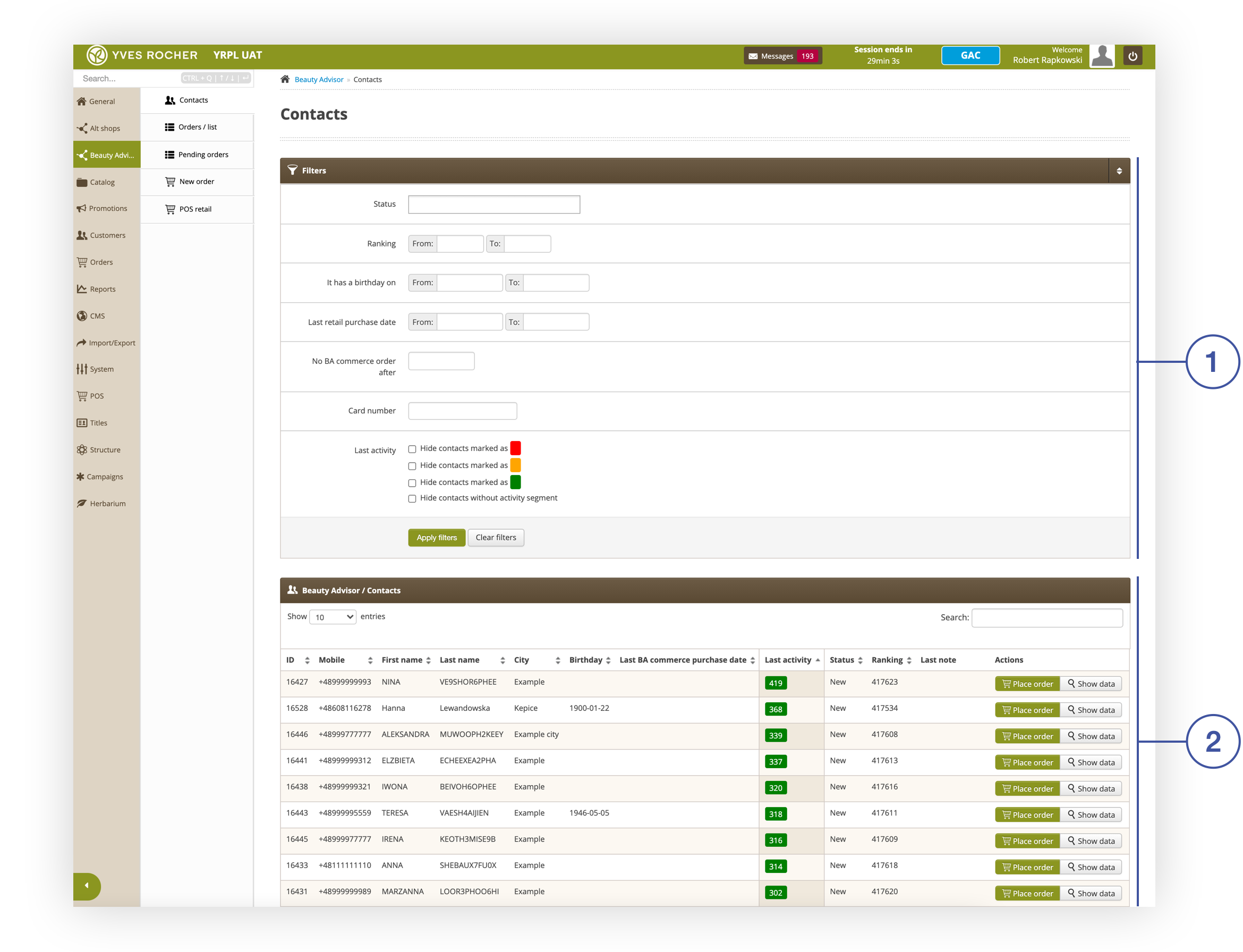
<span style="font-family: -apple-system, BlinkMacSystemFont, 'Segoe UI', Helvetica, Arial, sans-serif;"><span>The ***Contacts*** section in the ***Beauty Advisor*** module contains a table **<span style="color: #4054a0;">(2) </span>**</span></span>with the list of BA clients imported to the administration panel. The table is sortable, it allows for the placement of an order for a given BA customer, displaying their data and searching for the target contact using the search engine. ***Filters*** <span style="font-family: -apple-system, BlinkMacSystemFont, 'Segoe UI', Helvetica, Arial, sans-serif;"><span>**<span style="color: #4054a0;">(</span><span style="color: #4054a0;">1)</span>**</span></span> will help you to extract contacts that meet the set criteria. It is described in the [ Filters](#bkmrk-filters) chapter.

<span class="wysiwyg-color-black" style="color: #44549b;">![info2.svg](https://knowledge.tauceti-digital.com/uploads/images/gallery/2024-11/10437200142748.png) **Remember**</span><span class="wysiwyg-color-black" style="display: block; margin-top: 10px;">Below are URL links to articles where you can find the following information:  
\- [Who is a BA customer](https://knowledge.tauceti-digital.com/books/e-commerce/page/beauty-advisor-getting-started)  
\- [Beauty Advisor &gt; New order - description of the ordering process](https://knowledge.tauceti-digital.com/books/e-commerce/page/beauty-advisor-new-order-description-of-the-ordering-process)  
\- [How to import BA clients into the admin panel](https://knowledge.tauceti-digital.com/books/e-commerce/page/beauty-advisor-mass-imports)</span><span class="wysiwyg-color-black" style="display: block; margin-top: 10px;"></span><span class="wysiwyg-color-black" style="display: block; margin-top: 10px;"></span><span class="wysiwyg-color-black" style="display: block; margin-top: 10px;"></span>

<table id="bkmrk-%C2%A0contacts-section-in" style="margin-right: auto; margin-left: auto;"><tbody><tr><td class="wysiwyg-text-align-center" style="text-align: center; vertical-align: middle;">![Contacts_section_in_the_Beauty_Advisor_module_in_administration_panel.png](https://knowledge.tauceti-digital.com/uploads/images/gallery/2024-11/360019956459.png)</td></tr><tr><td class="wysiwyg-text-align-center" style="text-align: center; vertical-align: middle;"><span class="wysiwyg-font-size-medium"> </span><span class="wysiwyg-font-size-medium">*Contacts section in the Beauty Advisor module*</span></td></tr></tbody></table>

Table of Contents:

- [ Filters](#bkmrk-filters)
- [ Viewing and managing BA clients](#bkmrk-viewing-and-managing)
- [ Preview of BA customer data - description of possible actions](#bkmrk-preview-of-ba-custom)

---

# ![Screenshot_2020-04-29_at_19.12.41.png](https://knowledge.tauceti-digital.com/uploads/images/gallery/2024-11/10437200134044.png) Filters

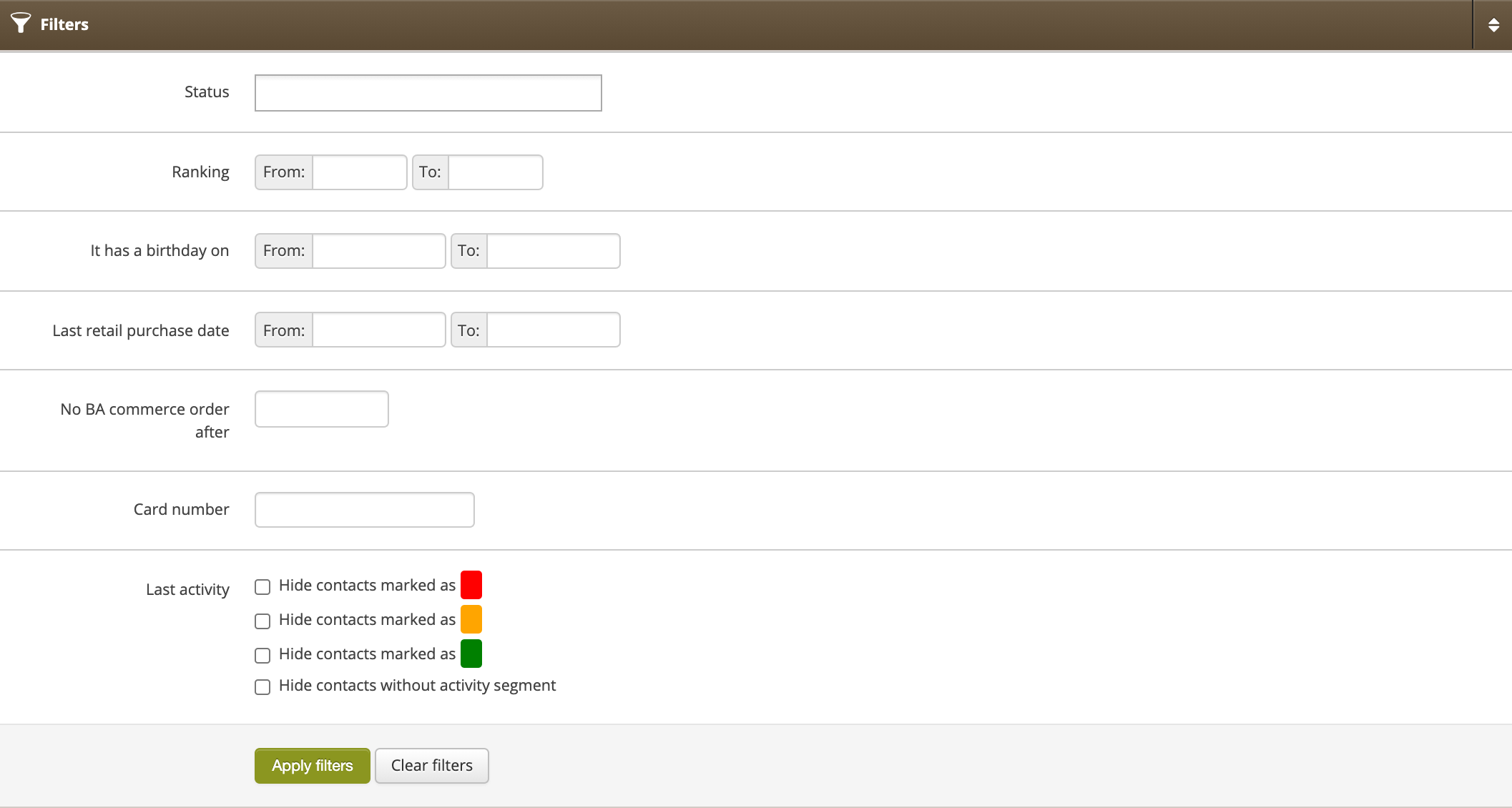
The ***Filters*** tab allows for the selection of BA clients based on the criteria described below. BA clients meeting the selected criteria will be displayed in the ***Beauty Advisor / Contacts*** tab.<span></span>

<table id="bkmrk-%C2%A0%C2%A0-filters-tab-in-be" style="margin-right: auto; margin-left: auto;"><tbody><tr><td class="wysiwyg-text-align-center" style="text-align: center; vertical-align: middle;">![Filters_tab_in_Beauty_Advisor___Contacts.png](https://knowledge.tauceti-digital.com/uploads/images/gallery/2024-11/360019948780.png)</td></tr><tr><td class="wysiwyg-text-align-center" style="text-align: center; vertical-align: middle;"><span class="wysiwyg-font-size-medium">  </span><span class="wysiwyg-font-size-medium"> *Filters tab in Beauty Advisor &gt; Contacts* </span></td></tr></tbody></table>

- **Status** - BA client status. There are 4 types of status: 
    - **New** - status assigned during mass import of BA customer base.
    - **Unanswered** - status assigned manually in the administration panel when the customer did not answer the phone.
    - **Answered without ordering** - status assigned manually in the administration panel, when the customer answered the phone but the order was not placed on the customer’s account.
    - **Converted** - status assigned to the client automatically by the application after placing the order in the ***Beauty Advisor*** module.
- **Ranking** - BA customer ranking range (1-999999). The parameter is editable only when importing BA clients. The parameter value is set by Yves Rocher employees.
- **It has a birthday on** - the range of birthdays of BA customers. The parameter is editable only when importing BA clients.
- **Last retail purchase date** - the range of dates for the BA customer’s last purchase in-store. Purchase data is collected from a daily imported CSV file, from the JANTAR database. The value can also be updated during mass import of clients (both in regular and lite versions).
- **No BA commerce after** - the day from which no BA commerce orders have been recorded at the customer’s premises. The parameter is automatically generated by the application. Mass import of BA clients does not affect the parameter value.
- **Card number** - customer’s FIDEN2 card number.
- **Last activity** - a complex filter that allows to narrow down the list of BA clients in terms of their recent activity. <span style="font-family: -apple-system, BlinkMacSystemFont, 'Segoe UI', Helvetica, Arial, sans-serif;">For information on the operation and configuration of the filter, see [Beauty Advisor - description of last activity filter](https://knowledge.tauceti-digital.com/books/e-commerce/page/beauty-advisor-description-of-last-activity-filter).</span>

---

# ![Screenshot_2020-04-29_at_19.12.41.png](https://knowledge.tauceti-digital.com/uploads/images/gallery/2024-11/10437200134044.png) Viewing and managing BA clients

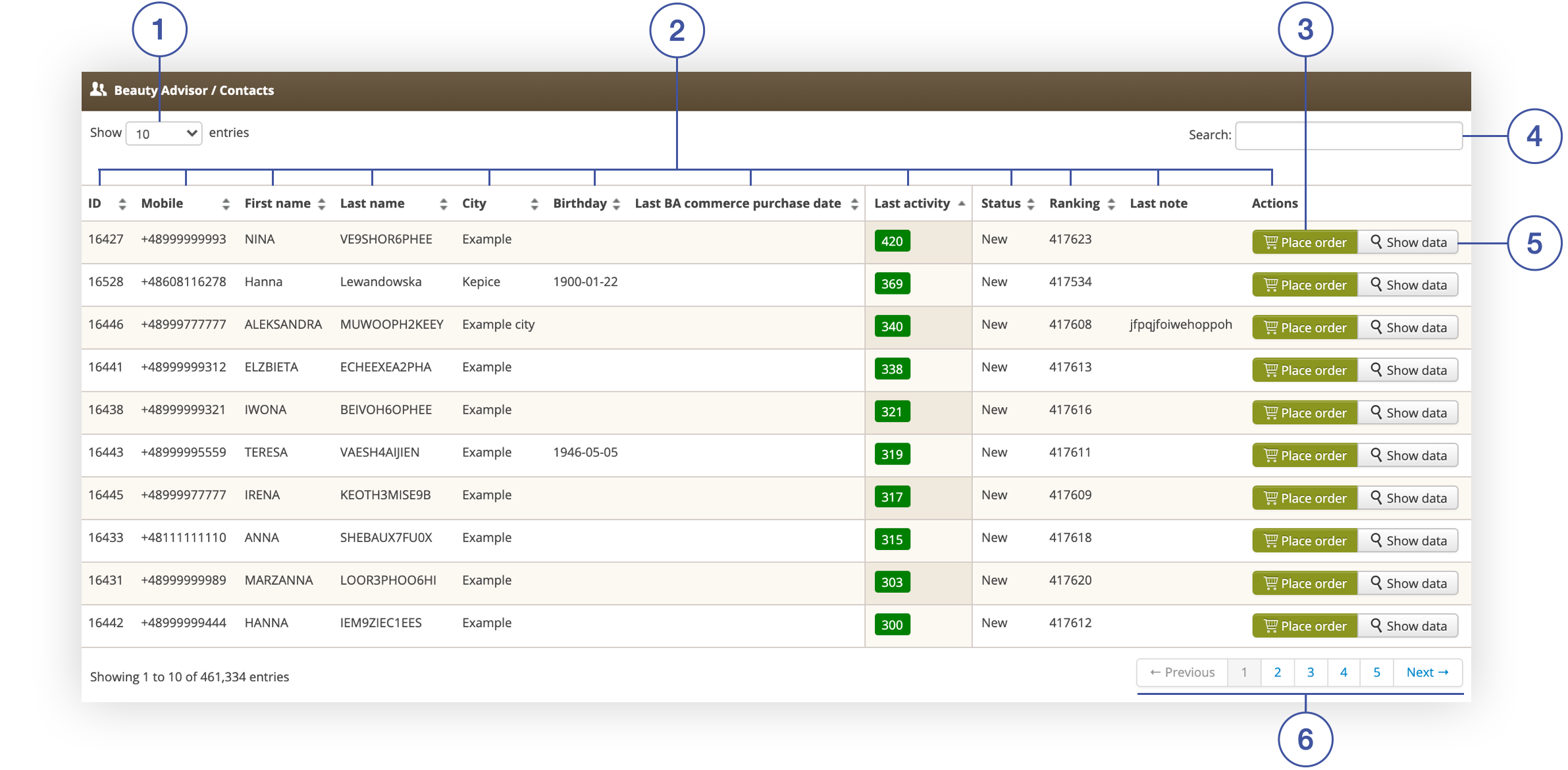
Below you will find a description of the table with the list of BA clients and possible actions in the ***Beauty Advisor / Contacts*** tab.

<table id="bkmrk-beauty-advisor-%2F-con" style="margin-right: auto; margin-left: auto;"><tbody><tr><td class="wysiwyg-text-align-center" style="text-align: center; vertical-align: middle;">![Beauty_Advisor___Contacts_tab_in_Beauty_Advisor__Contacts_in_admininistration_panel.png](https://knowledge.tauceti-digital.com/uploads/images/gallery/2024-11/360019953720.png)</td></tr><tr><td class="wysiwyg-text-align-center" style="text-align: center; vertical-align: middle;"><span class="wysiwyg-font-size-medium">*Beauty Advisor / Contacts tab in Beauty Advisor&gt; Contacts*</span></td></tr></tbody></table>

- **<span style="color: #4054a0;">(1) </span>Show X entries** - option to change the number of BA customers on one page (available range from 10 to 100).
- **<span style="color: #4054a0;">(2) </span>**- columns containing information about BA customers. Each column is sortable: 
    - **ID** - the unique identifier of the BA customer in the administration panel.
    - **Mobile** - Customer's mobile number.
    - **First name** - Customer's first name.
    - **Last name** - Customer's last name.
    - **City** - City to where the client will have their BA order delivered.
    - **Birthday** - Customer's date of birth.
    - **Last BA commerce purchase date** - date of the last BA commerce purchase.
    - **Last activity** - days since the last purchase made by a BA customer in any sales channel (physical store, e-commerce, Beauty Advisor).
    - **Status** - customer status (“*new*”, “*unanswered*”, “*answered* *without ordering*”, “*converted*”).
    - **Ranking** - customer ranking range (1-999999).
    - **Last note** - last note left by the BA consultant when making the purchase.
    - **Actions** 
        - **Place order** **<span style="color: #4054a0;">(3)</span>** - select the button to place a new order on the customer’s account. For more information on placing a new order, see [Beauty Advisor &gt; New order - description of the ordering process](https://knowledge.tauceti-digital.com/books/e-commerce/page/beauty-advisor-new-order-description-of-the-ordering-process).
        - **Show data** **<span style="color: #4054a0;">(5)</span>** - select the button to display the BA customer data. More information on viewing the BA client, see [ Preview of BA customer data - description of possible actions](#bkmrk-preview-of-ba-custom).
- **<span style="color: #4054a0;">(4) </span>**- BA customer search engine (search possible by criteria: *"Mobile"*, *"First name"*, *"Last name"*, *"City"*).
- **<span style="color: #4054a0;">(6) </span>**- navigation through the list of BA customers in the administration panel.

---

# ![Screenshot_2020-04-29_at_19.12.41.png](https://knowledge.tauceti-digital.com/uploads/images/gallery/2024-11/10437200134044.png) Preview of BA customer data - description of possible actions

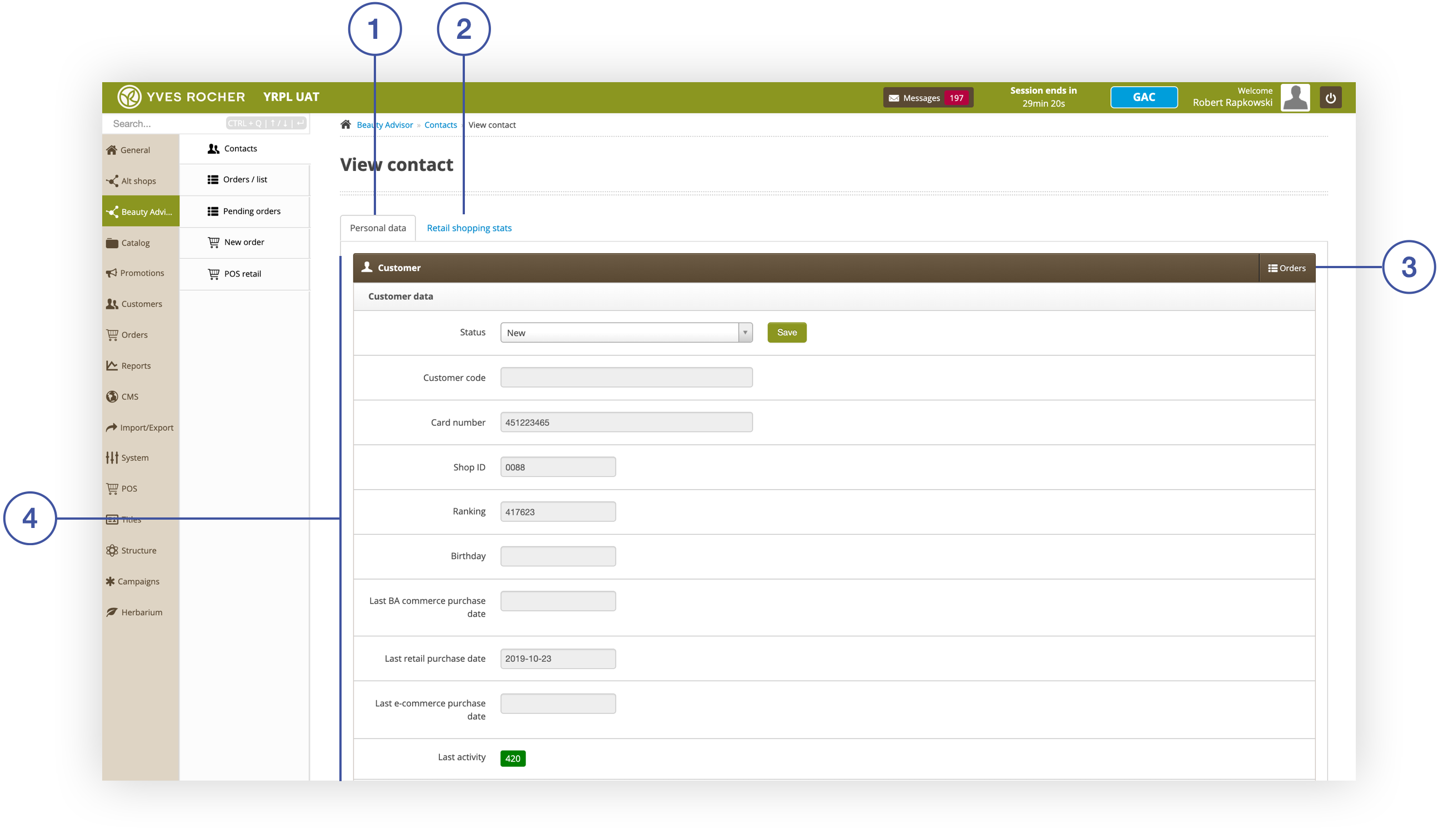
The View contact section allows to preview the BA customer data placed in the ***Customer*** tab **<span style="color: #4054a0;">(4)</span>**, move to the BA orders list using the ***Orders*** button **<span style="color: #4054a0;">(3)</span>**, and switch between the[ *Personal data*](#bkmrk-%C2%A0personal-data) **<span style="color: #4054a0;">(1)</span>** and *[Retail shopping stats](#bkmrk-retail-shopping-stat)* **<span style="color: #4054a0;">(2) </span>**views.

<table id="bkmrk-sekcja-view-contact-" style="margin-right: auto; margin-left: auto;"><tbody><tr><td class="wysiwyg-text-align-center" style="text-align: center; vertical-align: middle;">![Sekcja_View_contact_w_module_Beauty_Advisor.png](https://knowledge.tauceti-digital.com/uploads/images/gallery/2024-11/360019962440.png)</td></tr><tr><td class="wysiwyg-text-align-center" style="text-align: center; vertical-align: middle;"><span class="wysiwyg-font-size-medium">*Sekcja View contact w module Beauty Advisor* </span></td></tr></tbody></table>

## <span>   
Personal data</span>

The view contains the ***Customer*** tab consisting of 5 fields, described below.

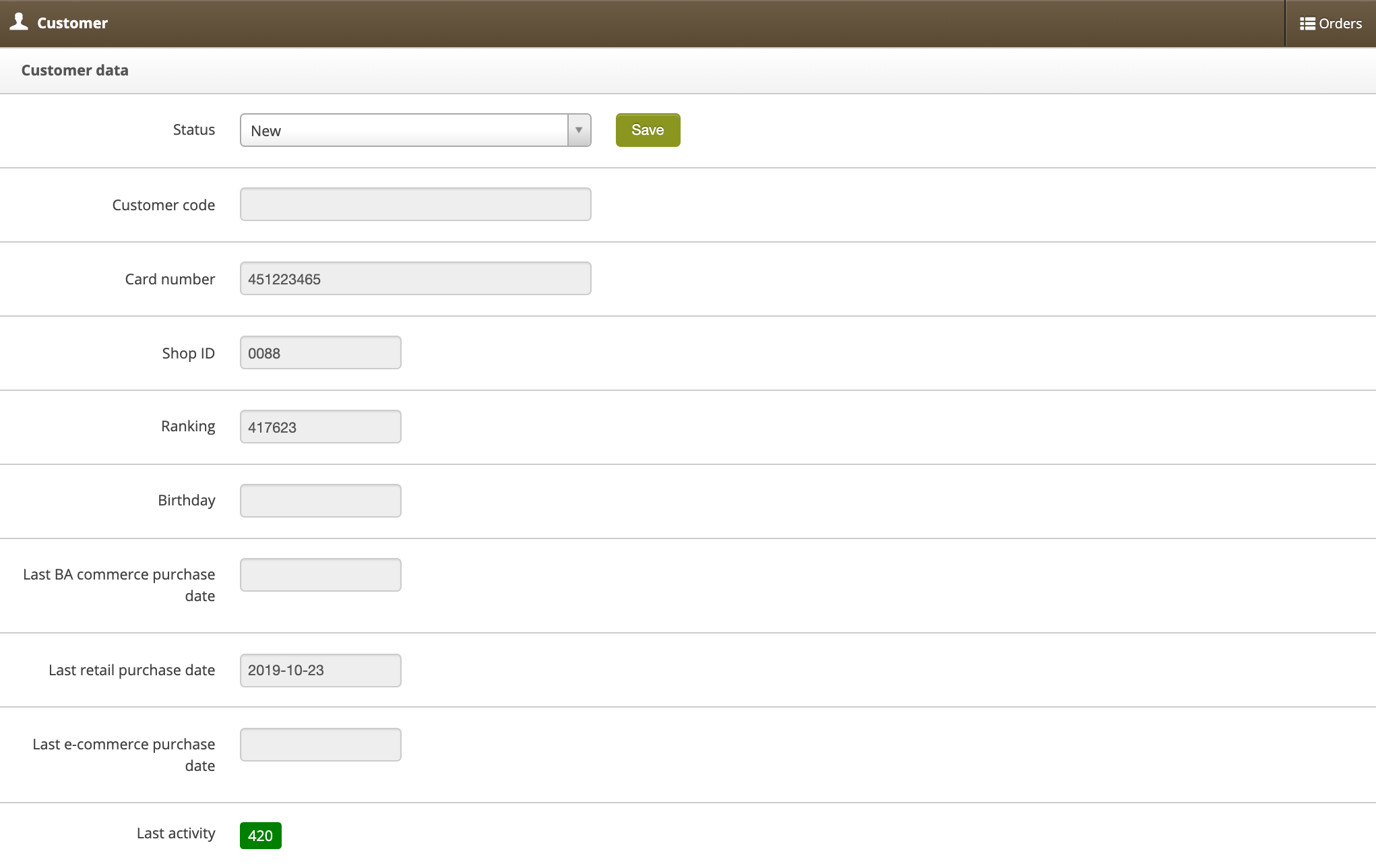
The field ***Consumer data*** contains data about the customer and allows to change the status of the BA customer.

<table id="bkmrk-the-consumer-data-co" style="margin-right: auto; margin-left: auto;"><tbody><tr><td class="wysiwyg-text-align-center" style="text-align: center; vertical-align: middle;">![The_Consumer_data_column_in_the_Customer_tab.png](https://knowledge.tauceti-digital.com/uploads/images/gallery/2024-11/360019965040.png)</td></tr><tr><td class="wysiwyg-text-align-center" style="text-align: center; vertical-align: middle;"><span class="wysiwyg-font-size-medium">*The Consumer data column in the Customer tab* </span></td></tr></tbody></table>

- **Customer code** - a non-unique BA customer code consisting of only digits, of unlimited length. It is created and overwritten at the time of mass import (optional field).
- **Card number** - customer’s FIDEN2 card number.

<span class="wysiwyg-color-black" style="color: #44549b;">![info2.svg](https://knowledge.tauceti-digital.com/uploads/images/gallery/2024-11/10437200142748.png) **Remember**</span><span class="wysiwyg-color-black" style="display: block; margin-top: 10px;">Information about fields: Last BA commerce purchase, Last stationary purchase, Last e-shop purchase and Recent activity is available in the article [Beauty Advisor - description of last activity filter](https://knowledge.tauceti-digital.com/books/e-commerce/page/beauty-advisor-description-of-last-activity-filter).</span>

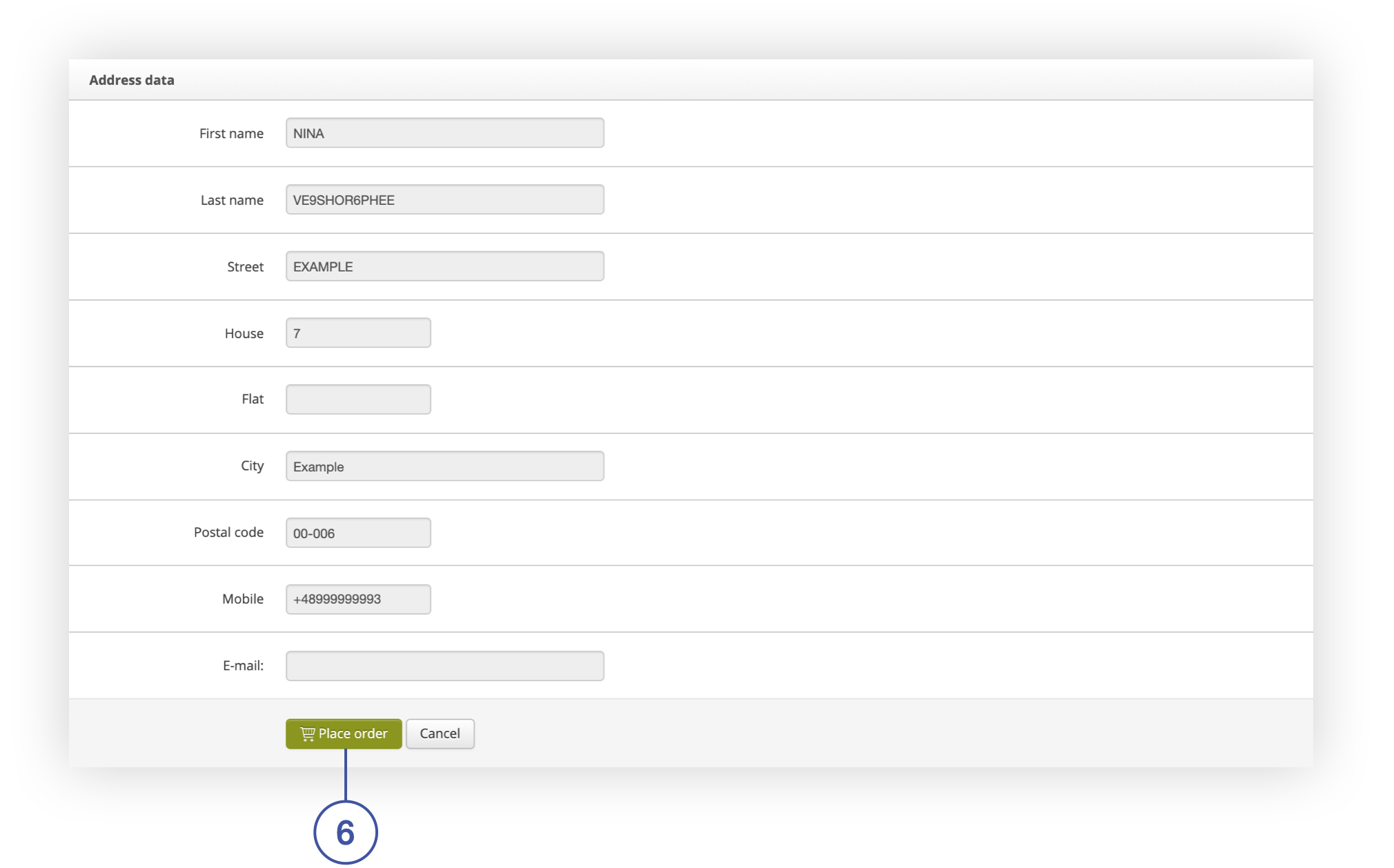
The ***Address data*** section contains the correspondence data of the BA customer and allows transfer to the order placement window - use the **Place order** button **<span style="color: #4054a0;">(6)</span>**. The consumer’s details will be automatically filled in. For more information on submitting an order [Beauty Advisor &gt; New order - description of the ordering process](https://knowledge.tauceti-digital.com/books/e-commerce/page/beauty-advisor-new-order-description-of-the-ordering-process).

<table id="bkmrk-address-data-column-" style="margin-right: auto; margin-left: auto;"><tbody><tr><td class="wysiwyg-text-align-center" style="text-align: center; vertical-align: middle;">![Address_data_column_in_the_Customer_tab.png](https://knowledge.tauceti-digital.com/uploads/images/gallery/2024-11/360019981519.png)</td></tr><tr><td class="wysiwyg-text-align-center" style="text-align: center; vertical-align: middle;"><span class="wysiwyg-font-size-medium">*Address data column in the Customer tab*</span></td></tr></tbody></table>

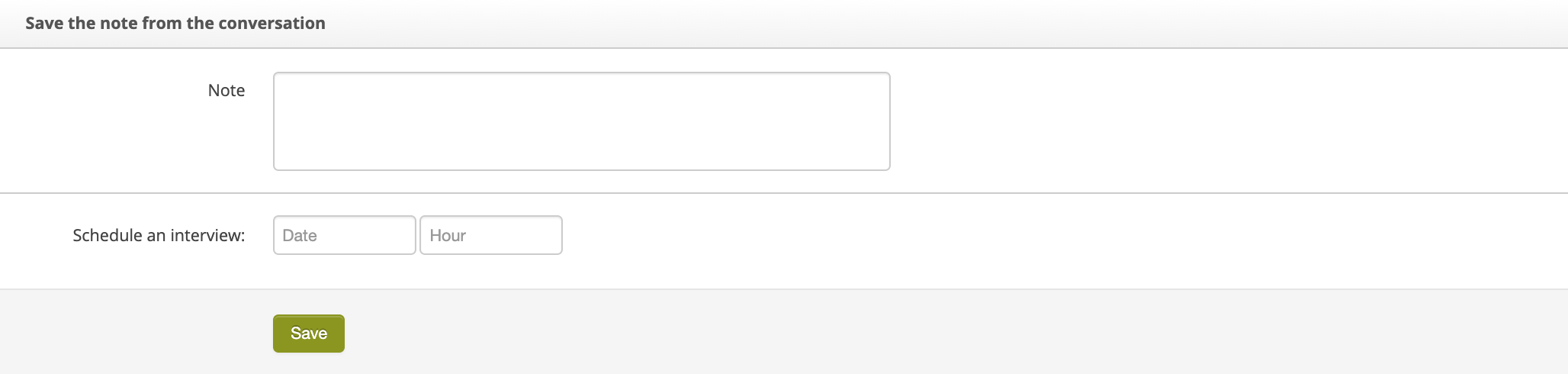
The ***Save the note from the conversation*** column allows for making a note of the conversation with BA customers and to plan contact with them.

<table id="bkmrk-save-note-from-the-c" style="margin-right: auto; margin-left: auto;"><tbody><tr><td class="wysiwyg-text-align-center" style="text-align: center; vertical-align: middle;">![Save_note_from_conversation_column_in_the_Customer_tab.png](https://knowledge.tauceti-digital.com/uploads/images/gallery/2024-11/360019967340.png)</td></tr><tr><td class="wysiwyg-text-align-center" style="text-align: center; vertical-align: middle;"><span class="wysiwyg-font-size-medium"> *Save note from the conversation column in the Customer tab* </span></td></tr></tbody></table>

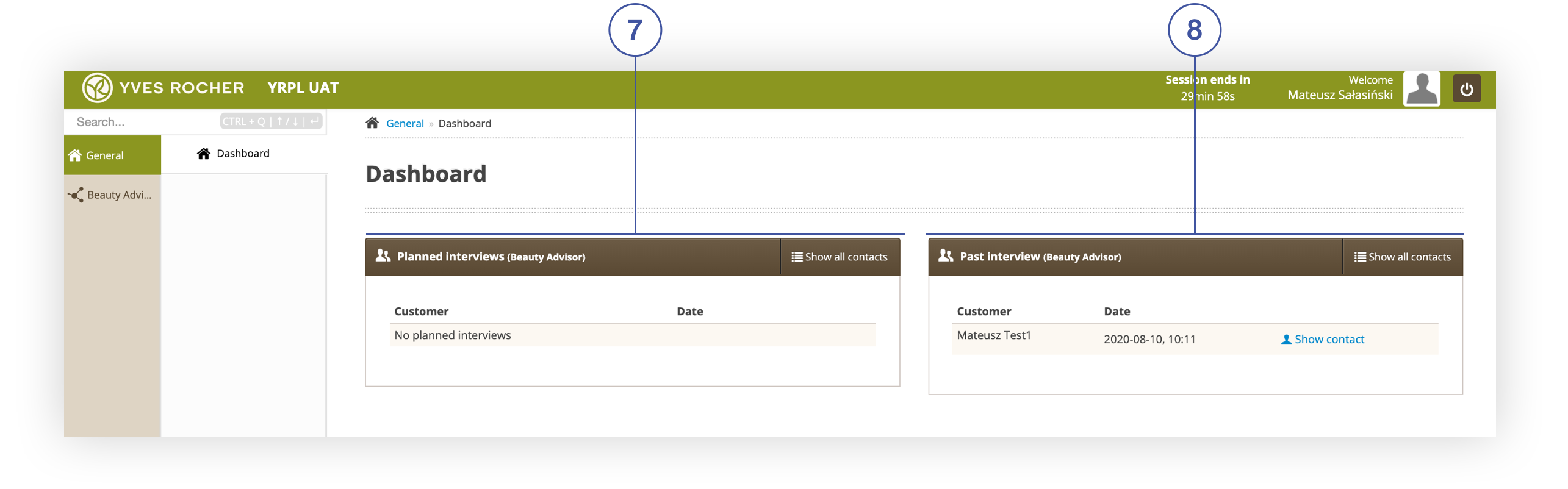
The scheduled contact list **<span style="color: #4054a0;">(7)</span>** will be visible in the BA Consultant’s Cockpit. Next to it there is a list of planned contacts from the past **<span style="color: #4054a0;">(8)</span>**. The tables contain the first and last name of the BA customer together with the telephone number (if assigned to the customer), the date of the scheduled contact, and the ability to view BA customer data using the **Show contact** button. You can access the list of all BA clients using the **Show all contacts** button.

<table id="bkmrk-list-of-planned-cont" style="margin-right: auto; margin-left: auto;"><tbody><tr><td class="wysiwyg-text-align-center" style="text-align: center; vertical-align: middle;">![Screenshot_2020-12-16_at_15.34.53.png](https://knowledge.tauceti-digital.com/uploads/images/gallery/2024-11/360019970220.png)</td></tr><tr><td class="wysiwyg-text-align-center" style="text-align: center; vertical-align: middle;"><span class="wysiwyg-font-size-medium">*List of planned contacts and past interviews in the BA Consultant’s Cockpit* </span></td></tr></tbody></table>

For a chronological list of BA consultant notes, see Recent Notes. The prepared notes and applied cannot be edited.

<table id="bkmrk-last-notes-column-in" style="margin-right: auto; margin-left: auto;"><tbody><tr><td class="wysiwyg-text-align-center" style="text-align: center; vertical-align: middle;">![Recent_notes_column_in_the_Customer_tab.png](https://knowledge.tauceti-digital.com/uploads/images/gallery/2024-11/360019986219.png)</td></tr><tr><td class="wysiwyg-text-align-center" style="text-align: center; vertical-align: middle;"><span class="wysiwyg-font-size-medium"> *Last notes column in the Customer tab* </span></td></tr></tbody></table>

   
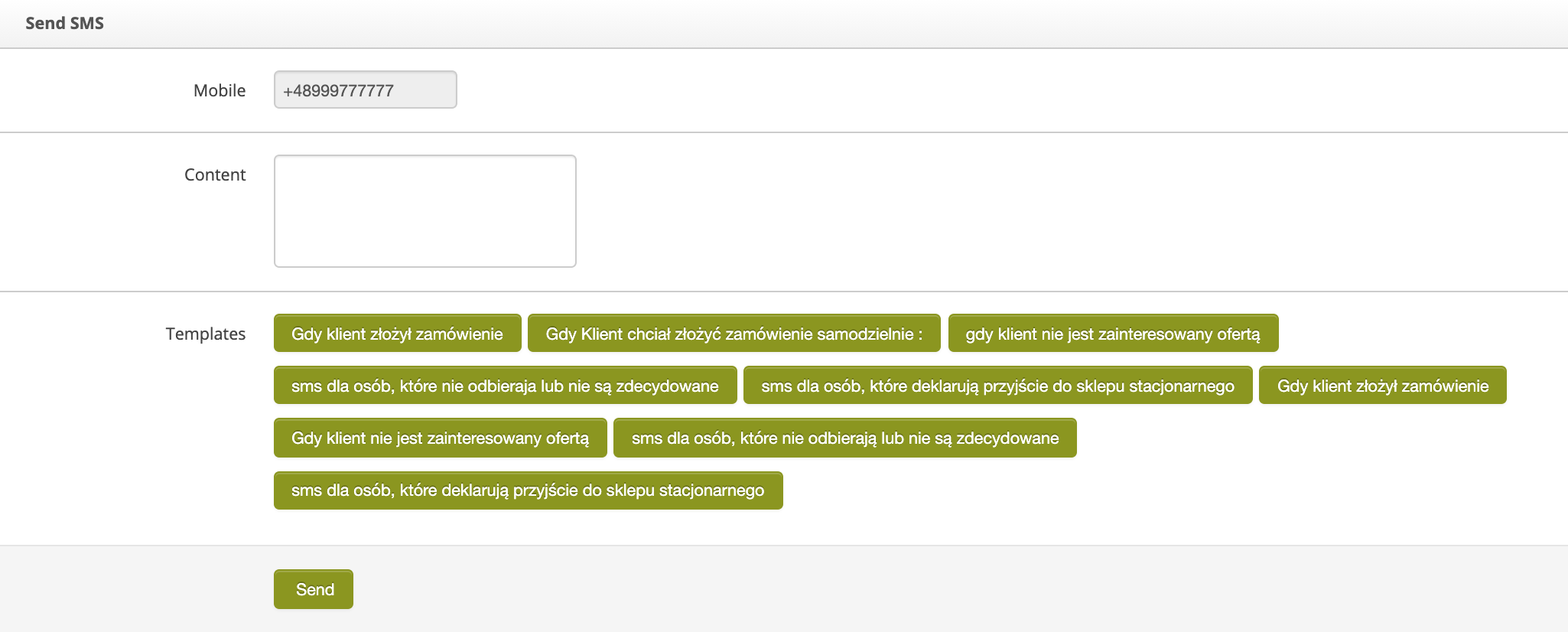
The ***Send SMS*** column enables sending an SMS to the telephone number assigned to the BA customer. You can enter any text message or use predefined templates available in the ***SMS Templates*** section (more information on creating and editing templates is available in the article [Beauty Advisor - message templates](https://knowledge.tauceti-digital.com/books/e-commerce/page/beauty-advisor-message-templates).

<table id="bkmrk-recent-notes-column-" style="margin-right: auto; margin-left: auto;"><tbody><tr><td class="wysiwyg-text-align-center" style="text-align: center; vertical-align: middle;">![Send_SMS_column_in_the_Customer_tab_.png](https://knowledge.tauceti-digital.com/uploads/images/gallery/2024-11/360019973660.png)</td></tr><tr><td class="wysiwyg-text-align-center" style="text-align: center; vertical-align: middle;"><span class="wysiwyg-font-size-medium"> *Recent notes column in the Customer tab* </span></td></tr></tbody></table>

## Retail shopping stats

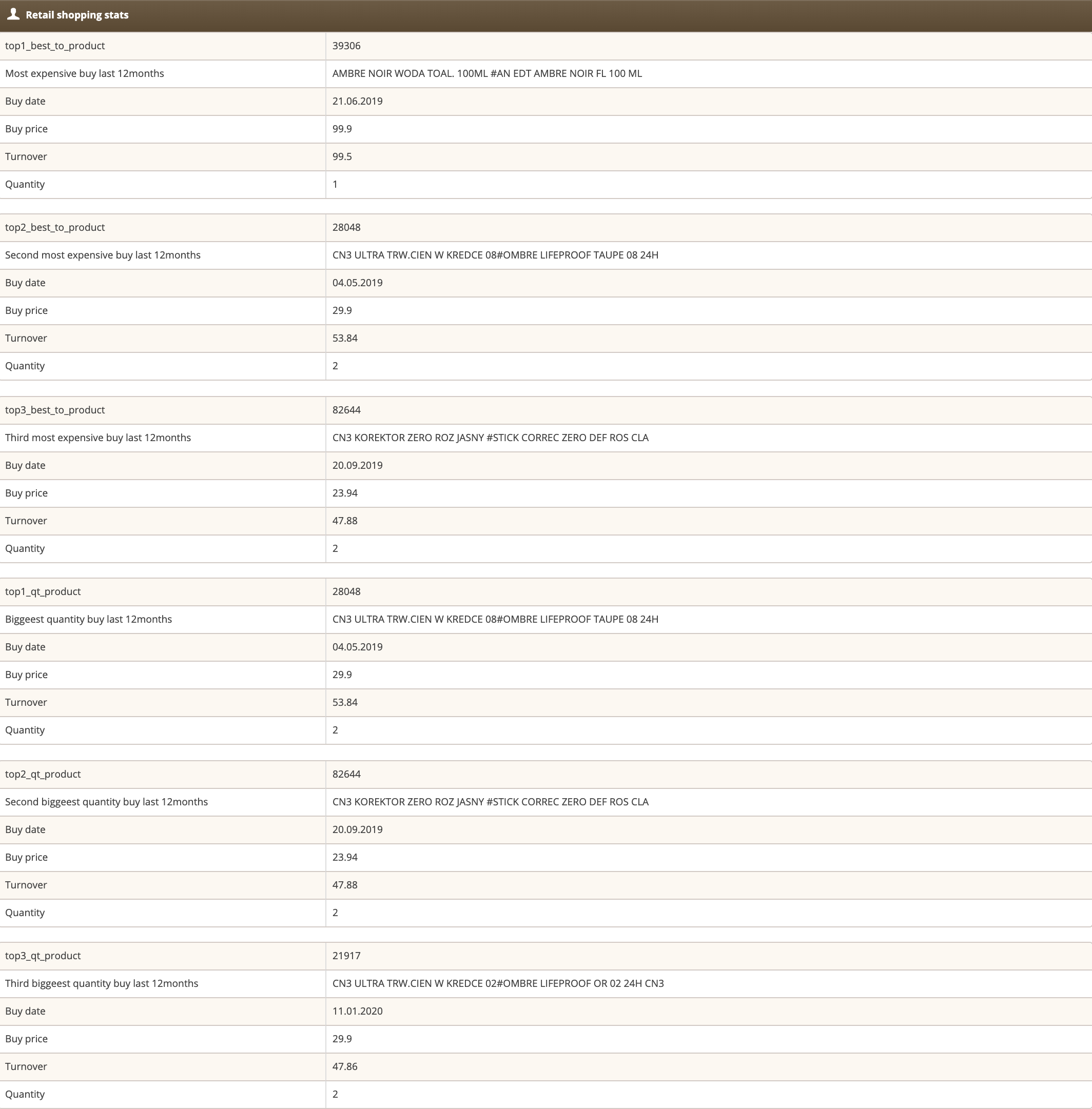
The view contains information on customer orders made in stationary stores. Values are only created and overwritten during mass import of BA clients (for more information on mass imports, see [Beauty Advisor - mass imports](https://knowledge.tauceti-digital.com/books/e-commerce/page/beauty-advisor-mass-imports)).

<table id="bkmrk-retail-shopping-stat-1" style="margin-right: auto; margin-left: auto;"><tbody><tr><td class="wysiwyg-text-align-center" style="text-align: center; vertical-align: middle;">![Retail_shopping_stats_screen_in_the_Customer_section.png](https://knowledge.tauceti-digital.com/uploads/images/gallery/2024-11/360019974480.png)</td></tr><tr><td class="wysiwyg-text-align-center" style="text-align: center; vertical-align: middle;"><span class="wysiwyg-font-size-medium"> *Retail shopping stats screen in the Customer section* </span></td></tr></tbody></table>