# Beauty Advisor > New order - description of the ordering process

# ![Screenshot_2020-04-29_at_19.12.41.png](https://knowledge.tauceti-digital.com/uploads/images/gallery/2024-11/10467425587484.png) Getting started

The ***New Order*** section of the ***Beauty Advisor*** module allows BA consultants to submit an order on behalf of BA clients. BA consultants have control over the granted discounts and the selection of gifts added to the order. BA consultants can also modify the customer’s data, as well as choose the method of confirming the purchase. The ordering process consists of several steps. Each process involves different actions, described in the following chapters of the article.

<span class="wysiwyg-color-black" style="color: #44549b;">![info2.svg](https://knowledge.tauceti-digital.com/uploads/images/gallery/2024-11/10467425598236.png) **Remember**</span><span class="wysiwyg-color-black" style="display: block; margin-top: 10px;">Below you will find URL links to articles that describe:  
\- [What is a BA order](https://knowledge.tauceti-digital.com/books/e-commerce/page/beauty-advisor-orders-list-viewing-and-handling-orders)  
\- [Who is a BA customer and a BA consultant](https://knowledge.tauceti-digital.com/books/e-commerce/page/beauty-advisor-getting-started)</span><span class="wysiwyg-color-black" style="display: block; margin-top: 10px;"></span><span class="wysiwyg-color-black" style="display: block; margin-top: 10px;"></span><span class="wysiwyg-color-black" style="display: block; margin-top: 10px;"></span><span class="wysiwyg-color-black" style="display: block; margin-top: 10px;"></span><span class="wysiwyg-color-black" style="display: block; margin-top: 10px;"></span><span class="wysiwyg-color-black" style="display: block; margin-top: 10px;"></span><span class="wysiwyg-color-black" style="display: block; margin-top: 10px;"></span>

<table id="bkmrk-%C2%A0%C2%A0-new-order-section" style="margin-right: auto; margin-left: auto; width: 699px;"><tbody><tr><td class="wysiwyg-text-align-center" style="text-align: center; vertical-align: middle; width: 687px;">![New_Order_section_in_Beauty_Advisor_module.png](https://knowledge.tauceti-digital.com/uploads/images/gallery/2024-11/360020074040.png)</td></tr><tr><td class="wysiwyg-text-align-center" style="text-align: center; vertical-align: middle; width: 687px;"><span class="wysiwyg-font-size-medium">  </span><span class="wysiwyg-font-size-medium"> *New Order section in Beauty Advisor module*</span></td></tr></tbody></table>

Table of Contents:

- [ “Add product” tab](#bkmrk-%E2%80%9Cadd-product%E2%80%9D-tab)
    - [Product selection by name or SKU code](#bkmrk-product-selection-by)
    - [Selecting a product from the catalog](#bkmrk-selecting-a-product-)
- [ “Order” tab](#bkmrk-%E2%80%9Corder%E2%80%9D-tab)
- [ Tab “+ Add gift”](#bkmrk-tab-%E2%80%9C%2B-add-gift%E2%80%9D)
- [ “FIDEN2” tab](#bkmrk-%E2%80%9Cfiden2%E2%80%9D-tab)
- [ "Delivery methods" tab](#bkmrk-%22delivery-methods%22-t)
- [ “Address data” tab](#bkmrk-%E2%80%9Caddress-data%E2%80%9D-tab)
- [ Configuration of parameters in the “Order” tab](#bkmrk-configuration-of-par)
- [ Configuration of parameters in the “+ Add gift” tab](#bkmrk-configuration-of-par-1)

---

# ![Screenshot_2020-04-29_at_19.12.41.png](https://knowledge.tauceti-digital.com/uploads/images/gallery/2024-11/10467425587484.png) “Add product” tab

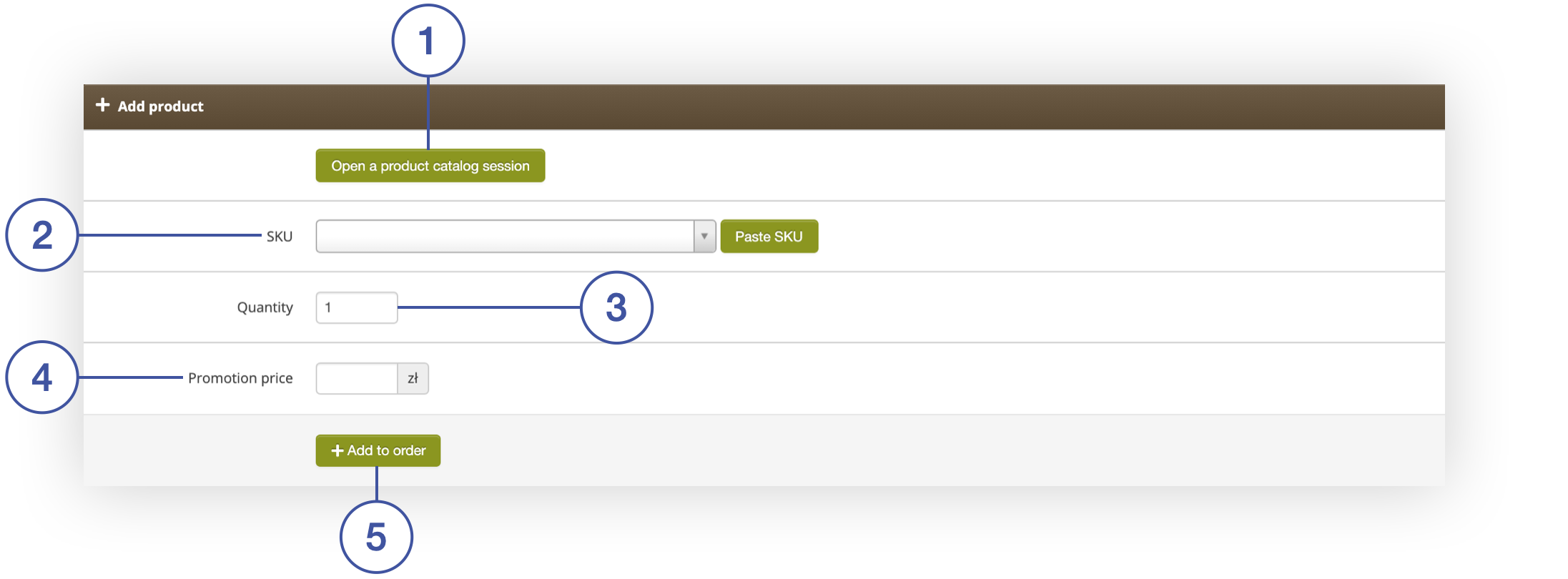
The tab allows you to add a product to an order using two methods: [Product selection by name or SKU code](#bkmrk-product-selection-by) or [Selecting product from catalog.](#bkmrk-selecting-a-product-) Before adding a product to the order, you can select the number of items <span>**<span style="color: #4054a0;">(3)</span>**</span> and change the price (catalog or promotional) <span>**<span style="color: #4054a0;">(4)</span>**</span>. The product is added to the order by clicking the **+ Add to order** button **<span style="color: #4054a0;">(5)</span>**.

## Product selection by name or SKU code

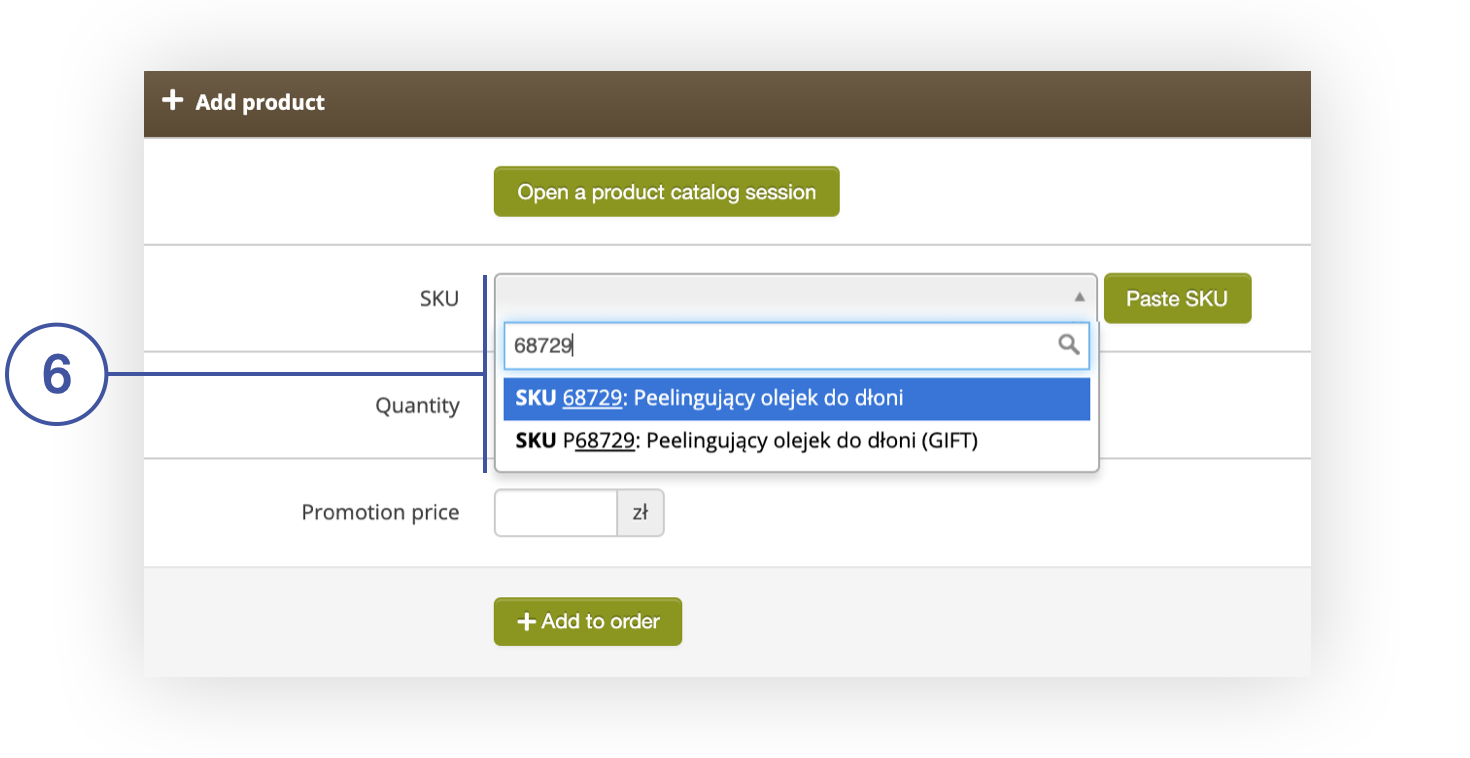
To add a product to your order, enter the product’s SKU or name in the **SKU** field **<span style="color: #4054a0;">(2)</span>**. The **Paste SKU** button **<span style="color: #4054a0;">(2)</span>** allows you to paste the SKU code from the clipboard. The search engine automatically suggests products <span>**<span style="color: #4054a0;">(6)</span>**</span> whose name or SKU code contains the entered characters. The search engine displays only products marked as active in the catalog.

<table id="bkmrk-add-product-tab-in-b" style="margin-right: auto; margin-left: auto; width: 699px;"><tbody><tr><td class="wysiwyg-text-align-center" style="text-align: center; vertical-align: middle; width: 687px;">![Add_Product_tab_in_Beauty_Advisor__New_Order.png](https://knowledge.tauceti-digital.com/uploads/images/gallery/2024-11/360020084120.png)</td></tr><tr><td class="wysiwyg-text-align-center" style="text-align: center; vertical-align: middle; width: 687px;"><span class="wysiwyg-font-size-medium">*Add Product tab in Beauty Advisor&gt; New Order* </span></td></tr></tbody></table>

The **Promotion price** field **<span style="color: #4054a0;">(4)</span>** contains the current promotional price of the product. If the product does not have a promotional price, the catalog price is displayed. The **Promotion Price field** **<span style="color: #4054a0;">(4) </span>**allows you to change the price before adding a product to the order. After selecting the **+ Add to order** button **<span style="color: #4054a0;">(5)</span>**, the product will appear in the [ “Order” tab](#bkmrk-%E2%80%9Corder%E2%80%9D-tab).

<span class="wysiwyg-color-black" style="color: #44549b;">![info2.svg](https://knowledge.tauceti-digital.com/uploads/images/gallery/2024-11/10467425598236.png) **Remember**</span><span class="wysiwyg-color-black" style="display: block; margin-top: 10px;">**Catalog price** - basic price, not including the promotional price of the product.</span>

<table id="bkmrk-%C2%A0add-a-product-in-th" style="margin-right: auto; margin-left: auto; width: 699px;"><tbody><tr><td class="wysiwyg-text-align-center" style="text-align: center; vertical-align: middle; width: 687px;">![Add_a_product_in_the_Add_Product_tab_in_Beauty_Advisor__New_Order.png](https://knowledge.tauceti-digital.com/uploads/images/gallery/2024-11/360020121799.png)</td></tr><tr><td class="wysiwyg-text-align-center" style="text-align: center; vertical-align: middle; width: 687px;"><span class="wysiwyg-font-size-medium"> </span><span class="wysiwyg-font-size-medium">*Add a product in the Add Product tab in Beauty Advisor&gt; New Order* </span></td></tr></tbody></table>

## Selecting a product from the catalog

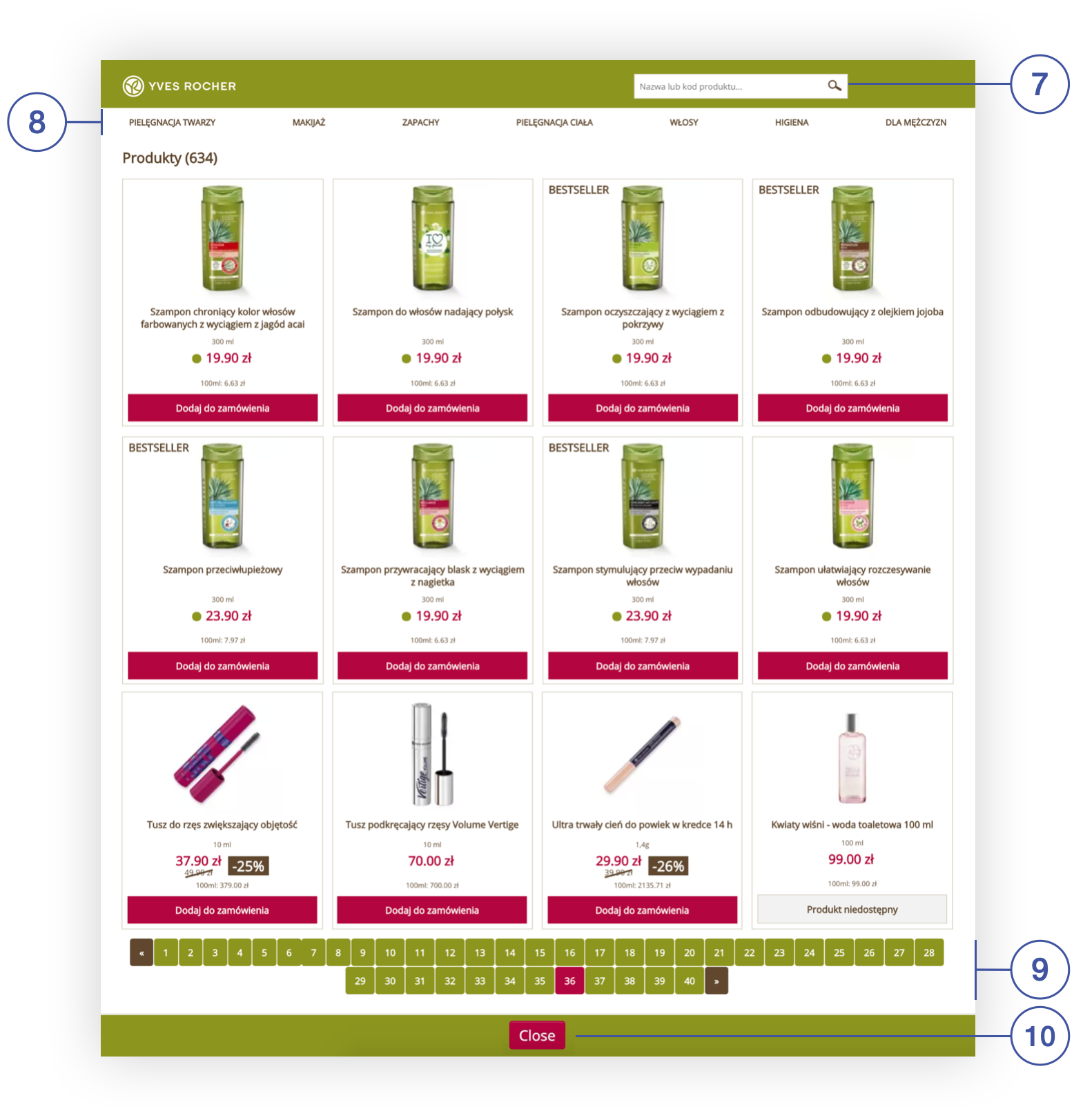
The second method of adding a product to the order is to select the button

**Open a product catalog session** **<span style="color: #4054a0;">(1)</span>**. You will be taken to a new view where you can view the entire catalog of the store’s products, taking into account all categories and subcategories **<span style="color: #4054a0;">(8)</span>**, using the product finder **<span style="color: #4054a0;">(7)</span>** (you can search for the product by the name or SKU code). The top menu with categories **<span style="color: #4054a0;">(8)</span>** and the list of products are fully configurable from the administration panel. For more information, see the articles:<span class="wysiwyg-color-black" style="color: #44549b;"></span>

<span class="wysiwyg-color-black" style="color: #44549b;">![info2.svg](https://knowledge.tauceti-digital.com/uploads/images/gallery/2024-11/10467425598236.png) **Remember**</span><span class="wysiwyg-color-black" style="display: block; margin-top: 10px;">The list of products and the top menu with categories correspond 100% to the content available on the store’s website.</span>

<table id="bkmrk-an-open-session-of-t" style="margin-right: auto; margin-left: auto;"><tbody><tr><td class="wysiwyg-text-align-center" style="text-align: center; vertical-align: middle;">![An_open_session_of_the_product_catalog_in_the_Beauty_Advisor_module.png](https://knowledge.tauceti-digital.com/uploads/images/gallery/2024-11/360020152779.png)</td></tr><tr><td class="wysiwyg-text-align-center" style="text-align: center; vertical-align: middle;"><span class="wysiwyg-font-size-medium">*An open session of the product catalog in the Beauty Advisor module*</span></td></tr></tbody></table>

**<span style="color: #4054a0;">(9) </span>**- buttons used to navigate through the open session of the product catalog.

**<span style="color: #4054a0;">(10) </span>Close** - a button used to close the session and return to the section ***New order*** in the ***Beauty Advisor*** module.

To add a product to the order, select the **Add to order** button next to each product. After selecting the button, the following message will be displayed in the upper right corner of the browser window and the product will appear in the [ “Order” tab](#bkmrk-%E2%80%9Corder%E2%80%9D-tab).

<table id="bkmrk-%C2%A0-a-message-confirmi" style="margin-right: auto; margin-left: auto;"><tbody><tr><td class="wysiwyg-text-align-center" style="text-align: center; vertical-align: middle;">![A_message_confirming_that_the_product_has_been_added_to_the_order_from_the_open_session_of_the_product_catalog.png](https://knowledge.tauceti-digital.com/uploads/images/gallery/2024-11/360020124919.png)</td></tr><tr><td class="wysiwyg-text-align-center" style="text-align: center; vertical-align: middle;"><span class="wysiwyg-font-size-medium">    
</span><span class="wysiwyg-font-size-medium">*A message confirming that the product has been added to the order from the open session of the product catalog* </span></td></tr></tbody></table>

---

# ![Screenshot_2020-04-29_at_19.12.41.png](https://knowledge.tauceti-digital.com/uploads/images/gallery/2024-11/10467425587484.png) “Order” tab

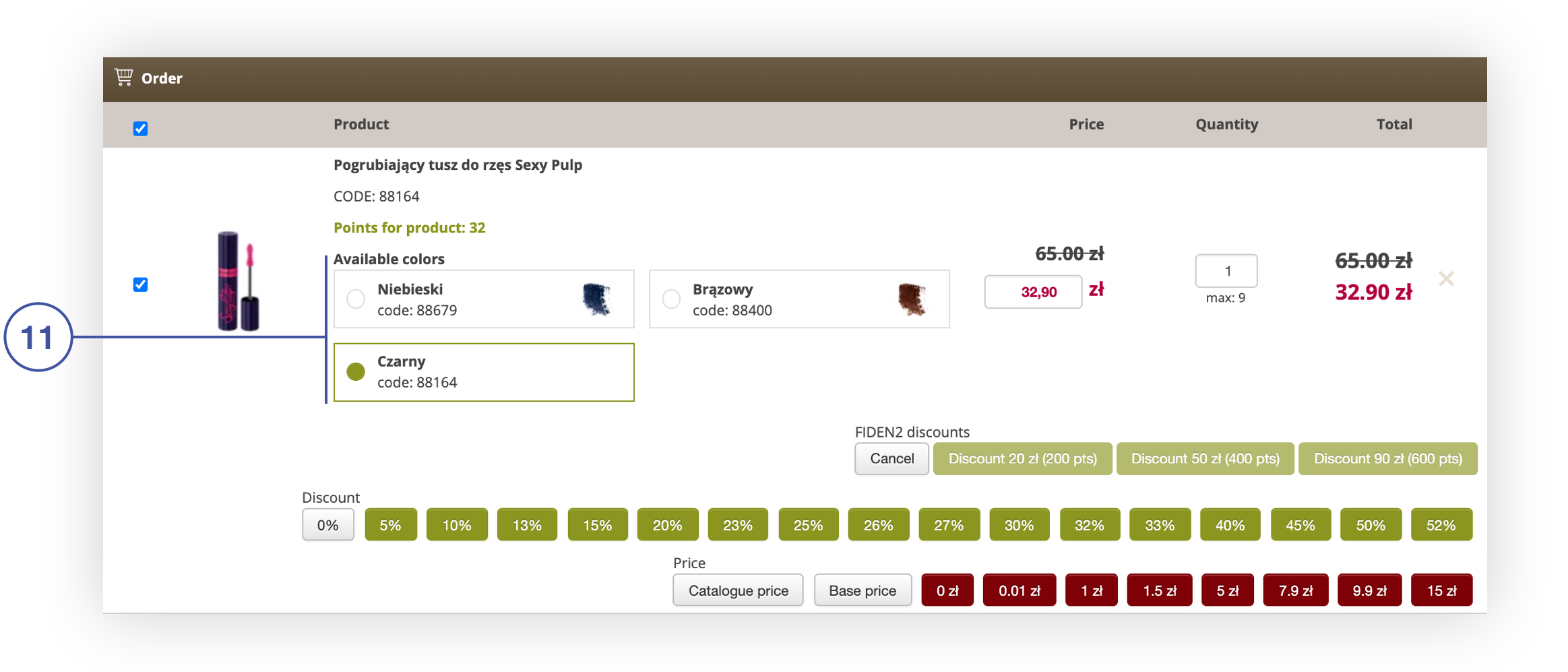
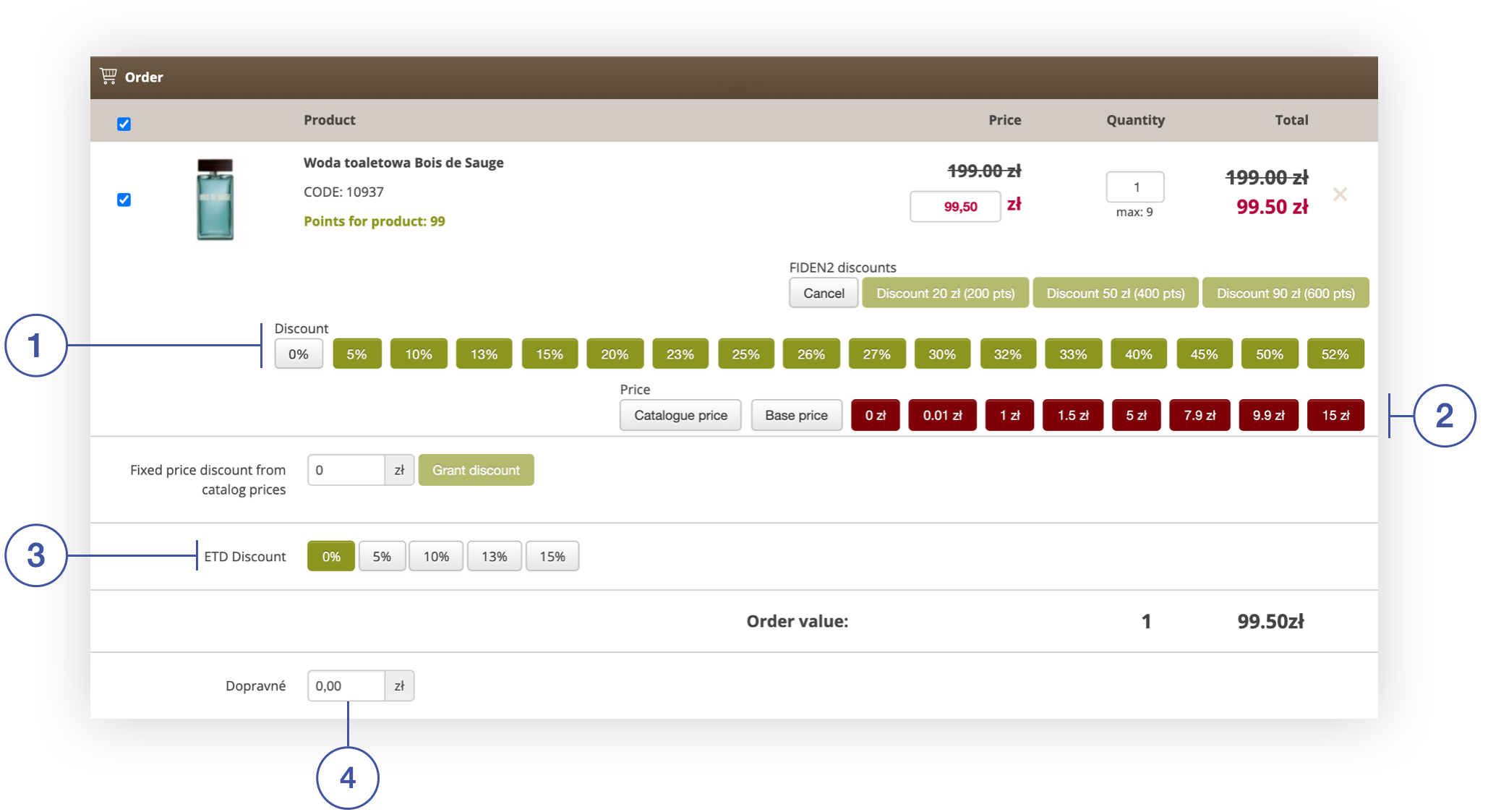
The tab contains products added to the order. You can change the catalog price for products, give discounts, and set the cost of delivery. Below you will find a description of the possible actions in the ***Orders*** tab.

<table id="bkmrk-order-tab-in-section" style="margin-right: auto; margin-left: auto; height: 43px;"><tbody><tr style="height: 21px;"><td class="wysiwyg-text-align-center" style="text-align: center; vertical-align: middle; height: 21px; width: 663px;">![Order_tab_in_section_Beauty_Advisor__New_order.png](https://knowledge.tauceti-digital.com/uploads/images/gallery/2024-11/360020110520.png)</td></tr><tr style="height: 22px;"><td class="wysiwyg-text-align-center" style="text-align: center; vertical-align: middle; height: 22px; width: 663px;"><span class="wysiwyg-font-size-medium">*Order tab in section Beauty Advisor&gt; New order* </span></td></tr></tbody></table>

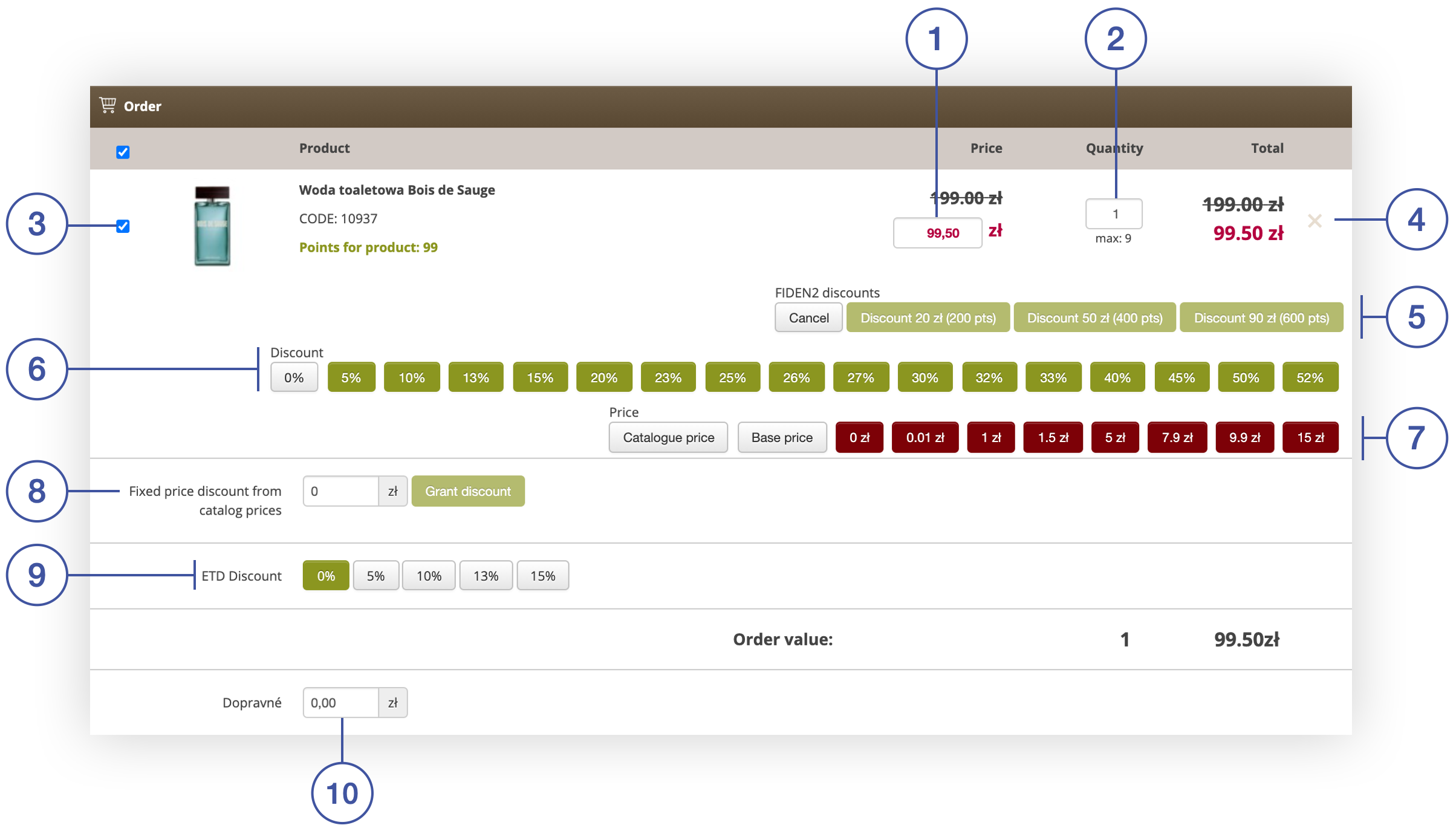
- **<span style="color: #4054a0;">(1) </span>**- changing the catalog price of the product.
- **<span style="color: #4054a0;">(2) </span>**- changing the number of items of the product.
- **<span style="color: #4054a0;">(3) </span>**- unchecking the product. The unchecked product will not be included in the order.
- **<span style="color: #4054a0;">(4) </span>x** -removing e a product from the ***Order*** tab.
- **<span style="color: #4054a0;">(5)</span> FIDEN2 discounts** - granting a FIDEN2 discount. The discount is calculated on the list price of the product.
- **<span style="color: #4054a0;">(6) </span>Discount** - giving a percentage discount. The discount is calculated on the list price of the product. The configuration of button values is described in the chapter Configuration of parameters appearing in the “***Orders***” tab.
- **<span style="color: #4054a0;">(7) </span>Price** - possibility to set the price of the product. The operation will overwrite the value  
    of field **<span style="color: #4054a0;">(1)</span>**.
- **<span style="color: #4054a0;">(8) </span>Fixed price discount from catalog prices** - the possibility of granting an amount rebate on product list price.
- **<span style="color: #4054a0;">(9) </span>ETD Discount (End of ticket discount)** - additional discount at the end of the order, independent of the discounts granted earlier in the promotional module. The discount is given to all added products in the ***Order*** tab.
- **<span style="color: #4054a0;">(10) </span>**- a field in which you can set the cost of delivery, included in the total value of the order.

<span class="wysiwyg-color-black" style="color: #44549b;">![info2.svg](https://knowledge.tauceti-digital.com/uploads/images/gallery/2024-11/10467425598236.png) **Remember**</span><span class="wysiwyg-color-black" style="display: block; margin-top: 10px;">Discounts may not be combined. </span>

<span class="wysiwyg-color-black" style="color: #44549b;">![info2.svg](https://knowledge.tauceti-digital.com/uploads/images/gallery/2024-11/10467425598236.png) **Remember**</span><span class="wysiwyg-color-black" style="display: block; margin-top: 10px;">Only the price of gifts can be “0”. If the product is not a gift, an attempt to submit an order will end with an error.</span>

<span class="wysiwyg-color-black" style="color: #44549b;">![info2.svg](https://knowledge.tauceti-digital.com/uploads/images/gallery/2024-11/10467425598236.png) **Remember**</span><span class="wysiwyg-color-black" style="display: block; margin-top: 10px;">A product with several color variants has an additional section ***Available colors*** in the ***Order*** tab, where you can choose one of the available colors (example below).</span>

<table id="bkmrk-the-ability-to-choos" style="margin-right: auto; margin-left: auto; height: 43px;"><tbody><tr style="height: 21px;"><td class="wysiwyg-text-align-center" style="text-align: center; vertical-align: middle; height: 21px; width: 663px;">![The_ability_to_choose_the_color_of_the_product_in_the_Order_tab.png](https://knowledge.tauceti-digital.com/uploads/images/gallery/2024-11/360020128099.png)</td></tr><tr style="height: 22px;"><td class="wysiwyg-text-align-center" style="text-align: center; vertical-align: middle; height: 22px; width: 663px;"><span class="wysiwyg-font-size-medium">*The ability to choose the color of the product in the Order tab* </span></td></tr></tbody></table>

---

# ![Screenshot_2020-04-29_at_19.12.41.png](https://knowledge.tauceti-digital.com/uploads/images/gallery/2024-11/10467425587484.png) Tab “+ Add gift”

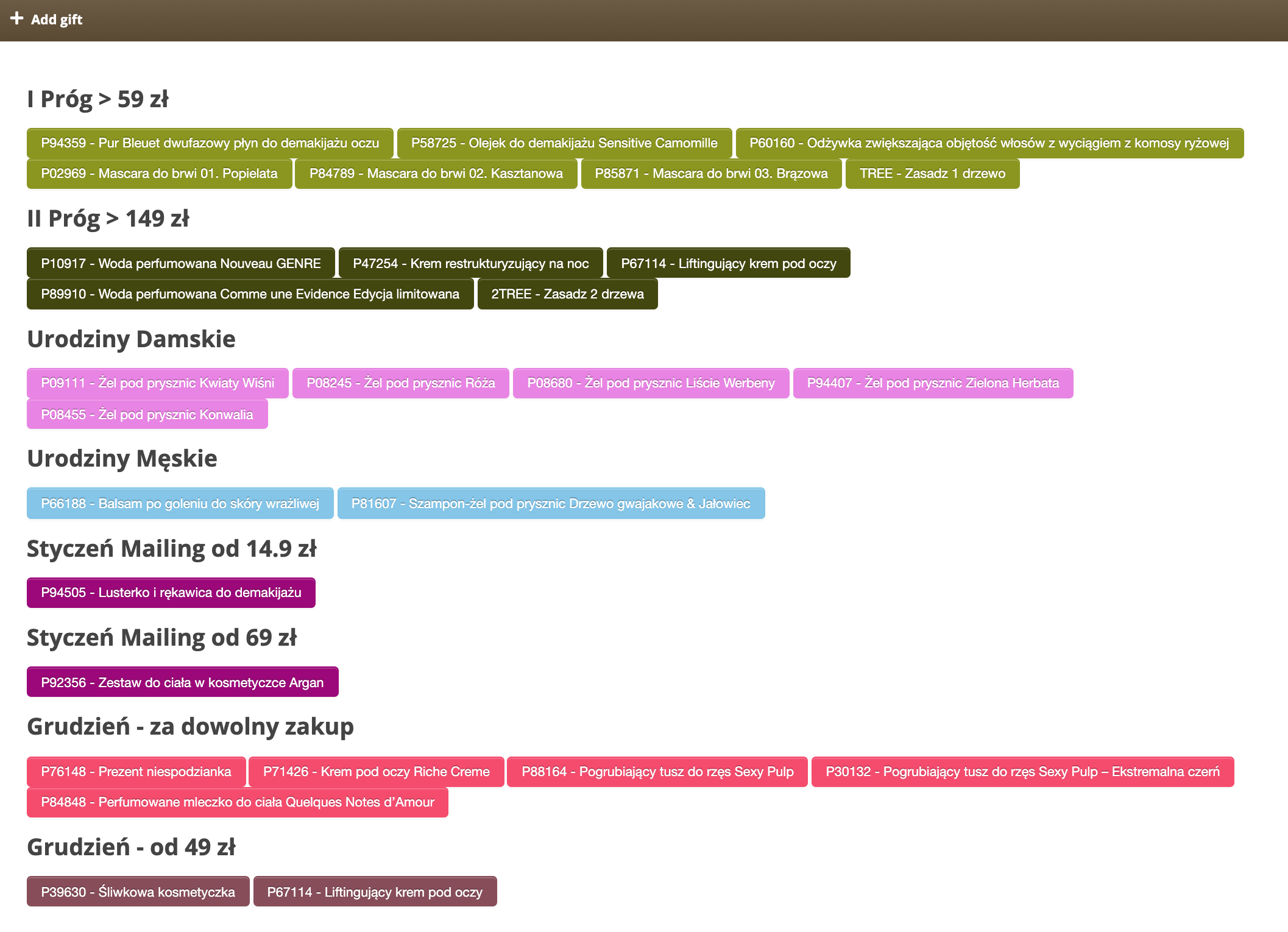
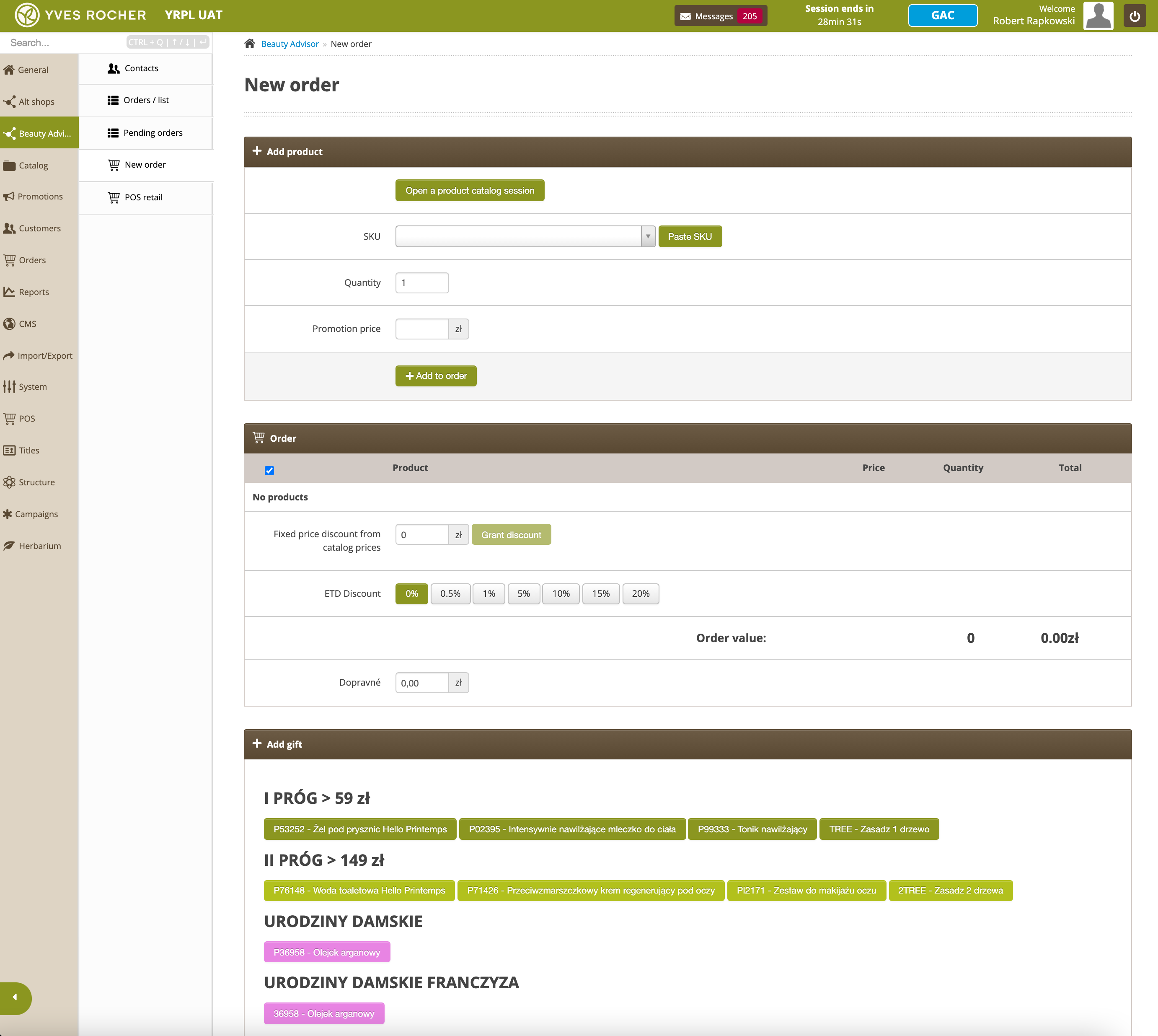
The tab allows to add a gift to the order using the visible buttons. Each button represents one gift. After clicking a chosen button, a present will appear in the tab [ “Order” tab](#bkmrk-%E2%80%9Corder%E2%80%9D-tab). The headers and gifts assigned to the given buttons are configurable from the level of the administration panel (the configuration method is described in detail in the chapter [ Configuration of parameters in the “+Add gift” tab](#bkmrk-configuration-of-par-1)).

<table id="bkmrk-%C2%A0-add-gift-tab-in-se" style="margin-right: auto; margin-left: auto;"><tbody><tr><td class="wysiwyg-text-align-center" style="text-align: center; vertical-align: middle;">![Add_gift_tab_in_section_Beauty_Advisor__New_order.png](https://knowledge.tauceti-digital.com/uploads/images/gallery/2024-11/360020128339.png)</td></tr><tr><td class="wysiwyg-text-align-center" style="text-align: center; vertical-align: middle;"><span class="wysiwyg-font-size-medium">  *Add gift tab in section Beauty Advisor&gt; New order* </span></td></tr></tbody></table>

---

# ![Screenshot_2020-04-29_at_19.12.41.png](https://knowledge.tauceti-digital.com/uploads/images/gallery/2024-11/10467425587484.png) “FIDEN2” tab

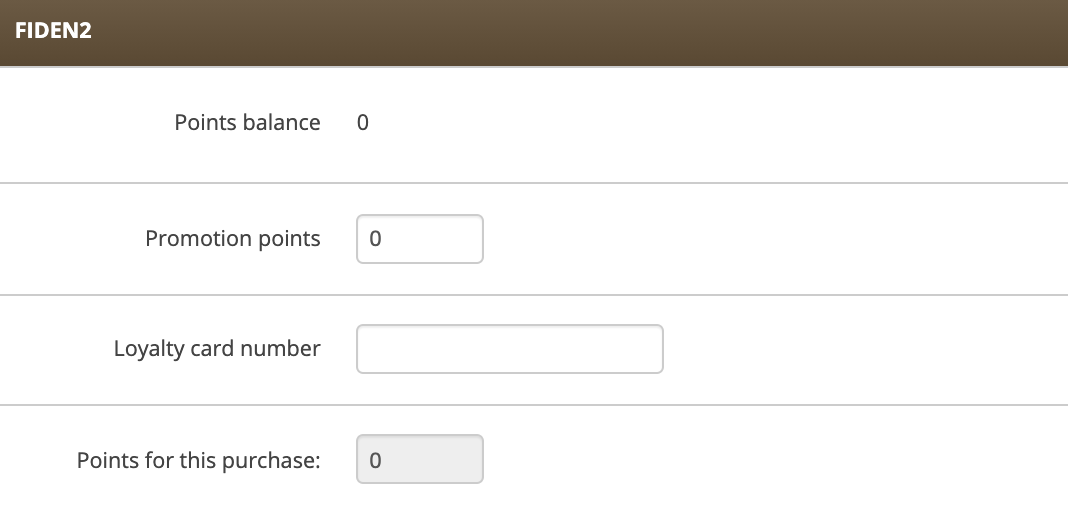
The tab contains the customer’s FIDEN2 points balance, it allows to award of additional points for the order (points will be added to the pool of FIDEN2 points). The tab also contains the customer’s loyalty card number (mother card number) and the points that the customer will receive for the placed order.<span class="wysiwyg-color-black" style="color: #44549b;"></span>

<table id="bkmrk-%C2%A0-fiden2-tab-in-sect" style="margin-right: auto; margin-left: auto;"><tbody><tr><td class="wysiwyg-text-align-center" style="text-align: center; vertical-align: middle;">![FIDEN2_tab_in_section_Beauty_Advisor__New_Order.png](https://knowledge.tauceti-digital.com/uploads/images/gallery/2024-11/360020113360.png)</td></tr><tr><td class="wysiwyg-text-align-center" style="text-align: center; vertical-align: middle;"><span class="wysiwyg-font-size-medium">  *FIDEN2 tab in section Beauty Advisor&gt; New Order* </span></td></tr></tbody></table>

<span style="font-family: -apple-system, BlinkMacSystemFont, 'Segoe UI', Helvetica, Arial, sans-serif;">   
</span>

The data of the FIDEN2 tab will be filled in automatically upon choosing the **Place order** button in the section ***Beauty Advisor&gt; Contacts*** (the process is described in the article [Beauty Advisor &gt; Contacts - viewing and managing BA clients](https://knowledge.tauceti-digital.com/books/e-commerce/page/beauty-advisor-contacts-viewing-and-managing-ba-clients)). After choosing this button, you will be taken to the ***FIDEN2*** tab with the automatically filled data.<span style="font-family: -apple-system, BlinkMacSystemFont, 'Segoe UI', Helvetica, Arial, sans-serif;"></span>

---

# ![Screenshot_2020-04-29_at_19.12.41.png](https://knowledge.tauceti-digital.com/uploads/images/gallery/2024-11/10467425587484.png)<span class="title"> "Delivery methods" tab  
</span>

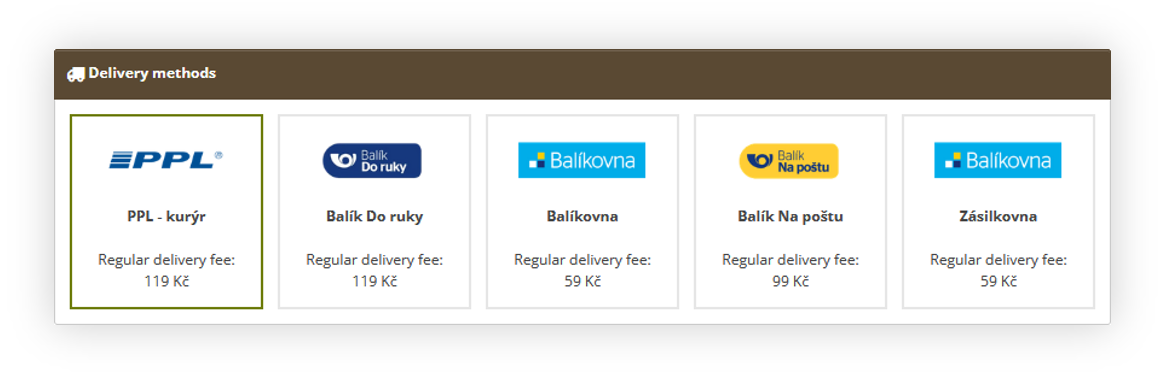
<div class="header" id="bkmrk-the-delivery-methods"><div class="toolbar">The delivery methods tab allows Beauty Advisor employees to select the desired delivery method. This tab is only visible if at least two delivery methods are assigned to the selected BA altshop. **At least 1 delivery method must be assigned to the altshop**, or there will be a notification, that the order cannot be created, as no delivery method is selected.</div></div><table id="bkmrk-%C2%A0-delivery-method-ta" style="margin-right: auto; margin-left: auto;"><tbody><tr><td class="wysiwyg-text-align-center" style="text-align: center; vertical-align: middle;">![POWERPNT_ARukdtmN4s.png](https://knowledge.tauceti-digital.com/uploads/images/gallery/2024-11/10532863799580.png)</td></tr><tr><td class="wysiwyg-text-align-center" style="text-align: center; vertical-align: middle;"><span class="wysiwyg-font-size-medium">  *Delivery method tab visualization* </span></td></tr></tbody></table>

<span style="font-family: -apple-system, BlinkMacSystemFont, 'Segoe UI', Helvetica, Arial, sans-serif;">The delivery method tab contains available delivery methods with their logo, name, and regular delivery fee for a selected range of cart value. This fee doesn't apply additional costs for the customer but is only informational for the employees on what fees are normally used. The fee may change depending on the configuration of the delivery method - for example, in this case**, Balik do Ruky** has a delivery fee of **119Kc** between 0 and **899** cart value, and between **900** and **9999999** it has a delivery fee of **0kc**.</span><span style="font-family: -apple-system, BlinkMacSystemFont, 'Segoe UI', Helvetica, Arial, sans-serif;"></span>

<span style="font-family: -apple-system, BlinkMacSystemFont, 'Segoe UI', Helvetica, Arial, sans-serif;">If the selected method is a pickup point delivery, then in the [customer address tab](#bkmrk-%E2%80%9Caddress-data%E2%80%9D-tab) there will be an additional field, where the employee is able to select the point.</span>

<span class="wysiwyg-color-black" style="color: #44549b;">![info2.svg](https://knowledge.tauceti-digital.com/uploads/images/gallery/2024-11/10467425598236.png) **Remember**</span><span class="wysiwyg-color-black" style="display: block; margin-top: 10px;">You can find information about configuring the delivery methods in the selected altshops in the [Delivery costs / list - browsing and managing delivery costs](https://tauceti.zendesk.com/hc/en-us/articles/5603143969564) article.</span><span class="wysiwyg-color-black" style="display: block; margin-top: 10px;"></span><span class="wysiwyg-color-black" style="display: block; margin-top: 10px;"></span><span class="wysiwyg-color-black" style="display: block; margin-top: 10px;"></span><span class="wysiwyg-color-black" style="display: block; margin-top: 10px;"></span><span class="wysiwyg-color-black" style="display: block; margin-top: 10px;"></span><span class="wysiwyg-color-black" style="display: block; margin-top: 10px;"></span><span class="wysiwyg-color-black" style="display: block; margin-top: 10px;"></span>

---

# ![Screenshot_2020-04-29_at_19.12.41.png](https://knowledge.tauceti-digital.com/uploads/images/gallery/2024-11/10467425587484.png) “Address data” tab

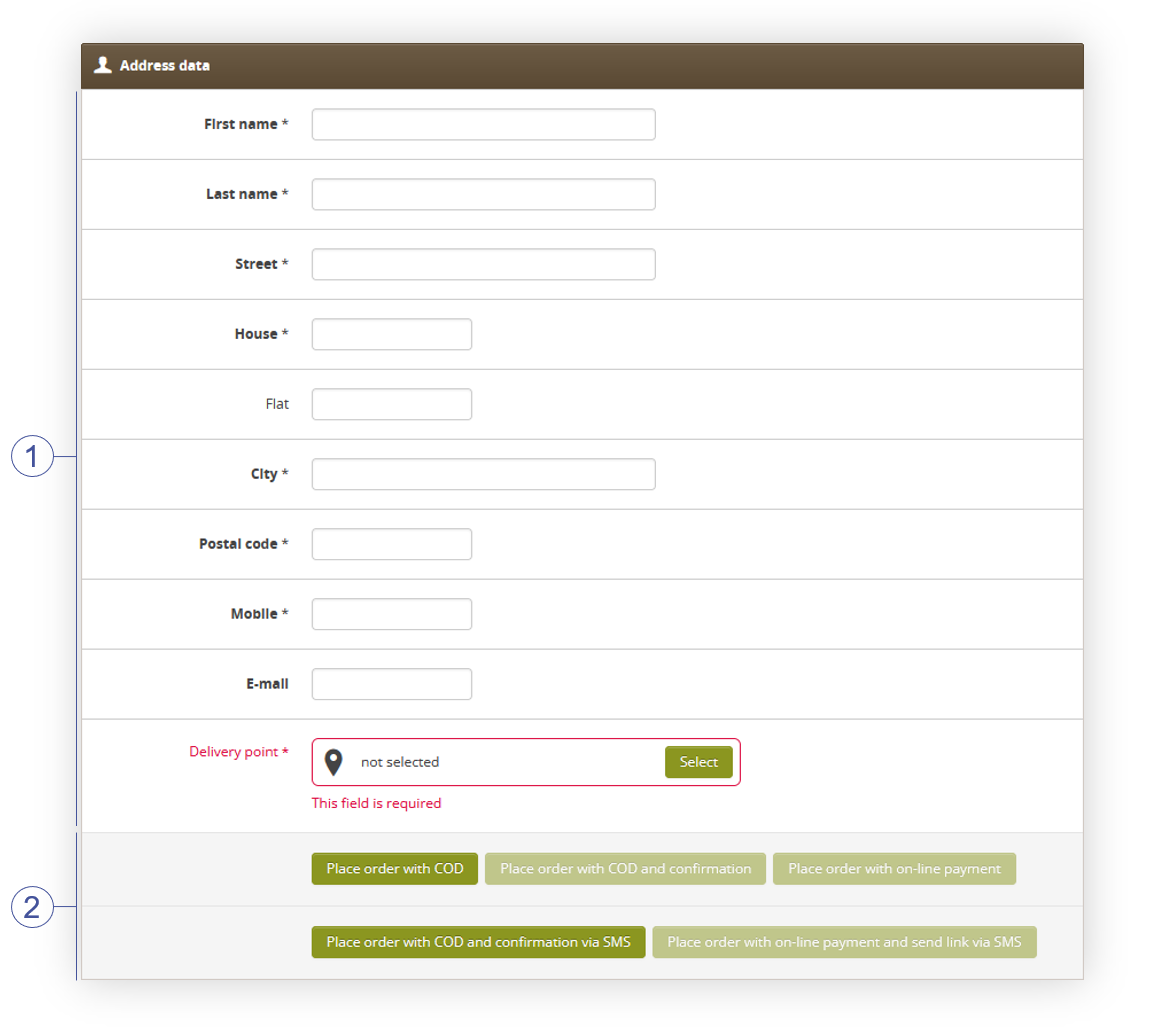
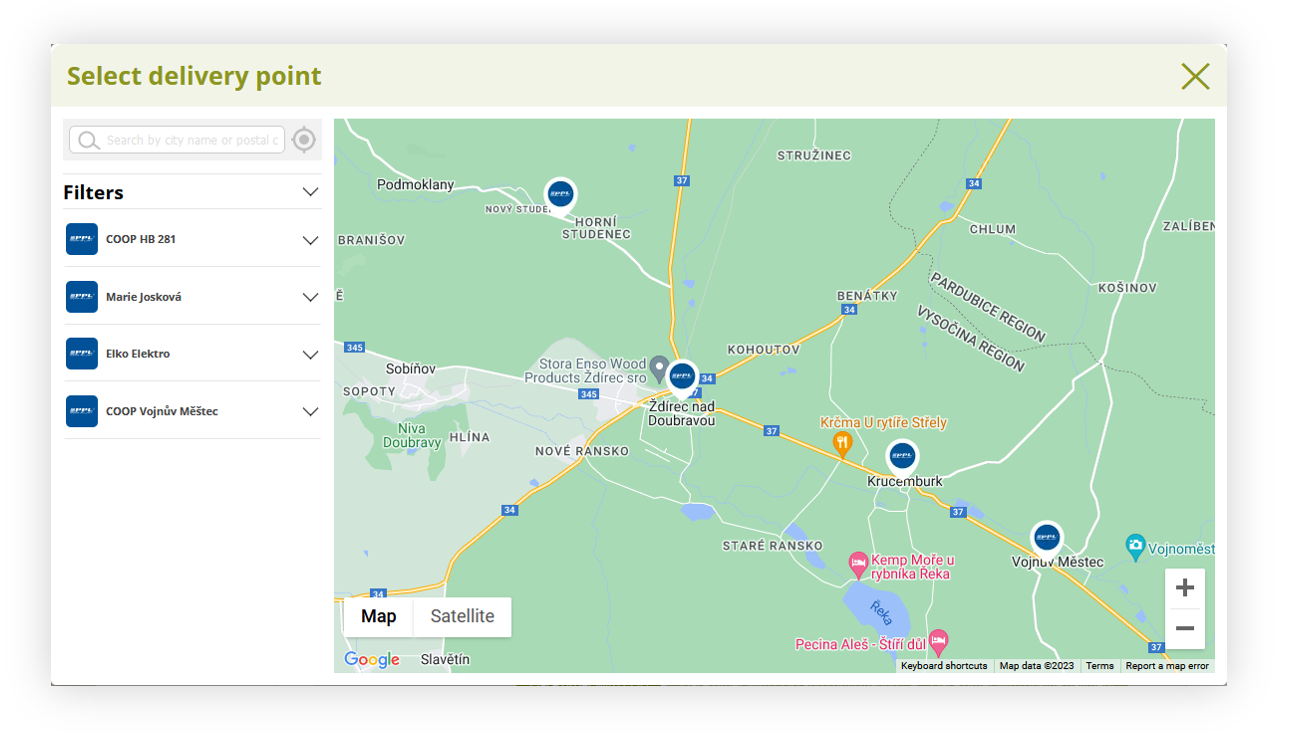
In the address data tab, you can enter the personal data of customers **<span style="color: #4054a0;">(1)</span>**. If the selected delivery method uses pick-up points you will see a Delivery point field, which allows you to select such delivery point. By pressing the Select button you will open the delivery point map. You can also indicate the method of payment for the order **<span style="color: #4054a0;">(2)</span>**. After selecting the payment method, the BA customer will receive the option to confirm the purchase via SMS or e-mail (according to the method chosen by the BA consultant) and the order placed will be visible in the section:

- **Beauty Advisor&gt; Pending orders** - if the payment method with confirmation has  
    been selected
- **Beauty Advisor&gt; Orders / list** - if the payment method has been selected  
    without confirmation

Payments with the required BA customer confirmation include the following methods:

- Order with payment on delivery with confirmation
- Order with payment on delivery and SMS confirmation

<span class="wysiwyg-color-black" style="color: #44549b;">![info2.svg](https://knowledge.tauceti-digital.com/uploads/images/gallery/2024-11/10467425598236.png) **Remember**</span><span class="wysiwyg-color-black" style="display: block; margin-top: 10px;">The options **Place order with COD and confirmation** and **Place order with on-line payment** will only be available if the **E-mail** field is filled in.  
Remember that both COD and PayU payment options need to be assigned to the altshop used in the Beauty Advisor module in order for them to work.  
</span>

<table id="bkmrk-%C2%A0-address-data-tab-i" style="margin-right: auto; margin-left: auto;"><tbody><tr><td class="wysiwyg-text-align-center" style="text-align: center; vertical-align: middle;">![POWERPNT_LgXPHvudzB.png](https://knowledge.tauceti-digital.com/uploads/images/gallery/2024-11/10532708807196.png)</td></tr><tr><td class="wysiwyg-text-align-center" style="text-align: center; vertical-align: middle;"><span class="wysiwyg-font-size-medium"> </span><span class="wysiwyg-font-size-medium">*Address data tab in section Beauty Advisor&gt; New order* </span>

</td></tr></tbody></table>

<table id="bkmrk-%C2%A0-visualization-of-t" style="margin-right: auto; margin-left: auto;"><tbody><tr><td class="wysiwyg-text-align-center" style="text-align: center; vertical-align: middle;">![POWERPNT_hftspFbbdq.png](https://knowledge.tauceti-digital.com/uploads/images/gallery/2024-11/10532696236444.png)</td></tr><tr><td class="wysiwyg-text-align-center" style="text-align: center; vertical-align: middle;"><span class="wysiwyg-font-size-medium"> Visualization of the delivery point map</span><span class="wysiwyg-font-size-medium">  
</span>

</td></tr></tbody></table>

<span class="wysiwyg-color-black" style="color: #44549b;">![info2.svg](https://knowledge.tauceti-digital.com/uploads/images/gallery/2024-11/10467425598236.png) **Remember**</span><span class="wysiwyg-color-black" style="display: block; margin-top: 10px;">You can find more information about the delivery point widget in the [Delivery point widget](https://knowledge.tauceti-digital.com/books/e-commerce/page/delivery-point-widget) article.  
</span>

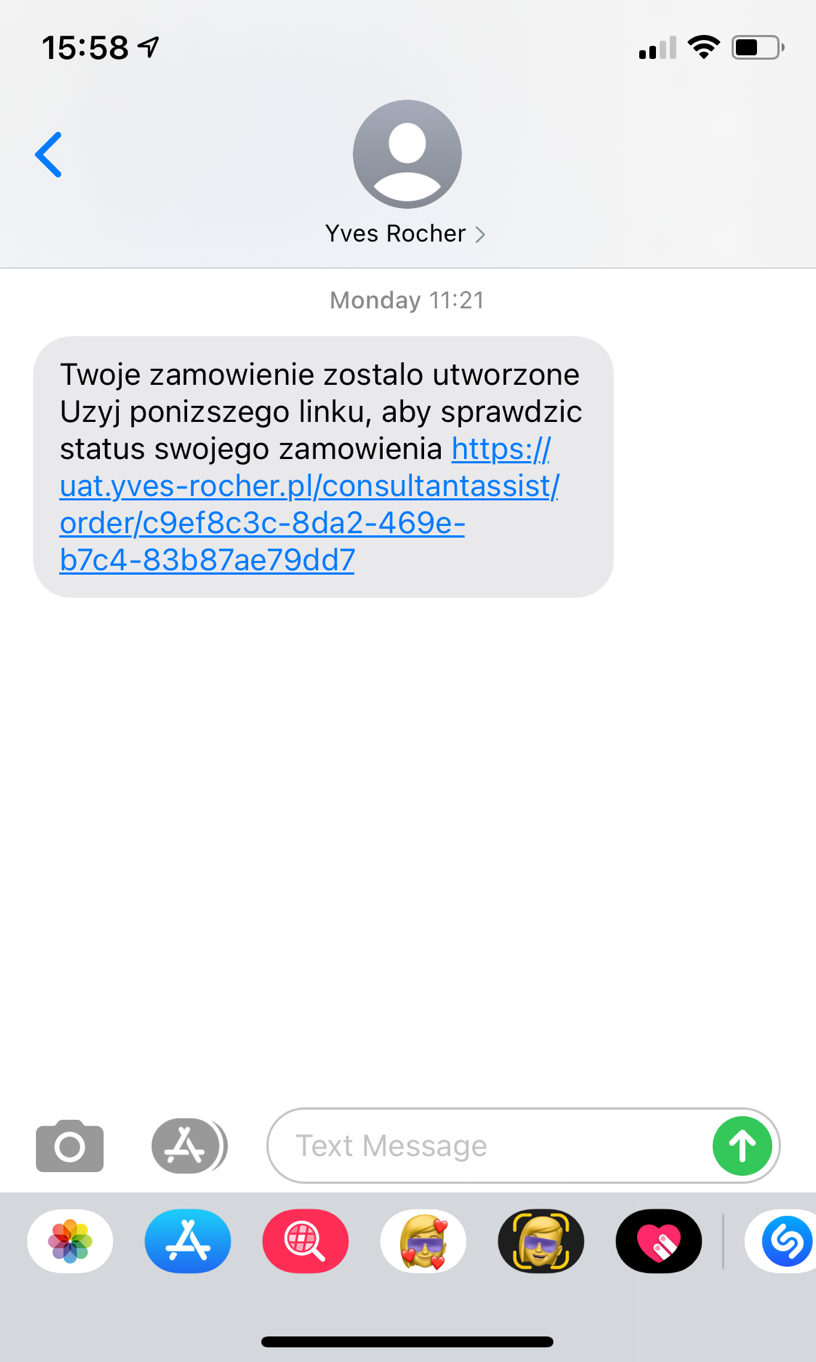
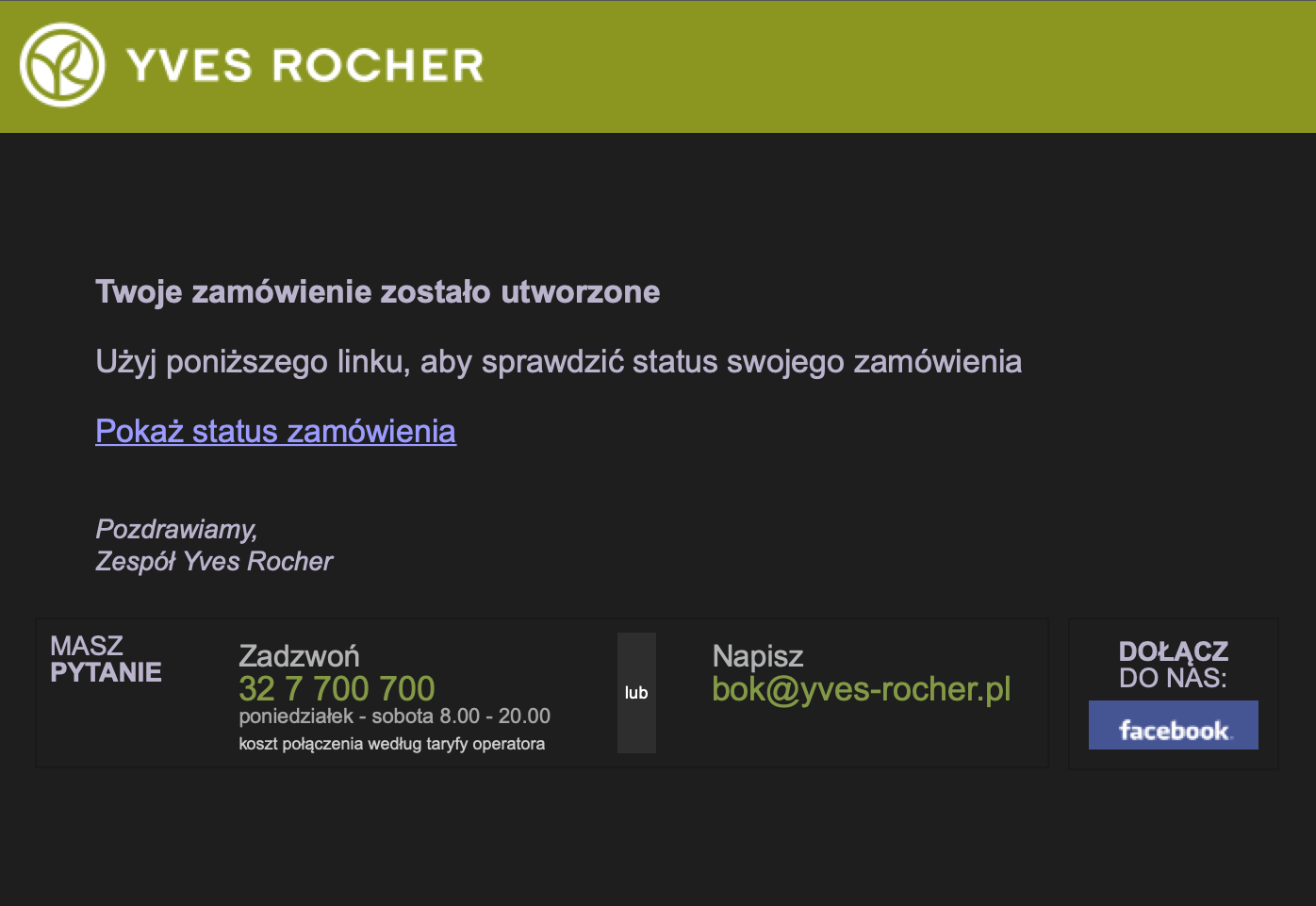
Below you will find an example of an SMS with the option to confirm the order and an e-mail confirming the order with the option to display the order status.

<table id="bkmrk-%C2%A0-sms-message-with-t" style="margin-right: auto; margin-left: auto;"><tbody><tr><td class="wysiwyg-text-align-center" style="text-align: center; vertical-align: middle;">![Widok_wiadomos_ci_SMS_z_moz_liwos_cia__potwierdzenia_zamo_wienia.png](https://knowledge.tauceti-digital.com/uploads/images/gallery/2024-11/360018417319.png)</td></tr><tr><td class="wysiwyg-text-align-center" style="text-align: center; vertical-align: middle;"><span class="wysiwyg-font-size-medium"> *SMS message with the option to confirm the order*</span><span class="wysiwyg-font-size-medium"> </span>

</td></tr></tbody></table>

<table id="bkmrk-e-mail-confirming-th" style="margin-right: auto; margin-left: auto;"><tbody><tr><td class="wysiwyg-text-align-center" style="text-align: center; vertical-align: middle;">![__Widok_e-maila_potwierdzaja_cego_z_oz_one_zamo_wienie_.png](https://knowledge.tauceti-digital.com/uploads/images/gallery/2024-11/360018217079.png)</td></tr><tr><td class="wysiwyg-text-align-center" style="text-align: center; vertical-align: middle;"><span class="wysiwyg-font-size-medium">*E-mail confirming the submitted order* </span>

</td></tr></tbody></table>

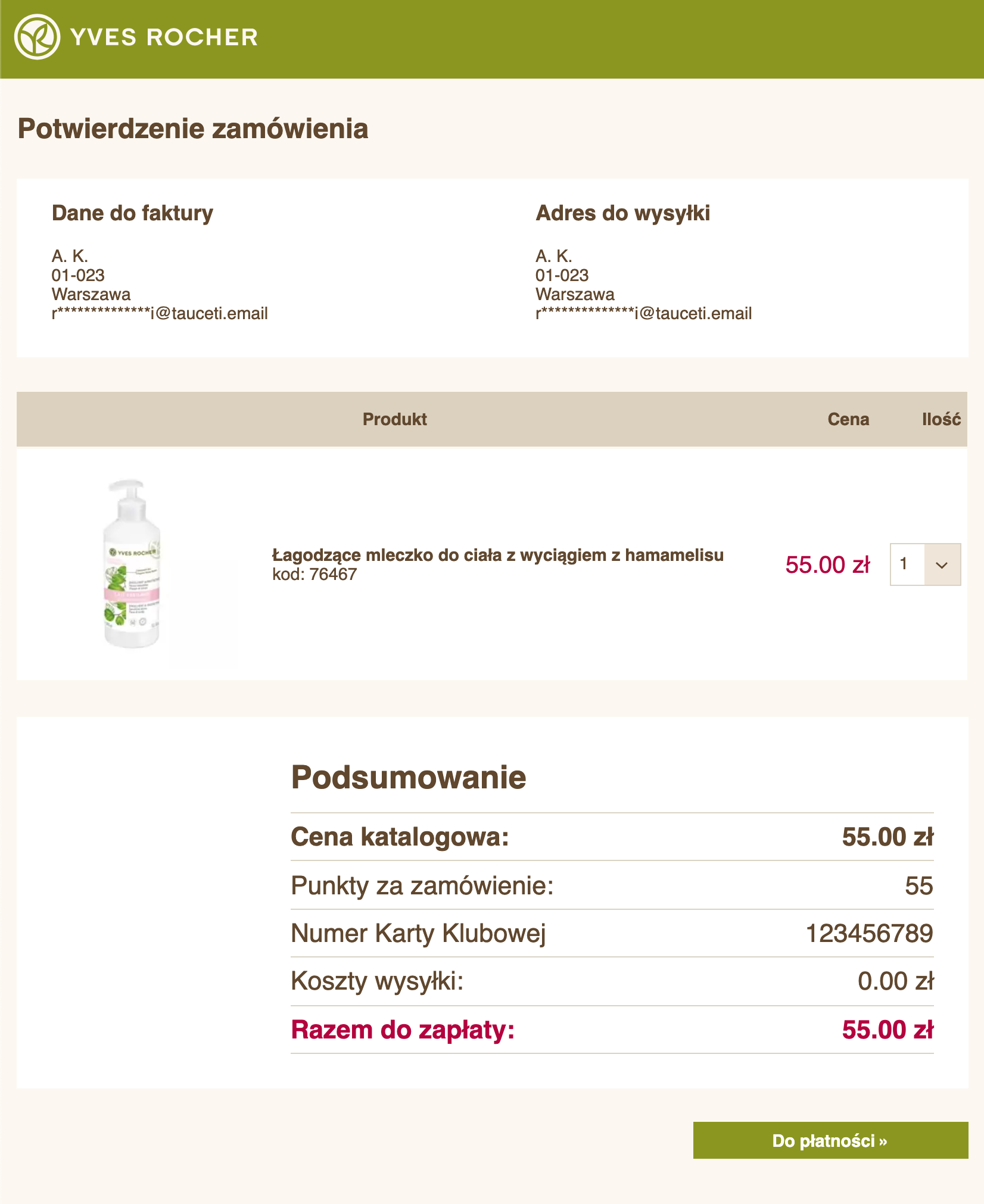
After clicking on the link **Pokaż status zamówienia** (show order status), the BA customer will be taken to the page with the order summary and the possibility of payment. For this purpose, use the **Do płatności** (to the payment) button.

<table id="bkmrk-order-summary-page" style="margin-right: auto; margin-left: auto;"><tbody><tr><td class="wysiwyg-text-align-center" style="text-align: center; vertical-align: middle;">![Screenshot_2020-10-28_at_18.55.30.png](https://knowledge.tauceti-digital.com/uploads/images/gallery/2024-11/360018180560.png)</td></tr><tr><td class="wysiwyg-text-align-center" style="text-align: center; vertical-align: middle;"><span class="wysiwyg-font-size-medium">*Order summary page* </span>

</td></tr></tbody></table>

<span class="wysiwyg-color-black" style="color: #44549b;">![info2.svg](https://knowledge.tauceti-digital.com/uploads/images/gallery/2024-11/10467425598236.png) **Remember**</span><span class="wysiwyg-color-black" style="display: block; margin-top: 10px;"><span style="font-family: -apple-system, BlinkMacSystemFont, 'Segoe UI', Helvetica, Arial, sans-serif;">The address data will be filled in automatically when you choose the button **Place order** in the section ***Beauty Advisor&gt; Contacts*** in the tab ***Beauty Advisor / Contacts***(the process is described in the article [Beauty Advisor &gt; Contacts - viewing and managing BA clients](https://knowledge.tauceti-digital.com/books/e-commerce/page/beauty-advisor-contacts-viewing-and-managing-ba-clients)).  
After selecting this button, you will be taken to the Address data tab with automatically   
filled data.  
</span></span>

<span class="wysiwyg-color-black" style="color: #44549b;">![info2.svg](https://knowledge.tauceti-digital.com/uploads/images/gallery/2024-11/10467425598236.png) **Remember**</span><span class="wysiwyg-color-black" style="display: block; margin-top: 10px;">The Consumer data tab will be displayed above the [“Add product” tab](#bkmrk-%E2%80%9Cadd-product%E2%80%9D-tab), with a preview of the consumer’s data and the possibility of going to the section ***View contact***, in the ***Beauty Advisor module***, using the **Show customer** button (example below).</span>

<table id="bkmrk-%C2%A0%C2%A0-the-consumer-deta" style="margin-right: auto; margin-left: auto;"><tbody><tr><td class="wysiwyg-text-align-center" style="text-align: center; vertical-align: middle;">![The_Consumer_Details_tab_in_section_Beauty_Advisor__New_Order.jpg](https://knowledge.tauceti-digital.com/uploads/images/gallery/2024-11/360020118580.jpg)</td></tr><tr><td class="wysiwyg-text-align-center" style="text-align: center; vertical-align: middle;"><span class="wysiwyg-font-size-medium">  </span><span class="wysiwyg-font-size-medium"> *The Consumer Details tab in section Beauty Advisor&gt; New Order*</span></td></tr></tbody></table>

---

# ![Screenshot_2020-04-29_at_19.12.41.png](https://knowledge.tauceti-digital.com/uploads/images/gallery/2024-11/10467425587484.png) Configuration of parameters in the “Order” tab

In the system settings of the administration panel, you can modify the values assigned to the following parameters in the ***Order*** tab:

- [Discount](#bkmrk-discount) [<span lang="PL">**<span style="color: #4054a0;">(1)</span>**</span>](#bkmrk-discount)
- [Price](#bkmrk-price)[<span lang="PL">**<span style="color: #4054a0;">(2)</span>**</span>](#bkmrk-price)
- [ETD discount](#bkmrk-etd-discount)[<span lang="PL">**<span style="color: #4054a0;">(3)</span>**</span>](#bkmrk-etd-discount)
- [Delivery cost](#bkmrk-delivery-cost)[<span lang="PL">**<span style="color: #4054a0;">(4)</span>**</span>](#bkmrk-delivery-cost)

<table id="bkmrk-orders-tab-in-sectio" style="margin-right: auto; margin-left: auto;"><tbody><tr><td class="wysiwyg-text-align-center" style="text-align: center; vertical-align: middle;">![Orders_tab_in_section_Beauty_Advisor__New_order.png](https://knowledge.tauceti-digital.com/uploads/images/gallery/2024-11/360020118840.png)</td></tr><tr><td class="wysiwyg-text-align-center" style="text-align: center; vertical-align: middle;"><span class="wysiwyg-font-size-medium">*Orders tab in section Beauty Advisor&gt; New order*</span>

</td></tr></tbody></table>

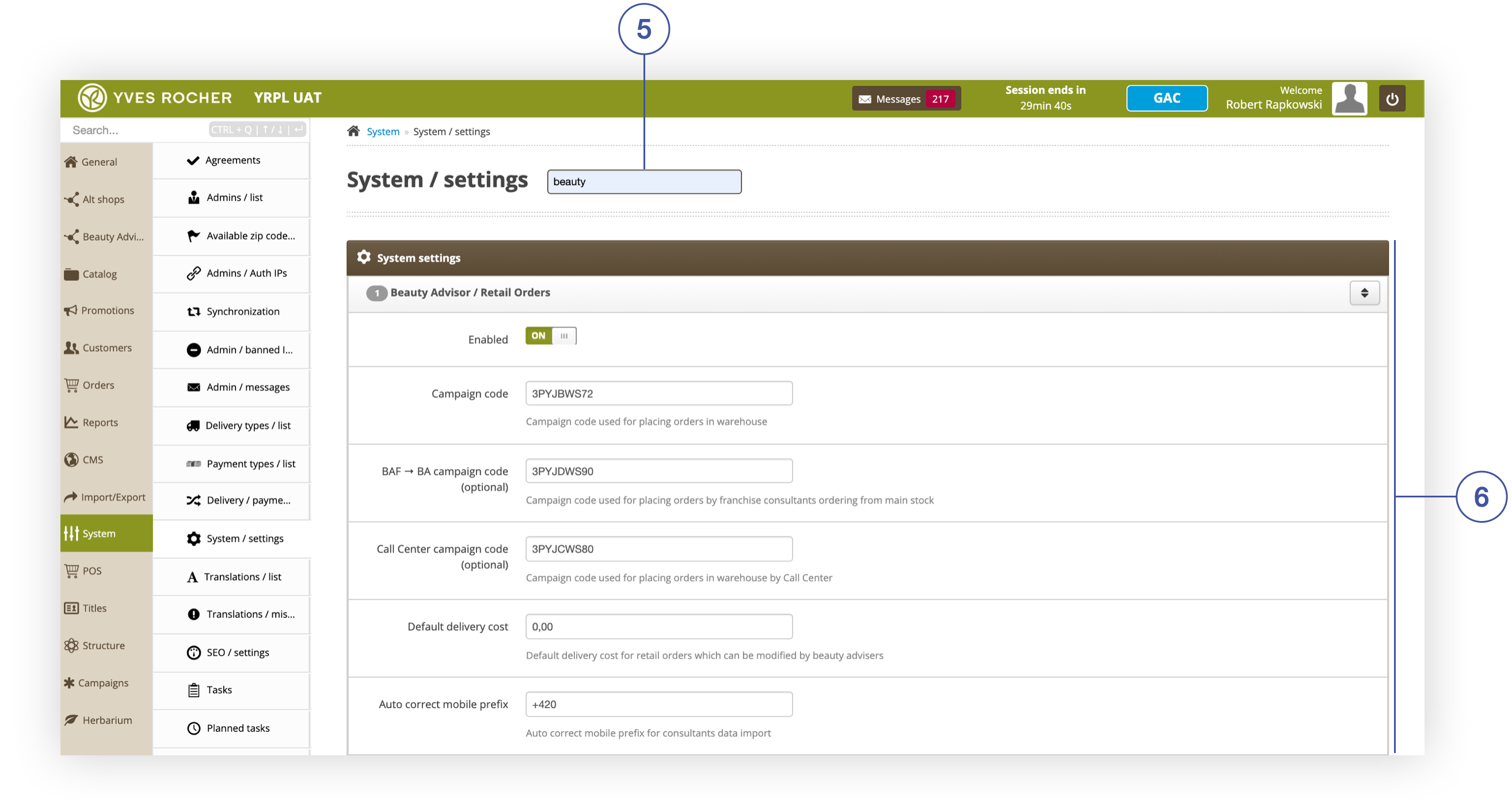
<span lang="PL">To make changes to the settings, go to section ***System / Settings*** in the ***System*** module, and use the search engine **<span style="color: #4054a0;">(5)</span>** to enter the phrase “beauty”.  
After searching for the relevant phrase, the ***Beauty Advisor / Retail Orders*** tab **<span style="color: #4054a0;">(6)</span>** will   
be displayed.</span><span lang="PL"><span> </span></span><span></span>

<table id="bkmrk-%C2%A0%C2%A0-the-beauty-adviso" style="margin-right: auto; margin-left: auto;"><tbody><tr><td class="wysiwyg-text-align-center" style="text-align: center; vertical-align: middle;">![The_Beauty_Advisor___Retail_Orders_Activity_tab_in_the_section_System___Settings_of_the_module_Beauty_Advisor.png](https://knowledge.tauceti-digital.com/uploads/images/gallery/2024-11/360020120860.png)</td></tr><tr><td class="wysiwyg-text-align-center" style="text-align: center; vertical-align: middle;"><span class="wysiwyg-font-size-medium">  </span><span class="wysiwyg-font-size-medium"> *The Beauty Advisor / Retail Orders Activity tab in the section System / Settings of the module Beauty Advisor*</span></td></tr></tbody></table>

## Discount

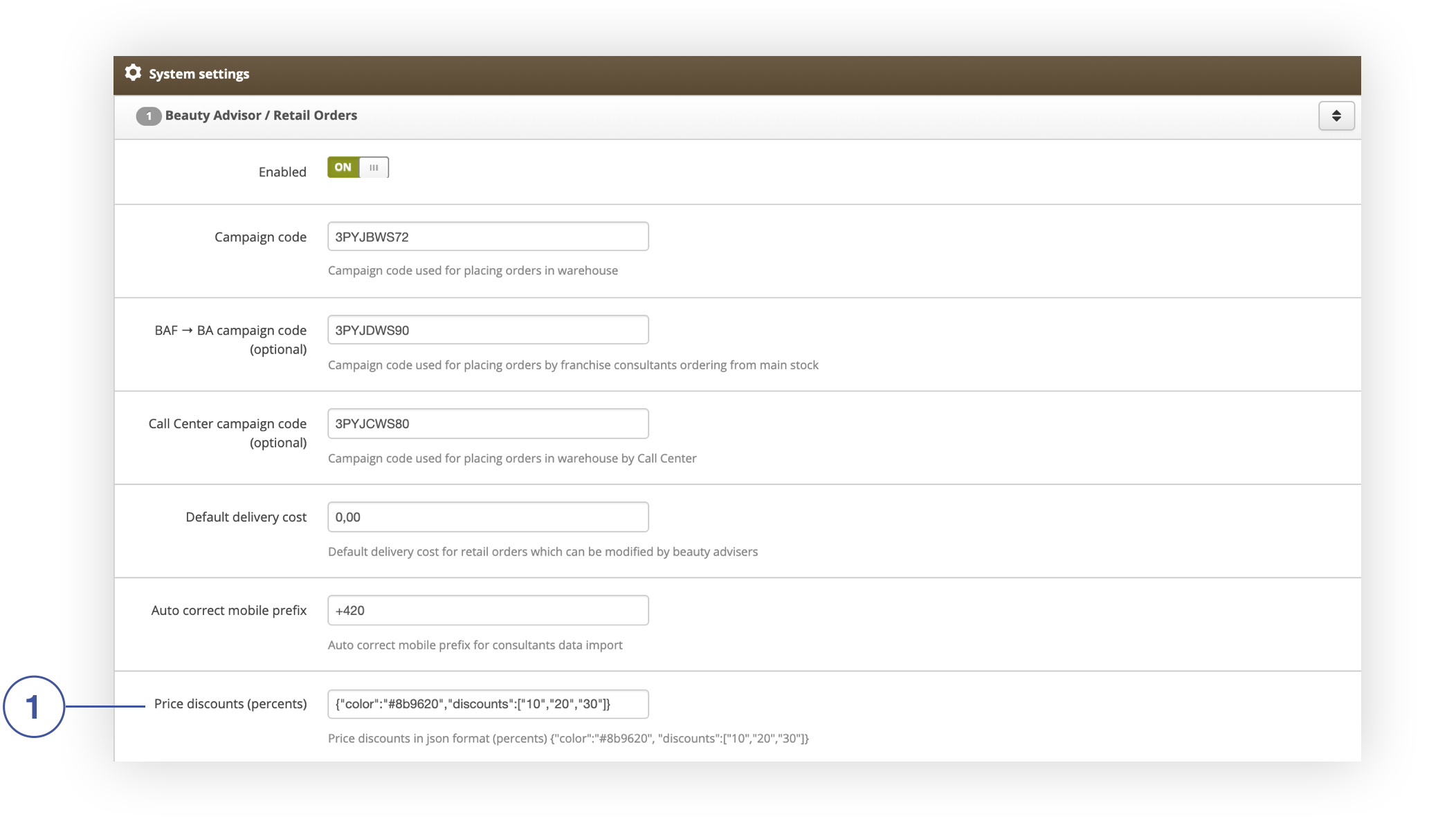
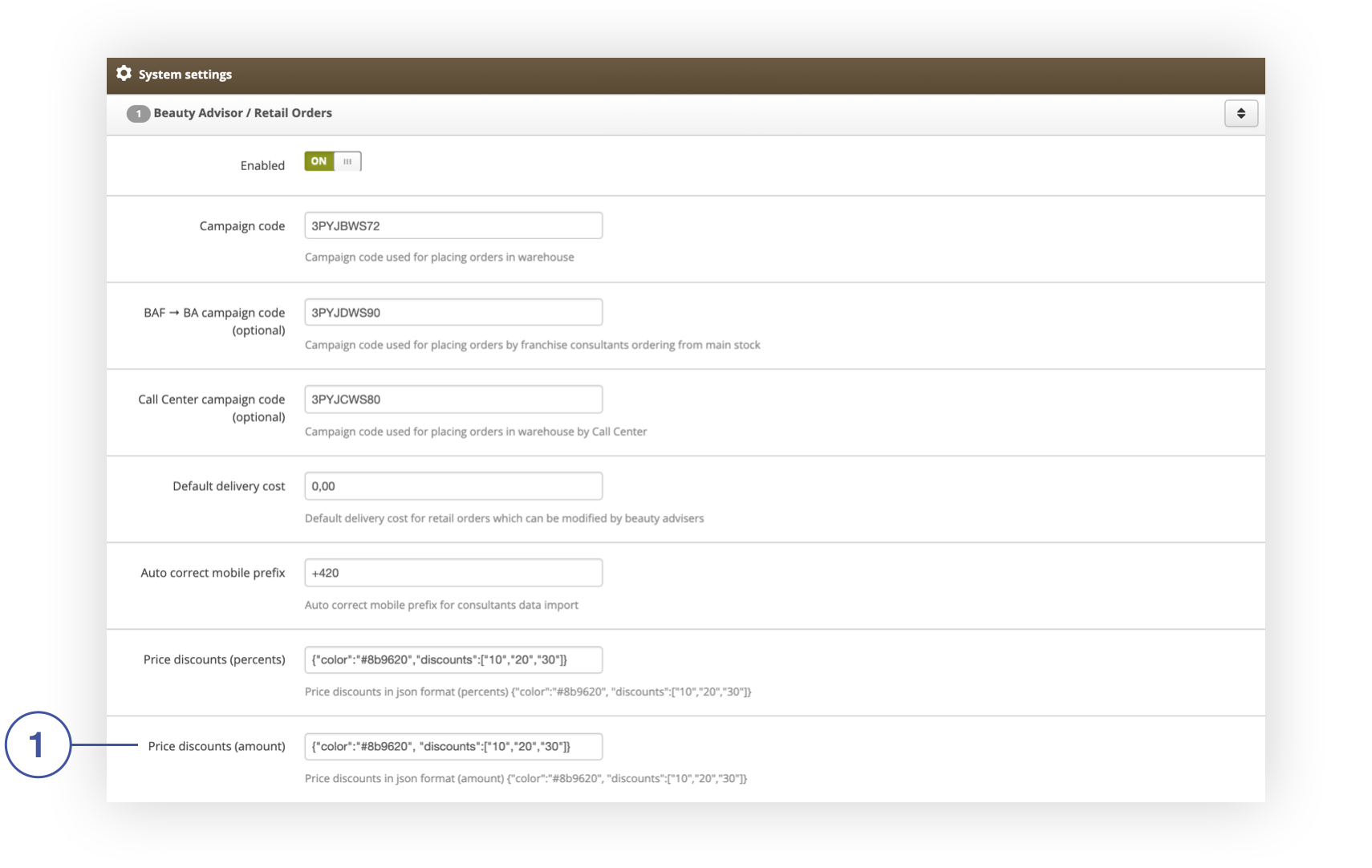
The **Price discounts (percentages)** field **<label class="control-label" for="settings_button_price_discount"><span lang="PL"><span style="color: #4054a0;">(1)</span></span></label>** contains JSON that defines the color of the buttons and the values assigned to them, which are visible in the ***Order*** tab. Below you will find an explanation of the record.

<table id="bkmrk-%C2%A0%C2%A0-price-discounts-%28" style="margin-right: auto; margin-left: auto;"><tbody><tr><td class="wysiwyg-text-align-center" style="text-align: center; vertical-align: middle;">![__Price_discounts__percentage__field_in_the_Beauty_Advisor___Retail_Orders_tab_in_the_System___Settings_section.png](https://knowledge.tauceti-digital.com/uploads/images/gallery/2024-11/360020127080.png)</td></tr><tr><td class="wysiwyg-text-align-center" style="text-align: center; vertical-align: middle;"><span class="wysiwyg-font-size-medium">  </span><span class="wysiwyg-font-size-medium"> *Price discounts (percentage) field in the Beauty Advisor / Retail Orders tab in the System / Settings section*</span></td></tr></tbody></table>

```
<span>{"color":"#8b9620","discounts":["5","10","13","15","20","23","25","26","27","30",<br></br>"32","33","40","45","50","52"]}</span>
```

The fragment above contains an object with 2 attributes:

- <span>**"color"** - button color, the value of which may be:</span>
    - <span> color name (example: ***"color":"green"***)</span>
    - <span>hexadecimal notation (example: ***"color":"#8b9620"***)</span>
- <span>**"discounts"** - a rebate, the value of which may be:</span>
    - <span>integer (example: ***"discounts":"5"***)</span>
    - <span>decimal number (example: ***"discounts":"1.5"***)</span>

### <span>Example</span><span></span>

```
<span>{"color":"#8b9620","discounts":["5","10"]}</span>
```

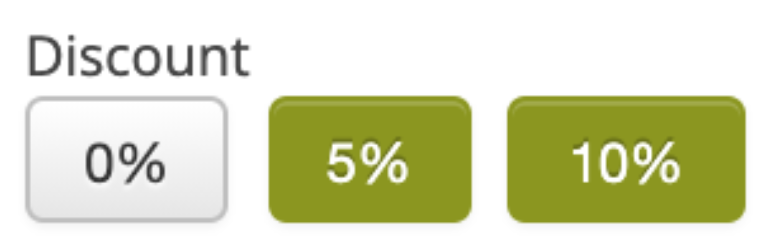
The above notation will look as follows in the ***Order*** tab:

<table id="bkmrk-%C2%A0%C2%A0-buttons-assigned-" style="margin-right: auto; margin-left: auto;"><tbody><tr><td class="wysiwyg-text-align-center" style="text-align: center; vertical-align: middle;">![discount.png](https://knowledge.tauceti-digital.com/uploads/images/gallery/2024-11/360020128680.png)</td></tr><tr><td class="wysiwyg-text-align-center" style="text-align: center; vertical-align: middle;"><span class="wysiwyg-font-size-medium">  </span><span class="wysiwyg-font-size-medium"> *Buttons assigned to the Discount parameter in the Order tab*</span></td></tr></tbody></table>

##  

## Price

The **Price discounts (amount)** field **<label class="control-label" for="settings_button_price_discount"><span lang="PL"><span style="color: #4054a0;">(1)</span></span></label>** contains the same JSON, with the same structure as in the [Discount](#bkmrk-discount) field.

<table id="bkmrk-%C2%A0the-price-discounts" style="margin-right: auto; margin-left: auto;"><tbody><tr><td class="wysiwyg-text-align-center" style="text-align: center; vertical-align: middle;">![The_Price_discounts__amount__field_in_the_Beauty_Advisor___Retail_Orders_tab_in_the_System___Settings_section.png](https://knowledge.tauceti-digital.com/uploads/images/gallery/2024-11/360020147359.png)</td></tr><tr><td class="wysiwyg-text-align-center" style="text-align: center; vertical-align: middle;"><span class="wysiwyg-font-size-medium"> </span><span class="wysiwyg-font-size-medium">*The Price discounts (amount) field in the Beauty Advisor / Retail Orders tab in the System / Settings section*</span></td></tr></tbody></table>

## ETD discount

The ETD discount values can be defined in the **ETD Discount percentages** field. They can be integers or decimals. An empty field will hide the discount in the ***Order*** tab.

<table id="bkmrk-%C2%A0%C2%A0-the-etd-discount-" style="margin-right: auto; margin-left: auto; height: 95px;"><tbody><tr style="height: 51px;"><td class="wysiwyg-text-align-center" style="text-align: center; vertical-align: middle; height: 51px; width: 688px;">![Zniz_ka_ETD.png](https://knowledge.tauceti-digital.com/uploads/images/gallery/2024-11/360018477999.png)</td></tr><tr style="height: 44px;"><td class="wysiwyg-text-align-center" style="text-align: center; vertical-align: middle; height: 44px; width: 688px;"><span class="wysiwyg-font-size-medium">  </span><span class="wysiwyg-font-size-medium"> *The ETD Discount percentages field in the Beauty Advisor / Retail Orders tab in the System / Settings section*</span></td></tr></tbody></table>

###   
Example

```
[0.5, 1, 5, 10, 15, 20]
```

<span>The above notation will look as follows in the ***Order*** tab:  
  
</span>

<table id="bkmrk-buttons-assigned-to-" style="margin-right: auto; margin-left: auto; height: 66px;"><tbody><tr style="height: 22px;"><td class="wysiwyg-text-align-center" style="text-align: center; vertical-align: middle; height: 22px; width: 688px;">![Buttons_assigned_to_the_ETD_discount_parameter_in_the_Order_tab.png](https://knowledge.tauceti-digital.com/uploads/images/gallery/2024-11/360020129400.png)</td></tr><tr style="height: 44px;"><td class="wysiwyg-text-align-center" style="text-align: center; vertical-align: middle; height: 44px; width: 688px;"><span class="wysiwyg-font-size-medium"> Buttons assigned to the ETD discount parameter in the Order tab</span></td></tr></tbody></table>

## Delivery cost

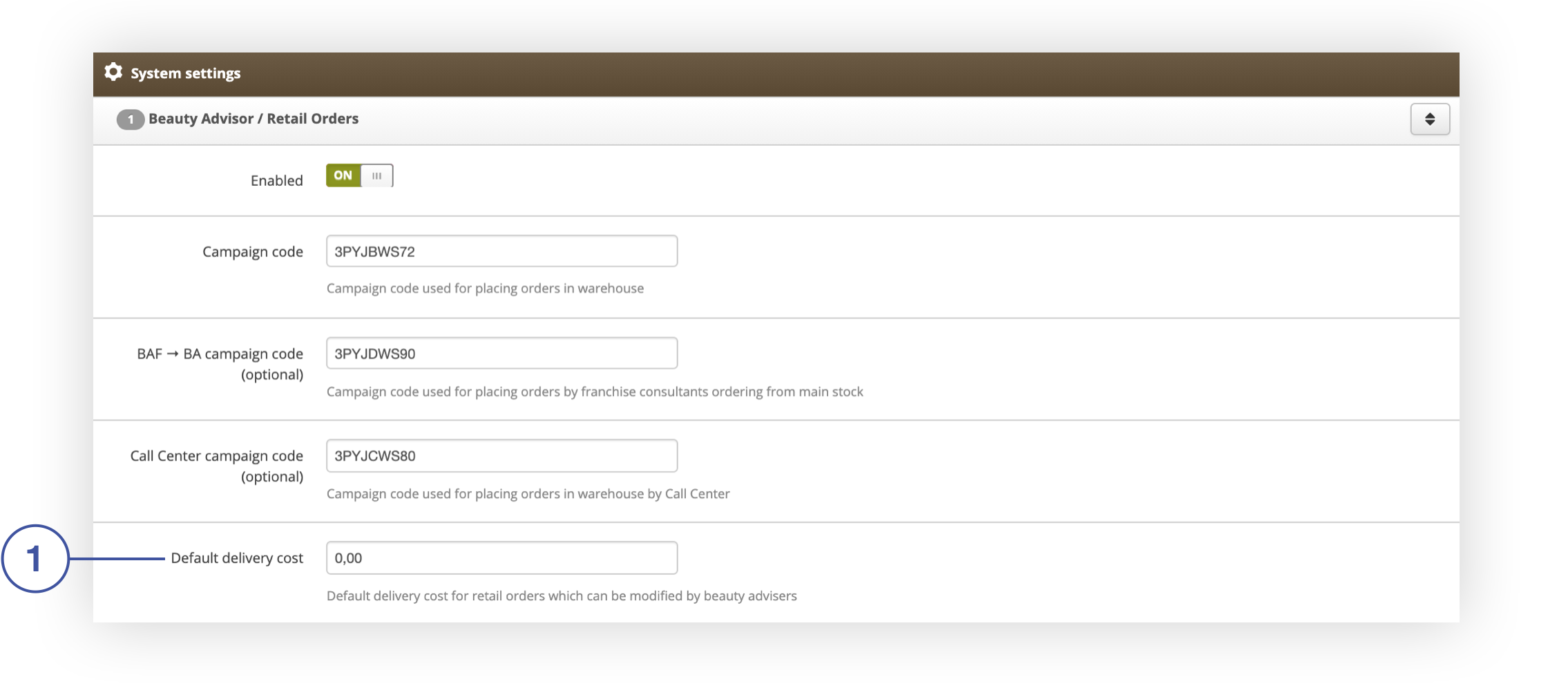
You can change the delivery cost in the Default delivery cost field **<label class="control-label" for="settings_button_price_discount"><span lang="PL"><span style="color: #4054a0;">(1)</span></span></label>**<span>.  
  
</span>

<table id="bkmrk-%C2%A0%C2%A0-default-delivery-" style="margin-right: auto; margin-left: auto;"><tbody><tr><td class="wysiwyg-text-align-center" style="text-align: center; vertical-align: middle;">![Default_delivery_cost_field_in_the_Beauty_Advisor___Retail_Orders_tab_in_the_System___settings_section.png](https://knowledge.tauceti-digital.com/uploads/images/gallery/2024-11/360020129800.png)</td></tr><tr><td class="wysiwyg-text-align-center" style="text-align: center; vertical-align: middle;"><span class="wysiwyg-font-size-medium">  </span><span class="wysiwyg-font-size-medium"> *Default delivery cost field in the Beauty Advisor / Retail Orders tab in the System / settings section*</span></td></tr></tbody></table>

---

# ![Screenshot_2020-04-29_at_19.12.41.png](https://knowledge.tauceti-digital.com/uploads/images/gallery/2024-11/10467425587484.png) Configuration of parameters in the “+ Add gift” tab

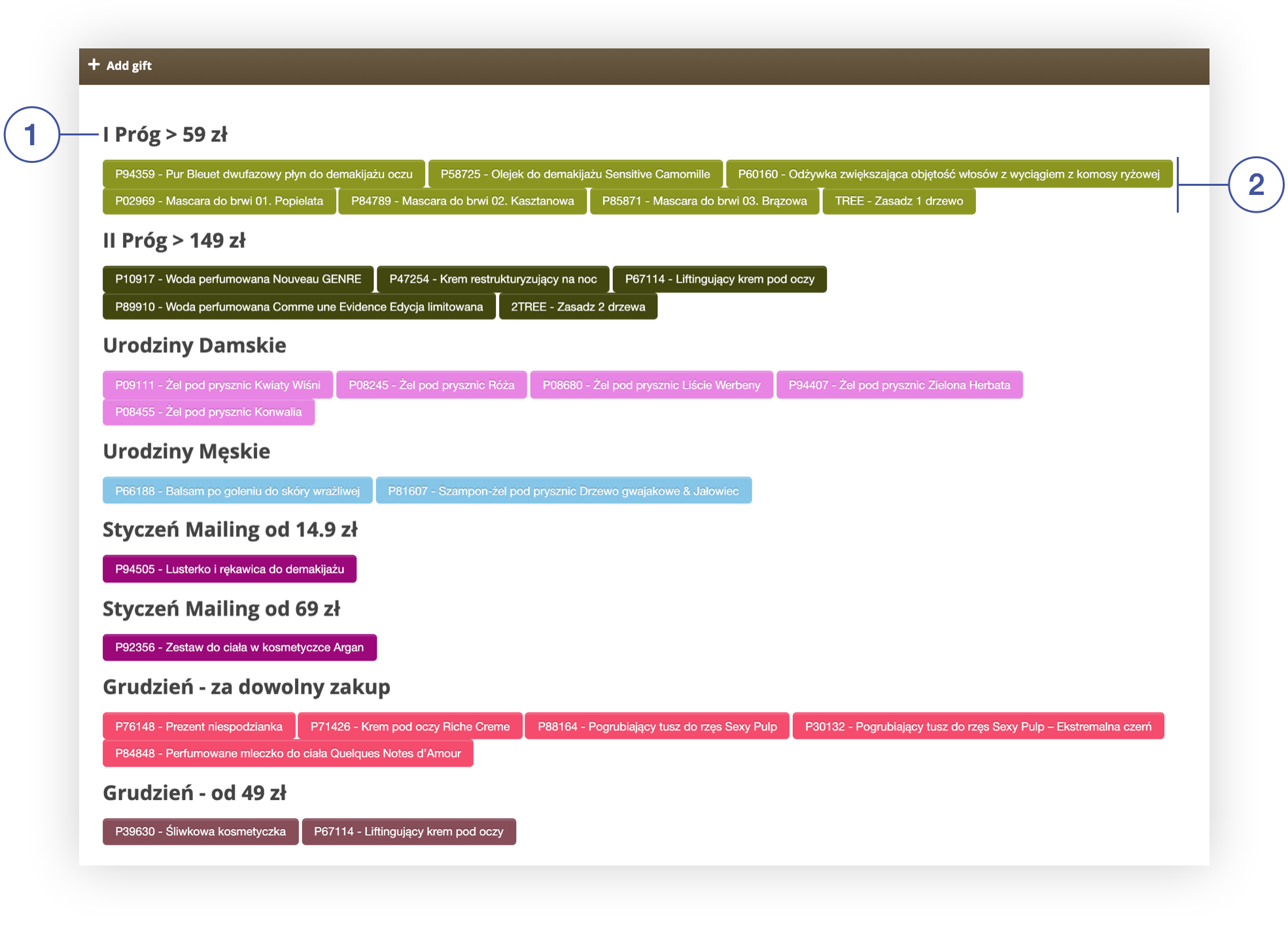
In the system settings of the administration panel, you can edit the name of the group <span lang="PL">**<span style="color: #4054a0;">(1)</span>**</span> and the gifts assigned to it <span lang="PL">**<span style="color: #4054a0;">(2)</span>**</span> in the tab ***+ Add gift.***

<table id="bkmrk-tab-%2B-add-gift-in-se" style="margin-right: auto; margin-left: auto;"><tbody><tr><td class="wysiwyg-text-align-center" style="text-align: center; vertical-align: middle;">![Tab___Add_gift_in_section_Beauty_Advisor__New_order.png](https://knowledge.tauceti-digital.com/uploads/images/gallery/2024-11/360020132600.png)</td></tr><tr><td class="wysiwyg-text-align-center" style="text-align: center; vertical-align: middle;"><span class="wysiwyg-font-size-medium">*Tab + Add gift in section Beauty Advisor&gt; New order*</span>

</td></tr></tbody></table>

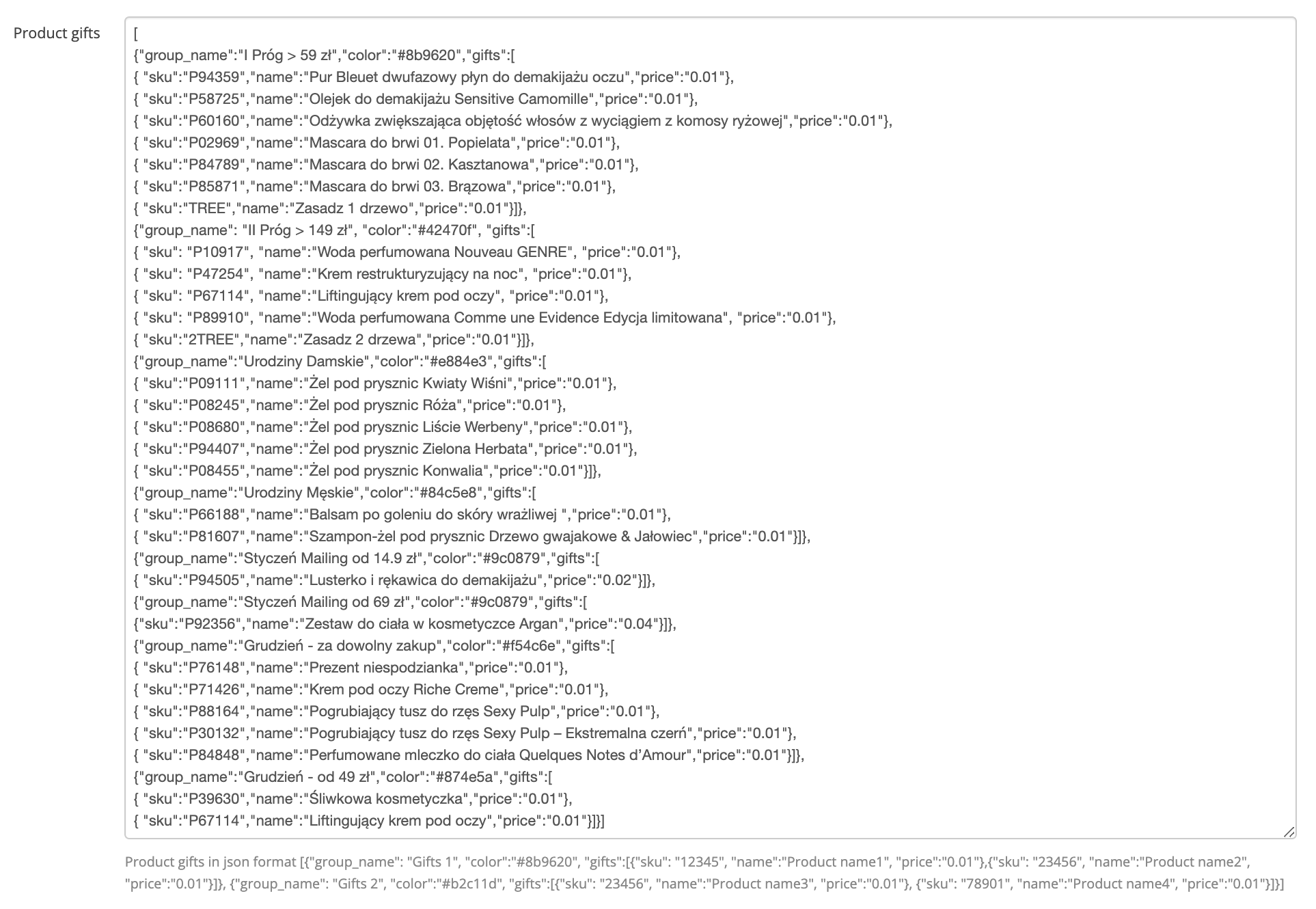
<span lang="PL">To introduce changes, go to the ***Beauty Advisor / Retail Orders*** tab in the system settings and scroll to the **Gifts** field. Below you will find an explanation of the notation.</span><span lang="PL"><span> </span></span><span></span>

<table id="bkmrk-the-gifts-field-in-t" style="margin-right: auto; margin-left: auto;"><tbody><tr><td class="wysiwyg-text-align-center" style="text-align: center; vertical-align: middle;">![The_Gifts_field_in_the_Beauty_Advisor___Retail_Orders_tab_in_the_System___Settings_section.png](https://knowledge.tauceti-digital.com/uploads/images/gallery/2024-11/360020151819.png)</td></tr><tr><td class="wysiwyg-text-align-center" style="text-align: center; vertical-align: middle;"><span class="wysiwyg-font-size-medium"> *The Gifts field in the Beauty Advisor / Retail Orders tab in the System / Settings section* </span></td></tr></tbody></table>

```
{"group_name":"I Próg > 59 zł Sklepy Własne ","color":"#8b9620","gifts":[<br></br>{ "sku":"P94359","name":"Pur Bleuet dwufazowy płyn do demakijażu oczu z wyciągiem z bławatka BIO 200ml","price":"0.01"}
```

The fragment above contains an object with 3 main attributes:

- <span>**"group\_name"** - the value of which may be:</span>
    - <span> string (example: ***"group\_name":"I Próg &gt; 59 zł Sklepy Własne"***)</span>
- <span>**"color"** - the color of which may be:</span>
    - <span> color name (example: ***"color":"green"***)</span>
    - <span>hexadecimal notation (example: ***"color":"#8b9620"***)</span>
- **"gifts"** - the value of which is other objects: 
    - **"sku"** - a unique product number, the value of which is: 
        - SKU of the product. The given number must match the number existing in the product database, otherwise the gift will not be added to the order (example: ***"sku":"P94359"***)
    - **"name"** - *name of the product, the value of which may be:*
        - string (example: ***"name":"Pur Bleuet dwufazowy płyn do demakijażu oczu z wyciągiem z bławatka BIO 200ml"***)
    - **"price"** - *the price of the product, the value of which may be:*
        - <span>integer (example: ***"price":"5"***)</span>
        - <span>decimal number (example: ***"price":"0.01"***)</span>

### <span>Example</span><span></span>

```
[{"group_name": "II PRÓG > 149 zł", "color":"#b2c11d", "gifts":<br></br>[{ "sku": "P76148", "name":"Woda toaletowa Hello Printemps", "price":"0.01"}, <br></br>{ "sku": "P71426", "name":"Przeciwzmarszczkowy krem regenerujący pod oczy", "price":"0.01"},<br></br>{ "sku": "PI2171", "name":"Zestaw do makijażu oczu", "price":"0.01"},<br></br>{"sku":"2TREE","name":"Zasadz 2 drzewa","price":"0.01"}]}]
```

The above record will look as follows in the ***Order*** tab: <span> </span>

<table id="bkmrk-the-name-of-the-grou" style="margin-right: auto; margin-left: auto;"><tbody><tr><td class="wysiwyg-text-align-center" style="text-align: center; vertical-align: middle;">![Wizualizacja_nazwy_grupy_i_przypisanych_do_niej_prezento_w_w_zak_adce____Dodaj_prezent_.png](https://knowledge.tauceti-digital.com/uploads/images/gallery/2024-11/360018185280.png)</td></tr><tr><td class="wysiwyg-text-align-center" style="text-align: center; vertical-align: middle;"><span class="wysiwyg-font-size-medium"> *The name of the group and the gifts assigned to it in the + Add gift tab*</span></td></tr></tbody></table>