Beauty Advisor > Orders / list - viewing and handling orders
 Getting started
The Orders / List section in the Beauty Advisor module contains a table (4) with a list of all correctly processed and accepted BA orders (for more information on processing and accepting orders, see Beauty Advisor > New order - description of the ordering process). The table is susceptible to sorting, it allows you to change order shipment statuses, preview orders, export orders and generate labels. With the help of filters, you can extract orders that meet the criteria specified in the Filters section (3), described in the Filters chapter.
 RememberBA Order - An order placed by BA consultants in the Beauty Advisor module that has been accepted by a BA customer. For more information on accepting BA orders, see Beauty Advisor > New order - description of the ordering process. For information on BA consultants and BA clients, see Beauty Advisor - getting started.
Table of contents:
- Generating a CSV file with orders and printing labels for the courier
- Filters
- Viewing and handling BA orders
Generating a CSV file with orders and printing labels for the courier
In the Orders / list section, you can perform 2 mass operations:
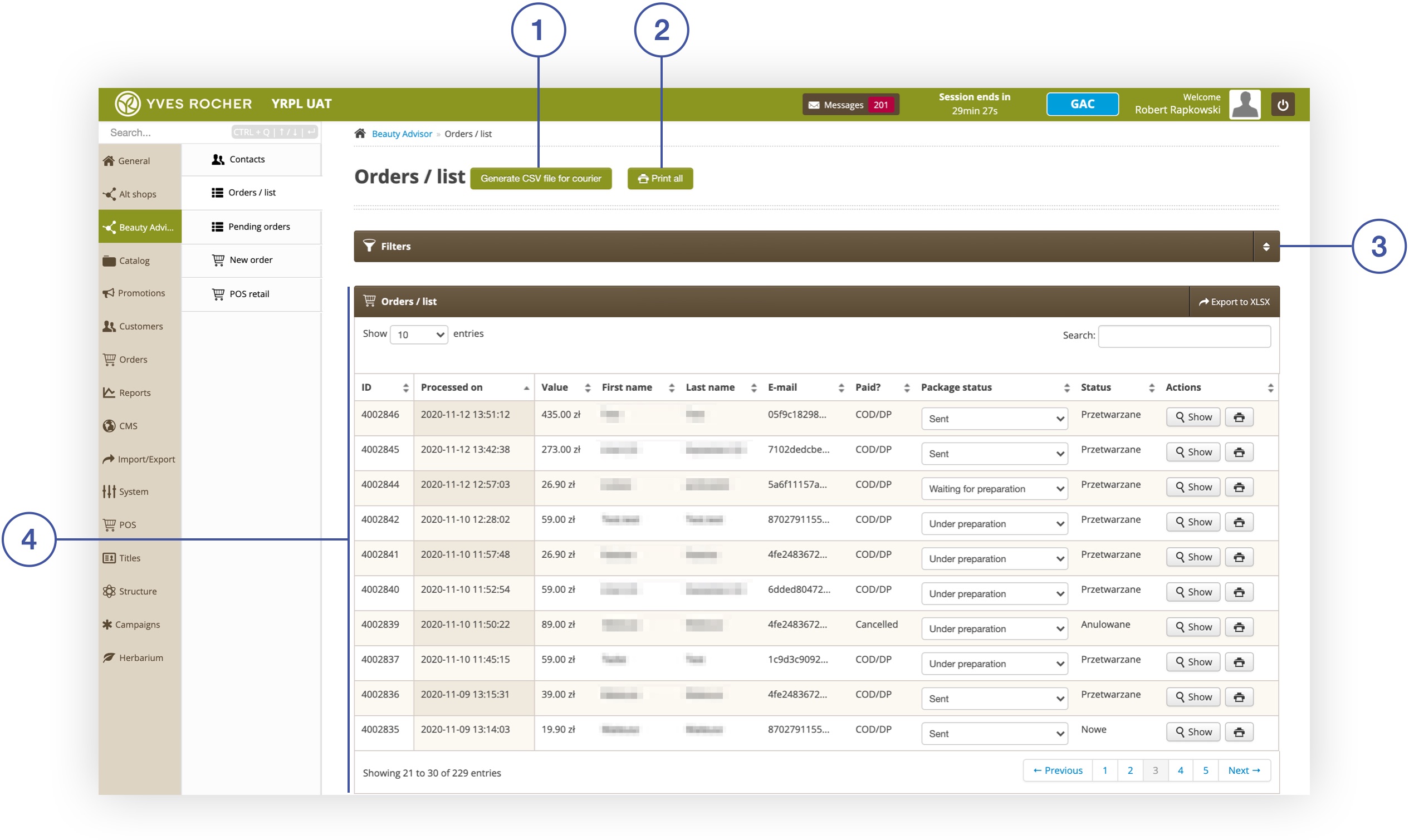 |
| Orders / list section in Beauty Advisor module |
-
Generate a list of orders for the courier in CSV format by selecting the Generate CSV file for courier button (1). After selecting the button, the application generates a csv file and takes you to the operation summary view, where you can download the file to a local disk, using the Download file button.
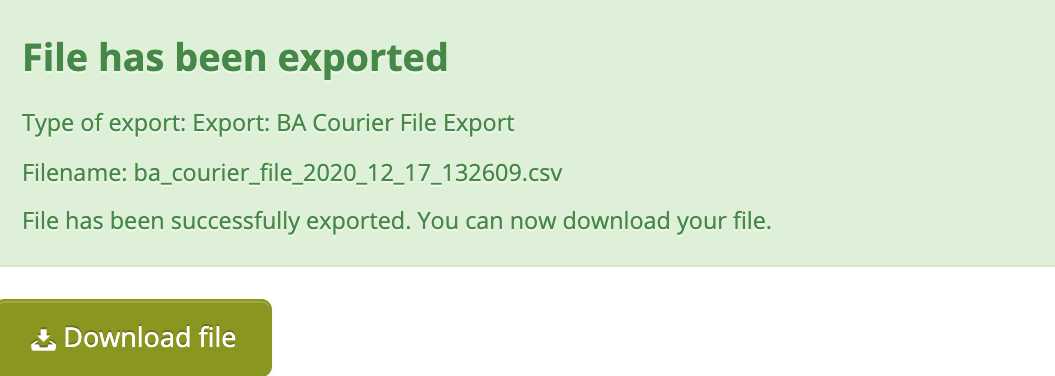 |
A message with a summary of the operation |
RememberYou can generate a list of all orders for the courier only for orders with the status “Ready to be sent”.
 Note After generating the file, orders with the status “Ready to be sent” will change their status to “Sent”.
- Generate an order label using the Print all button (2). The application generates a PDF file and displays the generated labels, the options are: downloading the file to a local disk or printing directly.
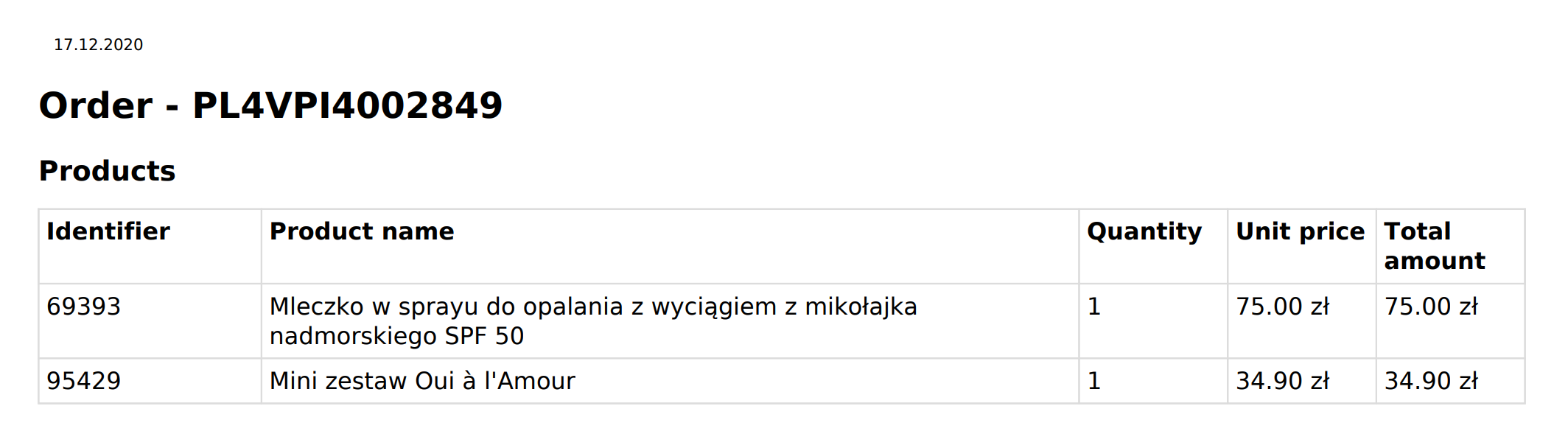 |
Generated label |
RememberYou can generate a list of all orders only for orders with the status “Waiting for preparation”.
Note After generating the file, orders with the status “Waiting for preparation” will change their status to “Under preparation”.
Filters
The Filters tab allows you to select orders in terms of the criteria described below. Orders that meet the selected criteria will be displayed in the Orders / list tab.
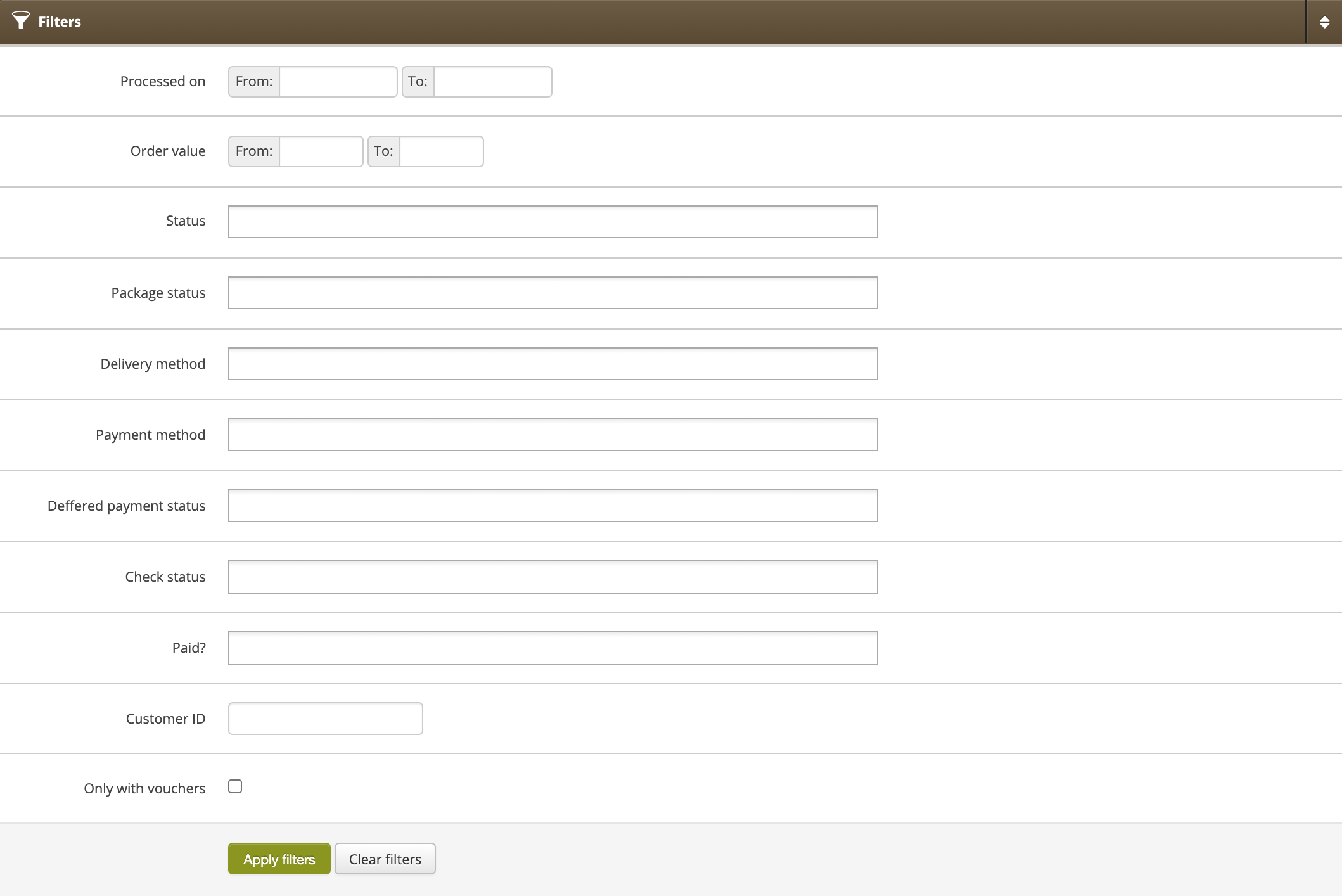 |
Filters tab in section Beauty Advisor> Orders / list |
- Processed date – the date range during which the order was registered in the application.
- Order value – the scope of the order value.
- Status – order status (available: "New", "Processing", "Sent", "Delivered", "Returned", "Cancelled", "Delivery failure", "Shipping in progress"). System parameters are verified and changed automatically by the application. For more information on order statuses, see Beauty Advisor > Orders / list - viewing and handling orders.
-
Package status – shipment status in the Beauty Advisor module. The BA consultant can manually change each status.
- Waiting for preparation - status assigned automatically by the application, after placing the order, only when the COD (cash on delivery) form of payment has been selected. If another form of payment is chosen, the shipment will be given the status “Waiting for payment”. The shipment status automatically changes to “Under preparation” when the order label is generated.
- Waiting for payment - status assigned automatically by the application, after placing the order, only when the online payment method has been selected. When the order is paid, the shipment status automatically changes to “Under preparation”.
-
Under preparation - Status assigned manually by the BA employee. This status causes a window to show up with a field where the employee has to enter the approximate
package weight.
- Ready to be sent - a status that can only be set manually.
-
Sent - status assigned automatically by the application after generating the CSV file for
the courier.
- Delivery method – Shows available delivery methods. filter value depends on the settings in the administration panel.
- Payment method – Shows available payment methods. filter value depends on the settings in the administration panel.
- Deffered payment status – the available statuses: “paid”, “overdue”, “pending”.
- Check status – order verification status (available "new", "successfully checked internally", "internal check failed", "successfully exported", "export failed", "successfully processed"). System parameters, are verified and changed automatically by the application. For more information on order statuses, see Beauty Advisor > Orders / list - viewing and handling orders.
-
Paid? - option of selecting payment status (COD / DP, paid, preconfirmed payment, waiting for payment, canceled). System parameters, are verified and changed automatically by
the application. - Customer ID – unique customer ID. For more information, see Beauty Advisor > Contacts - viewing and managing BA clients.
- Only with vouchers – check the checkbox to display orders where the FIDEN2 voucher has been used.
Viewing and handling BA orders
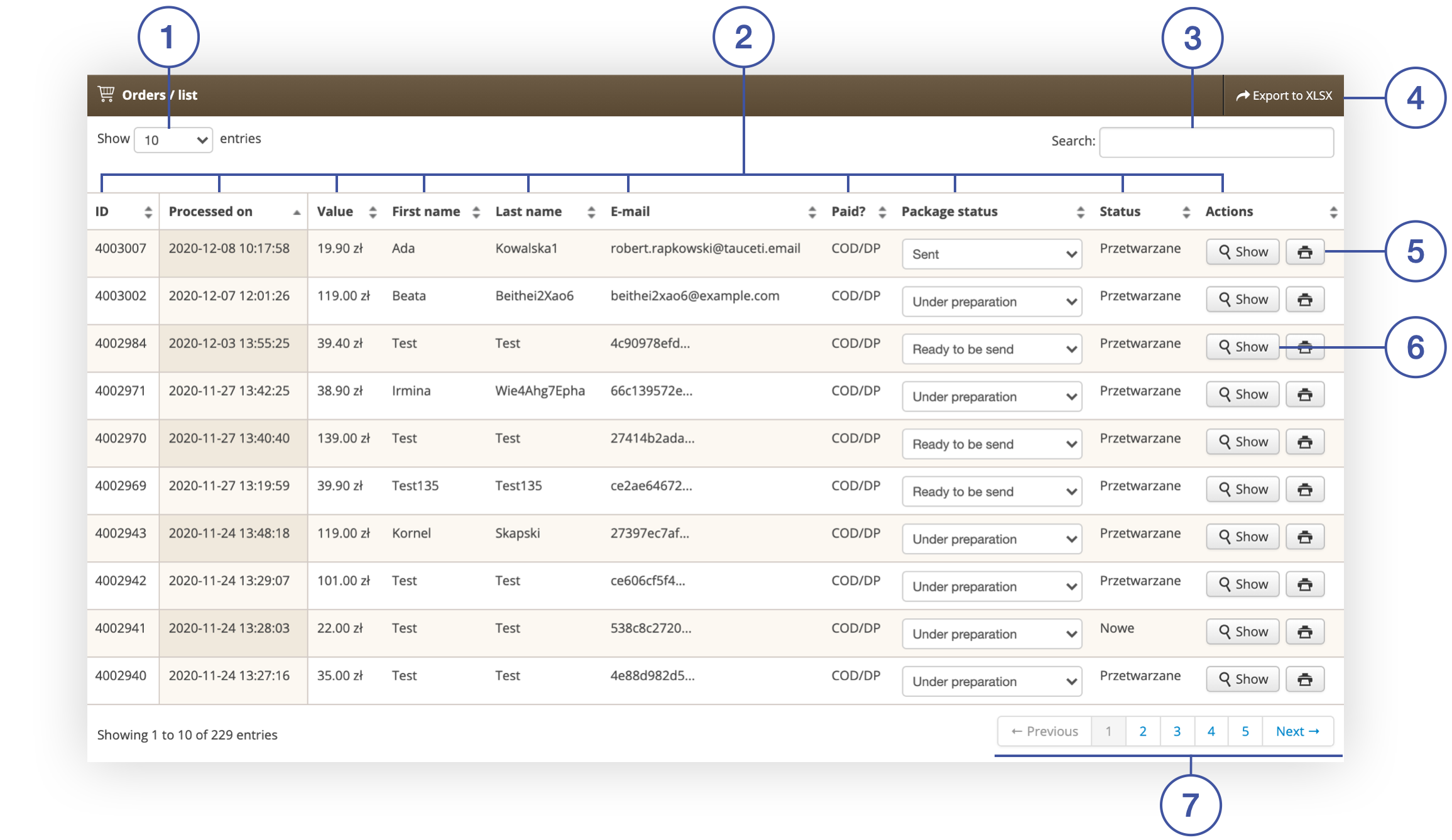
Below you will find a description of the table with a list of BA orders and the possible actions in the Orders / list tab.
 |
|
Orders / list tab in section Beauty Advisor> Orders / list |
- (1) Show X entries - option to change the number of BA orders on one page (available range from 10 to 100).
-
(2) - columns containing information on BA contracts. Each column is sortable:
- ID - the unique identifier of the BA order in the administration panel.
- Processed on - date and time of BA order processing
- Value - Order value.
- First name - Customer's first name.
-
Last name- Customer's last name.
-
Email - Customer's e-mail address.
-
Paid? - Payment status. If the selected delivery was Cash on Delivery it will show COD.
-
Package status - Shipment status. Pressing the print label button (5) will change this status to “Under preparation”. The BA consultant must manually change the status to “Ready to be sent” in order to bring up a popup (8) where he will enter the weight of the package. This action will enable pressing the Generate CSV file for courier button and the shipment status will change from “Ready to be sent” to “Sent”.
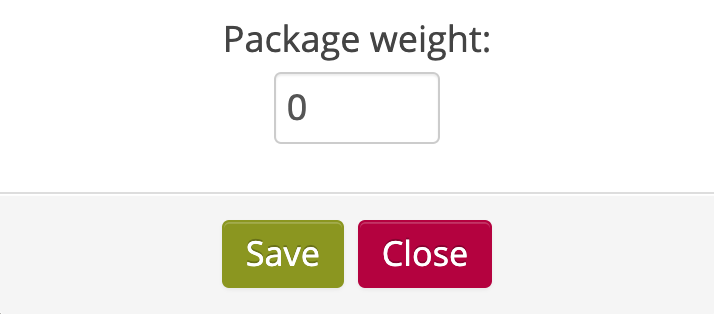 |
Pop-up with the option to enter the weight of the package |
-
- Status - Current order status.
-
Actions
- (5) - select the button to generate a label for a given order. The action changes the status to “Under preparation” from all other shipment statuses.
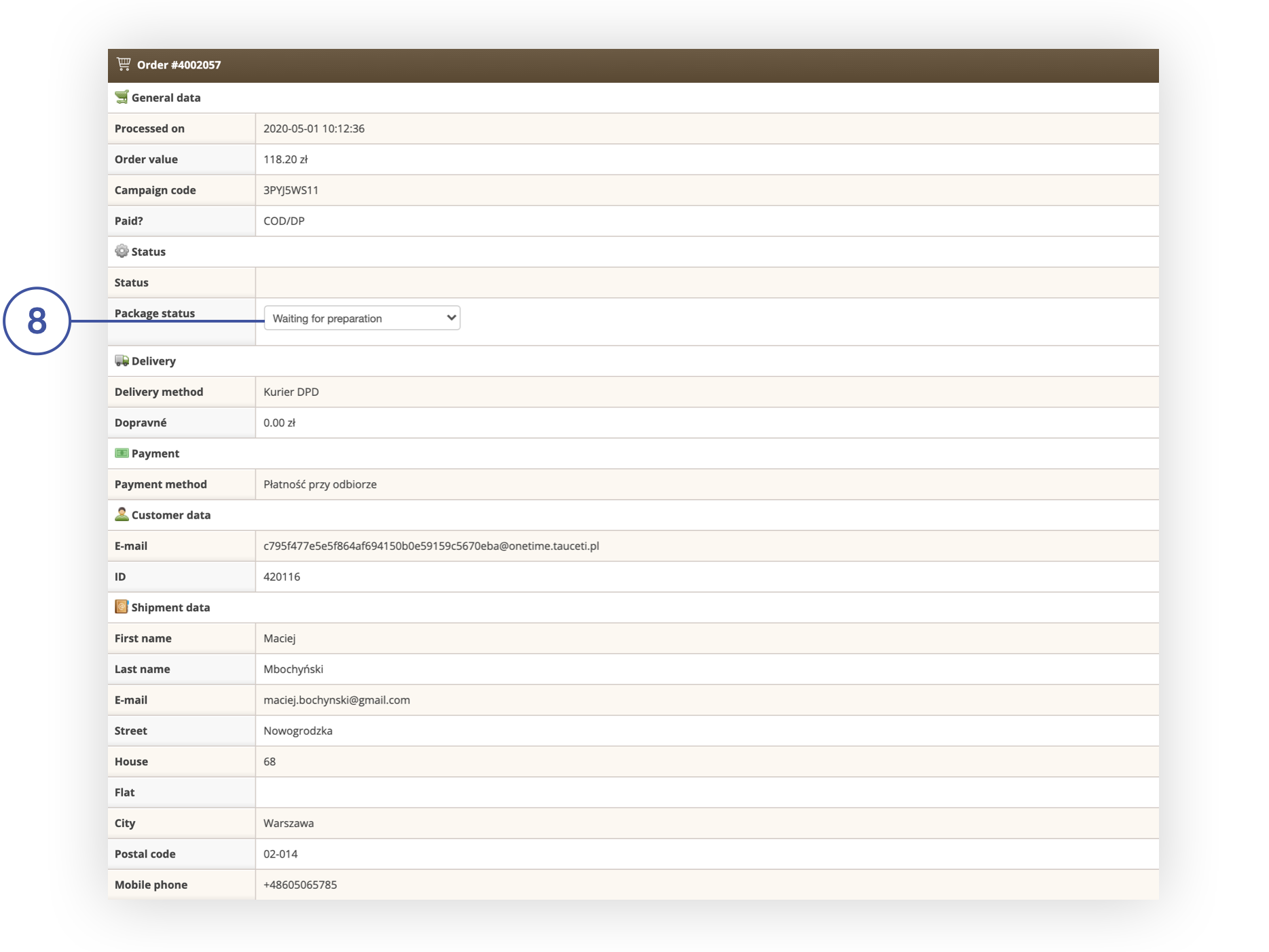
- Show (6) - select the button to go to the order details. In the order details view, you can change the shipment status (8), as in the example below.
 |
|
Order details in Beauty Advisor> Orders / list |
- (3) - order search engine (search possible by criteria: First name, Last name, Email)
- (7) - navigation through the BA orders list in the administration panel.