# Beauty Advisor > POS retail – store management

# ![Screenshot_2020-04-29_at_19.12.41.png](https://knowledge.tauceti-digital.com/uploads/images/gallery/2024-11/10468006621852.png) Getting started

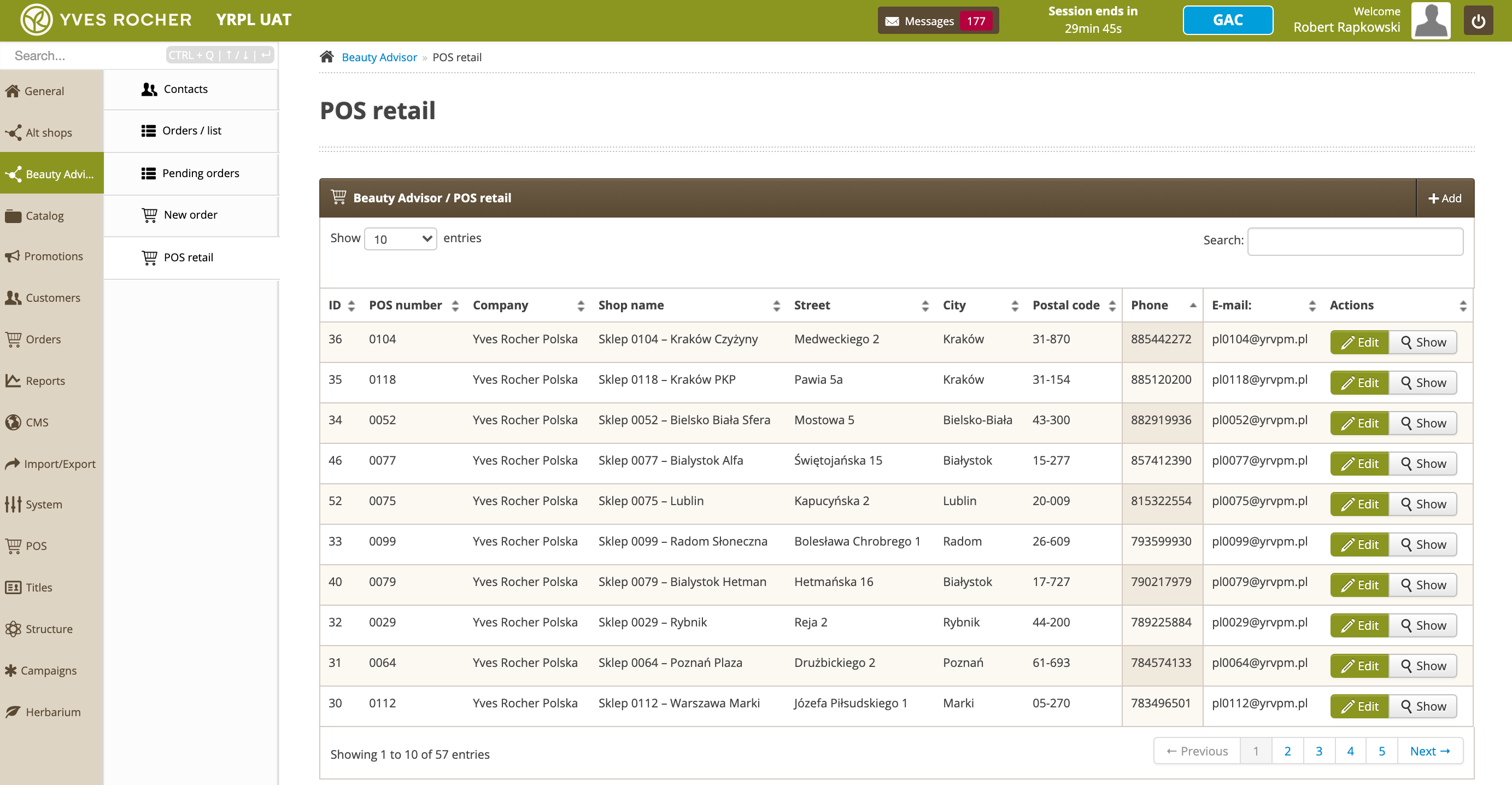
The ***POS retail*** section in the ***Beauty Advisor*** module contains a table with all POS stores, susceptible to sorting, with the possibility of editing stores, viewing and adding new stores.

<span class="wysiwyg-color-black" style="color: #44549b;">![info2.svg](https://knowledge.tauceti-digital.com/uploads/images/gallery/2024-11/10468031856028.png) **Remember**</span><span class="wysiwyg-color-black" style="display: block; margin-top: 10px;"><span>POS stores - retail outlets, created in the administration panel. Shops can be added individually (it is possible from the POS retail tab) and imported in groups from external files. For information on importing, see [Beauty Advisor - mass imports](https://knowledge.tauceti-digital.com/books/e-commerce/page/beauty-advisor-mass-imports).</span></span>

<table id="bkmrk-%C2%A0-pos-retail-section" style="margin-right: auto; margin-left: auto;"><tbody><tr><td class="wysiwyg-text-align-center" style="text-align: center; vertical-align: middle;">![POS_retail_section_in_the_Beauty_Advisor_module.png](https://knowledge.tauceti-digital.com/uploads/images/gallery/2024-11/360019853279.png)</td></tr><tr><td class="wysiwyg-text-align-center" style="text-align: center; vertical-align: middle;"><span class="wysiwyg-font-size-medium">  *POS retail section in the Beauty Advisor module*</span></td></tr></tbody></table>

  
Table of Contents:

- [ Viewing and managing POS stores](#bkmrk-viewing-and-managing-1)

---

# ![Screenshot_2020-04-29_at_19.12.41.png](https://knowledge.tauceti-digital.com/uploads/images/gallery/2024-11/10468006621852.png) Viewing and managing POS stores

Below you will find a description of the table and possible actions in the ***Beauty Advisor / POS retail*** tab. All the following parameters (except the **ID** parameter) are editable in the  
administration panel.

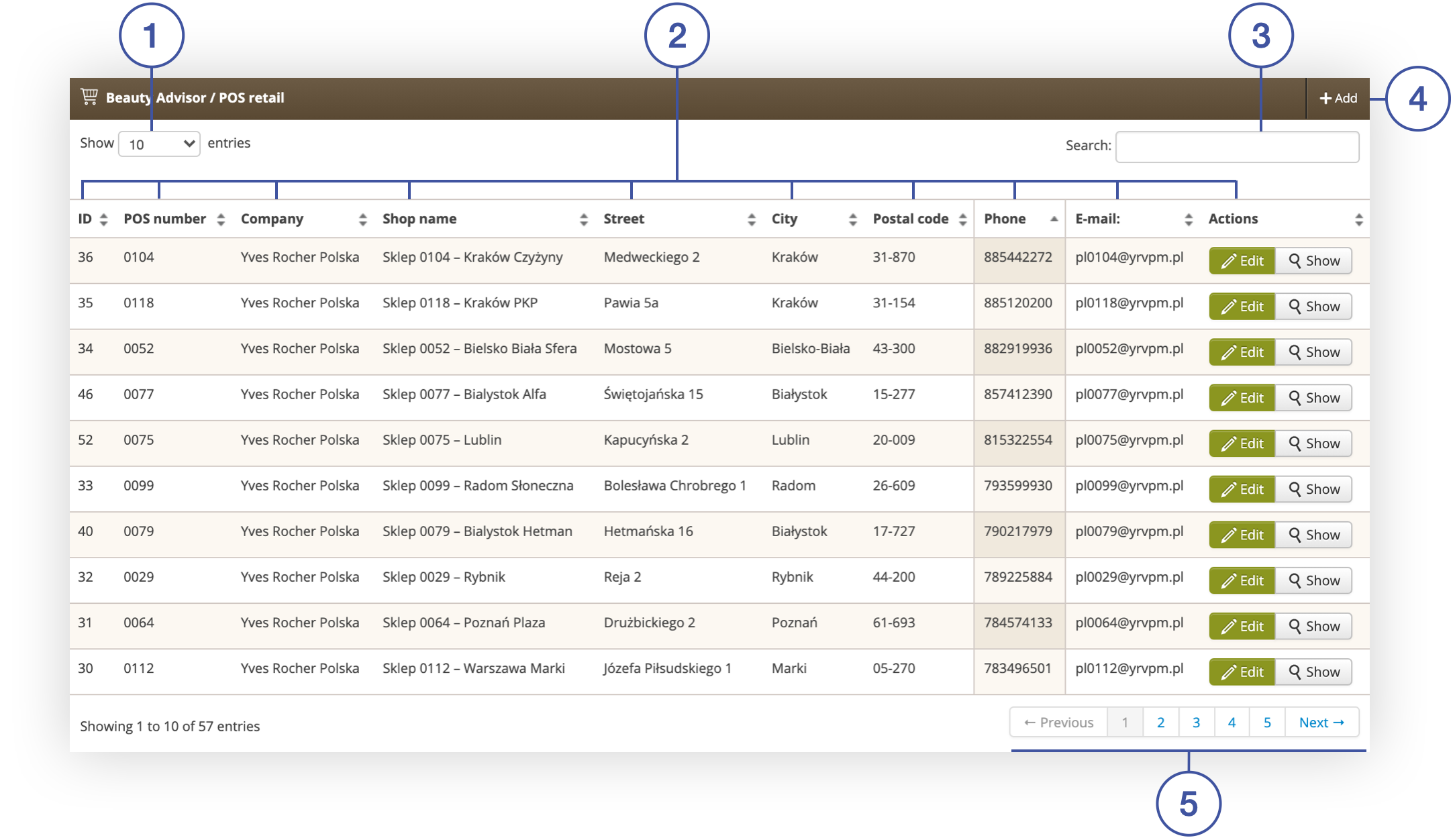
<table id="bkmrk-beauty-advisor-%2F-pos" style="margin-right: auto; margin-left: auto;"><tbody><tr><td class="wysiwyg-text-align-center" style="text-align: center; vertical-align: middle;">![Beauty_Advisor___POS_retail_tab_in_the_POS_retail_section.png](https://knowledge.tauceti-digital.com/uploads/images/gallery/2024-11/360019853419.png)</td></tr><tr><td class="wysiwyg-text-align-center" style="text-align: center; vertical-align: middle;"><span class="wysiwyg-font-size-medium">*Beauty Advisor / POS retail tab in the POS retail section*</span></td></tr></tbody></table>

- **<span style="color: #4054a0;">(1) </span>Show X entries** - option to change the number of stores displayed on one page (available range from 10 to 100).
- **<span style="color: #4054a0;">(2) </span>**- table with information about stores. You can sort the data by the contents of any column: 
    - **ID** - unique store **ID** in the administration panel. The parameter is generated automatically by the application.
    - **POS number** - a unique store number in the administration panel. The number can consist of any characters, of unlimited length. The parameter is editable from the administration panel and overwritten during mass import of POS stores. For more information on importing, see [Beauty Advisor - mass imports](https://knowledge.tauceti-digital.com/books/e-commerce/page/beauty-advisor-mass-imports).
    - **Company** - the name of the company which the store is a part of.
    - **Shop name** - Name of the store. Usually, it also contains store number.
    - **Street** - The street name on which the store is located at.
    - **City** - City name where the store is located at.
    - **Postal code** - Store's postal number.
    - **Phone** - Store's mobile number.
    - **E-mail** - Store's e-mail address.
    - **Actions** 
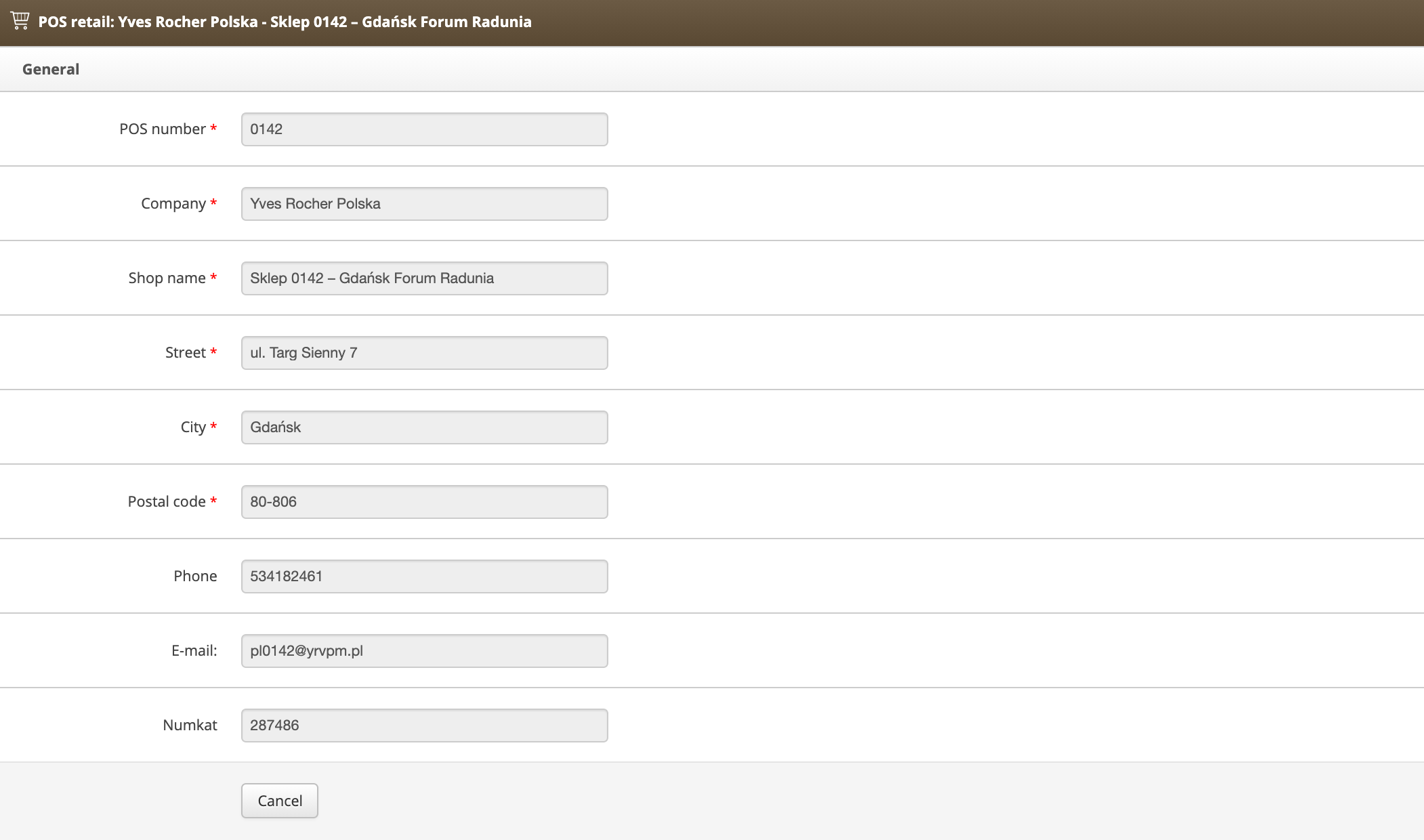
        - **Edit** – select the button to edit the data of the selected store.
        - **Show** – Select to preview information about the selected store.

<table id="bkmrk-window-for-editing-s" style="margin-right: auto; margin-left: auto; height: 66px;"><tbody><tr style="height: 22px;"><td class="wysiwyg-text-align-center" style="text-align: center; vertical-align: middle; height: 22px; width: 688px;">![Window_for_editing_store_data.png](https://knowledge.tauceti-digital.com/uploads/images/gallery/2024-11/360019835320.png)</td></tr><tr style="height: 44px;"><td class="wysiwyg-text-align-center" style="text-align: center; vertical-align: middle; height: 44px; width: 688px;"><span class="wysiwyg-font-size-medium">*Window for editing store data*</span></td></tr></tbody></table>

- **<span style="color: #4054a0;">(3)</span>** **Search** - store browser (search possible according to the criteria: **City**, **Street**, **Store** **name**, **Company**, **POS** **number**)
- **<span style="color: #4054a0;">(4) </span>Add** - select the button to add a new store.