# Catalog categorization

# ![Screenshot_2020-04-29_at_19.12.41.png](https://knowledge.tauceti-digital.com/uploads/images/gallery/2024-11/12041014834716.png) Getting started

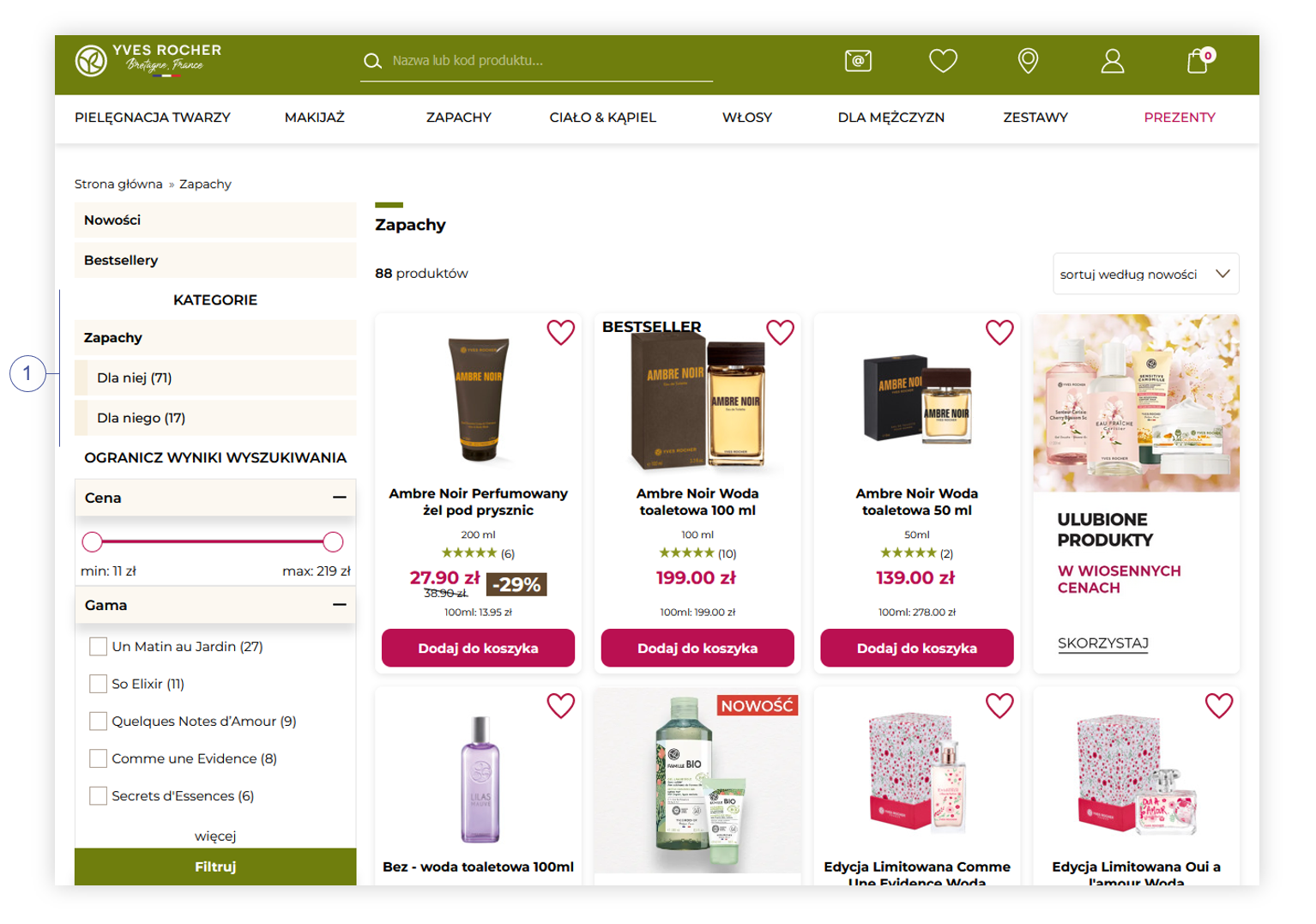
In this article, you will learn about catalog categorization functionality, which allows you to create and edit categories. Categories are visible in the product catalog as well as during the product search **<span style="color: #4054a0;">(1)</span>**, and allow customers to click on them in order to filter out products depending on products assigned to the selected category.

The default URL to the category page is constructed as: /c/category1\[/category2\]\[/category3\], for example, /c/make-up/face/powders.  
The prefix c can be modified by changing the **category\_url** translation.

<span class="wysiwyg-color-black" style="color: #d23a4e;">![caution.svg](https://knowledge.tauceti-digital.com/uploads/images/gallery/2024-11/12041014838940.png) **Warning**</span> <span class="wysiwyg-color-black" style="display: block; margin-top: 10px;"> <font color="#000000"> It's not recommended to change the translation after some time of using the default one, as it will ruin SEO. </font> </span> <span class="wysiwyg-color-black"></span><span class="wysiwyg-color-black"></span><span class="wysiwyg-color-black"></span><span class="wysiwyg-color-black"></span>

<table id="bkmrk-visualization-of-the" style="margin-right: auto; margin-left: auto; height: 44px; width: auto;"><tbody><tr style="height: 22px;"><td class="wysiwyg-text-align-center" style="text-align: center; vertical-align: middle; height: 22px; width: auto;">![POWERPNT_B3eCFXSLWR.png](https://knowledge.tauceti-digital.com/uploads/images/gallery/2024-11/8853132209948.png)</td></tr><tr style="height: 22px;"><td class="wysiwyg-text-align-center" style="text-align: center; vertical-align: middle; height: 22px; width: auto;"><span class="wysiwyg-font-size-medium">*Visualization of the product category page* </span></td></tr></tbody></table>

The category page state consists of:

- Category selection (part of category URL). Any filter functionalities never modify it.
- Page number (`page` query parameter).
- Items per page selection (`pp` query parameter).
- Sort method selection (`sort` query parameter).
- Features filter selection (`f` query parameter).
- Price range selection (`pp` query parameter).
- Store selection (`shop` query parameter).
- \*Only available in store\* filter (`is` query parameter).
- Filter to \*New products\* only (`news` query parameter).
- Filter to \*Bestsellers\* only (`bestsellers` query parameter).

The following sections describe the behavior of all category page elements.<span class="wysiwyg-color-black" style="color: #44549b;"></span><span style="color: #4054a0;"></span>

Table of contents:

1. [ Category management](#bkmrk-category-management)
    1. [Filters section](#bkmrk-filters-section)
    2. [Elements section](#bkmrk-elements-section)
    3. [Editing and creating categories](#bkmrk-editing-and-creating)
2. [ Changes made during the implementation of Categories functionality](#bkmrk-changes-made-during-)
    1. [Product page breadcrumb](#bkmrk-product-page-breadcr)
    2. [Removal of the Tag page (`/tag`)](#bkmrk-removal-of-the-tag-p)
    3. [Features behavior](#bkmrk-features-behavior)

---

# ![Screenshot_2020-04-29_at_19.12.41.png](https://knowledge.tauceti-digital.com/uploads/images/gallery/2024-11/12041014834716.png) Category management

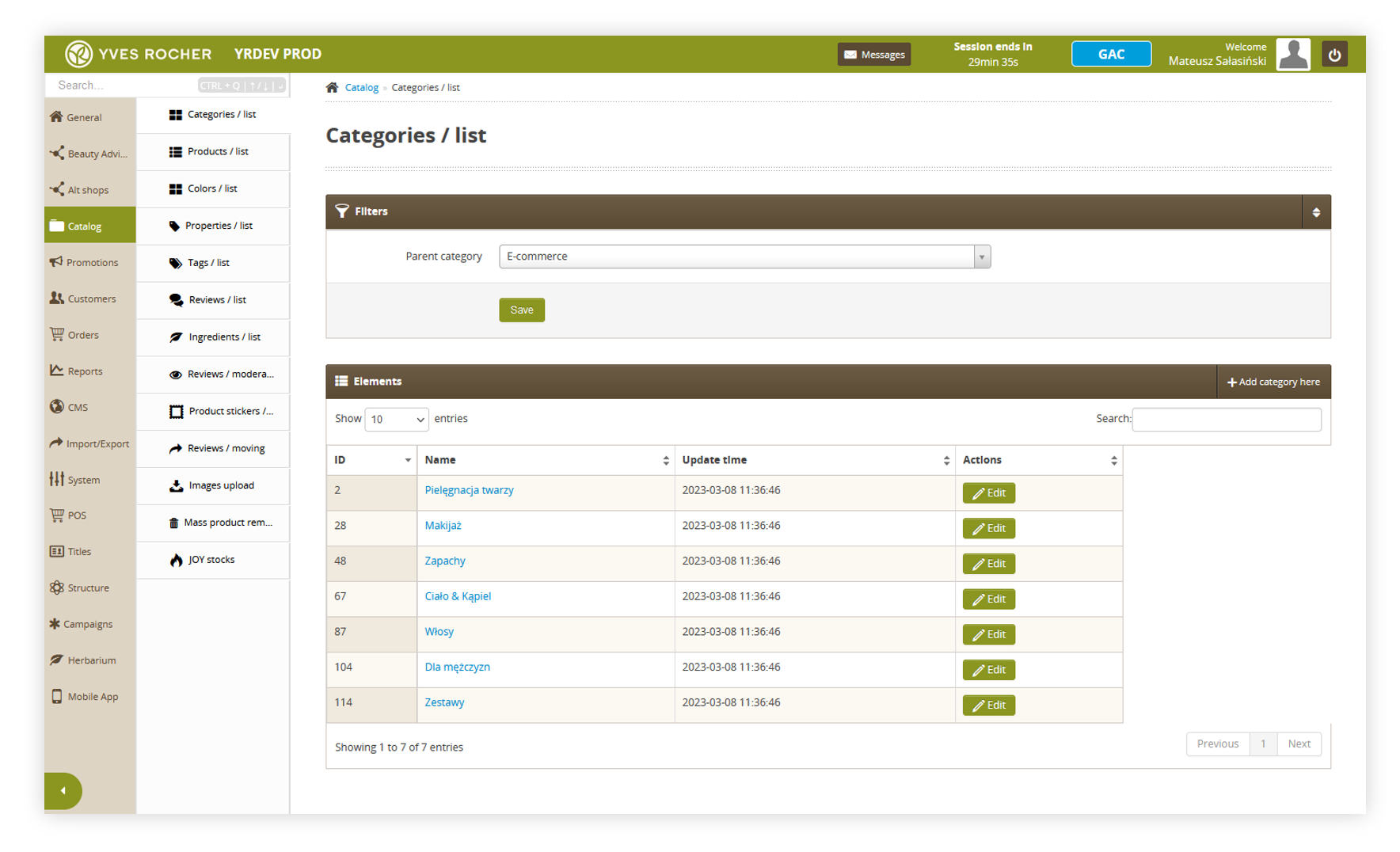
All categories can be managed through the admin panel. The categories tab is located in:

***Catalog &gt; Categories / list***

Categories can be additonally managed using the product catalog import / export.

<span class="wysiwyg-color-black" style="color: #44549b;">![info2.svg](https://knowledge.tauceti-digital.com/uploads/images/gallery/2024-11/12041014842908.png) **Remember**</span><span class="wysiwyg-color-black" style="display: block; margin-top: 10px;">You can learn more about import / export of the catalog in the [Product catalog export and import](https://knowledge.tauceti-digital.com/books/e-commerce/page/product-catalog-export-and-import) article.  
</span>

<span class="wysiwyg-color-black" style="color: #d23a4e;">![caution.svg](https://knowledge.tauceti-digital.com/uploads/images/gallery/2024-11/12041014838940.png) **Warning**</span> <span class="wysiwyg-color-black" style="display: block; margin-top: 10px;"> <font color="#000000">Up to three categories can be created in one path (excluding the default E-commerce one).   
For example, in the case of the path:   
***E-commerce &gt; Category1 &gt; Category 2 &gt; Category3 &gt; Category4***  
Category4 won't be accessible on the e-commerce platform and trying to access it via URL will result in a 404 error.  
</font></span><span class="wysiwyg-color-black"></span><span class="wysiwyg-color-black"></span><span class="wysiwyg-color-black"></span><span class="wysiwyg-color-black"></span>

<table id="bkmrk-visualization-of-the-1" style="margin-right: auto; margin-left: auto; height: 44px; width: auto;"><tbody><tr style="height: 22px;"><td class="wysiwyg-text-align-center" style="text-align: center; vertical-align: middle; height: 22px; width: auto;">![POWERPNT_J3yU4Y8yM6.png](https://knowledge.tauceti-digital.com/uploads/images/gallery/2024-11/8852266865564.png)</td></tr><tr style="height: 22px;"><td class="wysiwyg-text-align-center" style="text-align: center; vertical-align: middle; height: 22px; width: auto;"><span class="wysiwyg-font-size-medium">*Visualization of the categories / list tab* </span></td></tr></tbody></table>

## Filters section

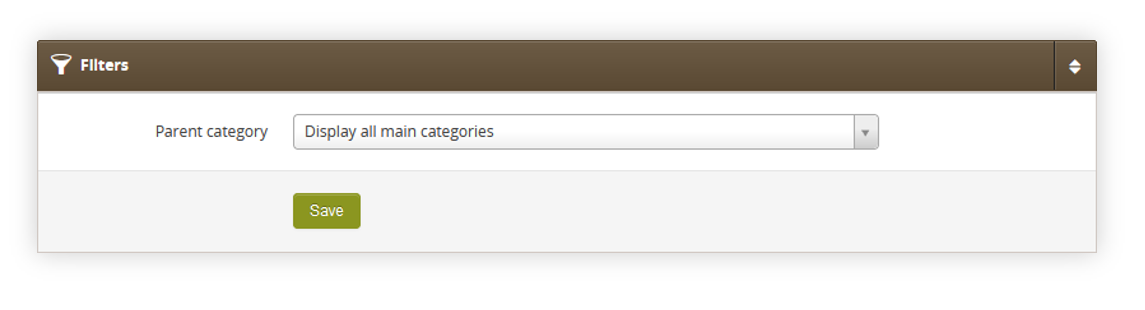
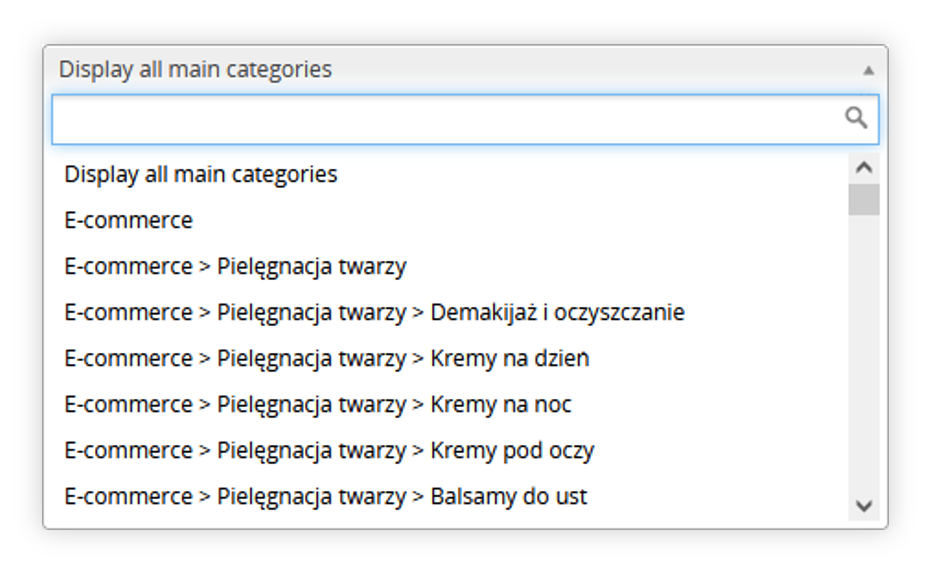
In the filters section, you can see the current parent category, and switch to another one using the drop-down menu. You are additionally able to change the current filter by clicking on a category. This method is described in the [Elements section.](#bkmrk-elements-section)

<table id="bkmrk-visualization-of-the-2" style="margin-right: auto; margin-left: auto; height: 44px; width: 700px;"><tbody><tr style="height: 22px;"><td class="wysiwyg-text-align-center" style="text-align: center; vertical-align: middle; height: 22px; width: 688px;">![POWERPNT_Zs2KPx4NHG.png](https://knowledge.tauceti-digital.com/uploads/images/gallery/2024-11/8852298471196.png)</td></tr><tr style="height: 22px;"><td class="wysiwyg-text-align-center" style="text-align: center; vertical-align: middle; height: 22px; width: 688px;"><span class="wysiwyg-font-size-medium">*Visualization of the filters section* </span></td></tr></tbody></table>

<table id="bkmrk-visualization-of-the-3" style="margin-right: auto; margin-left: auto; height: 44px; width: 700px;"><tbody><tr style="height: 22px;"><td class="wysiwyg-text-align-center" style="text-align: center; vertical-align: middle; height: 22px; width: 688px;">![POWERPNT_gyuPckxaSM.png](https://knowledge.tauceti-digital.com/uploads/images/gallery/2024-11/8852298520860.png)</td></tr><tr style="height: 22px;"><td class="wysiwyg-text-align-center" style="text-align: center; vertical-align: middle; height: 22px; width: 688px;"><span class="wysiwyg-font-size-medium">*Visualization of the categories drop-down menu* </span></td></tr></tbody></table>

## Elements section

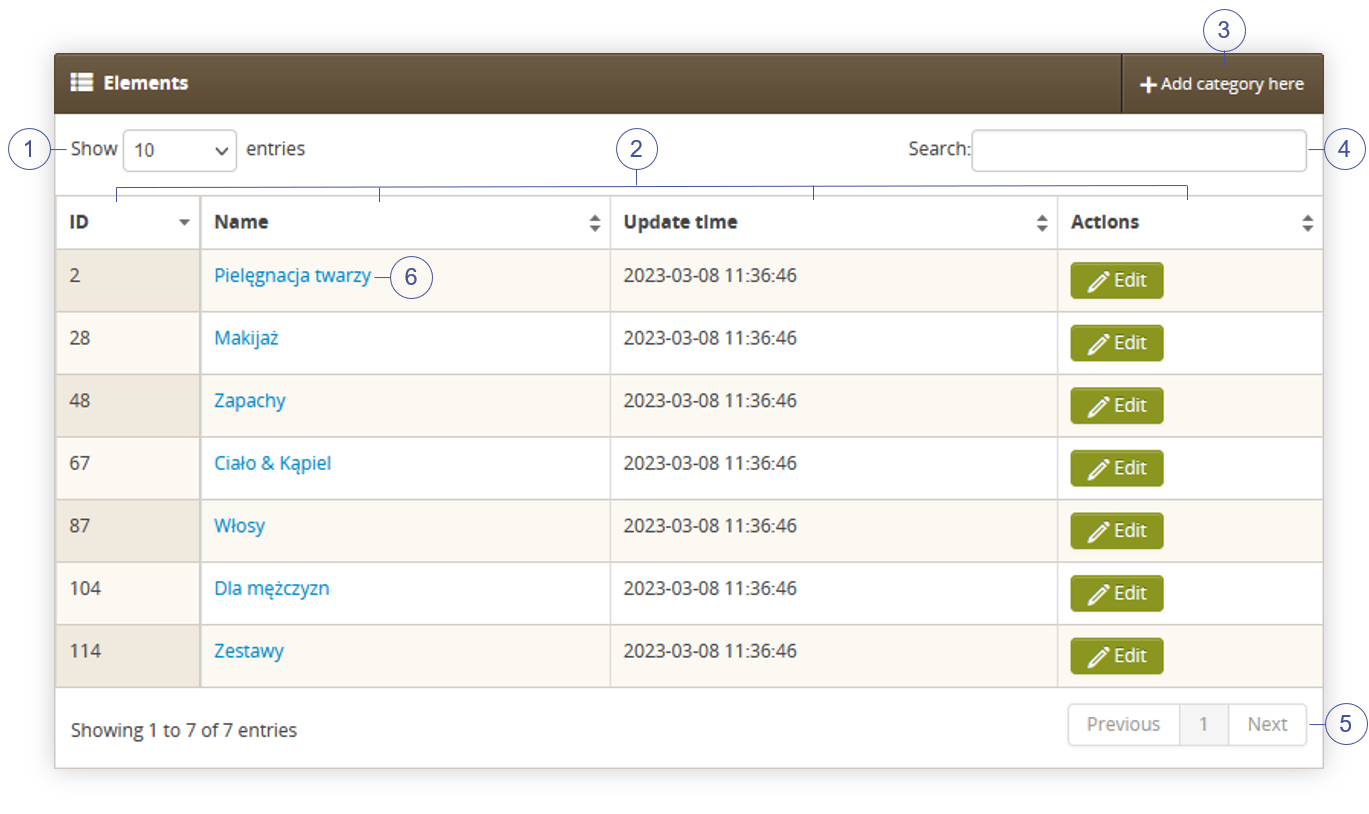
In the elements section, you can see all categories in a selected parent category.

<table id="bkmrk-visualization-of-the-4" style="margin-right: auto; margin-left: auto; height: 44px; width: auto;"><tbody><tr style="height: 22px;"><td class="wysiwyg-text-align-center" style="text-align: center; vertical-align: middle; height: 22px; width: auto;">![POWERPNT_9M4J5TC58S.png](https://knowledge.tauceti-digital.com/uploads/images/gallery/2024-11/8852509014172.png)</td></tr><tr style="height: 22px;"><td class="wysiwyg-text-align-center" style="text-align: center; vertical-align: middle; height: 22px; width: auto;"><span class="wysiwyg-font-size-medium">*Visualization of the elements section* </span></td></tr></tbody></table>

Below you will find a description of possible actions.

- Select the **Show X entries** **<span style="color: #4054a0;">(1)</span>** field to set the number of categories, displayed on one page (min 10 / max 100).
- The names of the columns **<span style="color: #4054a0;">(2)</span>** that contain information about a given category. Each column is susceptible to sorting. To sort the records, click on the title of the column in question.  
    
    - **ID** - An internal ID of a category
    - **Name** - A name of the category. These names are visible to the customers on a website. Category names can be opened by clicking on them **<span style="color: #4054a0;">(6)</span>**, and it will open the elements tab with a selected category as a parent category.
    - **Update time** - Date and hour when the selected category has been updated last time.
    - **Actions** - An edit button, which allows editing a selected category. The main e-commerce category cannot be edited. You can read more about adding and editing categories in the [Editing and creating categories](#bkmrk-editing-and-creating) section.
- Select the **Add category here** **<span style="color: #4054a0;">(3)</span>** button to go to the adding the new category in a current parent category. You can read more about adding and editing categories in the [Editing and creating categories](#bkmrk-editing-and-creating) section.
- **Search box** **<span style="color: #4054a0;">(4)</span>** where you can search for the desired category by their category name.
- **Page buttons** **<span style="color: #4054a0;">(5)</span>**, which allows user to change the page of currently viewed categories.

## Editing and creating categories

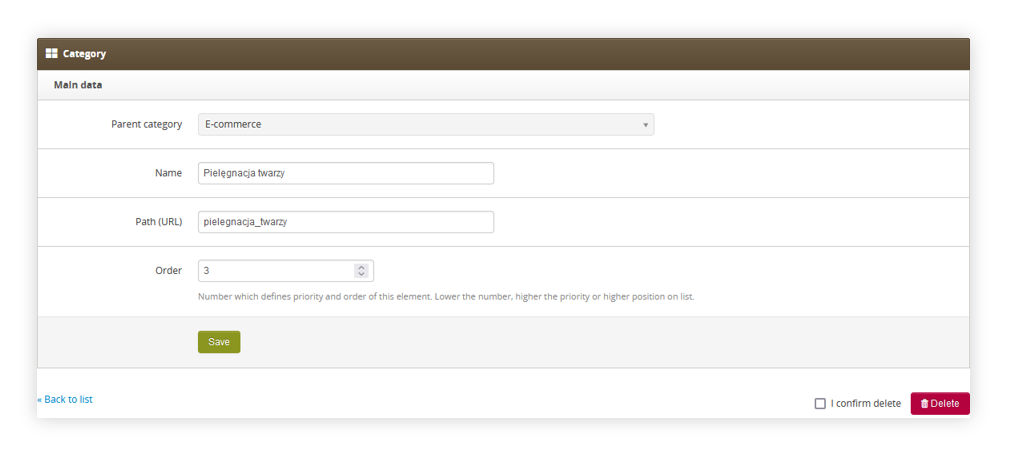
Whenever adding a new category or editing one you will be redirected to the following page.

<table id="bkmrk-visualization-of-the-5" style="margin-right: auto; margin-left: auto; height: 44px; width: auto;"><tbody><tr style="height: 22px;"><td class="wysiwyg-text-align-center" style="text-align: center; vertical-align: middle; height: 22px; width: auto;">![POWERPNT_f2agi9gA92.png](https://knowledge.tauceti-digital.com/uploads/images/gallery/2024-11/8852250417948.png)</td></tr><tr style="height: 22px;"><td class="wysiwyg-text-align-center" style="text-align: center; vertical-align: middle; height: 22px; width: auto;"><span class="wysiwyg-font-size-medium">*Visualization of the editing of a category* </span></td></tr></tbody></table>

Below you will find a description of possible actions.

- **Parent category** - A field where the current parent category is displayed. This field  
    cannot be edited.
- **Name** - A name of the category. This name will be visible to the customers.
- **Path (URL)** - An URL of the category. This URL will be visible in the website URL whenever the customer selects this category or one under it.
- **Order** - Number which defines the priority and order of this element. Lower the number, higher the priority, or higher position on the list.
- **Save** - Button, which saves the changes made to the category.
- **Delete** - A button that deletes a selected category and all the categories under it. It is only available when editing the category. In order to be able to press it you have to press the "I confirm delete" checkbox beforehand.

---

# ![Screenshot_2020-04-29_at_19.12.41.png](https://knowledge.tauceti-digital.com/uploads/images/gallery/2024-11/12041014834716.png) Changes made during the implementation of Categories functionality

## Product page breadcrumb

The breadcrumb has been modified to use the product's main category.

## Removal of the Tag page (`/tag`)

The legacy way to create categories by links to selected feature sets has been removed.

Marketing links to, for example, product lines should be directed to promotion pages instead.

## Features behavior

The existing behavior of features has been modified.

Previously, it never displayed features that were selected but did not exist in found products (after filtration). It generated scenarios when the user selected 3 filters but could remove only one or none of them.

Now, users always see all selected features, even if they returned 0 products. They can be seen and removed from the features filter menu and quick filter removal element.

It's useful when selected feature set results in an empty products list. Previously, the user could not see selected features nor remove them.