# Catalog - Images upload

# ![Screenshot_2020-04-29_at_19.12.41.png](https://knowledge.tauceti-digital.com/uploads/images/gallery/2024-11/ogpscreenshot-2020-04-29-at-19-12-41-png.png) Getting started

This article describes uploading images for products, their sizes, format and how to find them in the gallery (The gallery article can be found [here](https://tauceti.zendesk.com/hc/en-us/articles/5785144527388)).

<span class="wysiwyg-color-black" style="color: #44549b;">![info2.svg](https://knowledge.tauceti-digital.com/uploads/images/gallery/2024-11/KiIinfo2-svg.png) **Remember**</span><span class="wysiwyg-color-black" style="display: block; margin-top: 10px;">Every product image has to be added in the ***Catalog &gt; Images upload***</span>

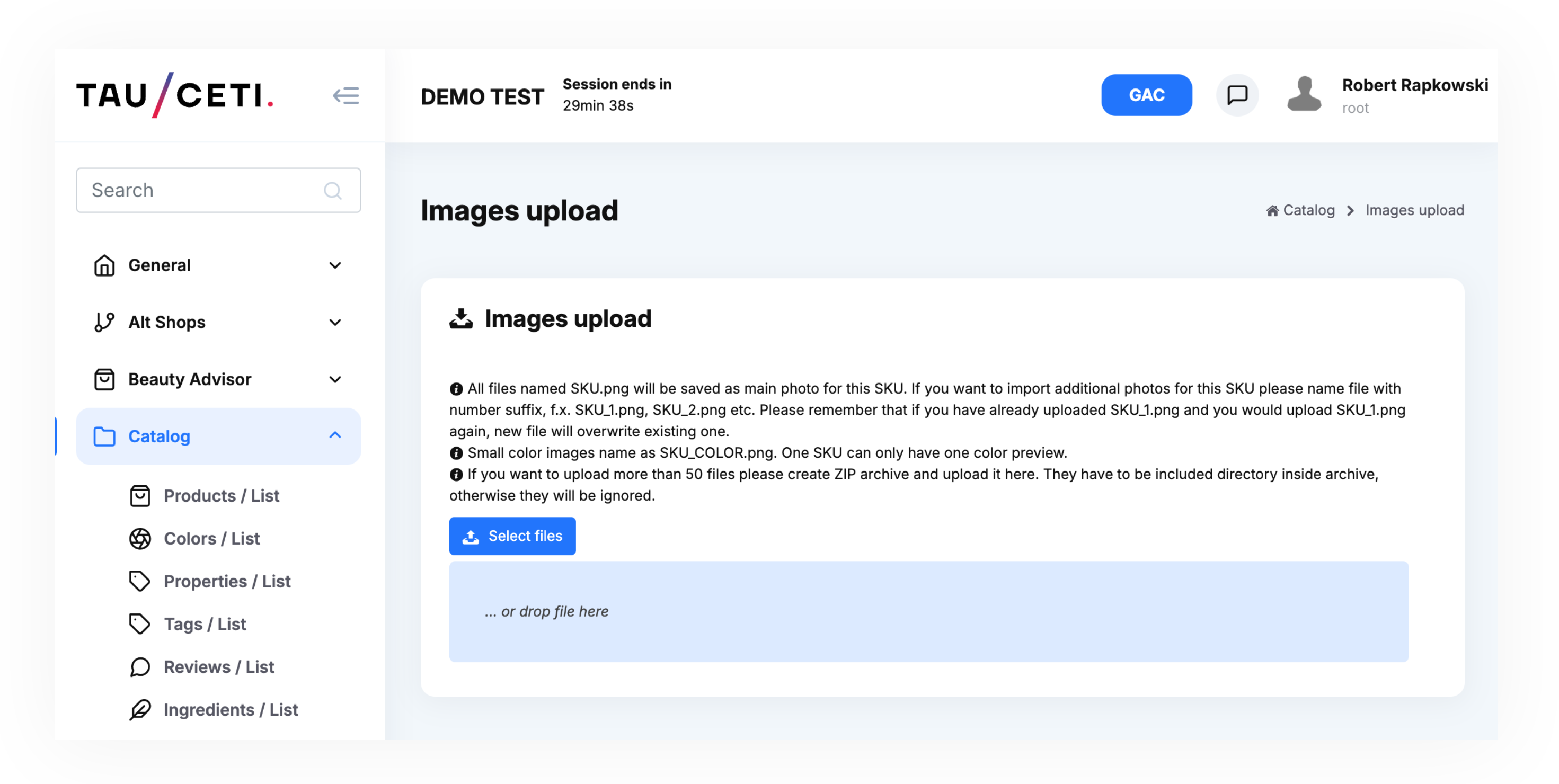
<table id="bkmrk-%C2%A0%C2%A0-visualization-of-" style="margin-right: auto; margin-left: auto; height: 44px;"><tbody><tr style="height: 450px;"><td class="wysiwyg-text-align-center" style="text-align: center; vertical-align: middle; height: 22px; width: 688px;">![Screenshot 2025-02-11 at 10.28.39.png](https://ecomm-docs.tauceti-digital.com/uploads/images/gallery/2025-02/screenshot-2025-02-11-at-10-28-39.png)</td></tr><tr style="height: 22px;"><td class="wysiwyg-text-align-center" style="text-align: center; vertical-align: middle; height: 22px; width: 688px;"><span class="wysiwyg-font-size-medium">  </span><span class="wysiwyg-font-size-medium"> *Visualization of the Catalog, Images upload* </span></td></tr></tbody></table>

Table of contents:

1. [Images restrictions and guides](#bkmrk-images-restrictions--1)
    1. [Guidelines](#bkmrk-guidelines)
    2. [Images names](#bkmrk-images-names)
    3. [Product images sizes](#bkmrk-products-images-size)
2. [Image upload](#bkmrk-images-upload)
    1. [Select files to import](#bkmrk-select-files-to-impo)

---

# ![Screenshot_2020-04-29_at_19.12.41.png](https://knowledge.tauceti-digital.com/uploads/images/gallery/2024-11/ogpscreenshot-2020-04-29-at-19-12-41-png.png) Images restrictions and guides

## Guidelines

Images upload already contain guides on how the images are processed:

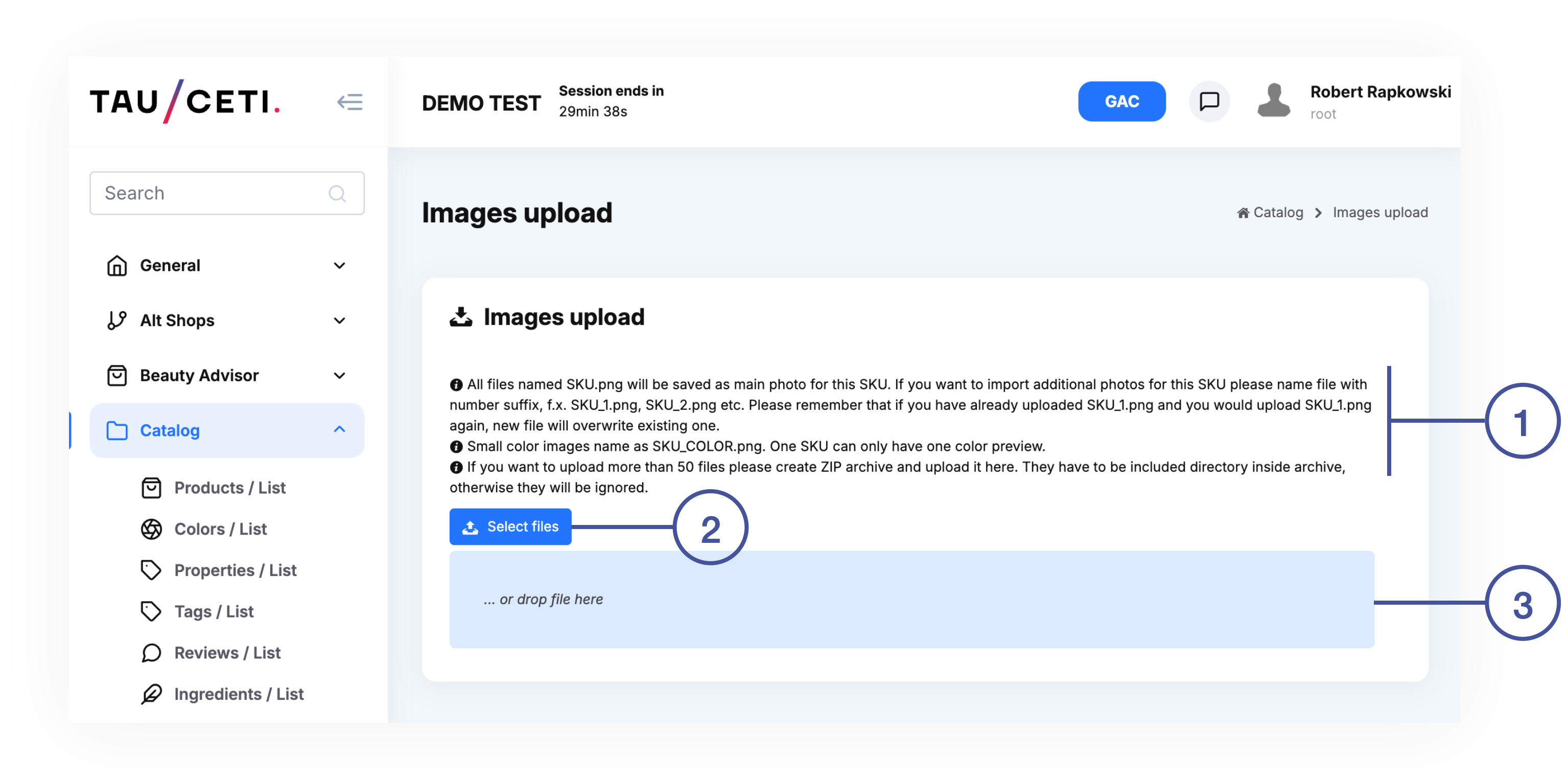
- All files named SKU.png will be saved as main photo for this SKU. If you want to import additional photos for this SKU please name file with number suffix, f.x. SKU\_1.png, SKU\_2.png etc. Please remember that if you have already uploaded SKU\_1.png and you would upload SKU\_1.png again, new file will overwrite existing one.
- Small color images name as SKU\_COLOR.png. One SKU can only have one color preview.
- If you want to upload more than 50 files please create ZIP archive and upload it here. They have to be included directory inside archive, otherwise they will be ignored

<span class="wysiwyg-color-black" style="color: #d23a4e;">![caution.svg](https://knowledge.tauceti-digital.com/uploads/images/gallery/2024-11/Co4caution-svg.png) **Note**</span><span class="wysiwyg-color-black" style="display: block; margin-top: 10px;">The above guide is not the only one, that uploaders should be aware of. Images for products should be in PNG format only, they should also be in a size of 1000x1000px </span>

## Images names

Every product images have to be named in a specific, role-related method:

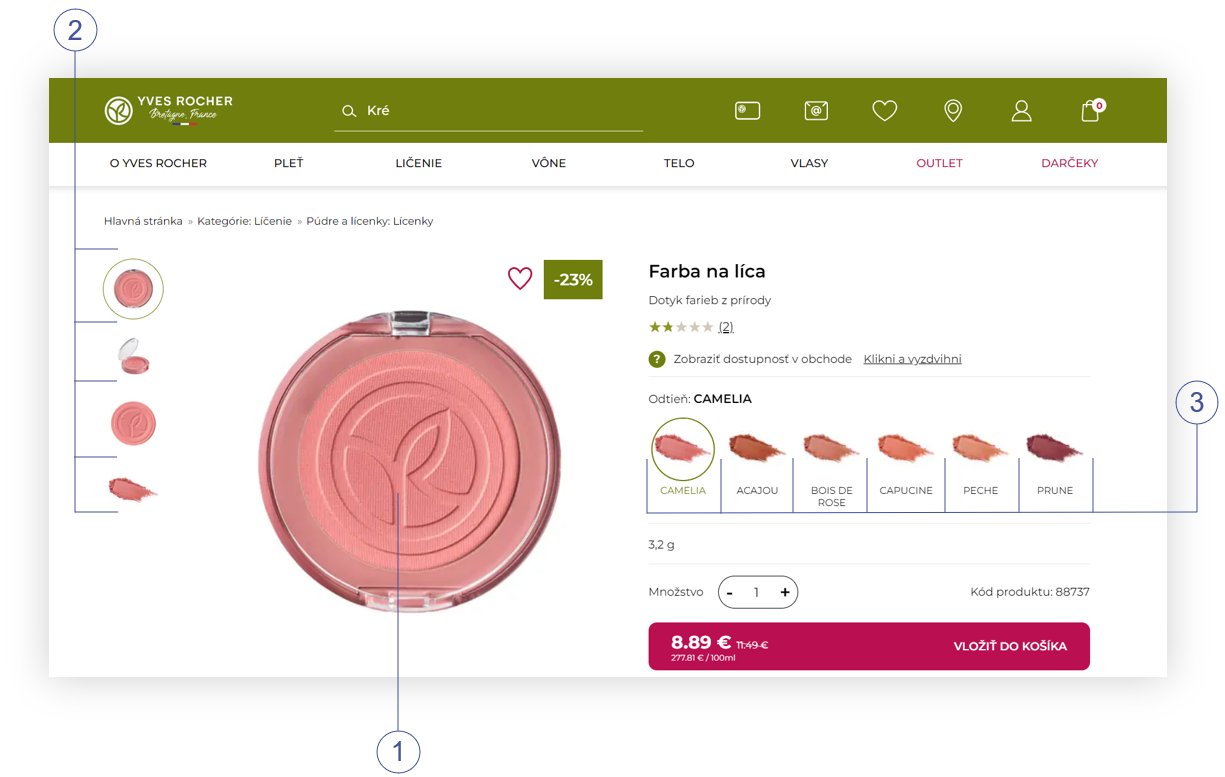
**<span style="color: #4054a0;">(1)</span>** - This is the main image of the product, first to be seen, its name has to be **SKU.png** In this example it's **88737.png**

**<span style="color: #4054a0;">(2)</span>** - These are all images named **SKU.png** and **SKU\_X.png** Where **X** is a digit suffix that determines the order in which these images are presented (from top to bottom). In this example, it's **88737.png**, **88737\_1.png**, **88737\_2.png**, **88737\_3.png**

**<span style="color: #4054a0;">(3)</span>** - Color images are used when a product has other color variants. These are named **SKU\_COLOR.png** In this example **88737\_COLOR.png** and **88737\_3.png** are the same image renamed and uploaded twice.

<table id="bkmrk-%C2%A0%C2%A0-visualization-of--1" style="margin-right: auto; margin-left: auto; height: 44px;"><tbody><tr style="height: 450px;"><td class="wysiwyg-text-align-center" style="text-align: center; vertical-align: middle; height: 22px; width: 688px;">![Screenshot_2022-09-08_133300.png](https://knowledge.tauceti-digital.com/uploads/images/gallery/2024-11/screenshot-2022-09-08-133300-png.png)</td></tr><tr style="height: 22px;"><td class="wysiwyg-text-align-center" style="text-align: center; vertical-align: middle; height: 22px; width: 688px;"><span class="wysiwyg-font-size-medium">  </span><span class="wysiwyg-font-size-medium"> *Visualization of the Product page, SKU 88737* </span></td></tr></tbody></table>


## Products images sizes

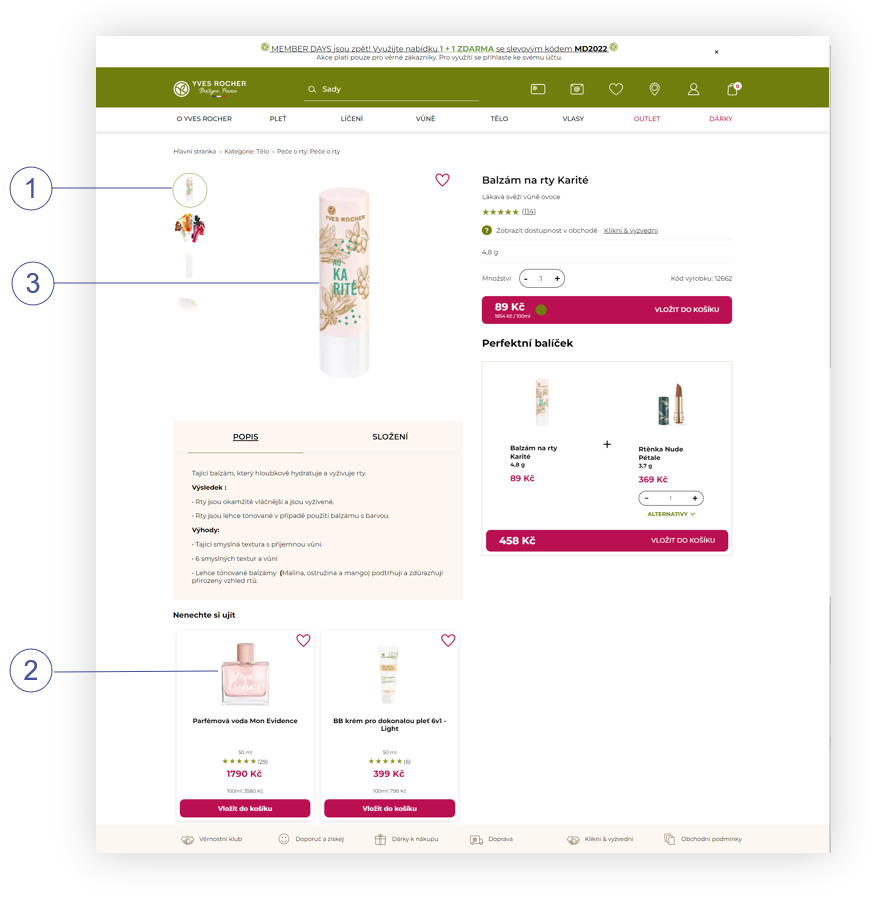
The main product image **SKU.png** ones uploaded will be transformed into several sizes. These can be found in the gallery (The gallery article can be found [here](https://tauceti.zendesk.com/hc/en-us/articles/5785144527388)). The most common sizes are **101x101<span style="color: #4054a0;">(1)</span>**, **184x184<span style="color: #4054a0;">(2)</span>**, **260x260** and **500x500<span style="color: #4054a0;">(3)</span>**. Every folder for them is named **product\_catalog\_SIZE** where **SIZE** is the value presented previously for example ***/uimg/product\_catalog\_500x500/***

<table id="bkmrk-%C2%A0%C2%A0-visualization-of--2" style="margin-right: auto; margin-left: auto; height: 44px; width: 688px;"><tbody><tr style="height: 500px;"><td class="wysiwyg-text-align-center" style="text-align: center; vertical-align: middle; height: 22px; width: 676.03px;">![Screenshot_2022-09-08_160549.png](https://knowledge.tauceti-digital.com/uploads/images/gallery/2024-11/screenshot-2022-09-08-160549-png.png)</td></tr><tr style="height: 22px;"><td class="wysiwyg-text-align-center" style="text-align: center; vertical-align: middle; height: 22px; width: 676.03px;"><span class="wysiwyg-font-size-medium">  </span><span class="wysiwyg-font-size-medium"> *Visualization of the Product page, example of image sizes* </span></td></tr></tbody></table>

<span class="wysiwyg-color-black" style="color: #44549b;">![info2.svg](https://knowledge.tauceti-digital.com/uploads/images/gallery/2024-11/KiIinfo2-svg.png) **Remember**</span><span class="wysiwyg-color-black" style="display: block; margin-top: 10px;">All sizes are created and used automatically by the application. Uploaded images should always be in the size of 1000x1000px and in png format.</span>

---

# ![Screenshot_2020-04-29_at_19.12.41.png](https://knowledge.tauceti-digital.com/uploads/images/gallery/2024-11/ogpscreenshot-2020-04-29-at-19-12-41-png.png) Images upload

Before uploading images make sure to follow guide **<span style="color: #4054a0;">(1)</span>** (or see [Images restrictions and guides](#bkmrk-images-restrictions--1)). Images can be uploaded by clicking the **Select files** button **<span style="color: #4054a0;">(2)</span>** or by dragging and dropping files directly from the file browser **<span style="color: #4054a0;">(3)</span>**.

<table id="bkmrk-visualization-of-the" style="margin-right: auto; margin-left: auto; height: 32px; width: 688px;"><tbody><tr style="height: 350px;"><td class="wysiwyg-text-align-center" style="text-align: center; vertical-align: middle; height: 10px; width: 676.03px;">![Screenshot 2025-02-11 at 10.37.39.png](https://ecomm-docs.tauceti-digital.com/uploads/images/gallery/2025-02/screenshot-2025-02-11-at-10-37-39.png)</td></tr><tr style="height: 22px;"><td class="wysiwyg-text-align-center" style="text-align: center; vertical-align: middle; height: 22px; width: 676.03px;"><span class="wysiwyg-font-size-medium">*Visualization of the Catalog, Images upload*</span></td></tr></tbody></table>

## Select files to import

After selecting files, a new section will show up with the line of progress **<span style="color: #4054a0;">(4)</span>**, Checkboxes to choose whether uploaded files should be transferred to the gallery or not **<span style="color: #4054a0;">(1)</span>**. There is an option to **Delete all existing images for imported SKUs<span style="color: #4054a0;">(2)</span>**, this will erase all previously existing images for products that receive new ones. When everything is set click **Import selected files<span style="color: #4054a0;">(3)</span>** to update products with new images.

<table id="bkmrk-visualization-of-the-1" style="margin-right: auto; margin-left: auto; height: 32px; width: 688px;"><tbody><tr style="height: 250px;"><td class="wysiwyg-text-align-center" style="text-align: center; vertical-align: middle; height: 10px; width: 676.03px;">![Screenshot 2025-02-11 at 10.42.17.png](https://ecomm-docs.tauceti-digital.com/uploads/images/gallery/2025-02/screenshot-2025-02-11-at-10-42-17.png)</td></tr><tr style="height: 22px;"><td class="wysiwyg-text-align-center" style="text-align: center; vertical-align: middle; height: 22px; width: 676.03px;"><span class="wysiwyg-font-size-medium">*Visualization of the Catalog, Images upload- Select files to import*</span></td></tr></tbody></table>