# Configurable CMS block

# ![Screenshot_2020-04-29_at_19.12.41.png](https://knowledge.tauceti-digital.com/uploads/images/gallery/2024-11/9106367857564.png) Getting started

In this article, you can learn about configurable CMS block functionality, which will allow you to put and properly configure banners visible on a website. There are two defined CMS blocks:

- **above\_cart\_steps\_banner** - Displays a configured banner only in a cart page (/cart).
- **above\_layout\_content\_banner** - Displays a configured banner everywhere except the customer panel, cart page, and checkout.

As with every CMS block that is configured to be visible on a homepage it is important to make sure, that created CMS block has exactly the same name as provided above. If the CMS block has a different name it won't be displayed on a website.

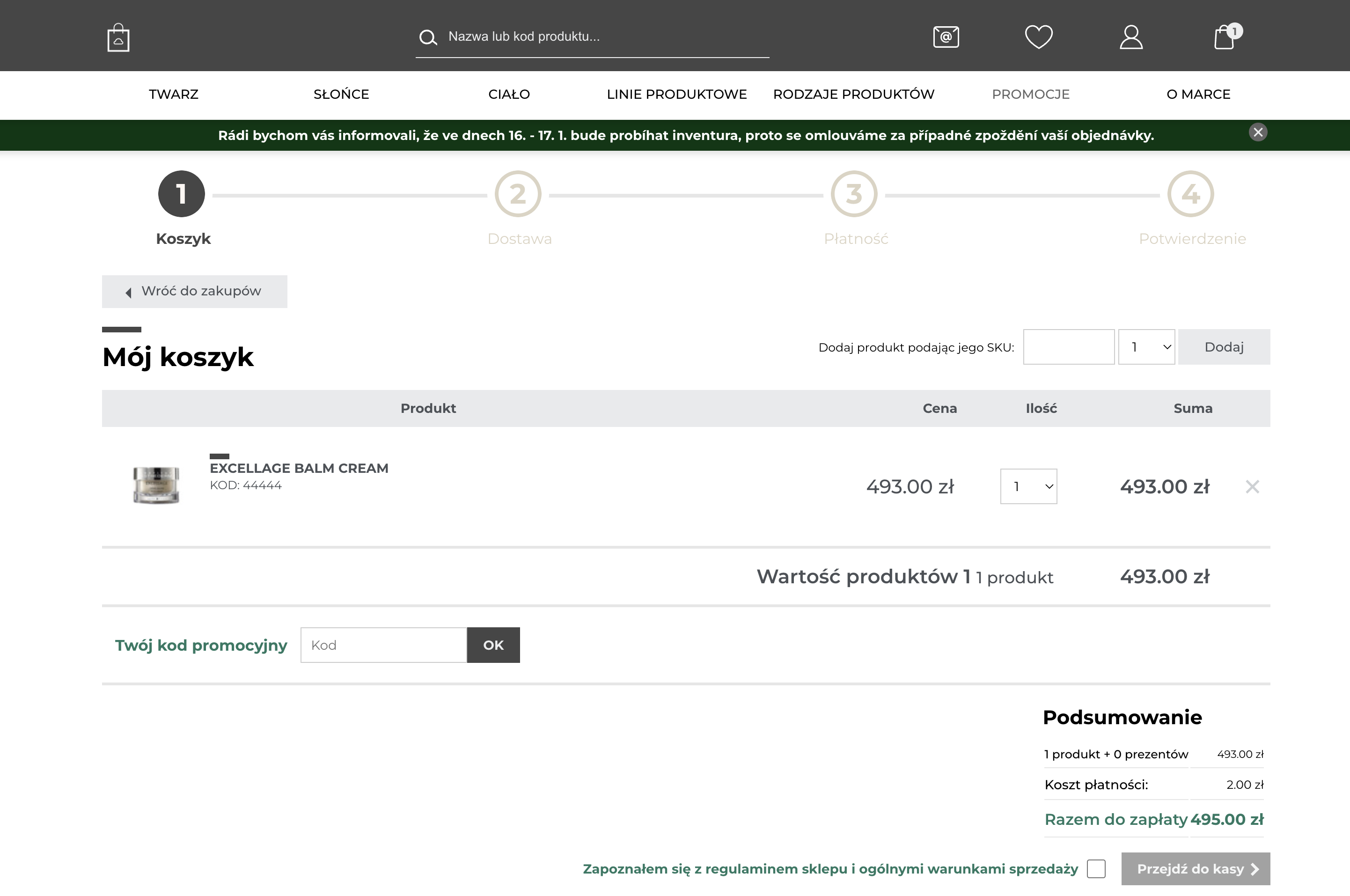
<table id="bkmrk-visualization-of-the" style="margin-right: auto; margin-left: auto; height: 44px; width: auto;"><tbody><tr style="height: 22px;"><td class="wysiwyg-text-align-center" style="text-align: center; vertical-align: middle; height: 22px; width: auto;">![Screenshot 2025-01-31 at 16.29.13.png](https://ecomm-docs.tauceti-digital.com/uploads/images/gallery/2025-01/screenshot-2025-01-31-at-16-29-13.png)</td></tr><tr style="height: 22px;"><td class="wysiwyg-text-align-center" style="text-align: center; vertical-align: middle; height: 22px; width: auto;"><span class="wysiwyg-font-size-medium">*Visualization of the above\_cart\_steps\_banner in a /cart page* </span></td></tr></tbody></table>

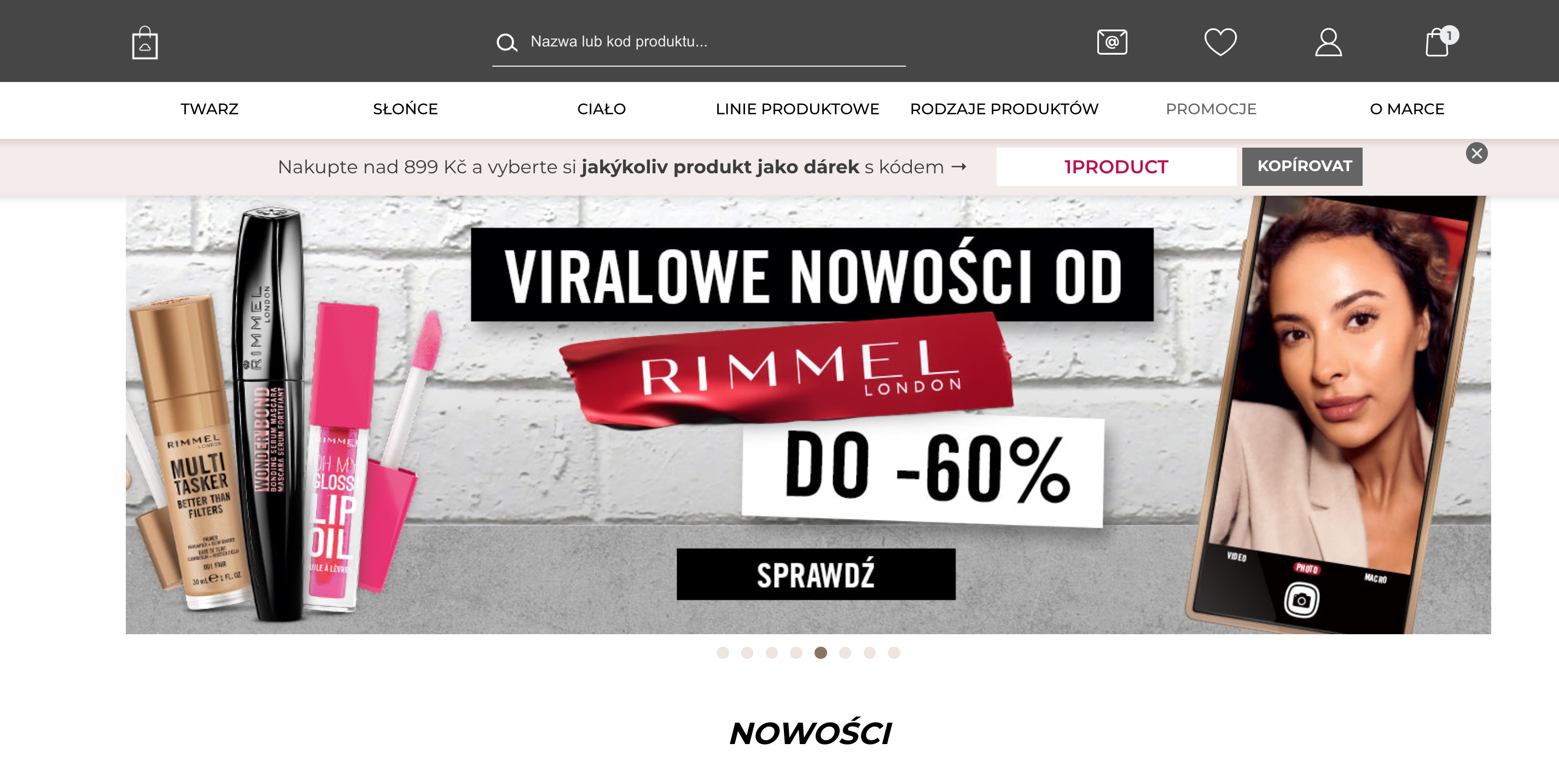
<table id="bkmrk-visualization-of-the-1" style="margin-right: auto; margin-left: auto; height: 44px; width: auto;"><tbody><tr style="height: 22px;"><td class="wysiwyg-text-align-center" style="text-align: center; vertical-align: middle; height: 22px; width: auto;">![Screenshot 2025-01-31 at 16.32.47.png](https://ecomm-docs.tauceti-digital.com/uploads/images/gallery/2025-01/screenshot-2025-01-31-at-16-32-47.png)</td></tr><tr style="height: 22px;"><td class="wysiwyg-text-align-center" style="text-align: center; vertical-align: middle; height: 22px; width: auto;"><span class="wysiwyg-font-size-medium">*Visualization of the above\_layout\_content\_banner on a homepage* </span></td></tr></tbody></table>

<span class="wysiwyg-color-black" style="color: #44549b;">![info2.svg](https://knowledge.tauceti-digital.com/uploads/images/gallery/2024-11/9106377837724.png) **Remember**</span><span class="wysiwyg-color-black" style="display: block; margin-top: 10px;">You can find more about CMS blocks creation and configuration in the [CMS blocks](https://tauceti.zendesk.com/hc/en-us/articles/5767855763612) article.</span>

Table of contents:

1. [ Configuration](#bkmrk-configuration-1)

---

# ![Screenshot_2020-04-29_at_19.12.41.png](https://knowledge.tauceti-digital.com/uploads/images/gallery/2024-11/9106367857564.png) Configuration

The new banners are configured exactly like every CMS block, but they have one new field, which manages the properties of the block.

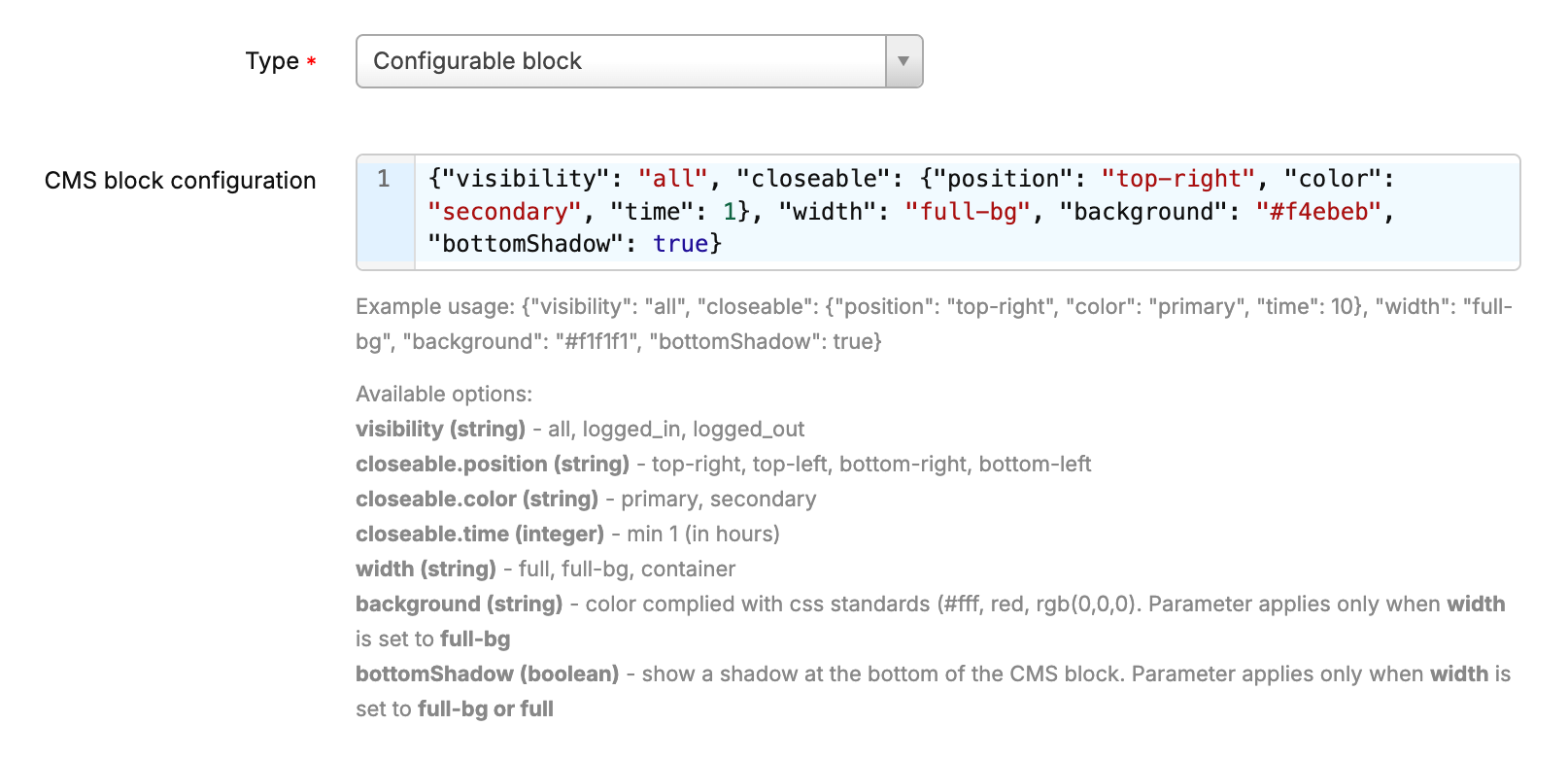
<table id="bkmrk-visualization-of-the-2" style="margin-right: auto; margin-left: auto; height: 44px; width: auto;"><tbody><tr style="height: 22px;"><td class="wysiwyg-text-align-center" style="text-align: center; vertical-align: middle; height: 22px; width: auto;">![Screenshot 2025-01-31 at 16.33.49.png](https://ecomm-docs.tauceti-digital.com/uploads/images/gallery/2025-01/screenshot-2025-01-31-at-16-33-49.png)</td></tr><tr style="height: 22px;"><td class="wysiwyg-text-align-center" style="text-align: center; vertical-align: middle; height: 22px; width: auto;"><span class="wysiwyg-font-size-medium">*Visualization of the configurable block configuration* </span></td></tr></tbody></table>

In order to see the new JSON field you have to select the **configurable block** type.

The <label class="control-label" for="row_config"> CMS block configuration is a JSON field, which allows to configure few properties of created banners:</label>

- **visibility (string)** - Sets if the selected block is visible for all users, only logged-in users, or only logged-out ones. Available options are: **all**, **logged\_in**, **logged\_out**
- **closeable.position (string)** - Sets the position of the close (X) button. Available positions are: **top-right**, **top-left**, **bottom-right**, **bottom-left**
- **closeable.color (string)** - Sets the close (X) button color. Available options are: 
    - **primary** - Green.
    - **secondary** - Red.
- **closeable.time (integer)** - Sets after how many hours the banner will be visible to the customers again after they closed it.
- **width (string)** - A CMS block width option. There are three possible widths: 
    - **full** - Banner is stretched to fit the entire width of the screen. Please remember, that a proper background image has to be prepared for it to fit.
    - **full-bg** - Banner has the same width as the **container** width, but the rest of the screen width is colored with a color set in the **background** parameter.
    - **container** - Banner width that fits the website layout. The banner width is set to 1248px for the desktop view - the same as the slider.
- **background (string)** - A background color that is visible when a full-bg width is selected. This value should be in hex i.e. **\#0AA78F**
- **bottomShadow (boolean)** - A small shadow below the banner that is visible whenever widths **full** and **full-bg** are selected. This field accepts **true** and **false** values.

Example of a valid JSON:

```
{"visibility": "all", "closeable": {"position": "top-right", "color": "secondary", "time": 1}, "width": "full-bg", "background": "#0AA78F", "bottomShadow": true}
```

It is possible to configure these blocks to change their state according to users login status (logged in / logged out) and have them still visible for **all** groups in the **visibility** property. This needs to be coded in the CMS block HTML content.

<span class="wysiwyg-color-black" style="color: #44549b;">![info2.svg](https://knowledge.tauceti-digital.com/uploads/images/gallery/2024-11/9106377837724.png) **Remember**</span><span class="wysiwyg-color-black" style="display: block; margin-top: 10px;">You can find examples of checking of the current cart value and verification of the user logged in / logged out status in the [Public JS API](https://knowledge.tauceti-digital.com/books/e-commerce/page/public-js-api) article.</span>