Export customers
 Getting started
In this article, you can find information about e-commerce customer export with various filter options to a .csv file, that will help to export the exact type of customers that have an account on the e-commerce platform.
 RememberYou can find information regarding the Beauty Advisor customer export in the [UNDER CONSTRUCTION] article.
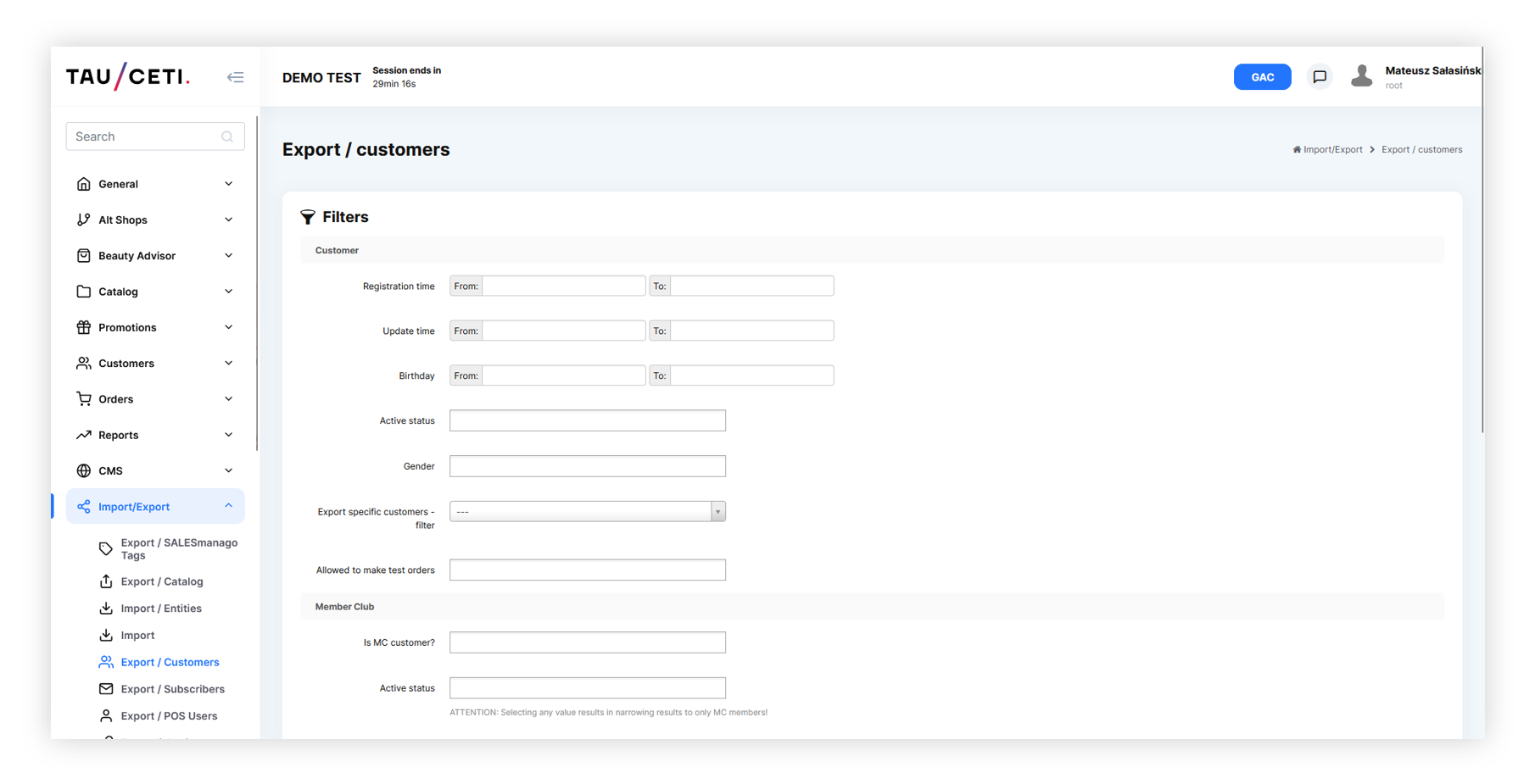 |
| Visualization of the export customers tab location |
Table of contents:
Exporting the e-commerce customers
E-commerce customer export can be found in
Import / Export > Export / customers
Below you can find all filter options to customize your export to your needs.
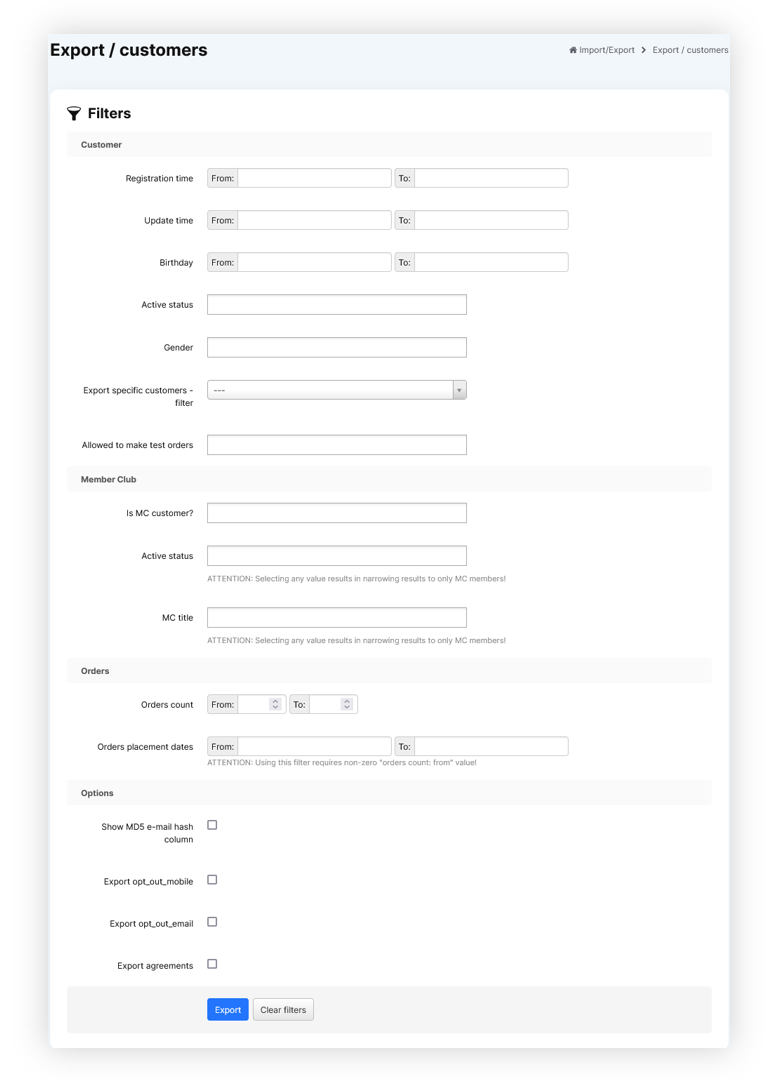 |
| Visualization of the all available export filters |
- Registration time - A range of dates when customers registered on an e-commerce platform.
- Update time - A range of dates whenever customer information has been updated.
- Birthday - A range of dates of customer birthdays.
- Active status - Customers current status. Available statuses are: Inactive, Active, Waiting for activation, One-time
- Gender - Customers gender. Available options are Man, Woman, Not specified.
- Export specific customers - filter - A filter which allows to specify customers by their:
- ID
- JOY ID
- A field where you should put specific customer data with a ";" separator, data will be filtered according to the selected filter. This field is only visible whenever the Export specific customers - filter is selected. Example (with email filter selected): example@example.com;example2@example.com;example3@example.com
- Allowed to make test orders - A Yes / No selection if customers are able to make test orders. This is defined by the "Allowed to make test orders" tickbox in the customers profile.
- is MC customer? - A Yes / No selection if a customer has a member club rank. All countries that use Member club functionality for various customer ranks (i.e. on Poland Default / Silver / Gold) are MC customers.
- Active status - Customers member club current status. This field only filters the member
club customers - MC title - Member club title assigned to the customers (in the case of Poland it can be T0 / TS / TG). This field only filters the member club customers.
- Orders count - A range of numbers of created orders on the website.
- Orders placement dates - A range of dates when customers have placed new orders using the e-commerce platform. Using this filter requires a non-zero "orders count: from" value.
- Show MD5 e-mail hash column - Shows customers MD5 e-mail hash column in the report.
- Export opt-out_mobile - Shows customers current mobile communication
subscription status. - Export opt_out_email - Shows customers current e-mail communication subscription status.
- Export agreements -Exports all available agreements as columns and defines which customers have agreed to the selected agreements.
- Export FIDEN2 cards -Exports customers FIDEN2 card information. The exported fields are:
- cards_active - A list of customers active FIDEN2 cards
- cards_waiting - The number of points waiting to be assigned to the selected customer FIDEN2 cards.
- cards_balance - Current FIDEN2 balance
- cards_balance_time - A date of last balance change for the selected customer.
- Only customers which manually assigned retail card - A tickbox which defines if only customers with manually assigned retail cards should be exported.
With selected filters you can export customers using the Export button or clear all filters by using the Clear filters button.
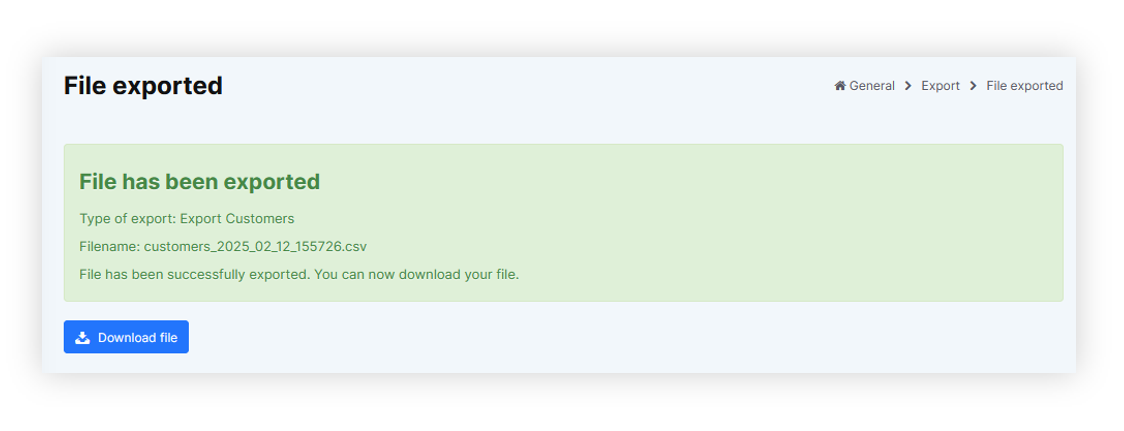 |
| Visualization of the prepared export file |
With exported file you are able to download it to your device using the Download file button.
Exported file overview
The exported file will be in a .csv format with an export date and hour in it's file name (i.e. customers_2023_08_16_131359)
 |
| Visualization of the exported csv file |
By default in the exported customers file you can find the following columns:
- id - Customers internal ID. Example: 123456
- first_name - Customers name. Example: Jan
- last_name - Customers surname. Example: Kowalski
- street - Main street name. Example: Uliczna
- building - Main building number. Example: 123
- flat - Main flat number. Example: 2
- city - Main city name. Example: Warsaw
- postal_code - Main postal code. Example: 12-345
- email - Customers e-mail address. Example: test@example.com
- mobile - Customers mobile number with a country code. Example: 48123123123
- birthday - Customers birthday date. Example: 01-01-1990
- gender - Customers gender (if selected). Example: Man
With additional fields dependent on selected options:
- md5_email - Customers MD5 email value. Example: 26h2cb31af663cdccaa2779c9d165a0b
- opt out mobile - Customers mobile communication current status. If the customer is opted in this value will be empty. If the customer is opted out the value will be set to Opted out.
- opt out email - Customers e-mail communication current status. If the customer is opted in this value will be empty. If the customer is opted out the value will be set to Opted out.
- Customers agreement status to the selected agreements - These fields will have different column names depending on the country and selected agreements (i.e. terms_of_service_vpi, data_processing_mc). Whenever the customer has agreed to the selected agreement there will be a "Selected" value in the column. If the customer has not agreed to the agreement the field will be empty.
- cards_active - A list of customers active FIDEN2 cards. Example: 123456789, 987654321.
- cards_waiting - The number of points waiting to be assigned to the selected customer cards. Example: 123
- cards_balance - Current FIDEN2 balance Example: 5333
- cards_balance_time - A date of last balance change for the selected customer.
Example: 05-08-2023