# Export customers

# ![Screenshot_2020-04-29_at_19.12.41.png](https://knowledge.tauceti-digital.com/uploads/images/gallery/2024-11/10027086064156.png) Getting started

In this article, you can find information about e-commerce customer export with various filter options to a .csv file, that will help to export the exact type of customers that have an account on the e-commerce platform.

<span class="wysiwyg-color-black" style="color: #44549b;">![info2.svg](https://knowledge.tauceti-digital.com/uploads/images/gallery/2024-11/10027294665628.png) **Remember**</span><span class="wysiwyg-color-black" style="display: block; margin-top: 10px;">You can find information regarding the Beauty Advisor customer export in the **\[UNDER CONSTRUCTION\]** article.</span>

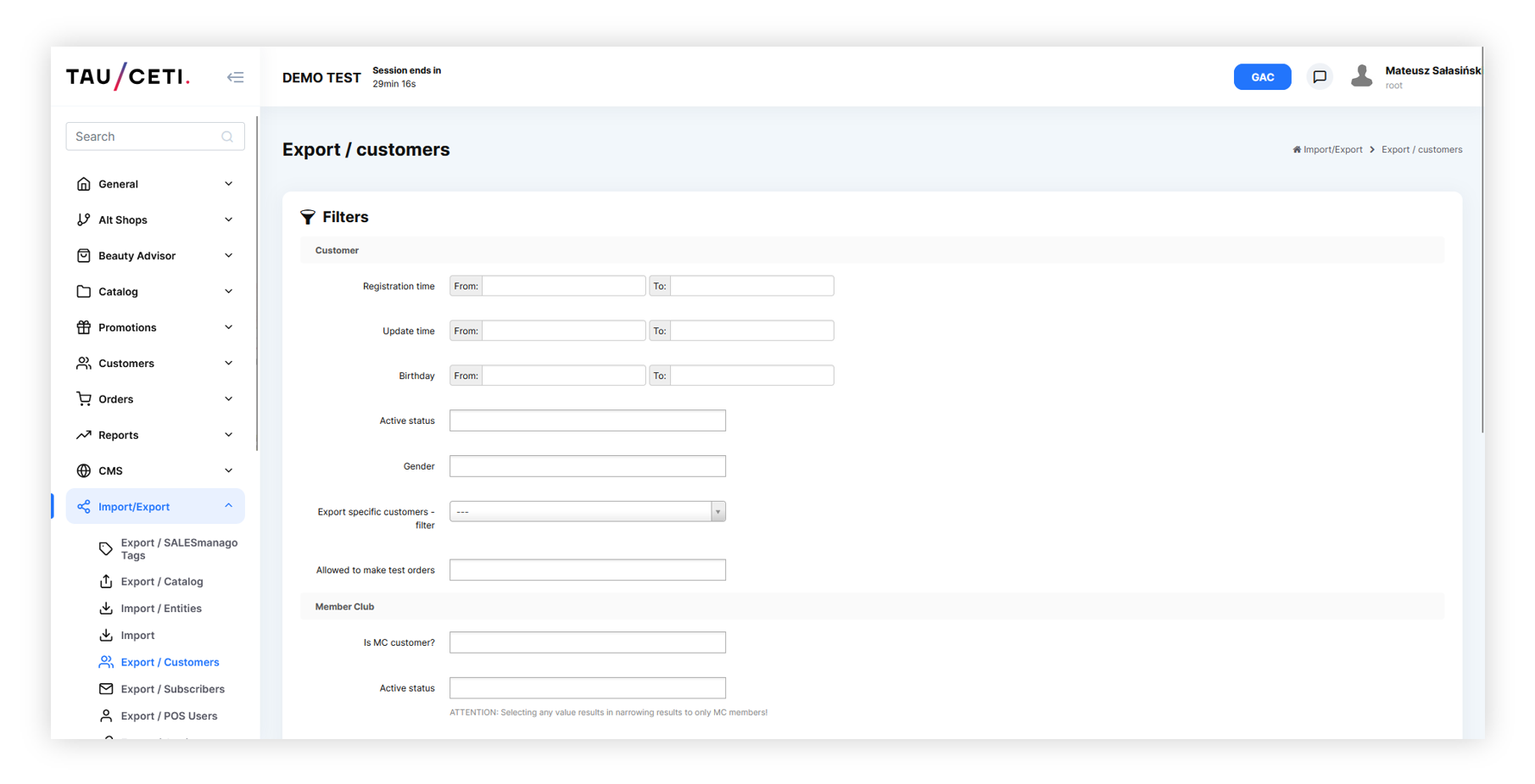
<table id="bkmrk-visualization-of-the" style="margin-right: auto; margin-left: auto; height: 44px; width: auto;"><tbody><tr style="height: 22px;"><td class="wysiwyg-text-align-center" style="text-align: center; vertical-align: middle; height: 22px; width: auto;">[![POWERPNT_xyjEabGTRm.png](https://ecomm-docs.tauceti-digital.com/uploads/images/gallery/2025-02/scaled-1680-/powerpnt-xyjeabgtrm.png)](https://ecomm-docs.tauceti-digital.com/uploads/images/gallery/2025-02/powerpnt-xyjeabgtrm.png)</td></tr><tr style="height: 22px;"><td class="wysiwyg-text-align-center" style="text-align: center; vertical-align: middle; height: 22px; width: auto;"><span class="wysiwyg-font-size-medium">*Visualization of the export customers tab location* </span></td></tr></tbody></table>

Table of contents:

1. [ Exporting the e-commerce customers](#bkmrk-exporting-the-e-comm-1)
2. [ Exported file overview ](#bkmrk-exported-file-overvi)

---

# ![Screenshot_2020-04-29_at_19.12.41.png](https://knowledge.tauceti-digital.com/uploads/images/gallery/2024-11/10027086064156.png) Exporting the e-commerce customers

E-commerce customer export can be found in

***Import / Export &gt; Export / customers***

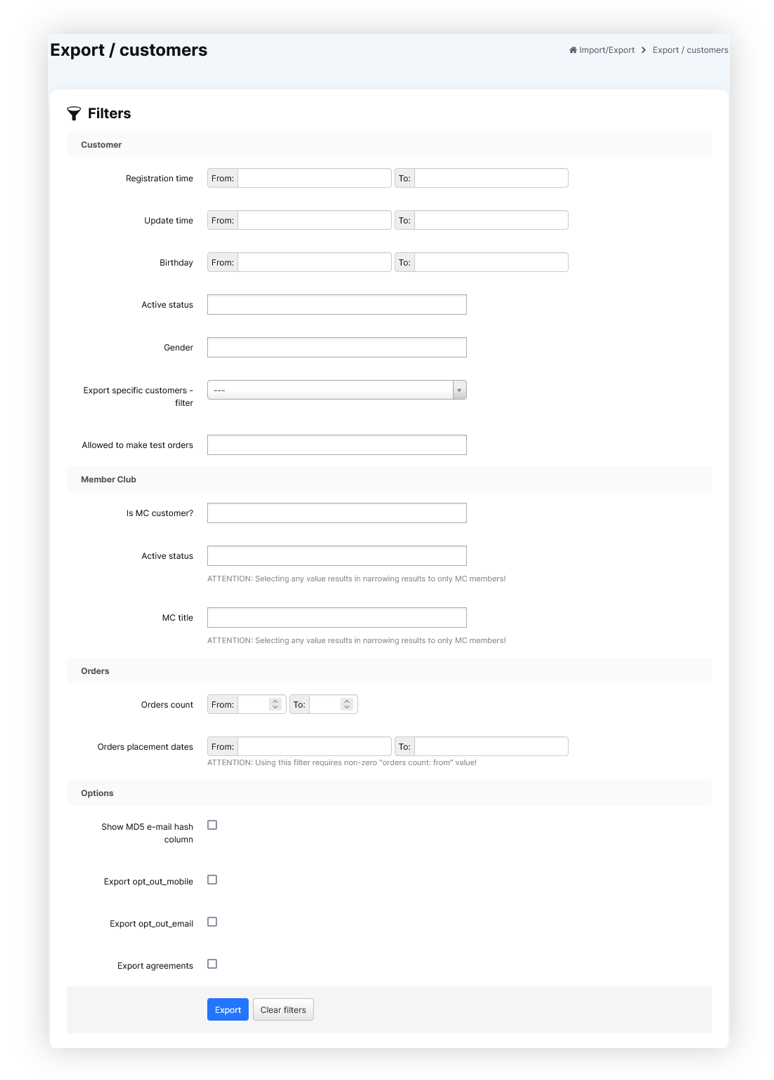
Below you can find all filter options to customize your export to your needs.

<table id="bkmrk-visualization-of-the-1" style="margin-right: auto; margin-left: auto; height: 44px; width: auto;"><tbody><tr style="height: 22px;"><td class="wysiwyg-text-align-center" style="text-align: center; vertical-align: middle; height: 22px; width: auto;">[![POWERPNT_ypOgCIY8Rl.png](https://ecomm-docs.tauceti-digital.com/uploads/images/gallery/2025-02/scaled-1680-/powerpnt-ypogciy8rl.png)](https://ecomm-docs.tauceti-digital.com/uploads/images/gallery/2025-02/powerpnt-ypogciy8rl.png)</td></tr><tr style="height: 22px;"><td class="wysiwyg-text-align-center" style="text-align: center; vertical-align: middle; height: 22px; width: auto;"><span class="wysiwyg-font-size-medium">*Visualization of the all available export filters* </span></td></tr></tbody></table>

- **Registration time** - A range of dates when customers registered on an e-commerce platform.
- **Update time** - A range of dates whenever customer information has been updated.
- **Birthday** - A range of dates of customer birthdays.
- **Active status** - Customers current status. Available statuses are: **Inactive**, **Active**, **Waiting for activation**, **One-time**
- **Gender** - Customers gender. Available options are **Man**, **Woman**, **Not specified**.
- **Export specific customers - filter** - A filter which allows to specify customers by their:  
    
    - **E-mail**
    - **ID**
    - **JOY ID**
- <label class="control-label" for="filters_specific_customers"><label class="control-label" for="filters_specific_customers">**Specific customers data** - </label></label>A field where you should put specific customer data with a "**;**" separator, data will be filtered according to the selected filter. This field is only visible whenever the **Export specific customers - filter** is selected. Example (with email filter selected): example@example.com;example2@example.com;example3@example.com
- **Allowed to make test orders** - A **Yes** / **No** selection if customers are able to make test orders. This is defined by the "**Allowed to make test orders**" tickbox in the customers profile.
- i**s MC customer?** - A **Yes** / **No** selection if a customer has a member club rank. All countries that use Member club functionality for various customer ranks (i.e. on Poland Default / Silver / Gold) are MC customers.
- **Active status** - Customers member club current status. This field only filters the member  
    club customers
- **MC title** - Member club title assigned to the customers (in the case of Poland it can be T0 / TS / TG). This field only filters the member club customers.
- **Orders count** - A range of numbers of created orders on the website.
- **Orders placement dates** - A range of dates when customers have placed new orders using the e-commerce platform. Using this filter requires a non-zero "**orders count: from**" value.
- **Show MD5 e-mail hash column** - Shows customers MD5 e-mail hash column in the report.
- **Export opt-out\_mobile** - Shows customers current mobile communication  
    subscription status.
- **Export opt\_out\_email** - Shows customers current e-mail communication subscription status.
- **Export agreements** -Exports all available agreements as columns and defines which customers have agreed to the selected agreements.
- **Export FIDEN2 cards** -Exports customers FIDEN2 card information. The exported fields are:  
    
    - **cards\_active** - A list of customers active FIDEN2 cards
    - **cards\_waiting** - The number of points waiting to be assigned to the selected customer FIDEN2 cards.
    - **cards\_balance** - Current FIDEN2 balance
    - **cards\_balance\_time** - A date of last balance change for the selected customer.
- **Only customers which manually assigned retail card** - A tickbox which defines if only customers with manually assigned retail cards should be exported.

With selected filters you can export customers using the **Export** button or clear all filters by using the **Clear filters** button.

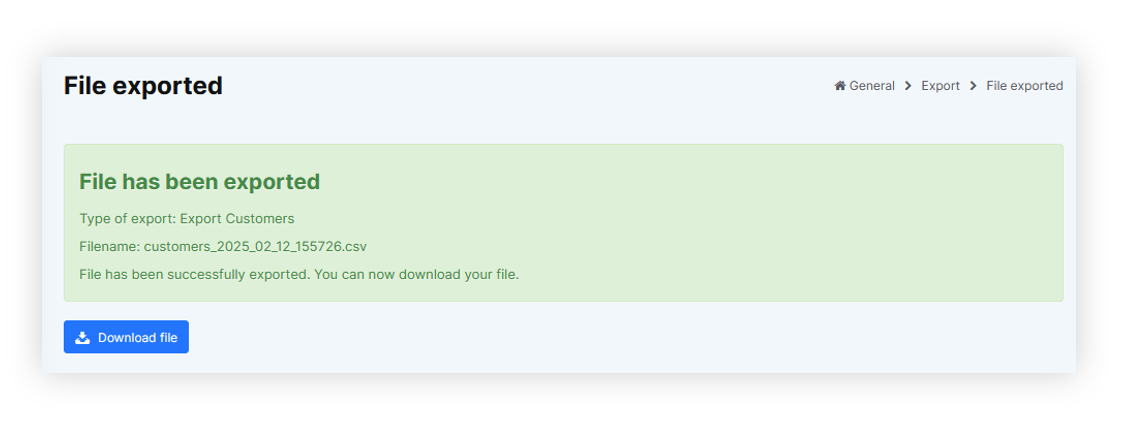
<table id="bkmrk-visualization-of-the-2" style="margin-right: auto; margin-left: auto; height: 44px; width: auto;"><tbody><tr style="height: 22px;"><td class="wysiwyg-text-align-center" style="text-align: center; vertical-align: middle; height: 22px; width: auto;">[![POWERPNT_WK2pZwiiqi.png](https://ecomm-docs.tauceti-digital.com/uploads/images/gallery/2025-02/scaled-1680-/powerpnt-wk2pzwiiqi.png)](https://ecomm-docs.tauceti-digital.com/uploads/images/gallery/2025-02/powerpnt-wk2pzwiiqi.png)</td></tr><tr style="height: 22px;"><td class="wysiwyg-text-align-center" style="text-align: center; vertical-align: middle; height: 22px; width: auto;"><span class="wysiwyg-font-size-medium">*Visualization of the prepared export file* </span></td></tr></tbody></table>

With exported file you are able to download it to your device using the **Download file** button.

---

# ![Screenshot_2020-04-29_at_19.12.41.png](https://knowledge.tauceti-digital.com/uploads/images/gallery/2024-11/10027086064156.png) Exported file overview

The exported file will be in a **.csv** format with an export date and hour in it's file name (i.e. **customers\_2023\_08\_16\_131359**)

<table id="bkmrk-visualization-of-the-3" style="margin-right: auto; margin-left: auto; height: 44px; width: auto;"><tbody><tr style="height: 22px;"><td class="wysiwyg-text-align-center" style="text-align: center; vertical-align: middle; height: 22px; width: auto;">![POWERPNT_53Kap3zLv3.png](https://knowledge.tauceti-digital.com/uploads/images/gallery/2024-11/10043712384668.png)</td></tr><tr style="height: 22px;"><td class="wysiwyg-text-align-center" style="text-align: center; vertical-align: middle; height: 22px; width: auto;"><span class="wysiwyg-font-size-medium">*Visualization of the exported csv file* </span></td></tr></tbody></table>

By default in the exported customers file you can find the following columns:

- **id** - Customers internal ID. Example: **123456**
- **first\_name** - Customers name. Example: **Jan**
- **last\_name** - Customers surname. Example: **Kowalski**
- **street** - Main street name. Example: **Uliczna**
- **building** - Main building number. Example: **123**
- **flat** - Main flat number. Example: **2**
- **city** - Main city name. Example: **Warsaw**
- **postal\_code** - Main postal code. Example: **12-345**
- **email** - Customers e-mail address. Example: **test@example.com**
- **mobile** - Customers mobile number with a country code. Example: **48123123123**
- **birthday** - Customers birthday date. Example: **01-01-1990**
- **gender** - Customers gender (if selected). Example: **Man**

With additional fields dependent on selected options:

- **md5\_email** - Customers MD5 email value. Example: **26h2cb31af663cdccaa2779c9d165a0b**
- **opt out mobile** - Customers mobile communication current status. If the customer is opted in this value will be **empty**. If the customer is opted out the value will be set to **Opted out**.
- **opt out email** - Customers e-mail communication current status. If the customer is opted in this value will be **empty**. If the customer is opted out the value will be set to **Opted out**.
- **Customers agreement status to the selected agreements** - These fields will have different column names depending on the country and selected agreements (i.e. **terms\_of\_service\_vpi**, **data\_processing\_mc**). Whenever the customer has agreed to the selected agreement there will be a "**Selected**" value in the column. If the customer has not agreed to the agreement the field will be empty.
- **cards\_active** - A list of customers active FIDEN2 cards. Example: **123456789, 987654321**.
- **cards\_waiting** - The number of points waiting to be assigned to the selected customer cards. Example: **123**
- **cards\_balance** - Current FIDEN2 balance Example: **5333**
- **cards\_balance\_time** - A date of last balance change for the selected customer.  
    Example: **05-08-2023**