# Export / orders list

# ![Screenshot_2020-04-29_at_19.12.41.png](https://knowledge.tauceti-digital.com/uploads/images/gallery/2024-11/ORWscreenshot-2020-04-29-at-19-12-41-png.png) Getting started

In this article, you can learn about **export / orders list** functionality, which will allow you to export created e-commerce orders with their basic information. In order to access this module you have to have **BOK supervisors**, **MC business admin,** **Administrator**, **Super administrator**, or **Root** group.

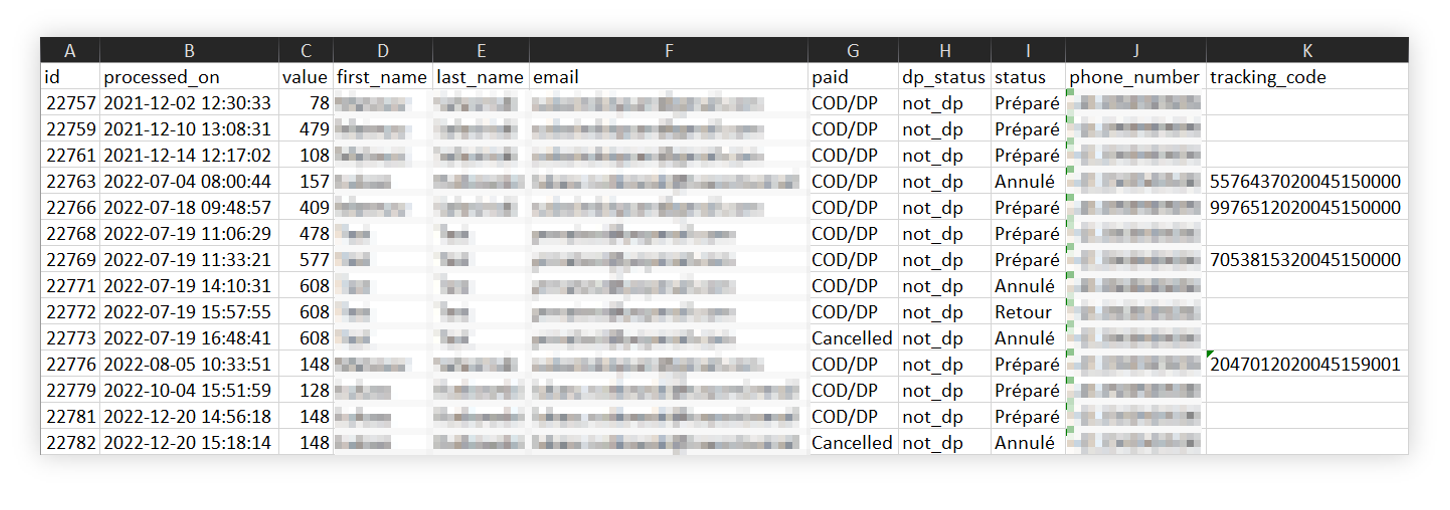
<table id="bkmrk-%C2%A0-visualization-of-t" style="margin-right: auto; margin-left: auto; height: auto; width: 731px;"><tbody><tr style="height: auto;"><td class="wysiwyg-text-align-center" style="text-align: center; vertical-align: middle; height: auto; width: 719.233px;">![POWERPNT_h6wEpFGvDv.png](https://knowledge.tauceti-digital.com/uploads/images/gallery/2024-11/7287921788956.png)</td></tr><tr style="height: 22px;"><td class="wysiwyg-text-align-center" style="text-align: center; vertical-align: middle; height: 22px; width: 719.233px;"><span class="wysiwyg-font-size-medium"> </span><span class="wysiwyg-font-size-medium">*Visualization of the exported orders list* </span></td></tr></tbody></table>

To open the Featured products / list view, in the admin panel, navigate to:  
***Import / export &gt; Export / orders list***

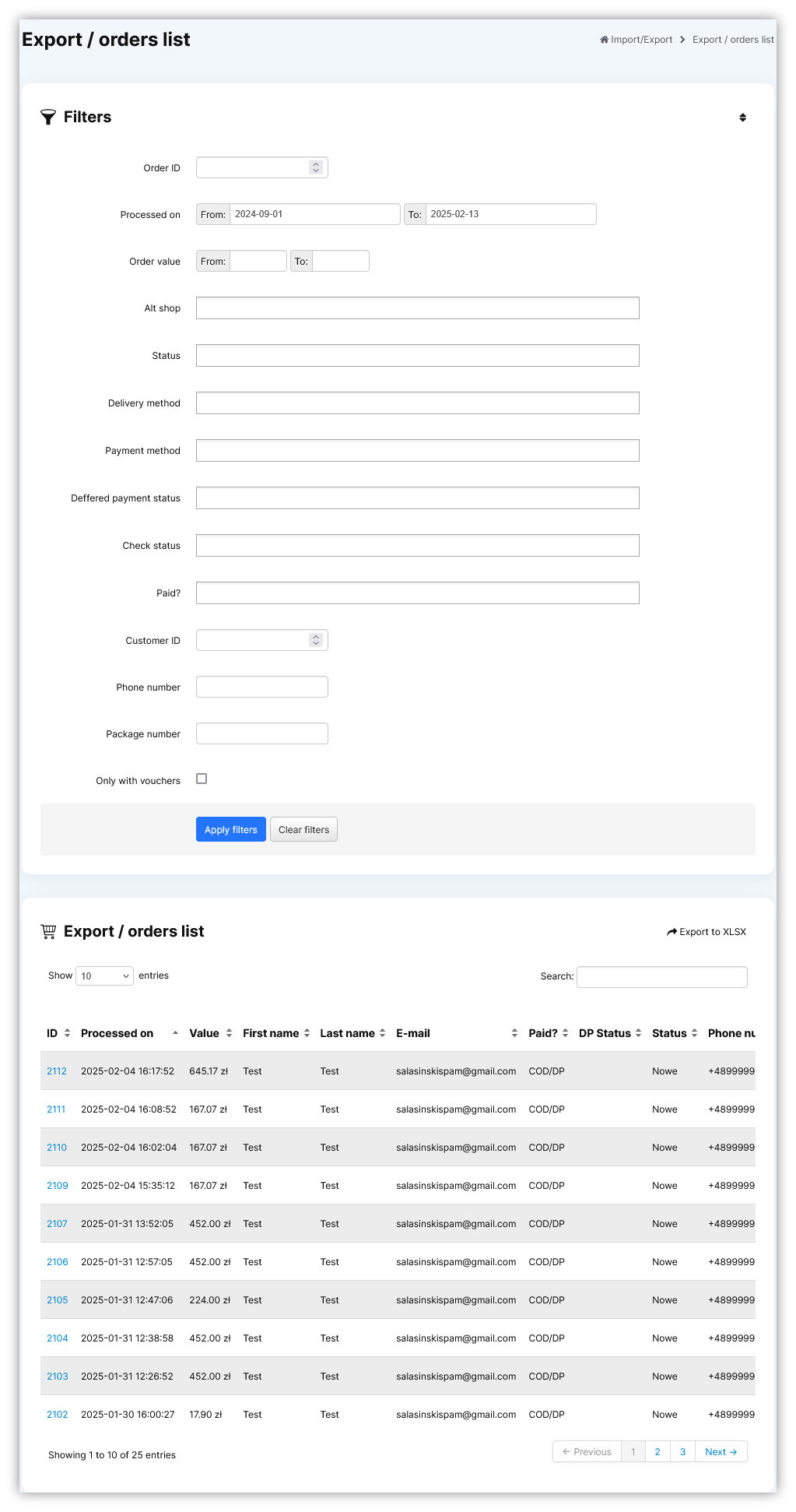
All possible operations to perform on the **Export / orders list** view can be done in the **Filters<span style="color: #4054a0;"> </span>**and **Export / orders list**<span style="color: #4054a0;"> </span>tabs.

<table id="bkmrk-%C2%A0-visualization-of-t-1" style="margin-right: auto; margin-left: auto; height: auto; width: 774px;"><tbody><tr style="height: auto;"><td class="wysiwyg-text-align-center" style="text-align: center; vertical-align: middle; height: auto; width: 762.233px;">[![Screenshot 2025-02-13 at 14-44-29 Export _ orders list - Admin module.png](https://ecomm-docs.tauceti-digital.com/uploads/images/gallery/2025-02/scaled-1680-/screenshot-2025-02-13-at-14-44-29-export-orders-list-admin-module.png)](https://ecomm-docs.tauceti-digital.com/uploads/images/gallery/2025-02/screenshot-2025-02-13-at-14-44-29-export-orders-list-admin-module.png)</td></tr><tr style="height: 22px;"><td class="wysiwyg-text-align-center" style="text-align: center; vertical-align: middle; height: 22px; width: 762.233px;"><span class="wysiwyg-font-size-medium"> </span><span class="wysiwyg-font-size-medium">*Visualization of the export / orders list module in the administrator panel*</span></td></tr></tbody></table>

Table of contents:

1. [ Filters section](#bkmrk-filters-section)
2. [ Export / orders list section](#bkmrk-export-%2F-orders-list)
3. [ Exporting orders to the xlsx](#bkmrk-exporting-orders-to-)

---

# ![Screenshot_2020-04-29_at_19.12.41.png](https://knowledge.tauceti-digital.com/uploads/images/gallery/2024-11/ORWscreenshot-2020-04-29-at-19-12-41-png.png) Filters section

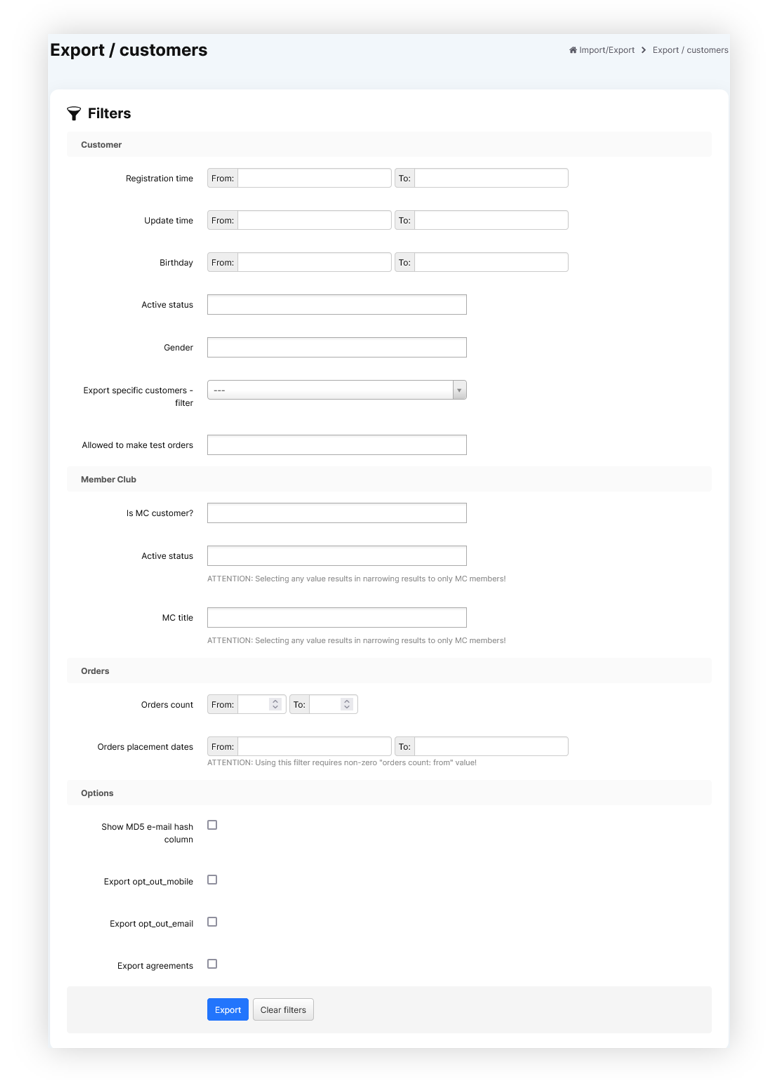
The **Filters** section allows the sorting of the orders in the **export / orders list** module, based on the available filters. Orders are not visible by default and it is required to apply any filter first in order to see them. Below you will find a description of each filter.

<table id="bkmrk-visualization-of-the" style="margin-right: auto; margin-left: auto;"><tbody><tr style="height: 20.2812px;"><td class="wysiwyg-text-align-center" style="text-align: center; vertical-align: middle; height: 20.2812px;">[![POWERPNT_ypOgCIY8Rl.png](https://ecomm-docs.tauceti-digital.com/uploads/images/gallery/2025-02/scaled-1680-/Yw2powerpnt-ypogciy8rl.png)](https://ecomm-docs.tauceti-digital.com/uploads/images/gallery/2025-02/Yw2powerpnt-ypogciy8rl.png)</td></tr><tr style="height: 22px;"><td class="wysiwyg-text-align-center" style="text-align: center; vertical-align: middle; height: 22px;"><span class="wysiwyg-font-size-medium">*Visualization of the filters tab* </span></td></tr></tbody></table>

- **Order ID** - Orders internal ID.
- **Processed on** - A range of dates when the order was processed.
- **Order value** - A range of total order values.
- **Alt shop** - Altshop name where the order was placed on.
- **Status** - Current status of the order.
- **Delivery method** - Selected orders delivery method.
- **Payment method** - Selected orders payment method.
- **Deffered payment status** - Current status of the deffered payment.
- **Check status** - Current internal check status of the order.
- **Paid?** - Order payment status.
- **Customer ID** - ID of the customer.
- **Phone number** - Customer's phone number.
- **Package number** - Number of the delivery package.
- **Only with vouchers** - A tickbox that allows seeing only orders with vouchers.
- **Status (Balikobot)** - Order status acquired from Balikobot.

After defining the above filters, select the **Apply Filters** button to get a list of sites according to the applied filters.

---

# ![Screenshot_2020-04-29_at_19.12.41.png](https://knowledge.tauceti-digital.com/uploads/images/gallery/2024-11/ORWscreenshot-2020-04-29-at-19-12-41-png.png) <span class="title">Export / orders list</span> section

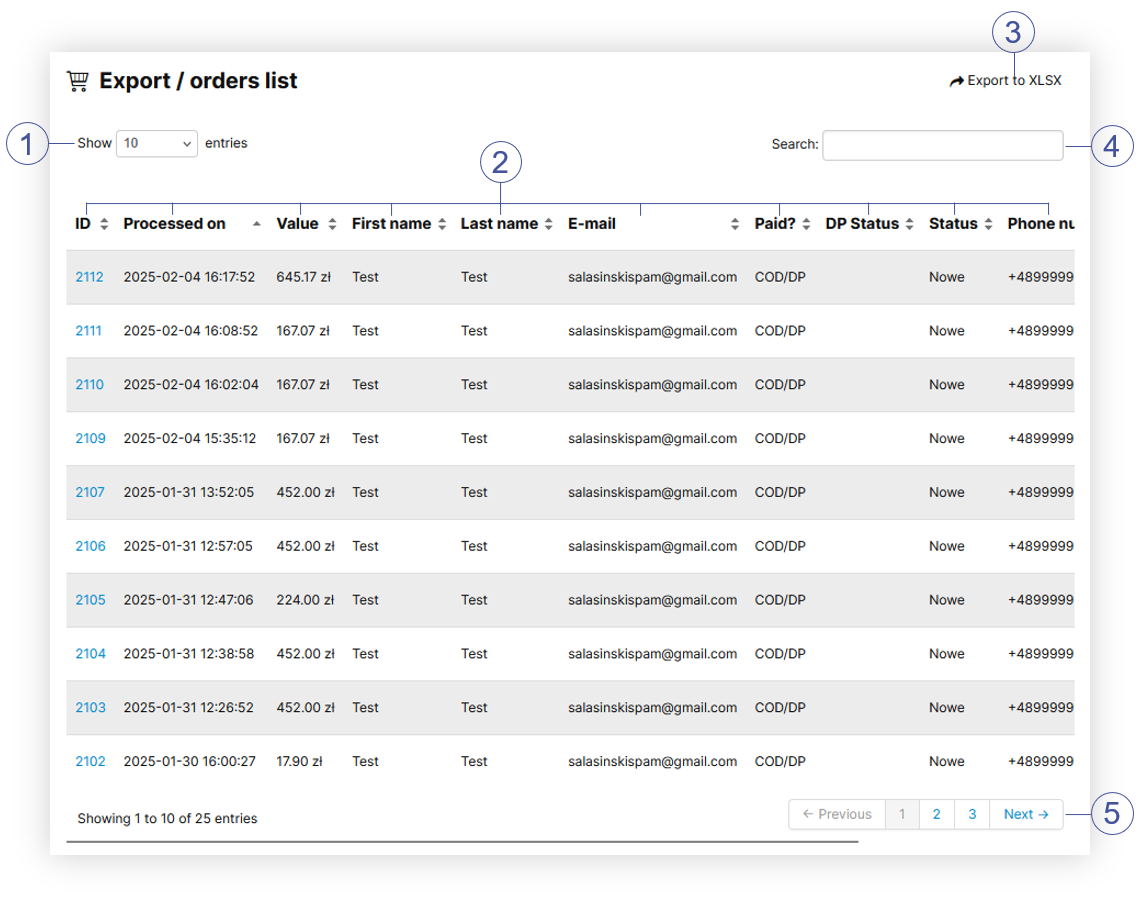
The **Export / orders list** section allows to further narrow down the list of orders. Below you will find a description of possible actions.

<table id="bkmrk-%C2%A0%C2%A0%C2%A0-%C2%A0-visualization-" style="margin-right: auto; margin-left: auto; width: 717px;"><tbody><tr><td class="wysiwyg-text-align-center" style="text-align: center; vertical-align: middle; width: 705.233px;">[![POWERPNT_6OEtvkRjD2.png](https://ecomm-docs.tauceti-digital.com/uploads/images/gallery/2025-02/scaled-1680-/powerpnt-6oetvkrjd2.png)](https://ecomm-docs.tauceti-digital.com/uploads/images/gallery/2025-02/powerpnt-6oetvkrjd2.png)</td></tr><tr><td class="wysiwyg-text-align-center" style="text-align: center; vertical-align: middle; width: 705.233px;"><span class="wysiwyg-font-size-medium">  </span><span class="wysiwyg-font-size-medium"> </span><span class="wysiwyg-font-size-medium"> *Visualization of the export / orders list section* </span></td></tr></tbody></table>

- Select the **Show X entries** **<span style="color: #4054a0;">(1)</span>** field to set the number of orders, displayed on one page (min 10 / max 100).
- The names of the columns **<span style="color: #4054a0;">(2)</span>** that contain information about a given order. Each column is susceptible to sorting. To sort the records, click on the title of the column in question.  
    
    - **Order ID** - Orders internal ID. By clicking on the order ID you will be redirected to the detailed order information located in the **Orders &gt; Orders / list.**
    - **Processed on** - A range of dates when the order was processed.
    - **Value** - A range of total order values.
    - **First name** - Customer's first name.
    - **Last name** - Customer's last name.
    - **E-mail** - Customer's e-mail address.
    - **Paid?** - Order payment status.
    - **DP status** - Current status of the deffered payment.
    - **Status** - Current status of the order.
    - **Phone number** - Customer's phone number.
    - **Package number** - Number of the delivery package (Carrier Barcode).
- Select the **Export to xlsx <span style="color: #4054a0;">(3)</span>** button to export all filtered orders to the xlsx file. You can learn more about exported xlsx file in the [ Exporting orders to the xlsx](#bkmrk-exporting-orders-to-) section
- **Search box** **<span style="color: #4054a0;">(4)</span>** where you can search for desired orders by their ID, first name, last name, e-mail address, status, phone number, and package number.
- **Page buttons** **<span style="color: #4054a0;">(5)</span>**, which allow users to change the page of currently viewed orders.

---

# ![Screenshot_2020-04-29_at_19.12.41.png](https://knowledge.tauceti-digital.com/uploads/images/gallery/2024-11/ORWscreenshot-2020-04-29-at-19-12-41-png.png)<span class="title"> Exporting orders to the xlsx  
</span>

<span class="title">By pressing the Export to xlsx button shown in the [ Export / orders list section](#bkmrk-export-%2F-orders-list) chapter you are able to export all the filtered orders to the xlsx file and download it.</span>

<table id="bkmrk-%C2%A0%C2%A0%C2%A0-%C2%A0-visualization--1" style="margin-right: auto; margin-left: auto; width: 725px;"><tbody><tr><td class="wysiwyg-text-align-center" style="text-align: center; vertical-align: middle; width: 713.233px;">![POWERPNT_h6wEpFGvDv.png](https://knowledge.tauceti-digital.com/uploads/images/gallery/2024-11/7287921788956.png)</td></tr><tr><td class="wysiwyg-text-align-center" style="text-align: center; vertical-align: middle; width: 713.233px;"><span class="wysiwyg-font-size-medium">  </span><span class="wysiwyg-font-size-medium"> </span><span class="wysiwyg-font-size-medium"> *Visualization of the exported orders=s* </span></td></tr></tbody></table>

Xlsx file contains the exactly same information as **export / orders list** tab:

- **ID** - Orders internal ID.
- **Processed on** - A range of dates when the order was processed.
- **Value** - A range of total order values.
- **First name** - Customer's first name.
- **Last name** - Customer's last name.
- **E-mail** - Customer's e-mail address.
- **Paid?** - Order payment status.
- **DP status** - Current status of the deffered payment.
- **Status** - Current status of the order.
- **Phone number** - Customer's phone number.
- **Package number** - Number of the delivery package (Carrier Barcode).