# Featured products list

# ![Screenshot_2020-04-29_at_19.12.41.png](https://knowledge.tauceti-digital.com/uploads/images/gallery/2024-11/LLOscreenshot-2020-04-29-at-19-12-41-png.png) Getting started

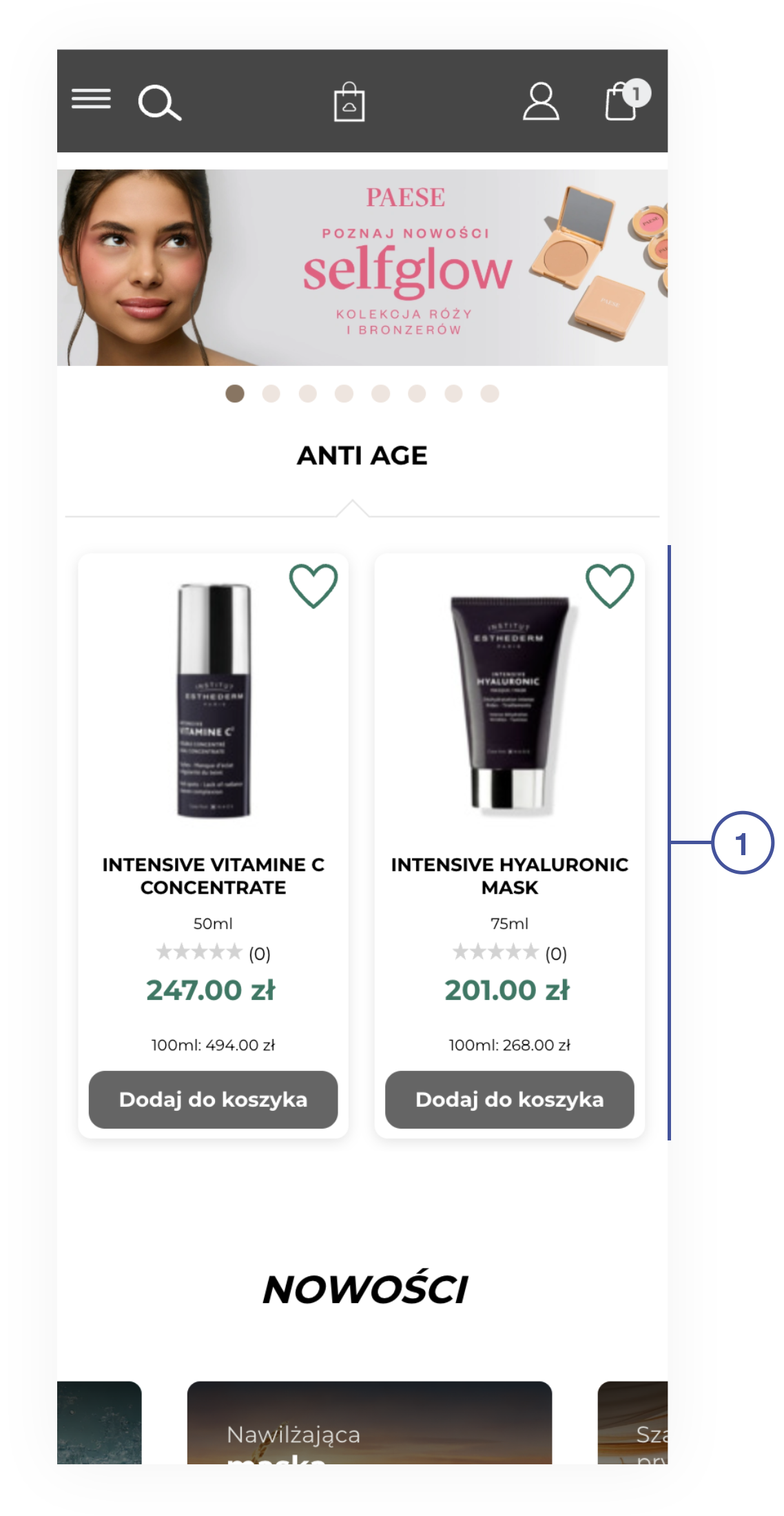
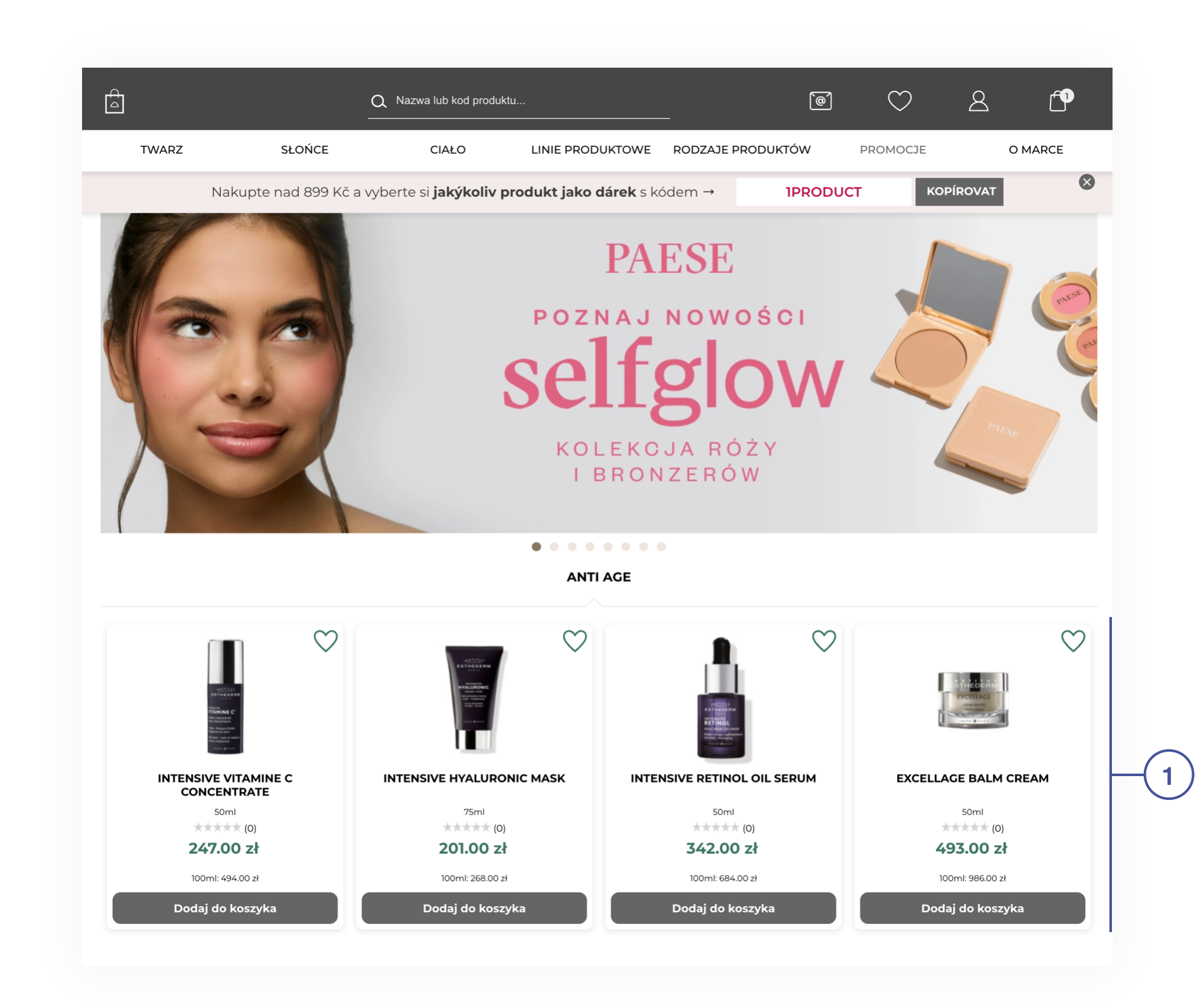
In this article, you will learn about the featured products list. Featured products list functionality allows displaying new, selected, or Exponea products in the respective tabs on the home page of the website below the slider <span class="title">**<span style="color: #4054a0;">(1)</span>**</span>. This block is responsive, so products will be correctly visible both on desktop and mobile devices without additional input.

Featured products need to be activated in the desired altshop in order to be visible on the website. You can find more about activating featured products in the [Featured products / list - browsing and managing featured products in altshop module](https://tauceti.zendesk.com/hc/en-us/articles/5571680626716) article.

<table id="bkmrk-visualization-of-the" style="margin-right: auto; margin-left: auto; height: auto;"><tbody><tr style="height: auto;"><td class="wysiwyg-text-align-center" style="text-align: center; vertical-align: middle; height: auto; width: 688px;">![Screenshot 2025-02-06 at 11.27.01.png](https://ecomm-docs.tauceti-digital.com/uploads/images/gallery/2025-02/JNTscreenshot-2025-02-06-at-11-27-01.png)</td></tr><tr style="height: 22px;"><td class="wysiwyg-text-align-center" style="text-align: center; vertical-align: middle; height: 22px; width: 688px;"><span class="wysiwyg-font-size-medium">*Visualization of the featured products on the home page (desktop view)* </span></td></tr></tbody></table>

<table id="bkmrk-visualization-of-the-1" style="margin-right: auto; margin-left: auto;"><tbody><tr><td class="wysiwyg-text-align-center" style="text-align: center; vertical-align: middle;">![Screenshot 2025-02-06 at 11.44.27.png](https://ecomm-docs.tauceti-digital.com/uploads/images/gallery/2025-02/screenshot-2025-02-06-at-11-44-27.png)</td></tr><tr><td class="wysiwyg-text-align-center" style="text-align: center; vertical-align: middle;"><span class="wysiwyg-font-size-medium">*Visualization of the featured products on the home page (mobile view)* </span></td></tr></tbody></table>

To open the Featured products / list view, in the admin panel, navigate to:  
***Alt shops &gt; Featured products / list***

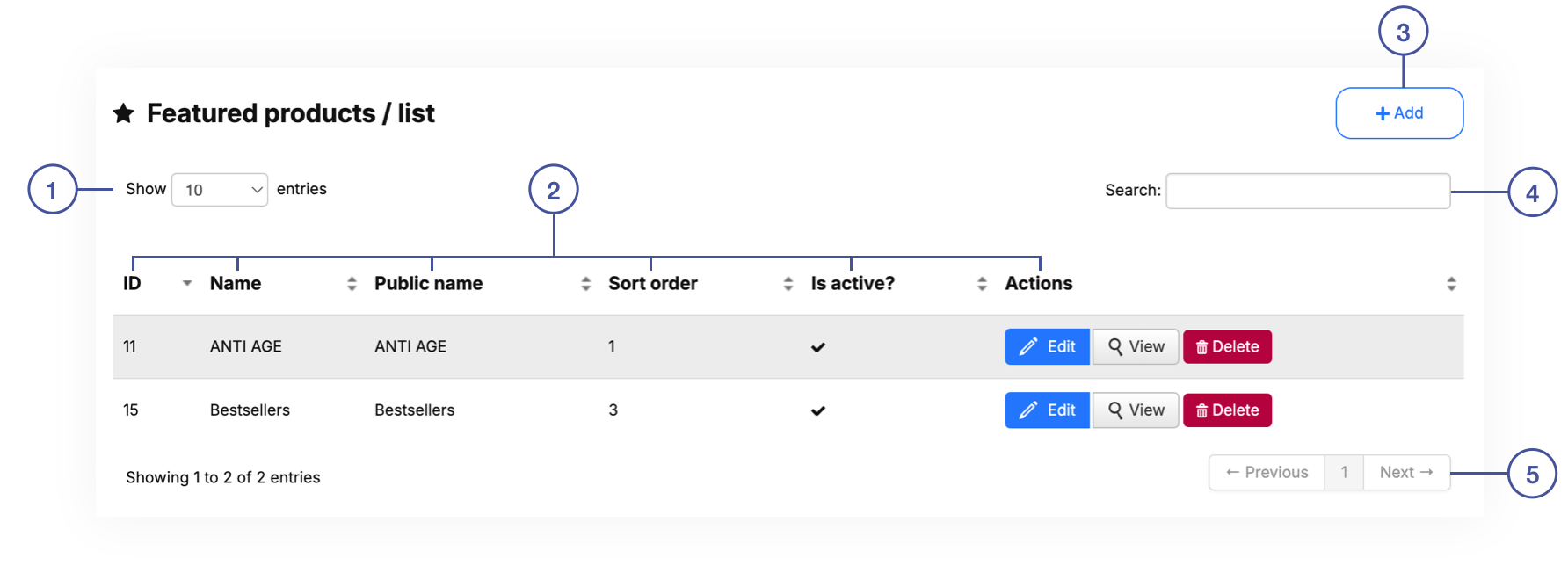
All possible operations to perform on the **Featured products / list** view can be done in the **Filters <span style="color: #4054a0;">(2)</span>**, and **<span class="title">Featured products / list</span> <span style="color: #4054a0;">(3) </span>**tabs.

<table id="bkmrk-visualization-of-the-2" style="margin-right: auto; margin-left: auto;"><tbody><tr><td class="wysiwyg-text-align-center" style="text-align: center; vertical-align: middle;">![Screenshot 2025-01-31 at 16.53.34.png](https://ecomm-docs.tauceti-digital.com/uploads/images/gallery/2025-01/screenshot-2025-01-31-at-16-53-34.png)</td></tr><tr><td class="wysiwyg-text-align-center" style="text-align: center; vertical-align: middle;"><span class="wysiwyg-font-size-medium">*Visualization of the featured products / list* </span></td></tr></tbody></table>

Table of contents:

1. [ Filters section](#bkmrk-filters-section)
2. [ Featured products / list](#bkmrk-featured-products-%2F-)
3. [ Adding new featured products](#bkmrk-adding-new-featured-)
4. [ Configuring featured products list](#bkmrk-configuring-featured)
    1. [Custom](#bkmrk-custom)
    2. [Bestsellers](#bkmrk-bestsellers)
    3. [News](#bkmrk-news)
    4. [Exponea recommendations](#bkmrk-exponea-recommendati)

---

# ![Screenshot_2020-04-29_at_19.12.41.png](https://knowledge.tauceti-digital.com/uploads/images/gallery/2024-11/LLOscreenshot-2020-04-29-at-19-12-41-png.png) Filters section

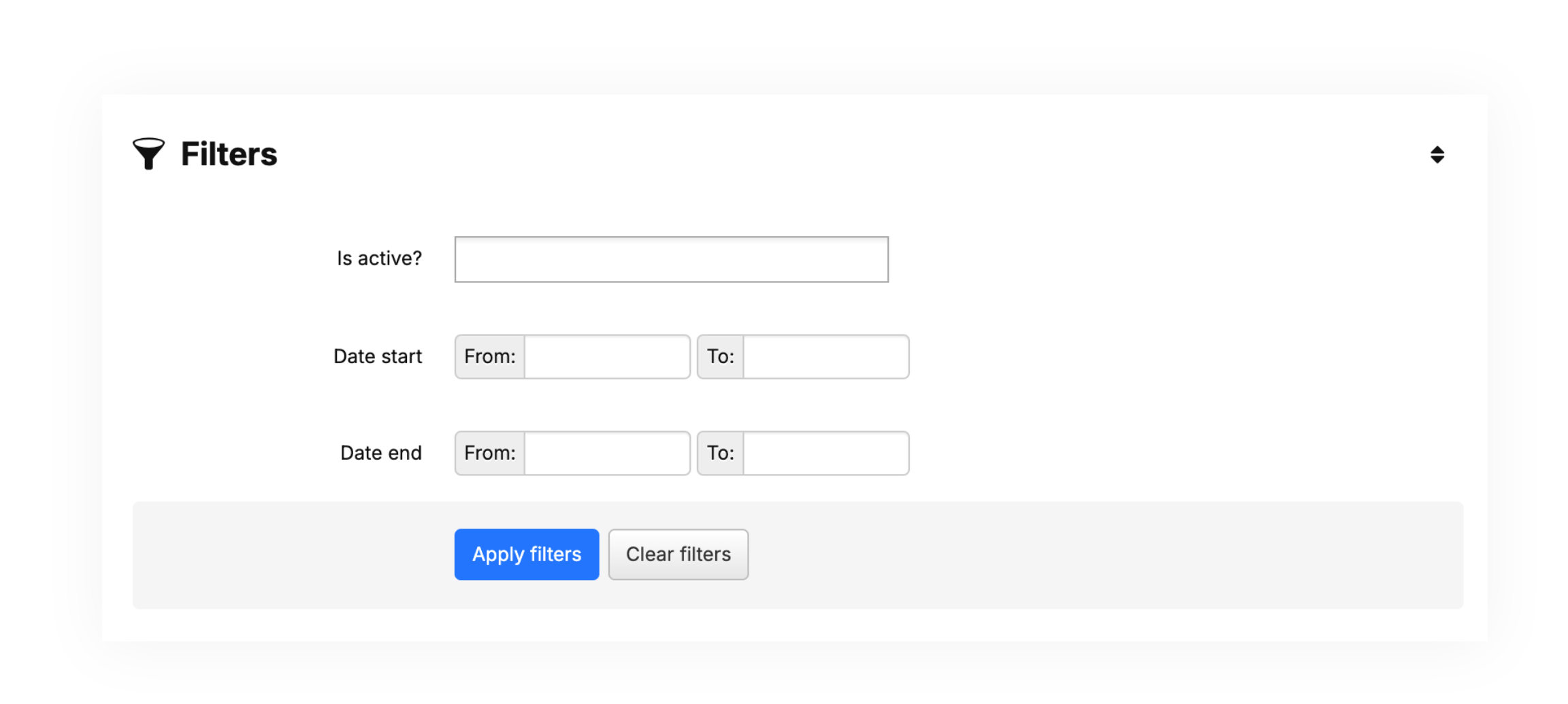
The **Filters** section allows sorting of the featured products in the CMS module, based on the available filters. Below you will find a description of available filters

<table id="bkmrk-visualization-of-the-3" style="margin-right: auto; margin-left: auto;"><tbody><tr style="height: 20.2812px;"><td class="wysiwyg-text-align-center" style="text-align: center; vertical-align: middle; height: 20.2812px;">![Screenshot 2025-02-06 at 11.59.46.png](https://ecomm-docs.tauceti-digital.com/uploads/images/gallery/2025-02/nM1screenshot-2025-02-06-at-11-59-46.png)</td></tr><tr style="height: 22px;"><td class="wysiwyg-text-align-center" style="text-align: center; vertical-align: middle; height: 22px;"><span class="wysiwyg-font-size-medium">*Visualization of the filters tab in the Featured products / list module* </span></td></tr></tbody></table>

- **Is active?** - Featured products list activity status.

After defining the above filters, select the **Apply Filters** button to get a list of sites according to the applied filters.

---

# ![Screenshot_2020-04-29_at_19.12.41.png](https://knowledge.tauceti-digital.com/uploads/images/gallery/2024-11/LLOscreenshot-2020-04-29-at-19-12-41-png.png) <span class="title">Featured products / list</span>

The **Featured products / list** section allows organizing the filtered featured products, edit them and create new ones, delete them, and search for the desired featured products list.

Below you will find a description of all possible actions you can perform in the featured products / list section.

<table id="bkmrk-%C2%A0%C2%A0%C2%A0-%C2%A0-visualization-" style="margin-right: auto; margin-left: auto;"><tbody><tr><td class="wysiwyg-text-align-center" style="text-align: center; vertical-align: middle;">![Screenshot 2025-02-06 at 12.53.48.png](https://ecomm-docs.tauceti-digital.com/uploads/images/gallery/2025-02/screenshot-2025-02-06-at-12-53-48.png)</td></tr><tr><td class="wysiwyg-text-align-center" style="text-align: center; vertical-align: middle;"><span class="wysiwyg-font-size-medium">  </span><span class="wysiwyg-font-size-medium"> </span><span class="wysiwyg-font-size-medium"> *Visualization of the select list section in the Featured products / list module* </span></td></tr></tbody></table>

- Select the **Show X entries<span style="color: #4054a0;">(1)</span>** field to set the number of featured products, displayed on one page (min 10 / max 100).
- The names of the columns **<span style="color: #4054a0;">(2)</span>** that contain information about a target featured products list. Each column is susceptible to sorting.  
    To sort the records, click on the title of the column in question.  
    
    - **ID** - An internal ID of the featured product list.
    - **Name** - The system name of the featured product list.
    - **Public name** - Name of the featured product lists that is visible to the customers.
    - **Sort order** - Featured products sort order. The active list will be displayed in order according to this value.
    - **Is active?** - Activity status of the featured products list.
    - **Actions** - List of buttons with possible actions that can be done to the desired featured product list:  
        
        - **Edit** - Edit desired featured products list. You can find more about editing in the [ Configuring featured products list](#bkmrk-configuring-featured) chapter.
        - **View** - Allows to view the content of the featured products list without the ability to edit any fields in it.
        - **Delete** - Deletes the featured products list without the ability to restore it.
- Select the **Add <span style="color: #4054a0;">(3)</span>** button to go to the adding the new featured products list. You can learn more about adding of the featured products in the[ Adding new featured products list](#bkmrk-adding-new-featured-) chapter.
- **Search box <span style="color: #4054a0;">(4)</span>** where you can search for featured products list by their system name.
- **Page buttons<span style="color: #4054a0;">(5)</span>**, which allows user to change the page of currently viewed featured products lists.

---

# ![Screenshot_2020-04-29_at_19.12.41.png](https://knowledge.tauceti-digital.com/uploads/images/gallery/2024-11/LLOscreenshot-2020-04-29-at-19-12-41-png.png)<span class="title"> Adding new featured products list  
</span>

<span class="title">Add button allows users to create a new featured products list. While creating a new featured products list, you can only set key features about the list, without the ability to add or remove products. In order to add or remove products to the list, you have to edit the desired featured products list. More about editing of the featured products list can be found in the [ Configuring featured products list](#bkmrk-configuring-featured) chapter.  
</span>

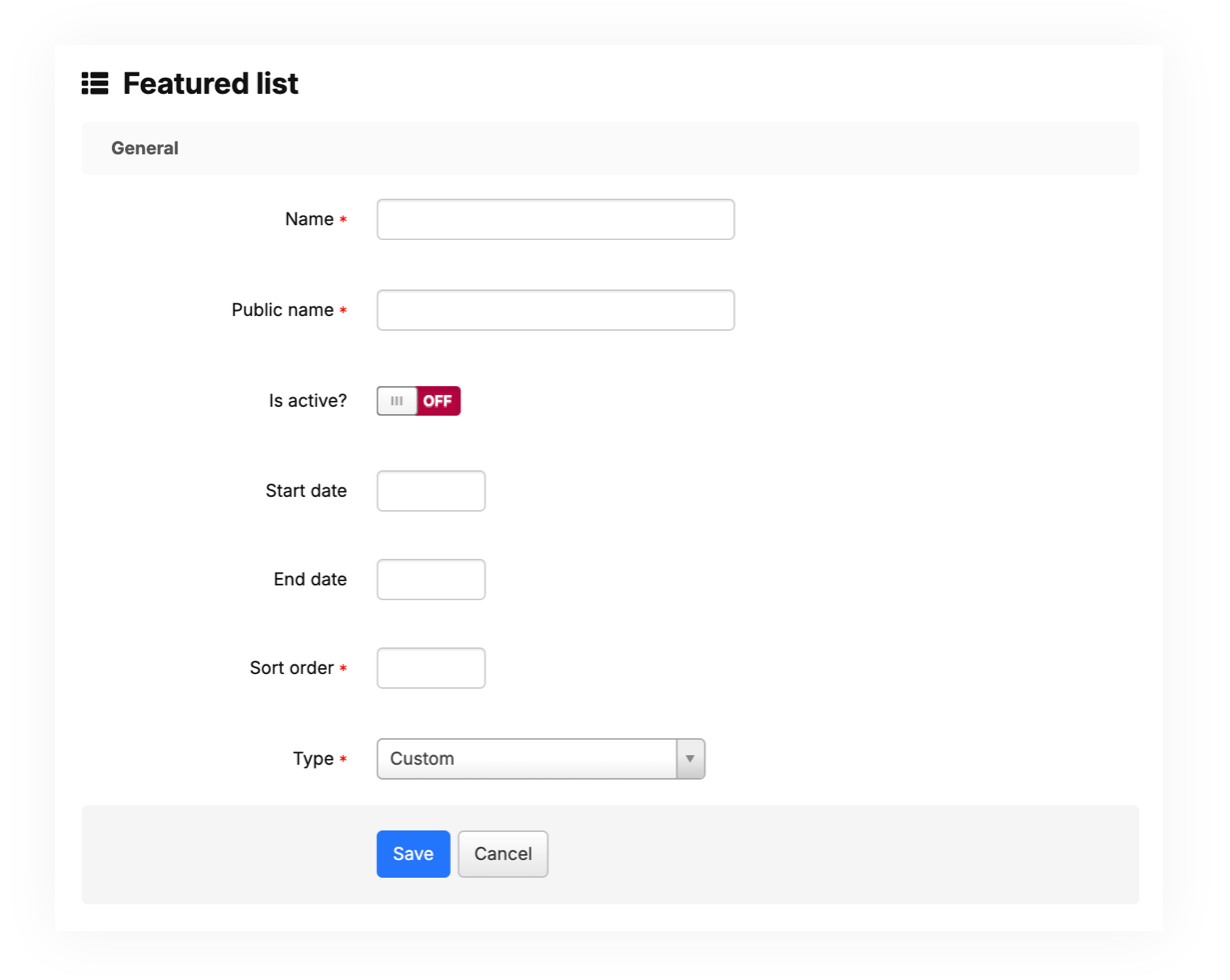
<span class="title">Below, you will find a description of all possible fields that can be edited while creating a new featured products list.</span>

<table id="bkmrk-visualization-of-the-4" style="margin-right: auto; margin-left: auto; height: auto;"><tbody><tr style="height: auto;"><td class="wysiwyg-text-align-center" style="text-align: center; vertical-align: middle; height: auto; width: 688px;">![Screenshot 2025-02-06 at 12.55.44.png](https://ecomm-docs.tauceti-digital.com/uploads/images/gallery/2025-02/screenshot-2025-02-06-at-12-55-44.png)</td></tr><tr style="height: 22px;"><td class="wysiwyg-text-align-center" style="text-align: center; vertical-align: middle; height: 22px; width: 688px;"><span class="wysiwyg-font-size-medium">*Visualization of the adding of the featured products list* </span></td></tr></tbody></table>

- **Name** - The system name of the featured product list.
- **Public name** - Name of the featured product lists that is visible to the customers.
- **Is active?** - Activity status of the featured products list.
- **Sort order** - Featured products sort order. The active list will be displayed in order according to this value.
- **Type** - A type of the featured products list. You can find more about information about types in the [ Configuring featured products list](#bkmrk-configuring-featured) chapter. The available types are: 
    - **Custom -** Custom added products and their sort order
    - **Bestsellers -** Custom added products and their sort order with additional recommendation of bestselling products list
    - **News** - Newly added products
    - **Exponea recommendations** - Products configured in the Exponea. More about Exponea integration can be found in the **\[UNDER CONSTRUCTION\]** article.

With all necessary fields filled, you can save the changes using the **save** button, and add the products to your list by editing it. More about editing the featured products list can be found in the [ Configuring featured products list](#bkmrk-configuring-featured) chapter.

---

# ![Screenshot_2020-04-29_at_19.12.41.png](https://knowledge.tauceti-digital.com/uploads/images/gallery/2024-11/LLOscreenshot-2020-04-29-at-19-12-41-png.png)<span class="title"> Configuring featured products list  
</span>

<span class="title">As users are unable to add products to their featured products list during its creation, it is needed to edit the desired list. Below you will find different types of product lists.</span>

## <span class="title">Custom</span>

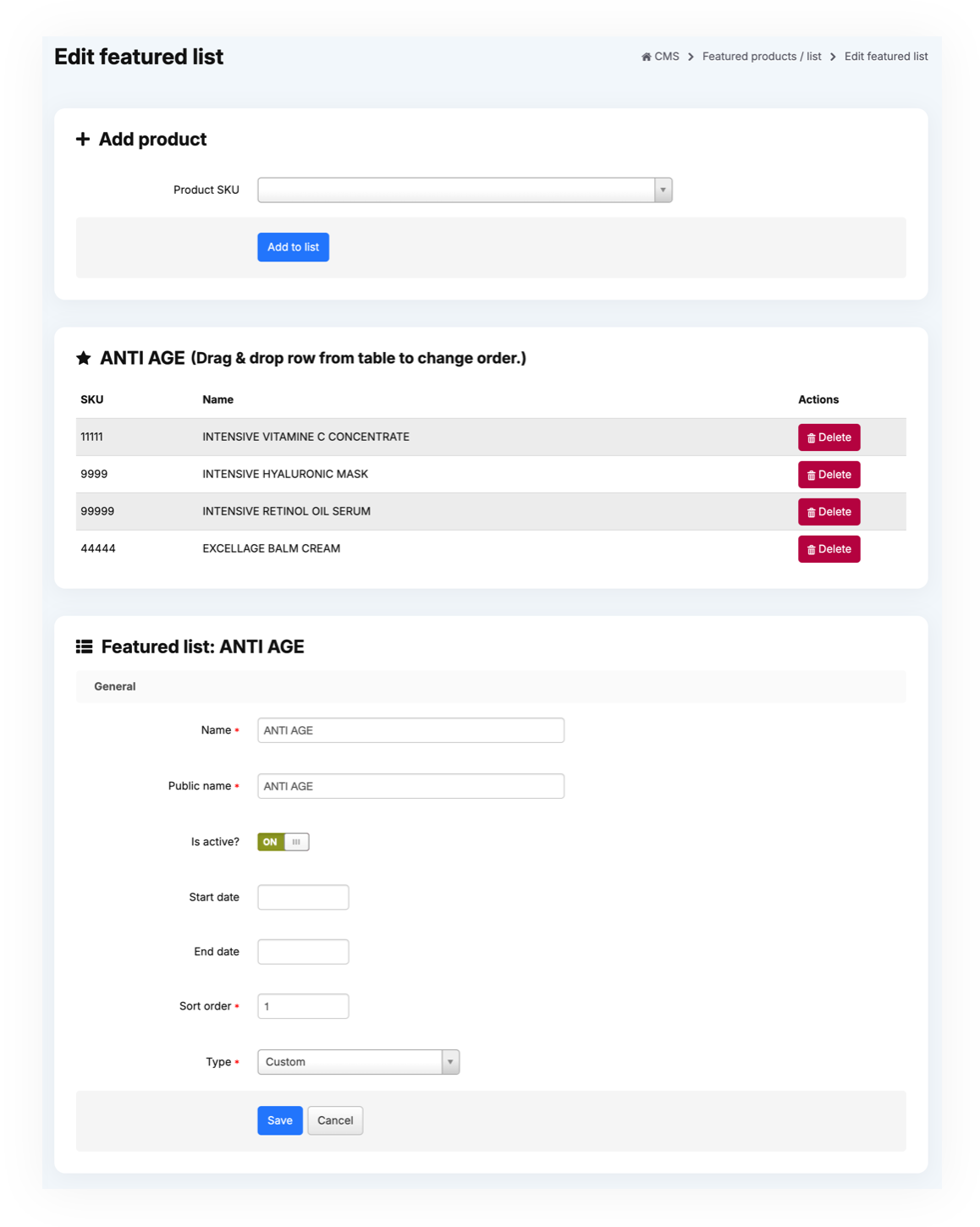
<span class="title">Custom type allows users to add their desired products to the list and change their sort order.</span>

<table id="bkmrk-visualization-of-the-5" style="margin-right: auto; margin-left: auto; height: auto;"><tbody><tr style="height: auto;"><td class="wysiwyg-text-align-center" style="text-align: center; vertical-align: middle; height: auto; width: 688px;">![Screenshot 2025-02-06 at 12.57.40.png](https://ecomm-docs.tauceti-digital.com/uploads/images/gallery/2025-02/screenshot-2025-02-06-at-12-57-40.png)</td></tr><tr style="height: 22px;"><td class="wysiwyg-text-align-center" style="text-align: center; vertical-align: middle; height: 22px; width: 688px;"><span class="wysiwyg-font-size-medium">*Visualization of the custom type* </span></td></tr></tbody></table>

You can change the sort order of the products by using the drag &amp; drop functionality.

Products will show alerts next ot their name in case of product having no stock, or being inactive. You can remove the products by pressing the "**remove**" buton.

## <span class="title">Bestsellers</span>

Bestsellers type works exactly like custom type, but has one additional tab, where products are visible with their sold quantity, which helps to decide which products should be visible. You can add products by pressing the "**Add to list**" button

<table id="bkmrk-visualization-of-the-6" style="margin-right: auto; margin-left: auto; height: auto;"><tbody><tr style="height: auto;"><td class="wysiwyg-text-align-center" style="text-align: center; vertical-align: middle; height: auto; width: 688px;">![Screenshot 2025-02-06 at 13.00.59.png](https://ecomm-docs.tauceti-digital.com/uploads/images/gallery/2025-02/screenshot-2025-02-06-at-13-00-59.png)</td></tr><tr style="height: 22px;"><td class="wysiwyg-text-align-center" style="text-align: center; vertical-align: middle; height: 22px; width: 688px;"><span class="wysiwyg-font-size-medium">*Visualization of the bestsellers type* </span></td></tr></tbody></table>

In the <span class="title">Bestsellers propositions tab you can also hide the unwanted products by pressing the **hide** button.  
</span>

You can change the sort order of the products by using the drag &amp; drop functionality.

Products will show alerts next ot their name in case of product having no stock, or being inactive. You can remove the products by pressing the "**remove**" buton.

## <span class="title">News</span>

<span class="title">News type automatically adds and changes the products visible in the featured products list. It shows only the newest products.</span>

## <span class="title">Exponea recommendations</span>

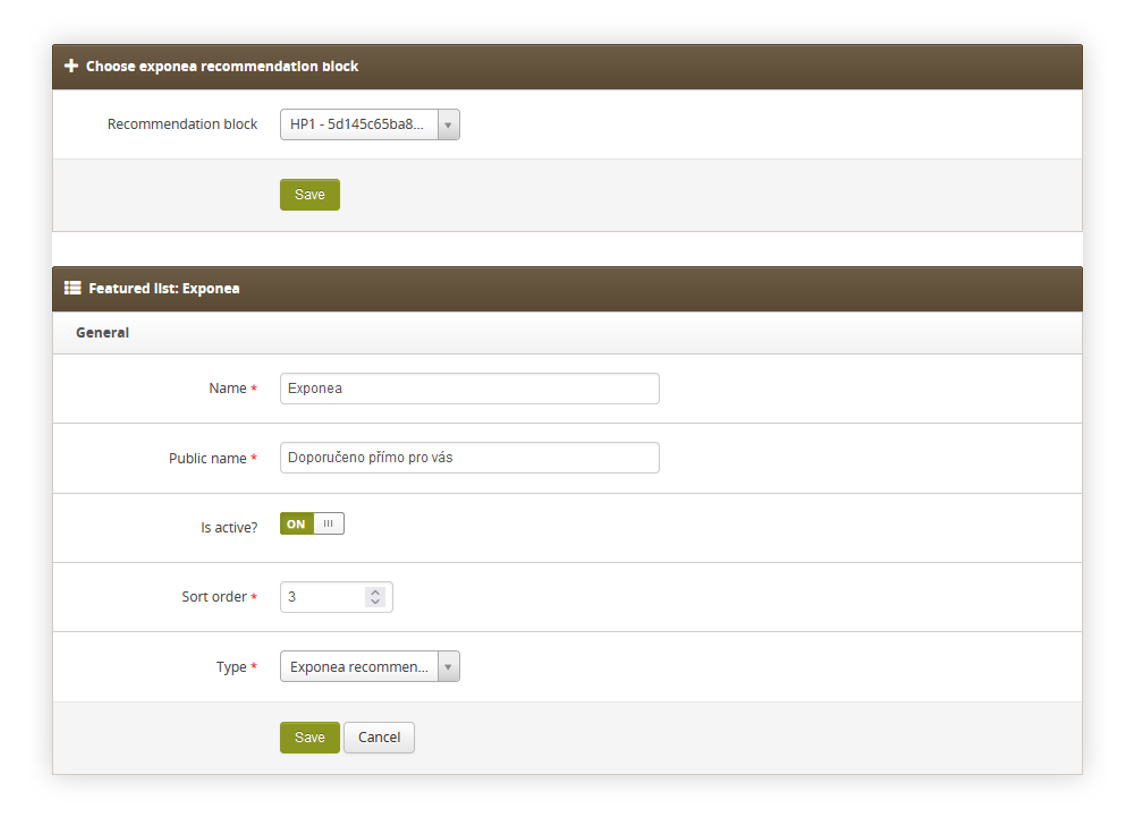
Exponea recommendations tab allows to select an Exponea product block from  
***CMS &gt; Exponea / Recommend Product Block***

<span class="wysiwyg-color-black" style="color: #44549b;">![info2.svg](https://knowledge.tauceti-digital.com/uploads/images/gallery/2024-11/Zdhinfo2-svg.png) **Remember**</span><span class="wysiwyg-color-black" style="display: block; margin-top: 10px;">You can learn about the Exponea functionality in the **\[UNDER CONSTRUCTION\]** article  
</span>

<table id="bkmrk-visualization-of-the-7" style="margin-right: auto; margin-left: auto; height: 536.164px; width: 82.0238%;"><tbody><tr style="height: 506.367px;"><td class="wysiwyg-text-align-center" style="text-align: center; vertical-align: middle; height: 506.367px; width: 99.8549%;">![POWERPNT_pGASDbDhfH.png](https://knowledge.tauceti-digital.com/uploads/images/gallery/2024-11/powerpnt-pgasdbdhfh-png.png)</td></tr><tr style="height: 29.7969px;"><td class="wysiwyg-text-align-center" style="text-align: center; vertical-align: middle; height: 29.7969px; width: 99.8549%;"><span class="wysiwyg-font-size-medium">*Visualization of the adding of the exponea recommendations type* </span></td></tr></tbody></table>