# Mobile app: Carousel

# ![Screenshot_2020-04-29_at_19.12.41.png](https://knowledge.tauceti-digital.com/uploads/images/gallery/2024-11/KTCscreenshot-2020-04-29-at-19-12-41-png.png) Getting started

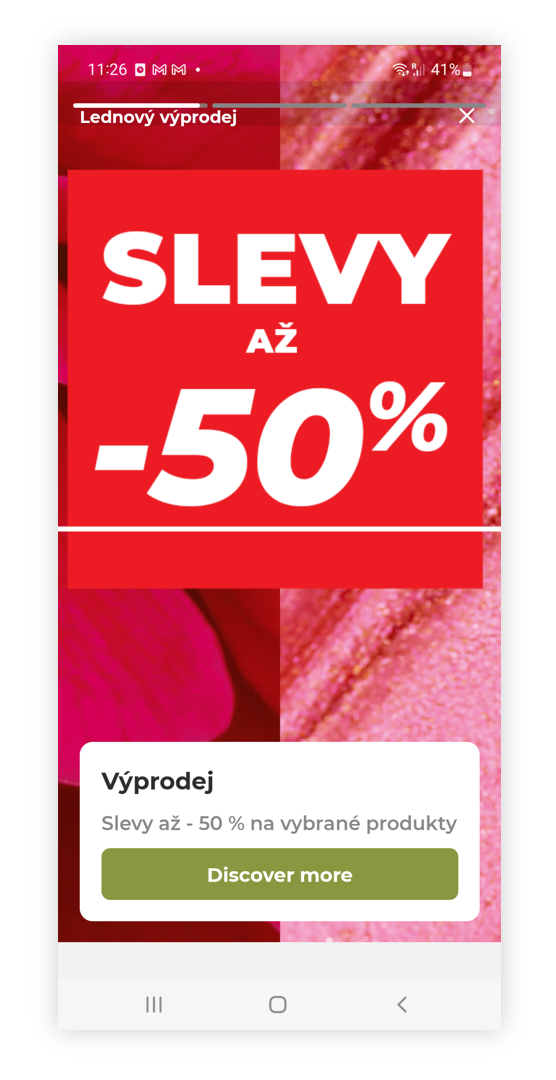
In this article, you can find information about the mobile app: Carousel sub-category. Carousel is equivalent to sliders on the e-commerce platform, except it shows only the first carousel depending on their sort order and after selecting it customer will see a story (similar to Instagrams stories), where every available carousel is visible for a short time.

<span class="wysiwyg-color-black" style="color: #44549b;">![info2.svg](https://knowledge.tauceti-digital.com/uploads/images/gallery/2024-11/DhYinfo2-svg.png) **Remember**</span><span class="wysiwyg-color-black" style="display: block; margin-top: 10px;">You can find more information about the mobile app and other sub-categories in the [Mobile app](https://knowledge.tauceti-digital.com/books/e-commerce/page/mobile-app) article.</span><span class="wysiwyg-color-black"></span><span class="wysiwyg-color-black"></span><span class="wysiwyg-color-black"></span><span class="wysiwyg-color-black"></span><span style="color: #4054a0;"></span>

<table id="bkmrk-visualization-of-the" style="margin-right: auto; margin-left: auto; height: 44px; width: auto;"><tbody><tr style="height: 22px;"><td class="wysiwyg-text-align-center" style="text-align: center; vertical-align: middle; height: 22px; width: auto;">![POWERPNT_8h2xnGZ7Ew.png](https://knowledge.tauceti-digital.com/uploads/images/gallery/2024-11/7215629556508.png)</td></tr><tr style="height: 22px;"><td class="wysiwyg-text-align-center" style="text-align: center; vertical-align: middle; height: 22px; width: auto;"><span class="wysiwyg-font-size-medium">*Visualization of the carousel story on the mobile app* </span></td></tr></tbody></table>

To open the Carousel view, in the admin panel, navigate to:  
***Mobile app &gt; Carousel***

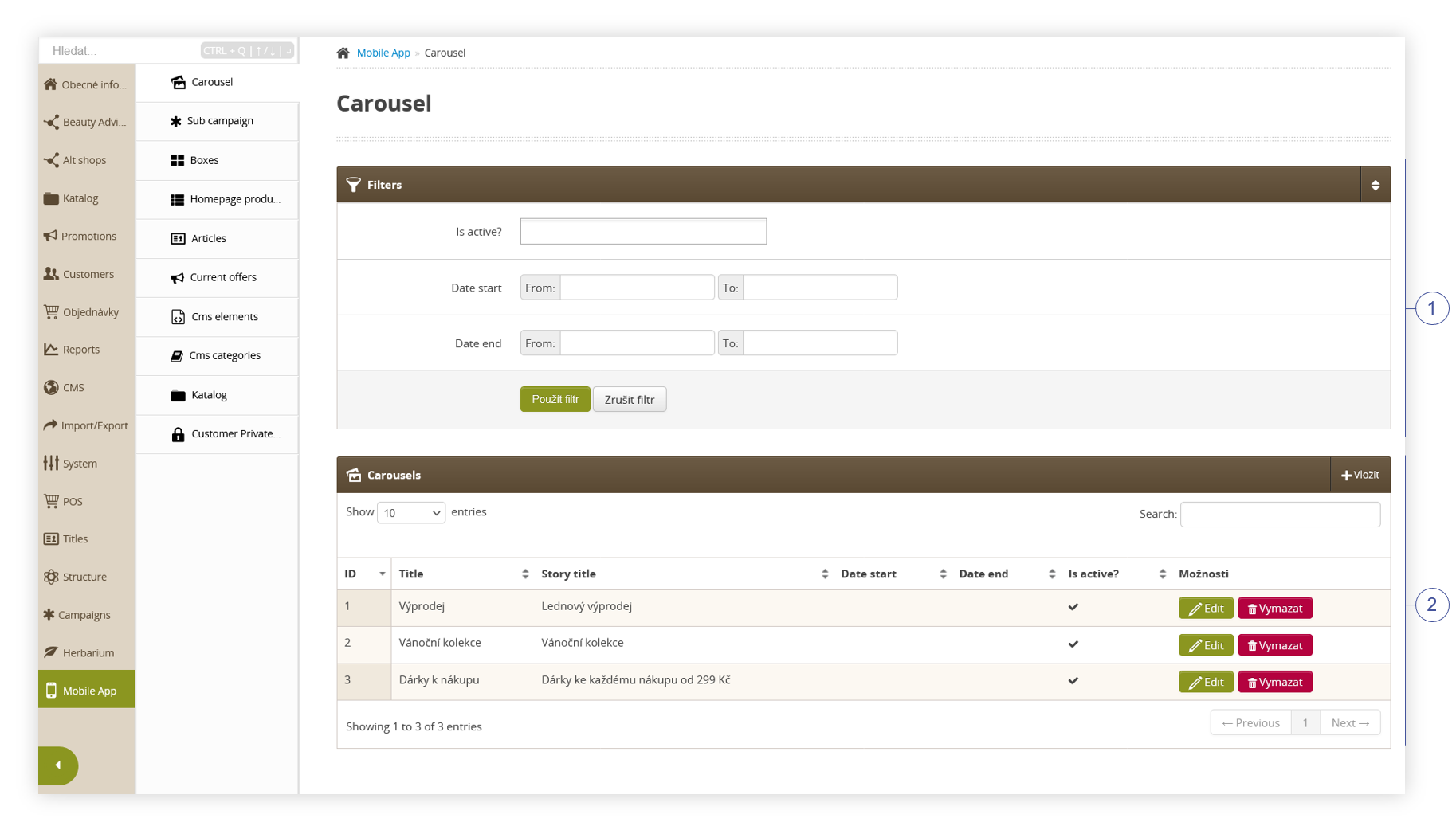
All possible operations to perform on the **Carousel** view can be done in the **Filters <span style="color: #4054a0;">(1)</span>**, and **Carousel<span class="title"> </span><span style="color: #4054a0;">(2) </span>**tabs.

<table id="bkmrk-visualization-of-the-1" style="margin-right: auto; margin-left: auto; height: 44px; width: 813px;"><tbody><tr style="height: 22px;"><td class="wysiwyg-text-align-center" style="text-align: center; vertical-align: middle; height: 22px; width: 801.233px;">![POWERPNT_z3bTjaChRk.png](https://knowledge.tauceti-digital.com/uploads/images/gallery/2024-11/7259165287324.png)</td></tr><tr style="height: 22px;"><td class="wysiwyg-text-align-center" style="text-align: center; vertical-align: middle; height: 22px; width: 801.233px;"><span class="wysiwyg-font-size-medium">*Visualization of the carousel sub-category* </span></td></tr></tbody></table>

Table of contents:

1. [ Filters section](#bkmrk-filters-section)
2. [Carousel](#bkmrk-carousel)
3. [ Creating a carousel](#bkmrk-creating-a-carousel)
4. [ Application view](#bkmrk-application-view)

---

# ![Screenshot_2020-04-29_at_19.12.41.png](https://knowledge.tauceti-digital.com/uploads/images/gallery/2024-11/KTCscreenshot-2020-04-29-at-19-12-41-png.png) Filters section

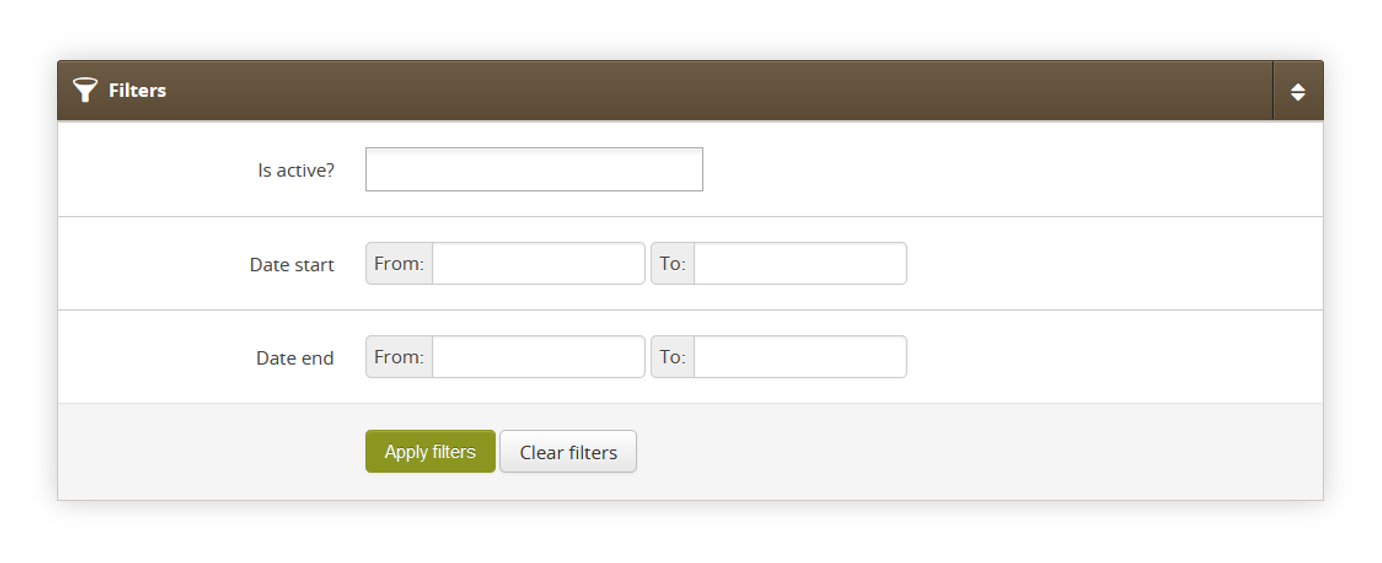
The **Filters** section allows sorting of the carousel in the mobile app module, based on the available filters. Below you will find a description of available filters

<table id="bkmrk-visualization-of-the-2" style="margin-right: auto; margin-left: auto; height: 44px; width: auto;"><tbody><tr style="height: 22px;"><td class="wysiwyg-text-align-center" style="text-align: center; vertical-align: middle; height: 22px; width: auto;">![POWERPNT_KKaSubXFXD.png](https://knowledge.tauceti-digital.com/uploads/images/gallery/2024-11/6Gx7215620746268.png)</td></tr><tr style="height: 22px;"><td class="wysiwyg-text-align-center" style="text-align: center; vertical-align: middle; height: 22px; width: auto;"><span class="wysiwyg-font-size-medium">*Visualization of the filters section* </span></td></tr></tbody></table>

- **Is active?** - Carousel activity status.
- **Date start** - A range of dates that indicate the start date of the carousel.
- **Date end** - A range of dates that indicate the end date of the carousel.

After defining the above filters, select the **Apply Filters** button to get a list of sites according to the applied filters.

---

# ![Screenshot_2020-04-29_at_19.12.41.png](https://knowledge.tauceti-digital.com/uploads/images/gallery/2024-11/KTCscreenshot-2020-04-29-at-19-12-41-png.png) Carousel

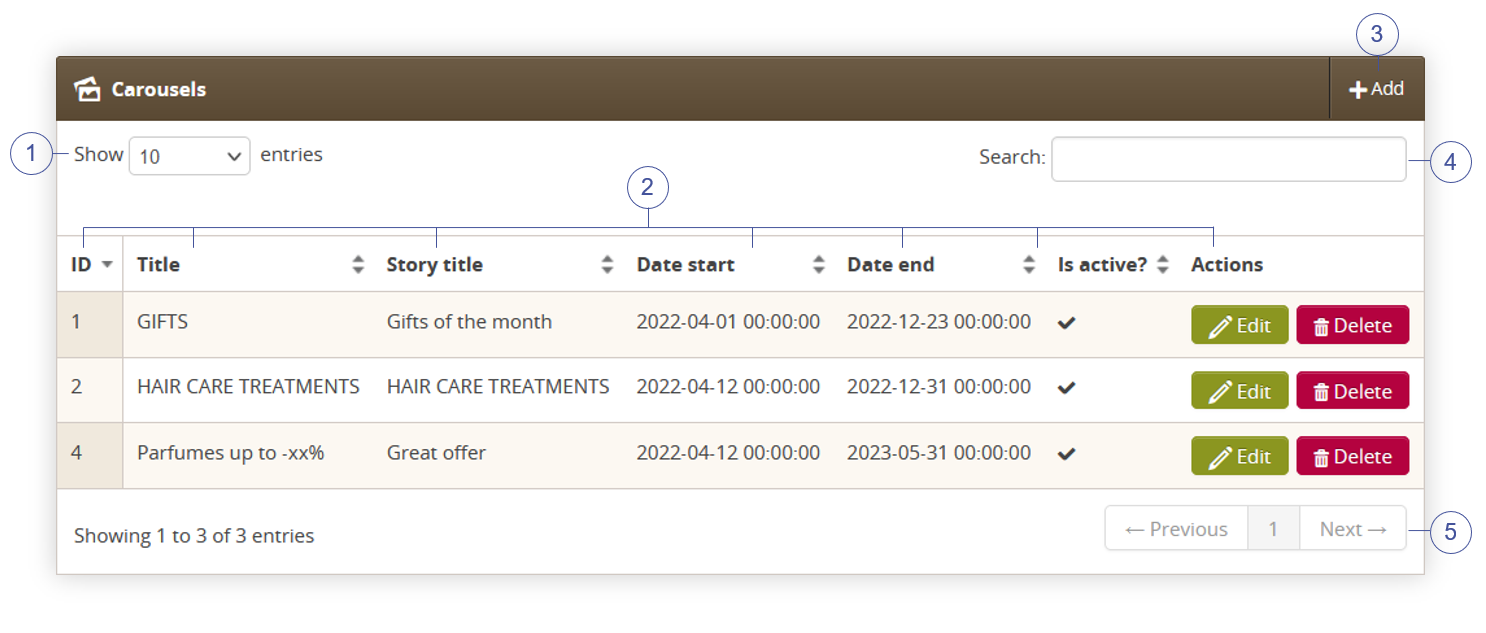
The **Carousel** section allows organizing the filtered featured carousels, edit them and create new ones and delete them.

Below you will find a description of all possible actions you can perform in the Carousel section.

<table id="bkmrk-visualization-of-the-3" style="margin-right: auto; margin-left: auto; height: 44px; width: auto;"><tbody><tr style="height: 22px;"><td class="wysiwyg-text-align-center" style="text-align: center; vertical-align: middle; height: 22px; width: auto;">![POWERPNT_nCRfP96qkz.png](https://knowledge.tauceti-digital.com/uploads/images/gallery/2024-11/7259165292188.png)</td></tr><tr style="height: 22px;"><td class="wysiwyg-text-align-center" style="text-align: center; vertical-align: middle; height: 22px; width: auto;"><span class="wysiwyg-font-size-medium">*Visualization of the carousel section* </span></td></tr></tbody></table>

- Select the **Show X entries<span style="color: #4054a0;">(1)</span>** field to set the number of carousels, displayed on one page (min 10 / max 100).
- The names of the columns **<span style="color: #4054a0;">(2)</span>** that contain information about a target carousel. Each column is susceptible to sorting.  
    To sort the records, click on the title of the column in question. 
    - **ID** - An internal ID of the carousel.
    - **Title** - Internal title of the carousel. This field is not visible to the customers
    - **Story title** - Story, public title of the carousel. This field is visible to the customers.
    - **Date start** - Start date when the carousel will be visible to the customers.
    - **Date End** - End date when the carousel will be hidden from the customers.
    - **Is active?** - Activity status of the carousel.
    - **Actions** - List of buttons with possible actions that can be done to the desired carousel.  
        
        - **Edit** - Edit desired carousel. As editing contains exactly the same fields and actions as creating a new carousel you can read more about it in the [ Creating a carousel](#bkmrk-creating-a-carousel) chapter.
        - **Delete** - Deletes the selected carousel without the ability to restore it.
- Select the **Add <span style="color: #4054a0;">(3)</span>** button to go to the adding the new carousel. You can learn more about adding of the carousel in the [ Creating a carousel](#bkmrk-creating-a-carousel) chapter.
- **Search box <span style="color: #4054a0;">(4)</span>** where you can search for carousels by their system name.
- **Page buttons<span style="color: #4054a0;">(5)</span>**, which allow users to change the page of the currently viewed carousel.

---

# ![Screenshot_2020-04-29_at_19.12.41.png](https://knowledge.tauceti-digital.com/uploads/images/gallery/2024-11/KTCscreenshot-2020-04-29-at-19-12-41-png.png) Creating a carousel

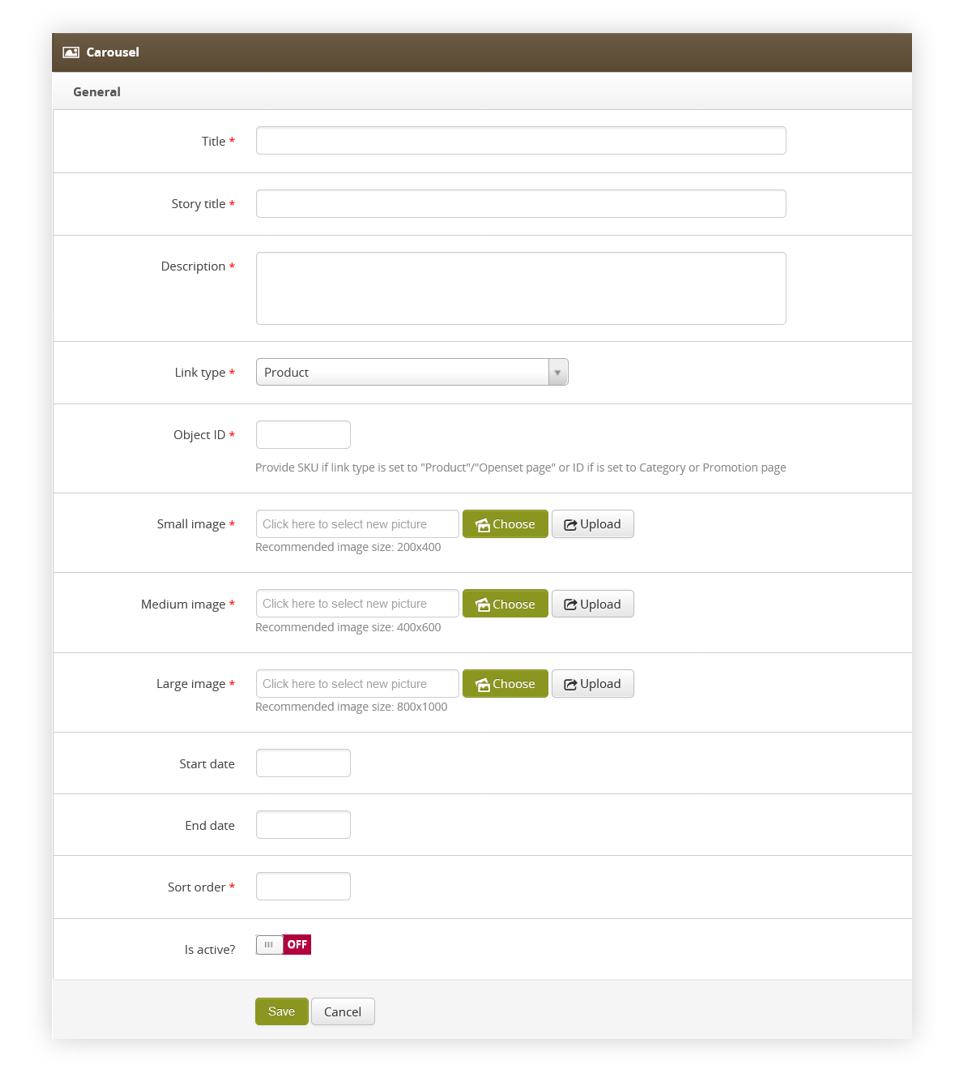
<span class="title">Add button allows users to create a new carousel.  
</span>

<span class="title">Below, you will find a description of all possible fields that can be edited while creating a new carousel.  
</span>

<table id="bkmrk-visualization-of-the-4" style="margin-right: auto; margin-left: auto; height: 44px; width: auto;"><tbody><tr style="height: 22px;"><td class="wysiwyg-text-align-center" style="text-align: center; vertical-align: middle; height: 22px; width: auto;">![POWERPNT_X2FqvqHC2b.png](https://knowledge.tauceti-digital.com/uploads/images/gallery/2024-11/7215628440476.png)</td></tr><tr style="height: 22px;"><td class="wysiwyg-text-align-center" style="text-align: center; vertical-align: middle; height: 22px; width: auto;"><span class="wysiwyg-font-size-medium">*Visualization of the creating the carousel* </span></td></tr></tbody></table>

- **Title** (mandatory) - Internal carousel name. This field is not visible to the customers.
- **Story title** (mandatory) - Public carousel name. This field is visible to the customers.
- **Description** (mandatory) - Description of the carousel. This field is visible to the customers.
- **Link type** (mandatory) - Type of a link available in the carousel. Depending on the selected type the **Object ID** field will require different input. There are 5 types of links: 
    - Product - Product available on the website.
    - Category (tag) - Category tag available on the website.
    - Promotion page - Promotion page available on the website.
    - Openset page - Openset page available on the website.
    - Custom view - Custom object programmed by the mobile app developers.
- **Object ID** (mandatory) - ID of an object selected in **Link type** section. 
    - Product - Product SKU i.e. J12345
    - Category (tag) -Tag ID i.e. 76938
    - Promotion page - Promotion page internal ID i.e. 1234
    - Openset page - Openset internal ID i.e. 765
    - Custom view - Custom field that doesn't have any validation. Custom values configured and programmed by mobile app developers can be put here.
- **Small image** (mandatory) - Small image of the carousel. Recommended image size: 200x400.
- **Medium image** (mandatory) - Medium image of the carousel. Recommended image size: 400x600.
- **Large image** (mandatory) - Large image of the carousel. Recommended image size: 800x1000.
- **Start date** - Start date when the carousel will be visible to the customers.
- **End date** - End date when the carousel will be hidden from the customers.
- **Sort order** (mandatory) - Sort order of the carousel. The lower the sort order the earlier in the order selected carousel will be visible to the customer.
- **Is active?** - Switch, which defines if the selected carousel is visible in the mobile app.

With all necessary fields filled, you can save the changes using the **save** button.

---

# ![Screenshot_2020-04-29_at_19.12.41.png](https://knowledge.tauceti-digital.com/uploads/images/gallery/2024-11/KTCscreenshot-2020-04-29-at-19-12-41-png.png) Application view

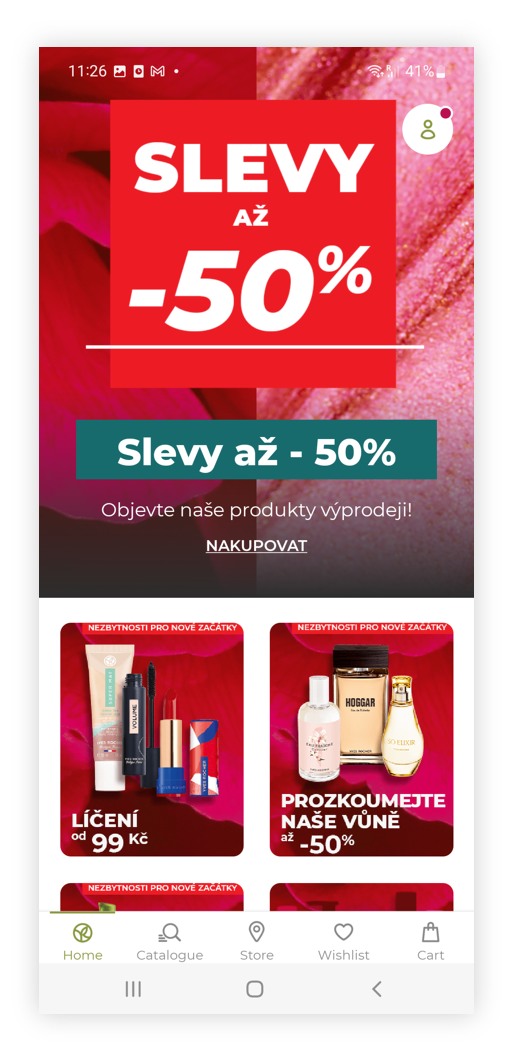
Customers accessing the Yves Rocher application will view the carousel with the lowest sort order a the top of the page.

<table id="bkmrk-visualization-of-the-5" style="margin-right: auto; margin-left: auto; height: 44px; width: auto;"><tbody><tr style="height: 22px;"><td class="wysiwyg-text-align-center" style="text-align: center; vertical-align: middle; height: 22px; width: auto;">![POWERPNT_UvgaYbauak.png](https://knowledge.tauceti-digital.com/uploads/images/gallery/2024-11/7217489602716.png)</td></tr><tr style="height: 22px;"><td class="wysiwyg-text-align-center" style="text-align: center; vertical-align: middle; height: 22px; width: auto;"><span class="wysiwyg-font-size-medium">*Visualization of the carousel on the mobile app* </span></td></tr></tbody></table>

When selecting the carousel it will open carousel story where the carousel will change the slide every 10 seconds.

<table id="bkmrk-visualization-of-the-6" style="margin-right: auto; margin-left: auto; height: 44px; width: auto;"><tbody><tr style="height: 22px;"><td class="wysiwyg-text-align-center" style="text-align: center; vertical-align: middle; height: 22px; width: auto;">![POWERPNT_8h2xnGZ7Ew.png](https://knowledge.tauceti-digital.com/uploads/images/gallery/2024-11/7215629556508.png)</td></tr><tr style="height: 22px;"><td class="wysiwyg-text-align-center" style="text-align: center; vertical-align: middle; height: 22px; width: auto;"><span class="wysiwyg-font-size-medium">*Visualization of the carousel story on the mobile app* </span></td></tr></tbody></table>

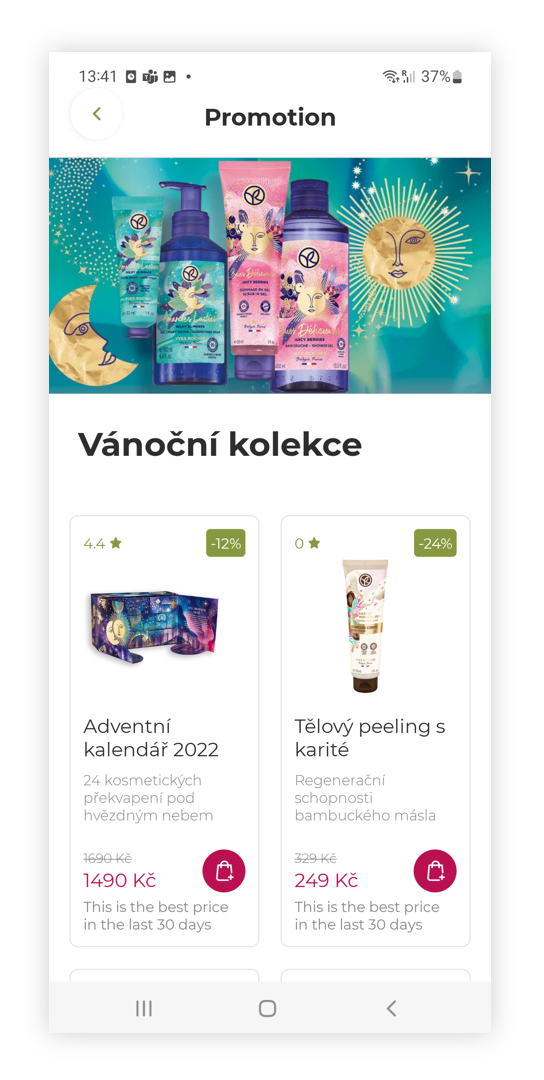
Selecting the **discover more** button will redirect the user to the desired page set in the "**link type**" and "**object id**" part of the carousel.

<table id="bkmrk-visualization-of-the-7" style="margin-right: auto; margin-left: auto; height: 44px; width: auto;"><tbody><tr style="height: 22px;"><td class="wysiwyg-text-align-center" style="text-align: center; vertical-align: middle; height: 22px; width: auto;">![POWERPNT_39FqFeYeMR.png](https://knowledge.tauceti-digital.com/uploads/images/gallery/2024-11/7217498676380.png)</td></tr><tr style="height: 22px;"><td class="wysiwyg-text-align-center" style="text-align: center; vertical-align: middle; height: 22px; width: auto;"><span class="wysiwyg-font-size-medium">*Visualization of the promotional page* </span></td></tr></tbody></table>