# Passmachine integration

# ![Screenshot_2020-04-29_at_19.12.41.png](https://knowledge.tauceti-digital.com/uploads/images/gallery/2024-11/10599688726556.png) Getting started

In this article, you can find information about the passmachine integration, which allows customers to add their FIDEN2 cards to their virtual wallets on iOS and Android devices.

Table of contents:

1. [ Enabling the functionality](#bkmrk-enabling-the-functio-1)
2. [ Customer perspective](#bkmrk-passmachine-passes)

---

# ![Screenshot_2020-04-29_at_19.12.41.png](https://knowledge.tauceti-digital.com/uploads/images/gallery/2024-11/10599688726556.png) Enabling the functionality

Passmachine integration is disabled by default and needs to be enabled in the

***System / settings &gt; Integrations &gt; Passmachine***

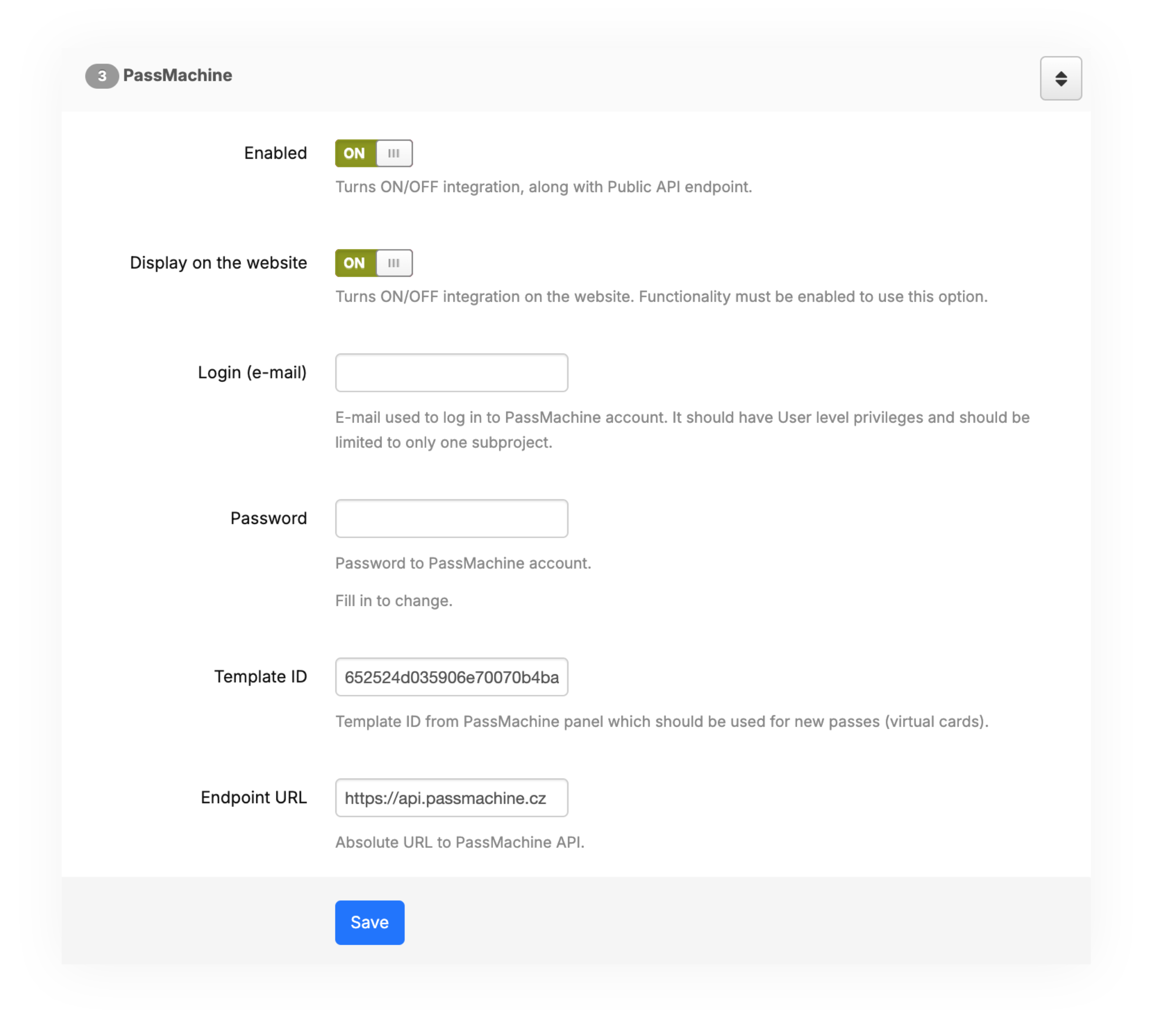
<table id="bkmrk-visualization-of-the" style="margin-right: auto; margin-left: auto; height: 44px; width: auto;"><tbody><tr style="height: 22px;"><td class="wysiwyg-text-align-center" style="text-align: center; vertical-align: middle; height: 22px; width: auto;">![Screenshot 2025-02-13 at 16.12.01.png](https://ecomm-docs.tauceti-digital.com/uploads/images/gallery/2025-02/screenshot-2025-02-13-at-16-12-01.png)</td></tr><tr style="height: 22px;"><td class="wysiwyg-text-align-center" style="text-align: center; vertical-align: middle; height: 22px; width: auto;"><span class="wysiwyg-font-size-medium">*Visualization of the passmachine system settings* </span></td></tr></tbody></table>

In the passmachine integration system settings there are the following options:

- **Enabled** -A switch that enables or disables the functionality.
- **Display on the website** - A switch that enables the integration for the website. If it's turned off, the functionality will only work in the mobile app.
- **Login (e-mail)** - E-mail is used to log in to PassMachine account. It should have User-level privileges and should be limited to only one subproject.
- **Password** - Password to the PassMachine account.
- **Template ID** - Template ID from the PassMachine panel which should be used for new passes (virtual cards).
- **Endpoint URL** - Absolute URL to PassMachine API. This URL should always point to [https://api.passmachine.cz](https://api.passmachine.cz) unless there are changes on the passmachine side.

With the functionality configured and enabled it is ready to be used by the customers.

---

# ![Screenshot_2020-04-29_at_19.12.41.png](https://knowledge.tauceti-digital.com/uploads/images/gallery/2024-11/10599688726556.png) Passmachine passes

Passmachine assigns it's internal passes to the customers e-mail addresses. This way passmachine can connect which customer is which by their pass from the wallet, and then link it to the customer on the Yves Rocher application or website.

If there is a need to remove a singular customer pass or clear the entire pass database it is possible to do so in

***System &gt; Passmachine / passes***

When the customer has their pass removed from the database a new one will be generated, when the customer logs in to their account.

<span class="wysiwyg-color-black" style="color: #d23a4e;">![caution.svg](https://knowledge.tauceti-digital.com/uploads/images/gallery/2024-11/10599745864988.png) **Warning**</span> <span class="wysiwyg-color-black" style="display: block; margin-top: 10px;"> <span style="color: #000000;">Removing the passes is irreversible. All the connections between Yves Rocher and Passmachine wallet integration will be severed, so customers no longer will be able to use or see their FIDEN2 points in their Google / Apple wallet.</span> </span>

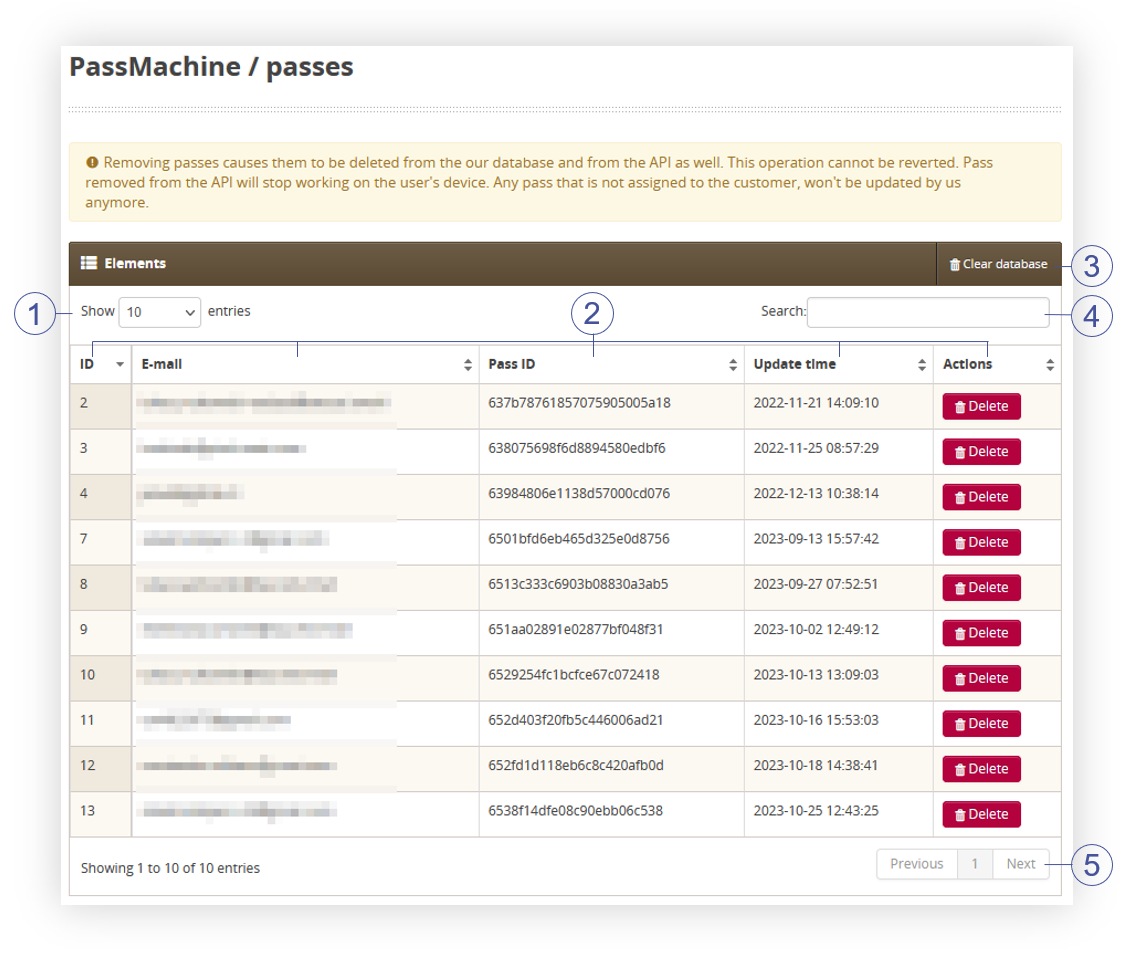
<table id="bkmrk-visualization-of-the-1" style="margin-right: auto; margin-left: auto; height: 44px; width: auto;"><tbody><tr style="height: 22px;"><td class="wysiwyg-text-align-center" style="text-align: center; vertical-align: middle; height: 22px; width: auto;">![POWERPNT_bENrs4jbei.png](https://knowledge.tauceti-digital.com/uploads/images/gallery/2024-11/11225383794972.png)</td></tr><tr style="height: 22px;"><td class="wysiwyg-text-align-center" style="text-align: center; vertical-align: middle; height: 22px; width: auto;"><span class="wysiwyg-font-size-medium">*Visualization of the passmachine passes tab* </span></td></tr></tbody></table>

In the Passmachine / Passes you can find the following options:

- **<span style="color: #4054a0;">(1)</span>**<span style="color: #4054a0;"> </span>**Show X Entries** allows to filter how many entries should be visible at once
- **<span style="color: #4054a0;">(2)</span>** Various table columns. All of them can be sorted by clicking on them. 
    - **ID** - Pass internal ID
    - **E-mail** - Customers e-mail address to which the selected pass is assigned to.
    - **Pass ID** - Identification of the pass used in the passmachine.
    - **Update time** - A date and hour when the last time pass was updated
    - **Actions**  
        
        - **Delete** - A button, that allows to deletion of a selected pass. **This action is irreversible.**
- **<span style="color: #4054a0;">(3) </span>Clear database** button allows to clear the **whole** pass database. Do not use this functionality unless it is absolutely necessary. **This action is irreversible.**
- **<span style="color: #4054a0;">(4) </span>Search** field allows to search the passes by the customer e-mail address or their pass ID.
- **<span style="color: #4054a0;">(5)</span> Pages list** allows to show the next batch of passes on the another page according to applied sorting option and filters.

---

# ![Screenshot_2020-04-29_at_19.12.41.png](https://knowledge.tauceti-digital.com/uploads/images/gallery/2024-11/10599688726556.png) Customer perspective

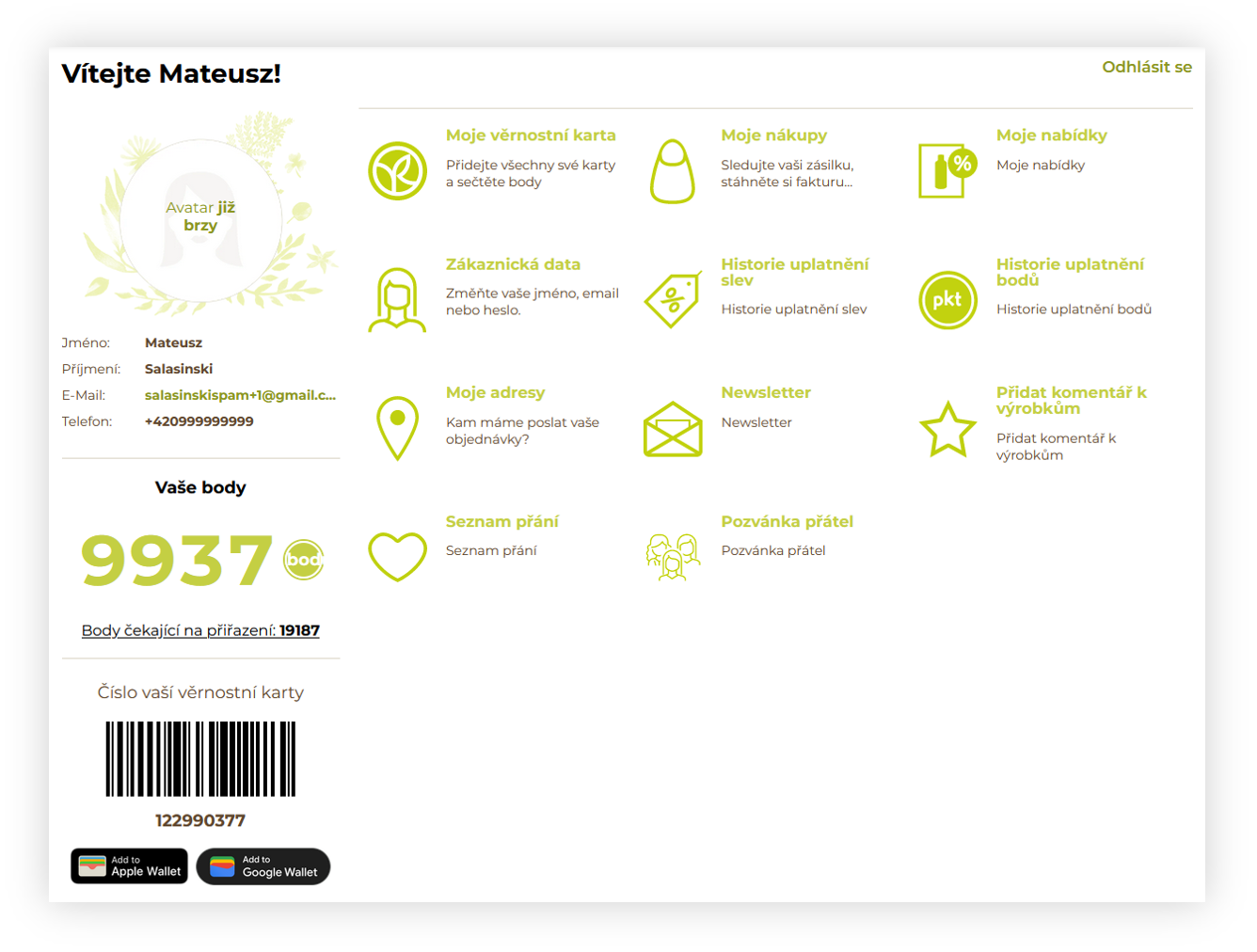
With the functionality enabled, customers will be able to add their FIDEN2 cards to their virtual wallets. The new buttons can be found in the customer profile below the bar code and card number.

<table id="bkmrk-visualization-of-the-2" style="margin-right: auto; margin-left: auto; height: 44px; width: auto;"><tbody><tr style="height: 22px;"><td class="wysiwyg-text-align-center" style="text-align: center; vertical-align: middle; height: 22px; width: auto;">![POWERPNT_44v9E3rN8h.png](https://knowledge.tauceti-digital.com/uploads/images/gallery/2024-11/10628150672028.png)</td></tr><tr style="height: 22px;"><td class="wysiwyg-text-align-center" style="text-align: center; vertical-align: middle; height: 22px; width: auto;"><span class="wysiwyg-font-size-medium">*Visualization of the customer profile* </span></td></tr></tbody></table>

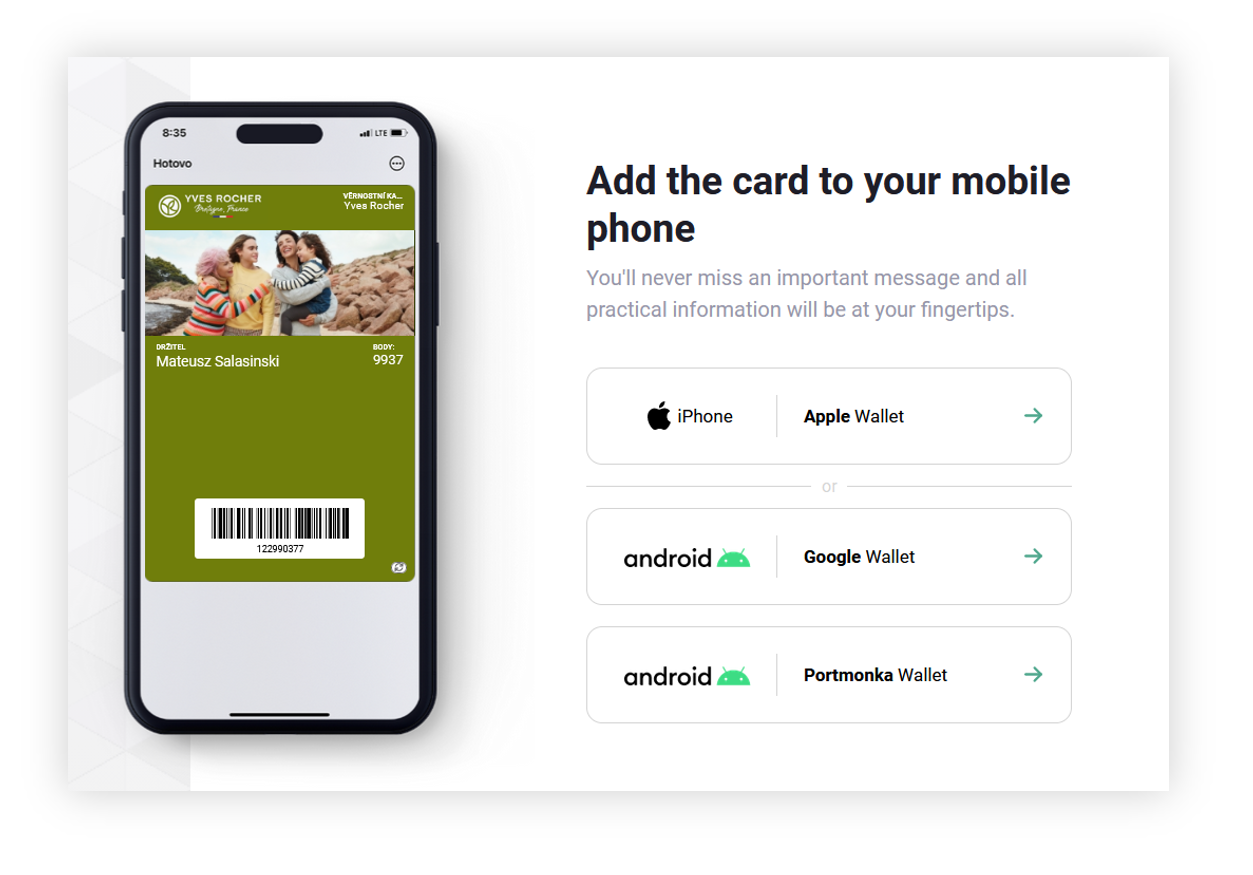
These buttons redirect users to the passmachine website, where they can choose the platform they want to use.

<table id="bkmrk-visualization-of-the-3" style="margin-right: auto; margin-left: auto; height: 44px; width: auto;"><tbody><tr style="height: 22px;"><td class="wysiwyg-text-align-center" style="text-align: center; vertical-align: middle; height: 22px; width: auto;">![POWERPNT_ZLCsjHKeQU.png](https://knowledge.tauceti-digital.com/uploads/images/gallery/2024-11/10628133755292.png)</td></tr><tr style="height: 22px;"><td class="wysiwyg-text-align-center" style="text-align: center; vertical-align: middle; height: 22px; width: auto;"><span class="wysiwyg-font-size-medium">*Visualization of the passmachine website* </span></td></tr></tbody></table>