Rate & Review
 Getting started
In this article, you can find information about the rate & review functionality. Rate & Review allows customers to review the products on the website by providing a rating from 1 to 5 and a comment. This review then is accepted or denied by the Yves Rocher employee and in case of acceptance, it is visible on the product page under the Reviews section. Customers can earn FIDEN2 points for providing a review that has been accepted.
 RememberYou can find more about FIDEN2 functionality in the FIDEN2 article.
Table of contents:
Customer perspective
When the Rate & Review is enabled customer can review the products according to the options set in system settings and will receive FIDEN2 points for the review, if it is enabled. Customers are unable to edit or remove their reviews by themselves. All of the reviews have to be verified and accepted by Yves Rocher employees. Customer can review products in two ways:
Review by purchasing a product
By default when the functionality is enabled customer will receive an invitation on their e-mail with a list of up to three products after purchasing them on the e-commerce platform. When the customer clicks on one of the products they will be redirected to the review page. The invitation to review a product is sent to the customer after a selected amount of time, which is configured in functionality system settings.
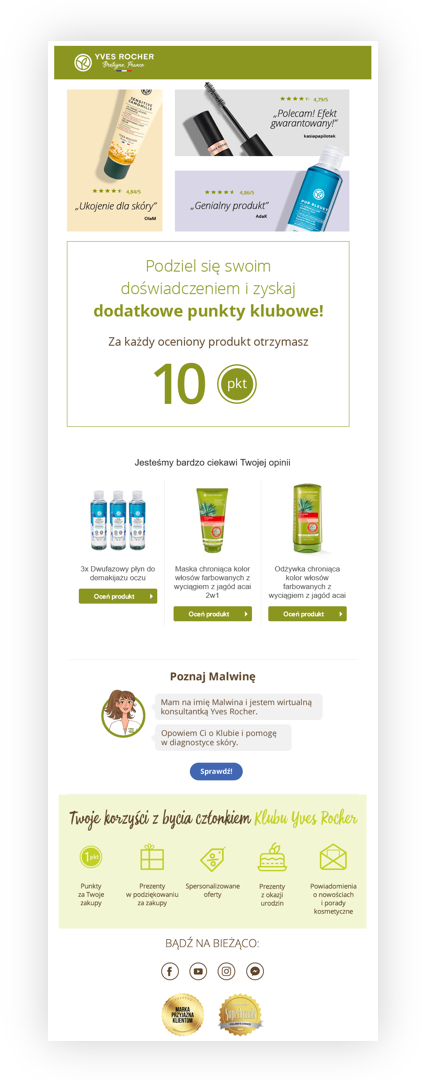 |
| Visualization of the invitation e-mail |
These reviews are additionally visible in the customer panel > rate products (e.g. https://uat.yves-rocher.pl/reviews/panel). Here, the customer can see all of the products they are able to review as well as their already reviewed products.
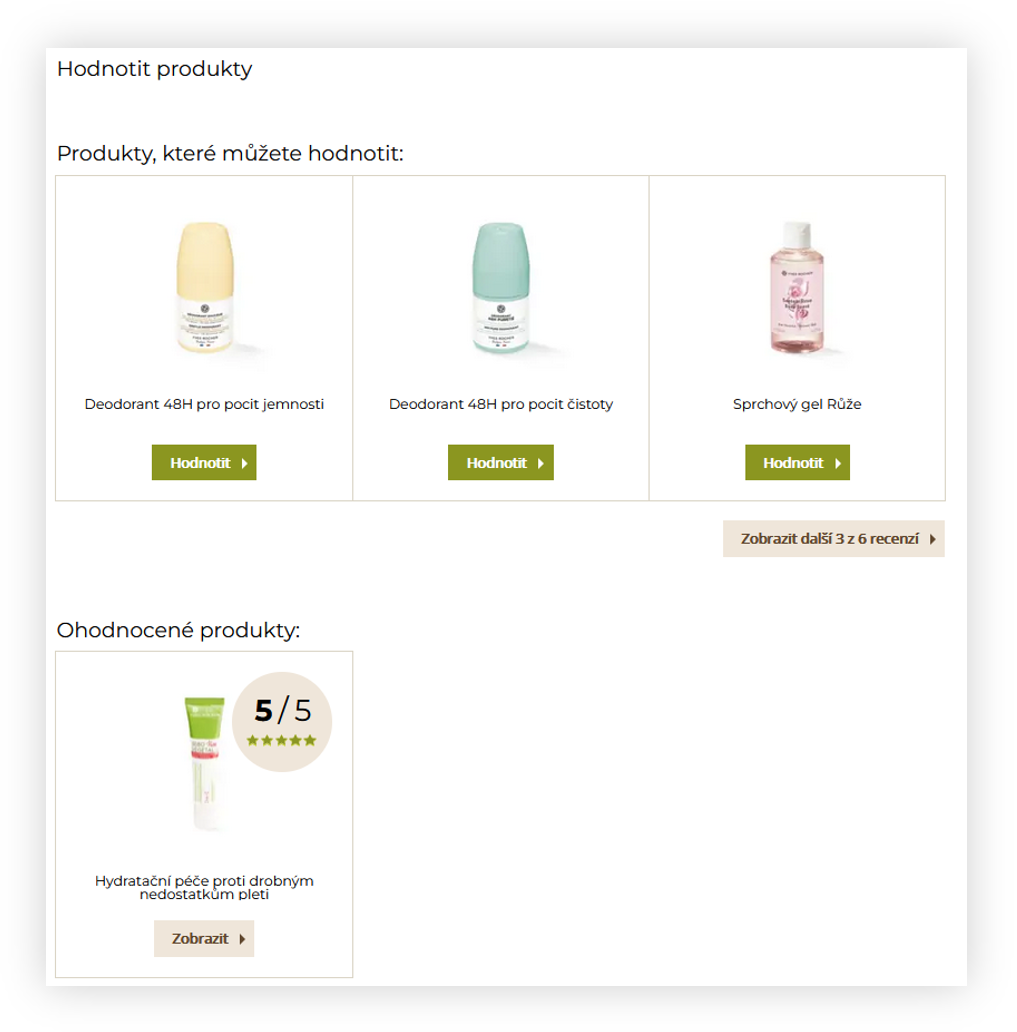 |
| Visualization of the customer panel reviews page |
When the customer chooses their product they will be welcomed by the review page, where they are able to:
(1) select their rating
(2) type the review title
(3) Type the review description
Additionally, if the customer doesn't have set up their nickname there will be an additional field to do so, as a nickname is mandatory to place a review.
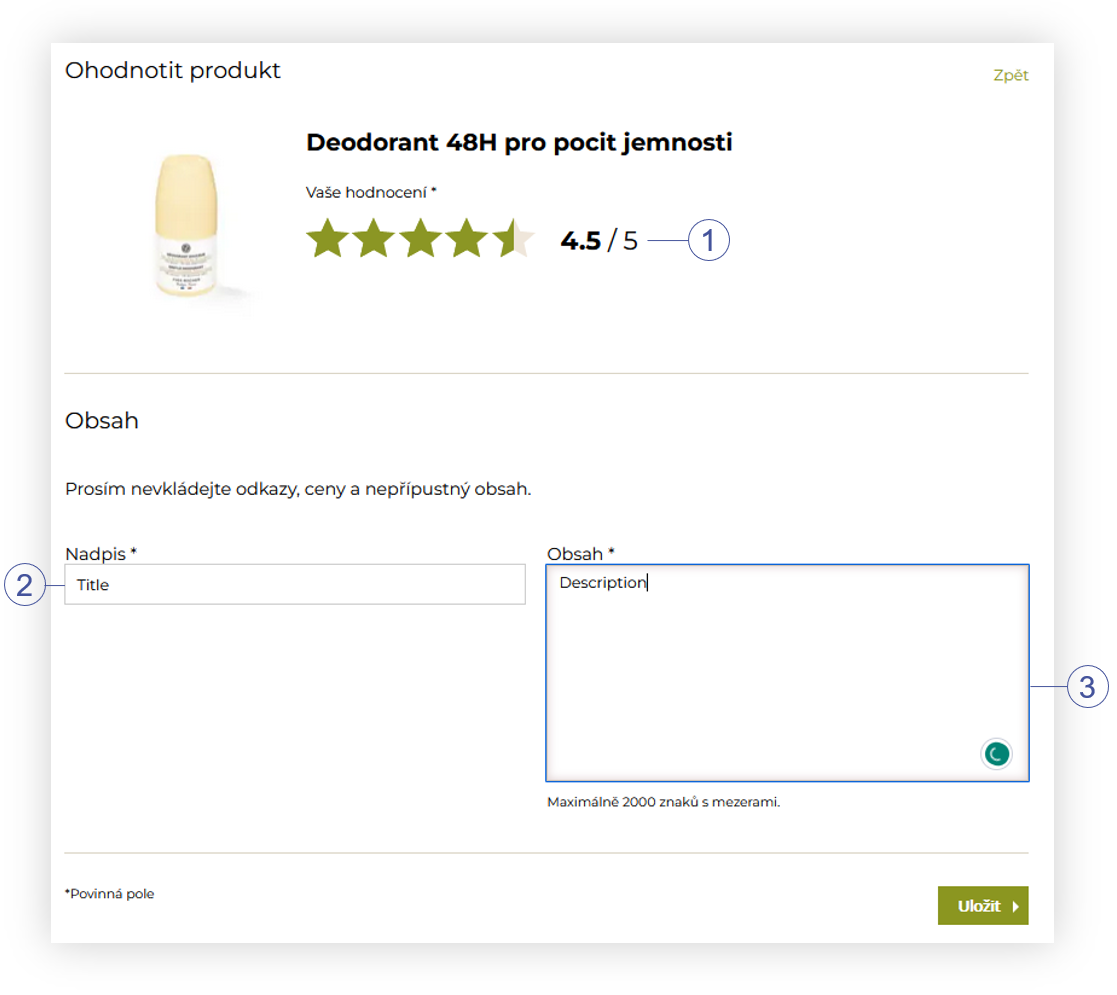 |
| Visualization of the review creation page |
When the review is placed it needs to be accepted by the Yves Rocher employee. You can find more about it in the Review moderation chapter.
Review by using the product page
This option is only enabled if Everyone can review every product option described in Build-in fuctions > Reviews is turned on. Only logged-in users can review products.
When this option is enabled customers can enter any available product in the product catalog, and press the "Add review" (4) button.
Same as in the other review method customers will be welcomed by the reviewing page, which allows them to:
(1) select their rating
(2) type the review title
(3) Type the review description
Additionally, if the customer doesn't have set up their nickname there will be an additional field to do so, as a nickname is mandatory to place a review.
When the review is placed it needs to be accepted by the Yves Rocher employee. You can find more about it in the Review moderation chapter.
Reviews view on the product page
Every accepted review will be visible on the product page.
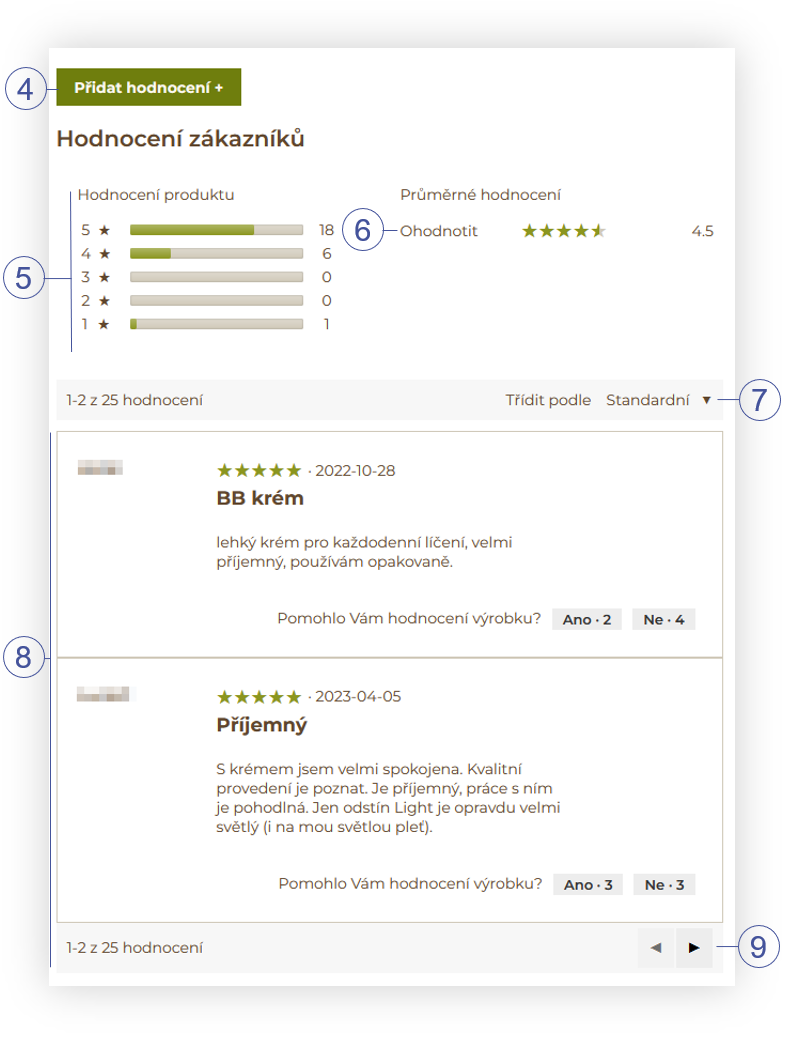 |
| Visualization of the reviews on the product page |
Here customers can find:
(4) Add a review button - A button that allows customers to review the product. It is described in more detail in the Review by using the product page chapter.
(5) The amount of reviews placed per rating.
(6) The average review rating.
(7) Sort the reviews by:
- Default - Sort by combination of highest rating and best usefulness.
- Date new - Sort by the newest review date.
- Date old - Sort by the oldest review date.
- Rating high - Sort by the highest rating
- Rating low - Sort by the lowest rating
- Usefulness best - Sort by the highest ratio of "yes" to "no" buttons.
- Usefulness worst - Sort by the lowest ratio of "yes" to "no" buttons.
(8) Customer reviews with an option to rate their usefulness with the "Yes" and "No" buttons. The ratio of this rating affects the usefulness of sorting.
(9) Change the review page
Configuring the Rate & Review
Rate & Review functionality can be turned on / off and configured in system settings. Various functionality options are located in different tabs
System / settings > System > Built-in fuctions > Reviews
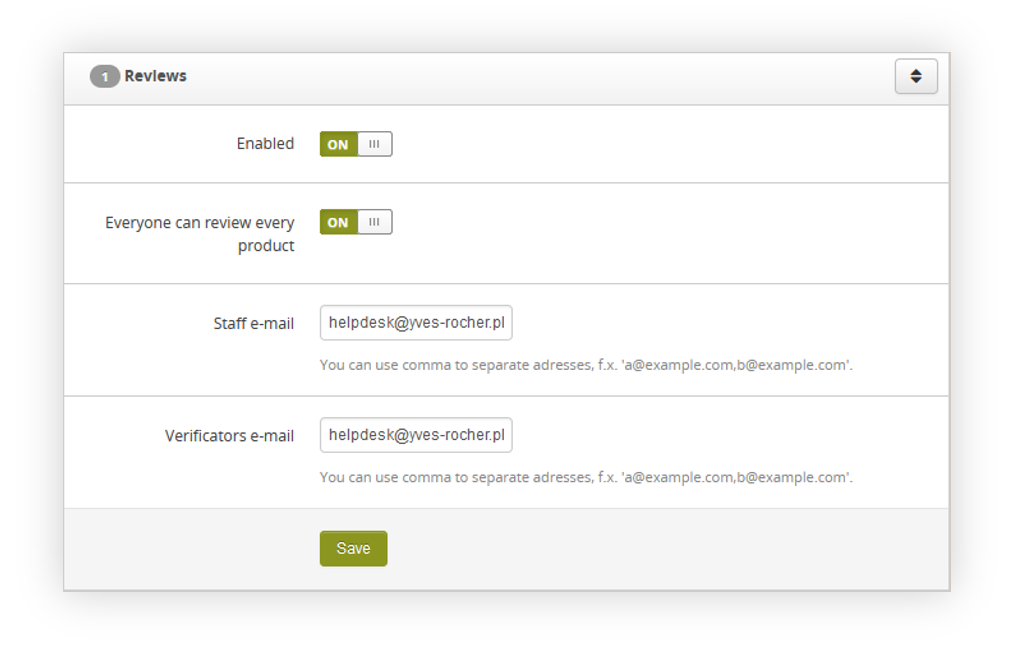
In built-in functions, you can find the main rate & review functionality options described below
 |
| Visualization of the reviews tab |
- Enabled - A switch that decides if the reviews should be enabled or disabled
-
Everyone can review every product - A switch that decides if customers should be able to review products without the need to purchase them described in Review by using the
product page. - Staff e-mail - An e-mail address separated by a comma (",") where the information e-mails with new reviews should be sent to.
- Verifications e-mail - An e-mail address separated by a comma (",") where the information e-mails with new reviews should be sent to.
System / settings > System > E-commerce > e-mails
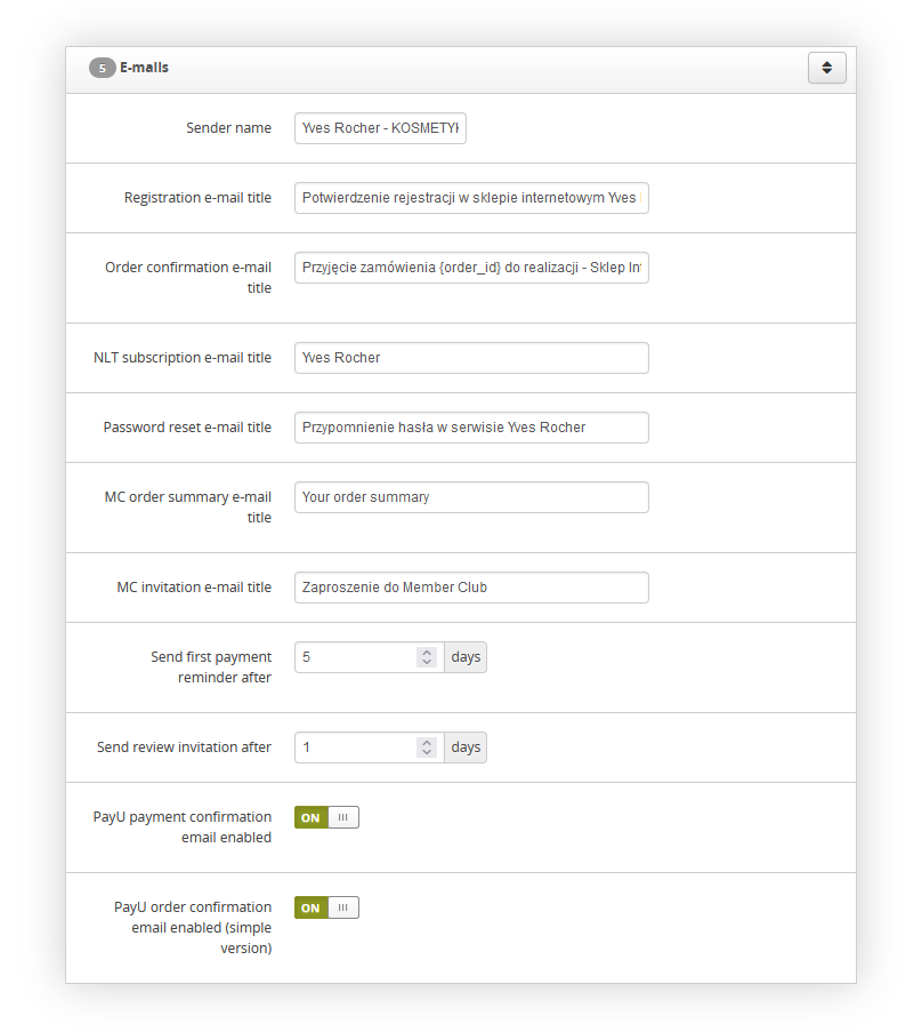
In the e-mails tab you can find two options related to Rate & Reviews functionality
 |
| Visualization of the e-mails tab |
Sender name - A name that will be visible for the customer in the "Sender" field in their mailbox.
Send review invitation after - A number of days counted from the purchase date after which customers will receive their review invitation and will be able to review their product from the customer panel.
System / settings > System > FIDEN2 > Loyalty points
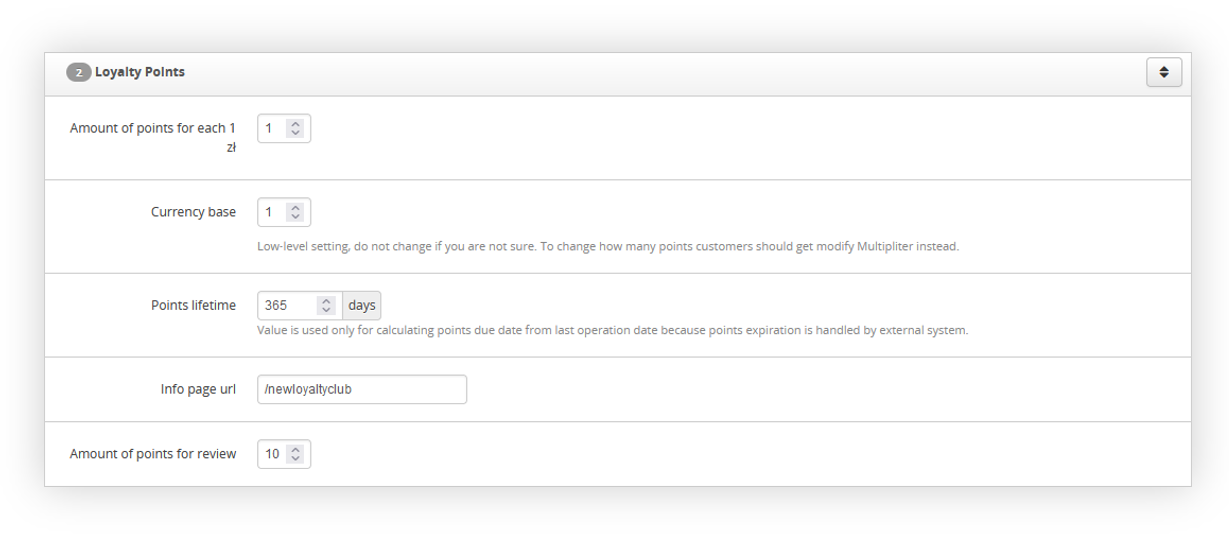
In the Loyalty points tab, you can find the option to choose how many FIDEN2 points a customer should receive per review.
 |
| Visualization of the loyalty points tab |
Amount of points for review - The amount of FIDEN2 points customers will review per review. If set to 0 customers won't receive any FIDEN2 points per review.
RememberYou can find more about FIDEN2 functionality in the FIDEN2 article.
Reviews moderation
Every placed review needs to be moderated and accepted by the Yves Rocher employee. The selected employees will receive e-mail notifications according to the settings in the
Build-in fuctions > Reviews.
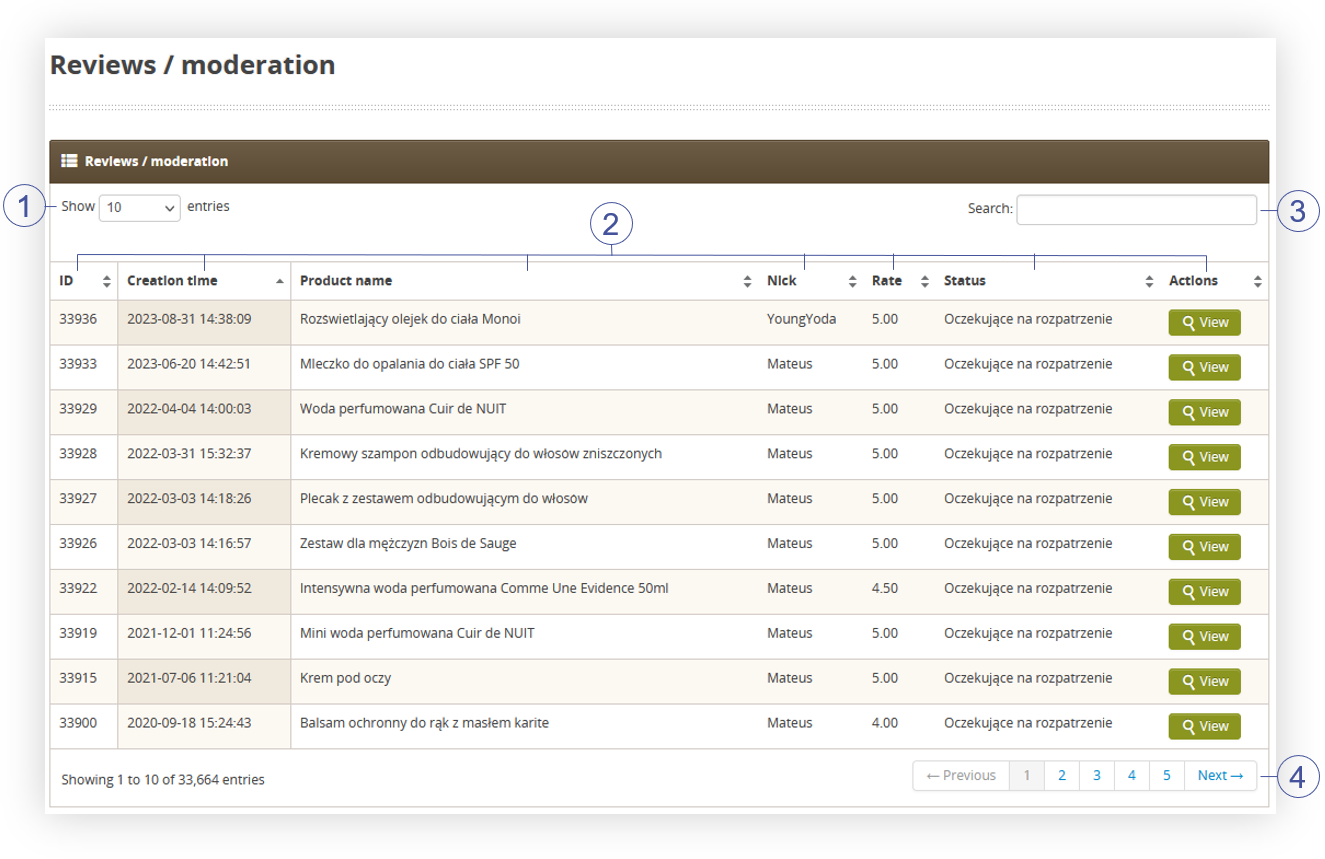
All new reviews can be located in the
Catalog > Reviews / moderation
 |
| Visualization of the reviews moderation page |
You can find a following options in reviews / moderation:
- Select the Show X entries(1) field to set the number of reviews, displayed on one page (min 10 / max 100).
- The names of the columns (2) that contain information about target reviews. Each column is susceptible to sorting.
To sort the records, click on the title of the column in question.
- ID - TauCeti internal ID of the review
- Creation time - A date and hour of the creation by the customer of the review.
- Nick – Nickname of the reviewer.
- Rate – Review rate applied by the customer.
-
Status – Status of the review. Available statuses are:
- New
- Awaiting verification
- Rejected
- Needs additional verification
- Accepted
- Actions - A view button, which will redirect to the review details described below.
-
Search box (3) where you can search for reviews by customers nickname, product or
review content. - Page buttons (4), which allows user to change the page of currently viewed reviews.
 |
| Visualization of the review details |
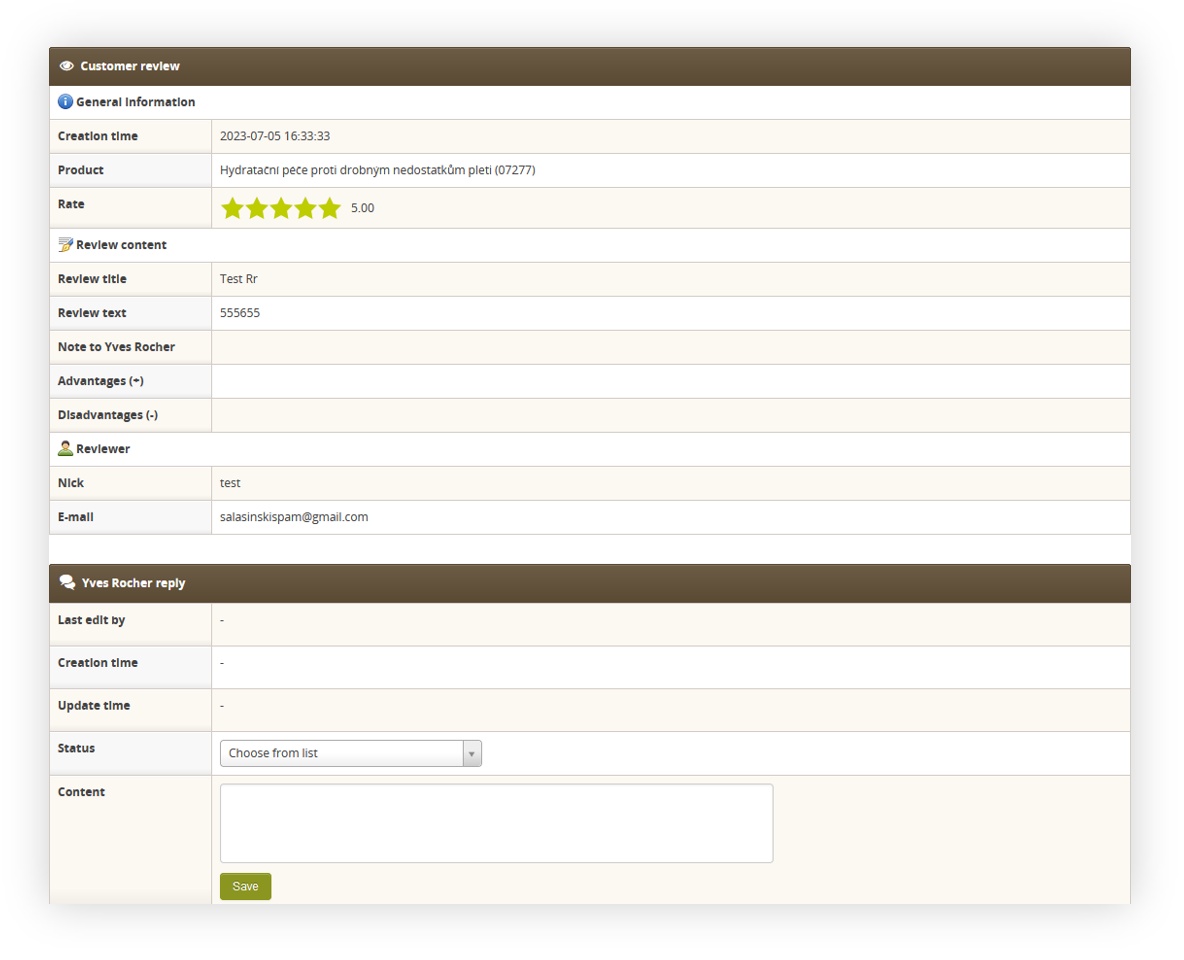
When seeing the review details you can find a more detailed view of the review as well as on this page you are able to change the status of the review as well as apply your own comment to the review.
In this section you can find the following information:
- Creation time - A date and hour of the creation by the customer of the review.
- Product - A product name and SKU to which this review is related.
- Rate – Review rate applied by the customer.
- Review title - The title of the review applied by the customer.
- Review text - The description of the review applied by the customer.
- Note to Yves Rocher - no longer supported field.
- Advantages - no longer supported field.
- Disadvantages - no longer supported field.
- Nick – Nickname of the reviewer.
- E-mail - Customer's e-mail address.
- Last edited by - An e-mail address of Yves Rocher employee who last changed this review.
- Creation time (Yves rocher reply tab) - Creation date, when this review has been initially edited by the Yves Rocher employee
- Update time - Last date that this review has been edited by the employee.
-
Status – Status of the Yves Rocher comment. Available statuses are:
- Visible - Comment will be visible on the website.
- Hidden - Comment won't be visible on the website.
- Content - Yves Rocher comment. It is visible on the e-commerce platform if the Status of the comment is set to Visible.
Reviews overview
The list of all reviews can be found in
Catalog > Reviews / list
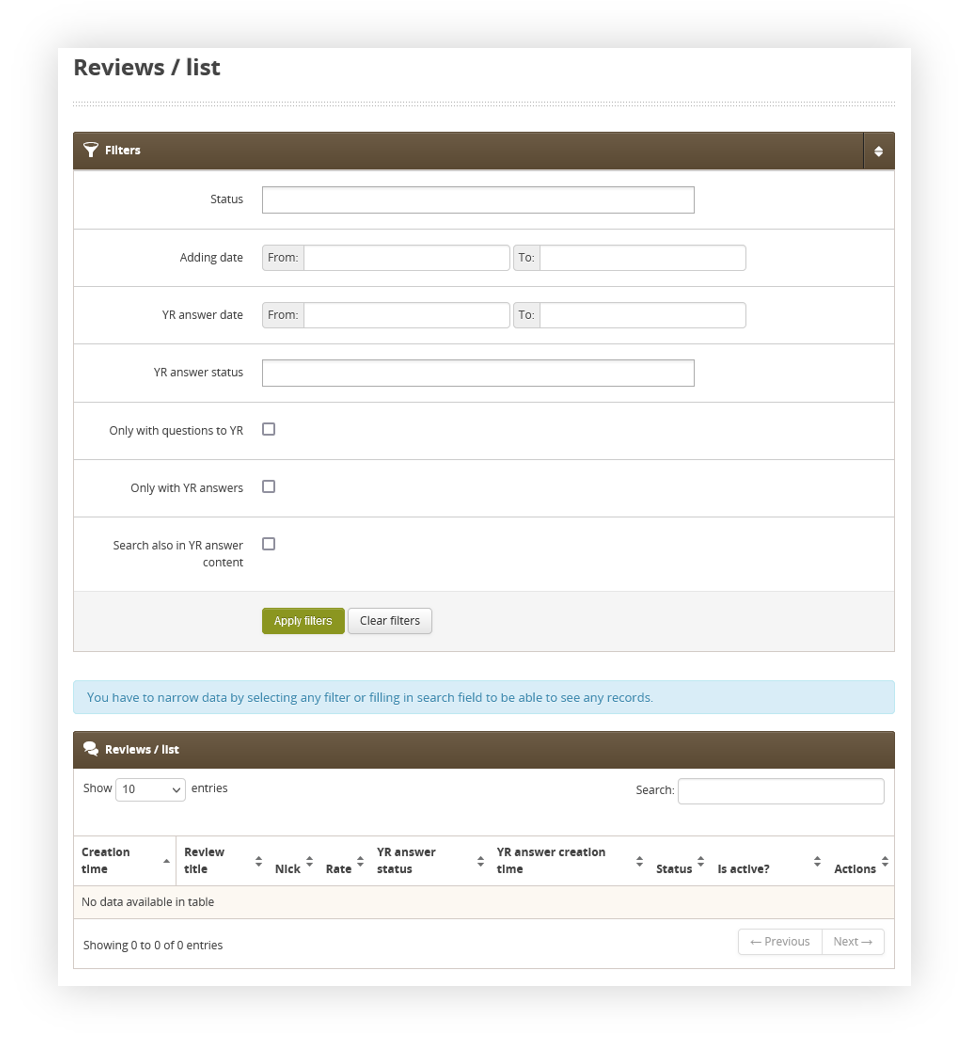
By default, the list is empty and needs to be filtered or searched for in order to see the reviews
 |
| Visualization of the |
Available filters are:
-
Status - Current status of the review. Available statuses are:
-
New - A default review status of a newly posted review.
-
Awaiting verification - no longer used status.
-
Rejected - Reviews that have been rejected by moderators.
-
Needs additional verification - No longer used status.
-
Accepted - Reviews that have been accepted by moderators
-
New - A default review status of a newly posted review.
- Adding date - A range of dates when the review was added
- YR answer date - A range of dates when the Yves Rocher employee applied a comment to the review.
-
YR answer status - status of the answer. Available statuses are:
-
Hidden - The YR comment is hidden to customers.
-
Visible - The YR Comment is visible to customers.
-
Hidden - The YR comment is hidden to customers.
- Only with questions to YR - No longer used option. doesn't do anything anymore.
- Only with YR answers - Shows only reviews that have Yves Rocher comments.
- Search also in YR answer content - allows to search the YR comment content when using the search (3) functionality.
With applied filters, the reviews that fit the criteria will be visible in the Reviews / list tab. It is possible to show them without applying any filters if there is content in the search box (3).
 |
| Visualization of the |
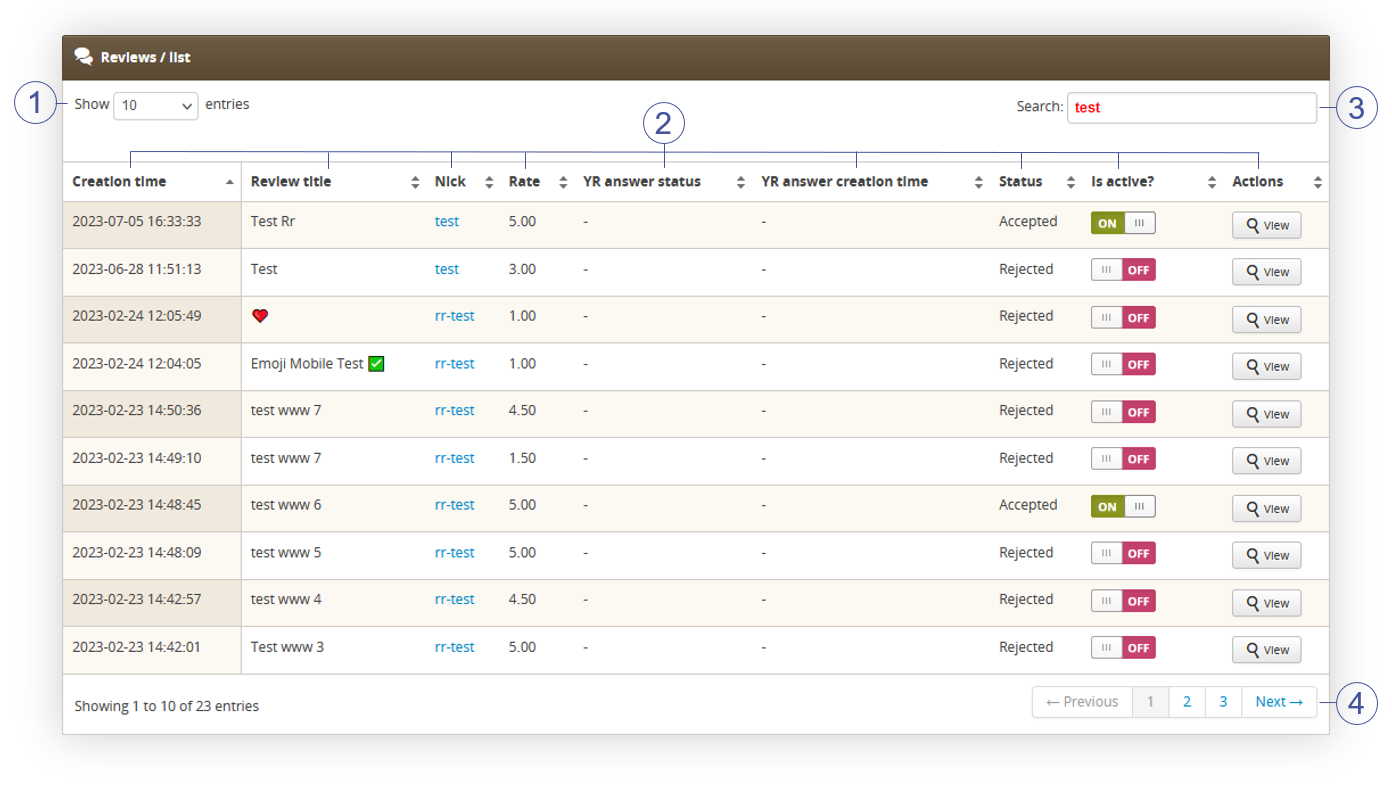
You can find the following options in reviews / list:
- Select the Show X entries(1) field to set the number of reviews, displayed on one page (min 10 / max 100).
- The names of the columns (2) that contain information about target reviews. Each column is susceptible to sorting.
To sort the records, click on the title of the column in question.
- Creation time - A date and hour of the creation by the customer of the review.
- Review title - The title of the review.
- Nick – Nickname of the reviewer.
- Rate – Review rate applied by the customer.
-
YR answer status - the status of the YR comment. Available statuses are:
- Hidden
- Visible
- YR answer creation time - a date and an hour when the YR comment was applied
-
Status – Status of the review. Available statuses are:
- New
- Awaiting verification
- Rejected
- Needs additional verification
- Accepted
- Is active? - A switch, which allows to enable or disable the review. When the review is disabled it is no longer visible on the website.
- Actions - A view button, which will redirect to the review details described below.
-
Search box (3) where you can search for reviews by customers nickname, product or
review content. - Page buttons (4), which allows user to change the page of currently viewed reviews.
|
| Visualization of the review details |
When seeing the review details you can find a more detailed view of the review as well as on this page you are able to change the status of the review as well as apply your own comment to
the review.
The status option allows you to select if the YR comment should be visible on the website. Available statuses are hidden and visible.
Moving the reviews
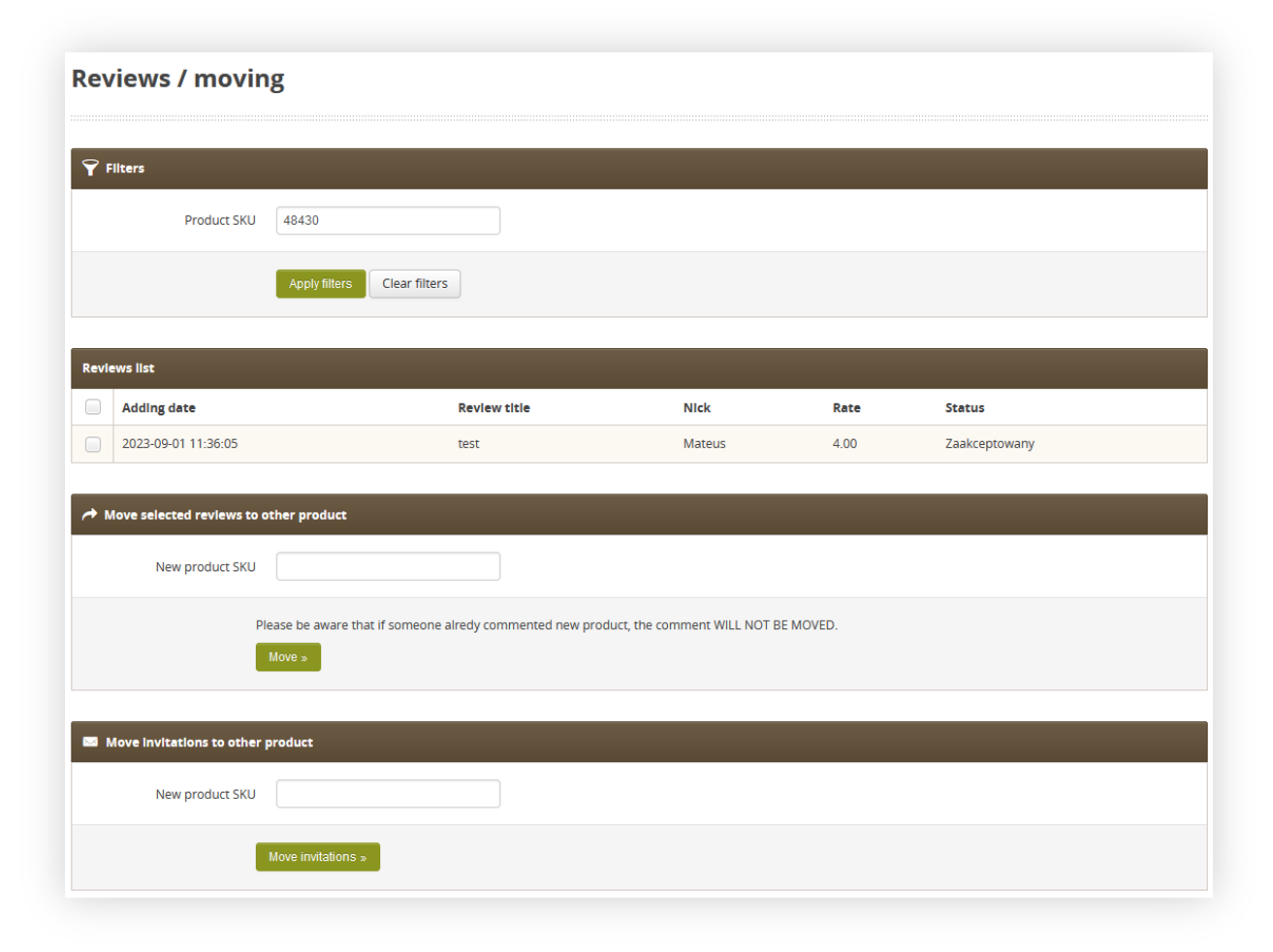
Rate & Review functionality allows you to move the existing reviews or future reviews from one product to another. Whenever a customer has placed a review on product X it will be moved to product Y. In the same way, it can be done for future reviews, so in the future, if the customer tries to post a review on product X it will be posted on product Y instead.
 |
| Visualization of the reviews moving page |
In the reviews / moving tab you can find the following options:
Filters
Only visible tab by default. In this tab, you have to specify the product SKU you want to move the reviews from. After typing the SKU and applying the filter the other tabs will be visible.
Reviews list
The list of available reviews assigned to this product. Here it is possible to select the desired reviews that should be moved to another product.
Move selected reviews to another product
In this tab, you have to specify the product SKU to which you want to move the selected reviews. After pressing the "Move" button, the selected reviews will be moved.
Move invitations to another product
In this tab, you are able to specify the SKU of the product to which all future review invitations should be sent after a review was placed on the SKU in the Filters tab.
For example, if in the Filters tab, there is SKU 123456 and in Move invitations to another product tab SKU 654321 by purchasing the product 123456 customers will receive an invite to review the 654321 product.
Rate & Review steps diagram
Rate & Review functionality has multiple steps and ways of handling, so to make it easier to follow and understand you can find below the diagram, which visualizes the functionality.
| R&R diagram |