# Synchronization

# ![Screenshot_2020-04-29_at_19.12.41.png](https://knowledge.tauceti-digital.com/uploads/images/gallery/2024-11/12773280718492.png) Getting started

With the synchronization process, you are able to merge the contents of one environment with another without the need to make manual changes. The content you want to synchronize can be set at the process configuration phase, and the process itself is automatic.

<span class="wysiwyg-color-black" style="color: #44549b;">![info2.svg](https://knowledge.tauceti-digital.com/uploads/images/gallery/2024-11/12773309061532.png) **Remember**</span><span class="wysiwyg-color-black" style="display: block; margin-top: 10px;">Synchronization is the ongoing process of synchronizing data between two environments, and updating changes automatically between them to maintain consistency within them. It is a perfect way to prepare for example campaign on TEST environment and then synchronize all the changes in tho PROD environment at once.  
</span>

<span class="wysiwyg-color-black" style="color: #d23a4e;">![caution.svg](https://knowledge.tauceti-digital.com/uploads/images/gallery/2024-11/12773280729500.png) **Note**</span><span class="wysiwyg-color-black" style="display: block; margin-top: 10px;">Synchronization process works only between PROD and TEST enviroments, and can be activated only from PROD environment. Data can only be synchronized one way at the time, for example: PROD &gt; TEST, or TEST &gt; PROD.</span><span class="wysiwyg-color-black"></span><span class="wysiwyg-color-black"></span><span class="wysiwyg-color-black"></span>

Not all data is synchronized between the environments. Below you will find data and settings that are **not** synchronized:

- System settings (except mobile app JSONs described below)
- Translations
- Promotion codes
- Campaigns
- Titles
- Users
- Payment types
- Delivery types
- SEO settings
- Orders
- Reviews
- Beauty Advisor module

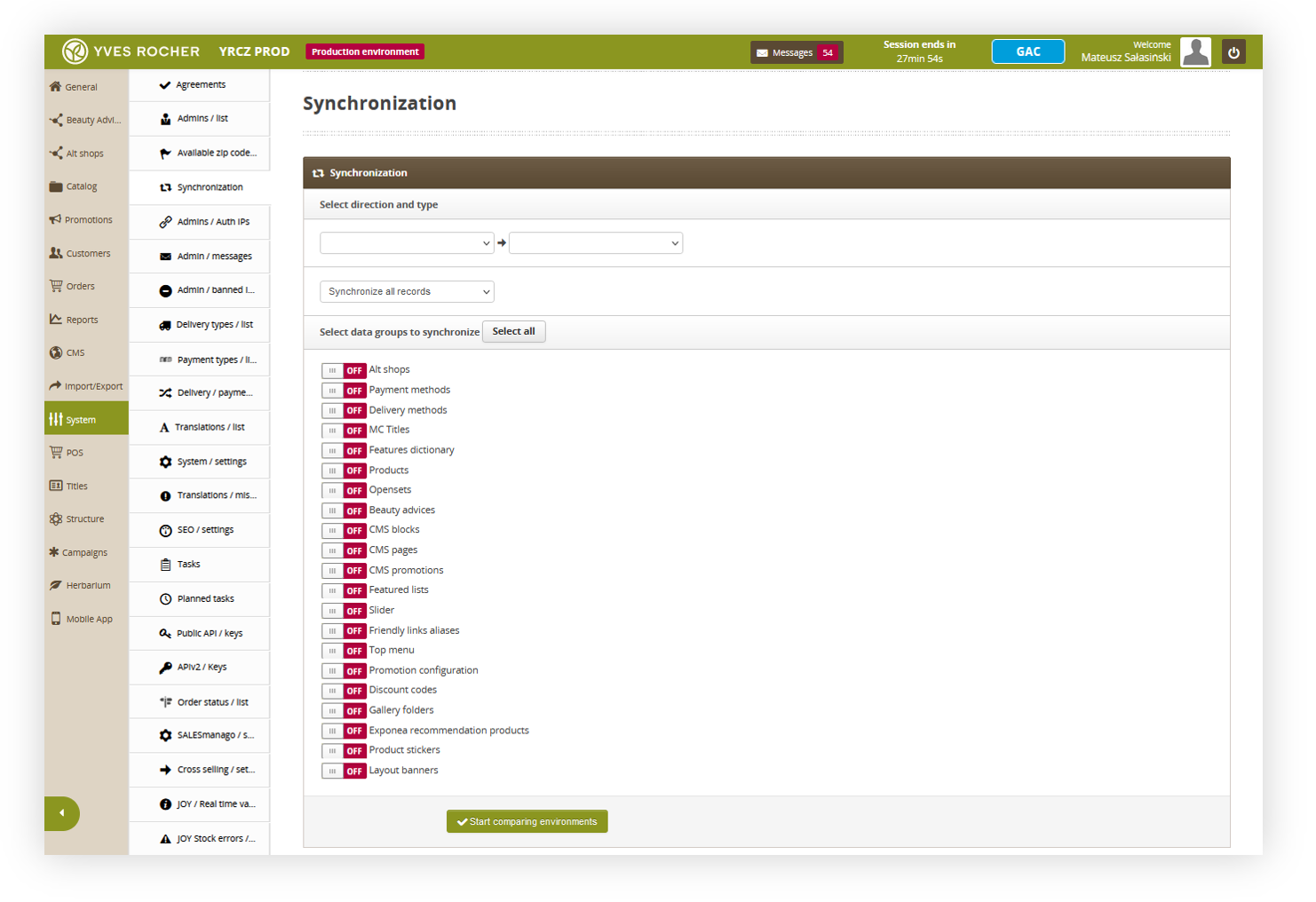
Synchronization module is located in:

***System &gt; Synchronization***

<table id="bkmrk-%C2%A0%C2%A0-visualization-of-" style="margin-right: auto; margin-left: auto; height: 44px;"><tbody><tr style="height: 500px;"><td class="wysiwyg-text-align-center" style="text-align: center; vertical-align: middle; height: 22px; width: 688px;">![POWERPNT_hF3kjAdJgd.png](https://knowledge.tauceti-digital.com/uploads/images/gallery/2024-11/5797172847388.png)</td></tr><tr style="height: 22px;"><td class="wysiwyg-text-align-center" style="text-align: center; vertical-align: middle; height: 22px; width: 688px;"><span class="wysiwyg-font-size-medium">  </span><span class="wysiwyg-font-size-medium"> *Visualization of the synchronization tab* </span></td></tr></tbody></table>

Table of contents:

1. <span>[ Description of the synchronization process](#bkmrk-description-of-the-s-1)</span>
2. [Changes review - description of the view and possible actions](#bkmrk-changes-review---des)<span></span><span></span>
3. [<span class="title">Result of a synchronization</span>](#bkmrk-result-of-a-synchron)

---

# ![Screenshot_2020-04-29_at_19.12.41.png](https://knowledge.tauceti-digital.com/uploads/images/gallery/2024-11/12773280718492.png) Description of the synchronization process

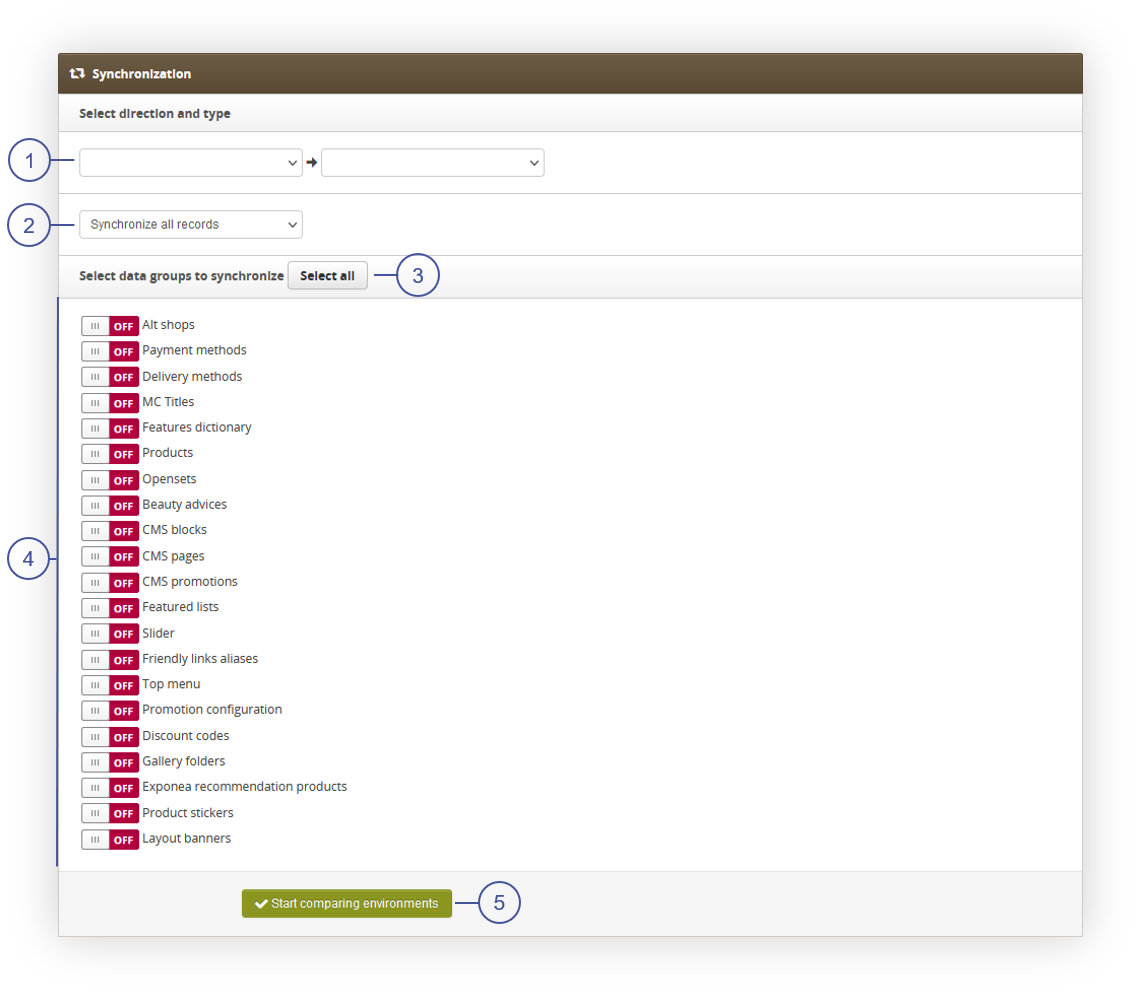
In the synchronization module, you can find many synchronization options described below

<table id="bkmrk-%C2%A0%C2%A0-visualization-of--1" style="margin-right: auto; margin-left: auto; height: 623px;"><tbody><tr style="height: 601px;"><td class="wysiwyg-text-align-center" style="text-align: center; vertical-align: middle; height: 601px; width: 688px;">![POWERPNT_fqUiqr5CQf.png](https://knowledge.tauceti-digital.com/uploads/images/gallery/2024-11/5797484408348.png)</td></tr><tr style="height: 22px;"><td class="wysiwyg-text-align-center" style="text-align: center; vertical-align: middle; height: 22px; width: 688px;"><span class="wysiwyg-font-size-medium">  </span><span class="wysiwyg-font-size-medium"> *Visualization of the synchronization tab* </span></td></tr></tbody></table>

<span>**<span style="color: #4054a0;">(1)</span>** </span>- Select the synchronization direction (PROD &lt;--&gt; TEST).

<span>**<span style="color: #4054a0;">(2)</span>** </span>- Choose whether you want to synchronize <span>**all records**</span> or <span>**only new ones**</span>.

- <span>**Synchronize all records**</span> - the application will take all records available in the database into account, including also modification of the current records in the environment from which the synchronization process is performed.
- <span>**Synchronize only new records** </span>- The application will only take newly created records into account in the environment from which the synchronization is performed.

<span class="wysiwyg-color-black" style="color: #44549b;">![info2.svg](https://knowledge.tauceti-digital.com/uploads/images/gallery/2024-11/12773309061532.png) **Example**</span><span class="wysiwyg-color-black" style="display: block; margin-top: 10px;">1. In the TEST environment, you have created a new CMS page.  
2\. On the PROD environment, you have changed the graphics in the currently existing Slider  
3\. You use the synchronize function in the TEST &gt; PROD direction  
  
**The result:**  
The application will only move a new CMS page to the production environment (point 1).  
</span>

<span class="wysiwyg-color-black" style="color: #d23a4e;">![caution.svg](https://knowledge.tauceti-digital.com/uploads/images/gallery/2024-11/12773280729500.png) **Warning**</span> <span class="wysiwyg-color-black" style="display: block; margin-top: 10px;"> <font color="#000000"> If you create a new CMS page on the TEST and PROD environments at the same time, and then synchronize the environments, there is a risk (if the status of the environments is not identical) that the synchronized pages will overwrite the currently existing pages on the environment in which the synchronization is performed because synchronization system is using the internal element IDs to fit the data together, and if the IDs are different that will result in conflict. </font> </span> <span class="wysiwyg-color-black"></span><span class="wysiwyg-color-black"></span><span class="wysiwyg-color-black"></span><span class="wysiwyg-color-black"></span>

<span>**<span style="color: #4054a0;">(3)</span>** </span>- button enabling selection of all records from section <span>**<span style="color: #4054a0;">(4)</span>**</span>

<span>**<span style="color: #4054a0;">(4)</span>** </span>- switches defining which application modules should be involved in the synchronization process. After selecting the <span>**Gallery folders** </span>switch, and specifying the synchronization process direction, you will be able to choose which folders from the gallery should take part in the synchronization process<span>. **System config** option allows to synchronize mobile app JSONs located in **System &gt; System / Settings &gt; Integrations &gt; Mobile app**.  
</span>

<span class="wysiwyg-color-black" style="color: #44549b;">![info2.svg](https://knowledge.tauceti-digital.com/uploads/images/gallery/2024-11/12773309061532.png) **Remember**</span><span class="wysiwyg-color-black" style="display: block; margin-top: 10px;">Selecting mobile app synchronization options forces to additionally synchronize **Gallery folders**, as mobile app has mandatory images. Please remember to synchronize gallery folders that are used for a mobile app graphics (in most cases it's a **mobile\_app** folder).  
</span>

<span>**<span style="color: #4054a0;">(5)</span>** </span>- button initiating the synchronization process.

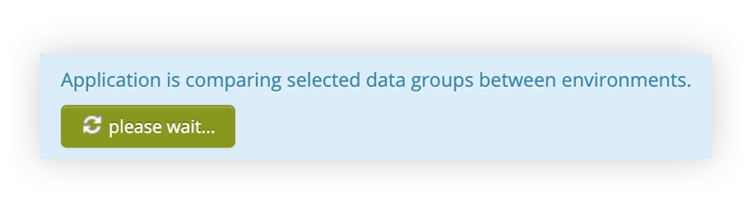
After selecting <span>**Start comparing environments**</span> <span>**<span style="color: #4054a0;">(5)</span>** </span>button, the process of environment comparison will start, and you’ll receive the following statement.

<table id="bkmrk-%C2%A0%C2%A0-visualization-of--2" style="margin-right: auto; margin-left: auto; height: 209px;"><tbody><tr style="height: 257px;"><td class="wysiwyg-text-align-center" style="text-align: center; vertical-align: middle; height: 187px; width: 688px;">![POWERPNT_459wxNa6ZG.png](https://knowledge.tauceti-digital.com/uploads/images/gallery/2024-11/5804960210844.png)</td></tr><tr style="height: 22px;"><td class="wysiwyg-text-align-center" style="text-align: center; vertical-align: middle; height: 22px; width: 688px;"><span class="wysiwyg-font-size-medium">  </span><span class="wysiwyg-font-size-medium"> *Visualization of the e-mail message* </span></td></tr></tbody></table>

---

# ![Screenshot_2020-04-29_at_19.12.41.png](https://knowledge.tauceti-digital.com/uploads/images/gallery/2024-11/12773280718492.png) <span class="title">Changes review - description of the view and possible actions  
</span>

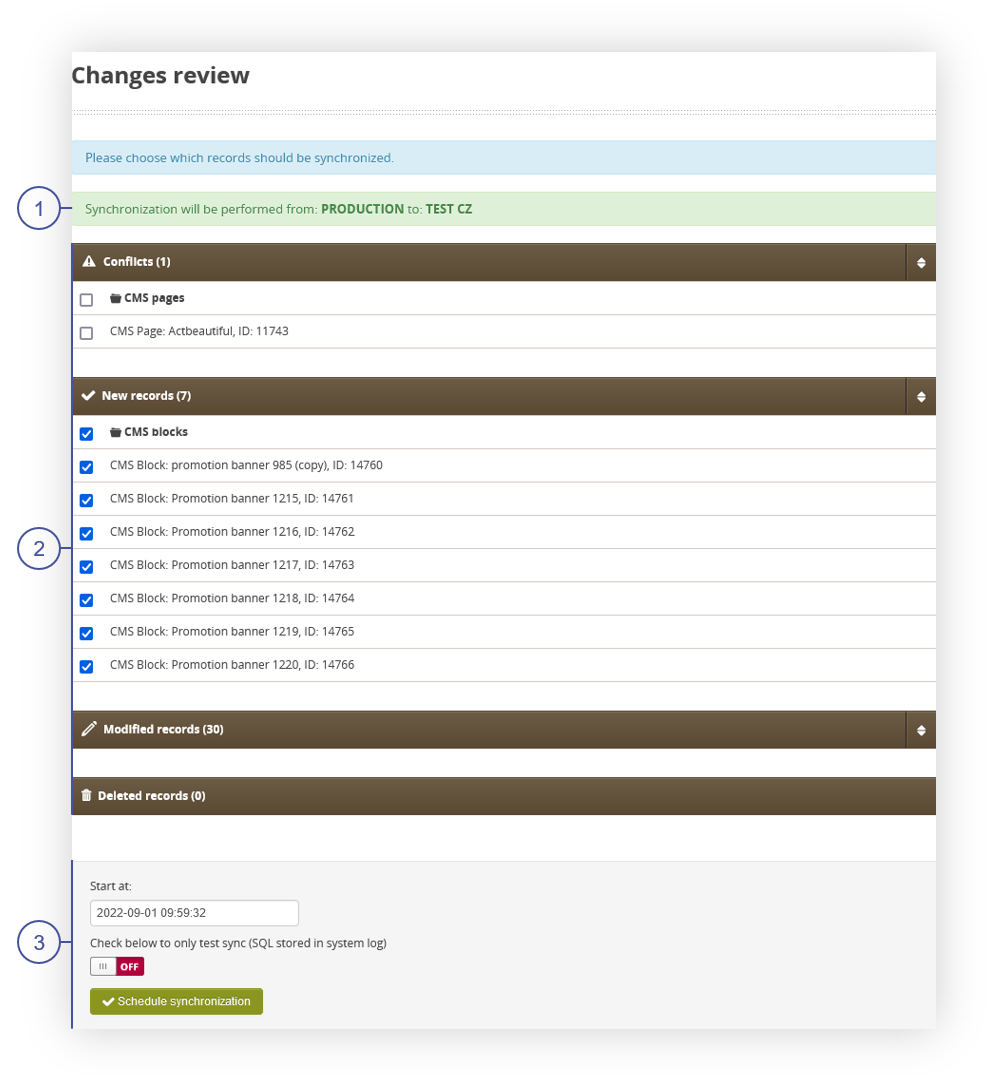
After the system compares the enviroments you will see all changes and conflicts that will occur. You can find description of all changes below

<table id="bkmrk-%C2%A0%C2%A0-visualization-of--3" style="margin-right: auto; margin-left: auto;"><tbody><tr><td class="wysiwyg-text-align-center" style="text-align: center; vertical-align: middle;">![POWERPNT_8WdiYaChys.png](https://knowledge.tauceti-digital.com/uploads/images/gallery/2024-11/5805109878044.png)</td></tr><tr><td class="wysiwyg-text-align-center" style="text-align: center; vertical-align: middle;"><span class="wysiwyg-font-size-medium">  </span><span class="wysiwyg-font-size-medium"> *Visualization of the changes review tab* </span></td></tr></tbody></table>

<span>**<span style="color: #4054a0;">(1)</span>** </span>- statement announcing in which direction the synchronization will be performed

<span>**<span style="color: #4054a0;">(2)</span>** </span>- tabs with the possibility to select the records you want to synchronize. In the above screenshot, an example of <span>**New records**</span> is attached. The selected record will be synchronized, an unmarked record will not be synchronized.

- <span>**Conflicts**</span> - list of conflicts that occurred during synchronization. Conflicts can happen when synchronized data doesn't match internal ID. In this case, the user will receive a conflict warning with an option to ignore the conflict and overwrite the data. To avoid conflicts, it is recommended to not create same content on both enviroments at the same time, as this is the most common reason of a conflict.
- <span>**New records**</span> - list of new records created on the source environment from which synchronization is performed to the target environment.
- <span>**Modified records**</span> - list of modified records on the environment from which synchronization is performed. It is a list of records that have matching ID between PROD and TEST environment, and by selecting them the synchronization will overwrite the content of the data.
- <span>**Deleted records**</span> - list of records deleted from the environment from which synchronization is performed. It is a list of records that doesn't exist on source environment, because they got deleted, but they still exist on a target enviroments. Same as with other actions, it is being compared using the IDs.

<span>**<span style="color: #4054a0;">(3)</span>** </span>- in this section you can schedule the date when the synchronization will be performed and choose the possibility of test import for a verification purposes (changes will not be saved).

<span class="wysiwyg-color-black" style="color: #d23a4e;">![caution.svg](https://knowledge.tauceti-digital.com/uploads/images/gallery/2024-11/12773280729500.png) **Warning**</span> <span class="wysiwyg-color-black" style="display: block; margin-top: 10px;"> <font color="#000000"> After scheduling a synchronization, it is advised to not make any changes to the source and target enviroments until the synchronization is finished or canceled. This may cause unexpected behavior in the synchronization process. </font> </span> <span class="wysiwyg-color-black"></span><span class="wysiwyg-color-black"></span><span class="wysiwyg-color-black"></span><span class="wysiwyg-color-black"></span>

After setting up the settings, select the <span>**Schedule synchronization**</span> button to initiate the synchronization process.

---

# ![Screenshot_2020-04-29_at_19.12.41.png](https://knowledge.tauceti-digital.com/uploads/images/gallery/2024-11/12773280718492.png) Result of a synchronization<span class="title"></span>

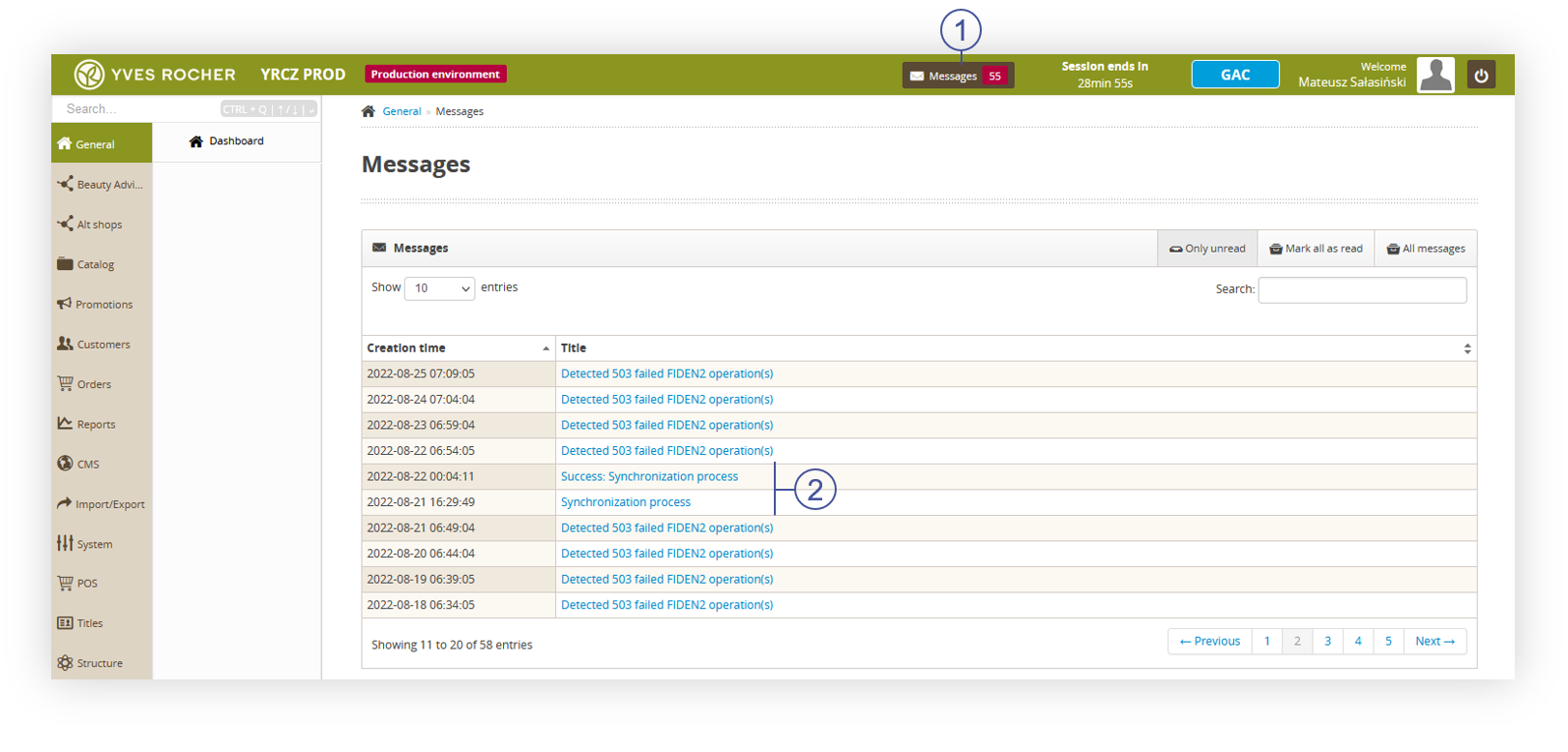
You can check the result of the synchronization by choosing the <span>**Messages** </span><span>**<span style="color: #4054a0;">(1)</span>**</span> button.

<table id="bkmrk-%C2%A0%C2%A0-visualization-of--4" style="margin-right: auto; margin-left: auto;"><tbody><tr><td class="wysiwyg-text-align-center" style="text-align: center; vertical-align: middle;">![POWERPNT_ccHVgkD8pM.png](https://knowledge.tauceti-digital.com/uploads/images/gallery/2024-11/5809778243100.png)</td></tr><tr><td class="wysiwyg-text-align-center" style="text-align: center; vertical-align: middle;"><span class="wysiwyg-font-size-medium">  </span><span class="wysiwyg-font-size-medium"> *Visualization of the messages tab* </span></td></tr></tbody></table>

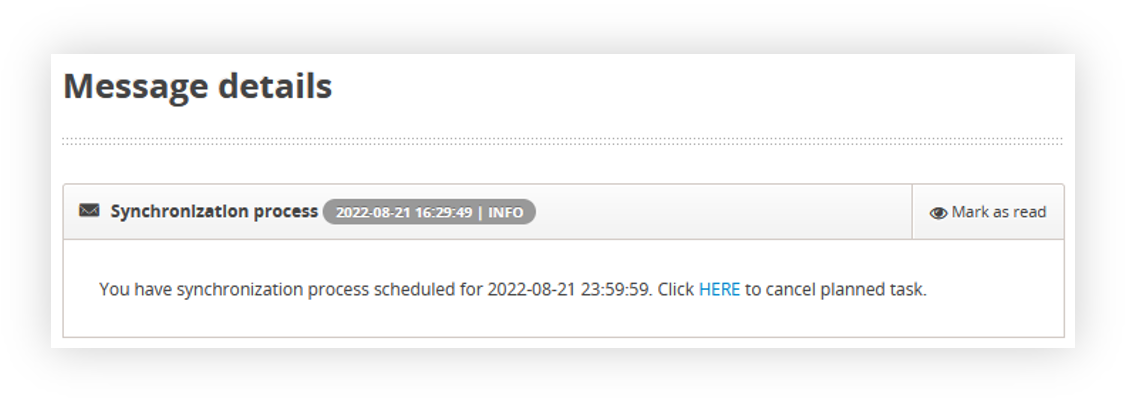
While synchronization is still in process, you will see **Synchronization process** message. When you click on the message you will see detailed information:

<table id="bkmrk-%C2%A0%C2%A0-visualization-of--5" style="margin-right: auto; margin-left: auto;"><tbody><tr><td class="wysiwyg-text-align-center" style="text-align: center; vertical-align: middle;">![POWERPNT_jjxJUNjYNh.png](https://knowledge.tauceti-digital.com/uploads/images/gallery/2024-11/5805243083676.png)</td></tr><tr><td class="wysiwyg-text-align-center" style="text-align: center; vertical-align: middle;"><span class="wysiwyg-font-size-medium">  </span><span class="wysiwyg-font-size-medium"> *Visualization of the synchronization process message tab* </span></td></tr></tbody></table>

Synchronization process message will show you at what day and hour the synchronization is scheduled, and you will be able to cancel the synchronization by pressing the **HERE** text.

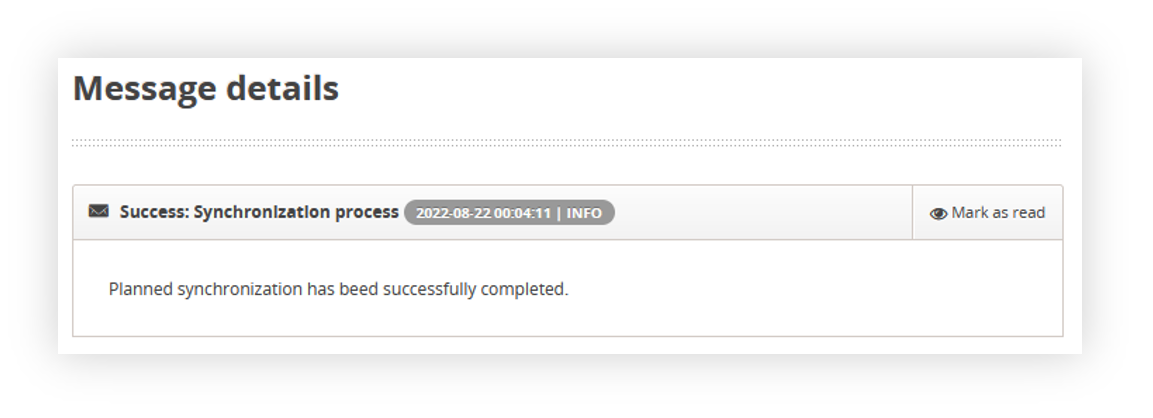
After the synchronization process is complete, you will see in the **Messages** tab a **<span class="title">Success: Synchronization process </span>**<span class="title">or</span><span class="title"> a **FAILURE: Synchronization process** </span><span class="title">message.</span>

<table id="bkmrk-%C2%A0%C2%A0-visualization-of--6" style="margin-right: auto; margin-left: auto;"><tbody><tr><td class="wysiwyg-text-align-center" style="text-align: center; vertical-align: middle;">![POWERPNT_Le75jKMXzd.png](https://knowledge.tauceti-digital.com/uploads/images/gallery/2024-11/5805286045596.png)</td></tr><tr><td class="wysiwyg-text-align-center" style="text-align: center; vertical-align: middle;"><span class="wysiwyg-font-size-medium">  </span><span class="wysiwyg-font-size-medium"> *Visualization of the success: synchronization process message tab* </span></td></tr></tbody></table>

In the **<span class="title">Success: Synchronization process</span>**<span class="title"> </span><span class="title">message you will see an information, that your synchronization was completed successful, and planned changes has been applied.</span>

<span class="title">**FAILURE: Synchronization process** message will show you an error pointing out why the synchronization was unsuccessful.</span>

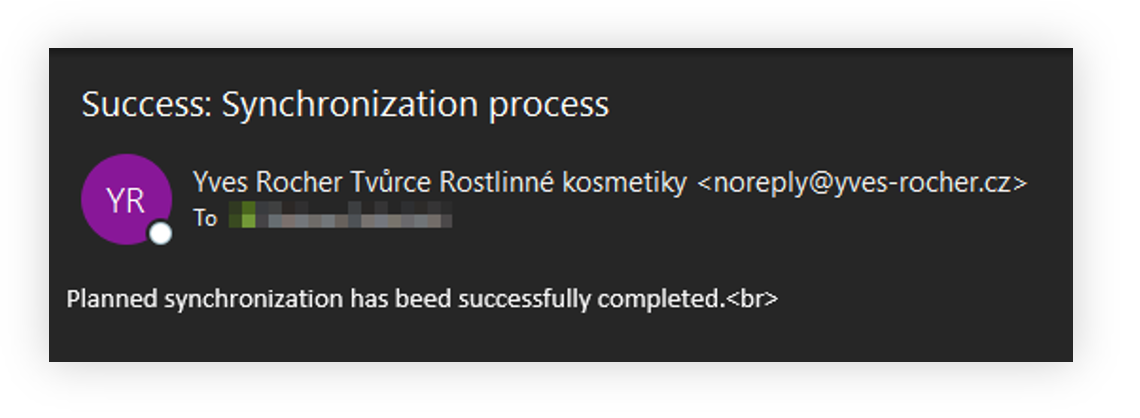
<span class="title">A user who has initiated the synchronization process will additionally receive an email message on successful synchronization.</span>

<table id="bkmrk-%C2%A0%C2%A0-visualization-of--7" style="margin-right: auto; margin-left: auto; height: 279px;"><tbody><tr style="height: 257px;"><td class="wysiwyg-text-align-center" style="text-align: center; vertical-align: middle; height: 257px; width: 688px;">![POWERPNT_3LfzqCxX9U.png](https://knowledge.tauceti-digital.com/uploads/images/gallery/2024-11/5805400805276.png)</td></tr><tr style="height: 22px;"><td class="wysiwyg-text-align-center" style="text-align: center; vertical-align: middle; height: 22px; width: 688px;"><span class="wysiwyg-font-size-medium">  </span><span class="wysiwyg-font-size-medium"> *Visualization of the e-mail message* </span></td></tr></tbody></table>