# Zendesk

# Template

# ![Screenshot_2020-04-29_at_19.12.41.png](https://knowledge.tauceti-digital.com/uploads/images/gallery/2024-11/9963328777756.png) Getting started

In this article,

<span class="wysiwyg-color-black" style="color: #44549b;">![info2.svg](https://knowledge.tauceti-digital.com/uploads/images/gallery/2024-11/9963328780572.png) **Remember**</span><span class="wysiwyg-color-black" style="display: block; margin-top: 10px;">Remember</span>

<span class="wysiwyg-color-black" style="color: #d23a4e;">![caution.svg](https://knowledge.tauceti-digital.com/uploads/images/gallery/2024-11/9963307663900.png) **Warning**</span> <span class="wysiwyg-color-black" style="display: block; margin-top: 10px;"> <font color="#000000">Warning</font> </span> <span class="wysiwyg-color-black"></span><span class="wysiwyg-color-black"></span><span class="wysiwyg-color-black"></span><span class="wysiwyg-color-black"></span>

**<span style="color: #4054a0;">(1)</span>** **<span style="color: #4054a0;">(2) (3)</span>**

Table of contents:

1. 

---

# ![Screenshot_2020-04-29_at_19.12.41.png](https://knowledge.tauceti-digital.com/uploads/images/gallery/2024-11/9963328777756.png) A

<table id="bkmrk-%C2%A0-visualization-of-t" style="margin-right: auto; margin-left: auto; height: 44px; width: auto;"><tbody><tr style="height: 22px;"><td class="wysiwyg-text-align-center" style="text-align: center; vertical-align: middle; height: 22px; width: auto;"> </td></tr><tr style="height: 22px;"><td class="wysiwyg-text-align-center" style="text-align: center; vertical-align: middle; height: 22px; width: auto;"><span class="wysiwyg-font-size-medium">*Visualization of the* </span></td></tr></tbody></table>

---

# ![Screenshot_2020-04-29_at_19.12.41.png](https://knowledge.tauceti-digital.com/uploads/images/gallery/2024-11/9963328777756.png) B

# General information

# ![Screenshot_2020-04-29_at_19.12.41.png](https://knowledge.tauceti-digital.com/uploads/images/gallery/2024-11/8jiscreenshot-2020-04-29-at-19-12-41-png.png) Getting started

Zendesk is a service that gives access to various support tools, in this case, a Knowledge base.  
Our knowledge base is a searchable directory of content and documentation regarding the Tau Ceti admin panel, its functionalities, and integrations. The Knowledge base can be accessed through the [https://tauceti.zendesk.com/hc/en-us](https://tauceti.zendesk.com/hc/en-us) link.

You can also create an account, which can be used to publicly comment on the articles and get information when they get updated by following them.

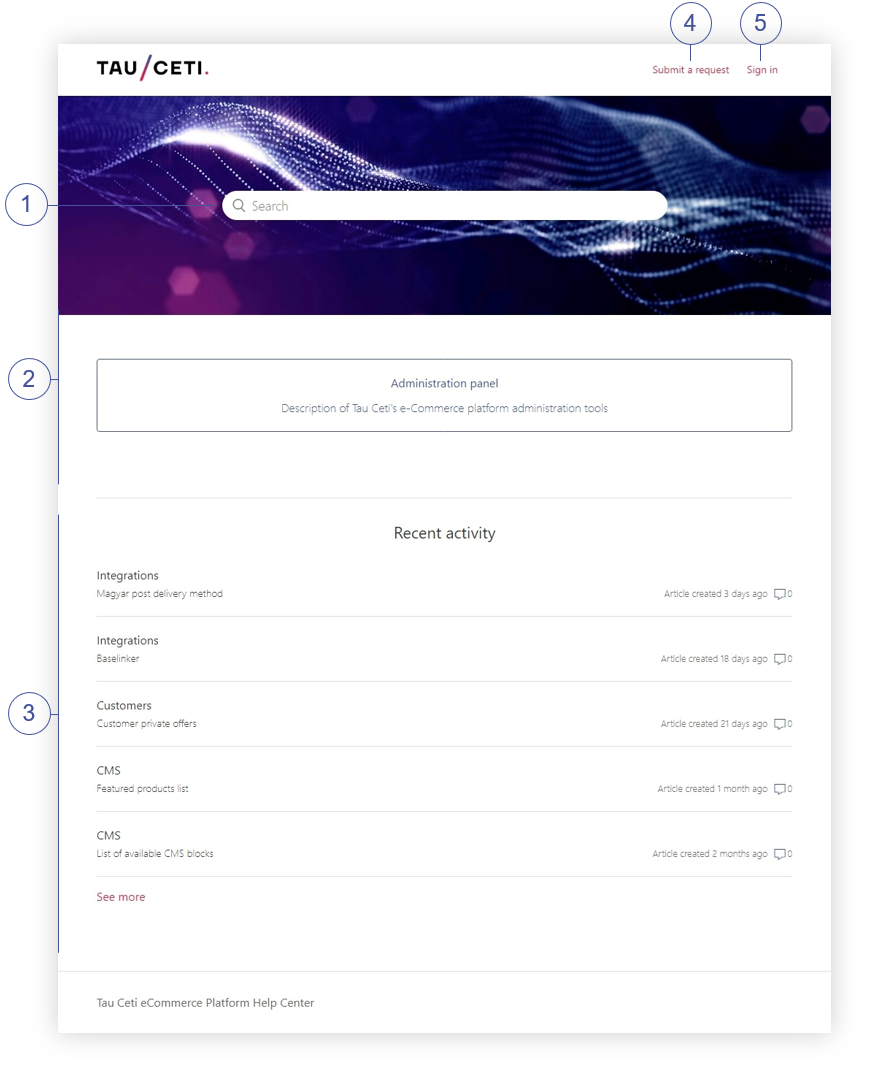
<table id="bkmrk-%C2%A0%C2%A0-visualization-of-" style="margin-right: auto; margin-left: auto; height: 44px;"><tbody><tr style="height: 500px;"><td class="wysiwyg-text-align-center" style="text-align: center; vertical-align: middle; height: 22px; width: 688px;">![POWERPNT_b54rSEwqM6.png](https://knowledge.tauceti-digital.com/uploads/images/gallery/2024-11/6537224113180.png)</td></tr><tr style="height: 22px;"><td class="wysiwyg-text-align-center" style="text-align: center; vertical-align: middle; height: 22px; width: 688px;"><span class="wysiwyg-font-size-medium">  </span><span class="wysiwyg-font-size-medium"> *Visualization of Tau Ceti Zendesk home page* </span></td></tr></tbody></table>

On the home page of the Tau Ceti Zendesk knowledge base, you can find:

<span>**<span style="color: #4054a0;">(1)</span>**</span>- Search bar, which allows you to search in our library of documentation. You can search here only by the article's name.

<span>**<span style="color: #4054a0;">(2)</span>**</span>- Categories, where the articles are located. You can find more in the [ Articles overview ](#bkmrk-articles-overview)section.

<span>**<span style="color: #4054a0;">(3)</span>**</span>- Recent activity, which shows which documentation got updated recently.

<span>**<span style="color: #4054a0;">(4)</span>**</span>- Submit a request button, which allows you to contact us in case of questions or suggestions. You can find more about this topic in the [ Contacting Tau Ceti](#bkmrk-contacting-tau-ceti) section.

<span>**<span style="color: #4054a0;">(5)</span>**</span>- Sign-in button, which allows users to create an account and sign in to it. You can find more about creating an account in the [ Creating a Zendesk account](#bkmrk-creating-a-zendesk-a) section.

Table of contents:

1. <span>[ Articles overview](#bkmrk-articles-overview)</span>
2. [ Creating a Zendesk account](#bkmrk-creating-a-zendesk-a)
3. [ Contacting Tau Ceti](#bkmrk-contacting-tau-ceti)

---

# ![Screenshot_2020-04-29_at_19.12.41.png](https://knowledge.tauceti-digital.com/uploads/images/gallery/2024-11/8jiscreenshot-2020-04-29-at-19-12-41-png.png) Articles overview

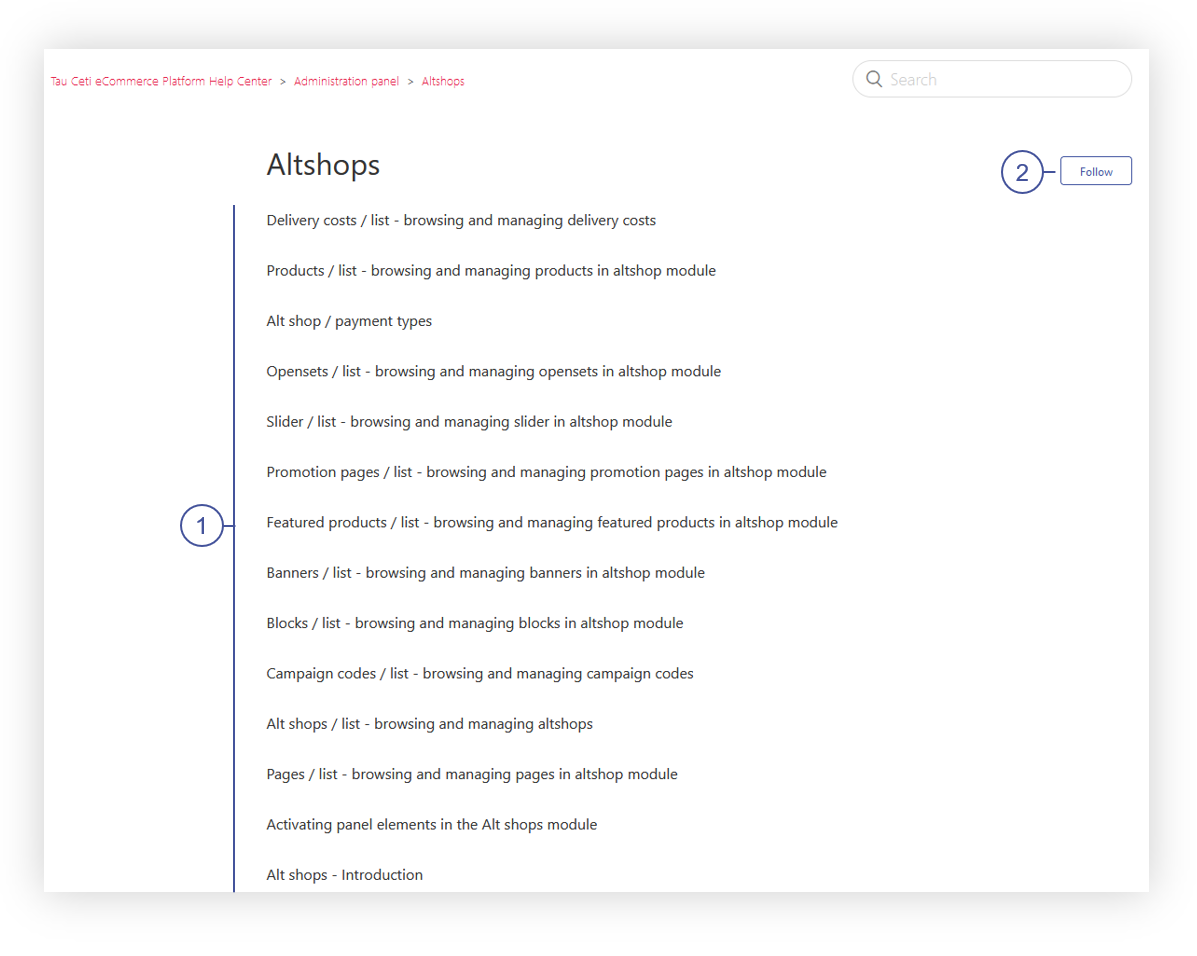
When you have selected the desired category, you will be redirected to the category page.

<table id="bkmrk-%C2%A0%C2%A0-visualization-of--1" style="margin-right: auto; margin-left: auto; height: 489px;"><tbody><tr style="height: 601px;"><td class="wysiwyg-text-align-center" style="text-align: center; vertical-align: middle; height: 467px; width: 688px;">![POWERPNT_RaHKBndLww.png](https://knowledge.tauceti-digital.com/uploads/images/gallery/2024-11/powerpnt-rahkbndlww-png.png)</td></tr><tr style="height: 22px;"><td class="wysiwyg-text-align-center" style="text-align: center; vertical-align: middle; height: 22px; width: 688px;"><span class="wysiwyg-font-size-medium">  </span><span class="wysiwyg-font-size-medium"> *Visualization of the articles located in the category* </span></td></tr></tbody></table>

On the category page, you can find all the articles assigned to this category <span>**<span style="color: #4054a0;">(1)</span>**</span>, and you can also follow the category or an article using the Follow button <span>**<span style="color: #4054a0;">(2)</span>**</span>. Following a category or an article will e-mail you an update whenever an article has been updated

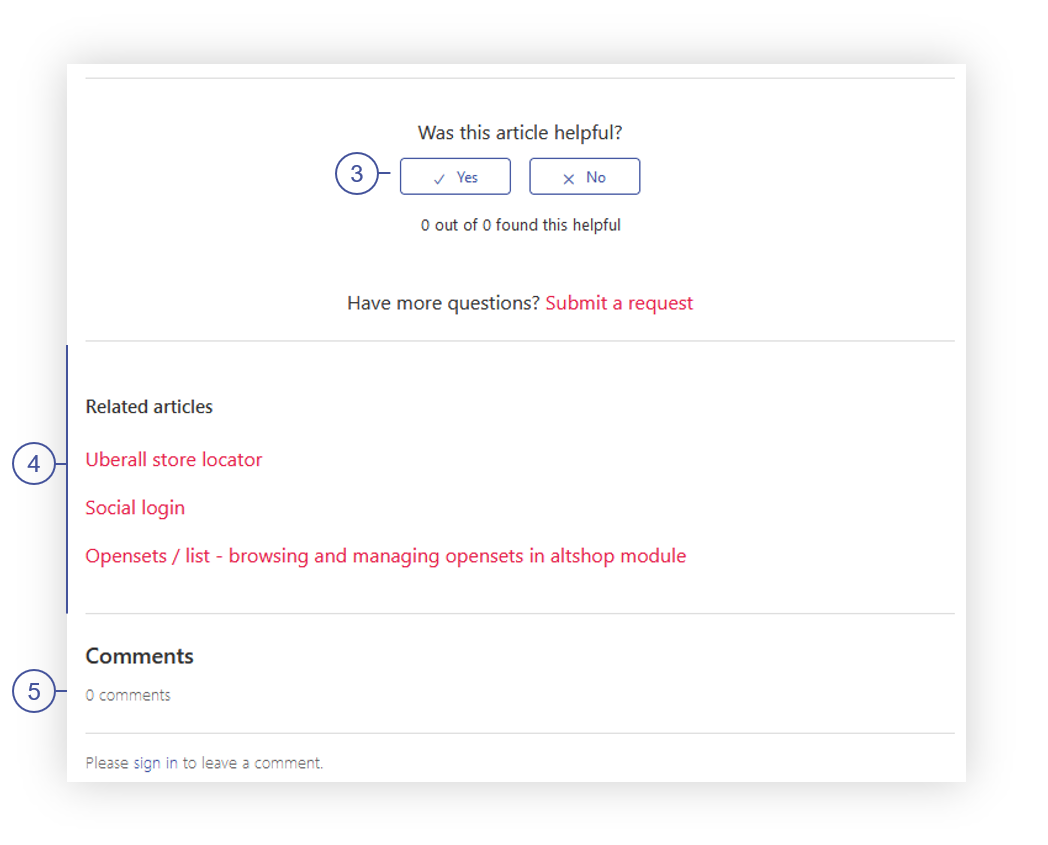
<table id="bkmrk-%C2%A0%C2%A0-visualization-of--2" style="margin-right: auto; margin-left: auto; height: 33px;"><tbody><tr style="height: 257px;"><td class="wysiwyg-text-align-center" style="text-align: center; vertical-align: middle; height: 10px; width: 688px;">![POWERPNT_Q9D6xd753C.png](https://knowledge.tauceti-digital.com/uploads/images/gallery/2024-11/powerpnt-q9d6xd753c-png.png)</td></tr><tr style="height: 22px;"><td class="wysiwyg-text-align-center" style="text-align: center; vertical-align: middle; height: 23px; width: 688px;"><span class="wysiwyg-font-size-medium">  </span><span class="wysiwyg-font-size-medium"> *Visualization of the bottom of the article* </span></td></tr></tbody></table>

In the articles at the bottom of the page users are able to vote if the article was helpful <span>**<span style="color: #4054a0;">(3)</span>**</span>, see all the related articles to the current one <span>**<span style="color: #4054a0;">(4)</span>**</span>, and see, and create public comments on the articles <span>**<span style="color: #4054a0;">(5)</span>**</span>.

---

# ![Screenshot_2020-04-29_at_19.12.41.png](https://knowledge.tauceti-digital.com/uploads/images/gallery/2024-11/8jiscreenshot-2020-04-29-at-19-12-41-png.png)<span class="title"> Creating a Zendesk account  
</span>

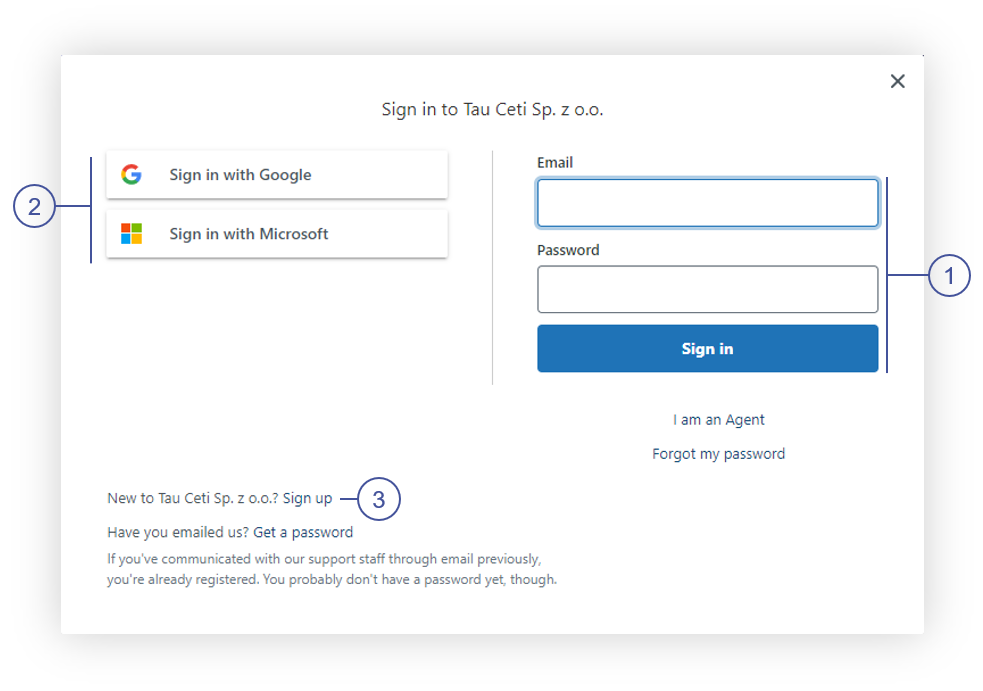
<span class="title">Users are able to create their own Zendesk account in order to follow the articles and categories, as well as to comment on the articles or just contact us. In order to create the account you have to press the **Sign in** the text at the top of the page.  
</span>

<table id="bkmrk-%C2%A0%C2%A0-visualization-of--3" style="margin-right: auto; margin-left: auto; height: 32px;"><tbody><tr style="height: 500px;"><td class="wysiwyg-text-align-center" style="text-align: center; vertical-align: middle; height: 10px; width: 688px;">![POWERPNT_S5NZSHGPQz.png](https://knowledge.tauceti-digital.com/uploads/images/gallery/2024-11/powerpnt-s5nzshgpqz-png.png)</td></tr><tr style="height: 22px;"><td class="wysiwyg-text-align-center" style="text-align: center; vertical-align: middle; height: 22px; width: 688px;"><span class="wysiwyg-font-size-medium">  </span><span class="wysiwyg-font-size-medium"> *Visualization of the sign in window* </span></td></tr></tbody></table>

In the sign in window, you can log in with your already created account <span>**<span style="color: #4054a0;">(1)</span>**</span>, sign in using Google or a Microsoft account <span>**<span style="color: #4054a0;">(2)</span>**</span>, or create a new account using the Sign up text <span>**<span style="color: #4054a0;">(3)</span>**</span>.

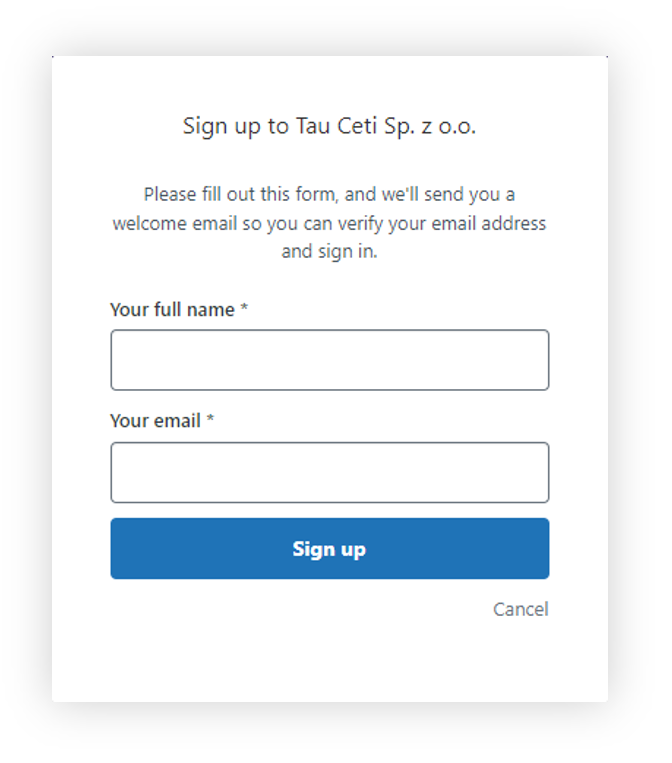
<table id="bkmrk-%C2%A0%C2%A0-visualization-of--4" style="margin-right: auto; margin-left: auto; height: 32px; width: 474px;"><tbody><tr style="height: 500px;"><td class="wysiwyg-text-align-center" style="text-align: center; vertical-align: middle; height: 10px; width: 462.167px;">![POWERPNT_xeBjUUy8y5.png](https://knowledge.tauceti-digital.com/uploads/images/gallery/2024-11/powerpnt-xebjuuy8y5-png.png)</td></tr><tr style="height: 22px;"><td class="wysiwyg-text-align-center" style="text-align: center; vertical-align: middle; height: 22px; width: 462.167px;"><span class="wysiwyg-font-size-medium">  </span><span class="wysiwyg-font-size-medium"> *Visualization of the Sign up window* </span></td></tr></tbody></table>

In the Sign up window, you have to type your full name and e-mail address.

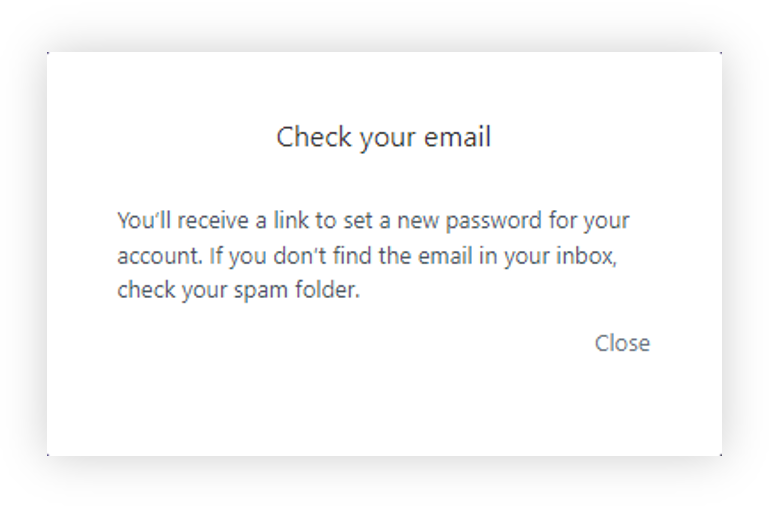
<table id="bkmrk-%C2%A0%C2%A0-visualization-of--5" style="margin-right: auto; margin-left: auto; height: 32px; width: 465px;"><tbody><tr style="height: auto;"><td class="wysiwyg-text-align-center" style="text-align: center; vertical-align: middle; height: auto; width: 453.167px;">![POWERPNT_ss5wnmb5VC.png](https://knowledge.tauceti-digital.com/uploads/images/gallery/2024-11/powerpnt-ss5wnmb5vc-png.png)</td></tr><tr style="height: 22px;"><td class="wysiwyg-text-align-center" style="text-align: center; vertical-align: middle; height: 22px; width: 453.167px;"><span class="wysiwyg-font-size-medium">  </span><span class="wysiwyg-font-size-medium"> *Visualization of the sign up information* </span></td></tr></tbody></table>

By pressing the Sign up button you will see a message, that a link with a new password has been sent to your e-mail address.

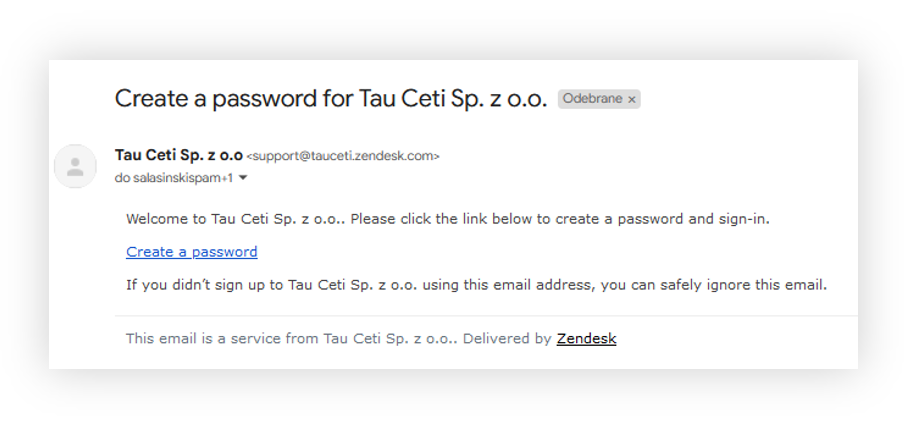
<table id="bkmrk-%C2%A0%C2%A0-visualization-of--6" style="margin-right: auto; margin-left: auto; height: 32px; width: 647px;"><tbody><tr style="height: auto;"><td class="wysiwyg-text-align-center" style="text-align: center; vertical-align: middle; height: auto; width: 635.167px;">![POWERPNT_948wFz97zZ.png](https://knowledge.tauceti-digital.com/uploads/images/gallery/2024-11/powerpnt-948wfz97zz-png.png)</td></tr><tr style="height: 22px;"><td class="wysiwyg-text-align-center" style="text-align: center; vertical-align: middle; height: 22px; width: 635.167px;"><span class="wysiwyg-font-size-medium">  </span><span class="wysiwyg-font-size-medium"> *Visualization of the e-mail message* </span></td></tr></tbody></table>

In your e-mail inbox, you will find a message from Zendesk with a link to the password creation.

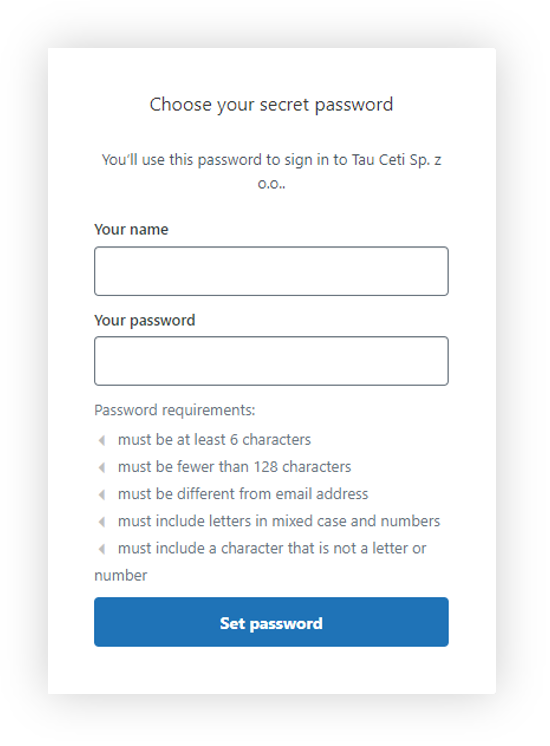
<table id="bkmrk-%C2%A0%C2%A0-visualization-of--7" style="margin-right: auto; margin-left: auto; height: 32px; width: 422px;"><tbody><tr style="height: 500px;"><td class="wysiwyg-text-align-center" style="text-align: center; vertical-align: middle; height: 10px; width: 410.167px;">![POWERPNT_DUvT5wjb5J.png](https://knowledge.tauceti-digital.com/uploads/images/gallery/2024-11/powerpnt-duvt5wjb5j-png.png)</td></tr><tr style="height: 22px;"><td class="wysiwyg-text-align-center" style="text-align: center; vertical-align: middle; height: 22px; width: 410.167px;"><span class="wysiwyg-font-size-medium">  </span><span class="wysiwyg-font-size-medium"> *Visualization of the password set up window* </span></td></tr></tbody></table>

In the password creation window, you have to type your password that is at least 6 characters long, different from your email address and include letters in mixed case, numbers, and a special character.

---

# ![Screenshot_2020-04-29_at_19.12.41.png](https://knowledge.tauceti-digital.com/uploads/images/gallery/2024-11/8jiscreenshot-2020-04-29-at-19-12-41-png.png)<span class="title"> Contacting Tau Ceti  
</span>

<span class="title">If you have any questions or suggestions regarding the articles you can contact us via the e-mail address [helpdesk@tauceti.email,](mailto:helpdesk@tauceti.email,) or by using **Submit a request** function on a Zendesk platform.</span>

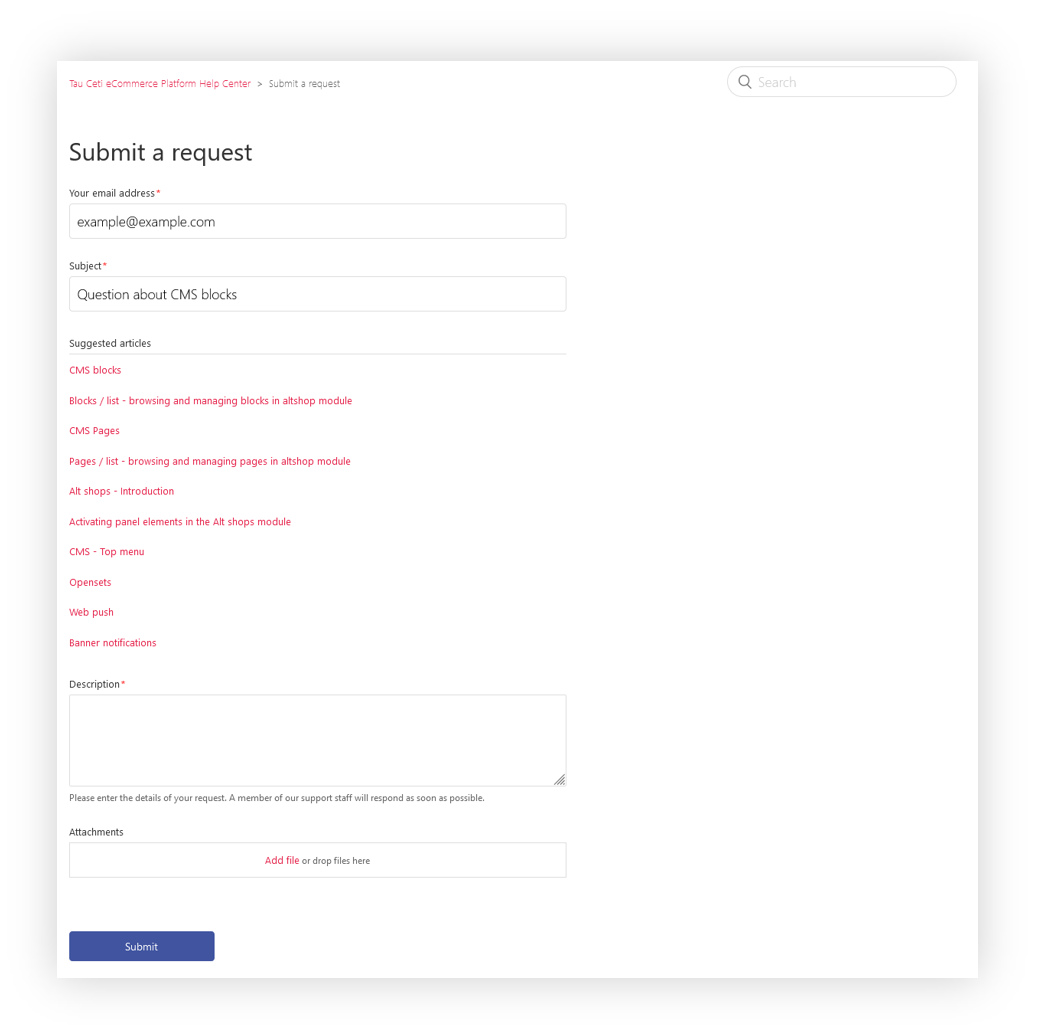
<table id="bkmrk-%C2%A0%C2%A0-visualization-of--8" style="margin-right: auto; margin-left: auto; height: 32px;"><tbody><tr style="height: 500px;"><td class="wysiwyg-text-align-center" style="text-align: center; vertical-align: middle; height: 10px; width: 688px;">![POWERPNT_b65SfB3JuH.png](https://knowledge.tauceti-digital.com/uploads/images/gallery/2024-11/powerpnt-b65sfb3juh-png.png)</td></tr><tr style="height: 22px;"><td class="wysiwyg-text-align-center" style="text-align: center; vertical-align: middle; height: 22px; width: 688px;"><span class="wysiwyg-font-size-medium">  </span><span class="wysiwyg-font-size-medium"> *Visualization of the Zendesk contact form* </span></td></tr></tbody></table>

On the Zendesk contact form, you have to type your email address, a subject, and a description of the message. You are also able to attach the attachments with your request.

When typing the subject of the message, the Zendesk platform will suggest possible articles, that might help with your problem or question.